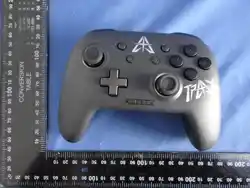
Xbox wireless controller
Game Controller
Change Grip/Order
search
Matching Method
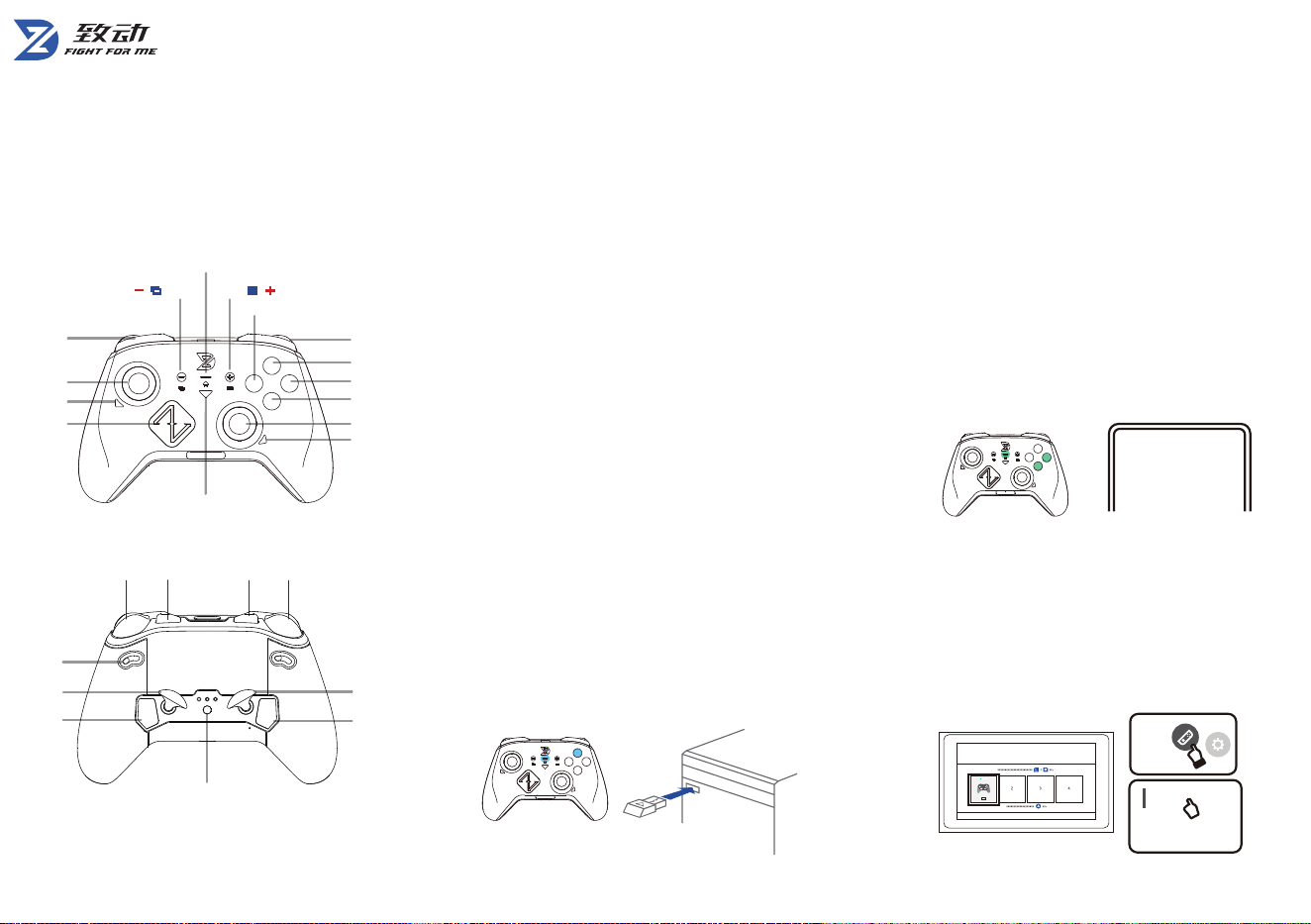
- Plug receiver in.
- Hold Y + HOME: LED flashes blue.
If it won’t connect, try re-pairing:
Plug in the receiver, blue light flashes.
Press the ▽ button, light flashes faster.
Hold Y + Home to turn on the controller
(blue light flashes).
Hold the back pairing button
(blue/yellow light flashes).
Wait for solid blue — pairing complete.
Wireless Receiver:
- Hold A/B + HOME: LED flashes green.
- Hold Pairing Button: LED flashes green/yellow.
- Connect to 'xbox wireless controler' via
Bluetooth page, light turns solid green.
- Reconnect via A/B + HOME
Bluetooth (Win10/11, Android, iOS):
Controller Manual
ZD-ULTIMATE LEGEND
Power
Power On: Hold HOME for 1s. Auto reconnects to
last device on startup.
Power Off: Hold HOME for ~3s.
Switch Connection
App Configuration
1. Grant full permissions (Bluetooth, Location)
2. Power on controller and connect it to the device first
3. Open app - connects automatically (no pairing needed)
-
Turn on the Switch, and sequentially navigate
to the[Controllers - Change Grip/Order]
interface.
- Hold X + HOME: LED flashes red.
- Hold Pairing Button: LED flashes red/yellow.
- Reconnect via X + HOME
- Wait for solid red — pairing complete.
Blue marks indicate common buttons,
red marks are for Switch buttons.
M2
RM
Pair Button
LKRKRTZR LT ZL
M1
LM
Trigger
Lock
MODE
X Y
(Indicator / home, Power on)
START
BACK
RB
Y
B
A
R
X
A
B
R(S)
M4
D-Pad
L(S)
LBL
M3
E-Sport Mode activates via wired connection or
adapter, enabling keyboard key mapping to
controller buttons.
Toggle: Hold Mode + Start buttons for 2 seconds.
Note: Update firmware if E-Sport Mode malfunctions.
E-Sport Mode
(Keyboard Mapping Enabled)
Wired: Connect to PC by USB cable, LED turns blue.
Connection Modes
in a residential installation.This equipment generates uses and
can radiate radio frequency energy and,if not installed and used
in accordance with the instructions,may cause harmful
interference to radio communications. However,there is no
guarantee that interference will not occur in a particular
installation.If this equipment does cause harmful interference
to radio or television reception, which can be determined by
turning the equipment off and on,the user is encouraged
to try to correct the interference by one or more of the following
measures:
--Reorient or relocate the receiving antenna.
--Increase the separation between the equipment and receiver.
--Connect the equipment into an outlet on a circuit different from
that to which the receiver is connected.
--Consult the dealer or an experienced radio/TV technician for
help. This device complies with part 15 of the FCC Rules.
Operation is subject to the following two conditions:
(1)This device may not cause harmful interference,and
(2)this device must accept any interference received,
Including interference that may cause undesired operation.
This device has been evaluated to meet general RF exposure
requirement.The device can be used in portable exposure
Name:ZD Ultimate Legend Controller
Model: ZD-U28
Operating current:<1 50mA
Compatible protocol:Bluetooth 4.0/5.0 USB2.0/3.0
Operating temperature:-10°C~+60°C
Weight :302±10g
Frequency range: 2402Mhz~2480Mhz
Transmitting range: <1dBM
Manufacturer: Dongguan Zhidong Electronic Technology
Website: www.zd2015.com
Specifications may be changed without further notice.
MADE IN CHINA
condition without restriction.
Wired:
- Settings > Controller/Sensor > Enable
Wired Pro Controller
- Use USB cable (via dock)
- LED solid blue
Start + D-UP = Profile 1 (Red)
Start + D-LEFT = Profile 2 (Yellow)
Start + D-DOWN = Profile 3 (Blue)
Start + D-RIGHT = Profile 4 (Green)
Onboard Profiles
Reset: Press Back + Mode for 2s > Vibration
confirms.
Reset
Joystick Calibration
- Hold A + D-UP + MODE, indicator flashes
- Spin sticks 3x
- Press MODE to complete
Changes or modifications not expressly approved by the party
responsible for compliance could void the user's authority to
operate the equipment. This equipment has been tested and
found to comply with the limits for a Class B digital device ,
pursuant to Part 15 of the FCC Rules.These limits are designed
to provide reasonable protection against harmful interference
Physical switches adjust between linear and
short-press trigger response.
Trigger Locks
Hold MODE + A/B/X/Y/LB/RB/LT/RT、D-Pad->
Vibration confirms.
Cycle:
- Off
- Manual Turbo (while held)
- Auto Turbo (toggle on/off)
Not saved after power off.
Turbo
Quick Map:
- Hold MODE + M1/M2/LM/RM/LK/RK 2s -> Flash
- Press desired button -> Press MODE to confirm
Clear:
- Same steps, but press MODE again during flash
Up to 32-step macros supported in App.
Back Button Mapping
In Switch mode:
M4 is the default screenshot button. Press to
take a screenshot on Switch,long press to save
the last 30 seconds of gameplay.
Sleep
Auto Sleep: 15 minutes idle.
Shutdown: Hold HOME for 5s.
Gyroscope:
- Hold B + D-UP + MODE, indicator flashes
- Place flat for 3s
- Press MODE to complete
FCC WARNING
INDICATOR LIGHT /
HOME BUTTON GUIDE
Power On
Power Off
Low Battery
Indicator Colors
Sleep Mode
Long press Home for 5 seconds (unplug for wired mode)
Red light flashes below 20%
Short press Home (hold with A/B/X/Y for mode selection)
When it is on, Blue: Receiber/Wired, Red: Switch
Green : Bluetooth
Auto sleep after 15 mins of inactivity (Bluetooth/Receiver mode)
Trigger Calibration
- Hold X+ D-UP + MODE, indicator flashes
- tap triggers 3x each
- Press MODE to complete