User Manual
· Number of keys: 79 keys
· Keyboard switch type: Mechanical switch
· Bluetooth version: V5.0
· Bluetooth name: K1 PRO
· Wireless distance: >10 meters
· Battery capacity: 8000mAh
· Battery life:
● Approximately 33 hours (default lighting effect)
● Approximately 666 hours (with all lights off)
· Input : DC 5V~1200mA
· Charging time: About 10 hours
· Interface type: Type-C
· Product dimensions: 415*187.6*57.6mm
· Product weight: 1.18KG
· System Support: Windows XP and above / Mac
· USB Receiver
2.4G Connection: Toggle the switch on the left to 2.4G mode, ~ key's cyan light will flash slowly. Then, press FN+~ for 3
seconds until the cyan light flashes quickly to enter pairing mode. At this point, insert the receiver to complete the pairing.
The`~ key's cyan light will stay on for 2 seconds, indicating a successful 2.4G connection. (Note: When connecting via 2.4G,
search first before inserting the receiver). The factory default is pre-paired, so you can automatically connect by inserting
the USB receiver into the computer's USB port.
Bluetooth Connection: Toggle the left switch to Bluetooth mode BT3.0/BLE5.0 (Device name: K1_3.0/K1_5.0)
Depending on the Bluetooth version of the terminal device, it will broadcast randomly, and up to 3 devices can be
connected:
Wired Connection: Toggle the left switch to wired mode, the white light on the "4"key stays on for 3 seconds.
· Fn + Left WIN = Lock/Unlock the left WIN key (when WIN is locked, the WIN indicator stays on; not locked in
Android/MAC/IOS systems).
· When switched to Mac system, the positions of left WIN/left ALT are swapped (WIN not locked). When switched to
Mac/IOS systems, key positions are swapped(WIN not locked) as shown in:
Specifications
Connection Methods
Caps Lock Indicator
(Lowercase - Flowing RGB,
Uppercase - Constant White Light)
Operating System Mode Switching
04
WIN LEFT WIN LEFT ALT RIGHT ALT
Mac LEFT Option LEFT Command RIGHT Command
Hotkey Instructions
(Make sure the left switch is set to the corresponding mode FN+`~/1/2/3 to enable pairing)
Fn+ ESC ·~ 1! 2@ 3@ \| TAB ↑
Combination
Functions
Restore
Factory
Settings
2.4G
Pairing
Bluetooth
Device 1#
Bluetooth
Device 2#
Bluetooth
Device 3#
Switch Key
Backlight
Effects
Switch Key
Backlight
Color
Increase Key
Backlight
Brightness
Fn+ ↓ ← → WIN-L DEL PGUP PGDN U
Fn+ I O B
Windows operating system
Key F1 F2 F3 F4 F5 F6 F7 F8 F9 F10 F11 F12
Mac System
(F Key Single Function and FN Combination Function)
(single key press function of the F key and FN key combination function with the F key)
Single
Press
Fn
Combination
F1 F2 F3 F4 F5 F6 F7 F8 F9 F10 F11 F12
Home
Email
Switch
Window
Open
File
Explorer
Decrease
Brightness
Increase
Brightness
Previous
Track
Play/
Pause
Next
Track
Mute
Volume
Down
Volume
Up
Key F1 F2 F3 F4 F5 F6 F7 F8 F9 F10 F11 F12
Single
Press
Fn
Combination
Decrease
Screen
brightness
Switch
window
Return to
desktop
Decrease
Brightness
Increase
Brightness
Previous
Track
Play/
Pause
Next
Track
Mute
Volume
Down
Volume
Up
Increase
Screen
brightness
F1 F2 F3 F4 F5 F6 F7 F8 F9 F10 F11 F12
05
Lighting Effects
Key Backlight Effects
06
· Fn + "|" key combination = Switch between 13 types of RGB backlight effects: Wave (default effect after reset), Shadow Follow,
Sine Wave, Spinning Windmill, Colorful Waterfall, Prosperous Bloom, Gaming Mode, Off Constant Light Mode, Dream Rainbow,
Instant Trigger, Key Ripple, Starry Sky.
Functions
0201 03
XXX-XXXXXX
XXXXX-XX
XXXXX XXXXXX
XXXXXXXXXXX
XXXX
Manufacturer: ZhuoYe ChuangYi Co. Ltd
Address: Room 602-1 Building 6 Shenzhen Bay
Eco-Tech Park, Nanshan District,
Shenzhen City, Guangdong Province, China
v1.0
+
+
+
The blue indicator flashes quickly when broadcasting, reconnects slowly, and stays on
for 3 seconds when connected
= Bluetooth 1:
= Bluetooth 2:
= Bluetooth 3:
The blue indicator flashes quickly when broadcasting, reconnects slowly, and stays on
for 3 seconds when connected
The blue indicator flashes quickly when broadcasting, reconnects slowly, and stays on
for 3 seconds when connected
+
= Increase Brightness
+
= Decrease Brightness
+
= Decrease Speed
+
= Increase Speed
+
= Switch Backlight Color
Combination
Functions
Combination
Functions
Decrease Key
Backlight
Brightness
Decrease Key
Backlight
Speed
Increase Key
Backlight
Speed
WIN System
Lock WIN
and APP
Insert HOME END Print Screen
Scroll Lock Pause Battery Indicator
Multi-media knob
Turn up for volume +
Press in the middle to mute
Turn down for volume -
Three-sided ambientlighting on the sides
· Press and hold Fn + B to check. 1~0 indicates batterylevel: all green when fully charged, green lights gradually decrease as battery
is consumed, if battery <30% 1-3 ights turn red, if battery ≥30% 1-0 lights remain green.Release to restore the light effect.
· When battery is low, the FN key flashes red. During charging, the FN key lights up red continuously,and turns off when fully charged.
· Battery status can be displayed on the computer when connected via Bluetooth
Battery Display
07
· Press and hold Fn + Esc for three seconds to restore defaults. Previously connected Bluetooth devices will remain saved.
Factory Reset
· To download the driver, please visit gravastar.com to get the download link.
You can define your preferred key functions, combination functions, backlight effects, etc., through the driver software.
Software Download
Ambient Light Effects
Key Backlight Effects
· Fn + Right Shift = Switch Side Ambient Light Mode. Monochrome steady light (default lighting effect), monochrome breathing, running
light, colorful stream, and rainbow color change. These are the 5 lighting effects available. Among these, monochrome breathing,
monochrome steady light, and running light can switch colors, including white, red, green, blue, yellow, purple, and cyan.
+
= Switch Ambient Light Color
+
= Cycle through Ambient Light Brightness
/? ,<
+
= Cycle through Ambient Light Speed
.>
Keyboard x 1 / 2.4G Receive x 1 / USB-A to USB-C Cable x 1
User Manual x 1 / Switch Puller x 1
What's in the Package
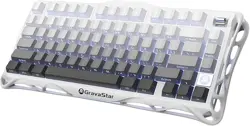
MERCURY K1 PRO
75% Wireless Mechanical Gaming Keyboard
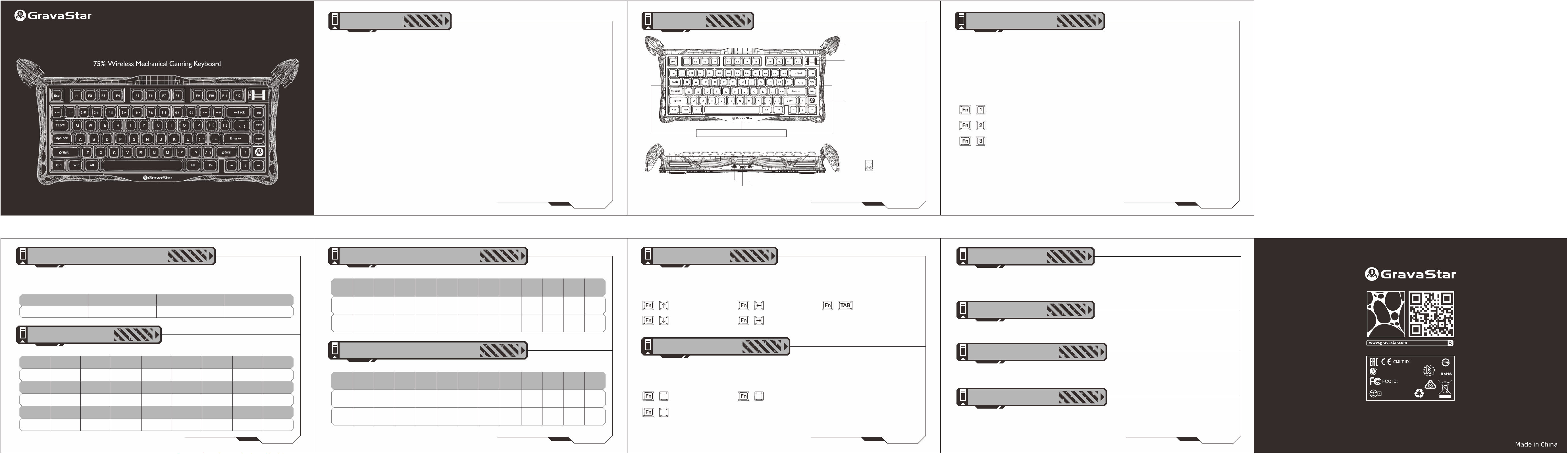
RGB ambient light
· Connection Mode Toggle Switch
(2.4G/Wired/Bluetooth)
· System Switch (WIN/MAC)
· Type-C Port
BT

This device complies with part 15 of the FCC Rules. Operation is subject to the
following two conditions: (1) This device may not cause harmful interference, and (2)
this device must accept any interference received, including interference that may cause
undesired operation.
Any Changes or modifications not expressly approved by the party responsible for
compliance could void the user's authority to operate the equipment.
Note: This equipment has been tested and found to comply with the limits for a Class B
digital device, pursuant to part 15 of the FCC Rules. These limits are designed to
provide reasonable protection against harmful interference in a residential installation.
This equipment generates uses and can radiate radio frequency energy and, if not
installed and used in accordance with the instructions, may cause harmful interference
to radio communications. However, there is no guarantee that interference will not
occur in a particular installation. If this equipment does cause harmful interference to
radio or television reception, which can be determined by turning the equipment off and
on, the user is encouraged to try to correct the interference by one or more of the
following measures:
-Reorient or relocate the receiving antenna.
-Increase the separation between the equipment and receiver.
-Connect the equipment into an outlet on a circuit different from that to which the
receiver is connected.
-Consult the dealer or an experienced radio/TV technician for help.
FCC Radiation Exposure statement
The device has been evaluatec to meel general RF exposure requirement. The device
can be used in portable exposure condition without restriction.

