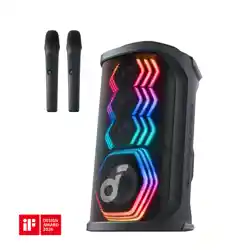
At a Glance
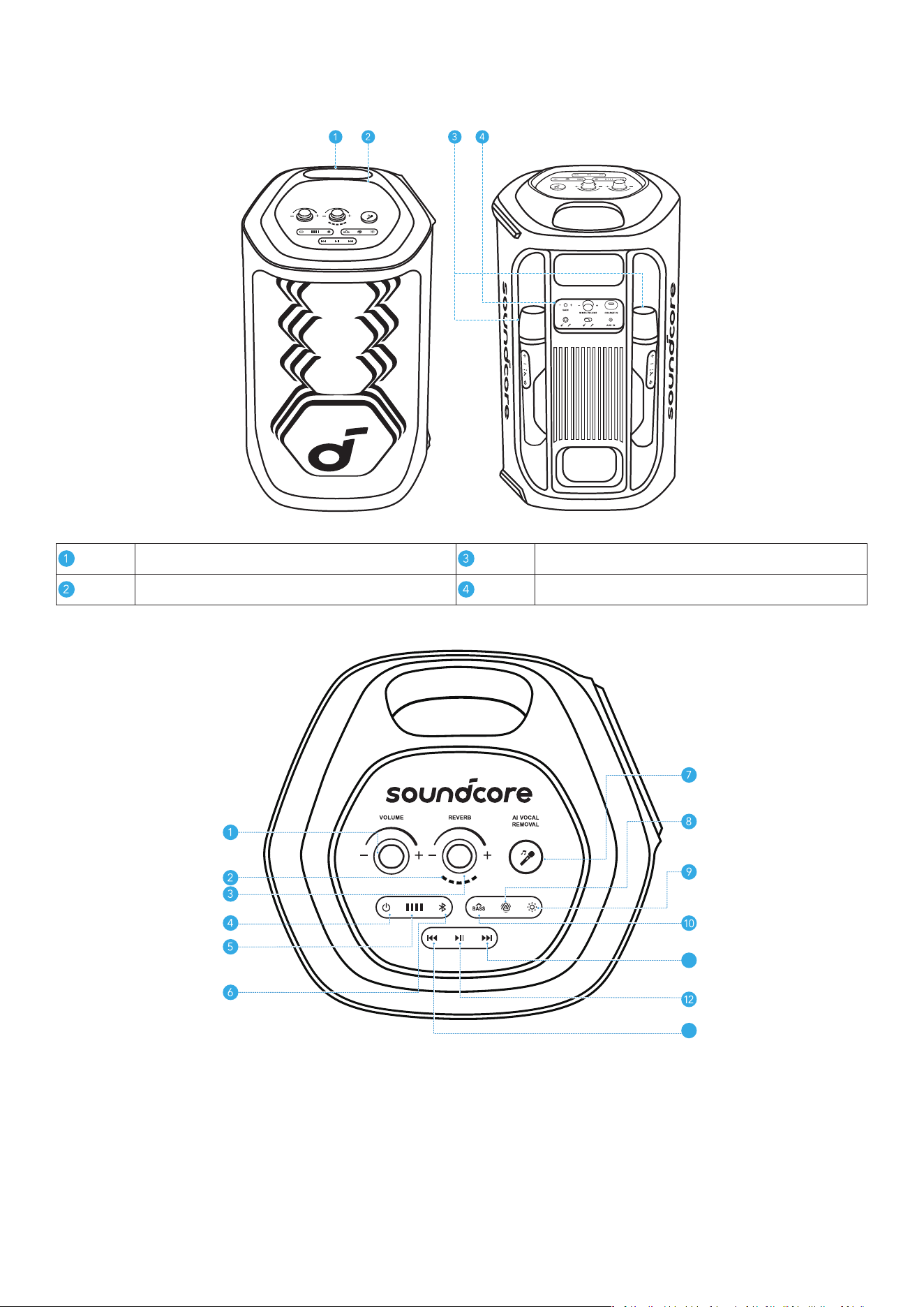
Front & Back
Handle Wireless Microphones (×2)
Top Panel Back Panel
Top Panel
11
13
1. Volume Control: Adjust the volume of the speaker.
2. Reverb Control: Rotate clockwise / counterclockwise to increase / decrease the amount of reverb
applied to your microphone.
3. Reverb Level Indication: Display the current reverb applied to your microphone.
4. Power Button: Power on or o the device.
5. Battery Indicator: Display the battery level of the device.
6. Bluetooth Button: Press to enter Bluetooth pairing mode.
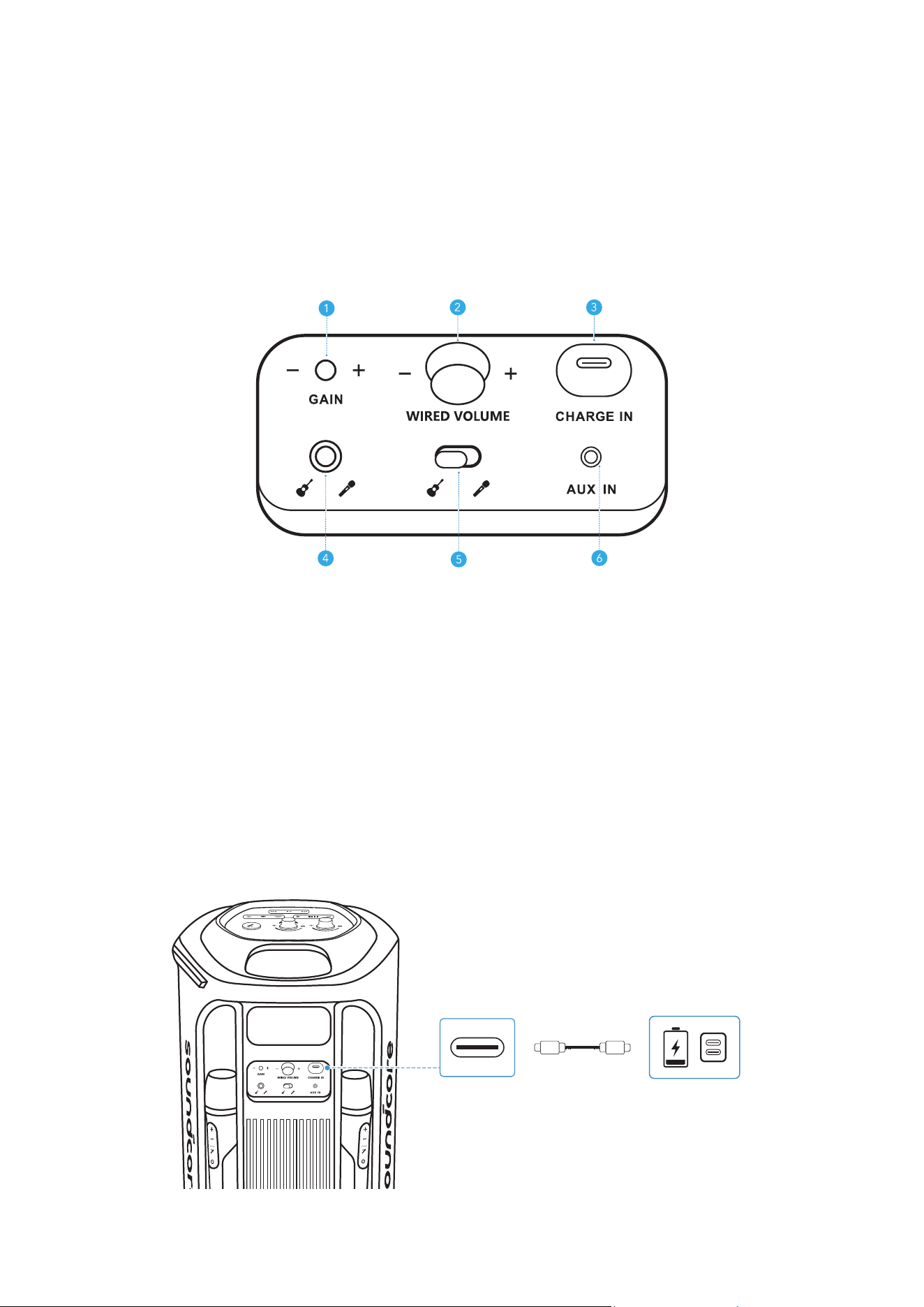
7. AI Vocal Removal: Press to remove the original vocals from the song, leaving only the accompaniment.
Press again to restore the vocals.
8. AuraCast Button: Press to enable AuraCast feature.
9. LightShow Button: Press to turn the light eect on or o.
10. BassUp Button: Press to enhance the low frequency of the audio source.
11. Next Track Button: Press once to skip to the next track.
12. Play/Pause Button:Press once to play / pause the audio source.
13. Previous Track Button: Press once to skip to the previous track.
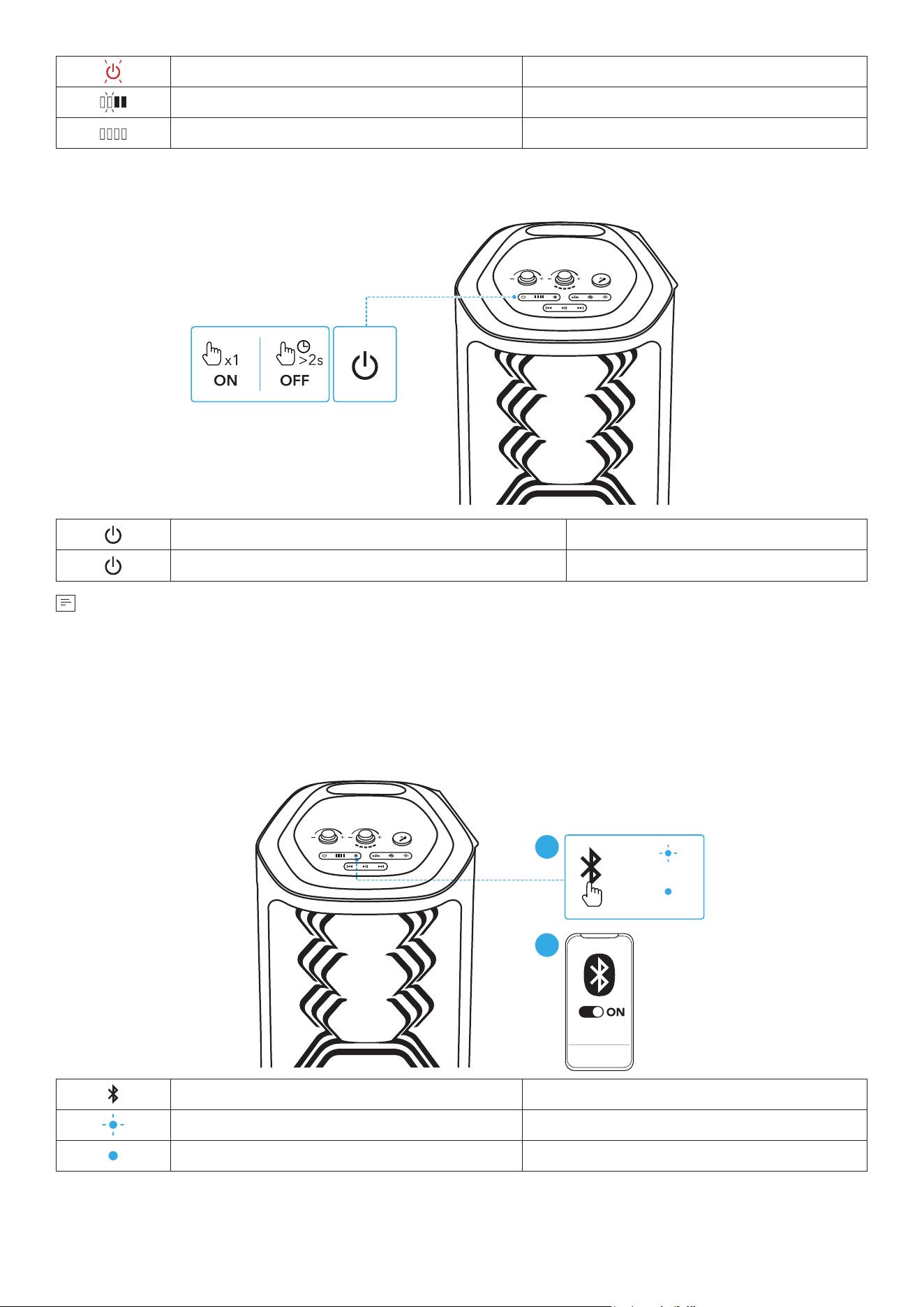
Back Panel
1. Gain (Guitar): Adjust gain of the connected guitar.
2. Wired Volume Control: Rotate clockwise / counterclockwise to increase / decrease the volume of
the connected guitar or wired microphone.
3. USB-C Charging Port: Plug in the provided C-C cable to charge the device.
4. Guitar / Microphone Socket (6.5mm): Connect to a guitar or wired microphone.
5. Input Switch Toggle: Switch to the connected guitar or microphone input.
6. AUX IN: Connect to an external audio device through a 3.5 mm audio cable (not supplied).
Charging
Charging Your Speaker
•
Use a certified C-C cable and charger to prevent any damage.
Flashing Red Low Battery
Flashing White Being Charged
Steady White Fully Charged
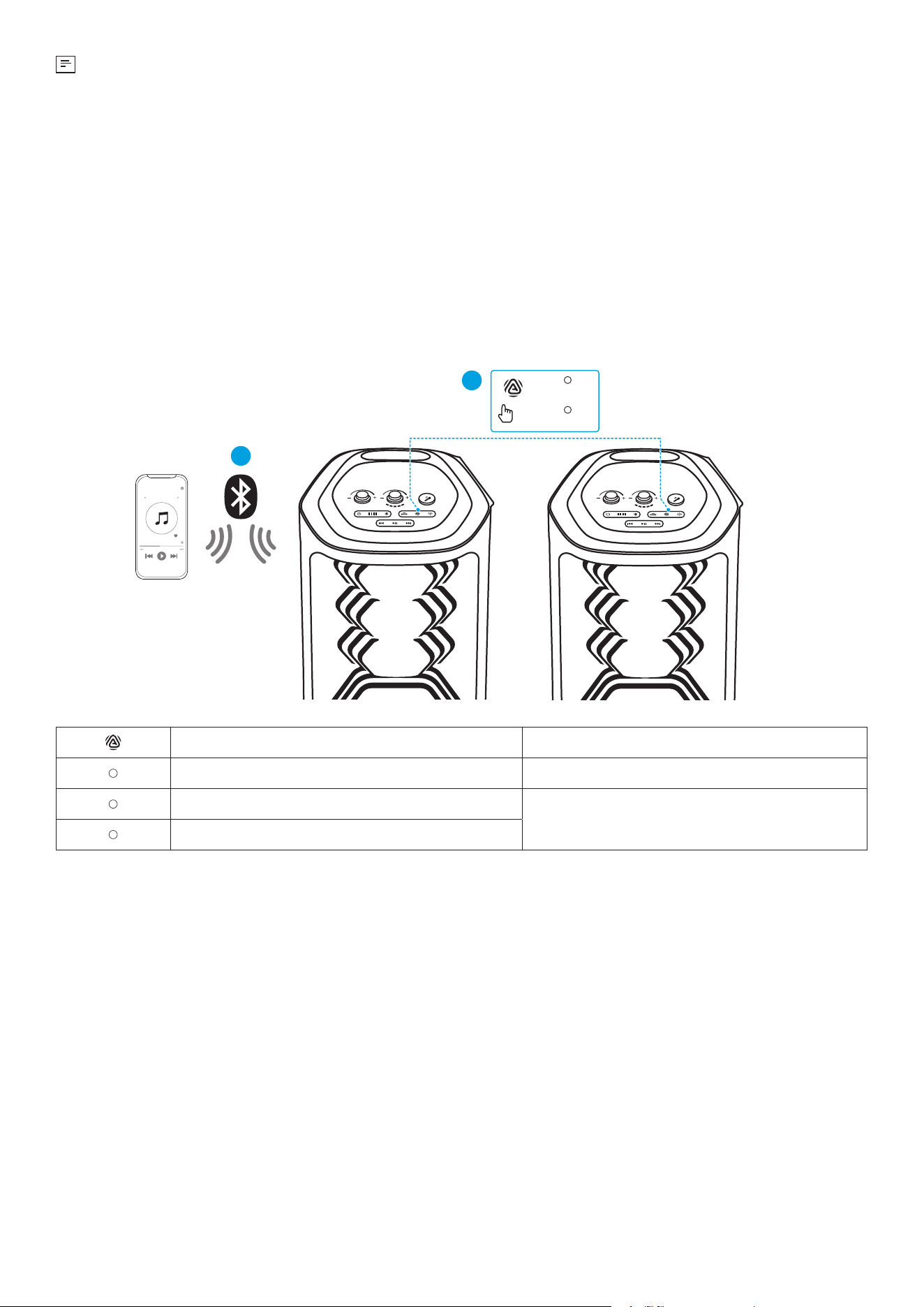
Powering On/O
Press Once Power On
Press and Hold for 2 Seconds Power O
•
This speaker will power o automatically aer 20 minutes of no audio input.
•
You can also set an auto-power-o time in the soundcore app.
Using Your Speaker
Bluetooth Mode
Press the Bluetooth button to enter Bluetooth pairing mode, then select "soundcore Rave 3S" from your
device's Bluetooth list to connect.
2
soundcore
Rave 3S
1
x1
PAIRING
CONNECTED
Press Enter Bluetooth Pairing Mode
Flashing Blue Bluetooth Pairing
Steady Blue Bluetooth Connected
•
To re-enter Bluetooth pairing mode, press the Bluetooth button once.
•
This speaker can only play music on one mobile device at a time. To play from another connected
device, pause the device that's currently active first.
•
Each time you power on your speaker, it will automatically connect to your last connected device
if available within the Bluetooth range. If not, press the Bluetooth button to enter Bluetooth pairing
mode.
TWS (True Wireless Stereo) Mode
Two identical soundcore speakers can pair with each other for stereo sound. Both speakers can play the
same audio (one as the le channel and the other as the right channel).
With one speaker connected to a smartphone or tablet, press the AuraCast button simultaneously on
both speakers to enter TWS pairing mode powered by AuraCast technology.
Upon successful pairing, you will hear a sound prompt. Then double press the AuraCast button on either
speaker to assign the le and right audio channels.
channels.
1
×1
2
CONNECTED
PAIRING
Press Once Enter / Exit TWS Pairing Mode
Steady White TWS Pairing
Steady White (Speaker 1)
TWS Connected
Steady White (Speaker 2)
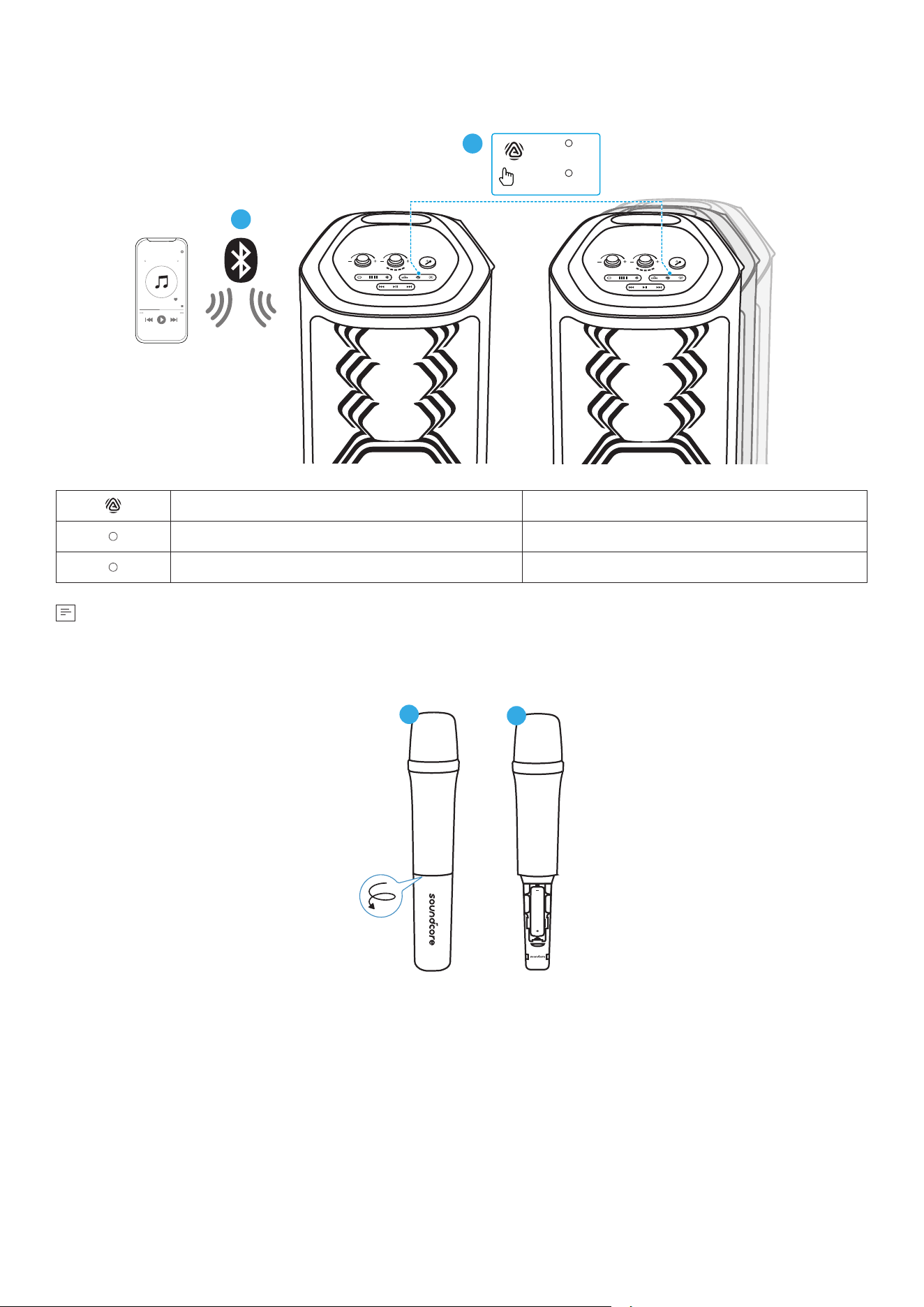
AuraCast
With one speaker connected to a smartphone, press the AuraCast button on up to 10 soundcore speakers
with AuraCast function to synchronize audio and light.
1
×1
2
CONNECTED
PAIRING
Press Once Enter / Exit AuraCast Pairing Mode
Steady White AuraCast Pairing
Steady White AuraCast Connected
•
When you enable or disable the AuraCast feature, you will hear a notification sound.
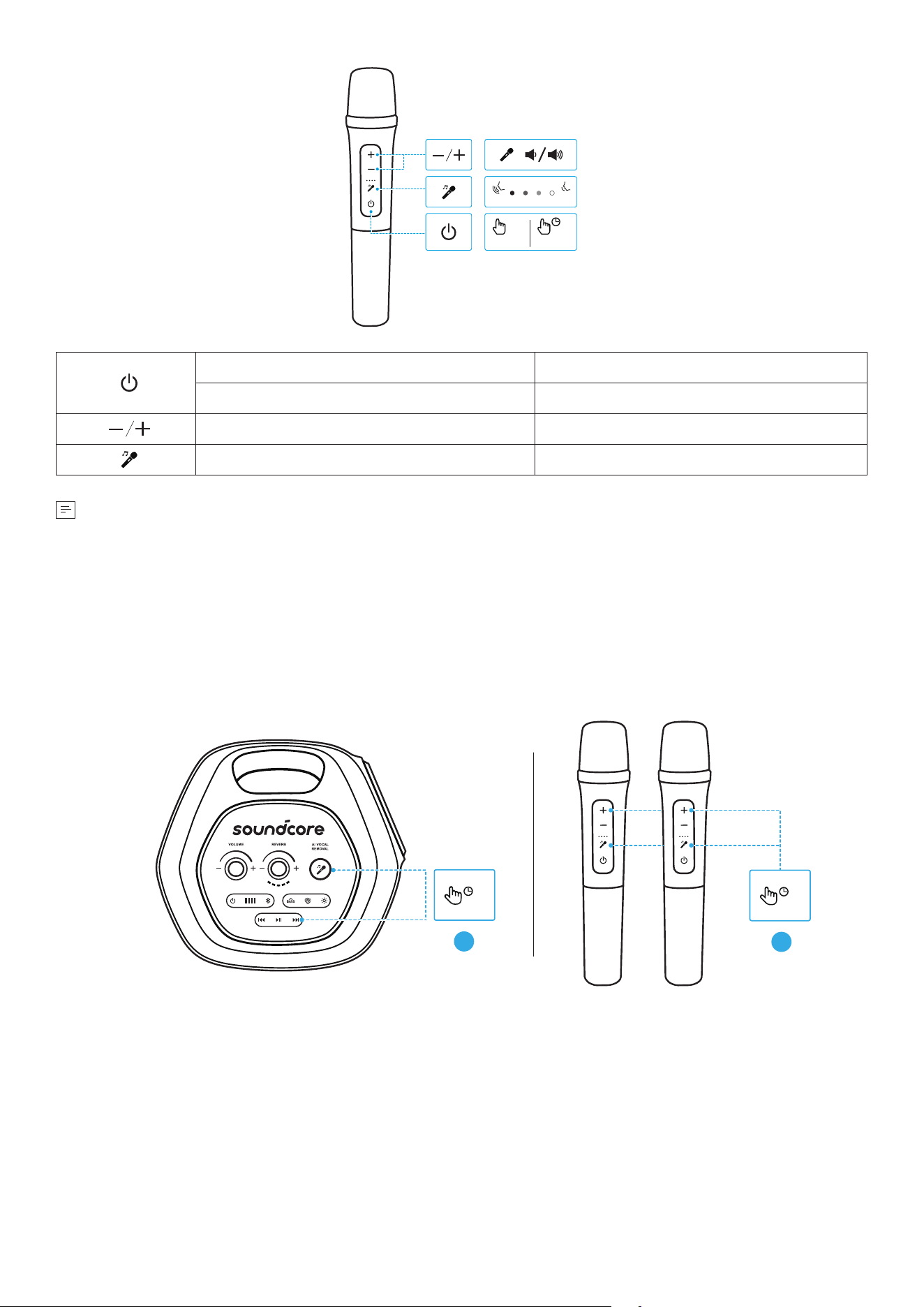
Using the Wireless Microphones
1
2
1. Unscrew the battery cover.
2. Install two AA batteries.
4%100%
>2s
OFF
ON
x1
Press Once Power On
Press and Hold for 2 Seconds Power O
Press Mic Volume Up / Down
Press Adjust Vocal Removal Level
•
Once you power on the wireless microphones, they will automatically connect to the speaker.
•
The AI VOCAL REMOVAL button on the speaker can remove the original vocal from a song with just
one press. While the AI Vocal Removal button on the wireless microphone allows for adjustable vocal
retention, ranging from 4% to 100%.
•
Once the vocal removal level is set on the microphone, the speaker will remember this setting even
aer restarting. This ensures that when you activate the vocal removal feature on the speaker, the
vocal removal eect will match the level set on the microphone.
Manual Pairing of Wireless Microphones
1
>8s
>8s
2
If the wireless microphones don’t connect automatically aer powering on, follow the steps below to
manually pair them with the speaker.
First, press and hold the Next Track and AI Vocal Removal buttons for 8 seconds on the speaker to reset
pairing. Then press and hold the Volume Up and AI Vocal Removal buttons on both microphones for 8
seconds to complete pairing.
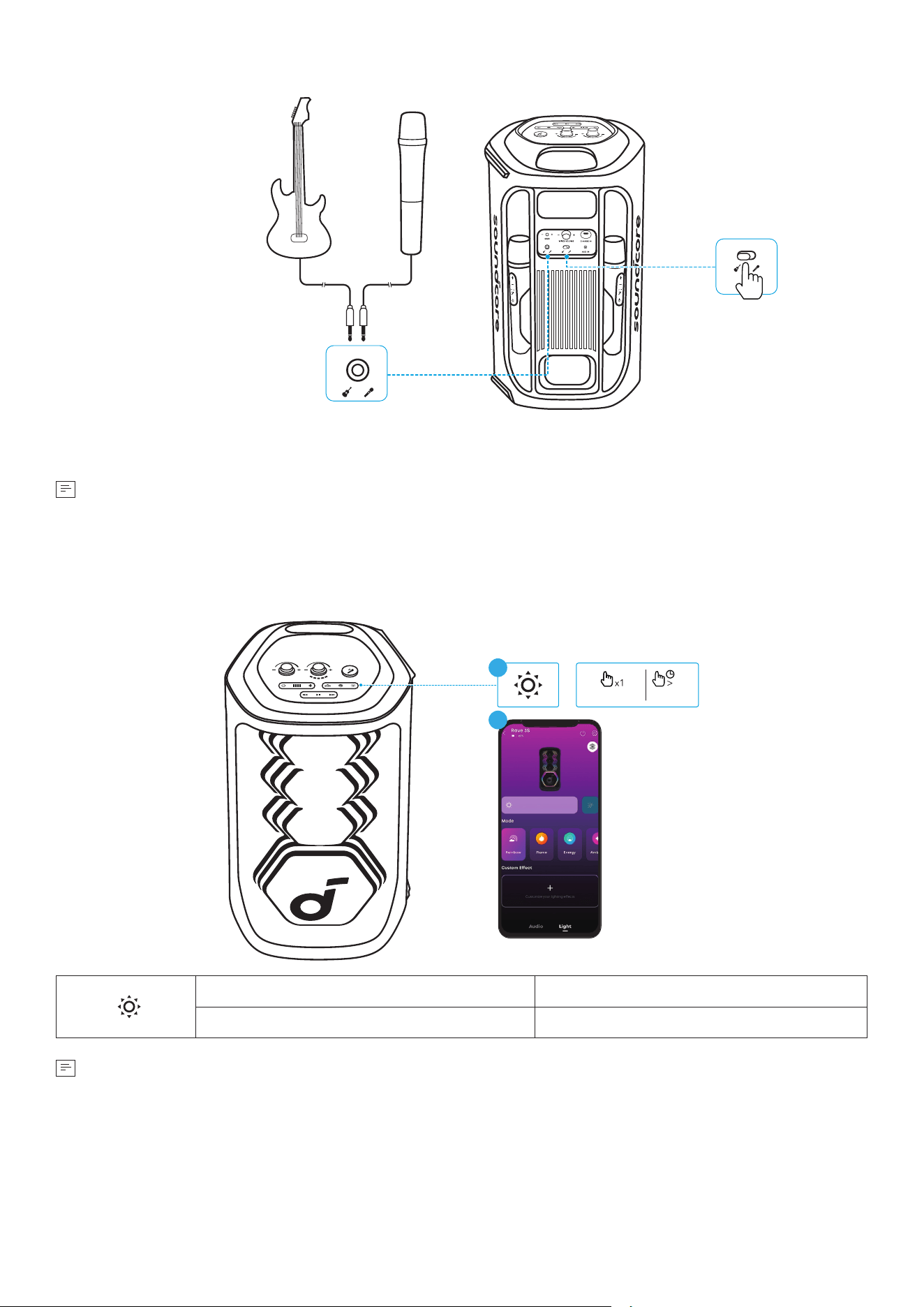
Guitar / Wired Microphone Connection
Connect a microphone or guitar to the speaker through 6.5mm audio cables (not suppplied).
•
Aer connecting a microphone or guitar to the speaker, make sure to set the toggle switch to the
correct sound input.
LightShow
The LED lights change with the rhythm of the music.
2s
OFFON / SWITCH
1
2
Press Once or Press Again Turn Light On / Switch Light Eect
Press and Hold for 2 Seconds Turn O
•
You can also select your preferred light eect, or customize its pattern and brightness in the
soundcore app.
soundcore App
Download the soundcore app to enhance your experience.
soundcore
Apple and the Apple logo are trademarks of
Apple Inc.
Google Play and the Google Play
logo are
trademarks of Google Inc.
Product information: Check the product name and soware version, or read the user manual.
Firmware update: You will be informed once a new version of firmware is detected when you connect the
speaker with the app.
Battery status: Indicates the remaining battery level of your speaker.
Volume control: Adjust the volume level via the app without pressing the buttons on the speaker.
EQ settings: There are various preset EQ settings you can choose from in the app to optimize your
experience while enjoying dierent music genres.
• soundcore Signature: Standard EQ mode optimized for well-balanced sound.
• Voice: Voices stand out more clearly from other ambient sounds.
• Treble Boost: High frequencies are enhanced.
• Balanced: No enhancement for high-frequency and low-frequency sounds.
Set auto-power-o time: Set an auto-power-o time. The speaker will automatically power o when the
time is up.
Voice prompt: Mute or restore the voice prompt while powering on/o.
Reset
Press and hold the Bluetooth button and Next Track button simultaneously for 8 seconds to reset the
speaker.
Specifications
Charge Input 5V
⎓
3A
Battery Capacity 4900mAH/7.3V
Audio Output Power 200W
Speaker Driver
6.5
″
Woofer
2.5
″
Full-Range ×3
Frequency Response 40Hz-20kHz
Charging Time 6H
Play Time (varies by volume level and music content) Up to 12H
Bluetooth Version 5.3
Bluetooth Range 50m
Waterproof Rating IPX4

1. Power consumption in standby mode: ≤0.5W
2. Power management: ≤20min
3. Information of applicable adapter:
Brand: ANKER
Manufacturer: Anker Innovations Limited
Model: A2337
Input: 100-240V~1.0A, 50-60Hz
Output: 5.0V
⎓
3.0A, 15.0W / 9.0V
⎓
3.0A, 27.0W / 12.0V
⎓
2.5A. 30.0W / 15.0V
⎓
2.0A, 30.0W / 20.0V
⎓
1.5A, 30.0W
(30.0W Max)
Default Open Port: Classic Bluetooth + BLE (Bluetooth Low Energy)
Port Description: Aer the device is powered on, both Classic Bluetooth visibility (or pairing mode) and BLE
broadcasting are automatically enabled, providing Bluetooth pairing (or control) services. The Bluetooth
service is disabled when the device is powered o.