
Terminal communication
Customer management
Remote Control
13
10
09
08
07
06
05
04
03
01
TERMINAL COMMUNICATION
CUSTOMER MANAGEMENT
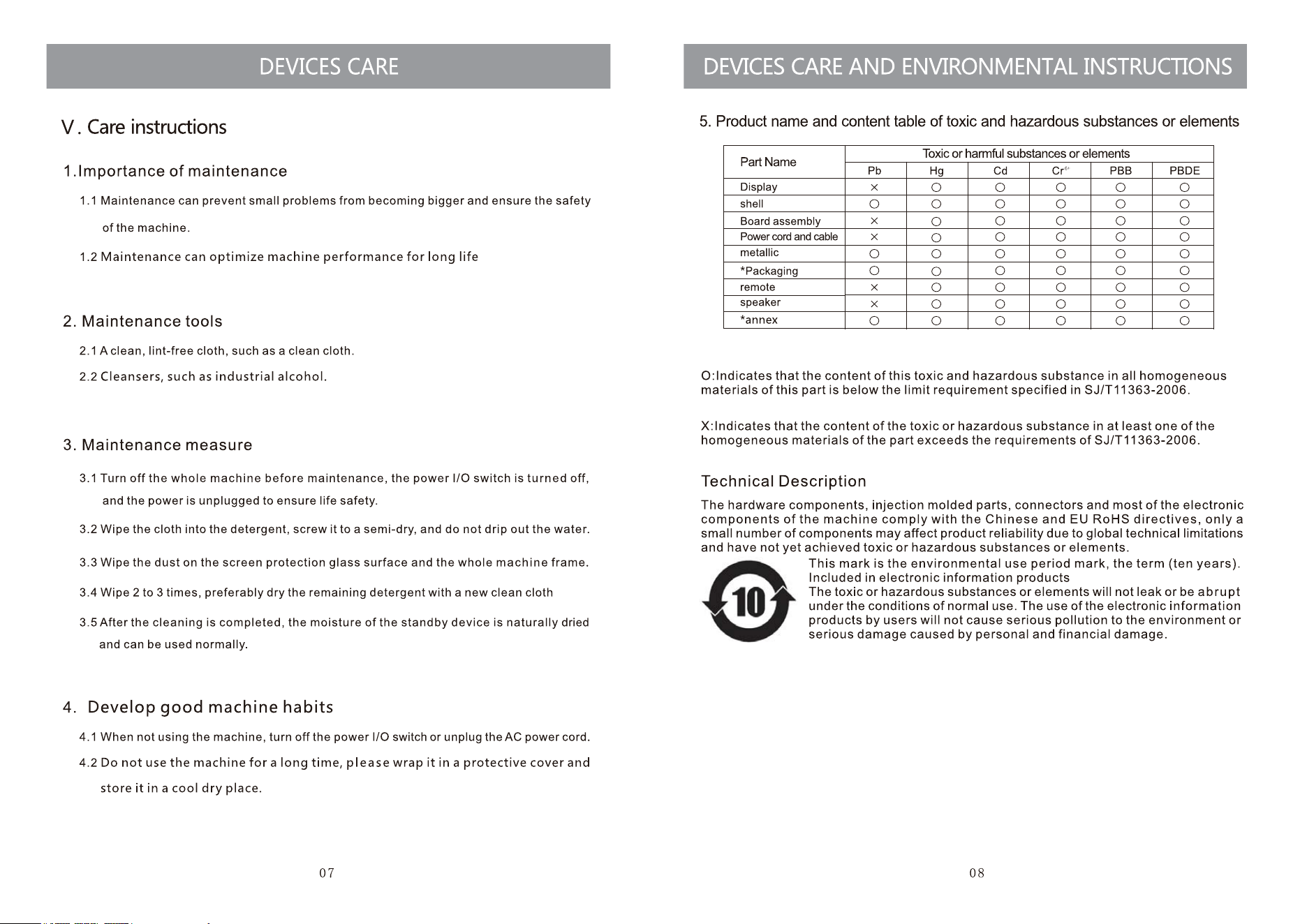
1. Use a Windows system computer (all versions of Windows system are acceptable), and
use Google Chrome to log in to the website: https://etv.overseas.esoncloud.com
2. Log in with the account and password provided by the dealer.
3. If you may need a verification code for remote login, please use the email address
provided to the dealer to obtain the verification code; If you can't remember your email
address, please find a dealer to get it.
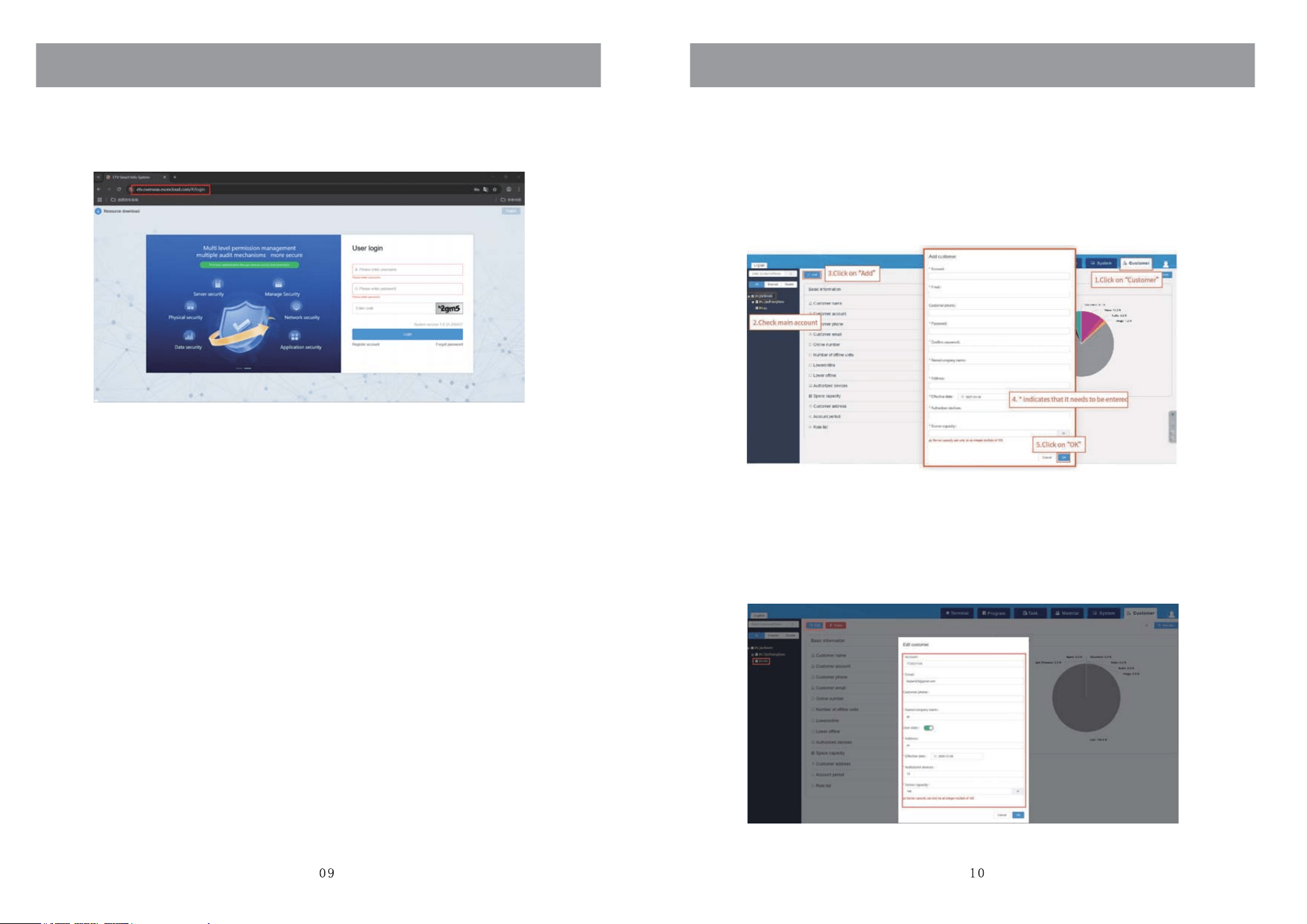
1. Add customer
2. Edit, Delete customer
The module primarily explains how to create customers, which includes, level 3 to create
level 4 and assign level 4 customer account information, the number of authorized devices
and server capacity, etc.(Note: level 4 customers can' t create customers).
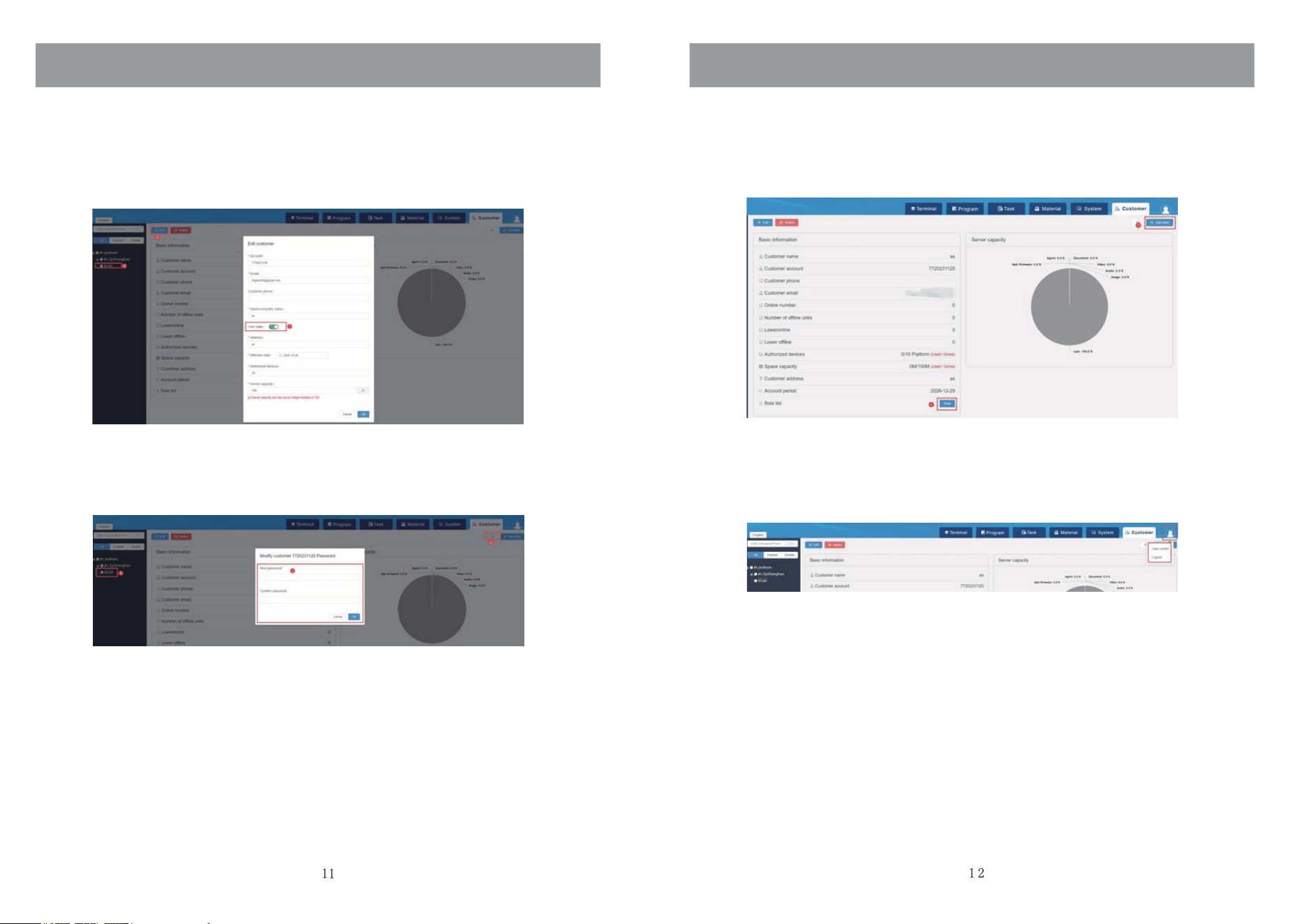
When the customer account is added, click on “Customer” who needs to be edited or
deleted (as the picture shows).
Edit: Edit the basic information of the customer.
Delete: Only subordinate customers under this account can be deleted, not cross-level
deletions.
Click on "Customer”, then click on the main account, and click on "Add customer” button in
the upper left corner (as the picture shows). After successfully adding the account, when
connecting to the terminal,enter the account device to connect to this account.
CUSTOMER MANAGEMENT
3. Disable, Re-enable customers
Click on “Customer”, click on "Edit” button, click on the “User state”, and perform the turn on
or turn off operation. The ON represents that the customer can use the system normally, the
OFF represents that the customer is disabled (as the picture shows). Can perform fuzzy
query on User state and name.
4. Change password
Select the “Customer”, click on "Change password” button in the upper right corner, and
enter the new password (as the picture shows).
5. Add,View roles
Click on "Add role” button to add a role.
6. Personal center
The personal center includes two functions: User center and Log out (as the picture shows).
User center: View the information of the currently logged-in user and change the password.
Log out: Log out of the current user and change login account.
View: You can view the account information of the roles added under the current customer
account.
CUSTOMER MANAGEMENT
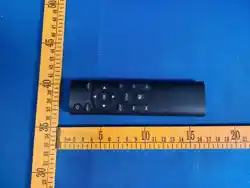
REMOTE CONTROL
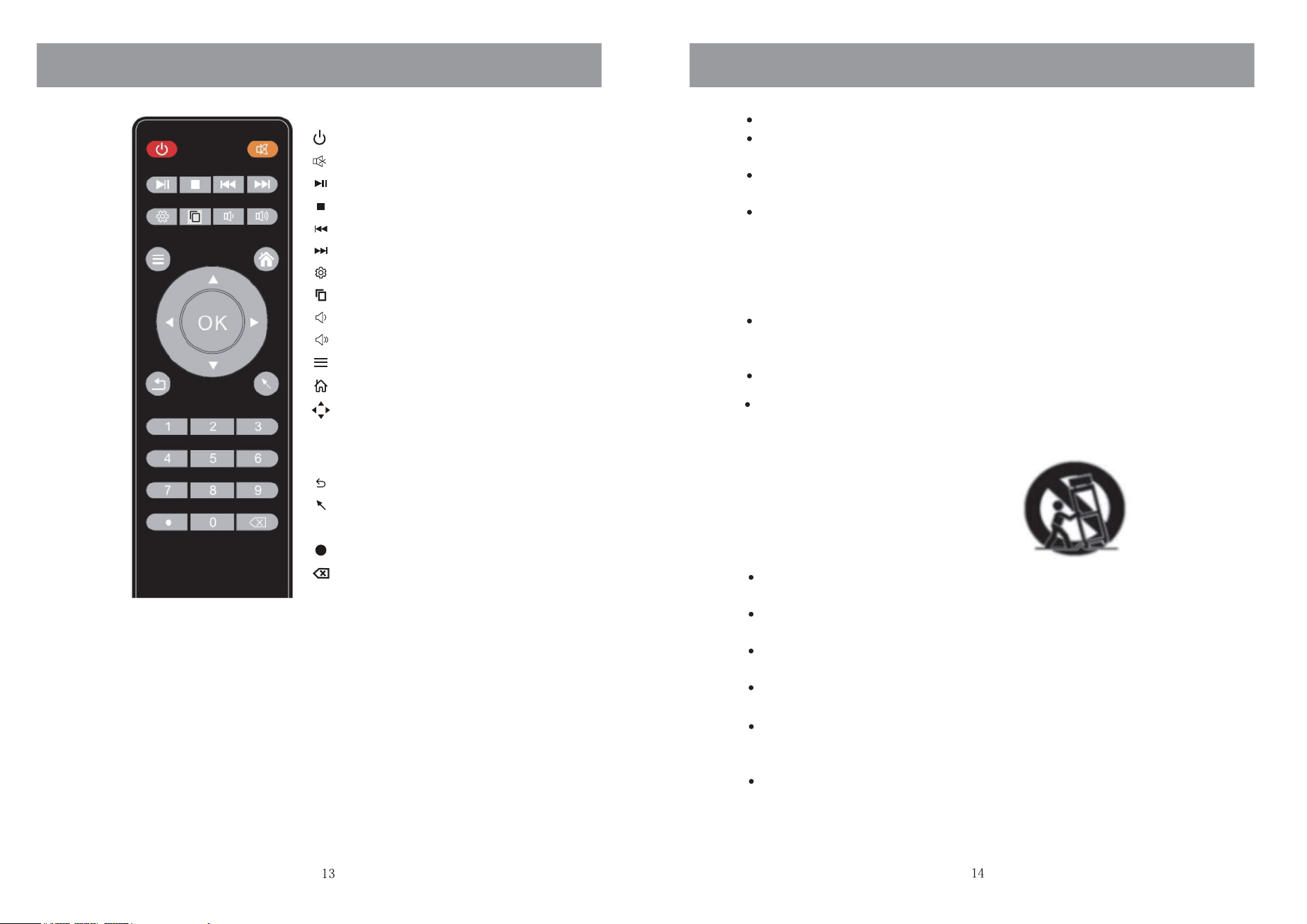
: Standby turn on and off.
: Mute sound.
: Play/Pause.
: Stop.
: Retrogress.
: Advance.
: Debug menu.
: Screen capture.
OK
0~9
: Setup menu.
: Android homepage shortcut.
: Uses the four arrows to highlight
different items in the TV menu or
change the value.
: Enter and confirm button.
: Return to the previous level.
: Show or hide the mouse.
: Character symbols.
: Delete the content.
: Numerical selection.
: Decrease volume.
: Turn up the volume.
Do not use this apparatus near water.
Do not block any ventilation openings. Install in accordance with the
manufacturer's instructions.
Do not install near any heat sources such as radiators, heat registers,
stoves, or other apparatus (including amplifiers) that produce heat.
Do not defeat the safety purpose of the polarized or gro unding -type plug. A
polarized plug has two blades with one wider than the other. A grounding
type plug has two blades and a third grounding prong. The wide blade or
the third prong are provided for your safety, If the provided plug does not
fit into your Outlet, consult an electrician for replacement of the obsolete
outlet.
Protect the power cord from being walked on or pinched particularly at
Plugs, convenience receptacles, and the point where they exit from the
apparatus.
Only use attachments/acce ssories specified by the manufacturer.
Use only with the cart, stand, tripod, bracket, or table specified by the
manufacturer, or sold with the apparatus. When a cart is used caution
when moving the cart/apparatus combination to avoid injury tip-over.
Unplug this apparatus during lightning storms or when unused for
long periods of time.
To reduce the risk of fire or electric shock, do not expose this
apparatus to rain or moisture.
The mains plug is used as disconnect device, th e disconnect device
shall remain readily operable.
The socket-out shall be installed near the equipment and shall be
easily accessible.
This product should never be placed in a built -in installation such as a
bookcase or rack unless proper ventilat ion is provided or the
manufacture's instructions have been adhered to.
The apparatus shall not be exposed to dripping or splashing and that
no objects filled with liquid, such as vases, shall be placed on the
apparatus.
IMPORTANT SAFETY PRECAUTIONS
IMPORTANT SAFETY PRECAUTIONS
The USB terminal should be loaded with 0.5 A under normal
operation.
These servicing instructions are for use by qualified service personnel
only. To reduce the risk of electric shock do not perform any servicing
other than that contained in the operating instructions. unless you
are qualified to do so.
The battery shall not be exposed to excessive heat such as sunshine,
fire or the like.
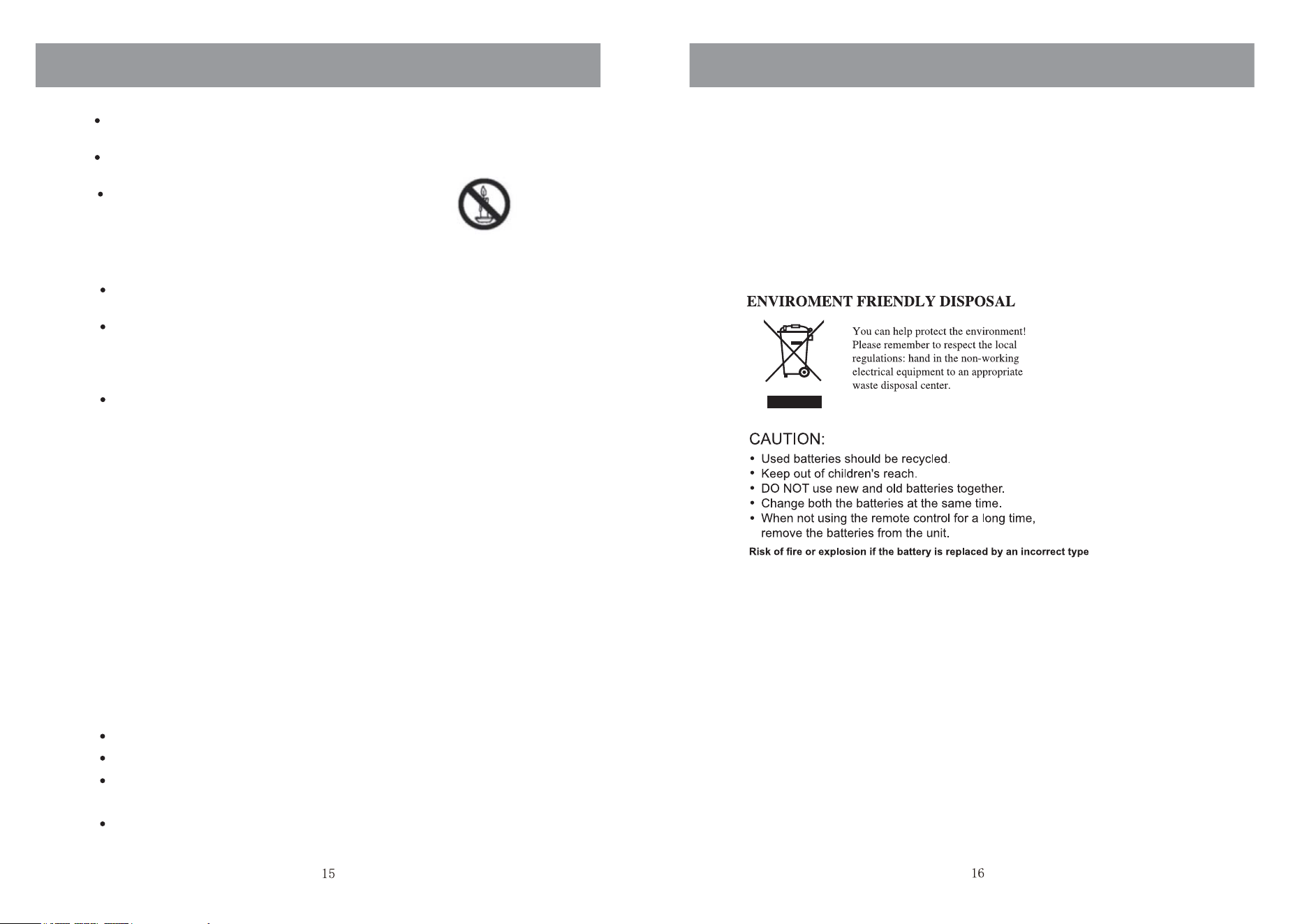
Do not place any sources of danger on the apparatus (e.g. liquid filled
objects, lighted candles).
This device belongs to a type of electrical appliance. The power cord
needs to be reliably and effectively grounded for safety.
Never place the advisement player, remote control or batteries
near naked flames or other heat sources, including direct sunlight.
To prevent the spread of fire, keep candles or other flames away
from the advisement player, remote control and batteries at all times.
IMPORTANT SAFETY PRECAUTIONS
This device complies with part 15 of the FCC Rules. Operation is subject to the following
two conditions: (1) This device may not cause harmful interference, and (2) this device
must accept any interference received, including interference that may cause undesired
operation.
Reorient or relocate the receiving antenna.
Note: This equipment has been tested and found to comply with the limits for a Class B
digital device, pursuant to part 15 of the FCC Rules. These limits are designed to provide
reasonable protection against harmful interference in a residential installation. This
equipment generates, uses and can radiate radio frequency energy and, if not installed
and used in accordance with the instructions, may cause harmful interference to radio
communications. However, there is no guarantee that interference will not occur in a
particular installation. If this equipment does cause harmful interference to radio or
television reception, which can be determined by turning the equipment off and on, the
user is encouraged to try to correct the interference by one or more of the following
measures:
Increase the separation between the equipment and receiver.
Connect the equipment into an outlet on a circuit different from that to which the receiver
is connected.
Consult the dealer or an experienced radio/TV technician for help.
Note: The Grantee is not responsible for any changes or modifications not expressly
approved by the party responsible for compliance. such modifications could void the
user's authority to operate the equipment.
The device has been evaluated to meet general RF exposure requirement.
To maintain compliance with FCC's RF exposure guidelines, the distance must be at
least 20 cm between the radiator and your body, and fully supported by the operating
and installation.