DA70
MUSIC ON , ZIIZOO ON

Thank you for choosing ZIIZOO
DA70 Digital Audio Decoder & Amplifier All-in-One Machine
MUSIC ON, ZIIZOO ON.

Contents
Precautions Before Use
Interface Description
Rear Panel Wiring Diagram
Specifications & Parameters
Main Interface Introduction
Volume Adjustment
Settings
Language Settings
Input Modes
Relay Mute
Filter Modes
01-02
03-03
04-04
05-06
07-07
08-08
08-08
09-09
09-13
13-13
14-14
Product Overview
Basic Product Usage

��
Product Usage Precautions
To prevent the risk of fire, electric shock, or product damage, do not expose this device to rain,
moisture, dripping, or splashing. Do not place water-filled objects, such as vases, on top of the device.
To ensure proper ventilation, do not install this device in a bookcase, built-in cabinet, or other enclosed
spaces. Ensure that curtains or any other objects do not block the ventilation holes to avoid the risk of
electric shock or fire caused by overheating.
Do not place open flame sources, such as lighted candles, on the device.
Do not open the chassis to avoid electric shock. The casing should only be opened by qualified
professional technicians.
Placement
Please place the player on a flat surface, away from direct sunlight, and avoid high temperatures,
high humidity, and frequent vibrations. Otherwise, it may damage the chassis and other internal
components, thereby shortening the lifespan of the device.
To prevent distortion and abnormal acoustic effects, do not place heavy objects on the device.
When positioning the device, maintain a distance of at least 15 cm from the wall.
Power Supply
Do not use excessive voltage, as this may overload the device and cause a fire. Connect the AC
power cord correctly and ensure it is not damaged. Do not pull, bend, or place heavy objects on
the power cord.
Do not overload wall outlets. Be extremely careful when using extension cords or power strips,
as they can cause electric shocks or fire hazards.
Do not trap the AC power cord between the player and walls or bookshelves.
To prevent damage caused by lightning, unplug the power cord from the outlet when the device
is not in use for an extended period.
Please use the dedicated power adapter supplied with this device correctly. Do not use adapters
that exceed the rated voltage of the device.
Moisture Proofing
When using this device, avoid damp environments such as humid basements. Moisture
condensation can damage the internal components.

��
Service
Do not attempt to repair this device by yourself. Unauthorized repair, disassembly, or reassembly by
non-professionals may lead to electric shock or product damage. If any of the following conditions
or other unlisted malfunctions occur, please unplug the power cord and contact your local dealer or
service center. (National Service Hotline: 0755-83014160)
A. Abnormal sound or picture
B. Damaged power cord or plug
C. Liquid spilled or foreign objects entered into the device
D. The device has been exposed to rain or water
E. The device has dropped from a height or has been damaged by other causes
F. The device exhibits abnormal operations, which usually indicates that repair is required
When replacement parts are required, ensure that the service technician uses parts specified by
the manufacturer or parts with identical characteristics to the original components. Unauthorized
substitutions may result in fire, electric shock, or other hazards. Upon completion of any service or
repair, request the technician to perform safety checks to ensure the device is in proper operating
condition.
About This Manual
Read this instruction manual carefully, keep it in a safe place for future reference, and operate the
device in accordance with the provided instructions.
The UI screenshots or illustrations used in this manual may differ from the actual graphics shown on the
device screen. This may be caused by differences in software versions.
��
Product Overview
Interface Description
Front
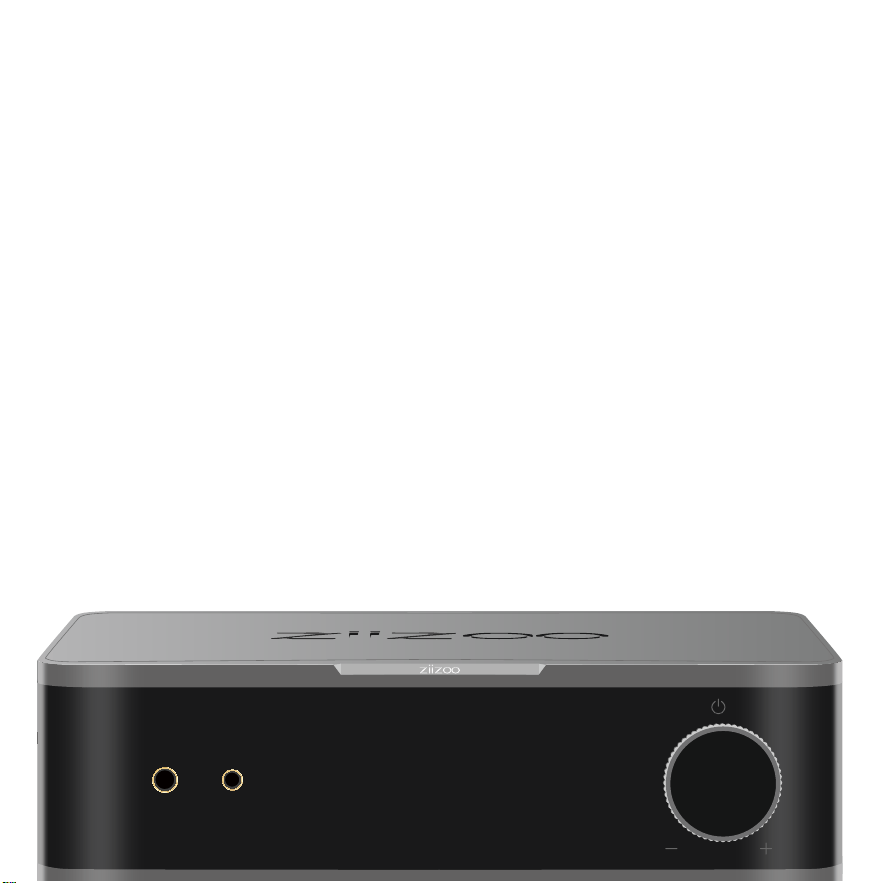
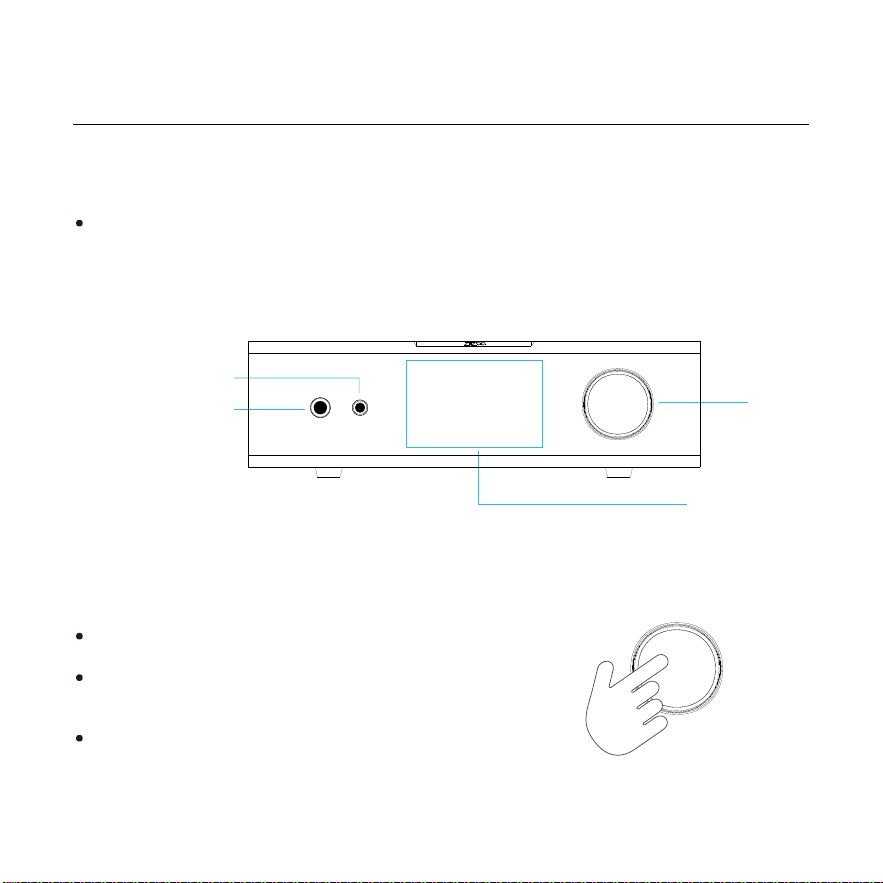
Knob Functions
DA70 is equipped with a rich set of audio input/output interfaces and data transmission ports. Please
refer to the contents of this manual.
Knob
Long press the knob to Power ON/OFF the device.
Short press the knob to enter the device Settings Mode
(For details, see P08: Settings).
Rotate the knob to enter Volume Adjustment Mode
(For details, see P08: Volume Adjustment).
3.5mm Headphone Jack
4.4mm Headphone Jack
Display Screen
��
Rear Panel
��
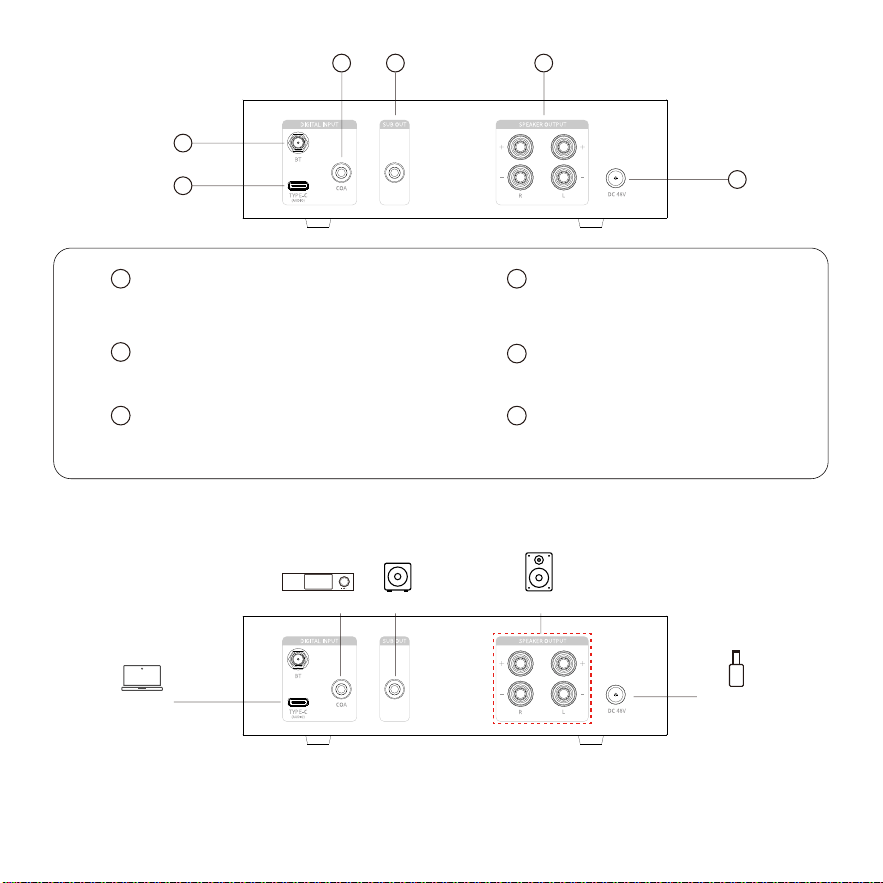
Rear Panel Wiring Diagram
Note:
*Please ensure the device is powered off before connecting other devices.
*The diagram shows examples of some compatible devices; more devices can actually be connected.
�
�
Connects to mobile phones, computers, etc.
Maximum support up to DSD512, PCM 768kHz 32-bit.
USB-C Audio Input Port
Supports up to PCM 192kHz 24-bit audio.
COA Coaxial Input Interface
Connects to the 48V DC power cord.
DC IN
Connects to passive speakers.
SPEAKER Amplifier Output
Connects to a powered subwoofer.
SUB Subwoofer Output
Screw on the provided
Bluetooth antenna accessory.
Bluetooth Antenna Interface
�
�
� �
���
�
�
�
Passive Speakers
Computer
DC 48V Power
Digital Audio
Subwoofer

规格参数
Product Name
Model
Color
Chassis Material
UI Language
Audio DAC
Audio Processor
Op-Amp Chip
Headphone Amp Chip
Power Amp Chip
Bluetooth
Power Supply
USB Interface
Playback Display
System Settings
Bluetooth Audio Input
Coaxial Audio Input
USB-C Audio Input
SUB Audio Output
Headphone Impedance
Digital Audio Decoder & Amplifier All-in-One Machine
DA70
Gunmetal Gray
Aviation-grade all-aluminum body, Apple-style sandblasting process
Chinese and English
ES9039Q2M*2
XMOS XU316 3rd Gen 16-Core
NJM5532*3+OPA1612*2
TPA6120*2
TPA3255*1
QCC3084 Version: 5.4
External high-end power adapter, completely eliminating internal power ripple interference
USB-C: Supports audio transmission
Sampling rate and bitrate display
Audio output settings, About
Supports LE Audio, LDAC (up to 96kHz), aptX, aptX HD, aptX Adaptive, AAC (up to 48kHz), SBC (up to 48kHz) codecs, etc.
Supports up to Stereo PCM 192kHz 24-bit
System Compatibility: Windows 7-11, MAC, Android, iOS, HarmonyOS.Supports DSD512 Native, PCM 768kHz 32-bit
10Hz - 100Hz low-pass bass output
16-300Ω Single-ended / 16-600Ω Balanced
Screen Process: TFT LCD full-color display; Screen Size: 2.4 inches;
Resolution: 240*320P; Display Mode: Landscape mode
Display Screen
Output Level: 3.5Vrms (BW: 20Hz-20kHz)
Max Undistorted Power: 765mW@16Ω / 40mW@300Ω
Total Harmonic Distortion (THD+N): 0.0005%@1kHz (-100dB@1kHz)
Noise Floor: <3uVrms
Signal-to-Noise Ratio (SNR): 120dB@1kHz
Frequency Response: 20Hz-20kHz (±0.06dB)
Crosstalk: -108dB
Dynamic Range (DNR): 120dB@1kHz
3.5mm Output
Audio Characteristics
��

Output Level: 7Vrms (BW: 20Hz-20kHz)
Max Undistorted Power: 1000mW@16Ω / 82mW@600Ω
Total Harmonic Distortion (THD+N): 0.0005%@1kHz (-100dB@1kHz)
Noise Floor: <3uVrms
Signal-to-Noise Ratio (SNR): 126dB@1kHz
Frequency Response: 20Hz-20kHz (±0.07dB)
Crosstalk: -110dB
Dynamic Range (DNR): 126dB@1kHz
Output Power: Rated 120W*2 @ 4Ω; 100W*2 @ 8Ω;
Distortion: THD+N < 0.005% (1kHz, BW: 20Hz-20kHz, 1W)
Signal-to-Noise Ratio (SNR): 106dB;
Speaker Impedance Supported: 2-8Ω;
Frequency Response: 20Hz-20kHz (±0.1dB)
4.4mm Output
Audio Characteristics
Amplifier Output
Control Method
Power Input
Rated Power
Dimensions
Knob Control
DC48V-5A 240W
Not more than 300W
196*160*55MM
��
��
Basic Functions
Main Interface Overview
��
Input Mode
Audio Format
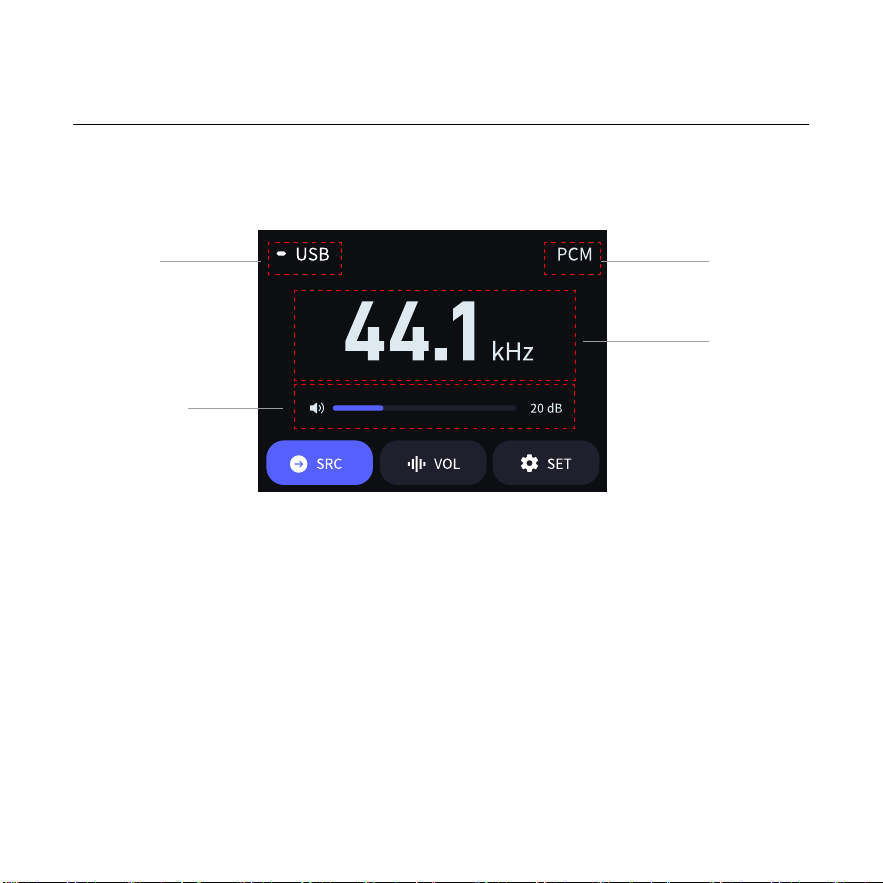
The interface layout features defined zones, displaying four core sets of information clearly: Input Mode, Audio
Format, Sampling Rate, and Volume. Users can instantly check the current audio status upon booting up without
digging through menus. Key parameters like sampling rate and format are clear at a glance, significantly increasing
operational efficiency for audiophiles.
Input Mode: Displays the current audio input source (e.g., USB, Bluetooth, or Coaxial).
Audio Format: Displays the encoding format of the current audio track (e.g., PCM, DSD, etc.).
Sampling Rate: Displays the sampling rate of the current audio signal (in kHz), indicating the audio resolution accuracy.
Volume Display: Visually demonstrates the current output volume via a progress bar combined with a numeric value
(in dB).
Sampling Rate
Volume Display
Volume Adjustment
Settings
��
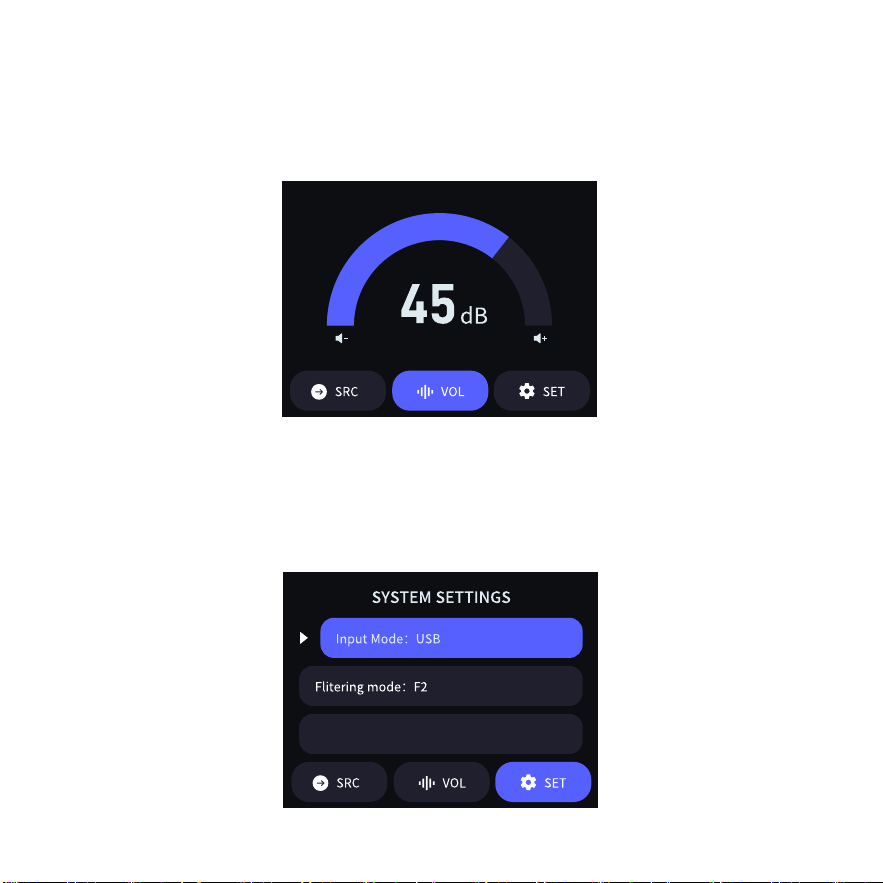
Rotate the volume knob on the right side of the DA70 body to enter volume adjustment mode. The screen will
display the current volume value and progress bar. Rotate clockwise to increase the volume, and counter-clockwise
to decrease it. Once adjusted, release the knob and the device will automatically return to the main interface after 2
seconds.
From the main interface, short press the volume knob on the right side of the body to enter the settings menu.
After entering the menu, if no further action is performed, release the knob and the device will automatically return
to the main interface after 2 seconds.
Language: Chinese
��
Input Mode
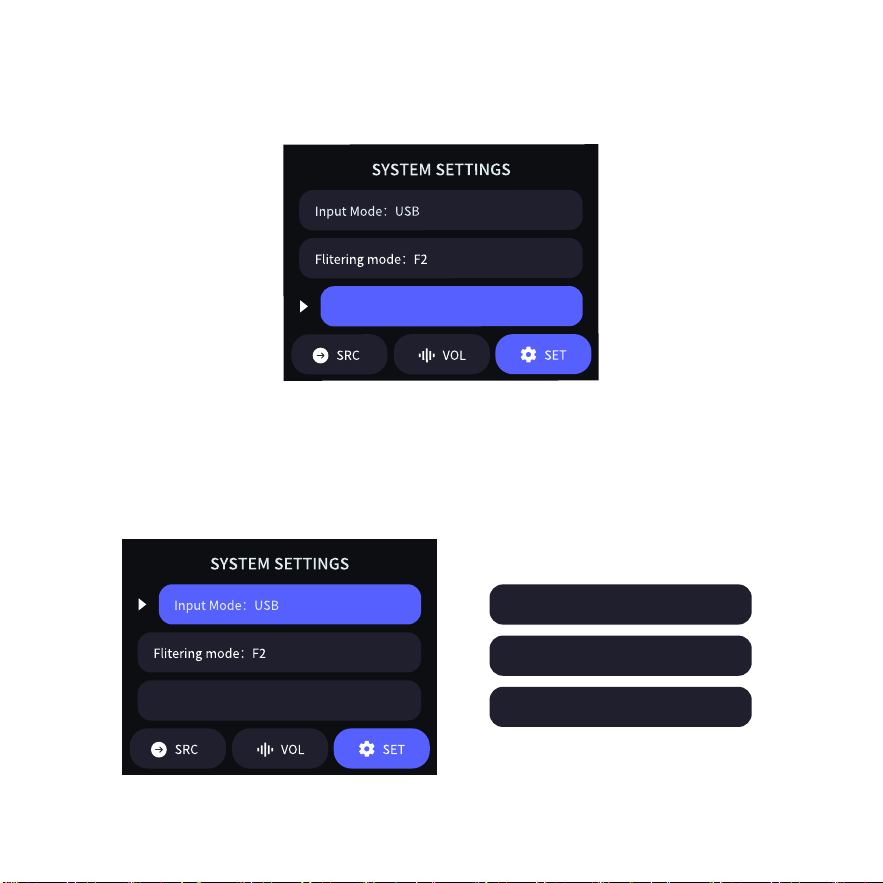
After entering the settings menu, rotate the knob to select the function item you wish to adjust. When the "Input
Mode" option is highlighted, short press the knob to enter the input source selection interface. This device offers
three input modes: USB Input, Bluetooth Input, and Coaxial Input. Rotate the knob to highlight your desired mode,
and short press to confirm the setting.
Input Mode:BT
Input Mode:USB
Input Mode:COAX
Language: Chinese
Language Settings
After entering the settings menu, rotate the knob to select the function item you wish to adjust. When the
"Language" option is highlighted, short press the knob to directly switch the current system language.
Language: Chinese
��
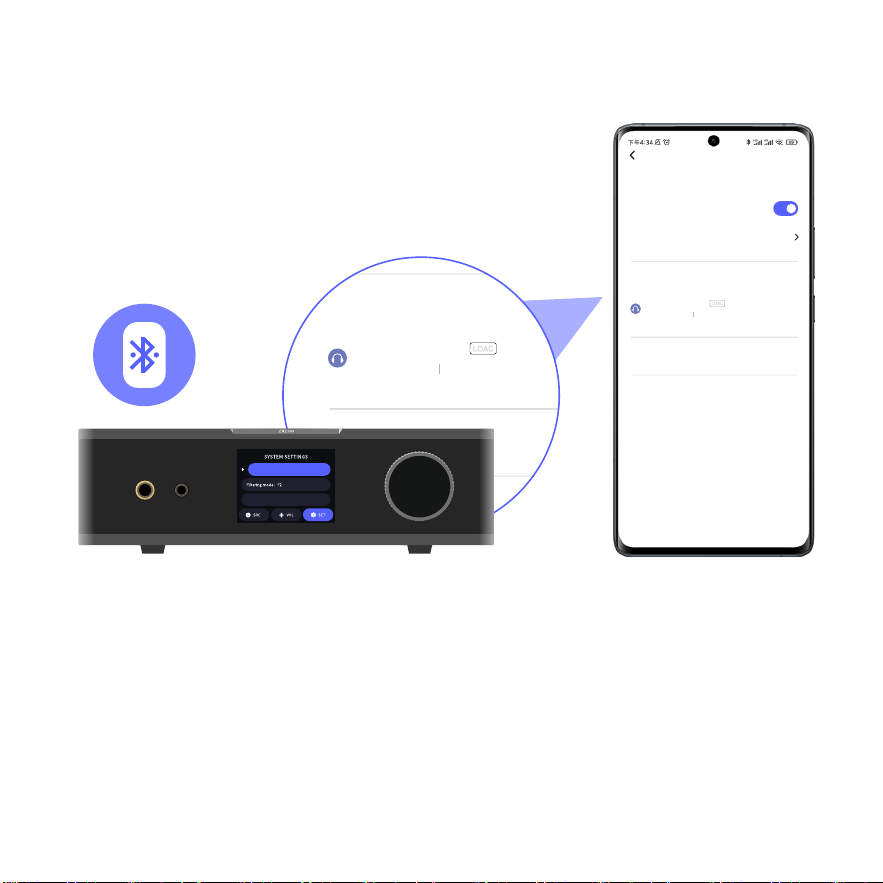
1.Bluetooth Input Mode
Operating Steps:
1.In the machine's settings interface, navigate to the input mode, and short press
the knob to select "Input Mode: BT".
2.urn on Bluetooth on your phone, scan for devices, find "ZIIZOO-BT-xxxx ", and
pair/connect.
3.For certain mobile phones, if there is no audio during music playback, you may
need to adjust the sound output settings inside the music playback software.
Note:
*The illustration is an example showing some connected devices; more devices can actually be connected.
*Ensure the rear Bluetooth antenna is screwed tightly and positioned upright. Do not place the device inside a cabinet.
*It is recommended to play locally downloaded songs on your phone. Streaming audio online is susceptible to network
fluctuations and often yields lower sound quality.
*Keep the device separated from your Wi-Fi router, or configure your Wi-Fi to the 5GHz band. 2.4GHz Wi-Fi and
Bluetooth share similar frequency bands and can easily interfere with each other.
*(Note: Once the phone is successfully connected via Bluetooth and music is playing, the display screen will indicate
the actual sampling rate value).
Bluetooth
Enable Bluetooth
Device Name
Available Devices
Advanced Settings
Bluetooth Settings
Paired Devices
Connected In Use
ZIIZOO-BT-xxxx
Language: Chinese
Input Mo de: BT
Bluetooth
Enable Bluetooth
Device Name
Available Devices
Advanced Settings
Bluetooth Settings
Paired Devices
Connected In Use
ZIIZOO-BT-xxxx
��
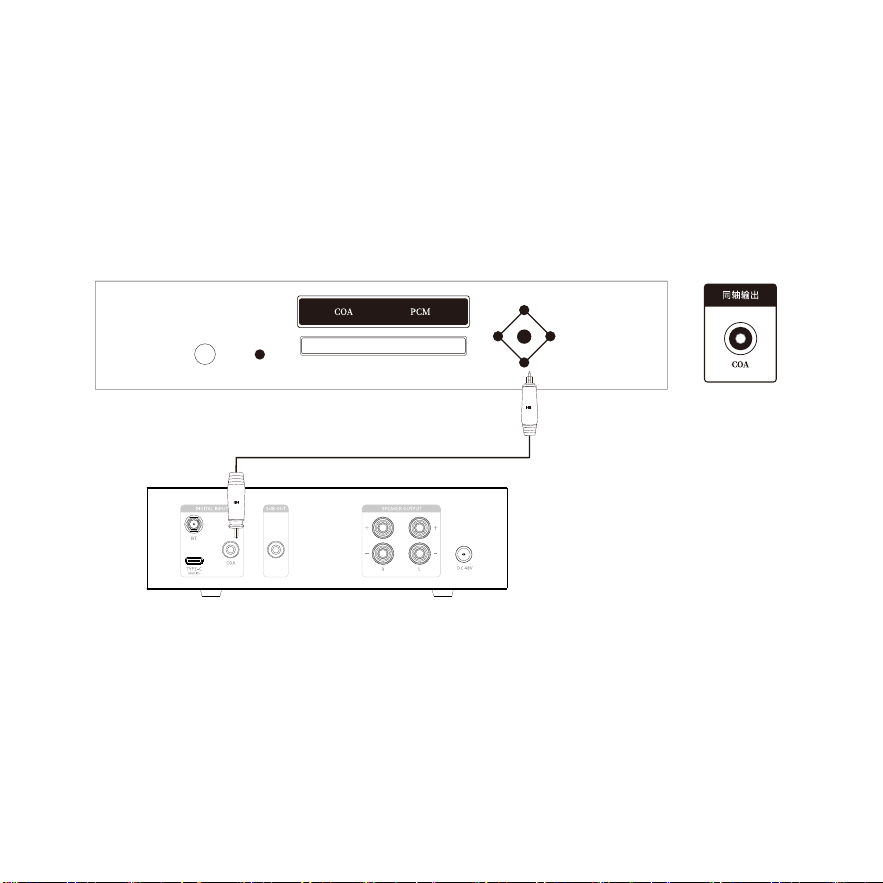
2.Coaxial Input Mode
Operating Steps:
1.Cable Connection: Please use a high-quality 75Ω shielded audio coaxial cable with RCA connectors.
2.In the machine's settings interface, navigate to the input mode and short press the knob to select "Input
Mode: COAX".
3.The source audio device must have its sound output mode configured to Coaxial / SPDIF output.
4.Select Stereo / PCM as the output format.
Note:
*The illustration shows examples of some connected devices; more devices can actually be connected.
*The cable used must be a digital coaxial cable with a constant impedance of 75 Ohms.
*Select COA for Coaxial input.
*Once the decoder receives a valid audio signal, the display screen will indicate the sampling rate (e.g., 44K).
��
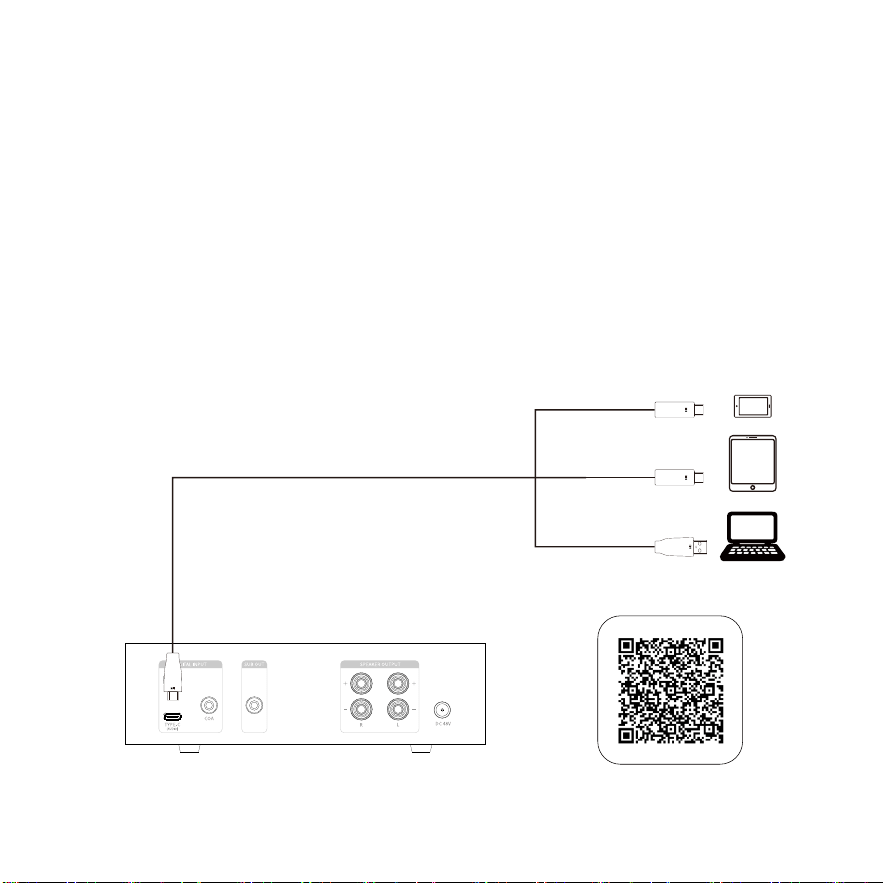
3.USB Input Mode
When USB input is selected, you can output audio via XLR or RCA. Below are the connection and operational methods:
1.(Note: Per the rear panel diagram on Page 7, the port is actually a USB-C input interface. Translating standard
instruction text as written): Use a high-quality shielded decoding cable, plug the USB connector into the DA70's USB
input interface, and connect the other end (USB-A/C) to a computer, mobile phone, or other source devices.
2.Use a pair of XLR balanced audio cables or high-quality RCA interconnects to connect the Left and Right channels of
this unit's output interfaces to the corresponding XLR or RCA input interfaces on your amplifier or powered speakers.
3.In this unit's input/output settings, select USB as the input source and XLR/RCA as the output destination. Set your
amplifier's input source to XLR or RCA; no additional configuration is needed for active/powered speakers.
4.For Windows computers, after properly installing the driver and audio player software according to the tutorial, you
can play high-resolution audio files up to DSD512 and PCM 768kHz 32-bit.
5.When connected to a mobile phone's Type-C port, the phone can output audio directly to the DA70 for hardware
decoding and playback.
��
Note:
*Windows computers require downloading and installing a dedicated driver (Scan the QR code on the right for video
tutorials and driver downloads).
*Mac computers will automatically install the driver. Simply select the USB output device in the system's sound output
settings.
*Some Android devices (such as Huawei phones) require configuring the USB output mode to "MIDI" before
connecting the cable. If there is no sound, reconnect the cable and turn up the volume.
*For models like OPPO/VIVO, you need to go to settings, locate "Additional Settings", and enable the "OTG" switch
before making the connection.
*To play DSD audio from a phone, use a compatible app and enable its "USB Exclusive Access" function. (This feature
depends entirely on app compatibility; any playback anomalies are unrelated to this device).
*(Note: Windows XP does not support the driver. Please use Windows 7 or higher systems).
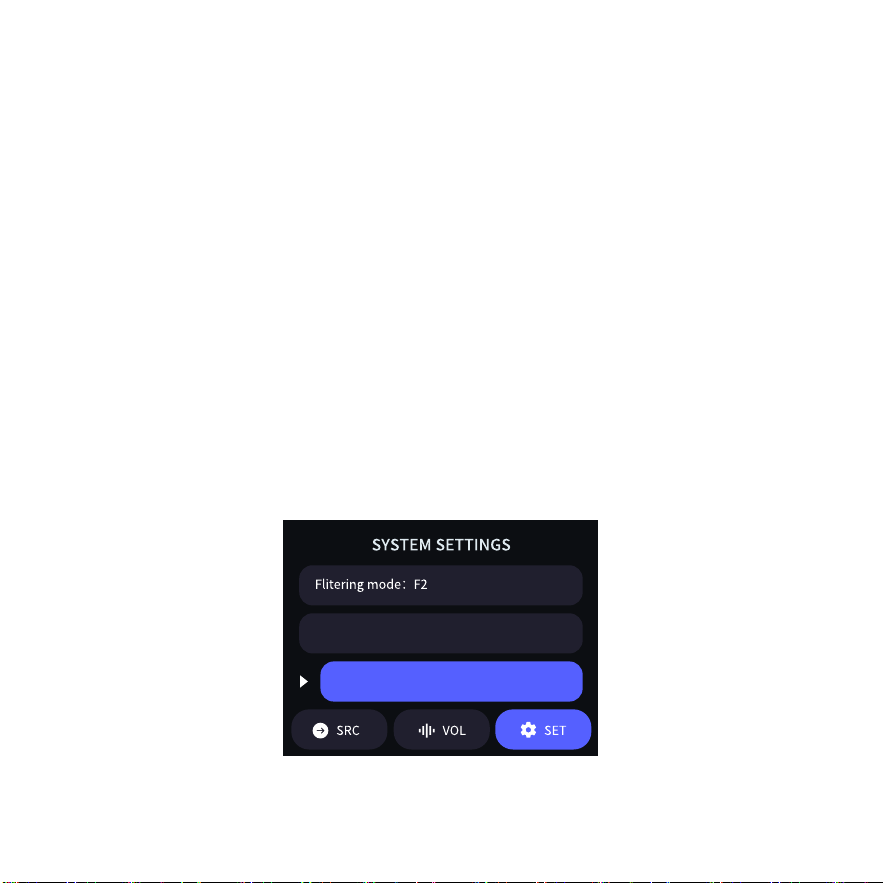
Relay Mute
After entering the settings menu, rotate the knob to select the target function. When the "Filter Mode" option
is highlighted, short press the knob. You can adjust the different digital filter characteristics of the DAC based
on your personal preference to achieve various sound signatures and meet personalized listening needs.
Relay Mute: ON
Language: Chinese
Minimum phase (default)F0:
F1:
F2:
F3:
F4:
F5:
F6:
F7:
Linear phase fast roll-off apodizing
Linear phase fast roll-off
Linear phase fast roll-off low ripple
Linear phase slow roll-off
Minimum phase fast roll-off
Minimum phase slow roll-off
Minimum phase slow roll-off low dispersion
��
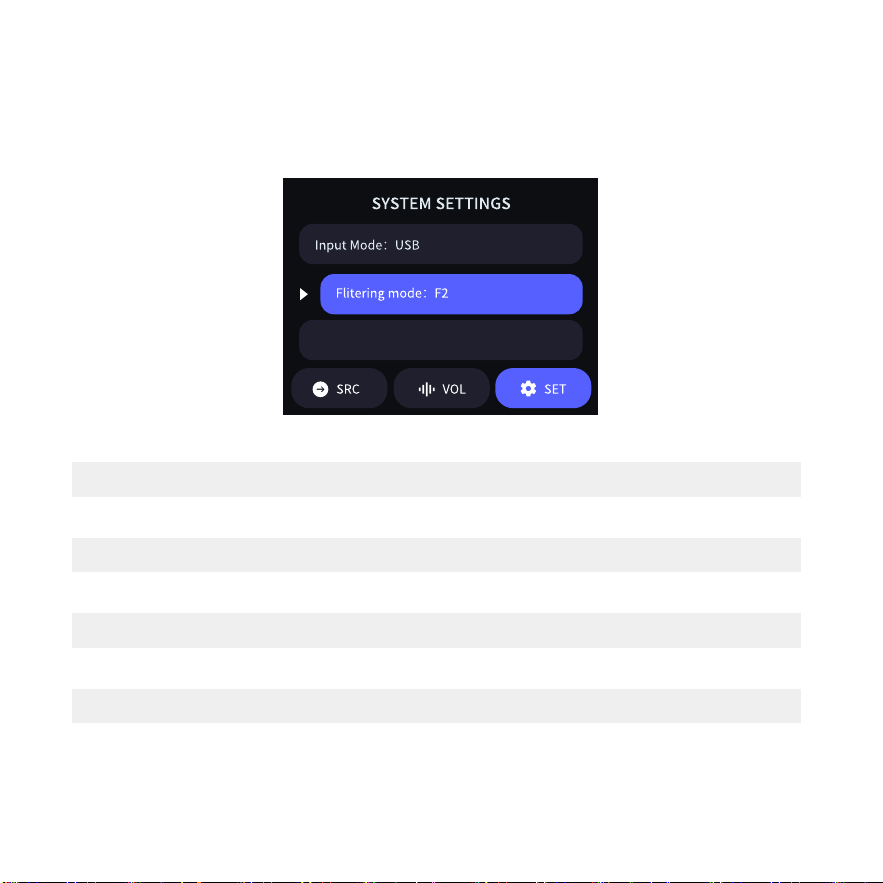
Filter Modes
After entering the settings menu, rotate the knob to select the target function. When the "Filter Mode" option
is highlighted, short press the knob. You can adjust the different digital filter characteristics of the DAC based
on your personal preference to achieve various sound signatures and meet personalized listening needs.
Language: Chinese

DA70
深圳市芸航科技有限公司
0755-83014160
深圳市宝安区西乡街道前海科兴科学园2号楼21楼
Shenzhen Yunhang Technology Co., Ltd.
深セン市芸航科技有限公司
21/F, Building 2, Qianhai Kexing Science Park, Xixiang Subdistrict, Bao'an District, Shenzhen
中国 広東省 深セン市 宝安区 西郷街道 前海科興科学園 2 号棟 21 階
info@kaiboer.com

FCC Warning
This device complies with part 15 of the FCC rules. Operation is subject to the following two
conditions: (1) this device may not cause harmful interference, and (2) this device must accept
any inte rference received, including interference that may cause undesired operation.
Changes or modifications not expressly approved by the party responsible for compliance could
void the user's authority to operate the equipment.
NOTE: This equipment has been tested and found to comply with the limits for a Class B digital
device, pursuant to part 15 of the FCC Rules. These limits are designed to provide reasonable
protection against harmful interference in a residential installation. This equipment generates
uses and can radiate radio frequency energy and, if not installed and used in accordance with the
instructions, may cause harmful interference to radio communications. However, there is no
guarantee that interference will not occur in a particular installation. If this equipment does
cause harmful interferenceto radio or television reception, which can be determined by turning
the equipment off and on, the user is encouraged to try to correct the interference by one or
more of the following measures:
-Reorient or relocate the receiving antenna.
•Increase the separation between the equipment and receiver.
•Connect the equipment into an outlet on a circuit different from that to which the receiver is
connected.
•Consult the dealer or an experienced radio/TV technician for help.
Radiation Exposure Statement
This equipment complies with FCC radiation exposure limits set forth for an uncontrolled
environment. This equipment should be installed and operated with minimum distance 20cm
between the radiator and your body.