COMPATIBLE WITH MAC & IOS DEVICES (2012 & NEWER)
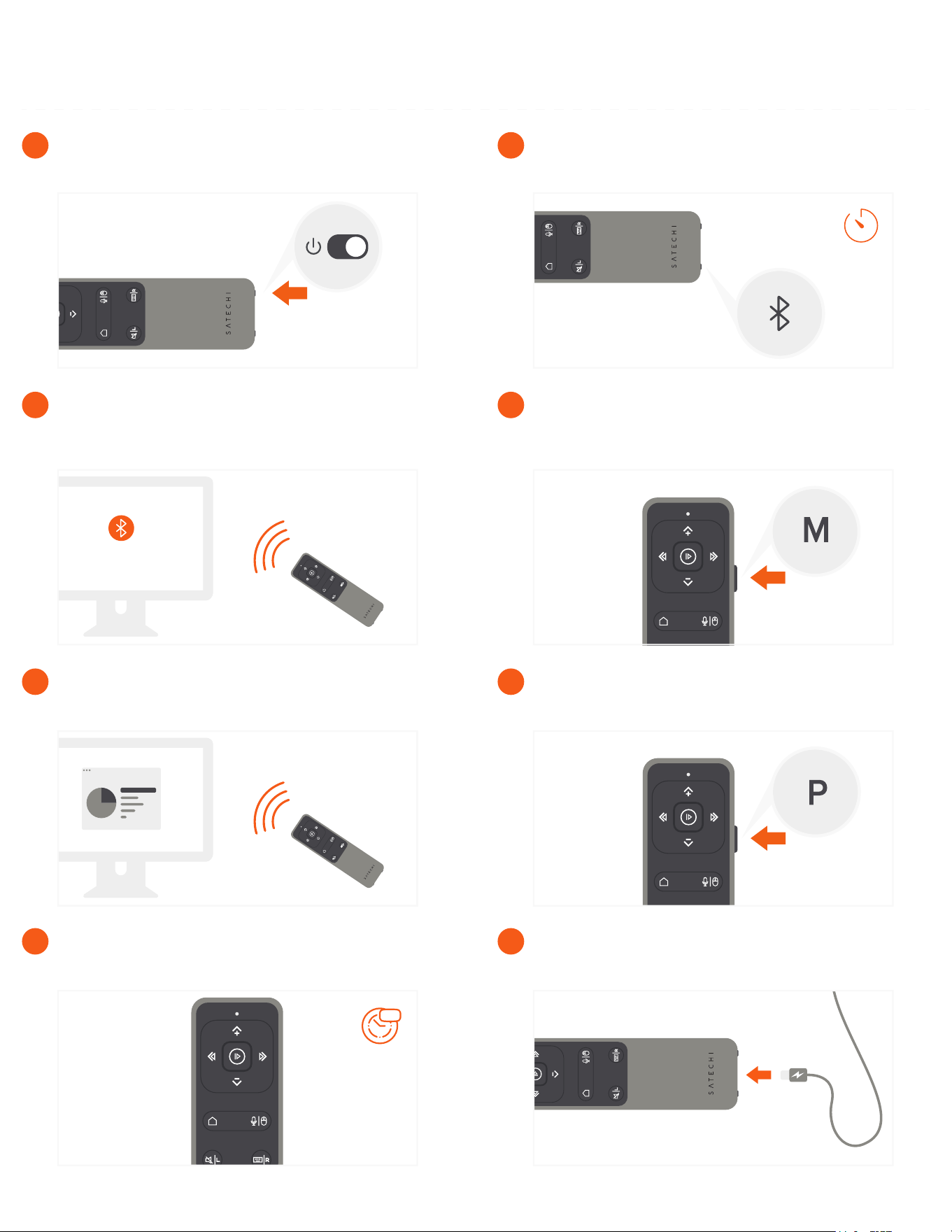
To recharge the remote, connect to a powered USB-C port
using the included cable. Flashing red light indicates low battery.
Red light will turn green when fully charged
8
10m
Zzz
After ten minutes of inactivity, the remote will go into sleep
mode. Press any button to wake.
7
Enable the on-screen laser feature within PowerPoint or Keynote
settings with the remote in Presentation mode (P).
See instructions in Enabling On-Screen Laser guide
6
Supports PowerPoint, Keynote, Prezi, Google Slides, PDF while
in Presentation mode.
PowerPoint requires a valid Office365 subscription
5
Supports Apple Music, Spotify, Pandora, YouTube* while in
Multimedia mode.
*YouTube app does not support fast-forward/rewind, in-browser
use is supported
4
Select “R2 Remote” when it appears in your host device’s
Bluetooth settings to connect and finish the pairing process.
3
6s
Enter pairing mode by press and holding the remote’s Bluetooth
button for ~6 seconds.
The light will start flashing
2
Power on the remote using the bottom switch.
1
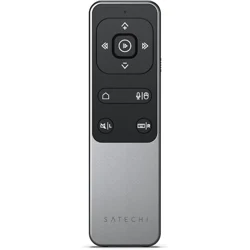
R2 BLUETOOTH MULTIMEDIA REMOTE CONTROL
INSTRUCTIONAL GUIDE