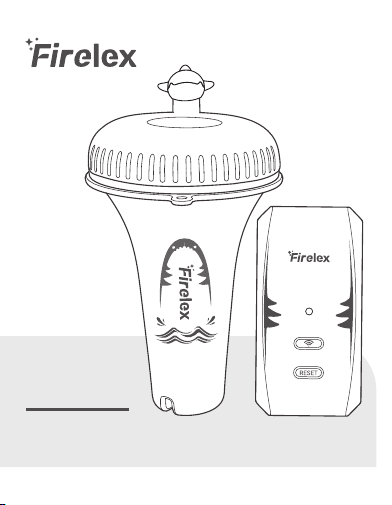
Pool Thermomter
and Gateway Set
IBS-P01R&
IBS-M2S

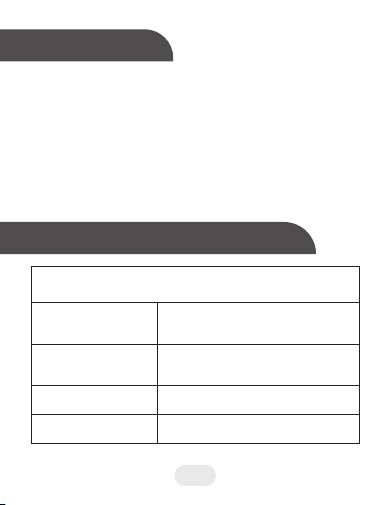
1. Overview
2. Technical Specifications
- 1 -
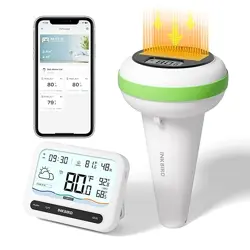
The IBS-P01R pool thermometer, paired with the
IBS-M2S Wi-Fi gateway, sends temperature data
directly to the smartphone app, enabling remote
monitoring. Easy to install and long-lasting, it
allows you to control water temperatures from
anywhere at any time, making pool management
more convenient and effortless.
IBS-M2S WiFi Gateway (receiver)
Max transmission
distance
Maximum number of
connected devices
Compatible network
Input voltage
980 feet without interference
(interference may limit transmission)
Up to 9 pool thermometers
2.4GHz WiFi
AC 100~240V 50/60 Hz
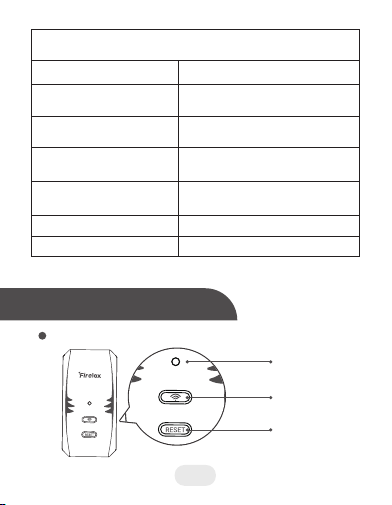
IBS-M2S WiFi Gateway
IBS-P01R Wireless Pool Thermometer
Battery
Temperature
measurement range
Temperature
measurement accuracy
Temperature
display accuracy
Temperature sampling
period
Waterproof rating
Warranty period
2*AAA 1.5V
-40℃~70℃(-40℉~158℉)
±1℃(±1.8℉)
0.1℃(0.1℉)
10 seconds
IPX7
1year
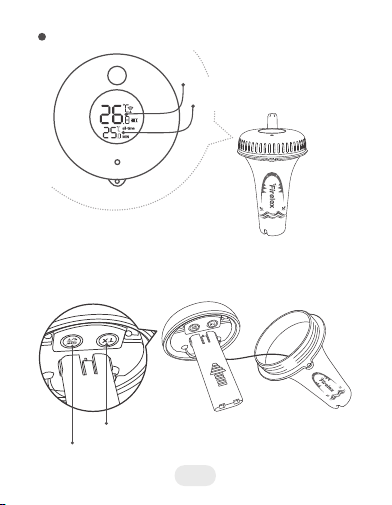
3.Product Diagram
- 2 -
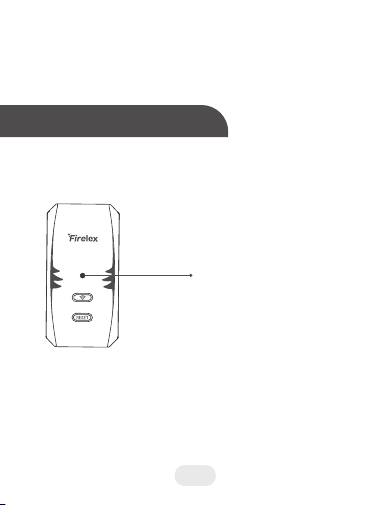
WiFi Indicator
WiFi Button
Reset Button
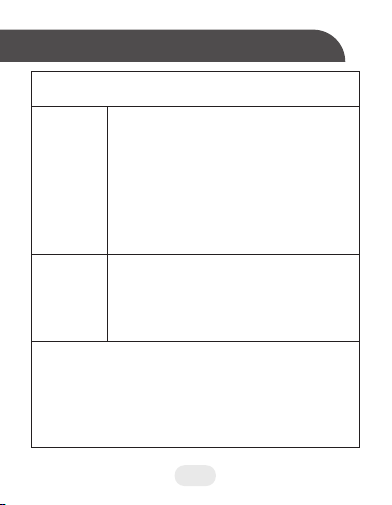
Clear/℃/℉ button
TX button
IBS-P01R Wireless Pool
Twist off the lid of the thermometer as shown
below, all the buttons of the pool thermometer are
designed inside.
Max/Min Temperature
Measured Water Temperature
- 3 -
IBS-M2S WiFi gateway(receiver)
WiFi button
RESET
button
Press and hold the WiFi button for 5
seconds to reset the WiFi pairing. Once
reset, follow the pairing steps to
reconnect to the WiFi network.
Once you have successfully connected to
WiFi, the gateway's WiFi indicator will
remain lit. At this point, press the WiFi
button briefly to turn off the indicator.
After unbinding, follow the connection
steps to rebind to each sensor.
Press and hold the RESET button for 5
seconds to unbind all sensors.
Note: When the WiFi gateway buzzer sounds an alert,
press any button on the gateway to silence it. You can
also stop the buzzer by viewing the alert information
via the app. You can disable the buzzer in the app
settings.
4.Operation Button Definitions
- 4 -

TX button
IBS-P01R wireless pool thermometer
Clear/℃/℉
button
Press the button to clear the historical
temperature data. The device will record the
new maximum and minimum temperature
after clearing the history data.
Press and hold the button for 5 seconds
to switch the temperature unit between ℃
and ℉.
Note: Please put the pool thermometer as
close as to the receiver during synchronization.
Press the button to send temperature data to
the receiver manually, the blue light of the
pool thermometer will flash once when the
transmission is successful.
- 5 -
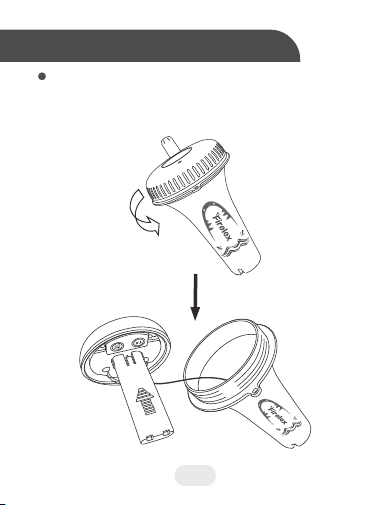
Unscrew the lid of the pool thermometer as shown
below.
a.
Battery Installation
5.Installation Instructions
- 6 -
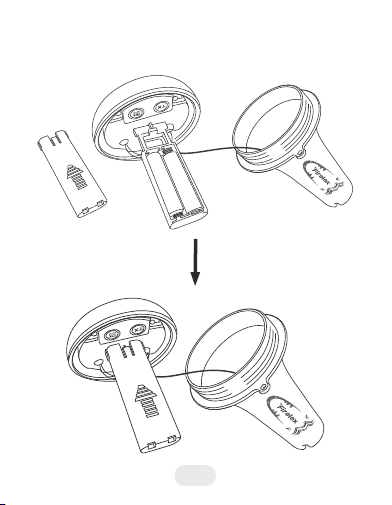
Remove the battery cover, install 2 AAA batteries,
and put the cover back.
b.
- 7 -
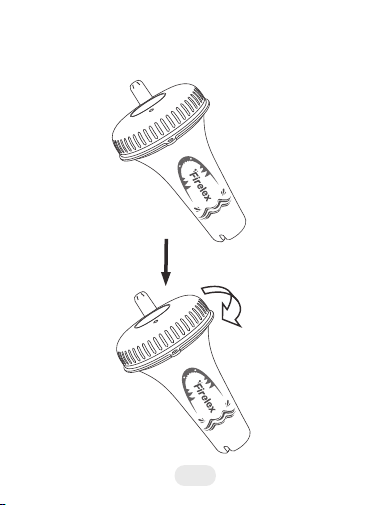
c.
Make sure the silicone waterproof ring is well
placed, then close and tighten the lid of the pool
thermometer.
- 8 -
Notice: Use only new alkaline batteries. Do not mix
new and old batteries. Do not use rechargeable
batteries. Do not use standard (carbon-zinc)batteries.
6.Add Sub-Dvices
Firstly, connect the WiFi gateway to a power
sourceand ensure the mobile APP is connected.
See section 7 for app connection instructions.
- 9 -
The Wi‑Fi indicator remains lit.
a.
Secondly, make sure that the pool thermometer
(transmitter) is turned on, and place the
thermometer as close to the WiFi gateway and
indoor monitor (Receiver) as possible. Wait 2
minutes for the devices to pair automatically, or
b.
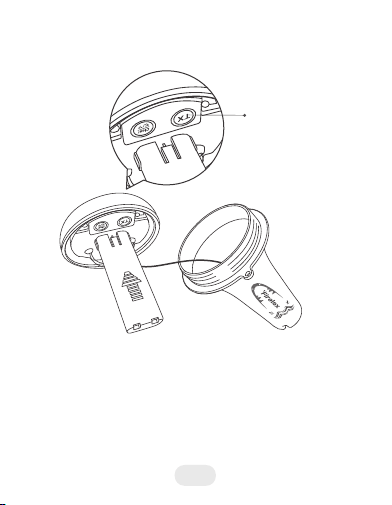
Once the pool thermometer has been
successfully paired with the receiver, you can
view temperature data via the app.
Note: If you fail to add sub-devices, please restart
the pool thermometer (transmitter), and repeat
steps b~c to add the device.
c.
Press the TX button
unscrew the lid of the pool thermometer and
press the TX button to pair immediately.
- 10 -
7.1 Search for the INKBIRD App from Google
Play or App Store to get it for free, or you can
scan the QR code below to download it directly.
7.APP Installation & Connection
4. APP Location Permission Requirement: We need
to obtain your location information to discover and
add nearby devices. INKBIRD promises to keep
your location information
3.The device supports a 2.4GHz Wi-Fi router only.
2. Your android devices must be running android
7.1 or above to download the app smoothly.
1. Your iOS devices must be running iOS 12.0 or
above to download the app smoothly.
NOTE
- 11 -

7.2 Registration
7.3 How to connect
strictly confidential. And your location
information will only be used for the location
function of the App and will not be collected,
used, or disclosed to any third party. Your privacy
is very important to us. We will abide by relevant
laws and regulations and take reasonable
security measures to protect your information
security.
Step1: Registering an account is necessary
before using the INKBIRD app for the first time.
Step2: Open the app, select your Country/Re-
gion, and a verification code will be sent to you.
Step3: Enter the verification code to confirm
your identity, and the registration is complete.
Open the INKBIRD app and Click “+” on the top right
corner to add a device. Then, follow the app
instructions to complete the connection. Be careful to
put the device as close as possible to the smartphone
and router during the connection process.
- 12 -

8.Important Notes/Warnings
a. Please do not disassemble the product if you
are not a professional.
b. Be sure that the sensor is not covered with
dust as dust may lead to inaccurate
measurements.
c. Do not use alcohol to clean the sensor.
d.
Do not dispose the product in a fire as it may
explode. Please observe local regulations for
proper disposal of discarded electronic
products.
e. Remove from pool when not in use or while
cleaning the pool so unit is not damaged by
skimmers or other devices.
f. The thermometer can measure temperatures
between -40℃ and 70℃ (-40℉ and 158℉). It
is not suitable for use in harsh environments
below -40℃/ -40℉ and above 70℃/158℉.
- 13 -
Issues
The
gateway
can not
connect to
the
network
Condensa-
tion
formed
inside the
pool
thermome-
ter
Possible Solutions
1. Make sure the 2.4GHz WiFi signal is
stable, and place the WiFi gateway as close
to the router as possible.
2. Make sure there are as few barriers as
possible between the WiFi gateway and the
router.
3. Enable Bluetooth and Location Services.
Allow the app to access your location and
grant it permission to access your local
network (for iOS devices).
1. When installing the battery, keep your
hands dry to prevent excess moisture from
entering.
2. Make sure that the lid is fully tightened
during installation. If it still does not work
properly afterwards, please contact
Customer Services.
3. If moisture is detected, wipe the interior
dry, remove the battery, and leave it to air
dry in a dry environment before installing a
new battery.
9.Troubleshooting Guide
- 14 -

Wrong
temperature
readings
No display
on the pool
thermome-
ter's screen
Rusty stains
inside the
pool
thermome-
ter
Receiver
disconnects/
loses
connection
to pool
thermometer
1. Check that the equipment is intact.
2. Please ensure the thermometer is not
placed where hot and cold water alternate.
3. Place the transmitter indoors to carry out
the test. If the readings remain inaccurate,
please contact Customer Services.
1. Check that the equipment is intact.
2. The issue may be caused by a dead or
incorrectly positioned battery. Replace
the battery and ensure that it is installed
in the correct direction.
1. Keep your hands dry when installing
the battery.
2. Please remove any rust. Before
installing the new battery, leave the pool
thermometer indoors for a while to allow
any moisture to evaporate naturally.
1. Place the pool thermometer near the
receiver, then press the TX button on the
pool thermometer to pair it again.
2. Reinstall the batteries.
Issues
Possible Solutions
- 15 -

10.FCC Requirement
Changes or modifications not expressly
approved by the party responsible for
compliance could void the user’s authority to
operate the equipment. This device complies
with Part 15 of the FCC Rules. Operation is
subject to the following two conditions:
(1) this device may not cause harmful
interference, and
(2) this device must accept any interference
received, including interference that may cause
undesired operation.
Note: This equipment has been tested and found
to comply with the limits for a Class B digital
device, pursuant to Part 15 of the FCC Rules.
These limits are designed to provide reasonable
protection against harmful interference in a
residential installation. This equipment
generates, uses, and can radiate radio frequency
energy, and if not installed and used in
accordance with the instructions, may cause
harmful interference to radio communications.
- 16 -

However, there is no guarantee that interference
will not occur in a particular installation. If this
equipment does cause harmful interference to
radio or television reception, which can be
determined by turning the equipment off and on,
the user is encouraged to try to correct the
interference by one or more of the following
measures:
– Reorient or relocate the receiving antenna.
– Increase the separation between the
equipment and receiver.
– Connect the equipment into an outlet on a
circuit different from that to which the receiver is
connected.
– Consult the dealer or an experienced radio/TV
technician for help.This equipment complies
with FCC radiation exposure limits set forth for
an uncontrolled environment. This equipment
should be installed and operated with a
minimum distance of 20cm between the radiator
& your body. This transmitter must not be
co-located or operating in conjunction with any
other antenna or transmitter.
- 17 -

11.IC Warning
This device contains licence-exempt transmitter
(s) that comply with Innovation, Science and
Economic Development Canada’s licence-exempt
RSS(s). Operation is subject to the following two
conditions:
(1)This device may not cause interference.
(2) This device must accept any interference,
including interference that may cause undesired
operation of the device.
This device complies with Industry Canada
license-exempt RSS standard(s). Operation is
subject to the following two conditions:
(1) this device may not cause interference, and
(2) this device must accept any interference
including interference that may cause undesired
operation of the device.
Cet appareil contient un ou des émetteurs
exempts de licence conformes aux RSS exempts
de licence d'Innovation, Sciences et Développe-
ment économique Canada. Le fonctionnement
- 18 -

- 19 -
est soumis aux deux conditions suivantes :
(1) Cet appareil ne doit pas causer d'interférences.
(2)Cet appareil doit accepter toutes les
interférences, y compris les interférences
susceptibles d'entraîner un fonctionnement
Cet appareil satisfait aux normes RSS de
matériel radio exempté de licence par le
Gouvernement du Canada. Son fonctionnement
est sujet aux deux conditions suivantes :
(1) Il ne doit pas causer de brouillage préjudicia-
ble et
(2) doit accepter tout brouillage reçu, y compris
tout brouillage qui pourrait nuire à son
fonctionnement.
The device has been evaluated to meet general
RF exposure requirement.
L'appareil a été évalué pour répondre aux
exigences générales d'exposition aux RF.
Shenzhen Xingkong Chuanglian
E-Commerce Co., Ltd
V1.0
Distributor address: Room 403, Building 138, No. 71
Yiqing Road, Xianhu Community, Liantang Subdistrict,
Luohu District, Shenzhen, Guangdong Province, China.
518000, CN
Manufacturer: Shenzhen Inkbird Technology Co., Ltd.
Manufacturer Address: 5th and 6th Floor,Building
138, No.71, Yiqing Road, Xianhu Community, Liantang
Street, Luohu District, Shenzhen,Guangdong, China
MADE IN CHINA
DESIGNED BY FIRELEX