
FCC Statement
This device complies with part 15 of the FCC rules. Operation is subject to the
following two conditions: (1) this device may not cause harmful interference,
and (2) this device must accept any interference received, including
interference that may cause undesired operation.
Changes or modifications not expressly approved by the party responsible for
compliance could void the user's authority to operate the equipment.
NOTE: This equipment has been tested and found to comply with the limits for
a Class B digital device, pursuant to part 15 of the FCC Rules. These limits are
designed to provide reasonable protection against harmful interference in a
residential installation. This equipment generates uses and can radiate radio
frequency energy and, if not installed and used in accordance with the
instructions, may cause harmful interference to radio communications.
However, there is no guarantee that interference will not occur in a particular
installation. If this equipment does cause harmful interference to radio or
television reception, which can be determined by turning the equipment off
and on, the user is encouraged to try to correct the interference by one or
more of the following measures:
• Reorient or relocate the receiving antenna.
• Increase the separation between the equipment and receiver.
• Connect the equipment into an outlet on a circuit different from that to
which the receiver is connected.
• Consult the dealer or an experienced radio/TV technician for help.
The device has been evaluated to meet general RF exposure requirement.
The device can be used in portable exposure condition without restrictio
3
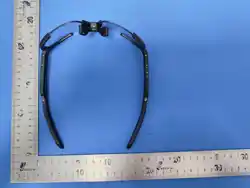
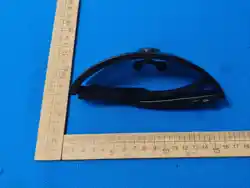
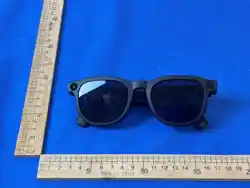
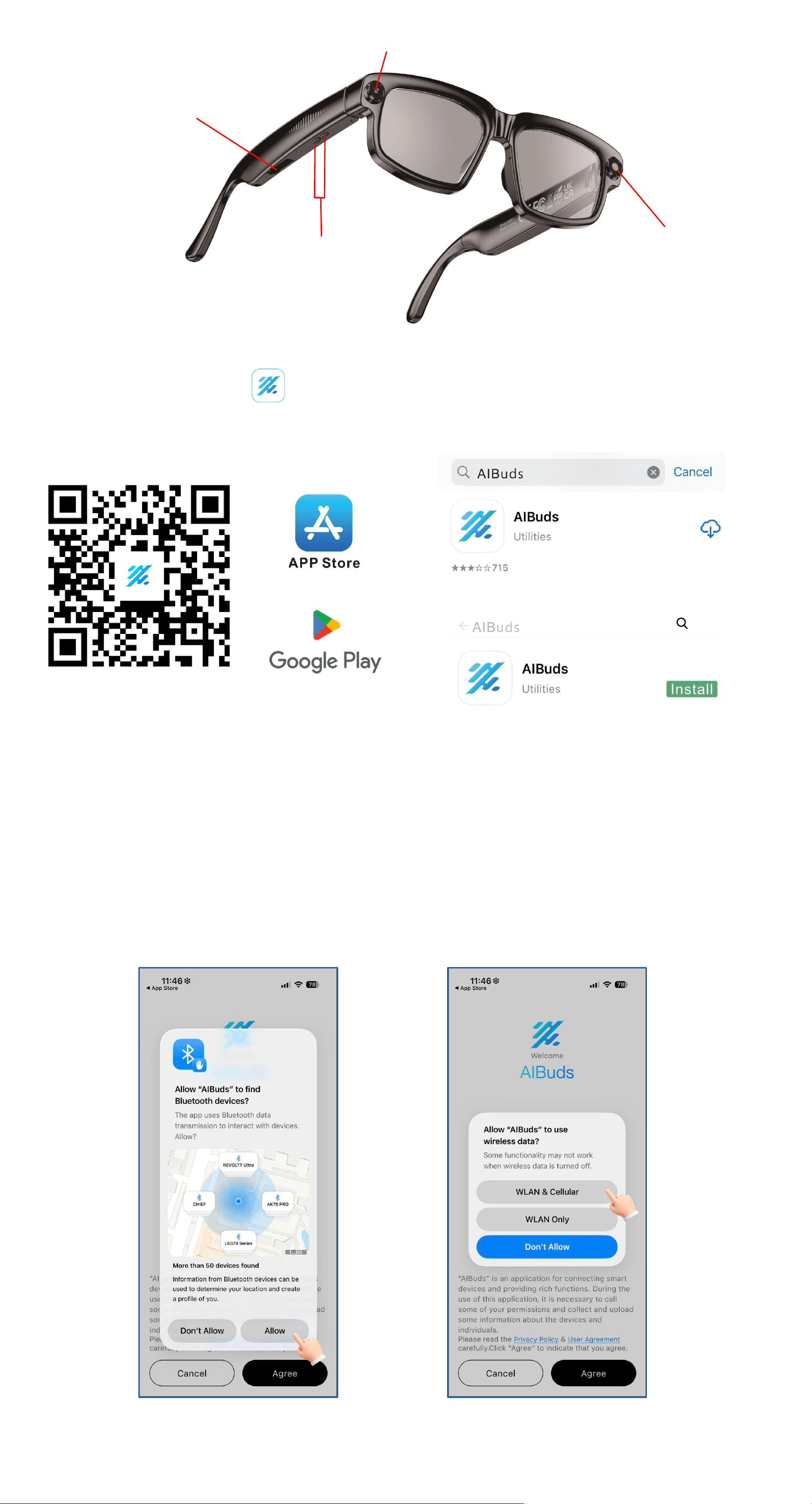
Product Illustration
App Download
①Download the" AIBuds" appfromthe App Store or Google
Play.
②Scan QR code to download.
iOS SystemConnection Instructions
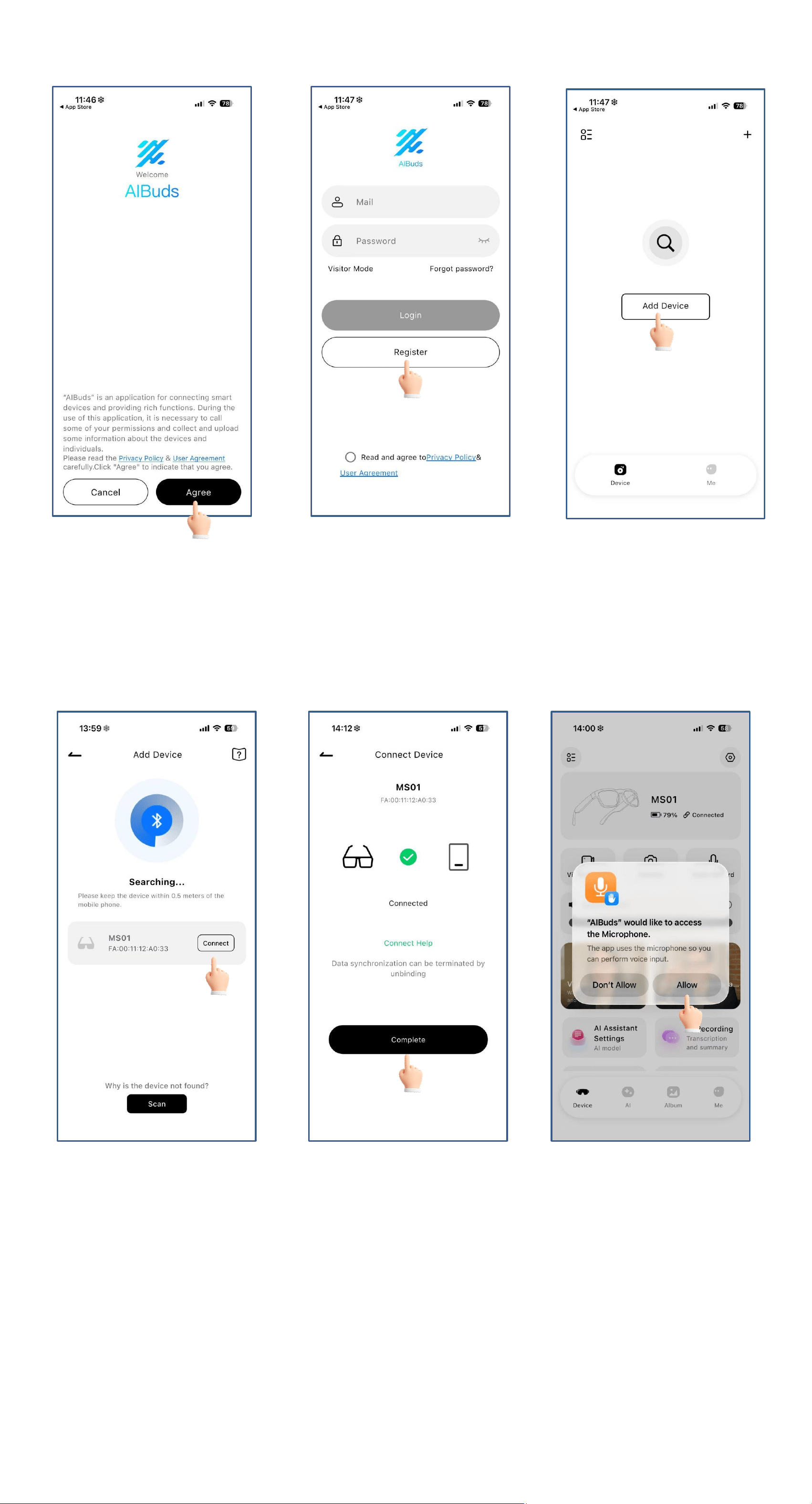
a. Upon first use ofthe AIBuds app, enableit to access Bluetooth,
wireless data, andnotifications on your compatible smartphone
bygranting all necessary permissions throughyour phone's settings
Camera
Flash
Function key
Type-C(Charging port)
4
b.Use the app with "VisitAs Guest" or"Sign ln"
Connecting Bluetooth-l0S
a. Select'Search Now' to discover andconnect to the watch
Bluetooth device. and tarthe watch to 'agree' grant access and
completthe pairing process.
b."Allow Bluetooth Pairing" and "Allow Notifications”
5
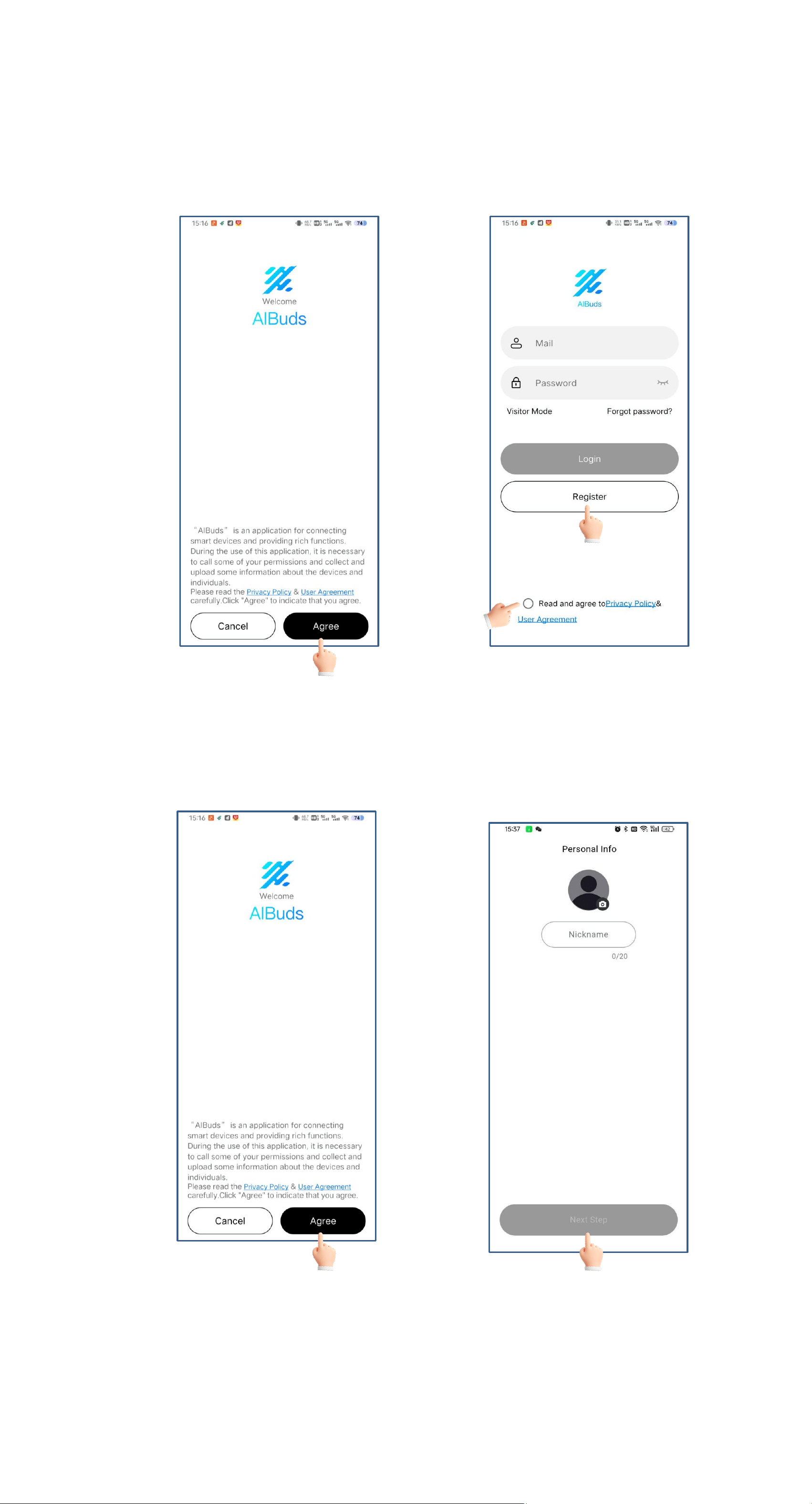
Setting Up AIBuds App on
Android: Permissions and Agreement
a. "Agree"AIBuds Privacy Policy & UserAareement ,Login or Use
WithoutAccount:
b.Fill in your personal information and Search/connect nearby
permissions Bluetooth request
c.Allow FitCloudPro to discover and connecttathe watch
devices.Tap the watch and selectagree to grant access and
complete thepairing process.
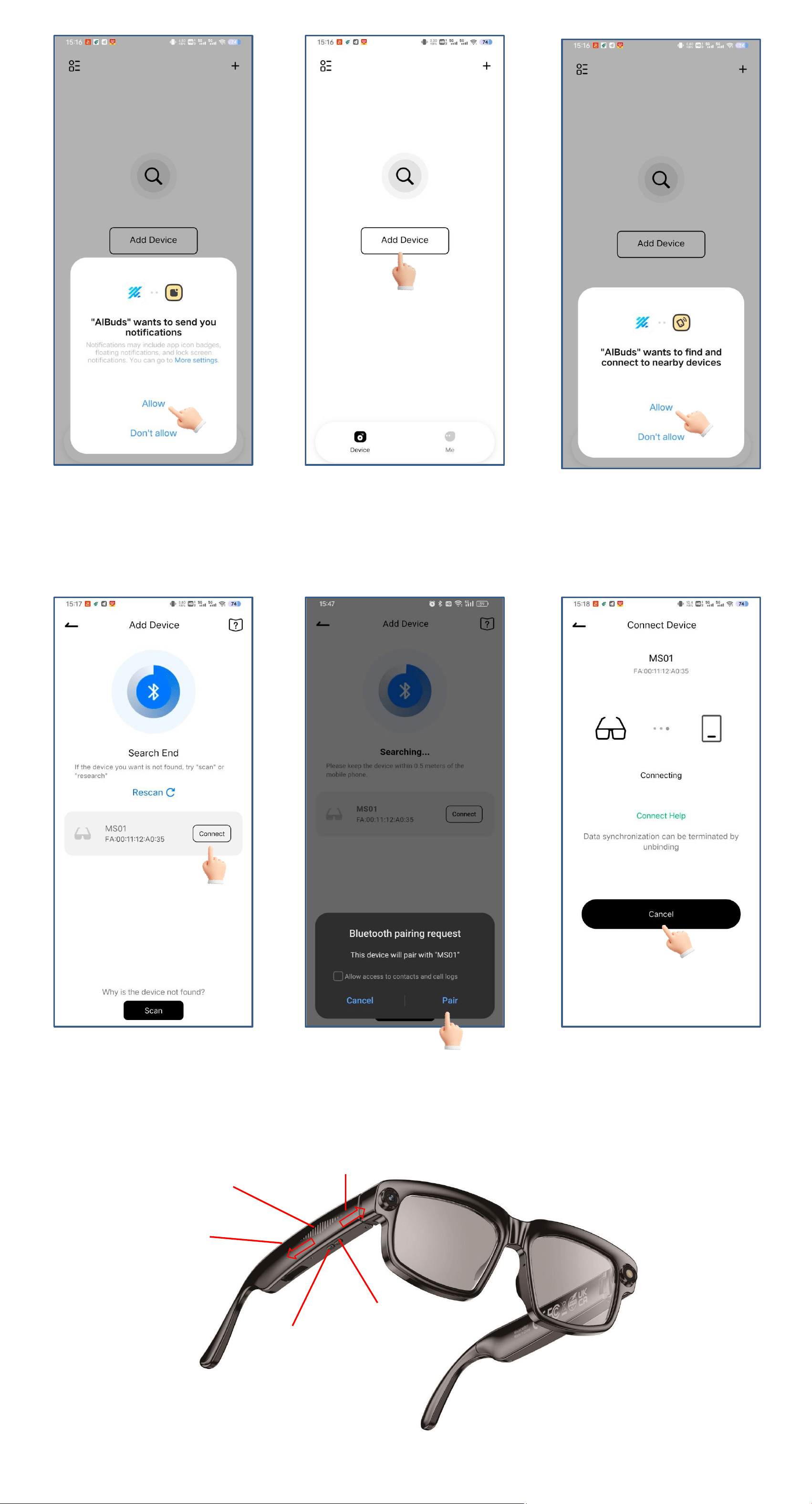
6
d.Allow Bluetooth pairing requests and Accessto Contacts:
Definition of smart glasses
Function key
Touch area
Swipe back
Power button
Swipe forward

7
1. Power Button Function Introduction
●Power off: Long press 3s to turn on
●Power on: Long press 3s to turn off
●Power on: Single click to take a photo
●Power on: Double click to start recording audio
●Power on: Long press 1.5s to start video recording
●Recording audio/video: Single click to stop recording/video
2.Function Key Features
●Incoming call: Click to answer the call
●Incoming call: Double-click to reject the call
●In call: Click to end the call
●Power on: Long press 6S to restore factory settings
3.Introduction to Touch Area Features
●When powered on, in music mode: single click to play/pause
●When powered on, in music mode: double click for next track
●When powered on, in music mode: triple click for previous track
●When powered on: long press for 1.5s to wake up AI voice
assistant
●In AI voice assistant mode: single click to exit AI voice assistant
●When powered on: swipe forward to increase volume
●When powered on: swipe forward to decrease volume
Introduction to the Charging Indicator Light
●When turning on, the indicator light flashes blue. After
connecting to the app, the indicator light turns off. When turning
off, the red indicator light flashes before shutting down.
●When taking photos or recording videos, the blue indicator light
is on, and it turns off when finished.
●During data transfer, the blue indicator light is on, and it turns off
when done.
●During recording, the blue indicator light is on, and it turns off
when you stop recording.
●Orange indicator light flashing: indicates the device battery is low,
please charge the device in time.
●Orange indicator light steady: means the device is charging
normally.
●Green indicator light steady: means the device is fully charged.

8
Feature Introduction
1.Bluetooth Calls: After connecting to the app, you can answer
phone calls via Bluetooth for wireless chatting, with super clear
Bluetooth call quality.
2.Music Control: After connecting to the app, you can control your
phone's music via Bluetooth, using the buttons to play, pause, go
to the previous or next track, and adjust the volume.
3.Photo & Video: Equipped with an 8MP high-sensitivity camera
and noise-reduction microphone, it can simultaneously achieve
'HD photos, 1080P video, and clear audio recording.' No need to
hold any device – just use voice or gesture button commands to
trigger it, freeing your hands while capturing more natural angles.
4.AI Chat: ●Supports both offline and online modes. You can wake
it up with your voice (Hey Turbo Hey Turbo ) to ask questions,
search, set reminders, all without touching the screen, and get
instant responses.
●Supports voice command responses for operating instructions,
your personal assistant
5.AI Translation & Simultaneous Interpretation:
●Supports real-time translation in 10 major languages (Chinese,
English, Japanese, Korean, German, French, etc.). There are two
modes: 'AI Translation' (voice input→text / voice output) and
'Simultaneous Interpretation' (real-time spoken translation,
suitable for conversation scenarios).
6.AI Photo Recognition: After taking a picture of an object or
scene, AI automatically identifies it and outputs information
Friendly Reminder
●When the battery is below 15%, the device will stop taking
photos and recording videos.
●Since this is a smart product, the software updates periodically.
The app will notify you. If the battery is below 15%, updates
cannot be performed. Charging the device will restore normal use.
●When the battery is below 20%, the device will stop transmitting
data. Charging will restore normal use.
●Video recording and data transmission consume a lot of power.
Long periods of recording and data transmission may cause the
device to heat up, but it will quickly return to normal after
stopping these activities.
●To unbind the product, go to your phone settings - Bluetooth -
and choose to ignore, making it easier for other phones to connect
to this device.

9
Product Usage Notes
●Do not charge in damp or wet areas.
●Do not use high-power chargers; use a standard 5V/1A charger
and the charging cable that comes with this product.
●Do not soak this product in water. If it gets wet from rain or water,
wipe it clean promptly.
●The material of this product is soft, so handle it gently and avoid
dropping it.
●This product has camera and photo functions. Please clean the
camera lens and surface regularly to avoid affecting photo quality.
●The lenses of this product (smart glasses) are replaceable. You
can replace them at a local optician according to your needs.
●This product supports photo and video functions. Do not use this
product for covert filming. Please strictly follow local laws and use
this product responsibly. When taking photos or videos, the
left-side flash will light up. If any issues are noticed, please repair it
promptly.