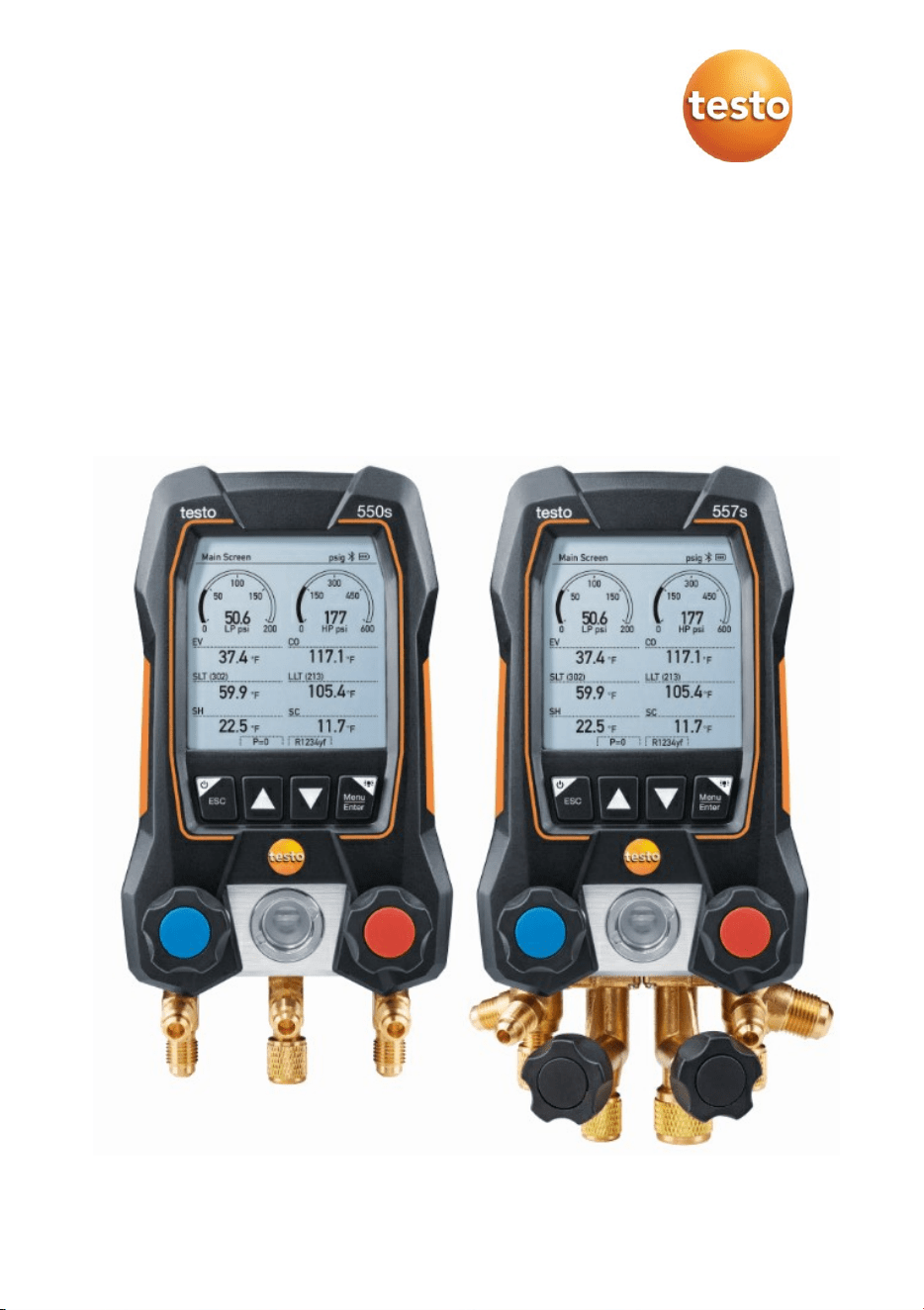
testo 550s / testo 557s digital manifold
Instruction manual


Contents
Contents
1 About this document ........................................................................... 7
2 Safety and disposal .............................................................................. 7
3 Product-specific approvals ................................................................. 7
4 Product-specific information............................................................... 8
5 Use ......................................................................................................... 8
6 Product description ............................................................................. 9
6.1 Overview of the testo 550s ................................................................................. 9
6.2 Overview of the testo 557s ............................................................................... 10
6.3 Overview of main menu .................................................................................... 11
6.4 Control keys ..................................................................................................... 12
7 First steps ........................................................................................... 12
7.1 Inserting (rechargeable) batteries ..................................................................... 12
7.2 Switching the instrument on and off .................................................................. 13
7.3 Setup wizard ..................................................................................................... 13
8 Using the product ............................................................................... 14
8.1 Preparing for measurement .............................................................................. 14
8.1.1 Operating the valve positioners ................................................................................ 14
8.1.2 Automatic mode ....................................................................................................... 15
8.2 Measuring mode ............................................................................................... 15
8.2.1 Refrigeration ............................................................................................................ 15
8.2.2 Evacuation ............................................................................................................... 19
8.2.3 Pressure Leak Test .................................................................................................. 22
8.2.4 Target Superheat ..................................................................................................... 25
8.2.5 Compressor Test (DLT) ............................................................................................ 29
8.2.6 Delta T ..................................................................................................................... 32
8.3 Bluetooth .......................................................................................................... 33
8.3.1 Probes compatible with the instrument ..................................................................... 33
8.3.2 Establishing a connection ......................................................................................... 34
8.3.3 Switching on/off ........................................................................................................ 35
8.3.3.1 Switching on ............................................................................................................................35
8.3.3.2 Switching off ............................................................................................................................36
8.3.3.3 Manual probe selection ...........................................................................................................36
8.4 Settings ............................................................................................................ 37

Contents
8.4.1 Duration .................................................................................................................. 38
8.4.2 Brightness ............................................................................................................... 38
8.4.3 Auto Off ................................................................................................................... 39
8.4.4 Auto Tfac (Temperature compensation factor) ......................................................... 40
8.4.5 Units ........................................................................................................................ 41
8.4.6 Language ................................................................................................................ 42
8.4.7 Setup Wizard ........................................................................................................... 43
8.4.8 Factory Settings ...................................................................................................... 44
8.4.9 Instrument ............................................................................................................... 45
9 Smart App........................................................................................... 46
9.1 App – user interface ......................................................................................... 46
9.2 Main menu ....................................................................................................... 47
9.3 Measurement menu .......................................................................................... 48
9.3.1 Basic view ............................................................................................................... 49
9.3.1.1 Graphic view ........................................................................................................................... 49
9.3.1.2 Table view ............................................................................................................................... 50
9.3.2 Refrigeration ............................................................................................................ 50
9.3.3 Target Superheat ..................................................................................................... 53
9.3.4 Pressure Leak Test ................................................................................................. 55
9.3.5 Evacuation .............................................................................................................. 57
9.4 Customer .......................................................................................................... 58
9.4.1 Creating and editing a customer .............................................................................. 58
9.4.2 Creating and editing measuring sites ....................................................................... 59
9.5 Memory ............................................................................................................ 61
9.5.1 Searching for and deleting measurement results ...................................................... 61
9.6 Sensors ............................................................................................................ 62
9.6.1 Information .............................................................................................................. 62
9.6.2 Settings ................................................................................................................... 63
9.7 Settings ............................................................................................................ 63
9.7.1 Language ................................................................................................................ 63
9.7.2 Measurement settings ............................................................................................. 64
9.7.3 Company details ...................................................................................................... 64
9.7.4 Privacy settings ....................................................................................................... 64
9.8 Help and Information ........................................................................................ 65
9.8.1 Instrument information ............................................................................................. 65
9.8.2 Tutorial .................................................................................................................... 65
9.8.3 Exclusion of liability ................................................................................................. 66

Contents
9.9 testo DataControl archiving software ................................................................ 66
9.9.1 System requirements ............................................................................................... 66
9.9.1.1 Operating system ....................................................................................................................66
9.9.1.2 PC ............................................................................................................................................66
9.9.2 Procedure ................................................................................................................ 67
10 Maintenance........................................................................................ 68
10.1 Calibration ........................................................................................................ 68
10.2 Cleaning the instrument .................................................................................... 68
10.3 Keeping connections clean ............................................................................... 69
10.4 Removing oil residues ...................................................................................... 69
10.5 Ensuring measuring accuracy ........................................................................... 69
10.6 Changing batteries/rechargeable batteries ........................................................ 69
11 Technical data .................................................................................... 70
12 Tips and assistance ........................................................................... 73
12.1 Questions and answers .................................................................................... 73
12.2 Error Codes ...................................................................................................... 73
12.2.1 Main screen ............................................................................................................. 73
12.2.2 Status view .............................................................................................................. 73
12.3 Accessories and spare parts ............................................................................. 74
13 Support ............................................................................................... 74

1 About this document
7
1 About this document
• The instruction manual is an integral part of the instrument.
• Pay close attention to the safety instructions and warning advice in order to
prevent injury and damage to the product.
• Please read this instruction manual carefully and familiarize yourself with the
product before putting it to use.
• Familiarity with a PC as well as the Microsoft
®
products is assumed in this
documentation.
Symbols and writing standards
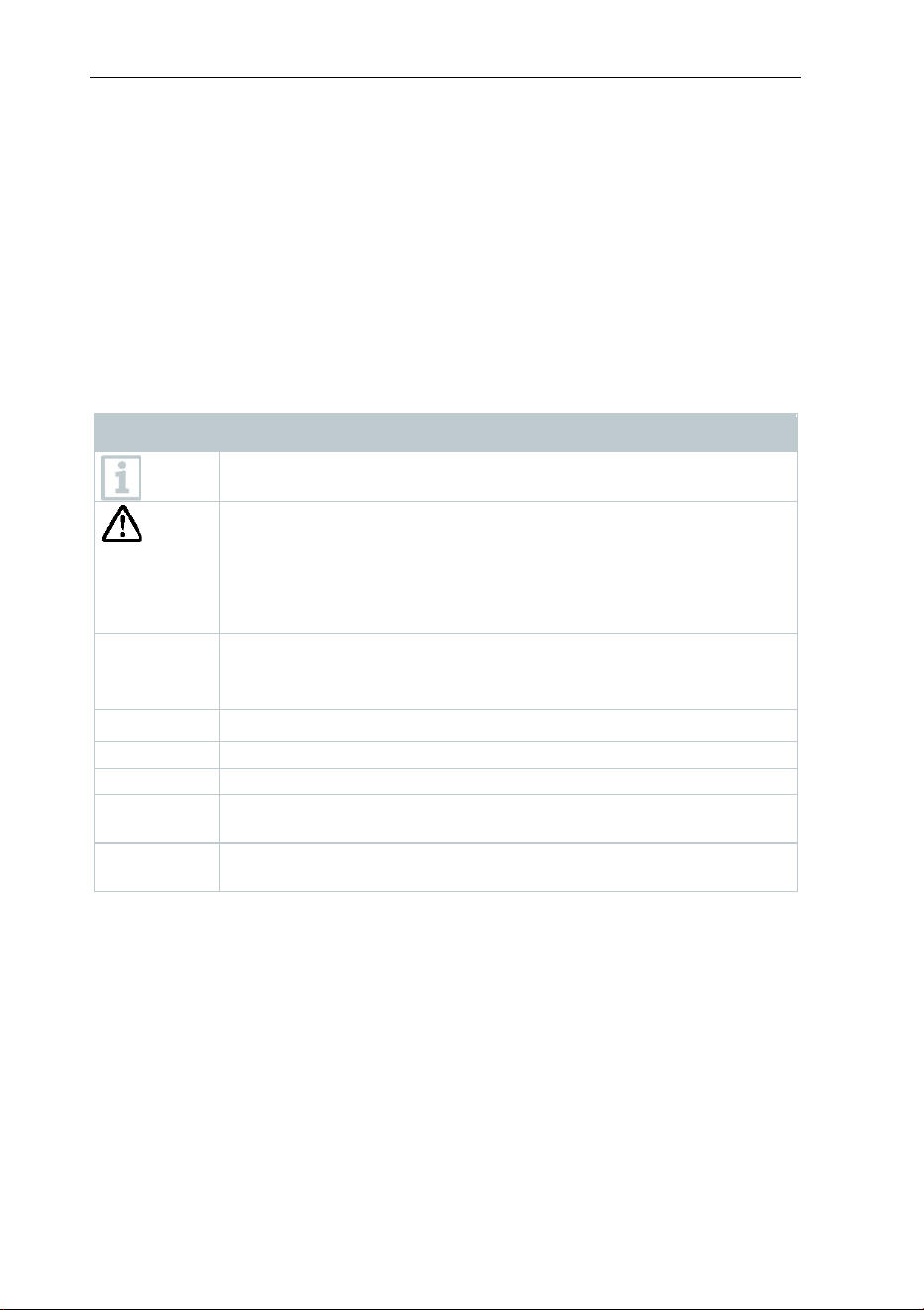
Display Explanation
Note: basic or further information
Warning
advice, risk level according to the signal word:
Warning!
Serious physical injury may occur.
Caution!
Minor physical injury or damage to the equipment may
occur.
> Take the specified precautionary measures.
1
2
…
Action: several steps, the sequence must be followed
-
Result of an action
Requirement
>
Action
Menu
Elements of the instrument, the instrument display or the
program interface.
[OK]
Control keys of the instrument or buttons of the program
interface.
2 Safety and disposal
Please observe the Testo information document (enclosed with the product).
3 Product-specific approvals
Please find the current country approvals in the Approvals and Certifications
document.

4 Product-specific information
8
4 Product-specific information
• The measuring instrument being dropped or any other comparable
mechanical stress may cause breakage of the pipe pieces in the refrigerant
hoses. The valve positioners may also suffer damage, causing further
damage inside the measuring instrument that is not necessarily visible
externally. Therefore, always replace the refrigerant hoses with new ones
after the measuring instrument is dropped or after any comparable
mechanical stress. For your own safety, you should return the measuring
instrument to the Testo Customer Service for technical inspection.
• Electrostatic charging may destroy the instrument. Integrate all the
components (system, manifold's valve block, refrigerant bottle, etc.) into the
potential bonding (earthing). Please see the safety instructions for the
system and the refrigerant used.
• Refrigerant gases can harm the environment. Please note the applicable
environmental regulations.
• Use with A2L refrigerants
Testo measuring instruments (as of July 2020) can be used in compliance
with the prescribed laws, standards, directives and safety regulations for
refrigeration systems and refrigerants as well as regulations of the
manufacturers of refrigerants of safety group A2L as per ISO 817.
Regional standardization and interpretation must always be observed.
For example, DIN EN 378-Part 1-4 applies to the scope of the EN
standards.
During maintenance work, the employer must ensure that a hazardous
explosive atmosphere is prevented (see also: TRBS1112, TRBS2152
VDMA 24020-3).
A hazardous and potentially explosive atmosphere must be anticipated
during maintenance and repair work on refrigeration systems with
flammable refrigerants (e.g. those of category A2L and A3).
Maintenance, repairs, removal of refrigerants and commissioning of
systems may only be carried out by qualified personnel.
5 Use
testo 550s and testo 557s are digital manifolds for maintenance and service
work refrigeration systems, heat pumps, and other air conditioning systems.
They may only be used by qualified authorized personnel.
The functions of the instruments testo 550s and testo 557s mean they can
replace mechanical manifolds, thermometers and pressure/temperature charts.
Pressures and temperatures can be applied, adapted, tested and monitored.
The instruments testo 550s and testo 557s are compatible with most non-
corrosive refrigerants, water and glycol. The instruments testo 550s and testo
557s are not compatible with refrigerants containing ammonia.
The products must not be used in potentially explosive atmospheres!
6 Product description
9
6 Product description
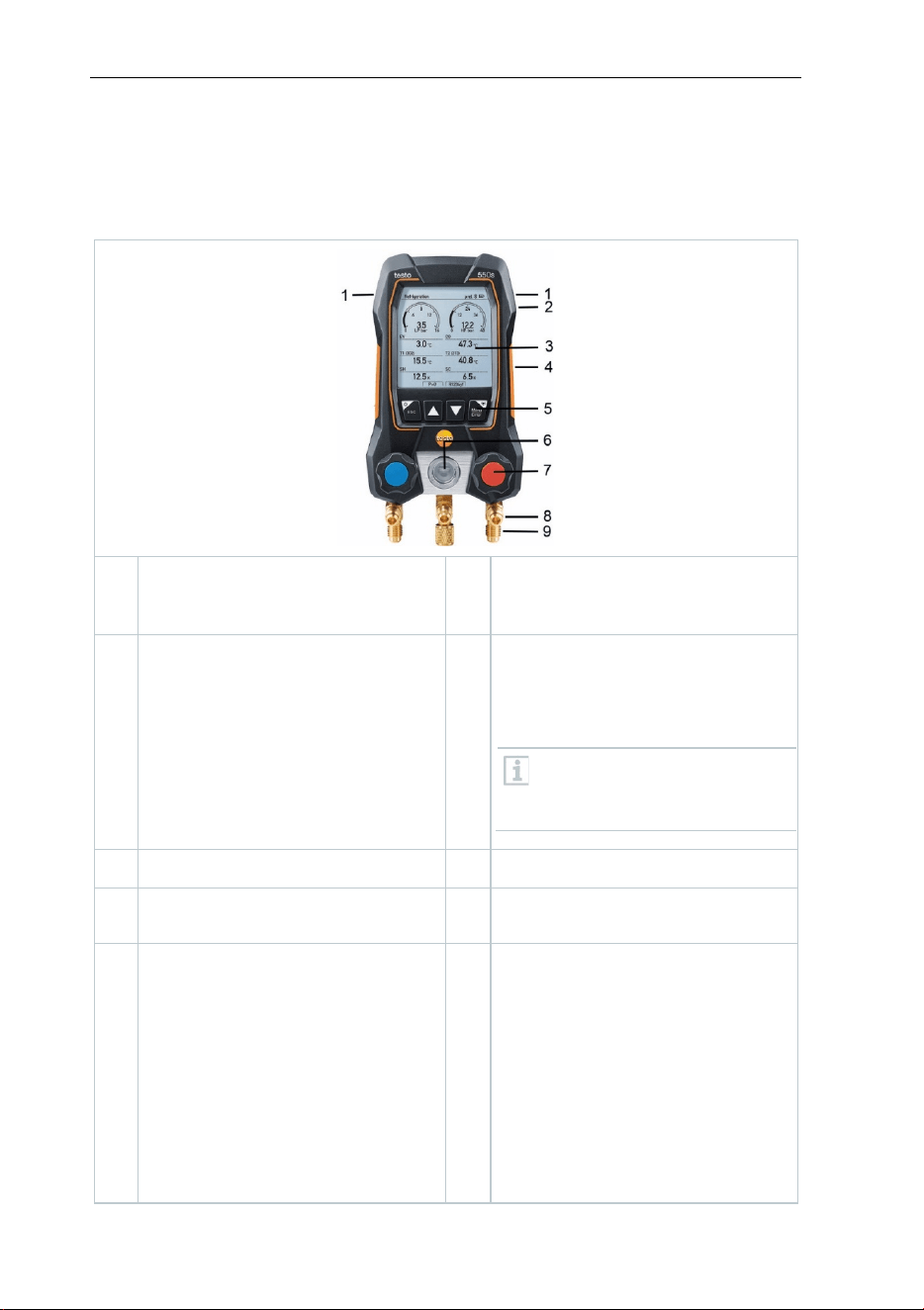
6.1 Overview of the testo 550s
1
Mini-DIN probe socket for NTC
temperature probe, with socket
cover
2
Foldable suspension device
(rear).
3
Display. Instrument status icons 4
Rear
•
Battery compartment
•
Mini USB port for firmware
update
It is not possible to charge
rechargeable batteries in the
instrument.
5
Control keys
6
Sight glass for refrigerant flow
7
2 x valve positioner 8
3 x hose bracket for refrigerant
hoses
9
3 x connections 7/16" UNF, brass
Left/right: Low/high pressure for
refrigerant hoses with quick
release screw fitting; passage
can be closed via valve
positioner center: e.g. for
refrigerant bottles, with sealing
cap, refrigerant hoses with quick-
release screw fitting; passage
can be closed via valve
positioner.
6 Product description
10
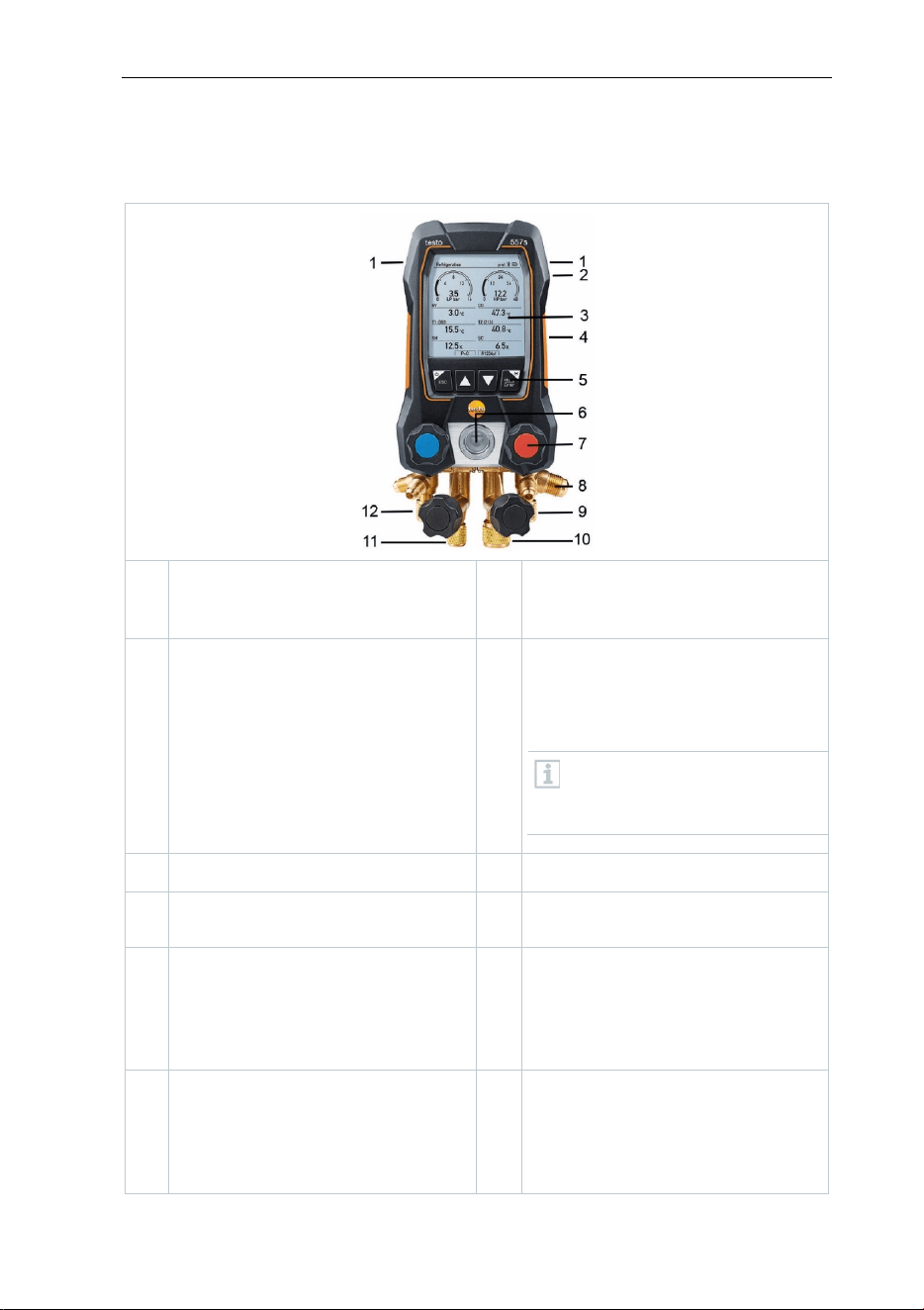
6.2 Overview of the testo 557s
1
Mini-DIN probe socket for NTC
temperature probe, with socket
cover
2
Foldable suspension device
(rear).
3
Display. Instrument status icons 4
Rear
•
Battery compartment
•
Mini USB port for firmware
update
It is not possible to charge
rechargeable batteries in the
instrument.
5
Control keys
6
Sight glass for refrigerant flow
7
4 x valve positioner 8
4 x hose bracket for refrigerant
hoses
9
Connection 7/16" UNF, brass.
High pressure, for refrigerant
hoses with quick-release screw
fitting, passage can be closed via
valve positioner.
10
Connection 5/8" UNF, brass, for
vacuum pump
11
Connection 7/16" UNF, brass,
e.g. for refrigerant cylinders, with
sealing cap
12
Connection 7/16" UNF, brass.
Low pressure, for refrigerant
hoses with quick-release screw
fitting, passage can be closed via
valve positioner.
6 Product description
11
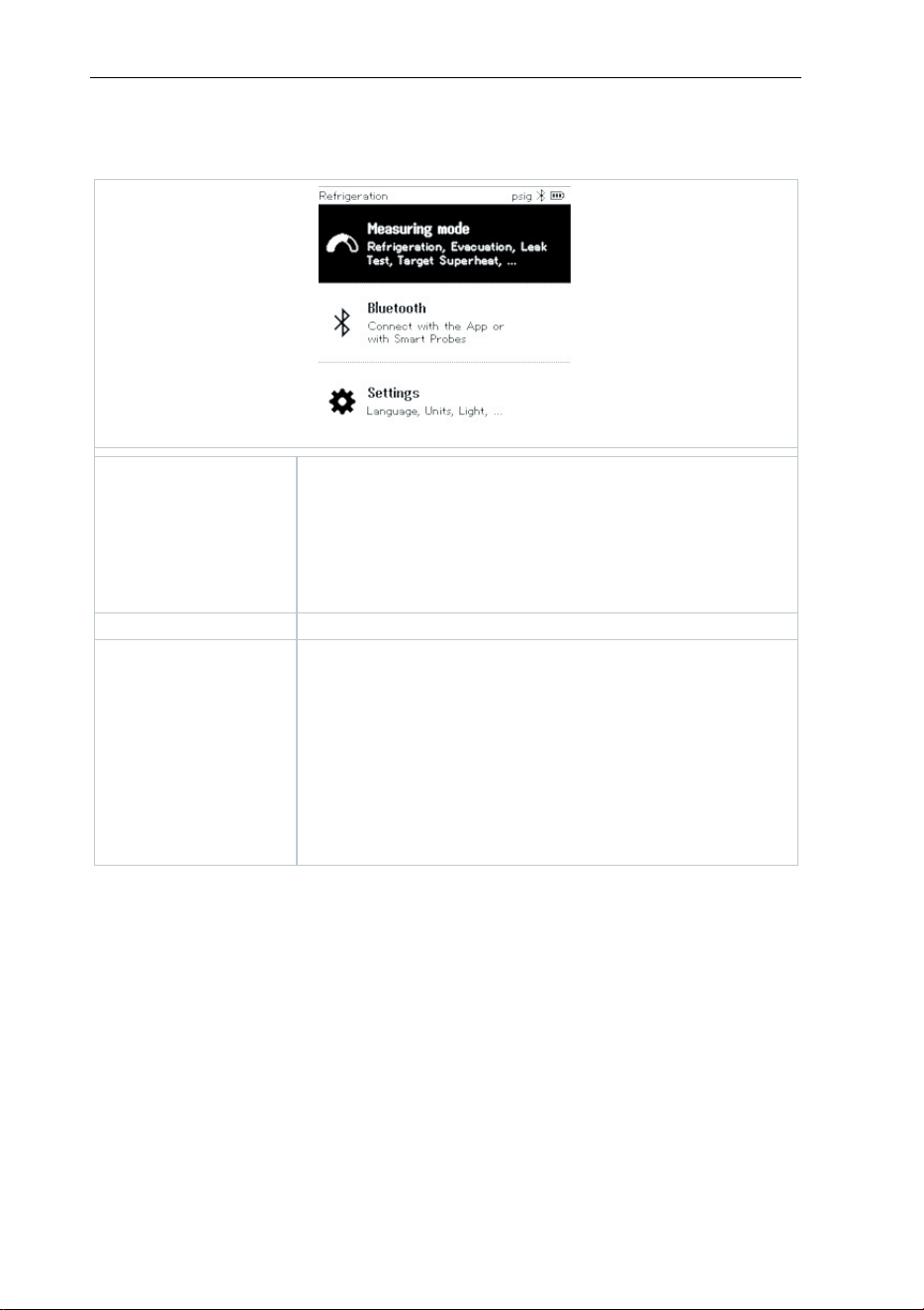
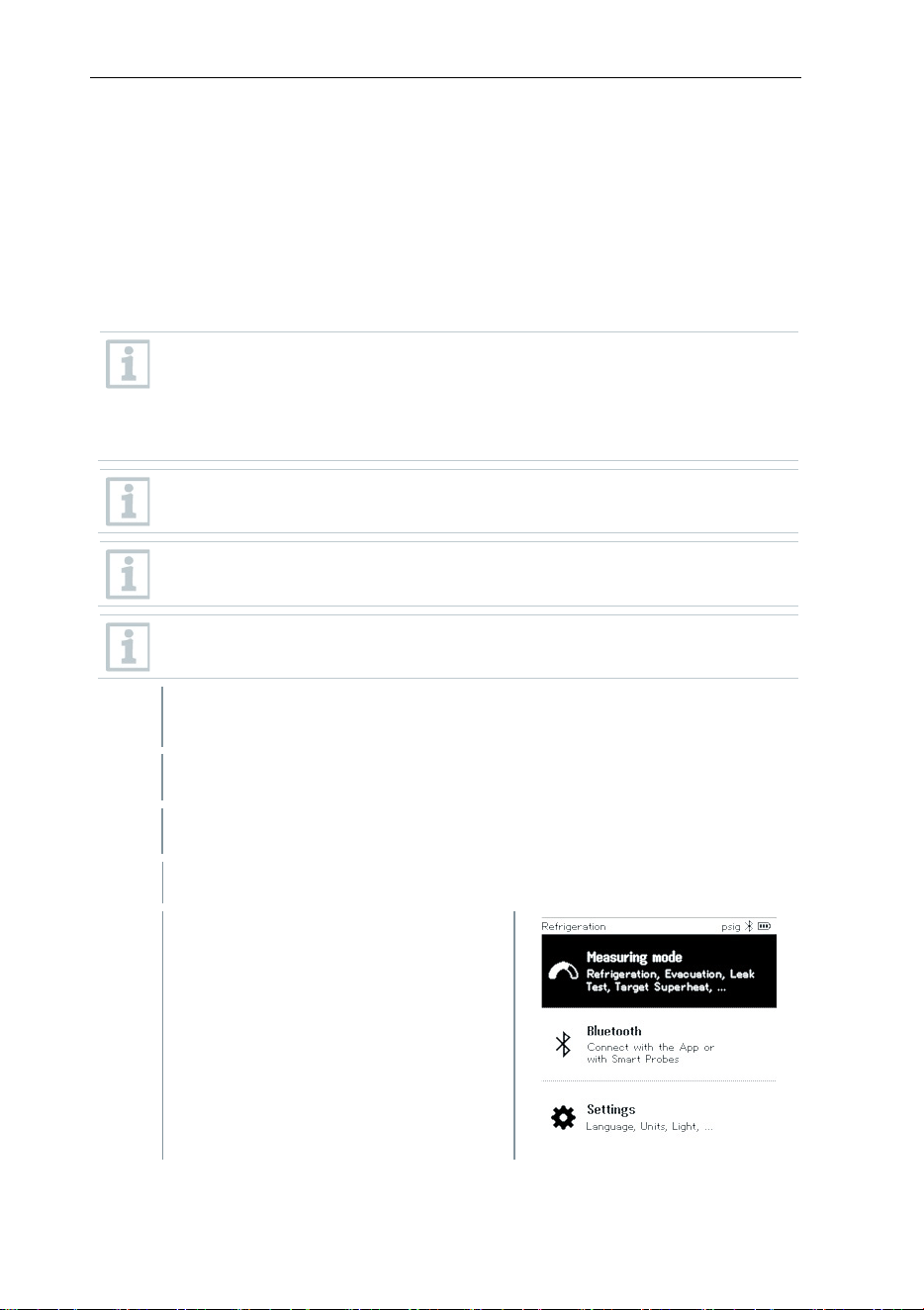
6.3 Overview of main menu
Measuring mode
Refrigeration
Evacuation
Pressure Leak Test
Target Superheat
Compressor Test (DLT)
Delta T
Bluetooth
®
Connection to the testo Smart App or Smart Probes
Settings
Duration
Brightness
Auto Off
Auto Tfac (Temperature compensation factor)
Units
Language
Setup Wizard
Factory Settings
Information
7 First steps
12
6.4 Control keys
Symbol Meaning
• Open menu
•
Confirm input
•
Switch on the display illumination:
Press and hold the key for >2s
•
Switch off the display illumination:
Press and hold the key for >2s
/
Change/navigate the display screen.
• Switches to the measurement view
•
Back to the menu
•
Switch off the instrument: Press and
hold the key for >2s
7 First steps
7.1 Inserting (rechargeable) batteries
1
Unfold the suspension hook and open the battery compartment (clip
lock).
2
Insert the batteries (scope of delivery) or rechargeable batteries (4 x
1.5V, type AA / Mignon / LR6) into the battery compartment. Observe
the polarity!
3
Close the battery compartment.
After insertion of the batteries, the instrument switches on
automatically and goes into the settings menu.
When not in use for a long period: Take out the (rechargeable)
batteries.
7 First steps
13
7.2 Switching the instrument on and off
Current
status
Action Function
Instrument
off
Press
Instrument is switched on.
When the measuring instrument is started for the first time, the setup
wizard guides you through the following setting parameters step by
step:
- Language
- testo Smart App
Instrument
on
Press and hold
down (> 2 s)
Instrument is switched off.
The instrument setup that is implemented can be adapted at any time
in the Settings menu.
7.3 Setup wizard
When the testo 550s / testo 557s is started up for the first time and after the
factory settings have been reset, the setup wizard is activated and guides you
step-by-step through the following setup parameters.
The instrument setup that is implemented can be adapted at any time
in the Settings menu.
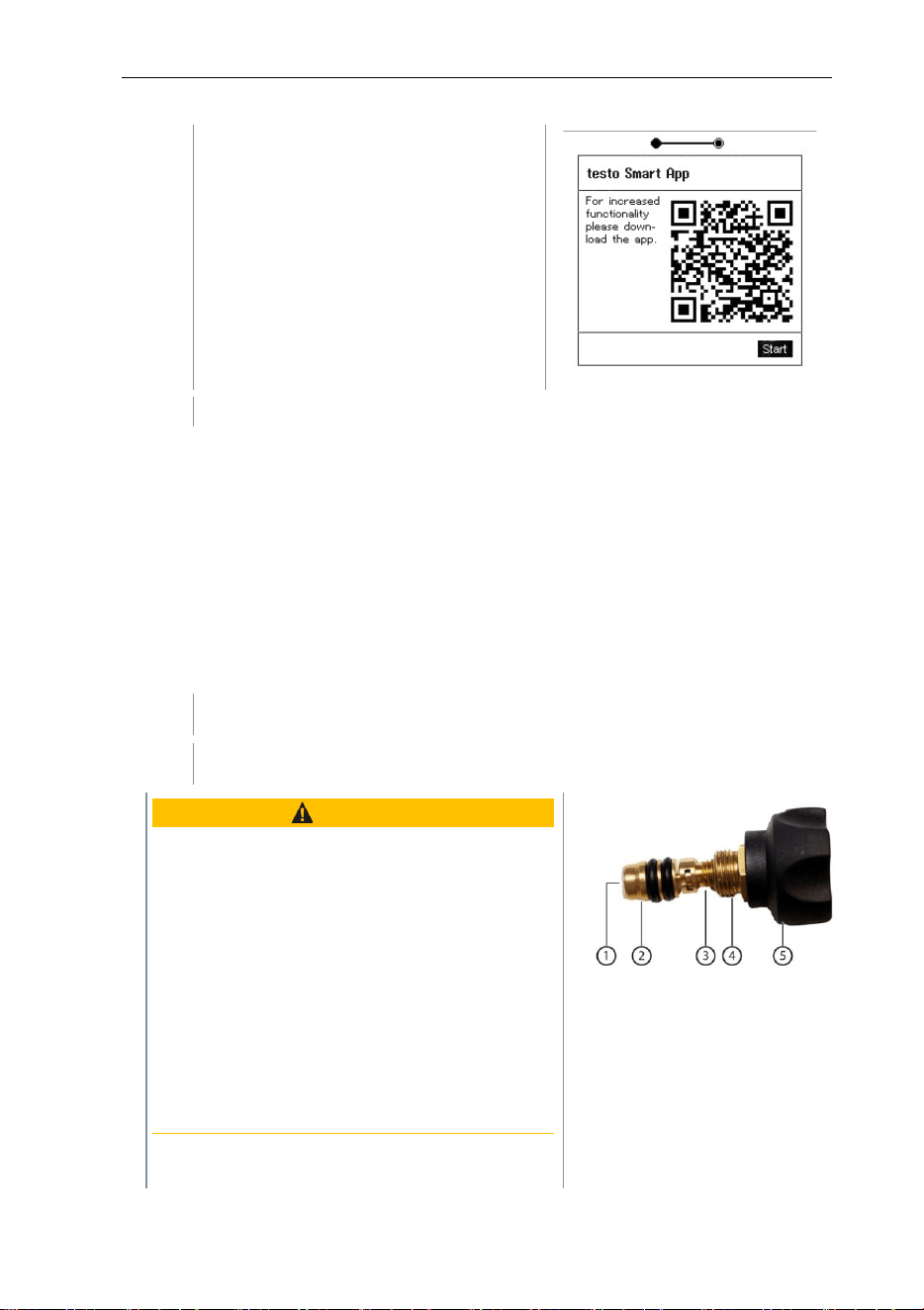
Language selection and QR code
Instrument is switched on and the initialization phase has been
completed.
1
Select language: Press [▲] / [▼]
and [Menu/Enter] to confirm.
Selecting the language activates
the appropriate presetting of the
units of measurement
8 Using the product
14
2
Take a photo of the QR code with a
mobile device of the testo Smart App
and press [Menu/Enter] to confirm.
-
The measurement menu is displayed.
8 Using the product
8.1 Preparing for measurement
8.1.1 Operating the valve positioners
With respect to the refrigerant flow path, the digital manifold behaves just like a
conventional four-way manifold: The passages are opened by opening the
valves. The applied pressure is measured with the valves closed and the valves
opened.
-
Open the valve: Turn valve positioner counterclockwise.
-
Close the valve: Turn valve positioner clockwise.
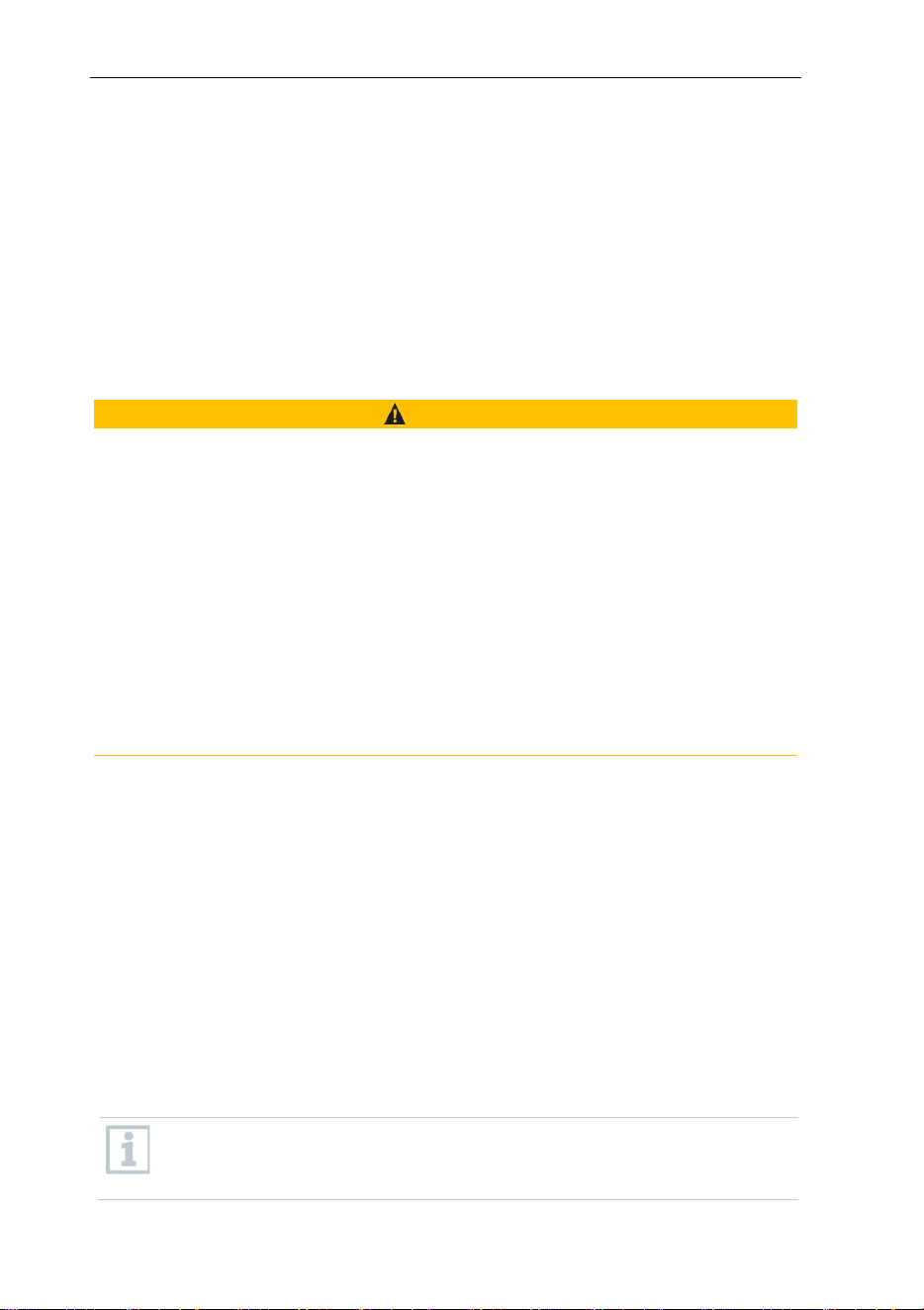
WARNING
Valve positioner tightened too tightly.
•
Damage to the PTFE seal (1).
•
Mechanical deformation of the valve
piston (2) leading to the PTFE seal (1)
falling out.
•
Damage to the thread of the threaded
spindle (3) and the valve screw (4).
Broken valve knob (5).
Only tighten the valve positioner hand-tight.
Do not use any tools to tighten the valve
positioners.
8 Using the product
15
8.1.2 Automatic mode
The manifold automatically detects the pressure difference between the low-
pressure and high-pressure sides. If the measured pressure on the low pressure
side is 14.7 psi higher than on the high pressure side, a dialogue appears and
the display can be changed accordingly. If “yes” is selected, the low pressure
moves from left to right and the high pressure moves from right to left.
This mode is particularly suitable for air conditioning systems that provide
cooling and heating.
8.2 Measuring mode
WARNING
Risk of injury caused by refrigerant that is under high pressure, hot, cold,
or toxic!
>
Wear protective goggles and safety gloves.
>
Before applying pressure to the measuring instrument: Always fasten the
measuring instrument on the suspension hook to prevent it from falling
(danger of breakage).
>
Before each measurement, check the refrigerant hoses are intact and
connected properly. Ensure seals are clean and intact. Do not use any tools
to connect the hoses; only tighten hoses hand-tight (max. torque
5.0 Nm/3.7 ft*lb).
>
Comply with the permissible measuring range (-1 to 60 bar/-14,7 to 870
psi).
Pay attention to this in systems with R744 refrigerant, since these are
frequently operated at higher pressures!
8.2.1 Refrigeration
The Refrigeration application is used to determine the following system
measuring values:
• High pressure
• Low pressure
• Refrigerant evaporating temperature
• Refrigerant condensation temperature
• Temperature of suction line
• Temperature of liquid line
• Superheating
• Subcooling
An NTC temperature probe (accessory) must be connected for
measuring the pipe temperature and for automatic calculation of
superheating and subcooling.
8 Using the product
16
These can be fixed cable temperature probes or testo Smart Probes
(e.g. testo 115i).
Before each measurement, check that the refrigerant hoses are in
perfect condition.
Before each measurement, zero the pressure sensors. All connections
must be pressureless (ambient pressure). Press the [▲] (P=O) key for
2 seconds to zero the sensors.
The instrument is switched on and the measurement menu is
displayed.
All connections must be pressureless (ambient pressure).
1
Press [Menu/Enter] to confirm.
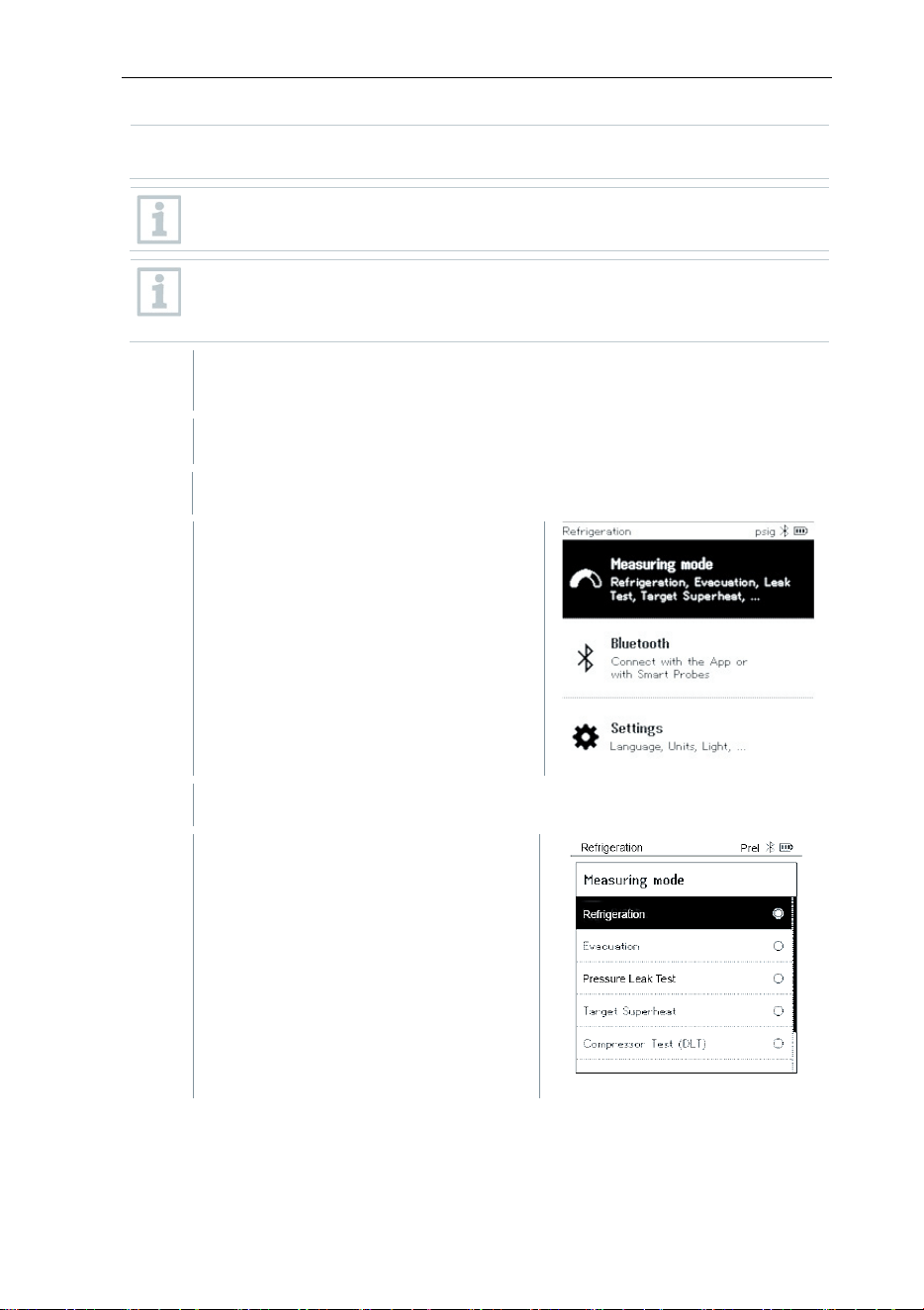
-
The main menu is displayed.
2
Press [Menu/Enter] to confirm.
3
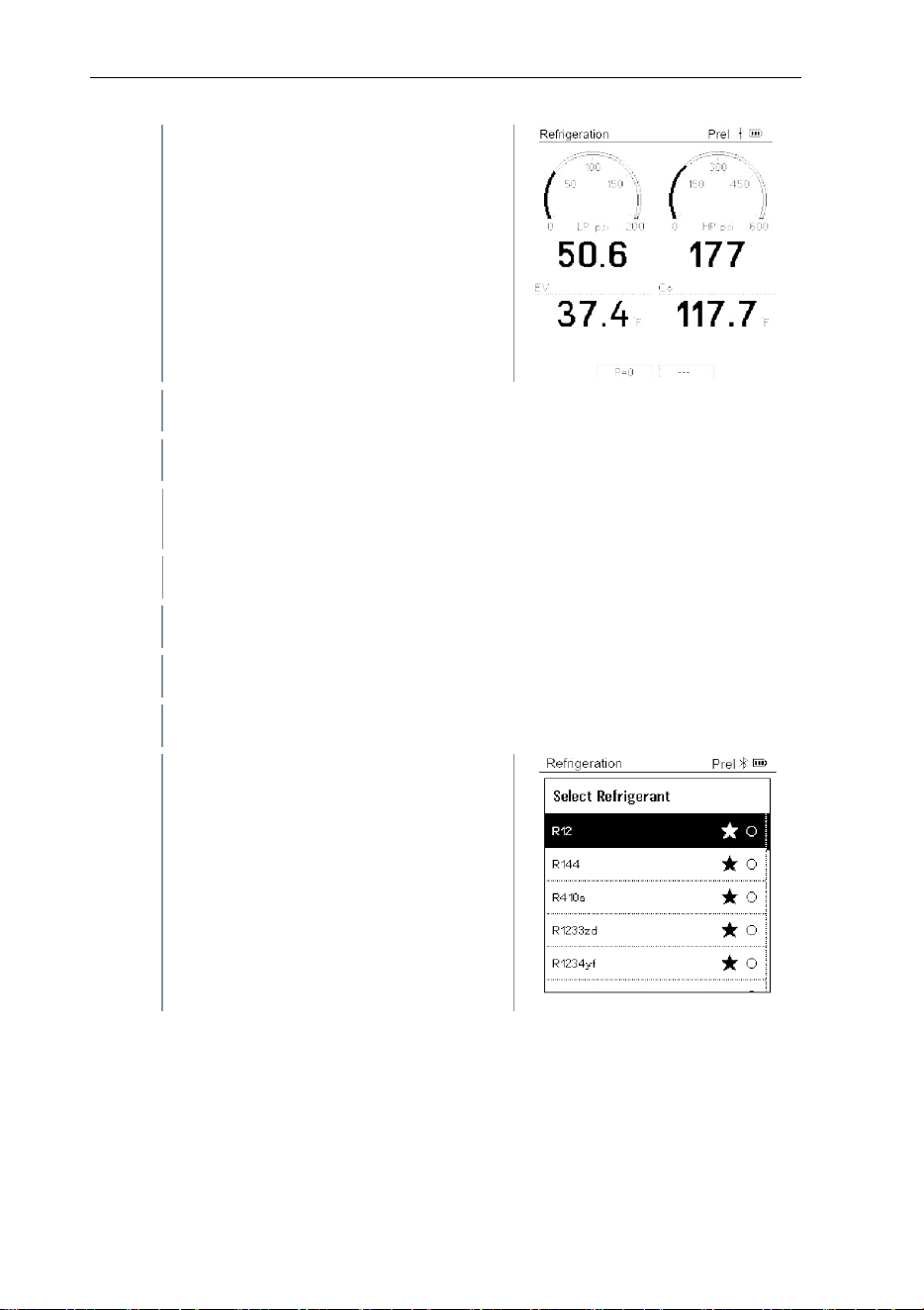
Select Refrigeration and press
[Menu/Enter] to confirm.
8 Using the product
17
-
The measurement menu is displayed.
4
Connect the refrigerant hoses.
4.1
Close the valve positioners.
4.2
Connect the refrigerant hoses for low-pressure side (blue) and high-
pressure side (red) to the measuring instrument.
4.3
Connect the refrigerant hoses to the system.
5
Connect testo 115i or fixed cable probes.
6
Set refrigerant.
6.1
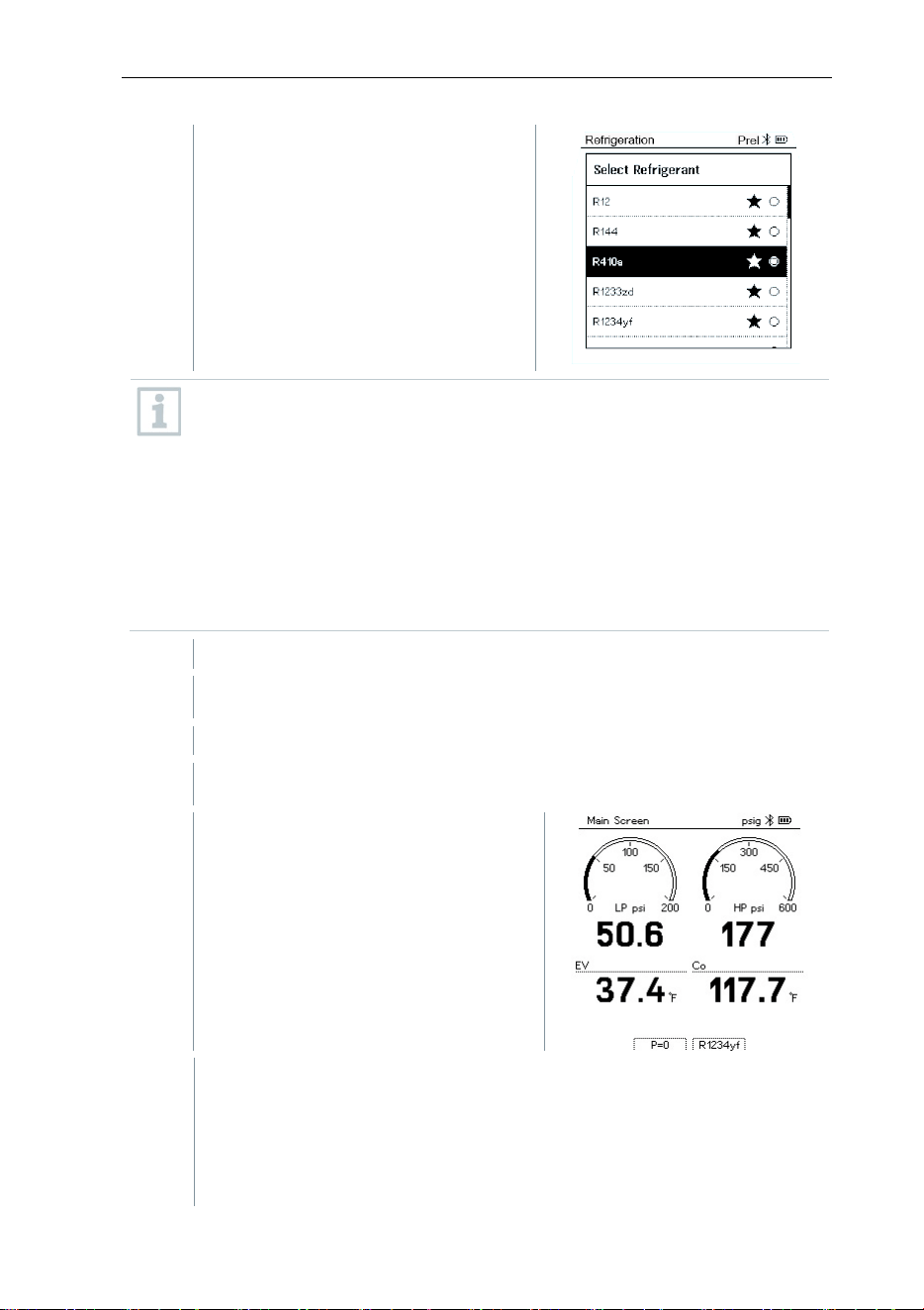
Press the key [▼] (Rxx) (refrigerant number according to ISO 817).
-
The refrigerant menu opens and the
current refrigerant is highlighted.
8 Using the product
18
6.2
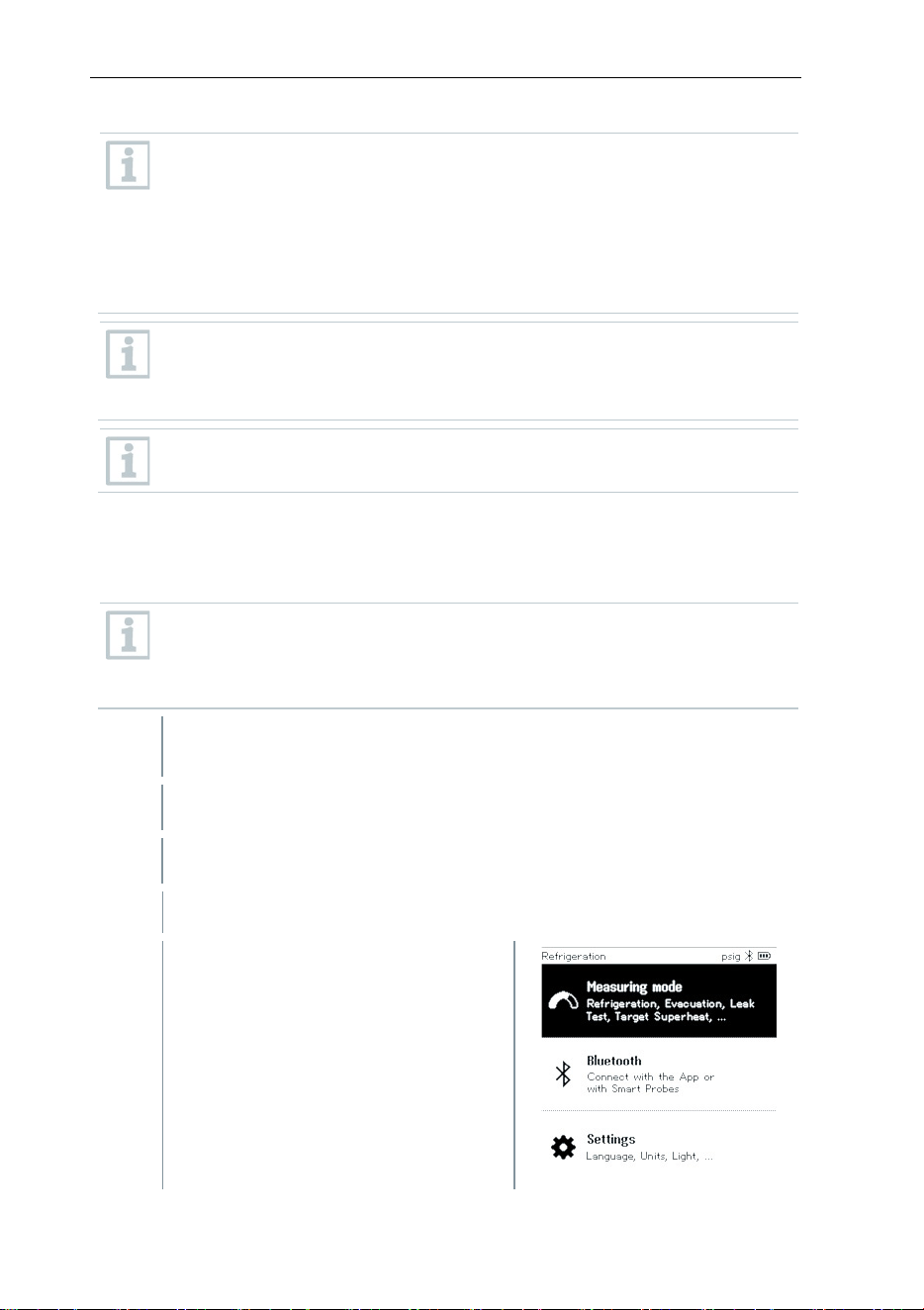
Setting the refrigerant: Press [▲] or
[▼] to select the refrigerant and
press [Menu/Enter] to confirm.
Users have the option of setting up favorite refrigerants on the
instrument and in the app. These then appear at the beginning of the
refrigerant list.
To do this, the testo Smart App
must be connected to the instrument via
Bluetooth.
In the refrigerant list (App), now choose the refrigerant as a favorite by
clicking on the star.
The new favorite refrigerant will now be synchronized to the testo 550s
or testo 557s.
Note: During synchronization, the refrigerant list/selection on the
instrument must remain closed.
-
The newly set refrigerant is displayed in the refrigerant list.
7
Press the [▲] (P=O) key for 2 seconds to zero the sensors.
-
Zeroing takes place.
8
Pressurize the measuring instrument.
-
The measurement starts
automatically.
-
Measurement results are displayed:
• Low/high pressure
• Condensation (CO) and evaporation temperature (EV)
• Suction and liquid line temperature
• Superheating and subcooling
8 Using the product
19
With zeotropic refrigerants, the evaporation temperature to/Ev is
displayed after complete evaporation. The condensation temperature
tc/Co is displayed after complete condensation.
The measured temperature must be assigned to the superheating or
subcooling side (t
oh
<--> t
cu
). Dependent on this assignment, the display
will show t
oh
/T1 resp. Δt
oh
/SH or t
cu
/T2 resp. Δt
cu
/SC, depending on the
selected display.
Reading and display illumination flash:
• 1 bar/14.5 psi before reaching critical refrigerant pressure
• When max. permissible pressure of 60 bar/870 psi is exceeded.
All values can be saved and sent in the app. The data can also be
transferred between the app and the testo DataControl software.
8.2.2 Evacuation
Via the Evacuation application, foreign gases and moisture can be removed
from the refrigeration circuit.
The testo 552i
is recommended for carrying out the measurement. The
measurement is also possible without the testo 552i, with testo
550s/testo 557s.
However, this is not advisable due to insufficient
accuracy.
The instrument is switched on and the measurement menu is
displayed.
Bluetooth
®
is enabled.
Hoses are connected.
1
Press
[Menu/Enter]
.
2
Press [▲] / [▼] to select Measuring
Mode and press [Menu/Enter] to
confirm.
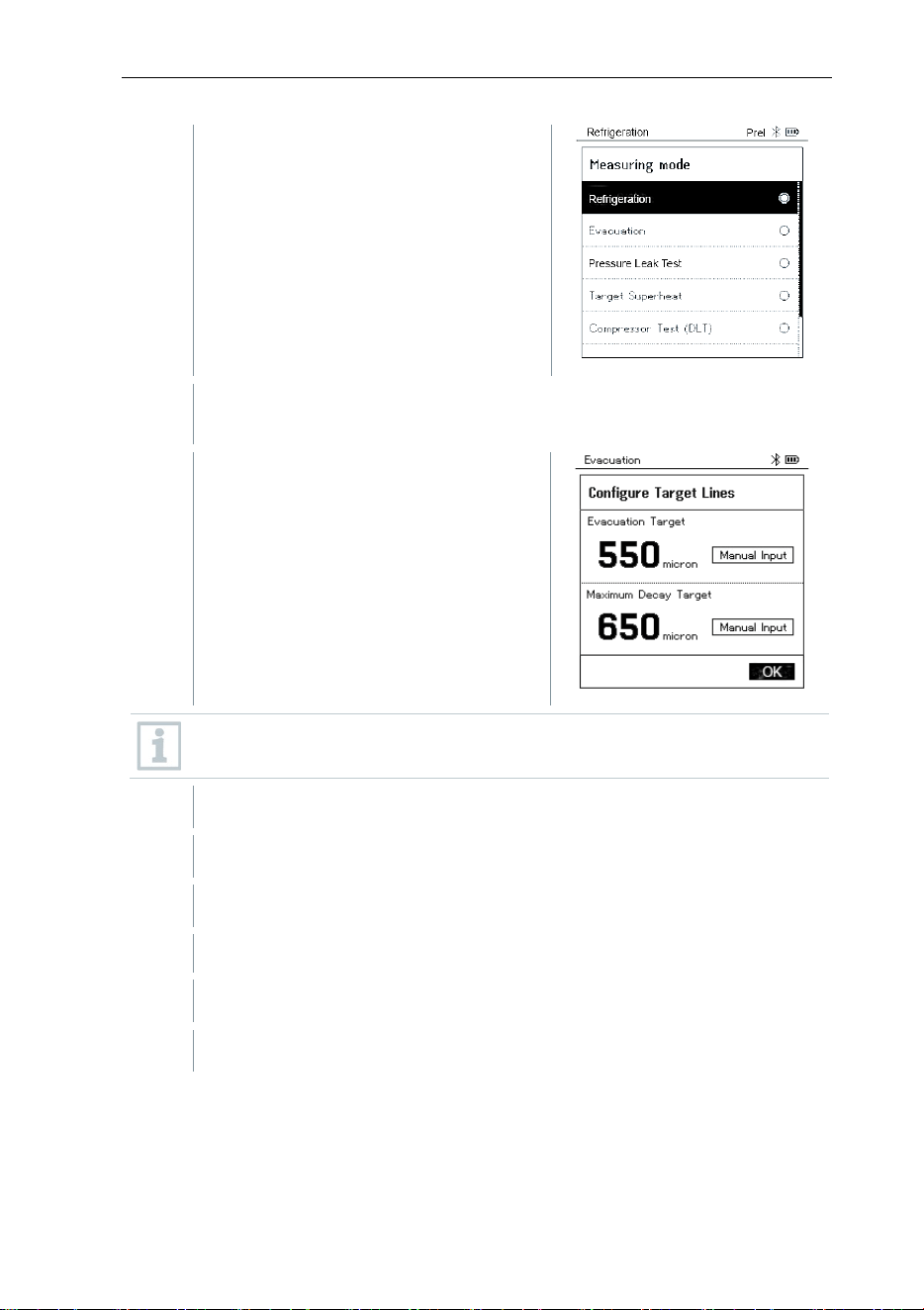
8 Using the product
20
-
The Measuring Mode menu is
displayed.
3
Press [▲] / [▼] to select Evacuation and press [Menu/Enter] to
confirm.
-
The Configure Target Lines menu is
displayed.
Evacuation Target will be set at 500 microns as a default. Maximum
decay target will be set at 1000 microns as a default.
4
Adjust the
Target Line
value
4.1
Press the [▲] key and in the Target Line field, select Manual Input.
4.2
Press [Menu/Enter] to confirm.
-
The field is activated.
4.3
Press [▲] / [▼] to set the value.
4.4
Press [Menu/Enter] to confirm.
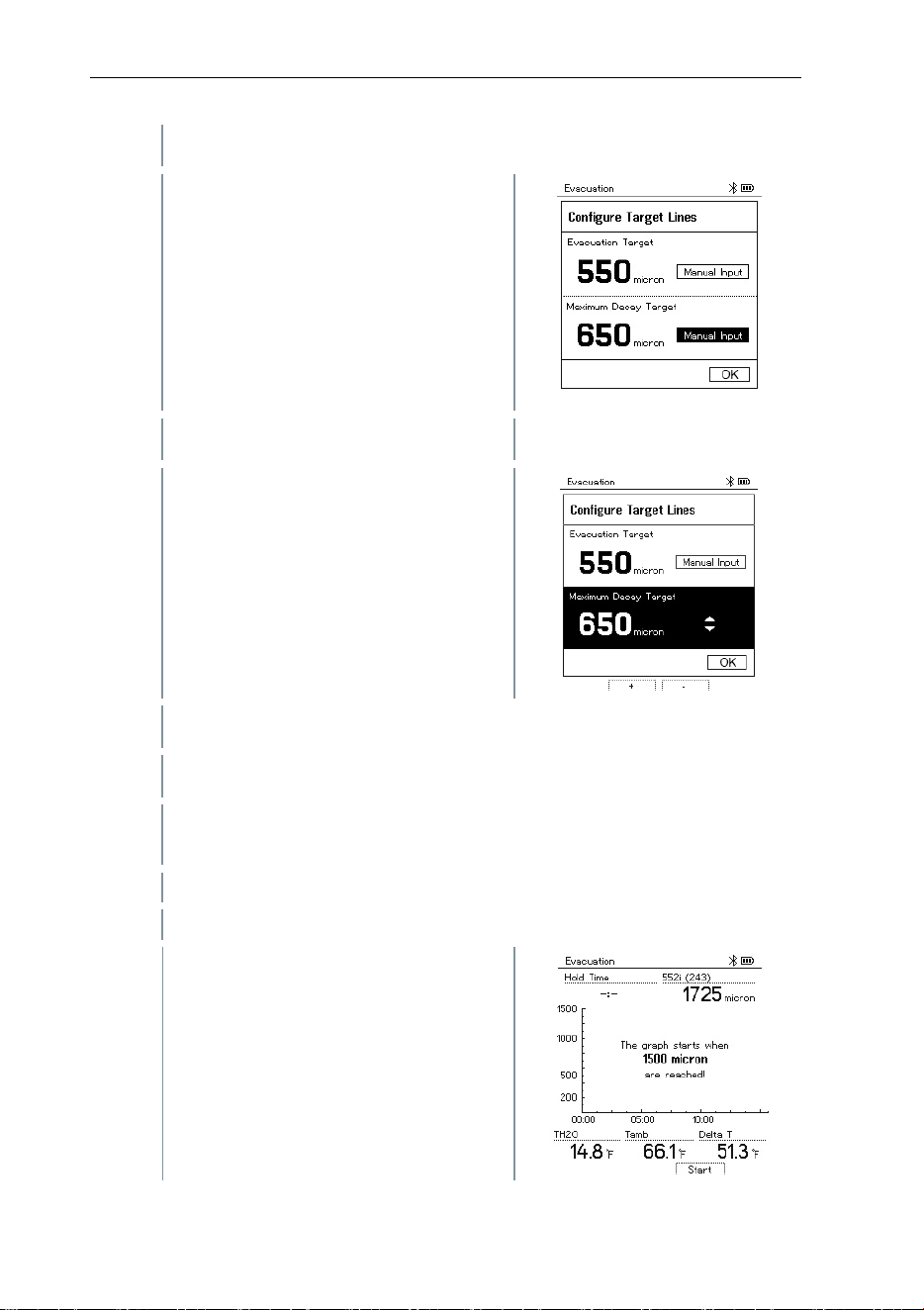
8 Using the product
21
5
Adjust the Maximum Decay Target value
5.1
Press the [▼] button and in the
Maximum Decay Target field, select
Manual Input.
5.2
Press
[Menu/Enter]
to confirm.
-
The field is activated.
5.3
Press [▲] / [▼] to set the value.
5.4
Press
[Menu/Enter]
to confirm.
6
Confirm the entries in steps 4 and 5:
Press [▼] to select OK and press [Menu/Enter] to confirm.
-
A connection is established with available Bluetooth
®
probes.
-
testo 552i is switched on and connected automatically.
-
The Evacuation measurement menu
is displayed.
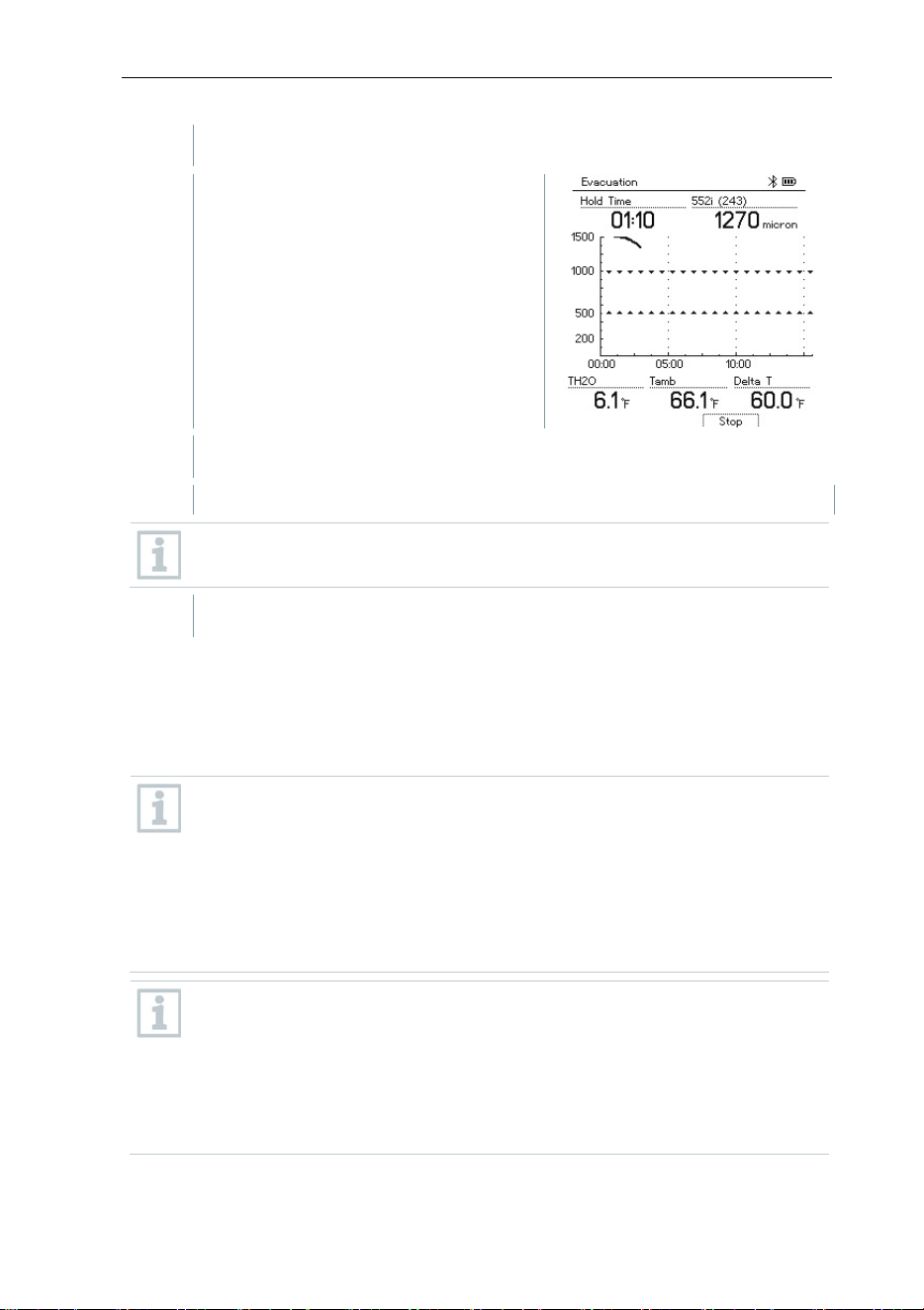
8 Using the product
22
7
Start measurement: Press the [▼] (Start) key.
-
Once the measuring range 0 to
20,000 microns / 0 to 26.66 mbar is
reached, the current vacuum value is
shown on the instrument display.
The instrument also displays the
current ambient temperature, the
water evaporation temperature which
corresponds to the vacuum reading,
and the delta between these two
temperatures.
8
End measurement: Press the [▼] (Stop) key.
-
The measurement result is displayed.
Press the [▲] New key to reset the determined values. If necessary, a
test can also be started again.
9
Press [Menu/Enter] to return to the main menu.
8.2.3 Pressure Leak Test
The temperature compensated leak test can be used to check the leak tightness
of systems. For this purpose both the system pressure and the ambient
temperature are measured over a defined period of time.
A temperature probe that measures the ambient temperature or a
Smart Probe for measuring the air temperature can be connected. As a
result, information is provided about the temperature-compensated
differential pressure and about the temperature at the beginning/end of
the test. Due to the temperature compensation, the actual pressure
drop is displayed as delta P. If no temperature probe is connected, you
may also perform the pressure leak test without temperature
compensation.
Surface temperature probes (e.g. testo 115i) can also be used for the
temperature-compensated leak testing, but must not be used to
measure surface temperature. They must be positioned as far as
possible to measure the air temperature. If a surface probe is used, in
the Settings menu of the testo 550s / testo 557s, the Auto Tfac
(Temperature compensation factor) must be switched off, see
section 8.3.4.
8 Using the product
23
The testo 550s or testo 557s manifold is used to carry out the
measurement.
The instrument is switched on and the measurement menu is
displayed.
Hoses are connected.
1
Press [Menu/Enter].
2
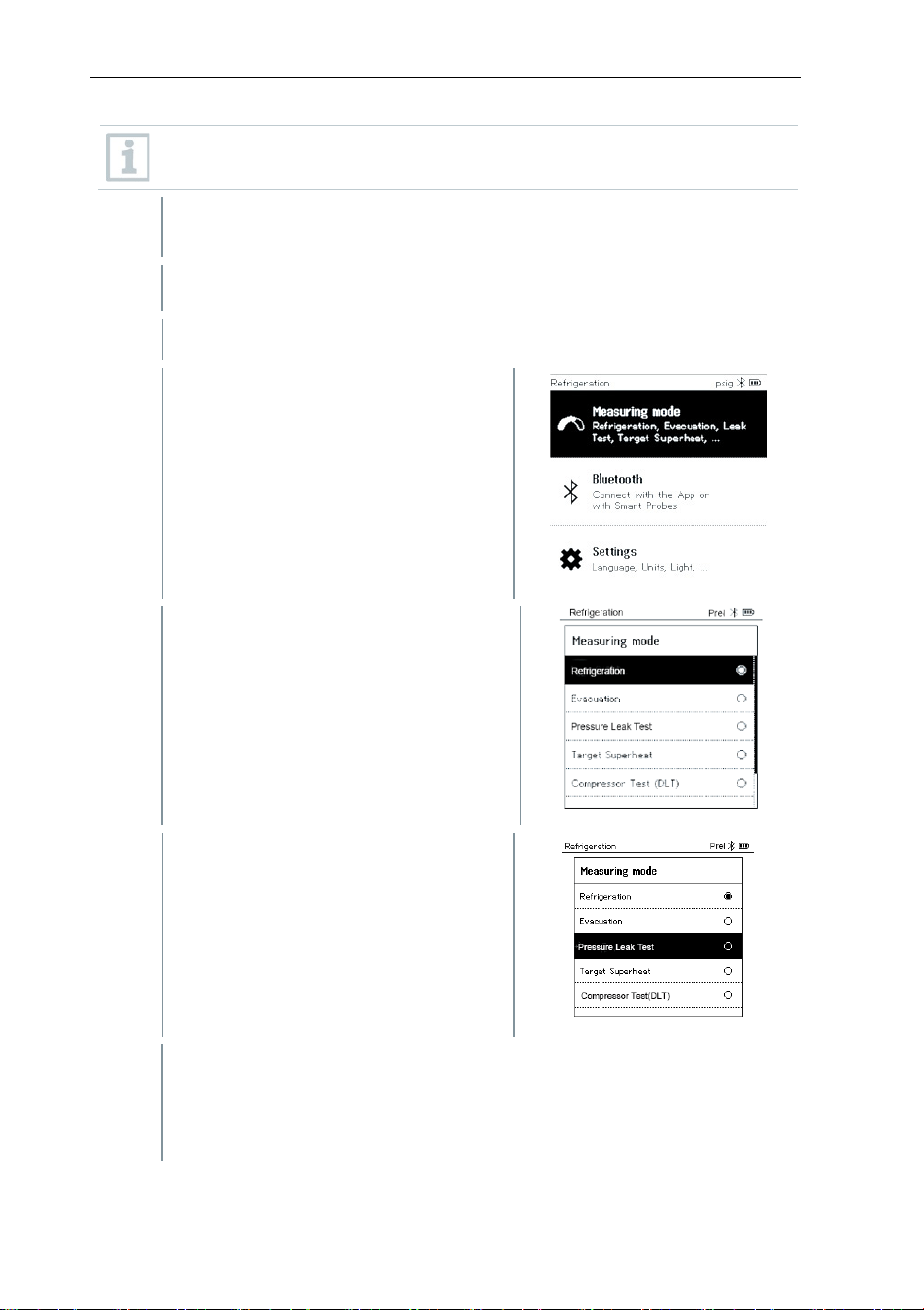
Press [▲] / [▼] to select Measuring
Mode and press [Menu/Enter] to
confirm.
-
The Measuring Mode menu is
displayed.
3
Press [▲] / [▼] to select Pressure
Leak Test and press [Menu/Enter]
to confirm.
-
For the temperature-compensated leak test, a connection is
established with available Bluetooth
®
probes. If cable probes are
connected to the instrument, they are prioritized for the compensation.
Please note that only air probes are ideal for temperature-
compensated leakage testing.
8 Using the product
24
-
testo 905i / testo 605i is switched on and automatically connected.
Other temperature probes compatible with testo 550s / testo 557s
can be connected.
-
The Pressure Leak Test menu is displayed.
T Comp is shown on the display if a compatible probe is connected via
Bluetooth
®
or cable. The temperature compensation is used for the
measurement result.
4
Press the [▼] (Start) key.
-
The leakage test is carried out.
5
Press the [▼] (Stop) key.
-
The leakage test is terminated.
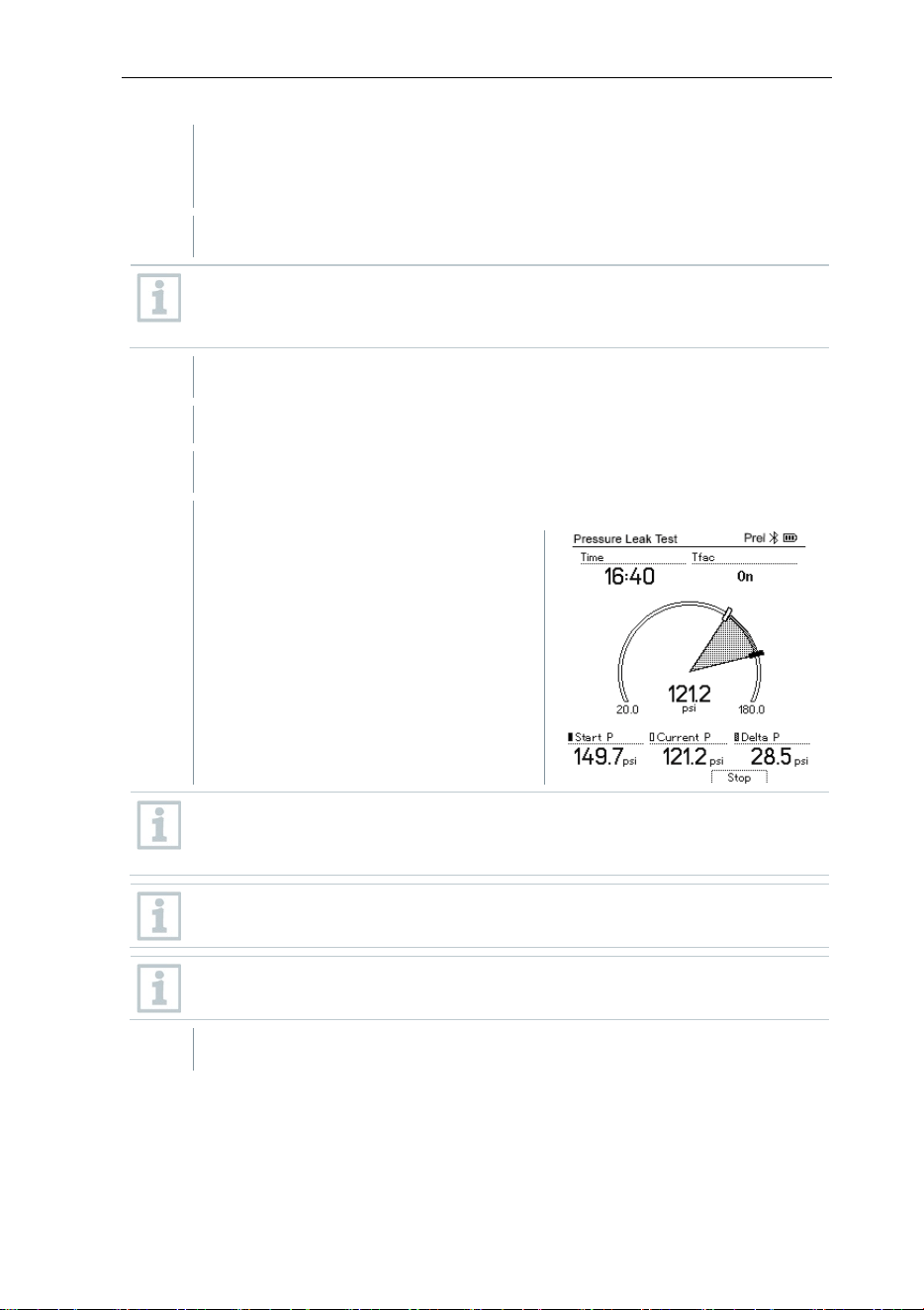
-
The measurement result is
displayed.
Start the measurement once pressure has been achieved. Once
pressure has been reached, press start to enable the Pressure Leak
Test. This will begin the test and the clock.
Press the [▲] New key to reset the determined values. If necessary, a
test can also be started again.
The measurement result can be displayed graphically on the manifold
as well as in the app.
6
Press [Menu/Enter] to return to the main menu.
8 Using the product
25
8.2.4 Target Superheat
This feature makes it possible to connect the testo 550s and testo 557s
manifolds to two additional testo 605i Smart Probes in order to calculate the
target superheat. This application can only be used for split air conditioning
systems/heat pumps with a fixed expansion valve. The two connected testo
605i Smart Probes determine the Outdoor Dry Bulb Temp (ODDB) and Return
Air Wet Bulb (RAWB) values. The target superheat value appears on the
display as a result.
The following are used for the measurement:
• testo 115i (clamp thermometer) or
• fixed cable probes
• testo 605i
Alternatively, the values can be configured manually.
Before each measurement, check that the refrigerant hoses are in
perfect condition.
Before each measurement, zero the pressure sensors.
The instrument is switched on and the measurement menu is
displayed.
All connections must be pressureless (ambient pressure).
Bluetooth
®
is enabled.
1
Press [Menu/Enter].
2
Press [▲] / [▼] to select Measuring
Mode and press [Menu/Enter] to
confirm.
8 Using the product
26
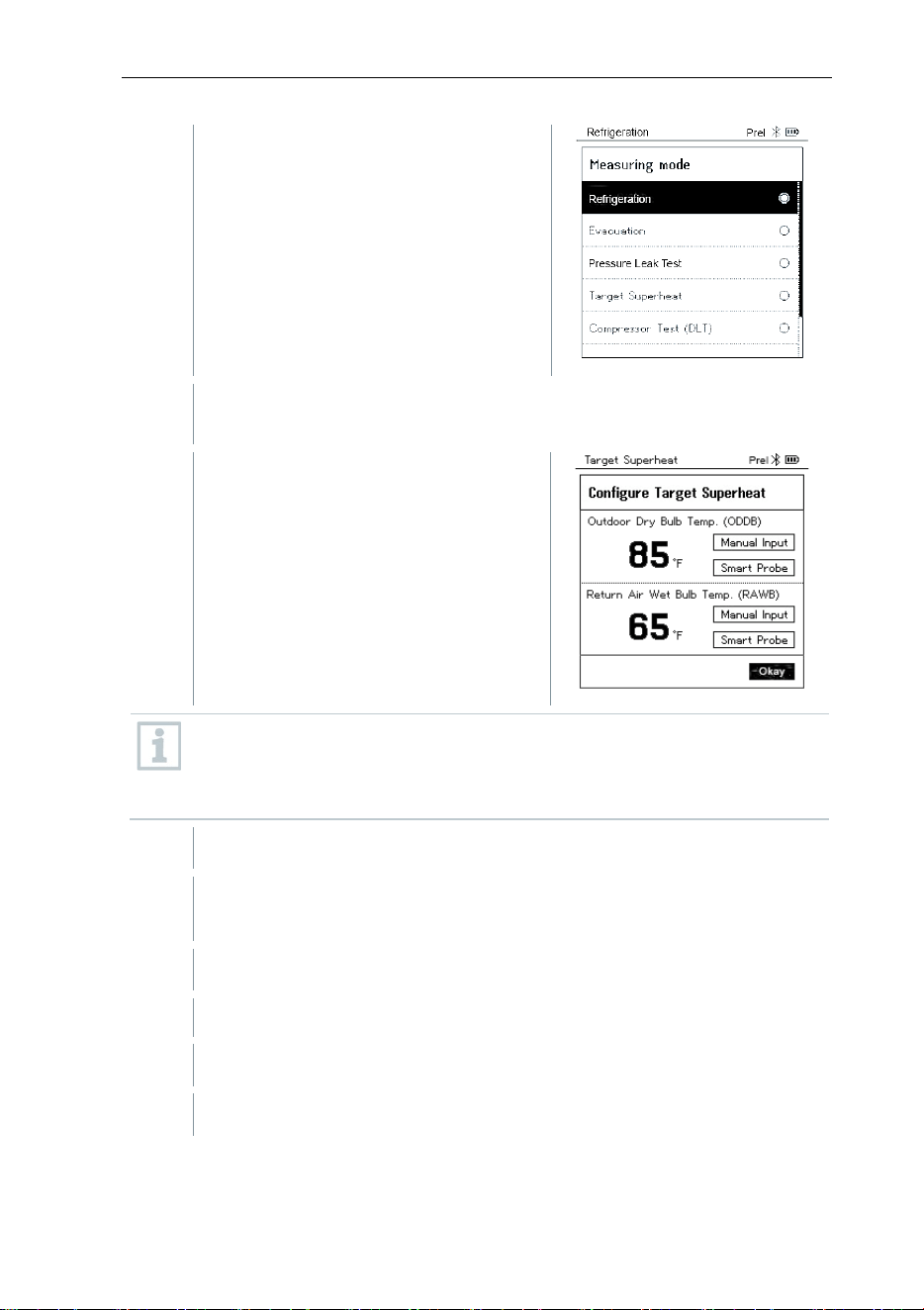
-
The Measuring Mode menu is
displayed.
3
Press [▲] / [▼] to select Target Superheat and press [Menu/Enter]
to confirm.
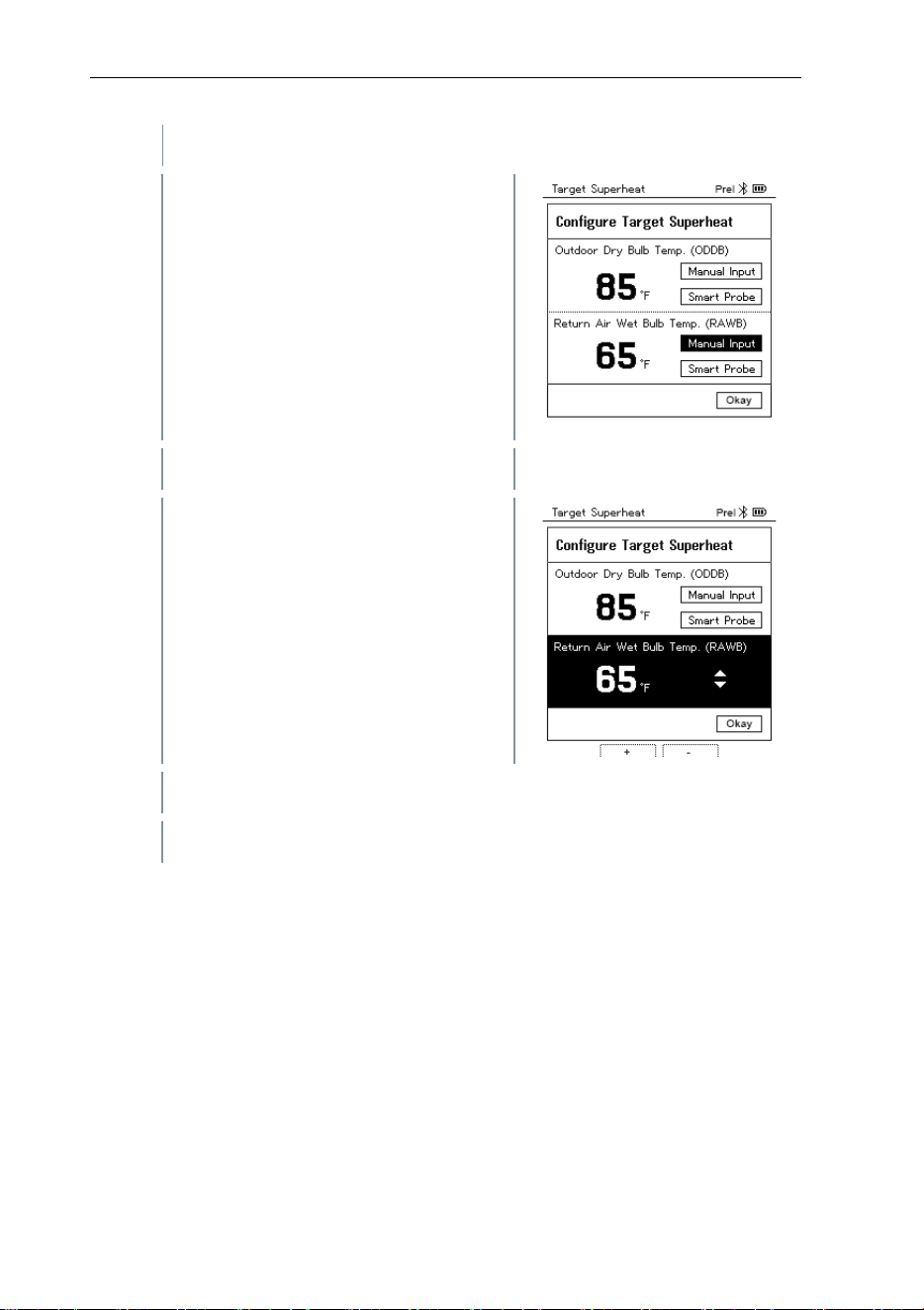
-
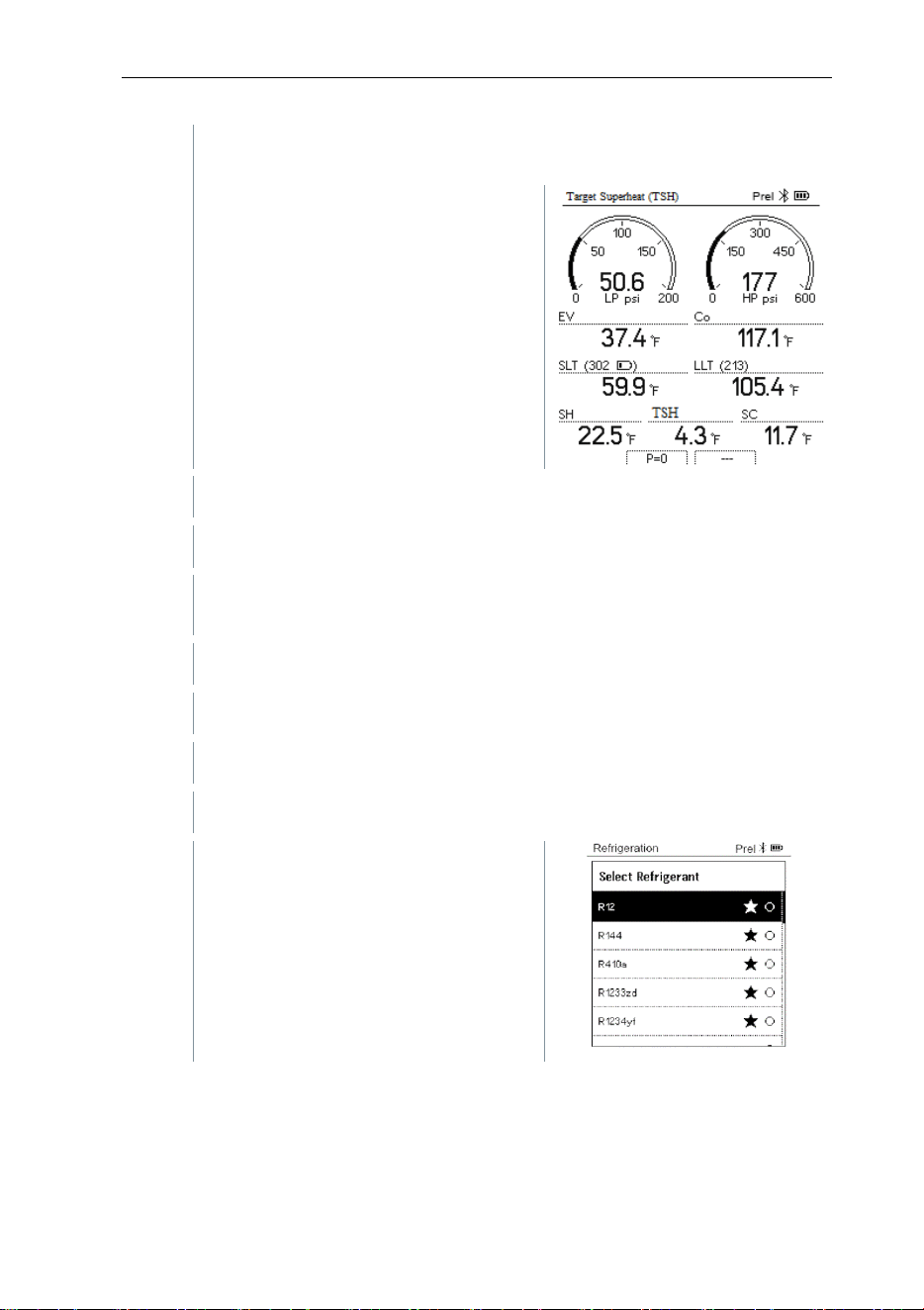
The Configure Target Superheat
menu is displayed.
The values can either be configured manually via Manual Input or
recorded by the testo 605i via Smart Probe. When a Smart Probe is
selected, available testo 650i instruments are displayed for the
connection.
4
Adjust values for Outdoor Dry Bulb Temp.
4.1
Press the [▲] key and in the Outdoor Dry Bulb Temp. field, select
Manual Input.
4.2
Press [Menu/Enter] to confirm.
-
The field is activated.
4.3
Press [▲] / [▼] to set the value.
4.4
Press [Menu/Enter] to confirm.
8 Using the product
27
5
Adjust the Return Air Wet Bulb Temp. value
5.1
Press the [▲] / [▼] key and in the
Return Air Wet Bulb Temp. field,
select Manual Input.
5.2
Press [Menu/Enter] to confirm.
-
The field is activated.
5.3
Press [▲] / [▼] to set the value.
5.4
Press [Menu/Enter] to confirm.
8 Using the product
28
6
Confirm the entries in steps 4 and 5:
Press [▼] to select Okay and press [Menu/Enter] to confirm.
-
The Target Superheat
measurement menu is displayed.
7
Connect the refrigerant hoses.
7.1
Close the valve positioners.
7.2
Connect the refrigerant hoses for low-pressure side (blue) and high-
pressure side (red) to the measuring instrument.
7.3
Connect the refrigerant hoses to the system.
8
Connect testo 115i/fixed cable probes.
9
Set refrigerant.
9.1
Press the key [▼] (Rxx) (refrigerant number according to ISO 817).
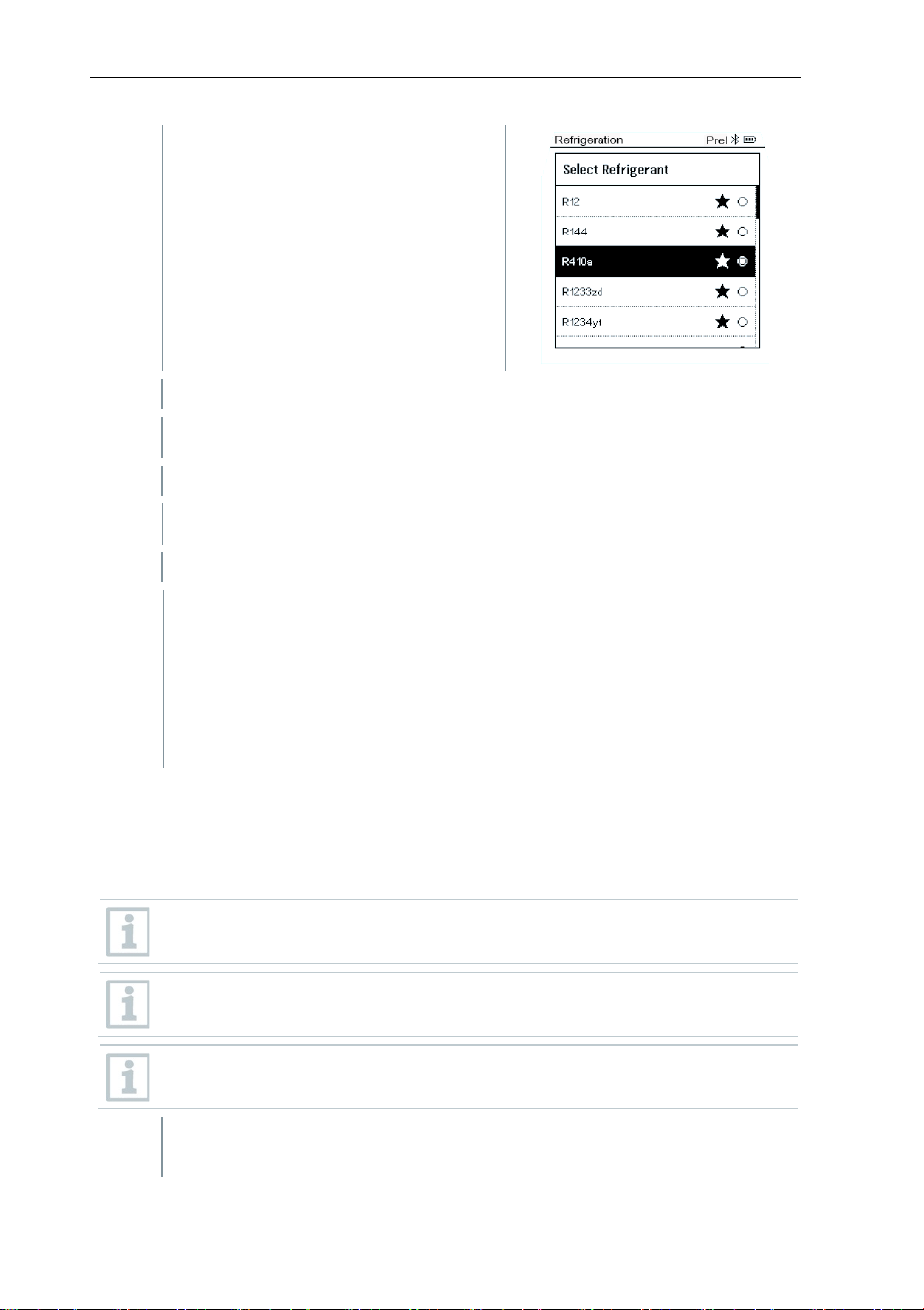
-
The refrigerant menu opens and the
current refrigerant is highlighted.
8 Using the product
29
9.2
Setting the refrigerant: Press [▲] or
[▼] to select the refrigerant and
press [Menu/Enter] to confirm.
-
The newly set refrigerant is displayed in the refrigerant list.
10
Press the [▲] (P=O) key for 2 seconds to zero the sensors.
-
Zeroing takes place.
11
Pressurize the measuring instrument.
-
The measurement starts automatically.
-
Measurement results are displayed:
• Low/high pressure
• Condensation and evaporation temperature
• Suction and liquid line temperature
• Superheating and subcooling
• Target superheat TSH
8.2.5 Compressor Test (DLT)
For this mode, 3 temperature probes are used. In addition to the conventional
temperature sensors for superheating and subcooling, an additional temperature
probe must be connected via Bluetooth.
The testo 115i (clamp thermometer) or fixed cable probes are used to
carry out the measurement.
Before each measurement, check that the refrigerant hoses are in
perfect condition.
Before each measurement, zero the pressure sensors.
The instrument is switched on and the measurement menu is
displayed.
8 Using the product
30
1
Press [Menu/Enter].
2
Press [▲] / [▼] to select Measuring
Mode and press [Menu/Enter] to
confirm.
-
The Measuring Mode menu is
displayed.
3
Press [▲] / [▼] to select Compressor Test (DLT) and press
[Menu/Enter] to confirm.
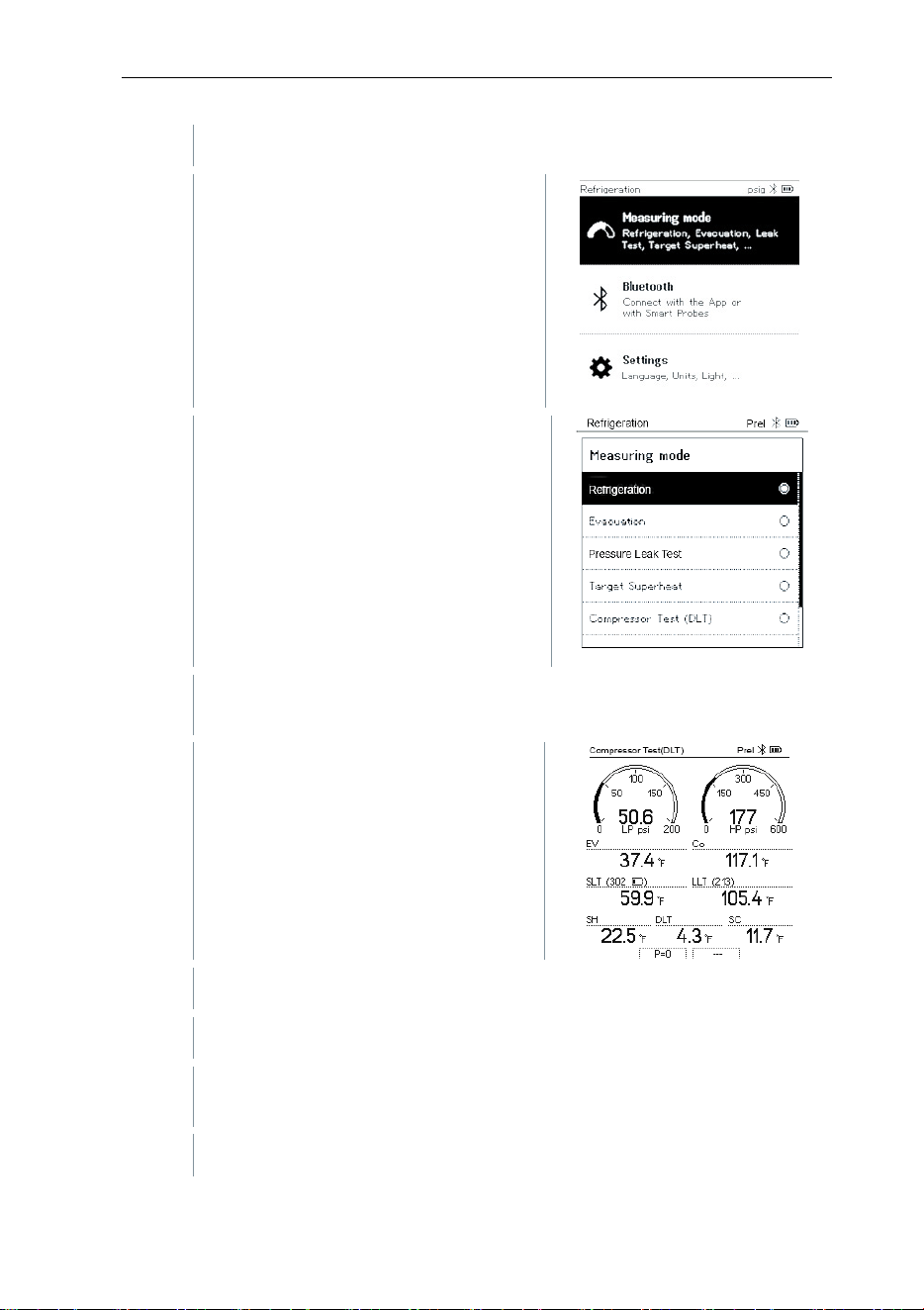
The measurement menu is
displayed.
The DLT temperature is shown on the
display.
4
Connect the refrigerant hoses.
4.1
Close the valve positioners.
4.2
Connect the refrigerant hoses for low-pressure side (blue) and high-
pressure side (red) to the measuring instrument.
4.3
Connect the refrigerant hoses to the system.
8 Using the product
31
5
Connect the testo 115i or fixed cable probes and third temperature
probe to the compressor outlet.
Recommended to use a wireless probe for the compressor outline line
to not impede the fan blade.
6
Set refrigerant.
6.1
Press the key [▼] (Rxx) (refrigerant number according to ISO 817).
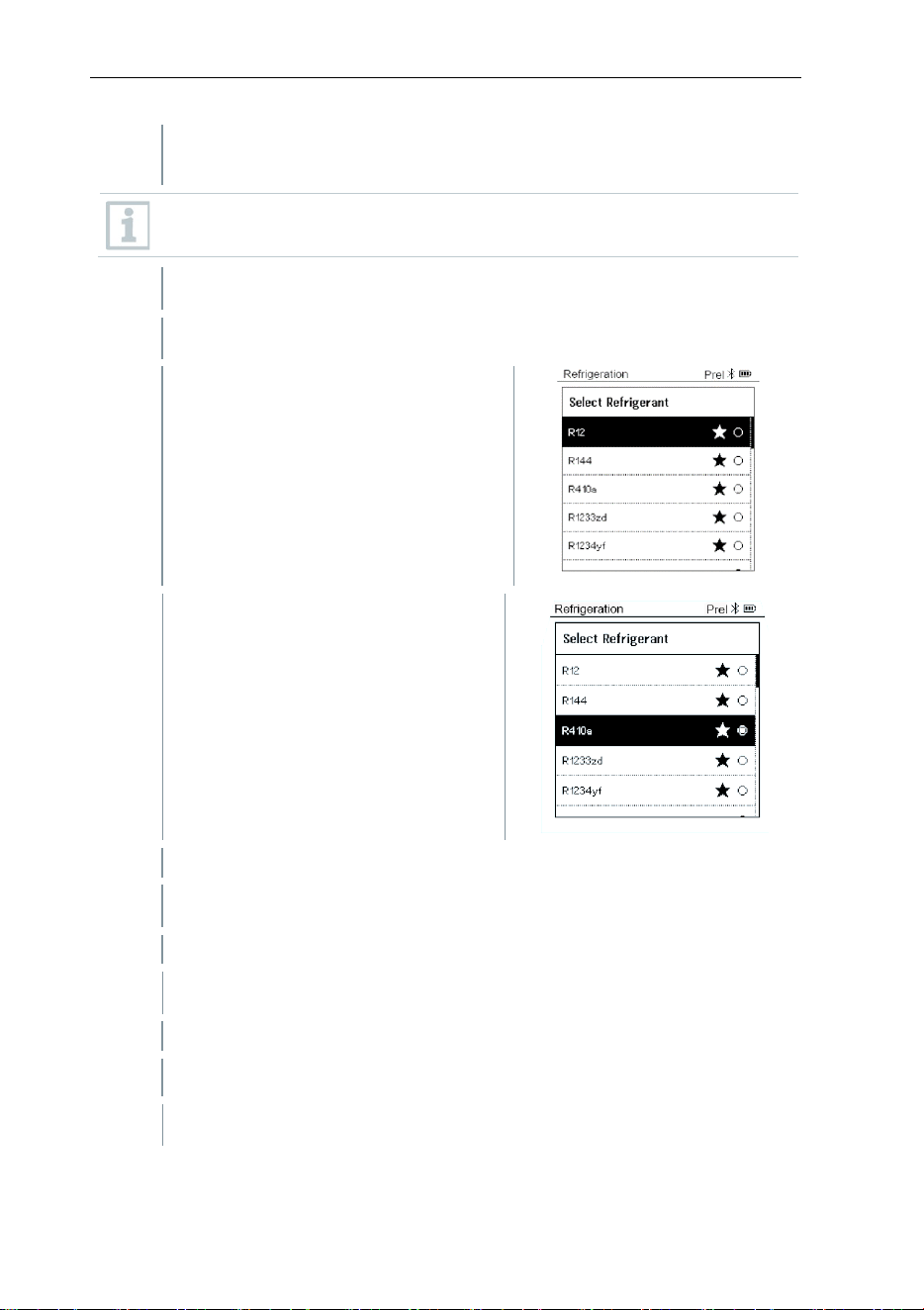
-
The refrigerant menu opens and the
current refrigerant is highlighted.
6.2
Setting the refrigerant: Press [▲] or
[▼] to select the refrigerant and
press [Menu/Enter] to confirm.
-
The newly set refrigerant is displayed in the refrigerant list.
7
Press the [▲] (P=O) key for 2 seconds to zero the sensors.
-
Zeroing takes place.
8
Pressurize the measuring instrument.
-
The measurement starts automatically.
-
The measurement result is displayed.
9
Press [Menu/Enter] to return to the main menu.
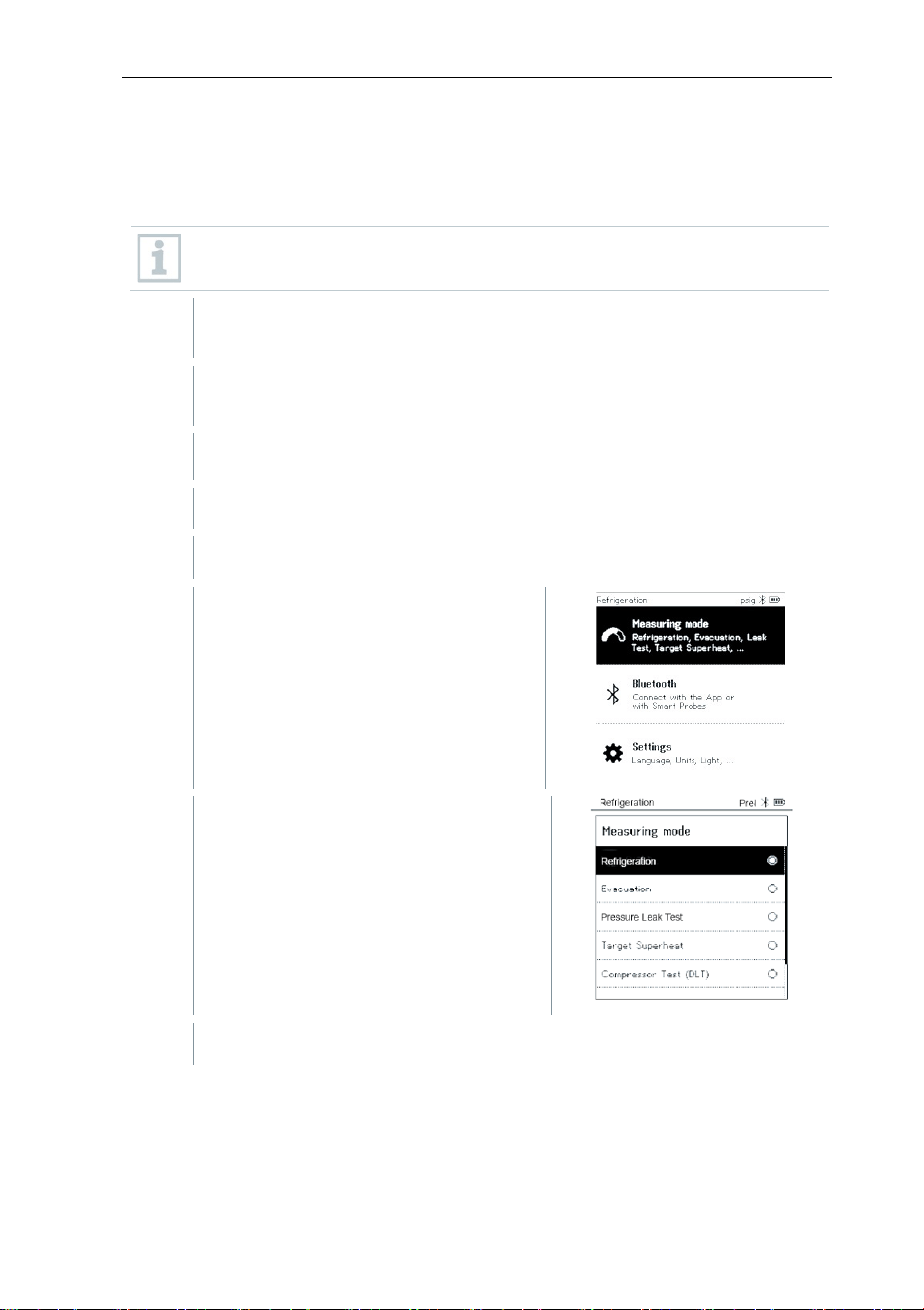
8 Using the product
32
8.2.6 Delta T
Temperature 1 and temperature 2 are measured. The difference is shown on
the display as the delta temperature.
The testo 115i (clamp thermometer) or fixed cable probes are used to
carry out the measurement.
The instrument is switched on and the measurement menu is
displayed.
The steps described in the
Preparing for measurement
section have
been followed/carried out.
testo 115i is switched on.
1
Place the testo 115i at the measuring points.
2
Press [Menu/Enter].
3
Press [▲] / [▼] to select Measuring
Mode and press [Menu/Enter] to
confirm.
-
The Measuring Mode menu is
displayed.
4
Press [▲] / [▼] to select Delta T and press [Menu/Enter] to confirm.
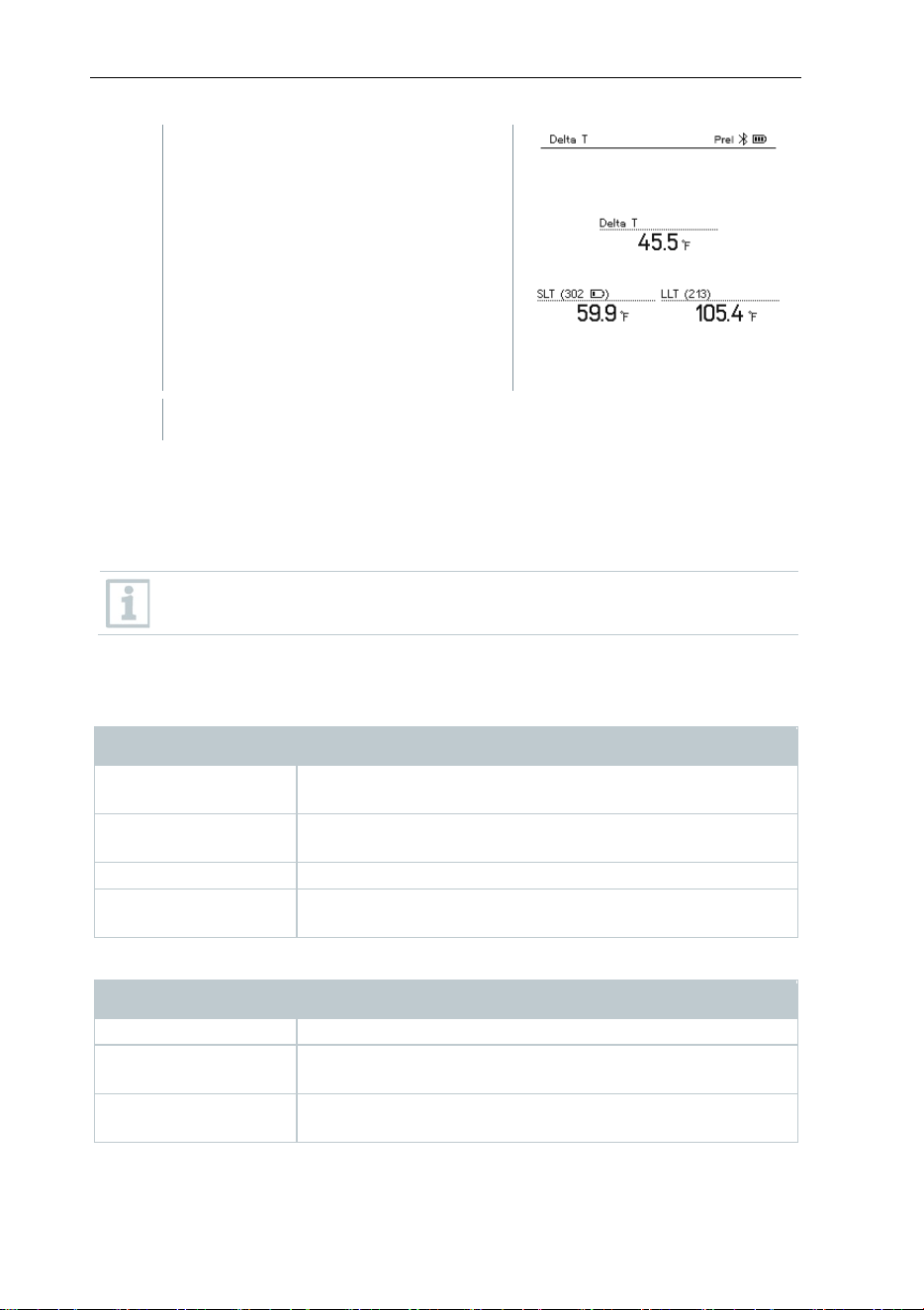
8 Using the product
33
-
The measurement result is
displayed.
5
Press [Menu/Enter] to return to the main menu.
8.3 Bluetooth
testo 550s / testo 557s have the option of establishing a Bluetooth
®
connection
with wireless probes as well as a connection to the testo Smart App at the same
time.
If the testo 550s or testo 557s is used with Smart Probes, they must
be at least 8 in apart.
8.3.1 Probes compatible with the instrument
Smart Probes
Order no. Designation
0560 2115 02
testo 115i – clamp thermometer with smartphone
operation
0560 2605 02
testo 605i – thermohygrometer with smartphone
operation
0564 2552 01
testo 552i – vacuum Smart Probe
0560 1905
testo 905i – temperature probe with smartphone
operation
NTC probes
Order no. Designation
0613 1712
Robust air temperature probe (NTC)
0613 5505
Clamp probe (NTC) for temperature measurements on
pipes (Ø ¼ to 1 ¼ inch), 5ft m fixed cable
0613 5506
Clamp probe (NTC) for temperature measurements on
pipes (Ø ¼ to 1 ¼ inch), 16ft fixed cable
8 Using the product
34
Order no. Designation
0613 5507
2 x clamp probes (NTC) for temperature
measurements on pipes (Ø ¼ to 1 ¼ inch), 5ft fixed
cable
0613 4611
Temperature probe with Velcro (NTC)
0613 5605
Pipe wrap probe (NTC), measuring range:
-58 to 248 °F
0613 1912 Waterproof surface temperature probe (NTC) for flat
surfaces, measuring range: -58 to 248 °F
8.3.2 Establishing a connection
To establish a connection via Bluetooth
®
, you need a tablet or
smartphone with the testo Smart App installed on it.
You can get
the App for iOS instruments in the App Store or for Android
instruments in the Play Store.
Compatibility:
Requires iOS 12.0 or later/Android 6.0 or later, requires
Bluetooth
®
4.0.
Once the connection between the app and the testo 550s and testo 557s has
been successfully established, the app is in second screen mode. This is
indicated by a yellow frame in the app.
This means that all measurement data from the manifold is being mirrored on
the app. The measurement can now be controlled from both instruments. It is
possible to carry out the following actions:
• Start measurement
• Stop measurement
• Reset measurement
• Configure measurement
• Select refrigerant
8 Using the product
35
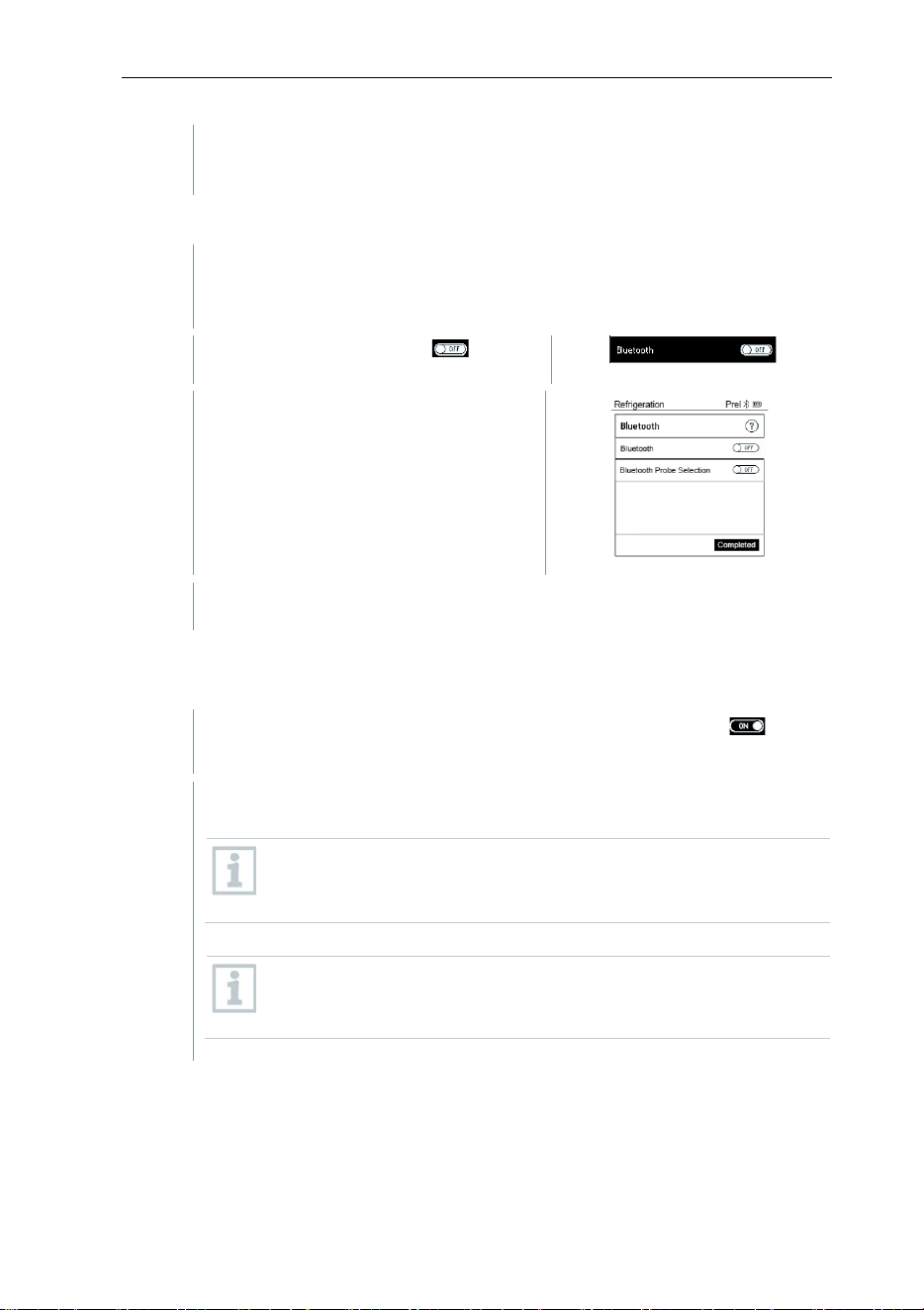
8.3.3 Switching on/off
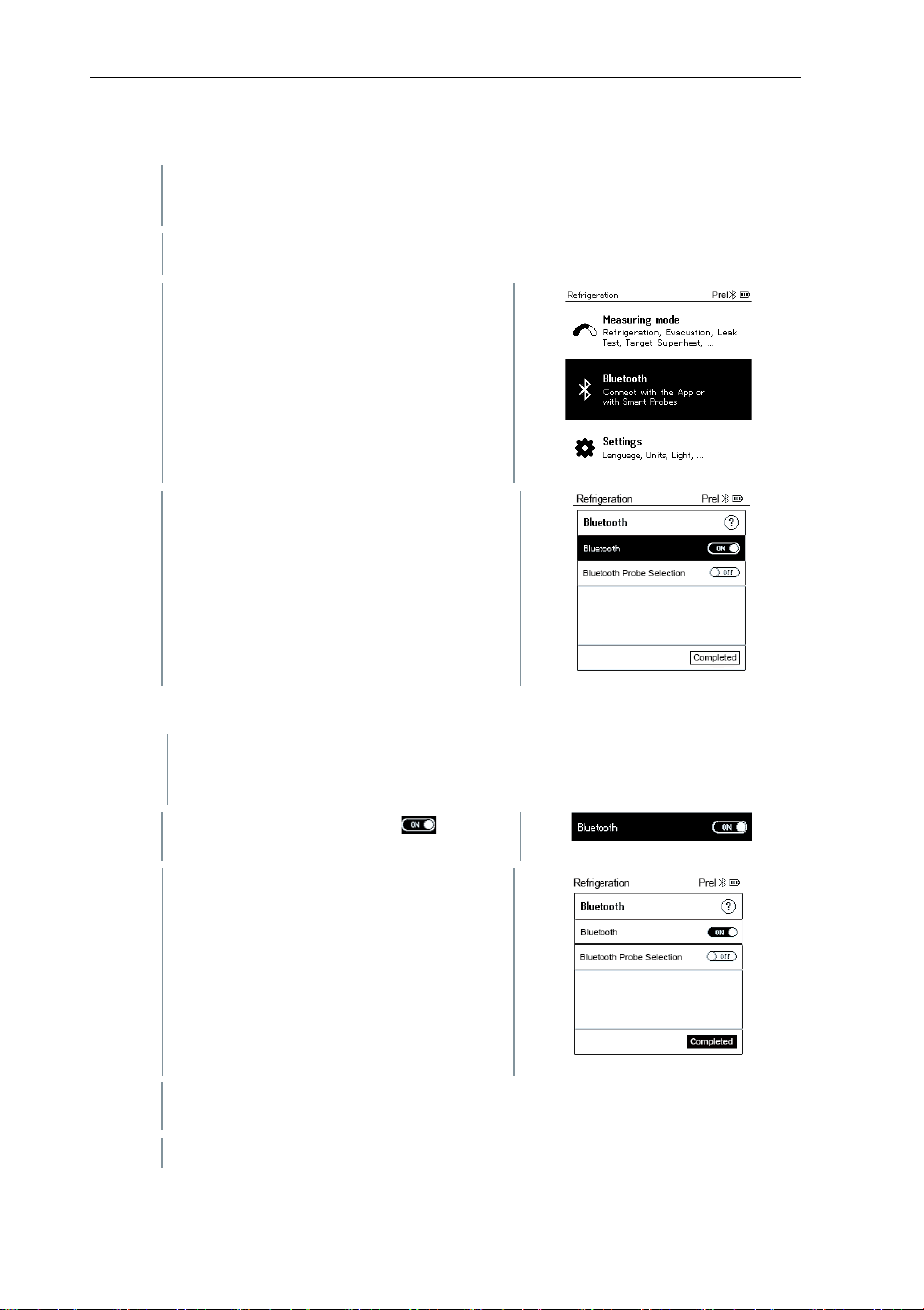
The instrument is switched on and the measurement menu is
displayed.
1
Press [Menu/Enter].
2
Press
[▲] / [▼]
to select
Bluetooth
:
and press [Menu/Enter] to confirm.
-
The Bluetooth menu is displayed.
8.3.3.1 Switching on
The Bluetooth menu is selected.
1
[Menu/Enter]
-
In the On/Off switch icon, is
displayed.
2
Enable Bluetooth®: Press [▼] to
activate the [Completed] button and
press [Menu/Enter] to confirm.
-
When the Bluetooth
®
icon is shown on the display, Bluetooth is
switched on.
-
Bluetooth
®
automatically searches for and connects available probes.
8 Using the product
36
-
After opening the App, the instrument is automatically connected if it is
within range. The instrument does not have to be connected to the
smartphone/tablet via settings beforehand.
8.3.3.2 Switching off
The Bluetooth
®
menu is activated.
1
[Menu/Enter]
-
In the On/Off switch icon, is
displayed.
3
Disable Bluetooth®: Press [▼] to
activate the [Competed] button and
press [Menu/Enter] to confirm.
-
When the Bluetooth
®
icon is not shown on the display, Bluetooth
®
is
switched off.
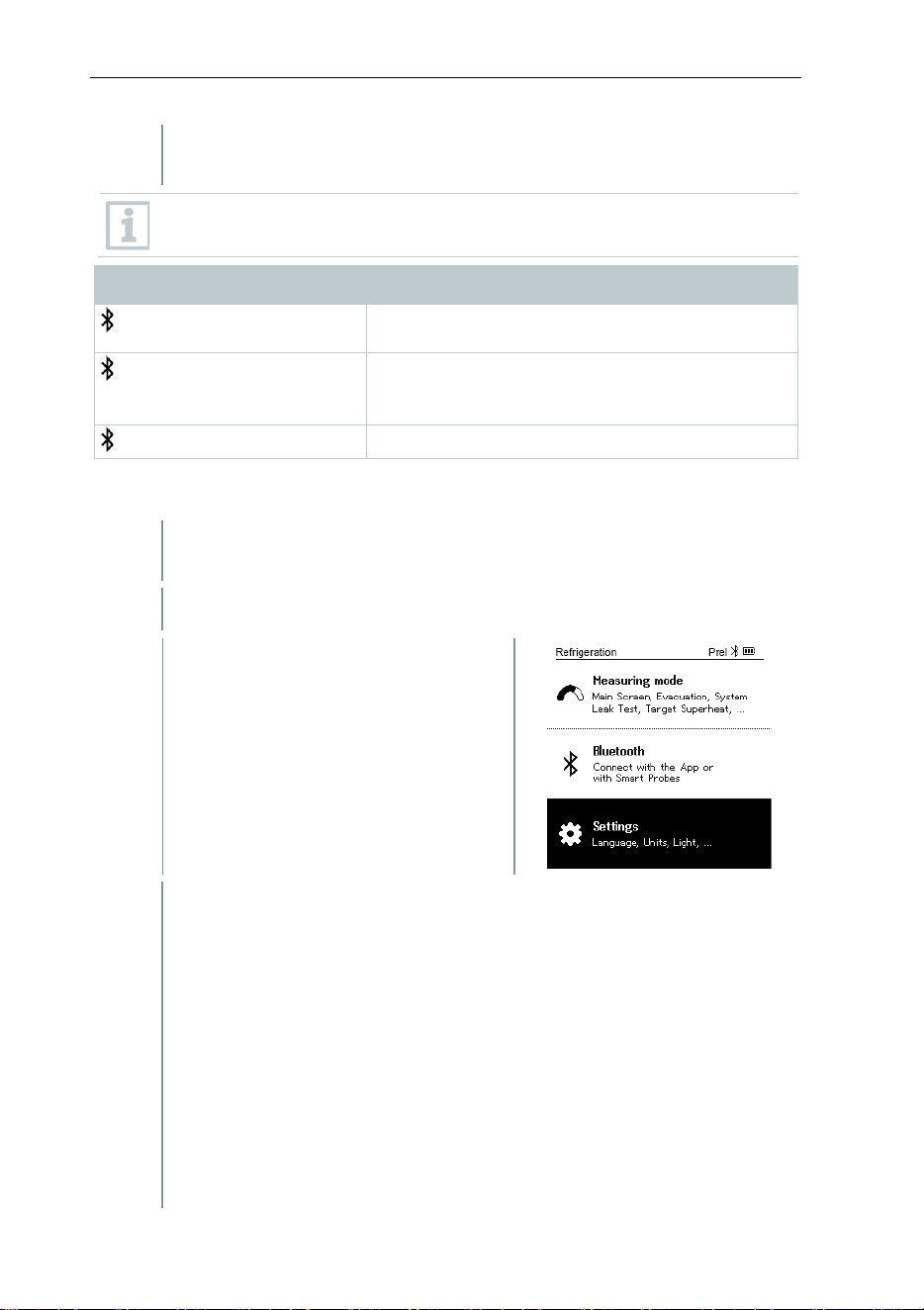
8.3.3.3 Manual probe selection
If this menu is activated, it appears before a measurement.
The Bluetooth
®
menu is activated (in the On/Off switch icon, is
displayed.
1
Press [▼] to select Manual probe selection.
Enable function: Via [Menu/Enter], set the switch to [ON].
An info window with the available probes appears before each
measurement to be carried out. The information must be
confirmed by pressing [Menu/Enter]/[Okay].
Disable function: Via [Menu/Enter], set the switch to [OFF].
If the advanced Bluetooth
®
settings are switched off, the
instrument automatically connects to the first compatible Smart
Probe.
8 Using the product
37
2
Press [▼] to click on the [Completed] button and press [Menu/Enter]
to confirm.
In the Bluetooth
®
menu, you will obtain further information.
Display Explanation
flashes
There is no Bluetooth
®
connection, or a
potential connection is being searched for.
is permanently displayed
There is a Bluetooth
®
connection, the number
of connected Bluetooth
®
probes is displayed
next to it.
is not displayed
Bluetooth
®
is disabled.
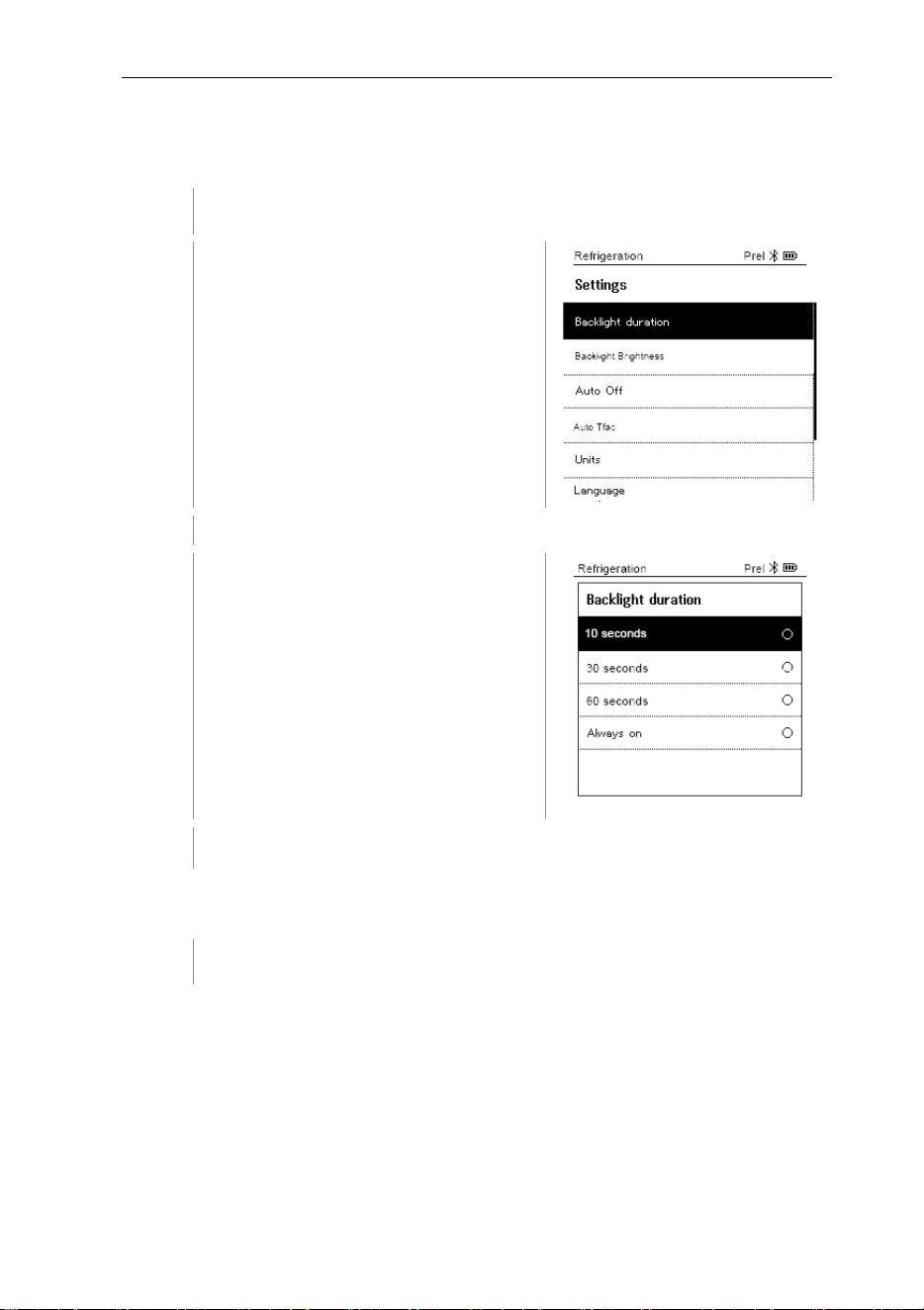
8.4 Settings
The instrument is switched on and the measurement menu is
displayed.
1
Press [Menu/Enter].
2
Select Settings: Press [▼] and then
[Menu/Enter] to confirm.
-
The Settings menu is displayed.
Available settings:
• Duration
• Brightness
• Auto Off
• Auto Tfac (Temperature compensation factor)
• Units
• Language
• Setup Wizard
• Factory Settings
• Instrument
8 Using the product
38
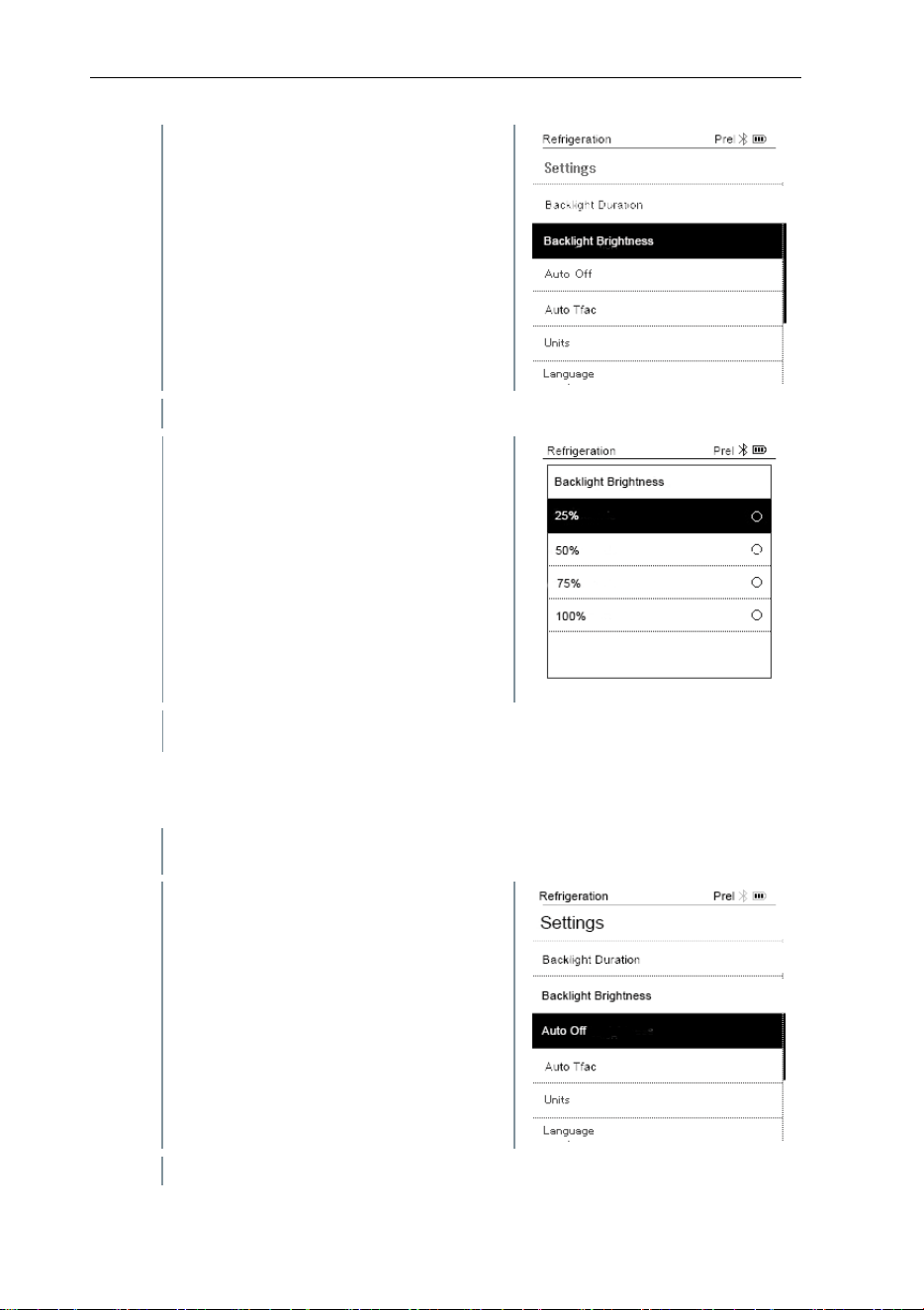
8.4.1 Backlight Duration
Set the backlight duration for the display.
The Settings menu is activated.
1
Press [▲] / [▼] to select Backlight
duration and press [Menu/Enter] to
confirm.
-
Menu properties are displayed.
2
Press
[▲] / [▼]
to select the
backlight duration and press
[Menu/Enter] to confirm.
3
Press [ESC]: 1x main menu view, 2 x measurement menu view.
8.4.2 Backlight Brightness
Set the brightness for the display.
The Settings menu is activated.
8 Using the product
39
1
Press [▲] / [▼] to select the
Backlight brightness and press
[Menu/Enter] to confirm.
-
Menu properties are displayed.
2
Press [▲] / [▼] to select the
brightness value (25%, 50%, 75%,
100%) and press [Menu/Enter] to
confirm.
3
Press [ESC]: 1x main menu view, 2 x measurement menu view.
8.4.3 Auto Off
You can manage the energy consumption for your instrument yourself.
The Settings menu is activated.
1
Press [▲] / [▼] to select [Auto OFF]
and press [Menu/Enter] to confirm.
-
Menu properties are displayed.
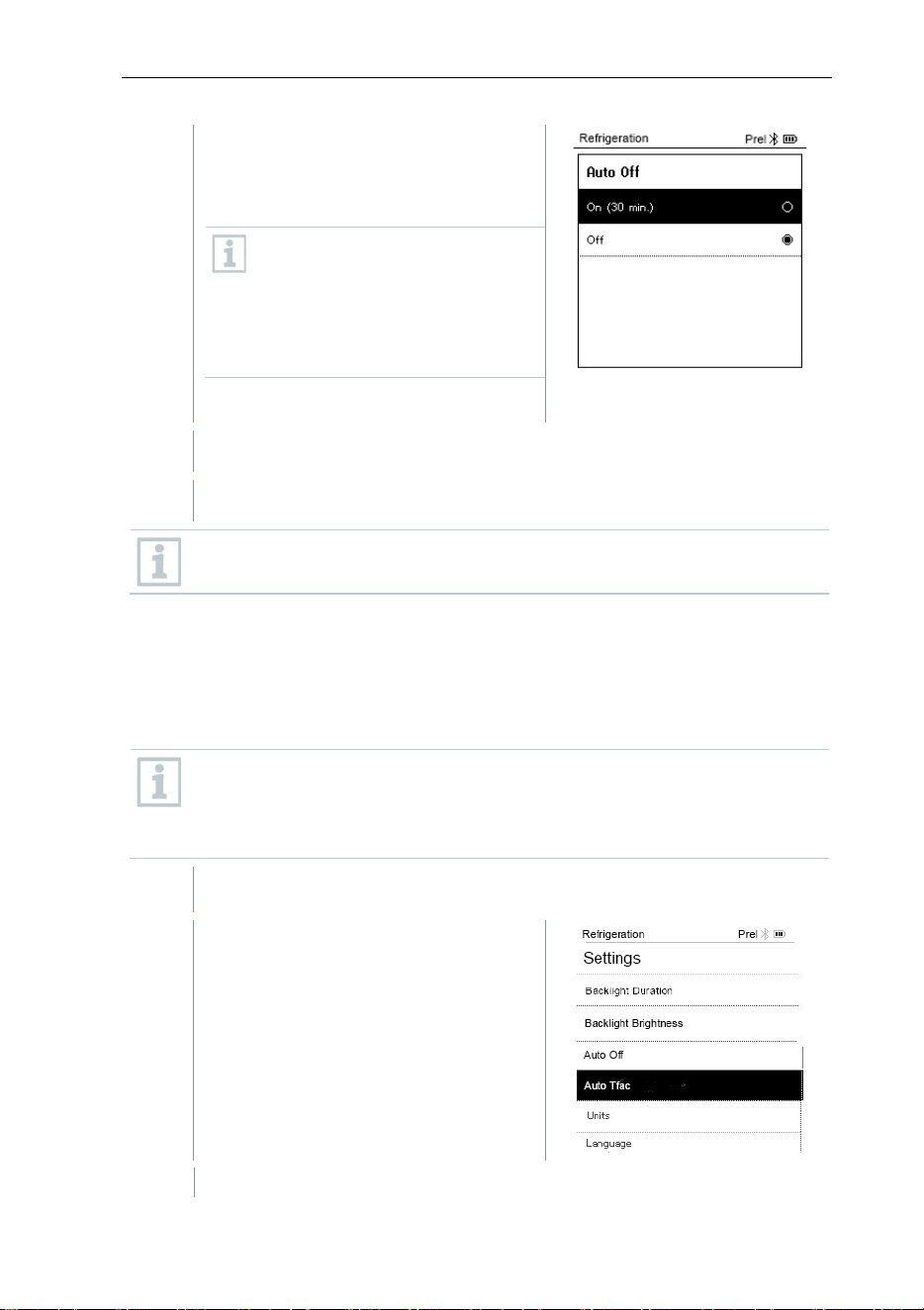
8 Using the product
40
2
Press [▲] / [▼] to select Auto OFF
On: The instrument automatically
switches off after 30 minutes of
inactivity.
The instrument switches off
automatically if no pressure is
measured and no key has been
pressed within 10 minutes. As
long as pressure is present, the
instrument remains on.
• Off: Continuous operation
3
Confirm selection by pressing [Menu/Enter].
4
Press [ESC]: 1x main menu view, 2 x measurement menu view
Unsaved readings are lost when the measuring instrument is switched
off.
8.4.4 Auto Tfac (Temperature compensation
factor)
A surface compensation factor has been set in the measuring instrument to
reduce the measuring errors in the main field of applications. This reduces
measuring errors when using surface temperature probes.
Surface temperature probe
An NTC temperature probe (accessory) must be connected to measure
the pipe temperature and to automatically calculate superheating and
subcooling.
The Settings menu is activated.
1
Select Auto Tfac and press
[Menu/Enter] to confirm.
-
Menu properties are displayed.
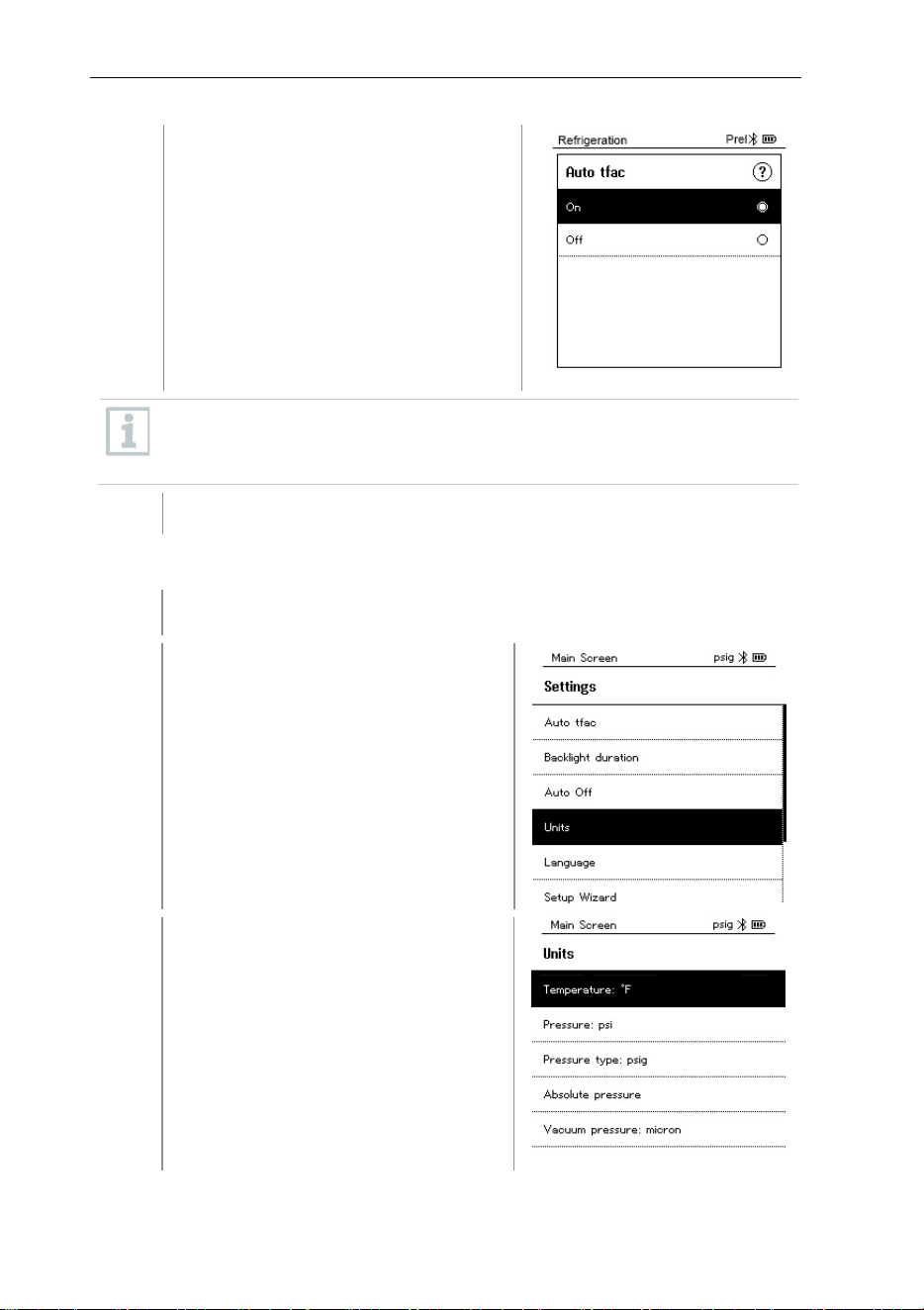
8 Using the product
41
2
Press [▲] / [▼] to activate
(On)/deactivate (Off) Auto Tfac and
press [Menu/Enter] to confirm.
Press [▲] / [▼] to select the question mark icon and press
[Menu/Enter] to open. You will obtain further information on
temperature compensation.
3
Press [ESC]: 1x main menu view, 2 x measurement menu view
8.4.5 Units
The Settings menu is activated.
1
Press
[▲] / [▼]
to select
[Units]
and
press [Menu/Enter] to confirm.
-
Menu properties are displayed.
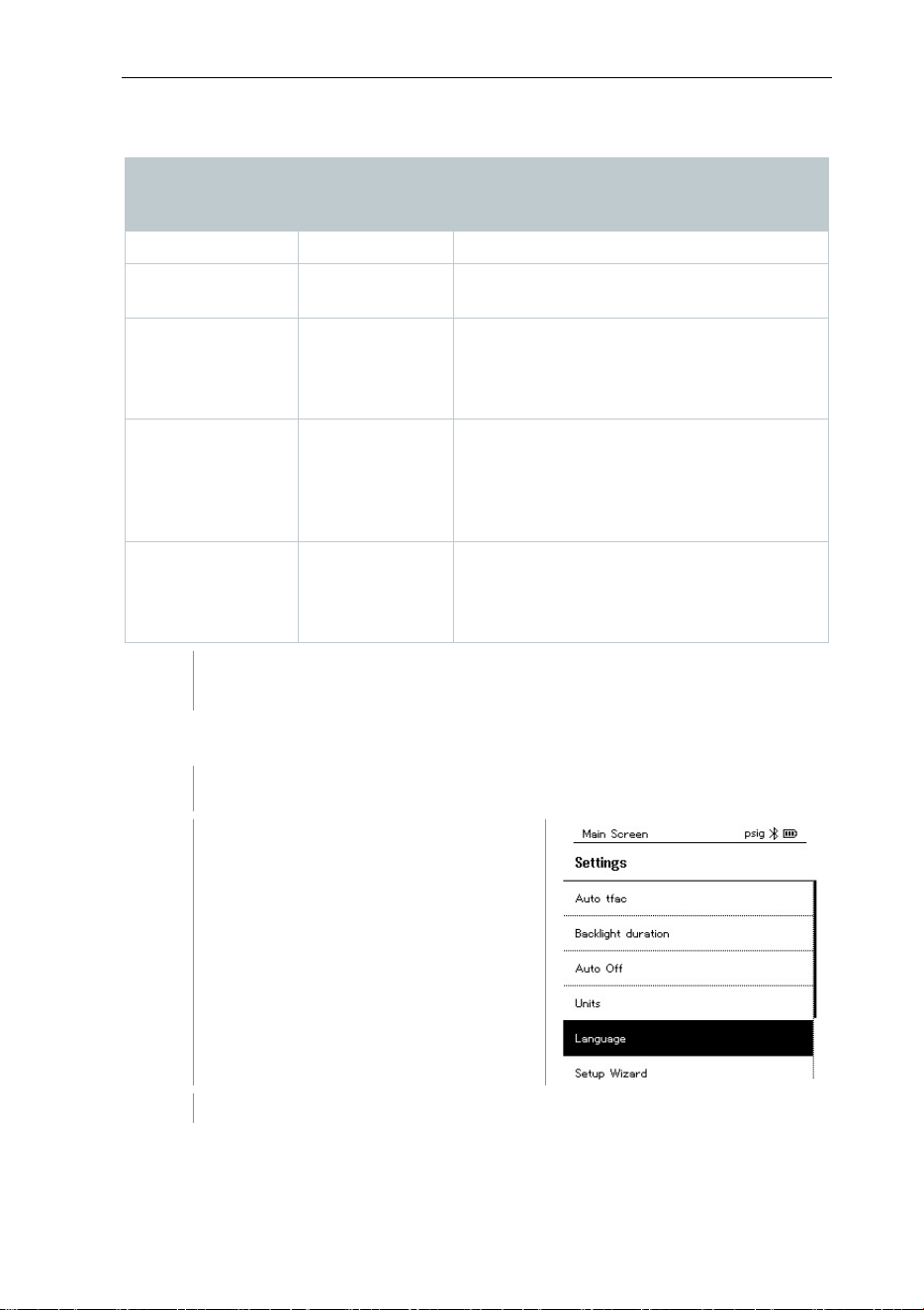
8 Using the product
42
Adjustable units
Measurement
parameter
Unit Description
Temperature
°C, °F
Set unit for temperature.
Pressure
psi, kPa, MPa,
bar
Set unit for pressure.
Pressure mode
Prel, Pabs
Depending on the chosen unit for
pressure:
Change between absolute and relative
pressure displays.
Absolute
pressure
bar (Pabs)
Set the current absolute pressure
(current air pressure values for your
region can be obtained, for example,
from the local weather service or on the
Internet).
Vacuum
pressure
Micron, mbar,
Torr, mTorr
inH2O, in Hg,
hPa, Pa
3
Press [ESC]: 1 x Units menu, 2 x main menu view, 3 x measurement
menu view.
8.4.6 Language
The Settings menu is activated.
1
Press [▲] / [▼] to select
[Language] and press [Menu/Enter]
to confirm.
-
Menu properties are displayed.
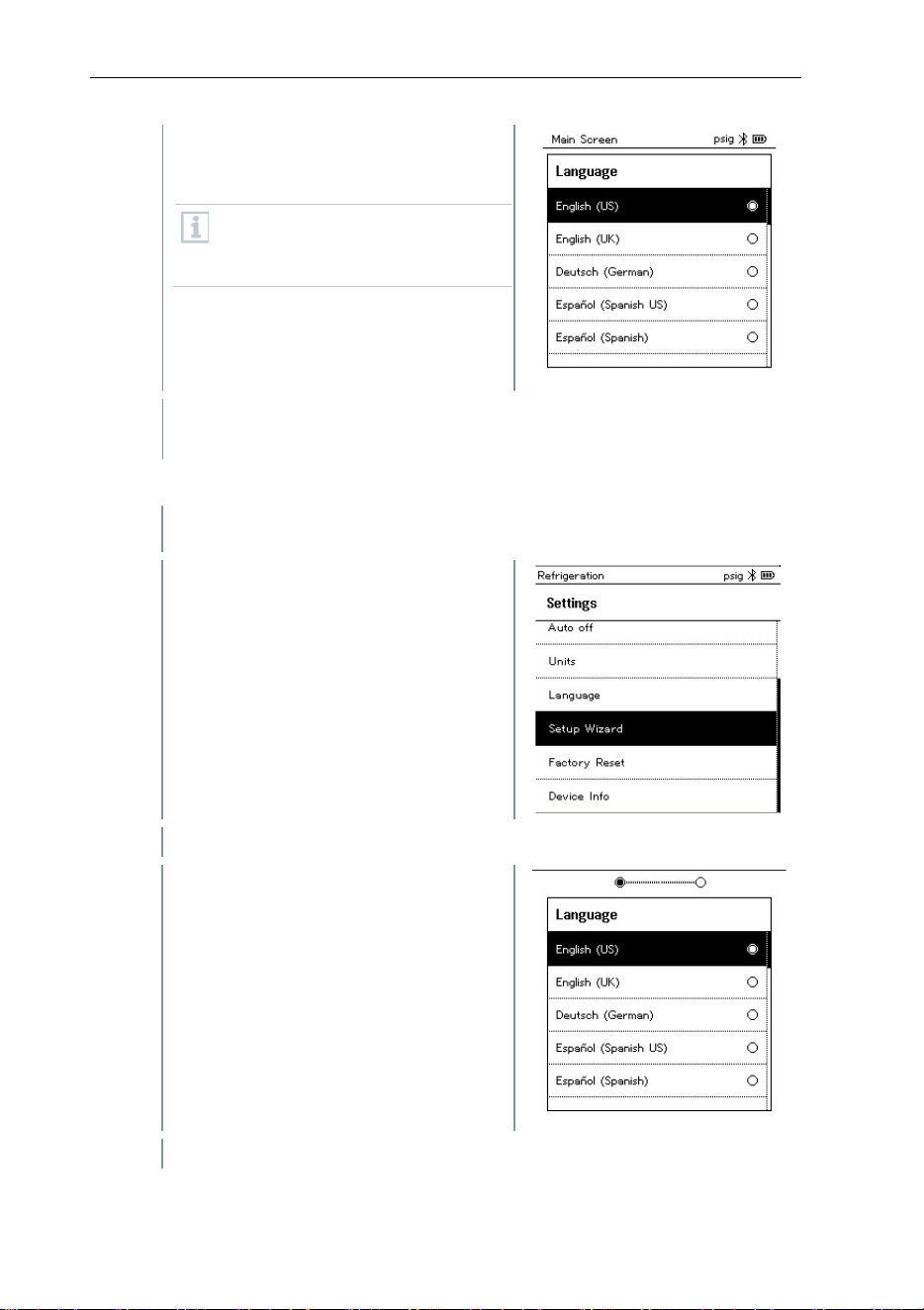
8 Using the product
43
2
Select language: [▲] / [▼] and
press [Menu/Enter] to confirm.
Selecting the language activates
the appropriate presetting of the
units of measurement.
3
Press
[ESC]
: 1 x
Units
menu, 2 x main menu view, 3 x measurement
menu view.
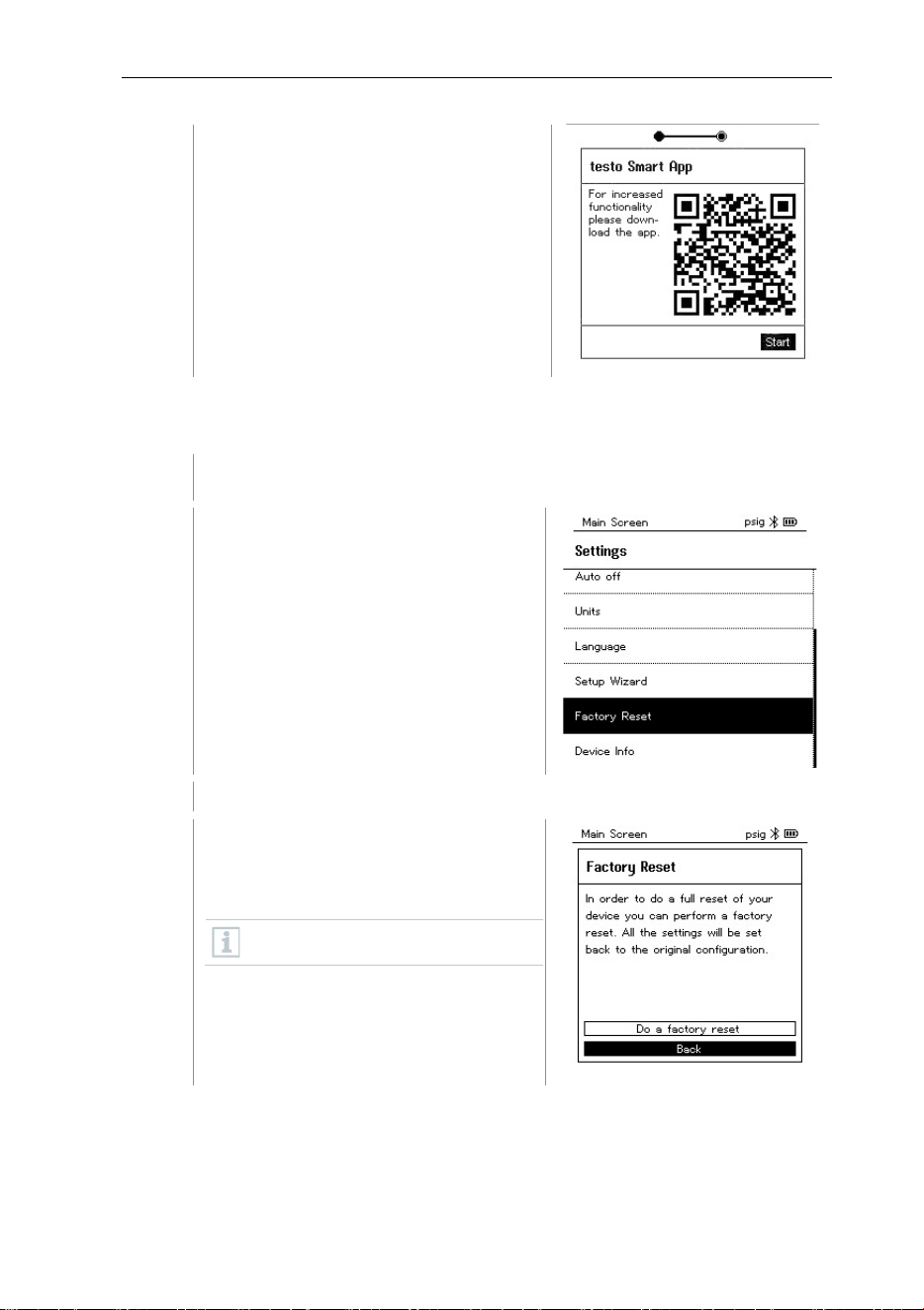
8.4.7 Setup Wizard
The Settings menu is activated.
1
Press [▲] / [▼] to select [Setup
Wizard] and press [Menu/Enter] to
confirm.
-
Language selection opens.
2
Press [▲] / [▼] to select the
language.
-
The units for the respective country are set automatically.
8 Using the product
44
-
Barcode is displayed and the testo
Smart App can be downloaded from
the respective app store.
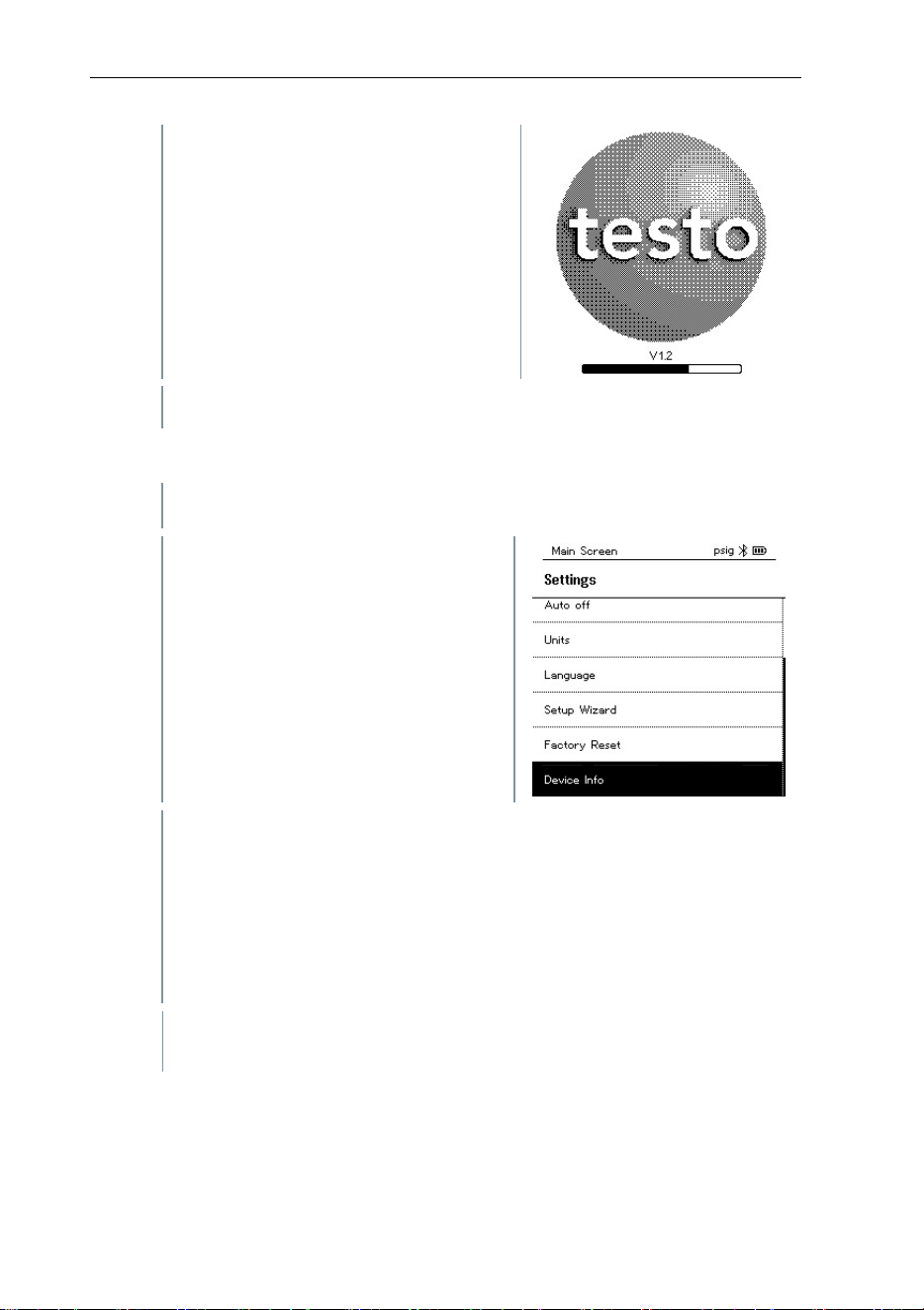
8.4.8 Factory Settings
The instrument is reset to the factory settings.
The Settings menu is activated.
1
Press [▲] / [▼] to select [Restore
Factory Reset] and press
[Menu/Enter] to confirm.
-
Menu properties are displayed.
2
Start [Restore Factory Reset]:
Press [▲] / [▼] to select [Do a
factory reset] and press
[Menu/ESC] to confirm.
Press [Back] to quit the process.
8 Using the product
45
-
[Restore Factory Reset] is carried
out.
3
See Setup Wizard.
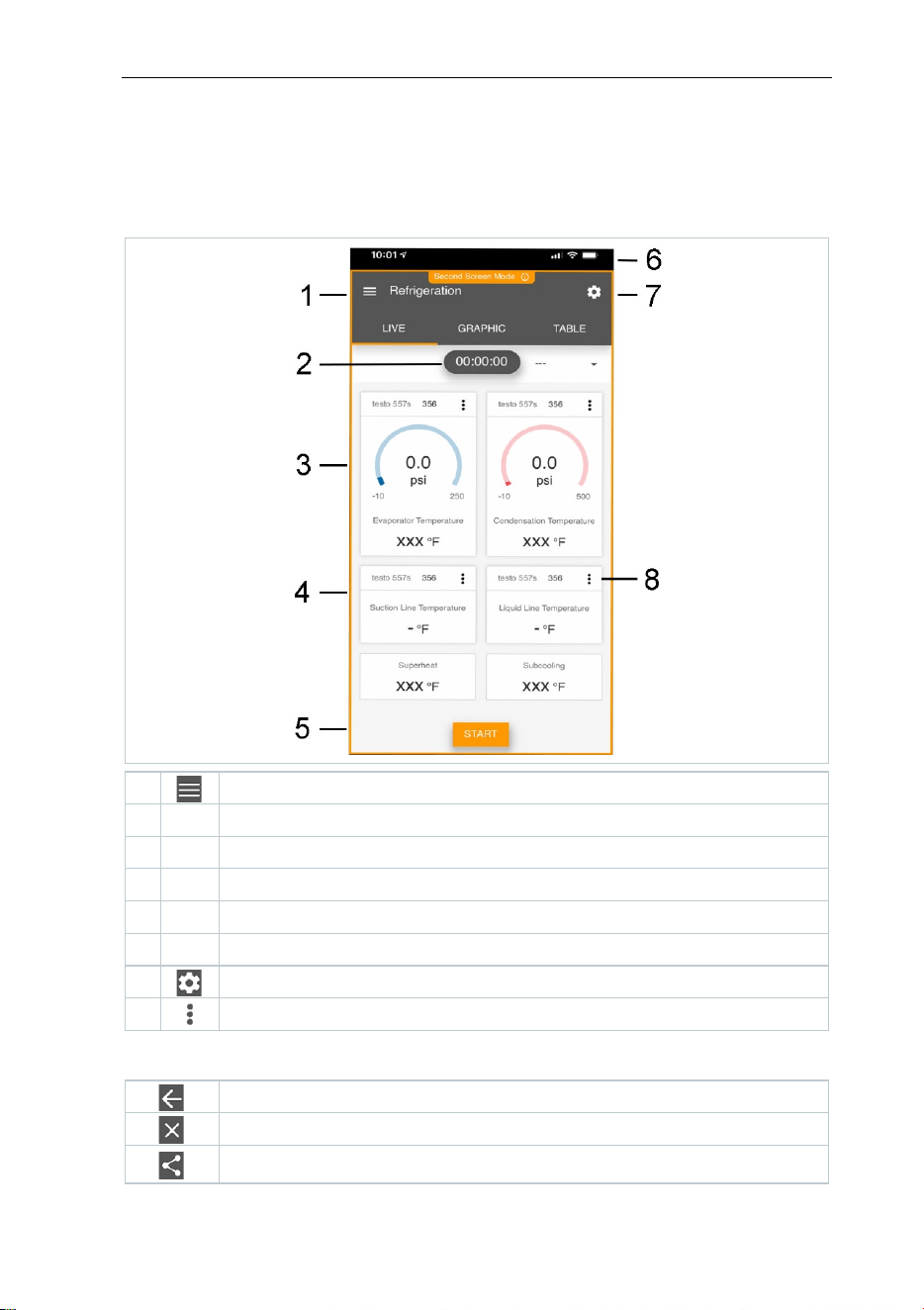
8.4.9 Instrument
The Settings menu is activated.
1
Press [▲] / [▼] to select [Device
Info] and press [Menu/Enter] to
confirm.
-
The Versions Info menu is displayed.
The following information can be viewed:
• Serial number
• Firmware version
• Refrigerant version
• BLE Version)
2
Press [ESC]: 1 x Units menu, 2 x main menu view, 3 x measurement
menu view.
9 Smart App
46
9 Smart App
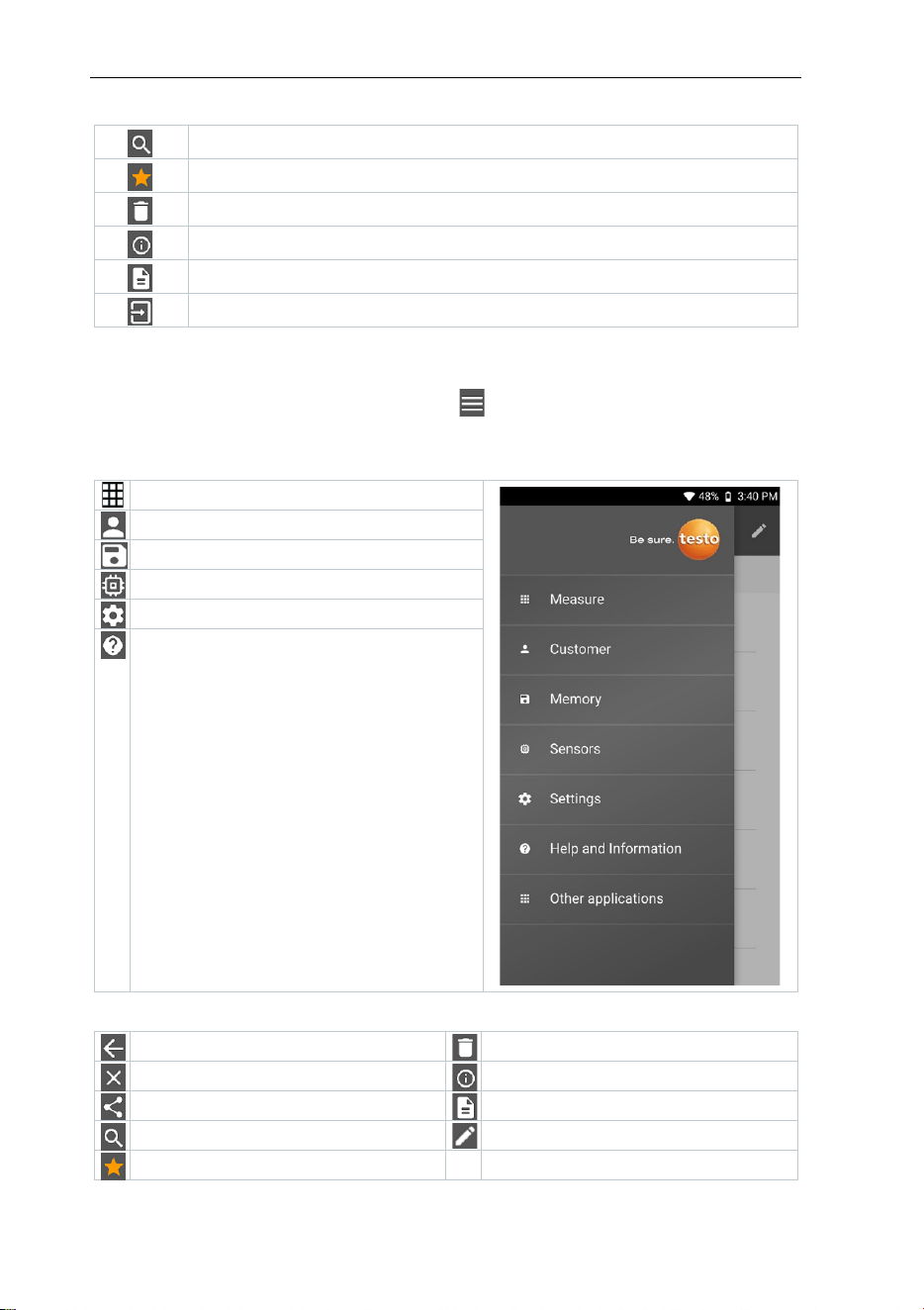
9.1 App – user interface
1
Open main menu
2
Display of the measurement period
3
Display of calculated measurement results
4
Reading for each probe
5
Can be controlled with different function keys
6
Device status bar
7
Configuration
8
Edit reading display
Further symbols on the user interface (without numbering)
One level back
Exit view
Share report
9 Smart App
47
Search
Favorite
Delete
Further information
Display report
Multiple selection
9.2 Main menu
The Main menu can be accessed via the icon at top left. To exit the main
menu, select a menu or right-click on the guided menus. The last screen
displayed is shown.
Measure
Customer
Memory
Sensors
Settings
Help and Information
Additional icons:
One level back
Delete
Exit view
Further information
Share measurement data/reports
Display report
Search
Edit
Favorite
9 Smart App
48
9.3 Measurement menu
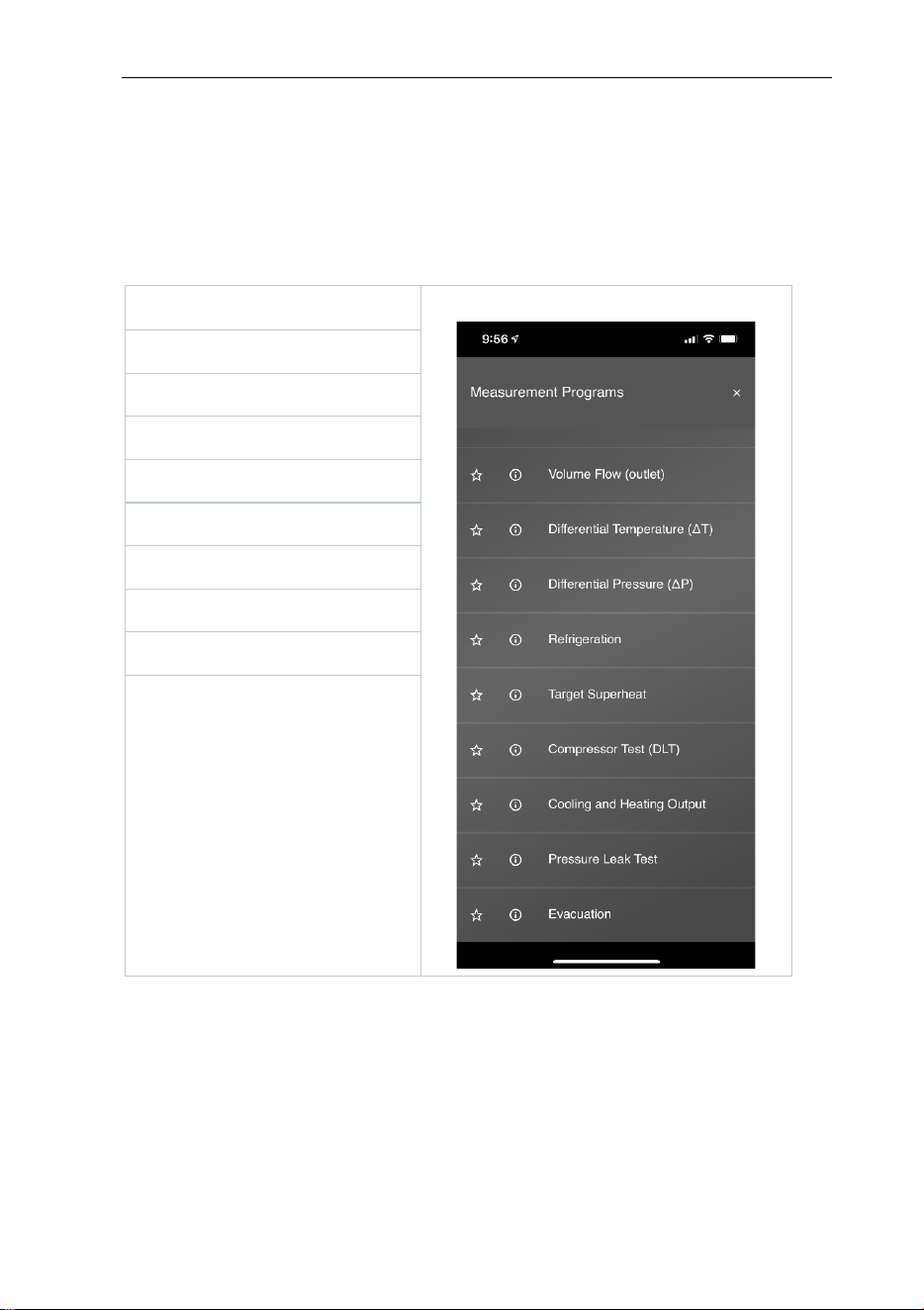
The testo Smart App has permanently installed measurement programs. These
enable the user to carry out convenient configuration and implementation of
specific measuring tasks.
The testo Smart App offers the following Measurement menus:
Basic view
Volume flow – duct
Volume flow – outlet
Differential temperature (ΔT)
Differential pressure (ΔT)
Refrigeration
Target superheat
Cooling and heating output
Leakage test
Evacuation
9 Smart App
49
9.3.1 Basic view
In the Basic view application menu, the current measuring values can be read,
recorded and saved. The Basic view is particularly suitable for fast,
uncomplicated measurements without the specific requirements of a standard-
compliant measurement.
All Bluetooth
®
probes compatible with the testo Smart App are displayed in the
Basic view.
In all application menus, apart from the volume flow measurement, there are
three different screens for the measurement - Live (or also Basic view), Graphic
and Table.
9.3.1.1 Graphic view
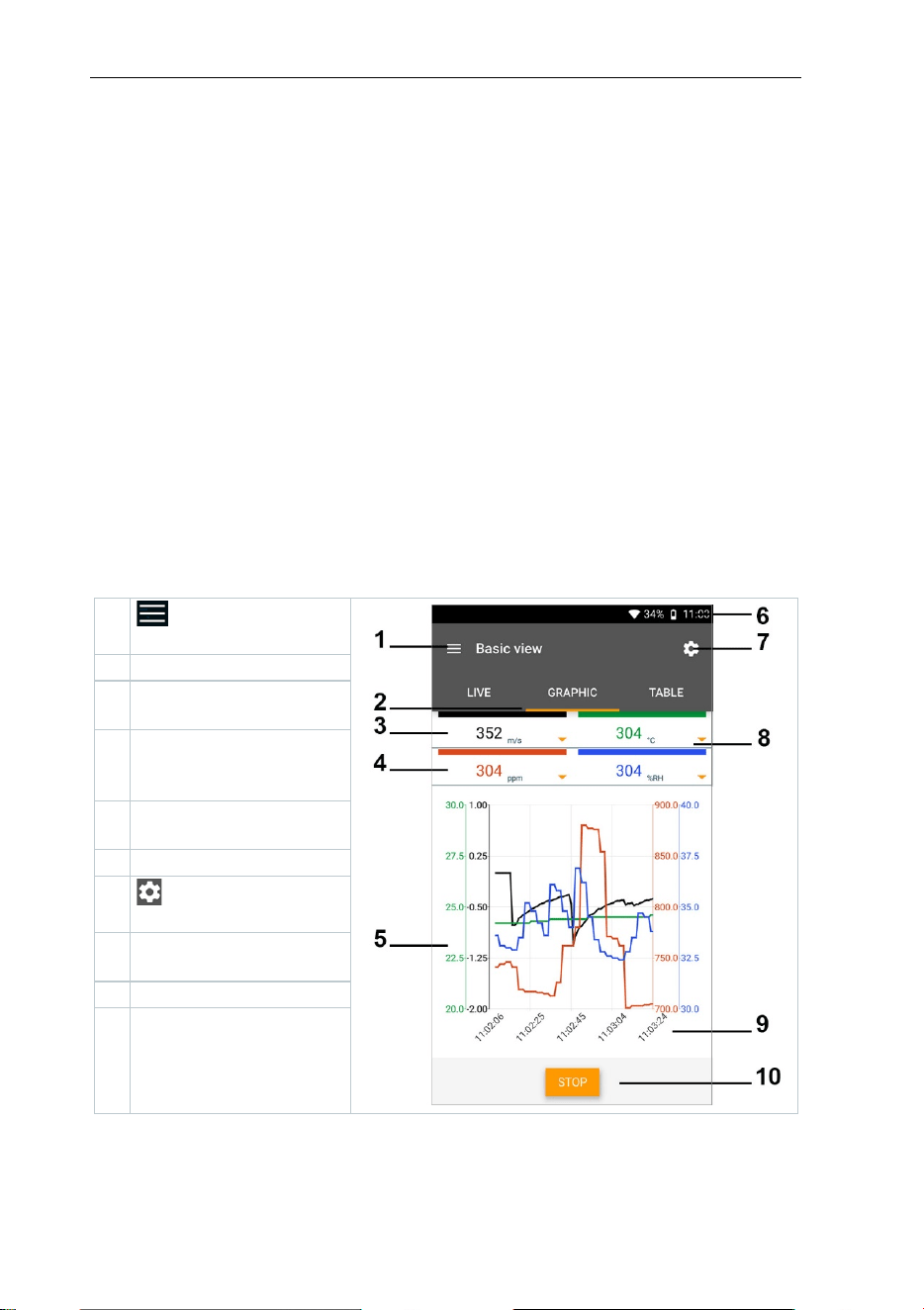
In the Graphic view, the values for a maximum 4 channels can be displayed
simultaneously in a chronological trend graph. All measured parameters can be
displayed in the Graphic view via the channel selection (click on one of the four
selection fields). Once a measurement parameter has been selected, the value
is updated automatically.
The Zoom touch function allows individual parts of the graphic to be viewed in
more detail or time progressions to be displayed compactly.
1
Open the main
menu
2
Change of display
3
Reading for selected
channel
4
Measurement
parameter and
measurement unit
5
Graphic with selected
channels and 4 Y-axes
6
Status bar
7
Open the
configuration menu
8
Selection of other
channels
9
Time axis
10
New/Start/Stop/Save
button
9 Smart App
50
9.3.1.2 Table view
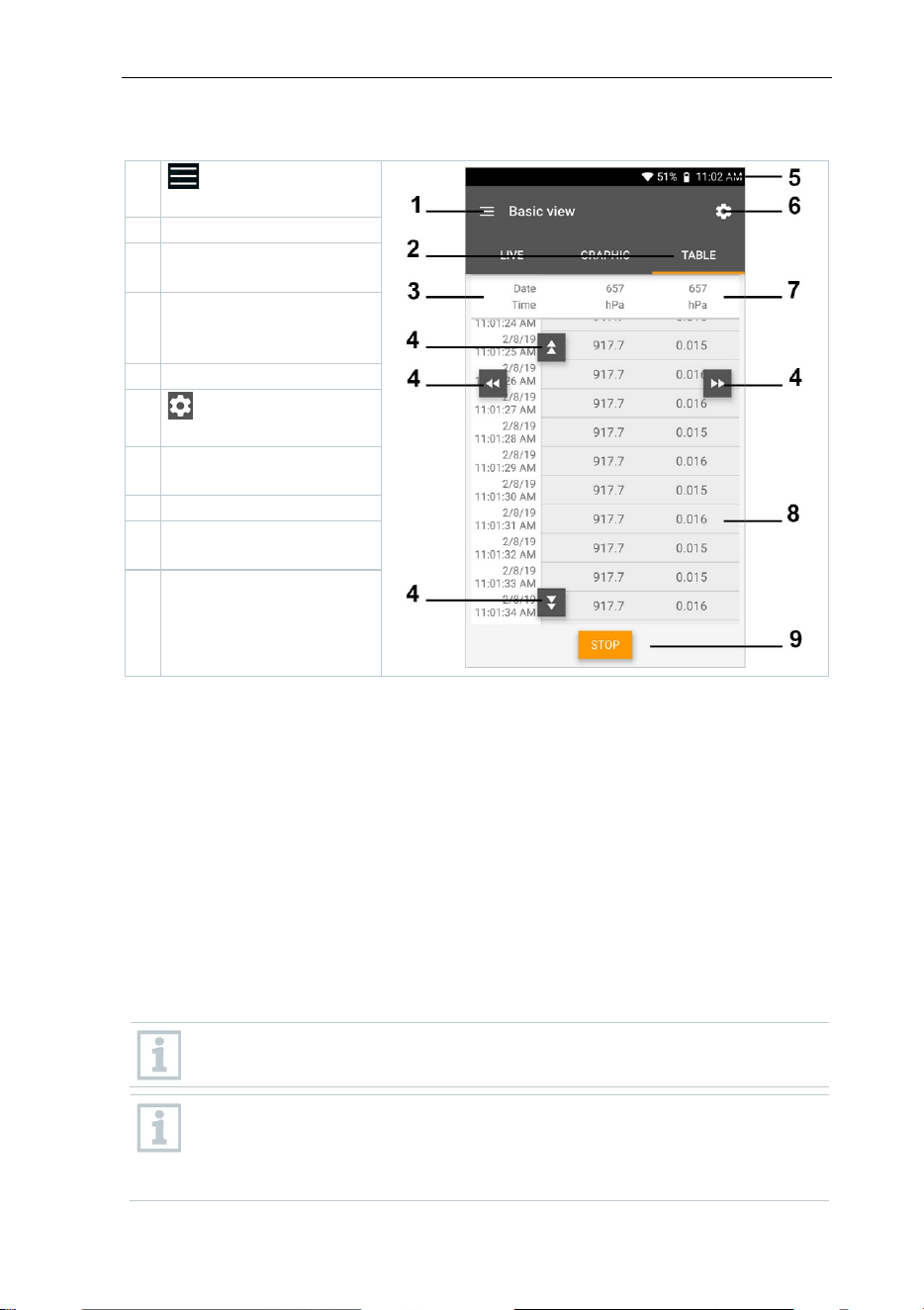
1
Open the main
menu
2
Change of display
3
Column with date and
time
4
Arrow keys to go
directly to the end of
the table
5
Status bar
6
Open the
configuration menu
7
Probe ID -
measurement unit
8
Measuring values
9
New/Start/Stop/Save
button
9.3.2 Refrigeration
The Refrigeration application is used to determine the following system
measuring values:
• Low-pressure side: Evaporation pressure, refrigerant evaporation
temperature to/Ev (T evap.)
• Evaporation pressure: Measured temperature toh/T1
• Evaporation pressure: Superheating Δtoh/SH
• High-pressure side: Condensation pressure, refrigerant condensation
temperature tc/Co (T condens.)
• Condensation pressure: Measured temperature tcu/T2
• Condensation pressure: Subcooling Δtcu/SC
The testo 115i clamp thermometer is used for the measurement.
An NTC temperature sensor (accessory) must be connected for
measuring the pipe temperature and for automatic calculation of
superheating and subcooling. Testo Smart Probes (e.g. testo 115i) can
be used.
9 Smart App
51
Before each measurement, check that the refrigerant hoses are in
flawless condition.
Before each measurement, zero the pressure sensors. All connections
must be pressureless (ambient pressure). Press the button [▲] (P=O)
for 2 seconds to zero the sensors.
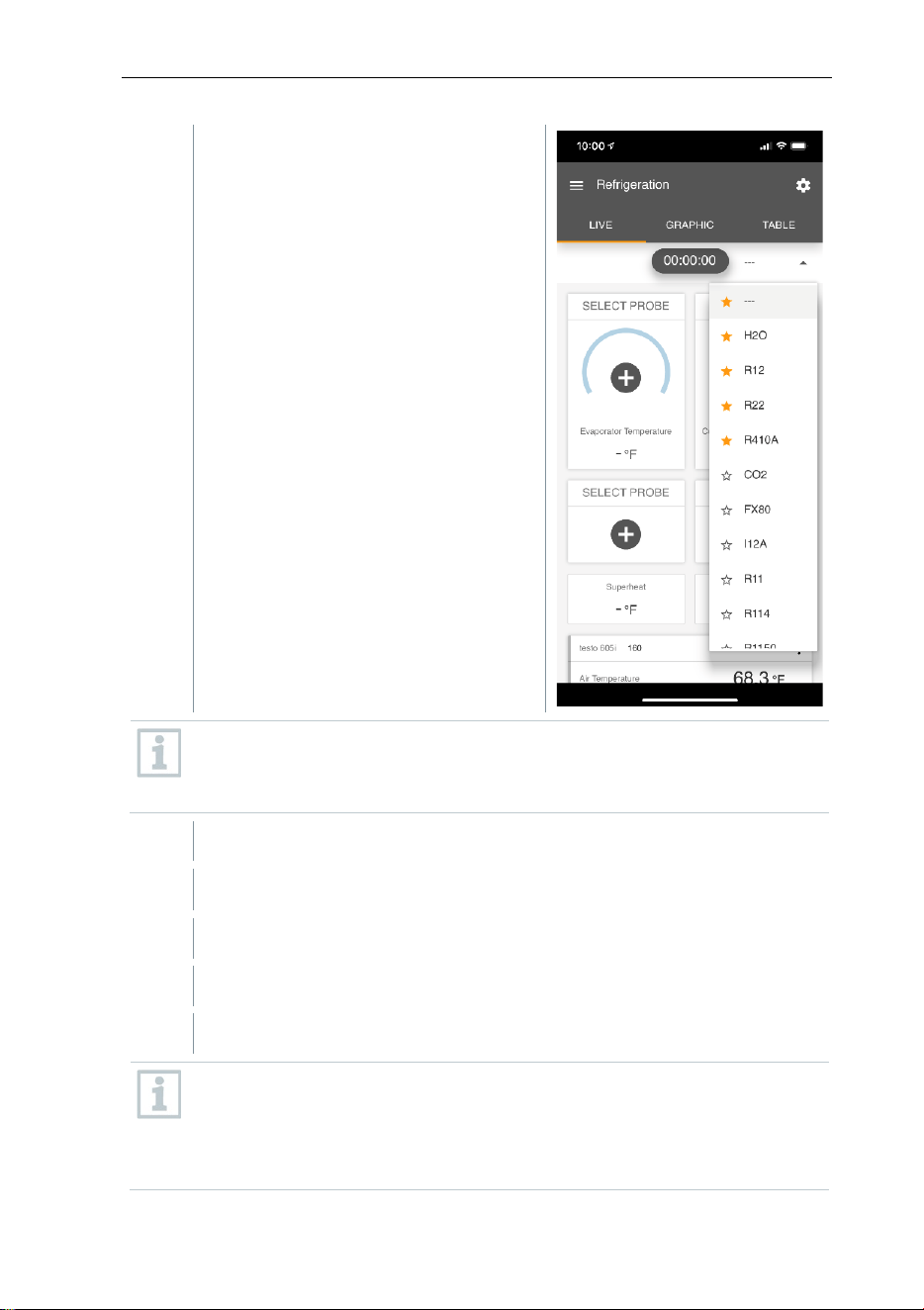
1
Click on Measure.
2
Click on Refrigeration.
The Refrigeration measurement menu opens.
3
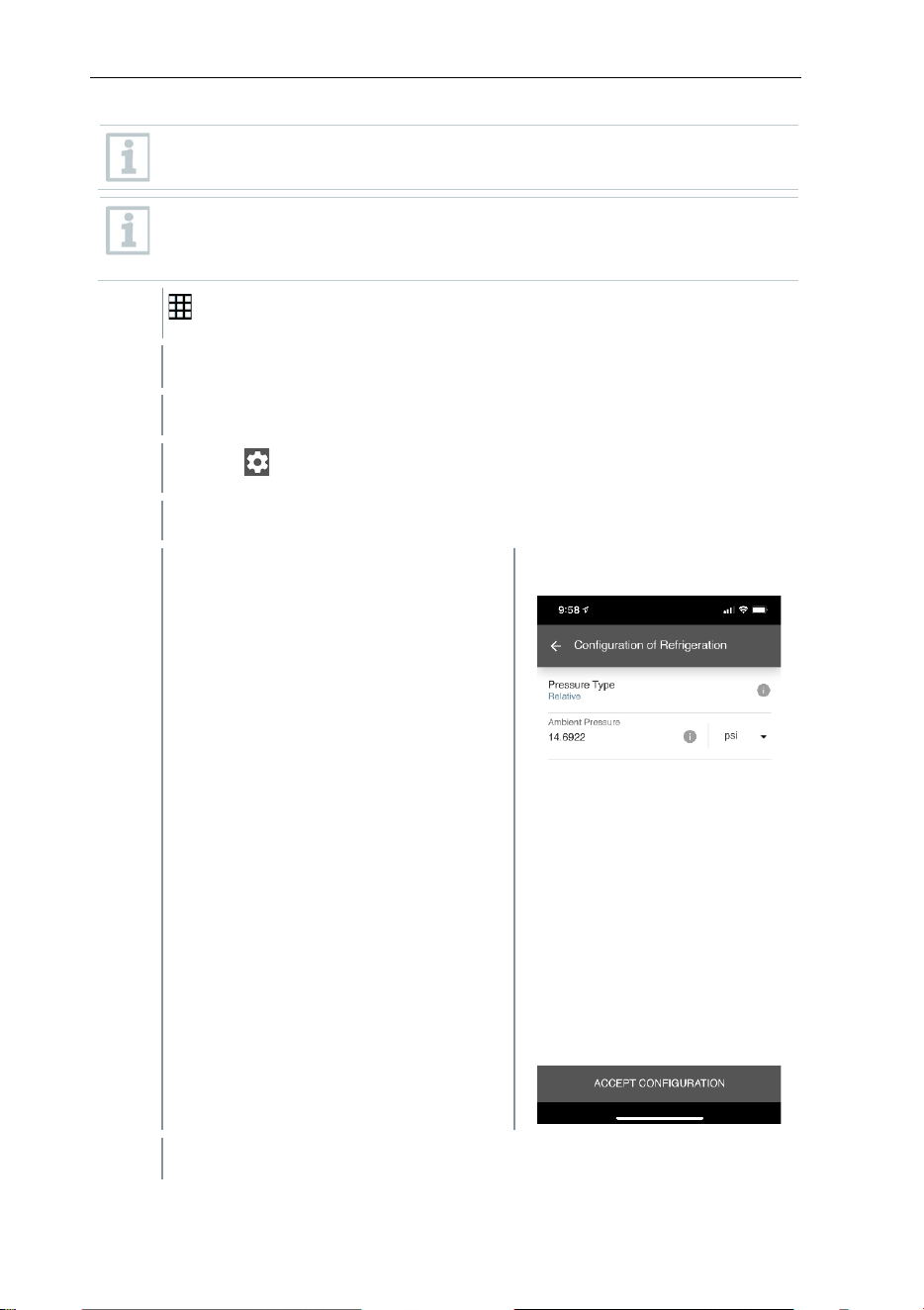
Click on .
Configuration menu opens.
4
Make the required settings.
5
Click on Apply Configuration.
9 Smart App
52
6
Set refrigerant.
You have the option of setting up favourite refrigerants in the App.
These then appear at the beginning of the refrigerant list.
To do this, click on the asterisk next to the refrigerant in the refrigerant
list (App).
The newly set refrigerant is displayed in the refrigerant list.
7
Click on Start.
The measurement starts.
Values currently being measured are displayed.
Measured values can be saved or a new measurement can be started.
With zeotropic refrigerants, the evaporation temperature to/Ev is
displayed after complete evaporation/the condensation temperature
tc/Co is displayed after complete condensation.
The measured temperature must be assigned to the superheating or
subcooling side (t
oh
<--> t
cu
). Dependent on this assignment, the display
9 Smart App
53
will show t
oh
/T1 resp. Δt
oh
/SH or t
cu
/T2 resp. Δt
cu
/SC, depending on the
selected display.
Reading and display illumination flash:
• 1 bar/14.5 psi before reaching critical refrigerant pressure
• When max. permissible pressure of 60 bar/870 psi is exceeded.
9.3.3 Target Superheat
This feature allows the calculation of target superheat in conjunction with the
App and additional testo 605i Smart Probes. This application can only be used
for split air conditioning systems/heat pumps with a fixed expansion valve. The
two connected testo 605i Smart Probes determine the ODDB and RAWB
values. As a result, the target superheat appears in the App.
The following are used for the measurement:
• testo 115i (clamp thermometer)
• testo 605i
Before each measurement, check that the refrigerant hoses are in
flawless condition.
Before each measurement, zero the pressure sensors.
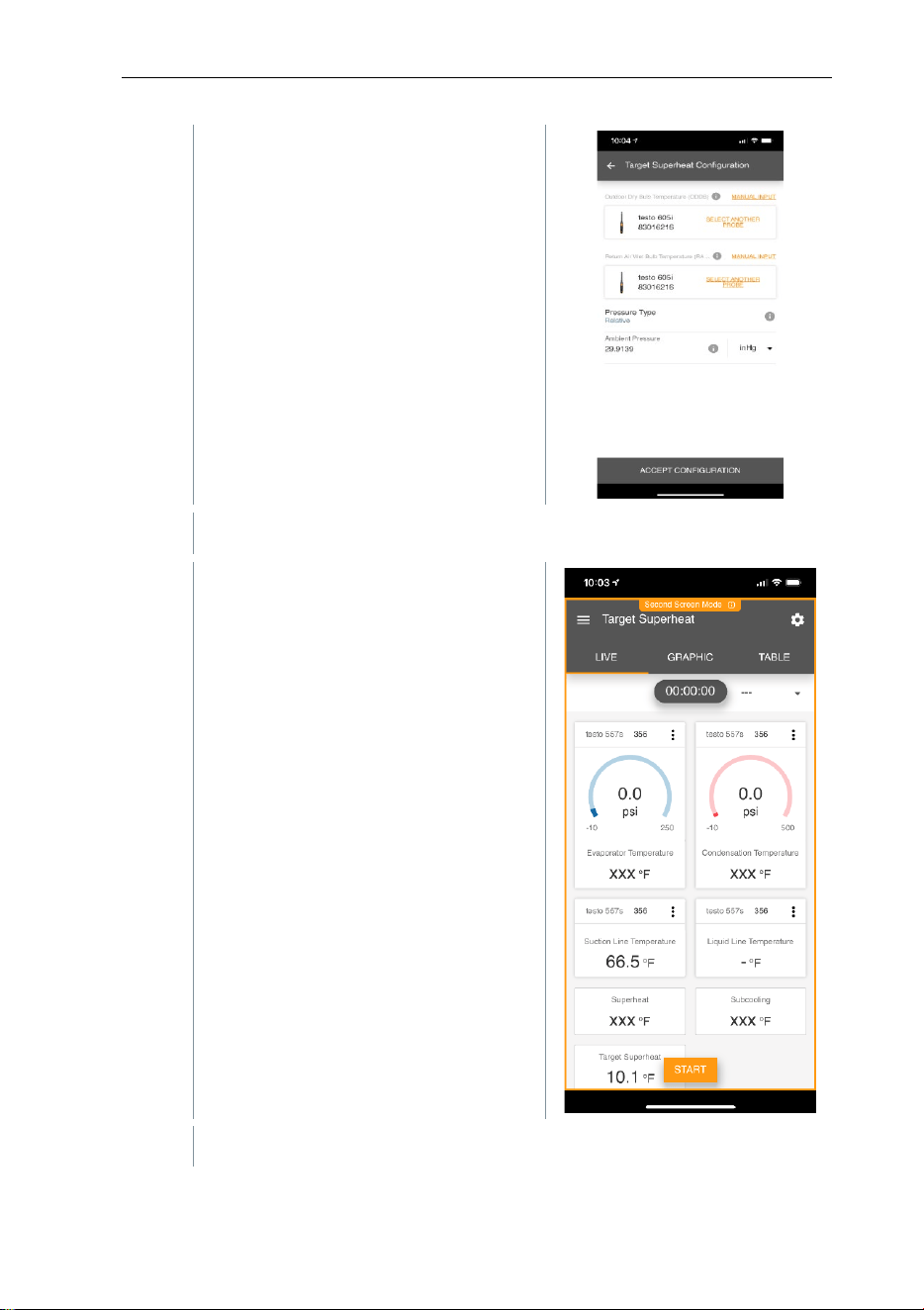
1
Click on Measure.
2
Click on Target superheat.
The Target superheat measurement menu opens.
3
Click on .
Configuration menu opens.
9 Smart App
54
4
Make the required settings.
5
Click on Apply Configuration.
6
Set refrigerant.
The newly set refrigerant is displayed in the refrigerant list.
9 Smart App
55
7
Click on Start.
The measurement starts.
Values currently being measured are displayed.
Measured values can be saved or a new measurement can be started.
9.3.4 Pressure Leak Test
The temperature compensated tightness test can be used to check the leak
tightness of systems. For this purpose both the system pressure and the
ambient temperature are measured over a defined period of time.
For this purpose a temperature sensor to measure the ambient
temperature may be connected (recommendation: Deactivate the
surface compensation factor and use an NTC air probe or Bluetooth
®
temperature Smart Probes) or Smart Probe for air temperature
measurement. This provides information about the temperature-
compensated differential pressure and the temperature at the
beginning/end of the test. Due to the temperature compensation, the
actu
al pressure drop is displayed as delta P. If no temperature sensor is
connected, you may also perform the tightness test without temperature
compensation.
Surface temperature probes (e.g. testo 115i) can also be used for the
temperature-compensated tightness testing, but must not be used for
measuring surface temperature. They must be positioned as far as
possible to measure the air temperature.
The 550i, 550s or 557s manifold is used to perform the measurement.
1
Click on Measure.
2
Click on Leakage test.
The Leakage test measurement menu opens.
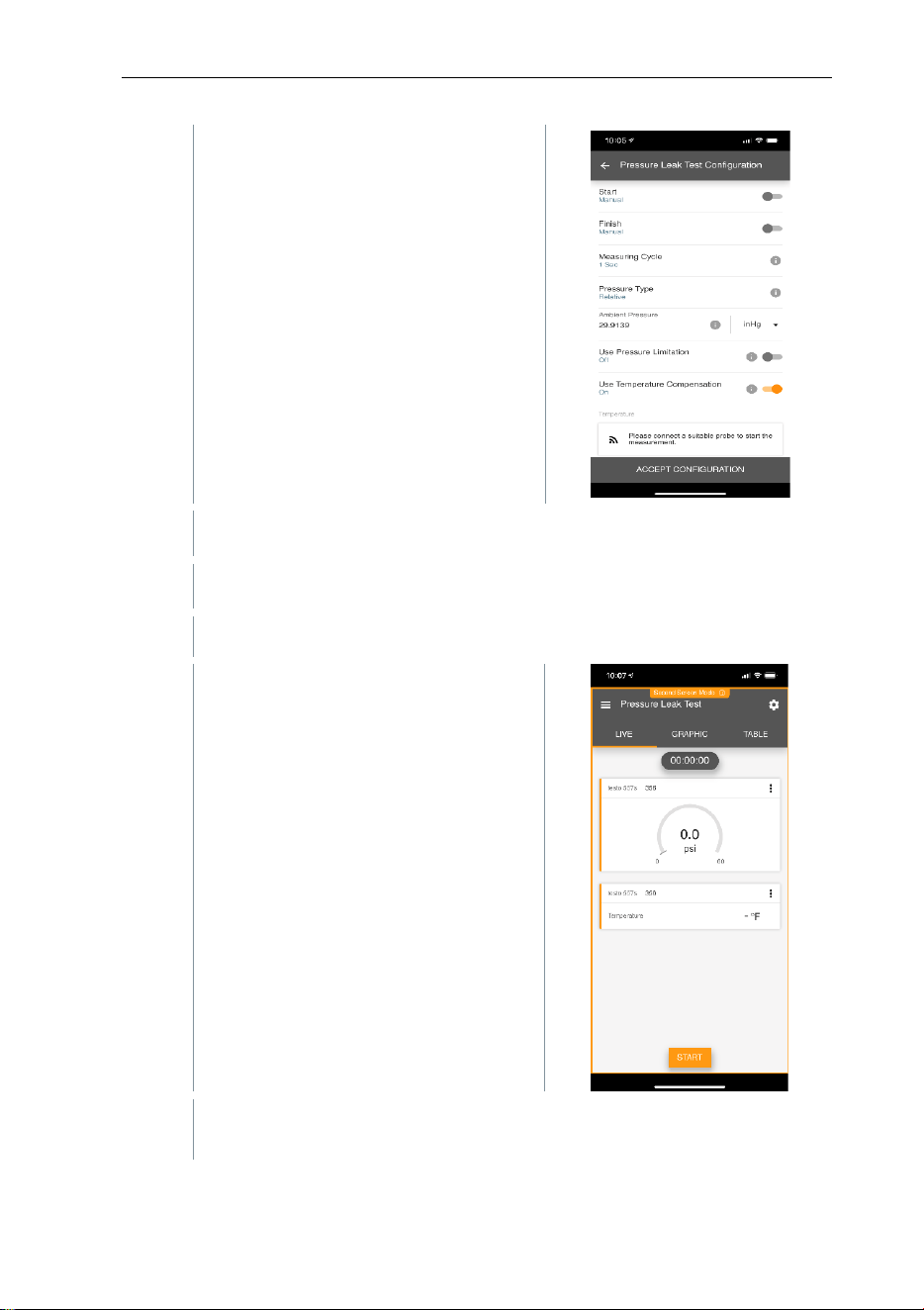
3
Click on .
Configuration menu opens.
9 Smart App
56
4
Make the required settings.
5
Click on Apply Configuration.
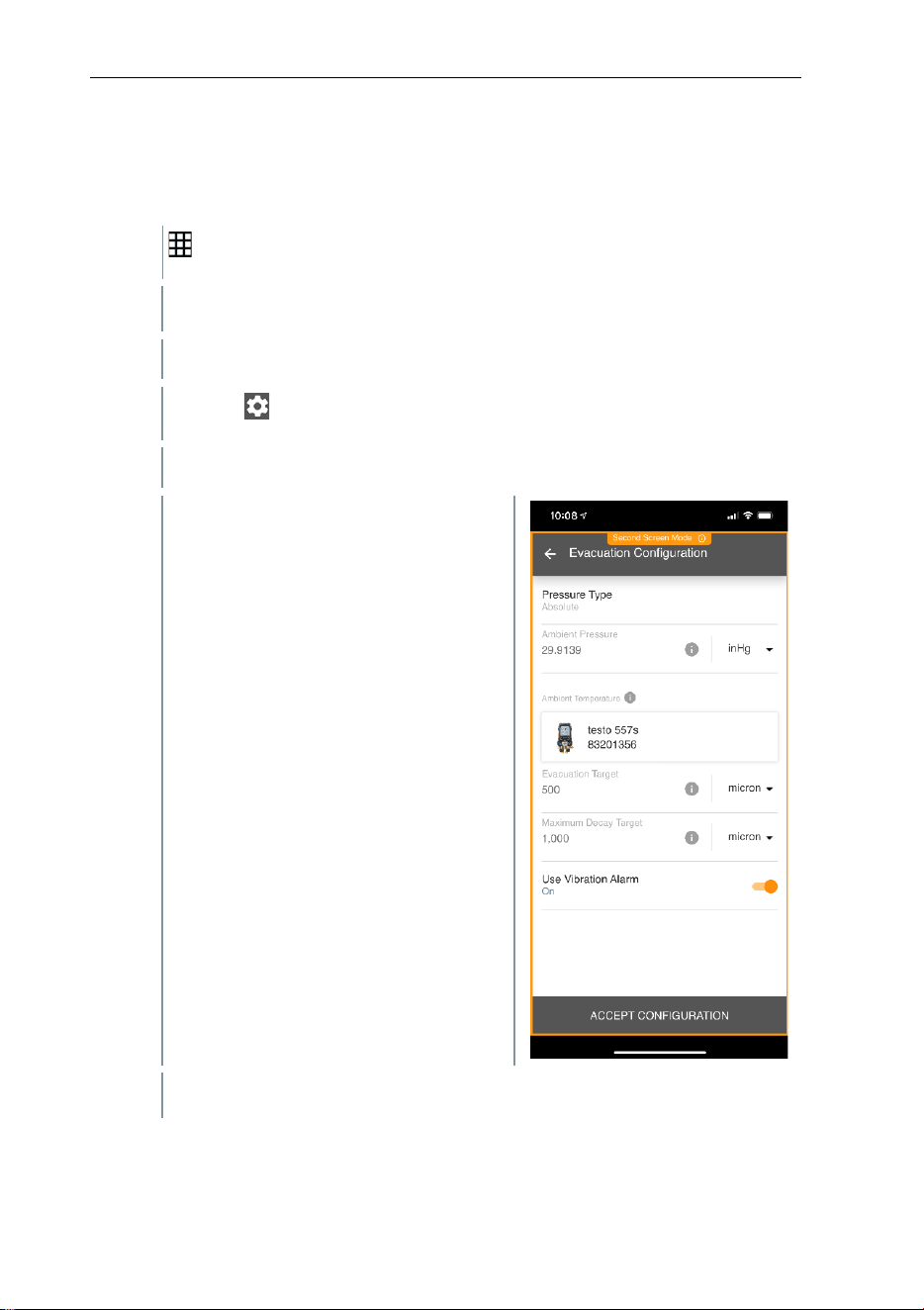
7
Click on Start.
The measurement starts.
Values currently being measured are
displayed.
Measured values are saved. The values can be exported or a report
can be created.
9 Smart App
57
9.3.5 Evacuation
With the Evacuation application, foreign gases and moisture can be removed
from the refrigeration circuit.
1
Click on Measure.
2
Click on Evacuation.
The Evacuation measurement menu opens.
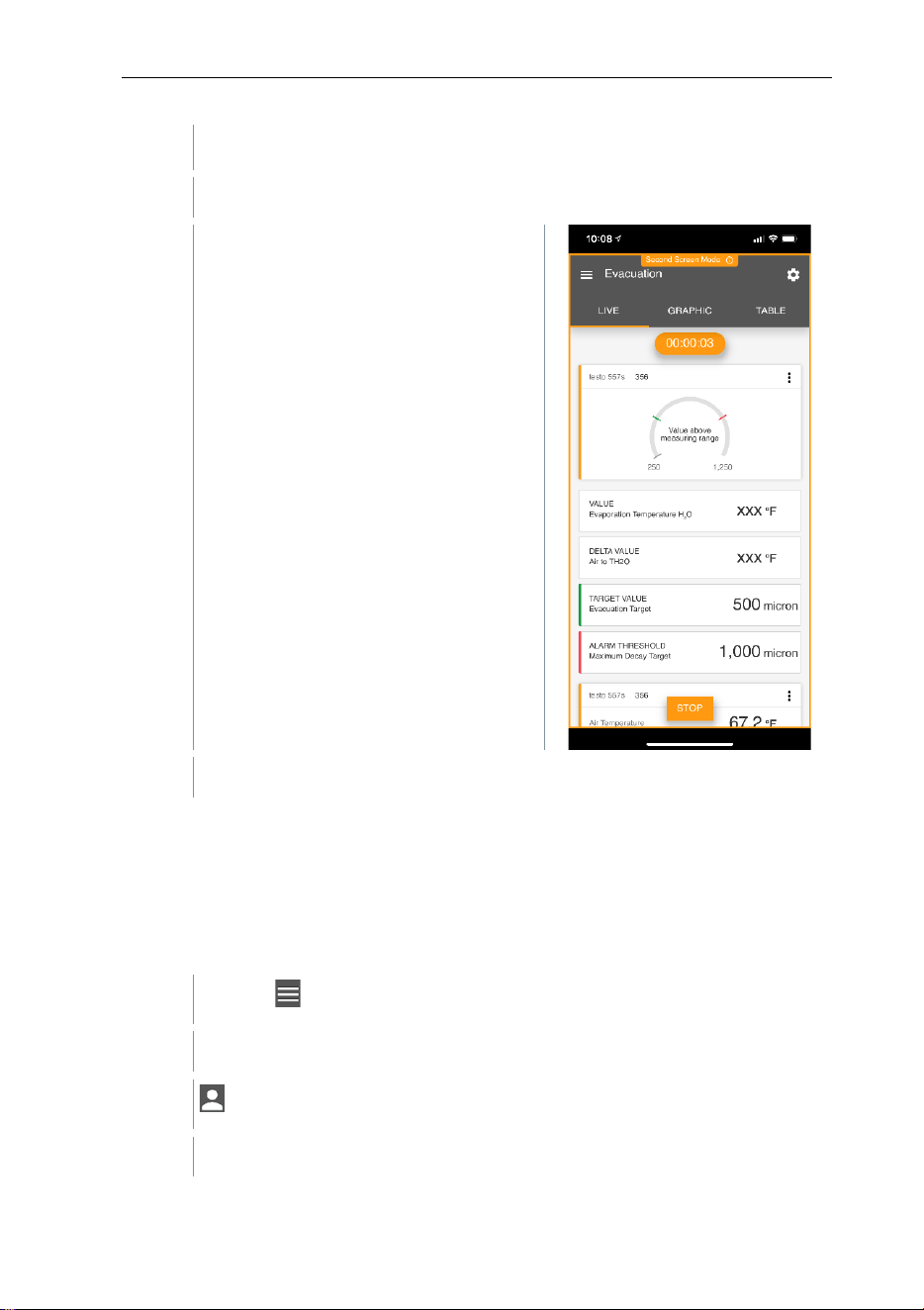
3
Click on .
Configuration menu opens.
4
Make the required settings.
5
Click on Apply Configuration.
9 Smart App
58
6
Click on Start.
The measurement starts.
Values currently being measured are
displayed.
Measured values can be saved or a new measurement can be started.
9.4 Customer
In the Customer menu, all customer and measuring site information can be
created, edited and deleted. Fields marked with * are mandatory. Without any
information in this field, no customers or measuring sites can be stored.
9.4.1 Creating and editing a customer
1
Click on .
Main menu opens
2
Click on Customer.
The Customer menu opens.
9 Smart App
59
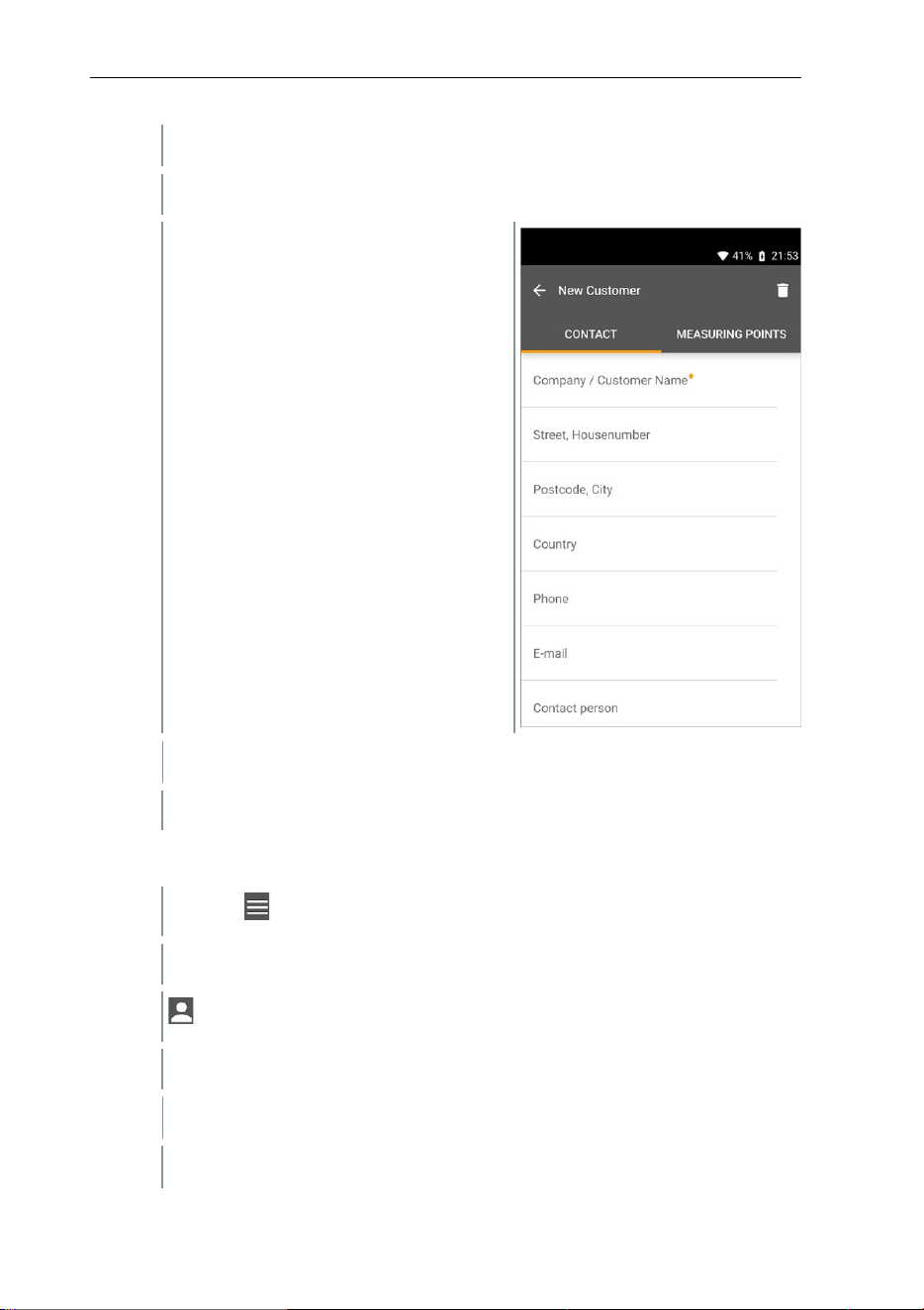
3
Click on + New customer.
A new customer can be created.
4
Store all relevant customer data.
5
Click on Save.
The new customer was saved.
9.4.2 Creating and editing measuring sites
1
Click on .
Main menu opens
2
Click on Customer.
The Customer menu opens.
3
Click on + New customer.
4
Click on the right tab Measuring point.
9 Smart App
60
5
Click on + New measuring site.
A new measuring site can be created.
6
Store all relevant measuring site information.
7
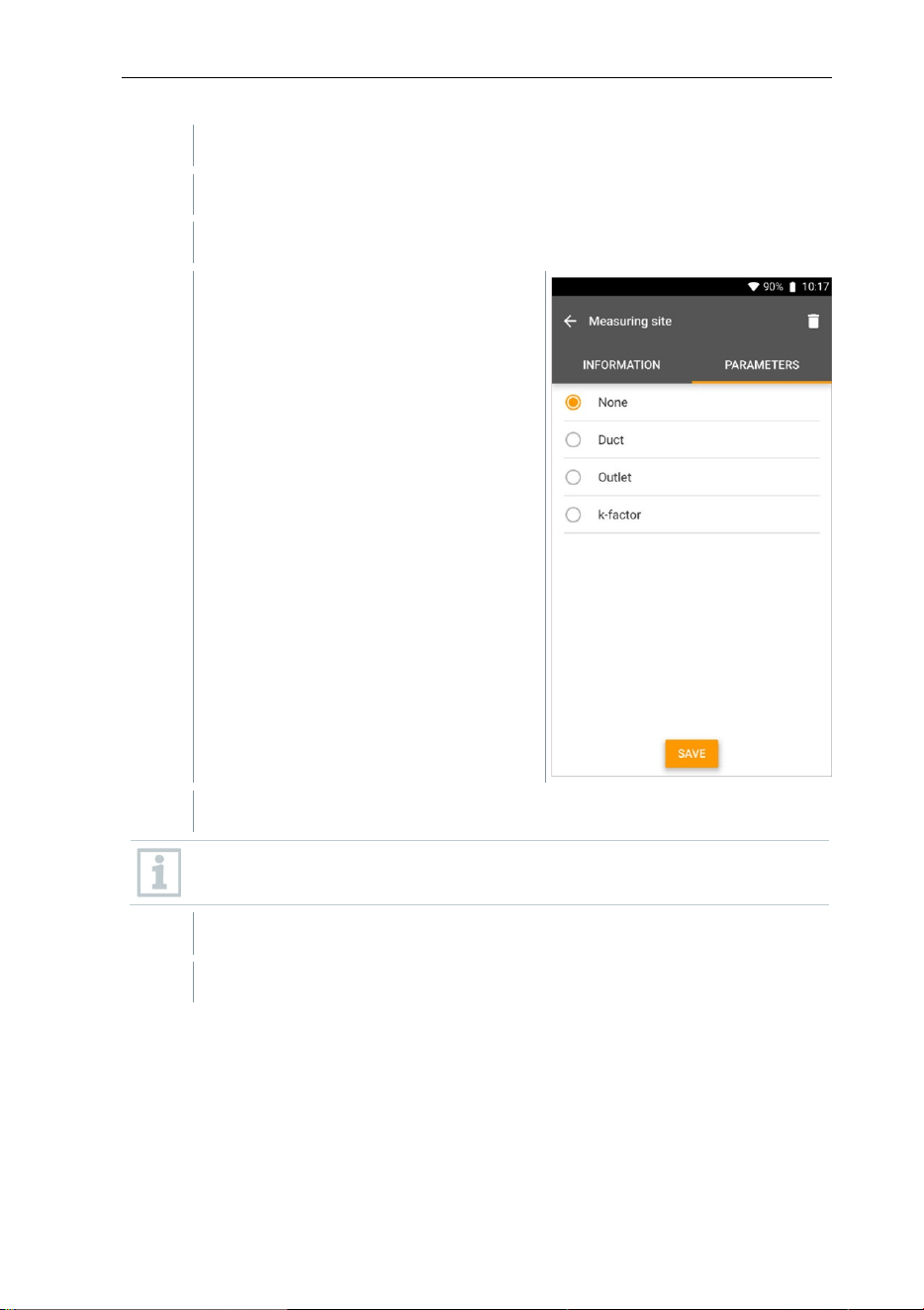
Click on right tab Parameters.
8
Select further parameters.
For the duct, outlet or duct with k-factor measuring sites, further
parameter settings can be implemented.
9
Click on Save.
The new measuring site has been saved.
9 Smart App
61
9.5 Memory
In the Memory menu, you can call up all the measurements stored on the
mobile device, analyze them in detail and also create and save csv data and
PDF reports. When clicking on a measurement, an overview of the
measurement results is displayed.
9.5.1 Searching for and deleting measurement
results
In the Memory menu, all stored measurements are sorted by date and time.
The Memory menu is open.
1
Click on .
Search field with measurements opens.
2
Enter the customer name or measuring site or date/time in the search
field.
The result is displayed.
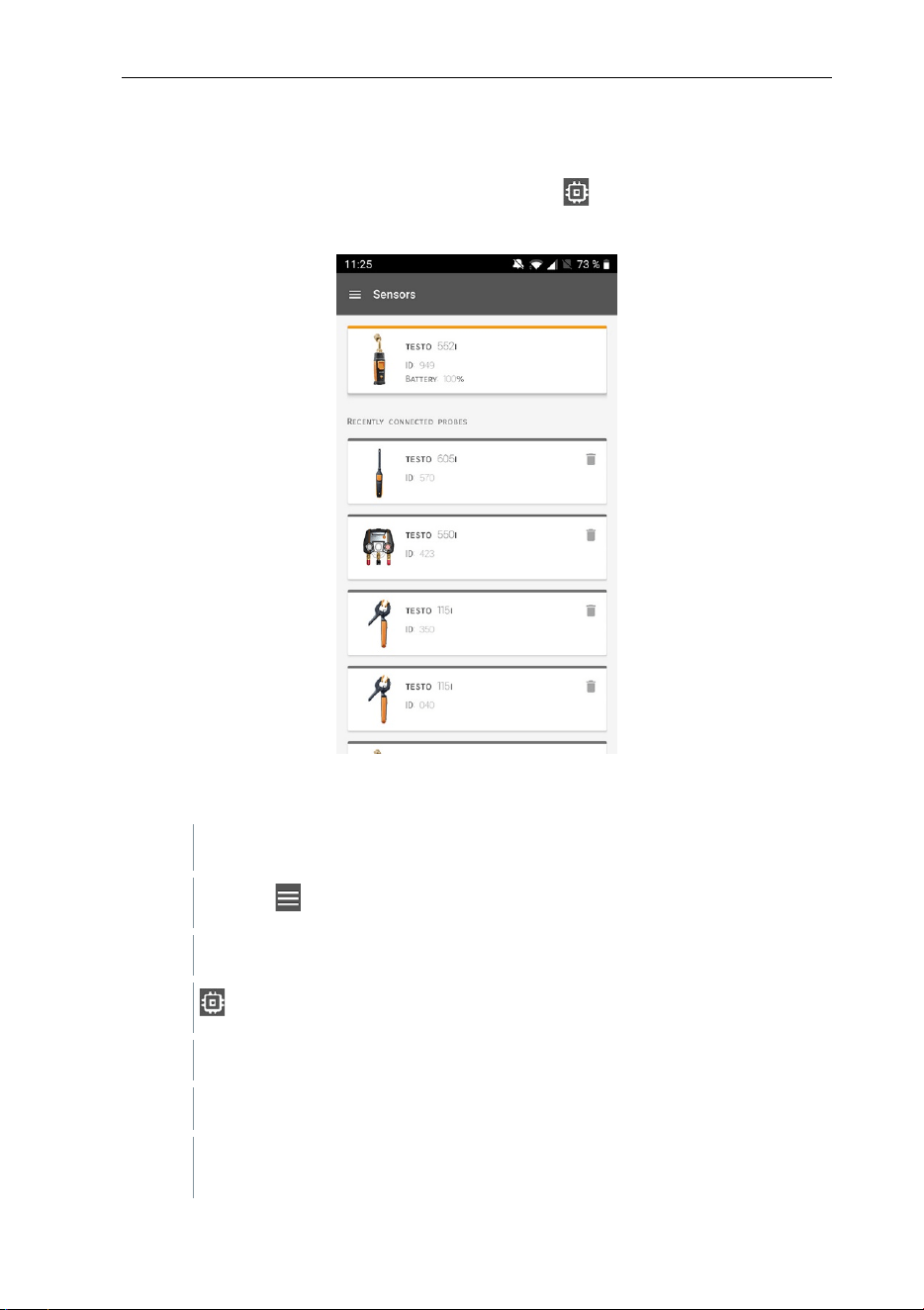
Deleting
1
Click on .
A check box is displayed in front of each measurement.
2
Click on the required measurement.
A tick is displayed in the respective box.
3
Click on .
Information window is displayed.
4
Acknowledge the information.
Selected measurements were deleted.
9 Smart App
62
9.6 Sensors
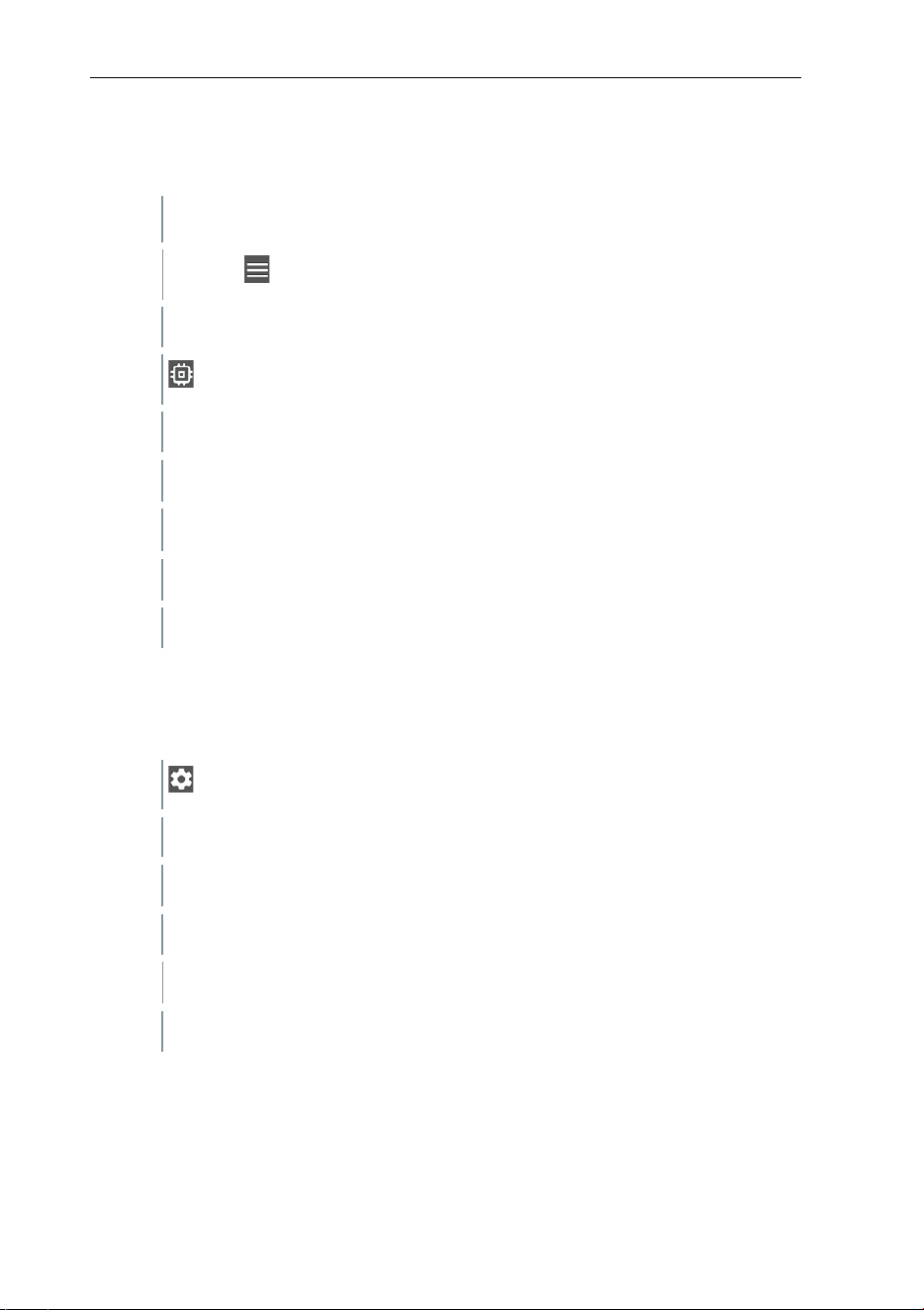
All sensors used with the App can be found in the Sensors menu. There,
you can view general information about currently connected probes as well as
recently connected probes.
9.6.1 Information
Information is stored for each probe.
The App is connected to an instrument.
1
Click on .
Main menu opens.
2
Click on Sensors.
The Sensors menu opens.
3
Click on one of the displayed probes.
Information is displayed about the model, order number, serial number
and firmware version.
9 Smart App
63
9.6.2 Settings
Settings can also be made for each probe.
The probe is connected to the App.
1
Click on .
Main menu opens.
2
Click on Sensors.
The Sensors menu opens.
3
Click on one of the displayed probes.
4
Click on the Settings tab.
5
Click on one of the displayed probes.
Settings appear that can be changed if necessary.
9.7 Settings
9.7.1 Language
1
Click on Settings.
The Settings menu opens.
2
Click on Language.
A window with different languages opens.
3
Click on the required language.
The required language is set.
9 Smart App
64
9.7.2 Measurement settings
1
Click on Settings.
The Settings menu opens.
2
Click on Measurement settings.
A window with different basic settings for measurement opens.
3
Click on the required settings and change if necessary.
The required measurement settings are set.
4
Exit Measurement settings.
9.7.3 Company details
1
Click on Settings.
The Settings menu opens.
2
Click on Company details.
A window with company details opens.
3
Click on the required data and enter if necessary.
The required measurement settings are set.
4
Exit Company details.
9.7.4 Privacy settings
1
Click on Settings.
The Settings menu opens.
2
Click on Privacy settings.
A window with privacy settings opens.
9 Smart App
65
3
Activate or deactivate the required settings.
The required settings are set.
4
Exit Privacy settings.
9.8 Help and Information
Under Help and Information, you will find information about the instrument, and
the tutorial can be called up and implemented. This also where legal information
can be found.
9.8.1 Instrument information
1
Click on Help and Information.
The Help and Information menu opens.
2
Click on Instrument information.
The current App version, Google Analytics instance ID, refrigerant
version and update are displayed for the connected instrument.
Automatic updates for instruments can be enabled or disabled.
>
Use the slider to activate or deactivate Update for connected
instruments.
9.8.2 Tutorial
1
Click on Help and Information.
The Help and Information menu opens.
2
Click on Tutorial.
The tutorial shows you the most important steps prior to
commissioning.
9 Smart App
66
9.8.3 Exclusion of liability
1
Click on Help and Information.
The Help and Information menu opens.
2
Click on Exclusion of liability.
The data protection information and licence usage information is
displayed.
9.9 testo DataControl archiving software
The free testo DataControl measurement data management and analysis
software enhances the functionality of the testo Smart App measuring
instrument with lots of useful functions:
• Manage and archive customer data and measuring site information
• Read out, evaluate and archive measurement data
• Presenting readings in graphic form
• Create professional measurement reports from the existing measurement
data
• Conveniently add pictures and comments to measurement reports
• Data import from and data export to the measuring instrument
9.9.1 System requirements
Administrator rights are required for installation.
9.9.1.1 Operating system
The software can be run on the following operating systems:
• Windows
®
7
• Windows
®
8
• Windows
®
10
9.9.1.2 PC
The computer must meet the requirements of the operating system in each
case. The following requirements must also be met:
• Interface USB 2 or higher
• DualCore processor with minimum 1 GHz
• Minimum 2 GB RAM
• Minimum 5 GB available hard disk space
9 Smart App
67
• Screen with a resolution of at least 800 x 600 pixels
9.9.2 Procedure
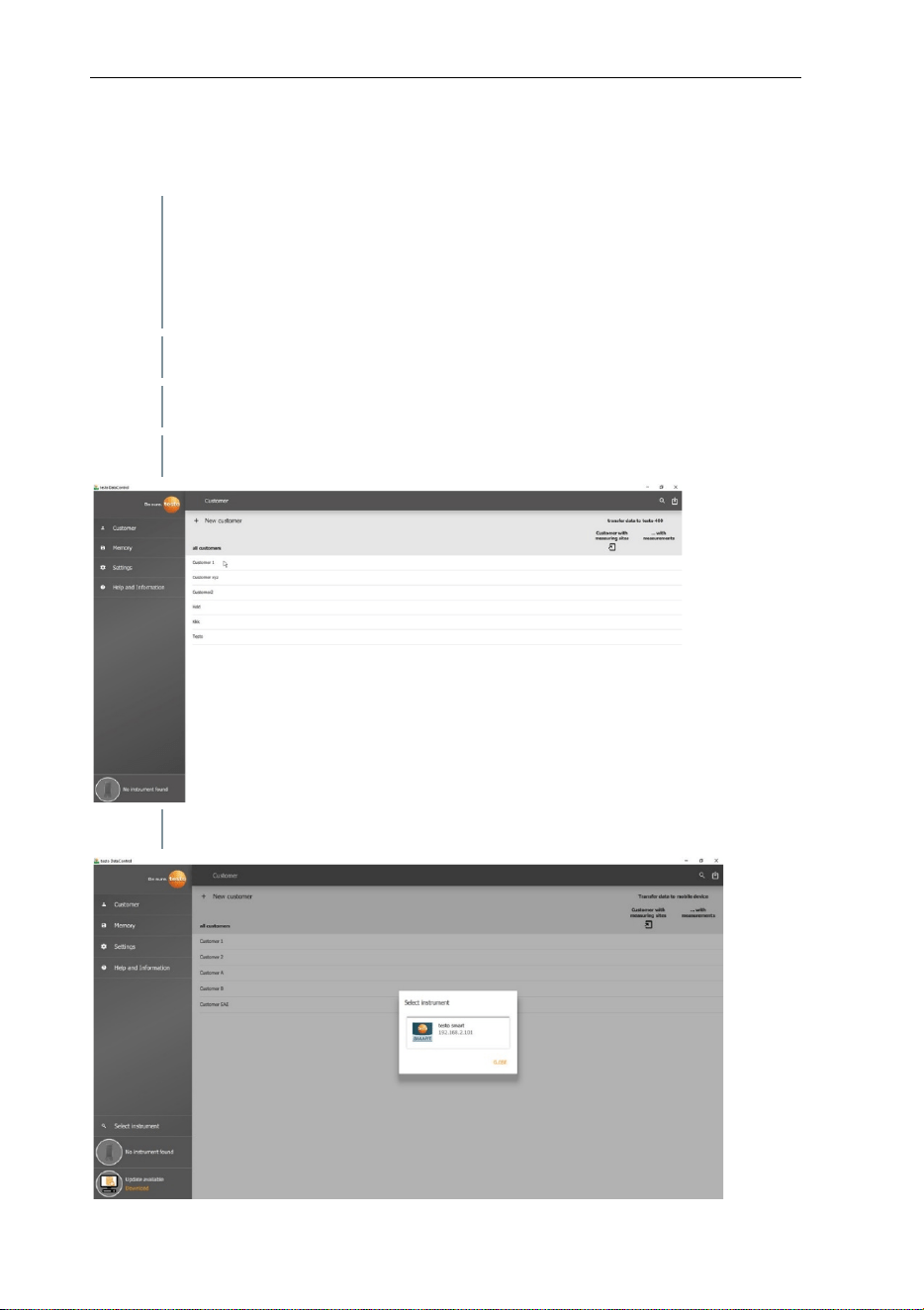
To transfer the data from the App to testo DataControl, both
instruments must be in the same network.
For example: A notebook with installed testo DataControl and a
smartphone with installed testo Smart App are connected to the same
WLAN.
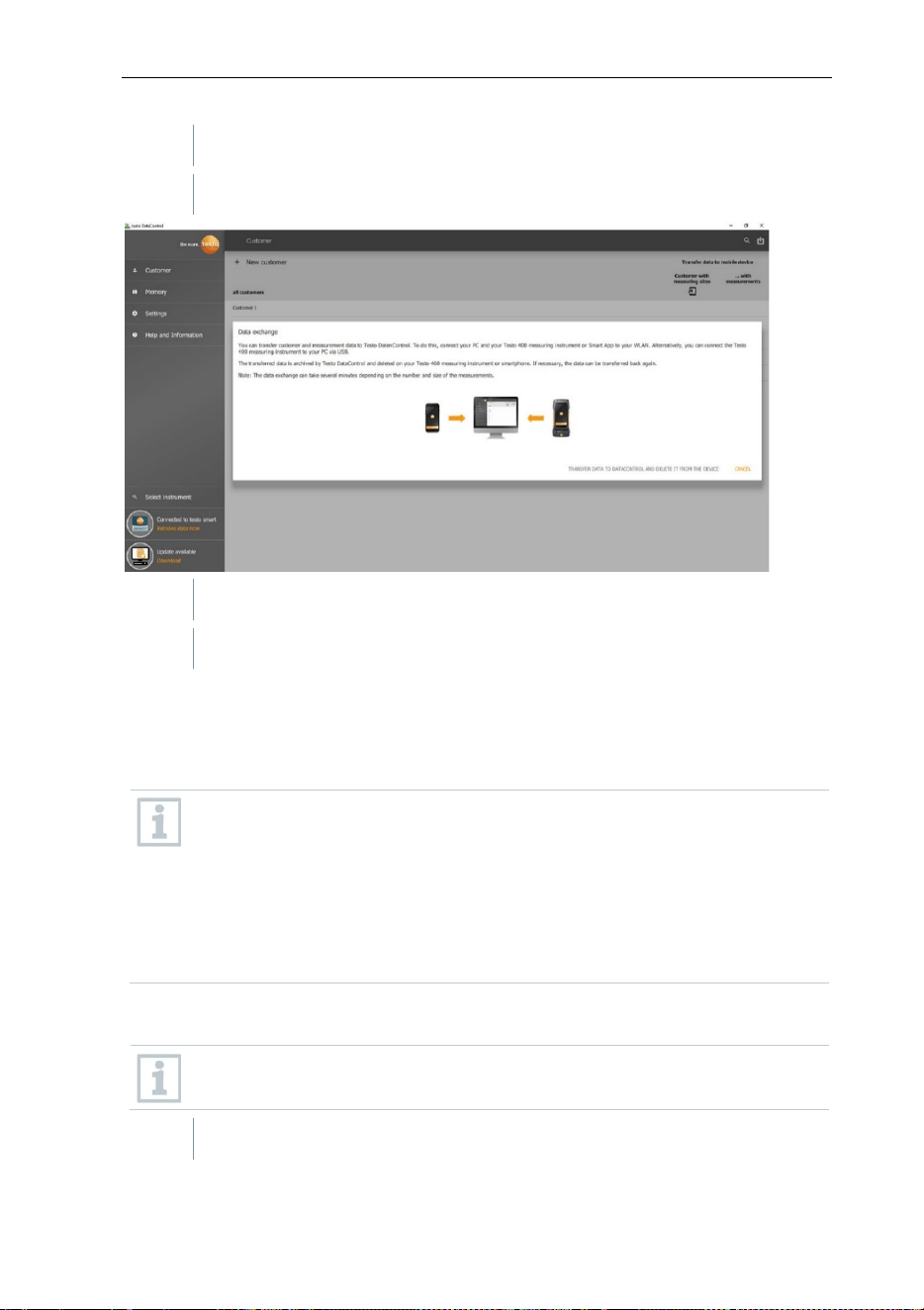
1
Open testo Smart App on the smartphone or tablet.
2
Open the testo DataControl archiving software on the PC.
3
Click on Select instrument.
An overview with available instruments opens.
10 Maintenance
68
4
Select instrument.
A safety notice is displayed.
5
Click on Transfer data to DataControl and delete from instrument.
Data has been successfully transferred.
10 Maintenance
10.1 Calibration
The testo 550s / testo 557s is supplied with a factory calibration
certificate as standard.
Recalibration once every 12 months is recommended in many
applications.
This can be carried out by Testo Industrial Services (TIS) or other
certified service providers.
Please contact Testo for further information.
10.2 Cleaning the instrument
Do not use any aggressive cleaning agents or solvents! Mild household
cleaning agents and soap suds may be used.
>
If the housing of the instrument is dirty, clean it with a damp cloth.
10 Maintenance
69
10.3 Keeping connections clean
>
> Keep screw connections clean and free of grease and other
deposits; clean with a damp cloth as required.
10.4 Removing oil residues
>
> Carefully blow out oil residues in the valve block using
compressed air.
10.5 Ensuring measuring accuracy
> Testo Customer Service will be happy to help you as required.
>
Check the instrument regularly for leaks. Keep to the permissible
pressure range!
>
> Calibrate the instrument regularly (recommendation: once a
year).
10.6 Changing batteries/rechargeable
batteries
The instrument is switched off.
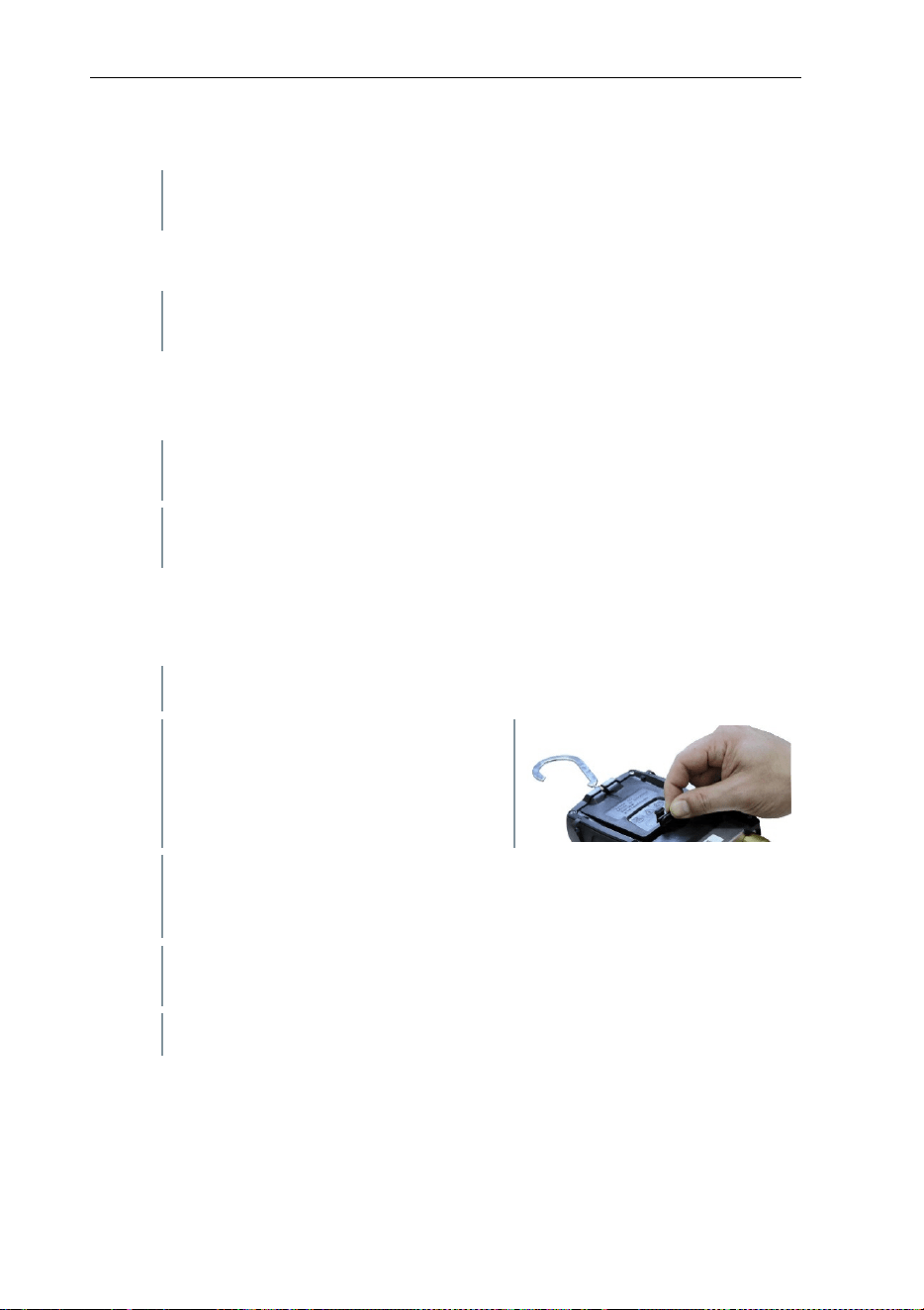
1
Fold out the suspension hook,
release the clip and remove the
battery compartment lid.
2
Remove the spent (rechargeable) batteries and insert new ones (3 x
AAA batteries / Micro / R03) into the battery compartment. Observe
the polarity!
3
Attach and close the battery compartment lid (the clip must click into
place).
4
Switch the instrument on.

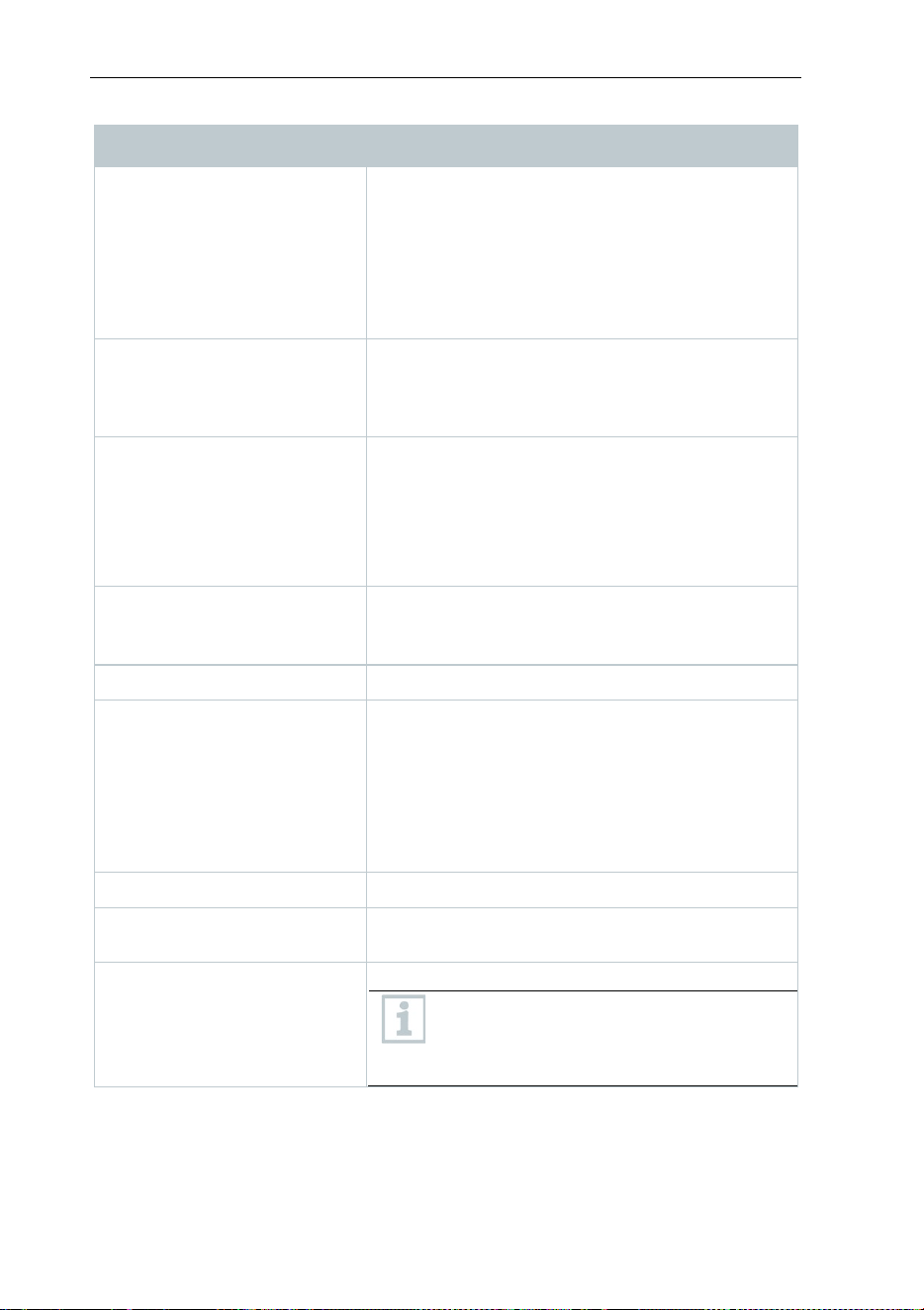
11 Technical data
70
11 Technical data
Feature Value
Measurement parameters
Pressure: kPa/MPa/bar/psi
Temperature: °C/°F/K
Vacuum: hPa / mbar/ Torr / mTorr / inH
2
O /
micron / inHg / Pa
Sensor
testo 550s
testo 557s
Connections: 3
Valves: 3
Connections: 4
Valves: 4
Pressure: 2 x pressure sensor
Temperature: 2 x NTC
Vacuum: via external probe
Up to 4 Smart Probes via Bluetooth
®
connection
Measuring cycle
0.5 s
Interfaces
Pressure ports: 3 x 7/16" UNF, 1 x 5/8" UNF
NTC measurement
External vacuum probe
Measuring ranges
HP/LP pressure measuring range: -100 to
6000 kPa/-0.1 to 6 Mpa/-1 to 60 bar (rel)/-14.7
to 870 psi
Temperature measuring range: -50 to +150 °C
/ -58 to 302 °F
Temperature measuring range of testo 115i:
-40 to +150 °C / -40 to 302 °F
Vacuum measuring range: 0 to 20,000 microns
Overload
65 bar; 6500 kPa; 6.5 MPa; 940 psi
Resolution
Resolution pressure: 0.01 bar/0.1
psi/1 kPa/0.001 Mpa
Resolution temperature: 0.1 °C / 0.1 °F / 0.1 K
Vacuum resolution:
1 micron (from 0 to 1000 microns) 10 microns
(from 1000 to 2000 microns) 100 microns (from
2000 to 5000 microns) 500 microns (from 5000
to 10,000 microns) 5000 microns (from 10,000
to 20,000 microns)
11 Technical data
71
Feature Value
Accuracy (nominal
temperature 22 °C/71.6 °F)
Pressure: ±0.5% of full scale value (±1 digit)
Temperature (-50 to 150 °C): ±0.5 °C (±1 digit),
±0.9 °F (±1 digit),
testo 115i temperature: ±2.3 °F (-4° to 185 °F) /
±1.3 °C (-20 to +85 °C),
Vacuum: ±(10 microns + 10% of m.v.) (100 to
1000 microns)
Measurable media
Measurable media: all media that are stored in
the testo 557. Not measurable: ammonia
(R717) and other refrigerants which contain
ammonia.
Ambient conditions
Operating temperature: -20 to 50 °C / -4 to
122 °F
-10 to 50 °C / 14 to 122 °F (vacuum)
Storage temperature: -20 to +60 °C/-4 to
140 °F
Humidity application range: 10 to 90 %RH
Housing
Material: ABS/PA/TPE
Dimensions: approx. 235 x 121 x 80 mm
Weight: 930 g (without batteries)
IP class
54
Power supply
Current source: Rechargeable batteries /
batteries 4 x 1.5 V type AA / Mignon / LR6
Battery life:
> 250 h (display illumination off, Bluetooth off,
vacuum probe not connected)
> 100 h (display illumination on, Bluetooth on,
vacuum probe connected)
Auto off
10 min, if enabled
Display
type: Illuminated LCD
Response time: 0.5 s
Directives, standards and
tests
EU Directive: 2014/30/EU
You can find the EU declaration of
conformity under the product-specific
downloads on the Testo website:
www.testo.com.

11 Technical data
72
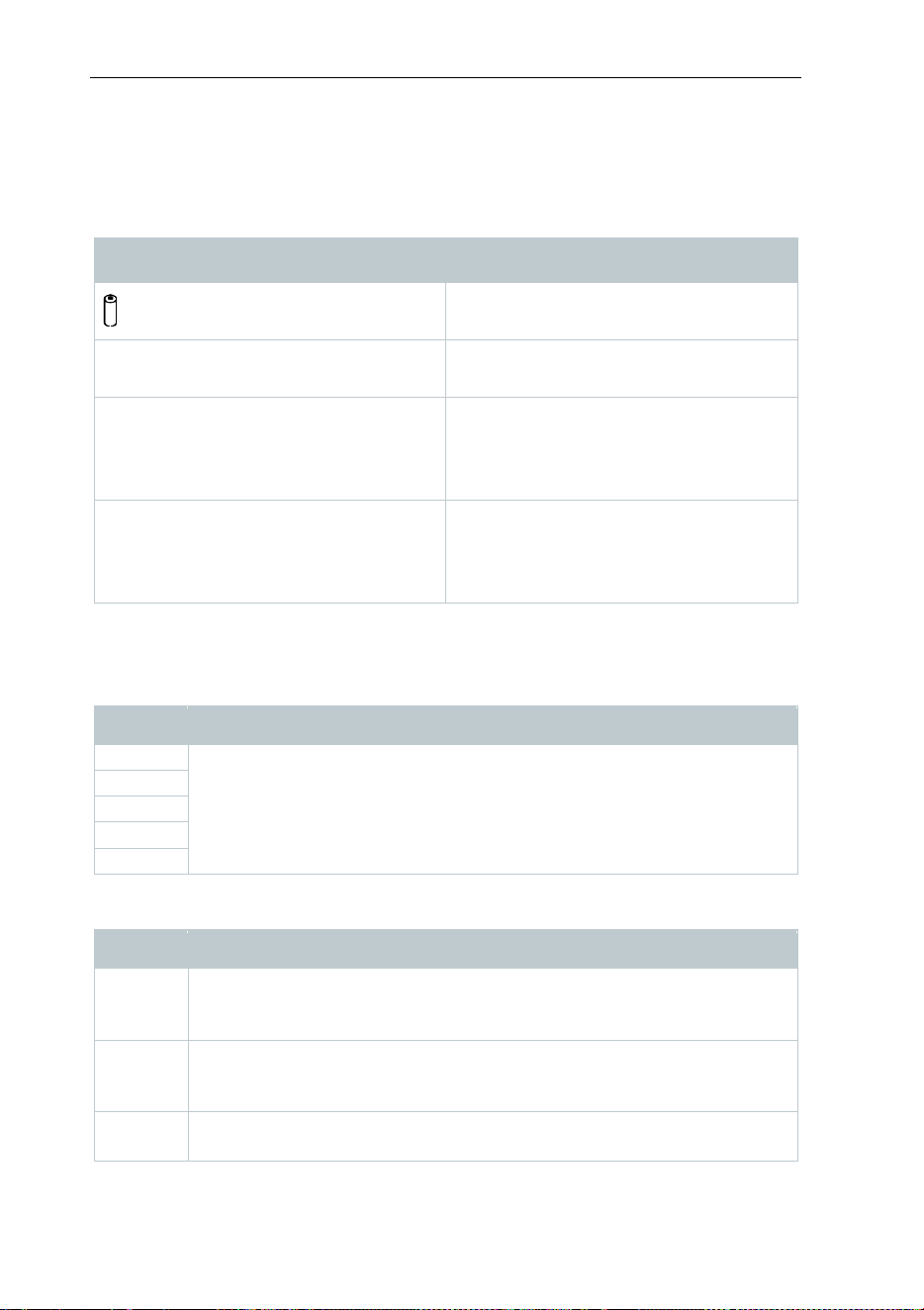
Available refrigerants
Feature Value
No. of refrigerants
~ 90
Selectable refrigerants in the
instrument
R114
R407C
R444B
R12
R407F
R448A
R123
R407H
R449A
R1233zd
R408A
R450A
R1234yf
R409A
R452A
R1234ze
R410A
R452B
R124
R414B
R453a
R125
R416A
R454A
R13
R420A
R454B
R134a
R421A
R454C
R22
R421B
R455A
R23
R422B
R458A
R290
R422C
R500
R32
R422D
R502
R401A
R424A
R503
R401B
R427A
R507
R402A
R434A
R513A
R402B
R437A
R600a
R404A
R438A
R718 (H2O)
R407A
R442A
R744 (CO2)
R11
R227
R417A
FX80
R236fa
R417B
I12A
R245fa
R417C
R1150
R401C
R422A
R1270
R406A
R426A
R13B1
R407B
R508A
R14
R407D
R508B
R142B
R41
R600
R152a
R411A
RIS89
R161
R412A
SP22
R170
R413A
12 Tips and assistance
73
12 Tips and assistance
12.1 Questions and answers
Question
Possible causes/solution
flashes
Batteries are almost empty.
> Change the batteries.
The device switches itself off.
Residual capacity of batteries too low.
> Change the batteries.
Below range lights up instead of the
measurement parameter display
The value is below the permissible
measuring range.
> Keep within the permissible
measuring range.
Above range lights up instead of the
measurement parameter display
The value is above the permissible
measuring range.
> Keep within the permissible
measuring range.
12.2 Error Codes
12.2.1 Main screen
Code Possible cause / solution
E 11
Remove the batteries and reinsert them in the instrument. If the
error persists, please contact our service department.
E 12
E 13
E 14
E 15
12.2.2 Status view
Code Possible cause / solution
E 30
An old version is still running on the testo 550s / testo 557s. Update
the instrument. If the error persists, please contact our service
department.
E 31 testo 550s / testo 557s is still using the old version refrigerant. If you
wish to use the latest refrigerant, please update it again. If the error
persists, please contact our service department.
E 32
Remove the batteries and reinsert them in the instrument. If the
error persists, please contact our service department.

13 Support
74
12.3 Accessories and spare parts
Description
Order no.
Clamp probe for temperature measurement on pipes
(1.5 m)
0613 5505
Clamp probe for temperature measurement on pipes (5
m)
0613 5506
2 x clamp temperature probes kit (NTC) for digital
manifolds
0613 5507
Pipe wrap probe with Velcro tape for pipe diameters of
up to max. 75 mm, Tmax +75 °C, NTC
0613 4611
Water tight NTC surface probe 0613 1912
Precise, robust NTC air probe
0613 1712
Spare valve set 0554 5570
Magnetic strap
0564 1001
External vacuum probe 0564 2552
For a complete list of all accessories and spare parts, please refer to the product
catalogues and brochures or visit our website www.testo.com
13 Support
You can find up-to-date information on products, downloads and links to contact
addresses for support queries on the Testo website at: www.testo.com.
If you have any questions please contact your local dealer or the Testo
Customer Service. You can find contact details on the back of this document or
online at www.testo.com/service-contact.