1
Strive tocreate an intelligent life
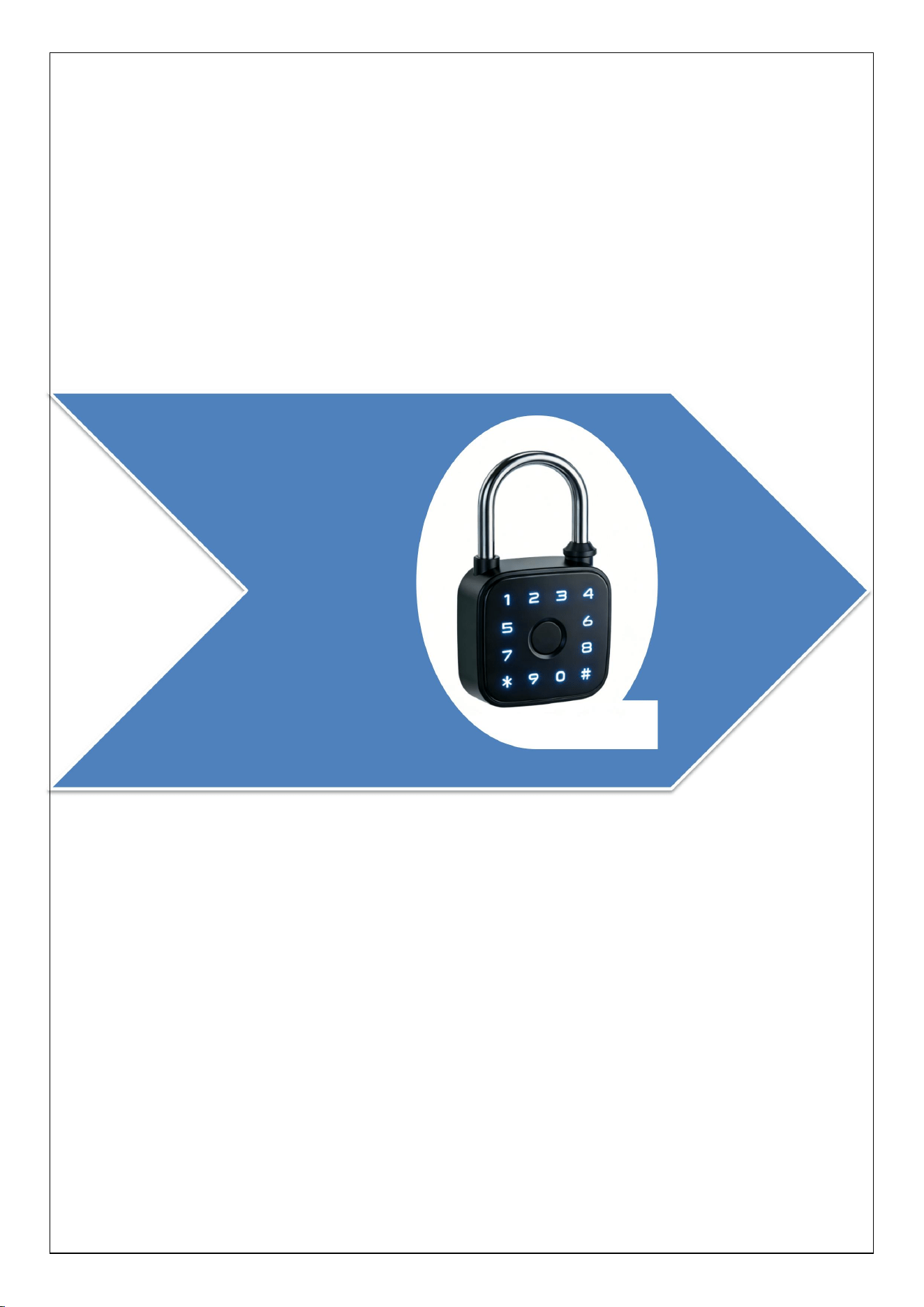
Intelligent padlock LD911
Product Manual
Version1.3 Marc 2026

2
catalogue
一、Product Parameters ......................................................................3
二、Mechanical dimensions .............................................................. .5
Mechanical dimension diagram of LD911 intelligent padlock:················5
三、Mobile APP operation instructions ............................................6
1.Activate Bluetooth pairing ............................................................................................7
2、Add users; Delete user ............................................................................................... 8
3、More Settings .............................................................................................................9
4、Unbinding equipment; Restore factory settings: ..................................................... 9
5、 APP unlocking: ..................................................................................................... 10
6、 log: ........................................................................................................................10
7、Configure temporary password: ............................................................................ 11
四、Local operation instructions ..................................................... 12
1、Set super administrator password (shortcut key 1+#) ............................................. 12
2、Change the super administrator password (shortcut key 1+#) ................................12
3、Add user (fingerprint; password; card) ..................................................................... 13
4、How to enable Bluetooth broadcasting on the device side ..................................... 14
5、Restore factory settings:........................................................................................ 14
6、Device mute: ..........................................................................................................15
五、Product accessory details and packaging specifications ......15
Details of accessories for LD911 handle lock product: ................................................15
LD911 packaging specifications: ................................................................................. 15
3
一、Product Parameters
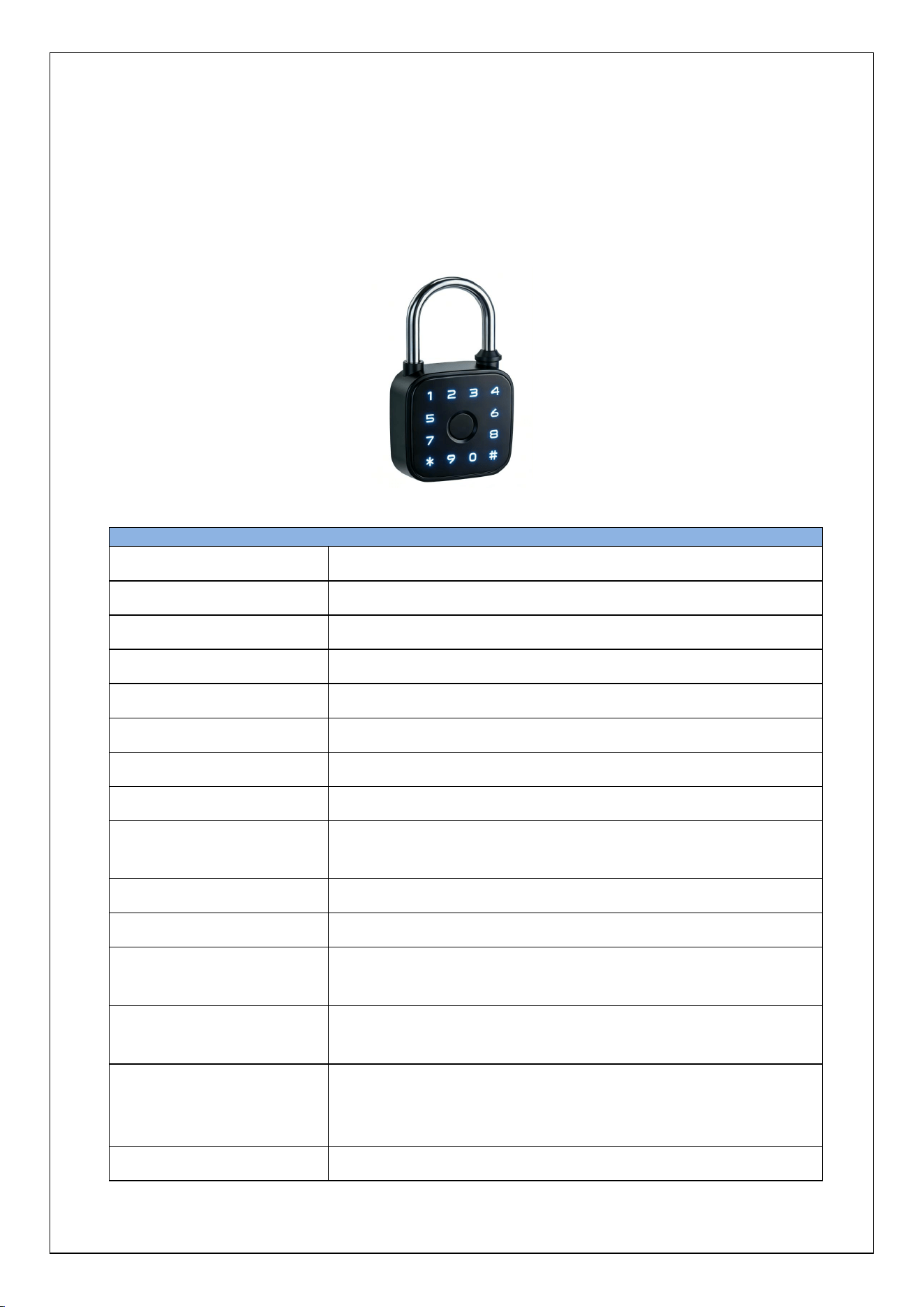
LD911 intelligent padlock parameters::
LD911 intelligent padlock
parameter
Working Voltage
3.7V-4.2V
Maximum current
<100mA
standby current
<40uA
Operating Temperature
-20 ° C to 75 °C
Storage temperature
-40 ° C to 85 C
Fingerprint user
50 pieces
Password user
250 pieces
RFID card users
250 pieces
Maximum number of
registered users
300 pieces
Material
aluminum alloy
power supply method
Built-in lithium battery
emergency power
supply
Type-c
Support unlocking
methods
Fingerprint; Graffiti Bluetooth; RFID card;
password; mechanical key
Low battery alert
After successful fingerprint verification, the
green light flashes once, and the red light flashes
once to indicate low battery
remote control
Optional graffiti Bluetooth gateway

4
Product endurance
Without graffiti, theoretically idle for one
yearConnect graffiti, theoretical standby time of
200 days
Connect graffiti, use 10 times a day, theoretical
battery life of 150 days
(350mA)
5
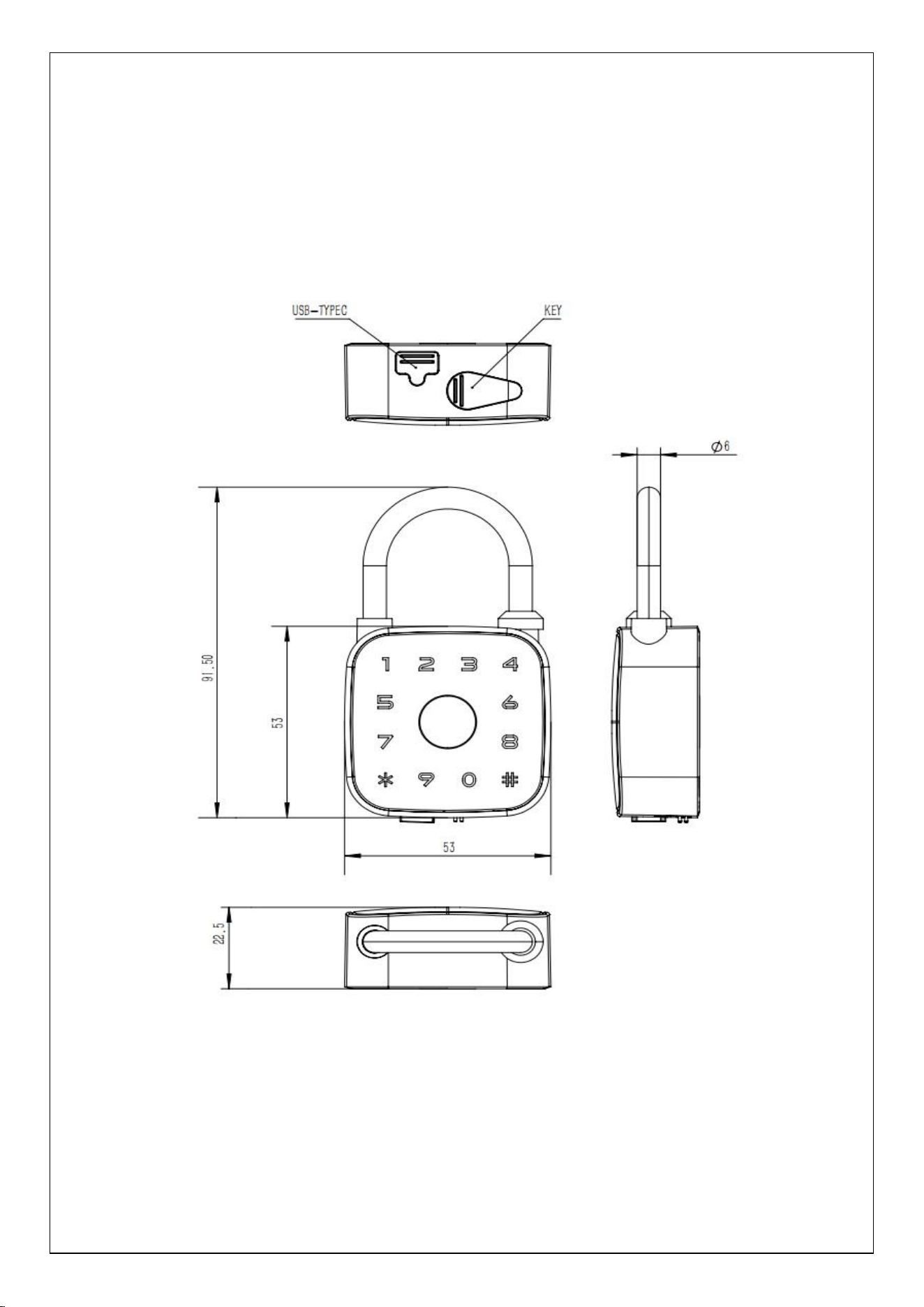
二、Mechanical dimensions
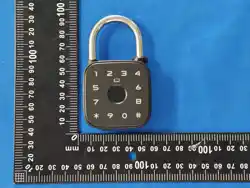
Mechanical dimension diagram of LD911 intelligent padlock:
6
三、3、 Mobile APP operation instructions
This product supports graffiti apps,
which can be searched in the app store
Graffiti Intelligence "or scan the QR
code in the image on the right to download
APP, Register an account according to
the prompts.
If used abroad, please search for
"SMARTLIFE“
Download and use.
7
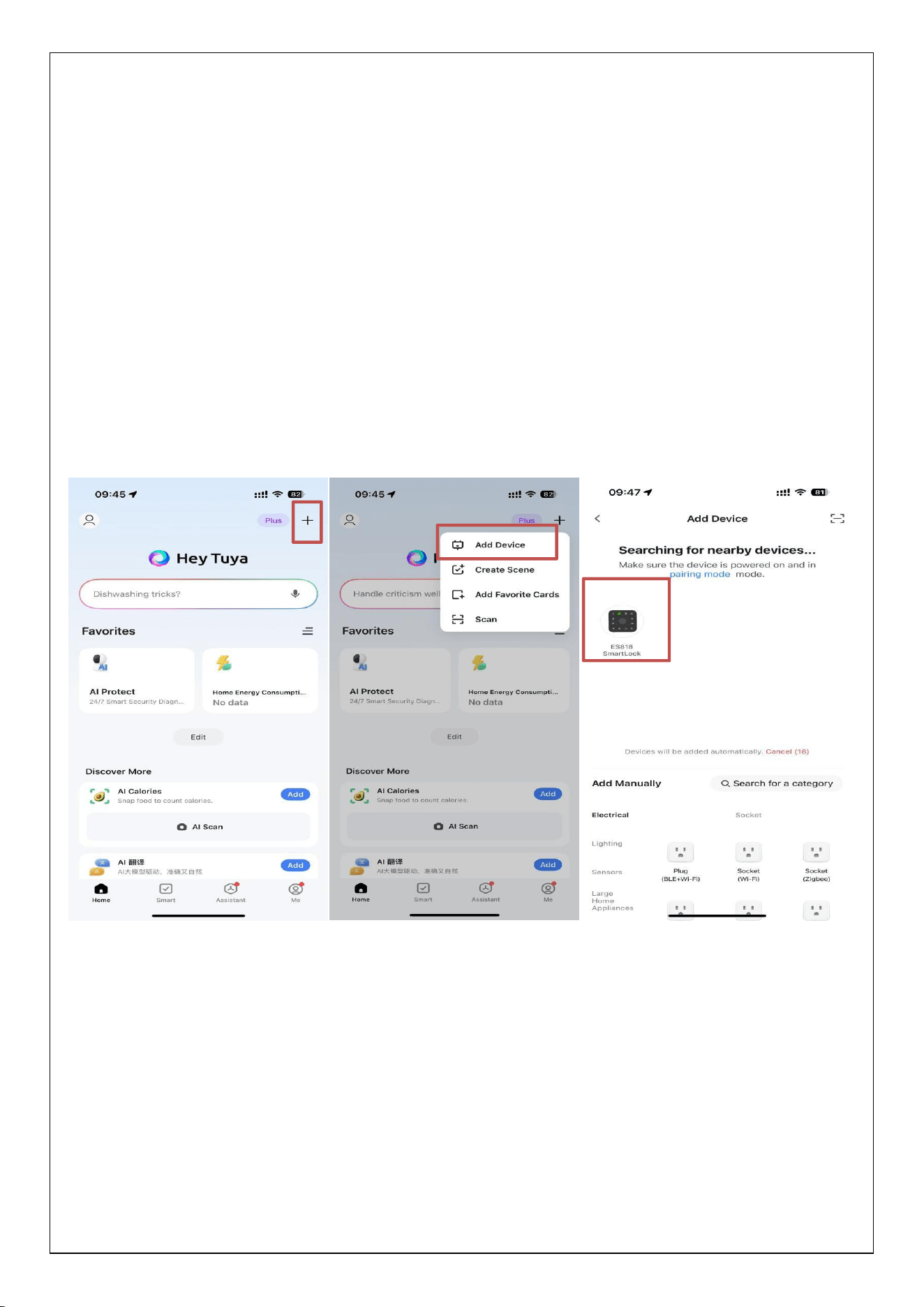
1.Activate Bluetooth pairing
In experience mode: Simply touch the button to power on the product, which
will activate Bluetooth pairing for 90S.
In non experience mode: press 1+#+super administrator password+# →
accompanied by a "long beep" sound from the buzzer, 12 buttons light up,
and Bluetooth pairing is initiated for 90 seconds.After starting Bluetooth
pairing, open the Graffiti app and search for the device
As shown in the above figure, after searching and adding, follow the APP
prompts to operate.
Note: If the local super password is not set and Bluetooth pairing is
completed directly, the product will enter Bluetooth mode and the local
member management function will be turned off. To use both local
8
management and Bluetooth app management modes simultaneously, please
register as a local super administrator first.
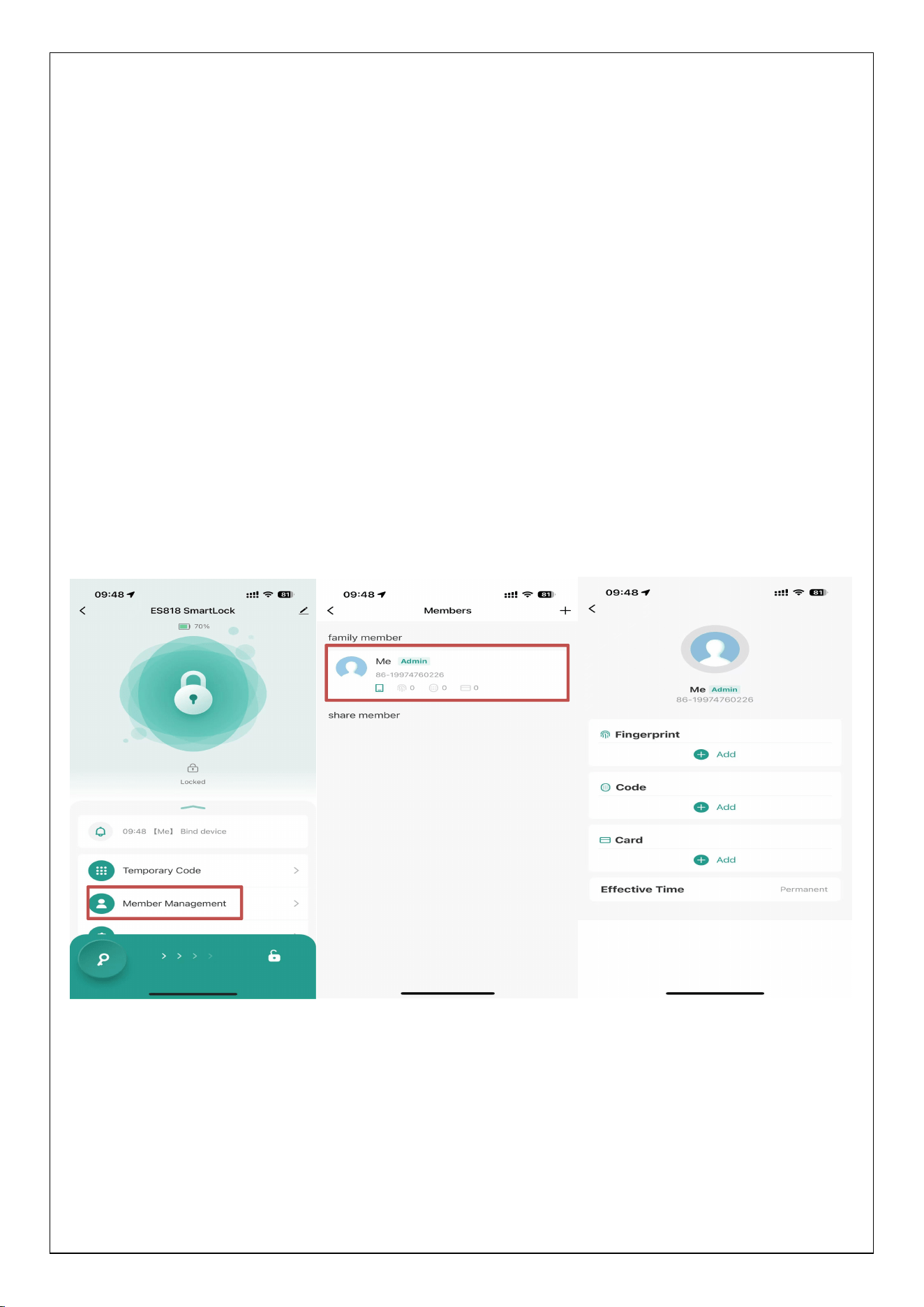
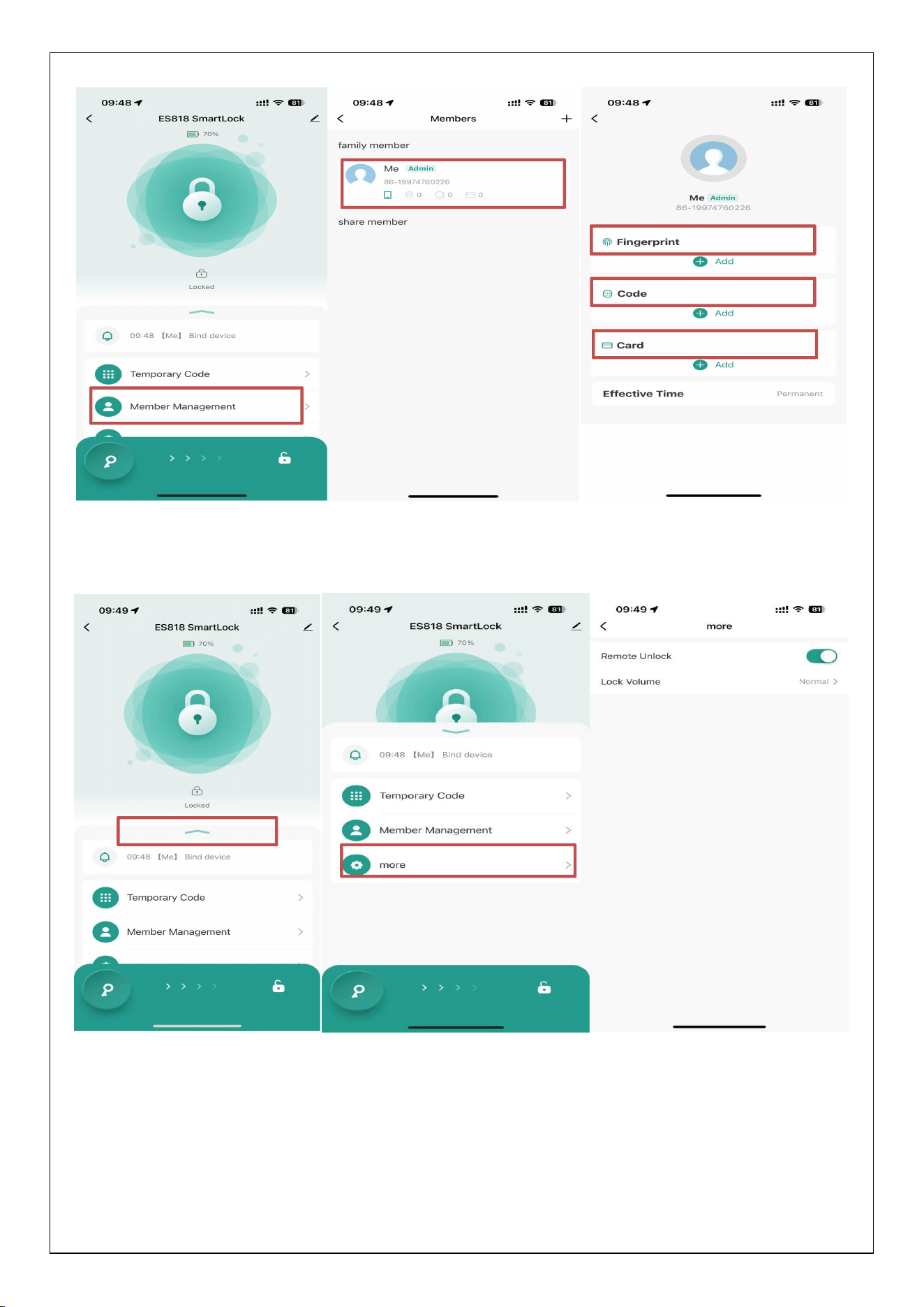
2、Add users; Delete user(Note: Add card; password; Before fingerprinting, it
is necessary to register a super administrator on the device side
a.Add fingerprint : Click on the main page of the APP in sequence ->Member
Management ->Me ->Fingerprint Add ->When the numbers 2 (green light) and 3 (red light)
light up, start recording your fingers (note: when recording, move your fingers up, down,
left, and right in a small range)
b.Add password : Click on the. APP homepage in sequence ->Member Management -
>Me ->Password Add ->Enter the desired password of 6 (after successfully adding the
password, the device buzzer beeps and all numbers flash once)
c.Add RFID card:Click on the main page of the APP in sequence ->Member Management
->Me ->Card Add ->All digital white lights on the device end light up, and add the card
in the middle of 2 3 5 6 7 8 9 0.
d.Delete user:Click on the main page of the APP ->Member Management ->Me ->Click
on Fingerprint; password; Card → Delete
9
3、More Settings
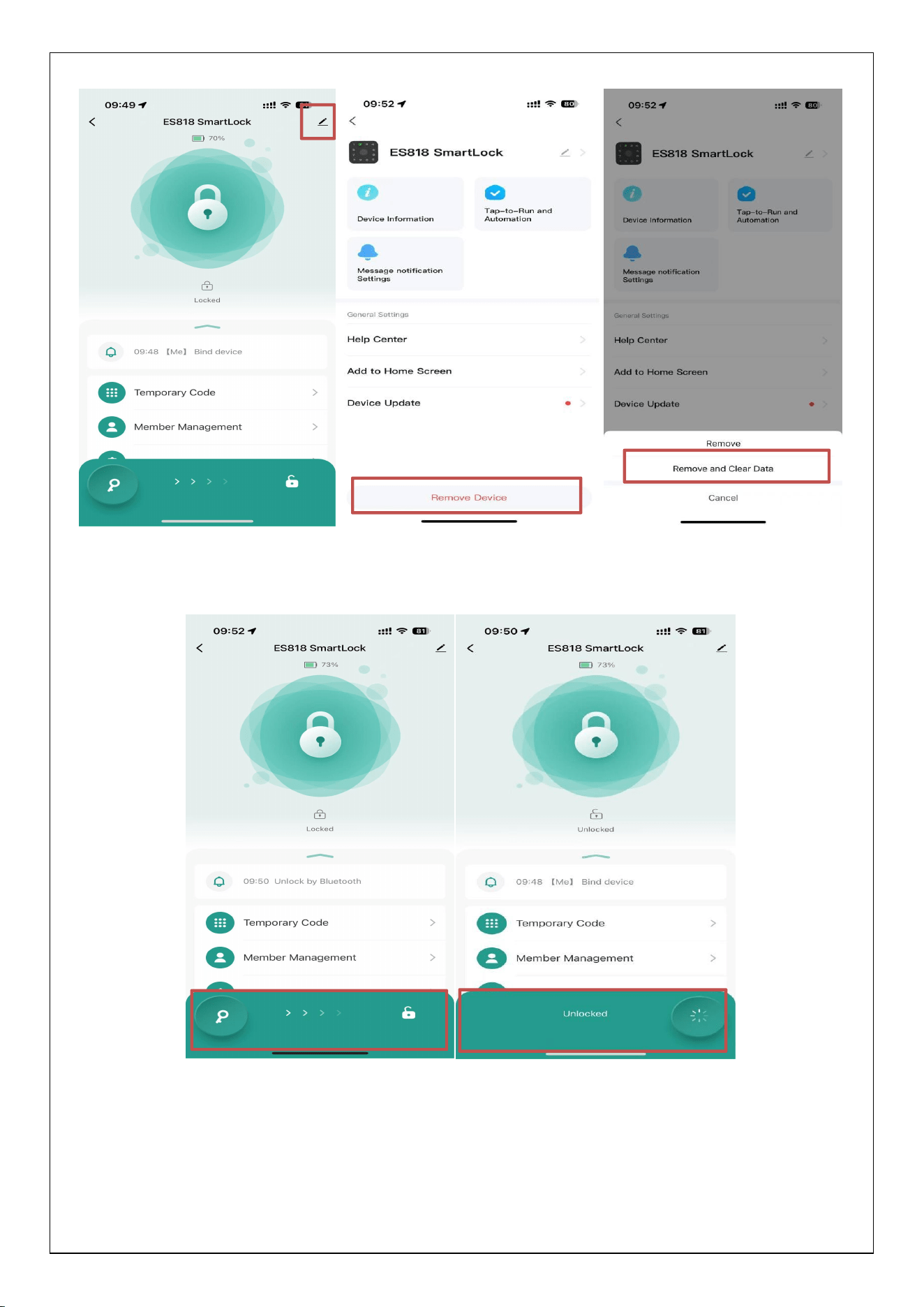
4、Unbinding equipment; Restore factory settings:
10
5. APP unlocking:
5. Swipe the key icon to the right to unlock the device
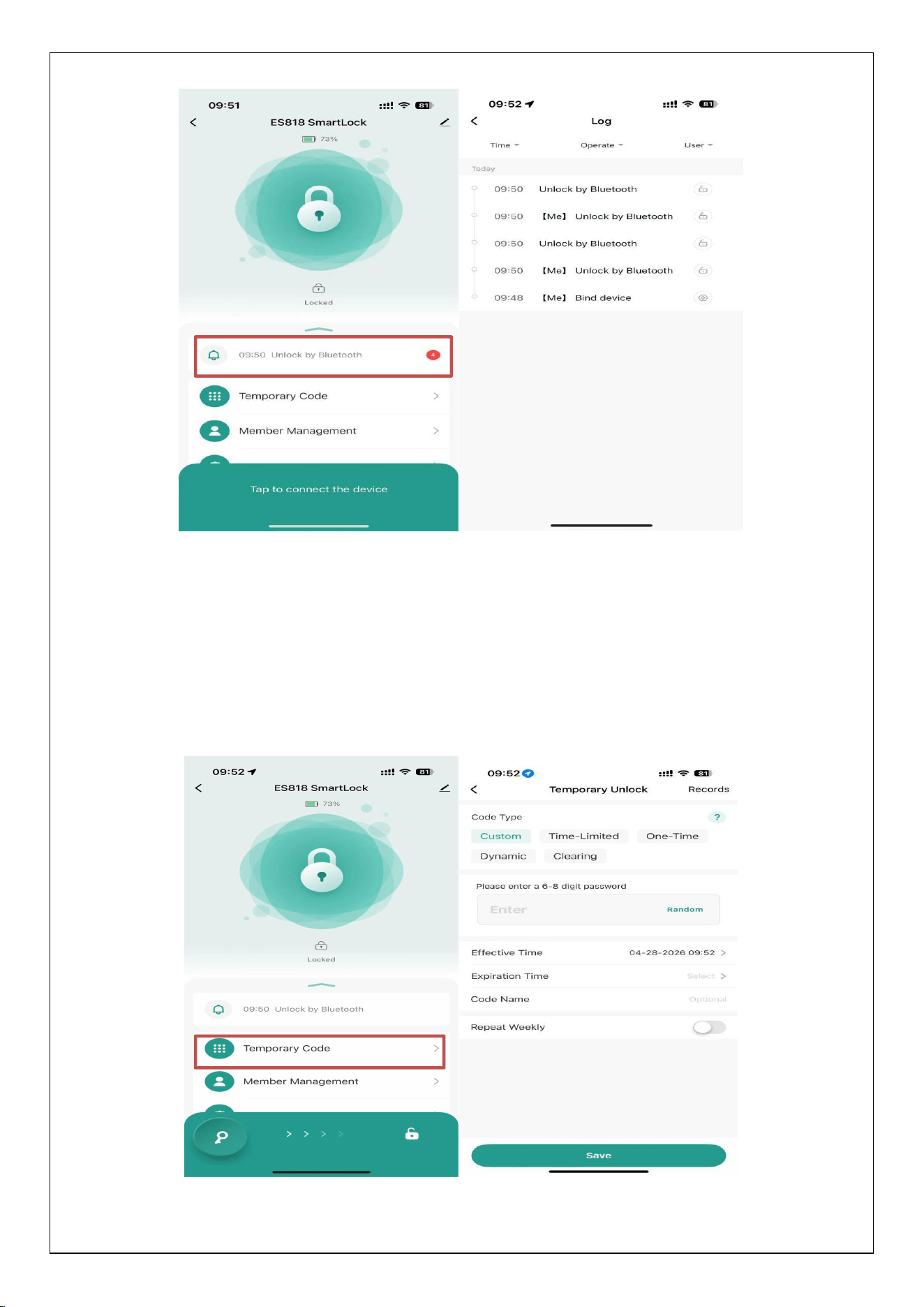
5. Log:
Click log on the main page of the APP to view device operation records.
11
7、Configure temporary password.:
Time limit can be set; Single time; Dynamic; Customize temporary
password(Can generate a single dynamic temporary password for remote
unlocking in offline mode)

12
四、Local operation instructions
Note: For first-time use, a 6-digit super administrator password needs to
be set according to 1+#. It is recommended that users primarily use the
Smart Life app for operation.
1、Set super administrator password (shortcut key 1+#)
2、Reminder: The number key after 1+# is always on(Note: The green
light for number 2 flashes once, while all white lights for numbers remain
on),Enter the first 6-digit password and press the # key to confirm
(Note: After successfully entering the 6-digit new password for the first
time, the green light for number 2 will flash quickly, while the white lights
for other numbers will remain on),2. Enter the 6-digit password # again
to confirm. The buzzer beeps once and the green light flashes once to
indicate successful password setting.
Password configuration successful: Number key 2 lights up green, buzzer
beeps for a long time
Password configuration failed: red light on numeric key 3, buzzer beeps three
times
note:The new password needs to be entered twice and ends with a # sign
each time
2、Change the super administrator password (shortcut key 1+#)

13
Operation: 1+# ->Verify super administrator password ->Enter new 6-
digit password ->Enter new 6-digit password again。
Prompt message:
After the prompt message 1+#, the buzzer beeps once, and the white lights
of other numbers remain on(Number 2: Green light always on, Number 3:
Red light always on),Enter the previous super administrator
password,(After the super administrator verification is passed, all numeric
keys will keep their white lights on),Enter the first 6-digit new password((成
功以后数字 2 绿灯快闪 其它数字常亮),Re enter the 6-digit new password, the
buzzer beeps for a long time, and the green light flashes once to indicate that
the new administrator has successfully set the password.
Password configuration successful: fingerprint lights up green, buzzer beeps
for a long time
Password configuration failed: fingerprint red light on, buzzer beeps three
times
Note: The new password needs to be entered twice and ends with a # sign
each time
3、Add user (fingerprint; password; card)
Shortcut keys: 2+#:
Operation:2+# ->Enter super administrator password ->Enter
fingerprint/password/card;
Note: ① You must first set up a super administrator to perform this
operation。
② The new password needs to be entered twice and ends with a # sign
each time

14
③ The user password is 6 digits long
Prompt message:
After 2+#, all numbers will keep their white lights on. Enter the super
administrator password
After the super administrator verification is passed, the green light flashes
once, the number keys remain on, and the white light stays on, waiting for
fingerprint/password/card input
Password configuration successful: fingerprint lights up green, buzzer beeps
for a long time
Password configuration failed: fingerprint red light on, buzzer beeps three
times
4、How to enable Bluetooth broadcasting on the device side
a. “Not setHow to turn on Bluetooth radio for 'Super Administrator':
Touch any number button or fingerprint to turn on Bluetooth radio。
b.“SetHow to turn on Bluetooth radio for 'Super Administrator':
1+# ->Enter the super administrator password; After verifying the super
administrator password, enable Bluetooth function for 90 seconds。
5、Restore factory settings:(Note: In experience mode, 000+# can directly
restore factory settings)
000+#“Number 3: Red light flashing rapidly, digital light constantly on
"inputadministrator passwordPress the # key to confirm,The buzzer beeps
for a long time,The numbers 2, green light 3, red light, and other numbers'
15
white lights remain on for 1 second, indicating a successful factory reset.
(Note: After resetting to factory settings, clear all users)
6、Device mute: (shortcut key 3+#)
3+#+administrator password to turn off buzzer, 3+#+administrator password
to turn on buzzer
五、Product accessory details and packaging
specifications
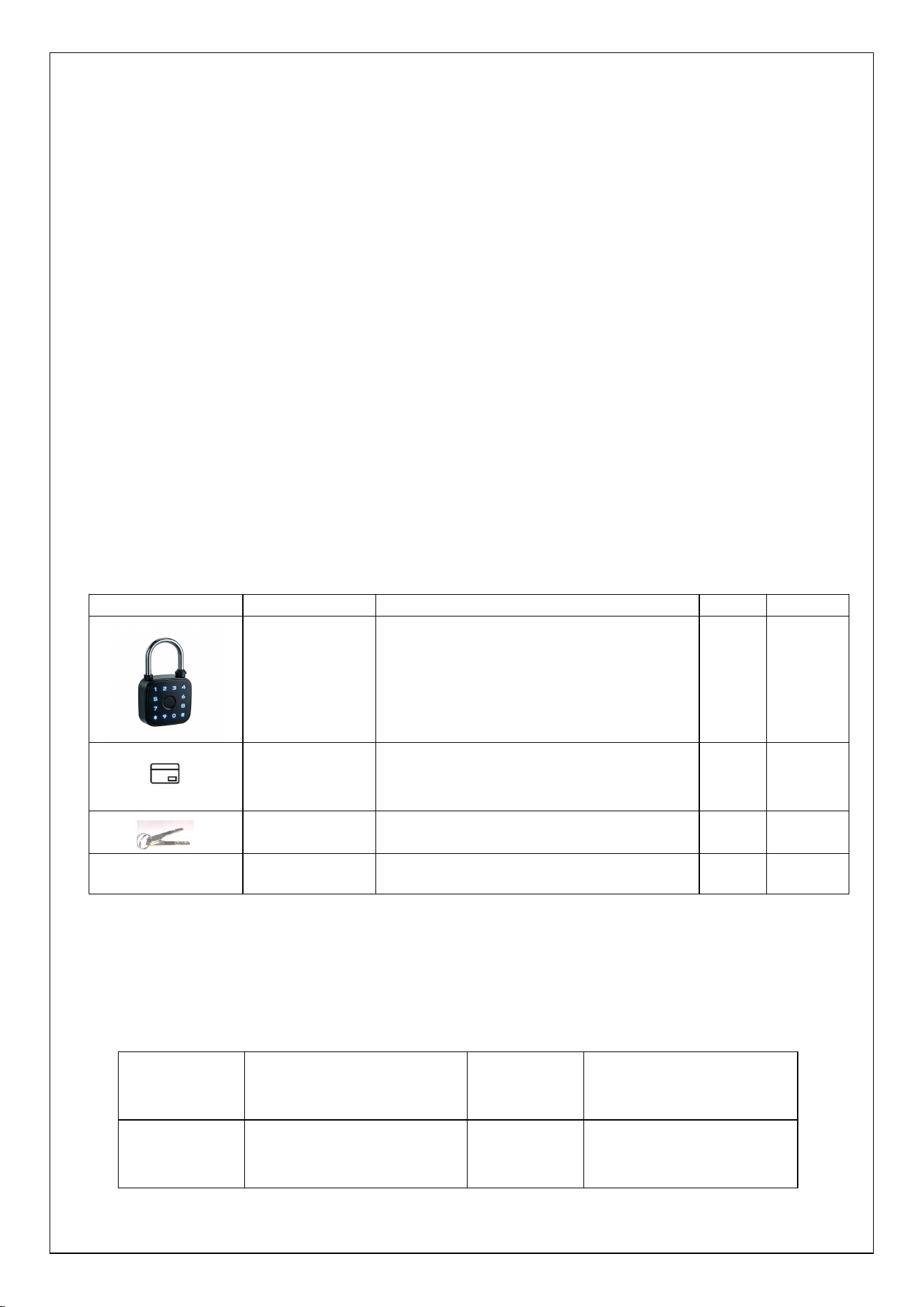
Details of accessories for LD911 handle lock product:
LD911 packaging specifications:
illustration
name
specification
color
quantity
LD911
120*90*22.5mm
black
1
RFID small
card
/
/
1
key
/
/
3
/
Type-C
/
/
1
package
weight
0.30kg
Paper box
size
121.5mm*91mm*41mm
Packing
standards
50 sets/1 box; Weight:
14.13kg
Carton
dimensions
48cm*26cm*23cm

FCC ID: 2A8M4S08
FCC Caution:
This device complies with part 15 of the FCC Rules. Operation is subject to the following two conditions:
(1) This device may not cause harmful interference, and (2) this device must accept any interference
received, including interference that may cause undesired operation.
Any changes or modifications not expressly approved by the party responsible for compliance could void
the user's authority to operate the equipment.
NOTE: This equipment has been tested and found to comply with the limits for a Class B digital device,
pursuant to Part 15 of the FCC Rules. These limits are designed to provide reasonable protection against
harmful interference in a residential installation. This equipment generates, uses and can radiate radio
frequency energy and, if not installed and used in accordance with the instructions, may cause harmful
interference to radio communications. However, there is no guarantee that interference will not occur in a
particular installation.
If this equipment does cause harmful interference to radio or television reception,
which can be determined by turning the equipment off and on, the user is encouraged to try to correct the
interference by one or more of the following measures:
-- Reorient or relocate the receiving antenna.
-- Increase the separation between the equipment and receiver.
-- Connect the equipment into an outlet on a circuit different
from that to which the receiver is connected.
-- Consult the dealer or an experienced radio/TV technician for help.
The device has been evaluated to meet general RF exposure requirement. The device can be used in
portable exposure condition without restriction.