01
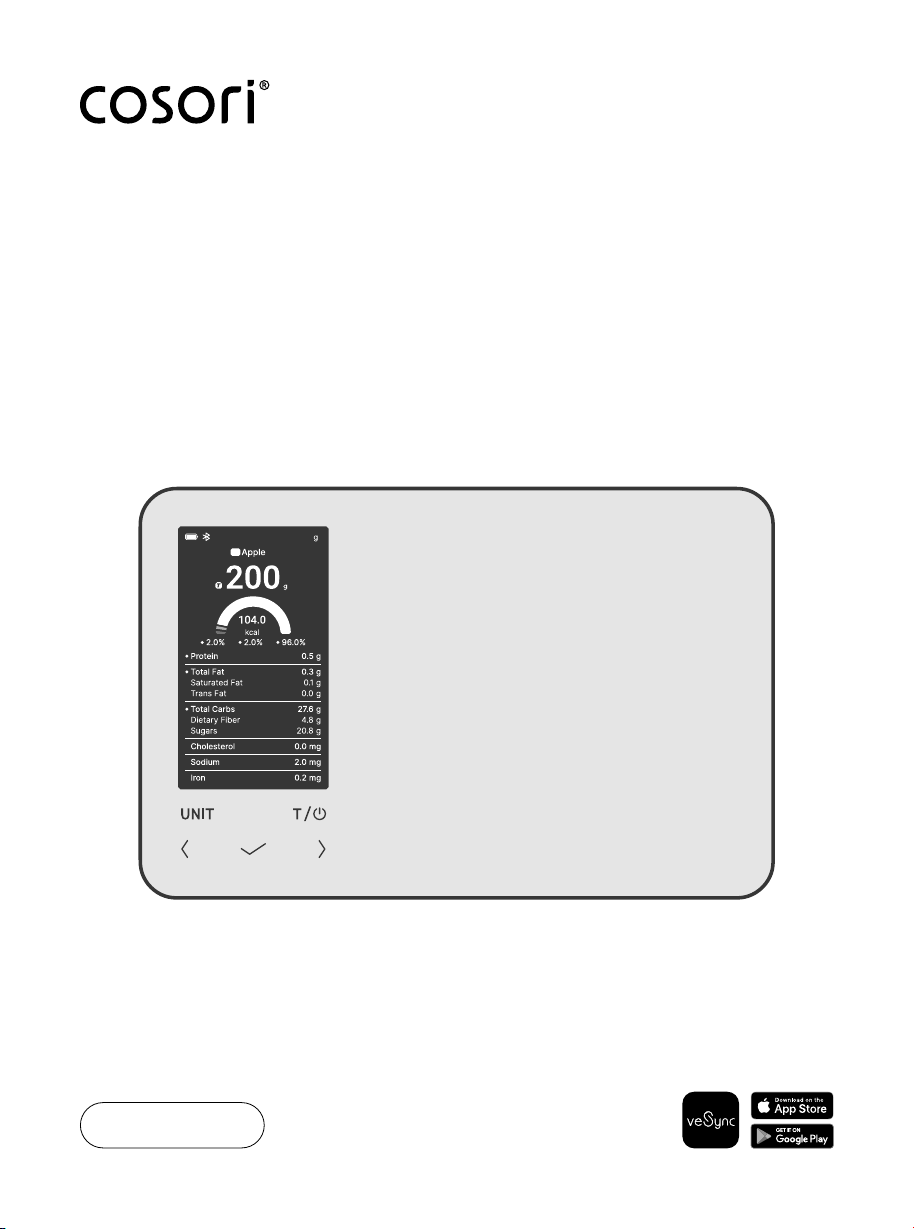
Smart
Nutrition Scale
User Manual
From your imagination to your plate,
uncover kitchen wellness with Cosori.
Thank you for your purchase!
Bring Balance to the Kitchen
Download and connect your smart nutrition
scale to the VeSync app to enjoy smart
features, recipe inspiration, and more.
Questions? Contact Us
For a little extra help in the kitchen
reach out to us:
Email: recipes@cosori.com
Toll-free: 1-888-402-1684
Mon–Fri, 9:00 am–5:00 pm PST/PDT
Find inspiration with our recipe gallery
at cosori.com.
Explore weekly, featured recipes
hand-crafted by our chefs in the Cosori kitchen.
3
Table of Contents
3
3
3
6
7
7
9
10
12
15
Package Contents
Specications
Product Overview:
Smart Nutrition Scale
Package Contents
Specifications
Important Safety Information
Getting To Know Your
Smart Nutrition Scale
VeSync App Setup
Scale Operation
Maintenance
Troubleshooting
Limited Warranty Information
Customer Support
1 × Smart Nutrition Scale
1 × USB-C Charging Cable
1 × User Manual
1 × Quick Start Guide
Note: To access additional smart nutrition
scale functions, download the VeSync app
(see page 7).
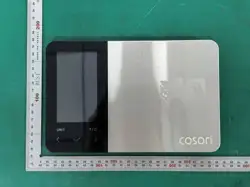
This Smart Nutrition Scale is
designed for measuring food
weight and calculation of
nutritional information, facilitating
eective dietary tracking and
nutritional assessment.
Models CNS-R002S-S
Weight
Capacity
176.4 oz / 11 lb /
5,000 g / 5,000 mL
Units
oz / lb:oz / g / mL
/ fl’oz
Increments 0.1 oz / 1 g / 1 mL
Dimensions
9.2 x 6.0 x 0.8 in /
23.4 x 15.2 x 2.0 cm
Battery
800mAh Li-ion
Battery
Working
Altitude
0–9843 ft / 3000 m
Operating
Temperature
41°–104°F / 5°–40°C
Operating
Humidity
35%–80%
Overvoltage
Category
II
Pollution
Degree of
Intended
Environment
2 degrees
IP (Ingress
Protection)
Rating
IP21

4
To avoid damage to this scale, please read and follow
all instructions and safety guidelines in this manual.
Important Safety Information
SCALE
• Do not exceed the 11
lb / 5,000 g weight
capacity, as doing so
may damage the scale.
An overload indicator
will appear on the LCD
display if the limit is
exceeded.
• This smart scale is not
waterproof.
Do not immerse the
scale in water or any
liquid. If liquid is spilled
on the digital display or
buttons, immediately
wipe the scale clean
with a soft cloth to
avoid internal damage.
• Handle with care. This
scale is not intended for
commercial or heavy-
duty use.
• Keep the scale in a
READ AND SAVE THESE
INSTRUCTIONS
cool, dry place. Avoid
exposing to damp
environments or
extreme temperatures.
• Household use only.

5
BATTERY WARNING
• Disposal of a battery
into a fire or hot oven, or
mechanically crushing
or cutting of a battery,
may result in an
explosion;
• Leaving a battery
in an extremely
high temperature
environment, such as
sunshine, fire, or hot
surface, may result in
an explosion or the
leakage of flammable
liquid or gas;
• A battery subjected
to extremely low air
pressure may result
in an explosion or the
leakage of flammable
liquid or gas.
BATTERY
will turn red if the scale
has less than 20% battery.
When the battery is
less than 5%, the scale
needs to be charged
immediately. Follow the
steps to recharge the
battery.
1. Insert the USB charging
cable into the USB
charging port.
2. Plug the USB charging
cable into a DC 5V
adapter and plug into
an outlet. You can also
plug the cable into a
powered USB outlet.
Note: The scale can’t be
used while charging, so
it is recommended to
charge the battery when
turns red, indicating low
battery.
SAVE THESE INSTRUCTIONS
6
01
01
Getting to Know Your Smart Nutrition Scale
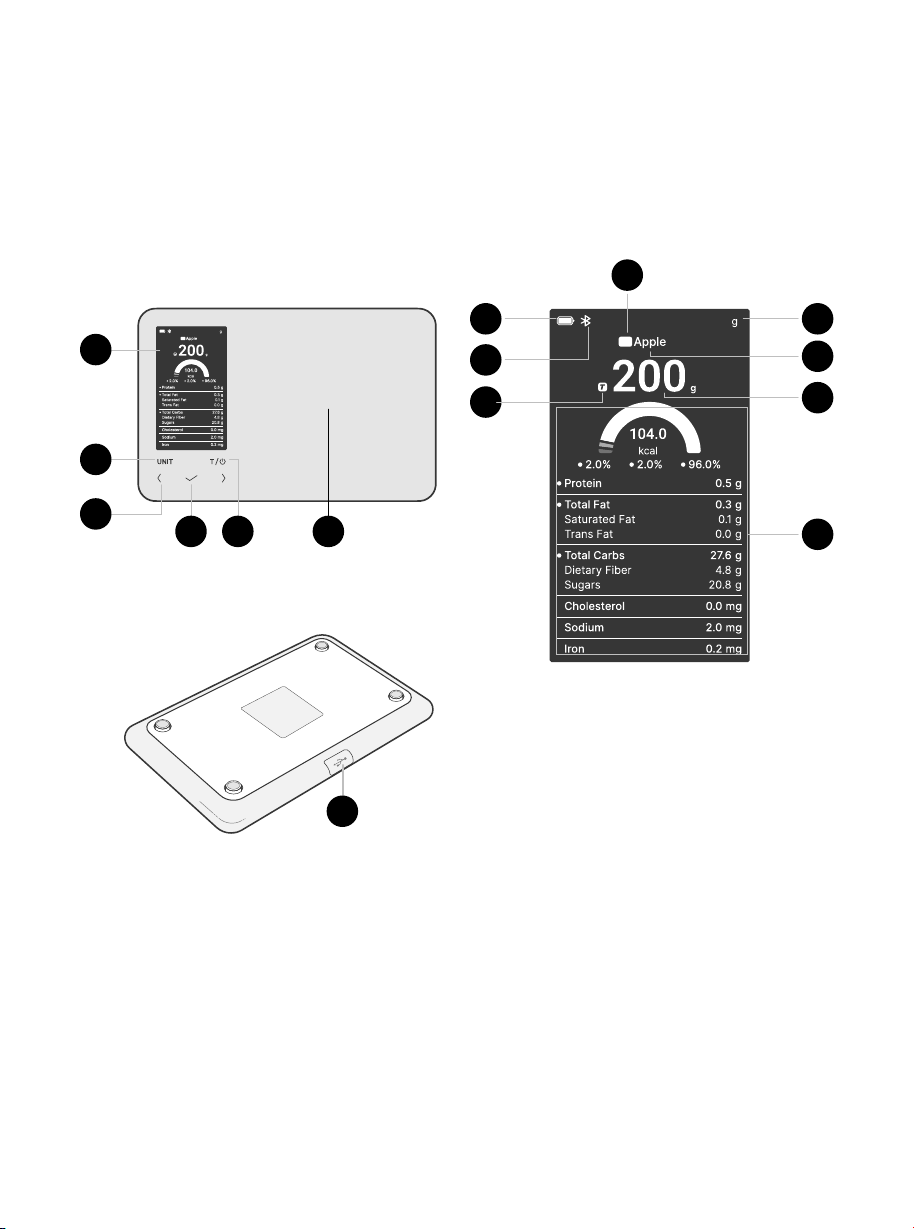
SMART NUTRITION SCALE
DIAGRAM
A. Digital Display
B. Unit Switching Button
C. Left/Right Selection
Buttons
D. Confirm Button
E. Power/Tare Button
F. Weighing Platform
G. USB-C Charging Port
Top
Bottom
B
C
D E
A
F
DISPLAY
DIAGRAM
a. Battery Indicator
b. Bluetooth
®
Icon
c. Tare Indicator
d. Food Identification Number
e. Measurement Unit
f. Food Name
g. Weight Value
h. Nutritional Information
a
b
c
e
h
d
f
g
G

7
POWER/TARE BUTTON
UNIT SWITCHING BUTTON
Note:
• The VeSync app is continually being
improved and may change over time.
If there are any dierences, follow the
in-app instructions.
• Requires device to run app, Wi-Fi or
mobile data, and iOS version 15 or
Android version 8 (or above). Standard
data and messaging rates may apply.
Registration is required.
1. To download the VeSync app, scan
the QR code or search “VeSync” in the
Apple App Store
®
or Google Play Store.
Note: For Android™ users,
choose “Allow” to use VeSync.
VeSync App Setup
Scale Operation
2. Open the VeSync app. If you already
have an account, tap Log In. To
create a new account, tap Sign Up.
Note: You can change the name and icon at
any time in the smart scale settings.
Note: You must create your own VeSync
account to use third-party services and
products. These will not work with a guest
account. With a VeSync account, you can
also allow your family and friends to use your
smart nutrition scale. Even if you switch to a
new device, your nutrition records will still be
available on your VeSync account.
3. Make sure your phone has
Bluetooth
®
turned on.
4. Tap + and select your smart
nutrition scale.
5. Follow the in-app instructions to
connect to your smart nutrition scale.
Controls
• Tap to turn on the scale.
• Press and hold for 3 seconds to turn
o the scale.
• When the scale is on, tap to tare or
zero out the scale (see Tare function,
page 8).
• For accurate results, always place
the scale on a hard, flat surface,
and keep the scale away from dirt,
dust, vibration, wind, air currents, and
electromagnetic interference.
• When you turn on the scale, choose
units, or use the Tare function, always
wait for the scale to read “0” before
attempting measurement.
• To take full advantage of your smart
nutrition scale, you must connect the
scale to the VeSync app (see page 7).
• Tap to cycle through measurement
units: ounces (oz), pounds and ounces
(lb:oz), grams (g), milliliters (ml), or fluid
ounces (fl’oz).
Tips
8
01
01
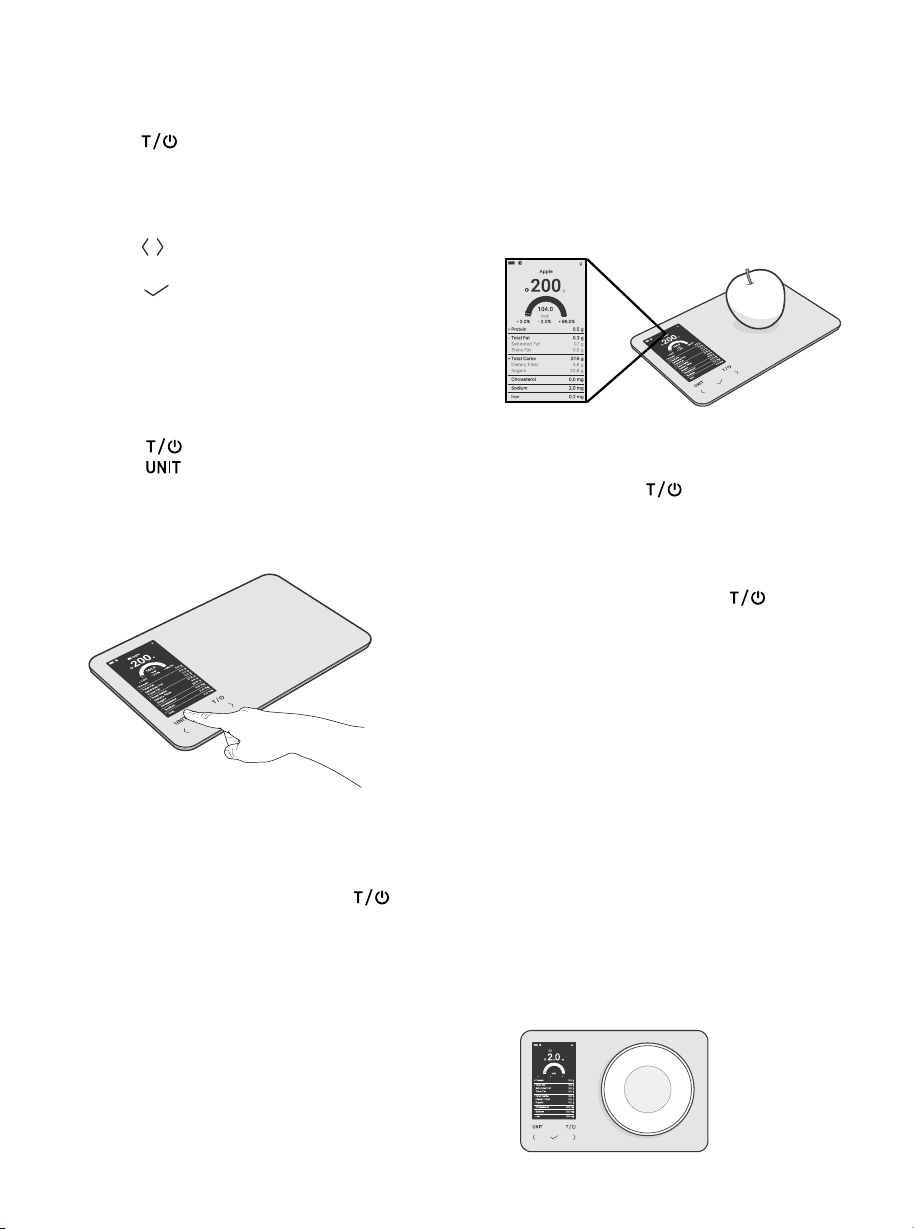
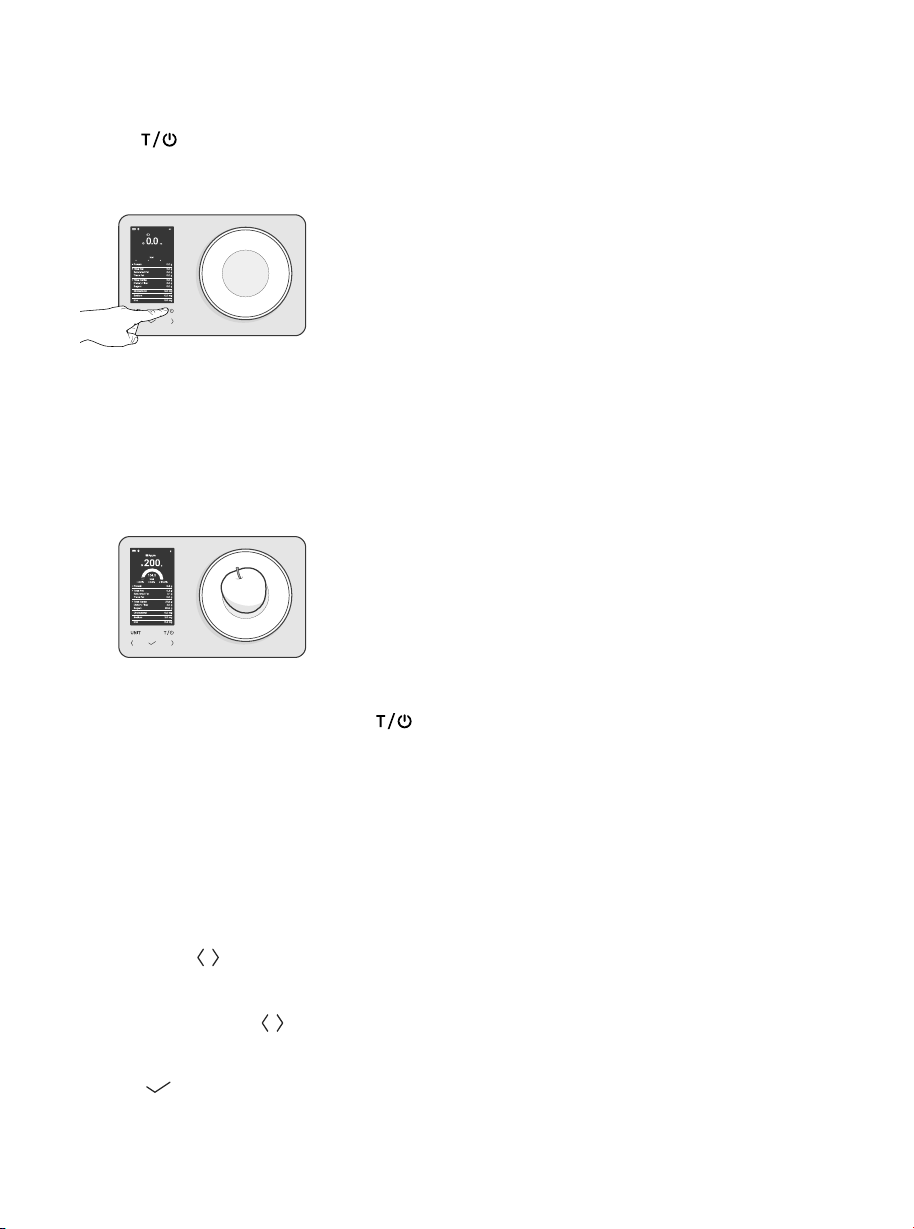
1. Tap to turn on the scale.
1. Tap
to turn on the scale.
Tap to select your desired
measuring unit. You can also change
the measurement unit in the VeSync
app. [Figure 1.1]
Note: If the battery is low, charge the scale
before continuing (see Battery, page 5).
Setting Up
General Operation
Figure 1.1
2. Optionally, if you’re using a container
to hold the items or liquid you’re
measuring, place the empty
container on the scale and tap
to
zero out (tare) the container’s weight
(see Tare Function, page 8).
3. To view your food’s nutrition data,
you must select the food you are
weighing in the VeSync app.
a. You can also import food data to
your scale through the app. This
allows you to quickly select the
food you are weighing on the scale
(see Quick Weighing, page 9).
4. Gently place your food item on
the scale. The display will show the
weight/volume and nutrition data (if
applicable). [Figure 2.1] If your smart
scale is connected to the VeSync
app, the data will be synchronized
with the app.
Note:
• To reset the scale, remove all weight
from the platform and tap
.
• To conserve battery power, the scale
will automatically turn o after 2 minutes
of inactivity. The display backlight will
automatically turn o after 30 seconds
of inactivity. You can change this in the
VeSync app.
5. Press and hold for
3 seconds to turn o the scale.
Figure 2.1
Whenever you measure liquid or items
inside a container, you can use the
Tare function to remove the container’s
weight from the final measurement.
Tare Function
1. Place an empty container on the
scale. The display will show the
container’s weight. [Figure 3.1]
Figure 3.1
2. Tap
to cycle through language
options. Select a language and
tap .
3. Connect the scale to the VeSync app
(see VeSync App Setup, page 7).
9
01
You can import nutrition data of your
most frequently eaten foods to the
scale through the VeSync app. You can
import up to 50 dierent foods.
Quick Weighing
Memory Function
Maintenance
1. Before placing your food on the
scale, tap
to cycle through
imported food items.
a. Press and hold
to quickly jump
5 food items.
3. Place liquid or food items in
the container. The scale will now
measure the liquid or items, without
including the weight of the container.
[Figure 3.3]
2. Tap
to select a food item.
3. Gently place your food item on
the scale.
WITHOUT APP CONNECTION:
WITH APP CONNECTION:
• Without imported food items, the
scale only displays an item’s weight/
volume and does not save data.
• If a food item is selected,
measurement results and nutrition
data are locally stored on the scale.
The scale can store up to 200 sets
of data.
• When storage is full, new data will
automatically overwrite old data.
Connect to the VeSync app to upload
your results and nutrition data.
• All measurement results and nutrition
data automatically sync with the
VeSync app.
• View the app for complete
measurement history and
detailed analyses.
• Use a slightly damp cloth to clean
the surface of the scale, followed by
a dry, soft cloth to wipe away the
remaining moisture.
• You can use a dry, soft cloth to wipe
dust o the scale.
• Do not wash the scale or immerse it in
water or any other liquid.
2. Tap
. The display will show “0”
again. [Figure 3.2]
4. When you’re done, reset the scale by
removing all weight and tapping
.
Tare Function (Cont.)
Figure 3.2
Figure 3.2
10
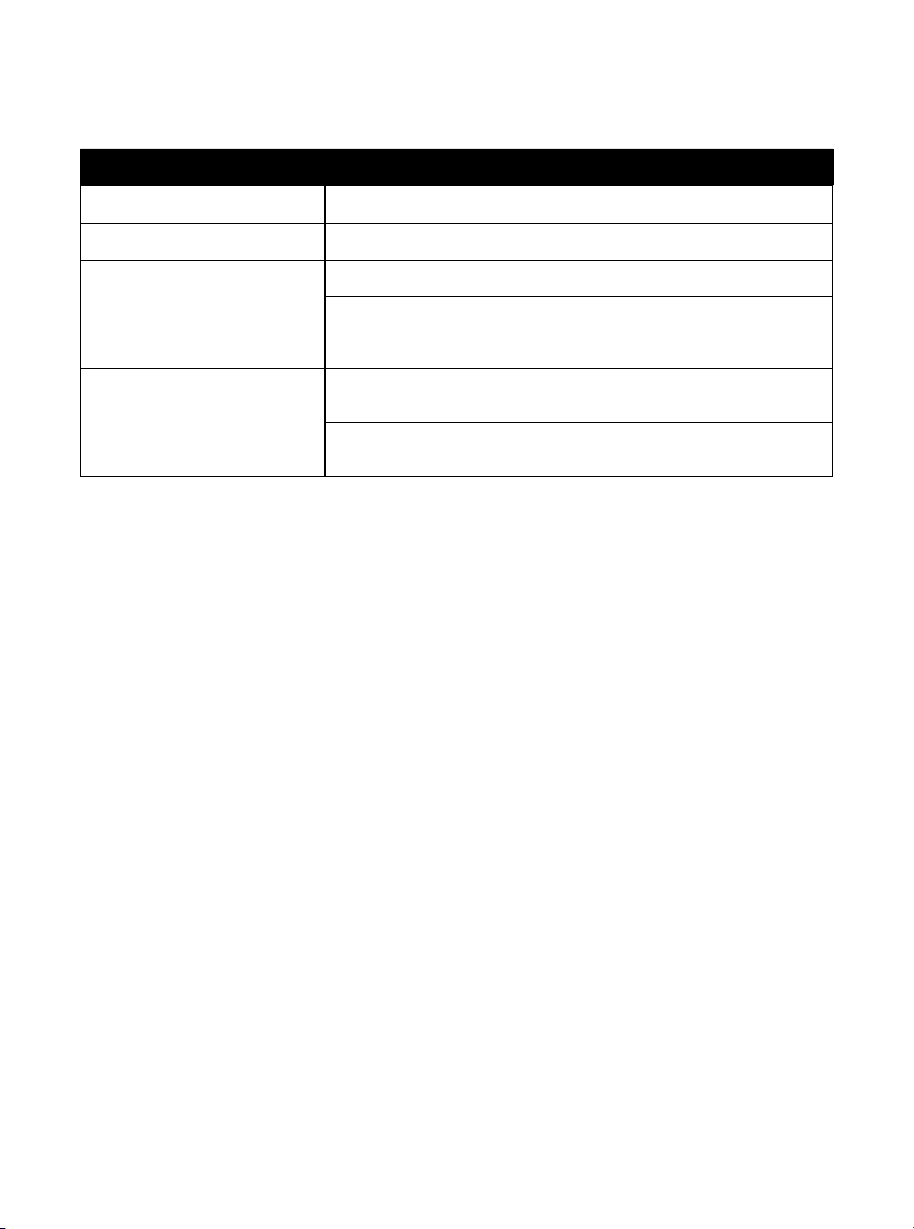
Inaccurate weighing Make sure the scale is on a hard, flat surface.
Scale does not turn on The scale has low battery. Charge the scale.
Scale cannot connect to
the VeSync app
Make sure your mobile device is within 30 ft / 10 m of the scale.
Some Bluetooth devices can only exchange data with one other
Bluetooth device at a time. Make sure the scale is not currently
connected to any other phone or app.
VeSync app is not
scanning food
Make sure you grant the VeSync app permission to use your camera.
Confirm that the camera is pointed at the food and the area is well-lit.
Troubleshooting
Important Usage Disclaimer
If you still need help, please contact Customer Support (see page 15).
It is imperative that users follow the instructions outlined in this user manual to ensure the proper
functioning of the Smart Nutrition Scale. The manufacturer shall not be liable for any adverse outcomes
resulting from improper use, including but not limited to incorrect measurements, malfunctions, or any
other issues that arise from failure to adhere to the provided guidelines. By using this product, you
acknowledge and accept these terms.

11
Federal Communication Commission Interference
Statement – Part 15
This device complies with Part 15 of the FCC Rules. Operation is subject to the following two conditions:
1. This device may not cause harmful interference, and
2. This device must accept any interference received, including interference that may cause
undesired operation.
NOTE: This equipment has been tested and found to comply with the limits for a Class B digital device,
pursuant to Part 15 of the FCC Rules. These limits are designed to provide reasonable protection against
harmful interference in a residential installation. This equipment generates, uses and can radiate radio
frequency energy and, if not installed and used in accordance with the instructions, may cause harmful
interference to radio communications. However, there is no guarantee that interference will not occur in a
particular installation. If this equipment does cause harmful interference to radio or television reception,
which can be determined by turning the equipment o and on, the user is encouraged to try to correct
the interference by one or more of the following measures:
• Reorient or relocate the receiving antenna.
• Increase the separation between the equipment and receiver.
• Connect the equipment into an outlet on a circuit dierent from that to which the receiver is
connected.
• Consult the dealer or an experienced radio/TV technician for help.
FCC Caution: Any changes or modifications not expressly approved by the party responsible for
compliance could void the user’s authority to operate this equipment.
FCC Radiation Exposure Statement
FCC Supplier’s Declaration of Conformity (SDOC)
The device has been evaluated to meet general RF exposure requirement. The device can be used in
portable exposure condition without restriction.
Vesync(US) Corporation hereby declares that this equipment is in compliance with FCC requirements.
The declaration of conformity may be consulted in the support section of our website, accessible from
www.cosori.com
12
Limited Warranty
Information
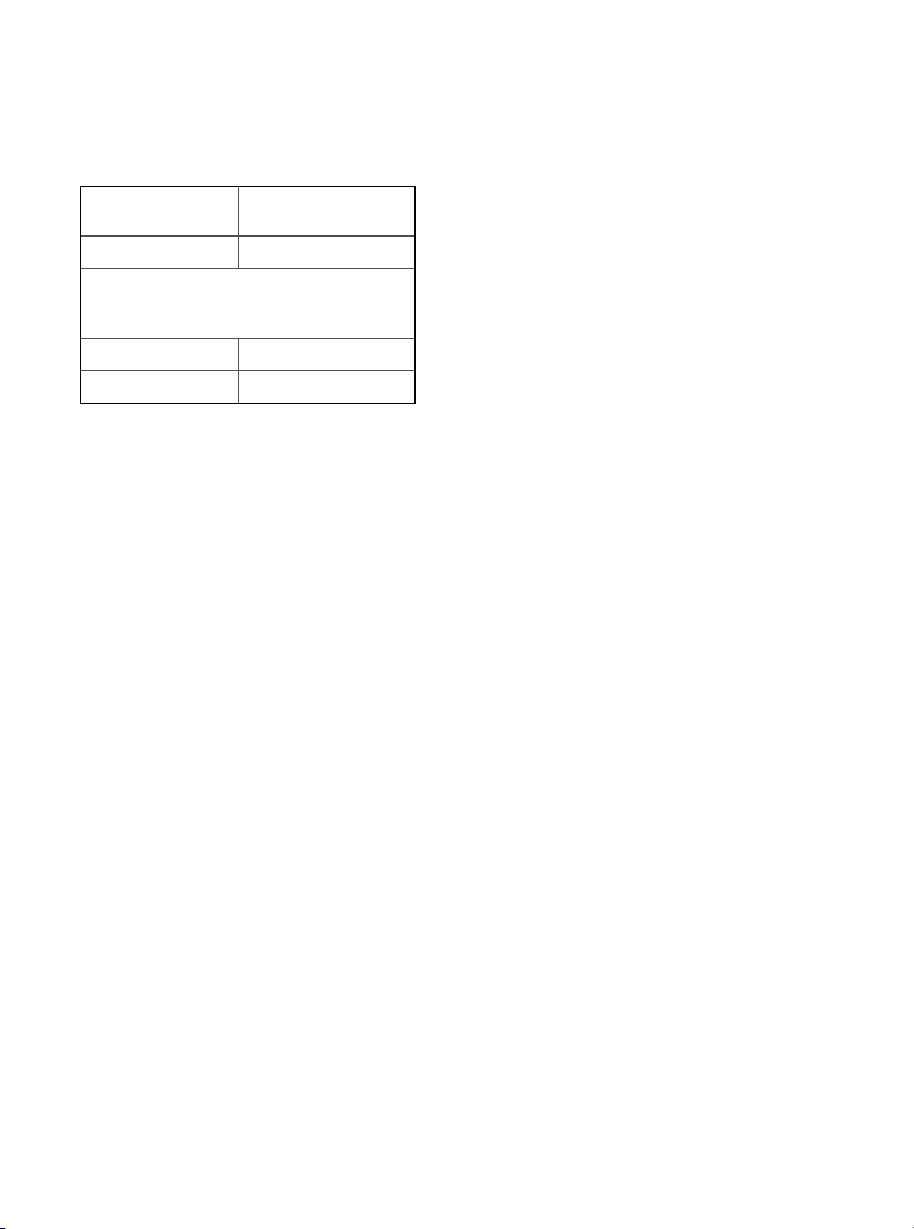
Product Name Smart Nutrition Scale
Models CNS-R002S-S
For your own reference, we strongly
recommend that you record your order ID
and date of purchase.
Order ID
Date of Purchase
Cosori Limited Product Warranty
Register your products at https://
warranty.cosori.com/warranty to stay
up to date with important product
information such as product updates,
limited warranties, usage and
maintenance recommendations, and
notifications concerning safety warnings
or product recalls. Registration is not
required to claim your limited warranty.
Two (2) Year Limited Consumer
Product Warranty
Vesync(US) Corporation (“Vesync”)
warrants that the product shall be
free from defects in material and
workmanship for a period of 2 years
from the date of original purchase
(“Limited Warranty Period”), provided the
product was used in accordance with
its use and care instructions (e.g. in the
intended environment and under normal
circumstances).
Your Limited Warranty Benefits
During the Limited Warranty Period and
subject to this Limited Warranty Policy,
Vesync will, in its sole and exclusive
discretion, either (i) refund the purchase
price if the purchase was made directly
from the online Cosori store, (ii) repair
any defects in material or workmanship,
(iii) replace the product with another
product of equal or greater value, or (iv)
provide store credit in the amount of the
purchase price.
Who Is Covered?
This limited warranty extends only to
the original consumer purchaser of
the product and is not transferable
to any subsequent owner of the
product, regardless of whether the
product transferred ownership during
the specified term of the limited
warranty. The original consumer
purchaser must provide verification of
the defect or malfunction and proof
of the date of purchase to claim the
Limited Warranty Benefits.
Be Aware of Unauthorized Dealers or
Sellers
This limited warranty does not extend to
products purchased from unauthorized
dealers or sellers. Vesync’s limited
warranty only extends to products
purchased from authorized dealers
or sellers that are subject to Vesync’s
quality controls and have agreed to
follow its quality controls. Please be
aware, products purchased from an
unauthorized website or dealer may be
counterfeit, used, defective, or may not
be designed for use in your country. You
can protect yourself and your products
by making sure you only purchase from
Vesync or its authorized dealers.
If you have any questions about
a specific seller, or if you think you
may have purchased your product
from an unauthorized seller, please
contact our Customer Support via
support.cosori.com.

13
What’s Not Covered?
• Normal wear and tear, including
parts that might wear out over time
(e.g. batteries, filters, cleaning brush,
essential oil pads, etc.).
• If the proof-of-purchase has been
altered in any way or is made illegible.
• If the model number, serial number or
production date code on the product
has been altered, removed or made
illegible.
• If the product has been modified from
its original condition.
• If the product has not been used
in accordance with directions and
instructions in the user manual.
• Damages caused by connecting
peripherals, additional equipment
or accessories other than those
recommended in the user manual.
• Damages or defects caused by
accident, abuse, misuse, or improper
or inadequate maintenance.
• Damages or defects caused by
service or repair of the product
performed by an unauthorized service
provider or by anyone other than
Vesync.
• Damages or defects occurring during
commercial use, rental use, or any use
for which the product is not intended.
• If the unit has been damaged,
including but not limited to damage
by animals, lightning, abnormal
voltage, fire, natural disaster,
transportation, dishwasher, or water
(unless the user manual expressly
states that the product is
dishwasher-safe).
• Incidental and consequential
damages.
• Damages or defects exceeding the
cost of the product.
Claiming Your Limited Warranty
Service in 5 Simple Steps:
1. Make sure your product is within the
specified limited warranty period.
2. Make sure you have a copy of the
invoice and order ID or proof-of-
purchase.
3. Make sure you have your product.
DO NOT dispose of your product
before contacting us.
4. Contact our Customer Support team
via support.cosori.com.
5. Once our Customer Support team
has approved your request, please
return the product with a copy of the
invoice and order ID.
Sole and Exclusive Remedy
THE FOREGOING LIMITED WARRANTY
CONSTITUTES VESYNC’S EXCLUSIVE
LIABILITY, AND YOUR SOLE AND
EXCLUSIVE REMEDY, FOR ANY BREACH
OF ANY WARRANTY OR OTHER
NONCONFORMITY OF THE PRODUCT
COVERED BY THIS LIMITED PRODUCT
WARRANTY STATEMENT. THIS LIMITED
WARRANTY IS EXCLUSIVE, AND IN
LIEU OF ALL OTHER WARRANTIES.
NO EMPLOYEE OF VESYNC OR ANY
OTHER PARTY IS AUTHORIZED TO MAKE
ANY WARRANTY IN ADDITION TO THE
LIMITED WARRANTY IN THIS LIMITED
PRODUCT WARRANTY STATEMENT.
Disclaimer of Limited Warranties
TO THE FULLEST EXTENT PROVIDED
BY APPLICABLE LAW, EXCEPT AS
WARRANTED IN THIS LIMITED PRODUCT
WARRANTY POLICY, VESYNC PROVIDES
THE PRODUCTS YOU PURCHASE
FROM VESYNC “AS IS”
AND VESYNC HEREBY DISCLAIMS ALL
WARRANTIES OF ANY KIND, WHETHER
EXPRESS OR IMPLIED, STATUTORY, OR
OTHERWISE, INCLUDING BUT NOT
LIMITED TO ANY WARRANTIES OF
MERCHANTABILITY, NON-INFRINGEMENT,

14
AND FITNESS FOR PARTICULAR
PURPOSE.
Limitations of Liability
TO THE FULLEST EXTENT PROVIDED
BY APPLICABLE LAW, IN NO EVENT
WILL VESYNC, ITS AFFILIATES, OR THEIR
LICENSORS, SERVICE PROVIDERS,
EMPLOYEES, AGENTS, OFFICERS, OR
DIRECTORS BE LIABLE FOR:
(A) DAMAGES OF ANY KIND ARISING
OUT OF OR IN CONNECTION
WITH PRODUCTS PURCHASED
FROM VESYNC IN EXCESS OF THE
PURCHASE PRICE PAID BY THE
PURCHASER FOR SUCH PRODUCTS, OR
(B) INDIRECT, SPECIAL, INCIDENTAL,
CONSEQUENTIAL, OR PUNITIVE
DAMAGES EVEN IF VESYNC OR ONE OF
ITS SUPPLIERS HAS BEEN ADVISED OF
THE POSSIBILITY OR LIKELIHOOD OF
SUCH DAMAGES.
AND REGARDLESS OF WHETHER
CAUSED BY TORT (INCLUDING
NEGLIGENCE), BREACH OF CONTRACT,
OR OTHERWISE. OUR LIABILITY SHALL
UNDER NO CIRCUMSTANCES EXCEED
THE ACTUAL AMOUNT PAID BY YOU
FOR THE DEFECTIVE PRODUCT, NOR
SHALL WE UNDER ANY CIRCUMSTANCES
BE LIABLE FOR ANY CONSEQUENTIAL,
INCIDENTAL, SPECIAL OR PUNITIVE
DAMAGES OR LOSSES, WHETHER
DIRECT OR INDIRECT.
EXCEPT AS COVERED BY THIS
LIMITED PRODUCT WARRANTY
STATEMENT, VESYNC SHALL NOT BE
LIABLE FOR COSTS ASSOCIATED
WITH THE REPLACEMENT OR REPAIR
OF PRODUCTS PURCHASED FROM
IT, INCLUDING, BUT NOT LIMITED TO,
LABOR, INSTALLATION, OR OTHER
COSTS INCURRED BY THE USER AND,
IN PARTICULAR, ANY COSTS RELATING
TO THE REMOVAL OR REPLACEMENT OF
ANY PRODUCT.
Other Rights You May Have
SOME JURISDICTIONS DO NOT ALLOW
FOR: (1) EXCLUSION OF IMPLIED
WARRANTIES; (2) LIMITATION ON THE
DURATION OF IMPLIED WARRANTIES;
AND/OR (3) EXCLUSION OR LIMITATION
OF INCIDENTAL OR CONSEQUENTIAL
DAMAGES; SO THE DISCLAIMERS
IN THIS POLICY MAY NOT APPLY TO
YOU. IN THESE JURISDICTIONS YOU
HAVE ONLY THE IMPLIED WARRANTIES
THAT ARE EXPRESSLY REQUIRED TO
BE PROVIDED IN ACCORDANCE WITH
APPLICABLE LAW. THE LIMITATIONS OF
WARRANTIES, LIABILITY, AND REMEDIES
APPLY TO THE MAXIMUM EXTENT
PERMITTED BY LAW.
ALTHOUGH THIS LIMITED WARRANTY
GIVES YOU SPECIFIC LEGAL RIGHTS,
YOU MAY HAVE OTHER RIGHTS IN YOUR
JURISDICTION. THIS STATEMENT OF
LIMITED WARRANTY IS SUBJECT TO
APPLICABLE LAWS THAT APPLY TO YOU
AND THE PRODUCT. PLEASE REVIEW
THE LAWS IN YOUR JURISDICTION TO
UNDERSTAND YOUR RIGHTS FULLY.
Changes To This Policy
We may change the availability of this
limited warranty at our discretion, but
any changes will not be retroactive.
This warranty is made by:
Vesync(US) Corporation
1775 Flight Way, Suite 150
Tustin, CA 92782
USA

15
Amazon, Alexa, and all related logos are trademarks of Amazon.com, Inc. or its aliates.
Google, Android, and Google Play are trademarks of Google LLC.
App Store
®
is a trademark of Apple Inc.
Wi-Fi
®
is a registered trademark of
Wi-Fi Alliance
®
.
iOS is a registered trademark of Cisco Systems, Inc. and/or its aliates in the United States and
certain other countries.
The Bluetooth
®
word mark and logos are registered trademarks owned by Bluetooth SIG, Inc. and any
use of such marks by Vesync(US) Corporation is under license. Other trademarks and trade names are
those of their respective owners.
Attributions
Customer Support
If you have any questions or concerns
about your new product, please contact
our helpful Customer Support Team.
*Please have your order invoice and
order ID ready before contacting
Customer Support.
Vesync(US) Corporation
1775 Flight Way, Suite 150
Tustin, CA 92782
USA
Support Hours
Mon–Fri, 9:00 am–5:00 pm PST/PDT
Website: support.cosori.com
Toll-Free: 1-888-402-1684
A0_26G06_us