Quick instructions
(Note :Peel off white protective sticker before use.)
1. Power on
Press and hold the button for � seconds, the device will beep and power on.
2. Pair the device
A. Open the Find My app and Bluetooth.
B�.
Never connect finder before:
Tap the "ltems" at the bottom, then tap "Add Item", and select "Other
Supported Item".
B�:
Connect finder before:
Tap the "ltems" at the bottom, then tap the "+" icon and select "Other ltem"
C. When "BFM��" appears in the search results, tap to connect, Ent
er a
name, choose an icon, and follow the on-screen instructions, Once added,
you'll see the tag's name and icon in your device list and on t
he map. Tap
Play Sound to hear a about �-second sound from the tag.
3. Power off
Press and hold the button for � seconds,
after the prompt tone, the device
powers off.
4. Status Check
When the card is on, single-press the button to hear a sound make the blue
light flash once. Double press to hear a sound and see the blue light flash
twice. If the card has been idle for a long time, it may enter sleep mode to
conserve power.Press the button to wake it up-the blue light will flash.
If single or double pressing the button produces no sound or light, the card is
powered off, Press and hold for about � seconds to hear three beeps and
power it on again. If there is still no response after holding for over � seconds,
the battery is depleted. Place the card on a wireless charger. If the green light
flashes or the red light turns on, it's charging.
5. Locate your item
·If your missing item isn't nearby, the Find My app can still help you track it
down using the Find My network- hundreds of millions of iPhone, iPad, and
Mac devices around the world. Nearby devices can detect the location of your
missing device via Bluetooth signals and securely transmit this information to
iCloud.
· Open the Find My app, tap the items tab, then tap your item.
· Click Directions, Open Apple Maps to view the location of your item.
6. Play sound
· Open the Find My app, tap the items tab, then tap your item.
· When the item is within the Bluetooth range of your phone, Click play
sound, and the device will beep, so you can find the item easily.
7. Enable Lost Mode
· Open the Find My app, tap the items tab, then tap your item.
· Under lost mode, tap enable.
· Read the instructions, tap continue and enter a phone number or email
address.
· Confirm the information, customize the lost message, and tap activate to
complete the setup.
8. Remove the device
· Open the Find My app, tap the items tab, then tap your item.
· Tap remove item and then tap remove to complete the operation.
Note:
After removing the device in the app, the device will beep and the light
will flash. It will not shut down but enter pairing mode. If no re-pairing occurs
within �� minutes, the device will exit pairing mode and power off automatically.
9. Factory Reset
·
Connection error:
Factory reset first, then connect.
·
Reset Procedure:
With the device powered on, first press the device button
twice in quick succession. After the device emits a prompt tone, immediately
press the button five times in quick succession. When the device emits a
prompt tone again and the indicator light flashes, the reset is complete.
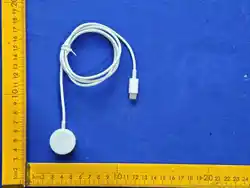
10. Wireless Charging
The battery level will be shown in the Find My app.
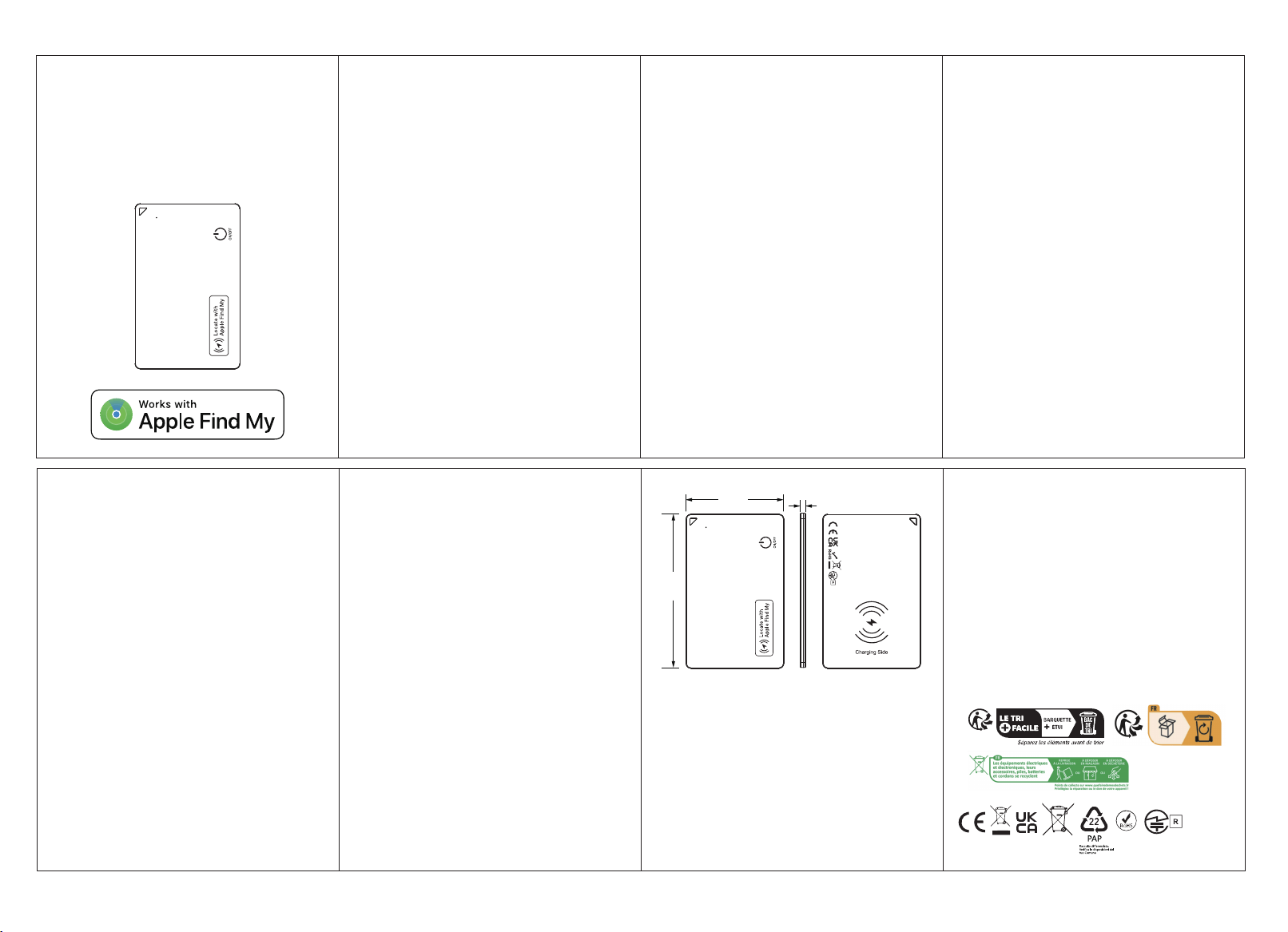
When charging, place the "Charging Side" on the wireless charger, aligning it
with the charging area.(Supports phone and earbud wireless chargers.
·Flashing green or steady red light means charging is in progress.
·Flashing red light indicates abnormal charging alignment. Please remove
the product and reposition it for proper alignment before charging.
·Steady green light indicates charging is complete.
· Each full charge can last approximately two months.
11. FAQ-Common Issues
- Find My app not working properly:
·
Ensure you're signed in with your Apple lD.
·
Make sure Bluetooth and location services are enabled.
·
Check that security settings aren't overly restrictive.
·
iOS version should be ��.� or higher.
·
For more, visit: Apple Support
- Cannot find or connect to "BFM07":
·
Don't use the Bluetooth settings directly-use the Find My app.
·
Don't choose "AirTag" -- choose "Other ltem" or "Other Supported ltem"
·
The card may be off or out of battery. Double-check the tag status.
·
If the card is already bound to an Apple ID, it cannot be connected by
another Apple ID. To bind it to a different Apple ID, you must first remove it
from the original Apple ID and perform a factory reset.
·
Other causes: outdated iOS version, slow phone, dead battery, poor
network. Try resetting the tag, restarting the phone, or changing network.
- Location not updating promptly:
This depends on Apple's update policy, your network conditions, and
where the tag is located. Try using it outdoors or in crowded areas.
- Need to Wake up:
If the card shows "unreachable", has been idle for a long time, location
hasn't updated for a while, double-press the power button to wake it up. If
it has been recharged after battery depletion, you need to power it on
again.
Legal Notice
The Apple Find My network provides an easy, secure way to locate
compatible personal items using the Find My app on your iPhone, iPad,
Mac, or the Find Items app on Apple Watch.
To use the Apple Find My app to locate this item, the latest version of iOS,
iPadOS, or macOS is recommended. The Find ltems app on Apple Watch
requires the latest version of watchOS.
Use of the Works with Apple badge means that a product has been
designed to work specifically with the technology identified in the badge
and has been certified by the product manufacturer to meet Apple Find My
network product specifications and requirements. Apple is not responsible
for the operation of this device or use of this product or its compliance with
safety and regulatory standards.
Apple, Apple Find My, Apple Watch, Find My, iPhone, iPad, iPadOS, Mac,
macOS and watchOS are the trademarks of Apple Inc. IOS is a trademark or
registered trademark of Cisco in the U.S. and other countries and is used
under license.
WARNING
�. Permanently Sealed Battery - No Disassembly
�. Operating Temp - �°C ~ ��°C
�. Physical Hazard
- Do not expose to sharp metal objects
- Stop use if case is damaged
FCC Warning
This device complies with part �� of the FCC Rules. Operation is subject to the
following two conditions:(�) This device may not cause harmful interference,
and (�) this device must accept any interference received, including
interference that may cause undesired operation.
Any Changes or modifications not expressly approved by the party responsible
for compliance could void the user's authority to operate the equipment.
This equipment has been tested and found to comply with the limits for a Class
B digital device, pursuant to part �� of the FCC Rules. These limits are designed
to provide reasonable protection against harmful interference in a residential
installation. This equipment generates uses and can radiate radio frequency
energy and, if not installed and used in accordance with the instructions, may
cause harmful interference to radio communications. However, there is no
guarantee that interference will not occur in a particular installation. If this
equipment does cause harmful interference to radio or television reception,
which can be determined by turning the equipment off and on, the user is
encouraged to try to correct the interference by one or more of the following
measures:
-Reorient or relocate the receiving antenna.
- Increase the separation between the equipment and receiver.
- Connect the equipment into an outlet on a circuit different from that to which
the receiver is connected.
- Consult the dealer or an experienced radio/TV technician for help.
FCC RF exposure statement:
The device has been evaluated to meet general RF exposure requirement. The
device can be used in portable exposure condition without restriction.
Product Specifications
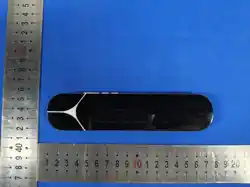
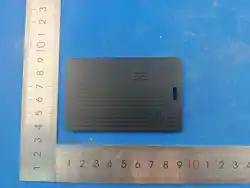
Product Name: Card Finder
Model: BFM��
Material: ABS
Battery Specifications: �.�V Li-Po ���mAh / �.��Wh (CX ������)
Size: �.��x�.��x�.��� in (��x��x�.� mm)
Charging: Wireless Charging
Weight: ��g /pcs
Country of Origin: China
Packaging Content
�. Card Finder
�. User Manual
��mm
�.�mm
��mm
SN:xxxxxxxxxxxxxxxx
Model: BFM��
Battery: �.�V Li-Po ���mAh / �.��Wh
Made in China
���-J�����
FCC ID: �BQ�S-BFM��
���-J�����
FCC ID:2BQ6S-BFM07
Manual