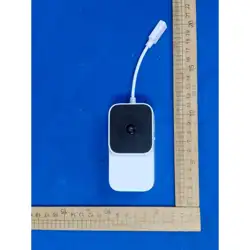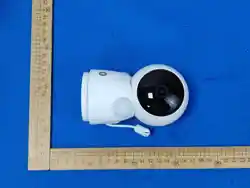
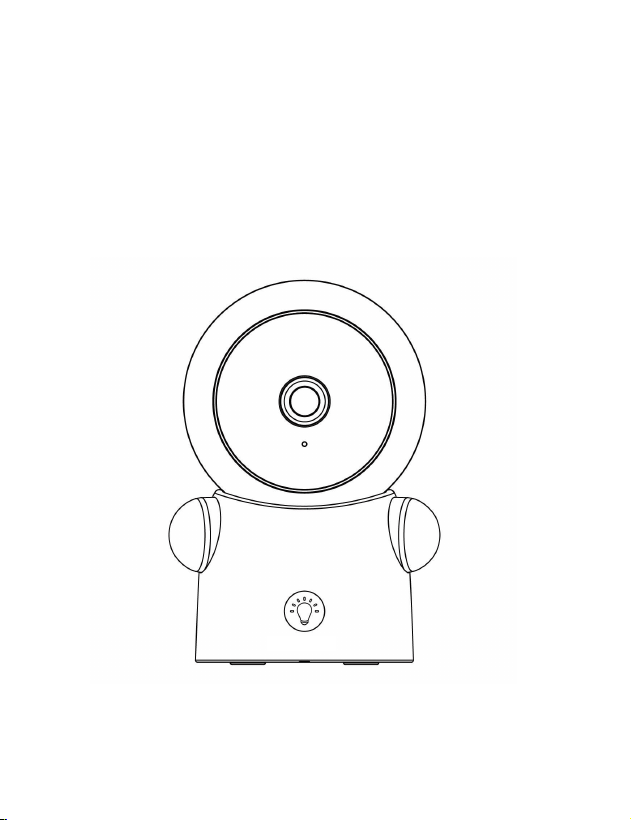
Smart Baby Camera
QUICK START GUIDE
IPC272
Read me before use!
Keep manual and all relevant information for future reference.
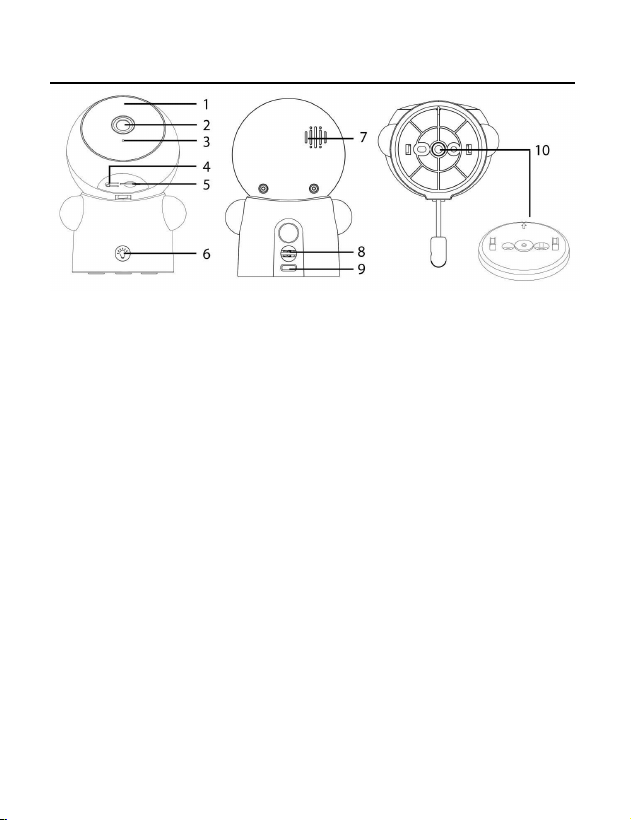
Description of the camera
1. Indicator light
Blue fast blinking – camera start
Blue slow blinking – camera is connecting to the network
Indicator off – connection succeed
2. Camera lens
3. Microphone
4. Reset button
5. Micro SD card slot
6. Night lamp (tap to control on/off)
7. Speaker
8. Temperature detector
9. USB-C connector
10. Bracket for mounting

About the camera
1. Power on the camera
To power on the camera, use a 5V (1A~2A) adapter (not included) to
connect camera with supplied power cable.
The blue indicator will turn on and camera and blinking fast, which
means camera is ready for connection.
2. Micro SD card
To save the events into local storage, the camera needs the 8GB~256GB
(Class 10 or higher) micro-SD card.
Please format the card before using.
3. Reset
If the device is not able to be connected to the app, you may need to
reset the camera.
Hold and press the reset button for 5 seconds, the camera will be
restarted automatically, while the blue indicator blinking fast which
means the reset is succeed and the camera is ready to connect.
4. Installation the camera
Connect the camera with App to check the signal before mounting the
camera.
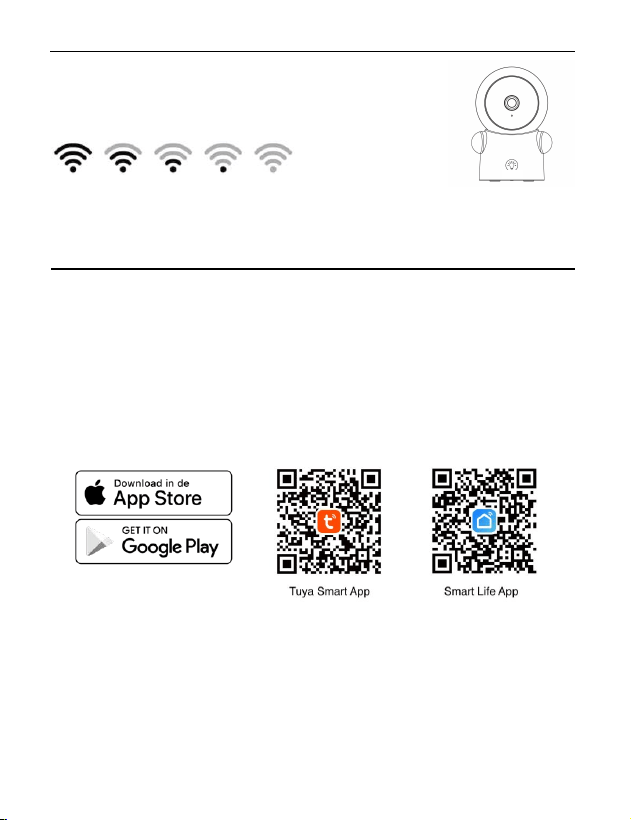
Installation the camera:
Setup with the App
1.) Power the camera
Use the supplied power adapter to power on the camera.
The camera will be turned on and blue indicator blinking
automatically.
2.) Download and Install the app: Download and install the
TuyaSmart app by scanning the QR code for the Apple Store or
Google Play Store.
3.) Use the TuyaSmart or Smartlife app to complete the set up.
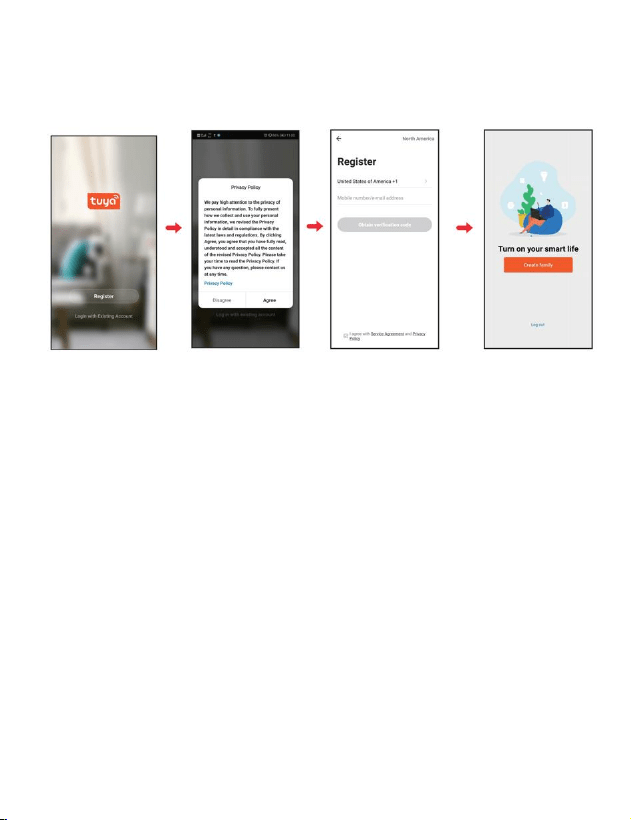
3.1 Register an account
When starting the APP for the first time, the user needs to register a
new account.
Click the "Register" button to complete the account registration and log
in.
Check that you have a strong Wi-Fi signal (at least
two bars) where the smart camera is to be installed.
.
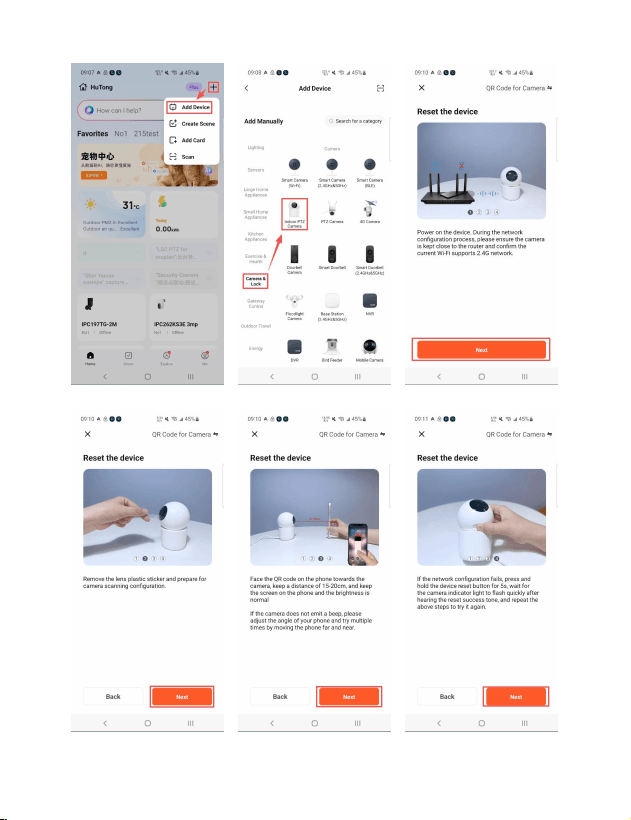
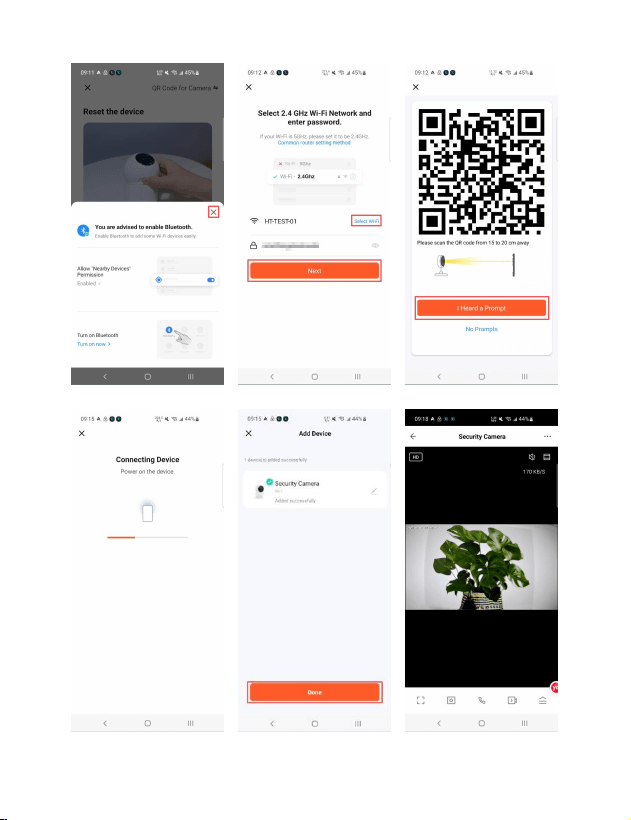
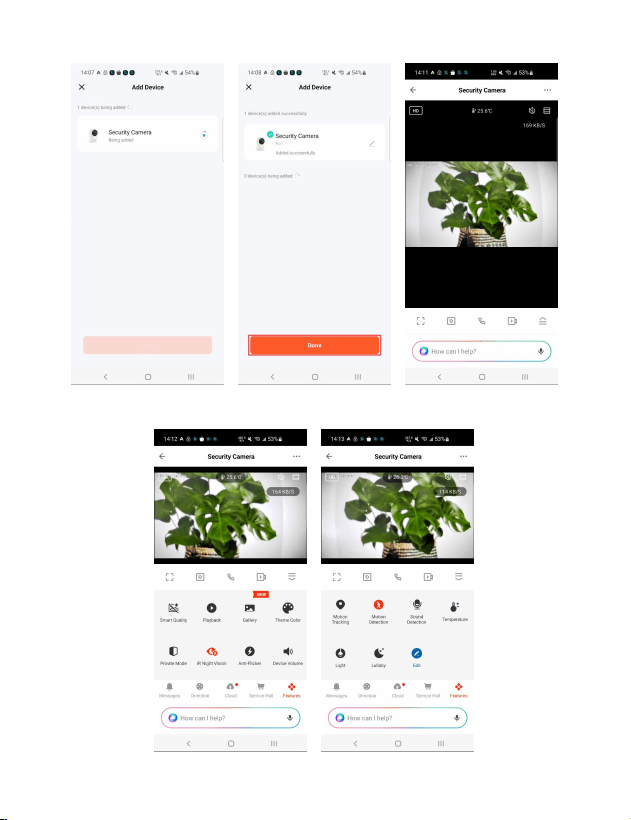
3.2 Add a smart camera
Bluetooth Off: Tap the “+” and select “Add Device”, scroll up and select
“Camera & Lock”, choose “Indoor PTZ Camera”, then follow below
images to scan the QR code to add the camera on Tuya.
Bluetooth On: Make sure your smartphone’s Bluetooth is turned on.
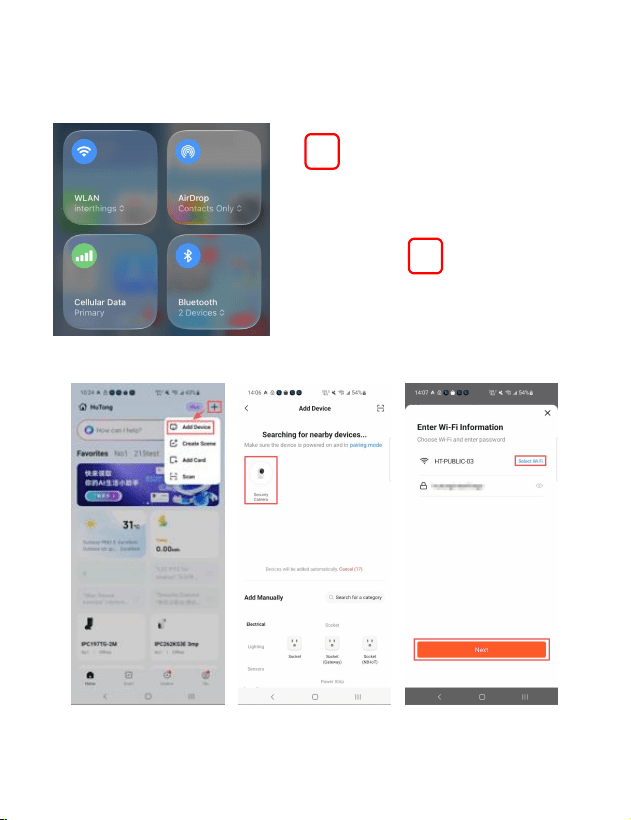
The app will search for the device and connect automatically.
After connection succeeds, the camera is online and the live view would
be available.
Note:
a) Be sure to connect to a strong Wi-Fi
network that covers your installation location.
b) One device can only be paired with one
App account at a time, if the device has
already been paired with an account, then it
can’t be paired to another account.
The device can be removed from the app
account by being deleted from the App. The
device will be reset automatically once the
blue light changes to a solid on.
Troubleshooting about the camera with APP
PROBLEM
CORRECTIVE ACTION
The camera is off-line
There could be a temporary issue with your internet connection
(e.g., service disruption). Please try again in a few minutes.
Make sure your Wi-Fi router is turned On.
The camera may not have power to it, make sure the wall switch
and breaker is in the On position.
Make sure the camera is getting a good signal from your Wi-Fi
router. Use your phone to check range, it is recommended to
have at least 2 signal bars showing for proper connection.
The camera may have been disconnected from your Wi-Fi
network, press and hold Reset Button (see the Description
section) until you hear an audible tone.
Live video stream is
slow to load
Camera streaming issues may be caused by any of the
following:
Your phone’s cellular connection, which relies on mobile
overage.
Limited internet bandwidth at home, for example, other video
streaming services running at the same time on your network
can cause congestion slowing down the internet upload and
download speeds.
Wi-Fi reception may not be stable or work reliably if the
camera’s Wi-Fi signal strength is less than 2 signal bars. You
may need to install a Wi-Fi repeater or extender to boost the
Wi-Fi signal.
How to reset the
camera to renter
pairing mode?
Press and hold reset button located at the back of the camera
(see Description section) until you hear an audible tone.
The camera is not
recording?
Make sure Record Switch is turned On in APP, under SD Card
Settings. This is located in Settings menu on the upper right
corner in the control panel.
Make sure that the micro SD card is installed correctly. To
confirm the camera is recognizing the micro SD card, go to the
SD card Settings in the Settings menu and make sure micro SD
Card capacity shows Total capacity, Used and Free space. If this
does not appear you may consider reformatting the micro SD
card.
WARNING: Reformatting micro SD card will delete all videos
stored on card. Please go through the troubleshooting section
before doing so.
How do I set the
camera to Event or
Continuous Recording?
In the Settings menu under SD card settings make sure Record
Switch is Turned ON and then select Event Recording or
Continuous Recording.
How do I check the
available space on the
SD card?
In the Settings menu under SD settings, you will see Used
Space and Free Space.
Note: Camera only support 128GB or less micro SD cards with
FAT32 format.
What happens when
the micro SD card
reaches full capacity?
On the micro SD card reaches full capacity, new videos will start
rewriting(deleting) over the oldest videos.
Can I use a new micro
SD card if I do not want
to record over existing
videos?
Yes, you can use a new micro SD card if you do not want to
record over existing videos by removing the side cover on the
camera and replacing the exiting microSD card with a new one
as long as it does not exceed 128GB. Once this is completed
you will need to format the micro SD card by going to the SD
card settings in the Settings menu and pressing Format SD
Card then Confirm.
WARNING: Reformatting micro SD card will delete all content
stored on card.
Why can't I receive
alarm messages on my
phone?
Make sure that the notification push permission of the APP in
the smartphone settings is
turned on. Then open the message notification in the
notification settings of the APP, and the current time is not in
the planned time period for stopping the notification.
Normally, it will appear in the smartphone notification bar
when an event is detected. Messages.
Why the camera can’t
be operated by a
shared account?
For security reasons, the permissions of the shared account are
restricted, and the device cannot be operated. If others want to
operate the camera, they can log in directly with the bound
account and password.
What should I do if I
need to change a Wi-Fi
to connect the camera?
There are two methods:
The camera does not change the place and can search for the
new Wi-Fi, in the parameter setting menu >> change the Wi-Fi
connected to the device >> change the corresponding Wi-Fi;
The camera has changed the place and can't find the new Wi-Fi,
reset the camera to factory settings, and reconfigure the
network.

FCC Statement
This device complies with part 15 of the FCC Rules. Operation is subject to the following
two conditions:
(1) This device may not cause harmful interference, and
(2) this device must accept any interference received, including interference that may
cause undesired operation.
This equipment has been tested and found to comply with the limits for a Class B digital
device, pursuant to part 15 of the FCC Rules. These limits are designed to provide
reasonable protection against harmful interference in a residential installation. This
equipment generates, uses and can radiate radio frequency energy and, if not installed
and used in accordance with the instructions, may cause harmful interference to radio
communications. However, there is no guarantee that interference will not occur in a
particular installation. If this equipment does cause harmful interference to radio or
television reception, which can be determined by turning the equipment off and on, the
user is encouraged to try to correct the interference by one or more of the following
measures:
- Reorient or relocate the receiving antenna.
- Increase the separation between the equipment and receiver.
- Connect the equipment into an outlet on a circuit different from that to which the
receiver is connected.
- Consult the dealer or an experienced radio/TV technician for help.
FCC Caution: Any changes or modifications not expressly approved by the party
responsible for compliance could void the user's authority to operate the equipment. This
transmitter must not be co-located or operating in conjunction with any other antenna or
transmitter.
Radiated Exposure Statement
This device complies with FCC radiation exposure limits set forth for an uncontrolled
environment. This equipment should be installed and operated with minimum distance
20cm between the radiator & your body. The antenna used for this transmitter must not
transmit simultaneously with any other antenna or transmitter, except in accordance with
FCC multi-transmitter product procedures. Users and installers must be provided with
antenna installation instructions and transmitter operating conditions for satisfying RF
exposure compliance.