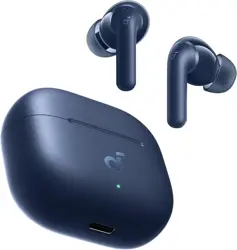

soundcore
P42i (D1205)
Customer FAQ Guide
Covers 58 questions across 10 topics

Table of Contents
1. Specifications and Operations ............................................................................................. 1
2. Wearing .................................................................................................................................. 2
3. ANC ......................................................................................................................................... 3
4. Connection ............................................................................................................................. 4
5. Charging ................................................................................................................................. 5
6. Sound ..................................................................................................................................... 6
7. Call and Mic ........................................................................................................................... 7
8. App and Settings ................................................................................................................... 8
9. General ................................................................................................................................... 9
10. Operation ............................................................................................................................. 10
soundcore P42i (D1205) — Customer FAQ Page 2

soundcore P42i (D1205) — Customer FAQ Page 3
1. Specifications and Operations
Q1. soundcore P42i (D1205) Specifications FAQ
Here's a quick overview of the key specs and features for soundcore P42i (D1205).
What Bluetooth version does soundcore P42i use? Bluetooth 6.1.
What audio codecs does soundcore P42i support? SBC, AAC, LDAC, and Hi-Res Wireless Audio.
How strong is the noise cancellation on soundcore P42i? 55 dB noise reduction.
What is the battery capacity of soundcore P42i, and how long does it take to fully charge them? 60mAh; 1 hour.
What is the battery capacity of the soundcore P42i charging case, and how long does it take to fully charge?
690mAh. Wired charging of the case and earbuds take 3 hours, while wireless charging of the case and earbuds
take 4 hours.
What is the waterproof and dustproof rating for soundcore P42i? IP55.
Does soundcore P42i support wearing detection? Yes.
What charging methods does soundcore P42i support? Does it support wireless charging? Both wired and wireless
charging are supported.
Does soundcore P42i support fast charging? Yes. A 10-minute charge provides 3.5 hours of playtime.
What is the Bluetooth range for soundcore P42i? 33 ft (10 m).
What is the maximum volume on soundcore P42i? 94 dB.
Does soundcore P42i support remote camera control? No.
Does soundcore P42i have a gaming mode? Yes.
Does soundcore P42i support Dolby Atmos? No.
Does soundcore P42i support audio upscaling? No.
Does soundcore P42i support LDAC? Yes.
Does soundcore P42i support built-in smart voice control (excluding the phone's voice assistant)? No.
Can soundcore P42i connect to multiple devices? How many devices can be connected at once? Yes. It can
connect to up to two devices.
If you need further assistance, please don't hesitate to contact us.
2. Wearing
Q2. How should I wear soundcore P42i (D1205)?
Getting a proper fit is key to comfort and sound quality. Here's how to get it right.
Check the L/R logo on the inner side of the earbuds to ensure you're wearing them correctly. Insert into your
ears and twist to find the most comfortable position.
Try different ear tip sizes to ensure a tight seal. If one earbud doesn't feel secure, try mixing sizes (e.g., medium
for the left ear, large for the right).
Take the Fit Test on the soundcore app (Settings > Fit Test) to check if your earbuds are positioned correctly.
Insert the earbuds into your ears and twist until they feel secure.
If you need further assistance, please don't hesitate to contact us.
Q3. What should I do if I feel discomfort after wearing soundcore P42i (D1205) for a long time?
Extended listening sessions can sometimes cause discomfort—usually a sign that the fit needs a small adjustment.
Try these steps before giving up on the earbuds.
Try other ear tip sizes. If one earbud feels uncomfortable to wear, try mixing sizes (e.g., medium for the left ear,
large for the right).
Twist the earbuds to find the most comfortable position. Run the Fit Test on the soundcore app to ensure a
proper fit.
Take regular breaks to let your ears rest if you wear the earbuds for extended periods.
If the above steps do not resolve your issue, please contact customer service for assistance.
If you need further assistance, please don't hesitate to contact us.
Q4. What should I do if soundcore P42i (D1205) keeps falling out?

soundcore P42i (D1205) — Customer FAQ Page 4
If the earbuds slip out during use, the most likely cause is an ear tip size mismatch. A few quick adjustments usually
solve this.
Try other ear tip sizes. If one earbud doesn't feel secure, try mixing sizes (e.g., medium for the left ear, large for
the right).
Twist the earbuds to find the best position. Run the Fit Test on the soundcore app to ensure a proper fit.
If the above steps do not resolve your issue, please contact customer service for assistance.
If you need further assistance, please don't hesitate to contact us.
Q5. Why do the soundcore P42i (D1205) ear tips easily flip inside out?
This may naturally improve after a period of use. However, if the issue persists, try other ear tip sizes. If this still
does not resolve your issue, please contact customer service for assistance.
If you need further assistance, please don't hesitate to contact us.
3. ANC
Q6. What should I do if the ANC on soundcore P42i (D1205) isn't working as expected?
Getting the most from ANC often comes down to one thing: a proper seal. Before adjusting any app settings, start
by checking your fit.
Check Your Ear Tip Seal Try different ear tip sizes to ensure a snug fit on both sides. Mixing sizes between your left
and right ear is completely fine. Use the Fit Test in the soundcore app (Settings > Fit Test) to confirm the seal is
optimal.
Verify the ANC Level This product supports multiple ANC levels. Open the app and make sure ANC is set to your
preferred depth. For the strongest noise cancellation, select Deep mode.
A Note on Adaptive Mode Adaptive mode dynamically responds to your surroundings. In quieter environments, it
automatically scales back toward transparency so you stay aware of what's around you. If it feels "weak" in a quiet
room, that's actually by design. For consistent, maximum noise cancellation regardless of environment, switch to
Deep mode instead.
Wind Noise Reduction This feature is designed for windy outdoor environments. In calm or indoor settings, keeping
it disabled will give you the best everyday ANC experience.
Note: ANC cannot completely eliminate all environmental noise. In very loud environments, some background
sound may still be audible—this is normal.
If you need further assistance, please don't hesitate to contact us.
Q7. What should I do if I hear a popping noise from soundcore P42i (D1205) in Noise Cancelling
mode during bumpy rides?
A popping sound during bumpy rides is a known physical phenomenon, not a product defect. Here's why it happens
and what you can do.
Hearing a popping noise in Noise Cancelling mode during bumpy rides is a common physical phenomenon. Intense
vibrations cause tiny gaps or sudden air pressure changes between the earbuds and your ear canals. The ANC
microphones misinterpret this as external noise and generate a compensation signal, resulting in a "popping"
sound. You can try the following methods to mitigate this:
• Change to ear tips that better fit your ear canals to ensure a tight seal.
• Lower the ANC level (multi-level adjustment is supported).
• Temporarily switch to Transparency mode or turn off ANC on bumpy roads.
• If you need further assistance (e.g., to confirm if it's a hardware issue), please contact customer support.
If you need further assistance, please don't hesitate to contact us.
Q8. What should I do if I feel dizzy or experience ear pressure when using soundcore P42i
(D1205) in Noise Cancelling mode?
Some users find strong ANC creates a subtle sense of pressure. This is normal and easy to manage by switching
to a gentler mode.
Select a lower level in Natural mode (available in Levels 1 - 4) in the app. This can help alleviate the discomfort
associated with strong noise cancellation. Path: Open the app > Noise Cancellation > Natural Mode.

soundcore P42i (D1205) — Customer FAQ Page 5
Alternatively, select Adaptive ANC mode in the app, which can also reduce discomfort. Path: Open the app >
Ambient Sound > Adaptive. (Note: Noise Cancelling and Transparency mode are enabled by default. Normal
and Adaptive modes need to be enabled in the app via Settings > Controls > Double Tap / Triple Tap / Hold >
Ambient Sound > Adaptive).
If you need further assistance, please don't hesitate to contact us.
Q9. What should I do if I experience wind noise outdoors with soundcore P42i (D1205)?
Wind noise is a common challenge for any earbuds with external microphones. Here's how to handle it.
Open the soundcore app and enable the "Wind Noise Reduction" feature on the main screen to see if it helps.
For optimal daily ANC performance, we recommend turning off Wind Noise Reduction in windless
environments.
If you need further assistance, please don't hesitate to contact us.
Q10. What should I do if I hear noise when wearing soundcore P42i (D1205) earbuds?
Hearing unexpected noise from your earbuds can have several causes depending on the mode you're in and when
it occurs. Here's a systematic approach to narrowing it down.
If Noise Appears Specifically in Noise Cancelling Mode
Ensure you are wearing the earbuds correctly and securely by following these steps:
• Check the L/R logo on the inner side of the earbuds. Insert them into your ears and twist to find the most
comfortable position.
• Try different ear tip sizes to ensure a tight seal. If one earbud doesn't feel secure, try mixing sizes (e.g.,
medium for the left ear, large for the right).
Set Noise Cancelling to Natural Mode (Level 3) in the app. Path: Open the app > Noise Cancellation > Natural
Mode > Level 3.
Switch to Normal mode to see if the noise persists.
In Noise Cancelling mode, the microphones capture ambient noise and generate inverse sound waves to cancel
it out. This real-time processing naturally produces a very low level of electronic noise from the circuit itself.
All electronic devices have inherent floor noise (like a faint static sound) when operating. While usually
imperceptible, you might notice it if you have highly sensitive hearing.
Test the earbuds with different audio sources and Bluetooth devices (phone/tablet, etc.) to see if the issue
persists.
Note: Active Noise Cancelling cannot completely eliminate all environmental noise. In particularly loud or noisy
environments, some background noise may still be audible.
If Noise Occurs Under General Circumstances For internal use (CED):
Is the noise continuous or intermittent? Does it occur in one earbud or both?
What type of noise is it, and how loud is it?
In what scenarios does it occur? (e.g., sitting still, shaking head, walking, on a bumpy ride, jumping, lying on
your side).
What was the earbud being used for when the noise occurred? (e.g., playing music, idle).
Which mode was active when the noise occurred? Does it also happen in Normal mode?
You can advise the user to:
Reset the earbuds.
Test the earbuds with different Bluetooth devices in various environments to see if the issue persists.
If you need further assistance, please don't hesitate to contact us.
Q11. Why do I hear noise when using soundcore P42i (D1205) in Transparency mode?
First, check if the noise is coming from the earbuds themselves, and see if it persists in Normal or ANC mode. If
it doesn't persist, the noise is likely ambient sound being picked up by Transparency mode, which is normal.
Transparency mode amplifies ambient sounds to help you stay aware of your surroundings. This can result in
faint background noise becoming audible.
A slight, continuous noise is normal. However, if the noise is loud enough to interfere with normal use, the
product may be defective. Please contact customer support for assistance.
If you need further assistance, please don't hesitate to contact us.

soundcore P42i (D1205) — Customer FAQ Page 6
Q12. Why does the ANC on soundcore P42i (D1205) feel uneven between my left and right ears?
A noticeable difference in noise cancellation between ears is almost always a fit issue rather than a hardware
problem. Here's how to even things out.
Try different ear tip sizes. You can use different sizes for your left and right ears to ensure a tight seal on both
sides.
After adjusting, run the Fit Test in the app to confirm the seal is optimal.
Place the earbuds back into the charging case, close the lid to disconnect, and then open the lid and wear them
again.
If the issue persists, try resetting the earbuds.
If you need further assistance, please don't hesitate to contact us.
Q13. Understanding Noise Cancelling Modes on soundcore P42i (D1205): Natural, Deep, and
Hearing Protection
soundcore P42i (D1205) offers several ANC modes, each suited to different situations. Here's a guide to
understanding them and protecting your hearing along the way.
Deep Mode vs. Natural Mode
Deep Mode: Offers the strongest noise cancellation, significantly reducing ambient noise on airplanes, subways,
or in noisy offices. Ideal for when you need complete immersion, focus, or rest.
Natural Mode: Evenly reduces the overall volume of your surroundings while keeping external sounds clear. The
higher the level, the stronger the ANC. Ideal for concerts (protects your ears without losing the vibe), or
libraries/offices where you only want to slightly reduce distractions while staying aware. Path: Open the app >
Noise Cancellation > Natural Mode > Select Level 1 - 4 based on your preference (1 for the lowest ANC, 4 for
the highest Natural ANC. At 5, the earbuds switch to Deep Mode).
Smart Hearing Protection
Transparency Mode: Lets outside sounds in naturally, allowing you to hear conversations, traffic, and your
surroundings without taking off the earbuds. Great for commuting and office environments.
Smart Hearing Protection: If you're worried about sudden loud noises while in Transparency mode, turn this
feature on. It automatically kicks in to protect your ears when a sudden spike in volume occurs. Path: Open the
app > Transparency Mode > Toggle on Smart Hearing Protection. Worried about excessive volume? Enable the
Volume Limit to set a maximum audio cap so you won't unknowingly turn the volume up too high. Note: This
feature is not available in app version v5.0.11. Please update to v5.0.20 or later. Path: Open the app > Hearing
Health > Settings > Volume Limit.
If you need further assistance, please don't hesitate to contact us.
Q14. Why does the music pause automatically or the Noise Cancelling mode change while I'm
wearing soundcore P42i (D1205)?
First, check if you are wearing both earbuds and if Wearing Detection is enabled in the app. By design,
removing one earbud automatically pauses the music. This is normal. Path to enable/disable Wearing
Detection: Open the app > Settings > Wearing Detection.
Removing one earbud will switch the Noise Cancelling mode to Normal.
If you accidentally cover the sensor while removing the earbud, it may detect this as still being in your ear, which
can cause the music to resume and for it to switch back to Noise Cancelling mode.
If you need further assistance, please don't hesitate to contact us.
4. Connection
Q15. What do I do when using soundcore P42i (D1205) for the first time?
Setting up soundcore P42i (D1205) for the first time is straightforward. Here's how to get started.
Open the charging case and take out the earbuds.
Remove the insulation stickers from the earbuds. Check the slots in the case to ensure no stickers are left
attached.
Place the earbuds back into the charging case.
If you need further assistance, please don't hesitate to contact us.

soundcore P42i (D1205) — Customer FAQ Page 7
Q16. How do I reset soundcore P42i (D1205)?
Resetting the earbuds can resolve persistent connection issues or restore them to their original settings. Here's
how.
• Place the earbuds in the charging case and leave the case open.
• Press and hold the button on the charging case for 10 seconds until the LED indicator flashes quickly 3 times,
confirming the reset is successful. If the reset fails, please try the following troubleshooting steps:
Ensure the earbuds are properly seated and connected to the charging case.
Make sure both the charging case and the earbuds have sufficient battery.
Use a dry cloth to clean the charging pins, removing any dirt or debris that might be blocking the connection.
If you need further assistance, please don't hesitate to contact us.
Q17. If soundcore P42i (D1205) is already connected to two devices, how do I connect it to a
third?
Method 1: Disconnect One Device
Turn off Bluetooth on one of the connected devices, or
Manually disconnect the earbuds from that device's Bluetooth list, or
Go to the soundcore app > Settings > Dual Connections > disconnect one device. Then, press and hold the
touch controls on both earbuds for 3 seconds to enter pairing mode.
Method 2: Disconnect Both Devices
Remove earbuds from the charging case, then press and hold the touch controls on both earbuds for 3 seconds to
enter pairing mode.
If you need further assistance, please don't hesitate to contact us.
Q18. How can I troubleshoot Bluetooth connection issues with soundcore P42i (D1205)?
If your earbuds aren't connecting, pairing, or maintaining a stable connection, here are the steps to get things back
on track.
Ensure you have removed the protective film covering the charging pins and fully charged the earbuds.
Restart your Bluetooth device (e.g., phone or computer). Forget all previous pairing records on the device and
turn off Bluetooth.
Fully charge the earbuds and reset them by following these steps:
• Place the earbuds in the charging case and leave the case open.
• Press and hold the button on the charging case for 10 seconds until the LED indicator flashes quickly 3 times,
confirming the reset is successful.
Turn on your device's Bluetooth, search for "soundcore P42i," and pair.
Test the earbuds with another device (phone/tablet, etc.) to see if the issue persists. If a pop-up window asks to
confirm pairing with "soundcore P42i," select "Pair." If you accidentally select "Cancel," you will need to refresh
(turn off and on) your device's Bluetooth and pair the earbuds again.
If you need further assistance, please don't hesitate to contact us.
Q19. What should I do if soundcore P42i (D1205) disconnects or the sound is choppy?
Choppy audio or unexpected disconnections are often caused by interference or range issues. Here's how to
stabilize the connection.
Please note that this does not necessarily mean the earbuds are defective; it may be related to the connected
device or the environment. Bluetooth signals can be affected by obstacles such as walls, pillars, home appliances,
and Wi-Fi networks. For a stable connection, we recommend avoiding such obstacles. To resolve this issue, please
try the following:
Fully charge the earbuds and reset them by following these steps:
• Place the earbuds in the charging case and leave the case open.
• Press and hold the button on the charging case for 10 seconds until the LED indicator flashes quickly 3 times,
confirming the reset is successful.
Turn off Dual Connections in the soundcore app.
Check the earbuds by listening to downloaded music or videos.
Test the earbuds with another Bluetooth device in a different environment to see if they work properly.

soundcore P42i (D1205) — Customer FAQ Page 8
If you need further assistance, please don't hesitate to contact us.
Q20. What should I do if there is a noticeable audio delay with soundcore P42i (D1205)?
Audio latency can be frustrating, especially when watching videos or gaming. Here's what causes it and how to
reduce it.
Due to Bluetooth technology limitations, there is typically an inherent latency of around 200 ms. This is usually
unnoticeable and should not affect your experience. Delay can also be caused by the connected device, the app
being used, the connection method, or the network.
To troubleshoot:
Restart your Bluetooth device and the earbuds. Reset the earbuds and pair them again.
Test with a different device.
Test with downloaded media files, or try using a different music/video app.
If you need lower latency, you can enable "Gaming Mode" in the app. Note that audio quality may slightly
decrease in this mode.
Turn off Dual Connections. Note: Ensure your device is within the Bluetooth range and keep both the earbuds
and device away from potential signal interference.
If you need further assistance, please don't hesitate to contact us.
Q21. How do I enable Dual Connections on soundcore P42i (D1205)?
Dual Connections lets you stay connected to two devices simultaneously—handy for switching between your phone
and laptop. Here's how to set it up.
While already connected to one device: Method 1: Press and hold the touch controls on both earbuds
simultaneously for 3 seconds until you hear the pairing prompt. Method 2: Press and hold the button on the
charging case for 3 seconds until the white LED starts flashing to enter pairing mode. Method 3: In the soundcore
app, go to Settings (top-right corner) > Dual Connections > Connect New Device.
If you need further assistance, please don't hesitate to contact us.
Q22. Why does soundcore P42i (D1205) fail to automatically reconnect?
If your earbuds don't automatically reconnect to your device, here are the common issues and fixes.
How can I troubleshoot the following soundcore P42i issues?
Earbuds not pairing.
Sound only coming from one earbud.
One side not pairing with the other side or the device.
Lack of audio playback after connecting to my device.
Failure to automatically connect with my device upon removing from the charging case.
Ensure you have removed the protective film covering the charging pins and fully charged the earbuds.
Restart your Bluetooth device (e.g., phone or computer). Forget all previous pairing records on the device and
turn off Bluetooth.
Fully charge the earbuds and reset them by following these steps:
• Place the earbuds in the charging case and leave the case open.
• Press and hold the button on the charging case for 10 seconds until the LED indicator flashes quickly 3 times,
confirming the reset is successful.
Turn on your device's Bluetooth, search for "soundcore P42i," and pair.
Test the earbuds with another device (phone/tablet, etc.) to see if the issue persists. If a pop-up window asks to
confirm pairing with "soundcore P42i," select "Pair." If you accidentally select "Cancel," you will need to refresh
(turn off and on) your device's Bluetooth and pair the earbuds again.
Why does soundcore P42i occasionally fail to reconnect automatically after disconnecting or going out of range?
This compatibility issue occurs on certain phones or tablets (e.g., iOS 18.1.0) and is related to the device itself.
We recommend updating your device's OS.
Turn your phone's Bluetooth off and on again. Place the earbuds back in the case, close the lid, and then open it
to reconnect.
If the earbuds are out of range for more than 10 minutes, they will not reconnect automatically and will require
manual connection.
Try pairing with another device to see if the issue persists.

soundcore P42i (D1205) — Customer FAQ Page 9
Why won't my soundcore P42i earbuds automatically reconnect to my device?
If the earbuds are out of range for more than 10 minutes, they will not reconnect automatically and will require
manual connection.
Device-related issues (e.g., not being restarted for a long time, too many devices in the Bluetooth list) can cause
this. Try restarting your device, deleting unnecessary connections from the Bluetooth list, and toggling Bluetooth
off and on.
Clear the pairing record from your device's Bluetooth list and re-pair. If you cannot find the earbuds' Bluetooth
name, force them into pairing mode using one of these methods:
• While wearing both earbuds, press and hold both touch controls for 3 seconds.
• With both earbuds in the case, press and hold the charging case button for 3 seconds.
Try pairing with another device to see if the issue persists.
If you need further assistance, please don't hesitate to contact us.
5. Charging
Q23. How long does it take to charge soundcore P42i (D1205) earbuds and the charging case?
Here's everything you need to know about charging times for soundcore P42i (D1205).
How long does it take to fully charge the soundcore P42i earbuds? For internal use: Tested at 48 minutes. 1 hour
(tested in laboratory settings at room temperature 25±3°C).
How long does it take to fully charge the soundcore P42i charging case? Wired charging: 3 hours (earbuds + case).
Wireless charging: 4 hours (earbuds + case).
If you need further assistance, please don't hesitate to contact us.
Q24. What should I do if one soundcore P42i (D1205) earbud drains faster than the other?
It is normal for one earbud to use slightly more power than the other, since one acts as the primary Bluetooth
receiver. Here's when to be concerned and what to do.
Typically, the earbuds provide about 8.5 hours of playtime in Noise Cancelling mode and 12 hours in Normal mode
(at 50% volume). Playtime may vary slightly based on audio content and volume. Making calls consumes more
power than playing music, which will reduce battery life. Note that a difference of less than 1 hour of use between
the left and right earbuds is normal. If the difference exceeds 1 hour, try the following:
Ensure the protective film has been removed from the earbuds.
Clean the charging pins on the earbuds and the case with a dry cloth or a cotton swab dipped in rubbing alcohol
to ensure a good connection.
Make sure the charging case has enough battery and that the earbuds indicate they are charging when placed
inside.
Test the battery life while playing music. Since Noise Cancelling is enabled by default, switch to Normal mode
first if you want to test the battery life for that mode.
If you need further assistance, please don't hesitate to contact us.
Q25. What should I do if the soundcore P42i (D1205) battery drains quickly?
If your battery isn't lasting as long as expected, a few settings may be contributing to the faster drain.
The earbuds offer about 8.5 hours of playtime in Noise Cancelling mode (at 50% volume) and 12 hours in
Normal mode. Please ensure they are fully charged before use.
Enabling LDAC provides high-quality audio but naturally consumes more power. With both ANC and LDAC on,
the playtime is around 6 hours.
It is normal for battery capacity to slightly degrade over time and with frequent use, which will gradually reduce
the overall battery life.
If you need further assistance, please don't hesitate to contact us.
Q26. What is the playtime of soundcore P42i (D1205) on a single charge and with the charging
case?
Noise Cancelling Mode: 8.5 hours / 40 hours (single charge / with charging case) Normal Mode: 12 hours / 56
hours (single charge / with charging case) Calling (ANC): 5 hours (both earbuds) Noise Cancelling Mode + LDAC: 6
hours Data is based on Anker laboratory testing at room temperature with default settings, playing music at 50%

soundcore P42i (D1205) — Customer FAQ Page 10
volume. Actual playtime may vary depending on volume, audio source, environmental interference, and the use of
other app features. This data is for reference only.
If you need further assistance, please don't hesitate to contact us.
Q27. What should I do if soundcore P42i (D1205) earbuds or the charging case won't charge?
If your earbuds or charging case aren't charging as expected, here's a step-by-step guide to get things working
again.
Ensure nothing is blocking the charging pins on the earbuds or in the case. When you place each earbud into
the case, the LED indicator should light up for 1 second and then turn off, confirming a proper connection.
Clean the charging pins on the earbuds and the case with a dry cloth or a cotton swab dipped in a little rubbing
alcohol for a better connection.
Try using a different charging cable and wall charger. Ensure the charging case has enough power; it cannot
charge the earbuds if its battery is below 10%. If you have not used the earbuds for a long time, please charge
them for at least 2 hours first to see if that helps.
If you need further assistance, please don't hesitate to contact us.
6. Sound
Q28. How do I adjust the volume via soundcore P42i (D1205) earbuds?
This feature is disabled by default. You can enable it in the soundcore app under Settings > Controls.
If you need further assistance, please don't hesitate to contact us.
Q29. What should I do if I experience poor sound quality with soundcore P42i (D1205)?
Sound quality is highly dependent on fit, source quality, and app settings. Working through these steps usually
makes a significant difference.
Try different ear tip sizes and ensure a proper fit for a tight seal. If one earbud doesn't feel secure, try mixing
sizes (e.g., medium for the left ear, large for the right). A good seal improves sound quality.
Try listening to different types of music and ensure the audio source itself is not distorted or have noise.
Try different EQ modes in the soundcore app. You can also customize your EQ by going to the app > HearID >
Default EQ to tailor the sound to your preference.
Enable LDAC in the soundcore app (Settings > Sound Mode > LDAC) for high-resolution audio. Note that
increased power consumption and occasional minor audio stuttering in certain environments are normal in this
mode. Note: LDAC is only supported on Android devices; iPhones do not support LDAC.
If you need further assistance, please don't hesitate to contact us.
Q30. What should I do if the volume is lower in one soundcore P42i (D1205) earbud?
If one earbud sounds quieter than the other, this is usually a fit or settings issue rather than a hardware fault.
Gently clean the mesh filter on the rubber ear tips and the metal mesh underneath using a cotton swab dipped
in a little rubbing alcohol.
Fully charge the earbuds and reset them by following these steps:
• Place the earbuds in the charging case and leave the case open.
• Press and hold the button on the charging case for 10 seconds until the LED indicator flashes quickly 3 times,
confirming the reset is successful.
Check the audio balance settings on your connected device:
• Android: Go to Settings > Accessibility > Audio & On-Screen Text > Audio Balance.
• Apple: Go to Settings > Accessibility > Audio / Visual > Balance.
• Samsung: Go to Settings > Accessibility > Hearing Enhancements > Connected Audio Balance. Note: Shifting
the balance to the left will make the left earbud louder and the right one quieter, and vice versa.
If you need further assistance, please don't hesitate to contact us.
Q31. What should I do if the bass on soundcore P42i (D1205) is weak?
Weak bass is almost always a fit or settings issue. Here's how to solve it.
First, note that if the original audio source lacks bass, the earbuds will reflect that. To troubleshoot:

soundcore P42i (D1205) — Customer FAQ Page 11
Ensure the charging case has enough power, then reset the earbuds:
• Place the earbuds in the charging case and leave the case open.
• Press and hold the button on the charging case for 10 seconds until the LED indicator flashes quickly 3 times,
confirming the reset is successful.
Try playing different types of music and increase the volume on your connected device.
Find the ear tips that fit your ears best. A poor fit will prevent you from experiencing optimal bass performance. If
one earbud doesn't feel secure, try mixing sizes (e.g., medium for the left ear, large for the right).
In the app, go to HearID > Default EQ and select the "Bass Booster" EQ profile.
You can also go to HearID > Default EQ to customize your own EQ curve.
Try using the earbuds with a different Bluetooth device to see if there is any difference.
If you need further assistance, please don't hesitate to contact us.
Q32. What should I do if the audio quality from soundcore P42i (D1205) suddenly changes during
use?
Adjust your fit to ensure a tight seal. A poor fit can negatively impact sound quality.
If you remove one earbud while wearing both earbuds, the earbuds automatically switches to Normal mode.
Check if this mode switch caused the sound change.
Check if Wind Noise Reduction or Adaptive mode is enabled. These modes adjust the sound automatically
based on changes in your environment.
We recommend turning off Wind Noise Reduction in normal, windless environments.
If you need further assistance, please don't hesitate to contact us.
Q33. How do I set up soundcore P42i (D1205) as the audio input and output device on a
computer?
To get the best audio experience when using soundcore P42i (D1205) with a computer, you may need to manually
set the audio input and output. Here's how.
For Windows PCs:
If you only want to listen to audio, select "soundcore P42i Stereo" as your audio output. Adjust the volume on
both your software and the computer if needed.
If you are using meeting apps like Zoom or Microsoft Teams, configure the input and output within the app
settings as follows: - Microphone: soundcore P42i Hands-Free - Speaker: soundcore P42i Hands-Free Adjust
the volume within the app. If this is not possible, select "soundcore P42i Hands-Free" as your computer's audio
output and adjust the system volume.
If you use an audio/video application that doesn't allow internal input/output selection, go to your computer's
system audio settings and set both Input and Output to "soundcore P42i Hands-Free".
For Macs: Set both the default audio input and output device as "soundcore P42i."
If you need further assistance, please don't hesitate to contact us.
Q34. What should I do if the volume on my soundcore P42i (D1205) is low when connected to a
device?
Low volume when connected to a specific device is usually a system-level setting, rather than an issue with the
earbuds. Here's how to fix it on each platform.
What should I do if the volume on my soundcore P42i is low when connected to a Mac?
Ensure the charging case has enough power, then reset the earbuds:
• Place the earbuds in the charging case and leave the case open.
• Press and hold the button on the charging case for 10 seconds until the LED indicator flashes quickly 3 times,
confirming the reset is successful.
Re-pair the earbuds and turn up the volume on both your Mac and the media player to the maximum.
Gently clean the mesh filter on the rubber ear tips and the metal mesh underneath using a cotton swab dipped
in a little rubbing alcohol.
What should I do if the volume on my soundcore P42i is low when connected to a Windows PC?
Ensure the charging case has enough power, then reset the earbuds:
• Place the earbuds in the charging case and leave the case open.

soundcore P42i (D1205) — Customer FAQ Page 12
• Press and hold the button on the charging case for 10 seconds until the LED indicator flashes quickly 3 times,
confirming the reset is successful.
Re-pair the earbuds and turn up the volume on both your PC and the media player to the maximum.
Gently clean the mesh filter on the rubber ear tips and the metal mesh underneath using a cotton swab dipped
in a little rubbing alcohol.
What should I do if the volume on my soundcore P42i is low when connected to an Android phone?
Enable "Disable absolute volume" in Developer Options or select "Sync volume with phone" in your Bluetooth
settings.
Ensure the charging case has enough power, then reset the earbuds:
• Place the earbuds in the charging case and leave the case open.
• Press and hold the button on the charging case for 10 seconds until the LED indicator flashes quickly 3 times,
confirming the reset is successful.
Re-pair the earbuds and turn up the volume on both your phone and the media player to the maximum.
Gently clean the mesh filter on the rubber ear tips and the metal mesh underneath using a cotton swab dipped
in a little rubbing alcohol.
Check if the Volume Limit is enabled in the soundcore app. Path: Open the app > Hearing Health > Settings >
Volume Limit. Note: This feature requires app version v5.0.20 or later.
What should I do if the volume on my soundcore P42i is low when connected to an iPhone?
Disable the maximum volume limit on your iPhone. Path: Settings > Sounds & Haptics > Headphone Safety >
Reduce Loud Sounds.
Ensure the charging case has enough power, then reset the earbuds:
• Place the earbuds in the charging case and leave the case open.
• Press and hold the button on the charging case for 10 seconds until the LED indicator flashes quickly 3 times,
confirming the reset is successful.
Re-pair the earbuds and turn up the volume on both your iPhone and the media player to the maximum.
Gently clean the mesh filter on the rubber ear tips and the metal mesh underneath using a cotton swab dipped
in a little rubbing alcohol.
Check if the Volume Limit is enabled in the soundcore app. Path: Open the app > Hearing Health > Settings >
Volume Limit. Note: This feature requires app version v5.0.20 or later.
If you need further assistance, please don't hesitate to contact us.
7. Call and Mic
Q35. What should I do if the call quality on soundcore P42i (D1205) is poor?
Poor call quality can affect either end of the conversation. Here's how to systematically diagnose and improve it.
Ensure you have turned up the volume on both the earbuds and your connected device to the maximum.
Try different ear tip sizes and ensure a proper fit for a tight seal. If the earbuds are not worn correctly, call quality
may be compromised.
Try switching to your phone's built-in microphone for a call to see if the issue persists.
Test calling with the earbuds in a quiet environment to see if the issue persists.
If you need further assistance, please don't hesitate to contact us.
Q36. What should I do if my voice sounds quiet or unclear to the other party during a call?
If the person you're calling says you sound distant or muffled, these steps will help ensure your microphone is set
up correctly.
If you are only using one earbud, ensure the other is stored inside the charging case.
Try different ear tip sizes and ensure a proper fit for a tight seal. A poor fit can negatively affect call
performance.
Ensure "soundcore P42i" is selected as the audio output device on your connected device, then turn up the
volume.
If you are making a call via a third-party app, try making a standard phone call to see if the issue persists.
Test the earbuds with a different Bluetooth device in various environments to see if there is any difference.
Check the microphone at the bottom of the earbuds and clean it if there is any blockage.

soundcore P42i (D1205) — Customer FAQ Page 13
If you need further assistance, please don't hesitate to contact us.
Q37. What should I do if the other party's voice is choppy during a call on soundcore P42i
(D1205)?
If the person you're calling sounds choppy or robotic, the issue is usually a Bluetooth stability problem. Here's how
to fix it.
Try different ear tip sizes and ensure a proper fit for a tight seal. Poor fit can negatively affect call performance.
Fully charge the earbuds and reset them by following these steps:
• Place the earbuds in the charging case and leave the case open.
• Press and hold the button on the charging case for 10 seconds until the LED indicator flashes quickly 3 times,
confirming the reset is successful.
Ensure "soundcore P42i" is selected as the audio output device on your connected device, then turn up the
volume.
If you are making a call via a third-party app, try making a standard phone call to see if the issue persists.
Test the earbuds with a different Bluetooth device in various environments to see if there is any difference.
Try calling a different contact to ensure the issue isn't caused by a poor network connection on the other party's
end.
If you need further assistance, please don't hesitate to contact us.
Q38. How do I activate my phone's voice assistant while using soundcore P42i (D1205)?
This control is not set by default, but you can customize it in the soundcore app.
Path: Open the app > Controls > select your phone's voice assistant. Note: Single tap cannot be assigned to wake
up the voice assistant. You can assign this function to double tap, triple tap, or long press.
If you need further assistance, please don't hesitate to contact us.
8. App and Settings
Q39. What should I do if the soundcore P42i (D1205) firmware update fails?
A failed firmware update can usually be resolved by following a few simple steps.
If the download fails, restart the download in an area with a strong, stable network connection.
If the installation fails, uninstall and reinstall the soundcore app, restart your phone, and try again.
Try updating on a different phone.
Adjust your phone's location permissions. Path: Settings > Privacy > soundcore > Location > Allow Only While
Using the App. If the update consistently fails, please contact support with your phone model and the SN (Serial
Number) shown in the app.
If you need further assistance, please don't hesitate to contact us.
Q40. Any tips for updating the soundcore P42i (D1205) firmware smoothly?
Following these practices will help ensure your firmware update goes smoothly from start to finish.
Please refer to the soundcore installation guidelines:
• Keep the earbuds in the charging case and ensure the case is open.
• Make sure the earbuds have enough power (over 20%).
• Do not use the earbuds during the update.
• Try again if the update fails.
• Try using another device if possible.
• Do not update the firmware in areas with strong signal interference, such as dense Wi-Fi networks or cell
phone towers. Move to a different location and try again.
If you need further assistance, please don't hesitate to contact us.
Q41. What should I do if the soundcore app cannot find or connect to soundcore P42i (D1205)?
If the soundcore app isn't recognizing your earbuds, follow these steps.

soundcore P42i (D1205) — Customer FAQ Page 14
Download the latest version of the soundcore app from your app store. (If you already have it, we recommend
uninstalling and downloading it again, rather than simply updating it).
Pair the earbuds with your phone. Currently, the soundcore app does not support computers.
Open the app and tap "Add Device." The app will automatically connect to the earbuds. You must grant location
permissions when opening the app for the first time.
If the connection fails, tap "Set Up Manually" > "Other Series" > "soundcore P42i" to check if you can add it
manually. If you can't find the model on this screen, take a screenshot to send to customer support.
Uninstall and reinstall the app.
Check if your phone is connected to other Bluetooth devices. If so, disconnect them before connecting to the
app.
Systems older than iOS 13 do not support connection with soundcore P42i. If you still cannot connect, please
contact support and provide your phone model, app version, and the screenshot mentioned in step 4. If it
connected successfully the first time but fails later:
Check if Dual Connections is active. If the earbuds are connected to the app on Phone A, they cannot connect
to the app on Phone B. Close the app running in the background on Phone A.
Restart your device or try connecting with a different device.
If you need further assistance, please don't hesitate to contact us.
Q42. How do I set up HearID on soundcore P42i (D1205)?
HearID creates a personalized EQ profile based on your hearing preferences. Here's how to set it up.
Log in to your soundcore app account, then go to HearID > Default EQ.
Tap "HearID Sound" to start the test. The results will be automatically saved and applied.
If you need further assistance, please don't hesitate to contact us.
Q43. Can Dual Connections and LDAC be used at the same time on soundcore P42i (D1205)?
Yes. However, if LDAC is enabled on both devices simultaneously, battery life will be significantly reduced.
If you need further assistance, please don't hesitate to contact us.
Q44. Which soundcore P42i (D1205) features cannot be used at the same time?
Some features on soundcore P42i (D1205) are mutually exclusive due to processing requirements. Here are what
cannot run together.
Custom EQ cannot be used simultaneously with Spatial Audio or Gaming mode.
LDAC cannot be used simultaneously with Spatial Audio or Gaming mode.
Spatial Audio cannot be used simultaneously with Custom EQ, LDAC, or Gaming mode.
Gaming mode cannot be used simultaneously with Custom EQ, LDAC, or Spatial Audio.
If you need further assistance, please don't hesitate to contact us.
Q45. How do I use Spatial Audio on soundcore P42i (D1205)?
Wear both earbuds, open the soundcore app, connect to soundcore P42i, and go to the home screen.
Tap soundcore HearID > Spatial Audio. Note: Enabling Spatial Audio will reduce the earbuds' playtime per
charge.
If you need further assistance, please don't hesitate to contact us.
Q46. How do I view my Hearing Report on soundcore P42i (D1205)?
Wear both earbuds for at least 15 minutes. Open the soundcore app, connect to your P42i, and go to the home
screen.
Go to Hearing Health > enable Real-Time Tracking. Note: To use Hearing Health features, the soundcore app
must be running, and both earbuds must be worn.
If you need further assistance, please don't hesitate to contact us.
9. General
Q47. Why can't I hear call ringtones on soundcore P42i (D1205)? What happens in Silent mode?

soundcore P42i (D1205) — Customer FAQ Page 15
Why does soundcore P42i still ring when my phone is on Silent or Vibrate mode? Can I turn this off?
The earbuds have a built-in local ringtone which cannot be turned off.
If you need further assistance, please don't hesitate to contact us.
Q48. Understanding Prompt Tones on soundcore P42i (D1205): What They Mean and How to
Manage Them
Why do I always hear a prompt tone when wearing the soundcore P42i earbuds?
Try disabling Wearing Prompt in the app to see if the tone disappears.
If it disappears, it indicates a fit issue. Try different ear tip sizes (you can mix sizes like medium for the left and
large for the right) to ensure a tight, secure seal on both sides.
What prompt tones does soundcore P42i have, and can they be turned off?
They feature a Wearing Prompt, Touch Prompt, and Low Battery Prompt. These can be turned off in the app. Path:
Open the app > Settings > Prompt Tones > toggle Wearing Prompt / Touch Prompt / Low Battery Prompt.
If you need further assistance, please don't hesitate to contact us.
10. Operation
Q49. How do I turn soundcore P42i (D1205) on and off?
Power On:
With the earbuds inside, open the charging case to automatically power them on.
Power Off:
Store the earbuds in the charging case and close the lid to power them off.
If the earbuds are out of the case and disconnected from any device, they will automatically power off after 30
minutes to save battery.
If you need further assistance, please don't hesitate to contact us.
Q50. Can I use the left or right soundcore P42i (D1205) earbud independently?
Yes. Place one earbud into the charging case and close the lid to use the other independently.
Music controls while connected:
TWS (Both Earbuds): Double-tap the right earbud to play/pause; double-tap the left earbud for the next track
(subject to custom settings in the app).
Mono (Single Earbud): Double-tap the earbud to play/pause.
If you need further assistance, please don't hesitate to contact us.
Q51. How do I answer and end a call with soundcore P42i (D1205)?
Double-tap either earbud to answer a call. Press and hold either earbud for 2 seconds to end the call.
Note: Call control settings cannot be customized.
If you need further assistance, please don't hesitate to contact us.
Q52. How do I skip to the next or previous track using soundcore P42i (D1205)?
By default, double-tapping the left earbud skips to the next track. You can customize the touch controls for the
previous/next track in the soundcore app.
If you need further assistance, please don't hesitate to contact us.
Q53. What do the LED indicators on the soundcore P42i (D1205) charging case mean?
When Lid Is Open:
• Battery 0% - 30%: Orange light stays on for 5 seconds, then turns off.
• Battery 30% - 100%: Green light stays on for 5 seconds, then turns off. When charging the case:
• Charging 0% - 30%: Orange light breathes (pulses every 2 seconds).
• Charging 30% - 100%: Green light breathes (pulses every 2 seconds).
• Fully charged (100%): Green light stays solid for 5 minutes, then turns off. During OTA update:
• Updating: White light breathes (pulses every 2 seconds).

soundcore P42i (D1205) — Customer FAQ Page 16
• Update complete: White light stays solid for 5 seconds, then turns off.
• To check earbud connection when storing in case: The light flashes once (green or orange, depending on
current battery level) for 1 second, then turns off.
If you need further assistance, please don't hesitate to contact us.
Q54. How do I switch Noise Cancelling modes on soundcore P42i (D1205)?
Press and hold either earbud for 2 seconds to cycle through modes (Noise Cancellation > Transparency). You can
customize this in the app.
If you need further assistance, please don't hesitate to contact us.
Q55. How should I maintain my soundcore P42i (D1205)?
Do not leave them unused for long periods. We recommend using them at least once a month. Letting the
battery drain completely causes over-discharging, which severely impacts battery life.
Avoid letting the battery drop below 20% or power off completely before charging, as this also degrades battery
health.
Do not store the charging case when its battery is low (orange light) or empty. It should be stored with a healthy
charge (green light).
Clean the charging pins, speaker meshes, and ear tips regularly after use. We recommend cleaning the pins 1 -
2 times a month with a cotton swab or cloth dipped in rubbing alcohol.
Store them in a dry place. If liquid enters the device, use a hair dryer on the cold air setting to dry them.
If you need further assistance, please don't hesitate to contact us.
Q56. How can I avoid accidental touches when adjusting soundcore P42i (D1205)?
Avoid touching the control area (where the logo is) when wearing, removing, or adjusting the earbuds.
If the controls feel too sensitive, you can lower the touch sensitivity in the app. Path: Open the app > Controls >
Touch Sensitivity > select Low, Medium, or High.
If you need further assistance, please don't hesitate to contact us.
Q57. Why are the soundcore P42i (D1205) touch controls sometimes unresponsive?
Ensure your hands are clean and dry.
Make sure you are tapping the touch area (on the logo).
For a double-tap, ensure the interval between taps is within 500 ms. For separate single taps, ensure the
interval is more than 1 second.
Check if you hear the Wearing Prompt (a "dong" sound) when putting them on, and ensure Wearing Detection is
enabled in the app (Settings > Wearing Detection). If it is enabled but you don't hear the prompt, the sensor isn't
detecting your ear, and touch controls will be disabled. Try different ear tip sizes for a better fit to resolve this.
If you need further assistance, please don't hesitate to contact us.
Q58. How should I clean my soundcore P42i (D1205) earbuds?
Clean the charging pins, speaker meshes, and ear tips regularly after use. We recommend cleaning the pins 1 -
2 times a month using a cotton swab or cloth dipped in rubbing alcohol.
If you need further assistance, please don't hesitate to contact us.