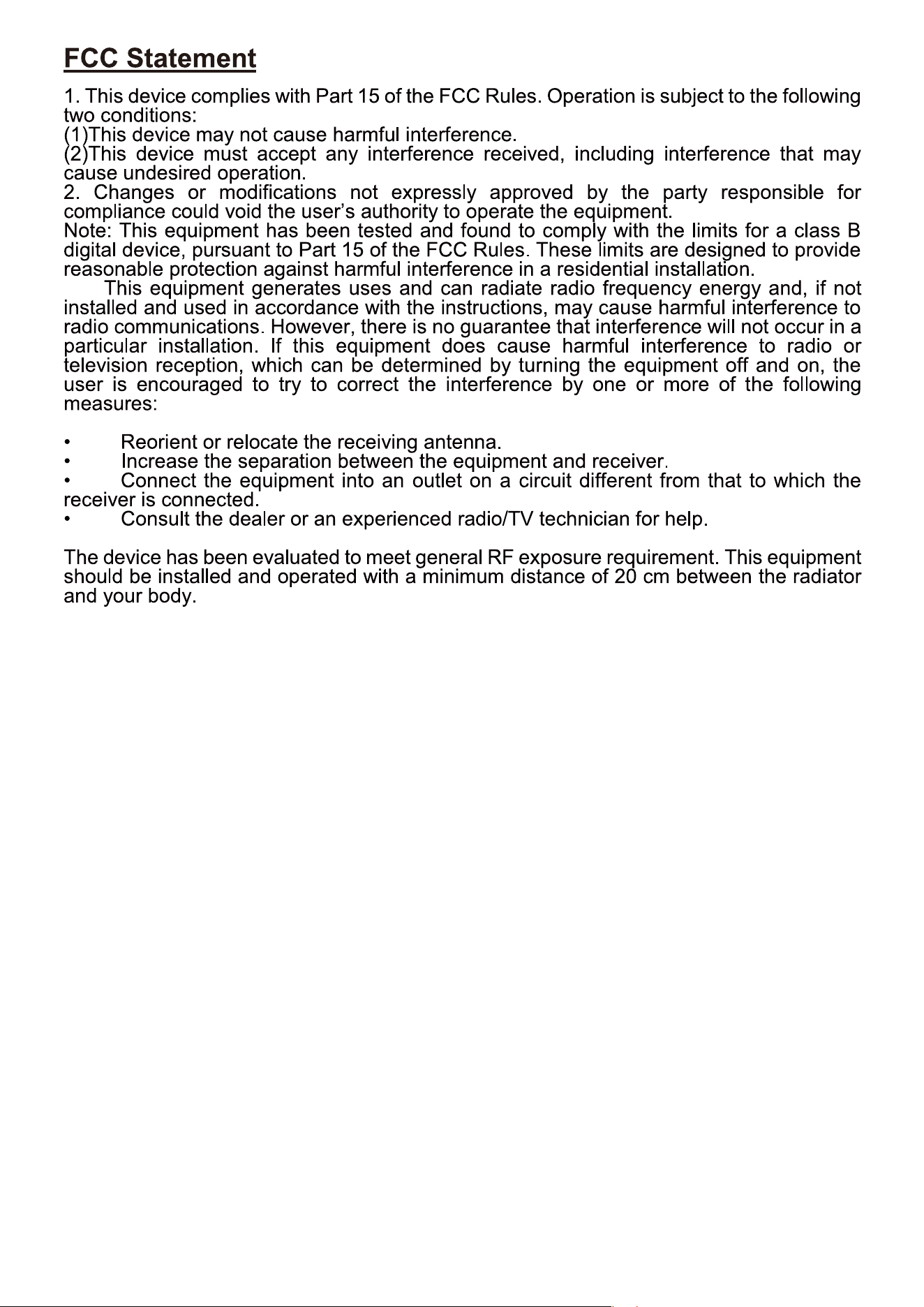
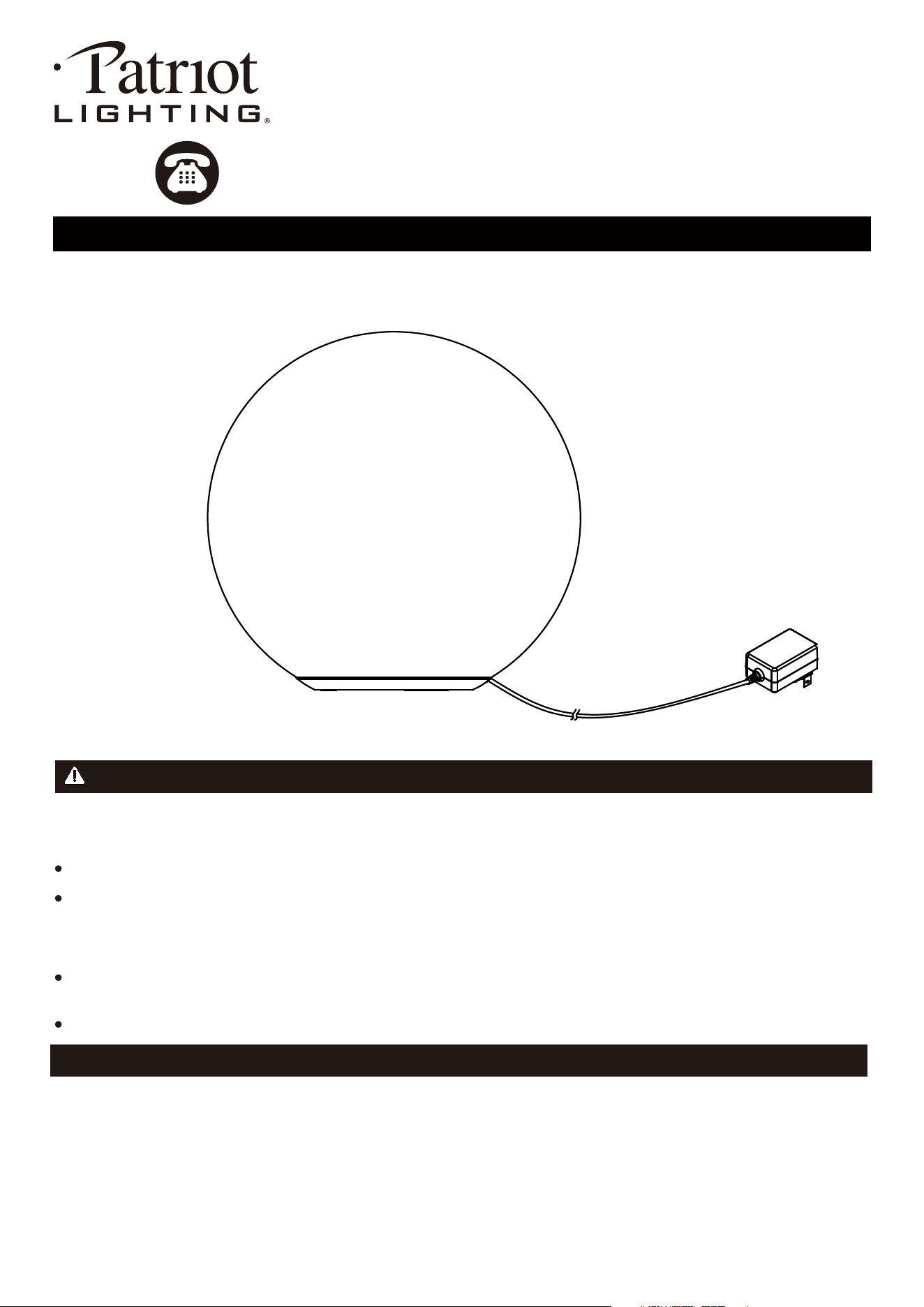
LED RGBCCT Table Lamp
Model Number: 347-3028
PACKAGE CONTENTS
Before beginning assembly, installation or operation of product, make sure all parts are present. Compare parts with
package contents list and diagram on previous page. If any part is missing or damaged, do not attempt to assemble,
install or operate the product.
PREPARATION
SAFETY INFORMATION
Please read and understand this entire manual before attempting to assemble, operate or install the product.
WARNING
Do not plug lamp into an electrical outlet before installation is completed.
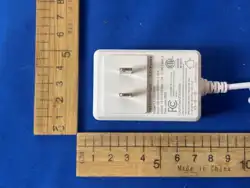
CAUTION- This portable lamp has a polarized plug (one blade is wider than the other) as a safety feature to reduce the
risk of electric shock. This plug will fit in a polarized outlet only one way. If the plug does not fit fully in the outlet, reverse
the plug. If it still does not fit, contact a qualified electrician. Never use with an extension cord unless plug can be fully
inserted. DO NOT alter the plug. AC ONLY.
To reduce the risk of electric shock, DO NOT use the product if power cord is damaged or broken. Be careful NOT to
damage any wiring during installation.
CAUTION-The use of a bulb with higher wattage than specified may cause electrical shock or fire hazard.
Questions, problems, missing parts?
Before returning to your retailer, call our customer service at 1-800-887-6326
Monday – Friday 9:00 a.m. – 5:00 p.m. CST
Page 1 of 11
260706
ASSEMBLY INSTRUCTIONS
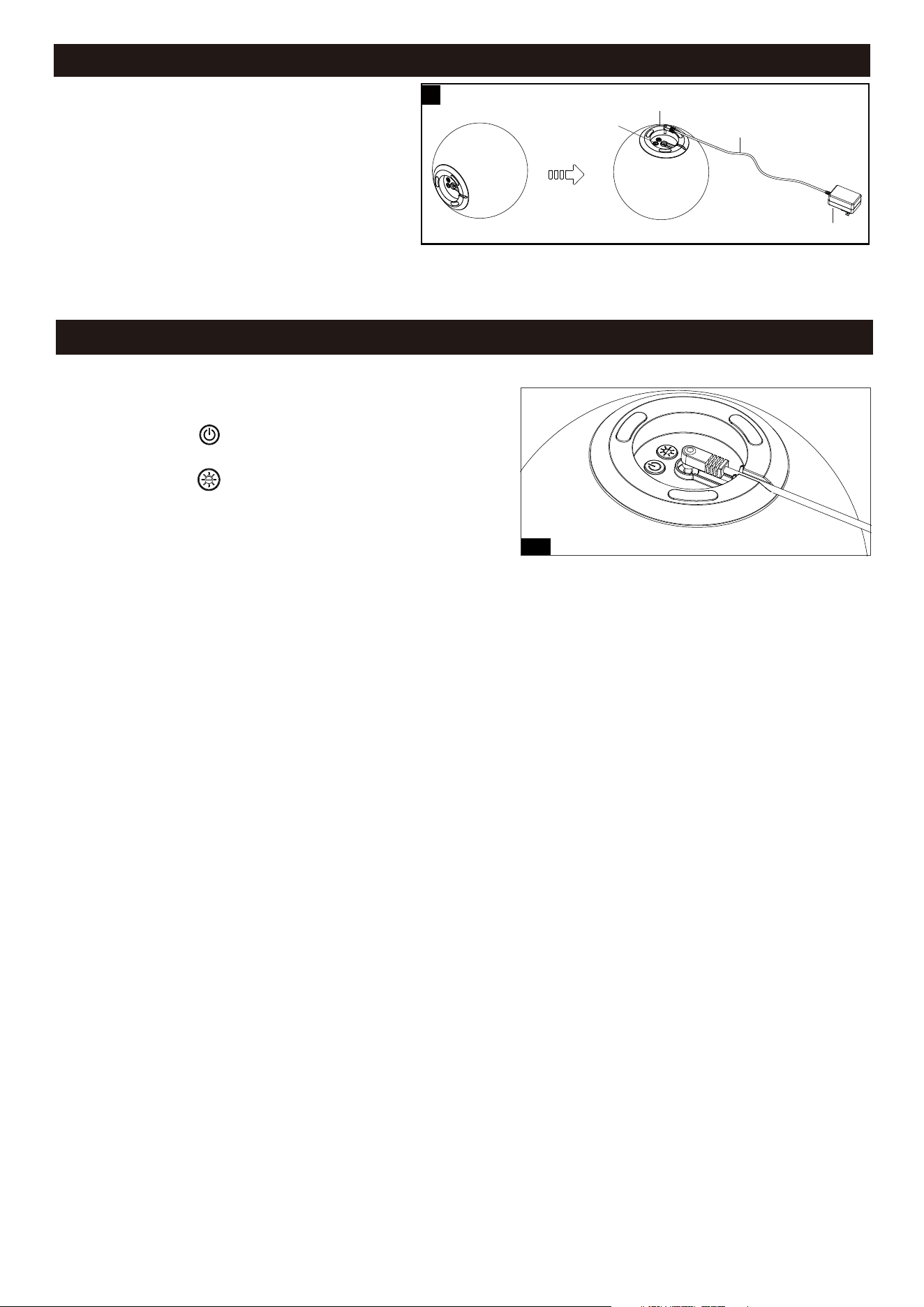
Connect the cable to the base, and plug the adaptor
into the outlet. Turn on the light with the button switch
on the bottom of the lamp.
1
1. Manual Control by using button switch.
Base
Button Switch
WAY TO OPERATION
Page 2 of 11
260706
Cable
Adaptor
1
a. Short press “ ” for on/off;
Long press for dimming.
b. Short press “ ” to switch 2700K, 5700K and RGB;
Long press and hold for 5 seconds to reset and
start connecting to the network.
REGISTRATION / LOGIN / PASSWORD RETRIEVAL
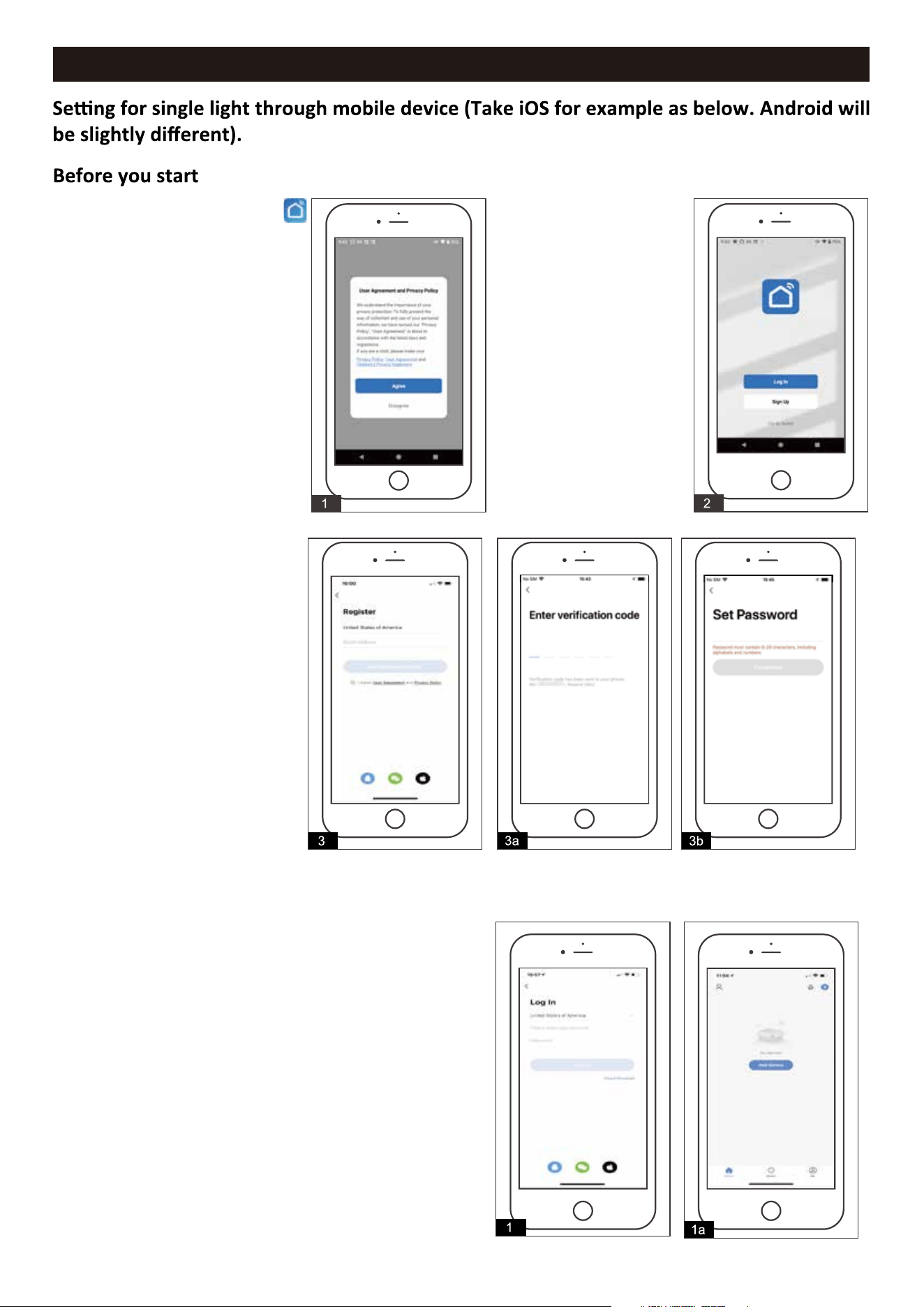
2. Click "Sign up" to enter
the next page shown in
Fig.3.
1. Download the Smart Life APP
from the Apple App Store or
Android Google play store.
Registration
If you do not have the app
account, you may choose to
register. The registration process
is described on this page and
the next. Click "Agree" to proceed
to the registration page.
3. The system will identify
automatically the country/region
you are in, or you may choose to
select manually a country/region.
Enter your email and click
"Get Verification Code" and enter
the verification code you received,
then enter the password and click
"Completed" to finish registration
as shown in Fig.3, Fig.3a, Fig.3b.
Account ID + Password Login
Smart Life Login.
If you already have an app account, click "Log in" to proceed to the login page.
a. The system will identify automatically the country / region you are in, or you may also choose to select manually
a country / region .
b. Enter the email you have registered and enter the password
in to log in.
1. Enter the email you have registered and enter the password
into log in as shown in Fig.1, Fig. 1a.
Page 3 of 11
260706
USER GUIDE
Auto Scan
Ensure the light on the smart device is flashing rapidly. If it is not, please choose one of below steps to operate:
1. Long press and hold " " at the inline switch for 5 seconds to reset and start connecting to the network.
2. Use the wall switch by turning it off, then on, then off again, then on, and finally off and on once more
(off-on-off-on-off-on) to trigger the flashing mode.
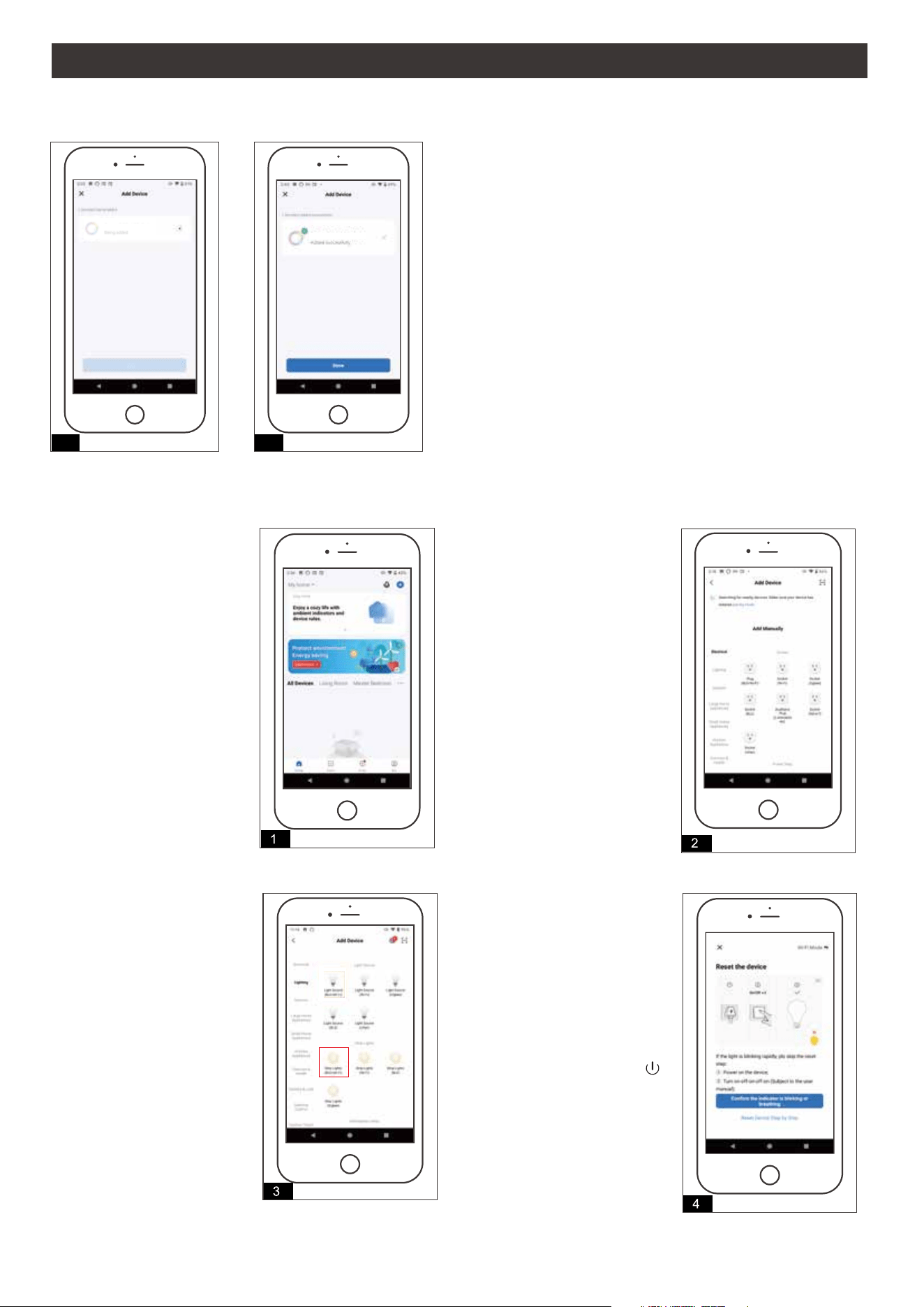
The Smart Life app supports two configuration methods: "Add Manually" and "Auto Scan". Ensure Bluetooth is turned
on and connect to a 2.4GHz Wi-Fi network before linking the lights with the app.
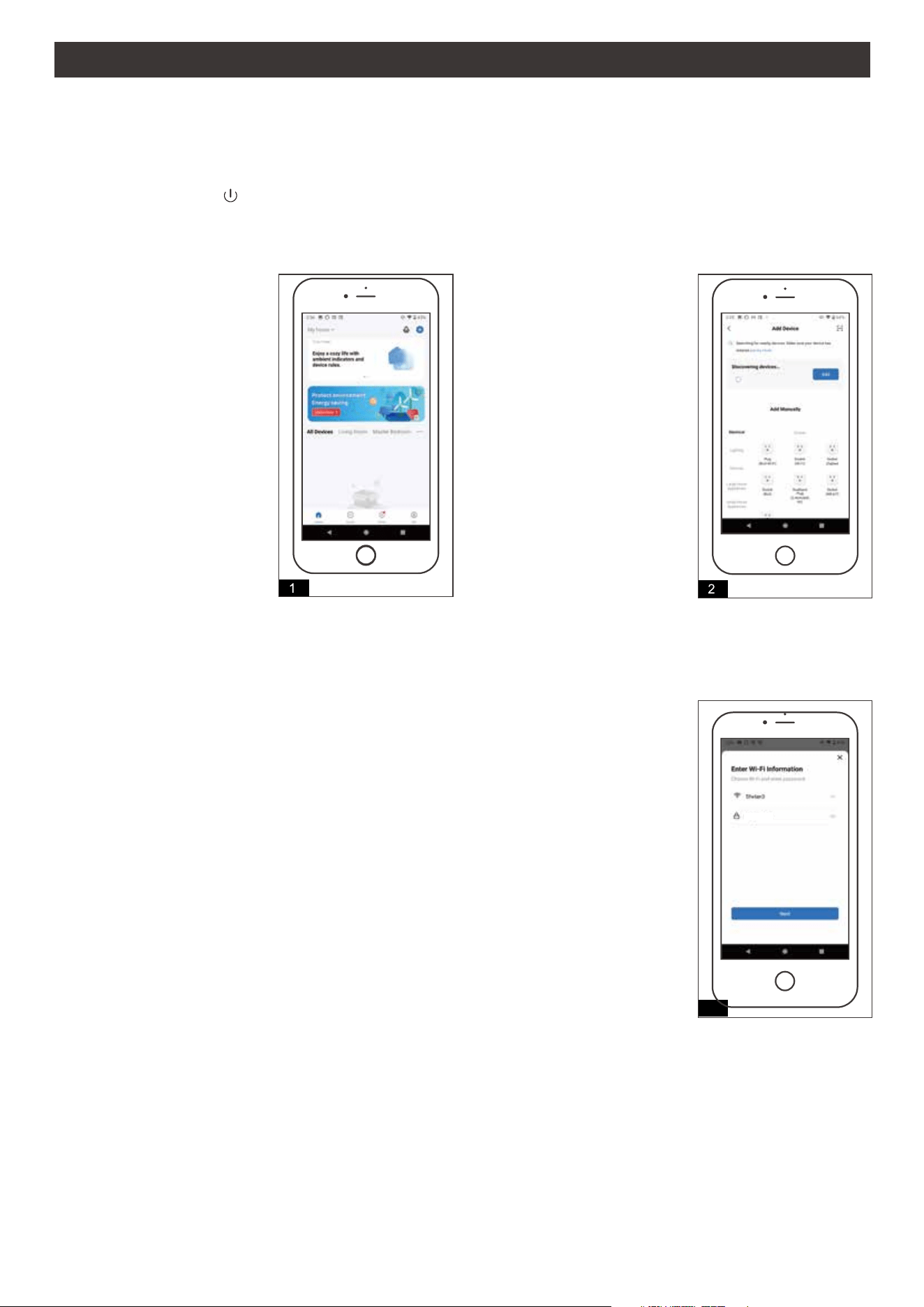
1. Click "+" and "Add Device" at
the top right corner of the
App home page shown in
Fig.1, and enter the next
page shown in Fig.2.
2. Click "Add" to enter the
next page shown in Fig3.
3. Enter the Wi-Fi account and password and click "Next" to enter the next page shown
in Fig.4.
Note: The Wi-Fi account and password in the APP must be the same as on the
mobile phone.
3
FW33-ambient lighting
Page 4 of 11
260706
USER GUIDE (continued)
Add Manually mode
4
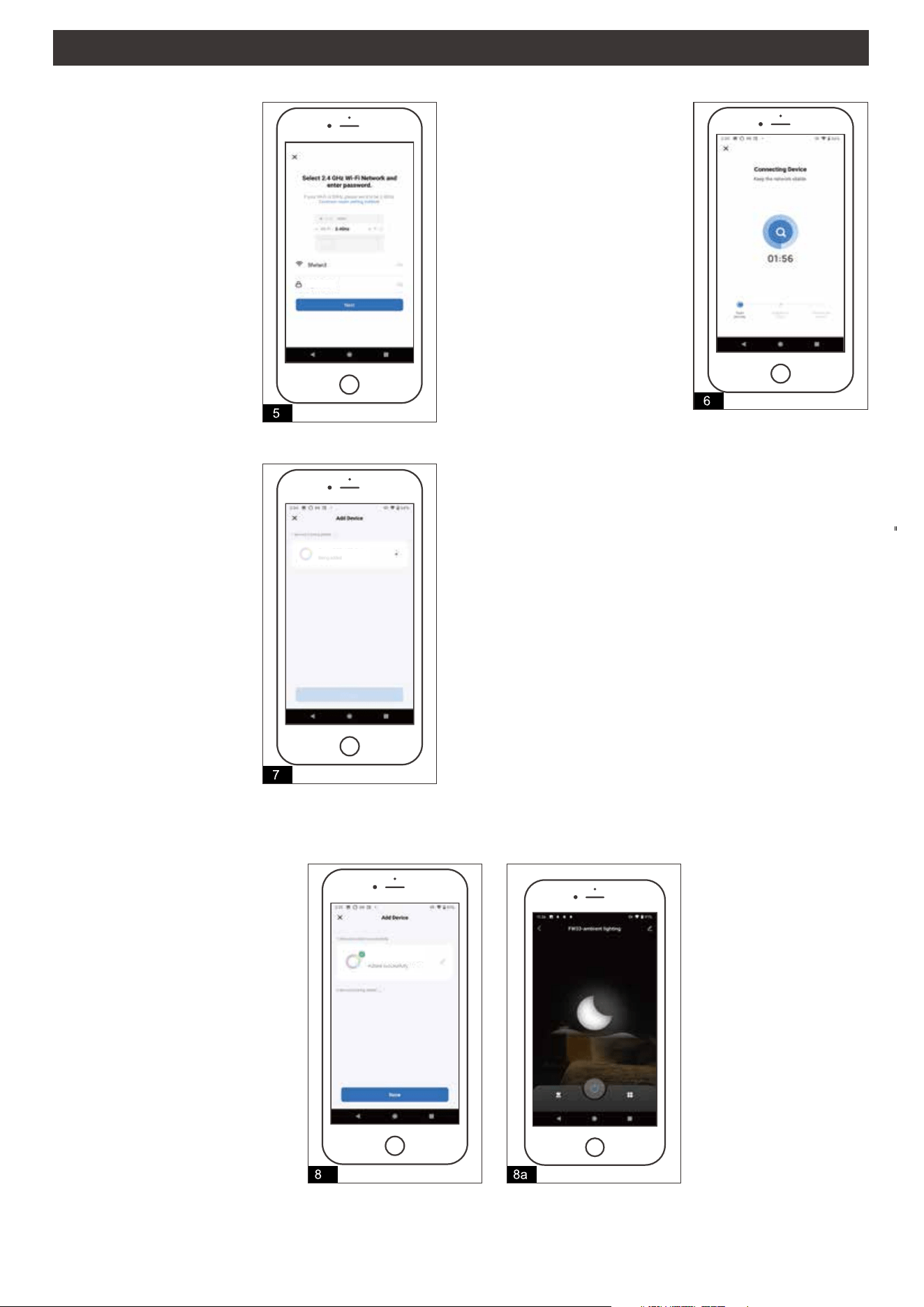
1. Click "+" and "Add Device"
at the top right corner of the
App home page upper right
corner and enter the next
page shown in Fig.2.
2. Click "Lighting" to enter the
next page shown in Fig3.
3. Click "Strip Lights
(BLE+Wi-Fi)" to enter the
next page shown in Fig.4.
4. Click "Confirm the lamplight is
blinking or breathing" to enter
the next page shown in Fig.5.
Note: Ensure the light on the
smart device is flashing
rapidly. If it is not, please
choose one of below steps
to operate:
1. Long press and hold " "
at the inline switch for 5
seconds to reset and start
connecting to the network.
2. Use the wall switch by
turning it off, then on, then
off again, then on, and
finally off and on once
more (off-on-off-on-off-on)
to trigger the flashing mode.
4c
4. Once connected, the App will enter another page. Click "Done" to complete connecting as shown in Fig.4a, Fig.4b.
4b
FW33-ambient lighting
4a
FW33-ambient lighting
Page 5 of 11
260706
USER GUIDE (continued)
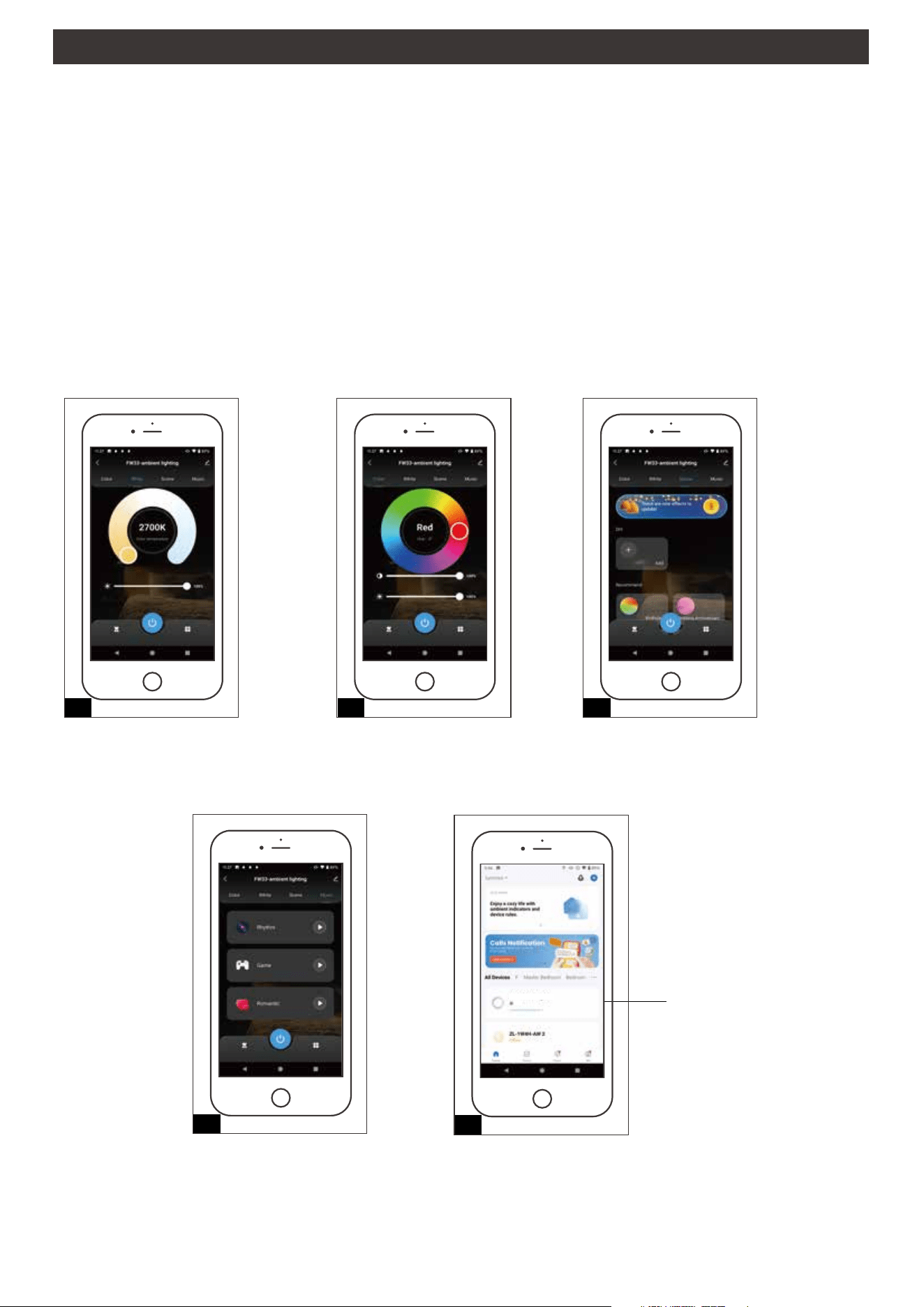
5. Select the Wi-Fi in your
home, enter the Wi-Fi
password shown in Fig.5.
Click "Next" to enter the
next page shown in Fig.6.
6. As shown in Fig.6.
7. As shown in Fig.7.
8. Click "Done" to complete the
connecting as shown in Fig .8
and Fig. 8a.
ARGB-MIC-Light
ARGB-MIC-Light
Page 6 of 11
260706
USER GUIDE (continued)
Light Mode
Control Device
Note:
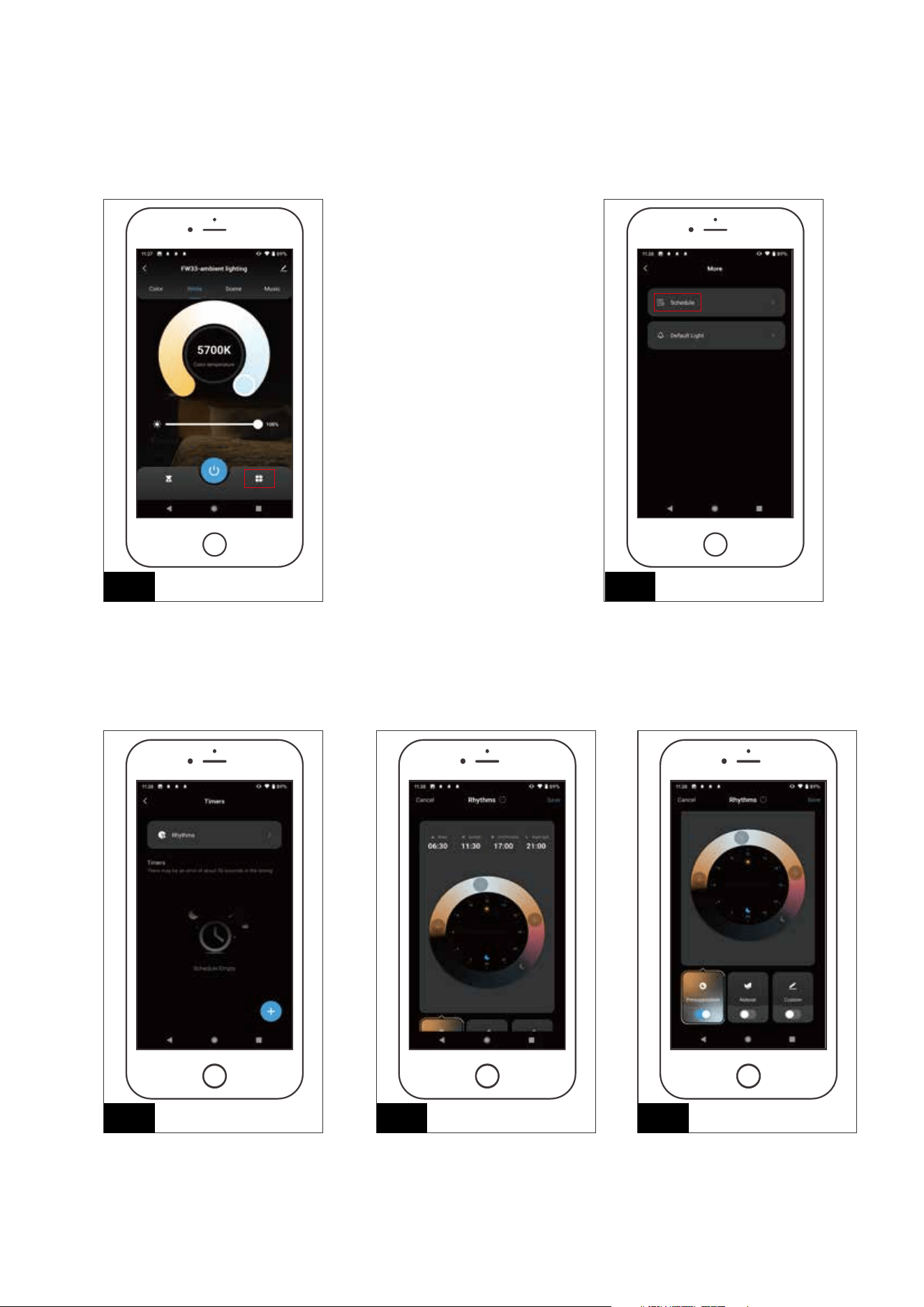
After the device is successfully connected, the paired device will be displayed on the main interface.
Click to enter the White light interface (See Fig.4).
Click to enter the RGB light interface (See Fig.4).
Click to enter the Scene mode interface (See Fig.4).
Click to enter the Music mode interface (See Fig.4).
1. When the device is online, it supports quick operations.
2. When the device is offline, "offline" is displayed (See Fig. 2). At this time, the device cannot be operated. At this
time, you can check whether the device has been successfully powered on.
APP Function Introduction
If "offline" is displayed, the
device cannot be operated.
2 2 3
4
Page 7 of 11
260706
5
OFF
FW33-ambient lighting
1 2
3
Page 8 of 11
260706
Rhythms Mode
Control Device
4 5
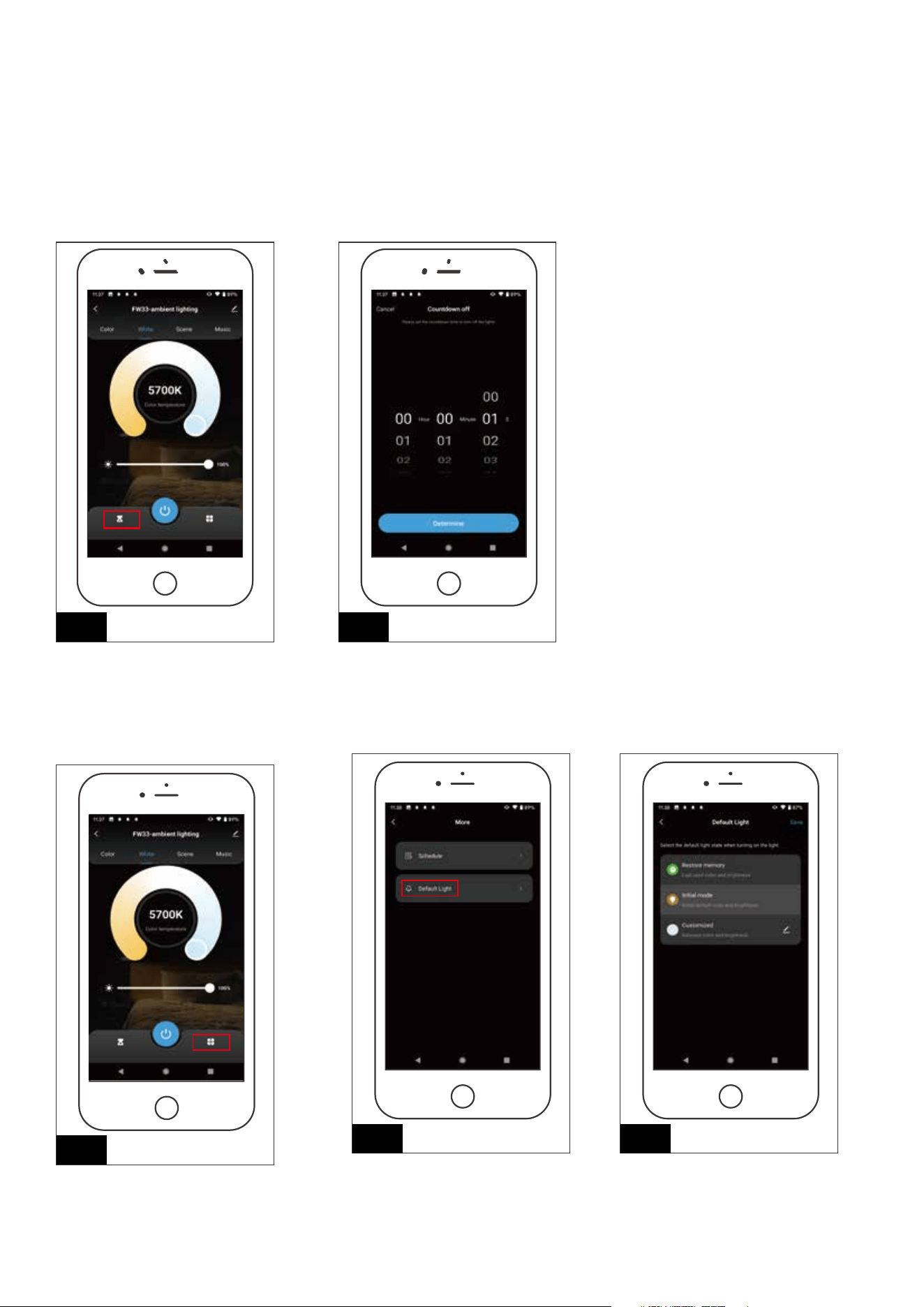
Other Mode
1
2
3-b 3-c
3-a
Page 9 of 11
260706
Coundown off
Control Device
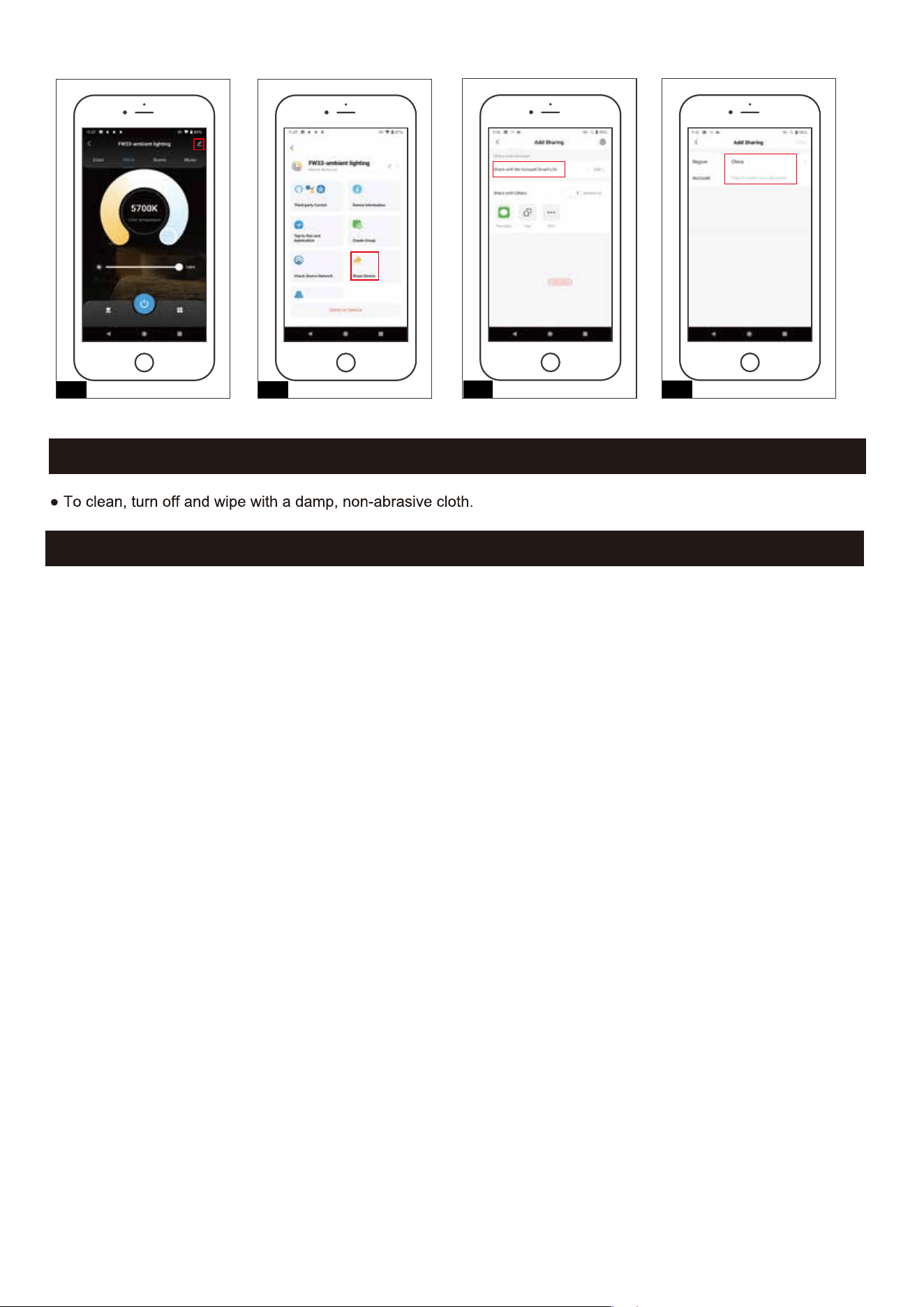
You can use the "Share Device" to enable multiple phones to operate the device together.
1
2
3 4
1) The light does not work:
a) Check that the connection between the two power connectors is correct.
b) Make sure the wall switch and circuit breaker are on.
c) Check to see if the lights are turned off with the APP.
Caution: Make sure main power is turned off before serving this fixture.
If unable to fix any of the above issues, please consult a certified electrician.
TROUBLESHOOTING
2) APP connection failure or the device doesn’t connect to network.
a) Make sure
Bluetooth is turned on and connect to a 2.4GHz Wi-Fi network.
b) Make sure the WiFi password that you enter is correct.
c) Make sure the internet connection speeds is over 10mbps.
d) Mobile device requirements: Iphone 4S or newer running IOS 9.0 x or later. Android v5.0 or later.
3) The light keeps flashing.
a) Make sure it gets connected to a WIFI network.
b) Turn the light fixture OFF-ON while it is flashing over 180 seconds, it will stay on without flashing.
4) If the remote controller can not control the lamp:
Make sure the batteries are sufficiently charged.
CARE AND MAINTENANCE
Page 10 of 11
260706