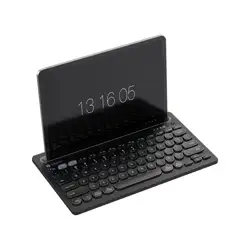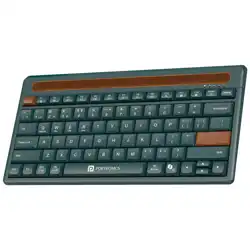
This is a multi-device wireless keyboard designed for portability and
productivity. It supports both 2.4G wireless (USB receiver) and Bluetooth
connections, making it compatible with a wide range of devices.
The keyboard allows you to pair two devices simultaneously and switch
between them easily.
1. PRODUCT OVERVIEW
2. COMPATIBILITY
Bubble DOCK 2.0
Rechargeable Wireless Keyboard With
Built-in Tablet & Mobile Holder
The keyboard works with:
• Mac OS: X 10.2.8 or above (Some exceptions may apply, e.g. Mac Mini)
• iOS: All versions (iPhone / iPad)
• Android: Version 3.0 and above with Bluetooth HID profile
• Bluetooth -enabled PCs, Laptops, iMacs, and MacBooks
3. SPECIFICATIONS
• Type: 2.4G + Bluetooth Wireless Keyboard
• Design: Suitable for both left & right hand use
• Keys: 78 keys
• Working Distance: 8–10 m
• Power Supply: 2 × AAA batteries (1.5V each, total 3.0V)
• Key Life: 10 million presses
• Receiver: Nano USB receiver (2.4G)
• Product Size: 302 × 157 × 27 mm
• Box Size: 320 × 160 × 30 mm
• Net Weight: 463 ± 5 g
• Operating Temperature: 0°C – 40°C
• Storage Temperature: –20°C – 40°C
4. GETTING STARTED
Step 1: Insert Batteries
1. Open the battery compartment.
2. Insert 2 × AAA batteries (make sure to match the +/– polarity).
3. The red light will flash for 2 seconds and then turn off – the
keyboard is still ON.
Step 2: Connecting Devices
Option A: Bluetooth Connection
1. Press Fn + BT1 (for Device 1, e.g. Laptop) or Fn + BT2 (for Device 2,
e.g. Tablet).
2. The Bluetooth indicator light (blue/green) will start blinking.
3. On your device, enable Bluetooth and search for available
devices.
4. Select the keyboard from the device list to pair.
5. Once paired, the indicator light will turn off.
6. The keyboard remembers paired devices – it will reconnect
automatically next time.
Note: If pairing fails, delete the device from your Bluetooth list and repeat
the steps.
Option B: 2.4G Wireless Connection (USB Receiver)
1. Insert batteries into the keyboard.
2. Remove the nano USB receiver from the keyboard.
3. Plug the receiver into the USB port of your PC/Laptop.
4. Press Fn + 2.4G to activate.
5. You are now connected!
Switching Between Devices
• Press Fn + Bt1→ Switch to Device 1
• Press Fn + Bt2→ Switch to Device 2
• Press Fn + 2.4G → Switch to USB receiver mode
⚡ Only one connection is active at a time.
MULTIMEDIA & FUNCTION KEYS
Key Combination Function
ESC → Return
Fn + ESC → Lock Fn
Fn + F1 → Decrease screen brightness
Fn + F2 → Increase screen brightness
Fn + F3 → Show Mission Control
Fn + F4 → Previous Track
Fn + F5 → Next Track
Fn + F6 → Play / Pause
Fn + F7 → Mute
Fn + F8 → Decrease Volume
Fn + F9 → Increase Volume
Fn + F10 → Home Page
Fn + F11 → Calculator
Fn + F12 → Switch Languages
• Always use fresh AAA batteries for best performance.
• If the keyboard stops responding, replace the batteries.
• Keep the keyboard within 8–10 m range of the connected device.
• For Bluetooth mode, make sure the device supports the Bluetooth HID
profile.
TIPS & NOTES
SAFETY & STORAGE
• Do not expose the keyboard to extreme temperatures or humidity.
• Do not attempt to disassemble the product.
• Remove batteries if the keyboard will not be used for a long period.
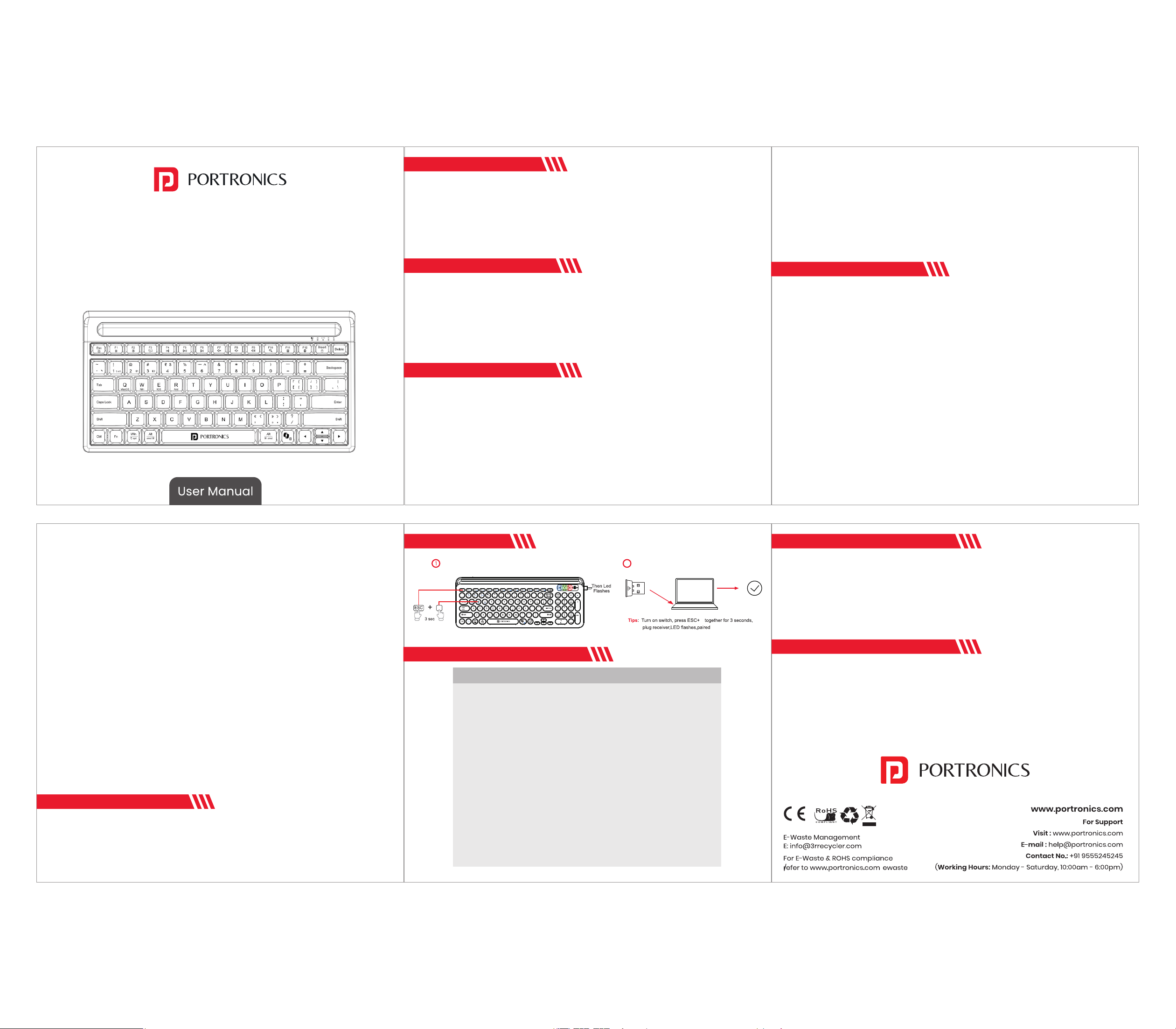
To pair the wireless keyboard, press and hold the ESC + W keys together
for 3 seconds.
PAIRING PROCESS
RESET METHOD
Press & Hold WSC+ W Keys together for 3 Sec
W
Now Plug In the USB Receiver
2
W