OPT7 GLOW APPLICATION USER GUIDE
QR CODE TO DOWNLOAD
Download the free “OPT7 GLOW” App
• App iOS (12+) available on App Store
• Android (8+) available on Google Play
My light
Sensitivity:100
CONTENTS
OPT7 GLOW supports the car media system with Bluetooth
and Android Auto, but does not support Apple Carplay.
NOTICE
1
How To Connect & Disconnect
System Settings
Device Rename & Group
RGB Mode
Rhythm Mode
Light Mode 10
Pixel Setting 11
Color Setting
13
8
7
5
4
2
My Devices
3-RGB Magic Strip/Light
MOPT7-OB21
3
My Devices
Search Devices
My Devices
3-RGB Magic Strip/Light
MOPT7-OB21
3
1
4 5 6
2 3
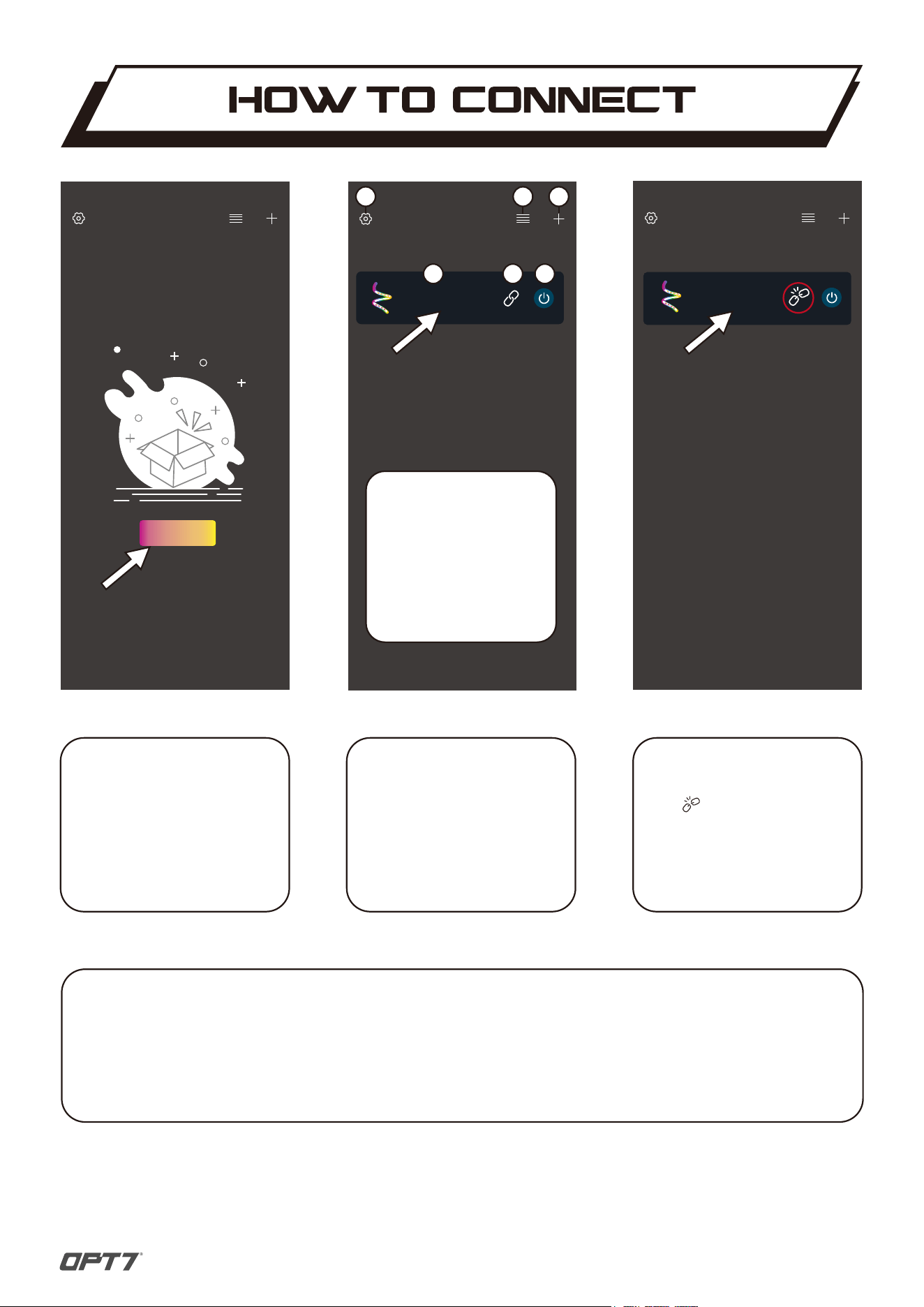
1: Setting
2: Device arrangement
3: Add device
4: Device name
5: Connect state
6: On/Off
INTRODUCTION
OPT7 GLOW will detect
OPT7 light Kits automatically.
Click the device into the light
control mode.
STEP 2
If the OPT7 GLOW shows the
icon , which means the
device is not connected.
Please click this icon again or
check if the Bluetooth and the
OPT7 light kits work normally.
NOTICE
First view the OPT7 GLOW.
After installing the OPT7 light
Kits, open the OPT7 GLOW
and keep the Bluetooth open
then click “Search Devices” to
connect.
STEP 1
*On the Android system, it needs to allow the Nearby Devices Permission to search the devices.
*OPT7 GLOW connects a maximum of 4 devices.
*If there is no device on the list, please check the Auto Add Devices.
(See more system settings on the page 3.)
IMPORTANT
2
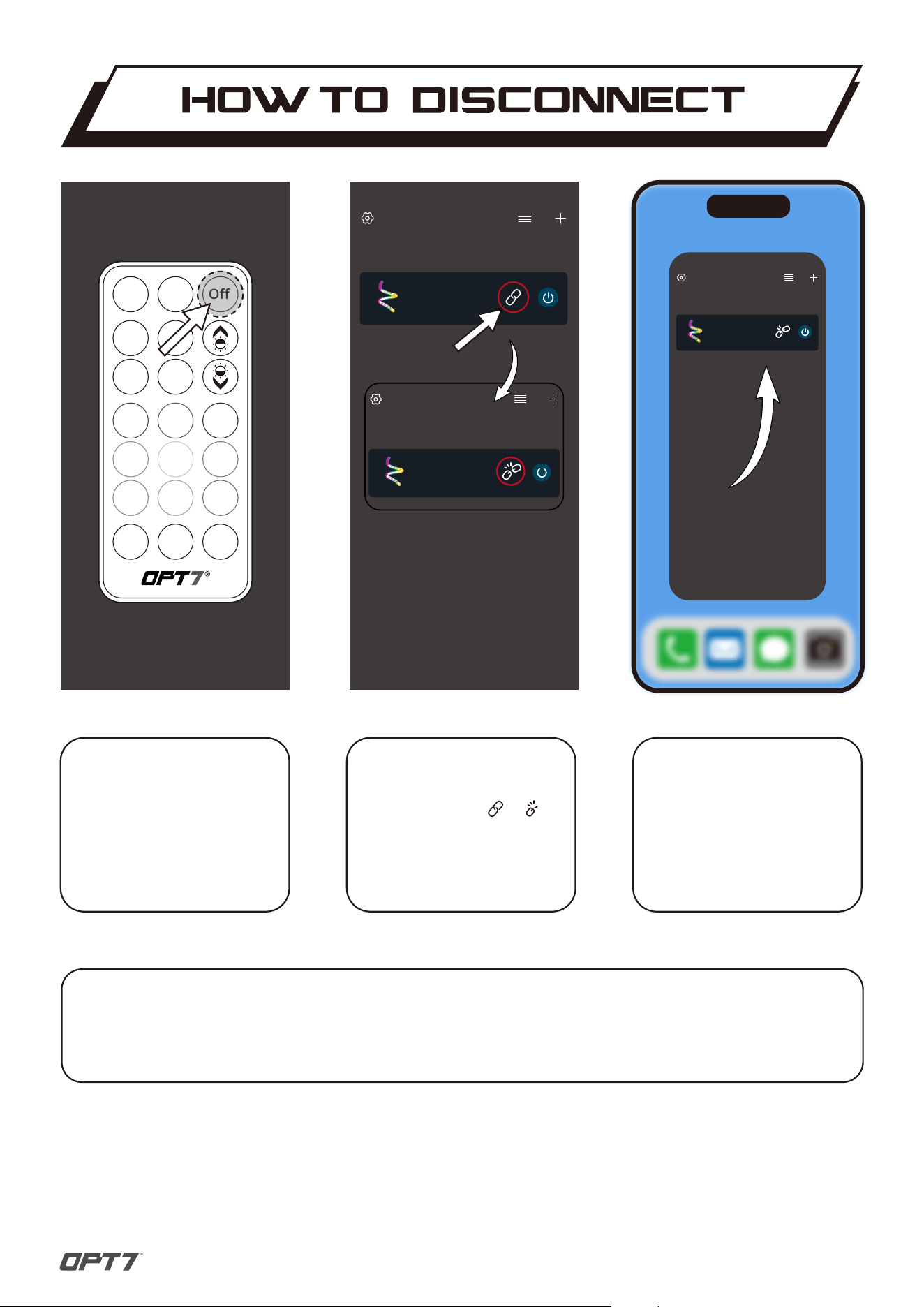
To disconnect the OPT7 light
kicts.Click the icon to .
STEP 2
Ensure the OPT7 light kits are
turned off using the remote
control. Then, disconnect the
OPT7 GLOW and slide the App
out to power it off.
STEP3
Use the remote control to
disconnect the OPT7 light kits.
*need to align the control box
STEP 1
*Turning off the OPT7 GLOW completely helps avoid excessive battery consumption and extends
the lifespan of the OPT7 light kits.
IMPORTANT
3
My Devices
3-RGB Magic Strip/Light
MOPT7-OB21
3
Off
AUTO
On
S+
S-
M+
M-
My Devices
3-RGB Magic Strip/Light
MOPT7-OB21
3
My Devices
3-RGB Magic Strip/Light
MOPT7-OB21
3
OPT7 GLOW
My Devices
3-RGB Magic Strip/Light
MOPT7-OB21
Edit
MOPT7-OB21
Create Group
Mode Style
Wires Order
Pixel Setting
Collapse Mode
Custom Functions
Remove Device
Open
RGB
Default
Default
Menu Style
3
My Devices
3-RGB Magic Strip/Light
MOPT7-OB21
3
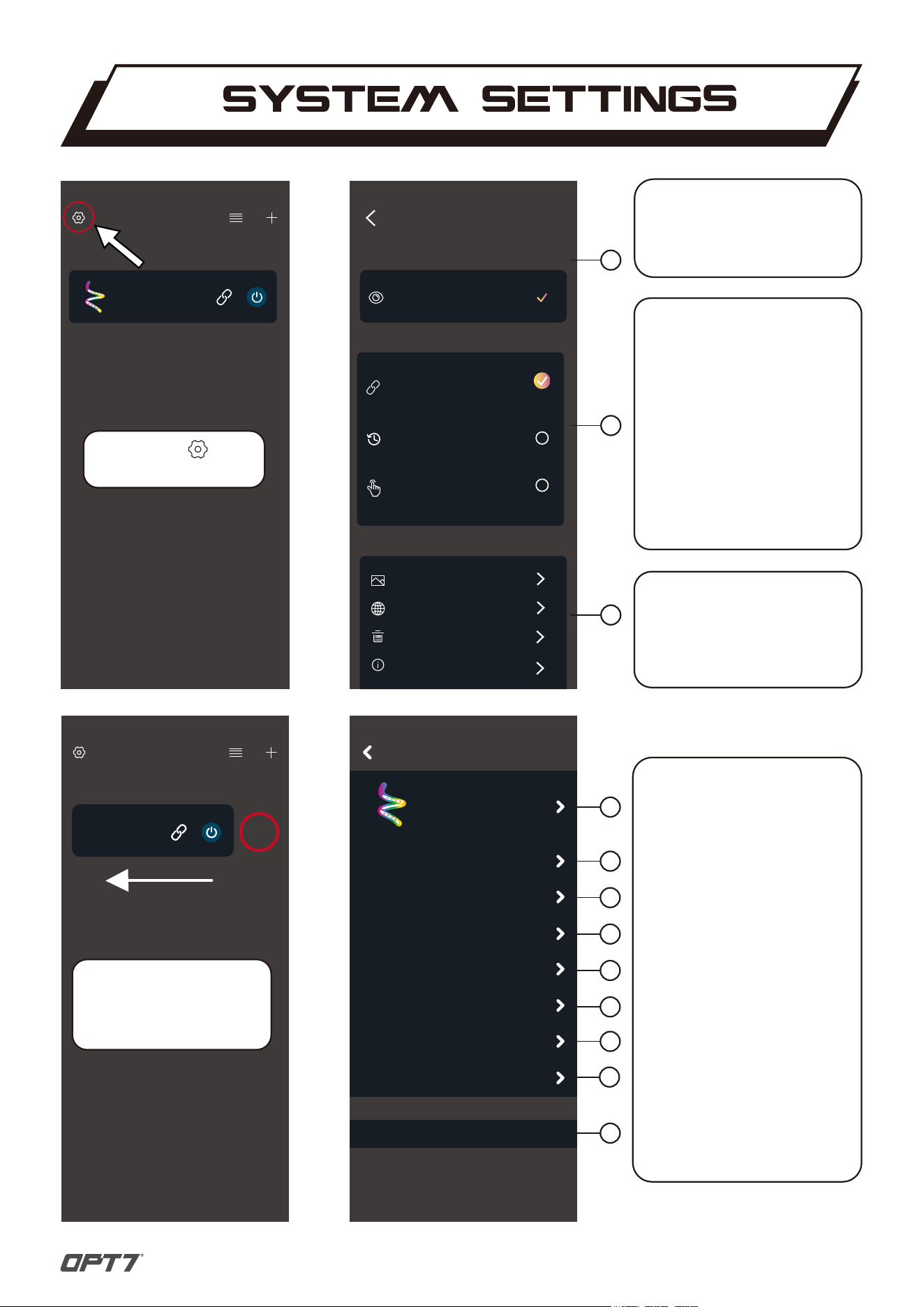
OPT7 GLOW will detect the
OPT7 light kits automatically.
*Recommended to enable the function
INTRODUCTION 1
Click the icon
enter the setting page.
to
Slide the device to the left
to find the "Edit", then click
into it to enter into the
setting page.
Auto Add Devices:
OPT7 GLOW will connect all
devices on the list.
Remember Connect State
OPT7 GLOW will remember
the last connected device(s)
and light mode.
Manually Connect
OPT7 GLOW will not connect
any devices until choosing
one.
INTRODUCTION 2
INTRODUCTION 3
Settings
Add Device
Connect
Other
App will automatically add device(s) when
device be found.
Auto Add Devices
Turn on it,App will automatically try to connect
sevice(s) on the list.
Auto Connect
Turn on it,App will automatically connect to the
most recently connected device(s).
Remember Connect State
Turn on it, you need to select and connect
device manually.
Manually Connect
Change Background
Multi Language
Clear Device List
About
1
1
2
3
4
5
6
7
8
9
2
3
Other settings:
Customized settings, including
background, language, and
clear device list.
1: Device setting
(Icon /name)
2: Group setting
3: Menu Style setting
(Default/Tab Bar/Beehive)
4: Light Mode Style
(Default/GIF/Text)
5: Wire Setting
(Adjust RGB order)
6: Pixel Setting
(Not support)
7: Collapse Mode
(Not support)
9: Remove Device
(Clear and forget the device)
8: Custom Functions
(Not support)
INTRODUCTION
4
TO CREATE A GROUP
TO RENAME
How To Rename the Devices and Create a Group
DEVICE rename
5
MOPT7-OB21
Create Group
Mode Style
Wires Order
Pixel Setting
Collapse Mode
Custom Functions
Remove Device
Open
RGB
Default
Default
Menu Style
3
Icon
MOPT7-OB21
Name
3
Rename
My light
Cancel
Save
My light
Create Group
Mode Style
Wires Order
Pixel Setting
Collapse Mode
Custom Functions
Remove Device
Open
RGB
Default
Default
Menu Style
3
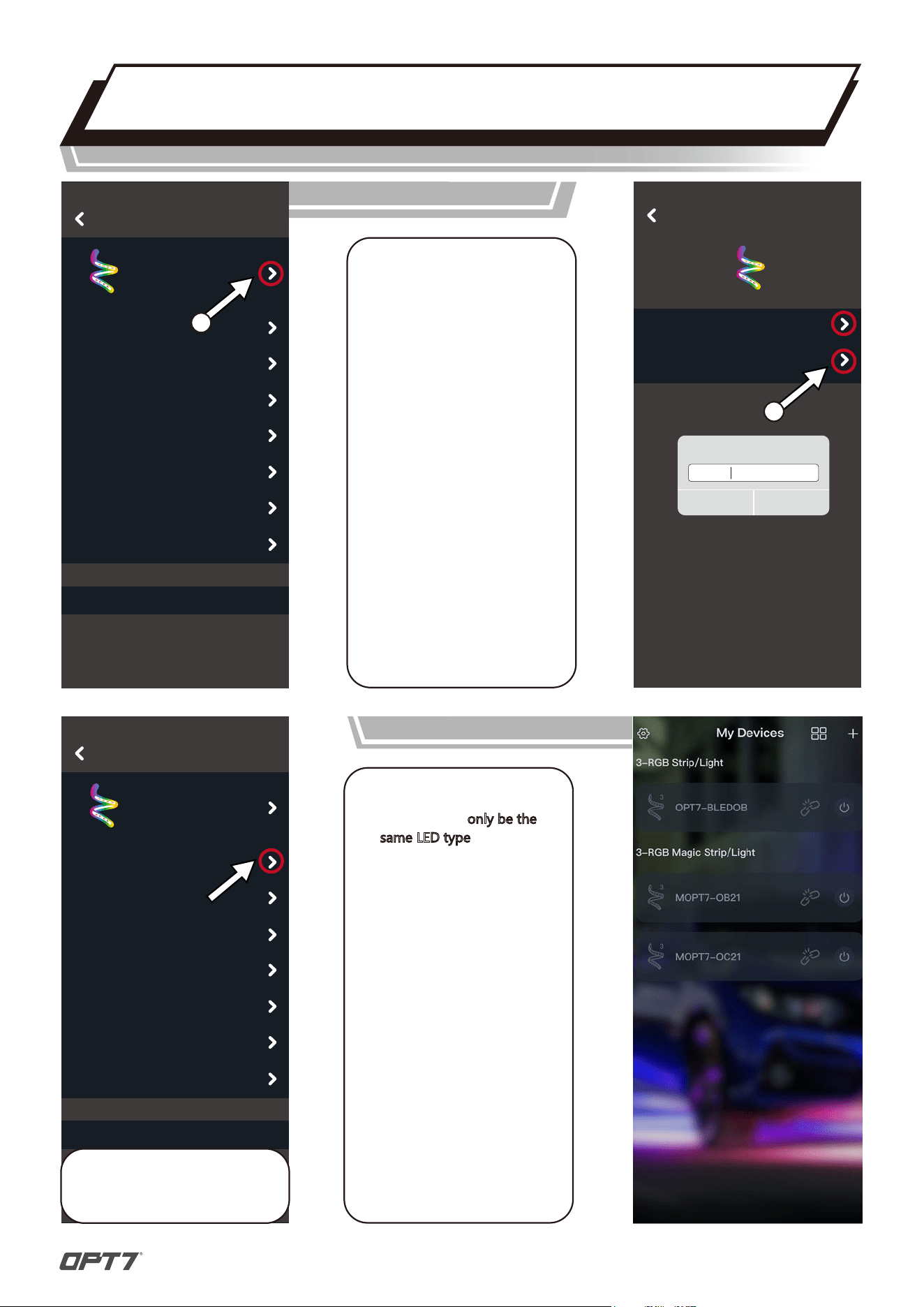
1.Click on the arrow to enter
the device page.
Grouping can only be the
same LED type: RGB or
RGB Magic (DreamColor)
strips/lights.
Different LED types
cannot be grouped or
controlled together at the
same time. You can have
both RGB and
DreamColor kits in the
OPT7 Glow app, but they
must be controlled
separately and cannot be
grouped together.
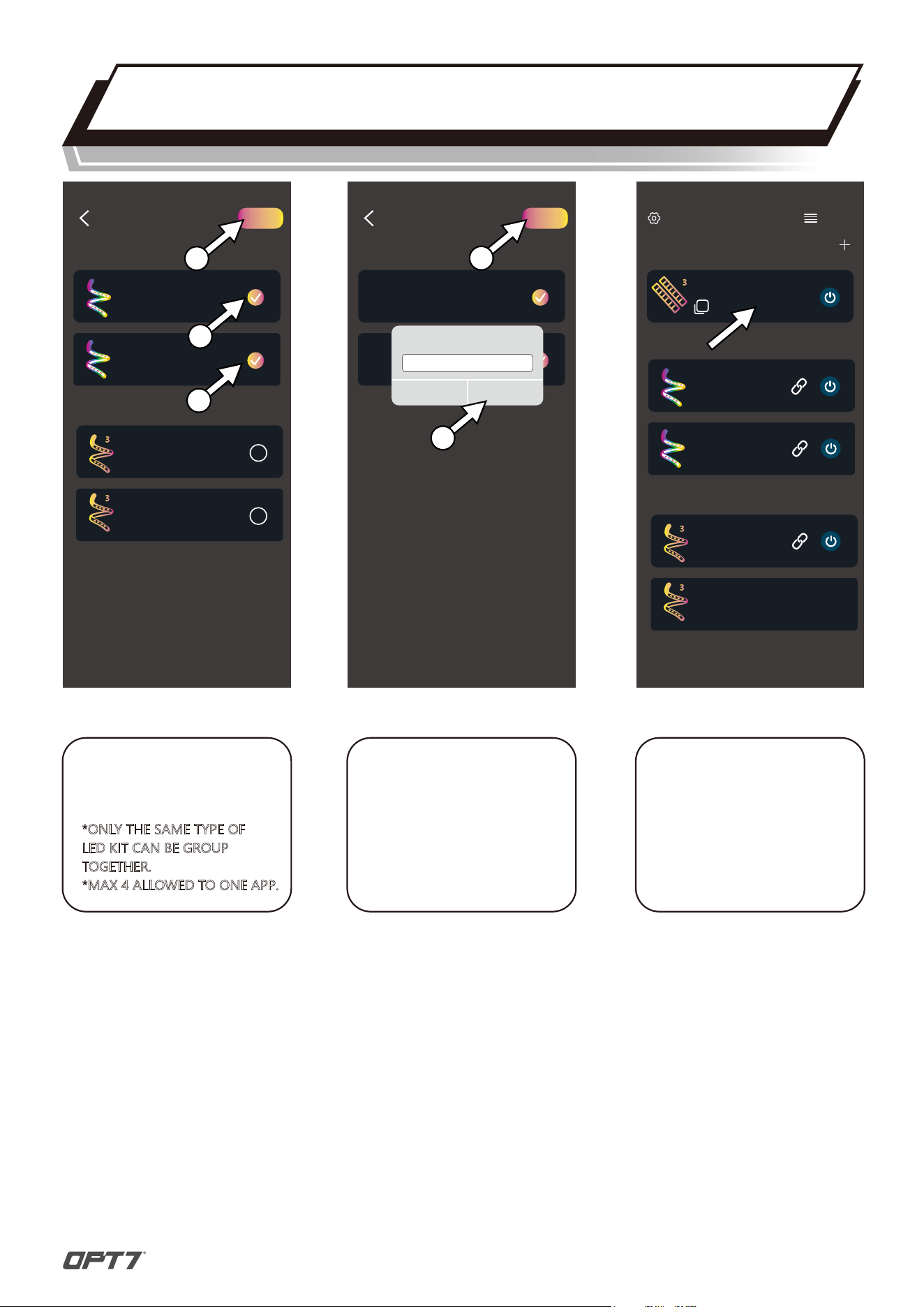
To create a group, click on the
arrow to enter the group page.
1
2
2.Click the arrow to open the
pop-up menu, then rename
the device.
IMPORTANT
INTRODUCTION
Add Group
3-RGB Magic Strip/Light
My light
Next
MELK-0A10 34
Please Enter A Group Name
Group 1 – DreamColor Kits
Cancel
Save
1
2
MELK-0A10 34
Add Group
3-RGB Magic Strip/Light
My light
Next
MOPT7-OB21
3
3
MELK-0A10 34
3-RGB Strip/Light
OPT7-BLEDOM
OPT7-BLEDOM
1
2
3
MELK-0A10 34
3-RGB Magic Strip/Light
My light
MOPT7-OB21
3
3
MELK-0A10 34
3-RGB Strip/Light
OPT7-BLEDOM
ELK-BLEDOM
My Devices
Group
Group 1
The app can now control the
grouped LED kits together.
Please note that some kits
may have different color
modes due to variations
in strip length.
How To Create a Group
DEVICE GROUP
6
Select the same LED type as
seen 1 & 2, then click next.
*ONLY THE SAME TYPE OF
LED KIT CAN BE GROUP
TOGETHER.
*MAX 4 ALLOWED TO ONE APP.
Enter the group name
you want to use (for example,
Magic Strip/Light for
DreamColor ARGBIC kits).
Once renamed, click SAVE to
complete.
STEP 1 STEP 2
NOTICE
My light
R 98
G 0
B 255
Brightness:100
My light
R 98
G 0
B 255
Brightness:100
My light
Sensitivity:100
Soft
Dynamic Disco
Classtic
My light
Sensitivity:100
Soft
Dynamic Disco
Classtic
Allow OPT7 GLOW to access
music and audio on this device?
ALLOW
DON’T ALLOW
RGB MODE
USER INTERFACE
1
1 2
3
2
3
6
5
1
4
4
4
5
8
7
6
9
7
8
1: Cellphone MIC is receiving
(Not all cellphone support)
2: Device name
3: Device setting
4: Device MIC
(use the control box of the
OPT7 light kits to receive)
5: Phone MIC
(use the cellphone to receive)
6: Music MIC
(use the cellphone music)
7: Sound wave
(changes with the audio)
8: Record sensitivity adjust
(0-100)
9:Light effect (4 modes)
*Not all OPT7 light Kits support
the device MIC function.
INTRODUCTION
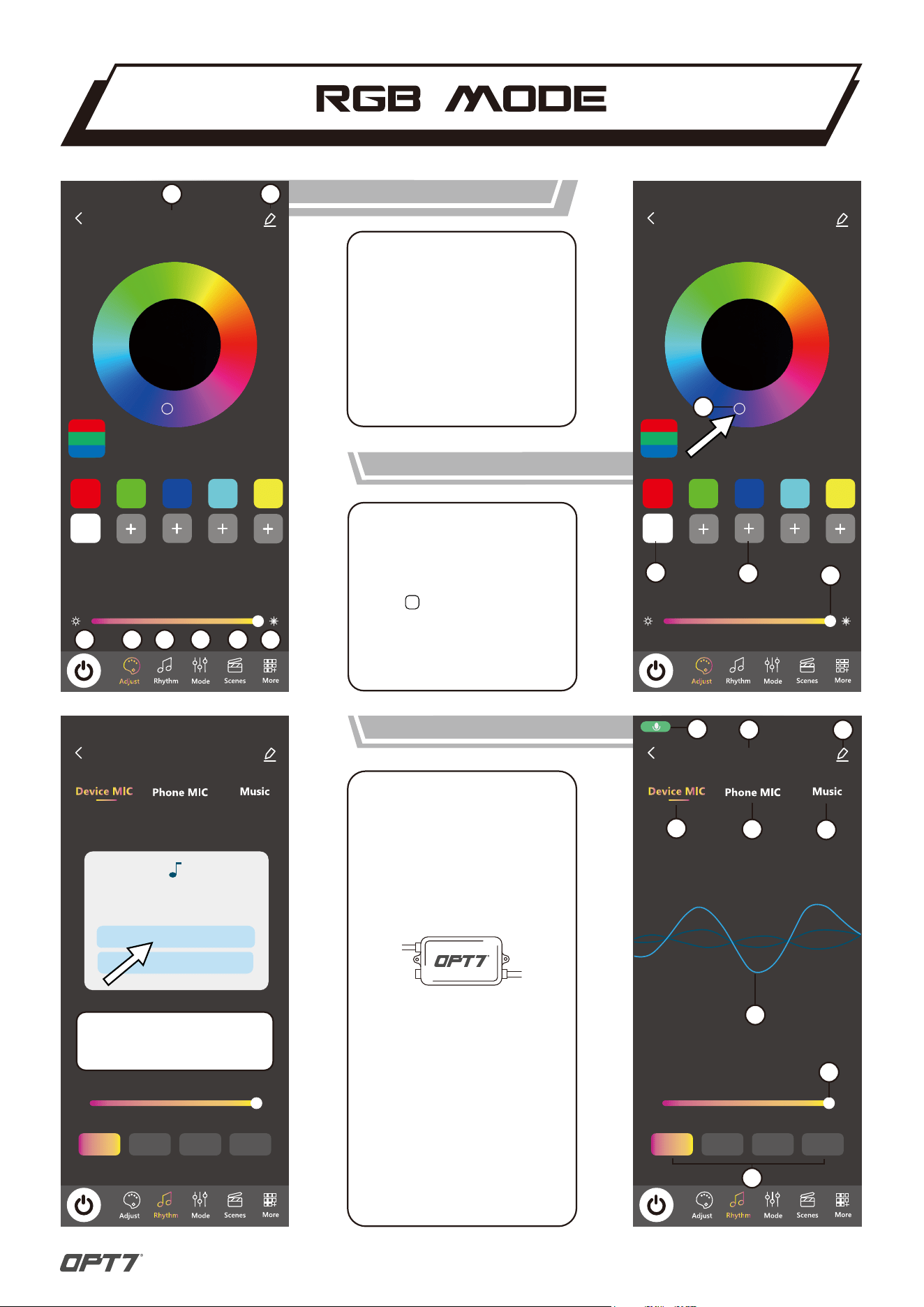
1: Touch to choose color
2: Shortcut color (6 color)
3: Favorite color (4 color)
(click + then choose a color
to create a shortcut; press
the shortcut to delete)
4: Brightness adjust (0-100)
INTRODUCTION
1: Device name
2: Device setting
3: On/Off
4: RGB mode
5: Rhythm mode
6: Light mode
7: Scenes mode
8: More information
INTRODUCTION
RHYTHM MODE-DEVICE MIC
3
2
7
First time to enter the Rhythm mode,
need to ALLOW permission for the
function working normally.
HOW TO USE PHONE MUSIC
RHYTHM MODE-MUSIC MIC
My light
Sensitivity:100
My light
Unknown singer - Unknown Album
An Island Christmas
Unknown singer - Unknown Album
Be The Boss
Unknown singer - Unknown Album
Blue and White Porcelain
Unknown singer - Unknown Album
Croatia
Unknown singer - Unknown Album
Faded
Unknown singer - Unknown Album
Happy Birthday
Unknown singer - Unknown Album
00:00 00:44
My light
00:00 00:00
Allow OPT7 GLOW to access
music and audio on this device?
ALLOW
DON’T ALLOW
My light
Sensitivity:100
Allow OPT7 GLOW to record
audio?
WHITE USING THE APP
ALLOW
DON’T ALLOW
1
2
3
1
3
4 5 6
2
7
8
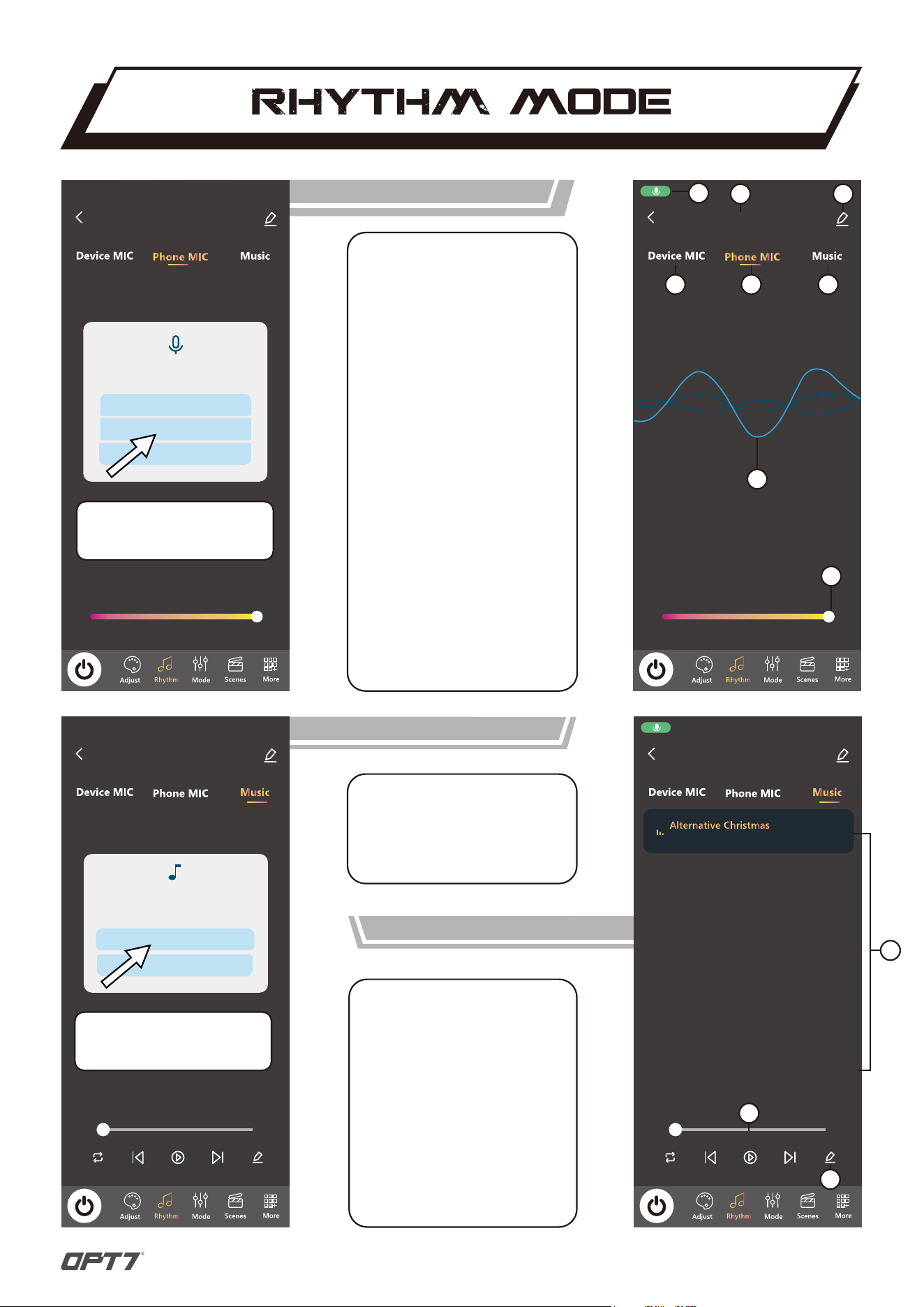
1: Cellphone MIC is receiving
(Not all cellphone support)
2: Device name
3: Device setting
4: Device MIC
(use the OPT7 light to receive)
5: Phone MIC
(use the cellphone to receive)
6: Music MIC
(use the cellphone music)
7: Sound wave
(changes with the audio)
8: Radio sensitivity adjust
*The Phone MIC supports Android
Auto only
*When using the Phone MIC, users
must enable the background
permissions.
*Phone MIC supports only a device
or a group at once.
INTRODUCTION
IMPORTANT
1: Playlist (9 built-in songs)
2: Media player
3: Edit the playlist
INTRODUCTION
ANDROID
IOS
The music files on the phone
will be imported into the
playlist automatically.
Need to connect to iTunes on
a computer to download the
music file to the iPhone.
RHYTHM MODE-PHONE MIC
8
First time to enter the Rhythm mode,
need to ALLOW permission for the
function working normally.
First time to enter the Rhythm mode,
need to ALLOW permission for the
function working normally.
My light
Sensitivity:100
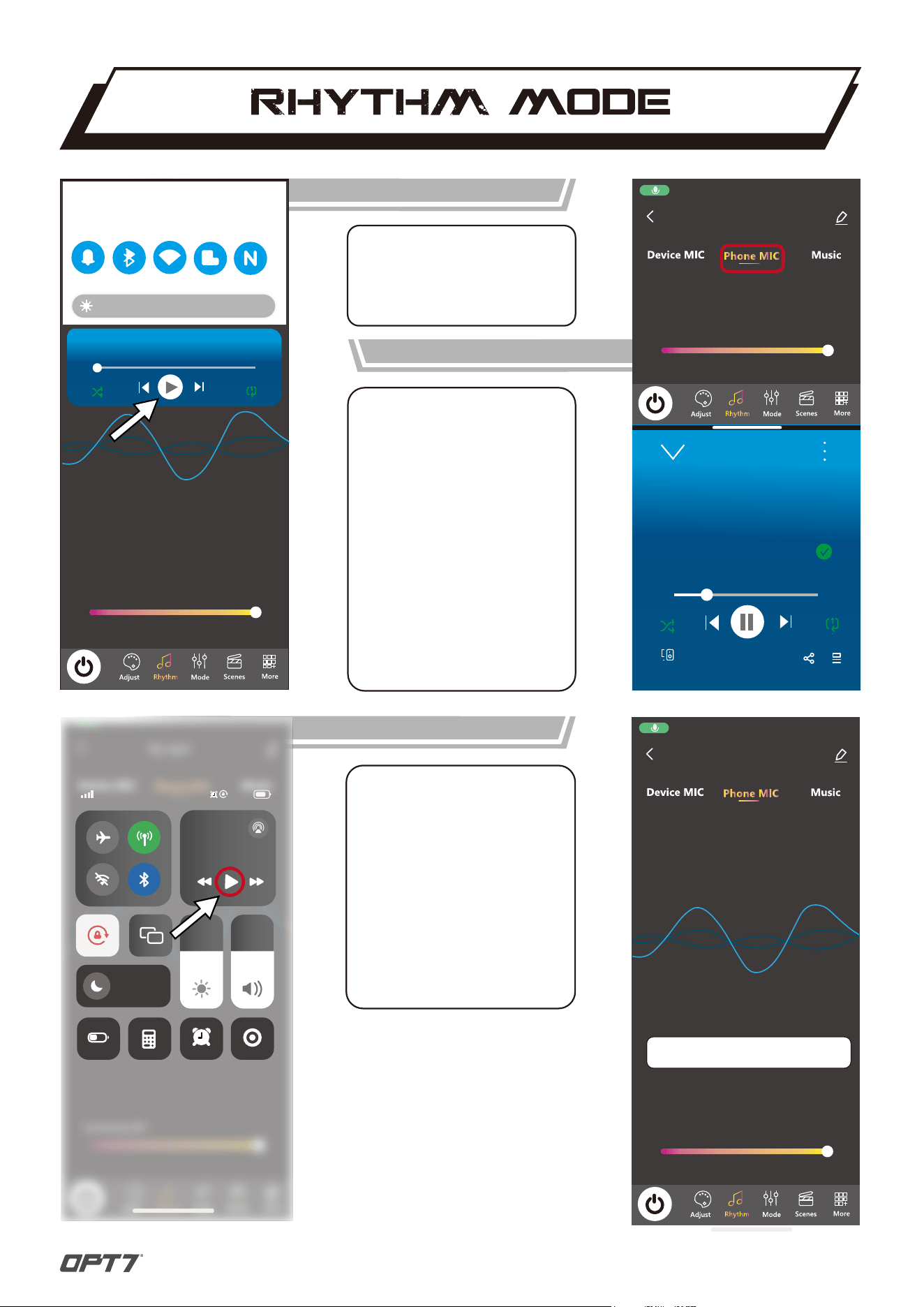
The Phone MIC in the APP allows
music to play in the background
while users are using other Apps.
BACKGROUND PLAYING
SPLIT SCREEN
ANDROID SYSTEM
ANDROID SYSTEM
IOS SYSTEM
My light
Sensitivity:100
00:40 03:45
Example song
The OPT7 GLOW supports the split
screen function so keep both the
music app and the OPT7 GLOW on
the screen, the function will work.
My light
Sensitivity:100
10:25
00:00
03:45
Example song
100%
*The Phone MIC supports Android
Auto only.
*When using the Phone MIC,
users must enable the background
permissions.
*Not all the cellphones support the
split screen function.
*Music supports only a device or a
group at once.
IMPORTANT
BACKGROUND PLAYING
The Phone MIC in the APP allows
music to play in the background
while users are using other Apps.
*The Phone MIC does not support
Apple CarPlay.
*When using the Phone MIC, users
must enable the background
permissions.
IMPORTANT
EXAMPLE
SONG
80%
music playing in the background
9
My light
Brightness:100
Speed:100
Curtain
Trans
Water Flow
Auto Play
Magic Forward
Magic Back
7-Color Energy
My light
OPT7
FAQ
(KNOWLEDGE
BASE)
WARRANTY
REGISTRATION
INSTALLATION
GUIDES
USER TERMS
GOOGLE
CLOUD
TERMS OF
SERVICE
VIDEO
TUTORIAL
INSTAGRAM
OPT7
CUSTOMER
SUPPORT
SCENES MODE
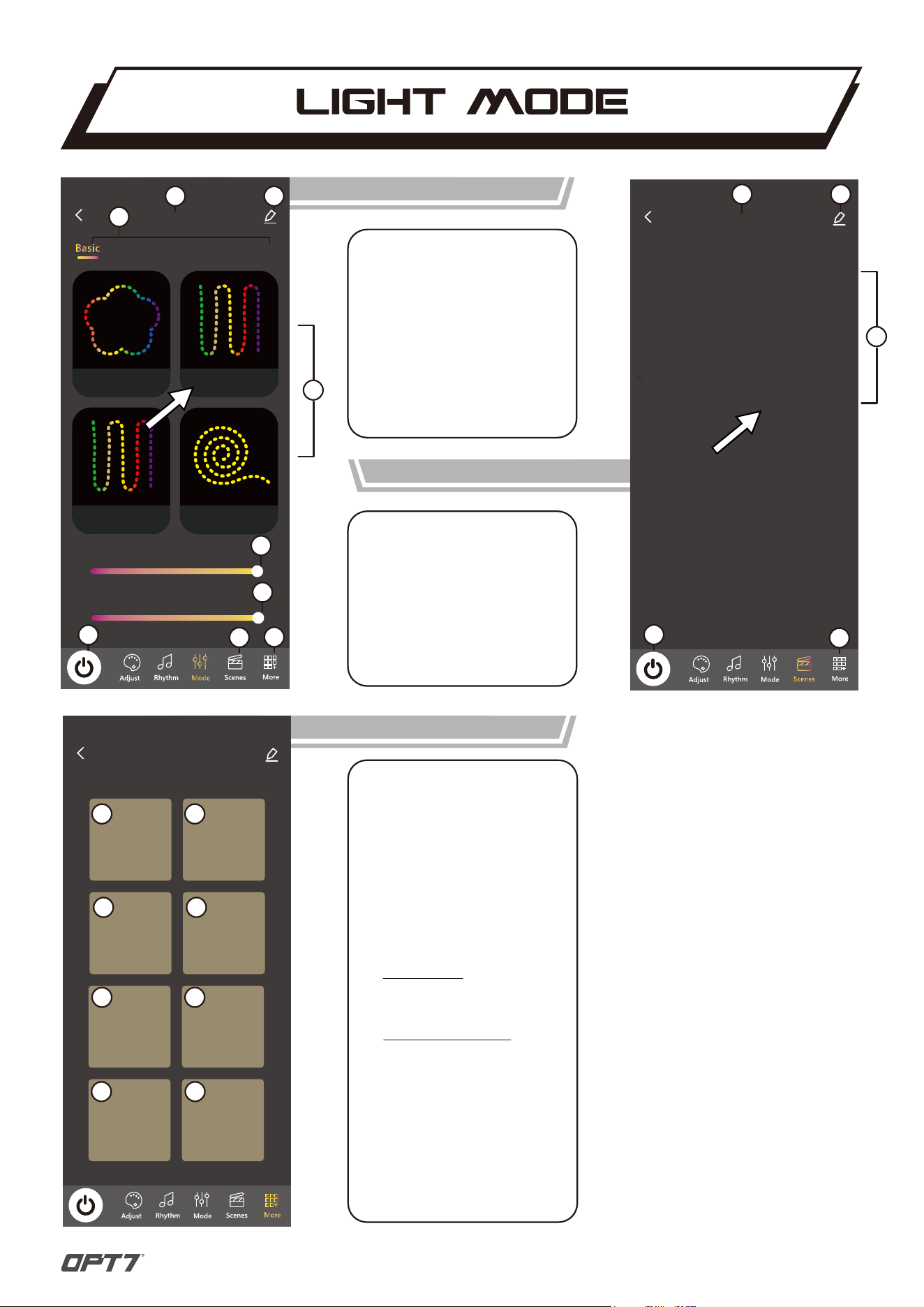
LIGHT MODE
1: Device name
2: Device setting
3: Light mode catalog
4: Light mode with animation
(touch one to set)
5: Speed adjust
6: On/Off
7: Scenes mode
8: More information
INTRODUCTION
MORE INFORMATION
1: FAQ (KNOWLEDGE BASE)
Access our Knowledge Base for comprehensive
guides and instructional videos to support
your installation requirements effectively
.
2: OPT7 CUSTOMER SUPPORT
OPT7 offers comprehensive customer support,
including assistance with your questions,
technical issues, and app functionality.
3: WARRANTY REGISTRATION
Learn how to file a warranty claim and register
your product for warranty.
4:
Stay updated with OPT7 on social media for
new tips, tricks, giveaways, and the latest
information for auto enthusiasts.
5: INSTALLATION GUIDES:
Explore our install guides for a seamless
experience.
6: VIDEO TUTORIAL
Subscribe to the OPT7 YouTube Channel for
installation tutorials, product highlights,
and more.
7: USER TERMS
Learn about our privacy policy and find out
what information we collect when placing
an order.
8: GOOGLE CLOUD TERMS OF SERVICE
INTRODUCTION
1
3
4
3
2
1 2
5
6
6
4
5
7
8
1 2
3 4
5 6
7 8
10
1: Device name
2: Device setting
3: 4 scenes modes
(touch to set the light mode
not supposed to add one)
4: On/Off
5: More information
INTRODUCTION
SOCIAL MEDIA
11
My light
R 98
G 0
B 255
Brightness:100
My light
Create Group
Mode Style
Wires Order
Pixel Setting
Collapse Mode
Custom Functions
Remove Device
Open
Default
Default
Menu Style
3
My light
Create Group
Mode Style
Wires Order
Pixel Setting
Collapse Mode
Custom Functions
Remove Device
Default
Default
Menu Style
3
Cancel
Total pixels of strip
Please follow the product
instructions to set
Save
I10-1000
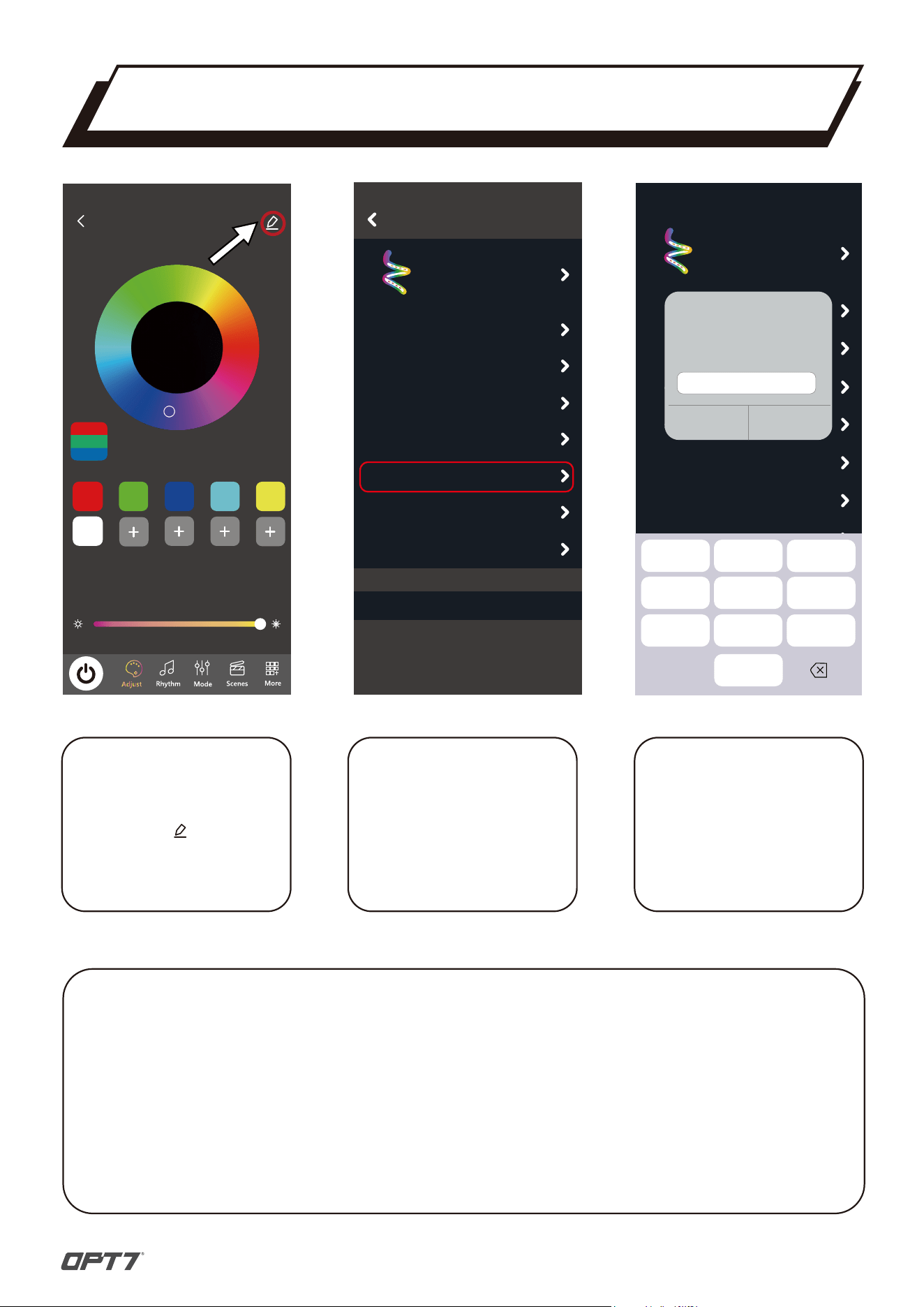
Click Pixel Setting to access
the configuration.
STEP 2
Refer to the table below for
the corresponding pixel values
of the OPT7 product.
Enter the correct values to
ensure proper functionality.
STEP3
Ensure that the control box
is properly connected then
Click the icon to enter
Product Settings.
STEP 1
*Verify that the control box is correctly set up and connected to the app when
setting the conrol box pixel
*Only Dreamcolor series products require pixel adjustments.
*Make sure to enter the correct pixel values corresponding to your product.
*Incorrect values may cause the product to malfunction.
*After setting the pixel, remember to pair the remote control.
IMPORTANT
HOW TO SET PIXEL
1 2
3
ABC
DFE
4
5
6
JKL
MNO
7 8
0
9
TUV
GHI
PQRS
WXYZ
12
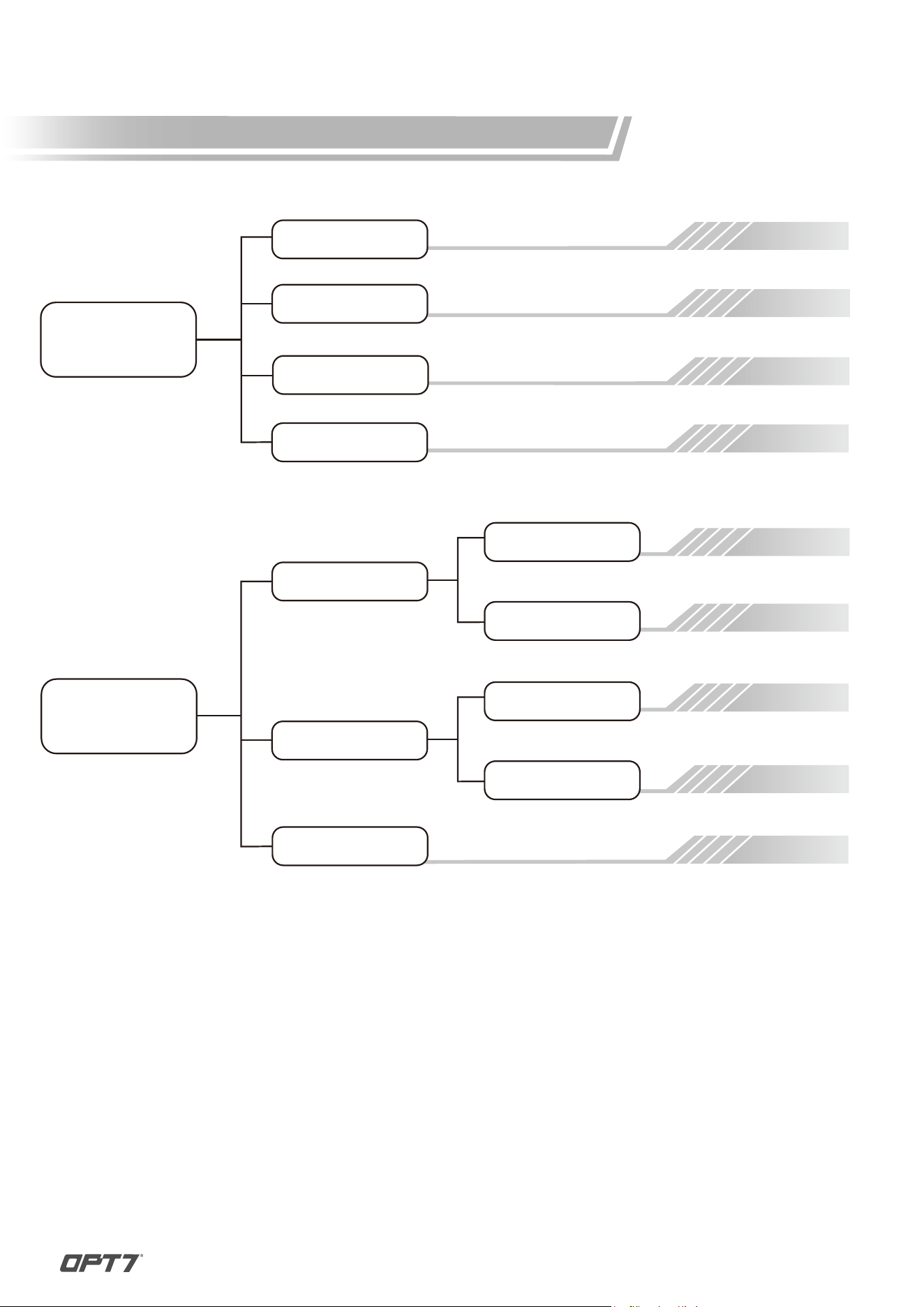
Dreamcolor
Underbody
Pixel: 42
Pixel: 42
Pixel: 42
Flexible
Car
Truck
Dreamcolor
Interior
Pixel: 12
Pixel: 24
Pixel: 12
Pixel: 18
Pixel: 18
4 PC
6 PC
Single Row
Double Row
Boat
Pixel: 18
Golf Cart
Single Row
Double Row
GLOW DREAMCOLOR SERIES
OP
T
7
13
COLOR SETTING
My light
R 98
G 0
B 255
Brightness:100
My light
Create Group
Mode Style
Wires Order
Pixel Setting
Collapse Mode
Custom Functions
Remove Device
Open
Default
Default
Menu Style
3
RGB
Wire Order
RBG
GRB
GBR
BRG
BGR
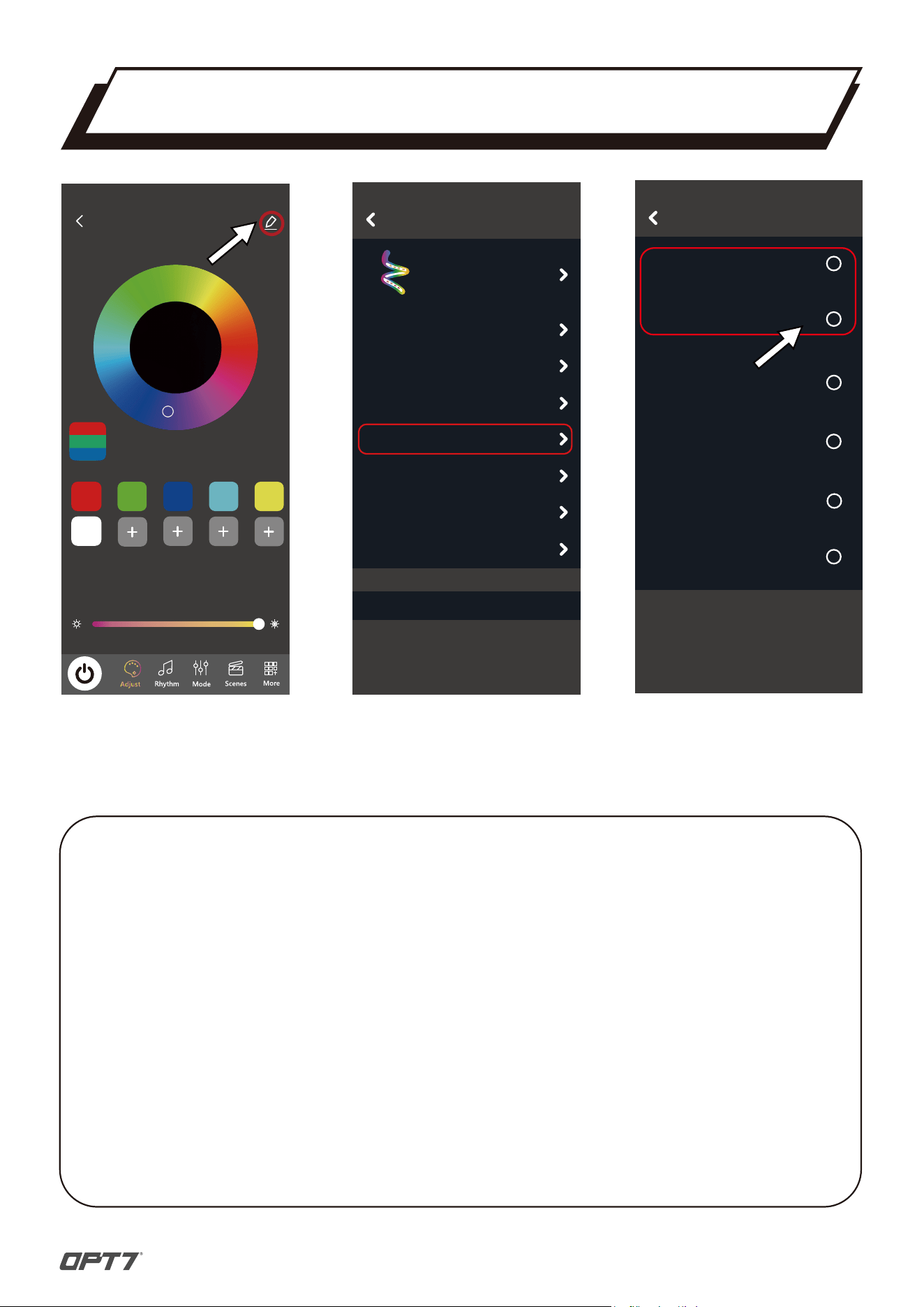
If you are having issues with color discrepancy between what’s selected in the app and
what the light kit actually displays. Here’s a detail breakdown to remedy the issue.
1. Open Setting
Navigate to the PENCIL Icon located in the upper right corner of the screen.
2. Access Wire Order Settings
In the settings, locate and select the option labeled WIRE ORDER.
3. Select the RGB as the Color Option.
Choose RGB as the color section. If selecting RGB results in incorrect colors,
please switch to RBG.
*If the issue persists, please contact the OPT7 Support Team:
https://www.opt-7.com/pages/customer-support
STEPS
DISCLAIMER
14
OPT7 Lighting is not liable for damages or personal injuries while installing this
product. The Installation Guide is intended as assistance to reduce setup time.
OPT7 Lighting assumes no responsibility for improper installation.
If you are unfamiliar with your vehicle or inexperienced with aftermarket
upgrades, please seek professional assistance.
OPT7 recommends installation for safety and guidance.
Modified installations or installation recommendations not specified by
OPT7 Lighting will void product warranty.