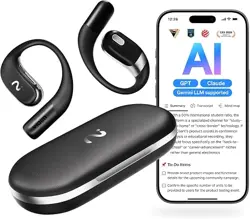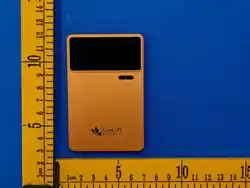
Al Voice Recorder
instructions
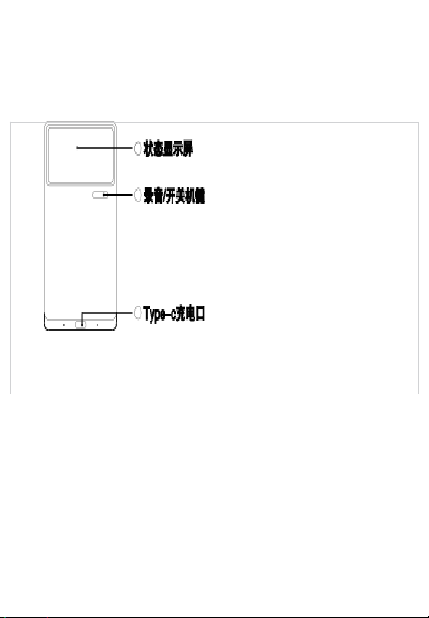
1 Status Display Screen
2 Recording/Power Button
Long press for 6 seconds:
Power on
Longpress for3 seconds:
Power off
Short press: Start/Stop recording
3 Type-C charging port
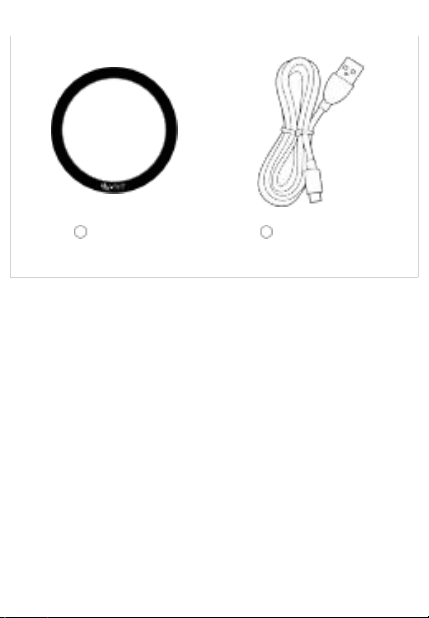
4 Magnetic Ring
5 Charging Cable
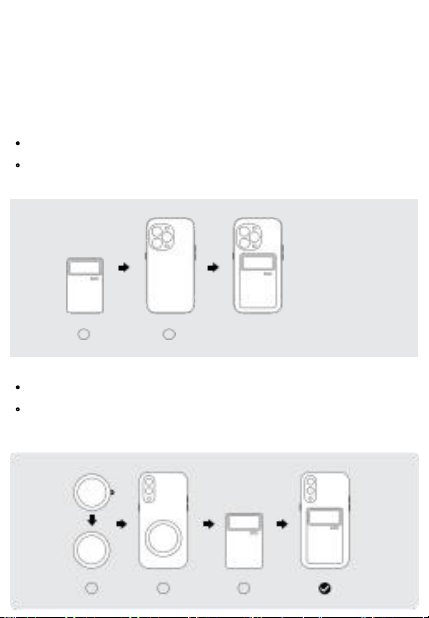
Guide to the use of magnetic
attraction ring
01
iosiphone
Simply attach the product to the back of your smartphone
–
Apple devices come with a built-in magnetic attachment
(no separate magnetic ring needed).
1 2
02
Android/HarmonyOS smartphones
Remove the adhesive protective film from the magnetic ring,
align it with the designated position on the back of your
smartphone, and the product will securely adhere to the phone's
back.
1 2 3
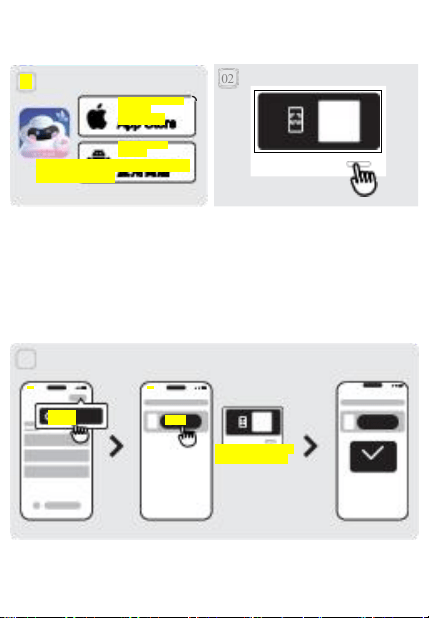
quick tour
02
·
Search for "Lola" in the App
Store or your local app store
and download the app.
· Create your Lola account.
· Long-press (6 seconds) the
Record/Power button to
turn on the device.
· The device displays a QR
code status, indicating that
the device is ready for pairing.
15:04
Scan
Scan the QR code
with your device
15:04
Scan
Binding
successful
15:04
+ Add
Device
03
· Open the Laura app and follow the
instructions to complete the binding
01
Download from the
AppStore
AppStore
Download for
Android
Lola App Store
Lola App Store
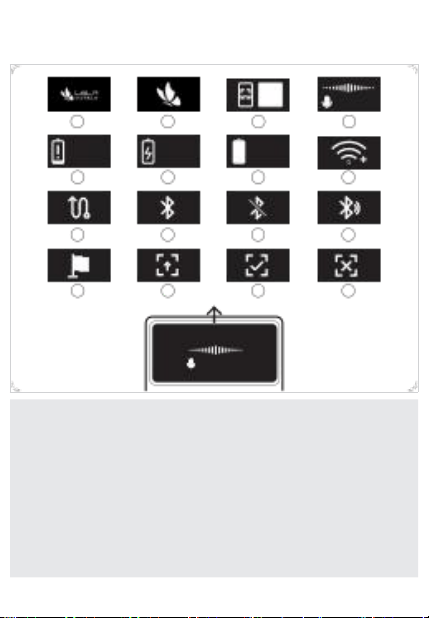
Equipment Status Display
3
100%
7
11
15
2
75%
6
10
14
1
10%
5
9
13
75%
4
8
12
16
26 % 00 :0 0 :0 2
1. Boot animation
2. Guan Animation
3. APP Download QR
Code Dynamic
4. Recording Status
5. Low battery level
6. Charging Status
7. Fully charged state
8. WiFi transmission
9. Wired
transmission
10. Bluetooth Pairing
11. Bluetooth not
paired
12. Bluetooth
transmission
13. Key Marking
14. Firmware
upgrade status
(Dynamic)
15. Firmware
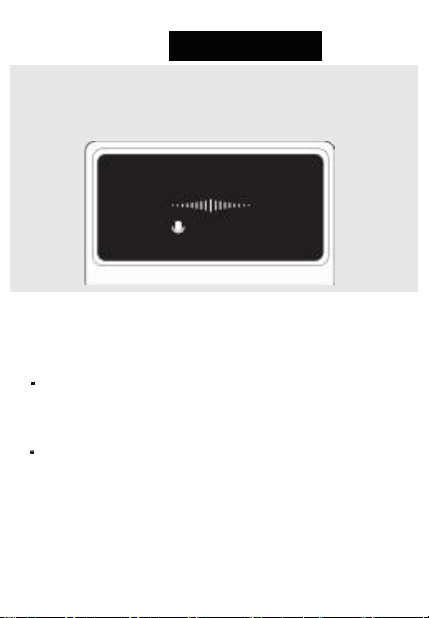
Start recording
Recording Status
26% 00:00:02
Start
recording ·
Start
recording
Tap the Record/Power button; the screenwill display the
recording status, indicating thatrecording has started.
· Recording completed
Tap the Record/Power button again; the screen will return
to the standby icon, indicating that the recording has
finished.
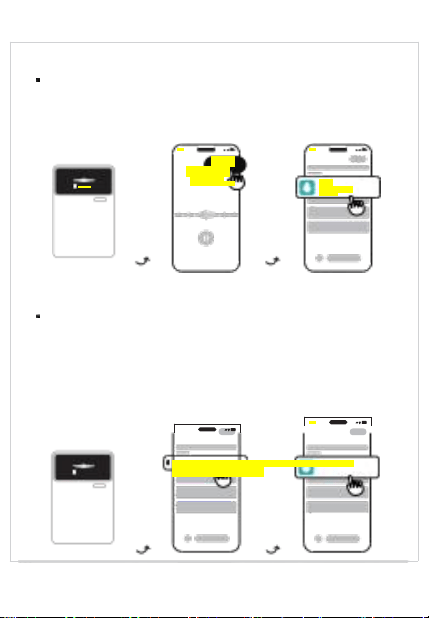
·real time synchronization
When the device is connected to the mobile app via Bluetooth,
the recorded audio is uploaded and synchronized in real time
to the mobile app, allowing users to view the recording
immediately.
15:04
Save
(00:45:11)
Recording card
recording inprogress
15:04
My
recordi ng
07-0919:49:33
26% 00:00:02
·
Bluetooth offline synchronization
When the device is disconnected from Bluetooth or in an
offline state, the audio recordings made by the device will
be temporarily saved locally on the device. Once the
device and the app re-establish a Bluetooth connection,
the stored recording files will be automatically uploaded
and synchronized to the mobile app, preventing any loss
of recording data.
15:04
0/2 66%
0/2 (66%) – My Recording
15:04

FCC Statement
This device complies with part 15 of the FCC rules. Operation is subject to the following two cond
itions: (1) this device may not cause harmful interference, and (2) this device must accept any inte
rference received, including interference that may cause undesired operation.
Caution: Changes or modifications not expressly approved by the party responsible for
compliance could void the user’s authority to operate the equipment.
NOTE: This equipment has been tested and found to comply with the limits for a Class B digital d
evice, pursuant to part 15 of the FCC Rules. These limits are designed to provide reasonable prote
ction against harmful interference in a residential installation. This equipment generates uses and c
an radiate radio frequency energy and, if not installed and used in accordance with the instructions,
may cause harmful interference to radio communications. However, there is no guarantee that inte
rference will not occur in a particular installation. If this equipment does cause harmful interferenc
e to radio or television reception, which can be determined by turning the equipment off and on, th
e user is encouraged to try to correct the interference by one or more of the following measures:
‐ Reorient or relocate the receiving antenna.
‐ Increase the separation between the equipment and receiver.
‐ Connect the equipment into an outlet on a circuit different from that to which the receiver is
connected.
‐Consult the dealer or an experienced radio/TV technician for help important announcement
Radiation Exposure Statement
The device has been evaluated to meet general RF exposure requirement. The device can be used
in portable exposure condition without restriction.