V1S Product Manual
Al Voice Recorder
Item Specification
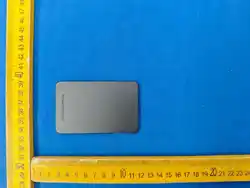
Product Size
Battery
Charging Port
Input
Operating Temperature
Audio Format
92 * 58 * 4 mm
400 mAh
Type-C
DC 5V 0.5 A
-10 ℃ ~ +55 ℃
Opus / mp3
Product Specifications
Disclaimer
The content of this manual is for reference only. Actual user experience shall
prevail. Product information, specifications, and appearance are subject to change
without prior notice. We reserve the right to update the contents at any time.
Device Functions (Quick Guide) App Connection Guide
Thank you for choosing our product. Zhizai captures moments with ease and
empowers the flow of ideas.
Product Introduction
The recording card works with the Zhizai Record App, enabling one-tap voice transcription
and AI-powered summarization, delivering a new experience of efficient and intelligent
note-taking.
I. Device Connection
1. Turn on Bluetooth on your phone and open the App. Go to “Me - My Devices”.
2. The App will automatically search for the recording card. Tap to connect.
3. If the device is not found, try searching again or check whether Bluetooth permission
is enabled.
II. Unbind Device
1. Enter the device list in the App.
2. Tap the device info icon in the top-right corner.
3. Select Unbind Device.
III. Unbinding Options
1. Unbind & Clear Data: All recordings will be deleted. Suitable for transfer or resale.
2. Unbind Only (Keep Data): Only unbinds the device and keeps recordings. The device
will not auto-reconnect.
Scan to
download the App
Operation / Rule Description
Indicator Light
Green: Standby; flashes while charging; off when full.
Red: Recording. Yellow: Low battery (not recording)
Start Recording
Recording Status
Add Bookmark
In standby, hold 2s: red light on, recording starts, motor
vibrates once. If off, press once to wake first
Red indicator stays solid
Double-press the Record button during recording.
Green indicator flashes once
Press once to pause: red flashes.
Press again to resume: red solid again
Hold 2s: recording stops, motor vibrates once,
red light switches to green
Green: Flashes when idle; lights for 3s during recording,
returns to red; stays on for 10s then off when full
Green indicator turns off after 10s of inactivity
Pause Recording
Stop Recording
Charging Status
Standby Mode
Power On
Hold 2s to power on; green light on. Off after 10s idle.
Press once to wake (returns to standby)
Power Off
Press the Record button 3 times in standby mode to
power off
IV. Wi-Fi Transfer
1. Enable Wi-Fi transfer in the audio file sync page.
2. Connect the device to the designated Wi-Fi network.
3. The current Wi-Fi connection will be disconnected during
transfer. Mobile data will not be affected.
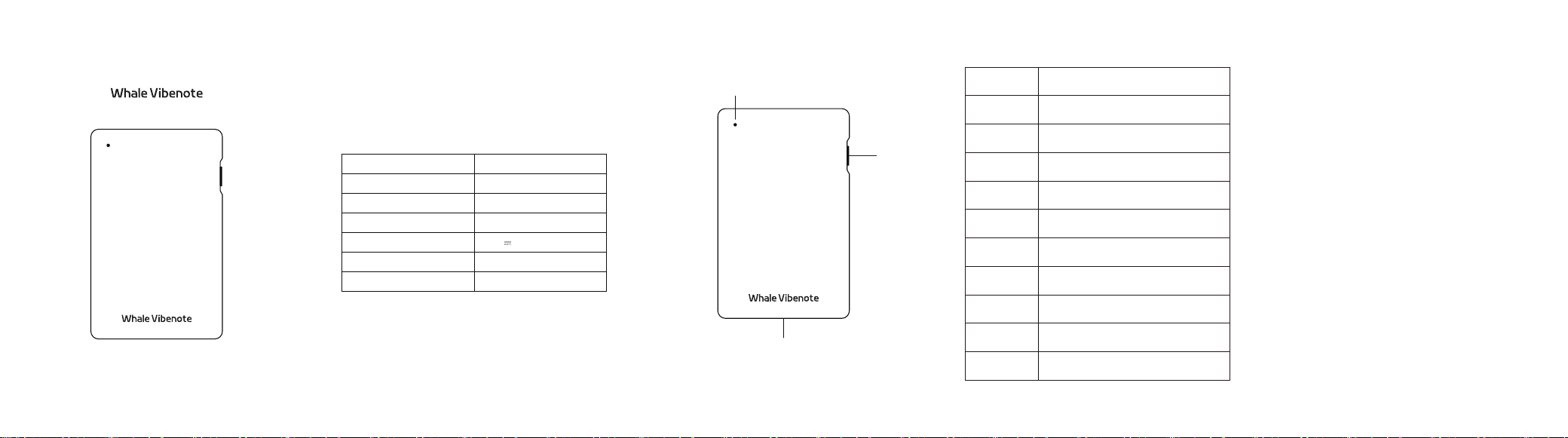
Power / Record
Button
Type-C
Indicator Light

Built-in Battery Safety:
• Do not disassemble, crush, puncture, or incinerate the battery.
• Stop using the device immediately if the battery is swollen or damaged.
• Do not store the device in high-temperature environments.
• Do not discard batteries randomly; follow local recycling regulations.
• Do not expose lithium batteries to water or moisture.
Other Notes:
Due to differences in measurement methods and system formatting, actual available
storage capacity may differ from labeled capacity.
Please use certified chargers that comply with CCC standards when charging the
device.
Important Instructions
To ensure stable operation and long service life of the device, please
read and strictly follow the instructions below:
• Do not drop, strike, or strongly impact the device.
• Do not expose the device to solvents such as benzene or thinners.
• Do not place the device near strong magnetic or electric fields
(e.g., speakers,transformers).
• Do not expose the device to water or high-temperature sources
(e.g., fire, heaters, or direct sunlight inside vehicles).
• Do not disassemble, repair, or modify the device to avoid damage or safety risks.
FAQ
1. Unable to Power On
※ Please check whether the battery is low. Charge the device and try again.
2. How to Update Firmware
※ Open the App and go to “Me - My Devices”. A firmware update pop-up will appear
automatically. Tap “Update” to start upgrading.
3. How to Power Off / Restart
※ The device will enter sleep mode after 10 seconds of inactivity.
※ Press the button 3 times quickly to power off.
※ Press and hold for 15 seconds to force restart in case of abnormal conditions.
4. More Help
※ Follow the “Zhizai Record” WeChat Official Account or contact customer service via
WeChat for further assistance.
Package Contents
Recording Device
User Manual
Type-C Cable
1
1
1
This table is prepared in accordance with SJ/T 11364:
○:Indicates that the content of the hazardous substance in all homogeneous
materials of the part is below the limit specified in GB/T 26572.
:Indicates that at least one homogeneous material in the part exceeds the limit
specified in GB/T 26572.
Under normal usage conditions, hazardous substances in this product will not leak or
mutate within 10 years, and the use of this product will not cause severe environmental
pollution or harm to human health or property.
Hazardous Substances
Part Name
Pb Hg
Housing & Parts
PCB Assembly
Battery
Cd PBDEPBBCr(VI)
Hazardous Substances Table Warranty Card
Thank you for purchasing our product. For warranty or repair services,
please return this card along with the product.
Dealer: ______________________ Customer Name: ______________________
Sales Date: ______________________ Contact Number: ______________________
User Info: ______________________ User Address: ______________________
Disclaimer:
• This warranty card is only used as proof for repair services and has no other legal
effect.
Warranty Terms:
• The product is entitled to free repair within one (1) year from the date of purchase if
it fails under normal use.
• The warranty period starts from the purchase date shown on the invoice.
• Please present this warranty card and the purchase invoice when requesting service.
• Please keep this warranty card properly. Lost cards will not be reissued. The
purchase date filled in must match the invoice; otherwise, the warranty will be
invalid.
Exclusions from Warranty:
• Products beyond the warranty period, or without valid proof of purchase (invoice,
etc.).
• Normal cosmetic wear and aging caused by use, where replacement of a new
product is requested.
• Failures caused by improper operation not in accordance with the user manual.
• Damage caused by dropping, impact, self-disassembly, installation, or repair.
• Damage caused by performance overload testing, such as commercial display or
abnormal usage scenarios.
User Support Group
Scan the QR code to join the group for inquiries and faster support
Scan via WeChat or WeCom
Customer Support
Contact customer service for quick feedback and personalized requests
Scan via WeChat or WeCom
Contact Us