
Digital Calendar User Manual

FCC WARNING
This device complies with part 15 of the FCC Rules. Operation is subject to the following two
conditions:
(1) this device may not cause harmful interference, and (2) this device must accept
any interference received, including interference that may cause undesired operation.
Any changes or modifications not expressly approved by the party responsible for compliance
could void the user's authority to operate the equipment.
NOTE: This equipment has been tested and found to comply with the limits for a Class B
digital device, pursuant to Part 15 of the FCC Rules. These limits are designed to provide
reasonable protection against harmful interference in a residential installation. This equipment
generates, uses and can radiate radio frequency energy and, if not installed and used in
accordance with the instructions, may cause harmful interference to radio communications.
However, there is no guarantee that interference will not occur in a particular installation.
If this equipment does cause harmful interference to radio or television reception,
which can be determined by turning the equipment off and on, the user is encouraged to try to
correct the interference by one or more of the following measures:
-- Reorient or relocate the receiving antenna.
-- Increase the separation between the equipment and receiver.
-- Connect the equipment into an outlet on a circuit different from that to which the receiver is
connected.
-- Consult the dealer or an experienced radio/TV technician for help.
To maintain compliance with FCC’s RF Exposure guidelines, This equipment should be
installed and operated with minimum distance between 20cm the radiator your body: Use
only the supplied antenna.

1
Contents
User Manual .................................................................................................................................... 1
Contents ........................................................................................................................................... 1
Introduction to Whale Framely Calendar ............................................................................... 3
Preface...................................................................................................................................... 3
How to download the Whale Framely App....................................................................4
Whale Framely Calendar ..............................................................................................................4
Getting started with Whale Framely Calendar..............................................................4
Adding members to the Calendar .................................................................................... 5
Dashboard................................................................................................................................7
Calendar ................................................................................................................................... 8
Lists.......................................................................................................................................... 10
Tasks.........................................................................................................................................12
Rewards.................................................................................................................................. 14
Photos ..................................................................................................................................... 15
Meals ....................................................................................................................................... 16
Settings ...................................................................................................................................17
Whale Framely App .....................................................................................................................26
Quick setup ............................................................................................................................26
Sync Calendar ....................................................................................................................... 27
Home.......................................................................................................................................35


3
Introduction to Whale Framely Calendar
Preface
Congratulations on your brand-new Whale Framely Calendar!
If this is your first time using the Whale Framely Calendar, simply follow the
on-screen instructions during the initial setup.
Once your calendar is set up, you'll be able to efficiently manage your family's
schedule and share in recording and celebrating precious moments together!
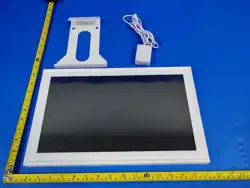
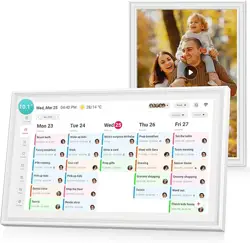
Whale Framely Calendar
The Whale Framely Calendar displays schedules and lists created on devices. It
enables users to effortlessly plan and manage events while sharing meaningful
moments with family, keeping life organized and enriched with warm
interactions. It supports horizontal and vertical placement in any location in the
home.
Whale Framely App
The Whale Framely mobile application is compatible with both Android and iOS
systems, offering a user-friendly experience. You can plan events, manage
appointments, and sync with third-party calendars anytime, anywhere. No matter
where you are, it helps you keep control of your schedule and stay closely
connected with your family.
4
How to download the Whale Framely App
Download the App by scanning the QR code.
Log in to the appropriate store to download the free
app.
● Android: Search for "Whale Framely" on Google Play.
● IOS: Search for "Whale Framely" on App Store.
Whale Framely Calendar
Getting started with Whale Framely Calendar
5
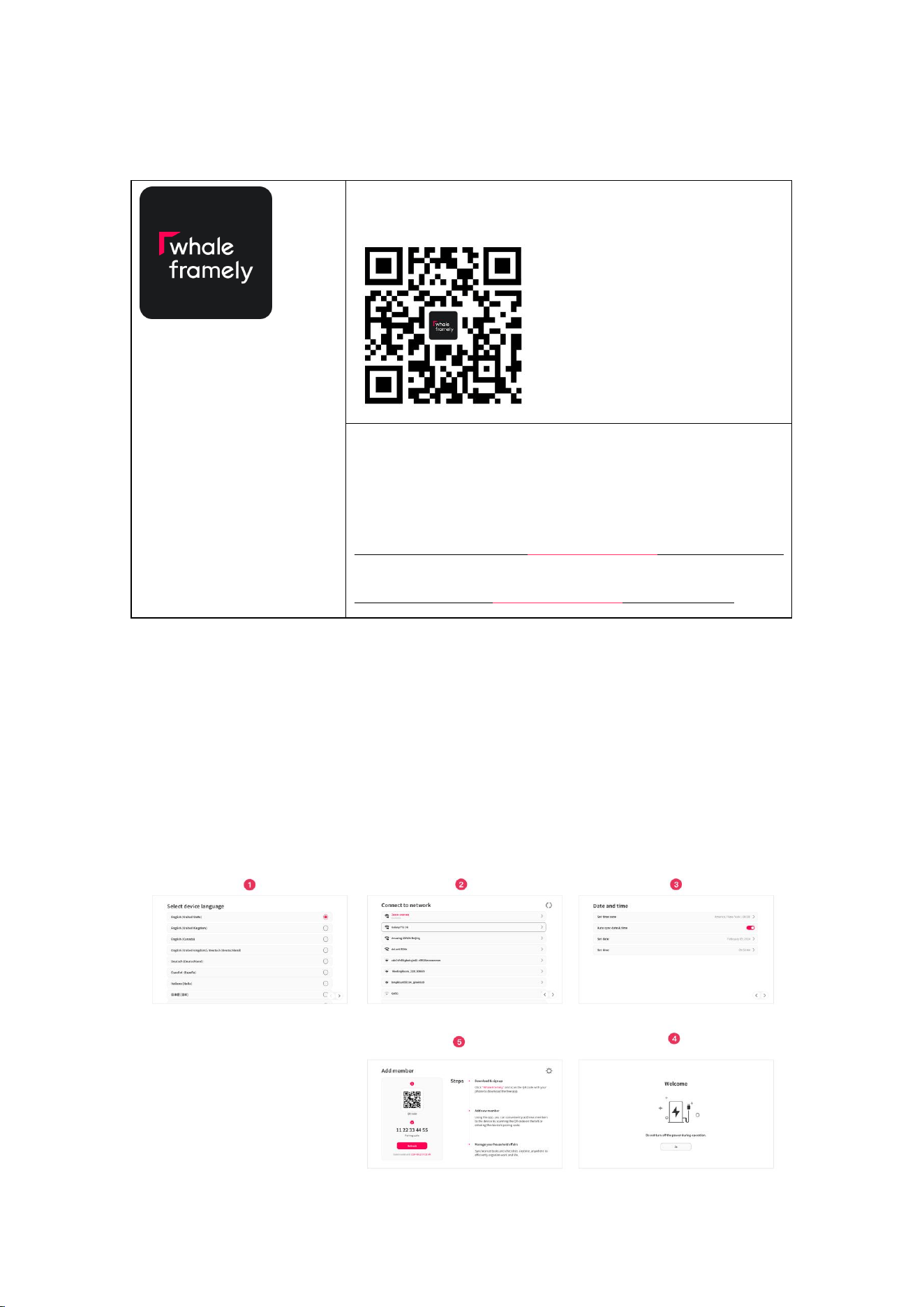
When you first launch the calendar, you'll need to set it up
1. Select a language. This will be the language used in Whale Framely.
2. Connect the calendar to the internet via Wi-Fi.
3. Set the date and time and adjust the time zone if necessary.
Whale Framely may prompt you to upgrade to the latest version. If prompted, it's
4. Recommended to upgrade the calendar before proceeding.
Add family members to easily share and track their events!
Adding members to the Calendar
1. Make sure your calendar is properly connected to the internet and that the
Whale Framely app is downloaded and installed on your phone.
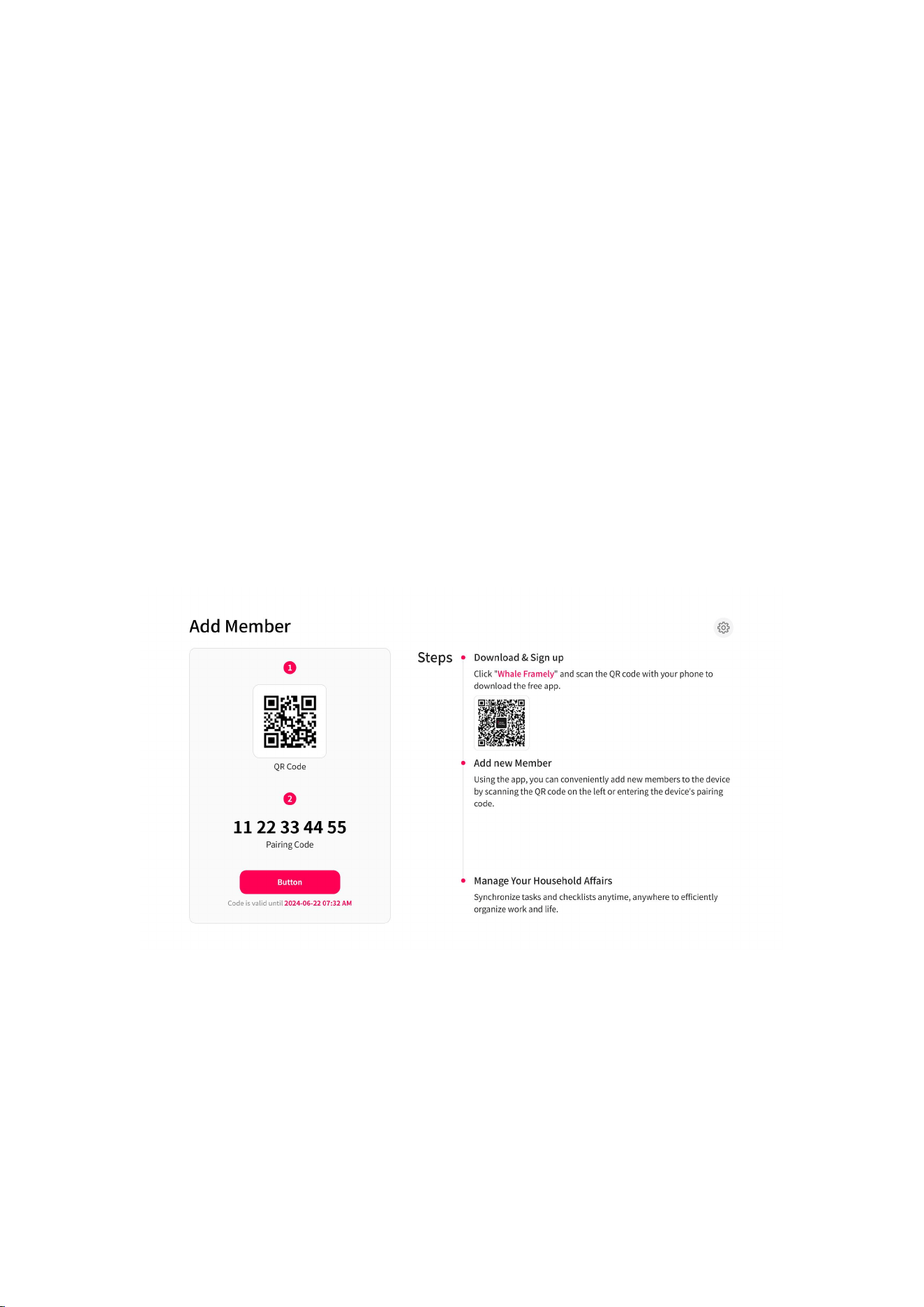
When you first open the calendar, the system will generate a random pairing code
and QR code, which will be valid for 48 hours.
2. Share this invitation code with new members through any method you prefer,
6
such as SMS, email, instant messaging, or phone calls.
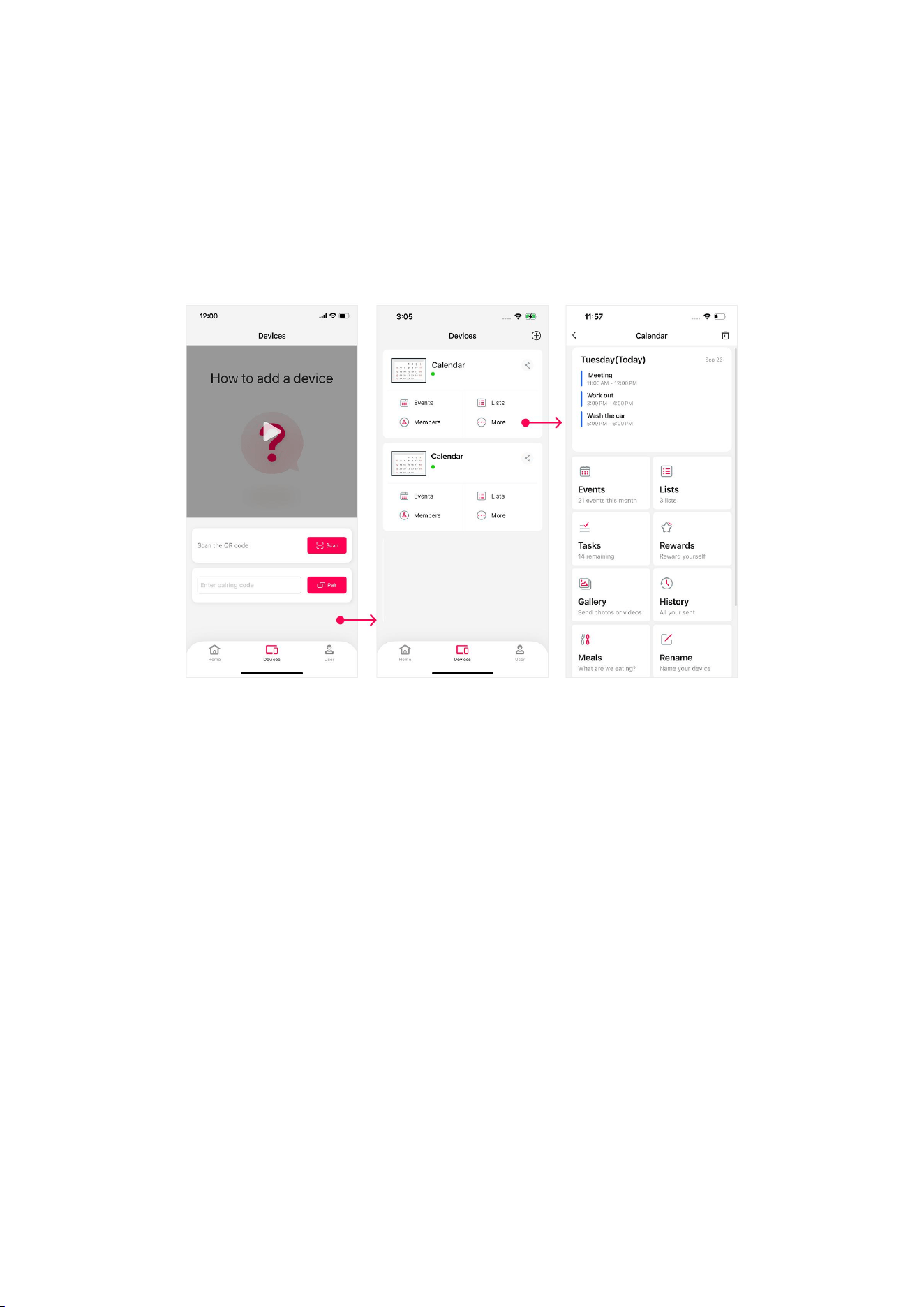
3. Open the Whale Framely App, tap the Devices tab, and either scan the QR code
on the calendar to add it directly or enter the pairing code to add it.
Once the calendar is successfully added, you can plan your events anytime
anywhere and stay closely connected with your family.
Note: After your calendar is bound, the Devices page will display all bounded devices. To switch
device, please click on the calendar name.
7
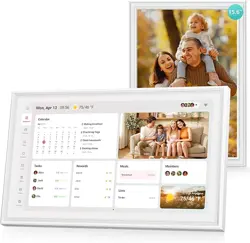
Dashboard
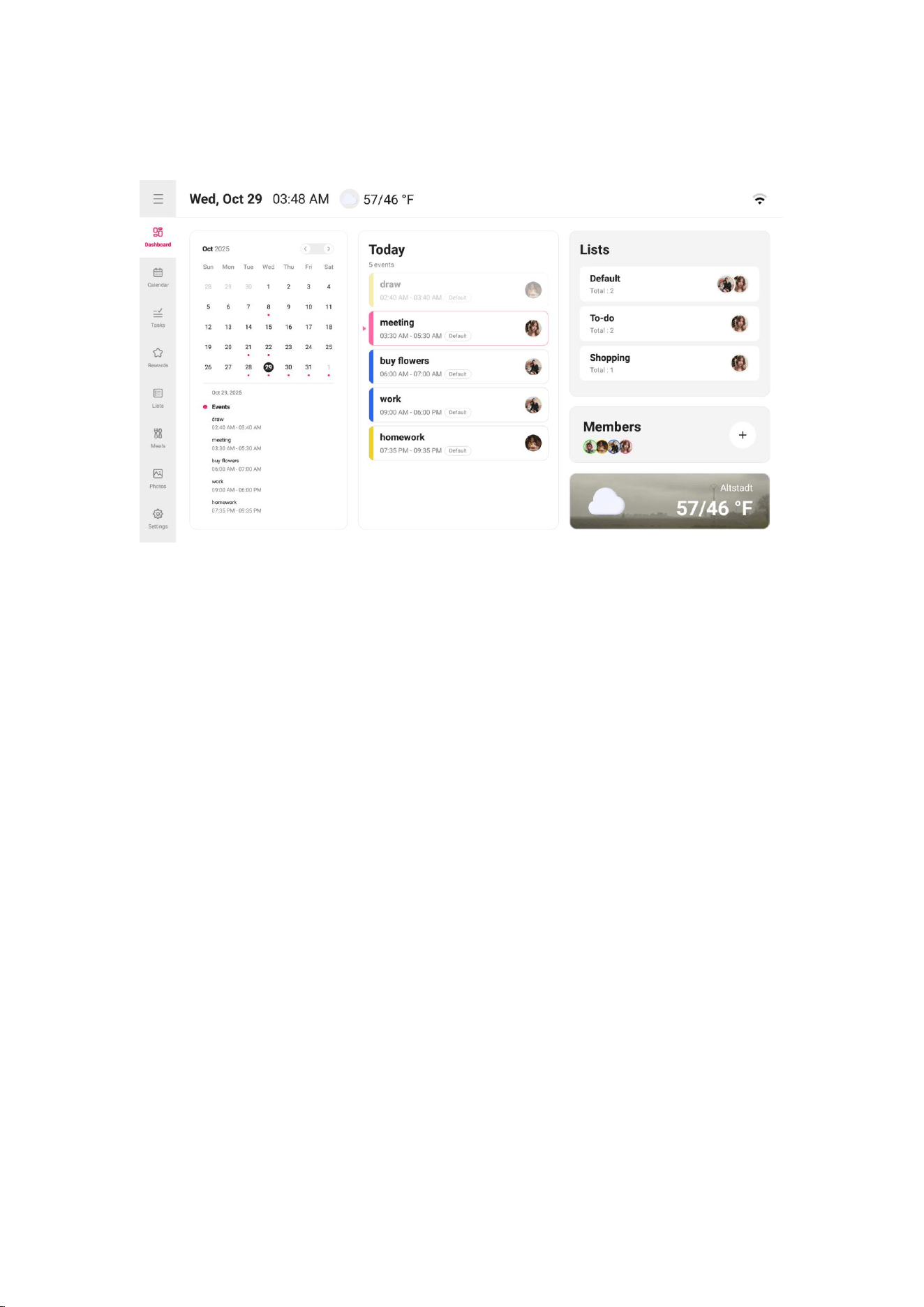
Quickly get an overview of your schedule.
Month view: Displays events for the entire month, allowing you to quickly check
the specific plans for each day by switching dates.
Today's events: Focus on today's agenda to efficiently complete daily events.
Completed events are shown in gray, while pending events appear in their regular
status. The current time period is highlighted to give you a clear view of your
ongoing plans.
List: Shows the current list categories in progress and the number of events in each
category, making management and viewing more convenient.
8
Calendar
Offers multiple view-switching and filtering options to accommodate diverse
scheduling needs.
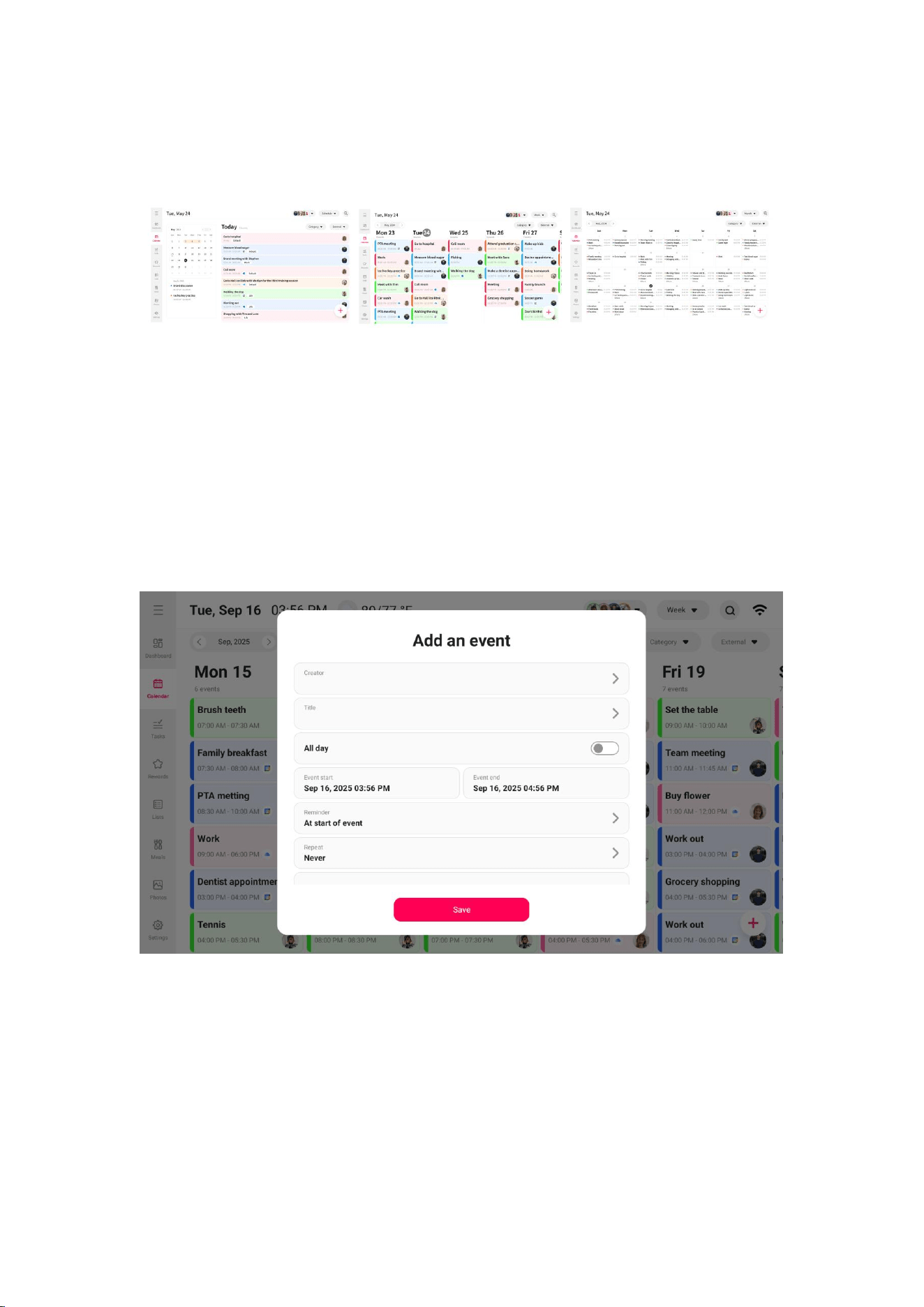
Create event
You can create events on your device. Once created, the event will sync to the app.
How to create an event on the device?
1. Open the calendar module on the device.
2. Tap the "+" icon in the bottom right corner of the screen.
3. On the next page, enter the event creator, title, time, and other details.
4. After confirming all information is correct, click the "Save" button. The event will

9
then sync and be displayed in the creator's app.
View switching
Supports switching between events view, week view, and month view for quick
access to schedules across different time ranges.
Events view: In the Events view, every schedule you add will automatically align
with the corresponding position on the 24-hour timeline according to the set start
time, achieving precise correspondence between the schedule and time.
Day View: Clearly displays all the scheduled activities for the day.
Week view: Offers a comprehensive overview of the week's events facilitating
better planning.
Month view: Provides a holistic view of the entire month, ideal for managing
long-term plans.
View Event Details
In the calendar view, click on the event you want to view. The event details page will
display all the information about the event, including the subject, time, description,
and more.
Delete an Event
On the event details page, locate and click the “Delete” button. A confirmation
prompt will appear, asking if you are sure you want to delete this event. After
confirmation, the event will be permanently deleted and cannot be recovered.
Edit Event
On the event details page, locate and click the “Edit” button and you can edit the
10
event.
Filter
Supports filtering events by members, categories, and third-party calendars.
Filter by member: Only shows events involving specified members.
Filter by category: Displays events categorized by subject, such as daily, social,
health, etc.
Third-Party Calendar filter: After syncing third-party calendar events, you can
filter and view them.
Search
Quickly find specific events using keywords.
Lists
Easily manage your task list and view detailed task information as needed.
Create a list
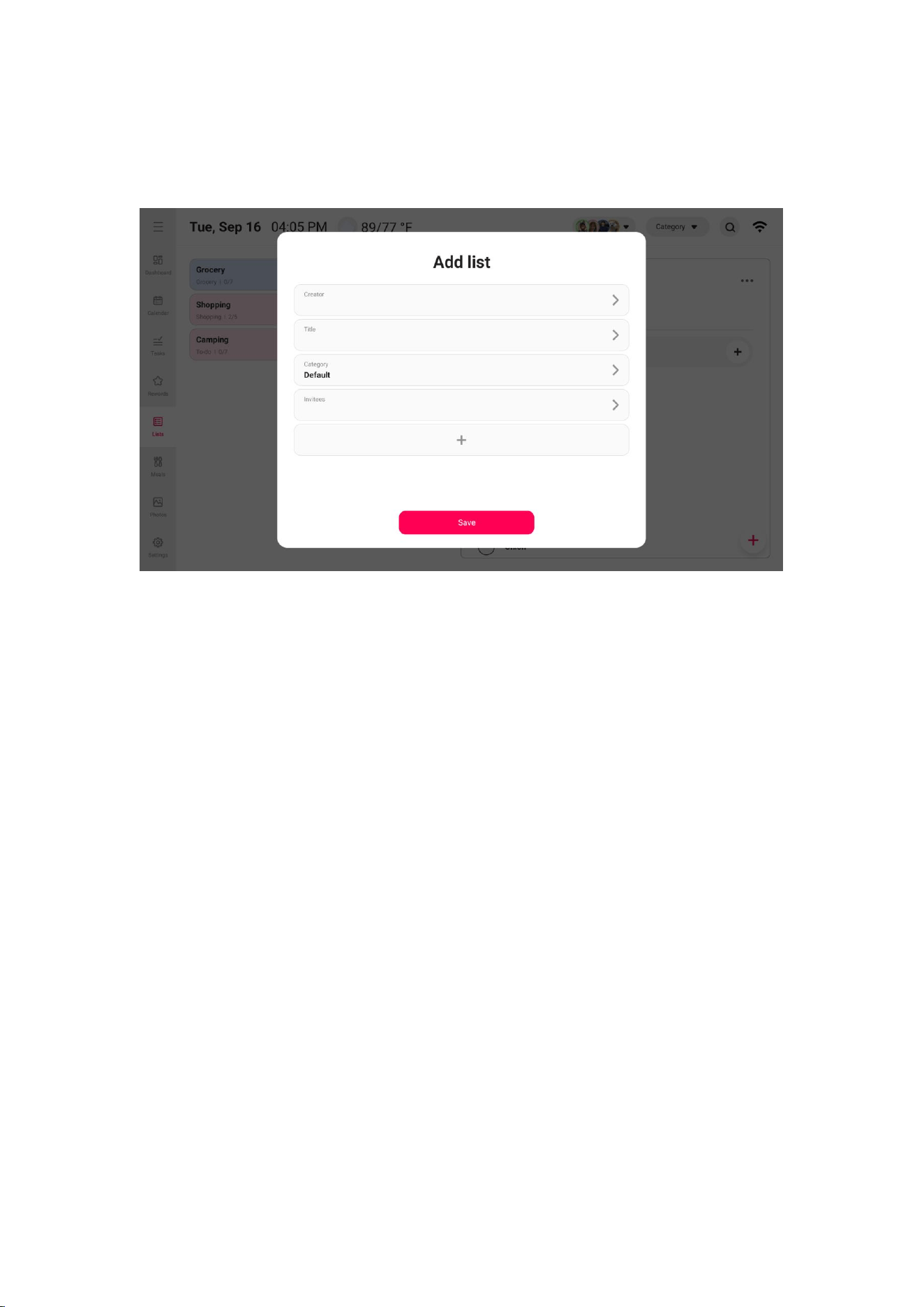
You can create checklists on your device. Once created, the checklist will sync to the
11
app.
How to create a list on the device?
1. Open the list module on the device.
2. Tap the "+" icon in the bottom right corner of the screen.
3. On the next page, enter the list creator, title, and other details.
4. After confirming all information is correct, click the "Save" button. The lists will
then sync and be displayed in the creator's app.
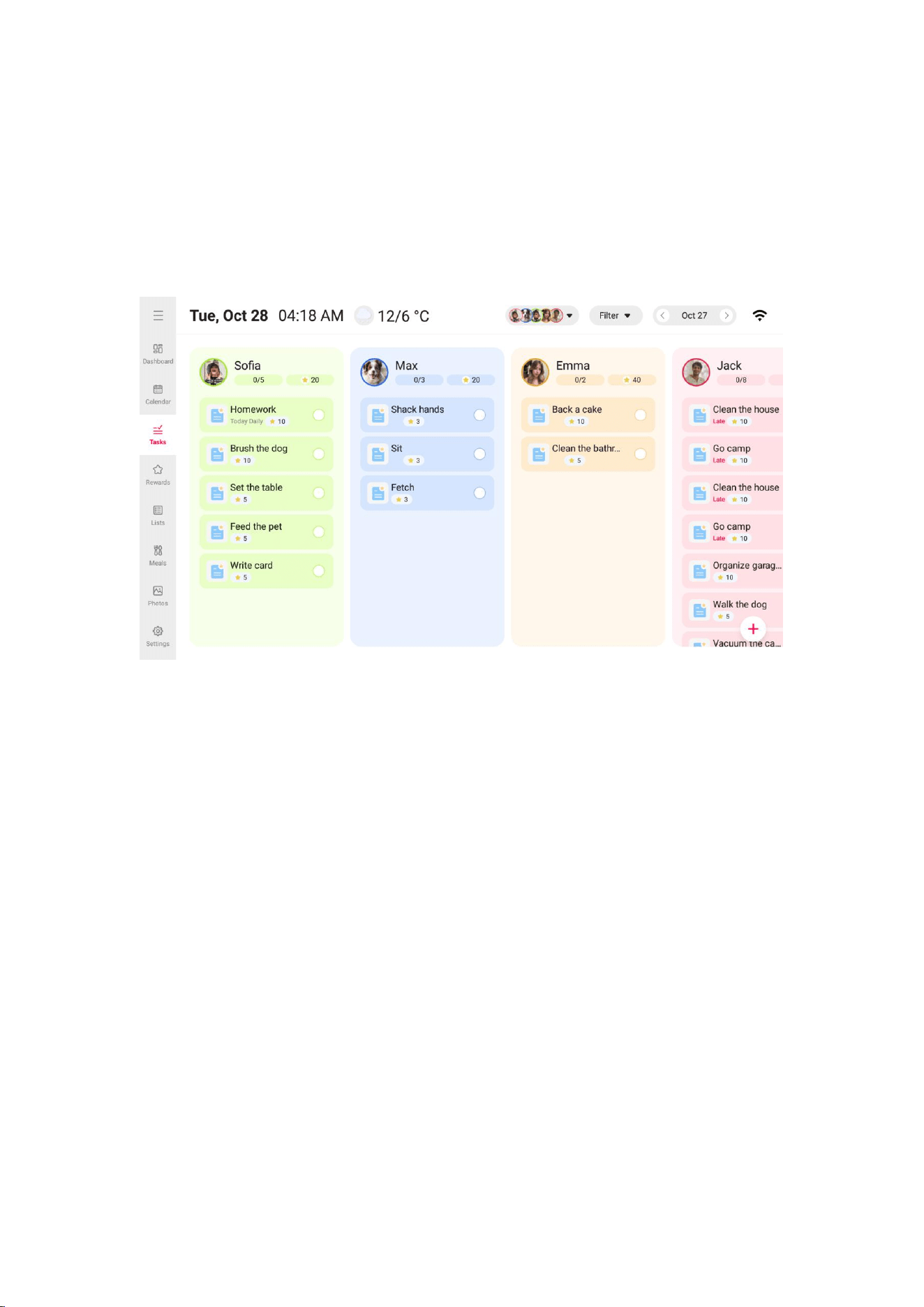
View Lists Tasks
Click on the “Lists” to view the tasks within it and quickly check the completion
status of each task.
Edit Lists
Click the small circle next to the task to mark it as complete or to undo its
completion status.
Long press on a task to adjust its order, helping you optimize your task
arrangement.
12
Copy List
Tap the list title for options like copying content to save time.
Tasks
Tasks are a core feature of the Calendar device, helping you stay on top of
important activities in your daily life. Examples of tasks include chores like “Clean
the garage” or “Mow the lawn.”
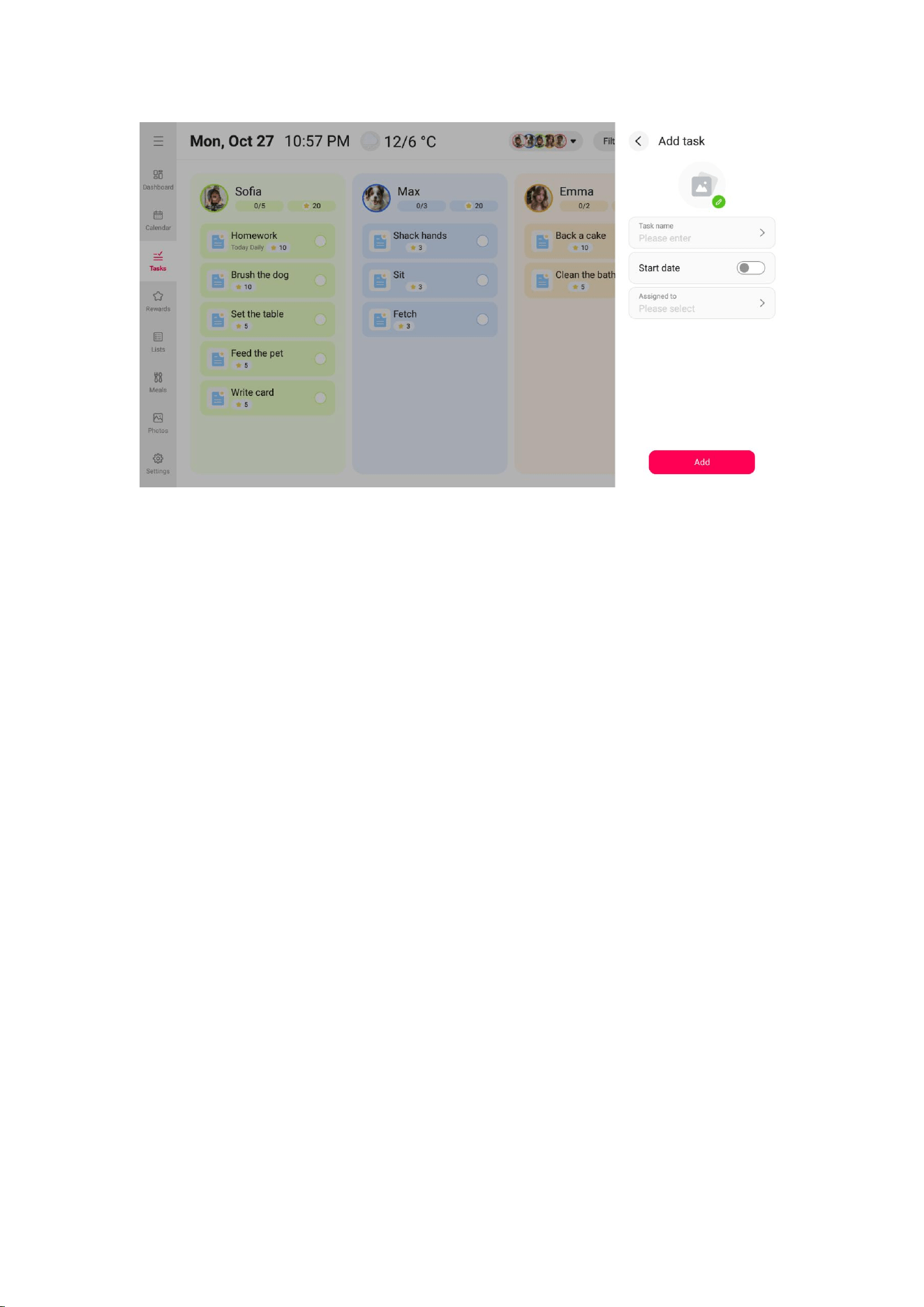
Create a task
You can create tasks on your device. Once created, the task will sync to the app.
How to create a task on the device?
13
1. Open the task module on the device.
2. Tap the "+" icon in the bottom right corner of the screen.
3. On the next page, enter the task name, choose the date and time, and assign the
task to the members.
4. After confirming all information is correct, click the "Add" button. The task will
then sync and be displayed in the creator's app.
View Task Details
In the Tasks module, tap on a task to view its details, including the task name, time,
and stars that can be earned.
Long press on a task to adjust its order, helping you optimize your task
arrangement.
14
Rewards
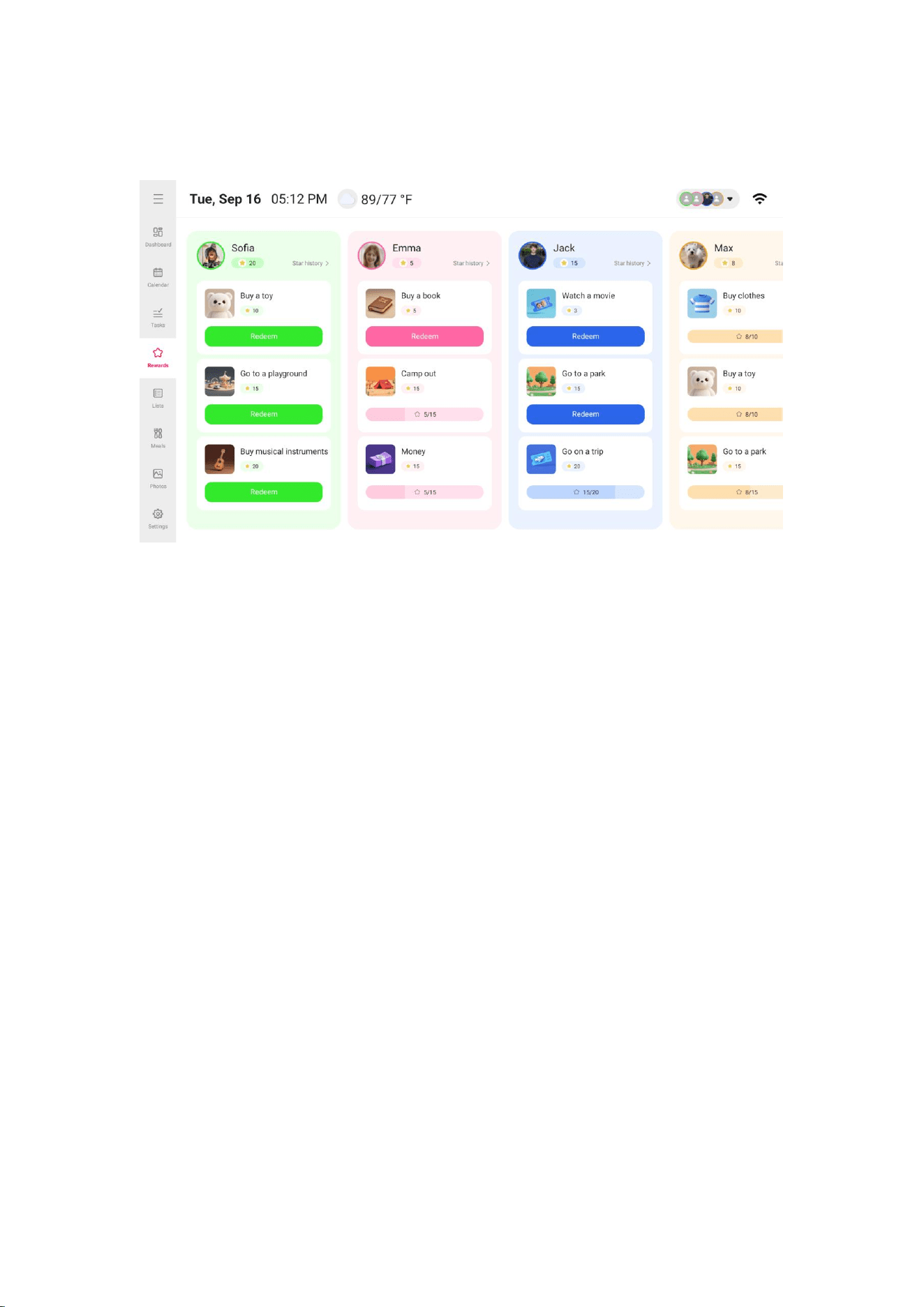
Rewards is a feature that helps motivate kids by making their progress toward goals
visible and trackable.
View Reward Details
In the Rewards module, tap on a reward to view its details, including the reward
name, time, and stars required for redemption.
Long press on a reward to adjust its order.
Redeem a Reward on the Calendar
1.Tap Rewards in the Navigation bar on the Calendar.
2.Find your member.
3.Tap the Redeem button associated with the Reward you want.
Note: The Calendar device only supports viewing. Please create rewards through the Whale Framely app.
15
Photos
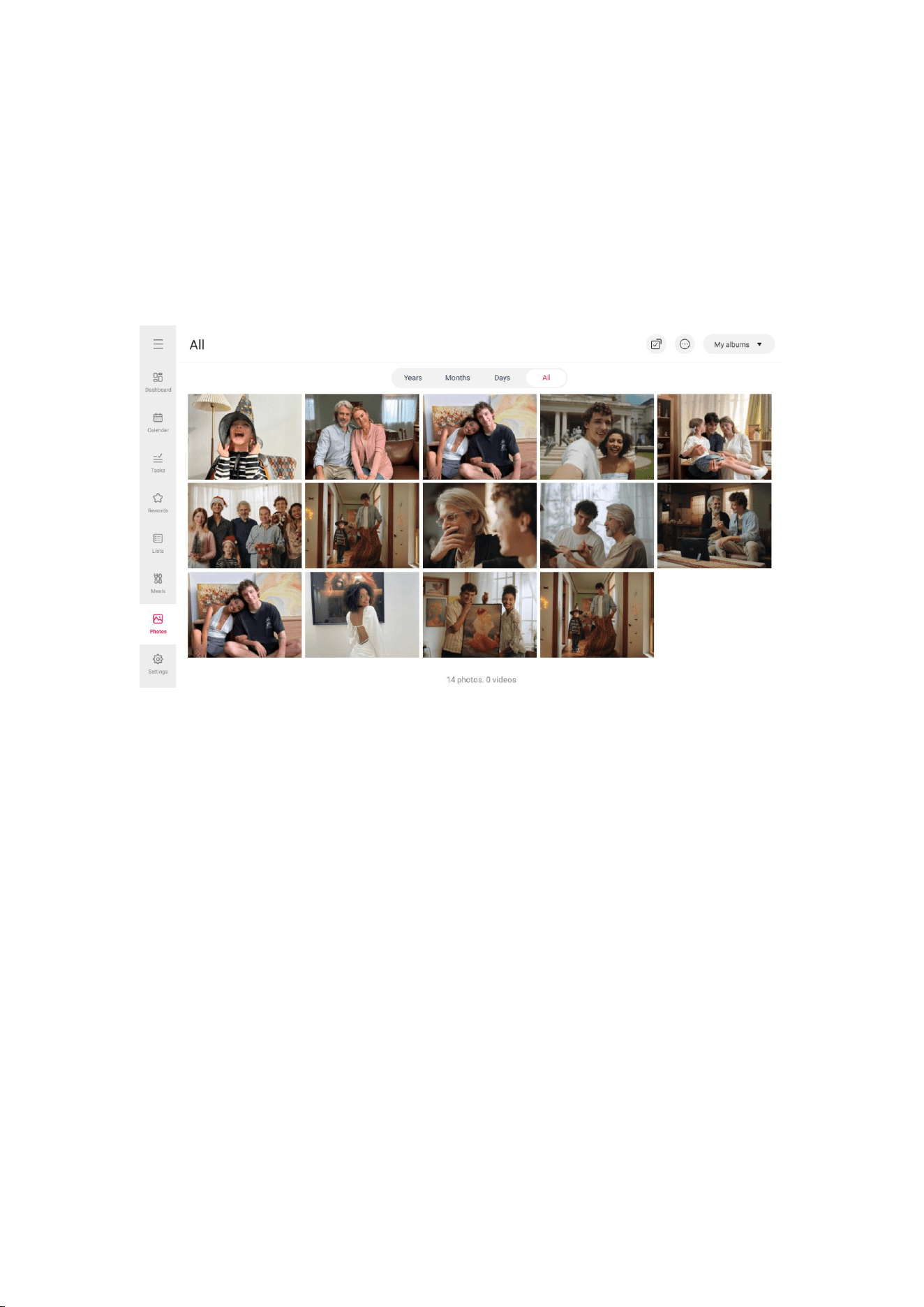
You can share photos and videos to the Calendar device via the Whale Framely App.
On the Calendar device, you can manage your photos, create custom albums, set
cover, play slideshows, and even use photos as a screensaver.
Flexible Browsing
Supports viewing in chronological or reverse chronological order. You can also filter
and view only photos or videos.
Quick Search
Use the time tab to precisely locate and review images from specific periods.
Personalized Playback
Allows you to play the content of any album individually and customize the
playback order.
Custom Albums
You can create exclusive albums based on themes, people, locations, etc., making it
16
easy to categorize and share.
Meals
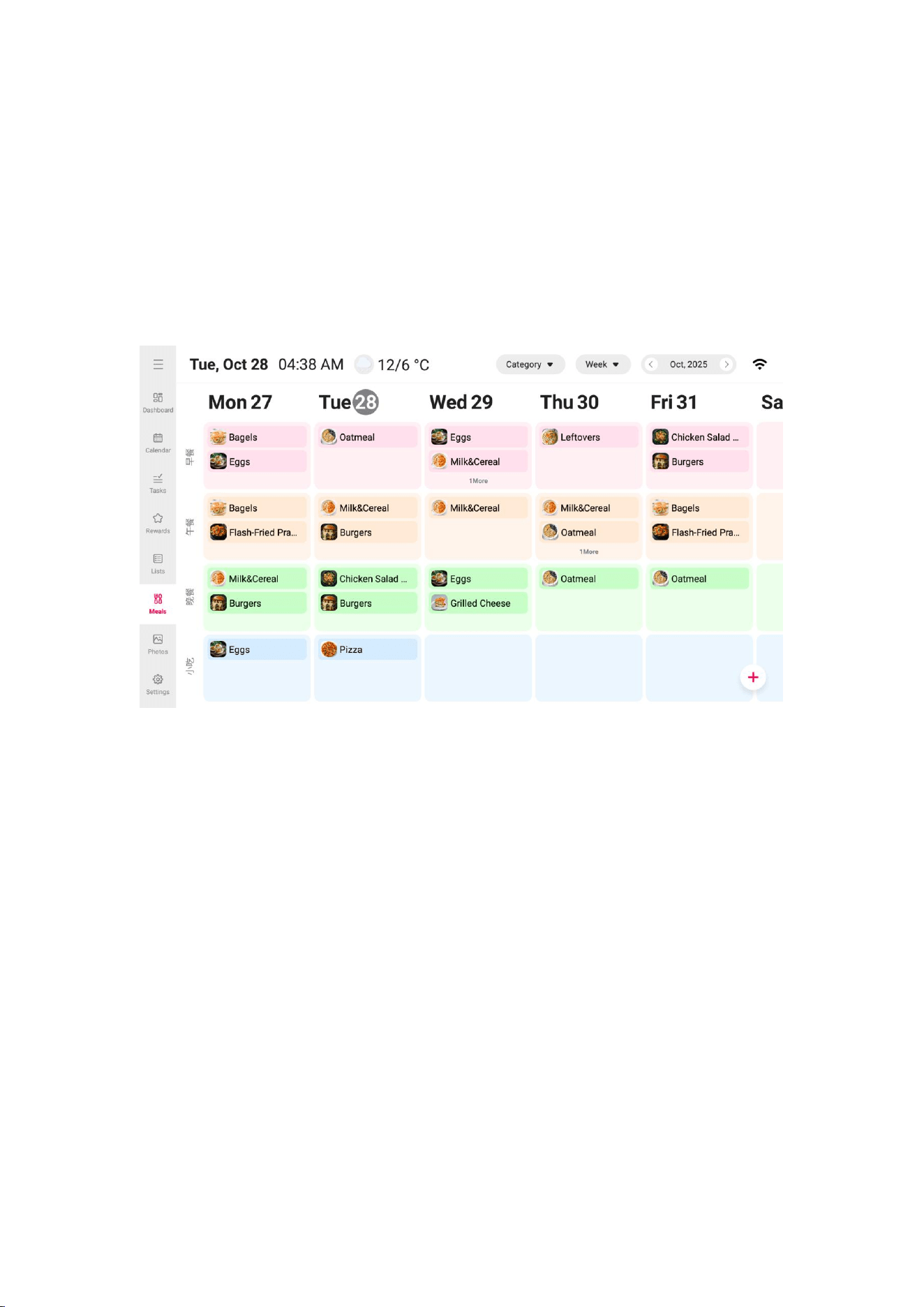
Meal planning is a powerful feature that allows you to schedule an entire week’s
meals in just a few minutes.
Create a meal plan
You can create meal plans on your device. Once created, the meal plan will sync to
the app.
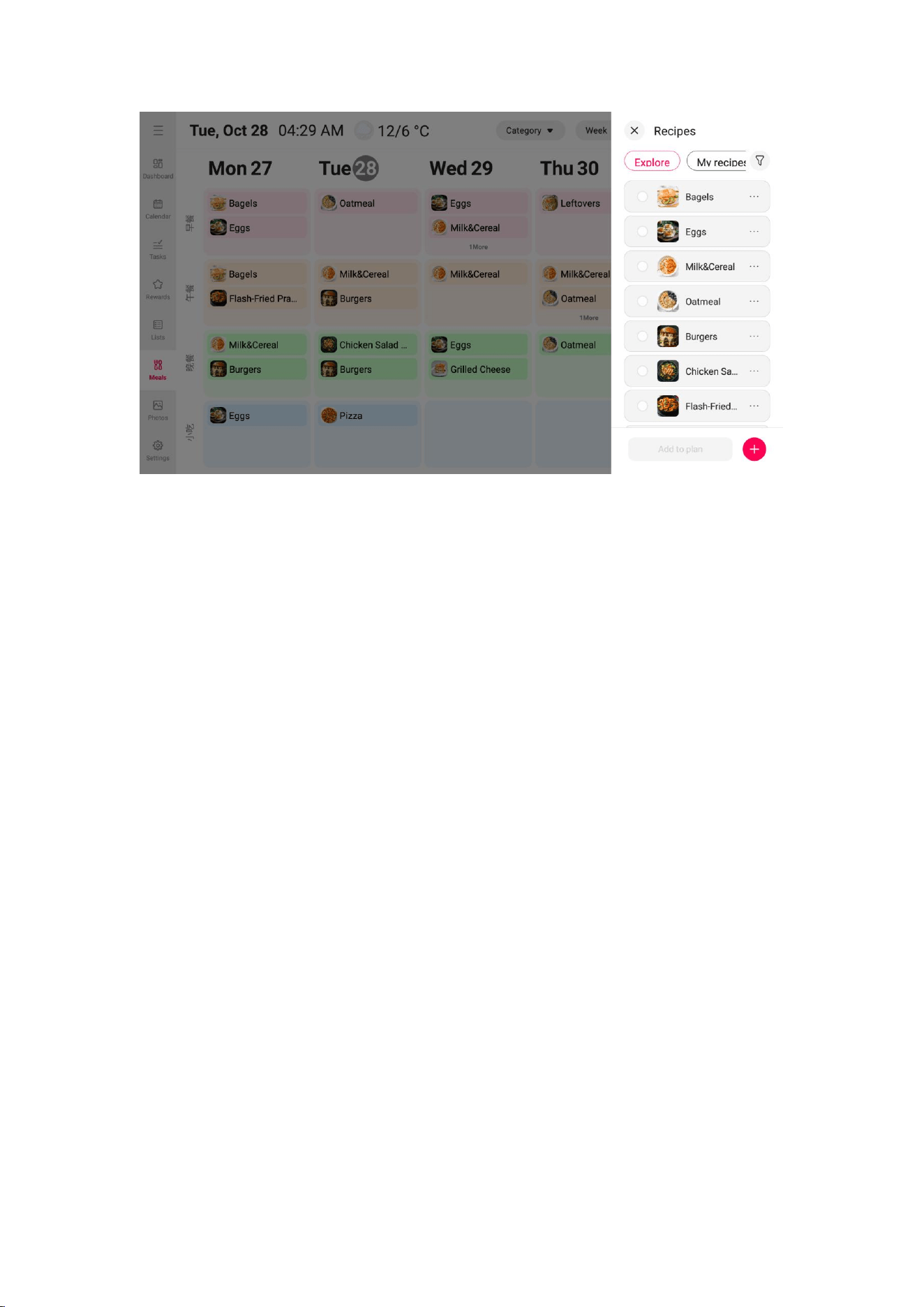
How to create a meal plan on the device?
17
1.Select the Meals module.
2.Tap the tile for the mealtime you want to add a recipe to, or tap the + button.
3.Choose the recipes you want to add from the recipe box (multiple selections are
supported).
4.After making your selections, tap Add to Plan.
5.Once added, you can simply tap the tile for that meal to view the full details.
View Meal Details
In the Meals module, tap on a dish to view its details, including the dish name,
image, ingredients, and more.
Settings
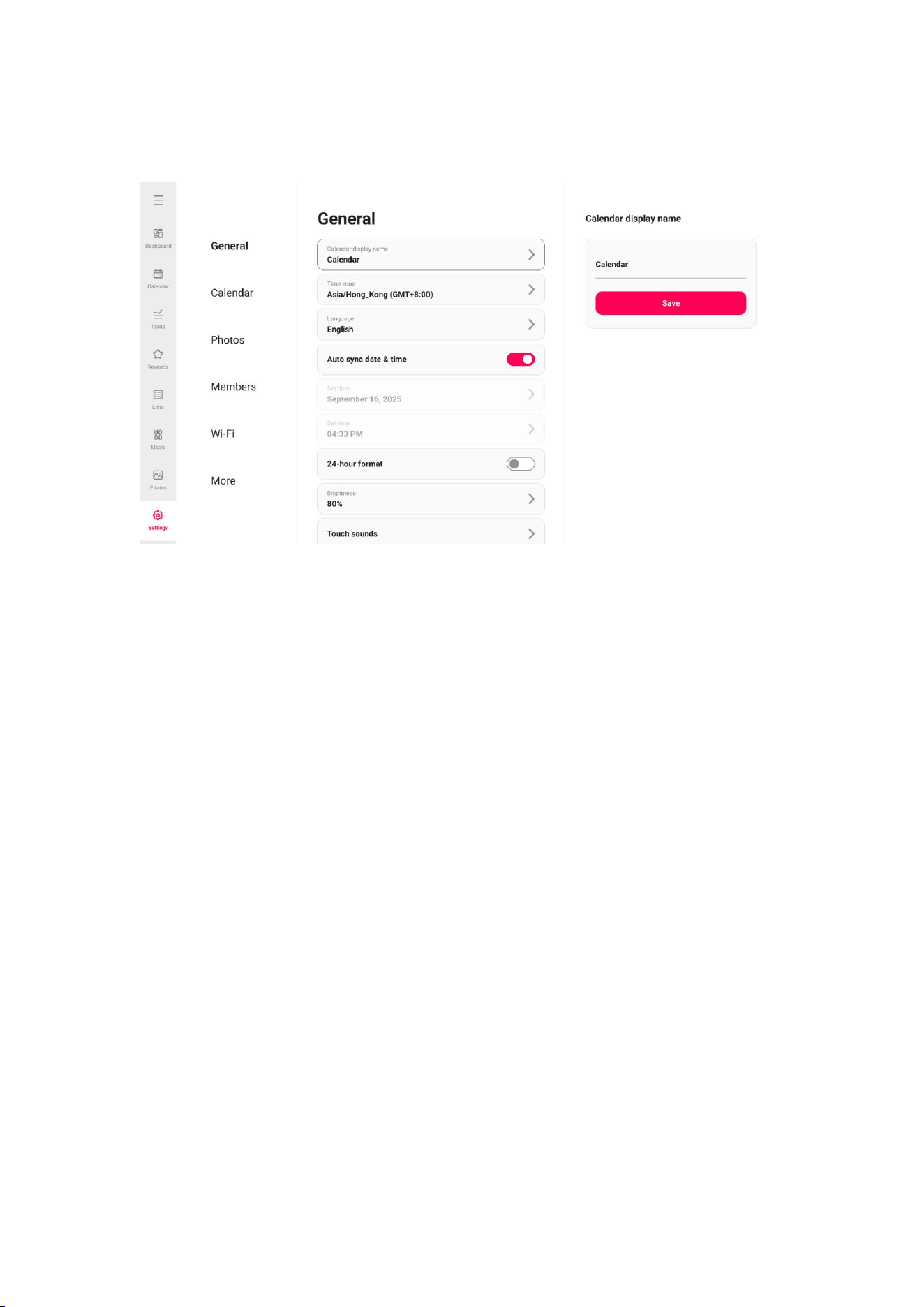
You can use this “Setting” to personalize your calendar based on your needs.
18
General
Calendar Name
You can customize the device name for easy identification and management.
Set Time Zone
Set the time zone used on the calendar.
Set Language
Set the language used on the calendar.
Automatic Network Time Correction
Once activated, the calendar will connect to the internet in real-time to correct the
time.
Date/Time Settings
After automatic network time correction is turned off, you can manually adjust the
date and time.
Enable/Disable 24-hour Format

19
Enable and disable the 24-hour format.
Brightness Settings
Adjust the screen brightness level.
Touch Screen Sound
Enable and disable the touch screen sound.
Font Size
Default standard font size, with 4 levels of size selection available.
Sleep mode
Whale Framely offers a sleep mode, in which the screen turns off to reduce power
consumption. The default setting turns off the screen at 20:00 and turns it back on
at 08:00. To change this, simply set the start/end time for sleep mode.
Reset Calendar
Delete all data from the calendar. This will permanently remove all photos,
members /connections and settings.
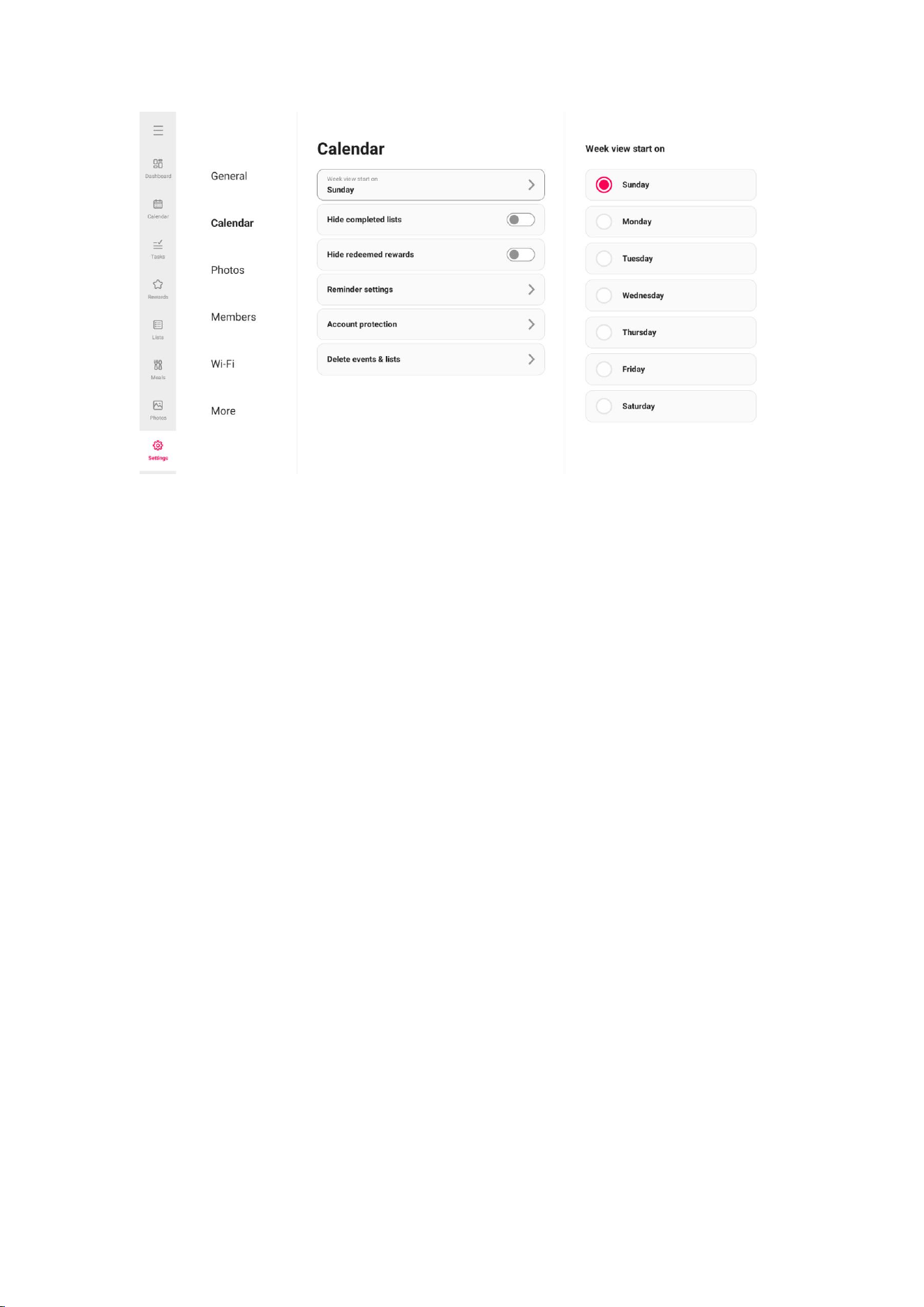
Calendar
20
Hide Completed Lists
Click the toggle button to show or hide completed lists.
Reminder Settings
You can enable the reminder feature on the Whale Framely Calendar to alert you
about upcoming events.
Event Reminder Settings: When enabled, reminders will trigger based on the
preset lead time; when disabled, no reminders will be sent.
Reminder Volume: Adjust the volume of the reminder to ensure the sound is clear
and loud enough, suitable for different environments.
Reminder Sound: Choose your preferred ringtone from the sound list for the
reminder.
Reminder Duration: Customize the duration of the ringtone to ensure the alert
suits your needs.
Reminder Light: When a schedule reminder is triggered, the device screen's light
effects will also activate, providing a visual reminder.
21
Account protection
The Account Protection feature safeguards family accounts, preventing accidental
deletion by children.
Delete events & lists
Supports bulk deletion of events and lists, saving you time efficiently
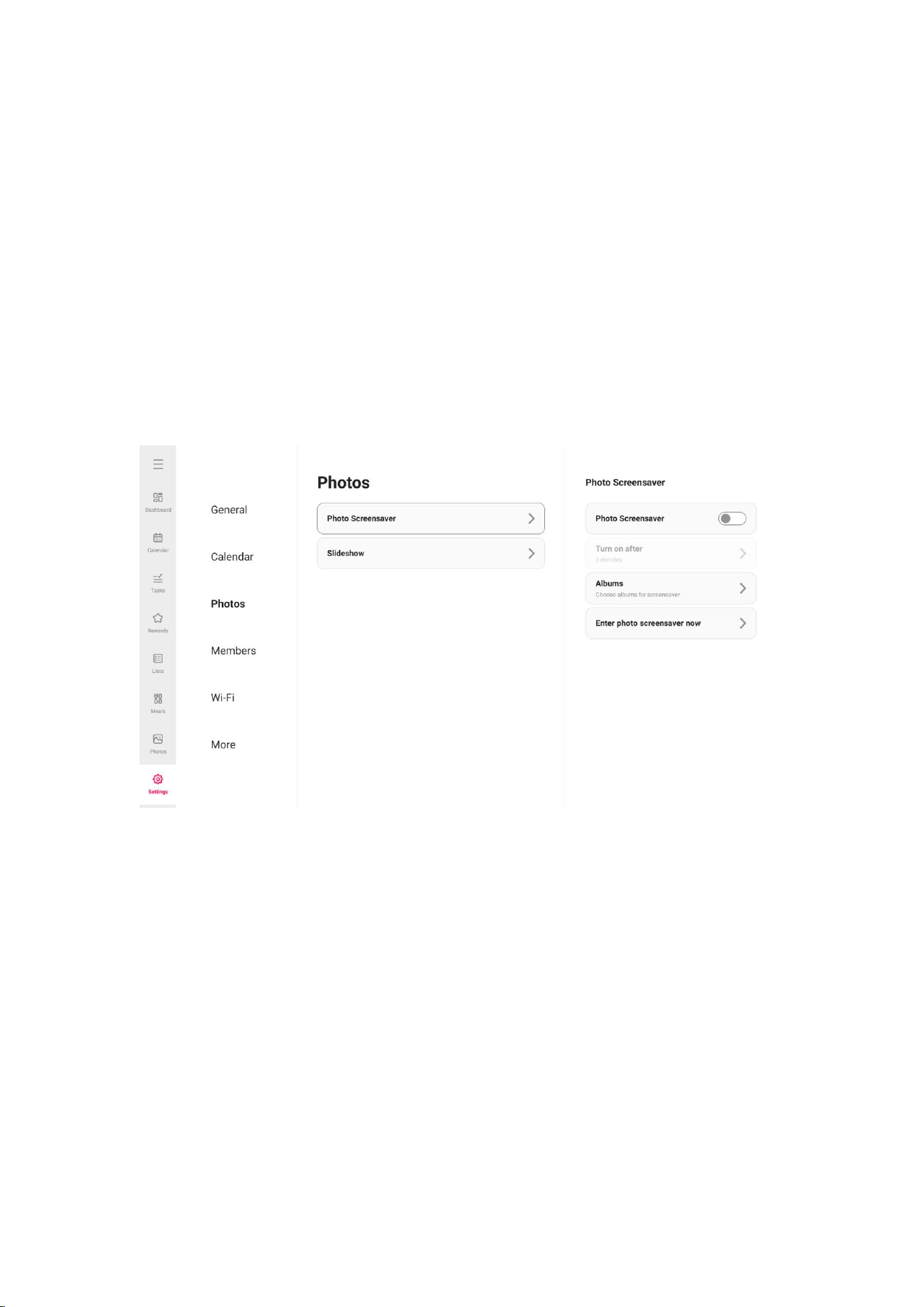
Photos
Photo Screensaver
You can set photos as a screensaver. Once the screensaver is enabled, you can
choose which album to display and configure a timer, such as automatically
entering screensaver mode after a few minutes of inactivity.

22
Slideshow
Slideshow intervals:Set the photo display time interval.
Slideshow:You can set your preferred photo display mode.
Background Effect: Choose between several different photo background options
to be shown as bars if the photo does not fill the screen.
Fill frame:This function is to change the scaling of all current photos on the frame
or not
Video volume:Adjust the video’s sound level.
Video autoplay: When turned on, video will be automatically played; when turned
off, video will be paused.
Video mute: When enabled, received videos will play with the sound muted.
Weather&Time:Enable and disable the weather and time. When enabled, the
weather and time are displayed on the slideshow, and when disabled, they are not
displayed.
Members
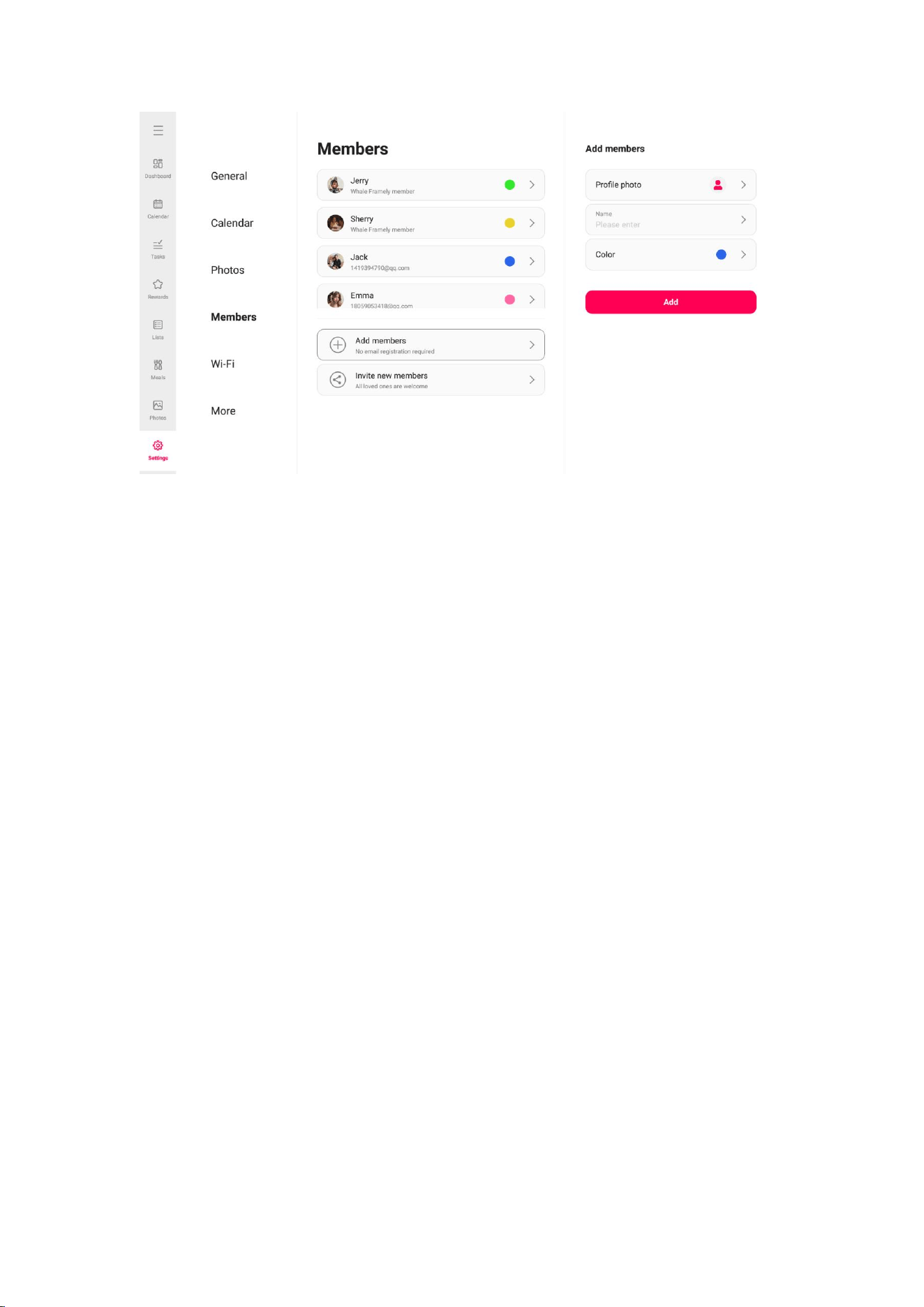
23
This list displays all connected members that are authorized to manage the events
in your calendar.
Add members
You can create a new Whale Framely member for those who don’t have account
like your daughter or son.
1. Tap “Add Member”
2. Select a profile photo, enter the member name, select a color
3. Tap “Add”
Once completed,you can create events for them.
Invite new member
To invite a new member to manage the events together, simply tap the “Invite new
members” button and share the generated pairing code or QR code in your
preferred method.
Unbind member
24
You can unbind a member. By clicking unbind, you will disconnect from this account,
and all associated content will no longer be displayed.
Member Permission Description
Calendar Device: After adding members, all members are allowed to operate on the
device and can perform all management operations, including adding, deleting,
and editing, for all users on the platform (including both real and virtual users).
App: The scope of permissions is limited. The operator is only allowed to add,
delete, and edit their own account and virtual users. For other real members, only
viewing permissions are granted, with no permission to modify.
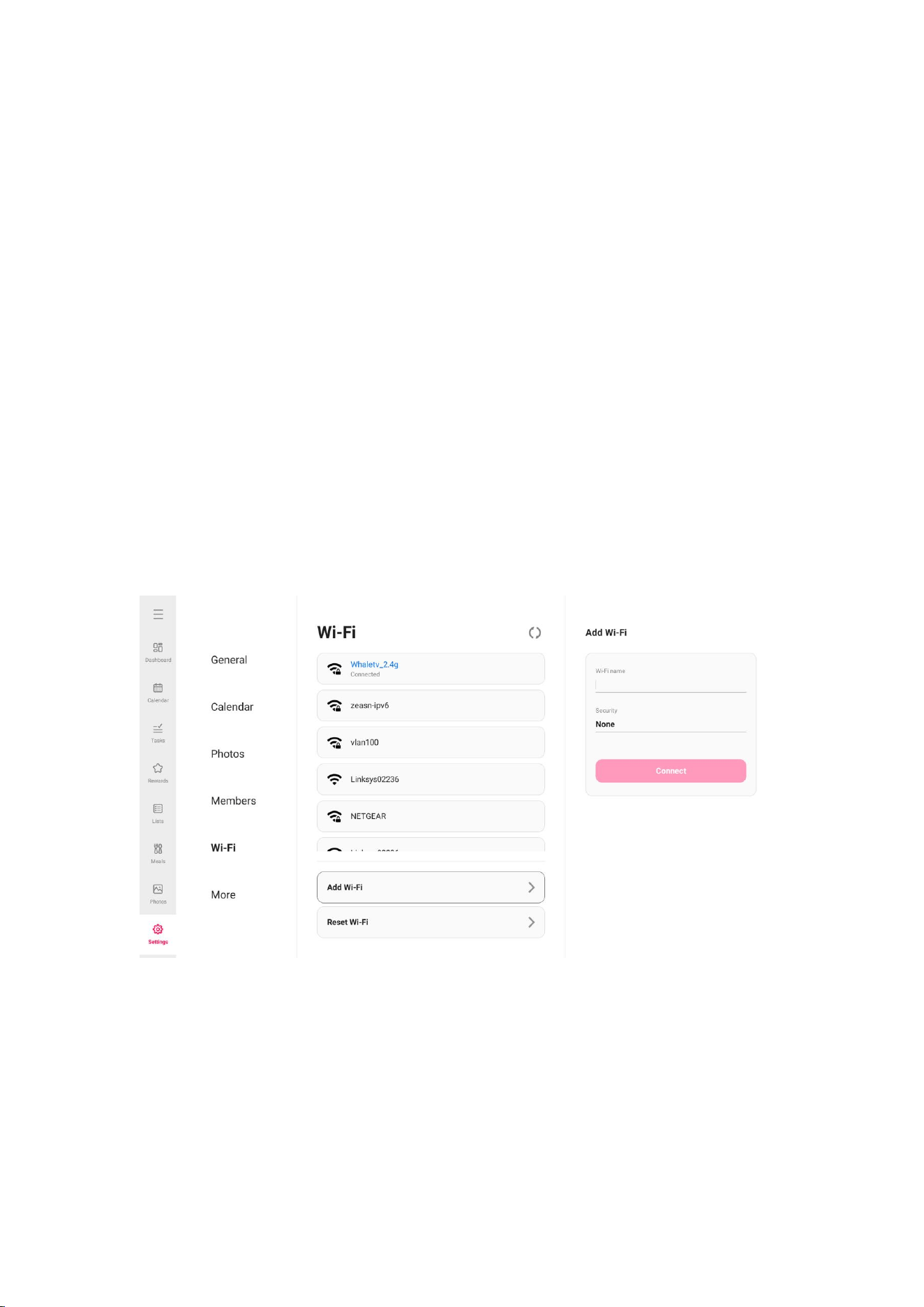
Wi-Fi
Set the Wi-Fi that the calendar will connect to.
Wi-Fi details
Displays details such as Wi-Fi name, signal strength, Wi-Fi status, etc.
Add hidden Wi-Fi
Manually add a hidden Wi-Fi network.
25
Refresh
Refresh the current Wi-Fi list.
Reset Wi-Fi
After resetting, the Wi-Fi will return to its factory settings, and the data cannot be
recovered. The calendar will automatically restart once the reset is complete.
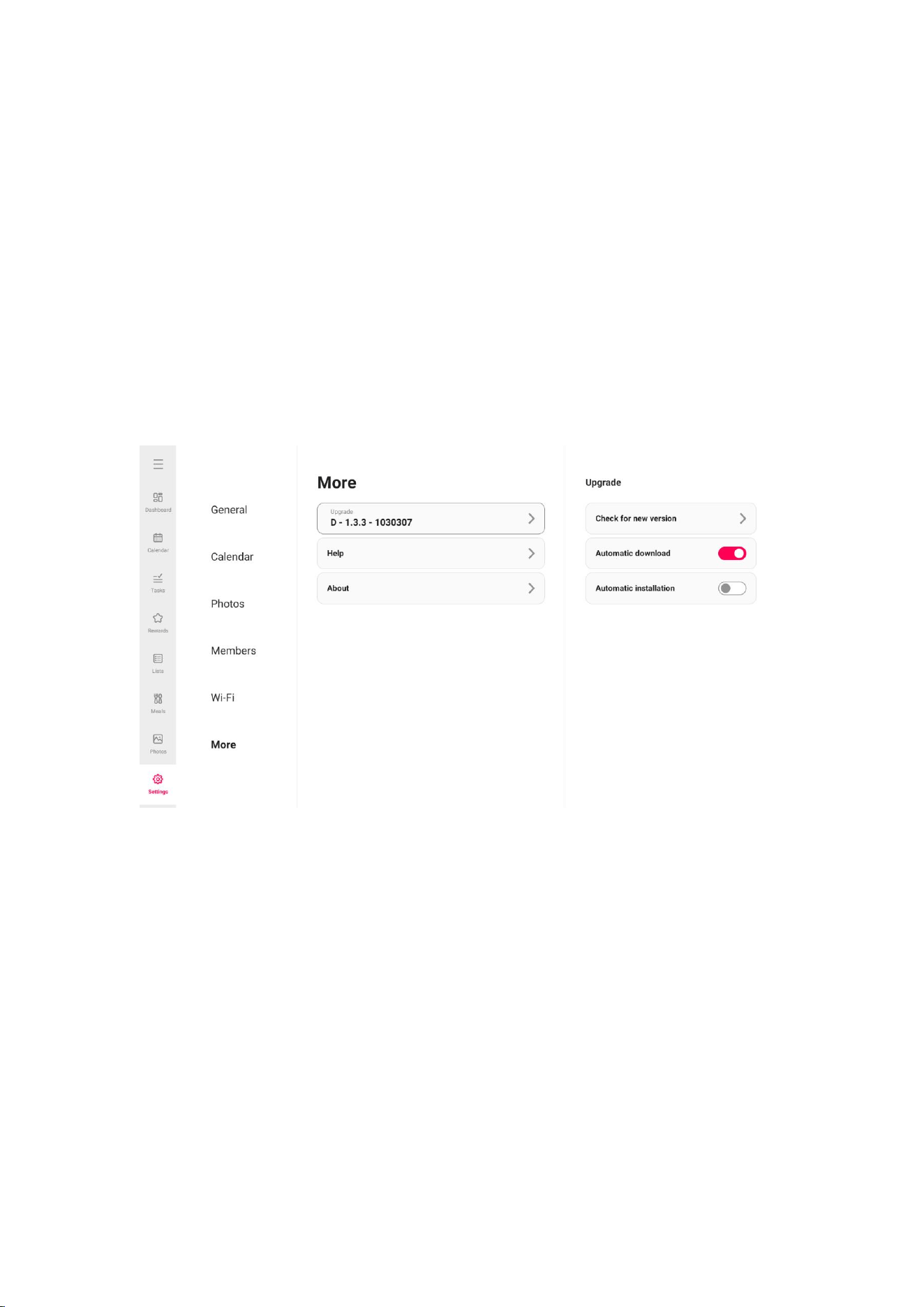
More
Software Version Update
Check for updates to the calendar software.
Automatic Download: When enabled, the higher version will be automatically
downloaded to the local device upon detection. If disabled, manual checking is
required.
Automatic Installation: When enabled, the higher version will be automatically
installed after a successful download; If disabled, manual installation is required.

26
Help
Frequently Asked Questions: Refer to the FAQ section to quickly resolve any
questions you may have while using the app.
Support Services: If you have any other questions, you can contact us via email
(whaleframely.support@whaletv.com), and we will be happy to assist you.
App Download: Scan the QR code to download the Whale Framely App and easily
manage your events.
User Agreement: View the privacy policy and terms of use for Whale Framely to
learn more.
About
View basic information about the device, such as model, MAC address, system
version, etc.
Whale Framely App
Quick setup
The App is a mobile efficient tool. You can log in using a visitor account,an email
account or a Third-party authorized account.
Visitor Account: Data will not be retained in the cloud; created accounts are
temporary. If you uninstall or reset the app, the temporary account and any
generated data will be completely deleted.
Email Account: Data will be retained in the cloud (such as profile picture, nickname,

27
calendar binding relationships). If you uninstall/reset the app or change phones,
your data will remain intact.
Third-party authorized account: Supports logging in via Facebook, Google, and
Apple ID.
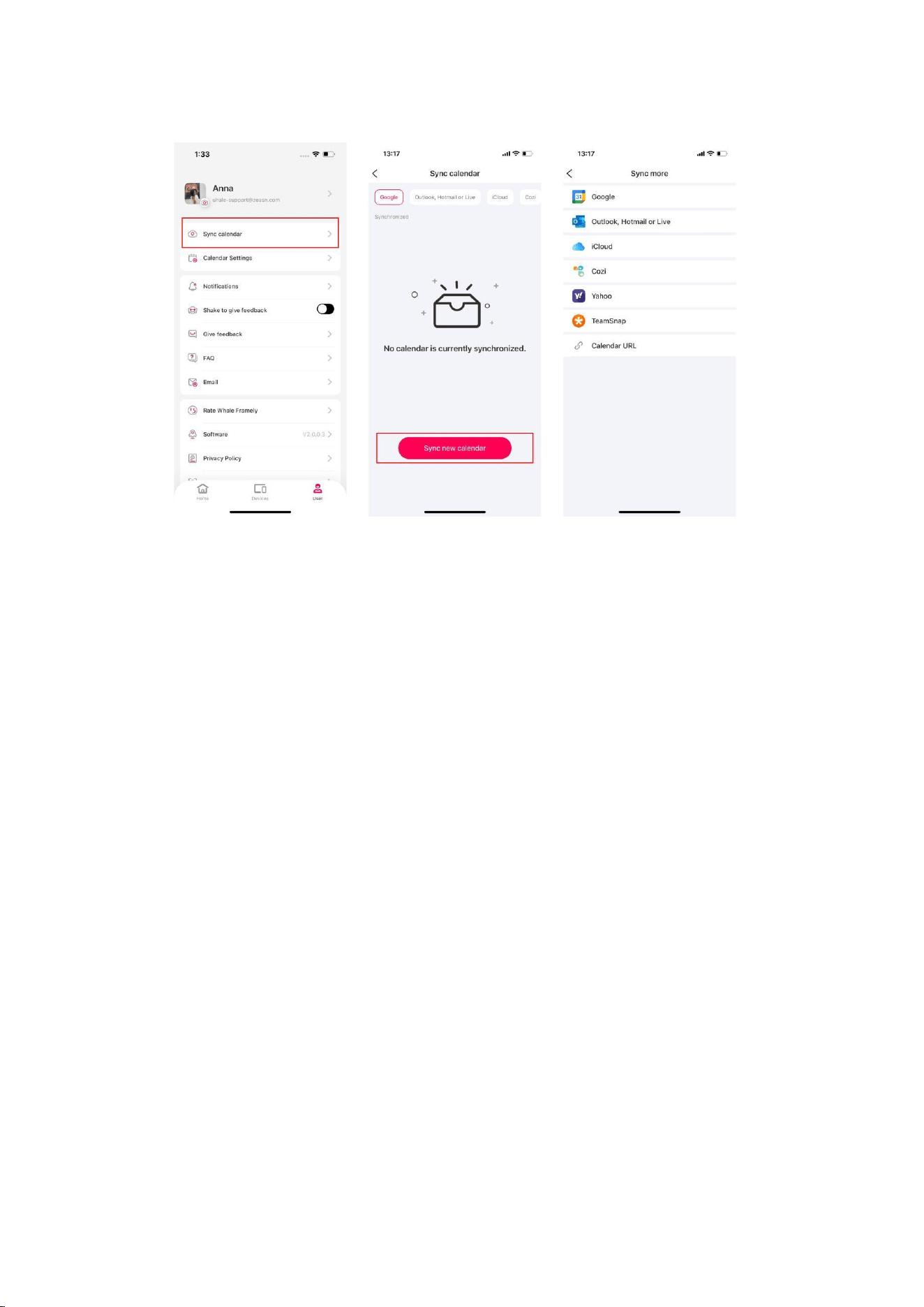
Sync Calendar
Sync operations can only be completed through the app.
When you sync your source calendar (such as Google, iCloud, etc.) with Whale
Framely, any changes made to the source calendar will automatically be reflected
on the Whale Framely calendar.
Especially for Google Calendar, you can choose to enable the two-way sync feature.
This means any events you create or edits you make in Whale Framely will be
synced in real-time with your Google Calendar.
Note: Visitor accounts cannot use this feature.
28
Google Calendar
To sync your Google Calendar with Whale Framely, follow these steps:
1. Open your Whale Framely App and log in to your account.
2. On the main screen of Whale Framely, tap the “User”option in the bottom right
corner to enter your personal center. Then, find and tap on the “Sync Calendar”
option to go to the calendar sync settings.
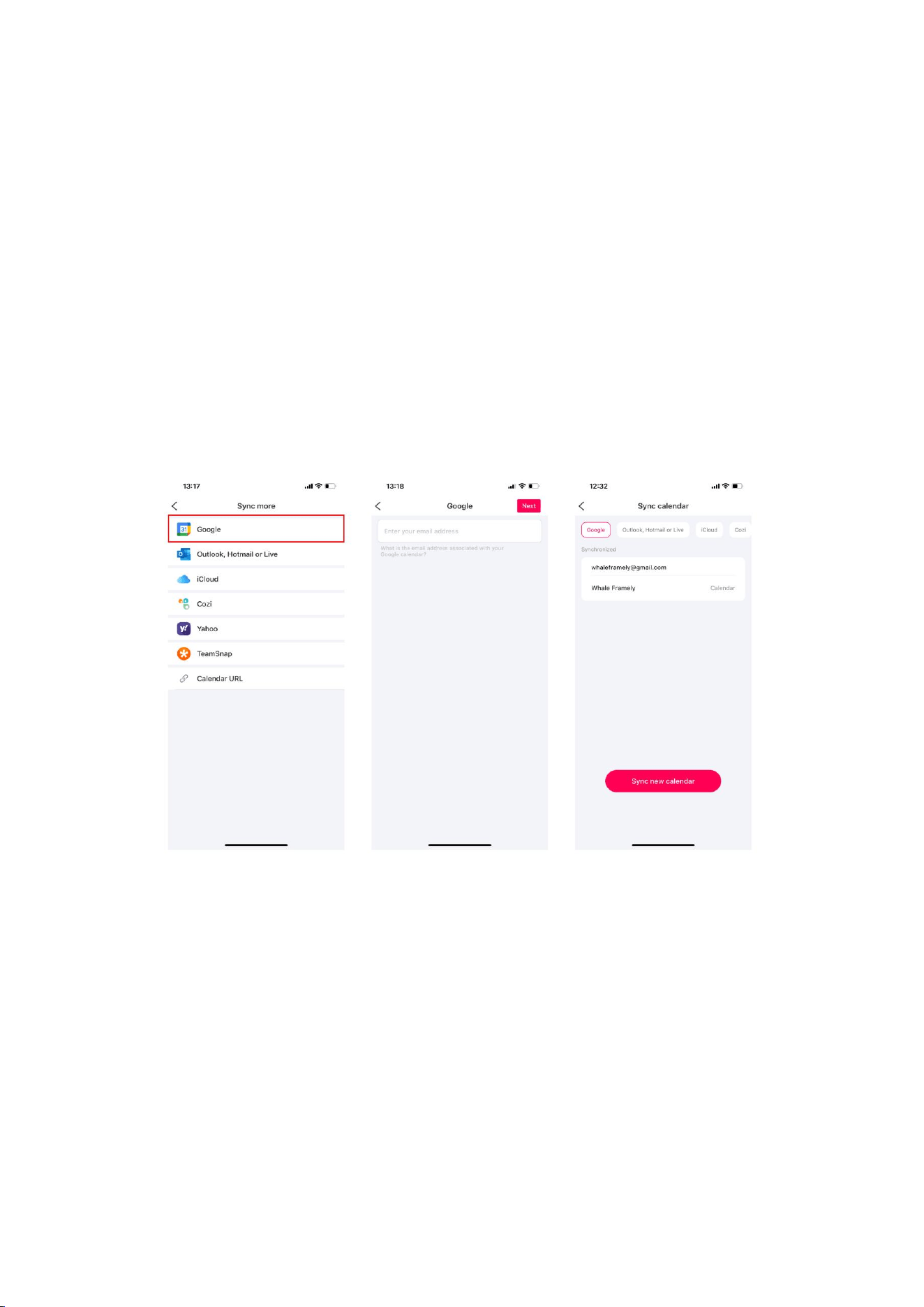
3. In the calendar sync settings, you will see multiple calendar options available.
Please select “Google Calendar”.
4. To ensure a smooth synchronization process, you need to authorize “Whale
Framely” App to access your “Google Calendar”.
On the pop-up authorization page, enter your Google credentials (usually your
Google account and password).
29
5. After authorization of “Google Calendar” is completed, you will see a list
containing all your Google Calendars. In this list, you can choose to sync all
calendars or select only specific calendars to sync.
6. After synchronization is completed, you will return to the page letting you
manage your Google Calendar settings. It includes selecting the synchronization
options (one-way or two-way sync), synced devices, synced events, and
synchronization dissolving, etc.
Outlook
To sync your “Outlook” calendar with Whale Framely, you can follow these steps:
1. Open your “Whale Framely” App and log into your account.
2. On the main screen of Whale Framely, tap the “User” option in the bottom
right corner to enter your personal center. Then, find and click on the “Sync
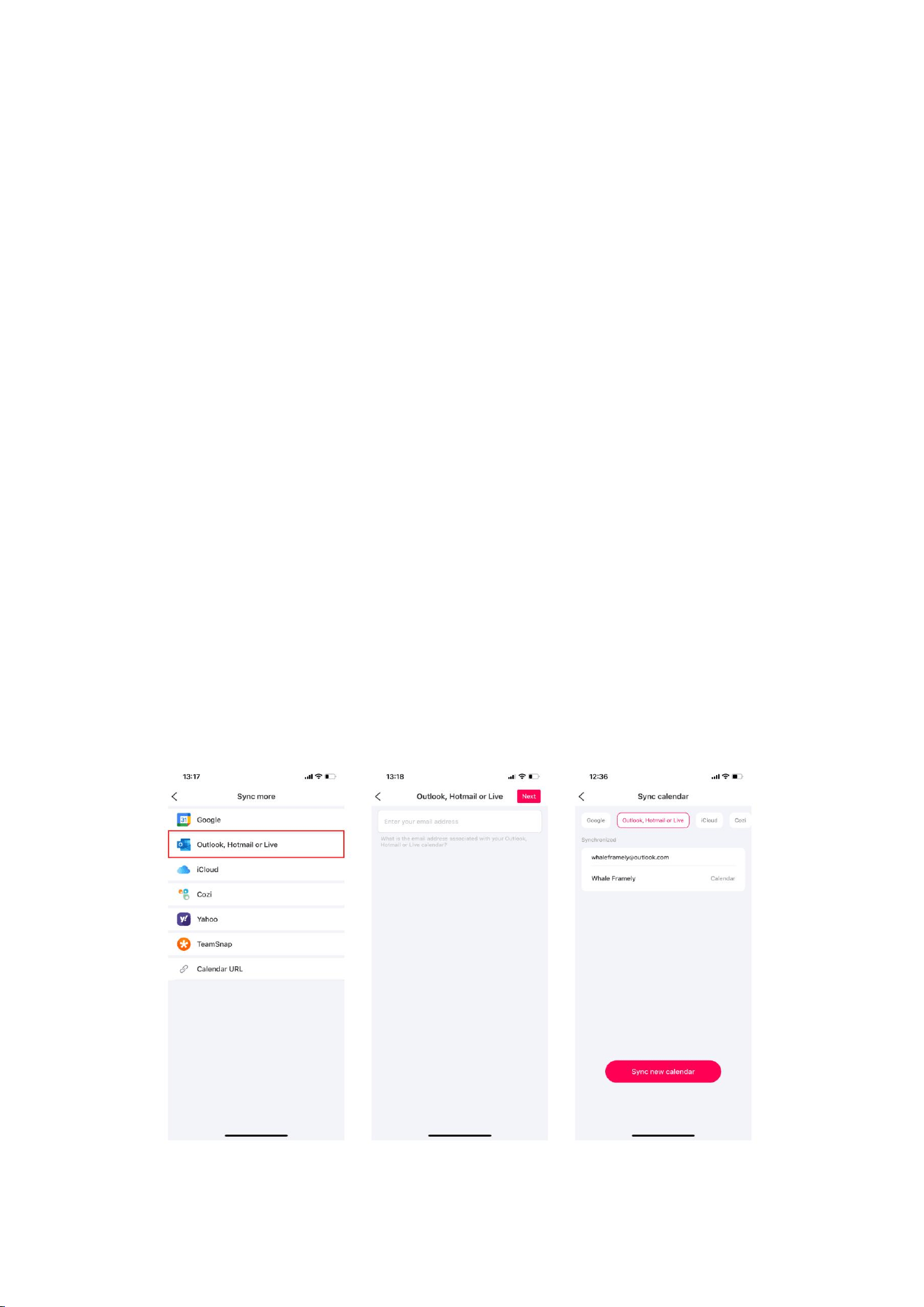
30
Calendar” option to go to the calendar sync settings.
3. In the calendar sync settings, you will see multiple calendar options available.
Please select 'Outlook'.
4. To ensure a smooth sync process, you need to authorize “Whale Framely” App
to access your “Outlook”.
In the pop-up authorization page, enter your Microsoft credentials (usually your
Microsoft account and password).
5. After authorization of “outlook” is completed, you will see a list containing all
your Outlook calendars. In this list, you can choose to sync all calendars or select
only specific calendars to sync.
6. After synchronization is completed, you will return to the page letting you
manage your Outlook sync settings. This includes selecting synced devices, the
events to sync, synchronization dissolving, and more.
31
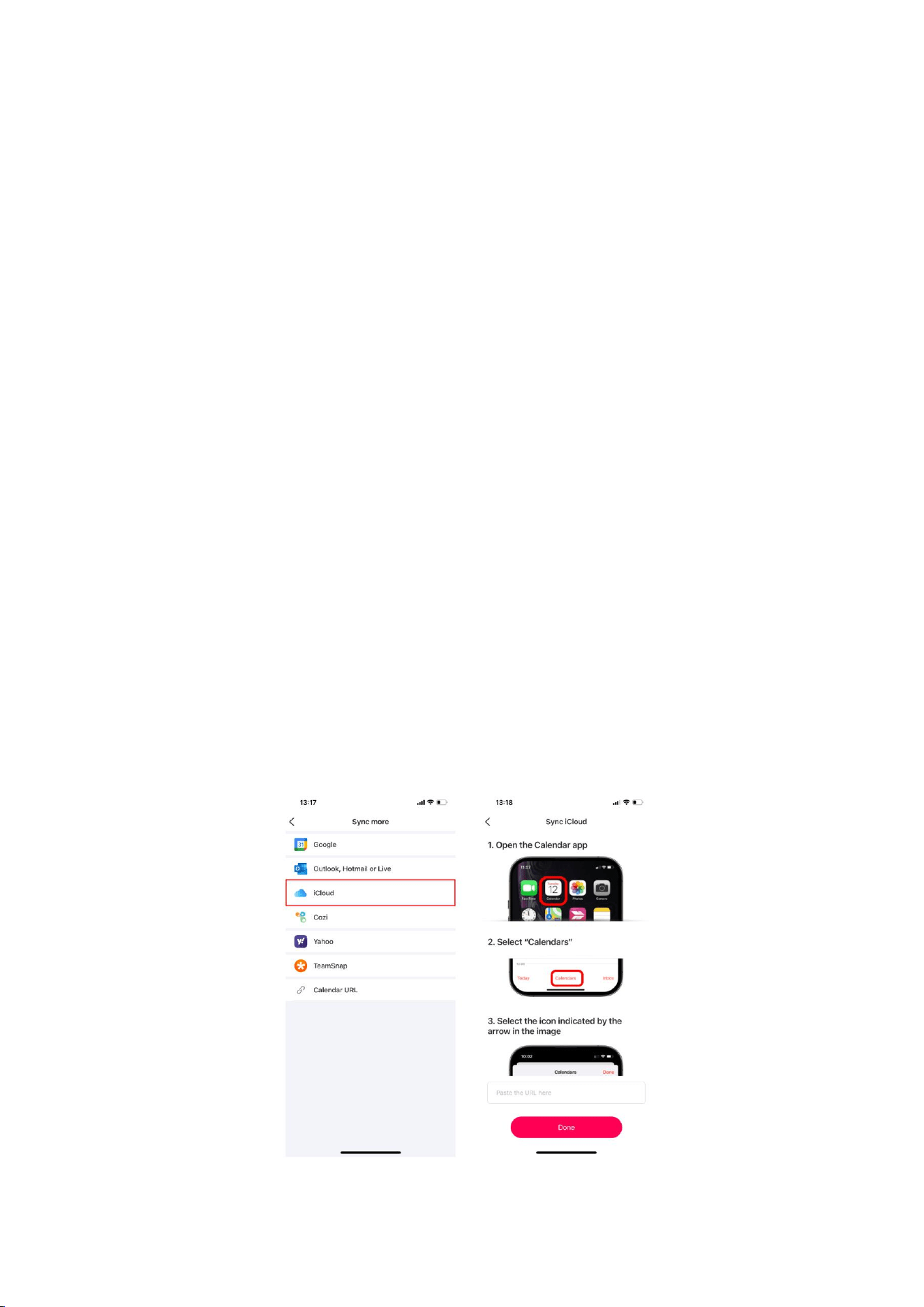
iCloud
You can sync your iOS calendar with Whale Framely via URL by following these
steps:
1. In your iPhone calendar, tap “Calendars” at the bottom of the screen.
2. Select the iCloud calendar you want to sync with Whale Framely, tap the icon of 'i'
on the right to enter the “Edit Calendar” page.
3. Enable the “Public Calendar” option, then you will see “Share Link”, tap
“Copy”.
4. Open the “Whale Framely” App, tap “User”, find the “Sync Calendar”
option, and select “iCloud”.
5. Paste the URL (the URL you copy from step 3) into the input box to sync.
6. After synchronization is completed, you can manage your iCloud on the sync
page, including selecting synced devices, synced events, etc.
32
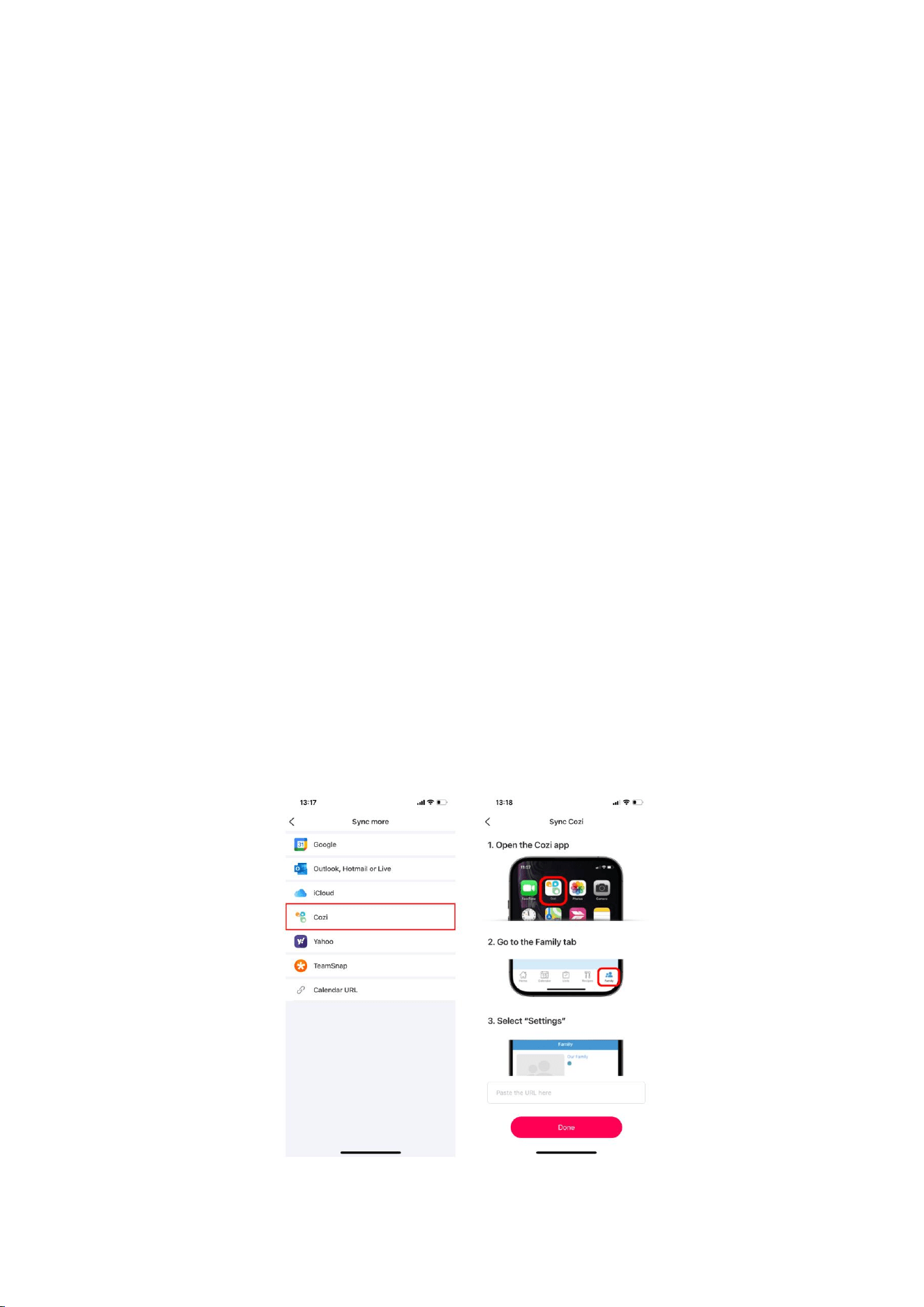
Cozi
You can sync your “Cozi” with Whale Framely via URL by following these steps:
1. On your mobile phone, find and open the “Cozi” App.
2. For iOS users, go to Family Settings, tap “Family” in the bottom bar. For
Android users, tap the “menu” icon in the top left corner of the screen (usually
represented by three horizontal lines or a similar shape).
3. On the Family page, find “Settings”.
4. Tap the “Share Cozi Calendar” option to get and copy the Cozi URL.
5. Open the “Whale Framely” App, tap “User”, find the “Sync Calendar”
option, and select “Cozi”.
6. Paste the URL (the URL you copy from step 4) into the input box to sync.
7. After synchronization is completed, you can manage your Cozi on the sync page,
including selecting synced devices, synced events, etc.
33
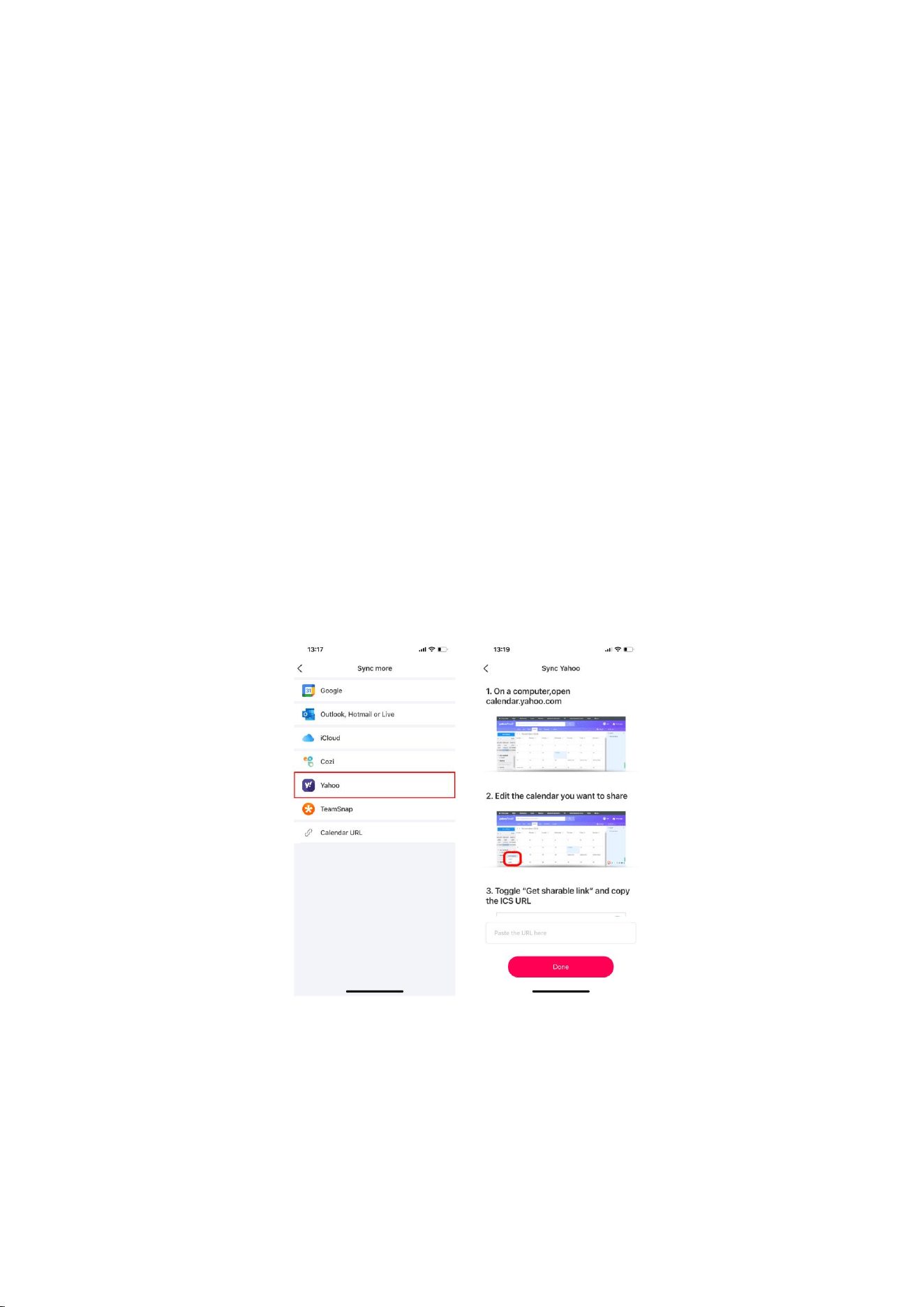
Yahoo
You can sync your “Yahoo” calendar with Whale Framely via URL by following
these steps:
1. In your web browser, open calendar.yahoo.com.
2. Edit the calendar you want to share and copy the “Yahoo” URL.
3. Open the “Whale Framely” App, tap “User”, then find the “Sync Calendar”
option, and select “Yahoo”.
4. Paste the URL (the URL you copy from step 2) into the input box to sync.
5. After synchronization is completed, you can manage your “Yahoo” on the sync
page, including selecting synced devices, synced events etc.
Teamsnap
You can sync your “Teamsnap” calendar with Whale Framely via URL by following
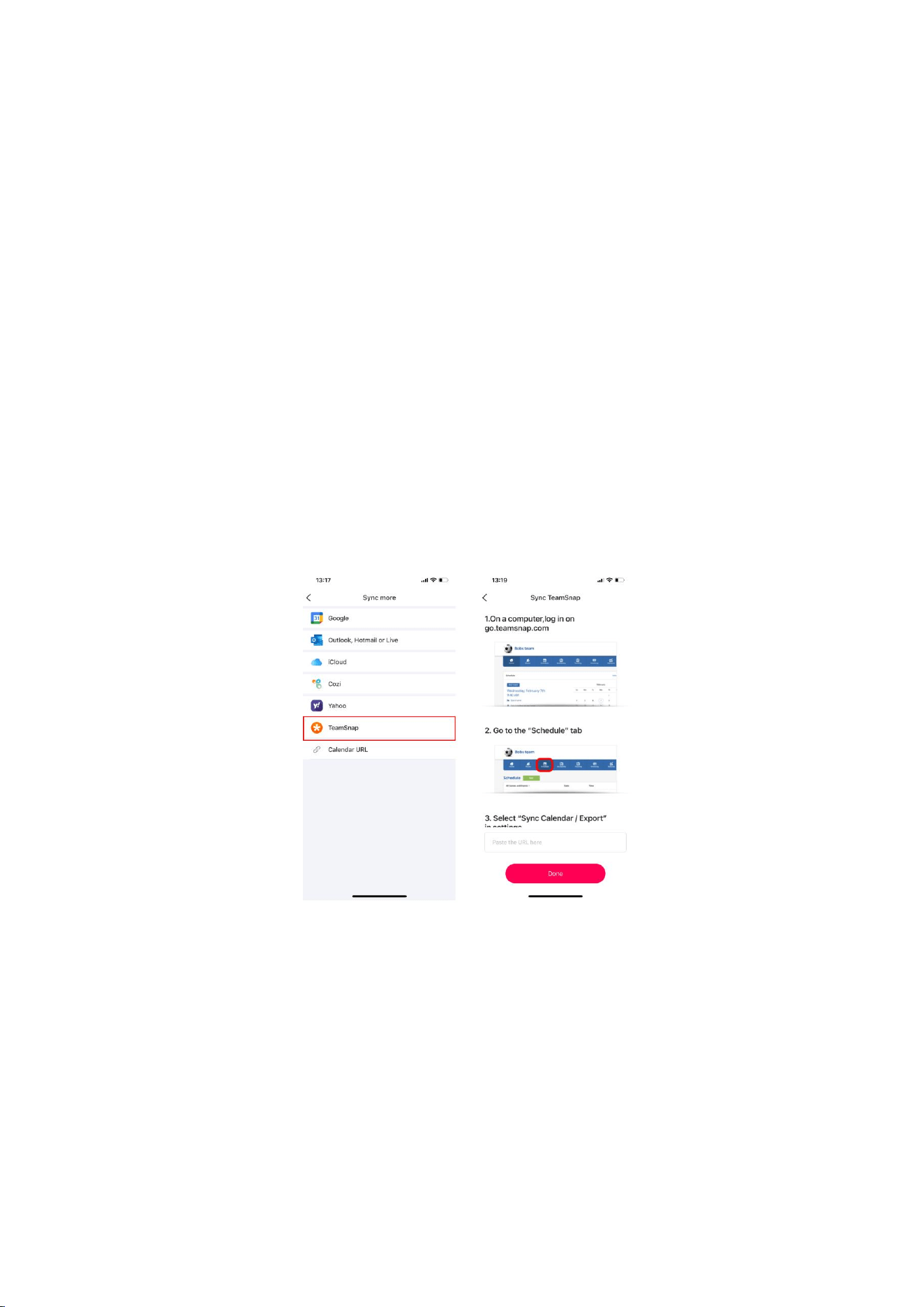
34
these steps:
1. In your web browser, open go.teamsnap.com.
2. Go to the “events” tab. In “settings”, select “Sync Calendar/Export”.
3. Copy the URL link for “Full Calendar” or “Matches Only”.
4. Open the “Whale Framely” App, tap on “User”, find the “Sync Calendar”
option, and select “Teamsnap”.
5. Paste the URL (the URL you copy from step 3) into the input box to sync.
6. After synchronization is completed, you can manage your Teamsnap on the sync
page, including selecting synced devices, synced events, etc.
URL sync
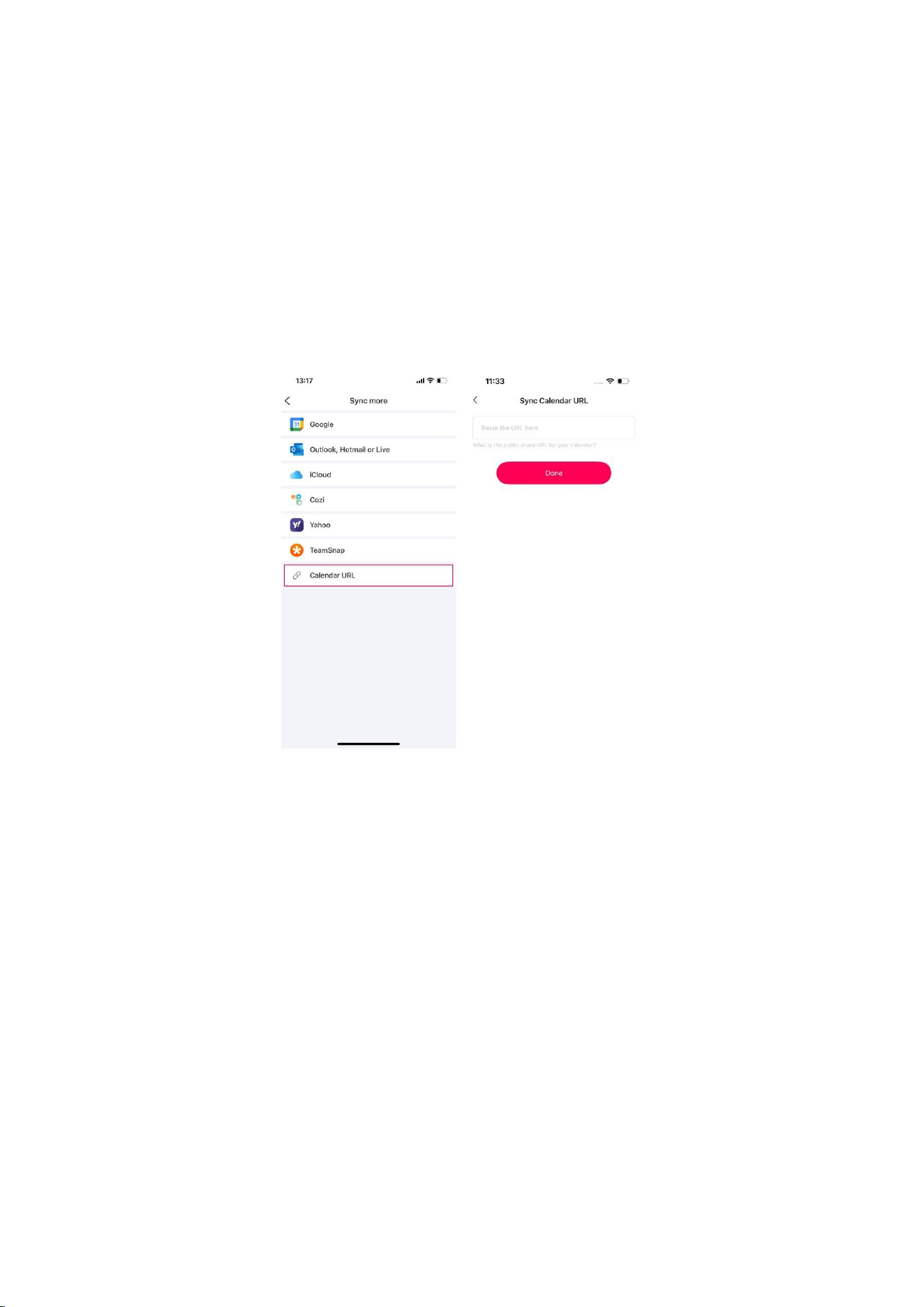
To use URL to add an external calendar in Whale Framely, please follow these steps:
1. First, you need to obtain the URL of an external public calendar (any ICS calendar).
Most common public calendars provide an ICS subscription URL.
35
2. After copying this URL to your phone, open the “Whale Framely” App, tap on
“User”, find the “Sync Calendar” option, and select “URL Sync”.
3. Copy the URL into the input box to sync.
4. After synchronization is completed, you can manage your external calendars on
the sync page, including selecting sync devices, sync events and more.
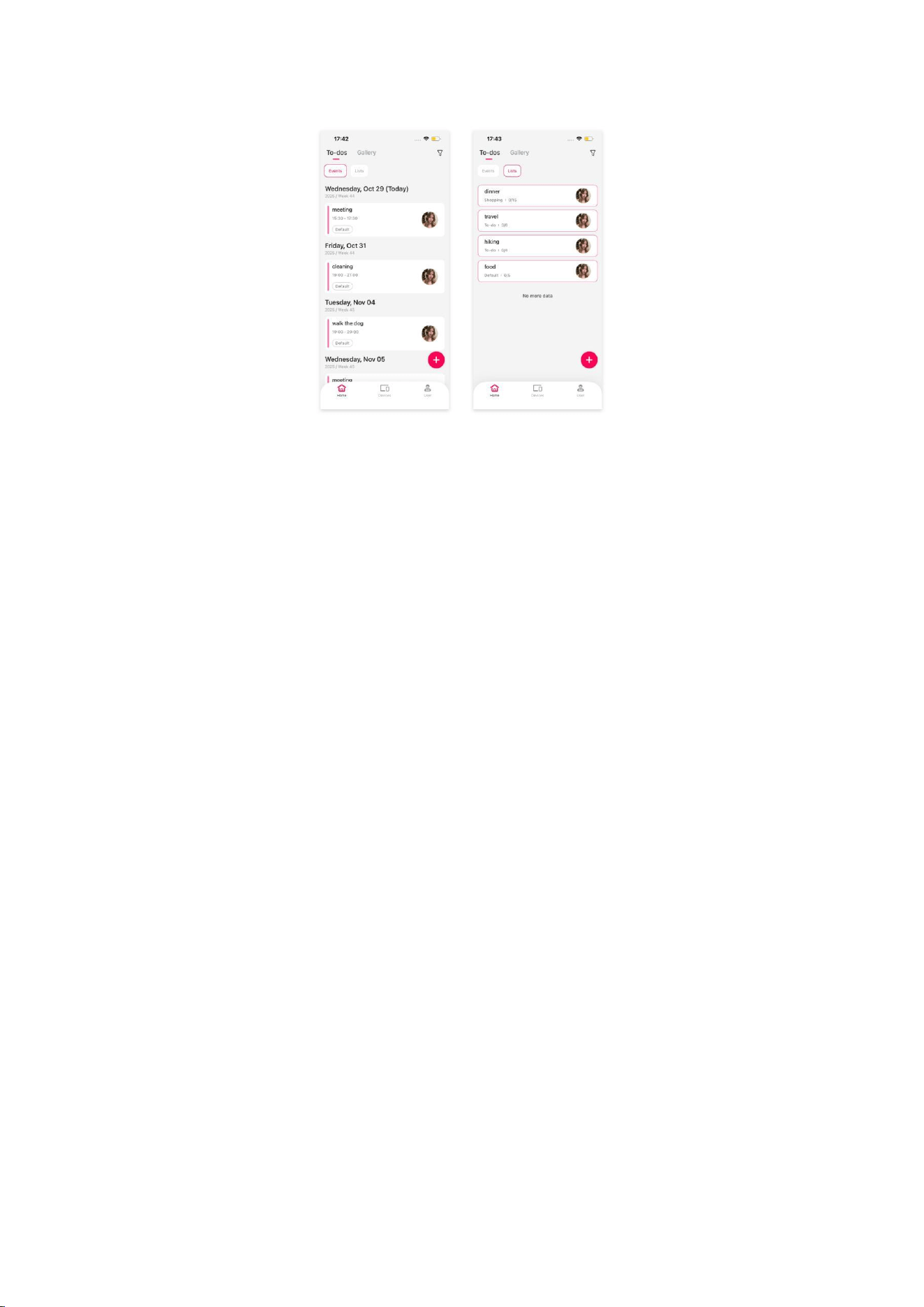
Home
In the “Home ” module, you can easily manage your own events or lists and
achieve instant synchronization across multiple calendars with a simple check. You
can easily create events or lists and sync them across multiple devices for display.
Note: This module is for displaying the events and lists only about you, not all family members.
36
My Events
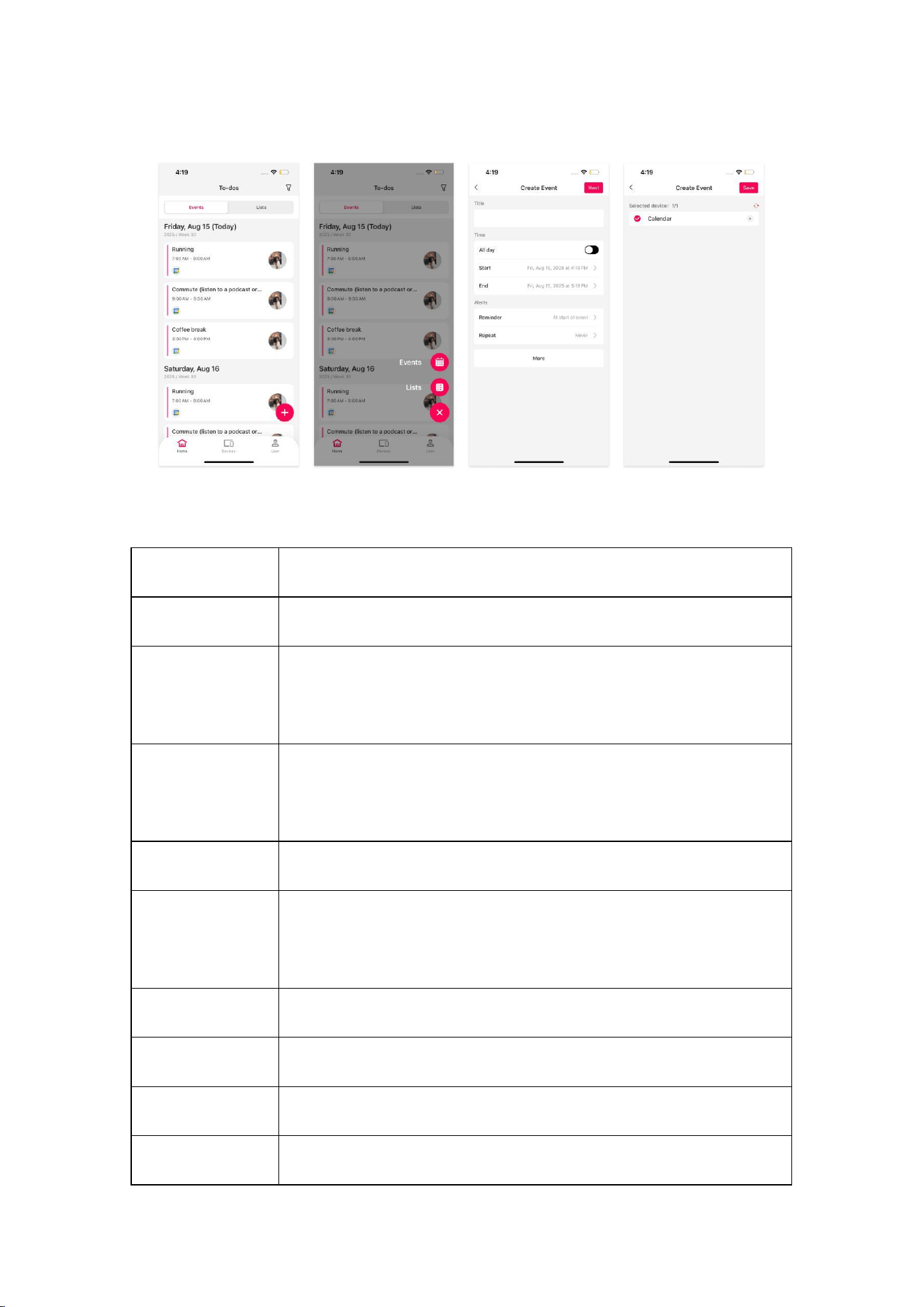
How to share the newly created events with multiple calendars?
1. Launch the App: Open “Whale Framely” App and navigate to the “Home”
module.
2. Add event: In the bottom right corner of the screen, click the “+” icon and
select “events” from the pop-up.
3. Enter event details: On the next page, input the title, time, and other details of
the event.
4. Set sharing options: Choose the calendar(s) you want to send the events to
(multiple calendars can be selected) and specify the inviters (members who have
access to view and edit the event).
5. Save event: Tap “save, “your event will then be instantly displayed on the
selected calendar(s).
37
Detailed explanation of event
Settings
Description
Title
Briefly describe the event.
Time
Define the time period of the event, supporting all-day or
specific time slots.
Type
Assign a category to the event for easier filtering and
management later.
Description
Add notes to provide additional details about the event.
Public
When enabled, the event will be publicly displayed on the
calendar; when disabled, it will only be visible to you.
Reminder
Set a reminder time before the event starts.
Repeat
You can choose to set the event as a repeat event.
Select device
Specify which calendar devices the events will be displayed on.
Invitee
Invite others as Invitees to view and edit events together.

38
Event Management
View details: Tap the created event to see its detailed information and the calendars
it has been sent to.
Edit details: Modify the events content as needed and click 'Save' to sync the
updates to the calendar.
Delete event: If an event is no longer needed, you can choose to delete it.
Filter: Filter events by calendar or time range for quick search and management.
My List
How to share a newly created list with multiple calendars?
1. Launch the App: Open your “Whale Framely” App and navigate to the “Home”
module.
2. Add new list: Click the “+” icon in the bottom right corner and select “list”.
3. Enter list details: Input the title of the List select a category label and add to-do
tasks.
4. Set Sharing Options: Choose the calendars to which the list will be sent (multiple
calendars can be selected) and specify “Invitees”.
5. Save list: Once everything is confirmed, tap “Save” button, and the list will
instantly be synced on the selected calendars.

39
Detailed explanation of list settings
Settings
Description
Title
Briefly describe the list
Type
Assign a category to the List for easier filtering and
management later.
Public
When enabled, the list will be publicly displayed on the
calendar; when disabled, it will only be visible to you.
Select device
Specify which calendars the list will be displayed on.
Invitee
Invite others as Invitees to view and edit the List together.
List management
View details: Tap the created List to see its detailed information and the calendars it
has been sent to.
Modify information: Change the List title, category, or task content, and click
“Save” to sync updates.
Edit list: This includes deleting/modifying task information, task priority sorting,
etc.
Copy list:Tap to copy the list, quickly create a duplicate list, and save time
Complete task: Mark tasks under the List as a completed task or cancels the
completed status.
Add/delete tasks: Add or remove to-do tasks in the list as needed.
Filter: Filter the list by calendar to view the list information on a specific calendar.
40
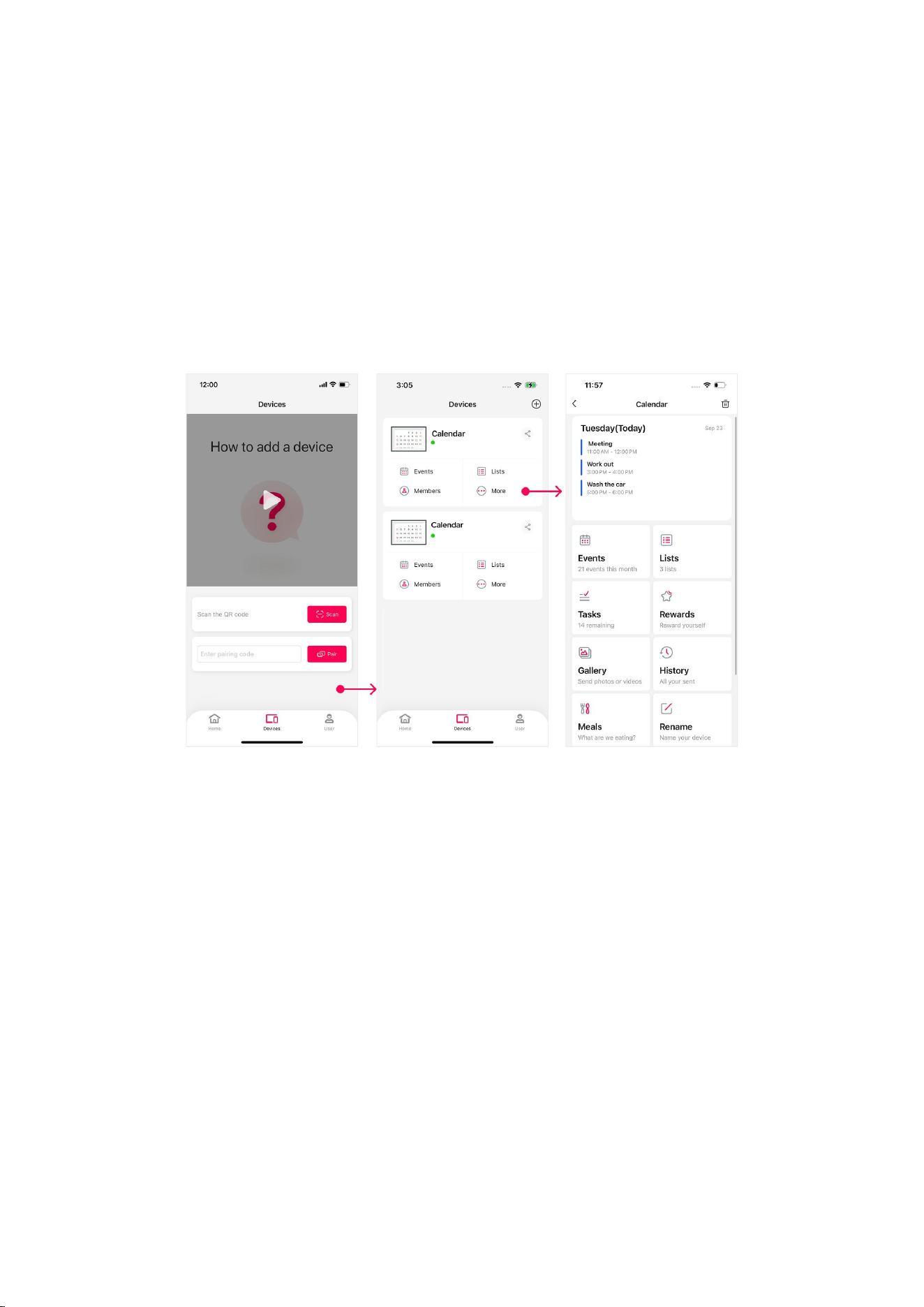
Devices
In the “Devices” module of the “Whale Framely” App, you can add or manage
multiple devices. For a single device, you can set up the calendar, manage lists, sync
calendars, manage family members, and perform simple calendar settings.
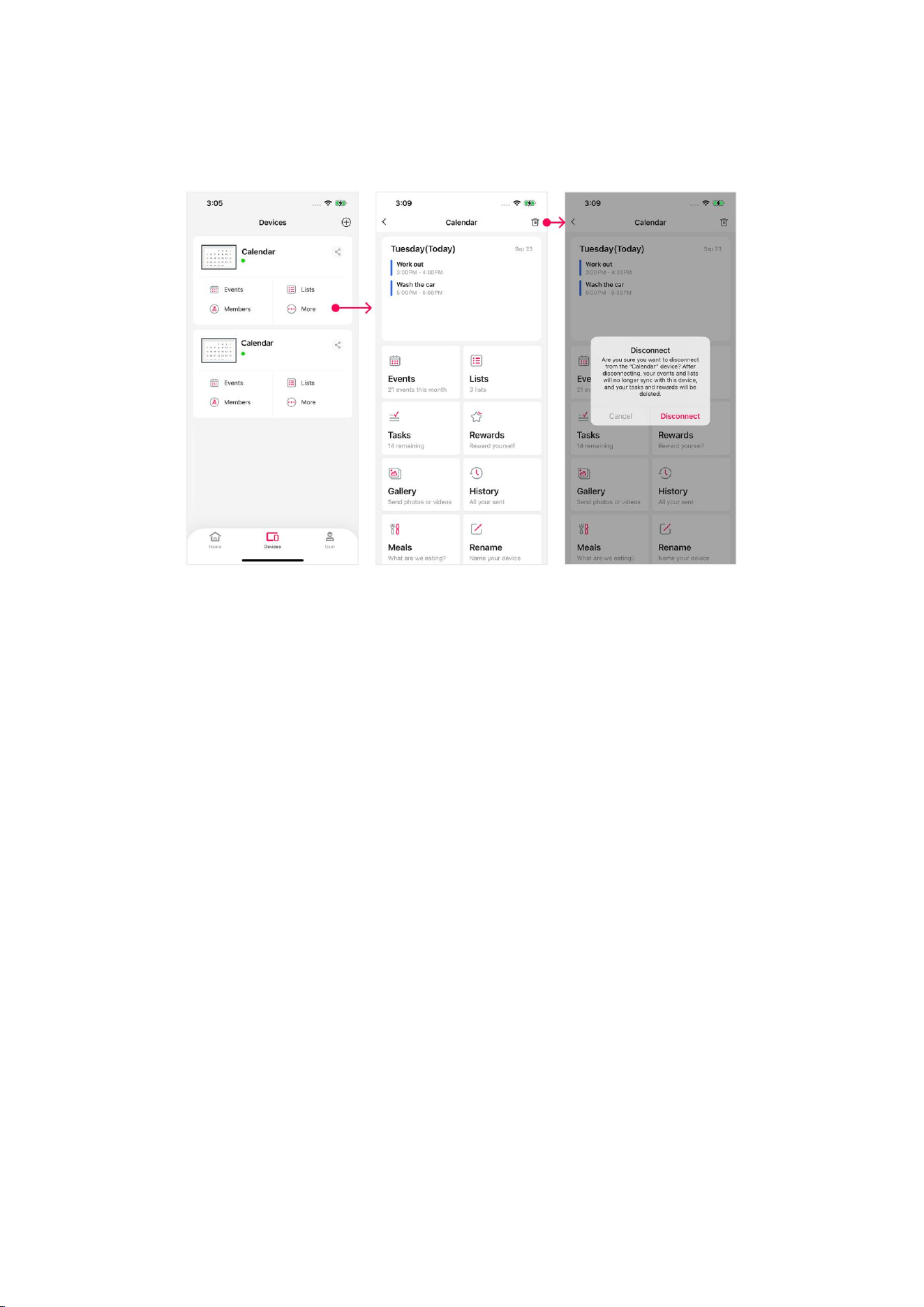
Unbind the connected calendar
If calendars are no longer needed, you can unbind the connection. But please note
that once the connection is removed, all events you previously created on that
calendar will no longer be synchronized.
41
How to unbind a connected calendar in “Whale Framely” App?
1. Tap the icon of the calendar you want to delete.
2. Tap the delete icon in the top right corner
3. Check the unbinding pop-up window and click Unbind to confirm the deletion.
Calendar
42
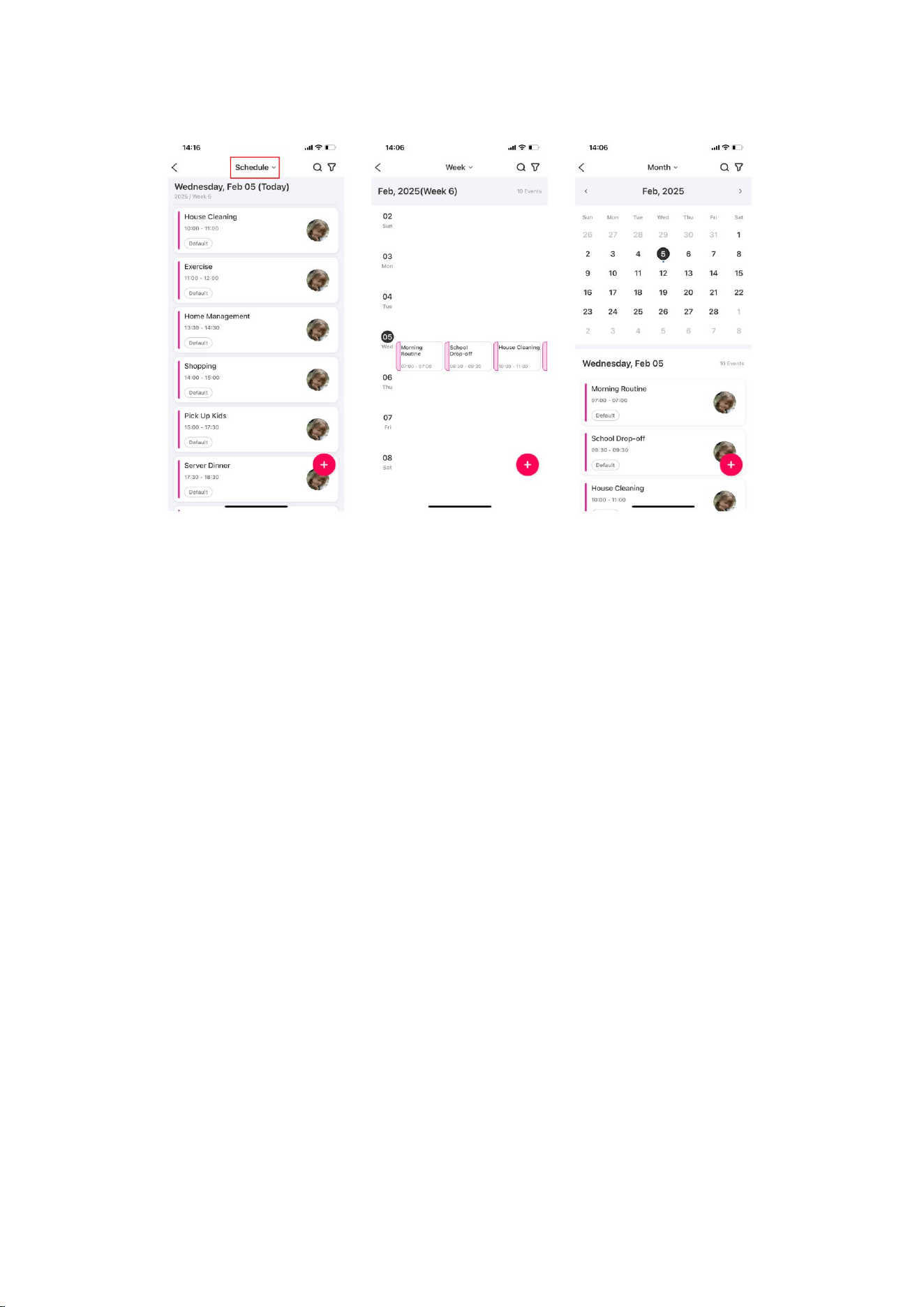
View switching
Supports switching between viewing events by schedule, viewing events by week,
and viewing events by month for quick access to different time range events.
Schedule view: View all events separately by date, supporting vertical scrolling to
view events on different dates.
Week view: View the events for a specific week, which shows current week's events,
with the option to switch to other weeks. The week view displays seven days
vertically, with each day's events shown horizontally. This provides a
comprehensive overview of the week's events for better planning.
Month View: Provides a global view of the entire month, suitable for long-term
planning. It displays the current month's calendar and today's events, with the
access to switch to other months. Tap a specific date in the calendar to view the
events for that date.
43
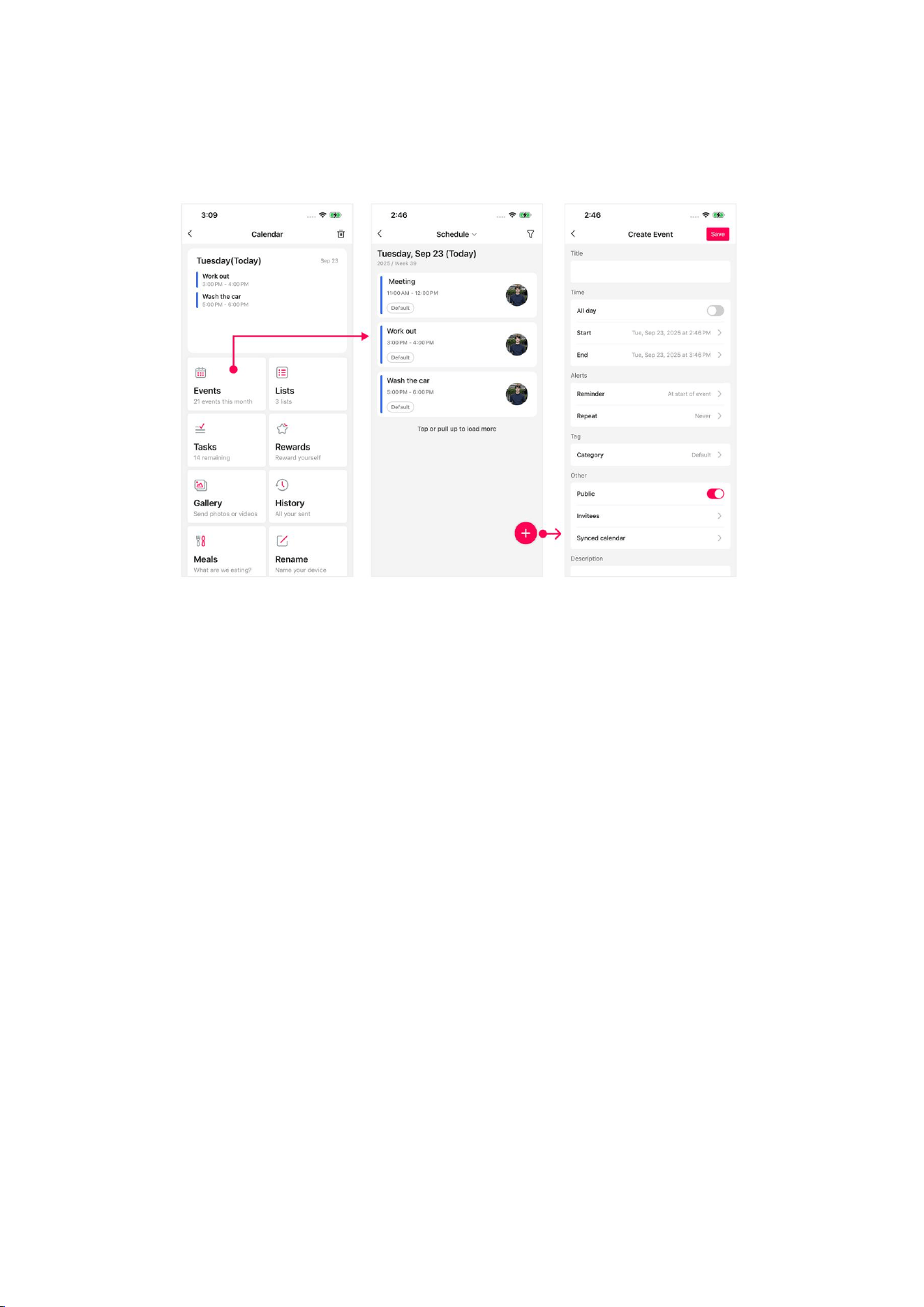
Create event
You can create an event in the App. Once created, the event will be synced to
the calendar. If you have enabled the two-way sync feature to sync with “Google
calendar”, any changes you make in the “Whale Framely” App will also be synced
to your “Google calendar”.
How do I create an event on a single device?
1. Launch the App: Open your “Whale Framely” App and find the calendar you
want to manage in the “Devices” module.
2. Add event(s): Tap the “+” icon in the bottom right corner of the screen.
3. Enter event details: On the next page, input the title, time, and other details of
the events.
4. Save event: After confirming all information is correct, tap the “Save” button.
The event will then be instantly displayed on the calendar.
44
View event details
In the calendar view, tap the event you want to view. The event details page will
display all details about this event, including the title, time, description, and more.
Delete event
On the event detail page, find and click the 'Delete' button. The system will pop up
a confirmation asking if you are sure you want to delete this event. The event will
be permanently deleted and cannot be recovered.
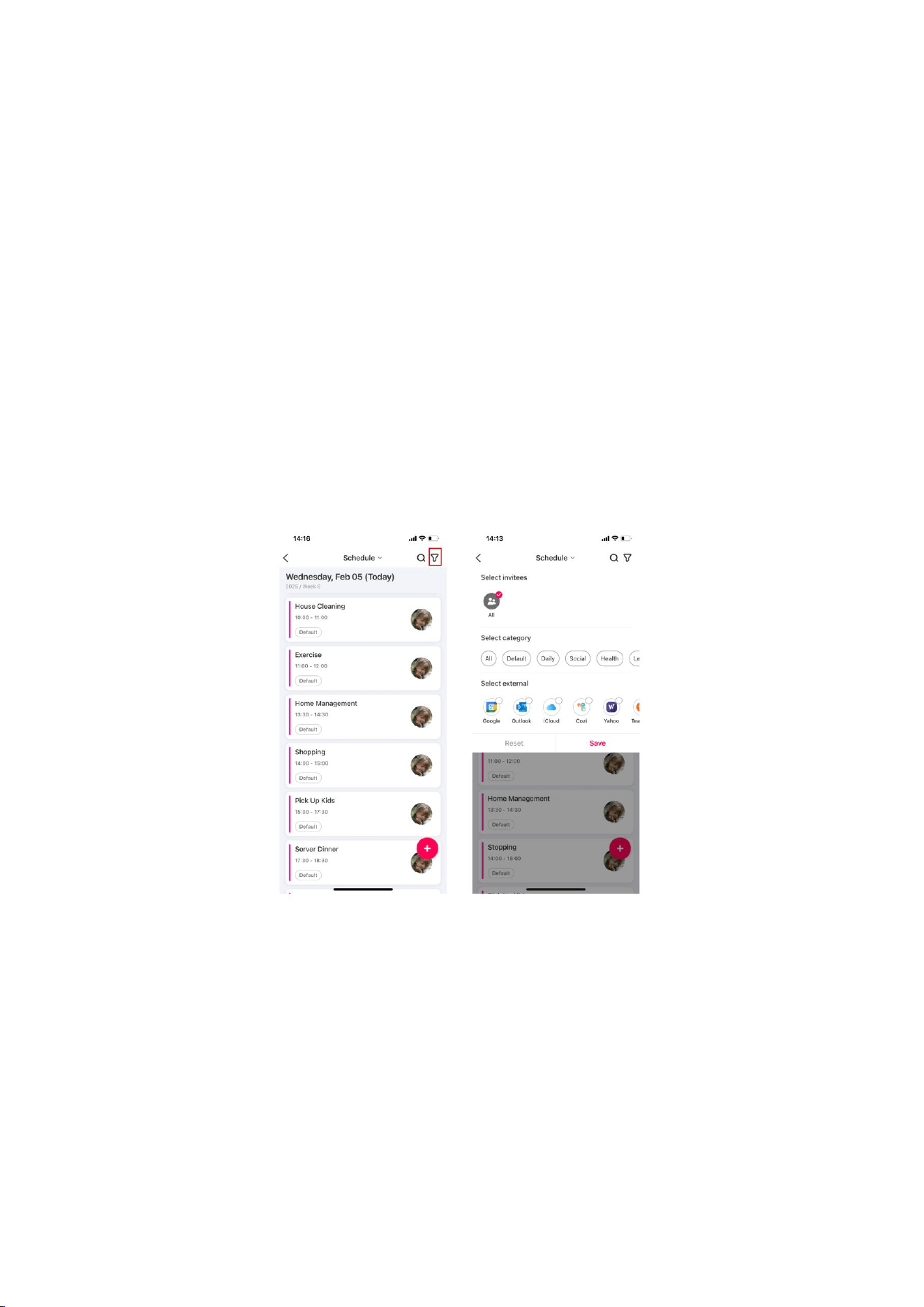
Filter
The events can be filtered by members, categories, and third-party calendars.
Filtered by members only shows events involving specified members.
Filtered by categories displays events categorized by subject, such as daily, social,
health, etc.
45
Third-party calendar filter: after synced with third-party calendar, you can filter and
view them.
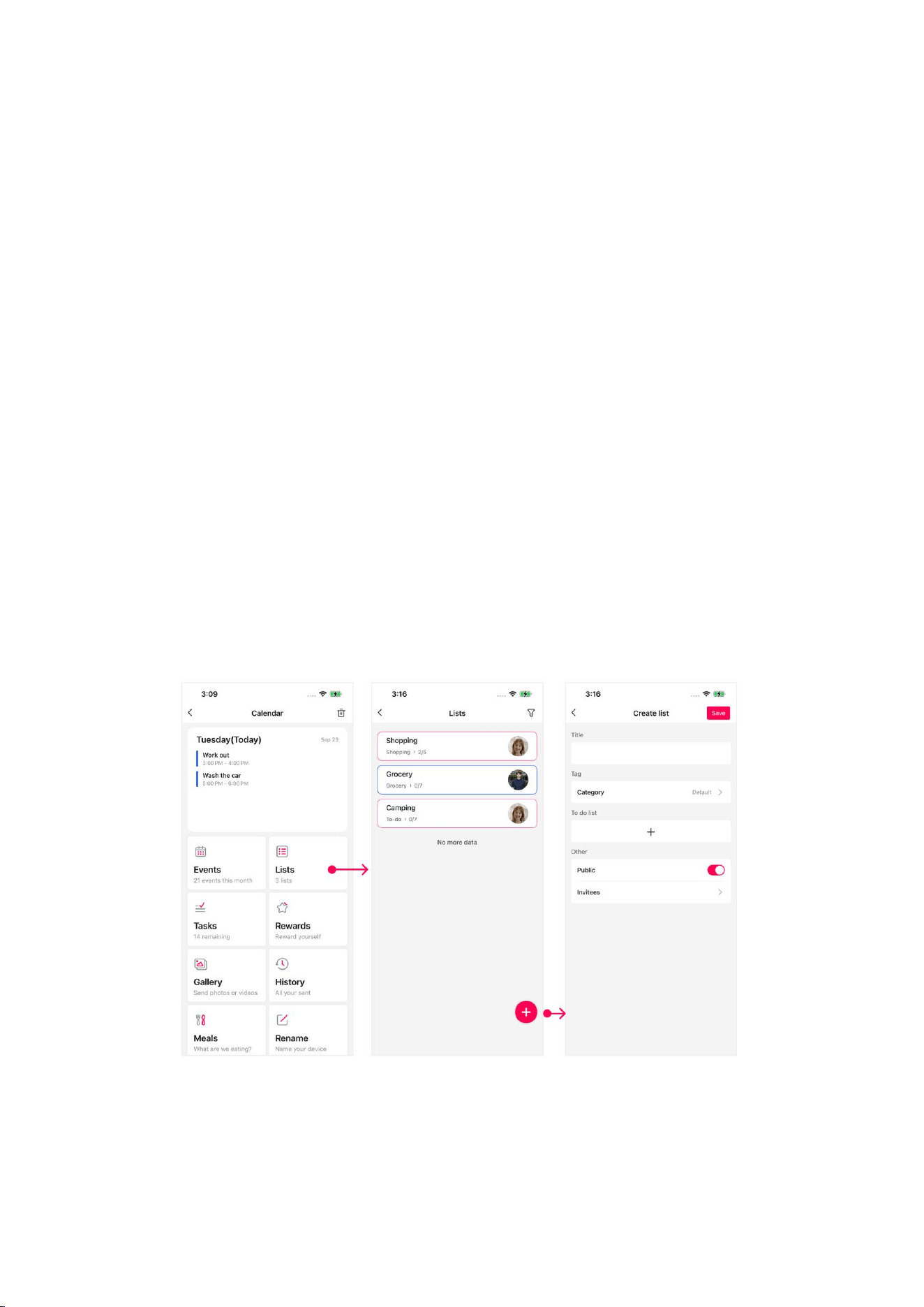
Lists
The list will be synced between your calendar and mobile App, keeping the
whole family updated. You can create as many lists as you need.
Create list
You can create a list in the App. Once created successfully, the list will be
synced to the “Whale Framely” calendar. Also, each list can include many
different task items underneath.
How to create a List on a single device?
1. Launch the App: Open your “Whale Framely” App and find the calendar you
want to manage in the 'Device' module.

46
2. Add list: Click the “+” icon in the bottom right corner of the screen to start
editing list.
3. Enter list details: Input the title of the list select a category label and add to-do
task items underneath this list.
4. Save list: After confirming everything is correct, tap 'Save' button, and the list will
instantly Appear on the selected calendar.
View list tasks
Tap the “list” to view the tasks under it and know the status of each task items.
List management
View Details: Tap the created “list” to see its details and the calendars it is synced
with.
Edit list: Change the List title, category, or tasks, and tap “Save” to sync
modification.
Copy list: Tap to copy the list, quickly create a duplicate list, and save time
Edit tasks: this includes deleting/editing task information, task priority sorting, etc.
Complete task: Mark tasks under the list as completed or cancels the completed
status.
Add/delete tasks: Add or remove to-do task items in the “List” as needed.
Filter: Filter the list by device to view the list content on a specific device.
47
Tasks
Tasks help you stay on top of important activities in your daily life. Examples
include chores like “Clean the garage” or “Mow the lawn.”
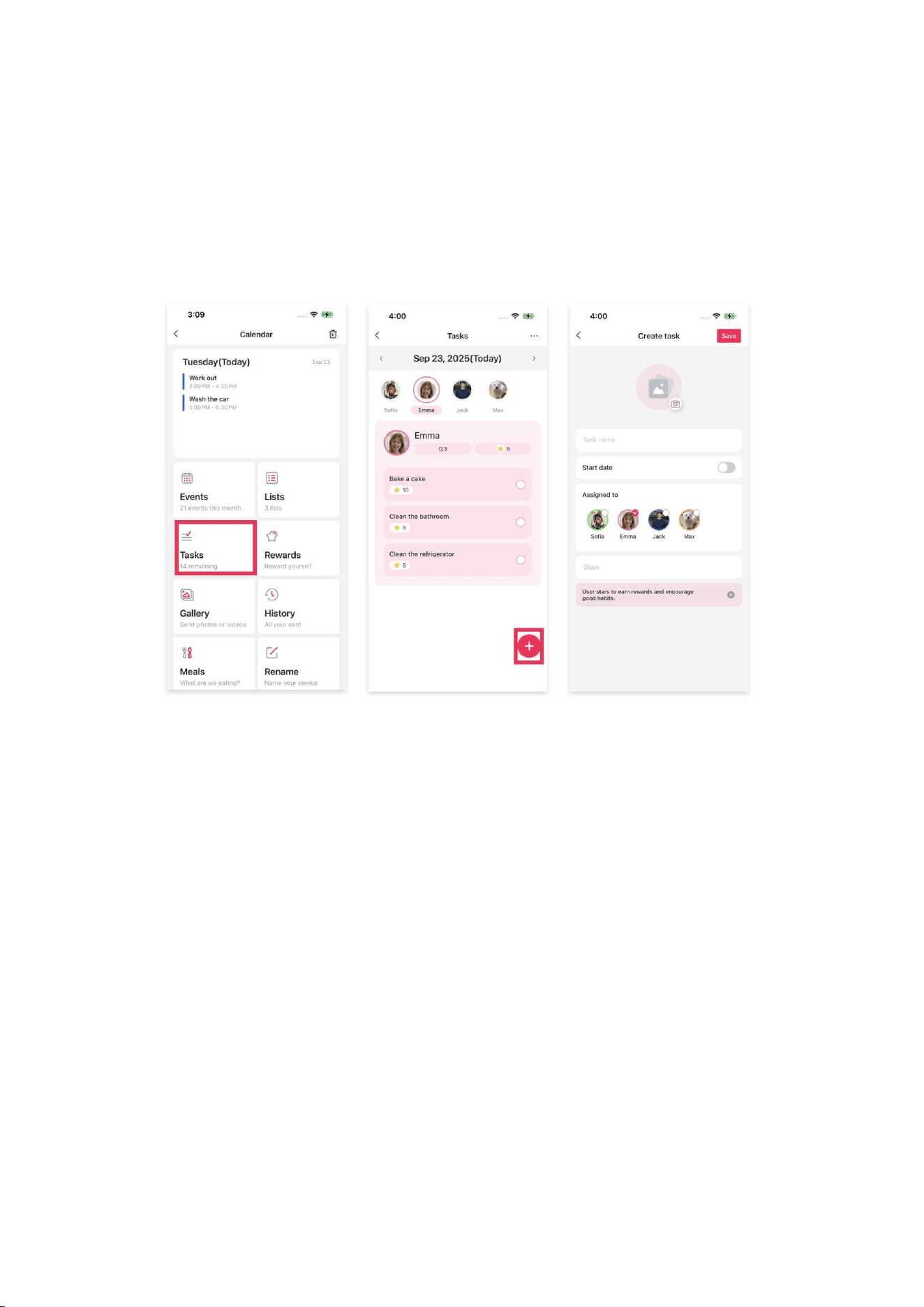
Create a task
1. Press the + button on the bottom right of the Tasks screen to add a task.
2. Name the task and assign it to as many members as you would like. This will
create a separate task for each member.
3.If you want the task to happen at a specific time, toggle on "Time" If you'd like the
task to repeat every day, week, or month, toggle on "Repeats".
4.Press Save and your chores will be created.
48
Rewards
Rewards is a feature that helps motivate kids by making their progress toward
goals visible and trackable.
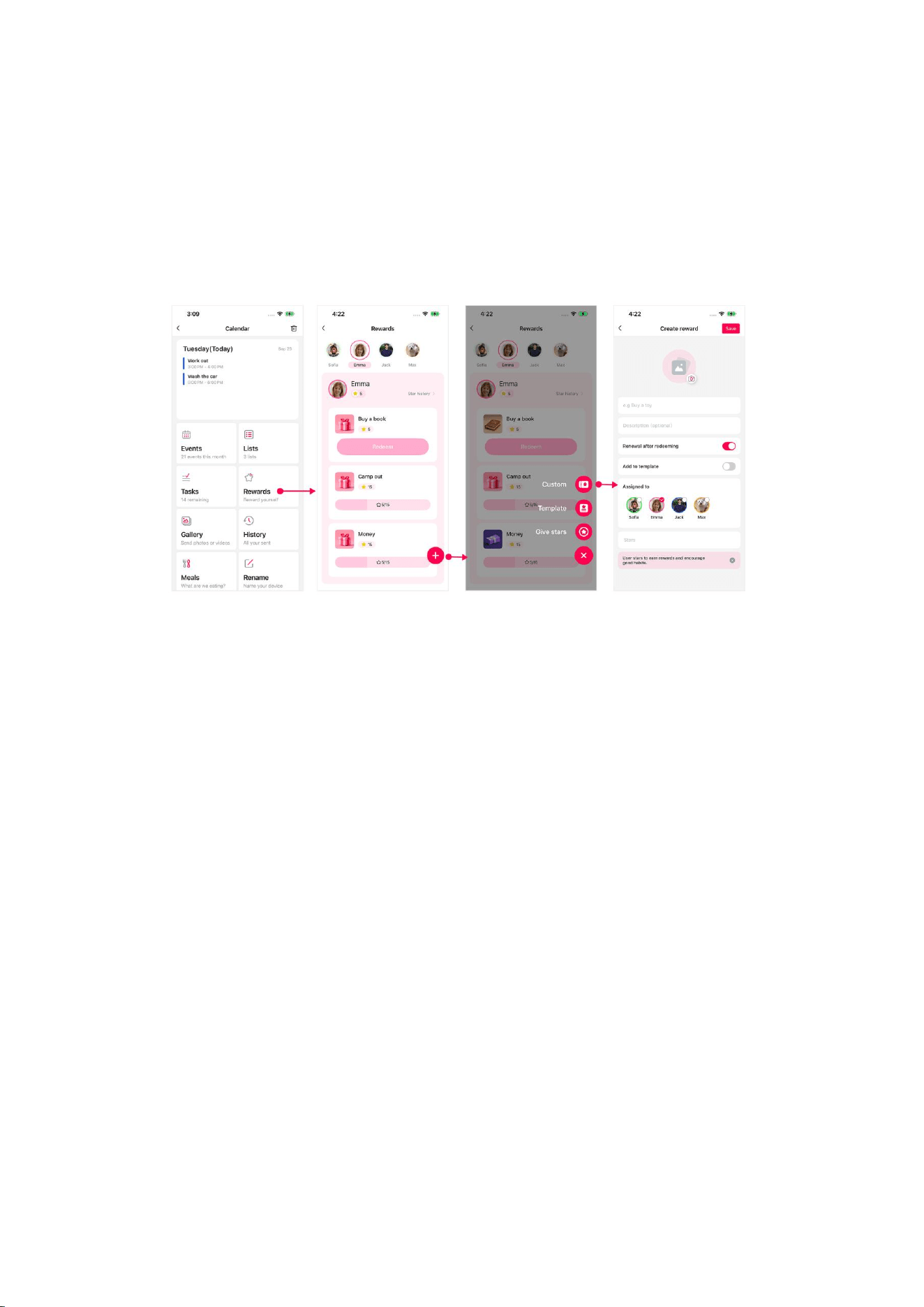
Create a reward
1.Select the Rewards module.
2.Choose a member to create a reward for.
3.Tap the + button to create a new reward.
4.Fill in the relevant information:
Image: Optional. Add an image related to the reward. This is a great way to show
non-readers the goal they are working towards.
Name: Enter the name of the reward.
Reset after redemption: Optional. When enabled, the reward will automatically
reset after being redeemed.
Stars: Enter the number of stars representing the reward’s value.
5.Tap Save to successfully create the reward.
49
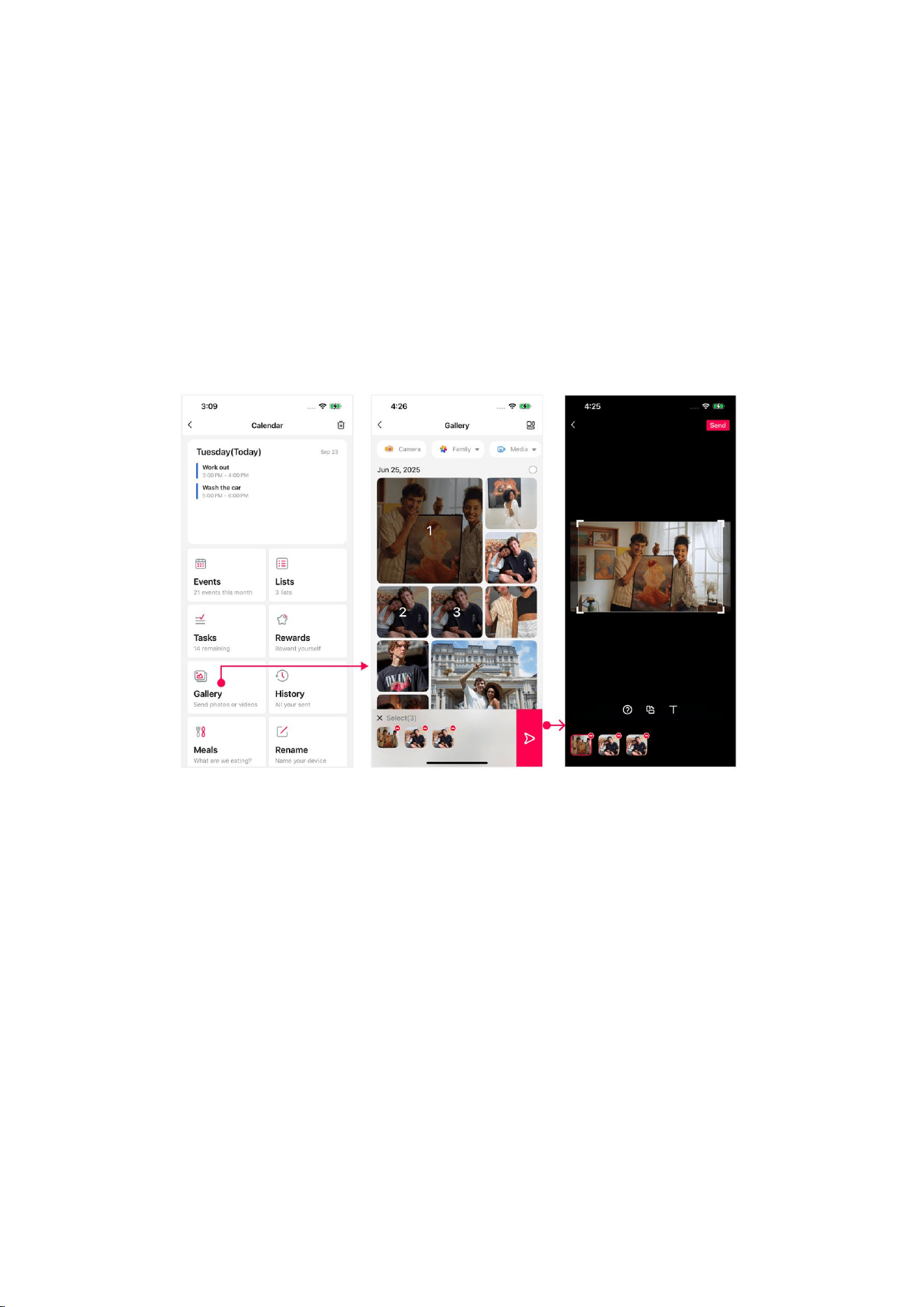
Photos
Sharing photos is divided into picture share and video share.
Photo share: select photos and videos (up to 50 pictures,) - edit pictures - select
photo frames - send.
Note:Each video supports a maximum length of 60 seconds.Supports viewing Live Photos.
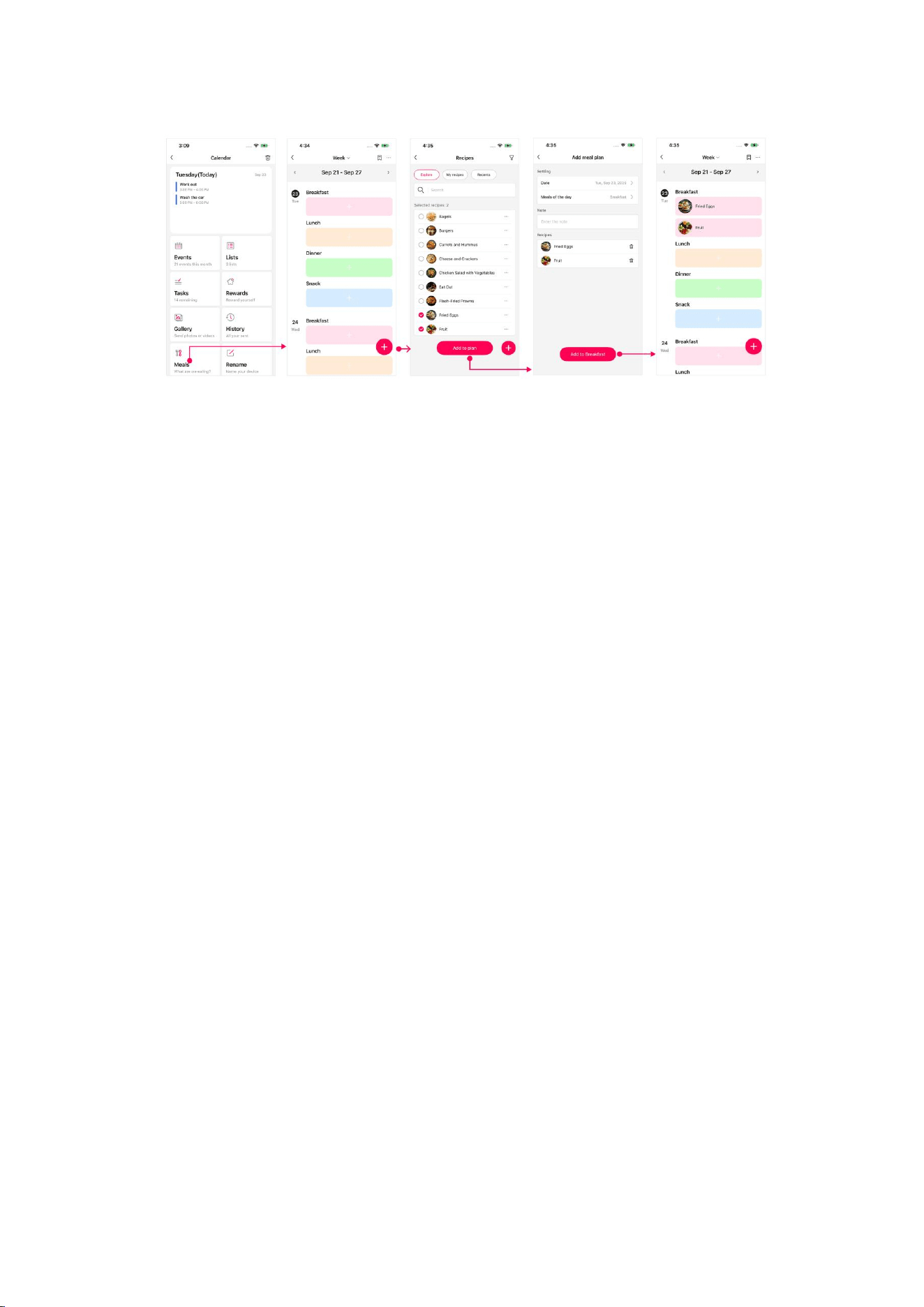
Meals
The Meals feature allows you to plan a whole week’s meals in just a few
minutes.
50
Create a meal plan
1.Select the Meals module.
2.Tap the tile for the mealtime you want to add a recipe to, or tap the + button.
3.Choose the recipes you want to add from the recipe box (multiple selections are
supported).
4.After making your selections, tap Add to Plan.
5.On the meal plan page, you can add a note. When finished, tap Add.
6.Once added, you can simply tap the tile for that meal to view the full details.
Rename
The rename feature allows you to set an alias for your device for easy identification.
If no alias is set, changes to the device name will sync to the app. Once an alias is
set in the app, changes made on the device will no longer sync to the app.
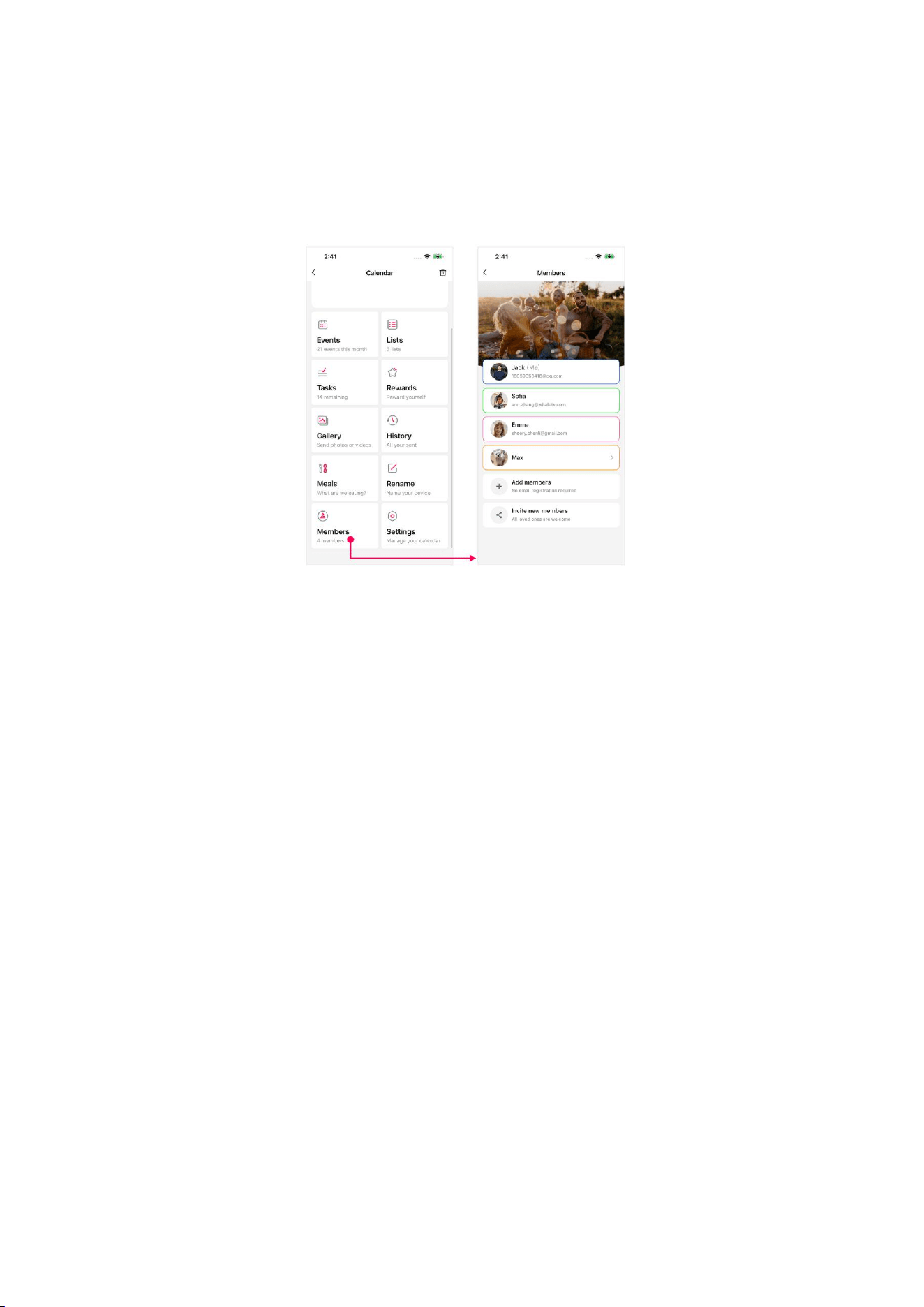
Members
51
In the “Members” module, you can easily browse the information of all family
members connected to the selected calendar.
View family member information
On this page, you can view the avatars, names, emails, color identifiers, and other
information of all family members.
Whale framely members
You can create members for those who don’t have account like your daughter or
son.And then you can create events for them.
Invite family members
1. In the “Devices” module, select a calendar you wish to share with your family
member, and find “My Family”.
2. Tap “Invite New Member”, and the system will automatically generate a QR
code and a unique pairing code.
52
3. You can choose to save the QR code to your mobile phone for sharing with new
members
and family via IM App, email, or other ways you prefer. In addition, you
can also directly copy the invitation code to share it.
4.
Members
and family who receive the invitation need to download and install
the “Whale Framely” App first and then complete the binding with your calendar
by scanning the QR code or manually entering the pairing code. Please note that
the invitation code is valid for 48 hours, so make sure to complete the binding
within this period.
5. Once connected with the calendar, your
members
and family can view the
calendar details and manage the calendar together.
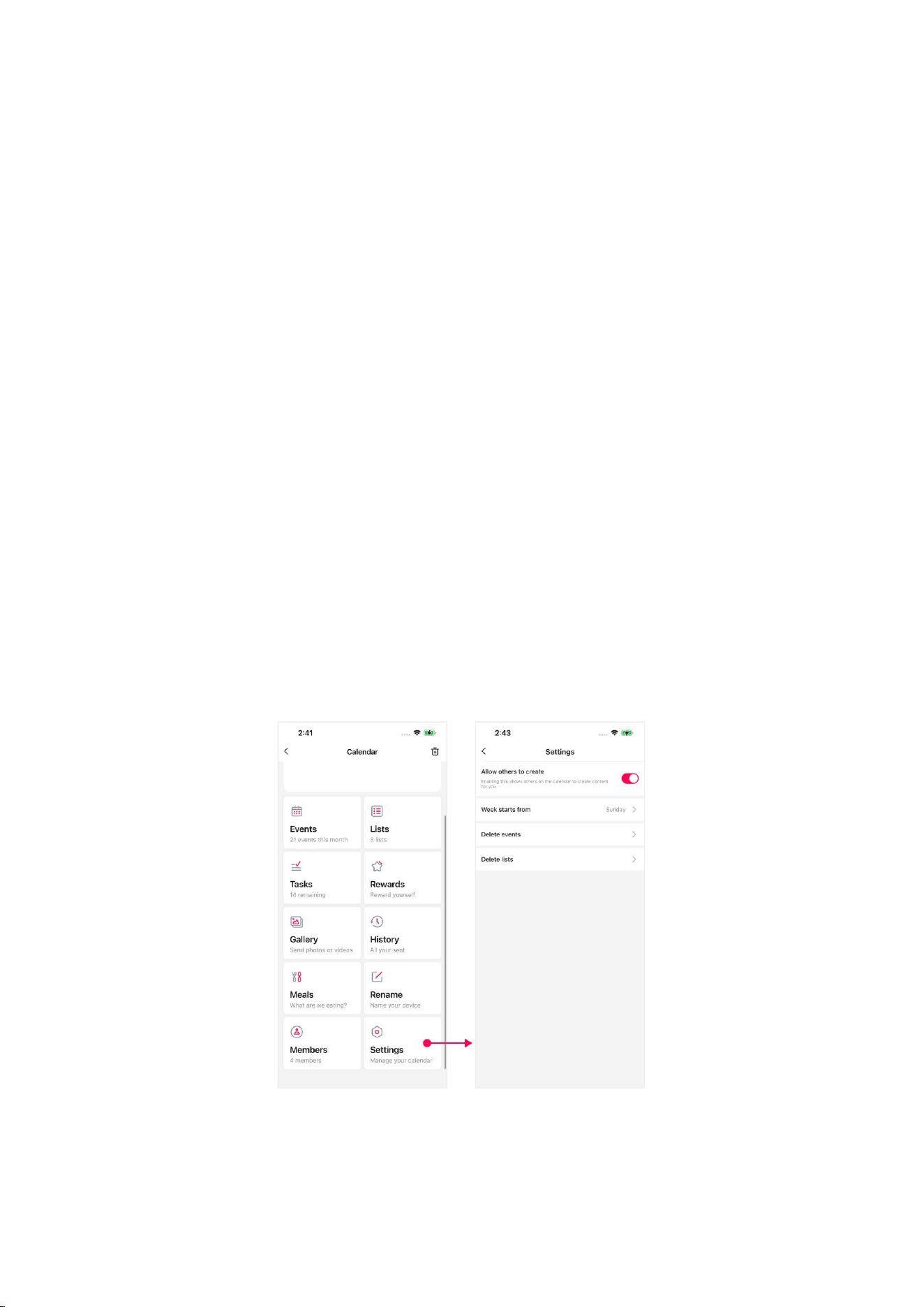
Settings
53
To help you better personalize your calendar experience, we provide custom
settings options, such as setting the first day of the week view and whether to
display completed lists.
Allow device to create: When enabled, device can help you create events and lists.
Week starts from: Choose which day the week view starts on; the calendar view will
change accordingly.
Delete events & lists
Supports bulk deletion of events and lists, saving you time efficiently
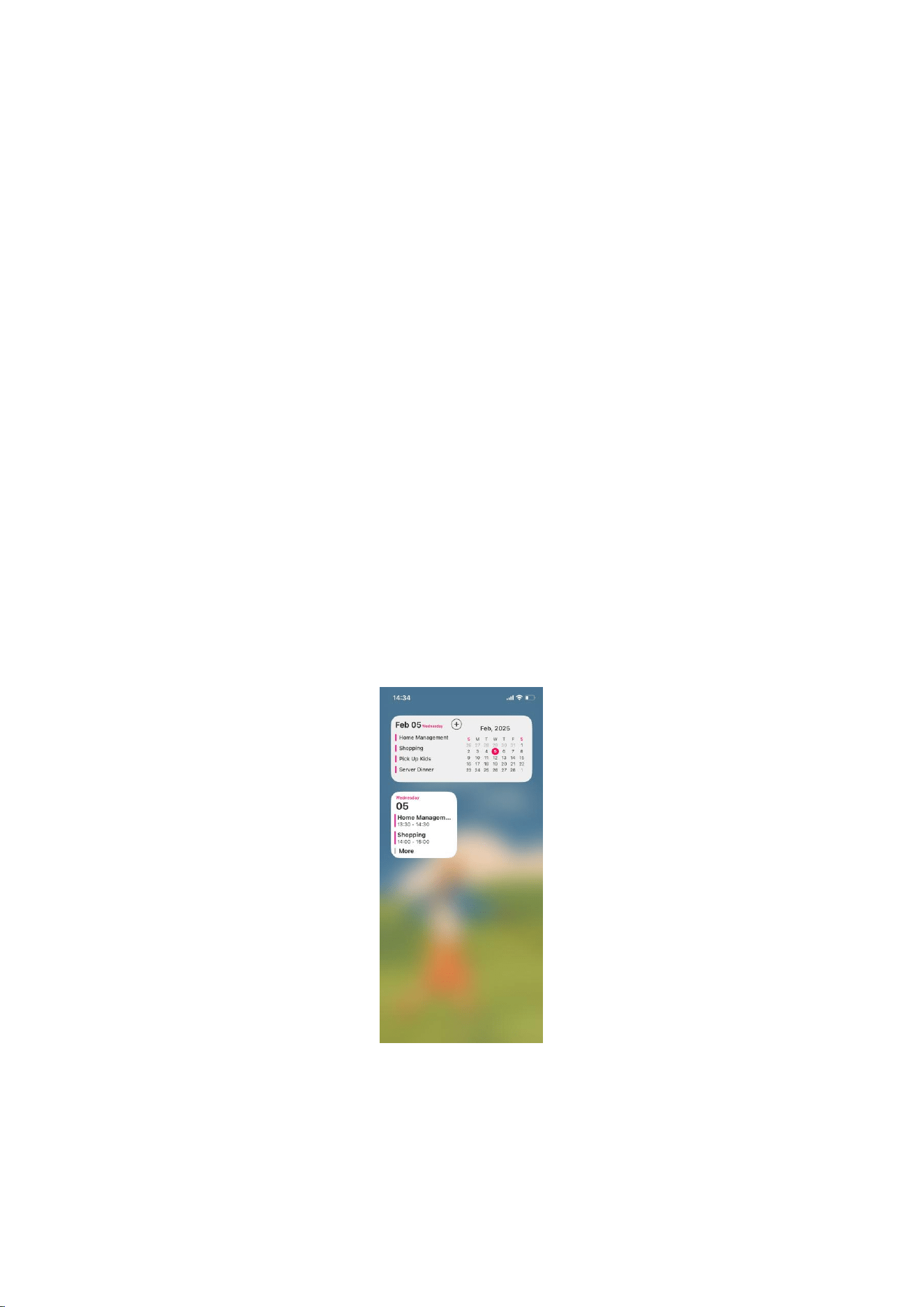
Widget
The App offers two styles of widgets for you to help you check your daily schedule
from your phone without open “Whale Framely”App.
54
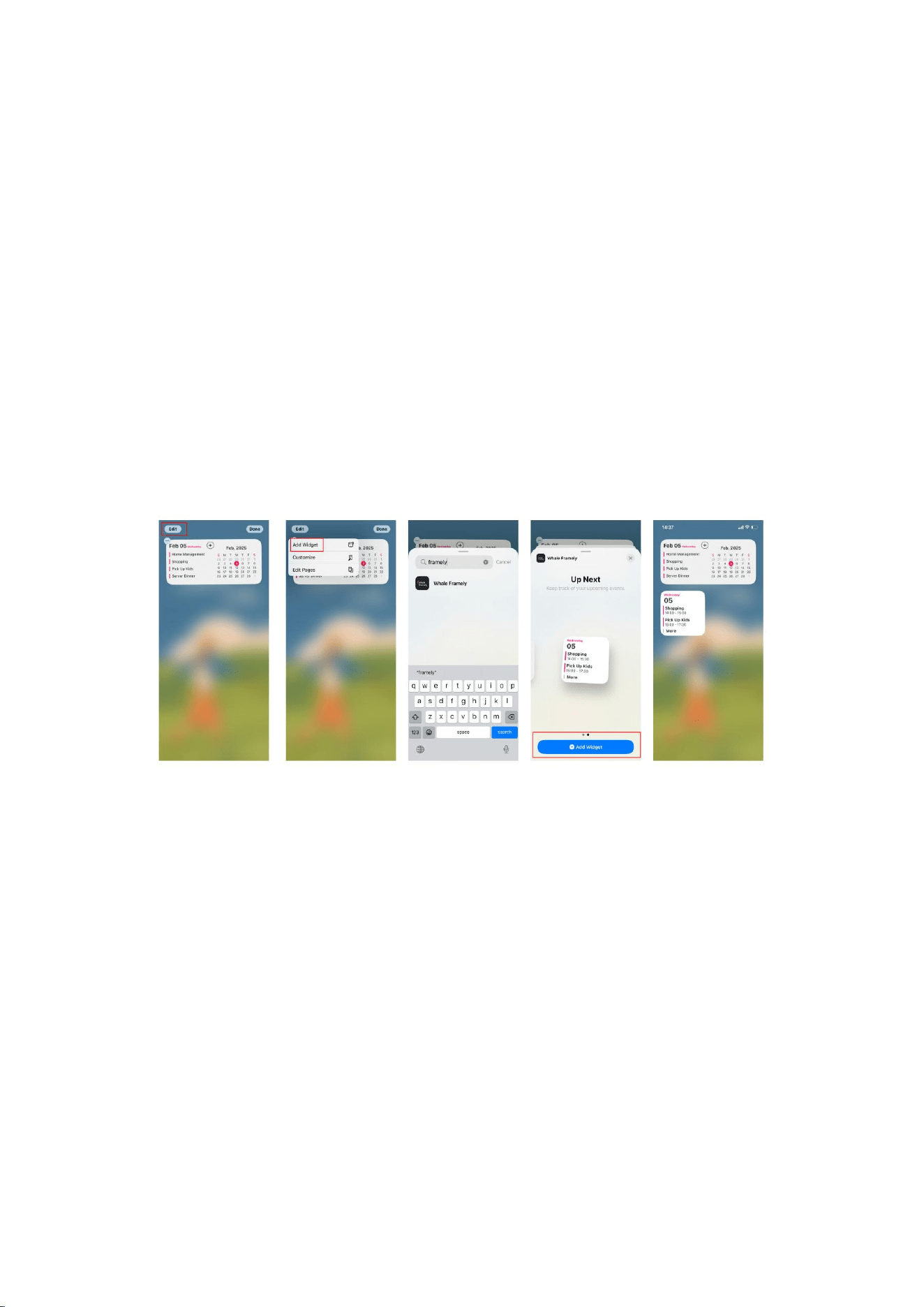
How to add a widget on iPhone?
1. On your iPhone, long tap any blank area on the home screen until the icons start
to wiggle, and tap “+” sign or “Edit Home Screen”.
2. At the bottom or top of the screen (depending on your iOS version and settings),
you will see the option for 'Widgets.' Click to enter the widget library.
3. In the widget library, scroll to find “Whale Framely” or search for “Whale
Framely” to see the widgets. Based on your preferences, select the style you want
to add.
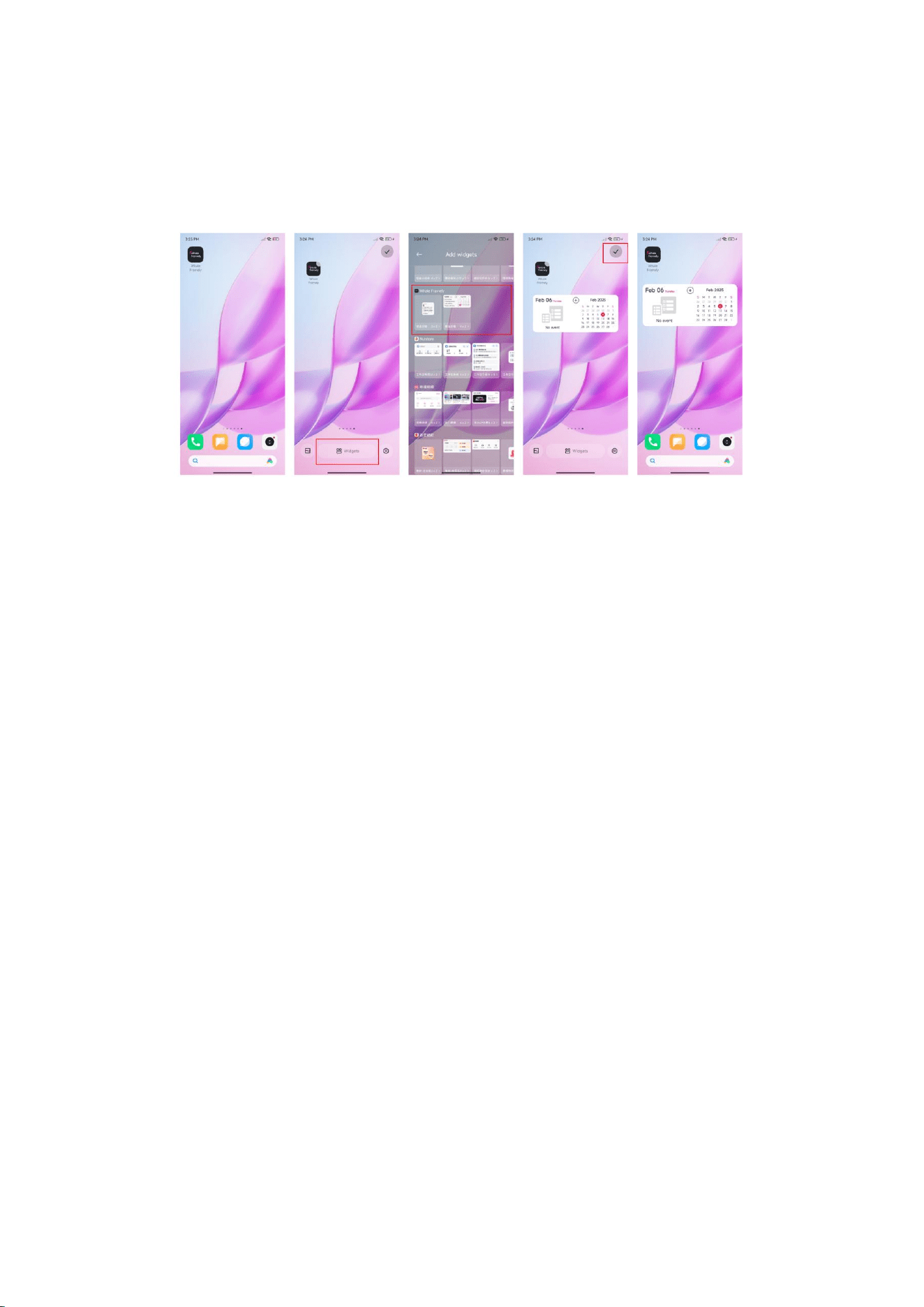
How to add a widget on Android phone?
1. On your Android phone, long tap a blank area on the home screen until the
desktop editing mode Appears. This usually shows a toolbar at the bottom of the
home screen or a pop-up menu depends on the Android version.
2. In desktop editing mode, find and tap “Add Widget”
3. In the widget library, scroll to find “Whale Framely” or search for “Whale
Framely” to see the widgets. Based on your preferences, select the style you want
to add.
55
4. After selecting the widget, drag it to an empty area on the home screen. Once
you release your finger, the widget will be added to the desktop.