Baby 2Q
ORIGINALITY DESIGN SMART - AND BEAUTIFUL
QUICK GUIDE
1
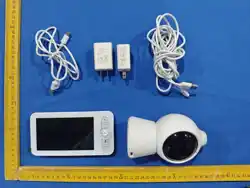
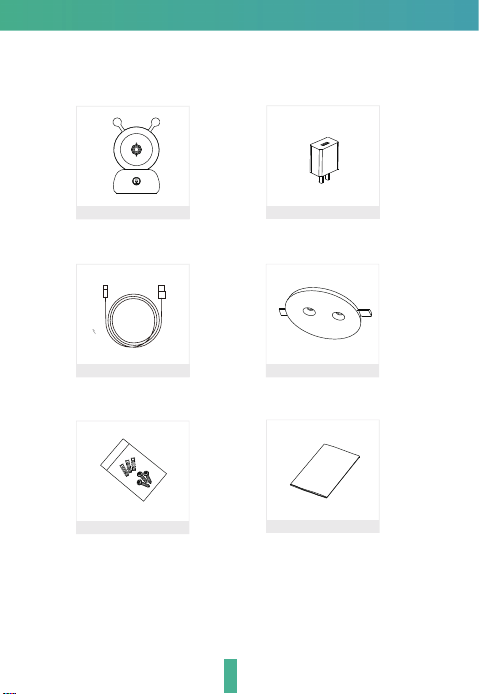
Power cable
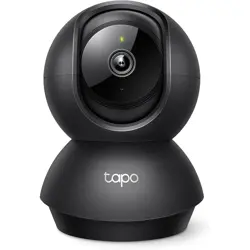
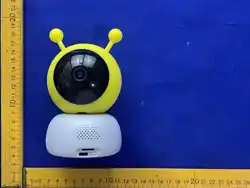
Camera
Screws
Please consult this checklist for all parts.
What's in the box
Bracket
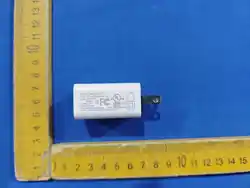
Power adapter
Manual
2
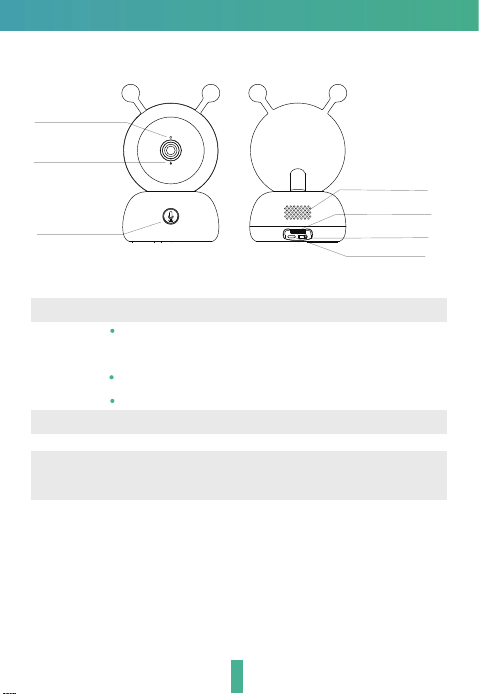
Description
Microphone
Status light
Call button
Speaker
Power port
TF card slot
RESET
Power input
Status light
DC 5V/1A
Blinking red light: wait for network connection (slow)
connecting the network (fast)
Fixed blue light on: camera is working correctly
Fixed red light on: camera is malfunctional
Capture sound for your video
Support local TF Card storage (Max.256G)
Press and hold for 5s with pin to reset the camera (if you
have modified settings, they will return to factory defaults)
Microphone
TF card slot
RESET
3
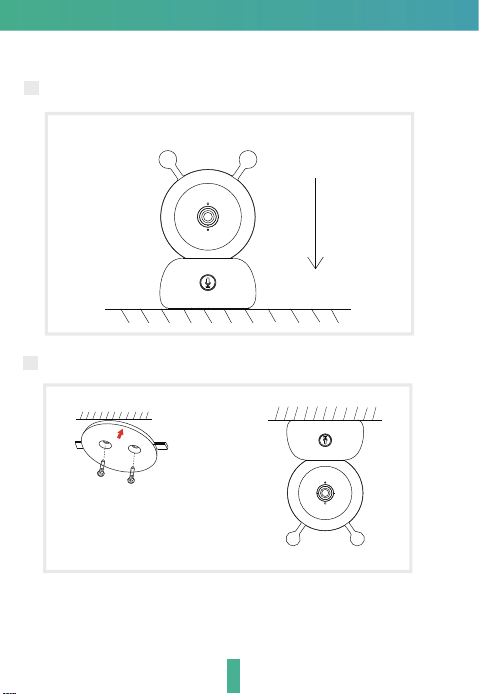
Installation
1 Install the camera on a flat surface.
2 Or, use the included mounting bracket to fix the camera to a clean surface.
4
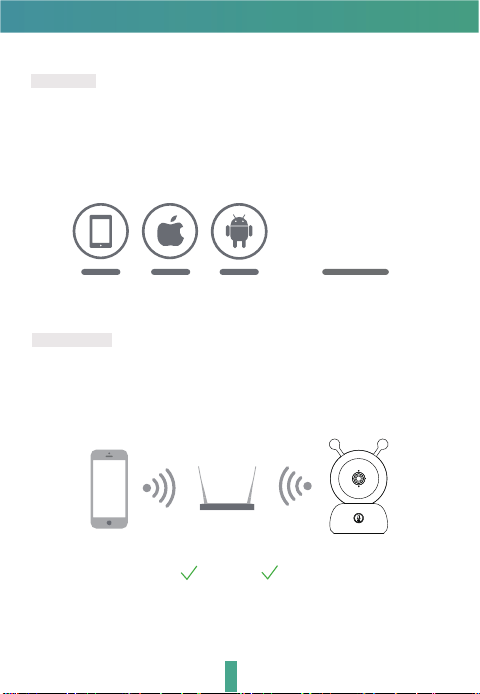
Set up router
The router supports the 2.4GHz WiFi (doesn't support the 5GHz), and is
connected to the WiFi network.Please set the parameters of the router before
connecting the WiFi network, and record the SSID and password of WiFi.
Please keep network available
2.4GHz 5GHz
Download
CloudEdge is available for both iOS and Android OS.
Search the name 'CloudEdge' in App Store or Google Play, or scan the QR
Code to download the App.
ipad AndroidIOS
·Support
Connection
Download App(IOS&android)
4
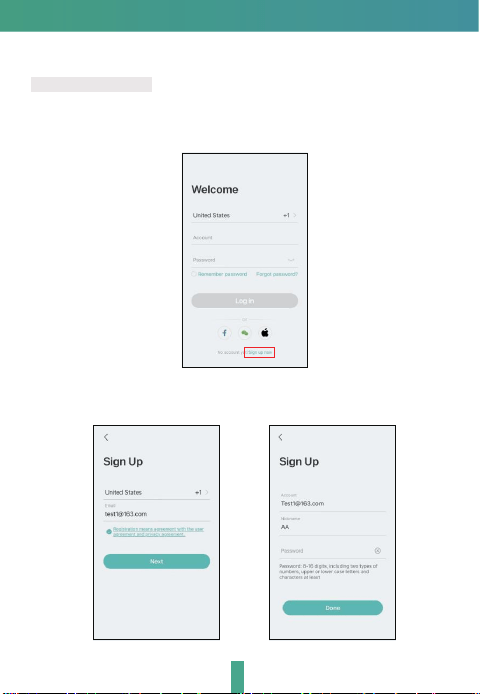
Registration
Registration process
Step 1
Step 2 Input a legal Email address and check the privacy aggreement.
Then enter the nickname and password.
Open the App, click "Sign up now" to register.
If you already have an account, click “Log In” to log in.
5
6
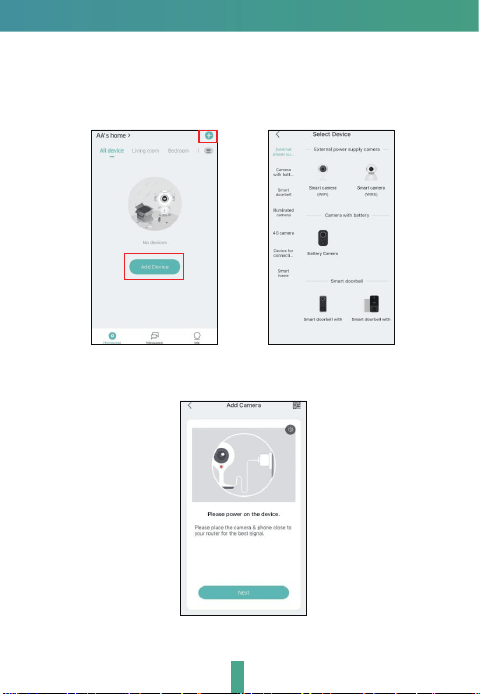
Device Adding
Click "Add Device" or "+", and then select the corresponding camera
icon to add.
Step 3
Power on the device and click “Next” on App.
Step 4
7
3
Device Adding
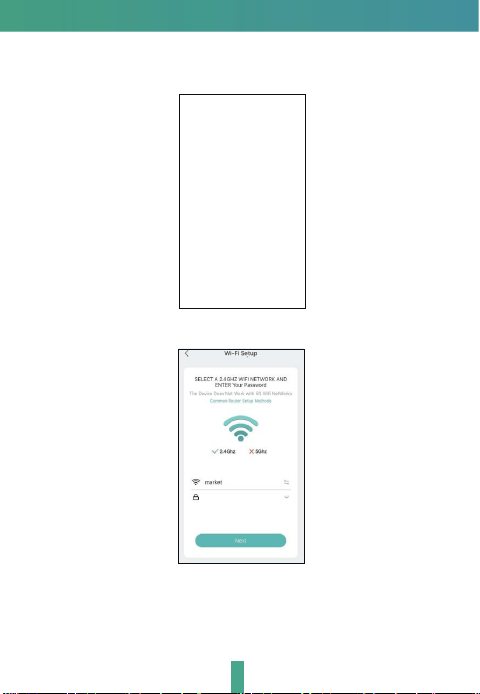
Note: 1) Camera only supports 2.4GHz WiFi network.
2) The number of bits in the ssid and passwords of the router should
not exceed 24 digits.
Reset the camera and click “Next” on App.Step 5
Select the WiFi network and input the password, and click "Next".Step 6
8
Device Adding
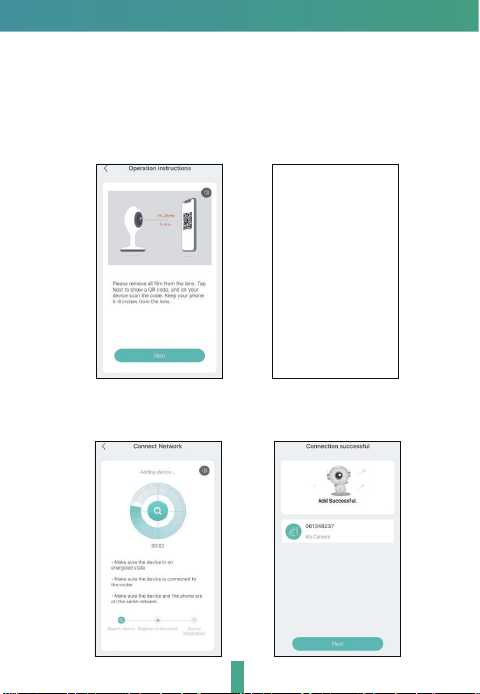
View the operation instructions of scanning, and then click “Next”.
Scan the QR code in your phone with the camera and click “Next”,
when the camera comes out "dong dong dong". And you can
complete the configuration about 30s.
Step 7
Scan the QR
code of device
When connecting, you should make sure your router, mobile and
camera are as close as possible.
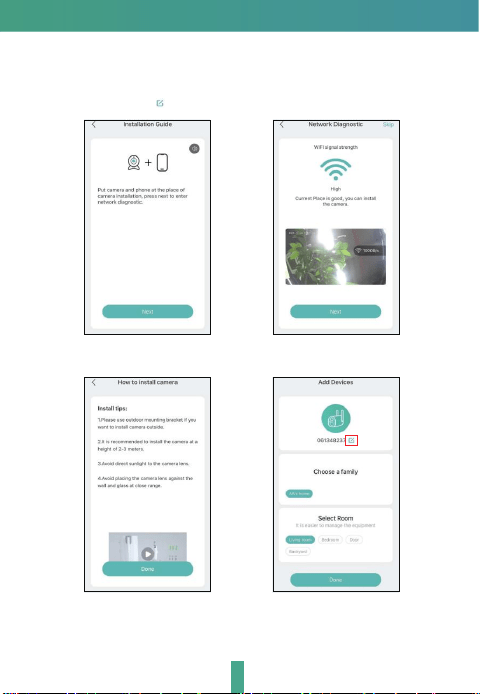
Step 8
Device Adding
Follow the on-screen instrcutions.
You can click " " to DIY the camera's name.
Step 9
9
10
Settings
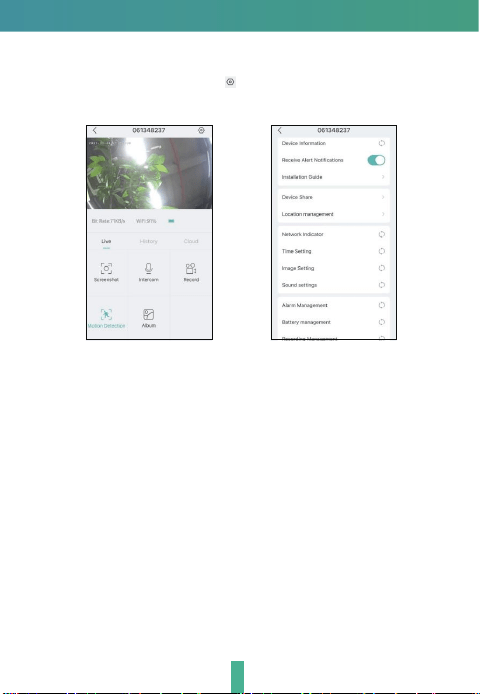
In live view interface, click " ", and then you can set up the camera
common functions.
Step 10

11
Q: Why is it still in the list of devices after reseting?
A: The reset device only resets the network configuration of the camera,
but cannot change the configuration on the App, remove the camera,
and must be deleted by the App.
Q: How to cut the camera network to another router?
A: First remove and reset the device on the App and then configure the
device again by the App.
Q: Why doesn't the device identify the TF card?
A: It is recommended to plug in TF card after power cut. Confirm whether
the TF card is normally available and the format is FAT32. And the TF
card can’t be identified when the internet environment is not good.
Q: Why I can’t get the notifications with my cell phone App?
A: Please confirm that the App has been running on the phone, and the
relevant reminder function has been opened;Message notification and
authority confirmation in the mobile phone system have been opened.
Q: The device cannot be previewed properly?
A: Check whether the network is normal, you can place the camera close
to the router, and if not, it is recommended to reset the device and add
it again.
FAQ

Functions
Daytime Night
Video flip
Flip your video stream up or down for maximum flexibility.
Motion detection
The camera can detect movement, and then the camera will send you
push notifications and App alerts.
Record
Support 24h continuous recording with high capacity TF storage or
Cloud storage.
Day & Night
Never miss a moment, even in complete darkness, with powerful
night-vision technology.
Pan/Tilt
Rotate your camera by sliding on your smartphone, providing you with
a good vision.
Crying detection
The camera can detect the crying of your baby, and the camera will send
you push notifications and App alerts.
Temperature & humidity detection
The camera can detect the temperature and humidity of the environment,
and you can view the values on your App.
12

FCC Caution:
This device complies with part 15 of the FCC Rules. Operation is subject to the
following two conditions: (1) this device may not cause harmful interference, and
(2) this device must accept any interference received, including interference that
may cause undesired operation.
Any changes or modifications not expressly approved by the party responsible
for compliance could void the user's authority to operate the equipment.
NOTE: This equipment has been tested and found to comply with the limits for a
Class B digital device, pursuant to Part 15 of the FCC Rules. These limits are
designed to provide reasonable protection against harmful interference in a
residential installation. This equipment generates, uses and can radiate radio
frequency energy and, if not installed and used in accordance with the
instructions, may cause harmful interference to radio communications.
However, there is no guarantee that interference will not occur in a particular
installation.
If this equipment does cause harmful interference to radio or television
reception, which can be determined by turning the equipment off and on, the
user is encouraged to try to correct the interference by one or more of the
following measures:
-- Reorient or relocate the receiving antenna.
-- Increase the separation between the equipment and receiver.
-- Connect the equipment into an outlet on a circuit different from that to which
the receiver is connected.
-- Consult the dealer or an experienced radio/TV technician for help.
To maintain compliance with FCC’s RF Exposure guidelines. This equipment
should be installed and operated with minimum distance between 20cm the
radiator and your body: Use only the supplied antenna.
Caution!
Any changes or modifications not expressly approved by the party responsible
for compliance could void the user's authority to operate the equipment.
Restrictions declaration in the 5 GHz band:
(i)the device for operation in the band 5150-5250 MHz is only for indoor use to
reduce the potential for harmful interference to co-channel mobile satellite
systems
(i)Les dispositifs fonctionnant dans la bande 5150-5250 MHz sont réservés
uniquement pour uneutilisation à l'intérieur afin de réduire les risques de
brouillage préjudiciable aux systèmes de satellites mobiles utilisant les mêmes
canaux.
13

V1.0 202405
© 2024. All rights reserved. All trade names are registered trademarks of
respective companies Apple, the Apple logo, iPhone are trademarks of Apple
Inc. registered in the U.S. and other countries. Google, the Google logo,
Android are trademarks of Google Inc. App Store is a service mark of Apple
Inc. Google Play is a service mark of Google Inc.
14
ISED Statement
This device compliance with CAN ICES-003 (B)/NMB-003(B) CAN ICES-003
(B)
Déclaration d’ISED Canada
Cet appareil est conforme à la norme CAN ICES-3 (B)/ NMB-3 (B).
Industry Canada (ISED) Compliance Statement
This device complies with ISED’s licence-exempt RSSs.
Operation is subject to the following two conditions:
(1) This device may not cause interference; and
(2)
This device must accept any interference, including interference that may
cause undesired operation of the device.
Le présent appareil est conforme aux CNR d’ ISED applicables aux appareils
radio exempts de licence.
L’exploitation est autorisée aux deux conditions suivantes :
(1) l’appareil ne doit pas produire de brouillage;
(2) l’utilisateur de l’appareil doit accepter tout brouillage radioélectrique subi,
même si le brouillage est susceptible d’en compromettre le fonctionnement.
Exposure warnings
The device meets the exemption from the routine evaluation limits in section
6.6 of RSS 102 and compliance with RSS-102 RF exposure, users can obtain
Canadian information on RF exposure and compliance.
Le dispositif rencontre l'exemption des limites courantes d'évaluation dans la
section 6.6 de RSS 102 et la conformité à l'exposition de RSS-102 rf,
utilisateurs peut obtenir l'information canadienne sur l'exposition et la
conformité de rf.
This transmitter must not be co-located or operating in conjunction with any
other antenna or transmitter. This equipment should be installed and operated
with a minimum distance of 20 centimeters between the radiator and your body.
Cet émetteur ne doit pas être Co-placé ou ne fonctionnant en même temps
qu'aucune autre antenne ou émetteur.
Cet équipement devrait être installé et actionné avec une distance minimum de
20 centimètres entre le radiateur et votre corps.