Amateur Radio
UV-26 SERIES
USER‘S MANUAL
Amateur Radio
USER'S MANUAL
UV-26 SERIES
PREFACE
Thank you for purchasing this product. which is a dual band/dual display/dual watch. This easy-to-use radio will deliver you
secure, instant and reliable communications at peak efficiency. Please read this manual carefully before use. The
information presented herein will help you to derive maximum performance from your radio.
WARNING!European Users should note that operation of this unit in Transmit mode requires the operator
to have a valid Amateur Radio License from their respective Countries Amateur Radio Licensing Authority for the
Frequencies and Transmitter Power levels that this Radio transmits on. Failure to comply may be unlawful and
liable for prosecution. At this subject, refer to the “EU” specification guide 2014/53/EU.
ATTENTION! When programming the radio, start by reading the factory software data, and then rewrite
this data with your frequency etc., to a new saved code plug, otherwise errors may occur. You can use the
programming cable with a PC to program the authorized frequency, bandwidth, power, etc. your programming
must comply with your FCC (or EU other country) license certification.
ATTENTION! Before using this product, read the RF Energy Exposure and Product Safety Guide that ship
with the radio which contains instructions for safe usage and RF energy awareness and control for compliance
with applicable standards and regulation.
PMR446, FRS, GMRS, MURS
You may be tempted to use PMR446 (in Europe) or FRS, GMRS, MURS (in the USA) frequencies. Do note
however that there are restrictions on these bands that make this transceiver illegal for use.
The BF-5RH series products are divided into M version and L version. The M version supports AM108-136 scanning
reception, and voice scrambling functions. The L version does not support AM108-136 scanning reception, and voice
scrambling functions. There is no voice scrambling option in the function menu.
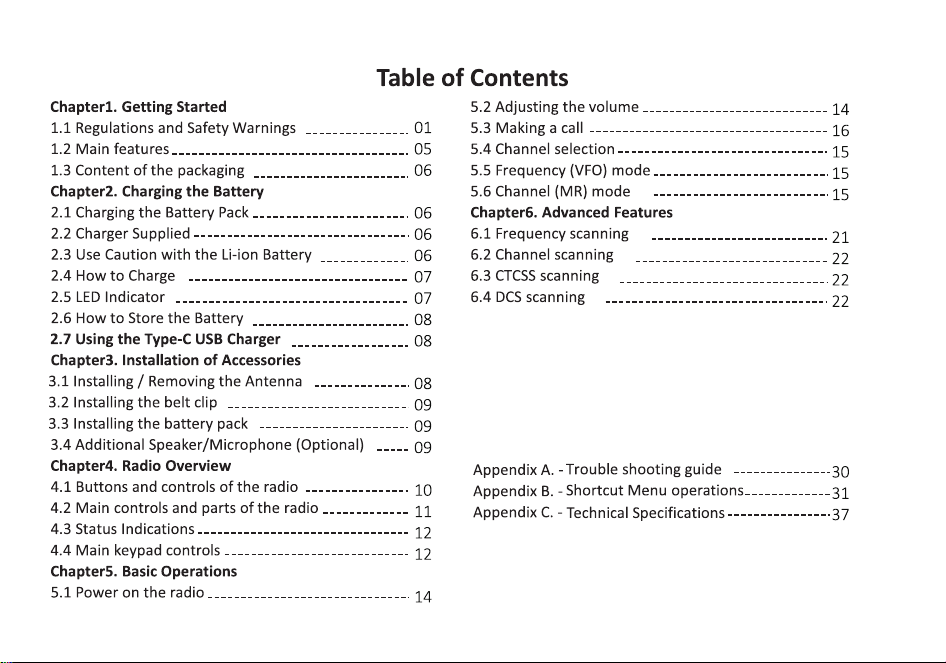

Chapter1. Getting Started
1.1 Regulations and Safety Warnings
■EU Regulatory Conformance
As certified by the qualified laboratory, the product is in compliance with the essential requirements and other relevant
provisions of the Directive 1999/5/EC (2014/53/EU). All applicable EU regulations are regarded (2006/66/EC, 2011/65/EU,
2012/19/EU). Please note that the above information is applicable to EU countries only.
■FCC Part15/IC Compliance
FCC Part 15 Compliance
This device complies with Part 15 of the FCC rules. Operation is subjected to the following two conditions: (1) this device may
not cause harmful interference, and (2) this device must accept any interference received, including interference that may
cause undesired operation.
Changes or modifications not expressly approved by the party responsible for compliance could void your authority to
operate the equipment.
Avis de conformité à la FCC : Ce dispositif a été testé et s’avère conforme à l’article 15 des règlements de la Commission
fédérale des communications (FCC). Ce dispositif est soumis aux conditions suivantes: 1) Ce dispositif ne doit pas causer
d’interférences nuisibles et; 2) Il doit pouvoir supporter les parasites qu’il reçoit, incluant les parasites pouvant nuire à son
fonctionnement.
Tout changement ou modification non approuvé expressément par la partie responsable pourrait annuler le droit à
l’utilisateur de faire fonctionner cet équipement.
IC Compliance
This device complies with Industry Canada license-exempt RSS standard(s).Operation is subject to the following two
conditions: (1) this device may not cause interference, and (2) this device must accept any interference, including
interference that may cause undesired operation of the device.
Changes or modifications not expressly approved by the party responsible for compliance could void your authority to
operate the equipment.
Cet appareil est conforme aux normes RSS exemptes de licences d’Industrie Canada. Son fonctionnement est soumis aux
1

deux conditions suivantes : (1) cet appareil ne doit pas causer d’interférences nuisibles et (2), il doit pouvoir accepter les
interférences, incluant celles pouvant nuire à son fonctionnement normal.
Tout changement ou modification non approuvé expressément par la partie responsable pourrait annuler le droit à
l’utilisateur de faire fonctionner cet équipement.
■FCC RF Exposure
WARNING! It is up to the user to properly operate this radio transmitter to insure safe operation. Please adhere to the
following:
Do not use the radio with a damaged antenna. If a damaged antenna comes into contact with the skin, a minor burn may
result.
Please contact your local dealer for a replacement antenna.
Hand-Held Operation (Held-to-Face)
This device was evaluated for typical hand-held (held-to-face) operations with a 1 inch spacing from the front of the radio.
For hand-held operation, the radio should be held 1 inch from the user's face in order to comply with FCC RF exposure
requirements.
Body-Worn Operation
This device was evaluated for body-worn operations with the supplied belt-clip accessory. (All necessary accessories are
included in the package; any additional or optional accessories are not required for compliance with the guidelines.) Third
party accessories (unless approved by the manufacturer) should be avoided as these might not comply with FCC RF exposure
guidelines.
For body worn operation, this device has been tested and meets the Industry Canada RF exposure guidelines when used
with our company accessories supplied or designated for this product. Use of other accessories may not ensure compliance
with Industry Canada RF exposure guidelines.
Fonctionnement de l’appareil, lorsque porté sur le corps. Cet appareil a été testé et s’est avéré conforme aux normes
d’Industrie Canada et approuvé pour le port sur le corps à l’aide des accessoires notre société inclus et conçus pour cet
appareil. L’utilisation d'accessoires ne respectant pas les exigences d'exposition RF d’Industrie Canada doit être évitée.
■
Precautions for Portable Terminals
Operating Prohibitions
2

To protect you against any property loss, bodily injury or even death, be sure to observe the following safety instructions:
1. Do not operate the product in a location containing fuels, chemicals, explosive atmospheres and other flammable or
explosive materials. In such location, only an approved Ex-protection model is allowed for use, but any attempt to
assemble or disassemble it is strictly prohibited.
2. Do not operate the product near or in any blasting area.
3. Do not operate the product near any medical or electronic equipment that is vulnerable to RF signals.
4. Do not hold the product while driving.
5. Do not operate the product in any area where use of wireless communication equipment is completely prohibited.
Important Tips
To help you make better use of the product, be sure to observe the following instructions:
1. Do not use any unauthorized or damaged accessory.
2. Keep the product at least 2.5 centimeters away from your body during transmission.
3. Do not keep the product receiving at high volume for a long time.
4. For vehicles with an air bag, do not place the product in the area over the air bag or in the air bag deployment area.
5. Keep the product and its accessories out of reach of children and pets.
6. Please operate the product within the specified temperature range.
7. Continuous transmission for a long time may lead to heat accumulation within the product. In this case, please keep it at
a proper location for cooling.
8. Handle the product with care.
9. Do not disassemble, modify or repair the product and its accessories without authorization.
■Precautions for Batteries
Charging Prohibitions
To protect you against any property loss, bodily injury or even death, be sure to observe the following safety instructions:
1. Do not charge or replace your battery in a location containing fuels, chemicals, explosive atmospheres and other
flammable or explosive materials.
2. Do not charge your battery that is wet. Please dry it with a soft and clean cloth prior to charge.
3. Do not charge your battery suffering deformation, leakage and overheat.
4. Do not charge your battery with an unauthorized charger.
5. Do not charge your battery in a location where strong radiation is present.
3

6. Overcharge shall always be prohibited for it may shorten the life of your battery.
Maintenance Instructions
To help your battery work normally or prolong its life, be sure to observe the following instructions:
1. Accumulated dust on charging connector may affect normal charging. Please use a clean and dry cloth to wipe it on a
regular basis.
2. It is recommended to charge the battery under 5℃~40℃. Violation of the said limit may cause battery life reduction or
even battery leakage.
3. To charge a battery attached to the product, turn it off to ensure a full charge.
4. Do not remove the battery or unplug the power cord during charging to ensure a smooth charging process.
5. Do not dispose of the battery in fire.
6. Do not expose the battery to direct sunlight for a long time nor place it close to other heating sources.
7. Do not squeeze and penetrate the battery, nor remove its housing.
Transportation Instructions
1. Damaged batteries must not be transported.
2. To avoid short circuit, separate the battery from metal pars or from each other if two or more batteries are transported
in one packaging.
3. The radio must be switched off and secured against switch-on, if the battery is attached.
The content of the shipment must be declared in the shipping documents and by a Battery Shipping Label on the packaging.
Contact your hauler for the local regulations and further information.
Maintenance
Your Two Way Radio is an electronic product of exact design and should be treated with care.
The suggestions below will help you to fulfill any warranty obligations and to enjoy this product for many years.
• Do not attempt to open the radio for any reason! The radio’s precision mechanics and electronics require experience and
specialized equipment; for the same reason, the radio should under no circumstances be realigned as it has already been
calibrated for maximum performance. Unauthorized opening of the transceiver will void the warranty.
• Do not store the Radio under the sunshine or in hot areas.
• High temperatures can shorten the life of electronic devices, and warp or melt certain plastics.
• Do not store the radio in dusty and dirty areas.
4

• Keep the Radio dry. Rainwater or damp will corrode electronic circuits.
• If it appears that the Radio diffuses peculiar smell or smoke, please shut off its power immediately and take off the charger
or battery from the radio.
• Do not transmit without antenna.
1.2 Main features
• Frequency range: FM radio 76-108 MHz; AM aviation frequency band: 108-136MHz (RX)
VHF1
:
136-174MHz
(
RX&TX
)
; VHF2
:
220-260MHz
(
RX&TX
)
UHF1:350-390MHz(RX); UHF2:400-520MHz(RX&TX)
• One touch search frequency, easy pairing and grouping (copying channel configuration parameters)
• Frequency step, selectable between 2.5K | 5.0K | 6.25K | 10.0K | 12.5K | 20.0K | 25.0K | 50.0K
• Frequency hopping and scramble functions to keep your call privacy confidential
• 1.77" TFT large screen, full keyboard, fully open menu operation
• Channel scan, frequency scan, and three scan and recovery methods: TO, CO, and SE
• Up to 999 memory channels. • Broadcast FM radio receiver 76-108 MHz
• Power-on password management function • Dual watch / Dual reception/ Dual-band handheld transceiver
• DTMF encoder and DTMF manual dial • High Capacity Lithium-Ion battery.
• VOX (voice activated transmit). • Stopwatch function
• Alarm function. • Display illumination programmable via keypad.
• High or low power selectable. • Function beep on the keyboard.
• Programmable repeater offset. • Battery save function.
• Transmission time-out timer. • Busy channel lock out.
• LED flashlight. • Ten (10) levels of Squelch adjustment.
• End of transmission tone, aka “Roger Beep” • Two (2) pins for Kenwood accessory port
• Support NOAA weather reception function in the United States and Canada
5

1.3 Content of the packaging
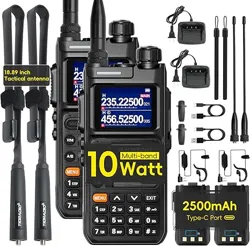
• 1 Radio • 1 Li-Ion battery pack
• 1 Fast desktop charger • 1 Belt clip
•1 Antenna
If any item is missing, please verify with your dealer.
Chapter2. Charging the Battery
2.1 Charging the Battery Pack
The Li-ion battery pack is not charged at the factory; please charge it before use. Charging the battery pack for the first time
after purchase or extended storage (more than 2 months) may not bring the battery pack to its normal maximum operating
capacity. Best operation will require fully charging/ discharging the battery two or three times before the operating capacity
will reach its best performance. The battery pack life may be depleted when it’s operating time decreases even though it has
been fully and correctly charged. If this is the case, replace the battery pack.
2.2 Charger Supplied
Please use the specified charger provided by our company. Other models may cause explosion and personal injury. After
installing the battery pack, and if the radio displays low battery with a voice prompt, please charge the battery.
2.3 Use Caution with the Li-ion Battery
a. Do not short the battery terminals or throw the battery into a fire. Never attempt to remove the casing from the battery
pack, as our company cannot be held responsible for any accident caused by modifying the battery.
b. The ambient temperature should be between 5℃-40℃ (40˚F - 105˚F) while charging the battery. Charging outside this
range may not fully charge the battery.
c. Please turn off the radio before inserting it into the charger. It may otherwise interfere with correct charging.
d. To avoid interfering with the charging cycle, please do not cut off the power or remove the battery during charging until
the green light is on.
e. Do not recharge the battery pack if it is fully charged. This may shorten the life of the battery pack or damage the battery
pack.
6
f. Do not charge the battery or the radio if it is damp. Dry it before charging to avoid damage.
WARNING
!
When keys, ornamental chain or other electric metals contact the battery terminal, the battery may become damage or
injure a human. If the battery terminals are short circuited it will generate a lot of heat. Take care when carrying and
using the battery. Remember to put the battery or radio into an insulated container. Do not put it into a metal container.
2.4 How to Charge
a. Plug the AC adaptor into the AC outlet, and then plug the cable of the AC adaptor into the DC jack located on the back of
the charger. The indicator light blinks orange and is then ready to charge a battery.
b. Plug the battery or the radio into the charger. Make sure the battery terminals are good in contact with charging terminals.
The indicator light turns to red--- charging begins.
c. It takes approximately 2-5 hours to fully charge the battery. When the lamp lights green, the charging is completed.
Remove the battery or the radio unit with its battery from socket.
When charging a radio (with battery) the indicating lamp will not turn into green to show the fully charged status if the
radio is powered on. Only when the radio is switched off will the lamp indicate normal operation. The radio consumes
energy when it is power-on, and the charger cannot detect the correct battery voltage when the battery has been fully
charged. So the charger will charge the battery in constant voltage mode and fail to indicate correctly when the battery
has been fully charged.
2.5 LED Indicator
STATUS
LED
No Battery
Green and red alternately flashing
Charge Normally
Red
Fully Charged
Green
Trouble
Red blinks fast for a long time
NOTE:Trouble means battery too warm, battery short-circuited or charger short-circuited.
7

2.6 How to Store the Battery
a. If the battery needs to be stored, keep it in status of 80% discharged.
b. It should be kept in low temperature and dry environment.
c. Keep it away from hot places and direct sunlight.
» Do not short circuit the battery terminals.
» Never attempt to remove the casing from the battery pack.
» Never store the battery in unsafe surroundings, as a short may cause an explosion.
» Do not put the battery in a hot environment or throw it into a fire, as it may cause an explosion.
2.7 Using the Type-C USB Charger
The Type-C USB charger is a handy port that allows you to conveniently charge your Li-ion battery pack.
1. Make sure your radio is turned OFF.
2. Plug the Type-C USB cable into the Type-C USB charging port on your battery. Connect the other end of the micro-USB
charger to wall power outlet.
3. An empty battery will be fully charged in 4 hours.
4. The battery meter on LCD will move to indicate the battery is charging.
Note:
• It is recommended to power OFF your radio while charging. However, if power is turned on while charging, you may not
be able to transmit a message if the battery is completely empty. Allow time for the battery to charge to 1 bar before
attempting to transmit a message.
• For optimal battery life, remove the radio from the charger within 6 hours. Do not store the radio while connected to the
charger.
Chapter3. Installation of Accessories
Before the radio is ready for use we need to attach the battery pack, as well as charge the battery.
3.1 Installing/ Removing the Antenna
1). Installing the Antenna: Screw the antenna into the connector on the top of the transceiver by holding the antenna at its
base and turning it clockwise until secure.
8
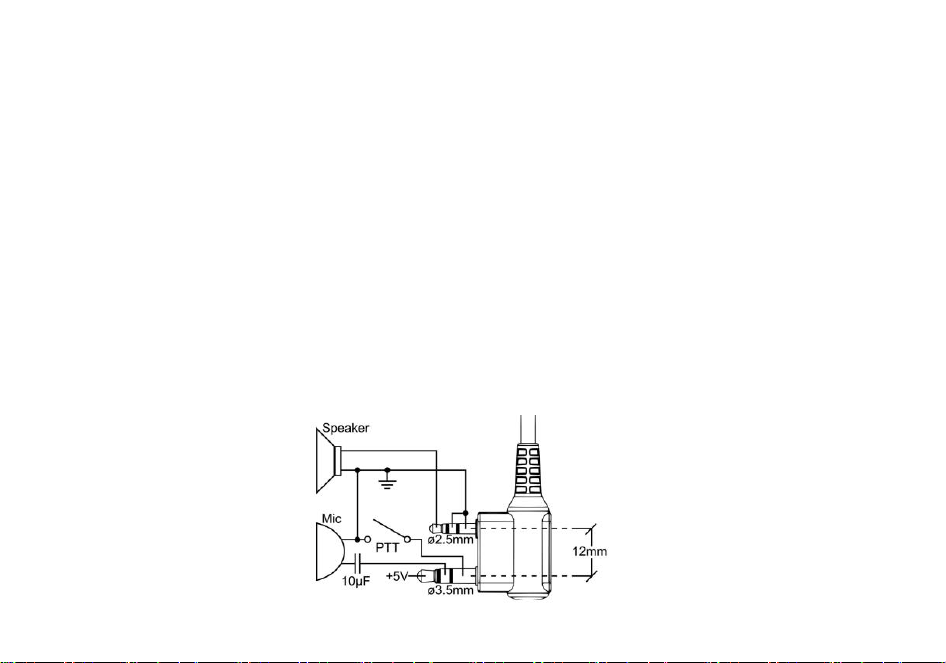
2). Removing the Antenna: Turn the antenna counter-clockwise to remove it.
3.2 Installing the belt clip
1). At the back of the radio there are two parallel screws mounted above the battery, remove these and thread them
through the holes on the belt clip as you screw them back into the radio body.
2). Removing the Belt Clip: Unscrew counter-clockwise to remove the belt clip.
3.3 Installing the battery pack
Before attaching or removing the battery make sure your radio is turned off by turning the power/volume knob all the way
counter-clockwise.
1). Make sure the battery is aligned in parallel with the radio body with the lower edge of the battery about 1-2cm below the
edge of the radio.
2). Once aligned with the guide-rails, slide the battery upward until you hear a click as the battery locks in place.
Remove the battery pack
To remove the battery, press the battery release above the battery pack, as you slide the battery downward.
3.4 Installing the Additional Speaker/Microphone (Optional)
Pry open the rubber MIC-Headset jack cover and then insert the Speaker / Microphone plug into the double jack.
9
Chapter4. Radio Overview
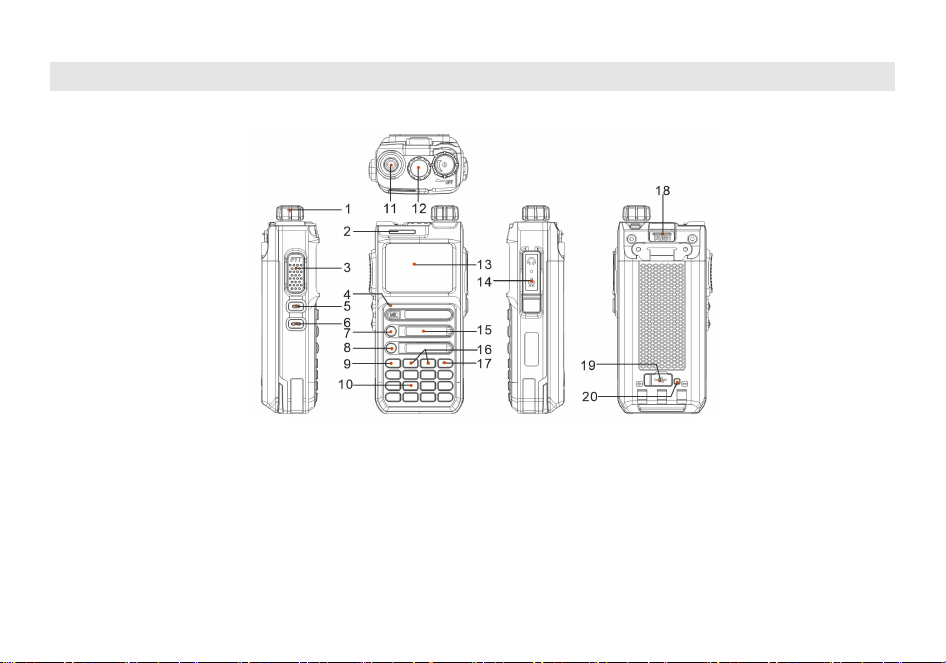
4.1 Buttons and controls of the radio
1. Power/Volume knob
4. Microphone
7. V/M Key- VFO/MR mode key
10. Numeric keypad
13. Color LCD
16.
or
navigation keys
3. PTT key
6. SK2-Flashlight and Monitor key
9.MENU
12. LED flashlight
15. Speaker
18. Battery release latch
19. Type-C charging port
2. Status LED
5. SK1- Broadcast FM and Alarm key
8. A / B select key
11. Antenna jack
14. Accessory jack
17.EXIT
20. Type-C charging indicator
10
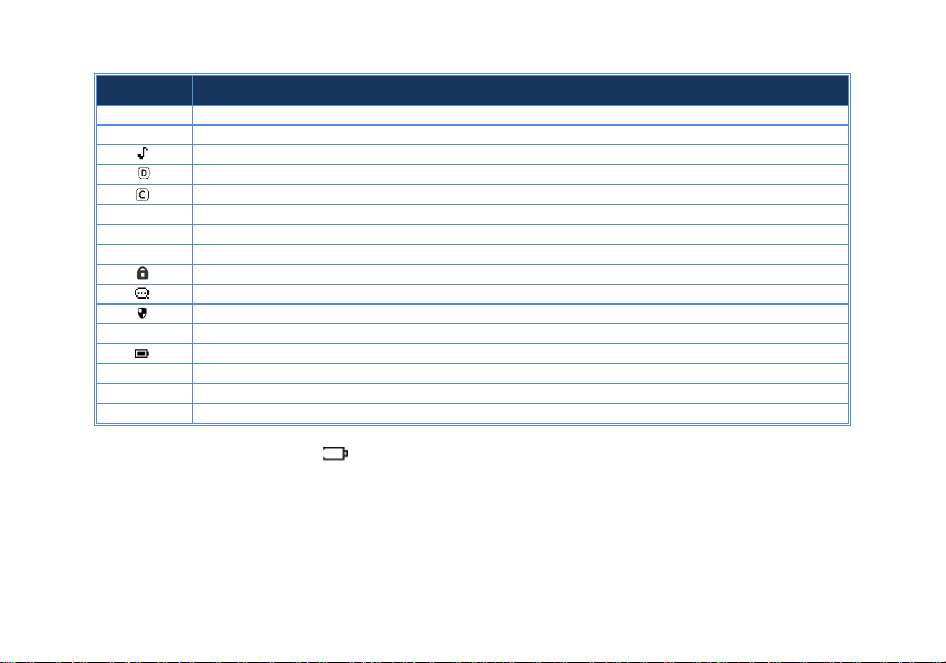
4.2 LCD Display
Icon
Description
RSSI
Squelch Open/ Close Indicator
H/L
Transmit power level indicator, According to Power (High/Low)
Make sure you can hear the DTMF side tone from the radio speaker, set to DT-ST, ANI-ST, DT+ANI.
DCS enabled
CTCSS enabled
+
Enables access of repeaters in VFO/Frequency Mode. TX will be shifted higher in frequency than RX。
-
Enables access of repeaters in VFO/Frequency Mode. TX will be shifted lower in frequency than RX
D
Dual watch enabled
Keypad lock enabled
VOX enabled
The confidential calling feature is activated
N
Narrowband enabled
Battery level indicator
R
Reverse function enabled
Indicates active band or channel
SCR
The voice scramble function has been activated
Battery Level Indicator
When the battery level indicator reads the battery is depleted. At this point the radio will start beeping periodically as
well as flash the backlight of the display and when voice prompts are enabled, a "Low Voltage" announcement will be heard,
indicating that you need to change your battery or put your radio in the charger.
11
4.3 Status Indications
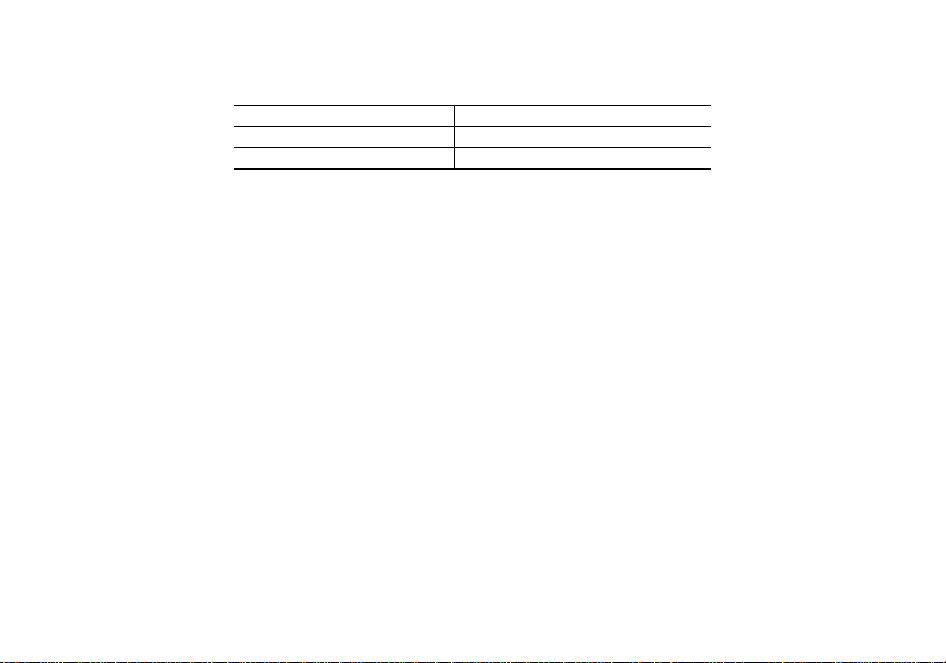
The status LED has a very simple and traditional design.
LED Indicator
Radio Status
Constant Red
Transmitting.
Constant Green
Receiving.
4.4 Main keypad controls
• Side key 1 (Broadcast FM and Alarm)
Press [SK1] key momentarily to start the broadcast FM receiver. Another momentary press turns the broadcast FM receiver
off. If a signal is received on the active frequency or channel while you are listening to the broadcast FM, the receiver will
open squelch to that frequency (as if scanning) and remain there until the signal goes away; it will then switch back to
broadcast FM.
Press and hold [SK1] key to activate the alarm function. Press [SK1] (a short press) again to turn it off
• Side key 2 (Flashlight and Monitor)
Press [SK2] key momentarily to turn on the LED flashlight. Another momentary press will flash the LED. Another momentary
press turns the flashlight off.
Press and hold [SK2] to monitor the signal. This will open up the squelch so you can listen to the unfiltered signal.
• V/M – VFO/MR mode key
Pressing [V/M] key switches between Frequency (VFO) Mode and Memory (MR) mode. Memory mode is sometimes also
referred to as Channel mode.
To save frequencies to channel memory you must be in Frequency (VFO) mode.
• A/B select key
The [A/B] key switches between A (upper) and B (lower) displays. The frequency or channel on the selected display becomes
the active listening and transmit frequency or channel.
To save frequencies to channel memory you must be on the A display.
• MENU
It is used for activating the MENU, choose each MENU selection and confirm the parameter.
12

•
key
Press it for more than 2 seconds, the channel and frequency will move upwards rapidly; in SCAN mode, press this control to
move the scanning upwards.
• key
Keep it pressed it for more than 2 seconds, the channel and frequency will move downwards rapidly; in SCAN mode, press
this control to move the scanning downwards.
• EXIT key
Press to exit the Menu and functions.
Press and hold the EXIT key to activate the one-touch search function.
• Numeric keypad
With these keys you can input the information or your selections on the radio. In tx mode, press the number keys to send a
corresponding DTMF code.
• Star * Key
A short momentary press of the key enables the reverse function.
If you press this key for more than 2 seconds you will lock/unlock the keypad.
• Pound # Key
Press the
key to activate the DTMF dial function.
Press and hold the key to activate the channel scan or frequency scan function.
In FM radio mode, press the key to automatically search for broadcast programs.
• 0 key
Press and hold the [0SQL] key to activate the NoAA weather forecast reception function
13

Chapter5. Basic Operations
5.1 Power on the radio
• Turning the unit on
To turn the unit on, simply rotate the Volume/Power knob clockwise until you hear a "click". If your radio powers on
correctly there should be an audible double beep after about one second and the display will show a message or flash the
LCD depending on settings for about one second. Then it will display a frequency or channel. If the Voice prompt is enabled,
the voice will announce "frequency mode" or "channel mode".
• Turning the unit off
Turn the Volume/Power knob counter-clock wise all the way until you hear a "click". The unit is now off.
5.2 Adjusting the volume
To turn up the volume, turn the volume/power knob clock-wise. To turn the volume down, turn the Volume/Power knob
counter-clock-wise. Be careful not to turn it too far, as you may inadvertently turn your radio off.
By using the monitor function, enabled from the [FM broadcast/Monitor] key below the PTT, you can more easily adjust
your volume by adjusting it to the un-squelched static.
5.3 Main Band/Sub Band Select
In standby mode, press the [A/B] key to switches between A (upper) and B (lower) displays. The frequency or channel on the
selected display becomes the active listening and transmit frequency or channel.
To save frequencies to channel memory you must be on the A display.
5.4 VFO/Channel Switch
Press the [V/M] key to switch between VFO and channel display.
• In channel mode (MR), the channel number will be displayed on the right.
• In frequency mode (VFO), the ‘VFO’ will be displayed on the right.
14

5.5 Frequency (VFO) mode
In Frequency (VFO) mode you can navigate up and down the band by using the or keys. Each press will increment or
decrement your frequency according to the frequency step you've set your transceiver to.
You can also input frequencies directly on your numeric keypad with kilohertz accuracy.
The following example assumes the use of a 12.5 kHz frequency step.
Example. Entering the frequency 436.61250 MHz on display A
(1) In standby mode, press [V/M] key to switch to the frequency (VFO) mode.
(2) Enter [4][3][6][6][1][2][5] [0] on the numeric keypad.
WARNING!
Just because you can program in a channel does not mean you're automatically authorized to use that frequency.
Transmitting on frequencies you're not authorized to operate on is illegal, and in most jurisdictions a serious offence.
However, it is legal in most jurisdictions to listen. Contact your local regulatory body for further information on what laws,
rules and regulations apply to your area.
5.6 Channel (MR) mode and Channel selection
There are two modes of operation: Frequency (VFO) mode, and Channel or Memory (MR) mode.
For everyday use, Channel (MR) mode is going to be a whole lot more practical than Frequency (VFO) mode. However,
Frequency (VFO) mode is very handy for experimentation out in the field. Frequency (VFO) mode is also used for
programming channels into memory.
In Channel (MR) mode you can navigate up and down the channel by using the or keys or the encoder.
Ultimately which mode you end up using will depend entirely on your use case.
Press [V/M] key to switch the radio between VFO and Channel mode, select Channel mode.
• Operation 1: Press the or navigation key to select the channel.
• Operation 2: Input the channel numbers by the keyboard. For example, if you want switch to channel 12, input [0][1][2] a
total of 3 digits, and it will switch to channel 12.
When the voice prompt function is enabled, the corresponding channel will be broadcast by voice.
15

5.7 Making a call
NOTE: Press the [A/B] key to switch the main channel to the other channel if there are 2 channels shown on the display. In
standby mode, press [V/M] key to switch between frequency (VFO) mode and channel (MR) mode.
• Channel mode call: After selecting a channel, hold down the [PTT] key to initiate a call to the current channel. Speak into
the microphone with normal tone. Making a call, the red LED is on.
• Frequency mode call: Press [V/M] key to switch to the frequency mode, input the working frequency within the allowable
frequency range, and press and hold the [PTT] key to transmit on the current frequency. Speak into the microphone with
normal tone. Making a call, the red LED is on.
• Receive a call: When you release the [PTT] key, you can answer it without any action.
When receiving a call, the green LED is on.
NOTE: To ensure the best reception volume, keep the distance between the microphone and the mouth at the time of
transmission from 2.5 cm to 5 cm.
5.8 Using the Flashlight
You can use this radio in an emergency. If you press [SK2] key, the radio turns on the high-intensity LED flashlight on your
radio.
• Your radio operates normally when the emergency strobe is activated.
(1) Press [SK2] key once, it will turn on continuously (Always On mode).
(2) And then, press [SK2] key once, the Strobe Light emits the emergency signal (Strobe emergency mode).
(3) And then, press [SK2] key once, the light will be turned off.
5.9 Emergency Alert
The Emergency Alert feature can be used to signal members in your group for help.
To activate the emergency alert function, press and hold the [SK1] key for 3 seconds. The radio will send out a loud siren
sound and the flashlight will flash.
Press the [SK1] key to exit the emergency alert function.
WARNING: The Emergency Alert feature should only be used in the even of an actual emergency.
16

5.10 FM Radio (FM)
The frequency ranges to listen to the radio is 65-108MHz. When listening to broadcast FM, press key switches between
65-75 MHz and 76-108 MHz band.
(1) In frequency or channel mode, Press [SK1] key to turn on the radio.
(2) Select the desired radio frequency with the or keys or input the frequency. Or
• Press to automatically search a radio station.
(3) Press [SK1] key to exit FM radio.
Note: while you are listening to the radio, the frequency or channel of A / B receiving signal will automatically switch to
the frequency or channel mode for normal transmitting and receiving.
When the signal disappears the radio will automatically switch again to FM radio mode.
5.11 Monitor
In standby, press and hold the [SK2] key to enter Monitor. When receiving matched carrier but the signaling or the signal is
too weak, this function allows monitor the weak signal.
Stop pressing the [SK2] key to turn off the speakers and return to standby mode.
» If no signal, it will emit noise when press the [SK2] Key.
5.12 Keypad lock
The radio features a keypad lock that locks out all keys except for the three side keys.
To enable or disable the keypad lock, press and hold the key for about two seconds.
You can also enable so that the radio automatically locks the keypad after ten seconds from the menu.
5.13 Frequency reversal
A short momentary press of the key enables the reverse function
If you for some reason want to listen to the repeater's input frequency instead, press key momentarily and you'll
reverse your transmit and receive frequencies.
» After activating the frequency reversal function, the first line of the screen displays "R"
17
5.14 TX Repeaters tone
Press [PTT] + [SK2] key to send 1750Hz repeaters tone. This function is useful for communications through repeaters.
If you have the keypad lock enabled on your radio, you can still send a 1750Hz tone the regular way without having to
unlock your radio.
5.15 One touch frequency Search
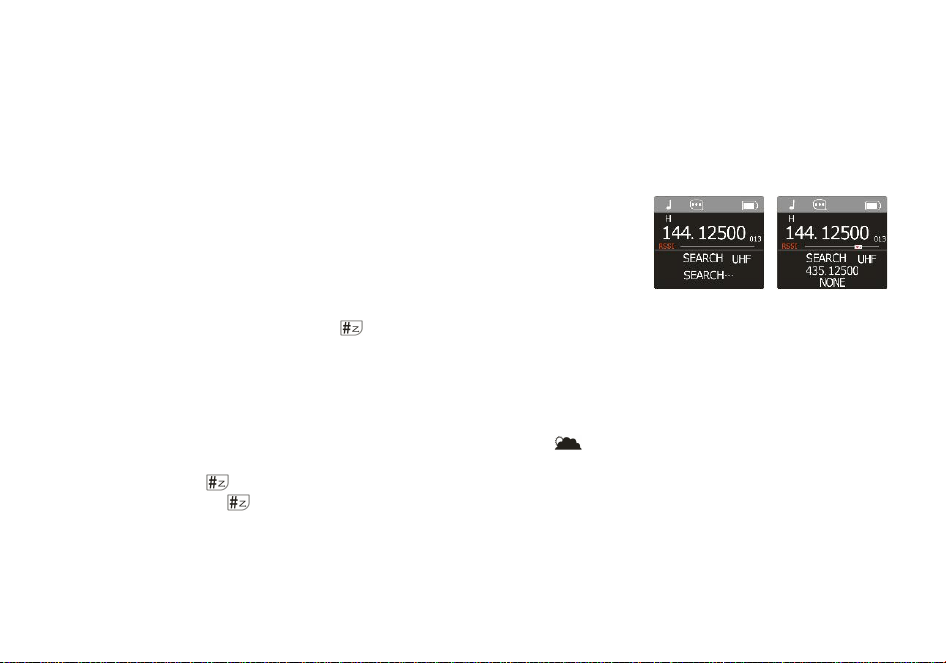
(1) The radio will act as a receiver. Press and hold the
V/M key, and the screen will
display “SEARCH SEARCH..."
(2) If the transmitter continues to transmit and the unit receives an effective
frequency (the strongest and stable signal), the received frequency will be displayed.
If there is a CTCSS or DCS, the CTCSS or DCS value is displayed, and if there is no CTCSS
or DCS, NONE is displayed
(3) You can press the
MENU key to save the Search frequency and CTCSS or DCS to the channel.
Note: During frequency Search, press the key on the radio to switch between UHF or VHF bands.
5.16 Weather Radio/Scan Weather Channel
Your radio has a NOAA Weather Radio function, to enable the user to receive weather reports from designated NOAA
stations. Your radio also has a NOAA Weather Scan function, to enable the user to scan all 10 channels of the NOAA Weather
Radio.
(1) To turn the NOAA Weather Scan on, press the [0SQL] key for 3 seconds, icon appears. The radio will go to Weather
band mode.
(2) Press and hold the key for 3 seconds to start automatic scanning of all 10 channels and stop on active channels.
Pressing and hold the key for 3 seconds during a NOAA weather scan will stop the scan.
(3) After stopping NOAA weather scan, it is allowed to manually select the weather channel by press the or key.
(4) To exit the Weather Radio broadcast mode, press the EXIT key or [PTT] key.
18
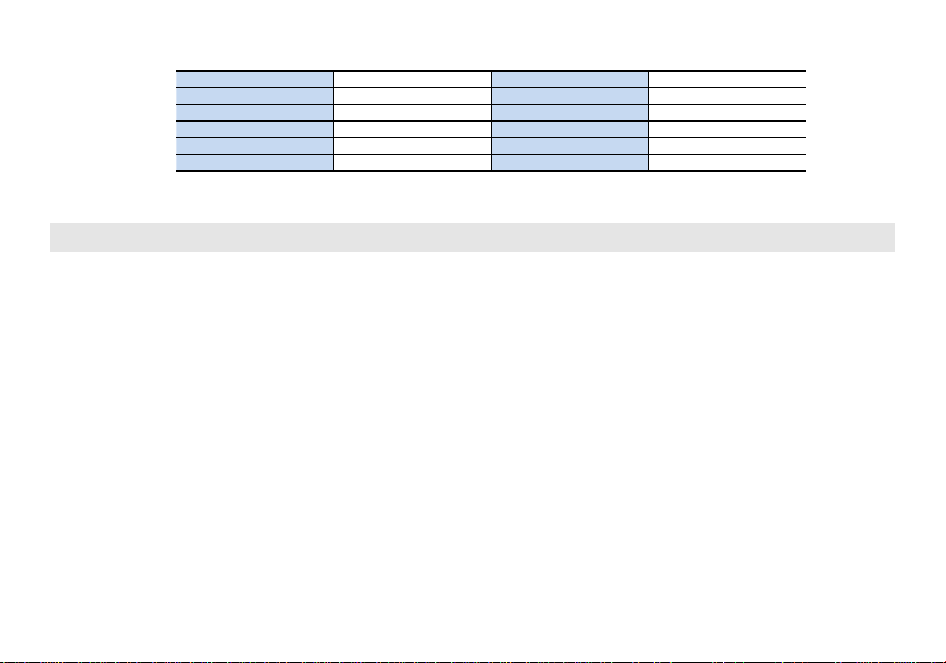
Weather channel frequencies and names
Channel Number
RX Frequency MHz
Channel Number
RX Frequency MHz
Wx -01
162.550
Wx -06
162.500
Wx -02
162.400
Wx -07
162.525
Wx -03
162.475
Wx -08
161.650
Wx -04
162.425
Wx -09
161.775
Wx -05
162.450
Wx -10
163.275
NOTE: Weather Channels Wx 1 Thru 10, Receive-only channels for NOAA and Canadian weather broadcasts. You cannot
transmit on these channels.
Chapter6. Advanced Features
6.1 Working the menu system
For a complete reference on available menu items and parameters, see Appendix B, Menu definitions.
If your radio is set to Memory (MR) mode, the following menu items will not take any effect: STEP, TXP, W/N, CTCSS, DCS,
S-CODE, PTT-ID, BCL, SFT-D, OFFSET, MEM-CH.
6.1.1 Basic use
Using the menu with arrow keys
1. Press the MENU key to enter the menu.
2. Use the / keys to navigate between menu items.
3. Once you find the desired menu item, press MENU
again to select that menu item.
4. Use the / keys to select the desired parameter.
5. When you've selected the parameter you want to set for a given menu item;
a. To confirm your selection, press MENU
b. To cancel your changes, press EXIT
and it will save your setting and bring you back to the main menu.
and it will reset that menu item and bring you out of the menu entirely.
6. To exit out of the menu at any time, press EXIT the key.
19

6.1.2 Using short-cuts
As you may have noticed if you looked at Appendix B, Menu definitions, every menu item has a numerical value associated
with it. These numbers can be used for direct access of any given menu item.
The menu is also organized in such a way that the ten most common functions are on top.
The parameters also have a number associated with them, see Appendix B, Menu definitions for details.
Using the menu with short-cuts
1. Press the MENU key to enter the menu.
2. Use the numerical keypad to enter the number of the menu item.
3. To enter the menu item, press the MENU key.
4. For entering the desired parameter you have two options:
a. Use the arrow keys as we did in the previous section; or
b. Use the numerical keypad to enter the numerical short-cut code.
5. And just as in the previous section;
a. To confirm your selection, press
b. To cancel your changes, press EXIT
and it will save your setting and bring you back to the main menu.
and it will reset that menu item and bring you out of the menu entirely.
6. To exit out of the menu at any time, press the EXIT key.
7. All further examples and procedures in this manual will use the numerical menu shortcuts.
6.2 Scanning
The Radios features a built in scanner for the VHF and UHF bands. When in Frequency (VFO) mode it will scan in steps
according to your set frequency step. In Channel (MR) mode it will scan your channels. At approximately three frequencies
per second, it's not the fastest scanner in the world, but it is nonetheless a useful feature to have at times.
Dual Watch is inhibited while scanning
To enable the scanner, press and hold the
key for about two seconds. Press and hold the key to exit scanning
mode.
20
MENU

6.2.1 Scanning modes
The scanner is configurable to one of three ways of operation: Time, carrier or search, each of which is explained in further
details in their respective section below.
Procedure 5.1. Setting scanner mode
1. Press the MENU key to enter the menu.
2. Enter 2 1 on your numeric keypad to come to scanner mode.
3. Press the MENU key to select.
4. Use the UP and DOWN keys to select scanning mode.
5
. Press the
6. Press the
MENU key to confirm and save.
EXIT key to exit the menu.
• Time operation
In Time Operation (TO) mode, the scanner stops when it detects a signal, and after a factory preset time out, it resumes
scanning.
• Carrier operation
In Carrier Operation (CO) mode, the scanner stops when it detects a signal, and after a factory preset time with no signal it
resumes scanning.
• Search operation
In Search Operation (SE) mode, the scanner stops when it detects a signal.
To resume scanning you must press and hold the
key again.
6.2.2 Frequency scanning
This function can scan the frequency.
a. In frequency mode, press key for more than 2 seconds. The radio will start scanning the frequency according to the
set frequency step.
b. You can change the scanning direction with the / keys.
c. Press key to stop the scanning.
Note: for Scan mode, see Menu No.21.
21

6.2.3 Channel scanning
This function can scan the channels.
a. In channels mode, press key for more than 2 seconds. The radio will start scanning according to the channel you set.
b. You can change the scanning direction with the / keys.
c. Press key to stop scanning.
Note: for Scan mode, see Menu No.21.
6.2.4 Scan CTCSS
The function allows scanning the frequencies with CTCSS tone enabled.
a. In standby mode, press MENU [1][4], “Scan CTCSS” will appear on the display.
b. Press
MENU key and the scan of CTCSS tones will start.
NOTES: The function cannot be activated when the radio is set in Channel mode. The Scan will start only when the
receiving band will detect a signal.
6.2.5 Scan DCS
This function allows scanning the frequencies with DCS code enabled.
a. In standby mode, press
MENU [1][5]; the display will show “Scan DCS”.
b. Press MENU key and the scan of DCS codes will start.
NOTES: The function cannot be activated when the radio is set in Channel mode. The Scan will start only when the
receiving band will detect a signal.
6.3 Manual Programming (Channels Memory)
Memory channels are an easy way to store commonly used frequencies so that they can easily be retrieved at a later date.
The radios features 999 memory channels that each can hold: Receive and transmit frequencies, transmit power, group
signaling information, bandwidth, ANI/ PTT-ID settings and a six character alphanumeric identifier or channel name
1
.
Frequency Mode vs. Channel Mode
In standby mode, press [V/M] key to switch between frequency (VFO) mode and channel (MR) mode.
22

These two modes have different functions and are often confused.
Frequency Mode (VFO): Used for a temporary frequency assignment, such as a test frequency or quick field programming if
permitted.
Channel Mode (MR): Used for selecting preprogrammed channels.
Ex 1. Programming a Channel Repeater Offset with CTCSS Tone
EXAMPLE New memory in Channel 10:
RX = 432.55000 MHz
TX = 437.55000 MHz (This is a (+ 5) Offset)
TX CTCSS tone 123.0
a. Press the EXIT key to switch between menus.
b. Press [V/M] key to set the radio to VFO mode, and the VFO icon is displayed on the right.
Deletes Prior Data in channel (Ex. 10)
c.MENU [3][1] MENU [1][0] MENU EXIT
d.MENU [1][2] MENU 123.0 MENU EXIT
e.Enter RX frequency (Ex. 43255000)
Selects desired TX encode tone
f.
MENU [3][0] MENU [1][0] MENU
Enter the desired channel (Ex 10)
-->> EXIT RX has been added
g.
h. Enter the same channel (Ex 10)
Enter TX frequency (Ex. 43755000)
MENU[3][0]MENU[1][0]MENU
-->> EXIT
TX has been added
i. Press [V/M] key to return to the MR mode and the channel number will reappear.
Ex 2. Programming a Simplex Channel with CTCSS tone
EXAMPLE New memory in Channel 10:
RX = 432.6625 MHz
TX CTCSS tone 123.0
a. Press the EXIT key to switch between menus.
b. Press [V/M] key to set the radio to VFO mode, and the VFO icon is displayed on the right.
23

Deletes Prior Data in channel (Ex. 10)
c.MENU[3][1]MENU[1][0]MENU EXIT
d.MENU[1][2]MENU123.0 MENU EXIT
-->>Use EXIT to select Upper display
e.Enter RX frequency (Ex. 43266250)
Select desired TX encode tone (Ex 123 CTCSS)
f.MENU[3][0] MENU [1][0] MENU Enter the desired channel (Ex 10)
-->> EXIT Channel has been added
g. Press [V/M] key to return to the MR mode and the channel number will reappear.
6.4 Repeaters Programming
The following instructions assume that you know what transmit and receive frequencies your repeater employs, and that
you're authorized to use it.
a. Press [V/M] key to set the radio to VFO mode, and the VFO icon is displayed on the right.
b. Use the numeric keypad to enter the repeater's output (your receiving) frequency.
c. Press the MENU key to enter the menu.
d. Enter [2][9] on the numeric keypad to get to frequency offset.
e. Press MENU key to select.
f. Use the numerical keypad to enter the specified frequency offset. See the section called “29 OFFSET - Frequency shift
amount” for details.
g. Press
MENU key to confirm and save.
h. Enter [2][8] on the numeric keypad to get to offset direction.
i. Use the / keys to select + (positive) or - (negative) offset.
j. Press
MENU key to confirm and save.
k. Optional:
a). Save to memory, see the section called “Manual programming” for details.
b). Set up CTCSS; see the section called “CTCSS” for details.
l. Press EXIT key to exit the menu. If everything went well, you should be able to make a test call through the repeater.
NOTE:
If you're experiencing problems making a connection to the repeater, check your settings and/or go through the procedure
24

again.
Certain Amateur Radio repeaters (especially in Europe) use a 1750Hz tone burst to open up the repeater. To see how this is done
with the radios, see the section called “1750Hz Tone-burst”.
If you're still unable to make a connection, contact the person in charge of the radio system with your employer or your local
amateur radio club, as the case may be.
If you for some reason want to listen to the repeater's input frequency instead, press key momentarily and you'll reverse
your transmit and receive frequencies.
This is indicated in the LCD on the radio with an R in the top row, next to the + and - for the offset direction.
6.5 VOX
This function allows hands-free conversations: just speak in the direction of the microphone and the communication will be
automatically activated.
In standby mode, press MENU +7. The screen will display “VOX”.
Press MENU key to enter the function. Press the /keys to turn off the VOX function or to select the VOX level (1-10), then
press MENU key to confirm.
To return to the standby mode press EXIT key.
NOTE: level 1 is the least sensitive while level 9 is the most sensitive. When the radio is in Scan or FM Radio mode, the VOX is
not enabled.
6.6 Dual Watch
In certain situations, the ability to monitor two channels at once can be a valuable asset. This can be achieved in one of two
ways. You can either have one receiver in your radio and flip-flop between two frequencies at a fixed interval (known as Dual
Watch), or you can equip a radio with two receivers (known as Dual Receive or Dual VFO). The former method is cheaper to
implement and far more common than the latter.
The Radios features Dual Watch functionality (single receiver) with the ability to lock the transmit frequency to one of the two
channels it monitors.
25
Enabling or disabling Dual Watch mode
1. Press the MENU key to enter the menu.
2. Enter 7 on the numeric keypad to get to Dual Watch.
3. Press MENU key to select.
4. Use the UP and DOWN keys to enable or disable.
5. Press the
6. Press the
MENU key to confirm.
EXIT key to exit the menu.
6.7 Stopwatch timer
In standby mode, press MENU +
44. The screen displays “STOP WATCH”.
Press
MENU to enter the function. Press the /keys to enable (ON) the function, then press MENU
key
for confirmation.
To return to the standby mode press EXIT key.
Using the stopwatch timer:
When this function is ON, press MENU key to start counting; Press MENU key again to re-start counting.
To exit the function, stop the counting first, and then press the EXIT key.
6.8 Scrambler
The scrambler is designed to protect communications. This feature prevents parties of other networks from hearing and
understanding your voice communications.
In standby mode, Press EXIT + 45. The screen displays “SCRAMBLE”.
Press
MENUto enter the function. Press the
/
keys to select the scramble mode (between MODE1 and MODE3) to
activate the scramble function.
“SCR” icon will appear on the display.
6.9 DTMF
DTMF is an in-band signaling method using dual sinusoidal signals for any given code. Originally developed for telephony
systems, it has proved a very versatile tool in many other areas.
26
In two-way radio systems, DTMF is most commonly used for automation systems and remote control. A common example
would be in amateur radio repeaters where some repeaters are activated by sending out a DTMF sequence (usually a simple
single-digit sequence).
DTMF frequencies and corresponding codes
1209Hz
1336Hz
1477Hz
1633Hz
697Hz
1
2
3
A
770Hz
4
5
6
B
852Hz
7
8
9
C
941Hz
*
0
#
D
The radios has a full implementation of DTMF, including the A, B, C and D codes.
The numerical keys, as well as the , and , keys correspond to the matching DTMF codes as you would expect. The A,
B, C and D codes are located in the MENU ,,and
EXIT keys respectively.
To send DTMF codes, press the key(s) corresponding to the message you want to send while holding down the PTT key.
If you have the keypad lock enabled on your radio, you can still send DTMF tones the regular way without having to unlock
your radio.
6.10 Customization
The radio allows you to define visual and audible features such as Display Illumination Time, MR/Channel Mode Display
Format, Power On Message, Power On password, Keypad Beep, Roger Beep, Voice Prompt, etc. to suit your usage habits.
6.10.1 Display backlight (ABR) - MENU 7
In standby mode, press MENU +7. The screen will display “ABR ”.
Press MENU key to enter the function. Press the / keys to select the always on/required delay time
(ON/5sec/5sec/10sec/15sec/20sec) the backlight of the display, then press MENU key to confirm.
To return to the standby mode press EXIT key.
6.10.2 Beep PROMPT (BEEP) - MENU 8
If you enable this function, every time a key is pressed, you will hear a Beep tone.
In standby mode, press MENU + 8. The screen will display “BEEP PROMPT”.
Press MENU key to enter the function. Press the
/
keys to turn ON/OFF the beep function.
27

Press MENU key to confirm and exit to return to stand-by mode.
6.10.3 Voice function (VOICE) - MENU 17
In standby mode, press MENU + 17; the screen will display “VOICE”.
Press
MENU key to enter the function. Press the
/
keys to select OFF/ON. Confirm your selection by pressing MENU.
To return to the standby mode press EXIT key.
6.10.4 Language of the MENU (LANGUAGE) - MENU 18
This section shows the language of the MENU (English).
In standby mode press MENU + 18. The display will show “LANGUAGE”.
6.10.5 Working Mode (MDF-A) - MENU 24
The radio has four working modes available:
• Frequency mode (FREQ)
• Channel mode (CH)
• Channel name (NAME)
To shift from one mode to another one:
In Standby mode press
MENU + 24; select the desired working mode with the /keys.
Press MENU key again to confirm your selection.
6.10.6 Roger Beep, end Transmission Tone (ROGER) - MENU 36
Roger Beep can be enabled/disabled:
• OFF: Roger Beep disabled
• ON: Roger Beep tone at the end of transmission
In standby mode, press MENU +
36; the screen will display “ROGER”.
Press
MENU to enter the function. Press the
/keys to select OFF/ON. Confirm your selection by press MENU key.
To return to the standby mode press EXIT key.
6.10.7 Power On Message (POWER ON MSG) - MENU 40
With this Menu you can customize the welcome message that appears on the display when the radio is switched on.
Choose amongst the following options:
28

• VOLTAGE (the power voltage is momentarily displayed)
• MESSAGE (welcome message)
• LOGO (Custom Pictures)
• MODEL NAME (the model name of the radio will be displayed)
In Standby mode press MENU +
40. The display will show “POWER ON MSG”.
Press
MENU key to enter the function. Press the /keys to select the desired option and confirm with MENU.
To return to the standby mode, press EXIT key.
6.10.8 Power On Password (Power On Password) - Menu 43
With this Menu you can request the correct password when the radio is turned on.
In standby mode, press MENU + 43. The display will show "POWER ON PWD"
Press MENU key to enter the function. Press the /keys to enable/disable (ON/OFF) the power on password and
confirm with MENU.
To return to standby mode, press EXIT key.
Enable the power on password function. Each time the radio is turned on, it will display "Input Password" to prompt for
the correct password.
6.11 Reset - MENU 42
This transceiver has two Reset modes available: VFO and ALL.
• Reset VFO: all the settings except channels will return to the default settings.
• Reset ALL: all settings will return to the default settings.
Reset VFO
In standby mode, press MENU +
42; the screen will display “RESET”.
Press
MENU to enter the function. Press the /keys to select VFO, then press MENU to confirm.
The display will show “Sure to reset?”. Press
MENU again to confirm and the screen will display “Wait…”. Then, the
transceiver will turn off and reboot again.
Reset ALL
In standby mode, press
MENU + 42. The screen displays “RESET”.
29
Press
MENU to enter the function. Press the /keys to select ALL, then press MENU to confirm.
The display will show “Sure to reset?”. Press
MENU again to confirm; the screen will display “Wait…”. Then, the transceiver
will turn off and reboot again.
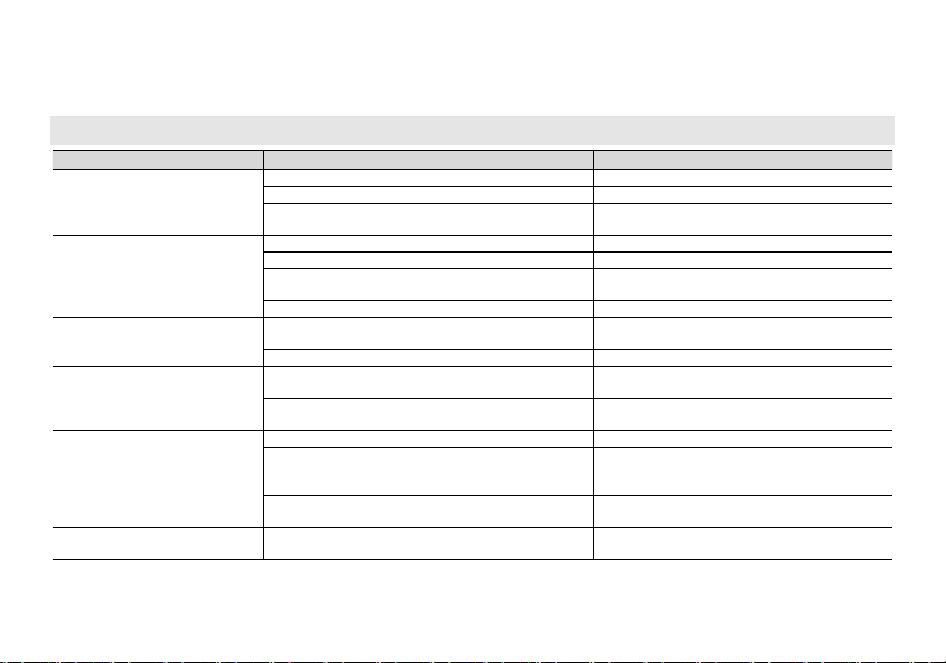
Appendix A. – Trouble shooting guide
Phenomena
Analysis
Solution
You cannot turn on the radio.
The battery may be installed improperly.
Remove and reattach the battery.
The battery power may run out.
Recharge or replace the battery.
The battery may suffer from poor contact caused by dirty
or damaged battery contacts.
Clean the battery contacts or replace the battery.
During receiving, the voice is weak
or intermittent.
The battery voltage maybe low.
Recharge or replace the battery.
The volume level may be low.
Increase the volume.
The antenna maybe loose or maybe installed incorrectly.
Turnoff the radio, and then remove and reattach
the antenna.
The speaker maybe blocked.
Clean the surface of the speaker.
You cannot communicate with
other group members.
The frequency or signaling type maybe inconsistent with
that of other members.
Verify that your TX/RX frequency and signaling type
are correct.
You may be too far away from other members.
Move towards other members.
You hear unknown voices or noise.
You may be interrupted by radios using the same
frequency.
Change the frequency, or adjust the squelch level.
The radio in analog mode maybe set with no signaling.
Request your dealer to set signaling for the current
channel to avoid interference
You are unable to hear anyone
because of too much noise and
hiss.
You may be too far away from other members.
Move towards other members.
You may be in an unfavorable position. For example, your
communication may be blocked by high buildings or
blocked in an underground area.
Move to an open and flat area, restart the radio,
and try again.
It may be the result of external disturbance (such as
electromagnetic interference).
Stay away from equipment that may cause
interference.
The radio keeps transmitting.
VOX may be turned on or the headset is not installed in
place
Turn off the VOX function. Check that the
headphones are in place.
NOTE: If the above solutions cannot fix your problems, or you may have some other queries, please contact your dealer for
more technical support.
30
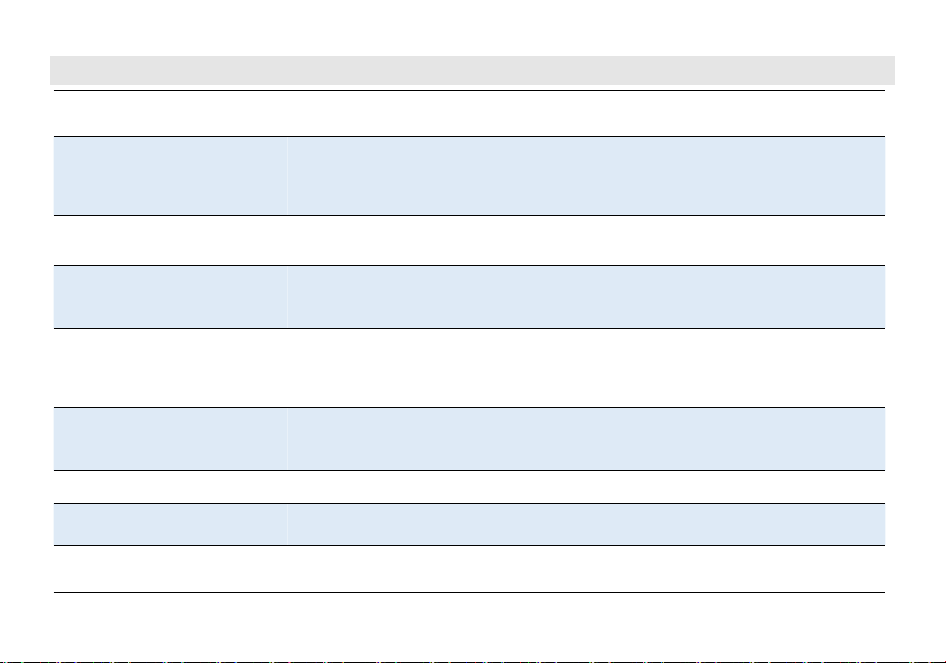
Appendix B. -
Shortcut Menu operations
MENU
Name
(Full Name)
Settings
Description
0
SQL
- Squelch Level
[0 - 9]
Setting the squelch to 0 will open up the
squelch entirely.
Squelch silences the receiver when there is no
signal.
- Sensitivity can be varied from .1 to .3 mV on
UHF
Sensitivity can be varied from .1 to .2 mV on VHF
1
STEP
–Step Frequency
2.5K[0] | 5.0K[1] | 6.25K[2] |
10.0K[3] | 12.5K[4] | 20.0K[5] |
25.0K[6] | 50.0K[7]
Selects the amount of frequency change in
VFO/Frequency mode when scanning or
pressing the
/
keys.
2
TXP
– Transmit Power
HIGH [0] | LOW [1]
Selects between HIGH and LOW transmitter
power when in VFO/Frequency mode. Use the
minimum transmitter power necessary to carry
out the desired communications.
3
SAVE
- Battery Save
OFF [0] | 1 | 2 | 3 | 4
Selects the ratio of sleep cycles to awake cycles
(1:1, 2:1, 3:1, 4:1). The higher the number the
longer the battery lasts. The higher number
increases the RX sleep cycle, but you may miss
the first few syllables before the RX opens.
4
VOX
– Voice Operated TX
OFF [0] | 1 | 2 | 3 | 4 | 5 | 6 | 7 | 8 | 9 | 10
When enabled it is not necessary to press the
[PTT] key on the transceiver. Adjust the gain level
to an appropriate sensitivity to allow smooth
transmission.
5
WN - Wideband /
Narrowband
WIDE [0] | NARR [1]
Wideband (25 kHz bandwidth) or narrowband
(12.5 kHz bandwidth).
6
ABR - Display
Illumination Time
ON [0] | 1 | 2 | 3 | 4 | 5 | 6 | 7 | 8 | 9 | 10
Time-out for the LCD backlight. (seconds)
7
TDR - Dual Watch,
Dual Reception
OFF [0] | ON [1]
Monitor [A] and [B] at the same time. The display
with the most recent activity ([A] or [B]) becomes
the selected display
31
8
BEEP - Keypad Beep
OFF [0] | ON [1]
Allows audible confirmation of a key press
9
TOT- Transmission
Time-out-Timer
OFF [0] 15[1] - 180[12] in 15 second steps
(TIMEOUT-15)/15=[n]
*This feature provides a safety switch that limits
transmission time to a programmed value. This
will promote battery conservation by not
allowing you to make excessively long
transmissions, and in the event of a stuck PTT
switch it can prevent interference to other users
as well as battery depletion
10
R-CTCS
- Receiver CTCSS
OFF [0] | see CTCSS Table in Appendix C
Mutes the speaker of the transceiver in the
absence of a specific and continuous sub-audible
signal. If the station you are listening to does not
transmit this specific and continuous signal, you
will not hear anything.
11
R-DCS
- Receiver DCS
OFF [0] | see DCS Table in Appendix C
Mutes the speaker of the transceiver in the
absence of a specific low-level digital signal. If
the station you are listening to does not transmit
this specific signal, you will not hear anything.
12
T-CTCS
- Transmitter CTCSS
OFF [0] | see CTCSS Table in Appendix C
Transmits a specific and continuous sub audible
signal to unlock the squelch of a distant receiver
(usually a repeater).
13
T-DCS
-Transmitter DCS
OFF [0] | see DCS Table in Appendix C
Transmits a specific low-level digital signal to
unlock the squelch of a distant receiver (usually a
repeater).
14
Scan CTCSS
OFF
Allows scanning of CTCSS in VFO frequency
mode. This operation is not allowed in channel
mode.
15
Scan DCS
OFF
Allows scanning of DCS in VFO frequency mode.
This operation is not allowed in channel mode.
16
CDCSS SAVE MODE
ALL[0]
|
RX[1]|TX[2]
Save the scanned CTCSS/DCS in VFO mode.
•
ALL: Save to R-CDCSS and T-CDCSS
•TX: Save to T-CDCSS only
•RX: Save to R-CDCSS only
32
17
VOICE
- Voice Prompt
OFF [0] | ON [1]
Allows audible voice confirmation of a key press
18
LANGUAGE
- Language selection
ENGLISH [0] | 中文 [1]
Set the language type of menu and prompt
voice.
•ENGLISH: Display as an English menu with
English prompts for operation.
•Chinese: Display as a Chinese menu and
prompt for operation in Chinese.
19
DTMFST
- DTMFST
•
OFF [0]: No DTMF Side Tones are heard
•DT-ST [1]: Side Tones are heard only from
manually keyed DTMF codes
•
ANI-ST [2]: Side Tones are heard only from
automatically keyed DTMF codes
•DT+ANI [3]: All DTMF Side Tones are heard
Determines when DTMF Side Tones can be
heard from the transceiver speaker.
20
S-CODE
- Signal Code
1[0] | 2[1] | 3[2] | 4[3] | 5[4] | 6[5] | 7[6] |
8[9] | 9[8] | 10[9] | 11[10] | 12[11] | 13[12]
| 14[13] | 15[14]
Selects 1 of 15 DTMF codes. The DTMF codes are
programmed with software and are up to 5 digits
each.
21
SC-REV
- Scanner
Resume Method
•TO [0]: Time Operation - scanning will
resume after a fixed time has passed
•
CO [1]: Carrier Operation - scanning will
resume after the signal disappears
•SE [2]: Search Operation - scanning will not
resume
Scanning Resume Method
22
PTT-ID
- When to send the
PTT-ID
•OFF [0]: No ID is sent
•
BOT [1]: The selected S-CODE is sent at the
beginning
•EOT [2]: The selected S-CODE is sent at the
ending
•BOTH [3]: The selected S-CODE is sent at
the beginning and ending
When to Send PTT-ID Codes are sent during
either the beginning or ending of a transmission.
23
PTT-LT
- Signal code sending
delay
0[0]|100[1]|200[2]|400[3]|
600[4]|800[5]|1000[6]
PTT-ID Delay (milliseconds)
33
24
MDF-A
- Channel Mode A
Display
•CH [0]: Displays the channel number
•NAME [1]: Displays the channel name.
•
FREQ [2]: Displays programmed Frequency
[A] MR/Channel Mode Display Format
Note: Names must be entered using software.
25
MDF-B
- Channel Mode B
Display
•CH [0]: Displays the channel number
•NAME [1]: Displays the channel name.
•
FREQ [2]: Displays programmed Frequency
[B] MR/Channel Mode Display Format
Note: Names must be entered using software.
26
BCL
- Busy Channel
Lock-out
OFF [0] | ON [1]
Disables the [PTT] key on a channel that is
already in use. The transceiver will sound a beep
tone and will not transmit if the [PTT] key is
pressed when a channel is already in use.
27
AUTOLK – Automatic
Keypad Lock
OFF [0] | 5 [1] | 10 [2] | 15 [3]
Set the automatic keyboard lock delay time. To
prevent the keyboard from being accidentally
triggered.
When turned on, if the keyboard is not used
within a predetermined delay time, the keyboard
will be locked. Pressing the key for 2
seconds will unlock the keypad.
28
SFT-D
- Frequency Shift
Direction
•OFF [0]: TX = RX (simplex)
•
+ [1]: TX will be shifted higher in frequency
than RX
•- [2]: TX will be shifted lower in frequency
than RX
Enables access of repeaters in VFO/Frequency
Mode
29
OFFSET - Frequency
shift amount
00.000 - 69.990 in 10 kHz steps
Specifies the difference between the TX and RX
frequencies
30
MEMCH - Store a
Memory Channel
001 - 999
This menu is used to either create new or modify
existing channels (001 through 999) so that they
can be accessed from MR/Channel Mode.
31
DELCH - Delete a
memory channel
001 - 999
This menu is used to delete the programmed
information from the specified channel (001
through 999) so that it can either be
programmed again or be left empty.
34
32
AL-MOD
- Alarm Mode
•SITE [0]: Sounds alarm through your radio
speaker only
•
TONE[1]: Transmits a cycling tone
over-the-air
•CODE [2]: Transmits '119' (911 in reverse)
followed by the ANI code over-the-air
•SITE: Sounds alarm through your radio speaker
only
•
TONE: Transmits a cycling tone over-the air
•CODE: Transmits '119' (911 in reverse?)
followed by the ANI code over-the-air
33
STE
- Squelch Tail
Elimination
OFF [0] | ON [1]
This function is used eliminate squelch tail noise
between BaoFeng handhelds that are
communicating directly (no repeater).
Reception of a 55 Hz or 134.4 Hz tone burst
mutes the audio long enough to prevent hearing
any squelch tail noise.
34
RP-STE - Squelch Tail
Elimination
OFF [0] | 1 - 10
This function is used eliminate squelch tail noise
when communicating through a repeater.
35
RPT-RL
- Delay the squelch tail
of repeater
OFF [0] | 1 - 10
Delay the Tail Tone of Repeater (X100
milliseconds)
36
ROGER - Roger Beep
OFF [0] | ON [1]
Sends an end-of-transmission tone to indicate to
other stations that the transmission has ended.
37
TONE-Tone-burst
1000[0]|1450[1]|1750[2]|2100[3]
To send out a tone-burst; you simultaneously will
press a key while holding down the PTT. No
further configuration required using this feature.
38
MENU EXIT TIME
5 [0] 10[1] - 60[10] in 5 second steps
(TIMEOUT-5)/5=[n]
The time setting for menu exit without menu
operation.
39
VOX DELAY
0.5 [0] 0.6[1] -2.0[15] in 0.1 second steps
(TIMEOUT-0.1)/0.1=[n]
There’s a brief delay between when you finish
talking and the radio returns to tx mode; this
delay can be adjusted.
40
POWER ON MSG
- Power On Message
LOGO[0]|VOLTAGE[1]
Welcome message displayed immediately after
startup.
The LOGO is programmed by the manager.
41
VOICEPRI - Frequency
hopping system
OFF [0] | ON [1]
Activate the frequency hopping function to
prevent interference from outside the group
42
RESET
- Restore defaults
VFO [0] | ALL [1]
Resets the radio to factory defaults, with some
exceptions.
35
43
POWER ON PWD
-Power on password
OFF [0] | ON [1]
Activate the radio power-on password. You
must enter the correct password to turn on the
radio
44
STOP WATCH
ON
Activate the stopwatch function. Press the
key to start timing.
45
SCRAMBLE
OFF [0] | ON [1]
Scramble is a voice inversion function that
enables private communication by scramble
voice signals. The SCR icon is displayed when
scramble is enabled.
46
VERSION
- Version information
Access hardware and firmware information for
the radio
The UV-26 series products are divided into M version and L version. The M version supports AM108-136
scanning reception, and voice scrambling functions. The L version does not support AM108-136 scanning
reception, and voice scrambling functions. There is no voice scrambling option in the function menu.
36

Appendix C. - Technical Specifications
General
Receiver Frequency FM 76-108 MHz; AM 108-136MHz,
VHF 136-174MHz, 220-260MHz
UHF 350-390MHz, 400-520MHz
Transmission Frequency 136-174 , 220-260MHz, 400-520MHz
Channel Spacing 25.0KHz(Wide)/12.5KHz(Narr)
Memory Channel 999 Groups
Operation Voltage DC 7.4 V ±10%
Transmission current ≤1800mA
Receive Sensitivity 0.25μV (12dB SINAD)
Rated Audio Power Output 1W @16 ohms
Receive current ≤380mA
Connection for accessories 2 pin Kenwood jack
Antenna impedance 50 Ohm
NOTE: All specifications may be modified without prior notice or liability. Thank you.
The UV-26 series products are divided into M version and L version. The M version supports AM108-136,
Police350-390MHz scanning reception, and voice scrambling functions. The L version does not support AM108-136,
Police350-390MHz scanning reception, and voice scrambling functions.
37
Fujian Baofeng Electronics Co., Ltd.
Add: No.888, Dating, Changfu Village, Xiamei Town, Nan'an, Fujian Province, China(362302)
Http://www.baofengradio.com
Print version: UV26_Public_V1.0
Disclaimer
The Company endeavors to achieve the accuracy and completeness of this manual, but no warranty of accuracy or
reliability is given. All the specifications and designs are subject to change without notice due to continuous
technological development. No part of this manual may be copied, modified, translated, or distributed in any manner
without the prior written consent of the Company.
We do not guarantee, for any particular purpose, the accuracy, validity, timeliness, legitimacy or completeness of the
third-party products and contents involved in this manual.