APP
soundcore
Apple and the Apple logo are trademarks of
Apple Inc.
Google Play and the Google Play
logo are
trademarks of Google Inc.
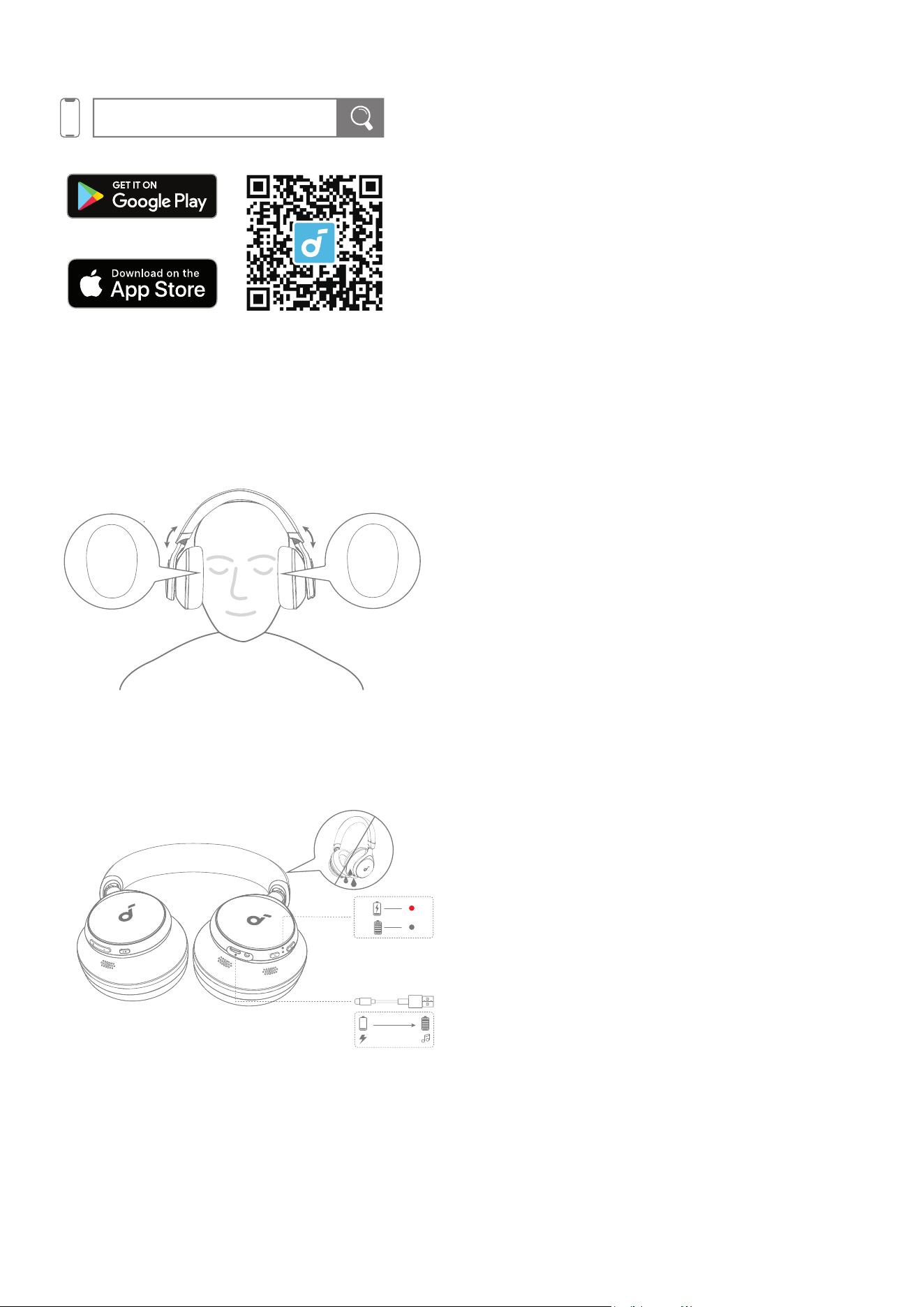
Download the soundcore app to switch ambient sound modes, adjust EQ settings, update firmware,
and explore more.
If your headphones cannot connect with the soundcore app, re-install the app or update it to the latest
version in your mobile app store.
WEARING
R
L
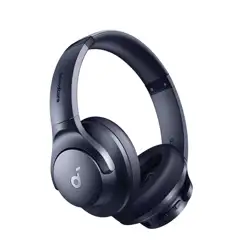
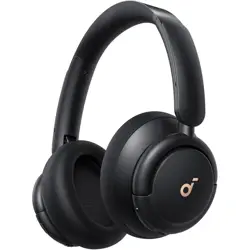
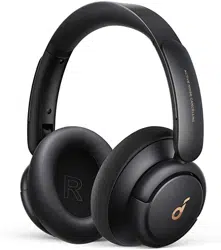
Wear the headphones with the "L" logo on your le ear and "R" logo on your right ear. Adjust the length
of the headband for a comfortable fit.
CHARGING
5 min=4 hr
2 hr
Fully dry the USB port before charging.
Do not turn on your headphones while charging.
Use a certified USB-C charging cable and charger to prevent any damage.
POWERING ON & PAIRING
Tap to pair. Device will be
tied to Your Google Account
1
2
3s
3s
3s
PAIRING
ON
Android 6.0+
Fast Pair
iOS & Others
CONNECTED
soundcore Space One
Connected
Bluetooth
Bluetooth
<Setting
soundcore Space One
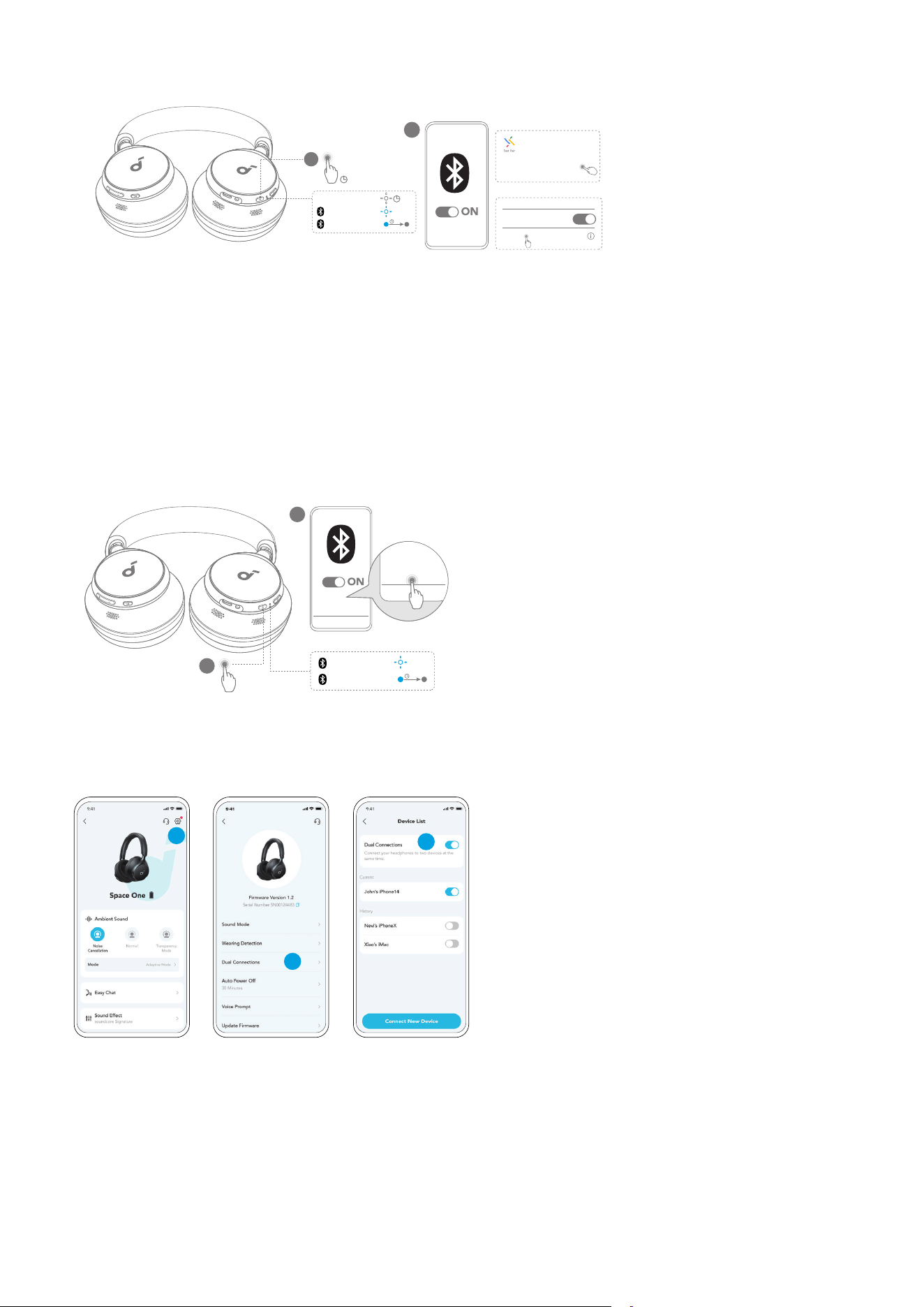
Auto Pairing: Press and hold the power button for 3 seconds to power on. The headphones will
automatically enter Bluetooth pairing mode when connecting for the first time. Select "soundcore
Space One" on your device's Bluetooth list to connect.
Google Fast Pairing: Enjoy instant pairing with your Android smartphone (running Android 6.0 and
above) via Fast Pair enabled by Google.
To manually enter Bluetooth pairing mode, when the headphones are powered o, press and hold the
power button for 5 seconds to pair.
DUAL CONNECTIONS
1
PAIRING
CONNECTED
×2
2
soundcore
Space One
soundcore
Space One
3s
The headphones can connect with two devices at the same time.
When already connected to one device, press the power button twice to pair with another device.
1
2
2
3
In the soundcore app, go to settings and select Dual Connections > Enable Dual Connections > Connect
New Device.
BUTTON CONTROLS
×1
2s
2s
2s
×1
Voice
Assistant
2s
×1
3s ON
OFF
3s
2s
×1
×1
ANC (Default)
Transparency
* You can enable Normal mode in the soundcore app.
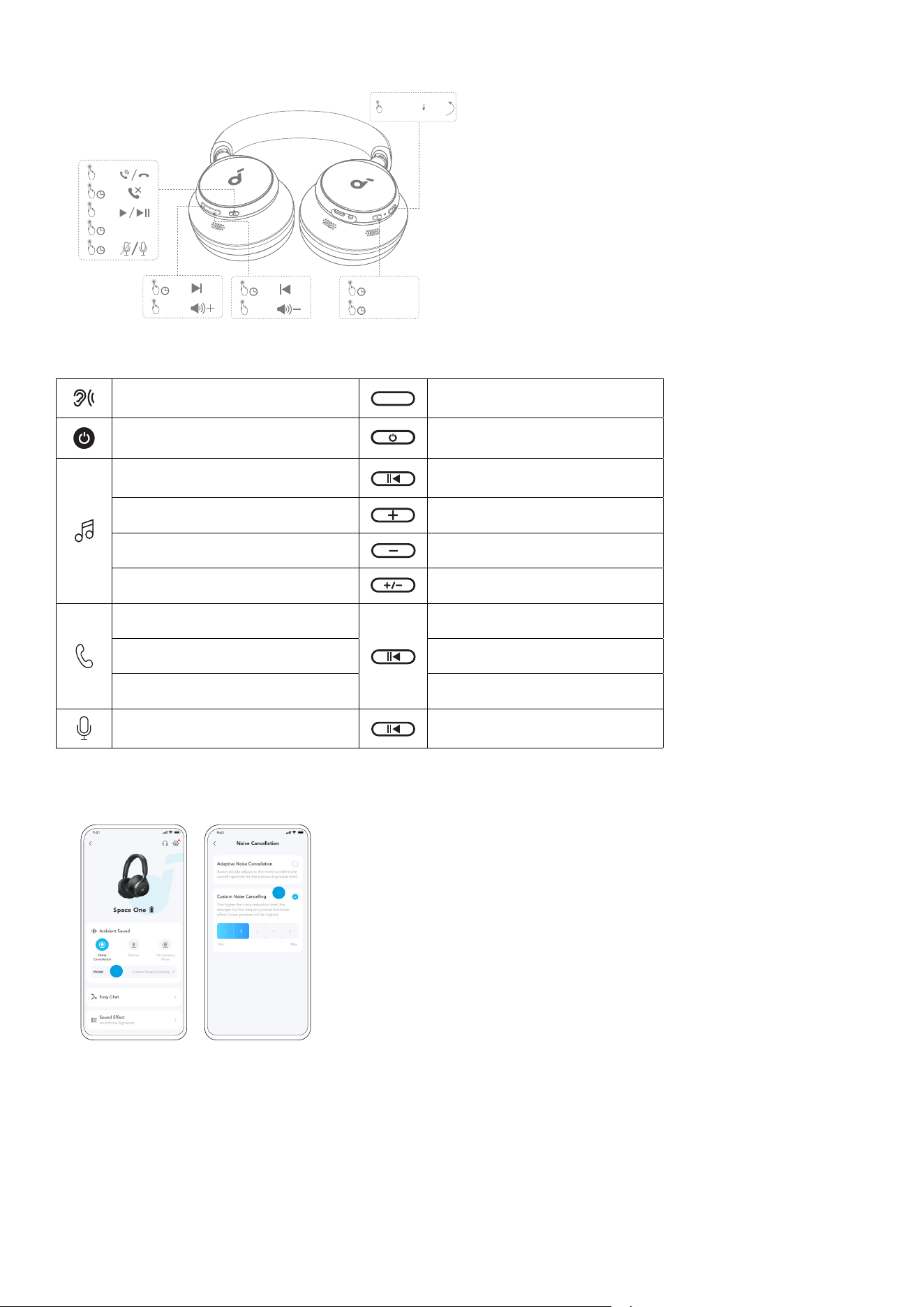
Switch ambient sound modes
(ANC / Transparency)
NC
Press once
Power on / o Press and hold for 3 seconds
Play / Pause Press once
Next track Press and hold for 2 seconds
Previous track Press and hold for 2 seconds
Volume up / down Press once
Answer / End a call Press once
Reject a call Press and hold for 2 seconds
Mute / Restore the microphone
Press and hold for 2 seconds
Activate Voice Assistant Press and hold for 2 seconds
NOISE CANCELLATION
1
2
To reduce ambient noise, switch to noise cancellation (default) via the NC button and customize it in the
soundcore app.
• Adaptive Noise Cancelling: Adjust the level of noise cancellation automatically for various scenarios.
• Custom Noise Cancelling: Set the level of noise cancellation manually.
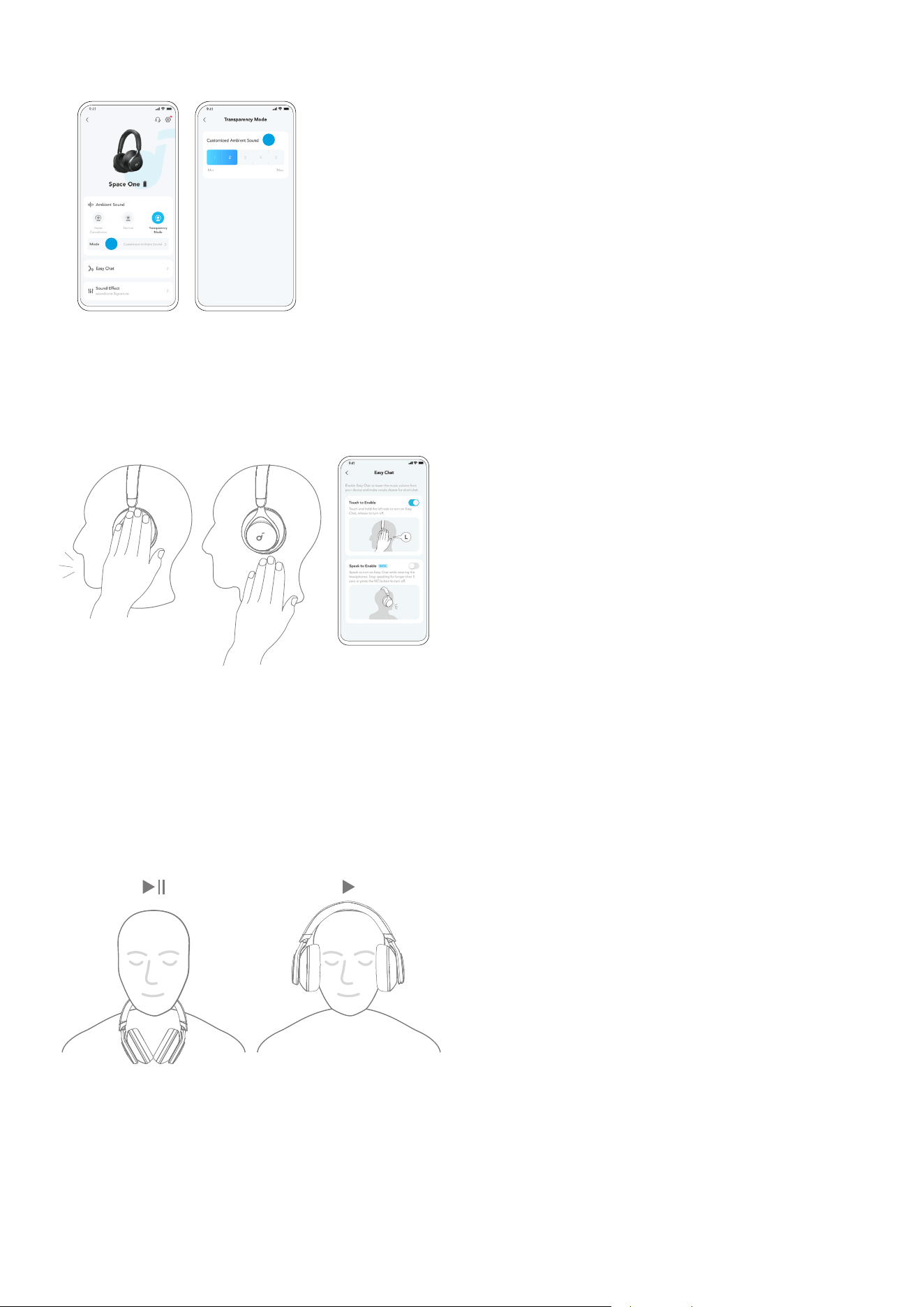
TRANSPARENCY
1
2
To stay aware of your surroundings while listening to music, switch to transparency mode via the NC
button and customize it in the soundcore app.
• Custom Transparency Mode: Set the level of transparency manually.
EASY CHAT
1s
Easy Chat mode automatically lowers the volume of music and amplifies the voice of the person you're
talking to so that you can communicate without taking the headphones o.
• To activate Easy Chat, hold the le panel for 1 second until you hear a notification sound. Turn o this
mode by releasing your hand. (Enabled in app)
• Easy Chat will automatically turn on when you're talking, and o when you stop talking for 5 seconds.
(Beta version is enabled in app)
WEARING DETECTION
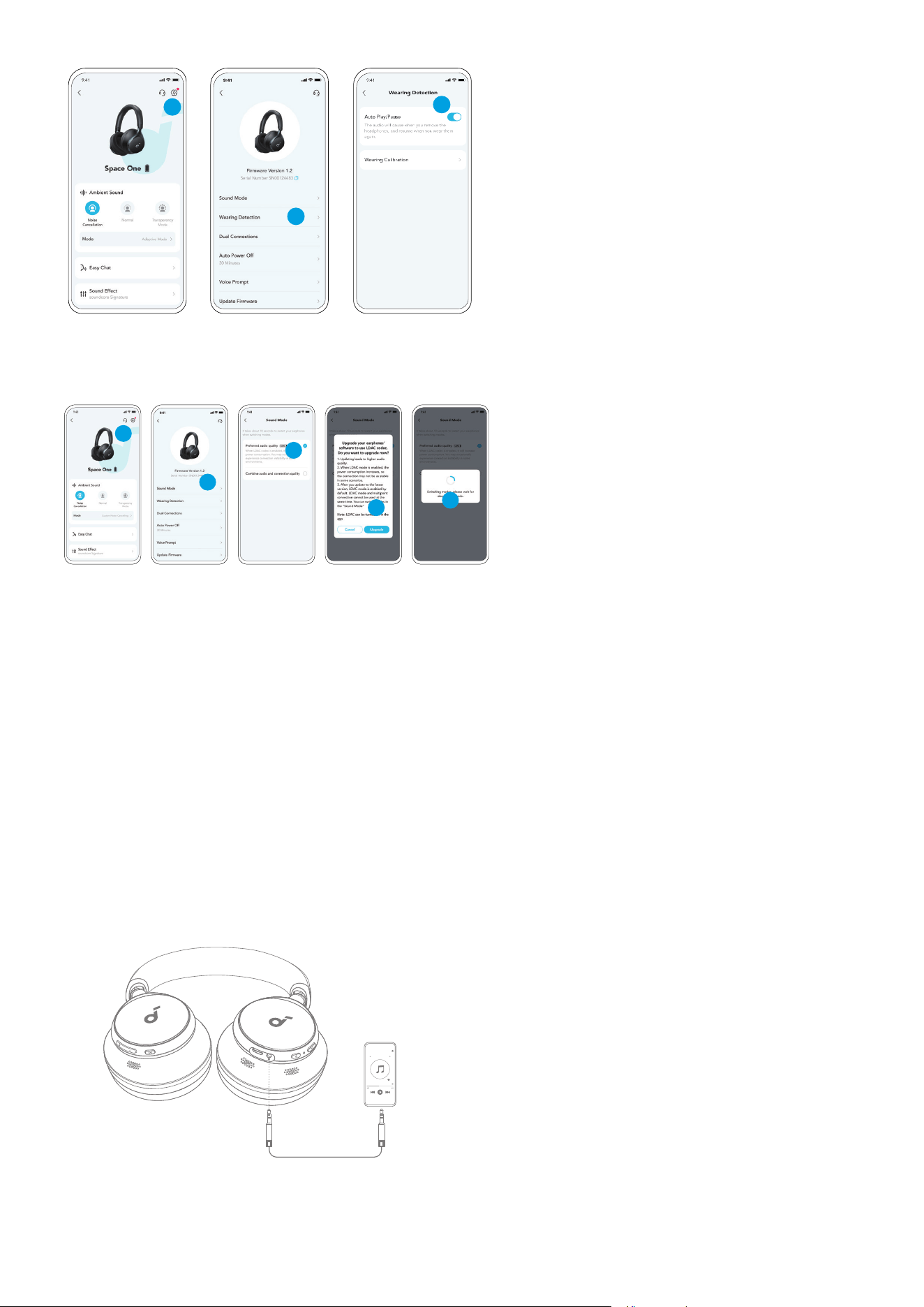
Auto-pause music playback when removing the headphones, wear them again to resume.
* You can enable Wearing Detection in the soundcore app.
1
2
3
LDAC
3
1
5
4
2
Enable LDAC in the soundcore app for higher-quality audio.
* Only available on devices powered by Android 8.0 or later.
• Use devices powered by Android 8.0 or later to experience LDAC quality sound.
• LDAC provides higher quality sound, increases power consumption, and reduces playtime.
• Enable LDAC in a low-inteerence environment to ensure a stable Bluetooth connection.
1. Go to settings in the soundcore app.
2. Click on "Sound Mode".
3. Select "Preferred audio quality" to switch to LDAC codec.
4. You will be notified that the headphones do not support LDAC when connected to two devices. Select
"Turn on" to continue.
5. It takes about 10 seconds to switch audio codecs. You may be requested to update the headphones'
firmware if available.
WIRED LISTENING
3.5mm
Play audio on an external device by plugging in a 3.5mm AUX cable. Wired listening will automatically
turn o Bluetooth mode.
RESET
5s
×3
You might need to reset your headphones if you experience connectivity or function issues.
Delete the pairing history from your Bluetooth device first. Press and hold the volume up and power
button simultaneously for 5 seconds until the LED flashes red three times.
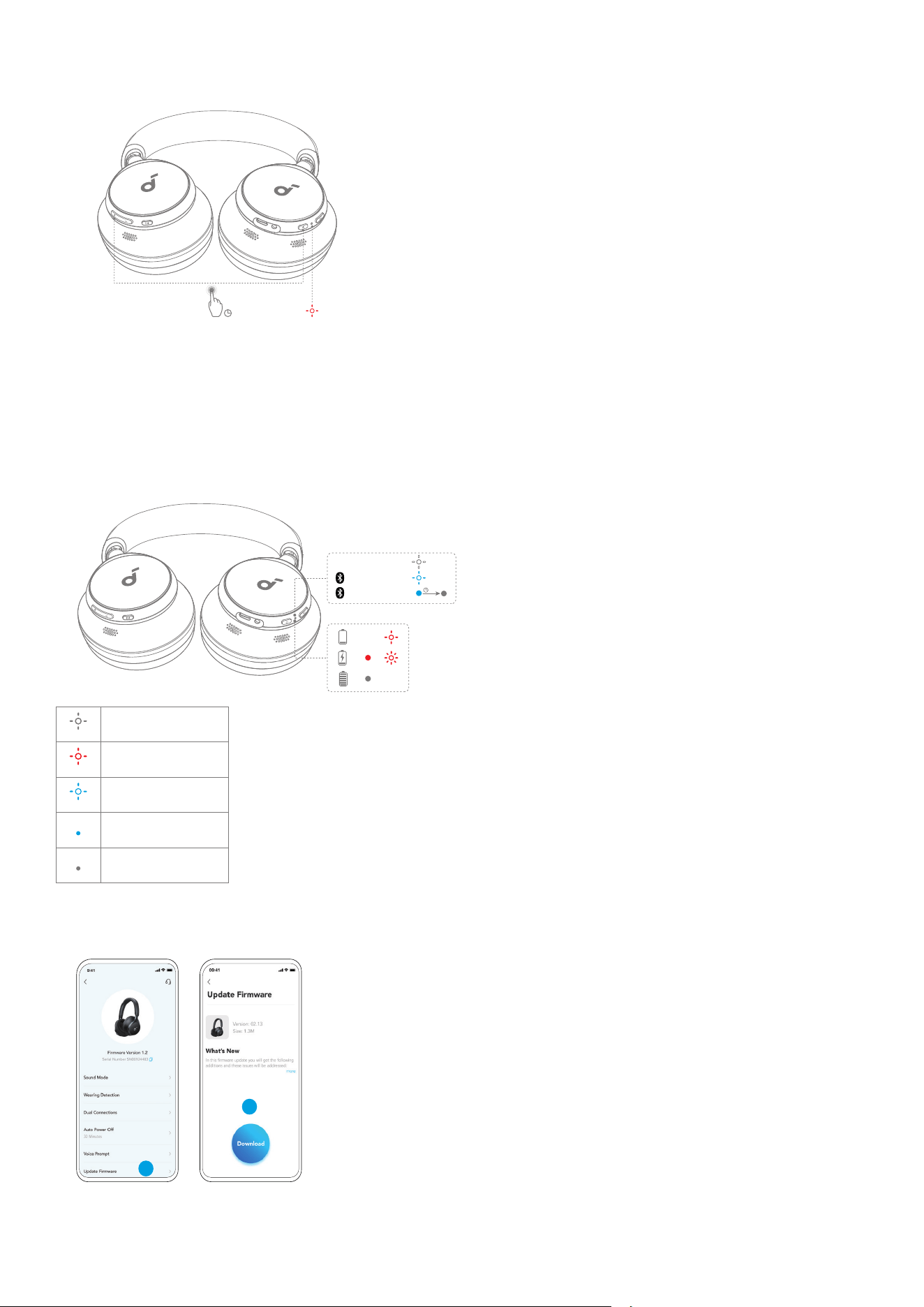
LED LIGHT GUIDE
3s
PAIRING
ON/OFF
CONNECTED
×3
<10%
Flashing white
Flashing red
Flashing blue
Steady blue
Light o
FIRMWARE UPDATE
1
2
You will be informed once the new version of firmware is detected when you connect the headphones
with the app. Ensure the headphones are powered on and connected to a device until the firmware
update is complete. During the update, avoid any usage and ensure stable access to the internet.

SPECS
Specifications are subject to change without notice.
Input 5 V 0,58 A
Rated output power 10mW
Battery capacity 580mAh
Charging time 2 hours
Playtime (with ANC o) Up to 55 hours
Playtime (with ANC on) Up to 40 hours
Driver size 40mm
Frequency response 20Hz - 20kHz
Impedance 16Ω
Bluetooth version 5.3
Bluetooth range 15m / 49
1. Power consumption in standby mode: ≤0.5W
2. Powermanagement: ≤20min
3. Information of applicable adapter:
Brand: ANKER
Manufacturer: Anker Innovations Limited
Model: A2337
Input: 100-240Vac, 1A, 50-60Hz
Output: 5V 3A / 9V 3A / 12V 2.5A / 15V 2A / 20V 1.5A (30W Max)
Default Open Port: Classic Bluetooth
Port Description: Aer the device is powered on, Classic Bluetooth visibility (or pairing mode) is
automatically enabled, providing Bluetooth pairing (or control) services. The Bluetooth service is
disabled when the device is powered o.