ST6 Thermo-Hygrometer Sensor
User Manual
1
Contents
2
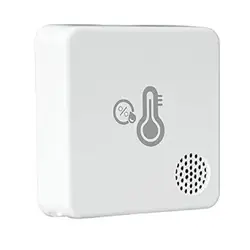
● MOCREO ST6
Thermo-Hy
grometer Sensor can
detect and record ambient temperature and
humidity in real-time.
● Detectable Tmperature Range: -4°F ~ 140°F.
● Detectable Humidity Range: 0~100%RH
● Three Alarm Methods: E-Mail Alert, App Push
Notification, Hub Beeping.
● If placing the ST6 Sensor in a refrigerator
/ freezer may weaken the signal, the Hub need to
be placed closer to the Sensor.
Introduction
3
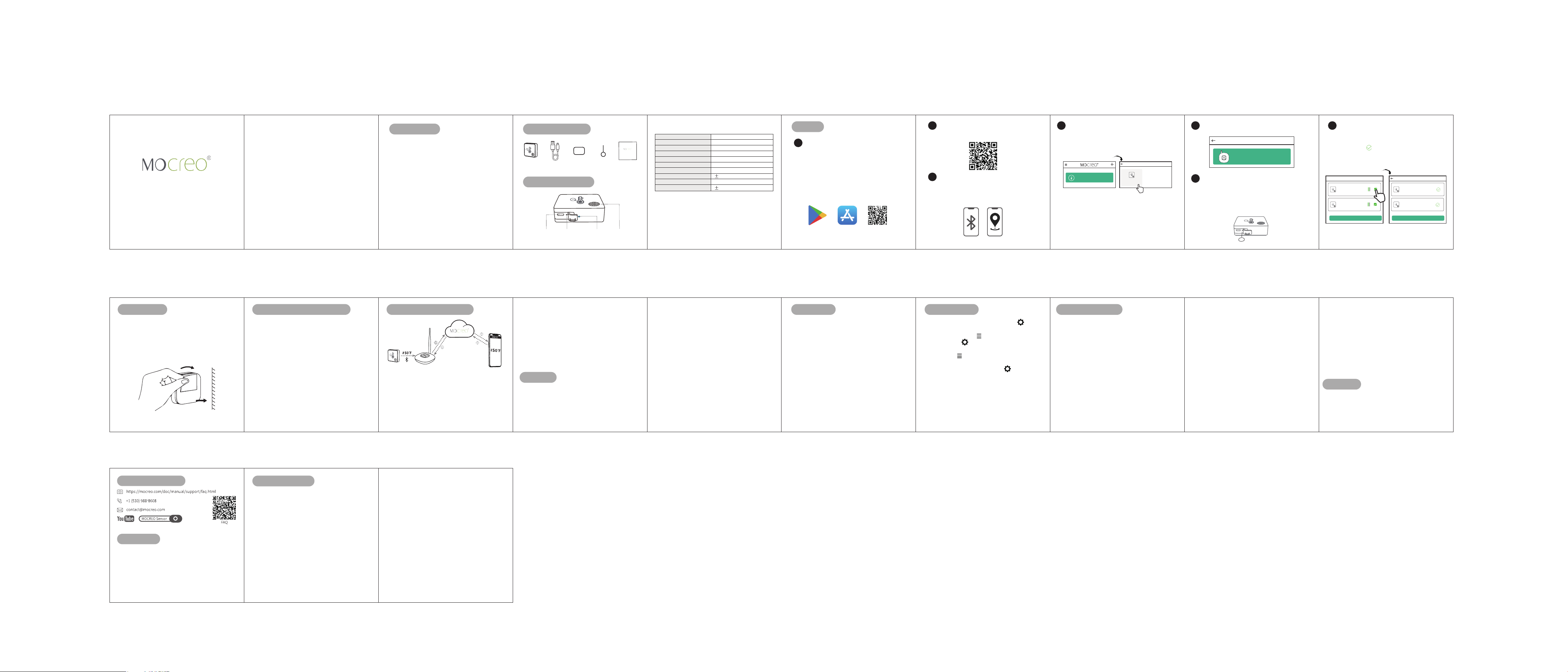
Whatʼs in the Box
Product Parameter
Pin Clip
x1
Adhesive
x1
Micro USB Cable
x1
l
User Mannual
x1
S
T
6
Thermo-Hygrometer Sensor
U
s
er Ma
nua
ST6 Sensor
x1
N/A
Indicator Light
(Built in)
Setup
Pinhole
5V 1A
Charging Port
4
Note: This product is only designed for indoor use.
Specifications
5
Google Play MOCREO AppApp Store
1
Download MOCREO App
2
Setup
Tutorial
4
Sensor Joins the
Hub
5
Select
the
Hub
7
Add the
Sensor
6
Poke the Sensor
3
Turn on the
Bluetooth
Search “MOCREO Sensor” on Google Play/
App
Store or scan the QR Code below to download
the MOCREO Sensor App and register a MOCREO
account on the App Before adding Sensors, Please
ensure that the Hub is successfully bound. If you
have not setup a Hub, please consult the Hub
Manual or ST6 Temperature Sensors Kit Manual
to setup the Hub.
Setup
6
Make sure the Bluetooth is ON during the whole
setup process. For Android, please also enable
GPS and agree to grant location permissions.
7
Note:
● Please make sure the Bluetooth of your mobile
device (smart phone/ tablet) is enabled during the
whole setup process.
● The Bluetooth and GPS can be turned off after
the Sensor setup is completed.
Tap the [+] Button on the
upper right of the MOCREO
Home Page and select 'Climate Sensor -ST6' (Please
ensure that the Hub is successfully bound) .
Clima
te Sensor
- ST6
Select Product
No paired sensor? Click here.
8
Poke the Sensor pinhole with a pin for 1s and release,
then the indicator light of Sensor will flash (Please
complete this operation within 60 seconds, and you
can add up to 10 Sensors at a time).
Select the Hub
U
nna
m
e
d
M
C90380C62908
8
1s
9
Select the Sensor you wa
nt to add and click on the
"Add Button" (up to 10 Sensors can be added at a
time). When the appears on the Sensor card, it
means the Sensor
is successfully added. Please wa
it
until all Sensors status to become complete.
Add Devices
Add
000030
Mac:30:AE:A4:00:00:30
000034
Mac:30:AE:A4:00:00:34
Add Devices
Home
000030
Mac:30:AE:A4:00:00:30
000034
Mac:30:AE:A4:00:00:34
10
1. Please place the Hub at a relatively high position.
The suggested distance between the Hub and
Sensor is within 131ft (No obstacles, signal value
stronger than 20% is ideal).
2. Remove the adhesive film on the back, paste
directly on the desired area.
Inst
allation
11
12
The ST6 Sensors use Bluetooth LE to communicate
with the Hub. Therefor
e, the distance are limited to a
Bluetooth range centered on the Hub (e.g., around
the house). This range is affected by distance
and
obstacles such as wa
lls, windows, water, radio
interference, etc. In shor
t, longer distances and
How the System
Wor
ks
13
more obstacles mean weaker signals.
The MOCREO Hub uses a local Wi-Fi (2.4GHz only)
or Ethernet to transmit data from the MOCREO
Sensors in range to the Internet. A
cellular hotspot
with WiFi or Ethernet capability can also be
used to
provide Internet access. Then, the MOCREO App can
be used to view your device data from anywhere in
the wor
ld.
14
and a 5V 1A power adapter.
● The battery percentage can be checked on the
App: Sensor Settings Page>Battery Level (Please
do not check the battery level wh
ile the device is
charging).
● When the Sensor
is being charged, the red
indicator light will stay on and when the red indicator
light goes off it means the battery is fully charged.
● Low
battery alerts are automatically triggered
when the battery level of Sensor falls below
10%,
including email alerts and App notifications. App
notifications do not need to be set up,
only the
email address needs to be filled in the Alerts settings
to receive email alerts.
● ST6 Sensor built- in 1800mAh rechargeable
lithium battery.
● The battery can last up to 2 years befor
e it needs
to be charged again.
● Please charge the Sensor with a Micro USB
Cable
Battery
15
● When the temperature or
humidity changes
drastically, the ST6 Sensor will spend some time
calibrating the reading, and it would take about 20
minutes for the ST6 to measure to proper ambient
temperature and humidity.
● The ST6 Sensor equipped with
a Swiss-made
SHT30-DIS-B chip, which is a strictly calibrated
industrial-grade chip and is mor
e accurate than
ordinary consumer chips. Calibration is usually not
required, if you need infor
mation about the chip,
please refer to the FAQ
(Page 20).
● Calibration is only used to correct for small
variations of ±0.54°F (±0.3°C) and ±2%RH. If you
find a bigger difference, which indicates a problem
with the calibration process of your Sensor, please
contact MOCREO Customer Service.
Calibrat
ion
16
【Name the Sensor】Tap Sensor
Card > Button
on the Upper Right > Alias Name >
Save
【Name the Hub】Tap Button on the Upper Left
> Hubs > Click
Button on the Hub Card > Name
> Save
【Alerts
】Tap Button on the Upper Left >
Alerts
> Set Alerts Model > Save
【Export Data】Tap Sensor Card > Button on the
Upper Right > Export Historical Data > Choose
Time Period > Export
Configurat
ion
17
Sensor Failed to Add?
1. The App can't
scan the Sensor
in the
Sensor setup
process
a) Please make sure
your phone is within 15ft from
the Sensor
b) Please check whether ST6 Sensor has entered setup
mode (poke Sensor for 1s, blue LED will flashing,
which means the Sensor enters Setup mode)
c) Please do
not turn off the Bluetooth
and networ
k
on your phone (Android needs to open the GPS
and
author
ize the positioning permission)
2. When adding a Sensor, the App scanned Sensor
but did not add successfully
a) Click "Retry Button" on the page to re-add
Tr
oubleshooting
18
19
2. Pr
ecaut
ions about the Sensor placement
environment
(a) The Data Logger is non-waterproof, please
avoid water submerging and extreme temperature.
(b) The operating temperature
range of the Sensor
is
from -40°F to +257°F (-40°C to
+125°C). When
exceeding this range, the data
monitored might be
inaccurate or
the Sensor might be damaged.
(c) The battery is rechargeable. It can be charged with
the micro USB cable equipped, but the battery is
built-in.
MOCREO products enjoy a 12-Month limited wa
rranty
(start from the date when customer receives the
product), which applies only to hardware components
of the device that are not subject to accident, misuse,
neglect, fire, or other external causes, alterations, repair.
Warranty
20
The contents about how to use the product and the App
guidance are only for reference, please refer to the actual
situation for specific application. If there is something
differs
from the instruction during using the product, pease contact
MOCREO Support for updates. T
his product is for detec
ting
and monitoring only, MOCREO is not responsible for any
property damage or other consequences of the use of this
product.
Cust
omer
Ser
vice
Disclaimer
21
FCC ID (Sensor) : 2A36D-ST4
F
CC ID
(Hub) : 2A36D
-H1
This device complies with part 15 of
the FCC Rules.
Operation is subject to the following two conditions:
(1) This device may not cause harmful interference.
(2) This device must accept any
interference received,
including interference that may cause undesired
operation.
Warning: Changes or modifications not expressly
approved by the party responsible for
compliance
could void the user's authority to
operate the
equipment.
Note: This equipment has been tested and found to
comply with the limits for a Class
B digital device,
pursuant to part 15 of the FCC Rules.
These limits are designed to provide
reasonable
protection against harmful
FCC St
at
ement
22
interference in a residential installation. This equipment
generates uses and can radiate radio frequency energy,
if not installed and used in accordance with the
instructions, may cause harmful interference to radio
communications. However, there is no guarantee that
interference will not occur in a particular installation.
If this equipment does cause harmful interference to
radio or television reception, which can be determined
by turning the equipment off and on, the user is
encouraged to try to correct the interference by one or
more of the following measures:
● Reorient or relocate the receiving antenna.
● Increase the separation between the equipment
and receiver.
● Connect the equipment into an outlet on a circuit
different from that to which the receiver is connected.
● Consult the dealer or an experienced radio/TV
technician for help.
(v1.1)
Test the Effectve Distance
● Place the paired ST6 Sensor in the location you
wa
nt to monitor. The suggested distance between
the Hub and Sensor is within 67ft-82ft (Household
environment)
● Poke the Sensor
pinhole for 1s and release.
After 20~30 seconds, Tap the corresponding
Sensor card on the App to reach the Sensor
Settings Page and view the signal value, signal
value stronger than 20% is
ideal.
2
3
3
5
10
11
12
13
15
16
17
19
20
20
21
.....................................
...............................
.............................
...............................................
......................................
..................
......................
.............................................
........................................
....................................
..................................
............................................
.................................
...........................................
..................................
Introduction
What‘s in the Box
Product Parameter
Set
up
Installation
Test the Effective Distance
How the System Works
Battery
Calibrat
ion
Configuration
Troubleshooting
Warranty
Costumer Service
Disclaimer
FCC St
atement
b) If the Sensor still can't be added
successfull, please
contact MOCREO Support for help
Note:
1. T
o impr
ov
e wir
eless st
abilit
y
, it
is
recommended
(a) Install the Sensor as close to the Hub as possible.
It's better if the Hub and the Sensor
are in sight.
(b) Reduce the obstacles
between the Hub and the
Sensor.
(c) The Hub and Sensor should be placed far awa
y
from wa
ter to avoid signal interference.
(d) Check if the Hub’s antenna is tightened and
keep it upright.
(e) Stay awa
y from high power equipment,
flammable and explosive materials.
Wireless Connection
Model
Communication Range
Dimensions
Weight
Battery (Rechargeable)
Temperature Measuring Rage
Temperature Accuracy
Humidity Measuring Rage
Humidity Accuracy
Bluetooth
ST6
131ft/40m (No Obstacles)
2.4 X 2.4 X0.7inch (L x W x H)
55g
3.7V 1800mAh Lithium Battery
-4 ~ 140 (-20 )~ 60℉ ℉ ℃ ℃
0 ~ 100%RH (No Condensation)
2%RH (Typ.)
0.5 (0.3 )℉ ℃
Please scan the QR code below to watch the setup
turor
ial.
Search[ MOCREO Sensor ] on YouTube to watch the setup video tutorials