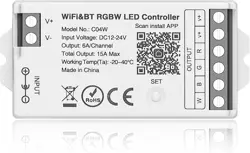
Model No.: FUT038W
Input Voltage: DC12V~24V
Output: 6A/Channel
Total Output: Max 12A
WiFi Standard: IEEE 802.11b/g/n 2.4GHz
RF: 2.4GHz
Remote Control Distance: 30m
Bluetooth Protocol: Bluetooth4.2
Working Temperature: -10~40°C
Model No.: FUT038W
RGBW LED Controller(WiFi + 2.4G)
Subordinate New Brand
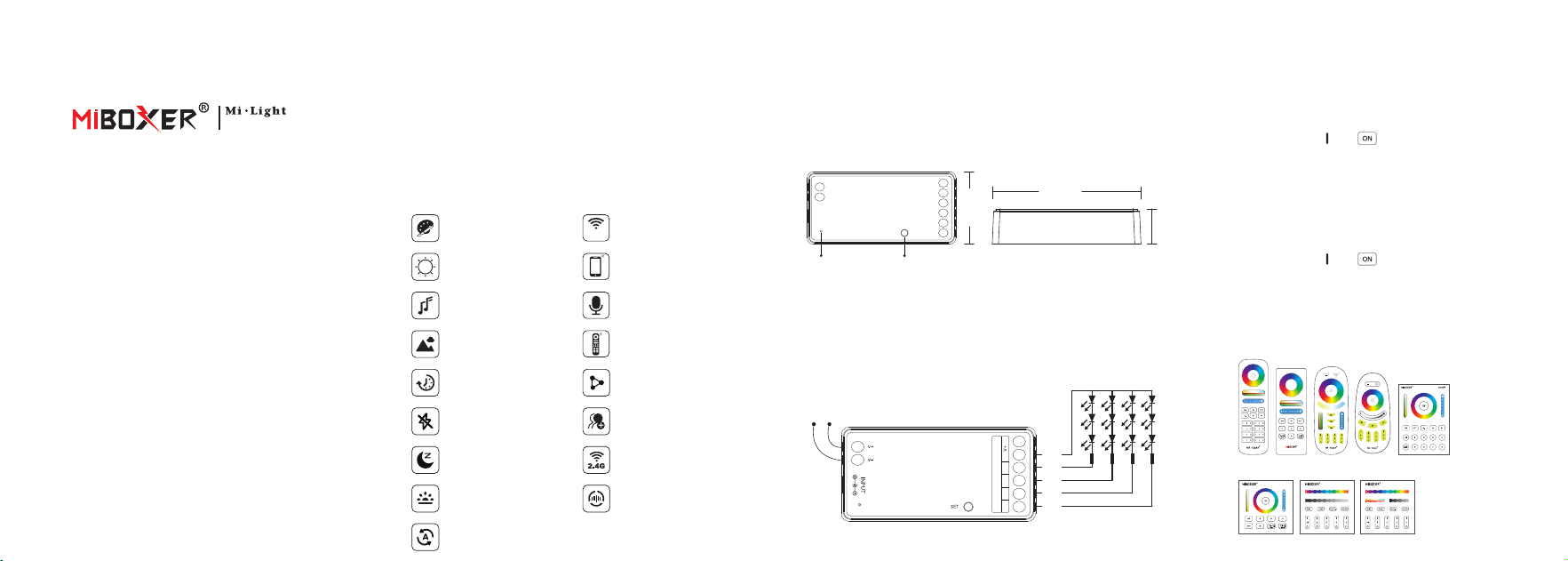
1. Product feature 2. Product Parameter
R
V+
B
W
G
Input: DC12V~24V
V- V+
RGB
OUTPUT
W
74.5mm
36mm
17mm
Indicator light Set button
Support third party
voice control
Smartphone APP control
16 Millions of
colors to choose
Device sharing
Dim brightness /
saturation / white color
Tap-to-Run & automation
Support music rhythm
Support scene
customization
Do not disturb
mode
sleep / wakeup
plan
Biorhythm
WiFi wireless control
support long-range control
WiFi
2.4G wireless transmission
technology
Support remote control
(control distance 30m)
Auto-transmitting & Synchronization
(only for remote control dimming)
FUT089 FUT088 FUT092 FUT096 B8
B0 B3 / T3 B4 / T4
3. Connection Diagram
4. Link Code / Unlink Code with remote
(1)
Making controller to enter Link code / Unlink code mode:
Method 1: short press " SET " button one time.
Method 2: switch off controller, switch on again after 10 seconds.
(2)
Short press zone " " or " " 3 times on remote within 3
seconds, light blinking 3 times slowly means the linking is done
successfully.
4.1 Link code
(1)
Making controller to enter Link code / Unlink code mode:
Method 1: short press " SET " button one time.
Method 2: switch off controller, switch on again after 10 seconds.
(2)
Short press zone " " or " " 5 times on remote within 3
seconds, light blinking 10 times quickly means the linking is done
successfully.
4.2 Unlink code
4.3 Compatible with following remote controls
(Purchase separately)
This product uses WiFi + Bluetooth + 2.4G wireless transmission
technology, low power consumption, strong anti-interference ability.
WiFi + Bluetooth connect network can greatly enhance the connect network
experience. When the router is disconnected, Bluetooth can also directly
connect and control equipment at close range.
After successful network configuration using [MiBoxer Smart] APP to
achieve wireless dimming, remote control, group control, scene control,
timing control, music movement, biorhythm, sleep plan, wake plan, one key
execution, automation,etc. functions. And it supports 2.4G remote control.
Group control
Timing setting / countdown
turn on / off LED light
Controller can not
use in humid area
Made in China
Scan to watch video
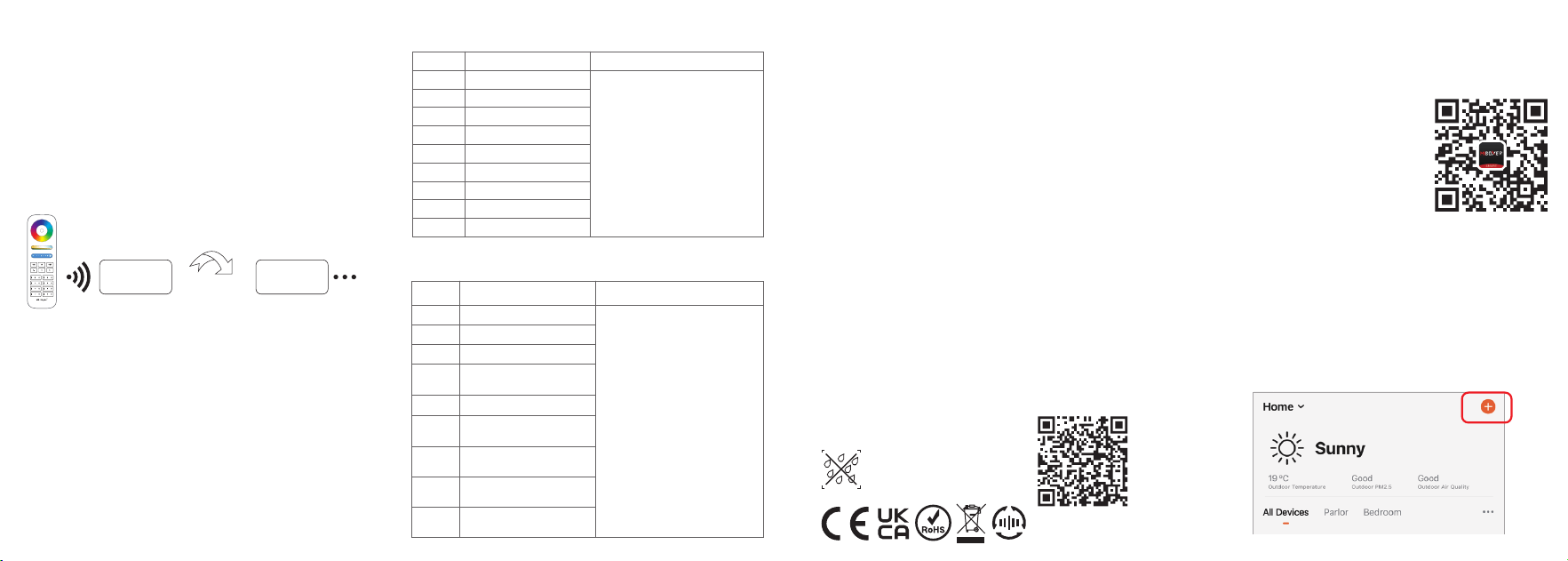
5. Auto-transmitting & Synchronization
(only for remote control)
5.1. Signal transmitting
5.2. Modes synchronization
LED controller can transmit the signals from the remote control
to another one within 30m, as long as there is LED controller
within 30m, the remote control distance is unlimited.
Different controllers can work synchronously when they are
started at different times, controlled by the same remote,
under same dynamic mode and within 30m distance.
Controller Controller
Distance 30m
Signal transmitting &
Modes synchronization
6.1. Select dynamic mode table 1:
6. Dynamic mode selection (only for remote
control)
Controller is powered off for 10 seconds and then powered on,
or short " SET " button one time.
Press the " S+ " button 5 times within 3 seconds, the blue light
blink 3 times slowly, selection is done successfully.
6.2. Select dynamic mode table 2:
Controller is powered off for 10 seconds and then powered on,
or short " SET " button one time.
Press the " S- " button 5 times within 3 seconds, the yellow
light blink 3 times slowly, selection is done successfully.
6.3. Dynamic mode sheet 1(default in factory)
6.4. Dynamic mode sheet2 (need to switch manually)
Dynamic Mode
Brightness / Saturation / Speed
Mardi Gras
Automatic color change
Sam
Gemstone
Twilight
American
Fat Tuesday
Party
Slow Color Splash
1
2
3
4
5
6
7
8
9
Adjustable
Adjustable
Number
Dynamic Mode
Brightness / Saturation / Speed
Number
White light gradual change
+Flash 3 times
Colors gradual change
White light Gradual change
Jump to change randomly
Red light gradual change
+Flash 3 times
Green light gradual change
+Flash 3 times
Blue light gradual change
+Flash 3 times
RGB gradual change
Seven colors jump
to change
1
2
3
4
5
6
7
8
9
7.1 Switch to high frequency (6KHz): on the condition of
turning on light
7.2 Switch to low frequency (400Hz): on the condition of
turning off light
(1)
Short press " OFF " button of the remote control once.
(2)
Short press the " ON " button 5 times within 3 seconds, white light
blink 2 times quickly, switching is done successfully.
(1)
Short press " ON " button of the remote control once.
(2)
Short press the " OFF " button 5 times within 3 seconds, white light
blink 2 times slowly, switching is done successfully.
7. PWM high frequency / low frequency switching
(only for remote change)
8.1. Please check whether the voltage of the power supply is in
accordance with the controller, and please check the
connection of both the cathode and anode, otherwise the
controller will be broken.
8.2. Please do not use the controller in the place with widely range
metal area or strong electromagnetic wave nearby, otherwise,
the remote distance will be affected seriously.
8.3. Non-professional users are not allowed to disassemble the
equipment directly, otherwise the equipment may be damaged.
8. Attention
9. APP Installation
9.1. Download and install [MiBoxer Smart] APP
Search for [MiBoxer Smart] in Apple or
Google store or scan following QR code
to download and install the app.
Please click
"
Register
"
button to create
account while using it in the first time, Log in
directly if you already had account.
9.2. Network Configuration
(1)
Connect controller with power supply.
(2)
Confirm indicator light is flashing quickly (2 flashes per second)
If indicator light isn't in fast flashing state, there are two ways to enter:
● Long press " SET " key until indicator light flashing quickly.
● Power off and on controller 3 times.
(3)
Connect phone with home WiFi network in the 2.4GHz frequency.
(4)
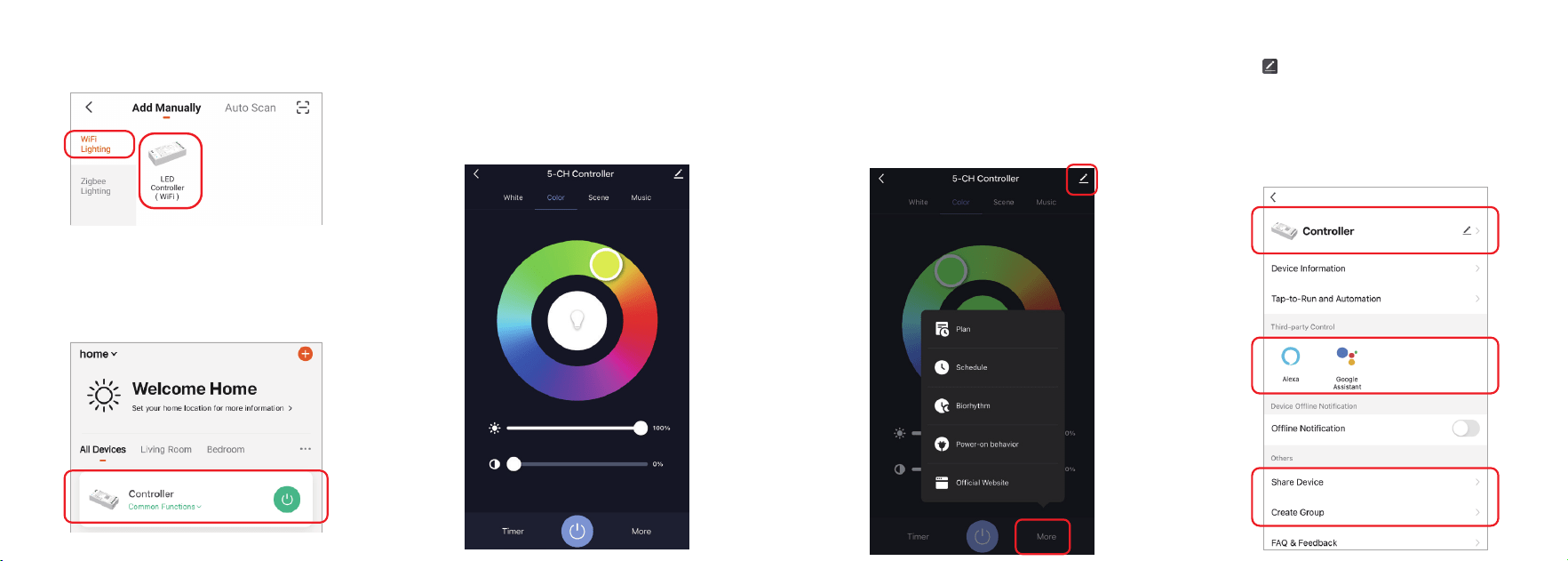
Open homepage of APP and click " + " button at the upper right
corner of page.
(5)
Click " WiFi Lighting " on the left side of page and then click
" LED Controller (WiFi) "
(6)
Follow APP prompts to complete configuration.
(7)
Added devices will be displayed on home page after network
configuration is successful.
(8)
Click device you want to control to enter the control interface.
9.3. APP control
(1)
Click " device " or " group " you want to control on homepage to
enter control page, where you can control color, saturation,
brightness, color temperature, and scene.
(2)
Click music to enter music rhythm mode, light will change with
rhythm of music.
Note: Music rhythm mode requires phone keep on this page.
(3)
Click " More " to enter biorhythm, timing, sleep plan, wake plan,
power-on response setting.
(4)
After opening the "Do Not Disturb Mode" in the power-on response, turn
on light needs power on twice when light is powered off in the off state.
(Applicable for frequent power outages area to save energy).
9.4. Device name editing, third-party control, device
sharing, group control.
(1)
Click " " on the upper right corner of control page to enter edit
page, where you can modify device name, icon, etc.
(2)
Click icon under third-party control to view detailed description of
third-party control.
(3)
Click " Share Device " to share device with family and friends.
(4)
Click " Create Group " and follow APP prompt after setting is
completed, the device can be controlled by group.
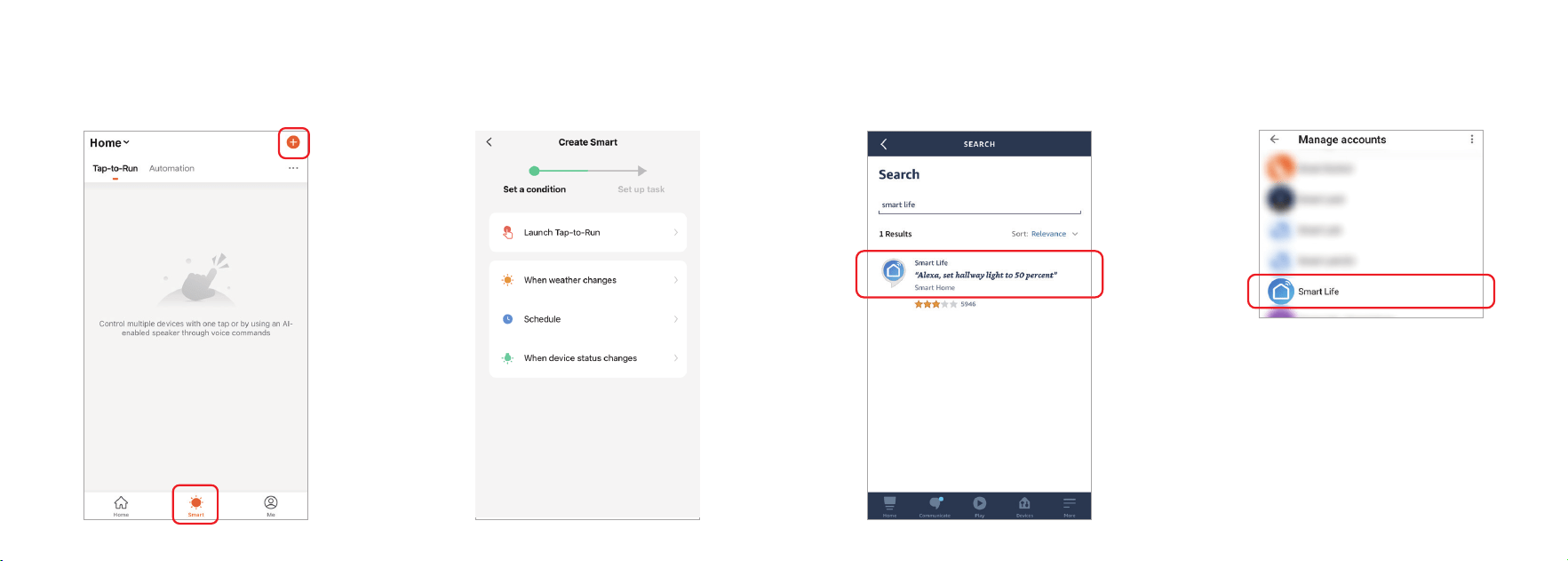
9.5. Intelligent control
(1)
Click " Smart " at the bottom.
(2)
Click " + " in the upper right corner to create intelligent control.
(3)
In the page of creating smart, you can set command to be executed
under the specified conditions (such as: turn on or turn off light, color,
brightness, mode, etc.)
10. Support Amazon Alexa Control
Please search " Smart Life " skill in Alexa APP and activate
the skill
11. Support Google Home Control
Please search " Smart Life " skill in Google Home APP and activate
the skill
12. Bluetooth control instructions
When the router is disconnected, you can turn on the Bluetooth of
your smartphone and connect directly controlled device at a short
distance.
Switching Bluetooth control steps:
(1)
Complete the network distribution of the equipment.
(2)
Power off the router used for network configuration, turn off WiFi
on the mobile phone, turn on Bluetooth, and wait for about 3-5
minutes to control.