V1.1
redtigercam.com
The information in this manual is subject to change without notice.
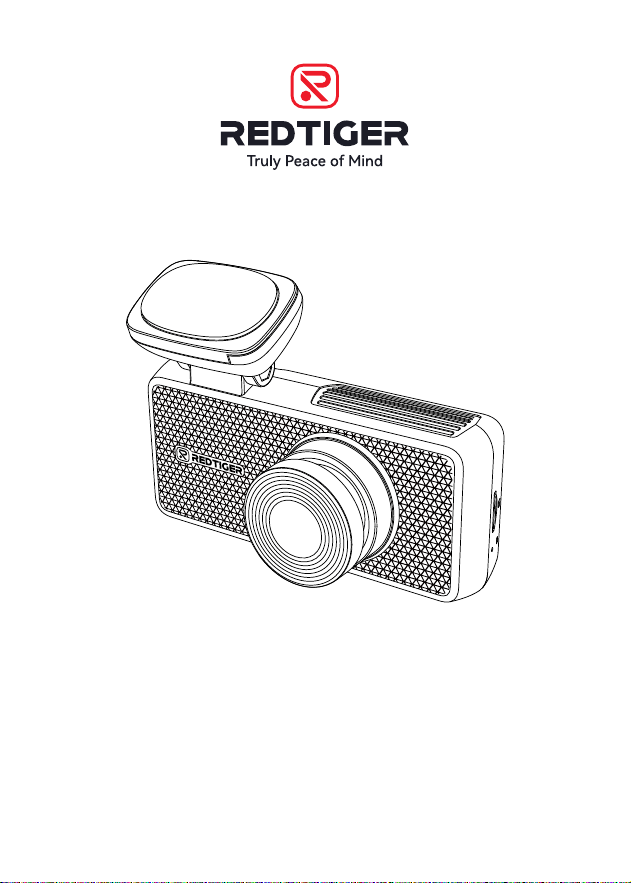
F17 Elite User Manual

Language
English . . . . . . . . . . . . . . . . . . . . . . . . . . . . . .
2
Español . . . . . . . . . . . . . . . . . . . . . . . . . . . .
25

1
Content
Notice . . . . . . . . . . . . . . . . . . . . . . . . . . . . . .
2
Product Specications . . . . . . . . . . . . . . . . . . . . .
3
Package Contents . . . . . . . . . . . . . . . . . . . . . . .
4
Appearance . . . . . . . . . . . . . . . . . . . . . . . . . . .
5
Buttons and Functions . . . . . . . . . . . . . . . . . . . .
6
Voice Control Function . . . . . . . . . . . . . . . . . . . .
9
User Inteace Oveiew . . . . . . . . . . . . . . . . . . .
10
Function Oveiew . . . . . . . . . . . . . . . . . . . . . .
13
OTA(Over the air) Update . . . . . . . . . . . . . . . . . .
16
How to Play Video on Computer . . . . . . . . . . . . . . .
16
Installation . . . . . . . . . . . . . . . . . . . . . . . . . .
18
Trouble Shooting . . . . . . . . . . . . . . . . . . . . . . .
22
Customer Seice Center . . . . . . . . . . . . . . . . . .
24

2
Notice
• Please read this manual carefully before operation and keep it
for future reference. It will be helpful should you encounter any
operational problem.
• Improper installation will void the manufacturer's warranty.
The installation instructions do not apply to all types of vehicles
and are written as guidelines to assist in installing the system.
• Consult an experienced technician if you are not comfoable
installing the product.
• Please make sure to read and understand local laws and
regulations regarding cameras and their use in a vehicle. Laws
va by state.
• Do not obscure the view of the road ahead or impede the
deployment of any airbags in the event of an accident.
• When not in use, please disconnect the car adapter from both
the 12/24V DC outlet in your vehicle and the device itself.
• Only clean the device with a soft d cloth, for tough di, apply
some neutral detergent diluted in 5 to 6 pas water on a soft
cloth.
• Note that alcohol, thinner, benzene, etc could cause damage to
the paint or coatings.
• Avoid making contact with the lens as this may cause damage.
• The video recordings made by this Digital Video Recorder are
intended for personal use only.
• While driving, do not adjust the controls of your device as this
is a distraction to driving.

3
Product Specications
Item Name F17 Elite Dash Cam Video Format MP4
Screen Size 3" IPS Photo Format JPG
Recording
Resolution
Front 4K+Inside 1080P+Rear 2.5K
Lens F1.8 Input DC 12V/24V
Operating
Temperature
-4°F~158°F Output DC 5V-2.5A
Micro SD card Max Suppo 512GB
Warranty
Period
18 Months
Note:
In the event of a problem during use, we will oer 18 months
free warranty from the date of purchase, in addition to lifetime
technical suppo.
* The specic warranty period is subject to local laws.
Extended Warranty Seice:
After registering information on redtigercam.com, you may extend
the warranty for an additional 6 months free of charge.
URL: https://www.redtigercam.com/pages/warranty-form
4
Package Contents
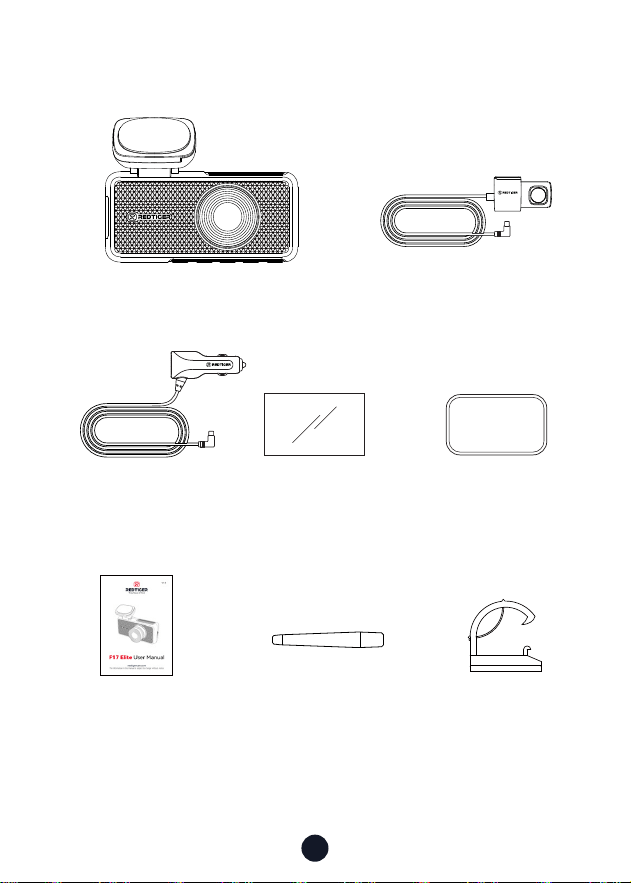
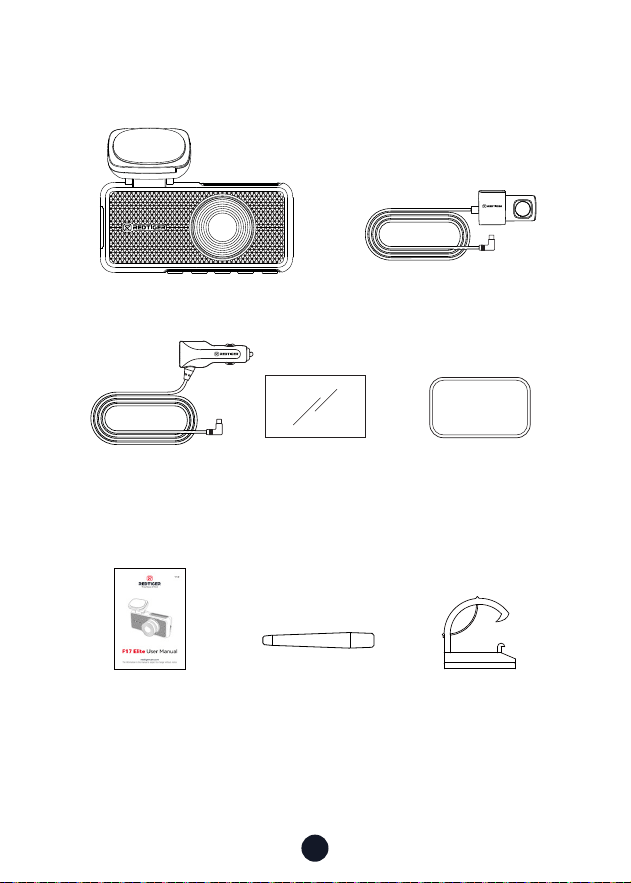
· F17 Elite 4K Dash cam
· Adhesive
· User Manual
· Tool
· Power Supply Cable
with Car Charger
· Electrostatic
Sticker *2
· Cable Clips*5
· 2.5K Rear Camera
5
Appearance
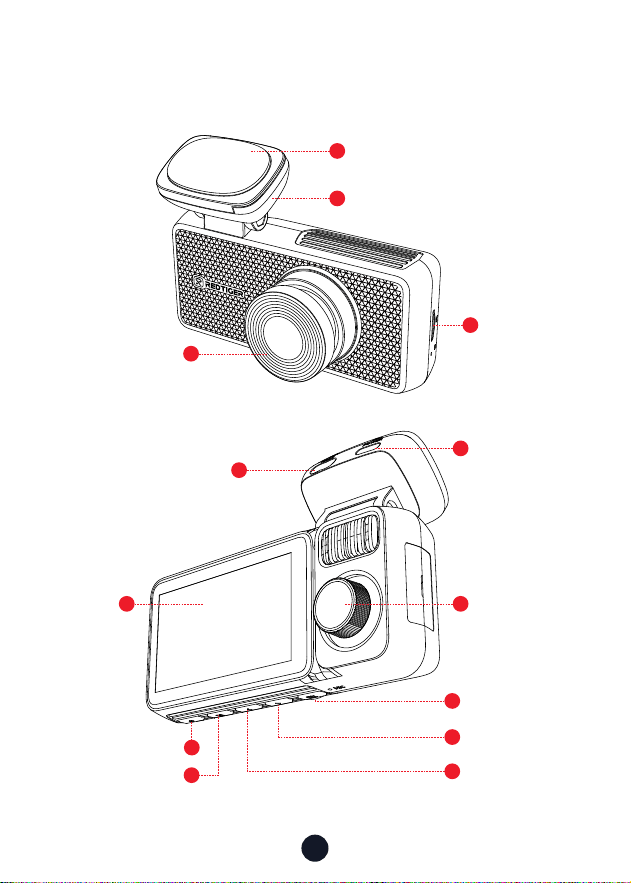
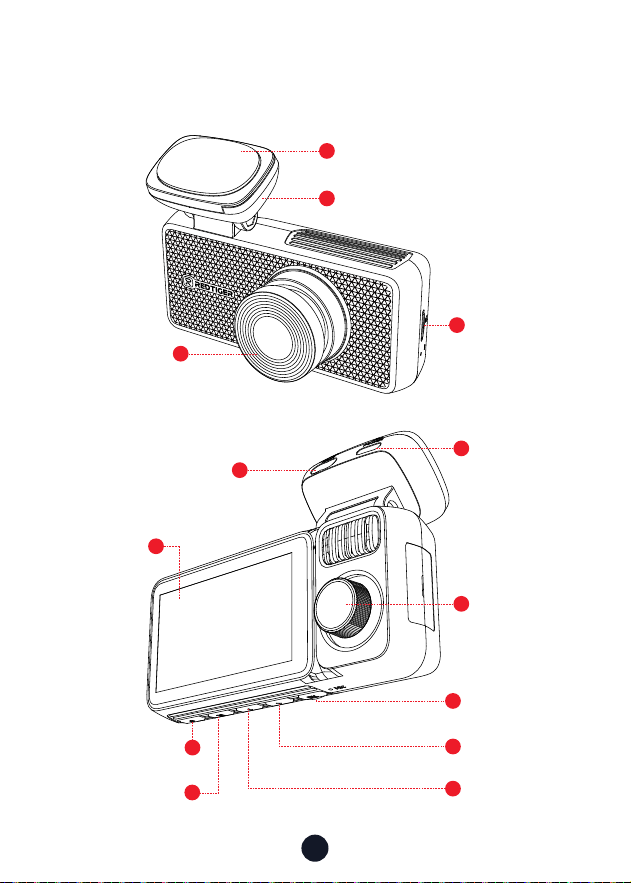
8
7
5
4
6
9
10
11
13
Inside Camera
Power Po
Rear Cam Po
Screen
Power Button
Right Button
OK Button
Menu Button Left Button
3
1
2
Adhesive
GPS Mount
Memo Card
Slot
Front Camera
12
6
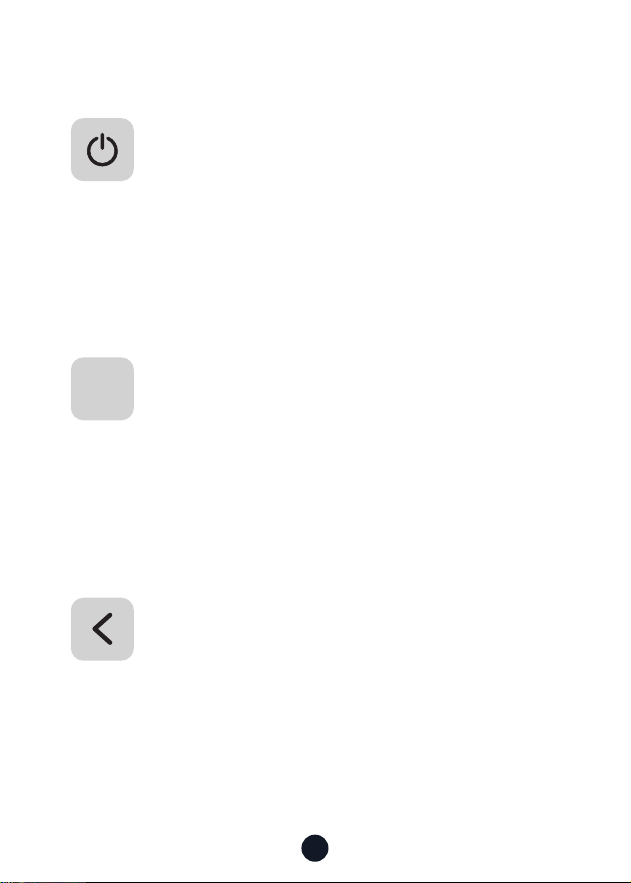
Buttons and Functions
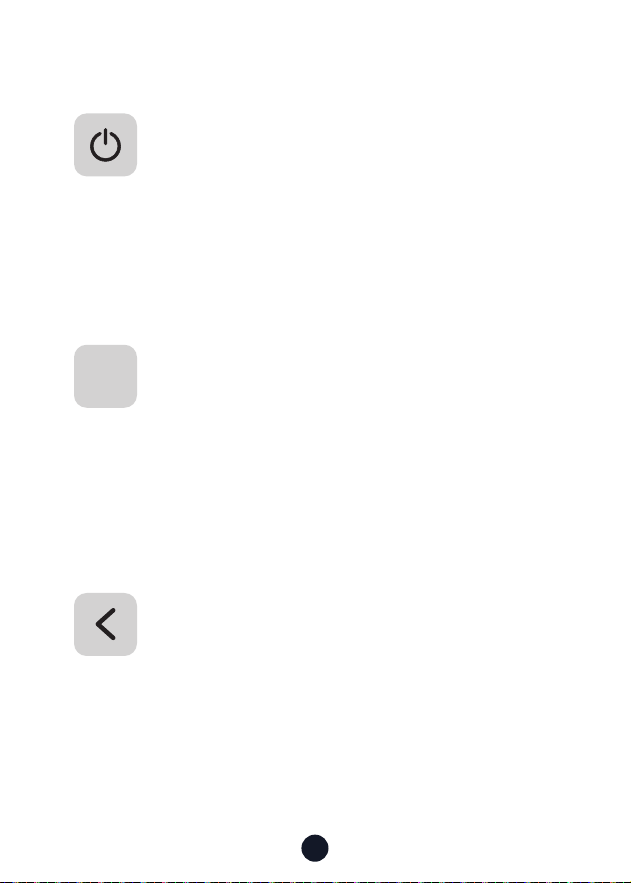
Menu Button
Recording Mode:
• Sho press to Enter main menu
• Long press-to Turn on/o WiFi
Setup Mode:
• Sho press-to Enter screen saver display
Playback Mode:
• Sho press-to Delete/Lock/Unlock the specic le
Left Button
Recording Mode:
• Sho press-to Lock/Unlock the recording le
Setup Mode:
• Sho press-to Select the previous function
Playback Mode:
• Sho press-to Fast rewind while vidio being played
Power Button
Recording Mode:
• Sho press-to Take a snapshot
• Long press-to Turn o the Camera
Setup Mode:
• Sho press-to Return to the previous screen
Playback Mode:
• Sho press-to Return to the previous screen
M

7
OK Button
Recording Mode:
• Sho press-to Switch screen
Setup Mode:
• Sho press-to Enter/Conrm specic settings
Playback Mode:
• Sho press-to Select and play the specic le
OK
Right Button
Recording Mode:
• Sho press-to Enter playback mode
Setup Mode:
• Sho press-to Select the next function
Playback Mode:
• Sho press-to Select the next le
• Sho press-to Fast forward while video is being
played
8
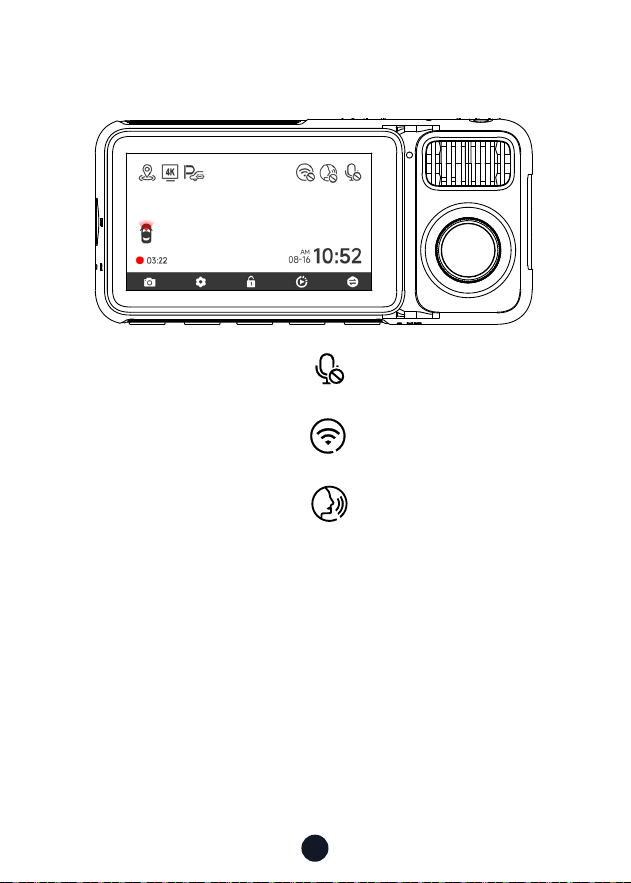
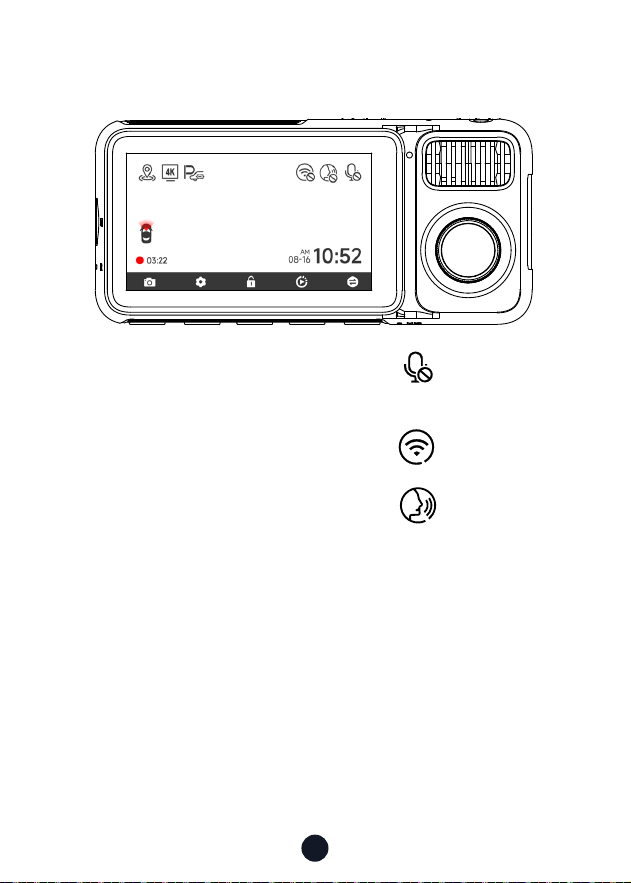
• Video Mode
You can manually click the icon at the top of the screen to
choose whether to record audio during video recording.
You can manually click the icon at the top of the screen to
choose whether to turn on Wi-Fi.
You can manually click the icon at the top of the screen to
choose whether to turn on the Voice control
.
9
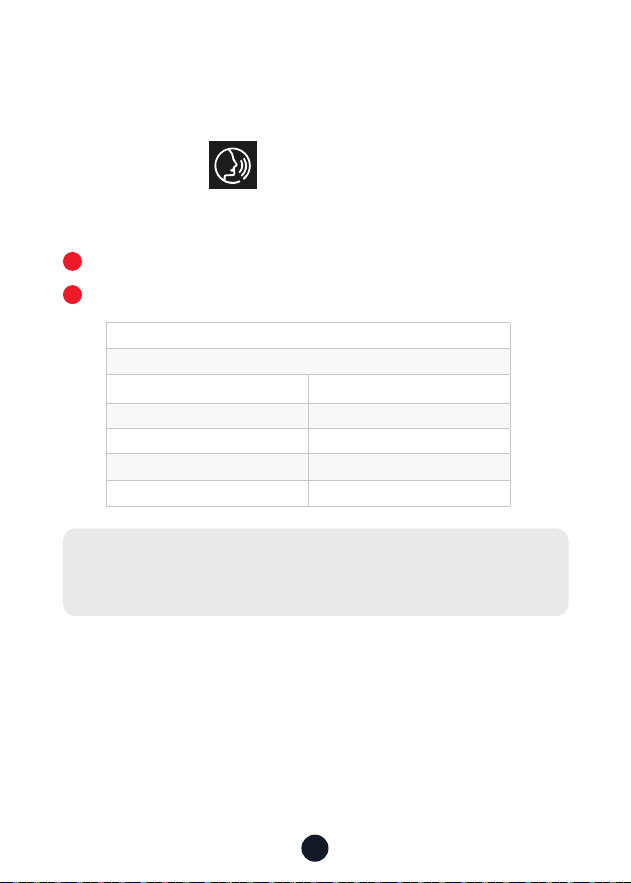
Voice Control Function
Fast control through simple voice commands
If the icon is white , it means the function can be used
normally.
You have two ways to enable this feature.
Tap on the icon to turn the feature on or o
.
Enter the setting mode-voice control-on/o.
1
2
Note:
You can see the specic commands in setting-voice control.
lock the video
take picture
turn on Audio turn o Audio
turn on screen turn o screen
turn on wi turn o wi
turn on recording turn o recording
show front camera show rear camera
10
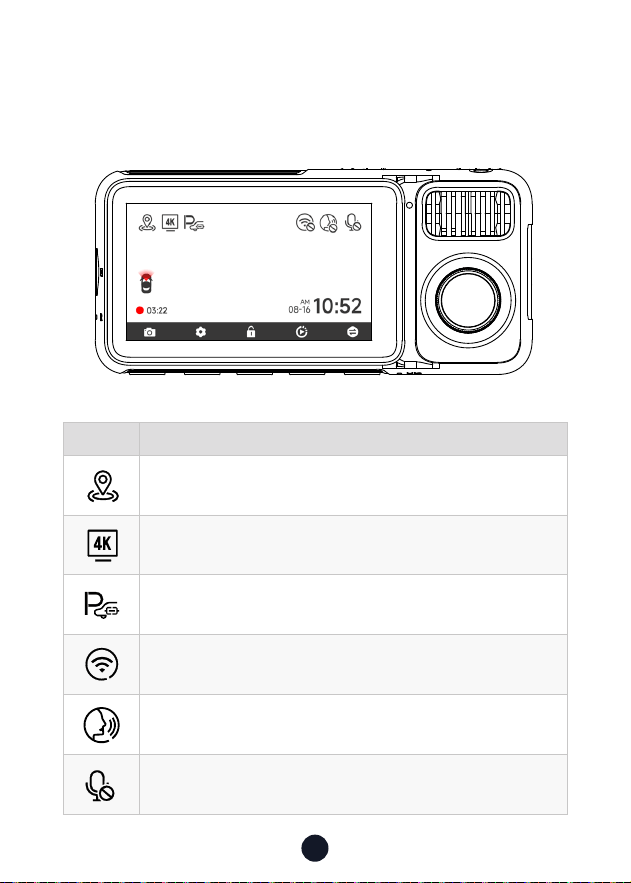
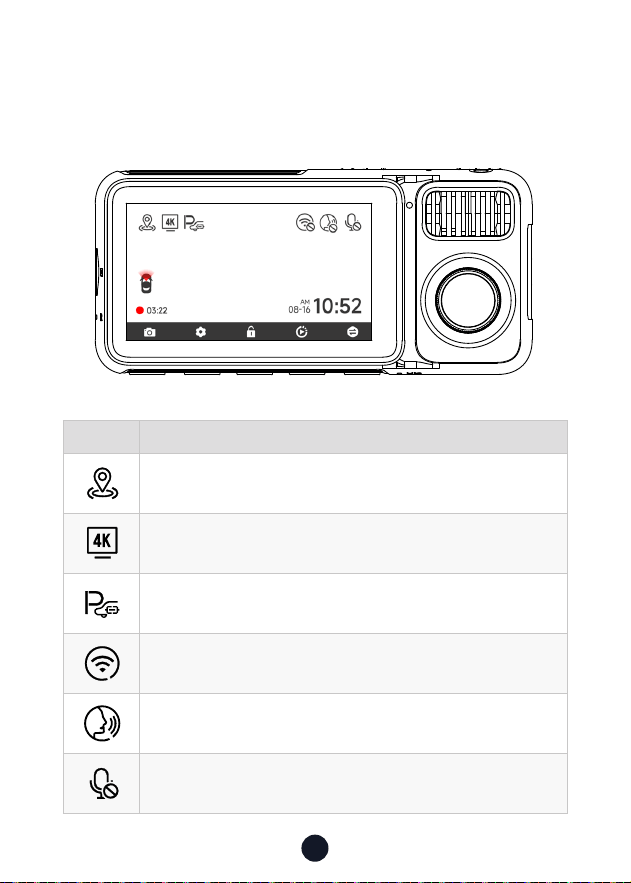
Icon Description
GPS status
Recording resolution
Whether to connect the hardwired kit and set up parking
monitoring
Wi-Fi status
Voice control
Voice recording status
User Inteace Oveiew
•
Recording Mode
11
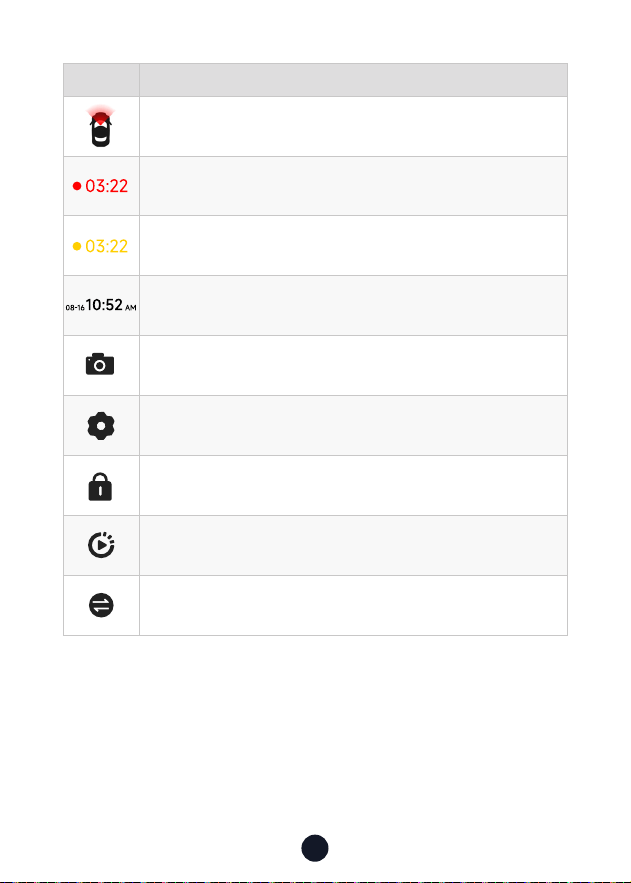
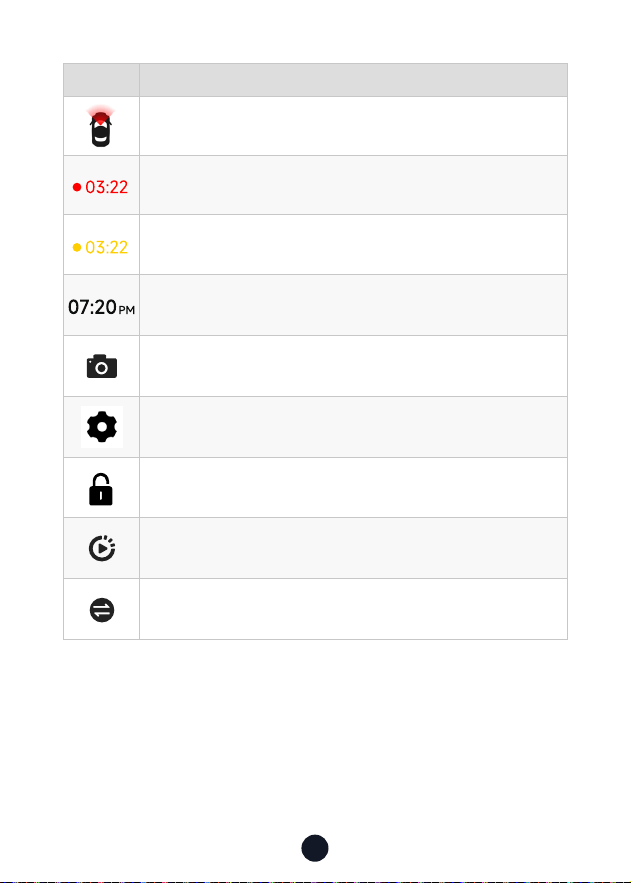
Icon Description
Which camera is being displayed
Recording status and recording time
Emergency recording is on
Date and time of the camera
Photograph
Sho press to enter settings. Long press for 3 seconds to turn on
or o WiFi
Emergency recording. Sho press to lock the video
Playback
Switching from front, inside and rear cameras
12
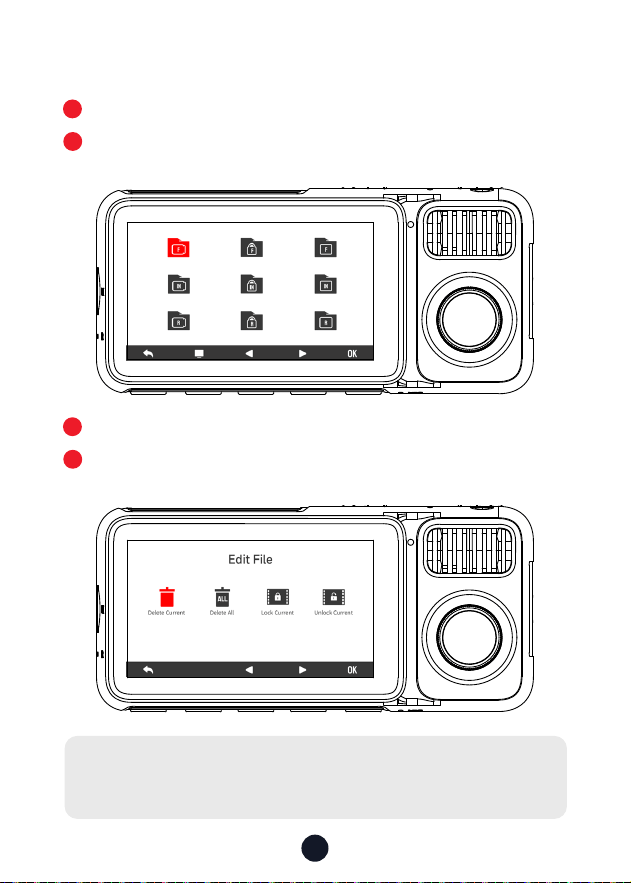
•
Playback Mode
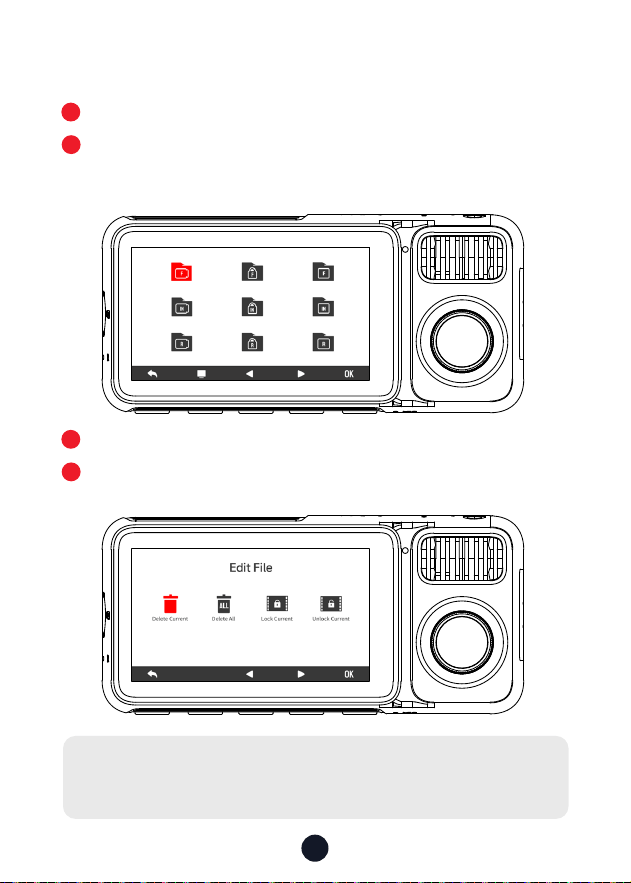
Press the M button to access the playback folder.
Press the Left or Right button to select the folder you want to
play, then press the M button to enter.
Press the OK button to watch the recorded video.
Long press the OK button for 3 seconds to edit your recorded
videos.
1
3
2
4
Note:
All of the above functions can be done via the touch screen
.
13
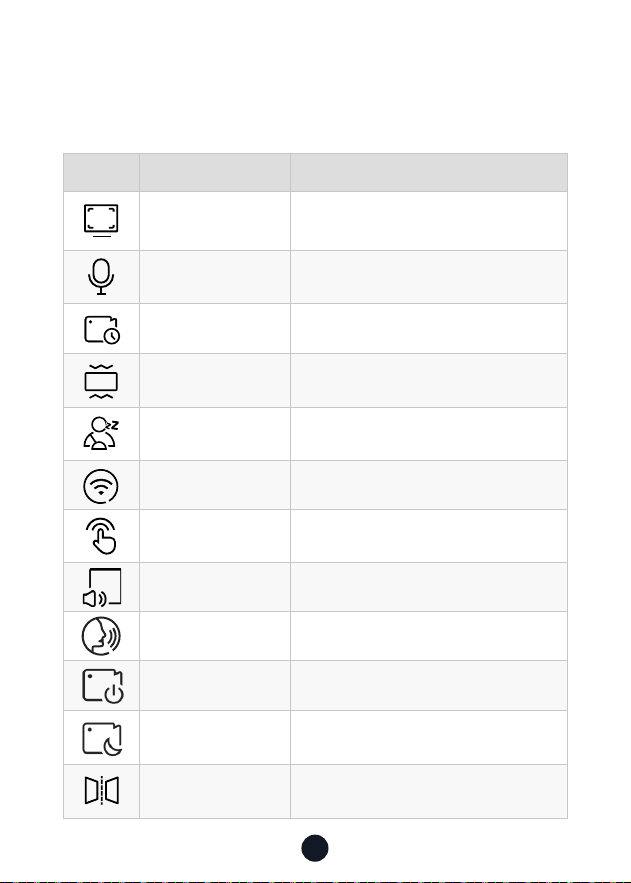
Function Oveiew
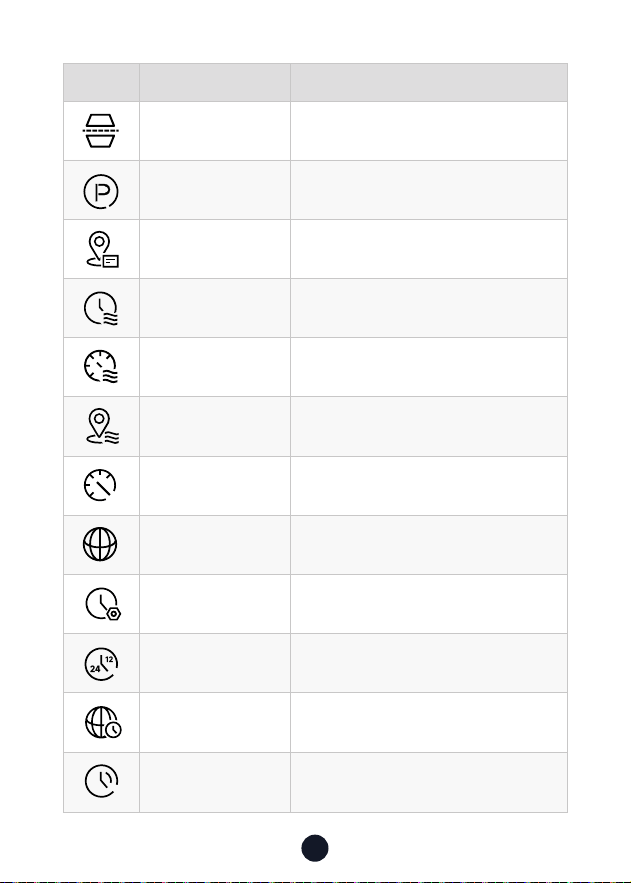
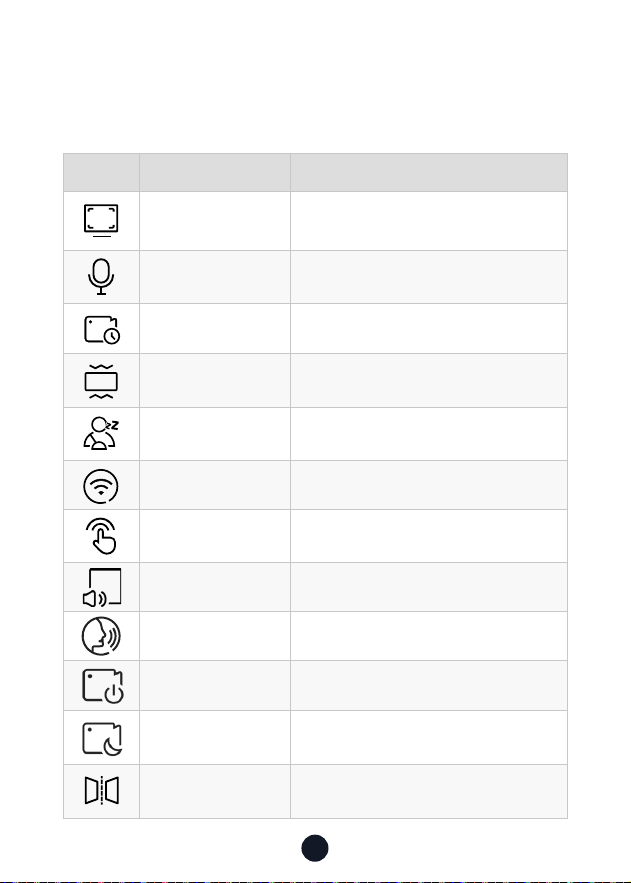
Sho press M button to enter settings menu, where you can
adjust various functions.
Icon Function Option/Description
Resolution Front 4K+Inside1080P+Rear 2.5K
Audio ON/OFF
Recording duration 1/3/5mins
G-sensor O/Low/Medium/High
Fatigue reminder
A Reminder Will be Made During
1h/2h/3h/4h/OFF
Wi-Fi ON/OFF
Click Tone ON/OFF
Staup Sound OFF/ON
Voice control ON/OFF/Voice Command
Internal Recording ON/OFF
Night Vision Switch ON/OFF/Auto
Mirror Flip
Horizontal Flip Your Rear View
*
Need to connect rear camera
14
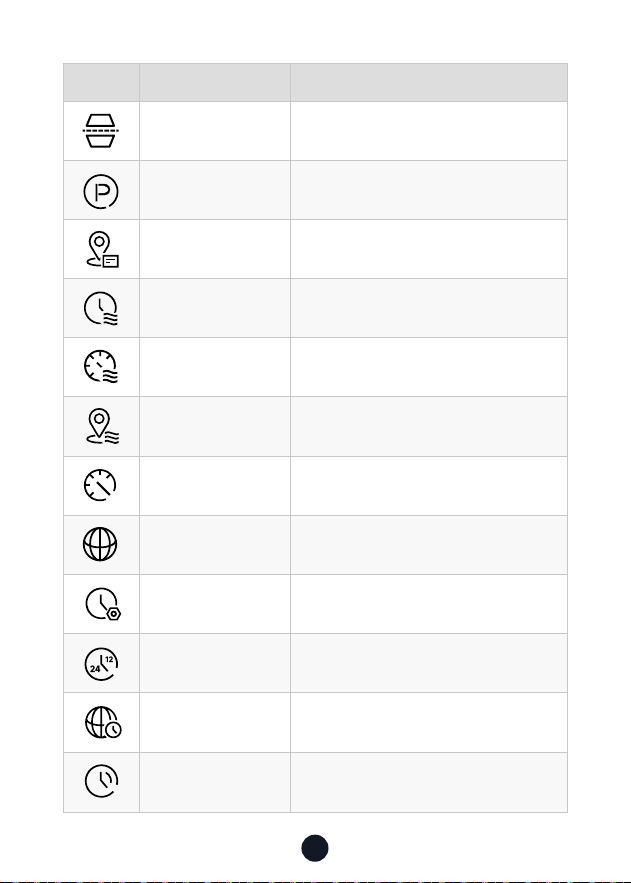
Icon Function Option/Description
Rear Cam Flip
Veical Flip Your Rear View
*
Need to connect rear camera
Parking Monitor Please connect the ACC hardwire kit
GPS Display GPS signal strength
Date Stamp ON/OFF
Speed Stamp ON/OFF
GPS Stamp ON/OFF
Speed Units KM/H / MPH
Language Choose Your Preferred Language
Clock Settings Update With GPS
Time Style 12h/24h
Time Zone Choose Your Time Zone
DST Daylight Saving Time ON/OFF
12
24
15
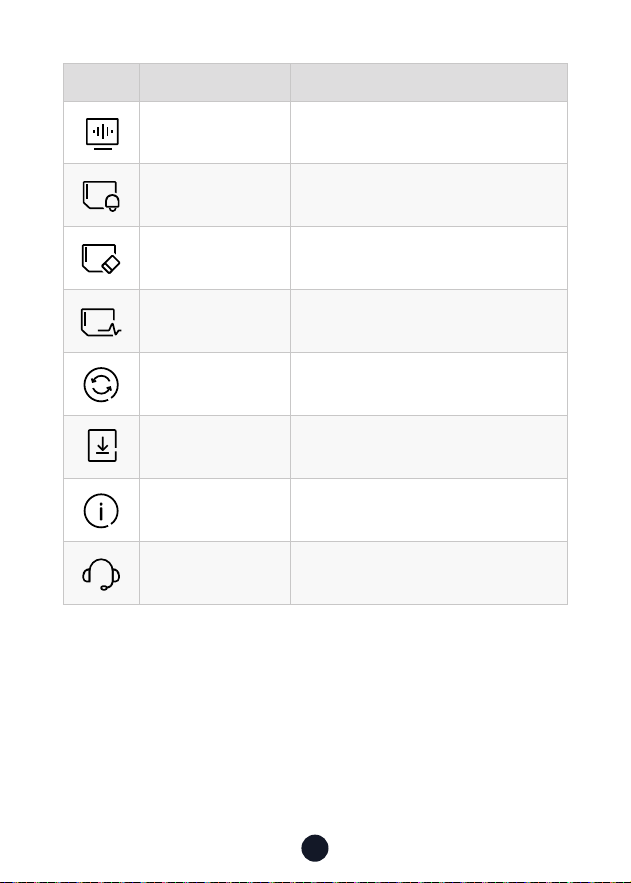
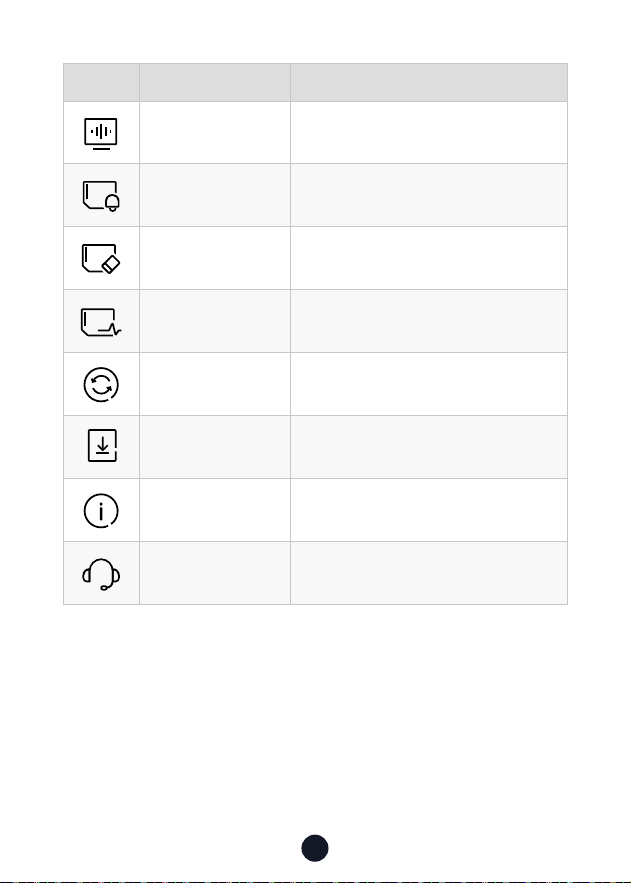
Icon Function Option/Description
Flicker 60Hz/50Hz
Format Reminder Reminder to Clear Data
Format SD Card Format SD card. All data will be deleted
Card Speed Card Speed Detection
Reset Setup Reset All Settings
APP A QR Code for app
Product Information Software Version
Help Center Scan the QR code to contact us
Note:
• In order to a Clean, Smooth, Comfoable using experience, we
suggest you format your Memo Card once a month.
• When you turn o Click Tone, the staup and shutdown sounds
will also be turned o.

16
OTA(Over the air) Update
Note: Please update the update the APP to the latest version to
use this function.
1. Disconnect the mobile phone and dash cam Wi-Fi.
Connect the phone to lan for 5 seconds, then disconnect.
Finally, connect the dash cam Wi-Fi.
2. Once Wi-Fi connection is successful, open the Redtiger APP
to sta using it. If new software is detected, the APP page will
indicate the availability of an update.
3. To upgrade, click on "Upgrade Now". The Redtiger APP will
prompt you to download the upgrade package.
Please note that the actual rmware should prevail over the
upgrade package.
4. Connect the dash cam to send the upgrade package. Do not
power o the dash cam during the upgrade process. Once
the upgrade is completed, the APP will display the upgrade
success message, and the dash cam will automatically resta.
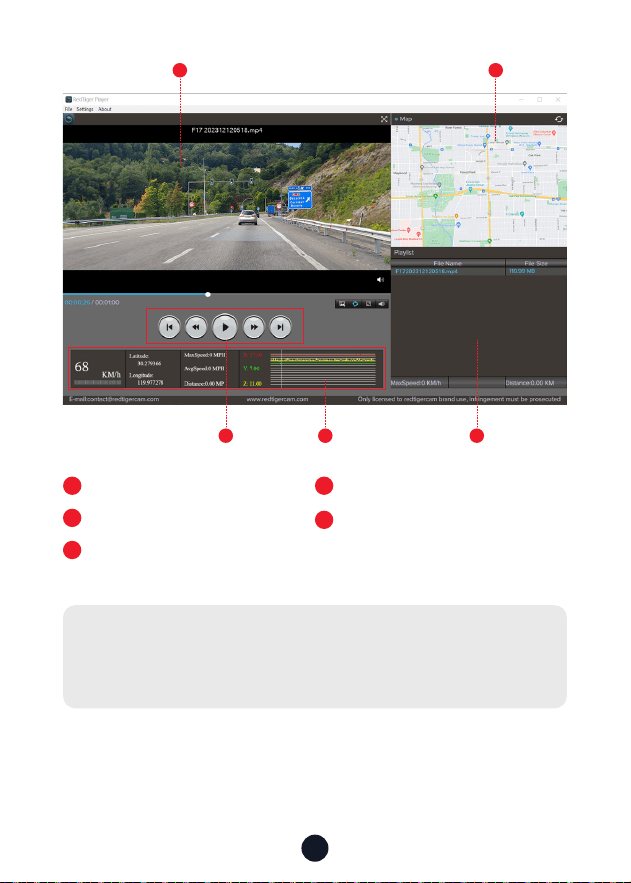
How to Play Video on Computer
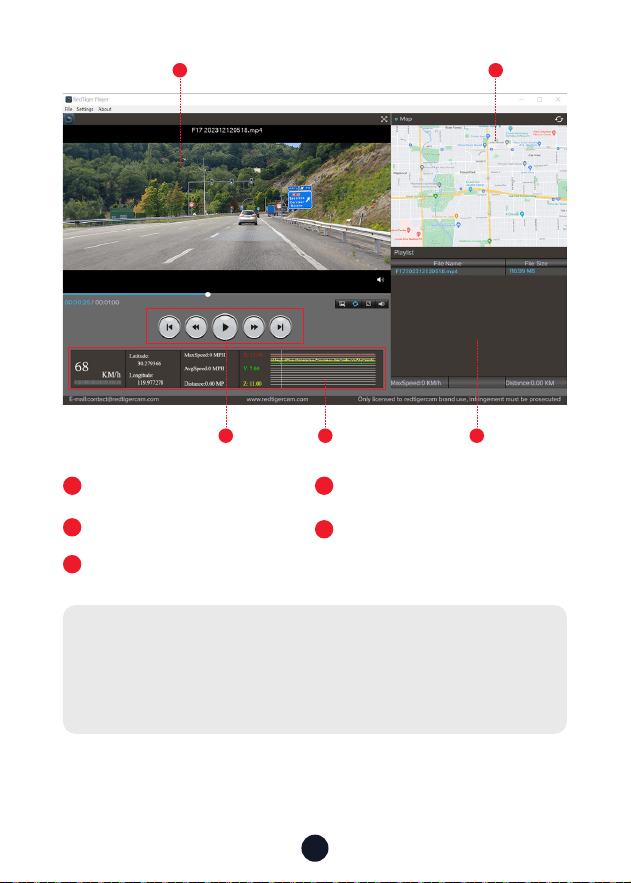
We recommend using REDTIGER Player as the right video Player
to watch/play Videos. It can also view Google Maps.
You can Download it for free on Mac or Windows from the
following link: https://www.redtigercam.com/pages/gps-player
You can choose dierent playback modes in Settings>video
playback mode. And you can set playback speed, language, map
and other functions.
17
1
3 54
2
1
Video play window (Front)
2
3
Map and track display
Play control panel
4
5
Speed and driving state indication
Play list
Note:
When you nd the desired video le, hold down the left mouse
button and drag and drop it onto the video player to play it.
18
Installation
•
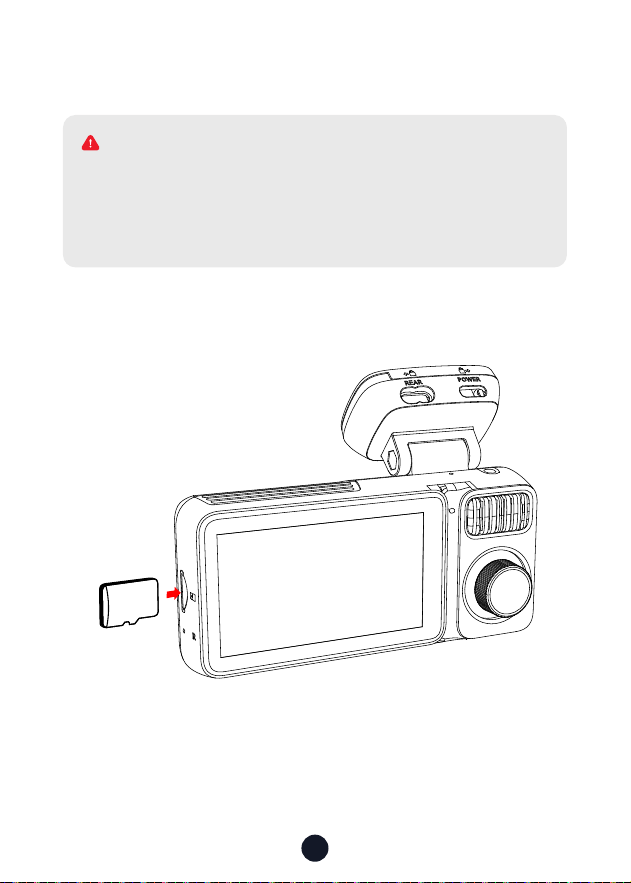
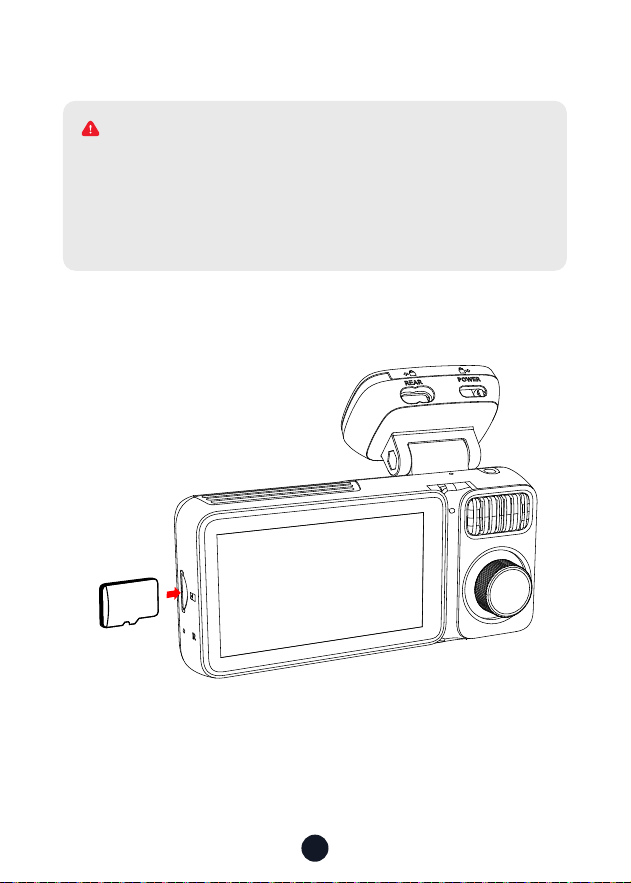
Inse Memo Card
SD
Please make sure to connect all cameras and wires before
power on the cam screen, otherwise, the camera cannot work
properly. Please follow the instructions below for the rst-
time installation of the redtiger dash cam.
WARNING
19
•
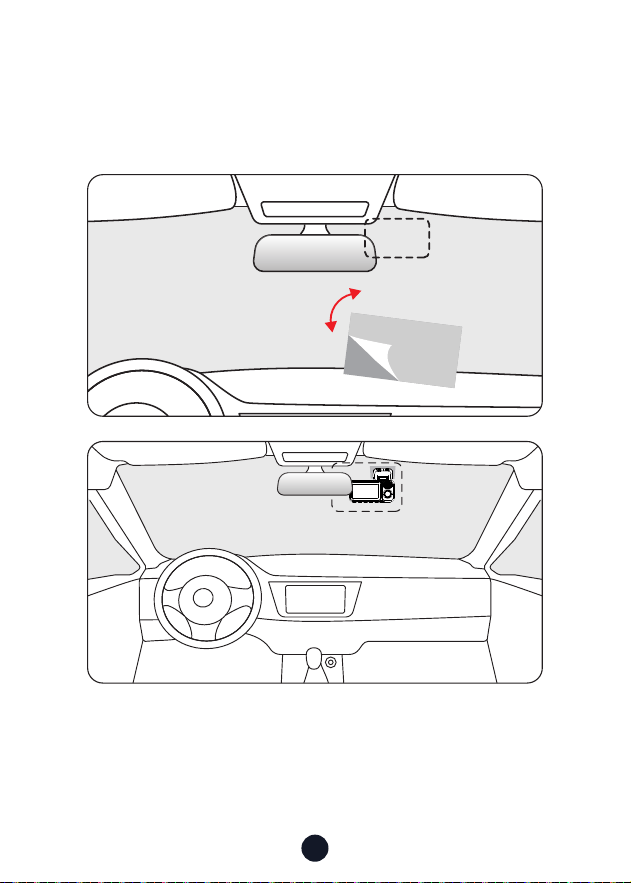
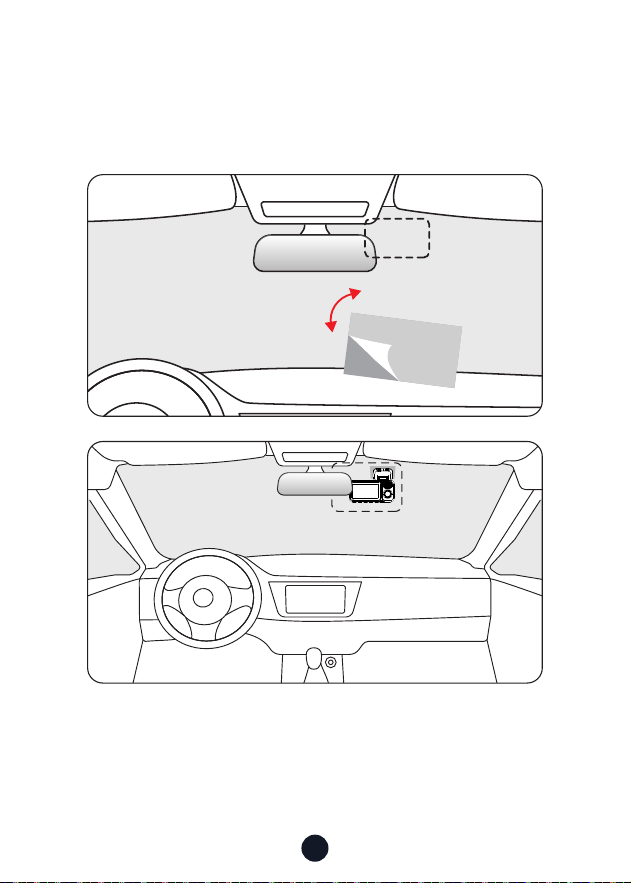
Front camera installation
Peel o the electrostatic sticker on the cellophane and transfer
it to where you want to stick it. Attach the front camera to the
electrostatic sticker and press to make it rmer.
20
•
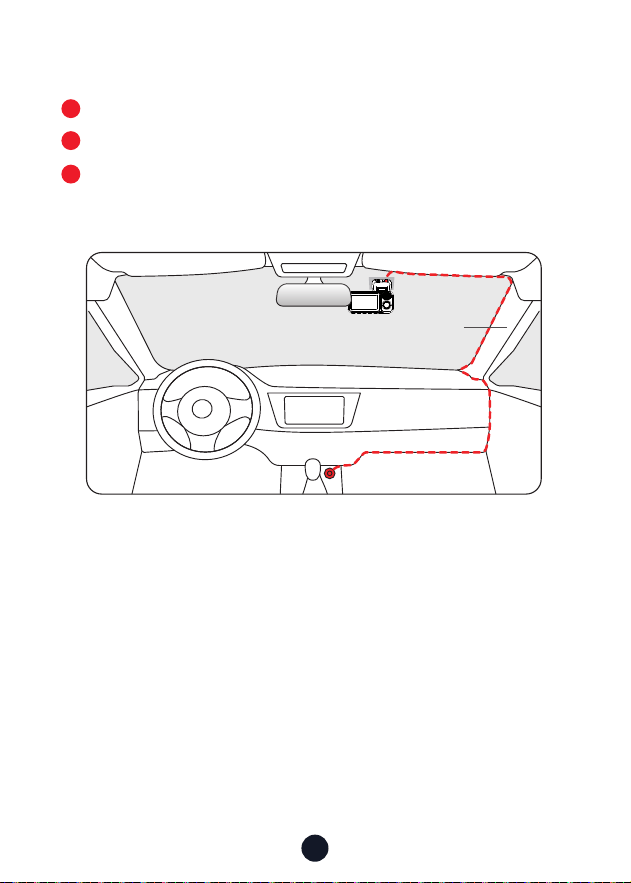
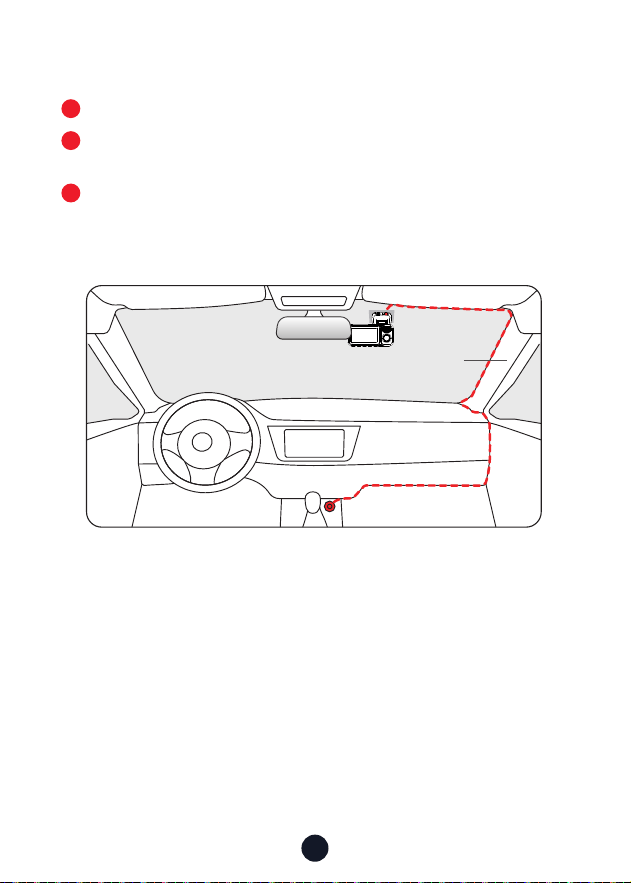
Wire Layout In The Vehicle
The car charger is connected to the cigar socket.
Connect the other end of the car charger to the dash cam.
Use the crowbar to run the power cable along the front
windshield and the roof, and hide the cable down the A-pillar,
so as not to block the driver's sight and cause danger.
3
1
2
Pillar A
21
•
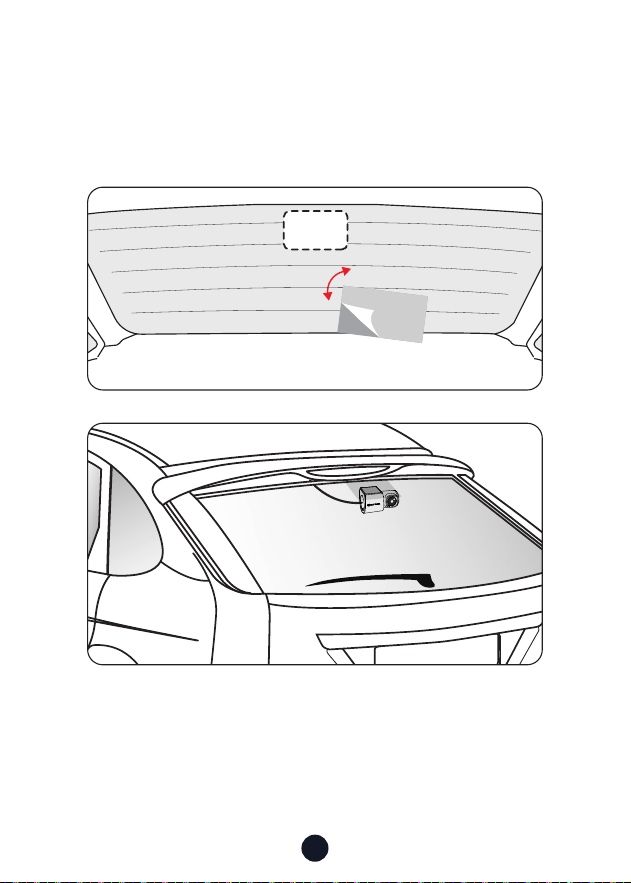
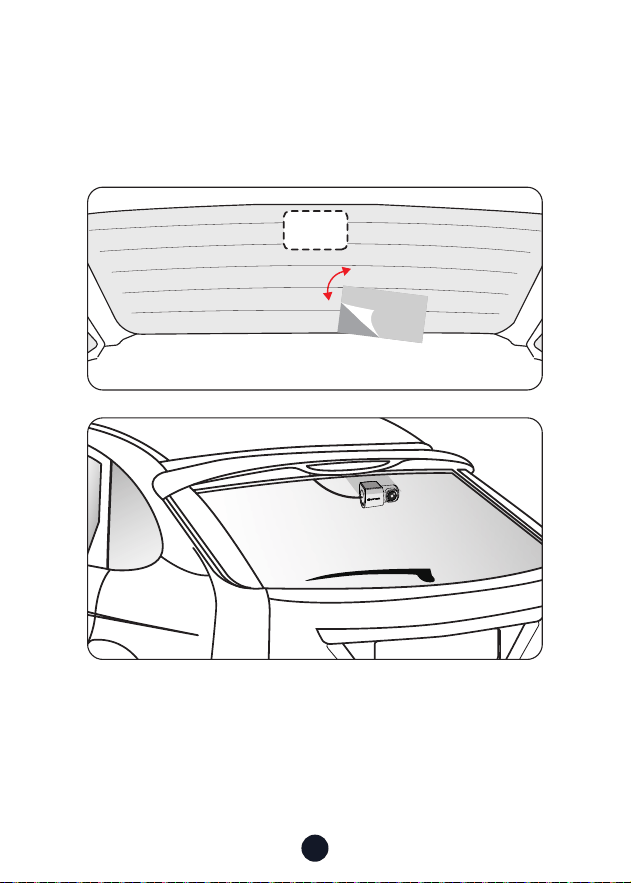
Rear camera installation
Peel o the electrostatic sticker on the rear camera and transfer
it to where you want to stick it. Attach the camera to the
electrostatic sticker and press to make it rmer.

22
Trouble Shooting
• Why is there no GPS signal?
1. Clean and reconnect the probe on the main unit and bracket.
Check for any inteerence in your car, like metal lm on the
windshield, radio antenna, or radar detector.
2. Move your car to an open area.
3. If the GPS icon is , it means the GPS signal is good.
If the GPS icon is , it means there is no GPS signal.
• Why does my dash cam prompt card error or please format
Memo Card eve once in a while?
Please follow the steps below to check:
1. Please go to Settings > Format Reminder to check whether
the regular format reminder is enabled.
2. Format the Memo Card.
3. Restore facto settings and resta the dash cam.
4. Update the rmware.
• Dash cam repeated resta/no boot?
1. Make sure you are using the original car charger.
2. Unplug the Memo Card and car charger in turn, and
reinstall them. Check whether the sho circuit is caused by
accessories.
3. Reset the machine through the small hole at the bottom of
the driving recorder.
4. If none of the above can solve the problem, please t to
power on the USB cable to conrm whether the host can be
used normally.
5. Please go to the ocial website to update the rmware.
6. If it is not resolved, please contact your dedicated customer
seice for a replacement.

23
• Why can't I connect to Wi-Fi?
1. Check the working distance of Wi-Fi, about 15ft.
2. Check the SSID and password of the Wi-Fi, or whether there
are other devices connected to the Wi-Fi.
3. Turn o mobile data, security software, and VPN on your
phone.
4. If the issue persists, please contact customer suppo for
assistance.
• Why is the time setting incorrect?
The dash cam features built-in GPS. It automatically adjusts
time based on your location and time zone, eliminating the
need for manual time changes. And you can adjust the time
through Settings > Time Zone/DST.
24
Help Center WhatsApp
Redtiger
For more information:
After sales: help@redtigercam.com
Business Cooperation: contact@redtigercam.com
Customer Phone Seice: +1 888 966 8028 (US)
Customer Seice Center
If you have any problems using or installing the dash cam, please
contact us with any questions.

25
Contenido
Nota . . . . . . . . . . . . . . . . . . . . . . . . . . . . . .
26
Producto Especicaciones . . . . . . . . . . . . . . . . .
27
Paquete Contenido . . . . . . . . . . . . . . . . . . . . .
28
Apariencia . . . . . . . . . . . . . . . . . . . . . . . . . .
29
Botones y Funciones . . . . . . . . . . . . . . . . . . . . .
30
Función de control de voz . . . . . . . . . . . . . . . . . .
33
Inteaz de Usuario . . . . . . . . . . . . . . . . . . . . . .
34
Descripción General de Funciones . . . . . . . . . . . . .
37
Actualizaciones por Aire. . . . . . . . . . . . . . . . . . . .
40
Cómo Reproducir Video en el Ordenador . . . . . . . . .
40
Instalación . . . . . . . . . . . . . . . . . . . . . . . . . .
42
Solución de Problemas . . . . . . . . . . . . . . . . . . .
46
Seicio de Atención al Cliente Center . . . . . . . . . . .
48

26
Nota
• Lea atentamente este manual antes de utilizar el aparato y
conséelo para futuras consultas. Le será útil en caso de que
surja algún problema de funcionamiento.
• Una instalación incorrecta anulará la garantía del fabricante.Las
instrucciones de instalación no son aplicables a todos los tipos
de vehículos y se han redactado a modo de guía para ayudarle
a instalar el sistema.
• Consulte a un técnico experimentado si no se siente cómodo
instalando el producto.
• Asegúrese de leer y comprender las leyes y normativas locales
relativas a las cámaras y su uso en un vehículo. Las leyes varían
según el estado.
• No obstruya la visión de la carretera ni impida el despliegue de
los airbags en caso de accidente.
• Cuando no lo utilices, desconecta el adaptador para el coche
tanto de la toma de 12/24 V CC del vehículo como del propio
dispositivo.
• Limpie el dispositivo únicamente con un paño suave y seco;
para la suciedad resistente, aplique un poco de detergente
neutro diluido en 5 a 6 paes de agua sobre un paño suave.
• Tenga en cuenta que el alcohol, diluyente, benceno, etc. podrían
dañar la pintura o los revestimientos.
• Evite el contacto con el objetivo, ya que podría dañarlo.
• Las grabaciones de vídeo realizadas por este grabador de vídeo
digital están destinadas exclusivamente al uso personal.
• Mientras conduzca, no ajuste los controles de su dispositivo, ya
que esto constituye una distracción para la conducción.

27
Producto Especicación
Nombre del
aículo
F17 Elite Cámara de
Tablero
Formato de
vídeo
MP4
Tamaño de
pantalla
3" IPS
Formato de
foto
JPG
Resolución de
grabación
Frontal 4K+Interior 1080P+Trasera 2.5K
Lente F1.8 Entrada DC 12V/24V
Temperatura de
funcionamiento
-4°F~158°F Salida DC 5V-2.5A
Tarjeta Micro SD Max Suppo 512GB
Período de
garantía
18 meses
Nota:
Si tiene algún problema durante el uso, le proporcionaremos
18 mesesde reemplazo gratuito y sopoe técnico de por vida.
* El período de garantía especíco está sujeto a las leyes locales.
Seicio de garantía ampliada:
Después de registrar la información en redtigercam.com, puede
ampliar la garantía durante 6 meses adicionales de forma gratuita.
URL: https://www.redtigercam.com/pages/warranty-form
28
Paquete Contenido
· F17 Elite 4K Cámara de Tablero
· Adhesivo
· Manual del usuario · Herramienta
· Cable de alimentación
con cargador de coche
· Pegatina
electrostática*2
· Pinzas para cables*5
· Cámara trasera 2.5K
29
Apariencia
8
7
5
4
6
9
10
11
13
Cámara
interior
Pueo de
alimentación
Inteaz de la
cámara trasera
IPS Screen
Botón de
encendido
Botón derecho
Botón OK
Botón de menú Botón izquierdo
3
1
2
Adhesive
Sopoe para GPS
Ranura para
tarjeta Micro SD
Cámara frontal
12
30
M
Botones y Funciones
Botón de Encendido
Modo Grabación:
• Pulsación coa-para tomar una instantánea
• Pulsación larga: para apagar la cámara
Modo Conguración::
• Pulsación coa: para volver a la pantalla anterior
Modo Reproducción:
• Pulsación coa: para volver a la pantalla anterior
Botón de Menú
Modo Grabación:
• Pulsación coa: entra en el menú principal
• Pulsación larga: para activar/desactivar WiFi
Modo Conguración:
• Pulsación coa: para acceder al salvapantallas
Modo Reproducción:
• Pulsación coa-para borrar/bloquear/desbloquear
el archivo especíco
Botón Izquierdo
Modo Grabación:
• Pulsación coa: para bloquear/desbloquear el
archivo de grabación
Modo Conguración:
• Pulsación coa: para seleccionar la función anterior
Modo Reproducción:
• Pulsación coa: para rebobinar rápidamente
mientras se reproduce el vídeo.

31
Botón OK
Modo Grabación:
• Pulsación coa: para cambiar de pantalla
Modo Conguración:
• Pulsación coa: para introducir/conrmar ajustes
especícos
Modo Reproducción:
• Pulsación coa: para seleccionar y reproducir un
archivo especícos
OK
Botón Derecho
Modo de Grabación:
• Pulse brevemente para acceder al modo de
reproducción
Modo Conguración:
• Pulsación coa: para seleccionar la siguiente
función
Modo Reproducción:
• Pulsación coa: para seleccionar el archivo siguiente
• Pulse brevemente para avanzar rápidamente vídeo
32
Puedes hacer clic manualmente en el icono en la pae
superior de la pantalla para elegir si grabar audio durante la
grabación de video.
Puedes hacer clic manualmente en el icono en la pae
superior de la pantalla para elegir si encender el Wi-Fi.
Puedes hacer clic manualmente en el icono en la pae
superior de la pantalla para elegir si activar el control por voz.
• Video Mode
33
Función de Control Por Voz
Control rápido a través de comandos de voz simples
Si el icono es blanco signica que la función puede ser
utilizada normalmente.
Tiene dos maneras de habilitar esta función.
Toque en el icono para activar o desactivar la función.
Introduzca el modo de ajuste-vioce control-on/o.
Nota:
1. Puede ver los comandos especícos en el control setting-vioce.
2. la función de control de voz solo admite inglés.
lock the video
take picture
turn on audio turn o audio
turn on screen turn o screen
turn on wi turn o wi
turn on recording turn o recording
show front camera show rear camera
34
User Inteace Oveiew
•
Recording Mode
Icono Descripción
Estado del GPS
Resolución de la cámara frontal
Posibilidad de conectar el kit de cableado y congurar el control
de aparcamiento
Estado de Wi-Fi
Control por voz
Estado de la grabación de voz
35
Icono Descripción
Qué cámara se está visualizando
Estado y tiempo de grabación
Grabación de emergencia activada
Fecha y hora de la cámara
Fotografía
Pulsación coa para entrar en ajustes. Pulsación larga durante 3
segundos para activar o desactivar WiFi
Grabación de emergencia
Reproducción
Switching from front, inside and rear cameras
36
•
Playback Mode
Presione el M botón para acceder a la carpeta de reproducción.
Presione el botón Izquierdo o Derecho para seleccionar la
carpeta que desea reproducir, luego presione el botón M para
entrar.
1
2
Presione el botón Aceptar para ver el video registrado.
Mantenga presionado el botón Aceptar durante 3 segundos
para editar sus videos registrados.
3
4
Nota:
All of the above functions can be done via the touch screen
.
37
Icono Función Opción/Descripción
Resolución Frontal 4K+Interior1080P+Trasera 2.5K
Audio Encendido/Apagado
Grabación en Bucle 1/3/5mins
Sensor G Apagado/Bajo/Medio/Alto
Conducción
Fatigada
Se realizará un recordatorio durante 1
hora /2 horas/3 horas/Apagado
Wi-Fi Encendido/Apagado
Tono de Clic Encendido/Apagado
Sonido de Inicio Encendido/Apagado
Control de Voz Encendido/Apagado/Comando de voz
Interruptor de
grabación interna
Apagado/Encendido
Interruptor de visión
nocturna
Encendido/Apagado/
AutomáticoApagado/Encendido/Auto
Voltear Espejo
Voltear la vista trasera horizontalmente
* La cámara posterior debe estar
conectada
Descripción General de Funciones
Pulse brevemente el botón M para acceder al menú de
conguración, donde podrá ajustar varias funciones.
38
Icono Función Opción/Descripción
Voltear Cámara
Trasera
Voltear la vista trasera veicalmente
* La cámara posterior debe estar
conectada
Modo de
Aparcamiento
Conecte el kit de cableado ACC
GPS Muestra la intensidad de la señal GPS
Sello de Fecha Encendido/Apagado
Sello de Velocidad Encendido/Apagado
Sello GPS Encendido/Apagado
Unidades de
Velocidad
KM/H / MPH
Idioma Seleccione su idioma preferido
Fecha / Hora Actualizar con GPS
Formato de Hora 12h/24h
Zona Horaria Elija su zona horaria
DST Horario de verano Encendido/Apagado
12
24
39
Icono Función Opción/Descripción
Frecuencia 60Hz/50Hz
Recordatorio de
Formato
Recordatorio para borrar datos
Formatear
Formatee la tarjeta de memoria Se
borrarán todos los datos
Velocidad de la
Tarjeta
Detección de la velocidad de la tarjeta
Ajuste por Defecto Restablecer todos los ajustes
APP Un código QR para la app
Versión Versión del software
Centro de Ayuda
Escanee el código QR para ponerse en
contacto con nosotros
Nota:
• Para garantizar una experiencia de usuario sin problemas, se
recomienda formatear el tarjeta TF una vez al mes.
• Cuando ajuste la opción Tono de clic a APAGADO, también se
apagarán los sonidos de arranque y apagado.

40
Actualizaciones por Aire
Nota: Por favor, actualice actualizar la APP a la última versión para
utilizar esta función.
1. Desconecte el teléfono móvil y la dash cam Wi-Fi. 2. Conecte
el teléfono a lan durante 5 segundos y, a continuación,
desconéctelo. Por último, conecte la dash cam Wi-Fi.
2. Una vez que la conexión Wi-Fi se haya realizado
correctamente, abra la APP Redtiger para empezar a utilizarla.
Si se detecta un nuevo software, la página de la APP indicará
la disponibilidad de una actualización.
3. Para actualizar, haga clic en "Actualizar ahora". La APP
Redtiger le pedirá que descargue el paquete de actualización.
Tenga en cuenta que el rmware actual debe prevalecer
sobre el paquete de actualización.
4. Conecte la dash cam para enviar el paquete de actualización.
No apague la dash cam durante el proceso de actualización.
Una vez nalizada la actualización, la APP mostrará el
mensaje de actualización correcta y la dash cam se reiniciará
automáticamente.
Cómo Reproducir Video en el Ordenador
Recomendamos utilizar REDTIGER Player como el reproductor de
vídeo adecuado para ver/reproducir vídeos. También puede ver
Google Maps.
Puede descargarlo gratuitamente en Mac o Windows desde el
siguiente enlace: https://www.redtigercam.com/pages/gps-player
Puedes elegir diferentes modos de reproducción en Ajustes>modo
de reproducción de vídeo. Y puedes congurar la velocidad de
reproducción, el idioma, el mapa y otras funciones.
41
1
3 54
2
1
Ventana de reproducción de
vídeo (frontal)
2
3
Visualización de mapas y pistas
Panel de control de reproducción
4
5
Indicación de velocidad y estado
de conducción
Lista de reproducción
Nota:
Cuando encuentre el archivo de vídeo deseado, mantenga
pulsado el botón izquierdo del ratón y arrástrelo y suéltelo en el
reproductor de vídeo para reproducirlo.
42
SD
Instalación
•
Insee la tarjeta de memoria
Por favor, asegúrese de conectar todas las cámaras y cables
antes de encender la pantalla de la cámara, de lo contrario,
la cámara no puede funcionar correctamente. Por favor, siga
las siguientes instrucciones para la primera instalación de la
redtiger dash cam.
ADVERTENCIA
43
•
Instalación de la cámara frontal
Despegue la pegatina electrostática del celofán y transérala al
lugar donde desee pegarla. Pega la cámara frontal a la pegatina
electrostática y presiona para que quede más rme.
44
•
Disposición de los cables en el vehículo
El cargador de coche se conecta a la toma de corriente.
Conecta el otro extremo del cargador de coche a la cámara del
salpicadero.
Utilice la palanca para pasar el cable de alimentación a lo largo
del parabrisas delantero y el techo, y ocultar el cable por el
pilar A, a n de no bloquear la vista del conductor y causar
peligro.
3
1
2
Pillar A
45
•
Instalación de la cámara trasera
Despegue la pegatina electrostática de la cámara trasera y
transérala al lugar donde desea pegarla. Pega la cámara a la
pegatina electrostática y presiona para que quede más rme.
46
Solución de problemas
• ¿Por qué no hay señal GPS?
1. Limpie y vuelva a conectar la sonda de la unidad principal
y el sopoe. Compruebe si hay alguna inteerencia en su
coche, como película metálica en el parabrisas, antena de
radio o detector de radar.
2. Mueva su coche a una zona abiea.
3. Si el icono GPS es , signica que la señal GPS es buena.
Si el icono de GPS es , signica que no hay señal de
GPS.
• ¿Por qué mi dash cam indica error de tarjeta o por favor
formatee la tarjeta de memoria de vez en cuando?
Por favor, siga los siguientes pasos para comprobarlo:
1. Por favor, vaya a Conguración > Recordatorio de Formato
para comprobar si el recordatorio de formato regular está
habilitado.
2. Formatee la tarjeta de memoria.
3. Restaure la conguración de fábrica y reinicie la dash cam.
4. Actualice el rmware.
• ¿Dash cam repetido reinicio/sin arranque?
1.Asegúrese de que está utilizando el cargador de coche
original.
2.Desenchufe la tarjeta de memoria y el cargador de coche y
vuelva a instalarlos. Compruebe si el coocircuito es causado
por los accesorios.
3.Reinicie la máquina a través del pequeño oricio situado en la
pae inferior de la grabadora de conducción.

47
4.Si nada de lo anterior puede resolver el problema, por favor,
intente encender el cable USB para conrmar si el host se
puede utilizar normalmente.
5.Por favor, vaya a la página web ocial para actualizar el
rmware.
6.Si no se resuelve, por favor, póngase en contacto con su
seicio de atención al cliente dedicado para un reemplazo.
• ¿Por qué no puedo conectarme a Wi-Fi?
1. Compruebe la distancia de trabajo de Wi-Fi, alrededor de 15
pies.
2. Compruebe el SSID y la contraseña del Wi-Fi, o si hay otros
dispositivos conectados al Wi-Fi.
3. Desactive los datos móviles, el software de seguridad y VPN
en su teléfono.
4. Si el problema persiste, póngase en contacto con el seicio
de atención al cliente para obtener ayuda.
• ¿Por qué la hora es incorrecta?
La dash cam incorpora GPS. Ajusta automáticamente la hora en
función de su ubicación y zona horaria, eliminando la necesidad
de cambios de hora manuales. Y puedes ajustar la hora a través
de Ajustes > Zona Horaria/DST.
48
Centro de ayuda WhatsApp
Redtiger
Para más información:
Postventa: help@redtigercam.com
Cooperación empresarial: contact@redtigercam.com
Seicio telefónico de atención al cliente: +1 888 966 8028 (US)
Seicio de Atención al Cliente Center
Si tiene algún problema con el uso o la instalación de la dash cam,
póngase en contacto con nosotros con cualquier pregunta.

Check us out here.
Product and seice are the foundation of Redtiger.
www.redtigercam.com
Instagram: @redtiger_dashcam
Facebook: Redtiger Dash Cam