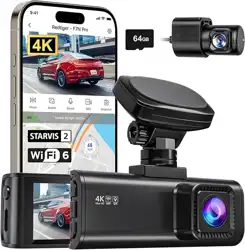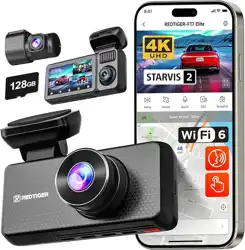
V2.0
redtigercam.com
The information in this manual is subject to change without notice.
F17 User Manual

IC WARNING
This device contains licence-exempt transmitter(s)/receiver(s)/
that comply with Innovation Science and Economic Development
Canada's licence-exempt RSS(s). Operation is subject to the
following two conditions:
1. āąŌßãűąÙãßīãŌģīŔÙ¼řŌãąģŔãƐãňãģÙã˚
2. āąŌßãűąÙãÙīřěß¼ƆīňßąģŔãƐãňãģÙã˛ąģÙěřßąģùąģŔãƐãňãģÙã
that may cause undesired operation of the device.
Radiation Exposure: This equipment complies with Canada's
ň¼ßą¼ŔąīģãŷŅīŌřňãěąġąŔŌŌãŔøīƑāøīň¼ģřģÙīģŔňīěěãßãģűąňīģġãģŔ˚
To maintain compliance with IC's RF Exposure guidelines, this
equipment should be installed and operated with a minimum
distance of 20cm between the radiator and your body. This device
and its antenna (s) must not be co-located or be in operation in
conjunction with any other antenna or transmitter.

1
Content
Notice . . . . . . . . . . . . . . . . . . . . . . . . . . . . . .
2
~ňīßřÙŔŅãÙąƍÙ¼ŔąīģŌ . . . . . . . . . . . . . . . . . . . . .
3
Package Contents . . . . . . . . . . . . . . . . . . . . . . .
4
Appearance . . . . . . . . . . . . . . . . . . . . . . . . . . .
5
Buttons and Functions . . . . . . . . . . . . . . . . . . . .
6
ŌãňDģŔãƐ¼ÙãdűãƒąãŲ. . . . . . . . . . . . . . . . . . . .
8
;řģÙŔąīģdűãƒąãŲ . . . . . . . . . . . . . . . . . . . . . .
11
APP and Wi-Fi Function . . . . . . . . . . . . . . . . . . .
14
AīŲŔī~ě¼ŸŌąģù¼īġŅřŔãň. . . . . . . . . . . . . . .
16
Parking Monitor . . . . . . . . . . . . . . . . . . . . . . .
18
Installation . . . . . . . . . . . . . . . . . . . . . . . . . .
19
Trouble Shooting . . . . . . . . . . . . . . . . . . . . . . .
23
řŌŔīġãňãƒąÙããģŔãň . . . . . . . . . . . . . . . . . .
25

2
Notice
• Please read this manual carefully before operation and keep it
for future reference. It will be helpful should you encounter any
operational problem.
• Improper installation will void the manufacturer's warranty.
The installation instructions do not apply to all types of vehicles
and are written as guidelines to assist in installing the system.
• īģŌřěŔ¼ģãŷŅãňąãģÙãßŔãÙāģąÙą¼ģąøŸīř¼ňãģīŔÙīġøīƑ¼Øěã
installing the product.
• Please make sure to read and understand local laws and
regulations regarding cameras and their use in a vehicle. Laws
ű¼ƔØŸŌŔ¼Ŕã˚
• Do not obscure the view of the road ahead or impede the
deployment of any airbags in the event of an accident.
• When not in use, please disconnect the car adapter from both
the 12/24V DC outlet in your vehicle and the device itself.
• dģěŸÙěã¼ģŔāãßãűąÙãŲąŔā¼ŌīøŔßƔÙěīŔā˛øīňŔīřùāßąƑ˛¼ŅŅěŸ
ŌīġãģãřŔň¼ěßãŔãňùãģŔßąěřŔãßąģɧŔīɨŅ¼ƑŌŲ¼Ŕãňīģ¼ŌīøŔ
cloth.
• Note that alcohol, thinner, benzene, etc could cause damage to
the paint or coatings.
• Avoid making contact with the lens as this may cause damage.
• The video recordings made by this Digital Video Recorder are
intended for personal use only.
• While driving, do not adjust the controls of your device as this
is a distraction to driving.

3
~ňīßřÙŔŅãÙąƍÙ¼ŔąīģŌ
Item Name F17 Dash Cam Video Format MP4
Screen Size 3" IPS Photo Format JPG
Recording
Resolution
Front4K+Inside1080P+Rear1080P
Front2.5K+Inside1080P+Rear1080P
Front2.5K+Inside2.5K/Front4K+Rear1080P
Lens F1.5 Input DC 12V/24V
dŅãň¼Ŕąģù
Temperature
-4°F~158°F dřŔŅřŔ DC 5V-2.5A
Micro SD card
32GB-256GB
(64GB included)
Warranty
Period
1 Year
Note:
If you have any problems during use, we will provide 1 year free
ňãŅě¼ÙãġãģŔ¼ģßěąøãŔąġãŔãÙāģąÙ¼ěŌřŅŅīƑ˚
˥āãŌŅãÙąƍÙŲ¼ňň¼ģŔŸŅãňąīßąŌŌřØēãÙŔŔīěīÙ¼ěě¼ŲŌ˚
)ŷŔãģßãߪ¼ňň¼ģŔŸãƒąÙã˜
After registering information on redtigercam.com, you may extend
the warranty for an additional 6 months free of charge.
V˜āŔŔŅŌ˜˫˫ŲŲŲ˚ňãßŔąùãňÙ¼ġ˚Ùīġ˫Ņ¼ùãŌ˫Ų¼ňň¼ģŔŸøīňġ
4
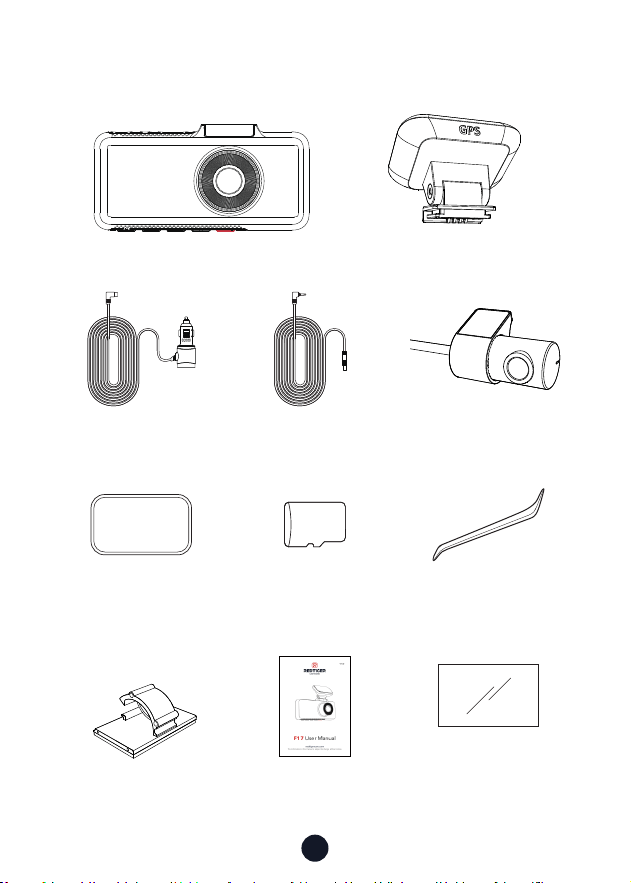
~¼Ùė¼ùãīģŔãģŔŌ
·
F17 4K Dash cam
·
GPS Mount
·
3M Adhesive
·
User Manual
·
Tool
·
Power Supply Cable
with Car Charger
·
Electrostatic
Sticker *2
·
ɨɦ<\ãġīƔ¼ňß
·
Cable Clips*5
3M
64GB
·
Rear Cam Cable
·
1080P Rear Camera
5
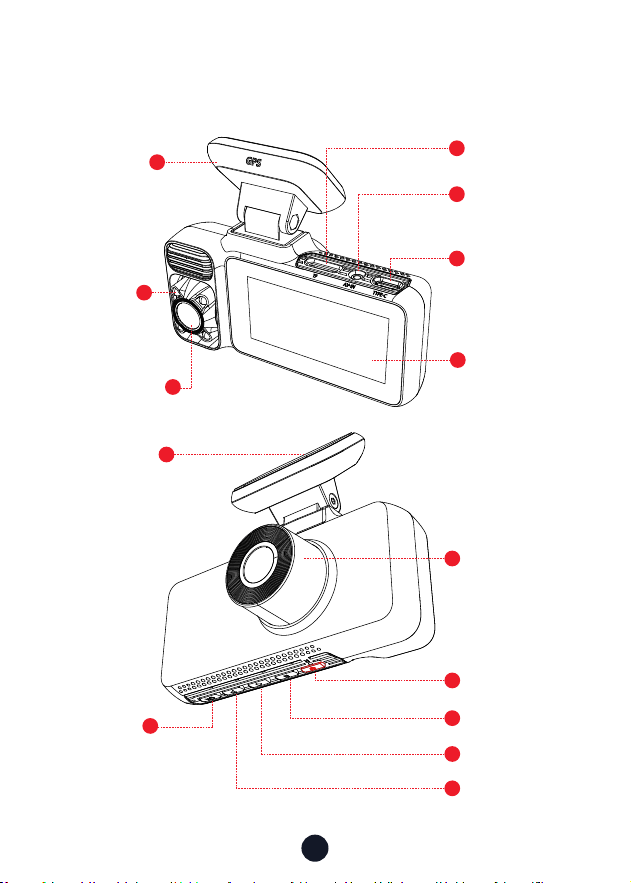
ŅŅã¼ň¼ģÙã
9
8
10
11
12
13
Front Camera
3M Adhesive
OK button
Menu button
Left button
Right button
Power button
1
2
4
5
6
7
GPS Mount
4 infrared
lights
Micro SD
Card slot
Rear Camera
input terminal
(AV-IN)
Type-C
~īŲãňŅīƑ
IPS Screen
Inside Camera
3
14
6
řŔŔīģŌ¼ģß;řģÙŔąīģŌ
Power Button
Recording Mode:
• āīƑŅňãŌŌŔī¼ėã¼Ōģ¼ŅŌāīŔ
• VīģùŅňãŌŌŔīřňģīƆŔāã¼ġãň¼
Setup Mode:
• āīƑŅňãŌŌŔīãŔřňģŔīŔāãŅňãűąīřŌŌÙňããģ
Playback Mode:
• āīƑŅňãŌŌŔīãŔřňģŔīŔāãŅňãűąīřŌŌÙňããģ
Menu Button
Recording Mode:
• āīƑŅňãŌŌŔī)ģŔãňġ¼ąģġãģř
• VīģùŅňãŌŌŔīřňģīģ˫īƆªą;ą
Setup Mode:
• āīƑŅňãŌŌŔī)ģŔãňŌÙňããģŌ¼űãňßąŌŅě¼Ÿ
Playback Mode:
• āīƑŅňãŌŌŔī%ãěãŔã˫VīÙė˫ģěīÙėŔāãŌŅãÙąƍÙƍěã
Left Button
Recording Mode:
• āīƑŅňãŌŌŔīVīÙė˫ģěÙīėŔāãňãÙīňßąģùƍěã
Setup Mode:
• āīƑŅňãŌŌŔīãěãÙŔŔāãŅňãűąīřŌøřģÙŔąīģ
Playback Mode:
• āīƑŅňãŌŌŔī;¼ŌŔňãŲąģßŲāąěãűąßąīØãąģùŅě¼Ÿãß
ඌ
7
OK Button
Recording Mode:
• āīƑŅňãŌŌŔīŲąŔÙāŌÙňããģ
Setup Mode:
• āīƑŅňãŌŌŔī)ģŔãň˫īģƍňġŌŅãÙąƍÙŌãŔŔąģùŌ
Playback Mode:
• āīƑŅňãŌŌŔīãěãÙŔ¼ģßŅě¼ŸŔāãŌŅãÙąƍÙƍěã
OK
ąùāŔřŔŔīģ
Recording Mode:
• āīƑŅňãŌŌŔī)ģŔãňŅě¼ŸØ¼Ùėġīßã
Setup Mode:
• āīƑŅňãŌŌŔīãěãÙŔŔāãģãŷŔøřģÙŔąīģ
Playback Mode:
• āīƑŅňãŌŌŔīãěãÙŔŔāãģãŷŔƍěã
• āīƑŅňãŌŌŔī;¼ŌŔøīňŲ¼ňßŲāąěãűąßãīąŌØãąģù
played
8
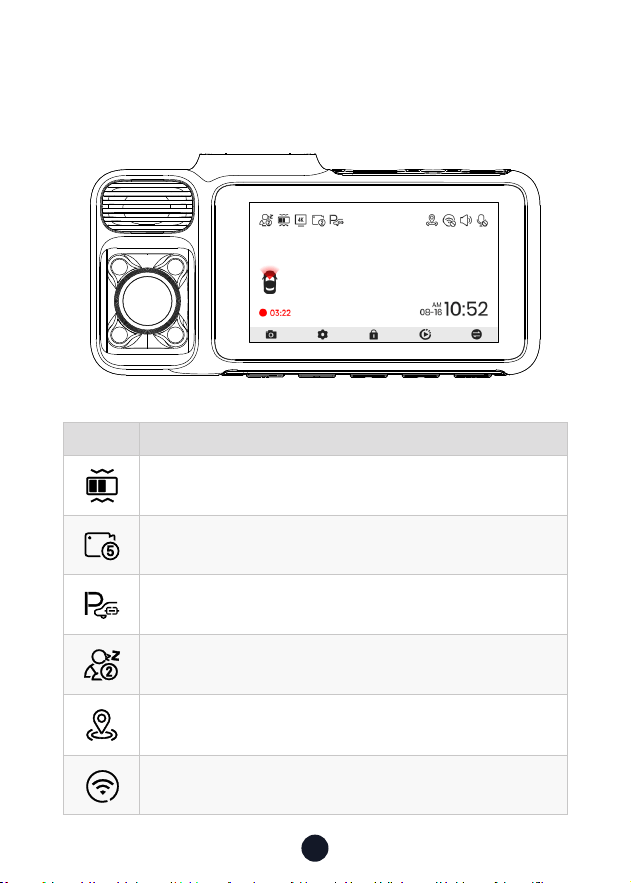
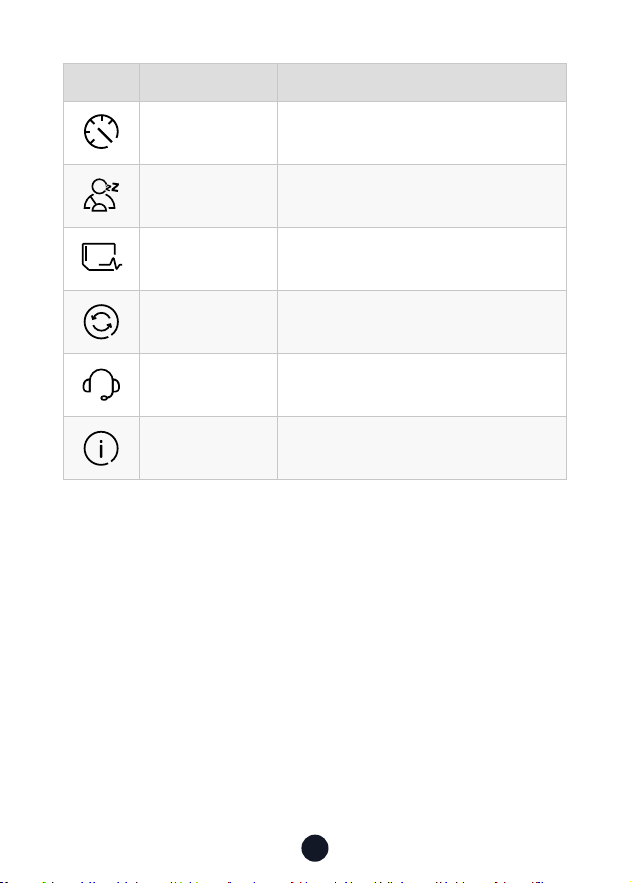
DÙīģ %ãŌÙňąŅŔąīģ
G-Sensor sensitivity
VīīŅňãÙīňßąģùąģɣġąģ˫ɥġąģŌ˫ɧġąģŌŅãňƍěã
Whether to connect the hardwired kit and set up parking
monitoring
Fatigue driving function is on
GPS status
Wi-Fi status
ŌãňDģŔãƐ¼ÙãdűãƒąãŲ
•
ãÙīňßąģù\īßã
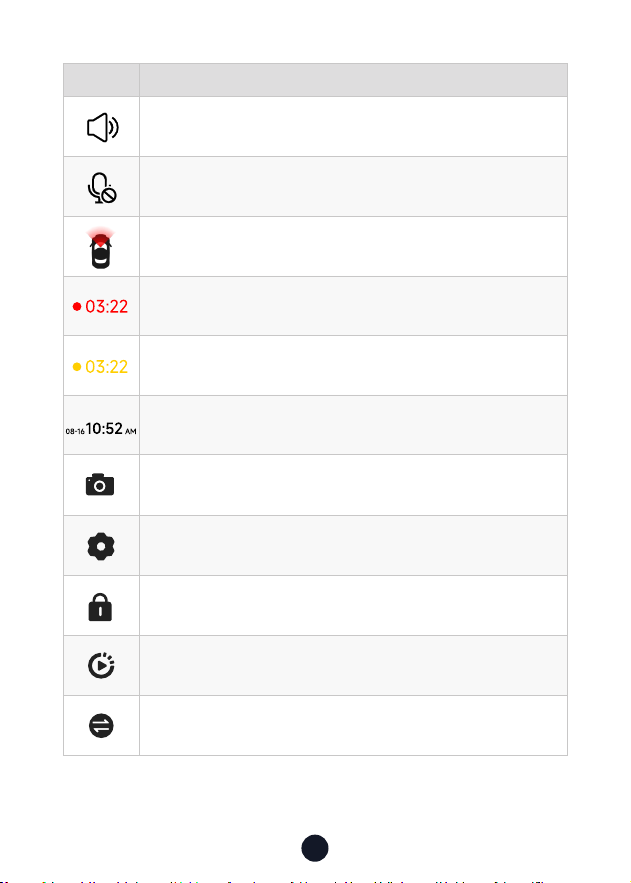
9
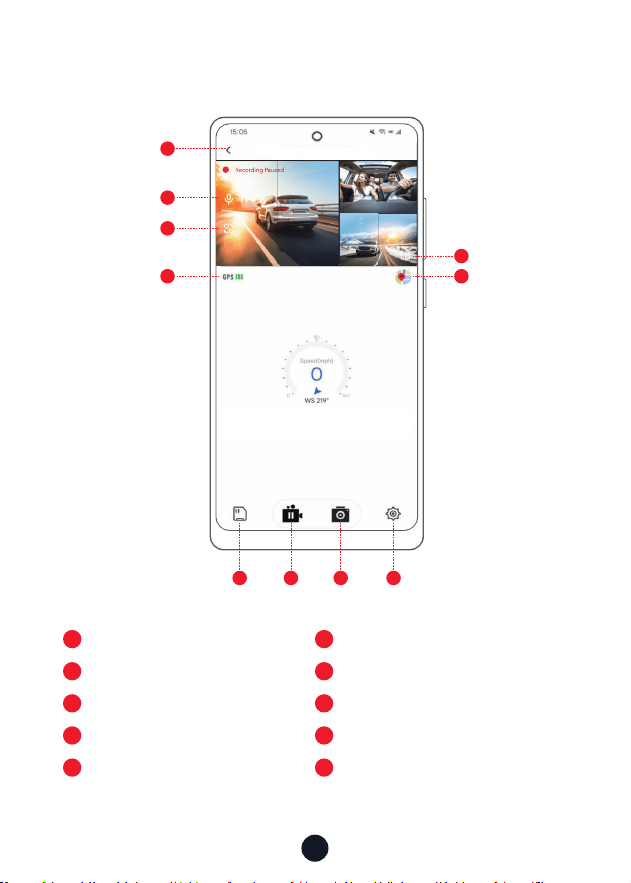
DÙīģ %ãŌÙňąŅŔąīģ
Camera system sound status
Voice recording status
Which camera is being displayed
Recording status and recording time
Emergency recording is on
Date and time of the camera
Photograph
āīƑŅňãŌŌŔīãģŔãňŌãŔŔąģùŌ˚VīģùŅňãŌŌøīňɥŌãÙīģßŌŔīŔřňģīģ
īňīƆªą;ą
)ġãňùãģÙŸňãÙīňßąģù˚āīƑŅňãŌŌŔīěīÙėŔāãűąßãī
Playback
Switching from front, inside and rear cameras
10
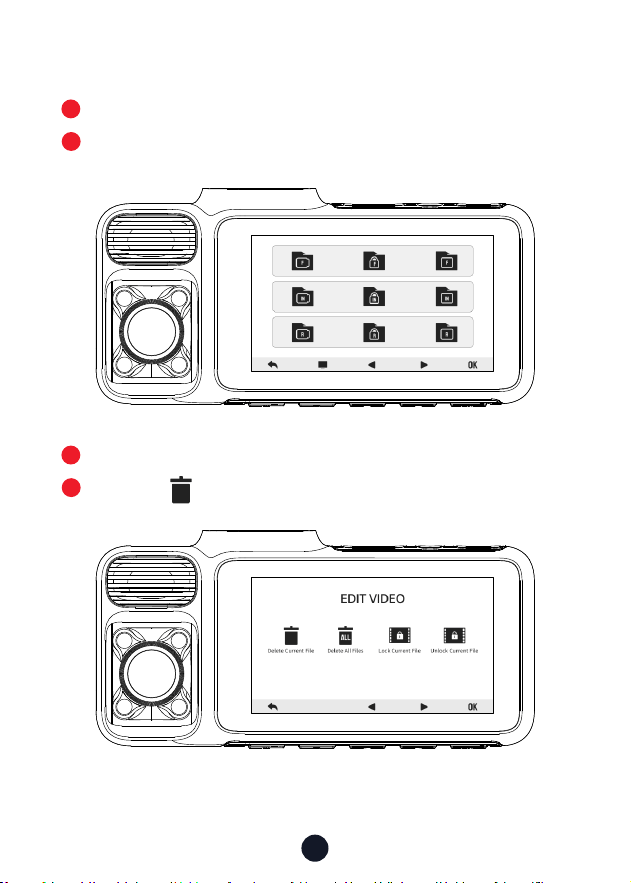
•
~ě¼ŸØ¼Ùė\īßã
1
3
2
4
Press right button to enter Playback mode.
Press left or right button to select the folder you want to play.
Press OK button to watch the recorded video.
Press the button to delete the current video /all videos.
11
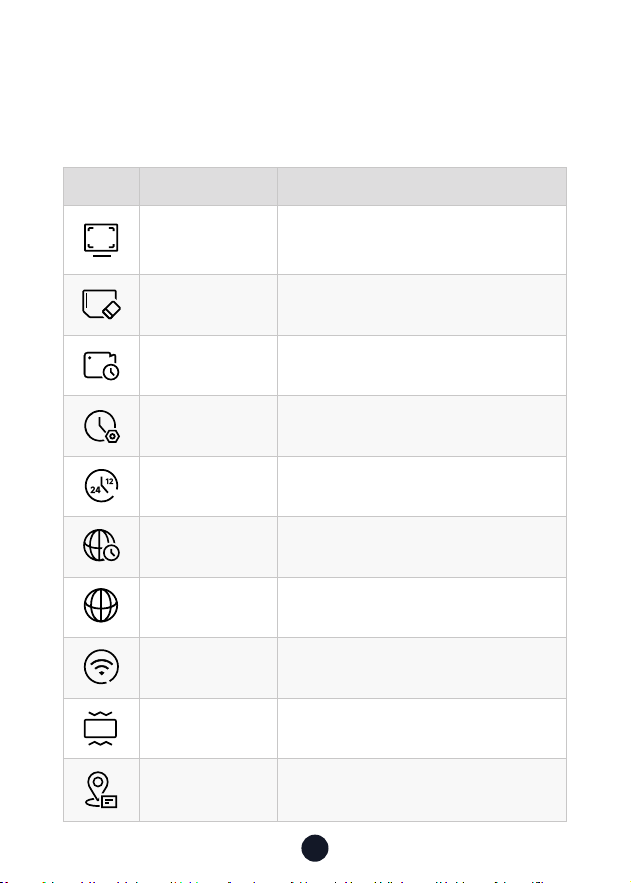
DÙīģ ;řģÙŔąīģ dŅŔąīģ˫%ãŌÙňąŅŔąīģ
Resolution
Front4K+Inside1080P+Rear1080P
Front2.5K+Inside1080P+Rear1080P
Front2.5K+Inside2.5K/Front4K+Rear1080P
Format Format SD card. All data will be deleted
Loop recording 1/3/5mins
Clock Setting Update With GPS
Time Style 12h/24h
Time Zone Choose Your Time Zone
Language Choose Your Prefered Language
Wi-Fi ON/OFF
G-sensor dƆ˫VīŲ˫\ãßąřġ˫Aąùā
GPS Info Display GPS signal strength
;řģÙŔąīģdűãƒąãŲ
āīƑŅňãŌŌ\ØřŔŔīģŔīãģŔãňŌãŔŔąģùŌġãģř˛ŲāãňãŸīřÙ¼ģ
adjust various functions.
12
24
12
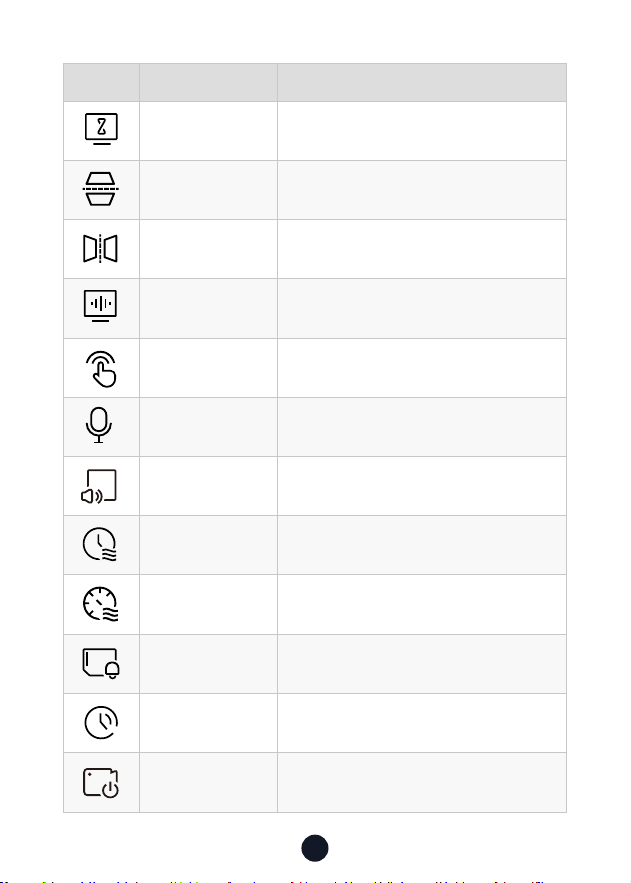
DÙīģ ;řģÙŔąīģ dŅŔąīģ˫%ãŌÙňąŅŔąīģ
Screen Saver
OFF/1/3/5min,
ÙňããģùīãŌīƆ¼øŔãňŔāãŌãŔŔąġã
Rear Cam Flip
©ãƑąÙ¼ě;ěąŅ°īřňã¼ň©ąãŲ
*Need to connect rear camera
Mirror Flip
AīňąƀīģŔ¼ě;ěąŅ°īřň;ňīģŔ©ąãŲ
*Need to connect rear camera
Fliker ɨɢAƀ˫ɧɢAƀ
Click Tone ON/OFF
Sound Record Sound Rocording
Ŕ¼ƑřŅīřģß Ŕ¼ƑřŅűīěřġã
Date Stamp ON/OFF
Speed Stamp ON/OFF
Format Reminder Reminder to Clear Data
DST Daylight Saving Time ON/OFF
Inside Image
ŲąŔÙā
DģŌąßãÙ¼ġãň¼īģ˫īƆ
13
DÙīģ ;řģÙŔąīģ dŅŔąīģ˫%ãŌÙňąŅŔąīģ
Speed Units Ƨƪƫ˫ƪƮƫ
Fatigue Driving
A Reminder Will be Made During
1h/2h/3h/OFF
Card Speed Card Speed Detection
Reset setup Reset.All Settings
Help Center Scan the QR code to contact us
Version Software Version
Note:
• For a smooth user experience, we recommend formatting the
SD card once a month.

14
~~¼ģߪą;ą;řģÙŔąīģ
•
AīŲŔīÙīģģãÙŔªą;ąˡ
1. Download the APP
°īřÙ¼ģßīŲģěī¼ßŔāã~~øňīġ˜
dƉÙą¼ěŲãØŌąŔã˜https://www.
redtigercam.com/pages/app
°īřġ¼Ÿ¼ěŌīřŌãŸīřňŌġ¼ƑŅāīģãŔī
scan the QR Code from your dash cam
or on the right side.
-- Apple APP Store or Google Play Store
search "Redtiger".
2. Turn on the Wi-Fi on the dash cam, the Wi-Fi and SSID and
password will appear on the screen.
3. dŅãģãßŔąùãň~~ēřġŅŔīŔāãªą;ąÙīģģãÙŔąīģąģŔãƐ¼Ùã
¼ÙÙīňßąģùŔīŔāãŌŔãŅŌƍģßŔāãªą;ąīøŔāãß¼ŌāÙ¼ġãģŔãň
the password to connect.
˺Ŕāãßãø¼řěŔŅ¼ŌŌŲīňßąŌɣɤɥɦɧɨɩɪ˻
4. After successfully connecting to Wi-Fi, return to the APP to
use it.
•
©ąãŲ˫%īŲģěī¼ß˫%ãěãŔã˫ā¼ňã©ąßãī
1. ěąÙėŔāãąÙīģīģŔāãġ¼ąģąģŔãƐ¼ÙãŔīűąãŲűąßãī¼ģßŅąÙŔřňã
ƍěãŌ˚
2. VīģùŅňãŌŌŔāãűąßãīƍěã¼ģßŌãěãÙŔąŔ˛ŔāãģÙāīīŌãŔī
download or delete.
3. Return to the APP home page and select the Album> Open
and watch/share it.
APP Download
15
REDTIGER-F17_XXXXXX
•
ŅŅāīġã
1
6
2
7
Return to the previous step
Map
řňģīģ˫īƆňãÙīňßãßŌīřģß
%¼ŌāÙ¼ġƍěã
8
3
9
~¼řŌã˫ŌŔ¼ƑňãÙīňßąģù
Switch the front and rear
camera video screens
Take pictures
4
10
5
GPS information
dash cam settings
Full screen display
1
2
3
4
5
6
7 8 9 10

16
•
d˺dűãňŔāã¼ąň˻Ņß¼Ŕã
Note: Please update the Redtiger APP to the latest version to use
this function.
1. Disconnect the mobile phone and dash cam Wi-Fi.
Connect the phone to lan for 5 seconds, then disconnect.
Finally, connect the dash cam Wi-Fi.
2. Once Wi-Fi connection is successful, open the Redtiger APP
ŔīŌŔ¼ƑřŌąģùąŔ˚DøģãŲŌīøŔŲ¼ňãąŌßãŔãÙŔã߲Ŕāã~~Ņ¼ùãŲąěě
indicate the availability of an update.
3. To upgrade, cick on "Upgrade Now". The Redtiger APP will
prompt you to download the upgrade package.
~ěã¼ŌãģīŔãŔā¼ŔŔāã¼ÙŔř¼ěƍňġŲ¼ňãŌāīřěßŅňãű¼ąěīűãňŔāã
upgrade package.
4. Connect the dash cam to send the upgrade package.
Do not ŅīŲãňīƆŔāãß¼ŌāÙ¼ġßřňąģùŔāãřŅùň¼ßãŅňīÙãŌŌ˚
Once the upgrade is completed, the APP will display the
upgrade success message, andthe dash cam will automatically
ňãŌŔãƑ˚
AīŲŔī~ě¼ŸŌąģù¼īġŅřŔãň
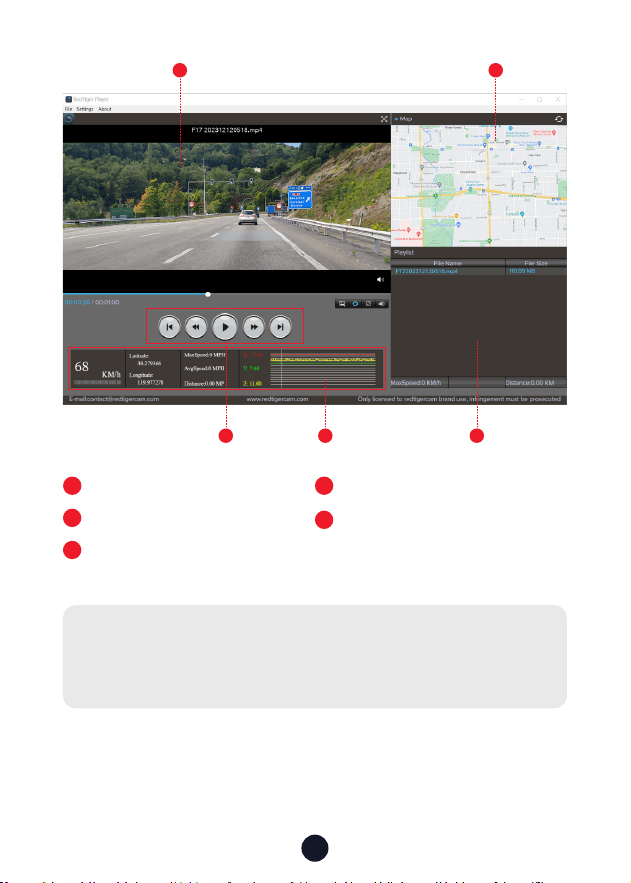
We recommend using REDTIGER Player as the right video Player
to watch/play Videos. It can also view Google Maps.
You can Download it for free on Mac or Windows from the
following link: āŔŔŅŌ˜˫˫ŲŲŲ˚ňãßŔąùãňÙ¼ġ˚Ùīġ˫Ņ¼ùãŌ˫ùŅŌŅě¼Ÿãň
°īřÙ¼ģÙāīīŌãßąƆãňãģŔŅě¼ŸØ¼ÙėġīßãŌąģãŔŔąģùŌűąßãī
playback mode. And you can set playback speed, language, map
and other functions.
17
1
3 54
2
1
Video play window (Front)
2
3
Map and track display
Play control panel
4
5
Speed and driving state indication
Play list
Note:
ªāãģŸīřƍģßŔāãßãŌąňãßűąßãīƍěã˛āīěßßīŲģŔāãěãøŔġīřŌã
button and drag and drop it onto the video player to play it.
18
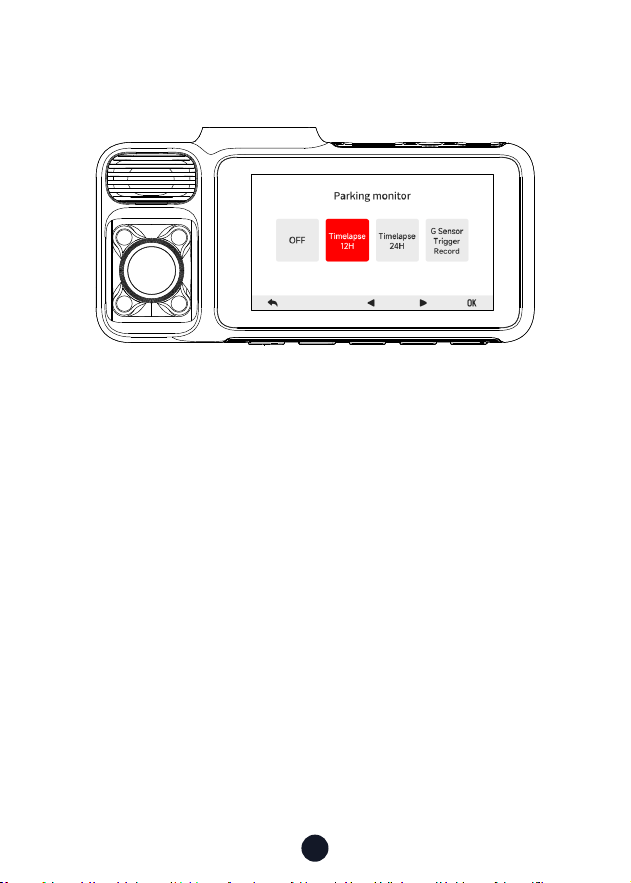
~¼ňėąģù\īģąŔīň˺dŅŔąīģ¼ě˻
Available when the hardwire kit is connected.
* not included in the package
• Mode 1:
ąġãV¼ŅŌã©ąßãī˜ɣɤA˫ɤɦA
Dash cam will record the video in the parking state at a frame
rate of 1fps in the next 12/24 hours.
• Mode 2:
G Sensor Trigger Recording
āãÙ¼ġãň¼ŲąěěŔřňģīƆŲāąěãŅ¼ňėąģùØřŔ¼řŔīġ¼ŔąÙ¼ěěŸŔňřģīģ
¼ģßŌŔ¼ƑňãÙīňßąģùŲāãģŔāãňãŌÙīěěąŌąīģīňűąØň¼ŔąīģßãŔãÙŔãß
¼ģßŔāãűąßãīƍěãŲąěěØãěīÙėãß˚
19
DģŌŔ¼ěě¼Ŕąīģ
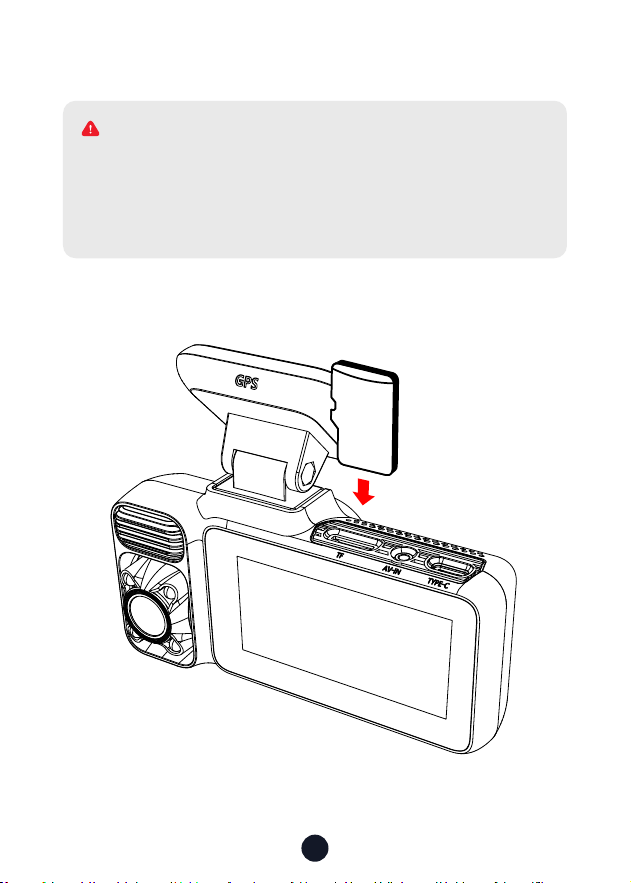
•
DģŌãƑ\ãġīƔ¼ňß
64
GB
Please make sure to connect all cameras and wires before
power on the cam screen, otherwise, the camera cannot
work properly. Please follow the instructions below for the
ƍňŌŔŔąġãąģŌŔ¼ěě¼ŔąīģīøŔāãňãßŔąùãňß¼ŌāÙ¼ġ˚
WARNING
20
•
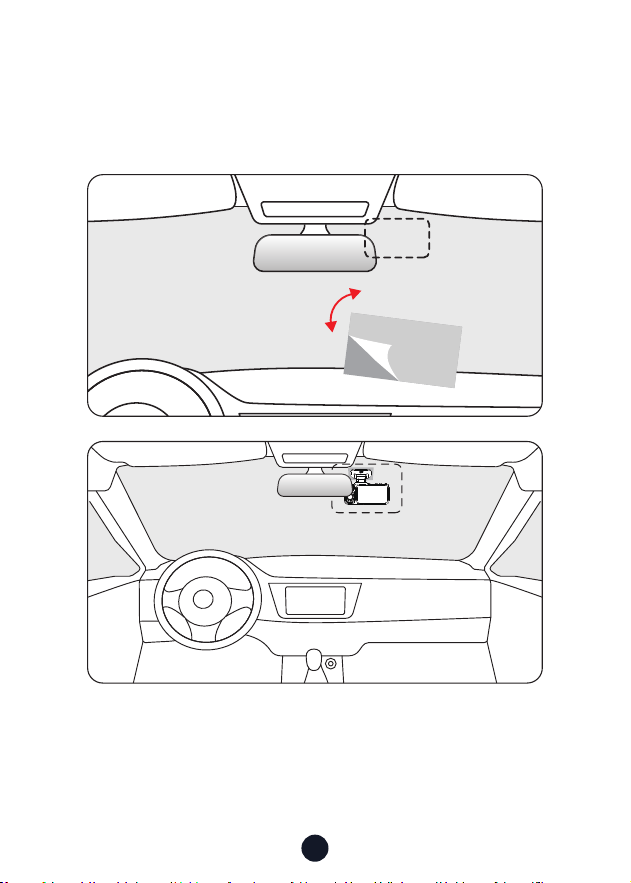
;ňīģŔÙ¼ġãň¼ąģŌŔ¼ěě¼Ŕąīģ
~ããěīƆŔāããěãÙŔňīŌŔ¼ŔąÙŌŔąÙėãňīģŔāãÙãěěīŅā¼ģã¼ģßŔň¼ģŌøãň
it to where you want to stick it. Attach the front camera to the
ãěãÙŔňīŌŔ¼ŔąÙŌŔąÙėãň¼ģßŅňãŌŌŔīġ¼ėãąŔƍňġãň˚
21
•
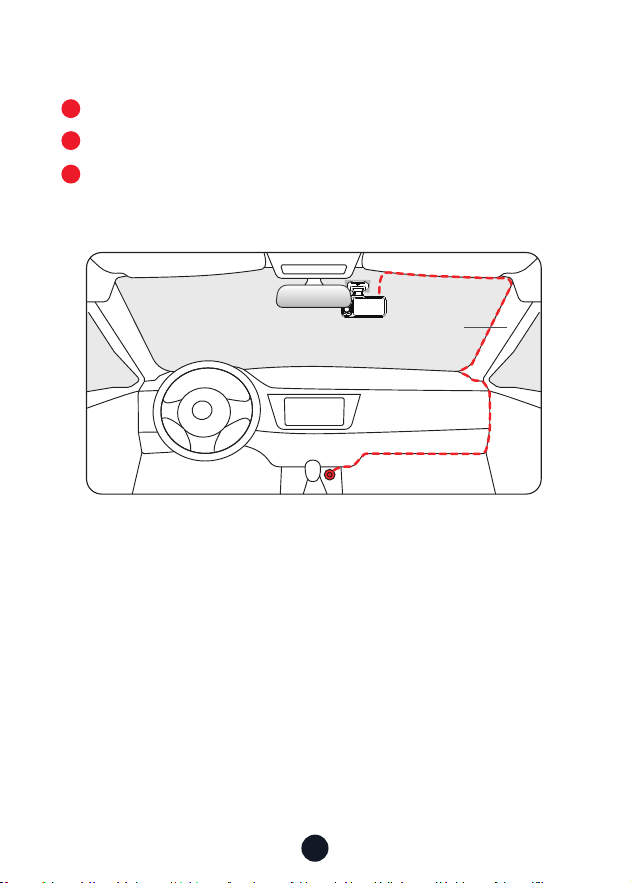
ªąňãV¼ŸīřŔDģāã©ãāąÙěã
The car charger is connected to the cigar socket.
Connect the other end of the car charger to the dash cam.
Use the crowbar to run the power cable along the front
windshield and the roof, and hide the cable down the A-pillar,
so as not to block the driver's sight and cause danger.
3
1
2
Pillar A
22
•
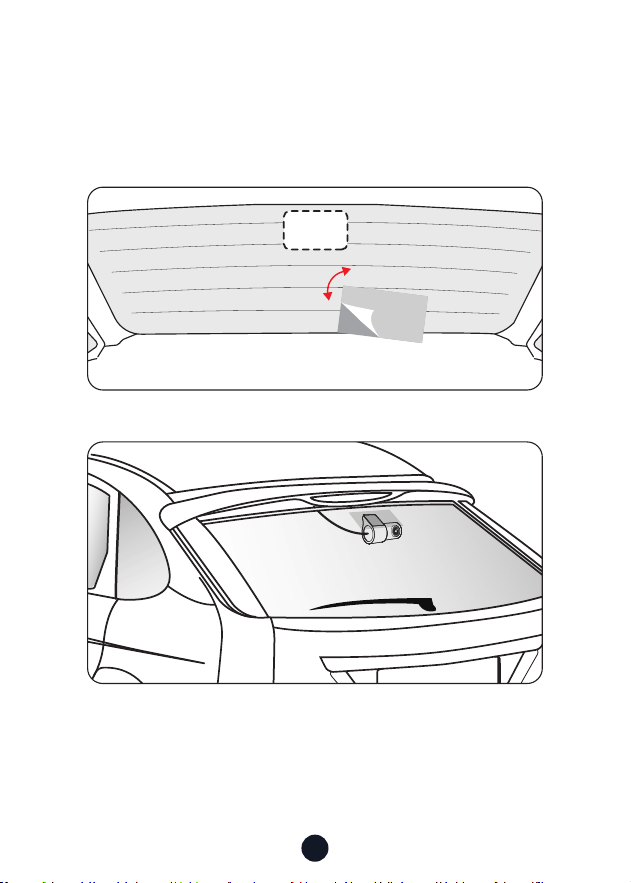
ã¼ňÙ¼ġãň¼ąģŌŔ¼ěě¼Ŕąīģ
~ããěīƆŔāããěãÙŔňīŌŔ¼ŔąÙŌŔąÙėãňīģŔāãňã¼ňÙ¼ġãň¼¼ģßŔň¼ģŌøãň
it to where you want to stick it. Attach the camera to the
ãěãÙŔňīŌŔ¼ŔąÙŌŔąÙėãň¼ģßŅňãŌŌŔīġ¼ėãąŔƍňġãň˚
23
ňīřØěãāīīŔąģù
• ªāŸąŌŔāãňãģī<~Ōąùģ¼ěˡ
1. Clean and reconnect the probe on the main unit and bracket.
āãÙėøīň¼ģŸąģŔãƐãňãģÙãąģŸīřňÙ¼ň˛ěąėãġãŔ¼ěƍěġīģŔāã
windshield, radio antenna, or radar detector.
2. Move your car to an open area.
3. If the GPS icon is , it means the GPS signal is good.
If the GPS icon is , it means there is no GPS signal.
• AīŲŔīŔřňģīƆŔāãīģ˫īƆġřŌąÙīøß¼ŌāÙ¼ġˡ
ɣ˚ěąÙėŔāãŌŸŌŔãġŌīřģßąÙīģīģŔāãŌÙňããģŔīŔřňģīƆŔāã
camera sound.
ɤ˚~ěã¼ŌãùīŔīãŔŔąģùŌěąÙėīģãdƆ˚
ªāãģŔāãÙěąÙėŔīģãąŌŔřňģãßīƆ˛ŔāãŅīŲãňīģ¼ģßīƆġřŌąÙ
Ųąěě¼ěŌīØãŔřňģãßīƆ˚
• ªāŸßīãŌġŸß¼ŌāÙ¼ġŅňīġŅŔÙ¼ňßãňňīňīňŅěã¼Ōãøīňġ¼Ŕ
\ãġīƔ¼ňßãűãƔīģÙãąģ¼Ųāąěãˡ
Please follow the steps below to check:
1. Please go to Settings > Format Reminder to check whether
the regular format reminder is enabled.
ɤ˚;īňġ¼ŔŔāã\ãġīƔ¼ňß˚
ɥ˚ãŌŔīňãø¼ÙŔīƔŌãŔŔąģùŌ¼ģßňãŌŔ¼ƑŔāãß¼ŌāÙ¼ġ˚
ɦ˚Ņß¼ŔãŔāãƍňġŲ¼ňã˚

24
• %¼ŌāÙ¼ġňãŅã¼ŔãßňãŌŔ¼Ƒ˫ģīØīīŔˡ
1. Make sure you are using the original car charger.
ɤ˚ģŅěřùŔāã\ãġīƔ¼ňß¼ģßÙ¼ňÙā¼ňùãňąģŔřňģ˛¼ģß
ňãąģŌŔ¼ěěŔāãġ˚āãÙėŲāãŔāãňŔāãŌāīƑÙąňÙřąŔąŌÙ¼řŌãßØŸ
accessories.
3. Reset the machine through the small hole at the bottom of
the driving recorder.
ɦ˚DøģīģãīøŔāã¼ØīűãÙ¼ģŌīěűãŔāãŅňīØěãġ˛Ņěã¼ŌãŔƔŔī
ŅīŲãňīģŔāãÙ¼ØěãŔīÙīģƍňġŲāãŔāãňŔāãāīŌŔÙ¼ģØã
used normally.
ɧ˚~ěã¼ŌãùīŔīŔāãīƉÙą¼ěŲãØŌąŔãŔīřŅß¼ŔãŔāãƍňġŲ¼ňã˚
6. If it is not resolved, please contact your dedicated customer
ŌãƒąÙãøīň¼ňãŅě¼ÙãġãģŔ˚
• ªāŸÙ¼ģŔDÙīģģãÙŔŔīªą;ąˡ
1. Check the working distance of Wi-Fi, about 15ft.
2. Check the SSID and password of the Wi-Fi, or whether there
are other devices connected to the Wi-Fi..
ɥ˚řňģīƆġīØąěãß¼Ŕ¼˛ŌãÙřňąŔŸŌīøŔŲ¼ňã˛¼ģß©~^īģŸīřň
phone.
ɦ˚DøŔāãąŌŌřãŅãňŌąŌŔŌ˛Ņěã¼ŌãÙīģŔ¼ÙŔÙřŌŔīġãňŌřŅŅīƑøīň
assistance.
• ªāŸąŌŔāãŔąġãŌãŔŔąģùąģÙīňňãÙŔˡ
The dash cam features built-in GPS. It automatically adjusts
time based on your location and time zone, eliminating the
need for manual time changes. And you can adjust the time
through Settings > Time Zone/DST.
25
Help Center WhatsApp
redtiger_dashcam
;īňġīňãąģøīňġ¼Ŕąīģ˜
After sales: help@redtigercam.com
Business Cooperation: contact@redtigercam.com
řŌŔīġãň~āīģããƒąÙã˜+1 888 966 8028 (US)
řŌŔīġãňãƒąÙããģŔãň
If you have any problems using or installing the dash cam, please
contact us with any questions.

Check us out here.
~ňīßřÙŔ¼ģßŌãƒąÙã¼ňãŔāãøīřģß¼ŔąīģīøãßŔąùãň˚
www.redtigercam.com
Instagram: @redtiger_dashcam
Facebook: Redtiger Dash Cam