1. (Optional) Purchase data plan and check plan usage
3. Network Connection
产品使用指导
Scan this QR code to view
the user guide in other languages.
4. Factory reset
5. HDMI Screen Casting
MobileHub TH11
4
Product Usage Instructions
Usage Scenario Description
1 3 5 6
Important Usage Notes
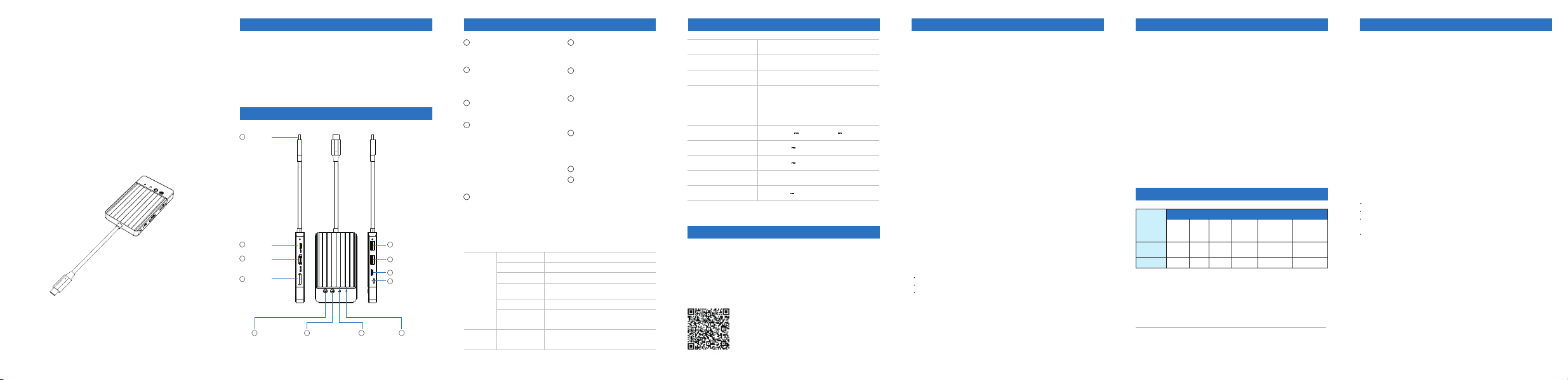
Product Appearance and Interface Description
Product Appearance and Interface Description
2
User Guide
USB-C Full-feature Port
Green steady on
Red blinking
Red steady on
LTE
indicator
light
HUB power
indicator
Network connection normal
Network registering, please wait
Wireless network connection abnormal
LED Indicator Descriptions
Blue: USB-C (PD 100W) power supply
Green: USB-C Full-featured connector
power supply
Blue/Green
dual-color LED
1
USB-C
Full-feature
Port
1
USB-A(5Gbps)
USB-A(5Gbps)
2
USB-C(5Gbps)
3
USB-C(PD 100W)
USB-C
(PD 100W)
USB-C(5Gbps)
4
HDMI(4K@60Hz)
HDMI
(4K@60Hz)
5
Reset button
7
Network switch button
Network
switch button
LTE signal
indicator
HUB power
indicator
HUB power indicator
8
HDMI Display Privacy Button
HDMI Display
Privacy Button
9
10
LTE signal indicator
11
SIM card Slot
6
Product Specifications
Network
and Bands
Dimensions
Weight
Peak Rate
98mm×58mm×12.5mm
90g
DL 150Mbps/UL 50Mbps
4
5
5
SIM card
Slot
6
9 10 11
8
USB-A(5Gbps)
2
3
Reset button
7
Connect the USB-C upstream port to a computer or an external charger
with USB-C PD 100W. After the device powers on, press the network
power button for 2 seconds. The device can provide wired network
access to the computer .
During the use of the device, do not wrap or seal the device,and do not
cover it with items such as towels to avoid equipment failure or impact
on normal use due to poor heat dissipation.
Keep the device away from moisture and rain.
Do not place the device near open flames or exposed heat sources
such as electric heaters, microwaves, ovens, etc.
Do not subject the device to severe impact or vibration to avoid
damage caused thereby.
Disconnect the device from the power supply and other equipment
before cleaning or maintenance.
Do not clean the device with strong chemicals, cleaning agents or
heavy-duty detergents; use a clean, dry cloth to clean the device.
This device is not a toy; children must use it under adult supervision.
Do not allow children to swallow or bite the device.
Do not dispose of the device and its accessories as ordinary
household waste.
Please comply with local laws and regulations regarding the disposal
of the device and its accessories and support recycling activities.
Video output requires the device to support DP or Thunderbolt 3.
upstream charging requires support for USB-PD or Thunderbolt 3.
The network switch status is retained after the device powers off.
Simultaneous input via full-function USB-C port and USB-C (PD) input
port is not supported.
If powered by a power adapter, users shall purchase a matching adapter
with valid CCC certification that complies with relevant standards.
After the device is powered on and running normally, press and hold the
Reset button for 8 seconds to restore factory settings.
Connect the device’s HDMI port to a monitor, TV or projector via an HDMI
cable. Screen casting is available once the device is powered on. Press
the HDMI screen off button to turn the display on or off with one click.
Two USB-A ports and one USB-C port support high-speed data
transfer up to 5Gbps.
When the USB-C PD port is connected to an external charger:
Maximum charging power of each USB-A port: ≤8W.
Maximum charging power of the secondary USB-C port: ≤10W.
Maximum power output of the full-function USB-C upstream port: ≤
100W.
Total rated output power shall not exceed 100W.
Note: The host device must support DisplayPort Alt Mode or Thunderbolt 3.
6. USB Expansion & PD 100W Power Delivery
①
②
TH11 is a 4G global band multi-functional Hub that supports vSIM
technology. After purchasing a data plan, it can be used without inserting
a physical SIM card, and it supports global 4G/3G bands. It integrates 4G
internet access, USB expansion, and HDMI screen mirroring, meeting the
needs for office work, entertainment, and internet access in various
scenarios.
Connect to computer/phone/tablet
for USB data, network, and video
signal transmission.
Connect an external PD charger to
power the device, and also distribute
power to connected external
devices/host.
5Gbps high-speed expansion, USB
data expansion, connect Type-C
peripherals, phones, hard drives, etc.
Reset LTE module / factory reset; use
SIM eject tool to press and hold to
reset the device.
Press to turn off the screen during
HDMI mirroring to protect privacy;
press again for 1 second to resume
mirroring output.
Connect an external PD charger to
power the device, and also distribute
power to connected external
devices/host.
Press and hold the Network Switch
button for 2 seconds to enable the
network,Press and hold for 4
seconds to power off.
Video mirroring output, connect to
monitor/TV/projector.
5Gbps high-speed expansion,
connect USB peripherals such as USB
flash drives, external hard drives,
mouse, keyboard, printer, card
reader, etc.
With the device powered off, insert
the SIM eject tool into the small hole
of the SIM card tray, place your own
Nano SIM (4FF) card into the tray,
then insert the tray into the device
and power on to use. This device
supports vSIM technology and can be
used without a physical SIM card. To
use vSIM, purchase a data plan from
the service provider's official online
store.
Wireless network signal weak, suggest
moving to a new location
White steady on:Device firmware
upgrading, please wait.do not disconnect
power during this time
White steady on
Use your phone to scan the QR code on the device (the QR code is also
printed on the package label) and visit the online store to purchase a data
plan.
2. If you have your own SIM card and wish to use it to access the
Internet Insert your SIM card into the SIM card slot. When a
physical SIM card is inserted, the device will use the physical
SIM card for Internet connection by default.
1.
2.
3.
4.
5.
6.
7.
8.
9.
10.
Safety Precautions
This device complies with part 15 of the FCC Rules. Operation is subject
to the following two conditions: (1) This device may not cause harmful
interference, and (2) this device must accept any interference received,
including interference that may cause undesired opera.
Any
Changes
or
modifications
not
expressly
approved
by
the
party
responsible for compliance could void the user's authority to operate the
equipment.
Note: This equipment has been tested and found to comply with the limits
for a Class B digital device, pursuant to part 15 of the FCC Rules. These
limits
are
designed
to
provide
reasonable
protection
against
harmful
interference in a residential installation. This equipment generates uses
and can radiate radio frequency energy and, if not installed and used in
accordance
with
the
instructions,
may
cause
harmful
interference
to
radio communications. However, there is no guarantee that interference
will not occur in a particular installation. If this equipment does cause
harmful
interference
to
radio
or
television
reception,
which
can
be
determined by turning the equipment off
and on, the user is encouraged
to
try
to
correct
the
interference
by
one
or
more
of
the
following
measures:
Reorient or relocate the receiving antenna.
Increase the separation between the equipment and receiver.
Connect the equipment into an outlet on a circuit different from that to
which the receiver is
connected.
Consult the dealer or an experienced radio/TV technician for help.
Specific Absorption Rate (SAR) information:
This Device meets the government's requirements for exposure to
radio waves. The guidelines are based on standards that were
developed by independent scientific organizations through periodic
and thorough evaluation of scientific studies. The standards include a
substantial safety margin designed to assure the safety of all persons
regardless of age or health. FCC RF Exposure Information and
Statement the SAR limit of USA (FCC) is 1.6 W/kg averaged over one
gram of tissue. Device types: Device has also been tested against this
SAR limit. This device was tested for typical body-worn operations with
the back of the device kept 5mm from the body.To maintain
compliance with FCC RF exposure requirements, use accessories that
maintain an 5mm separation distance between the user's body and the
back of the device. The use of belt clips, holsters and similar
accessories should not contain metallic components in its assembly.
The use of accessories that do not satisfy these requirements may not
comply with FCC RF exposure requirements, and should be avoided.
Disclaimer:
Please be aware that if you do not use the device in accordance with
this User Guide, we assume no responsibility.
Name and Element of the Toxic and Harmful Substances or Elements in the Products
Name
of part
Harmful substances
Plumbum
(Pb)
Mercury
(Hg)
Cadmium
(Cd)
Hexavalent
chromium
(Cr6
+
)
Polybrominated
biphenyls
(PBB)
Polybrominated
Biphenyl Ether
(PBDE)
Wireless data
terminals
○
○
○
○
○
○
○
○
○
○
○
○
Accessories
This Table is formulated in line with the SJ/T 11364.
○
×
Indicates that the content of this hazardous substance in all homogeneous
materials of this component is below the limit prescribed in GB/T 26572.
indicates that the content of this hazardous substance in a homogeneous
material of this component at least exceeds the limit prescribed in GB/T 26572.
Personal Mobile Digital Hub
LTE FDD: B1/B2/B3/B4/B5/B7/B8/B9/B12/
B13/B17/B18/B19/B20/B25/B26/B28AB/B66
LTE TDD: B34/B38/B39/B40/B41
WCDMA/HSPA: B1/B2/B4/B5/B8
USB-C Full-feature Port
USB-C 3.0
USB-A 3.0
HDMI 2.0
USB-C(PD)
Output: 20V 5A / Input: 5V 3A
Output: 5V 2A
Output: 5V 1.6A
4K @ 60Hz
Input: 20V 5A
Yellow steady on
Network not enabledIndicator light off
FCC Warning
FCC Warning: