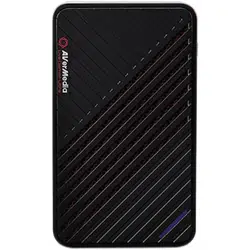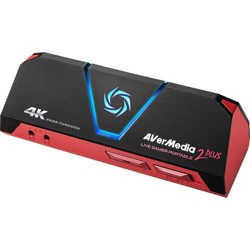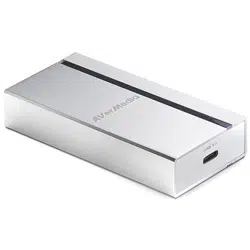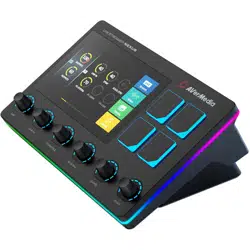

1
AVerMedia GC570 Quick Installation Guide
Date: 2023 May 23 For Amazon
AVerMedia Customer Service Team
System Requirements(For dedicated streaming PC)
https://www.avermedia.com/product-detail/GC570#specification
• Interface:PCI-Express Gen 2 x1
• Video Input:HDMI
• Video Output (Pass-Through):HDMI
• Audio Input:HDMI / 3-Pole 3.5 mm Jack
• Audio Output (Pass-Through):HDMI / 3-Pole 3.5 mm Jack
• Max Pass-Through Resolutions:1080p60
• Max Record Resolutions:1080p60
• Supported Resolutions (Video input):1080p, 1080i, 720p, 576p, 480p, 480i
• Record Format:MPEG 4 (H.264+AAC) / MJPEG
Operating system: Windows® 10 / 8.1 / 7 *
- Intel® Core™ i5-3330 or above (i7-3770 recommended)
- NVIDIA® GeForce® GTX 650 / AMD Radeon™ R7 250X or above are recommended
- 4 GB RAM
Issue trouble shooting
Question 1:
• audio does not work for capturing gaming footage
• The item through professional troubleshooting was deemed defective because it
is unable to capture audio.
Answer:
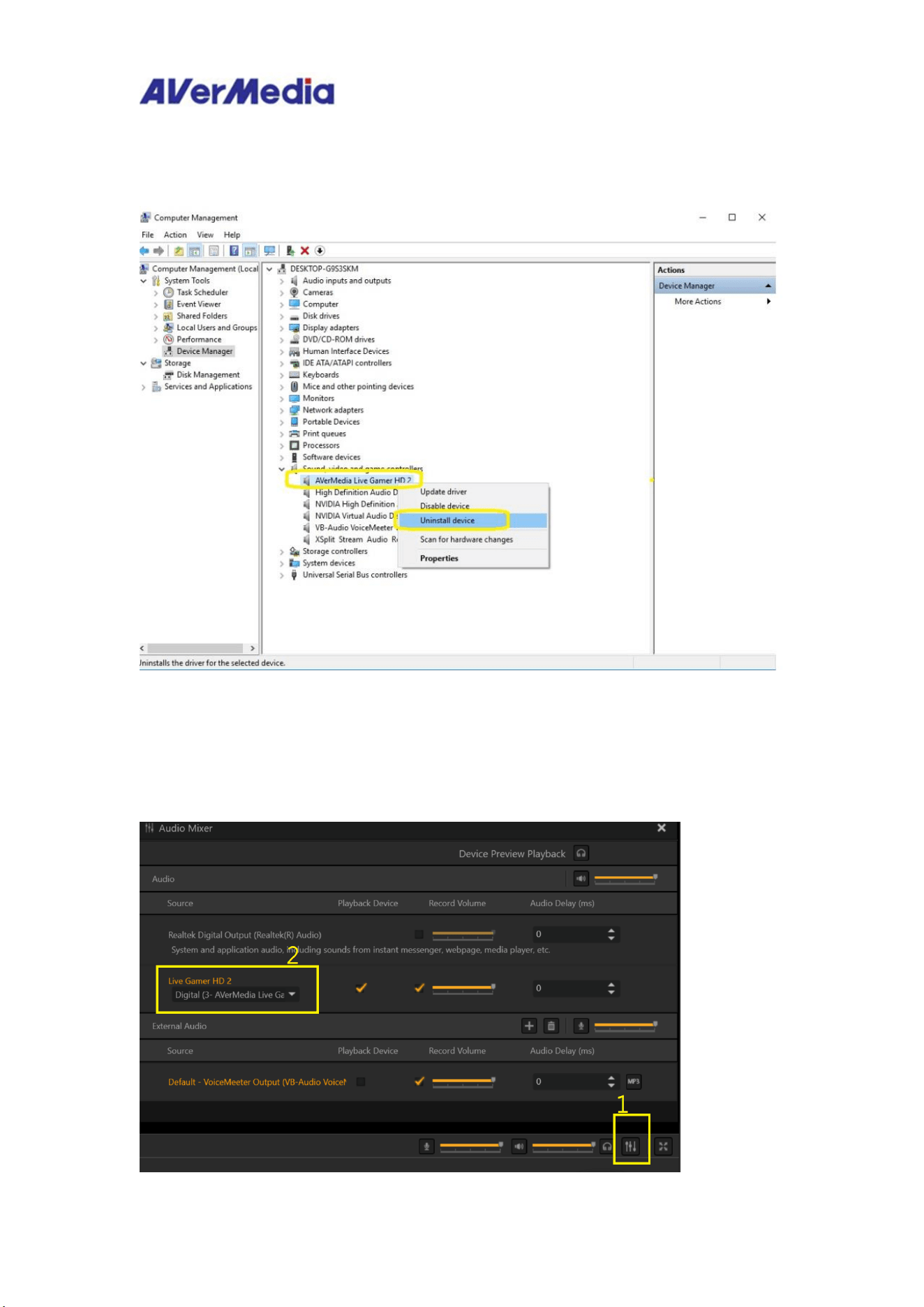
1. Please check at “Device Manager” under “Sound, video, game controllers”
whether do you see capture card displayed as “AVerMedia Live Gamer HD2” if
you see it as “USB Audio device” this means that the installation wasn’t not
2
completed successfully. Please click on right mouse button then select “Uninstall
device” uninstalling the device then rebooting the computer will solve this
problem.
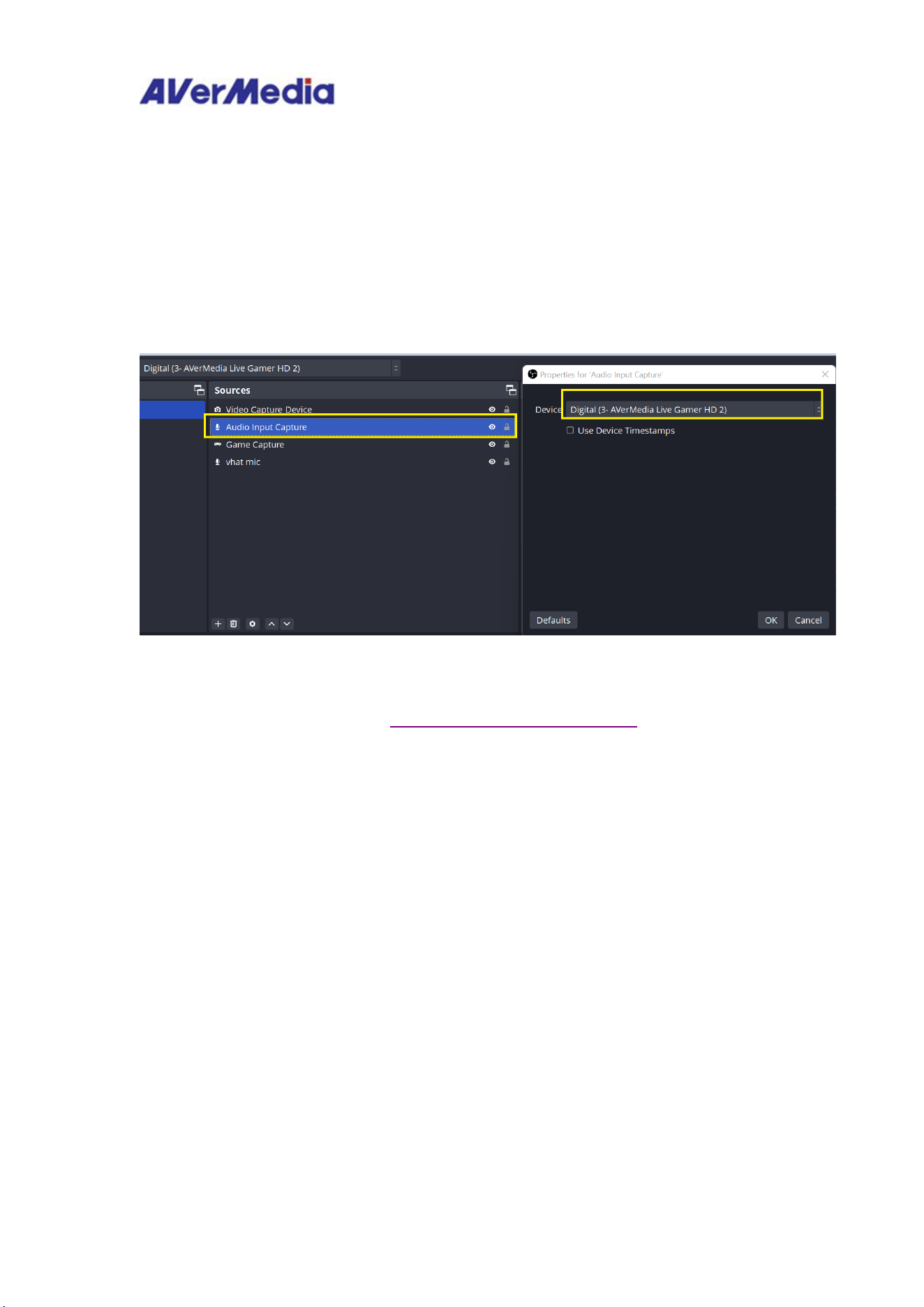
2. When you use RECentral, please ensure to choose the corresponding Audio
Interface which you capture. For example, you need to choose Digital
(3-AVerMedia Live Gamer HD2) when you route into audio input via HDMI input.
3
3. When you use OBS Studio, please ensure to choose the corresponding Audio
Interface which you capture. For example, you need to choose Digital Audio
Interface (3-AVerMedia Live Gamer HD2) when you route into audio input via
HDMI input.
.
4. Should you run into any trouble by using AVerMedia products, please contact our
technical support team here: Support | Technical | AVerMedia