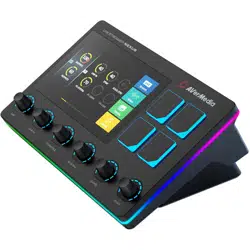

LIVE STREAMER NEXUS
User Manual
Technical Specifications 2
System Requirements 2
Hardware I/O 3
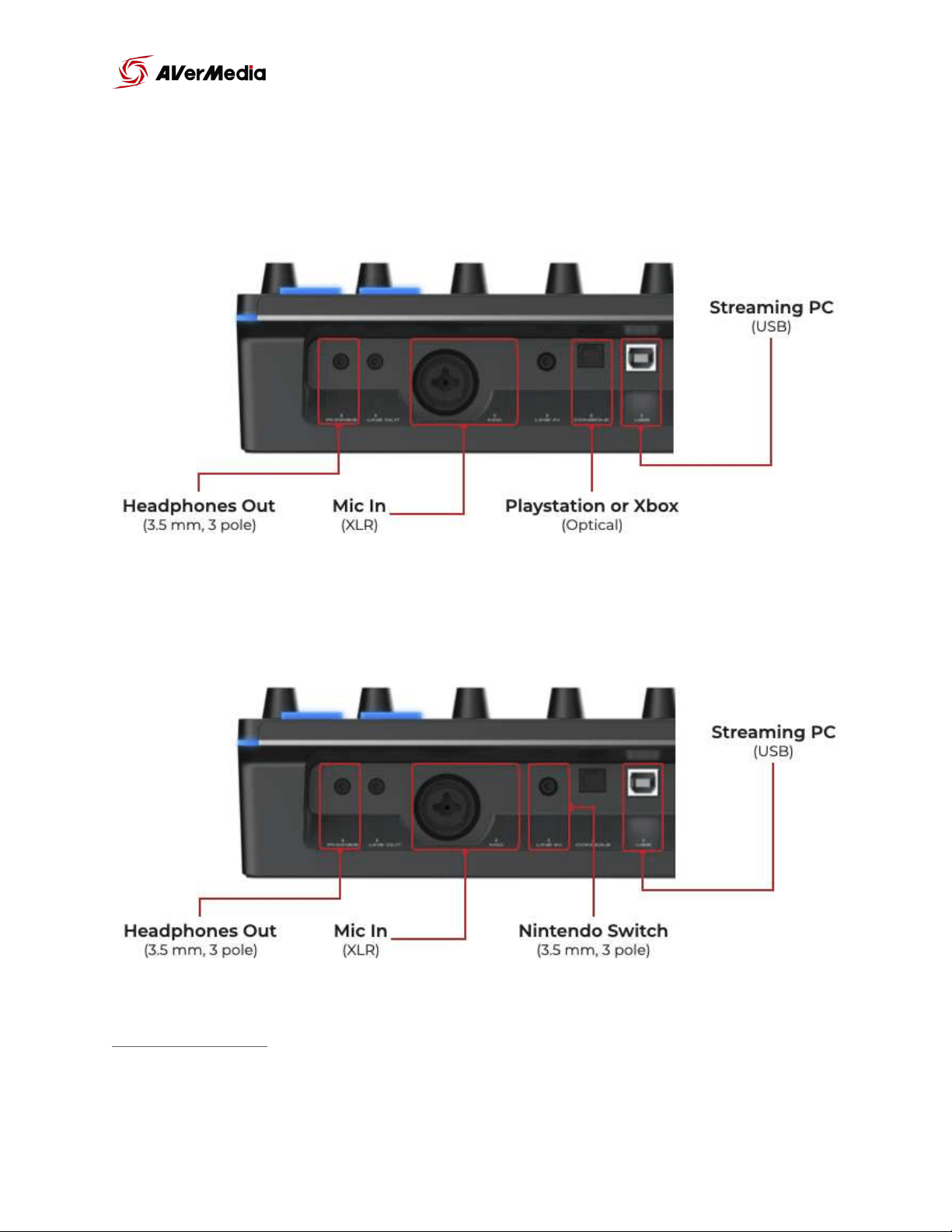
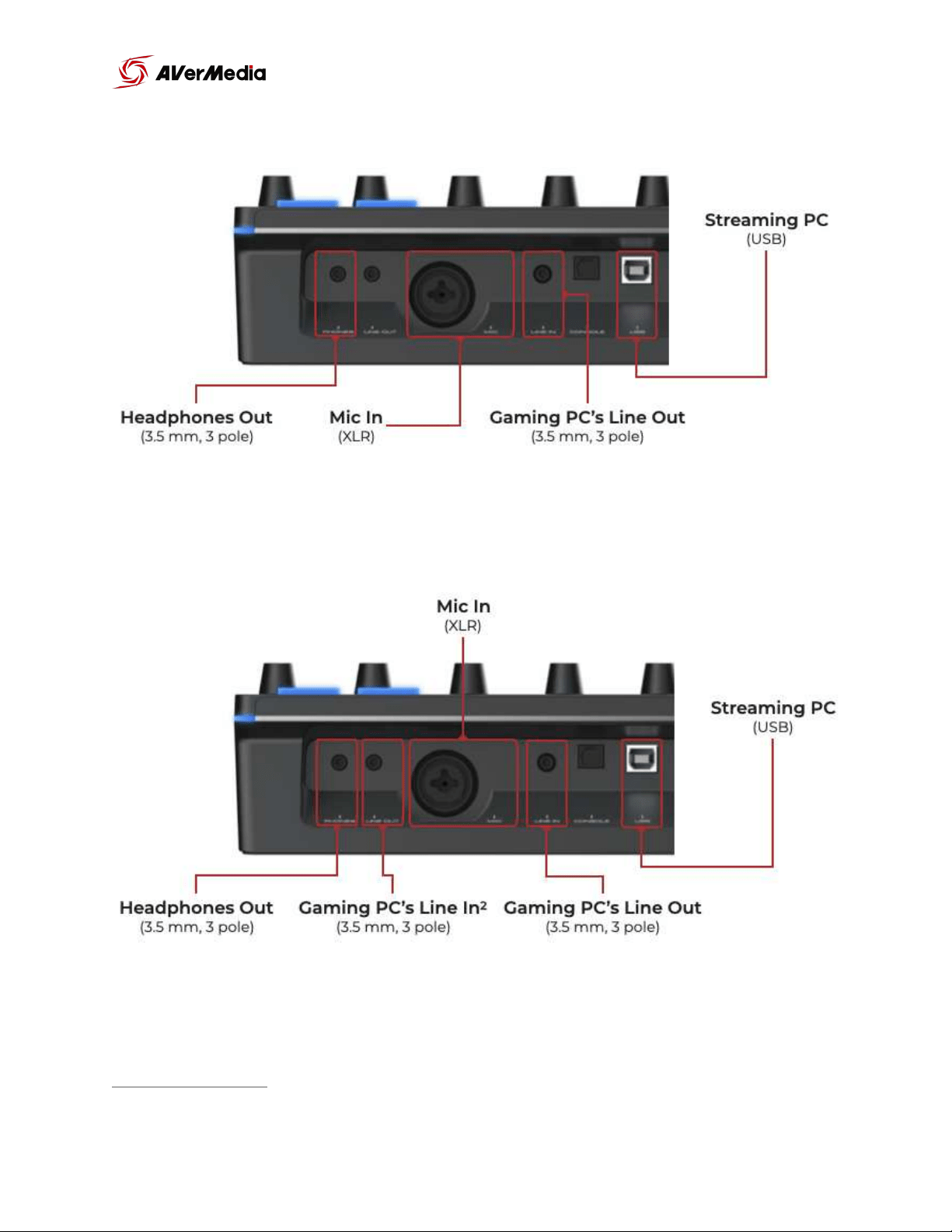
Connections 4
Next-Gen console 4
Nintendo Switch 4
Dual PC 5
Dual PC (With in-game Chat) 5
Download NEXUS app 6
Windows 6
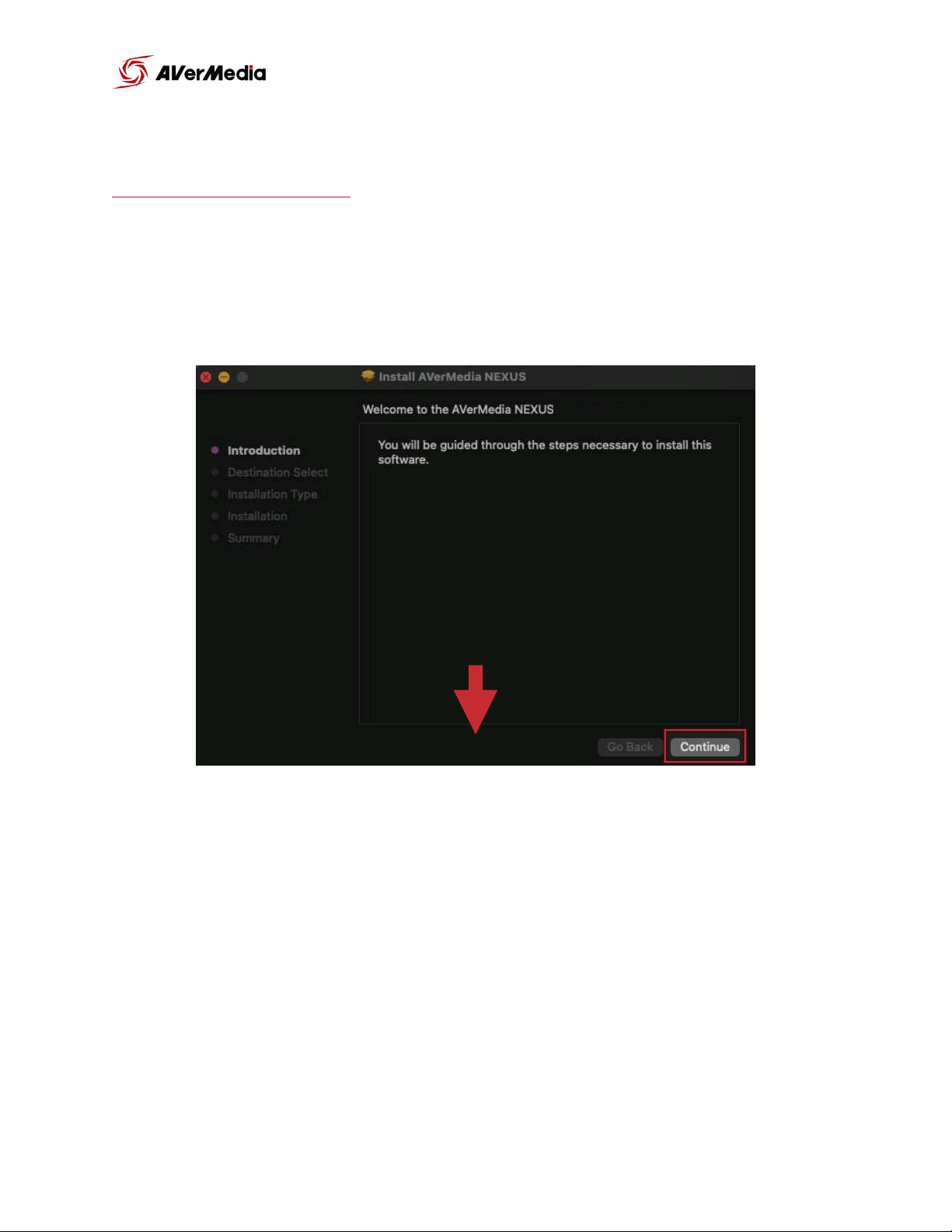
macOS 7
NEXUS Setup 8
AVerMedia Account Setup 8
NEXUS Log in 9
Windows 10 Audio Routing Settings 9
macOS Audio Routing Settings 12
Hardware settings 15
Audio Mixer settings 17
Microphone Settings 17
Single Mix Settings 20
Dual Mix Settings 23
Control Panel Setup (Hotkeys & Widgets) 27
OBS Setup 30
OBS Websocket Plugin 31
For Windows 31
For macOS 31
SLOBS Setup 33
SLOBS Token Plugin 34
Future updates 35
Hotkey & Widget Profiles 36
Audio Profiles 37
of 1 39
User Manual
NEXUS

Technical Specifications
Note:
!
-
Phantom Power +48V, switchable via NEXUS APP
System Requirements
Windows: Windows 10 20H2 (64bit) and above
Mac: macOS 10.15 and above
Interface
USB 2.0, type B (Driver Required)
Mic In
XLR (Balanced) / 6.3 mm (Single-end) x1
Console In
Optical In (Toslink) x1
Computer Inputs
Digital Tracks x3
Headphone Out and Line Out
3.5mm TRS, Stereo
Output Mix
Creator Mix / Audience Mix
Sampling Rate
Up to 96kHz,24 bits
Microphone Effect
Noise Gate, Reverb, Compressor, Equalizer
Frequency Response
10Hz to 20kHz
Dynamic Response
114dB
Screen Panel
5” IPS Touch Panel
Widgets
Interactive & Customizable Grid
Rotational Encoders
6 (Physical inputs x3 / Digital inputs x3)
Lighting
RGB
Power Switch
Yes
Power Inputs
Standard 12V DC, Center Negative, 1.5A
Power Consumption
< 7W
Dimensions
Without Stand: 21.7 x 14.5 x 6.1 cm (5.7 x 8.5 x 2.4 in)
With Stand: 21.7 x 14.5 x 9.4 cm (5.7 x 8.5 x 3.7 in)
Weight
Without Stand: 0.699 kg (24.66 oz)
With Stand: 0.843 kg (29.74 oz)
of 2 39
NEXUS
User Manual
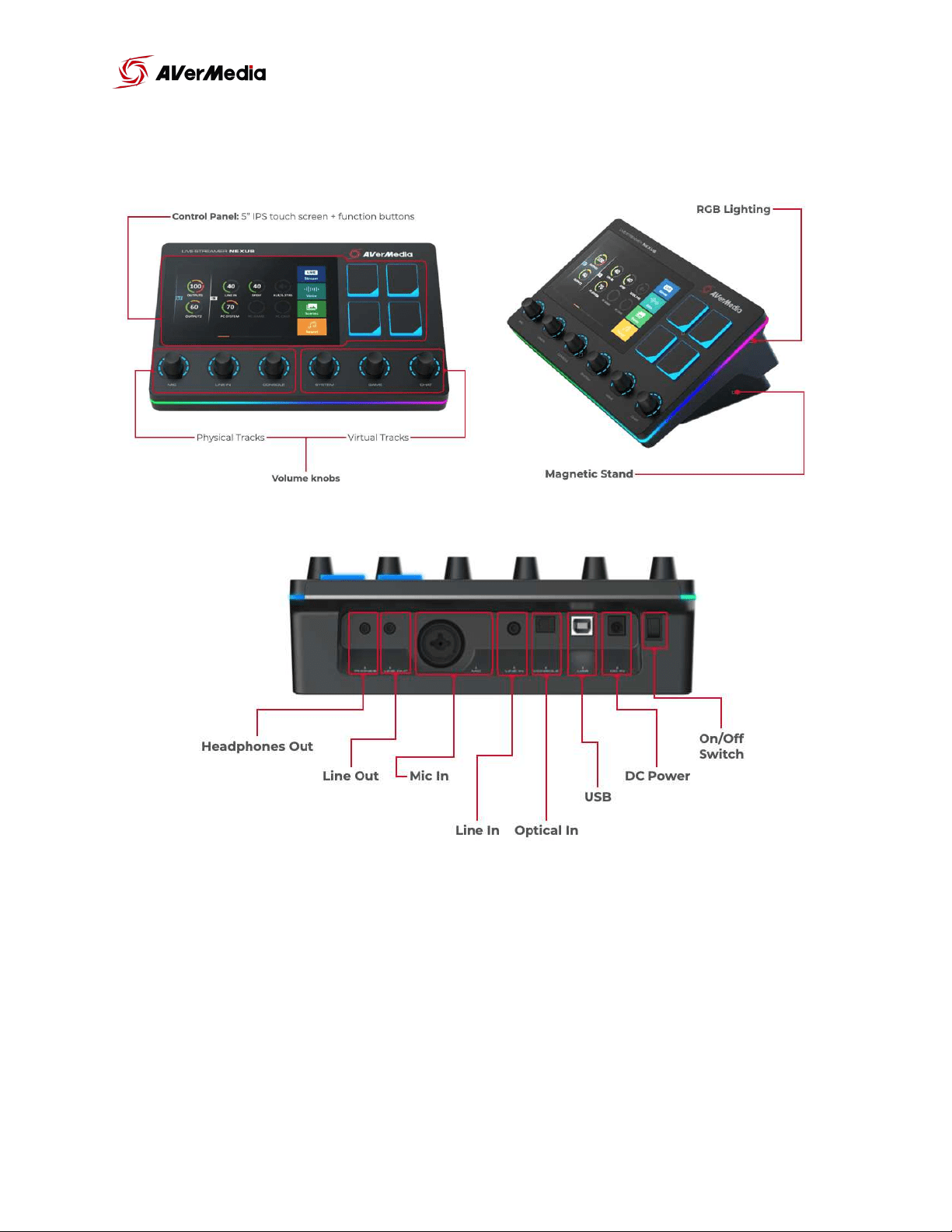
Hardware I/O
of 3 39
NEXUS
User Manual
Download NEXUS app
Windows
Assist Central Download Link
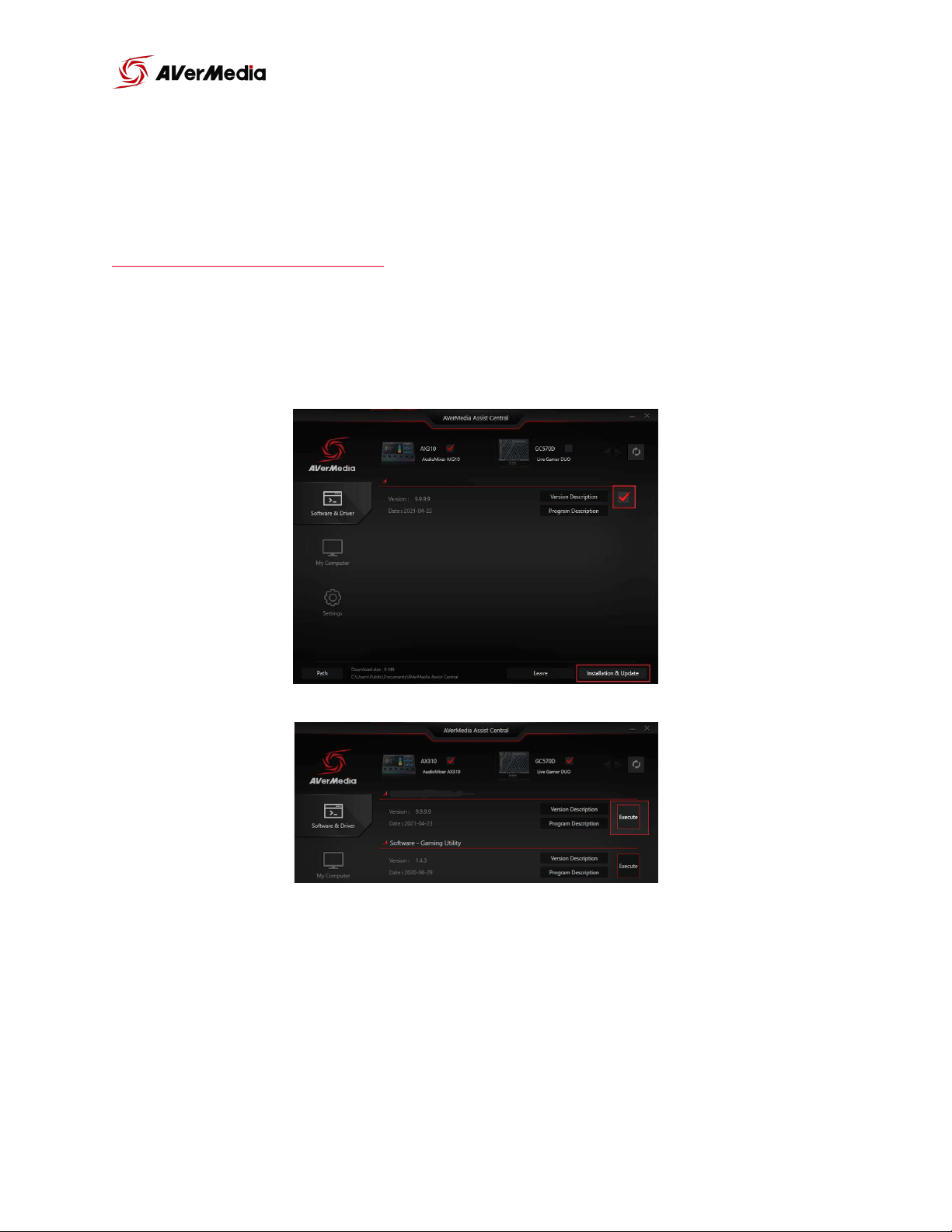
Download and run Assist Central. It will detect your NEXUS and allow you to
download everything you need to install the NEXUS app.
After downloading the file Select the button “Execute” and it will start
installing the software > update the firmware > Install driver. Once its done
you will need to restart your system.
of 6 39
User Manual
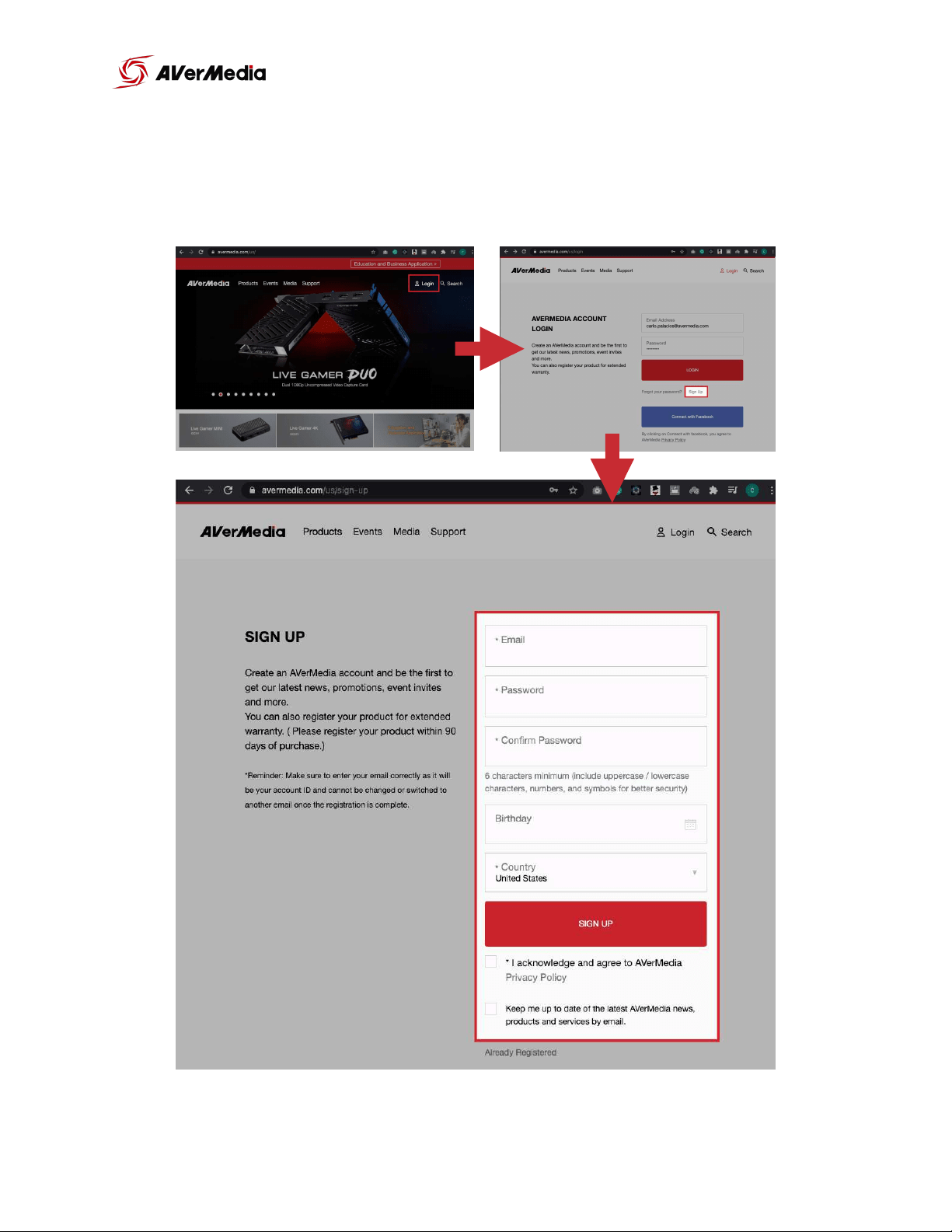
NEXUS Setup
AVerMedia Account Setup
of 8 39
NEXUS
User Manual
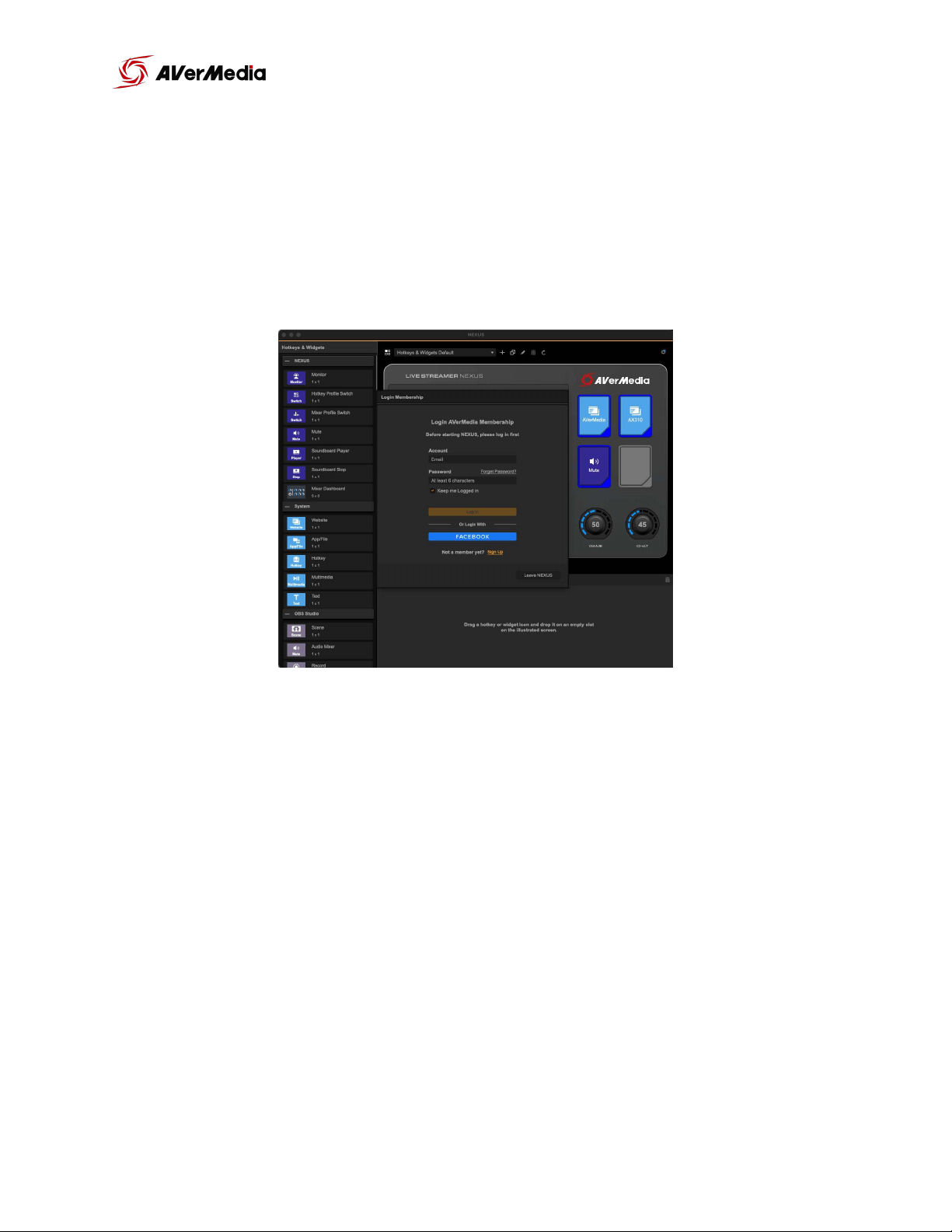
NEXUS Log in
Once you have created your account you can go ahead and sign-in on the
NEXUS. As we keep developing the NEXUS app we will be adding features
that will be linked to this account. After logging in, lets go make sure the
audio settings on your PC or Mac are ready to go.
Windows 10 Audio Routing Settings
Make sure you have updated to Windows 10 20H2 version, to avoid any hotkey
mapping issues.
Once you install the drivers your audio settings should look like this. On the
“Playback” tab, you’ll need to make the “Chat” track your “Default
Communication Device”. Right click over the chat track and select “Set as
Default Communication Device”.
of 9 39
NEXUS
User Manual
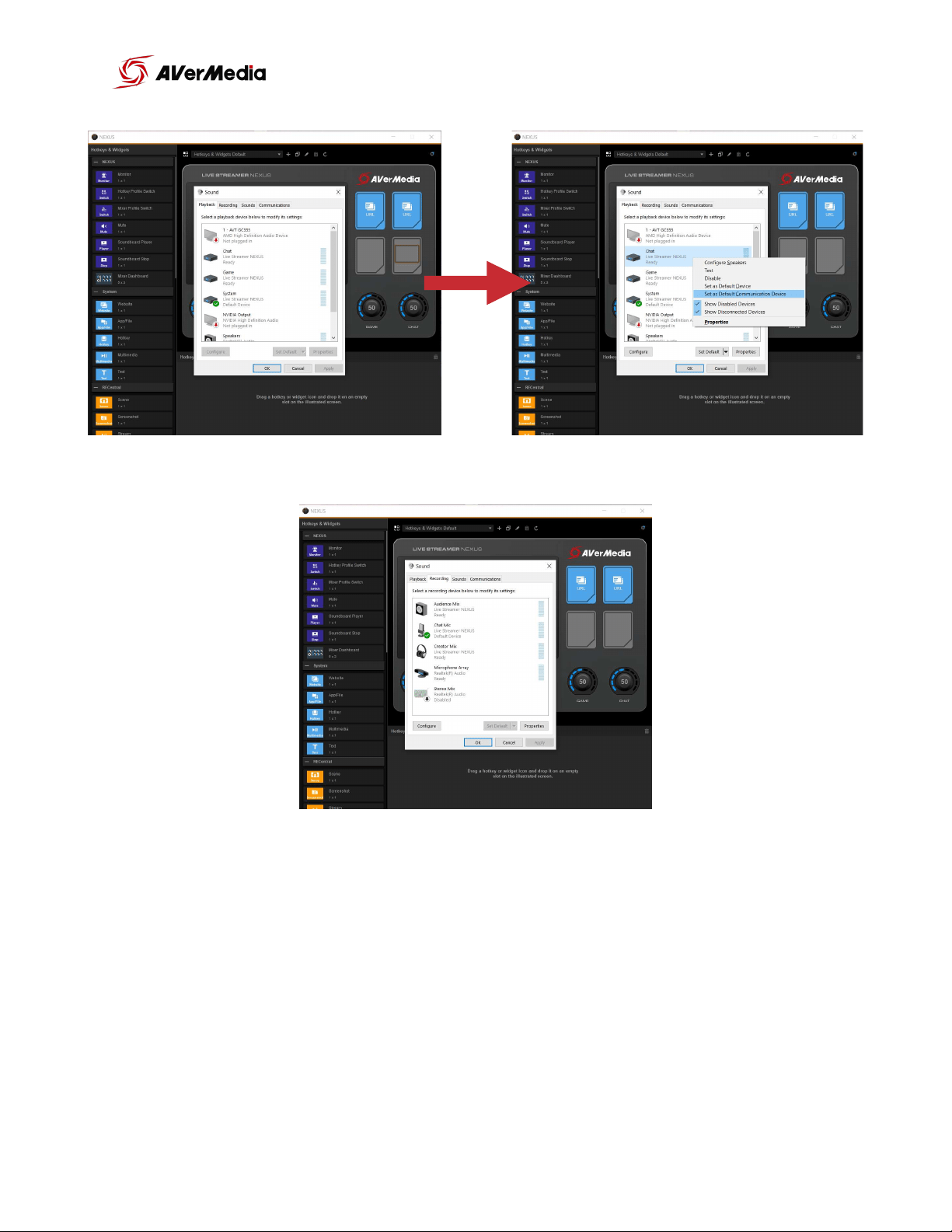
On the “Recording” tab make sure that “Chat Mic” is selected as default.
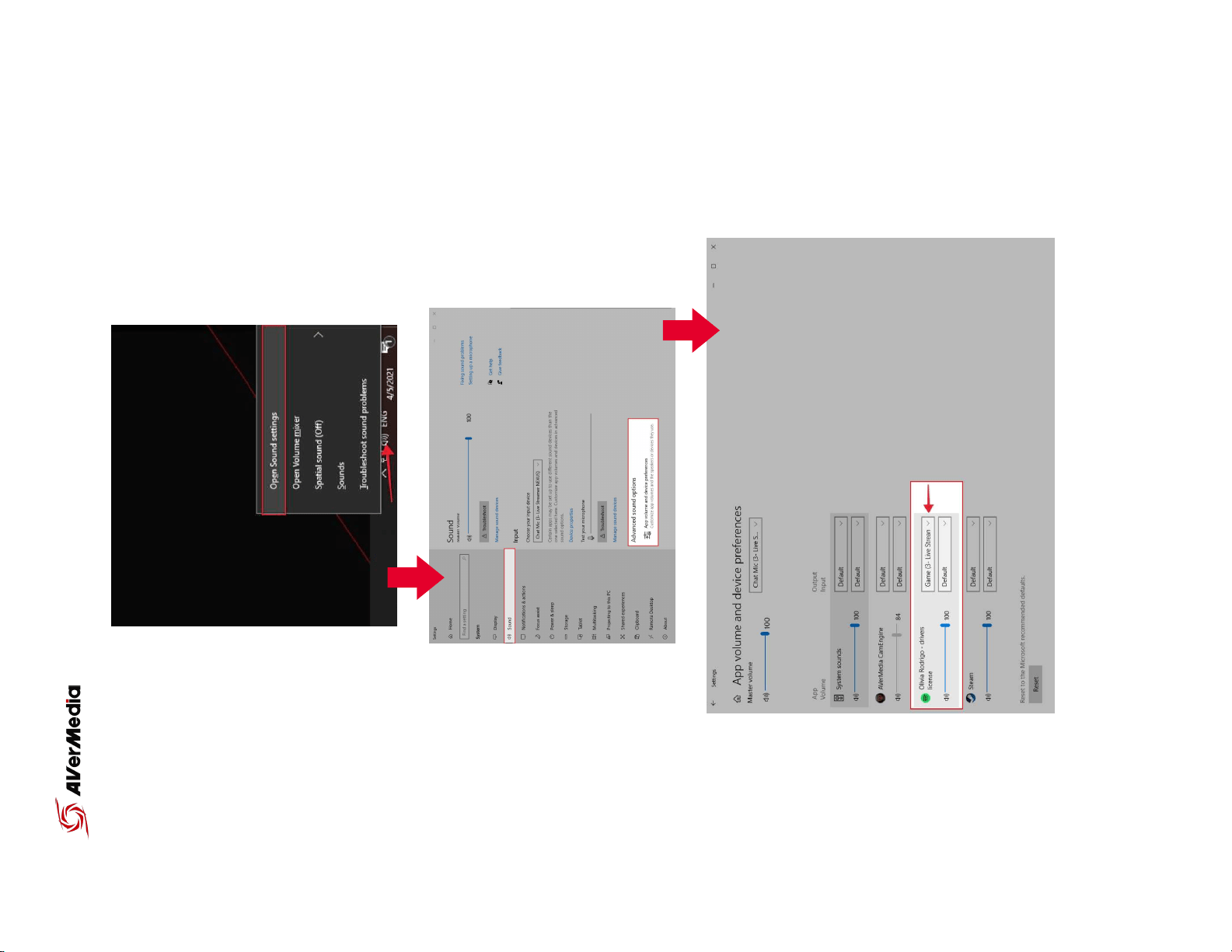
If you want to route different virtual source to the “SYSTEM”, “GAME”, or
“CHAT” channel, for example Spotify, right click on the audio icon on your
windows task bar, select “Open Sound Settings”, look for advances audio
settings there you can select where to route each virtual source.
of 10 39
NEXUS
User Manual
of 11 39
User Manual
NEXUS
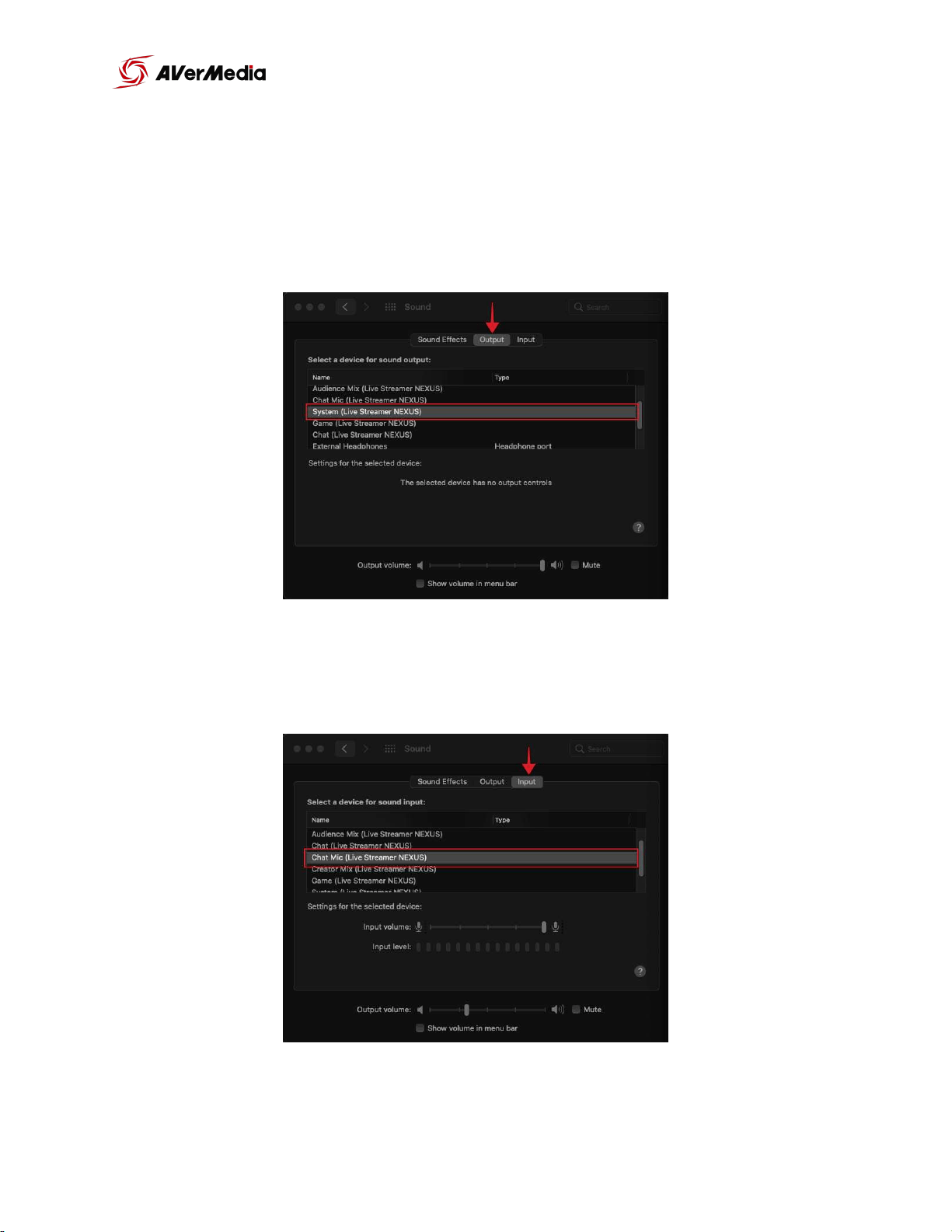
macOS Audio Routing Settings
Go to system preferences > Sound > Output tab, make sure that “System (Live
Streamer NEXUS)” is selected. This will route all system audio to the “System”
digital track on your NEXUS.
Now, go to the Input tab and make sure that “Chat Mic (Live Streamer
NEXUS)” is selected.
of 12 39
NEXUS
User Manual
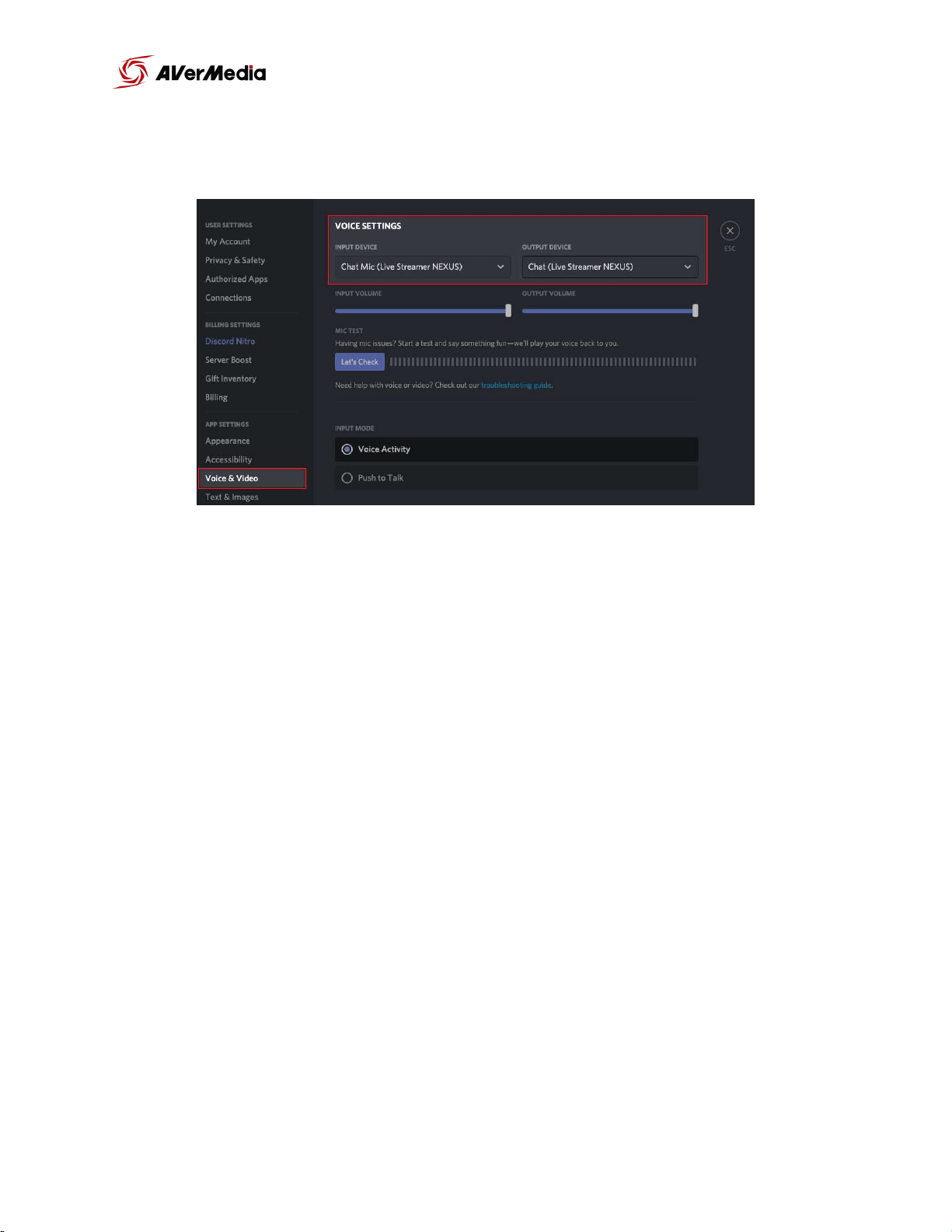
Since MacOS doesn’t have a “Default communication devices” remember to make
the changes on your voice chat software audio settings.
of 13 39
NEXUS
User Manual

From your Mac/PC perspective these tracks are considered outputs:
-
System (Live Streamer NEXUS); Controlled by the “System” Knob
-
Game (Live Streamer NEXUS); Controlled by the “Game” Knob
-
Chat (Live Streamer NEXUS); Controlled by the “Chat” Knob, should be used as
audio output from your voice chat software (Discord, Skype, etc.)
And these are considered inputs:
-
Chat Mic (Live Streamer NEXUS); The audio track that should be used for your
voice chat software.
-
Audience Mix (Live Steamer NEXUS); The sum of all 6 audio tracks on the
NEXUS and should be selected as the main input for your Streaming software.
‣
When Audio Mixer is set to “Single Mix”, this mix will be the same as the
“Creator Mix”.
‣
When Audio Mixer is set to “Dual Mix”, this mix will be an independent
one and will have different volumes levels of all 6 tracks (Won’t be the
same as “Creators Mix”).
-
Creator Mix (Live Streamer NEXUS); The audio mix that goes to your headsets.
of 14 39
NEXUS
User Manual
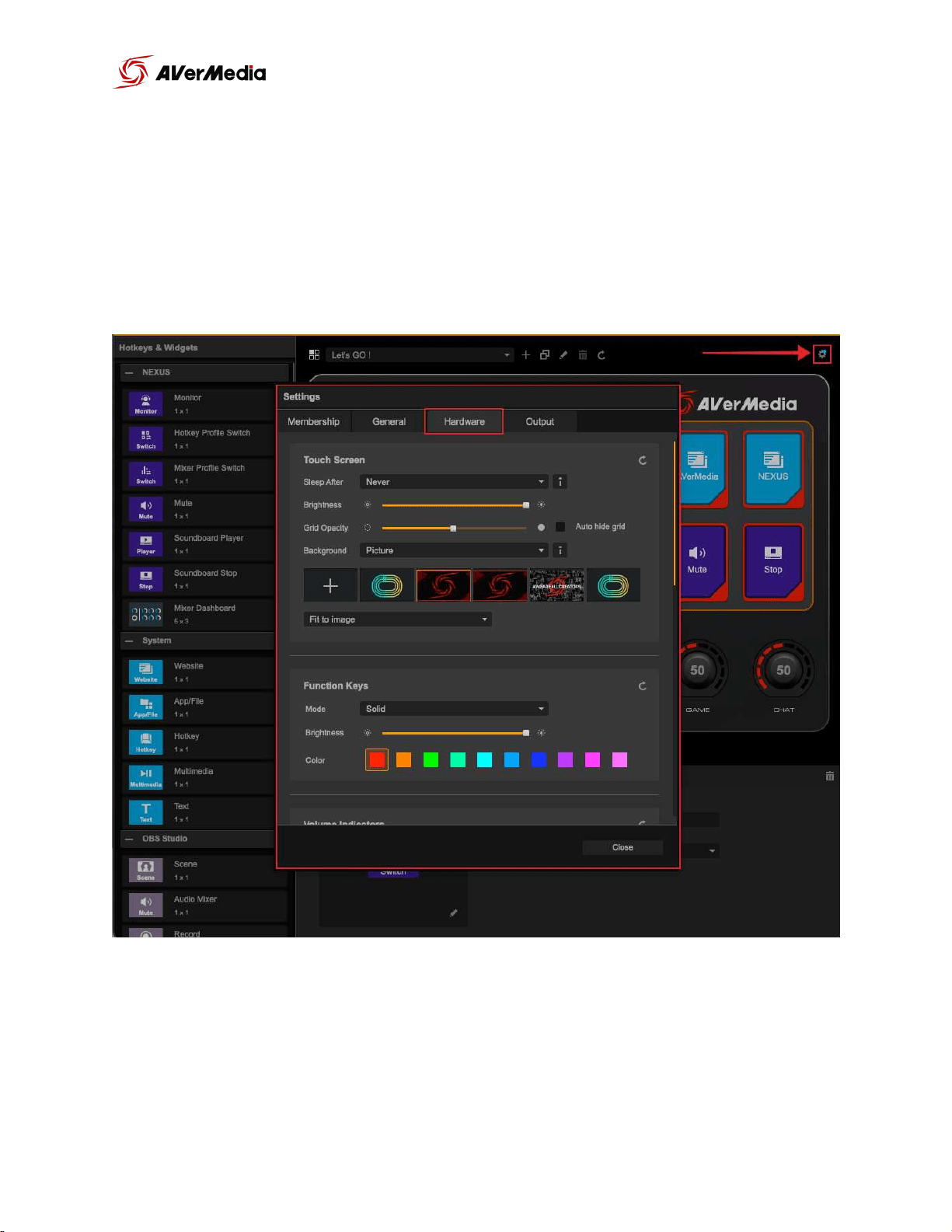
Hardware settings
You will find more settings by clicking on the gear icon on the top right
corner of the NEXUS app. Here you will find settings manage your streaming
accounts, the touch panels settings and RGB lighting controls, as well as
audio output settings.
of 15 39
NEXUS
User Manual
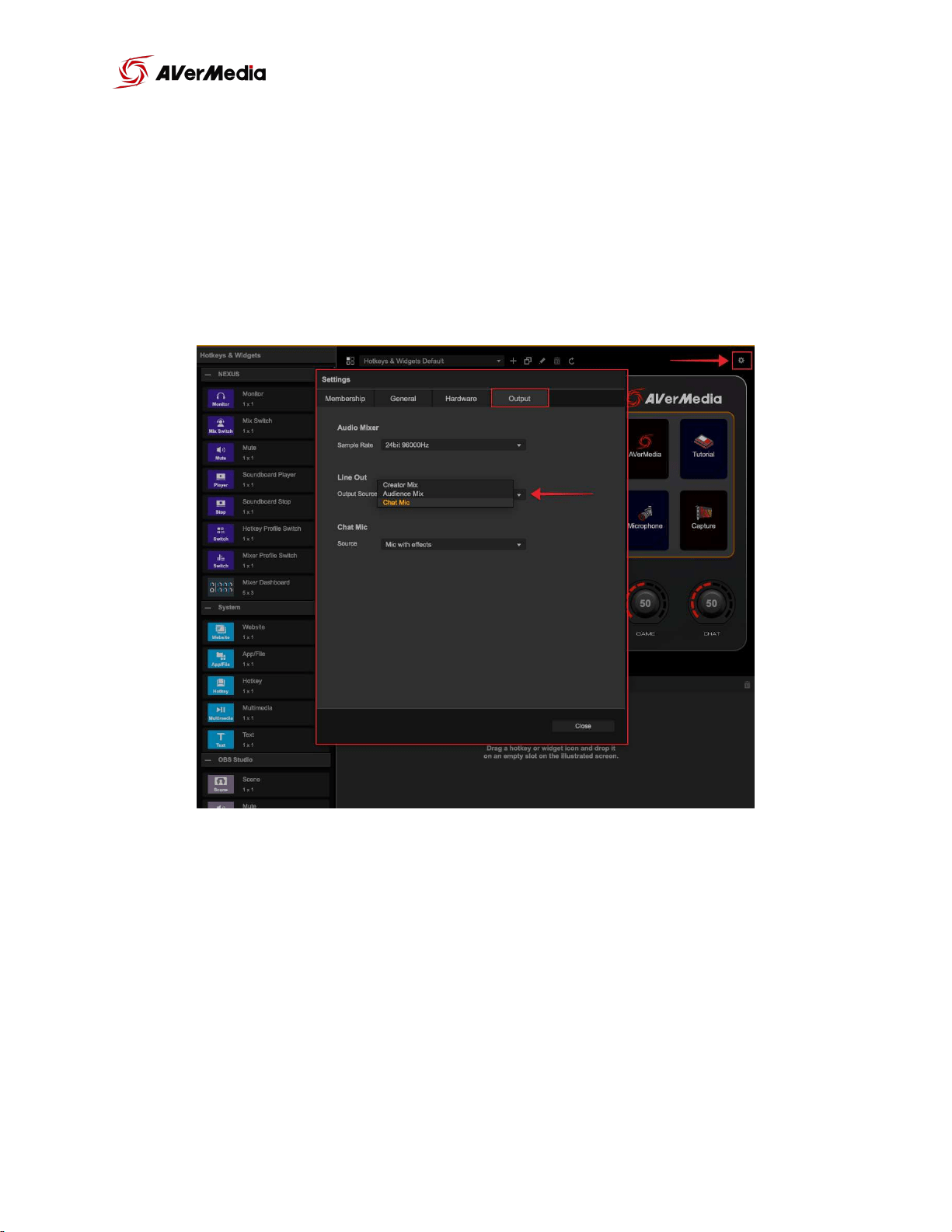
You can select which audio output is routed to the “LINE OUT” port in the
output settings.
This setting can be used if you want to separately record different mix
outputs, share to your streaming partners headsets or to route your mic to a
gaming PC if you wish to use in-game chat instead of discord.
of 16 39
NEXUS
User Manual
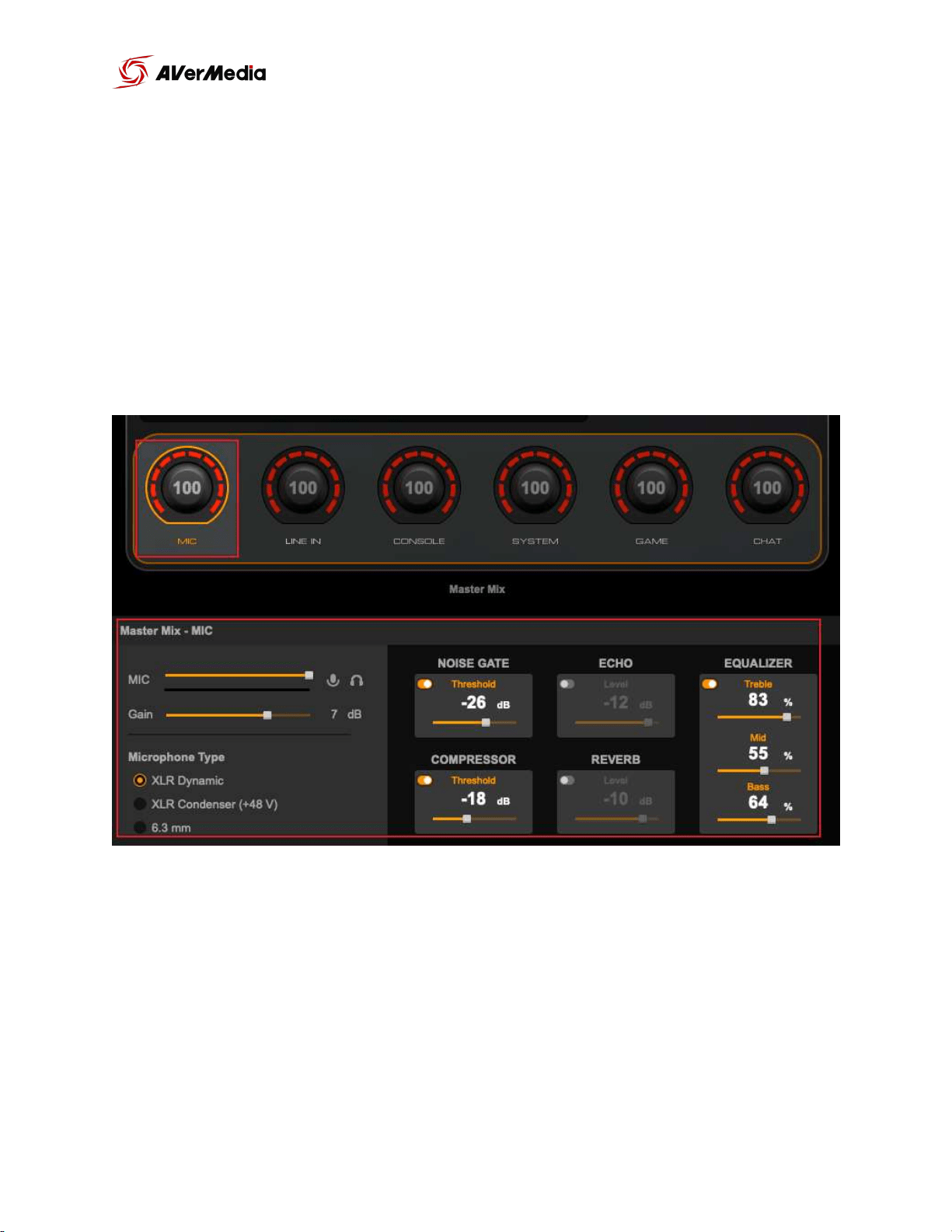
Audio Mixer settings
Microphone Settings
Select the MIC knob and you will be able to make adjustments to you mic,
gain, noise gate, Equalizer, etc. or if you have connected a XLR condenser
microphone that requires phantom power (+48V) you will can enable that
there as well.
of 17 39
NEXUS
User Manual
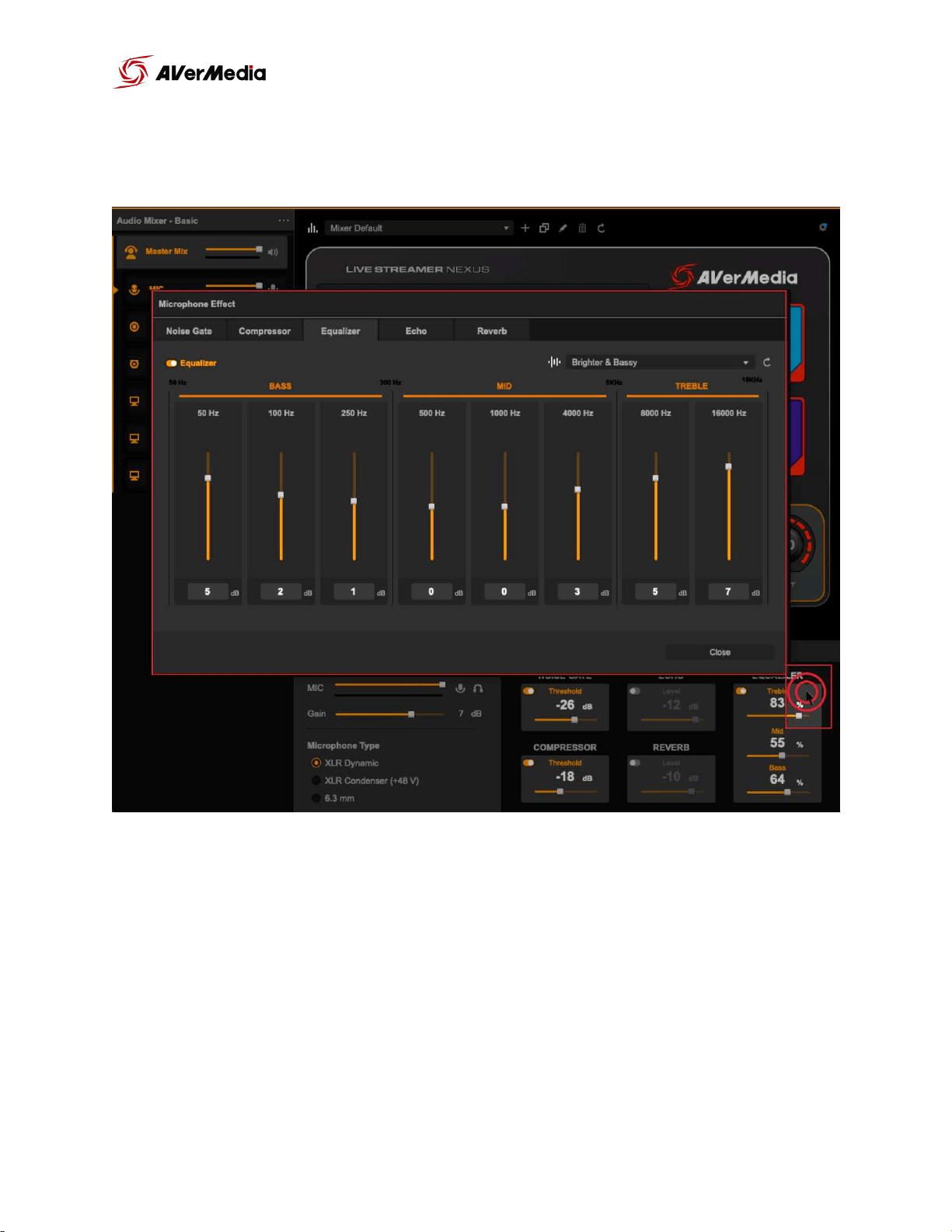
By clicking on the different processing option you will open more settings for
each section.
of 18 39
NEXUS
User Manual
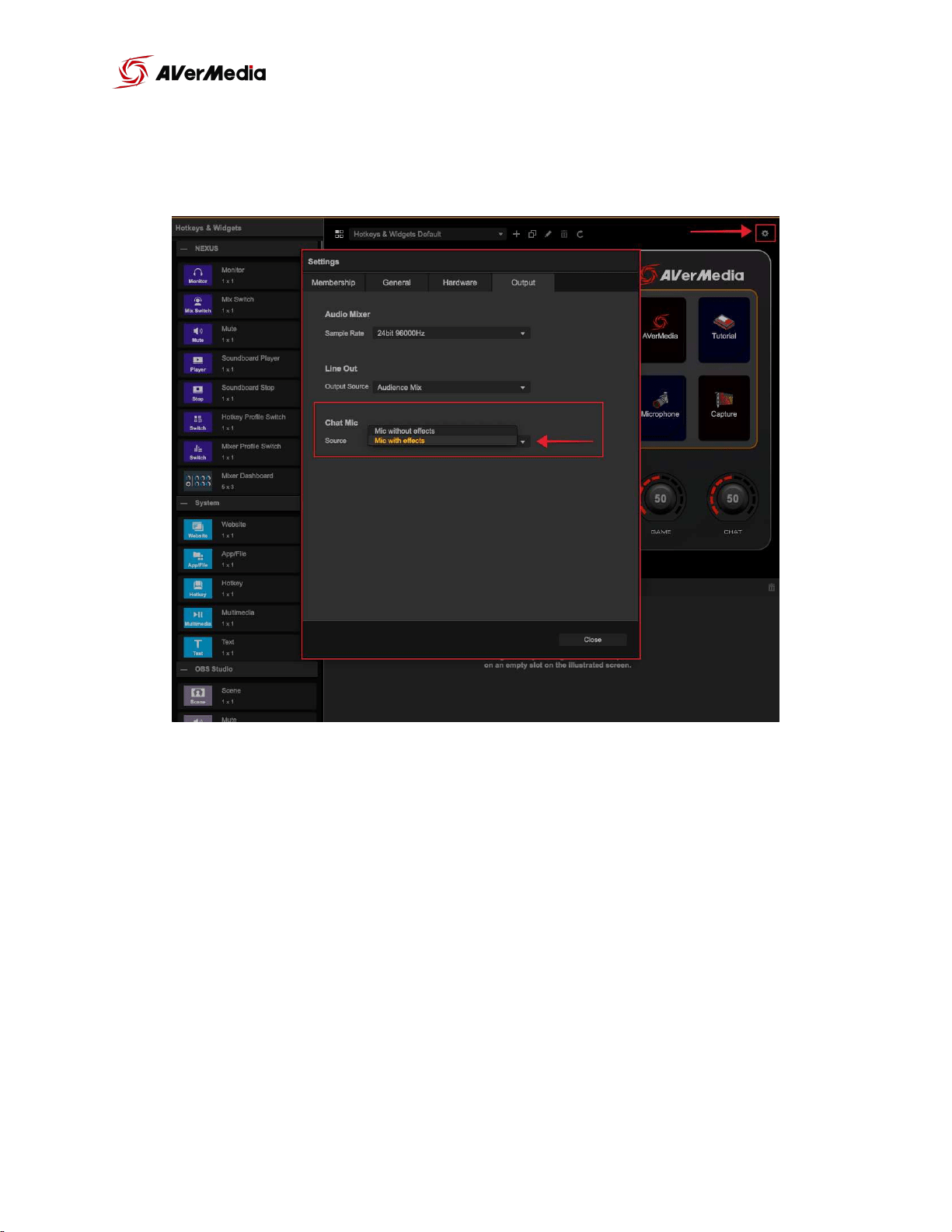
If you want the process mic audio to also be routed to “Chat mic” (the audio
going to your voice calling software) you can set it from the “Output” settings.
of 19 39
NEXUS
User Manual

Single Mix Settings
The NEXUS audio mixer’s default is “Single Mix”. This means you will have one
audio mix going out to the “Headphones output port”, “Line out port” and to
your stream ( the “Audience Mix” virtual audio input for your streaming
Software).
of 20 39
NEXUS
User Manual
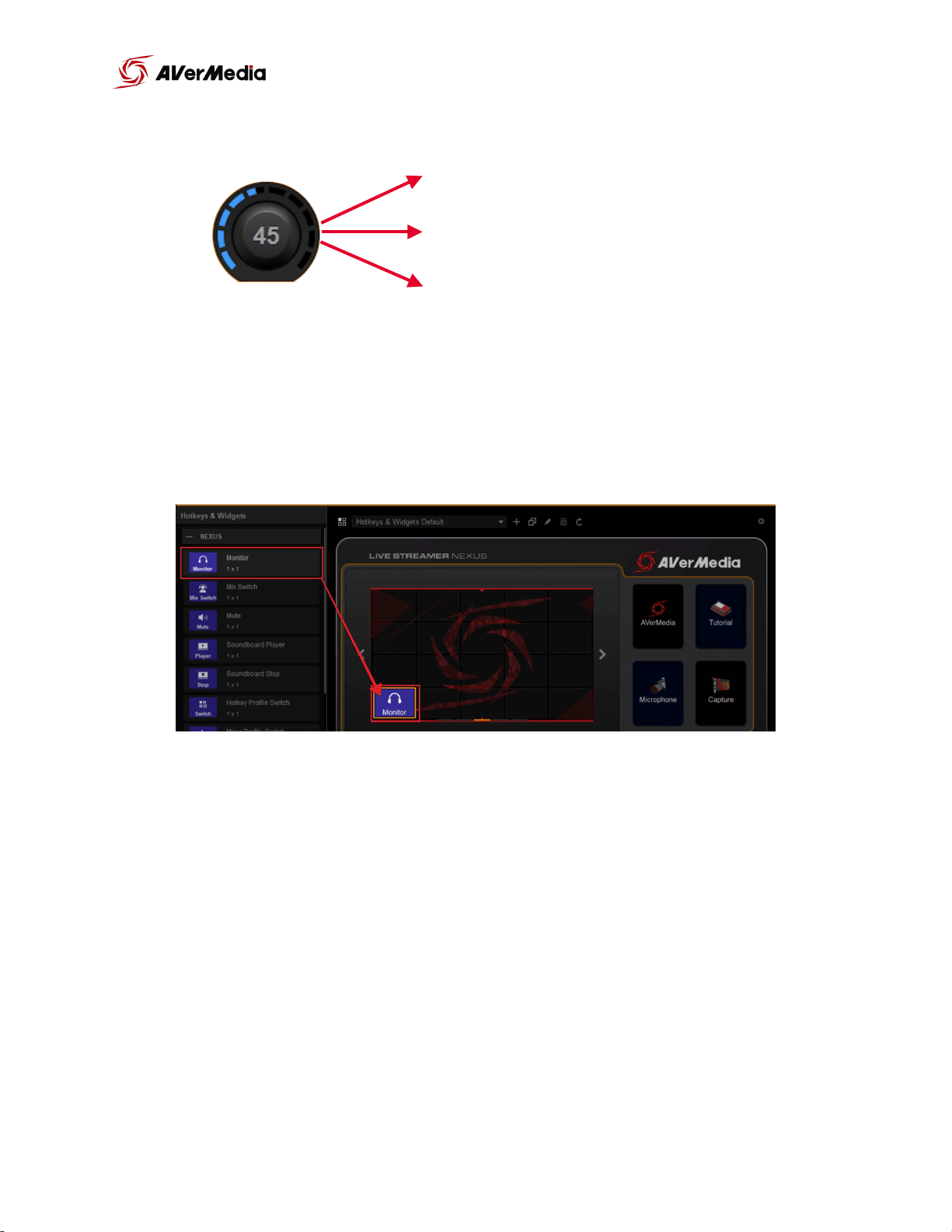
The “MIC” knob will control mic audio going to the Master Mix and chat mic.
You are able to control the mic monitoring (Mic playback) with the Monitor
widget. In “Single Mix” the monitor widget will enable and disable
microphone monitor (playback) in your headsets.
of 21 39
NEXUS
Headset
Chat mic (Discord, Skype, etc)
Audience Mix (OBS, SLOBS, etc)
MIC Volume Knob
User Manual
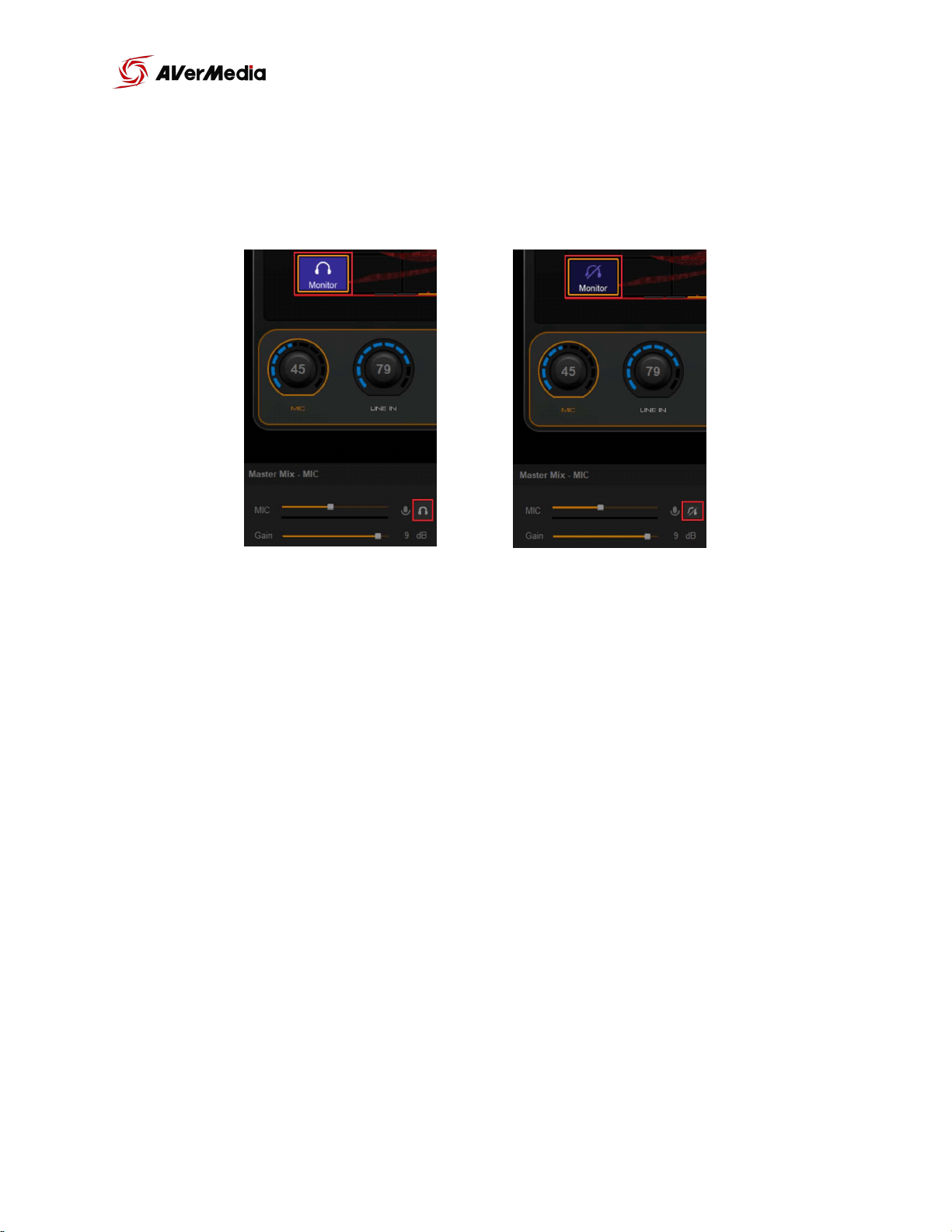
Microphone sound will always be going out to the “Audience Mix” input on
your streaming software, even if you can’t hear it on your headphones.
of 22 39
NEXUS
Mic Playback Off
Mic Playback ON
User Manual
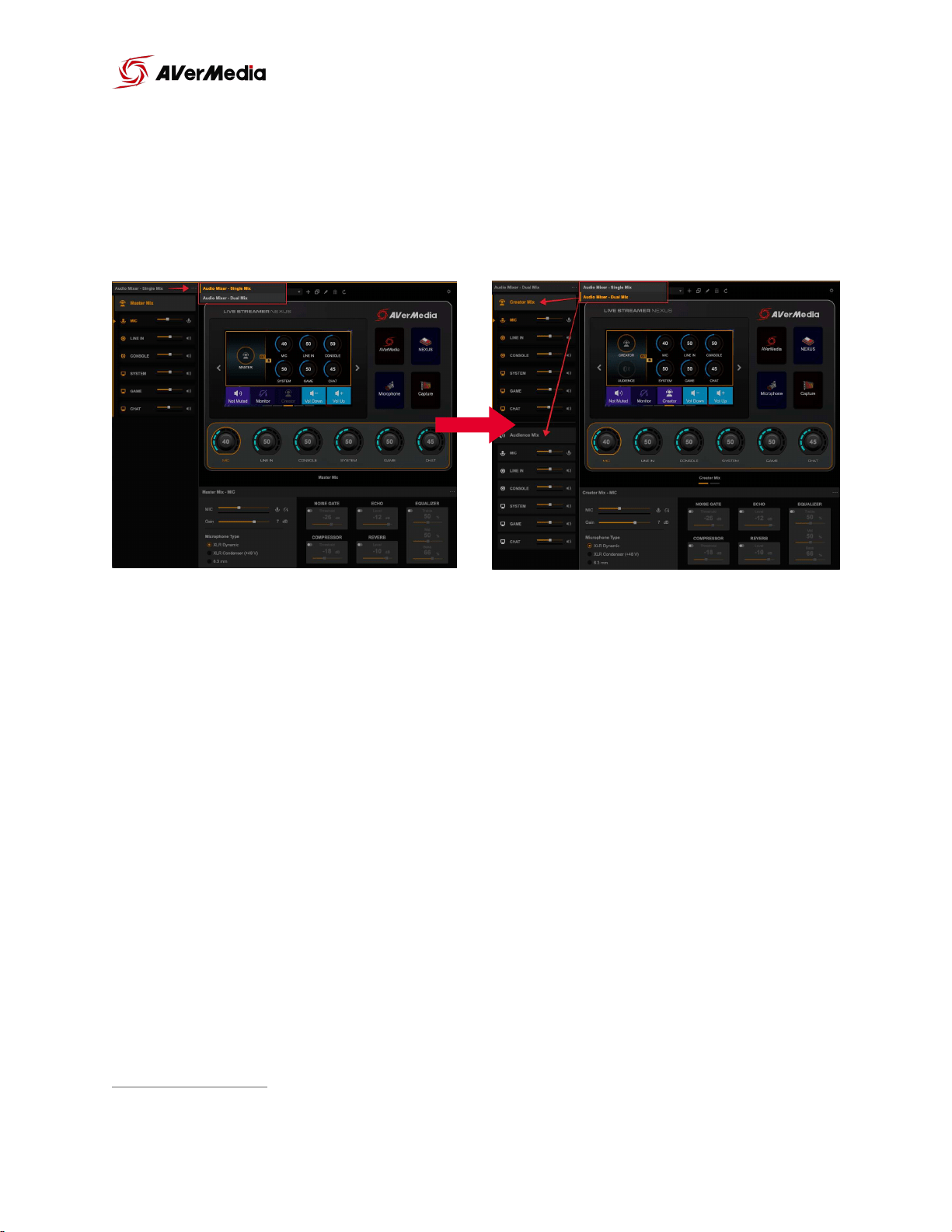
Dual Mix Settings
3
To switch to “Dual Mix”, click the menu button next to the audio mixer’s title
and select “Dual Mix”.
You will have two independent mixes, Creator Mix and Audience Mix, both
with different audio levels of the 6 tracks.
Creator Mix: Mix of the 6 tracks heard in the headsets.
Audience Mix: Mix of the 6 tracks heard by the audience (live stream)
In this mode the “Line out” port will default to output the “Audience Mix” audio.
3
of 23 39
NEXUS
User Manual
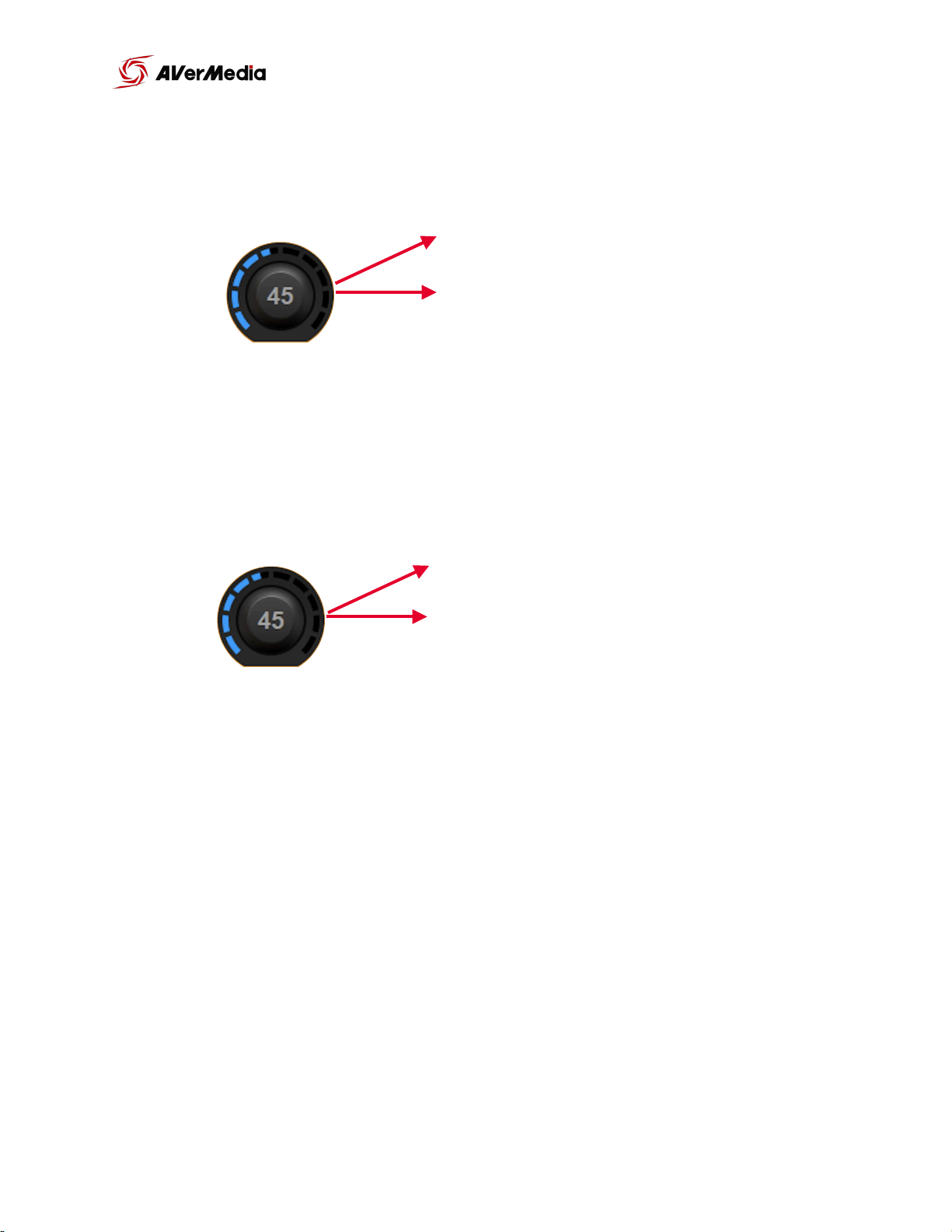
in “Dual Mix” The “MIC” knob will control mic audio going to the “Creator Mix”
and chat mic.
When you select “Audience Mix” the “MIC” knob will control the mic audio
going to your streaming software (Audience Mix - Live Streamer NEXUS).
of 24 39
NEXUS
Headset
Chat mic (Discord, Skype, etc)
MIC Volume Knob
(Creator Mix)
Audience Mix (OBS, SLOBS, etc)
MIC Volume Knob
(Audience Mix)
Headset
User Manual
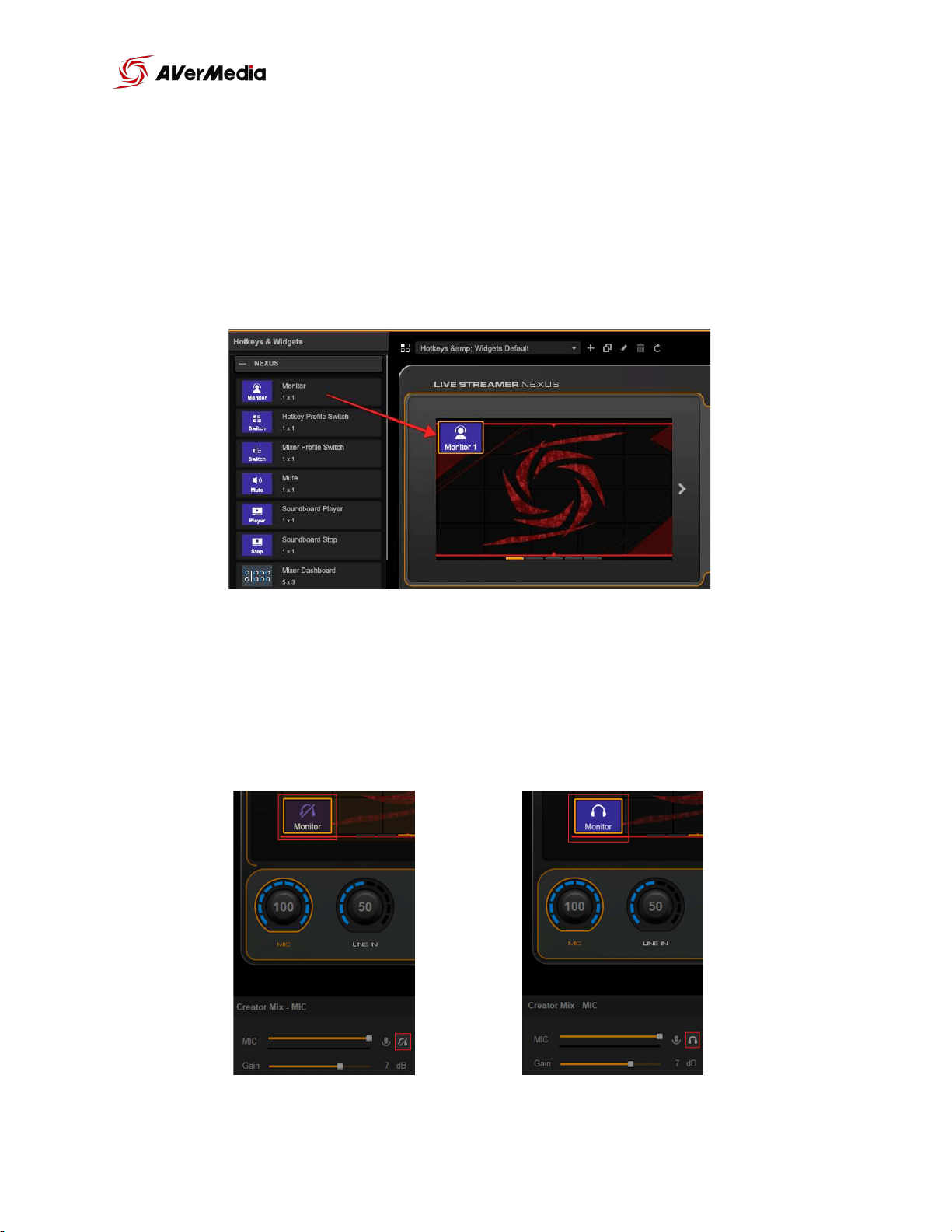
While in “Creator Mix” you are able to control the mic monitoring (Mic
playback) with the Monitor widget. The monitor widget will enable and
disable microphone monitoring (playback) in your headsets. While in Dual
Mix, mic monitoring will only work with creator mix, Audience Mix won’t be
affected.
Microphone sound will always be going out to the “Chat mic” and “Audience
Mix”, even if playback is disabled.
of 25 39
NEXUS
Mic Playback Off
Mic Playback ON
User Manual
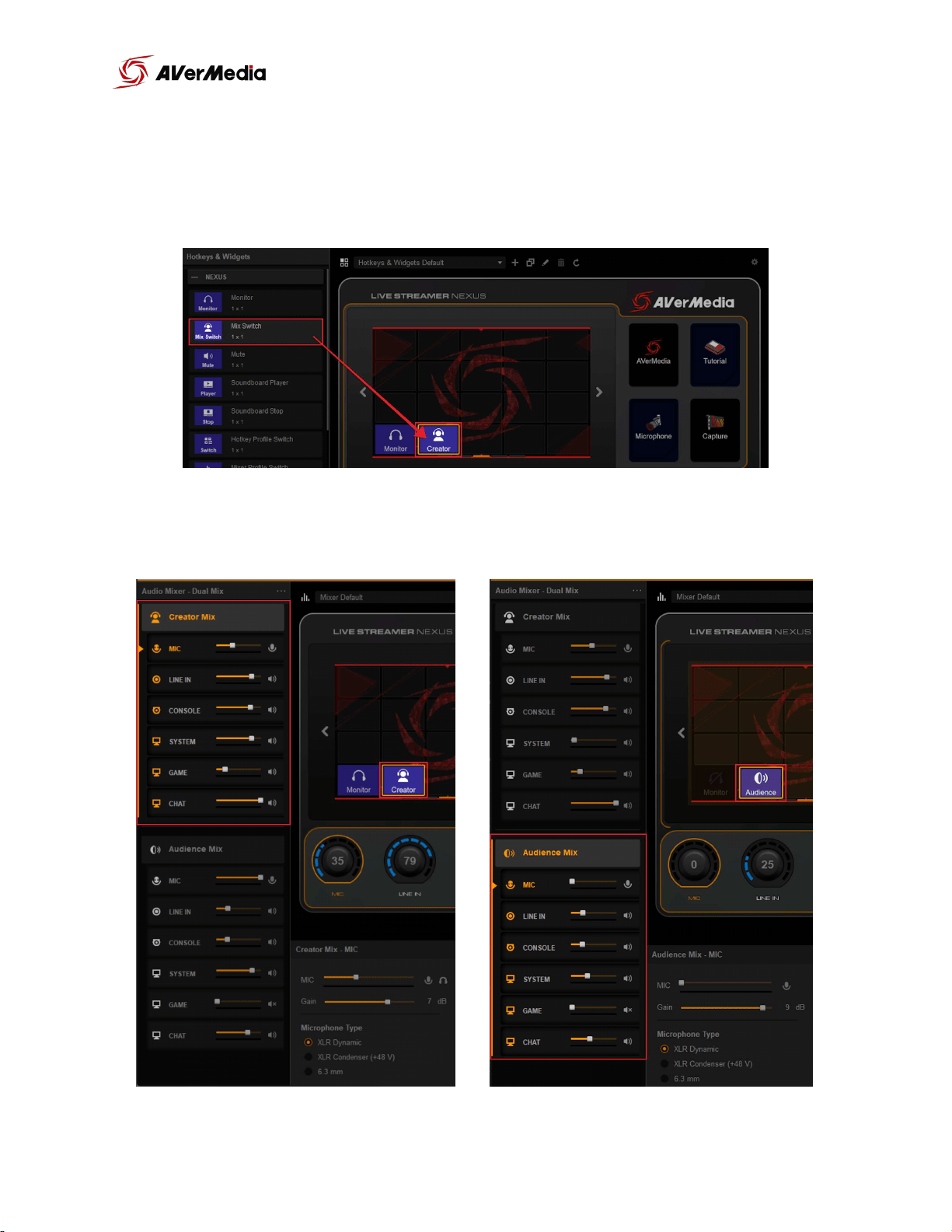
You can switch between both mixes using the “Switch Mix” widget. This will
allow you to playback the desired mix on your headsets and control the
volume levels in the selected mix.
of 26 39
NEXUS
Creator Mix Playback
Audience Mix Playback
User Manual

Control Panel Setup (Hotkeys & Widgets)
Overall you have 5 pages for your hotkeys and widgets (4x5 canvas for each
page) You can swipe left and right to move through the pages. If you want to
return to your home screen, simply swipe up.
Widgets and hotkeys can be added by dragging them over to the control
panel
Hotkeys and widget can be modified in the setting section bellow
of 27 39
NEXUS
User Manual
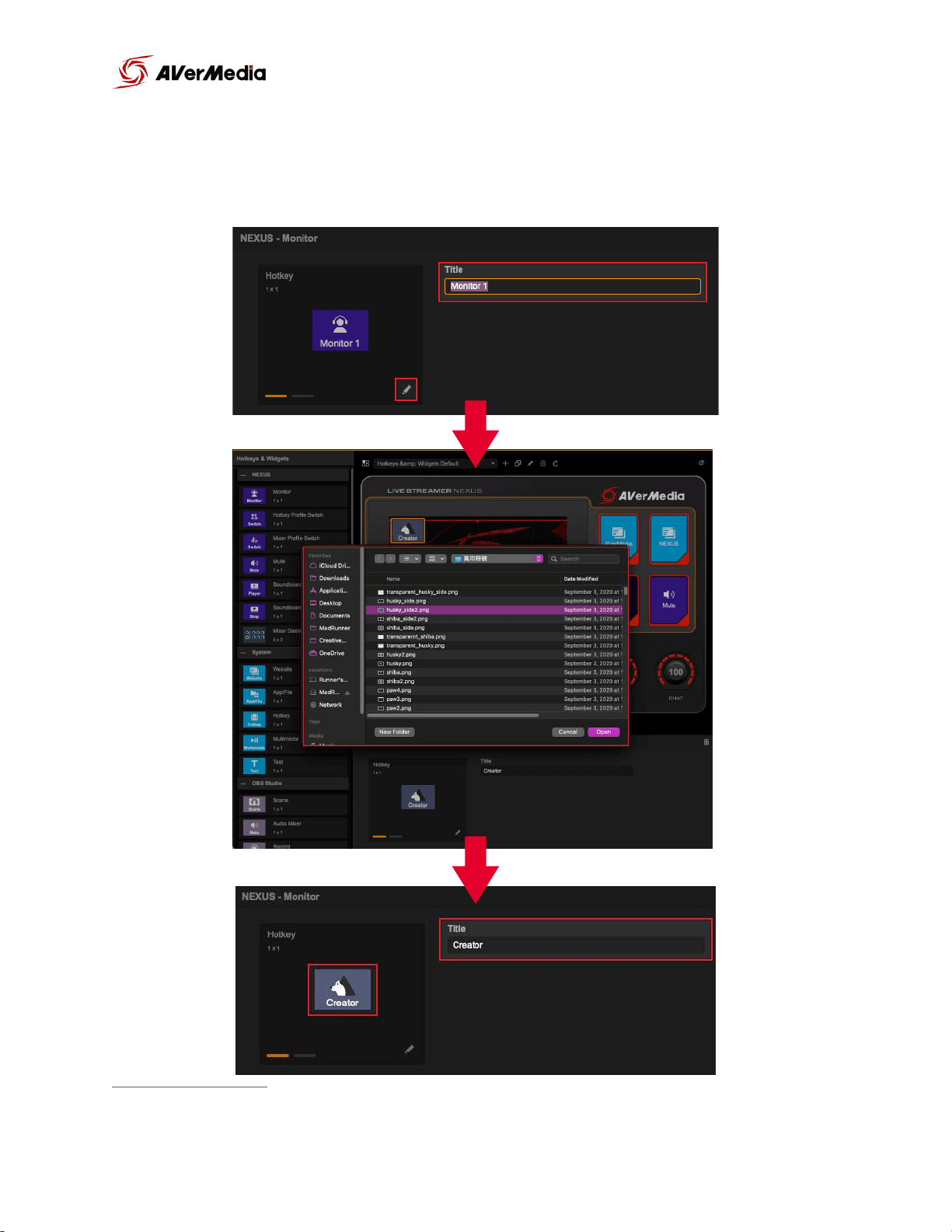
You can customize the text or the image displayed on the settings section of
the widget to hotkey. Click the text field to change the name or click on the
pencil icon and select the image you want.
4
Image resolution should be 150x108 px, supported formats are PNG, JPG, and GIF
4
of 28 39
NEXUS
User Manual
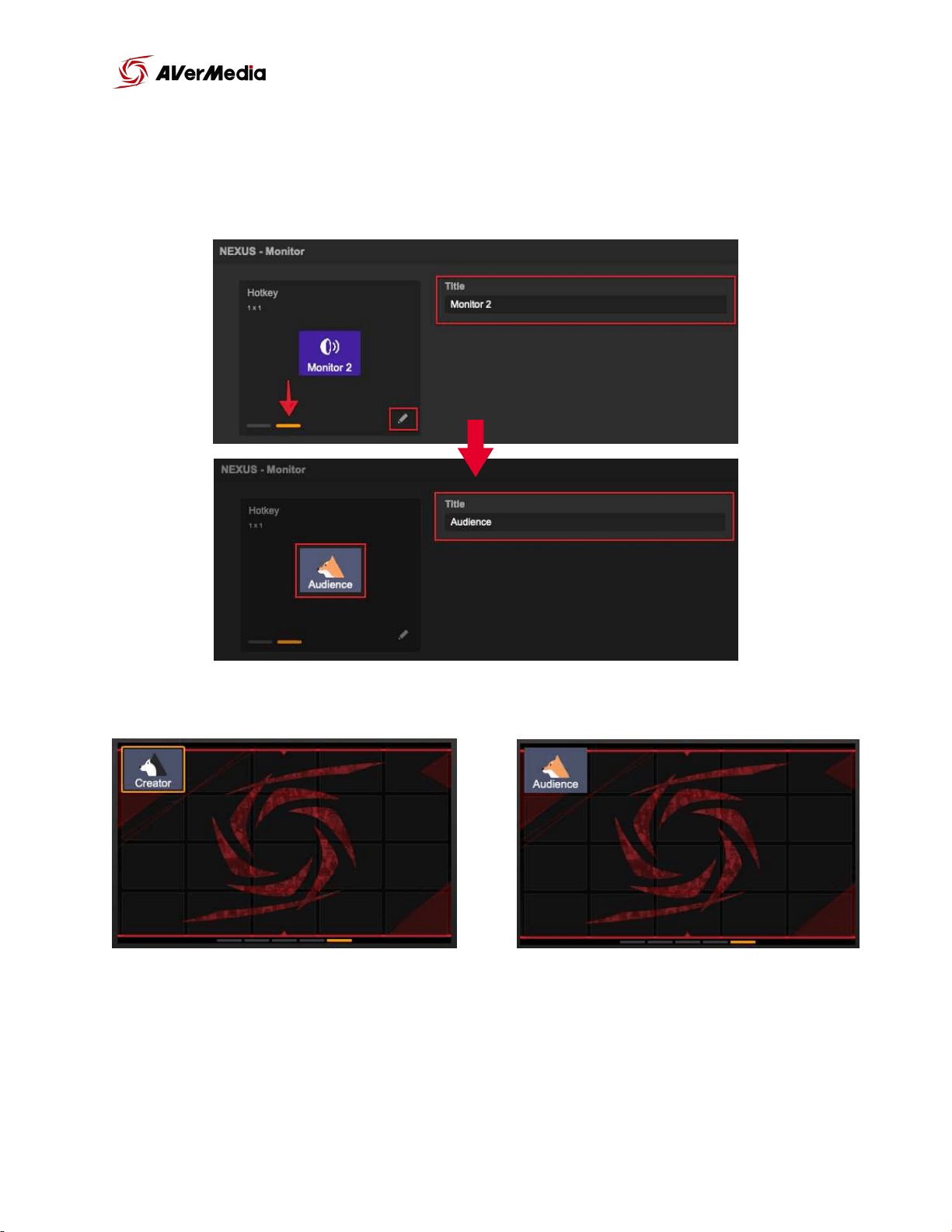
If the widget or hot key has two “status” you can customize the 2nd status by
selecting the 2nd status tab of the widget/hotkey and make the changes you
want.
of 29 39
Status 1
Status 2
NEXUS
User Manual
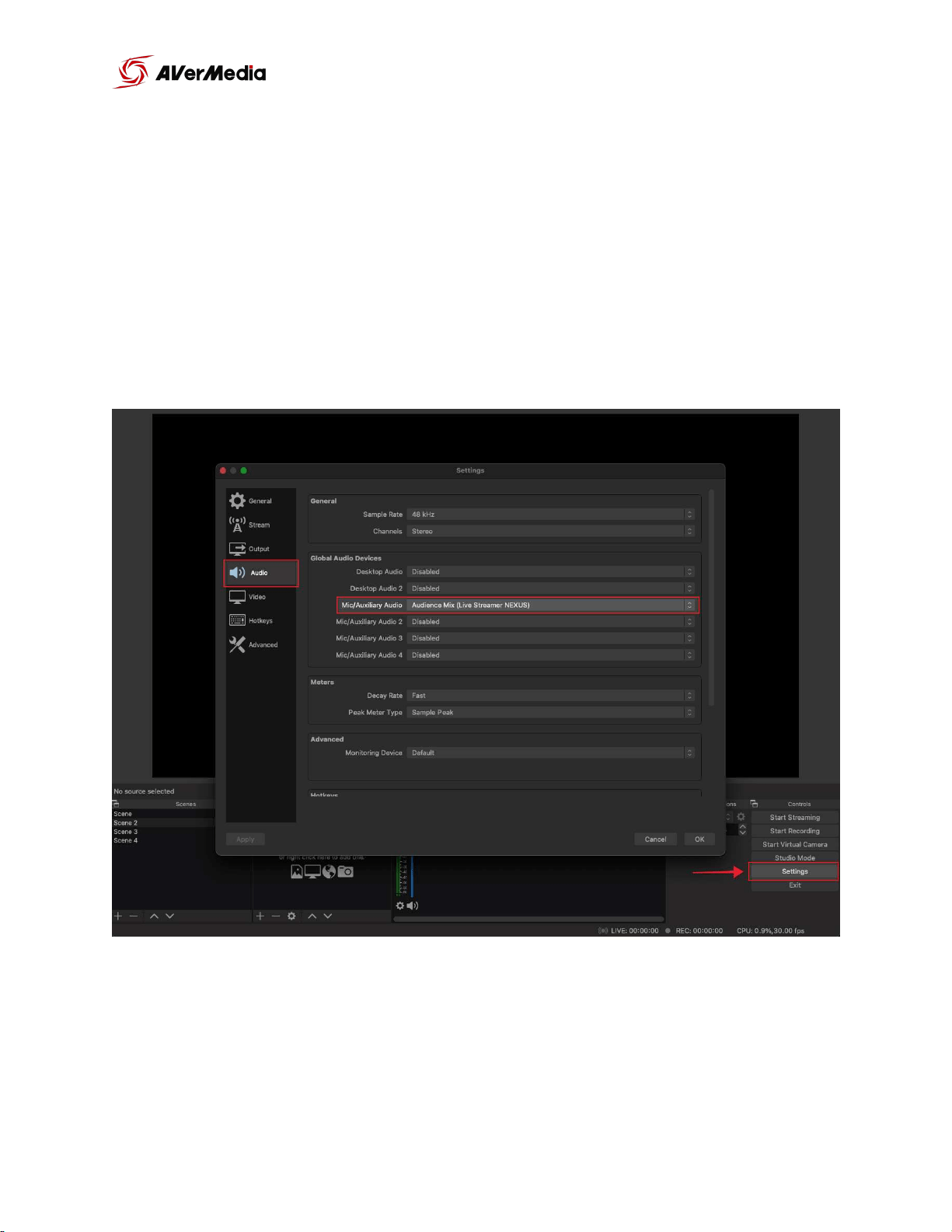
OBS Setup
First step is to delete or mute all audio sources, disable desktop audio and
others. All your audio sources should be routed through the NEXUS.
Go to OBS Settings > Audio > “Mic/Auxiliary Audio” and select “Audience Mix
(Live Streamer NEXUS)”
of 30 39
NEXUS
User Manual
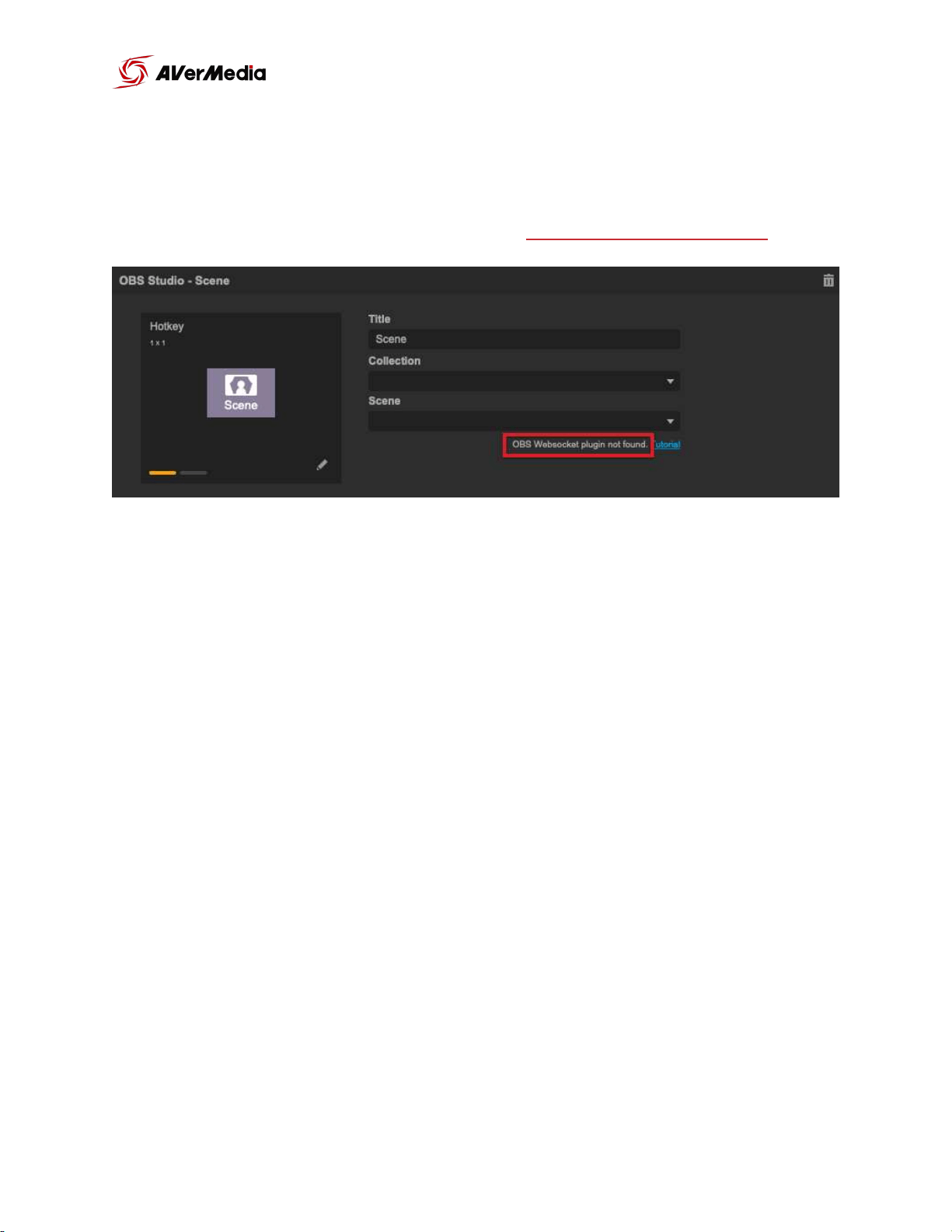
OBS Websocket Plugin
In order to use OBS widgets, you will need to download and install OBS
Websocket plugin, here is the reference link Websocket download link.
For Windows
We recommend you can use the installer “obs-websocket-4.X.X-Windows-
Installer.exe” (works only with combined 32/64-bit installations)!: download it,
launch it and follow the instructions.
If that doesn’t work then download and unzip the!obs-websocket-4.X.X-
Windows.zip. Copy the contents of the archive to the root of your OBS Studio
installation folder (either!C:\Program Files\obs-studio!or!C:\Program Files
(x86)\obs-studio).
For macOS
Download and run!obs-websocket-4.X.X-macOS.pkg.
of 31 39
NEXUS
User Manual
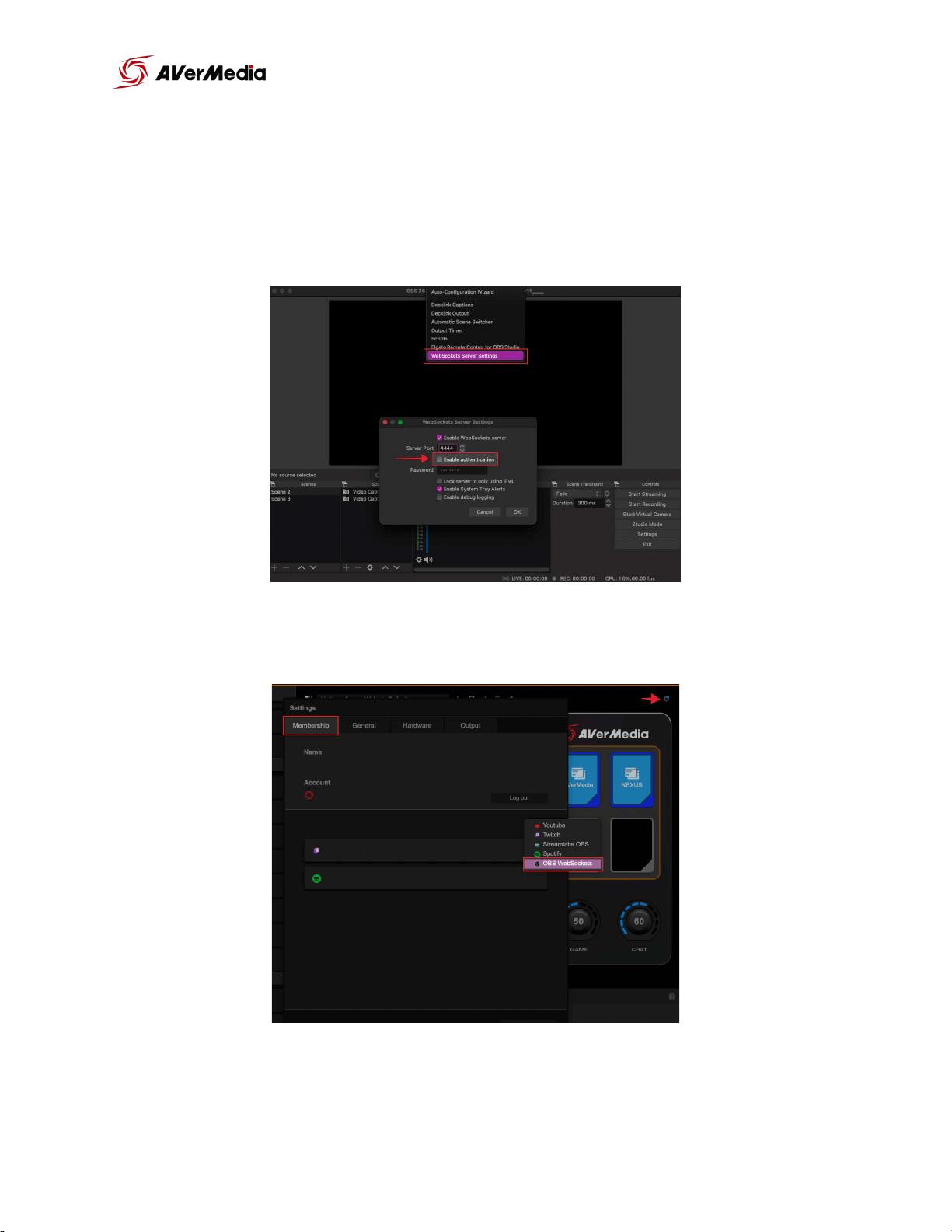
Note:
If you are not able to used OBS widgets right away make sure the “Enable authentication” is
unselected.
If you choose to use a password with your OBS websockets, remember to add the account in
the NEXUS app settings and type in the password.
of 32 39
NEXUS
User Manual
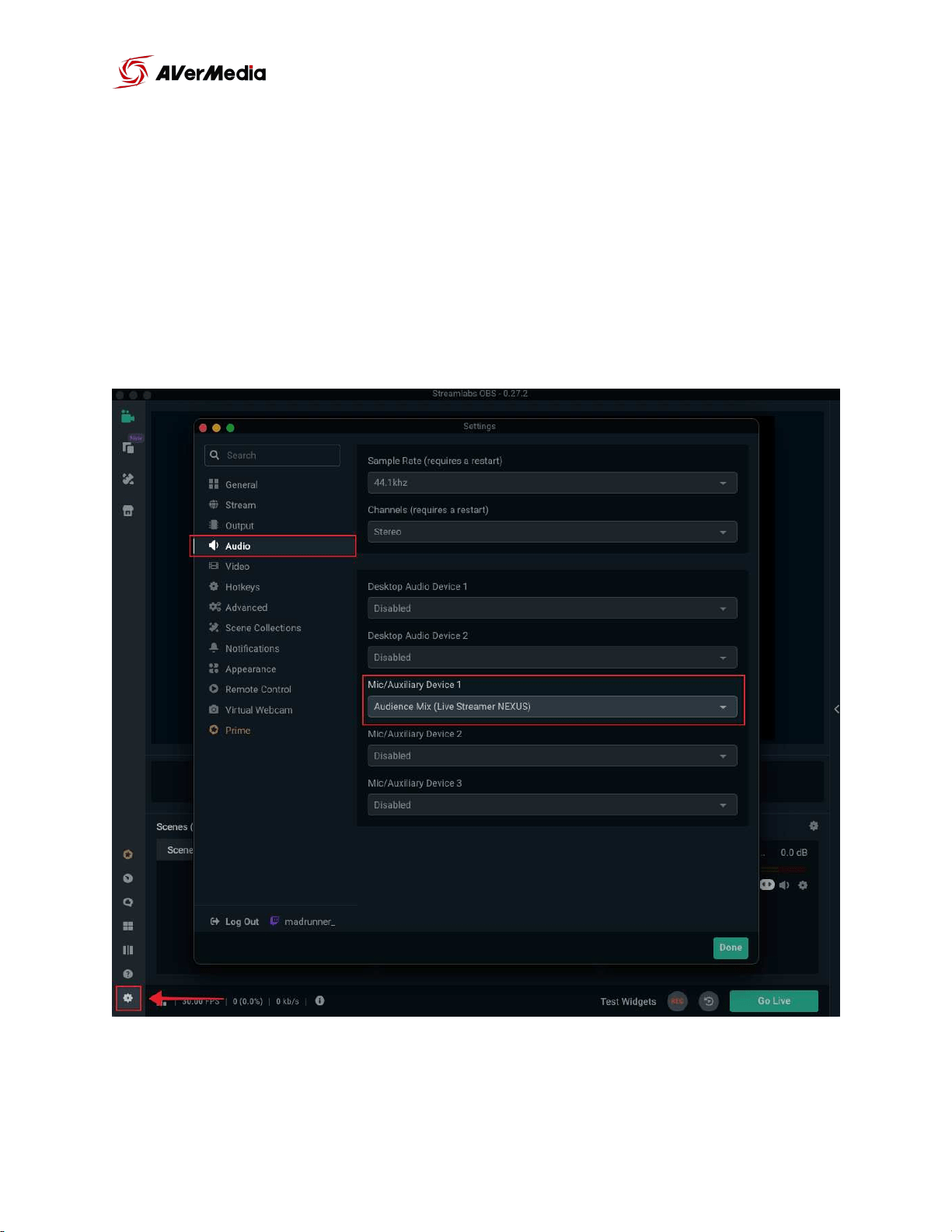
SLOBS Setup
First step is to delete or mute all audio sources, disable desktop audio and
others. All you audio sources should be routed through the NEXUS.
Go to SLOBS Settings > Audio > “Mic/Auxiliary Audio” and select “Audience
Mix (Live Streamer NEXUS)”
of 33 39
NEXUS
User Manual
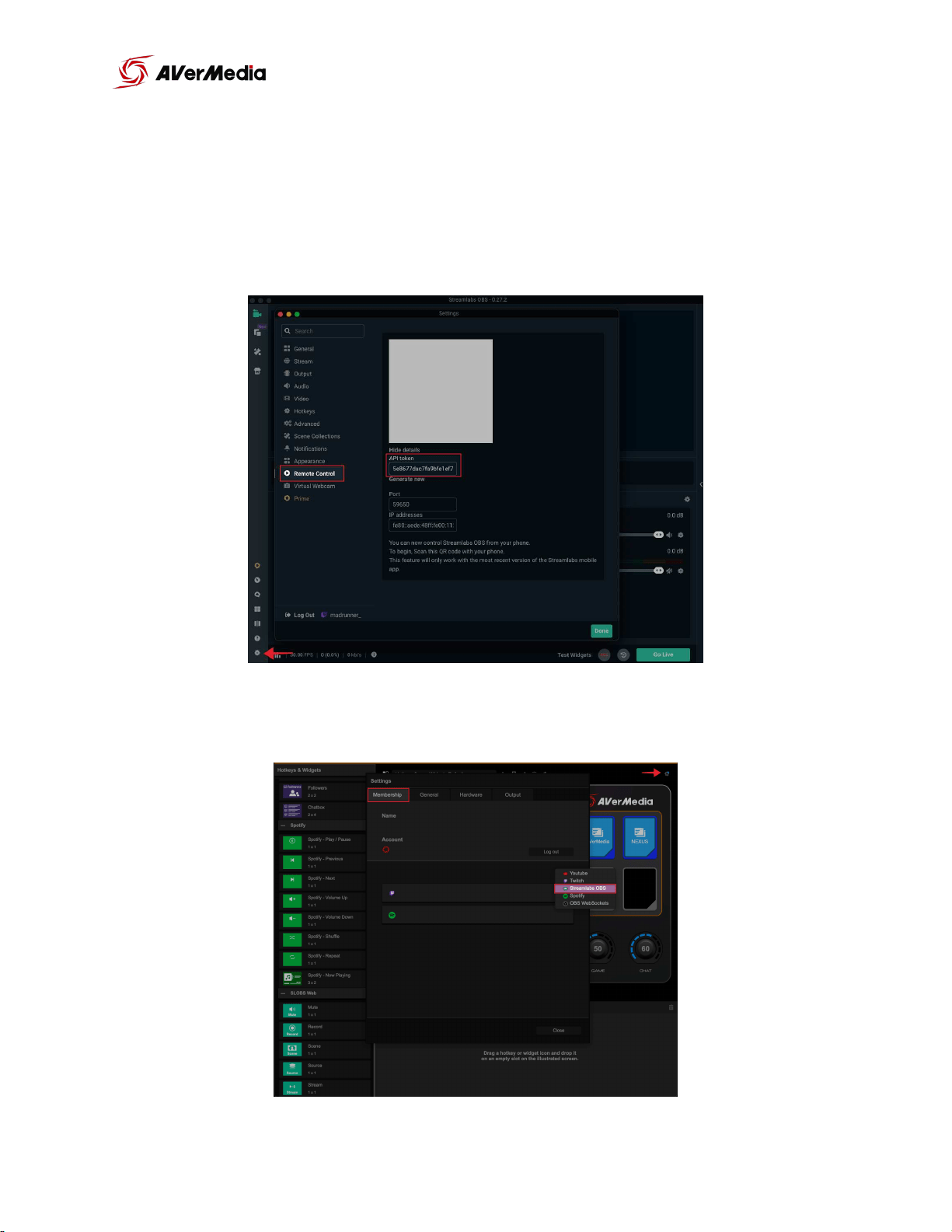
SLOBS Token Plugin
In order to use SLOBS widgets, you will need to get your SLOBS token. Get
this token by going into SLOBS settings page > Remote Control > “Click to
reveal” > Show details ; now copy the API token number.
For the next step go to NEXUS app setting, add streamlabs OBS and past the
token number.
of 34 39
NEXUS
User Manual

Future updates
5
Summer Update
Ecosystem Completion
AVerMedia Integration
CamEngine and VoiceEngine
New Features
Multiple actions
Twitch commands
XSplit integration
Subject to change
5
of 35 39
NEXUS
Fall Update
User & Dev Community
SDK Framework
SDK and Widget Store
Documentation and samples
Developer website
New Features
Audio samples
Twitch studio
Daily productivity
Winter Update
UI Maintenance
UX revamp
Multi-size widget
Profile import, export and share
New Features
Cloud sync and back up
User Manual
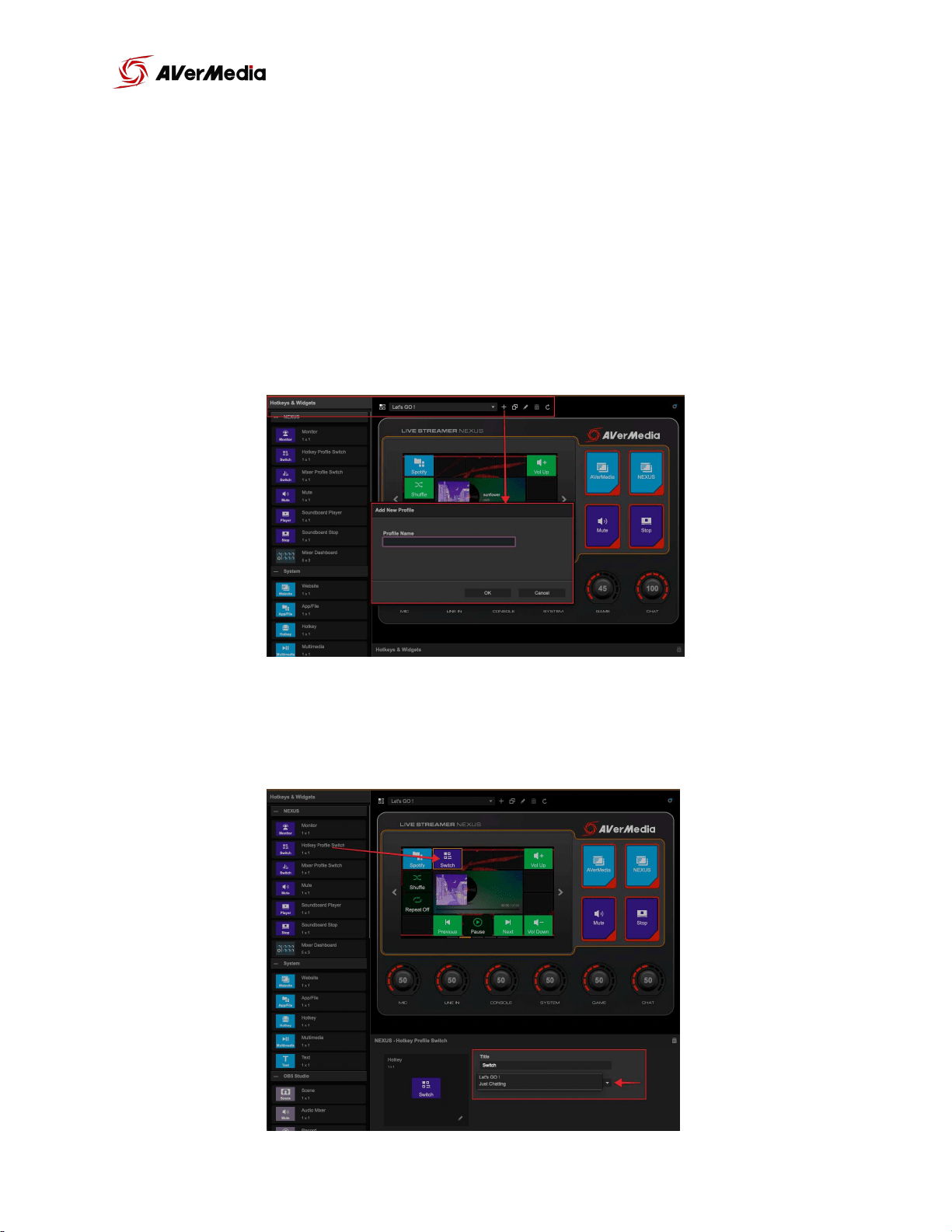
Hotkey & Widget Profiles
You can add various control center profiles for different situations. These
profiles will store your touch panel and functions buttons hotkey and widgets
settings.
To create a new profile, click the “+” icon, type the name of this new profile
and select “OK”.
To quickly switch between profiles add “Hotkey Profile Switch”. And at the
bottom you will have a dropdown menu where you can choose which profile
you want to switch to.
of 36 39
NEXUS
User Manual
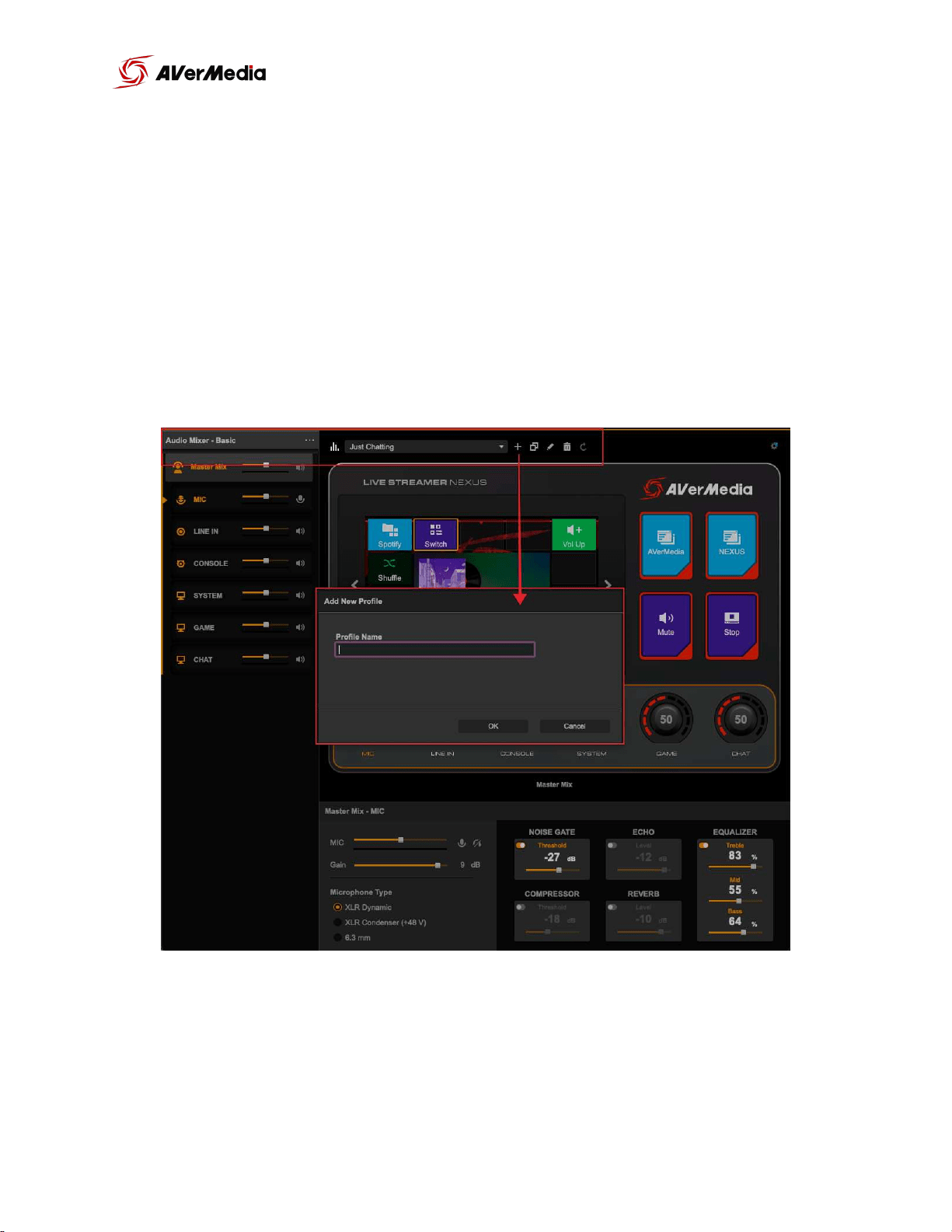
Audio Profiles
You can add various audio profiles for different situations. These profiles will
store all your audio settings.
To create a new profile, click the “+” icon, type the name of this new profile
and select “OK”.
of 37 39
NEXUS
User Manual
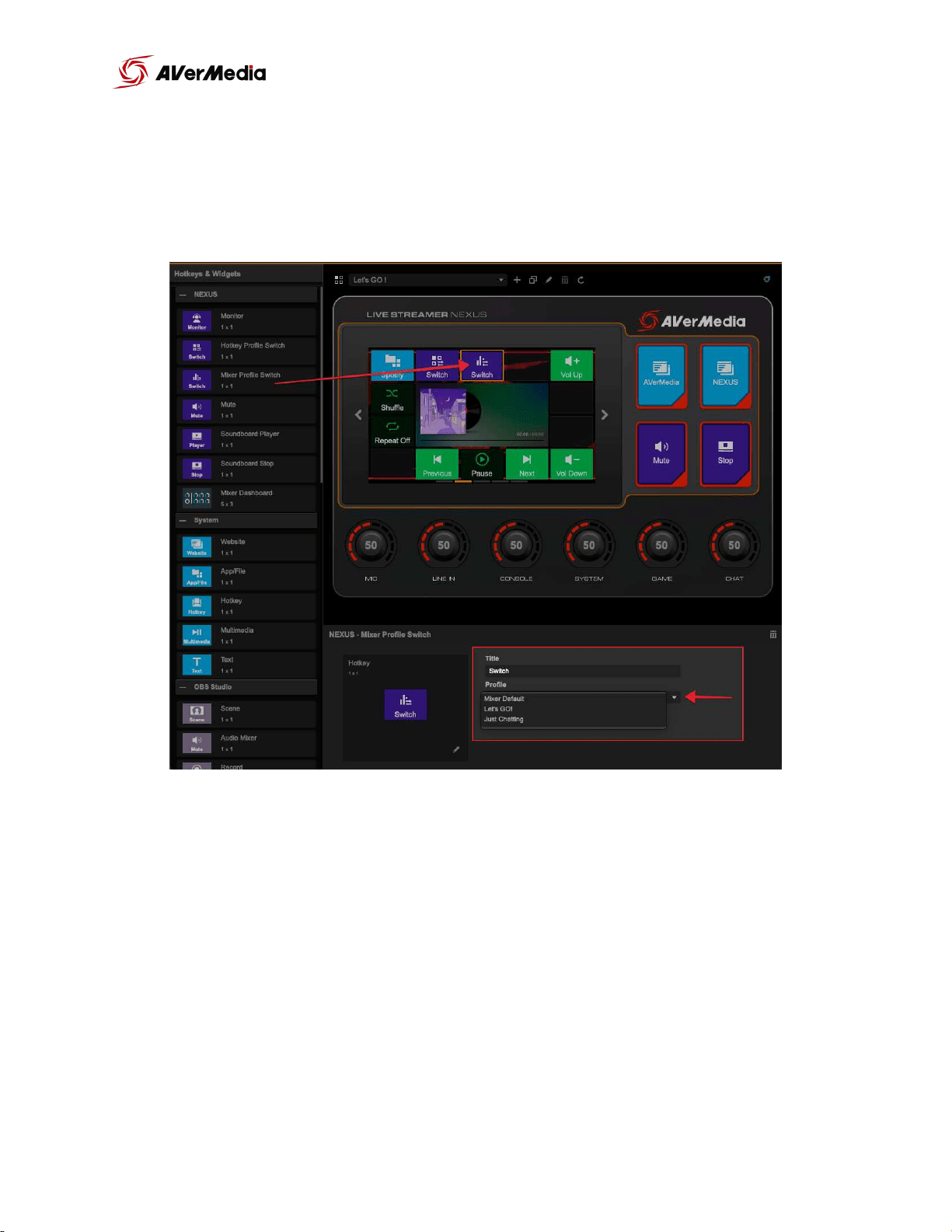
To quickly switch between profiles add “Mixer Profile Switch”. And at the
bottom you will have a dropdown menu where you can choose which profile
you want to switch to.
of 38 39
NEXUS
User Manual

of 39 39