
1 / 91
RECentral 4 User Manual
Revised on: 01/11/2018
Chapter 1 Before Getting Started with RECentral
02 Operating Environment and Specifications
02 Installation of RECentral
Chapter 2 Interface
03
06
Main Menu (Multi Mode)
How to Switch between Functions
Description of Capture Mode (Single and Multi Mode)
Preview Window
Chapter 3 Capture Mode: ① How to Use
Single Mode
08
Chapter 4 Capture Mode:
② How to Use Multi Mode
48
49
Main Menu in Multi Mode
Recording and Streaming: Steps to Recording and Live Streaming
Introduction to Functions: Scene Function and Source (PiP Function) 55
56
60
78
Steps to set Scene function and Source Operation
Source Settings (Device, Screen Capture, Video, Image, Text, Web)
Live Editing
Chapter 5 Media Share
81 How to View Media Share
Chapter 6 Settings
82
87
RECentral Settings
(general, short-cut key, sharing, settings file, RECentral)
Set Up a Device
Chapter 7 Other Information
Table of Contents
(Twitch, YouTube Live, Facebook)
04
05
09
16
24
28
Main Menu in Single Mode
Recording: Steps to Recording
Sound Settings (Introduction of Function: Audio Mixer)
Streaming: Steps to Live Streaming
Steps to create an account for live streaming
91

2 / 91
・ For the latest update information of “RECentral version 4.0.0.78 or later”, see
here (http://www.avermedia.com/gaming/product/game_capture/recentral4).
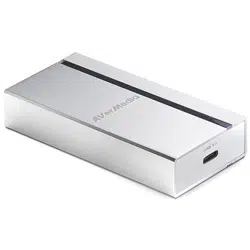
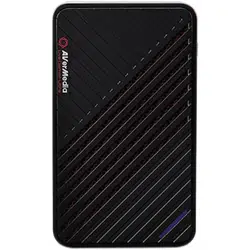
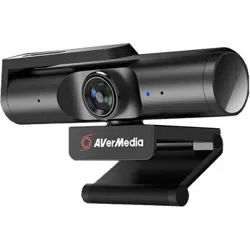
※ RECentral 4 supports GC550, GC513, GC510, BU110, AM310 and PW310 (as of January
2018). All future updates will be posted on our website as soon as they become available.
Step 1. Visit the Special Page of RECentral (
http://www.avermedia.com/gaming/product/
game_capture/recentral4
) and download the latest RECentral.
Step 2. When download is complete, double-click the icon to launch the installer, select
“Complete (Install All Necessary Functions)”, and follow the on-screen instructions to install.
※ When RECentral is installed, the plug-in “AVerMedia LGHD Stream Engine” for GC510 /
GC570 will also be installed. If this plug-in “AVerMedia LGF\HD Stream Engine” is activated,
it will improve the performance of input video display when you use third party software
(e.g. OBS Studio, XSplit, NLE, AmarecTV, etc.). Refer to Q&A for more information.
・GC510:
http://www.avermedia.com/gaming/support_faq/live_gamer_portable_2?
q=408#tab-1
・GC570: http://www.avermedia.com/gaming/support_faq/live_gamer_hd_2?
q=505#tab-1
1-2. Installation of RECentral
1-1. Operating Environment and Specifications
Chapter 1: Before Getting Started with RECentral
3 / 91
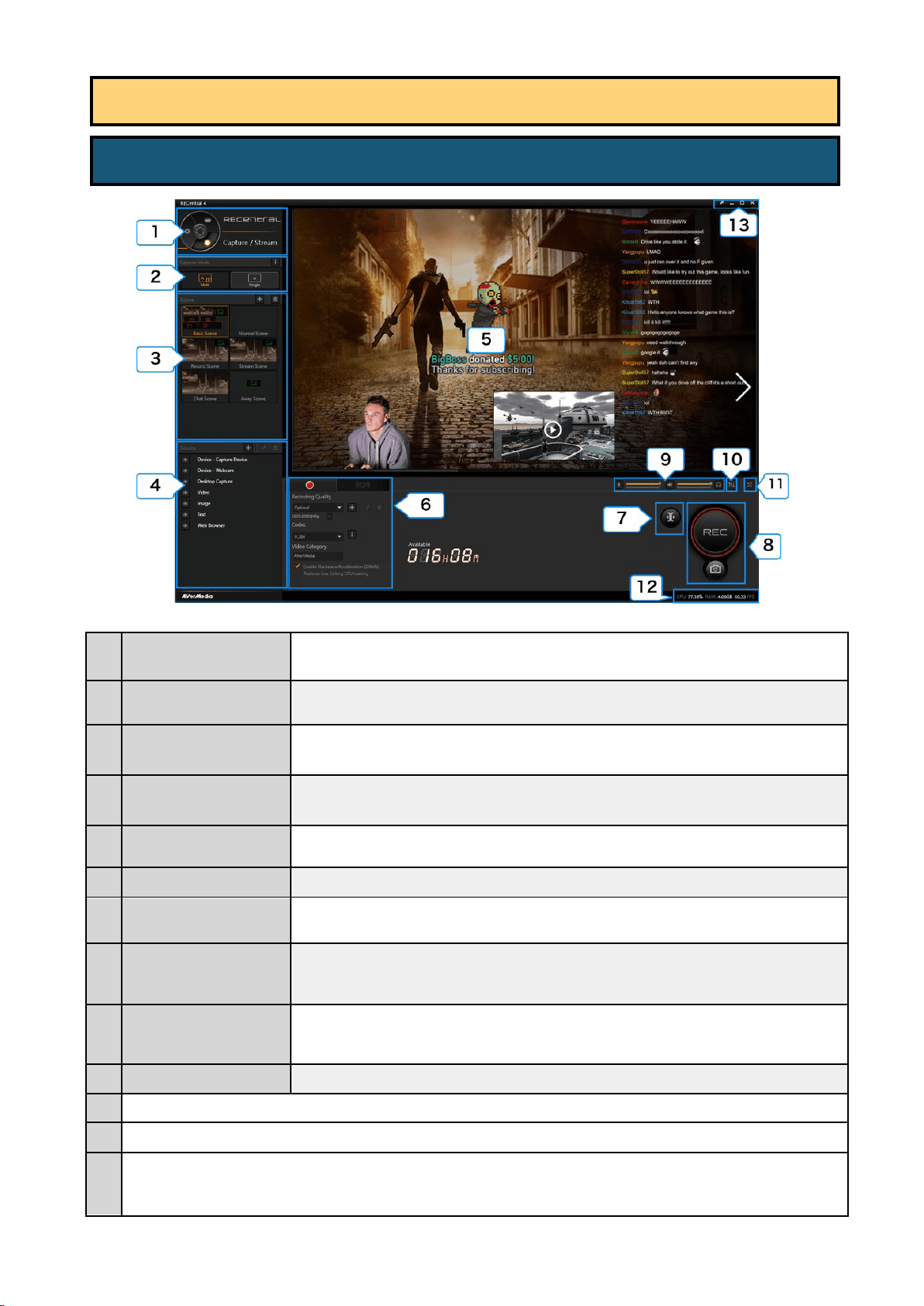
1
Function Dial
Switch among 3 functions: “Capture / Stream”, “Media Share”, and “Settings”.
(→ See page 04)
2
Capture Mode
Switch between 2 modes: Single Mode (→ See page 08), Multi Mode (→ See page 48).
3
Scene (※ when Multi Mode
is selected)
Select / add / delete scenes. (
→ See page 55)
4
Source (※ when Multi Mode
is selected)
Select / add / set / delete the Source (capture device, webcam, PC screen, video, image, text, web
pages, etc.). (→ See page 60)
5
Preview Window
Shows the video screen of the source.
6
Record / Stream
Switch to “Record” or “Stream” to execute the recording / streaming settings.
7
Live Editing button
Enable / disable the Live Editing function. (※ when Multi Mode is used) (
→ See page 78)
8
Capture Button
・ Start /stop recording / streaming
・ Save Live Editing
・ Take a snapshot
9
Source Volume Adjustment
(→ See page 16)
・ Adjust the recording volume of the microphone sound, or turn the mute on / off
・ Adjust the recording volume of the source sound, or turn
the mute on / off
・ Adjust the playing volume of the source sound, or turn the mute on / off
10
Audio Mixer
(→ See page 18)
Set the mixing of the source and microphone sound
11
Switch to the full screen view
12
Show the utilization rate of CPU and GPU, and the FPS value of the source
13
・ Switch between Lite Mode and Normal Mode
・ Minimize / maximize the window (full screen view) in the taskbar
・ Quit RECentral
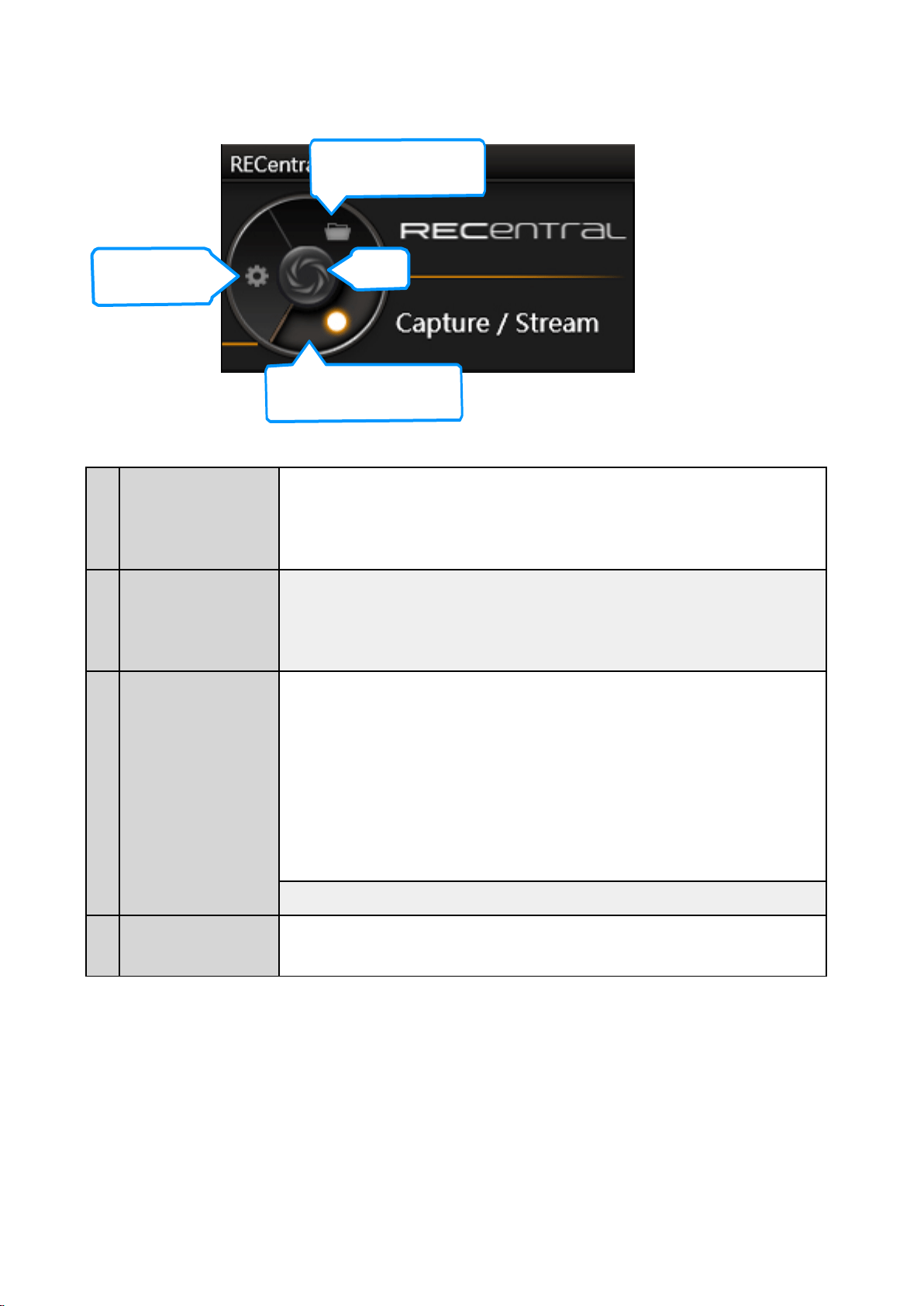
2-1. Main Menu (Multi Mode)
Chapter 2: Interface
4 / 91
Function Dial
①
Capture / Stream
・ Switch to select either of the following two modes - Multi Mode (
→ See page 48)
or Single Mode (→ See page 08) in the Capture Mode, and set the quality, codec,
platform and more for recording and live streaming.
②
Media Share
(→ See page 81 )
・ Manage the saved recordings / still image files
・ Share the saved recordings / still image files to the Video sites / Social Media
③
Settings
(
→ See page 82)
・ Set the “Display Language” and “Save path of the Recorded image”
・ Set the Short-cut key
・ Set the Recording / Still Image Sharing Account
(Facebook/Twitter/YouTube)
・ Export / Import the configuration file
・ About RECentral:
- Verify the software version and check for updates
- Give feedback to AVerMedia with ideas, opinions, and questions related to the
software
・ Set the Capture device (→ See page 87)
④
AVerMedia Button
Go to the home page of AVerMedia.
② Media Share
④
① Capture / Stream
③ Settings
5 / 91
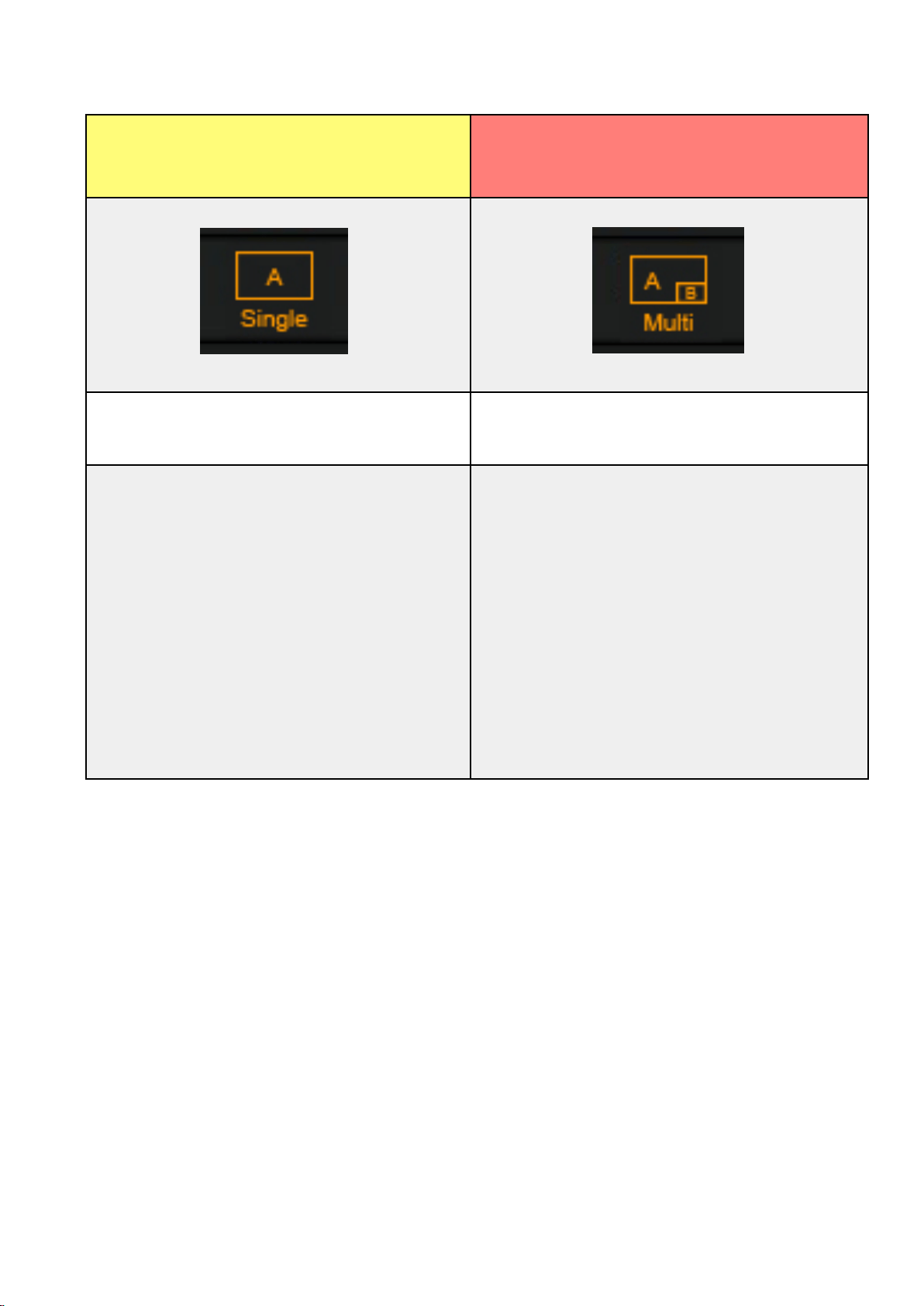
Single Mode
(→ See page 8)
(Recommended for users who want to use PC comfortably
while recording and streaming files and videos in a simple
and stable way)
(Recommended for users who want to use the PiP function
and multiple devices.)
Select only one capture device at a time to record and
stream the files.
If the Single Mode is used, (in comparison to Multi Mode)
heavy workload of PC can be saved more effectively, and the
PC performance can be improved.
When the recording and streaming display need to be
customized, Multi Mode is recommended. This mode
supports many functions, such as Picture in Picture (PiP -
multiple capture devices, web cameras, PC display, images,
videos, as well as sources such as text, web pages) and
Chroma Key. You can use your favorite layout to stream
files. You can also use Live Editing in this mode.
Explanation of Capture Mode
※ About the Single Mode:
When using a capture device (GC510, C875, etc.) that's compatible with the AVerMedia’s hardware encoding, the
performance of your PC will be further improved more than a capture device that's compatible with software encoding
(GC550, GC570, etc.). In addition, high frame rate (FPS) can be maintained. When using Multi Mode, if the PC is running
slowly and the frame rate (FPS) is lower than expected, it is recommended to use Single Mode instead.
See page 13 for
more information.
Multi Mode
(→ See page 48)
6 / 91
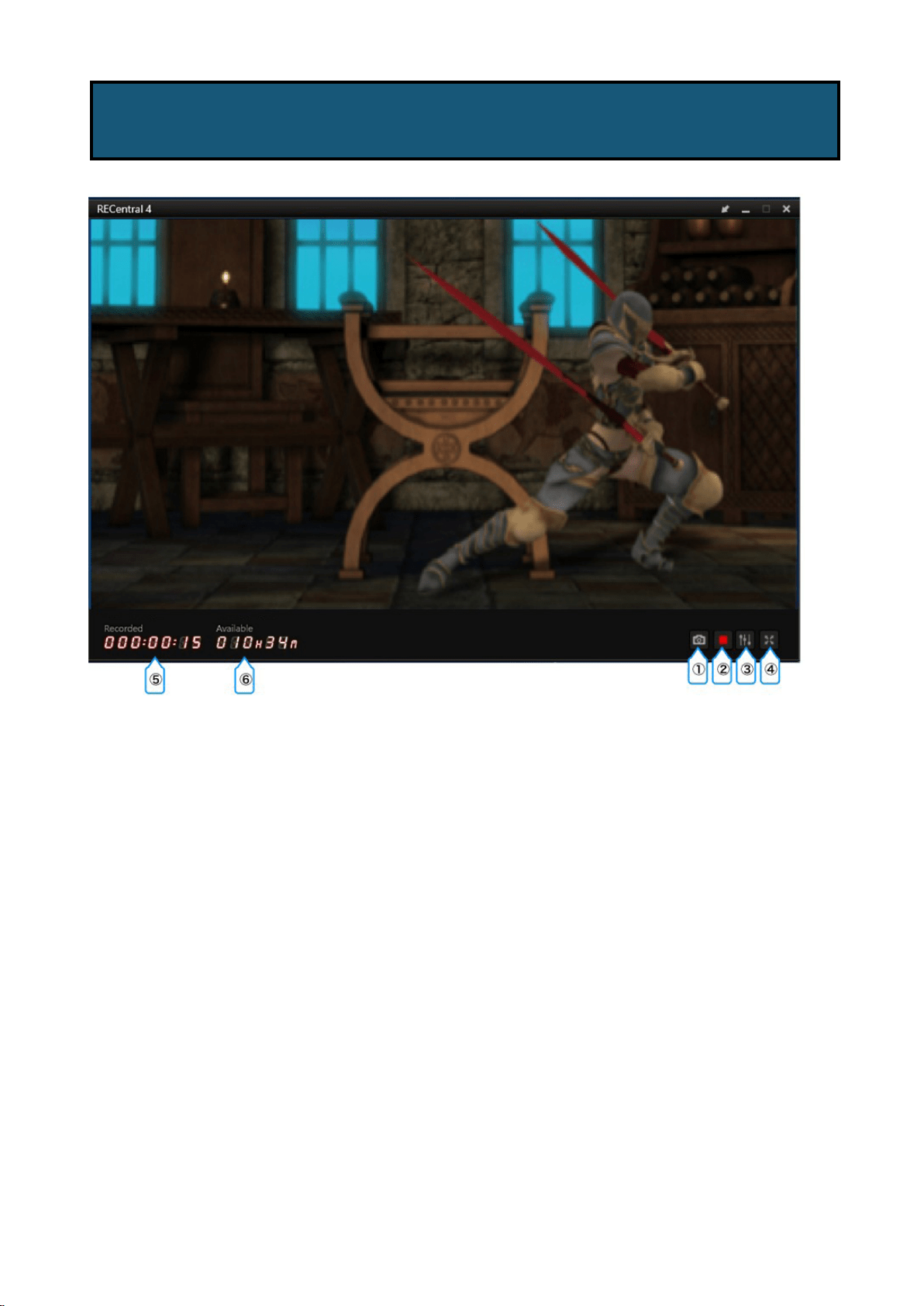
① Take a snapshot (still image)
② Start / stop recording / streaming
③ Set Audio Mixer
④ Switch to the full screen view
⑤ Recorded (elapsed) time of recording (only displayed during recording / streaming)
⑥ Time available for recording (calculated based on the free space of HDD)
2-2. Preview Window
(※ Same for both Single and Multi Mode)
7 / 91
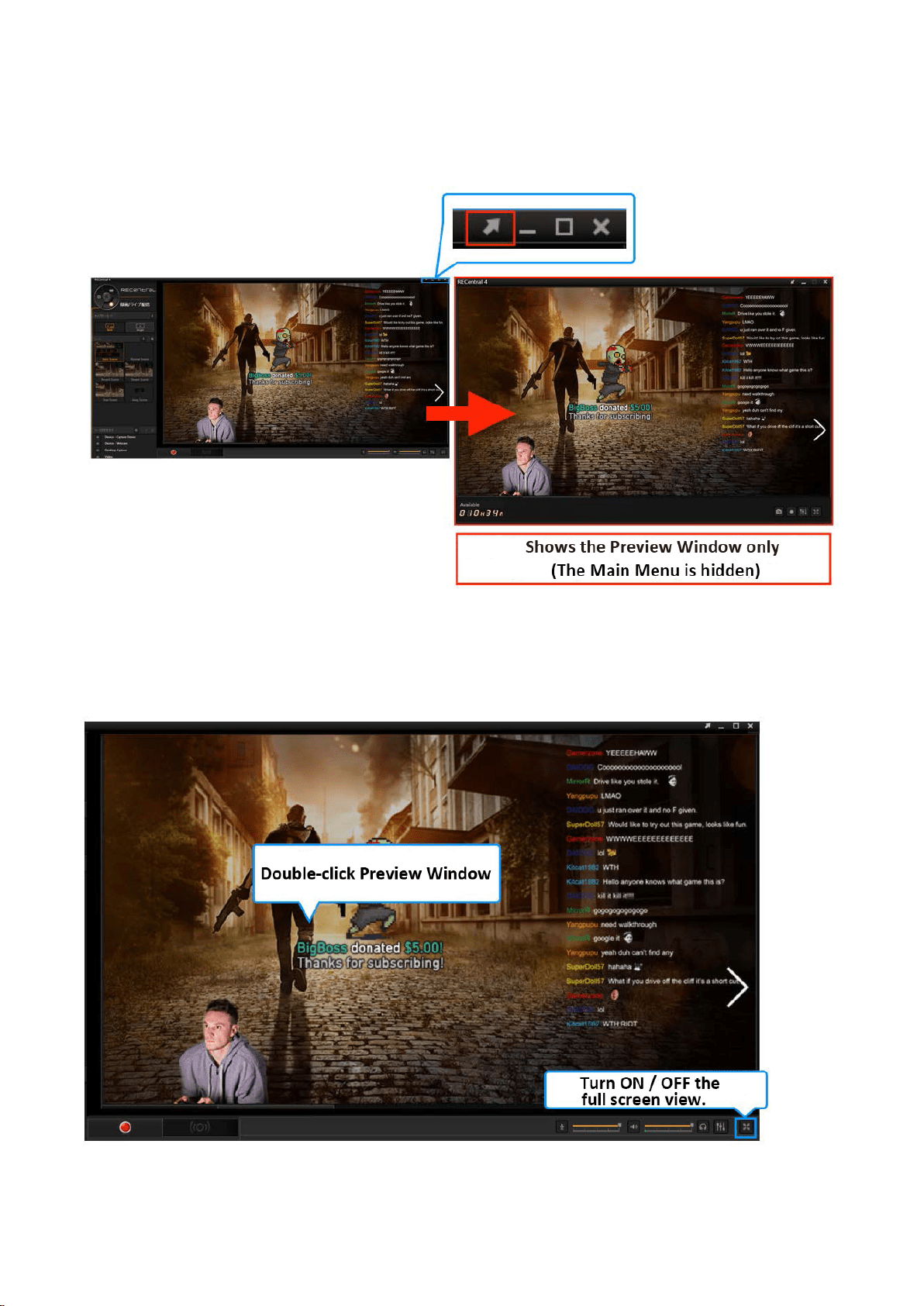
How to View Only the Preview Window
Click the arrow icon to display only the Preview Window while the rest of the interface, such as
Main Menu, is hidden. Click the arrow icon once more to display the full interface again.
How to Switch to the Full Screen View
Double-click the Preview Window, or click the Fullscreen icon from the Main Menu to switch to
the full screen view.
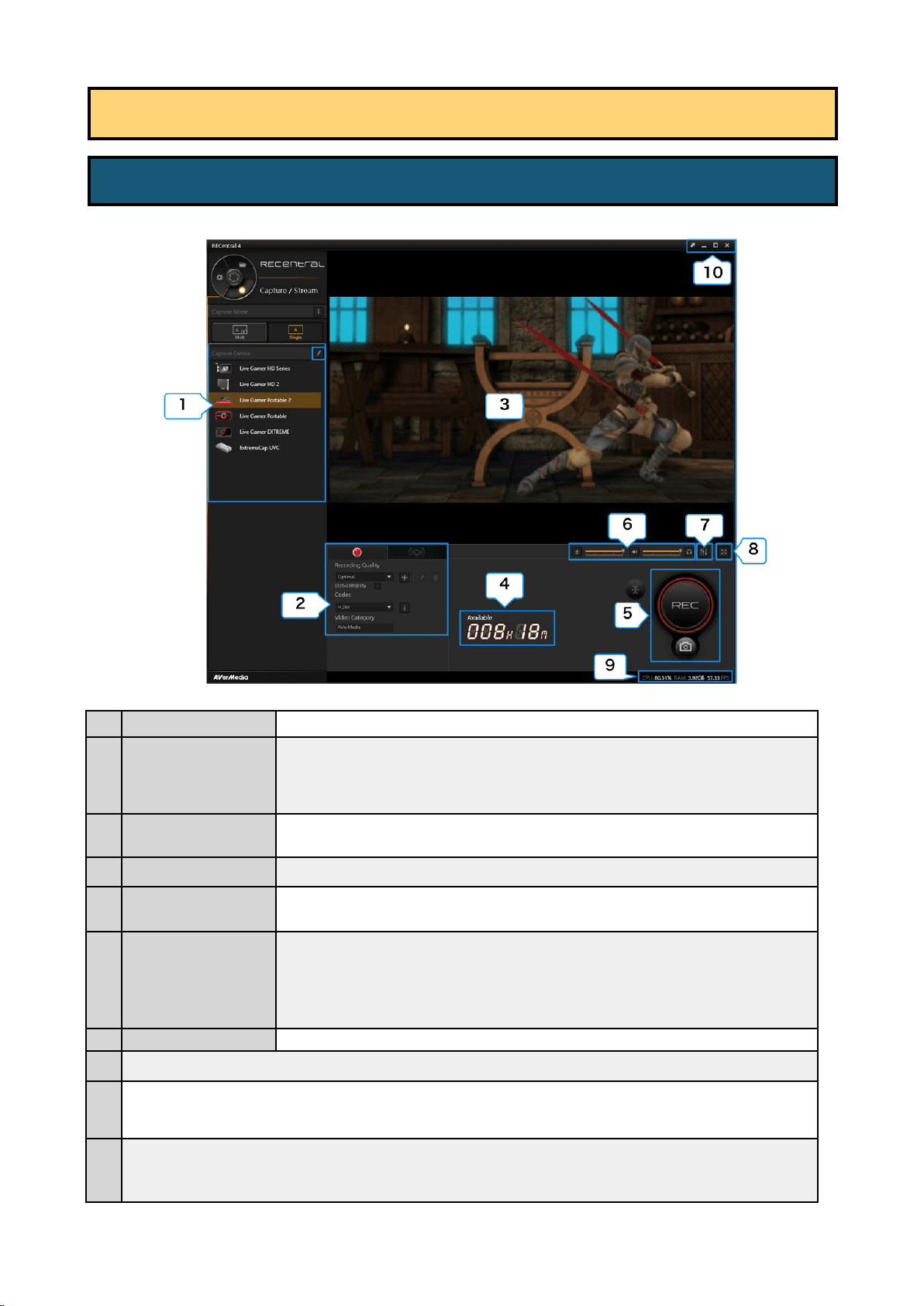
8 / 91
1 Capture Device Select or edit capture device (→ See page 10)
2
Record / Stream
3 Preview Window
Shows the video screen of the source (capture device)
4 Time available for recording
Time available for recording (calculated based on the free space of HDD)
5 Capture Button
・ Start / stop (save) the recording
・ Take a snapshot
6
Source Volume
Adjustment
(→ See page 19)
・ Adjust the recording volume of the microphone sound, or turn the mute on / off
・ Adjust the recording volume of the source sound, or turn the mute on / off
・ Adjust the playing volume of the source sound, or turn the mute on / off
7
Audio Mixer Set the mixing of the source and microphone sound (→ See page 18)
8 Switch to the full screen view
9
Shows the loading of CPU and GPU, and FPS value of the source. You can check in the FPS view if "processing failed" is taking place.
(→ In case that FPS value is lower (worse) than the value in the specified quality, see page 11.)
10
・ Switch between Lite Mode and Normal Mode
・ Minimize/ maximize the window (full screen view) to the taskbar
・ Quit RECentral
Chapter 3: Capture Mode: How to Use Single Mode
3-1. Main Menu in Single Mode
・Recording: Set Recording Quality (resolution / FPS / bit rate, etc.), Codec (hardware / software
encoder)
(→ See page 12)
・Streaming: Streaming Platform setup, Quality, Codec, etc. (→ See page 25)
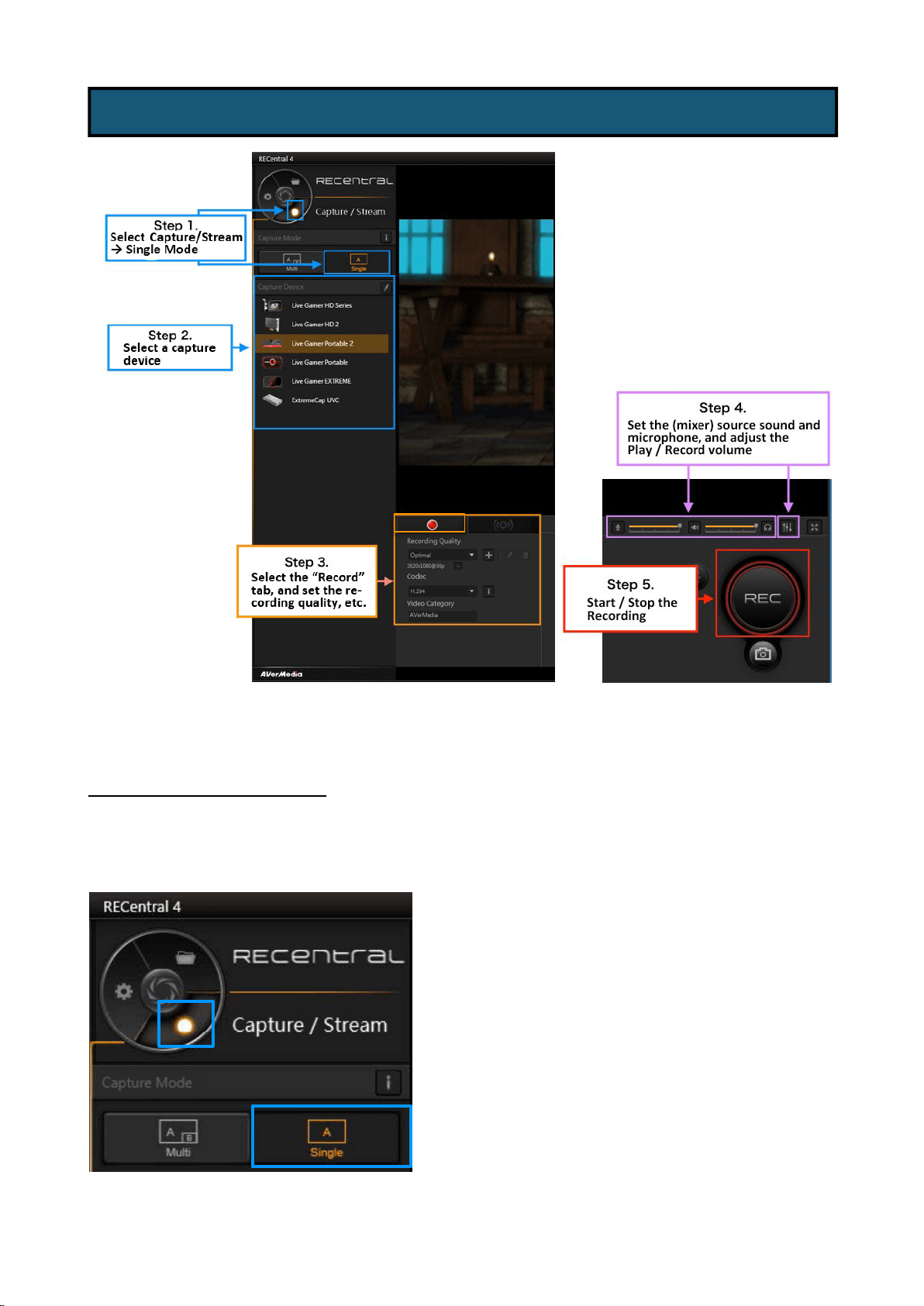
9 / 91
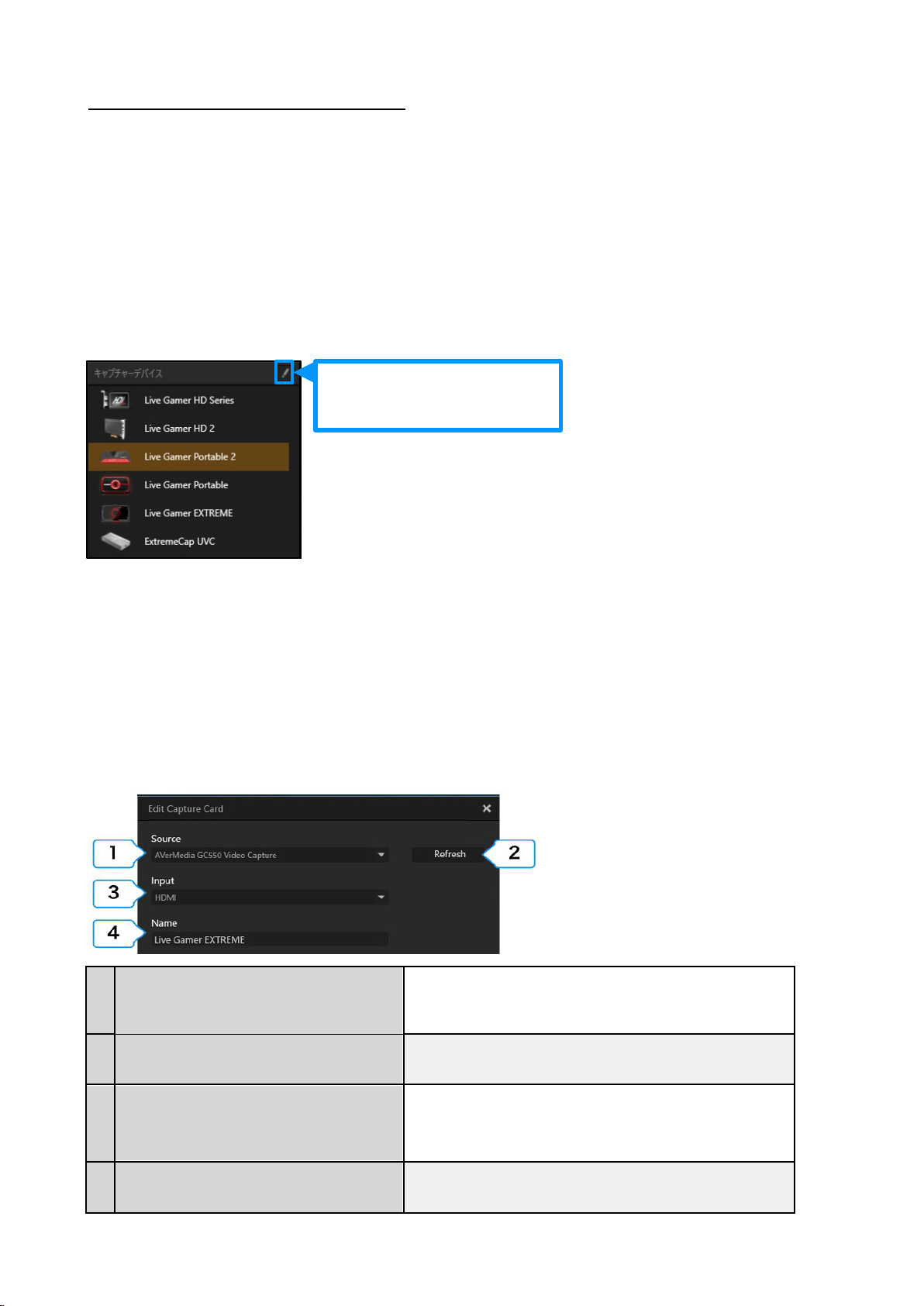
Step 1: Select Single Mode
Use Function Dial to select “Capture / Stream” to show recording and streaming menu. Select the
Single Mode icon.
3-2. Steps to Recording (Single Mode)
10 / 91
Step 2: Select / Edit Capture Device
Select your capture device on the list of connected capture devices. You can edit the device
by clicking the “pen” icon.
※ Notes:
・ If the capture device is not connected properly, or if the driver for this capture device is not installed
correctly, the capture device will not be recognized by RECentral
・ When you use Single Mode, only capture devices can be used. Webcams are not supported in Single Mode.
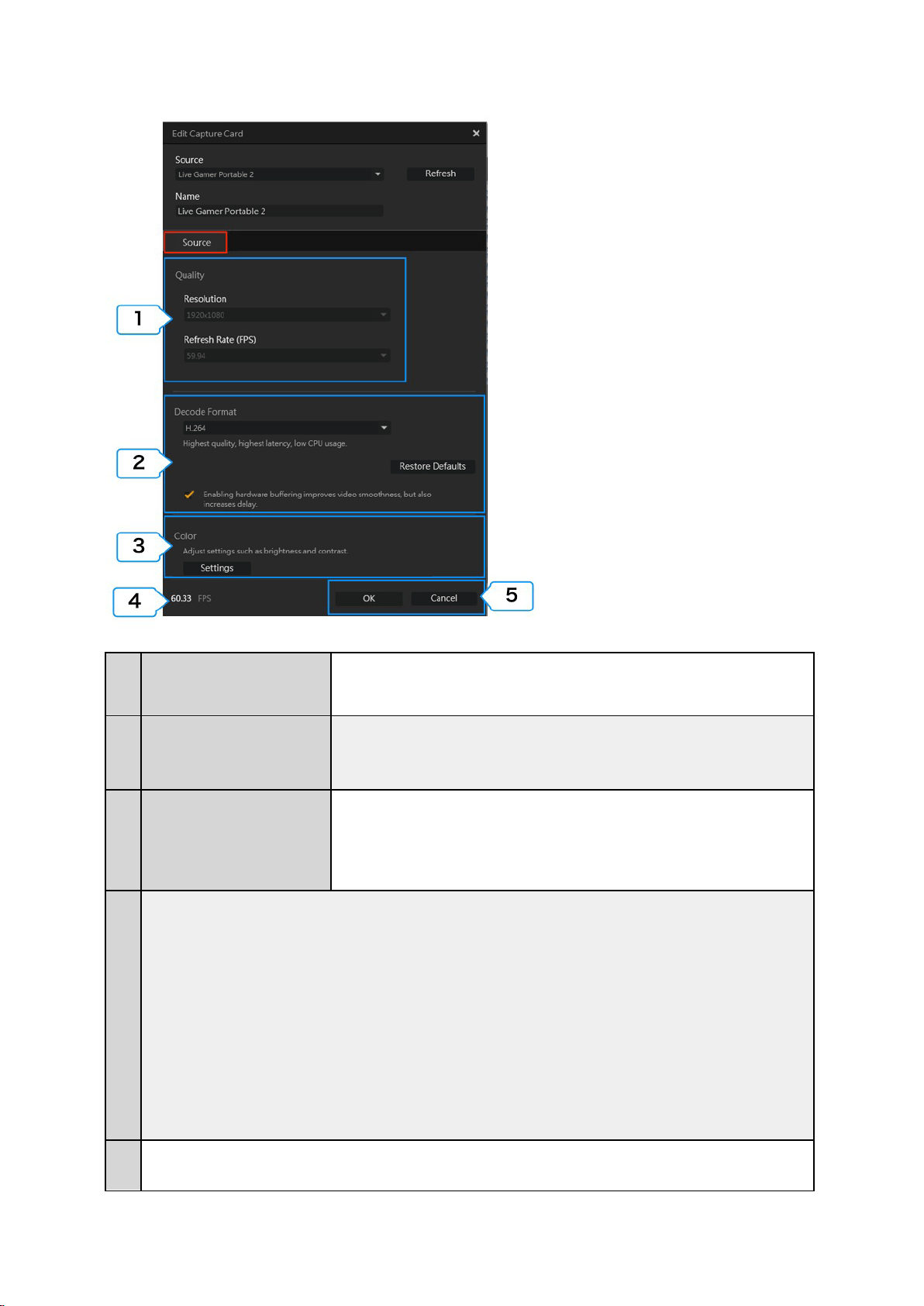
Edit Capture Device
※ Notes: The items to be edited may vary depending on the functions and specifications of
the capture device.
Specify / Set the source (capture device)
Below is an example of the capture device setup.
1
Source (Capture Device)
Switch to the connected capture device and select the source from the
drop-down list
2
Re-detect the capture device and update the status.
3
Select which terminal to be used for video output from game machine or
the video device that you are using. Select either “HDMI” or
“component”
Input
(※ When a device has both HDMI and component input
terminals, this item is shown.)
4 Name
Click on the name shown on the source list to change.
Edit Capture Device
Refresh
11 / 91
1
Quality
(Resolution, Frame Rate)
The resolution and frame rate (FPS) of the video source device (such as game machine) is
shown (※ To improve the quality, change the resolution settings of the source device).
2
Decode Format
(※This item is displayed when certain
models have been selected. )
3
Color
(※ The items that you can set may vary
depending on the type and
specifications of the device)
You can change the color settings of the video terminal of the capture device (HDMI /
component). The items that you can set including:
・ Color range: standard (16-235), extended (0-255)
・ Color adjustment: brightness, contrast, hue, saturation
4
You can check in the FPS view if processing failed is taking place. In case that the FPS value is “lower” (worse) than the value of
the specified quality, carrying out the following operations.
① Close other applications that you are using (game, video software, browser, etc.).
② Change the video format
- When “H.264” / “YUY2” is set:
Try to choose “Motion JPEG” or “NV12”.
- When “Motion JPEG” or “NV12” is set:
Try to select “H.264” or “YUY2”.
③ (only in an environment that the NVidia GeForce graphic card is equipped) Launch the NVIDIA control panel, and select
“3D settings” → “3D controlling settings” → “program settings” in order, and specify the “RECentral”, and then set to “High
Performance NVIDIA Processor”.
④ Click the “Control Panel” (Windows) →” System and Security” → “Power option” in order, set the power supply plan to
“High Performance”.
5
・ Click “OK” to save the settings.
・ Click “Cancel” if you do not want to save the settings.
You can change the decode format of the capture device: H.264/YUY2, Motion JPEG
(MJPEG) and NV12
12 / 91
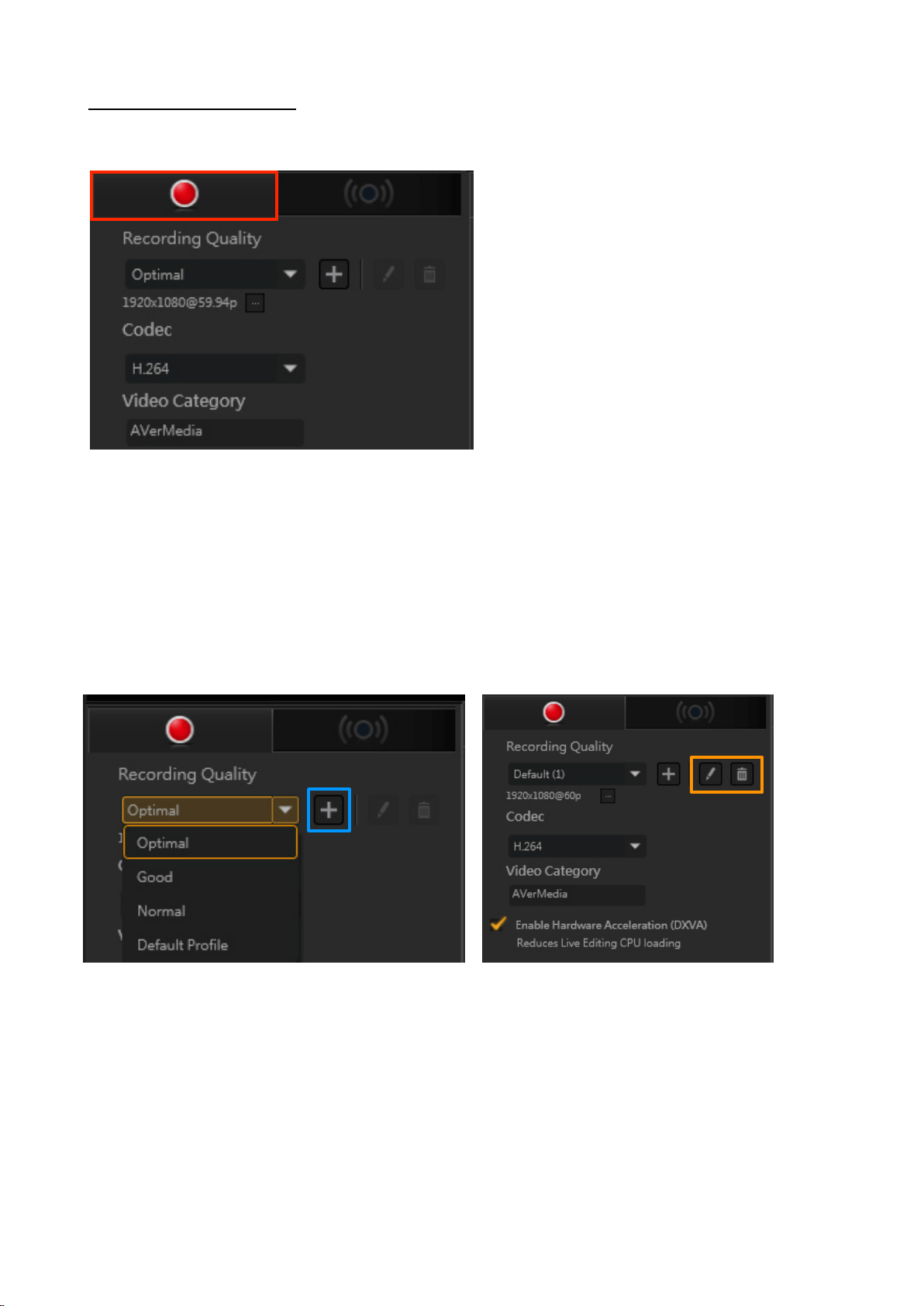
Step 3: Record Settings
Select the Record icon. Set “Recording Quality”, “Codec”, “Category” and so on.
① Recording Quality
Set Recording Quality. Select between Optimal, Good, and Normal, or select the level from
the saved setting files.
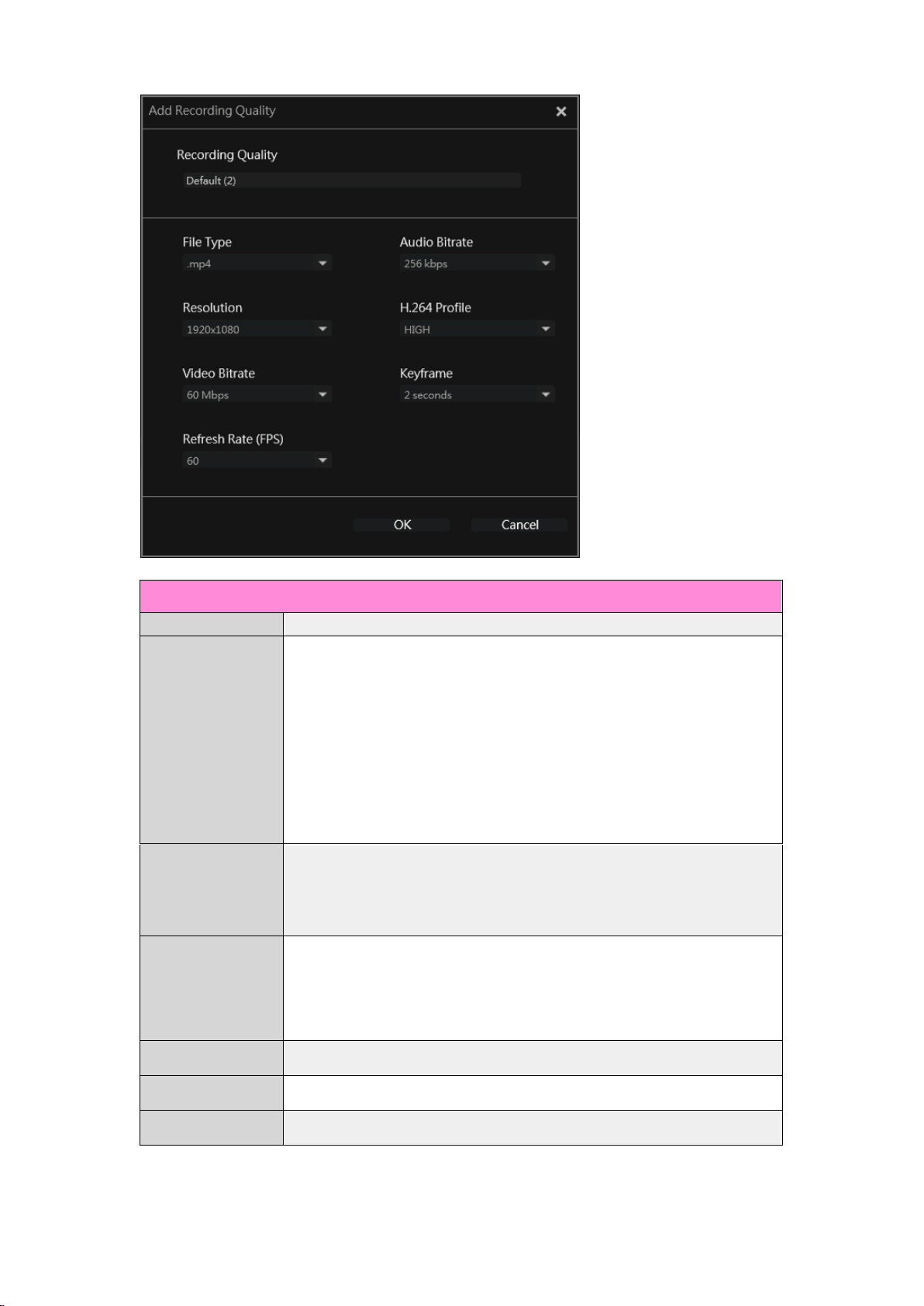
Click the “+” icon to create a new Recording Quality profile (see the table on page 15 for
items available for settings). When the settings are completed, click “Save” to finish.
In addition, you can click the “pen” icon to edit the profile. Click the “trash can” icon to
delete the specified settings file.
13 / 91
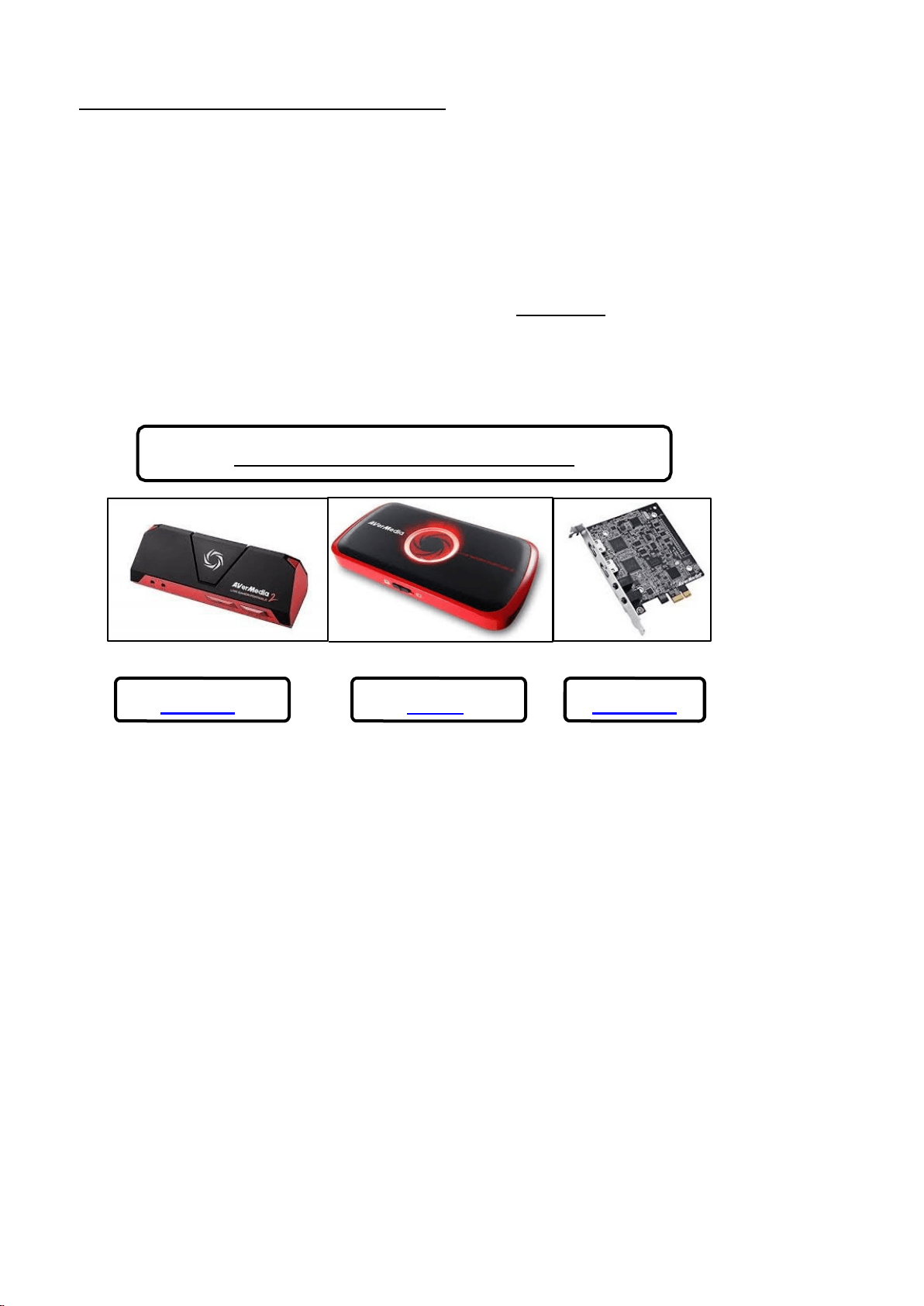
When You Use a Hardware Encoder Card
If your capture card supports hardware encoding (※ Note), you can set the recording quality to
“Optimal” in Single Mode. In doing so, you can further lower the CPU workload and make the most
of your “hardware encoder”capture card to record gameplay (※ not available for streaming). Thus
it is recommended that you set the recording quality to “Optimal”.
※ Note: For the hardware encoder capture cards, RECentral 4 supports GC510 (and GC513 as of
January 2018). Any future updates will be released on our website as soon as they are ready.
GL510E
C875
GC510
Hardware Encoder Capture Cards
14 / 91
Custom Settings
File Type MP4
1920x1080, 1680x1050, 1440x900, 1360x768, 1280x1024,
1280x800, 1280x768, 1280x720, 1024x768, 800x600, 848x480,
768x480, 720x576, 720x480, 640x480, 640x360, 576x360
※ The resolutions that can be selected is determined by the
output resolution of a video source / FPS (in some cases
1920x1080 may be not available).
Video Bitrate
Frame Rate (FPS)
60, 59.94, 50, 30, 29.97, 25, 24, 23.98, 20, 15
※ The frame rate to be selected is determined by the output
resolution.
Audio Bitrate
256, 192, 128, 96, 64, 32 kbps
H.264 Profile
HIGH, MAIN, BASELINE
Keyframe
5, 4, 3, 2, 1 seconds
Resolution
60, 50, 40, 30, 20, 19, 18, 17, 16, 15, 14, 13, 12, 11, 10, 9, 8.5, 8,
7.5, 7, 6.5, 6, 5.5, 5, 4.5, 4, 3.5, 3, 2.5, 2, 1.5, 1, 0.9, 0.8, 0.7, 0.6,
0.5, 0.4, 0.3 Mbps
15 / 91
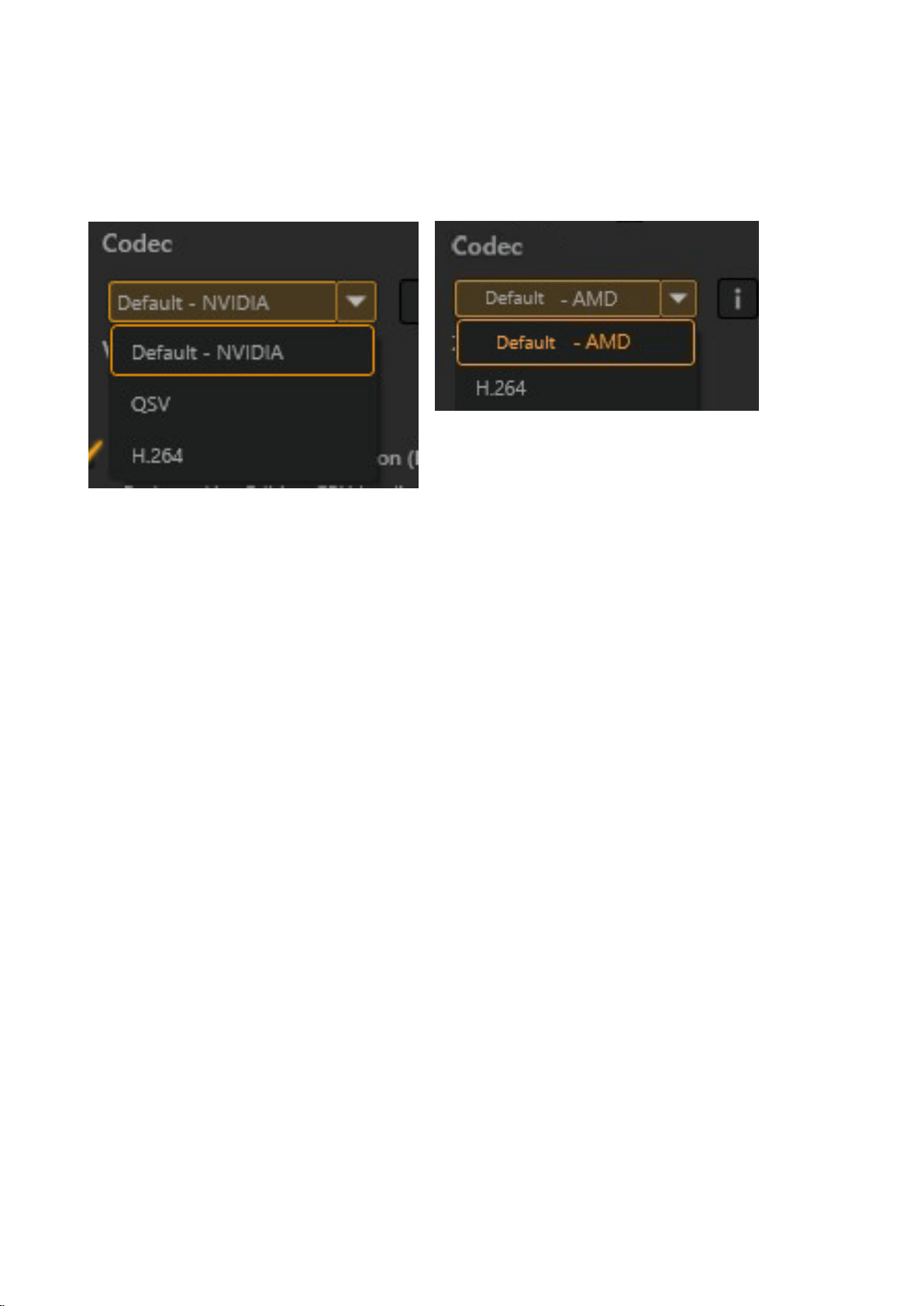
※You can capture an image of better quality by using H.264 (software encoder). However, the workload of CPU will
reach 100%, causing screen freeze or sound lag in your video. It is recommended to change the Codec to “NVIDIA”,
“AMD” or “QSV (※ if your CPU is Intel-based)".
※The hardware encoder may not be displayed depending on the configuration of your PC.
※When you run RECentral (only when an Nvidia GeForce graphic card is installed), the running speed of the software
may be slow, or the CPU loading is high. The solution is:
Launch Nvidia Control Panel, select “3D Settings” → “3D Control Settings” → “Program Settings”, and specify
RECentral, then set to “High Performance NVIDIA Processor”. This will reduce the CPU workload and improve its
performance.
② Codec
When you capture at 1080p/60 fps, PiP in Multi Mode, or use Live Editing in RECentral, it is
recommended to use hardware encoder to reduce your system loading. In RECentral, select
Capture / Stream → Codec and use hardware encoder like NVIDIA, AMD, or Intel QSV, if your CPU
or GPU has built-in hardware encoder.
16 / 91
③ Video Category
Specify and enter a video category. The saved recordings or still images can be sorted by
category in Media Share.
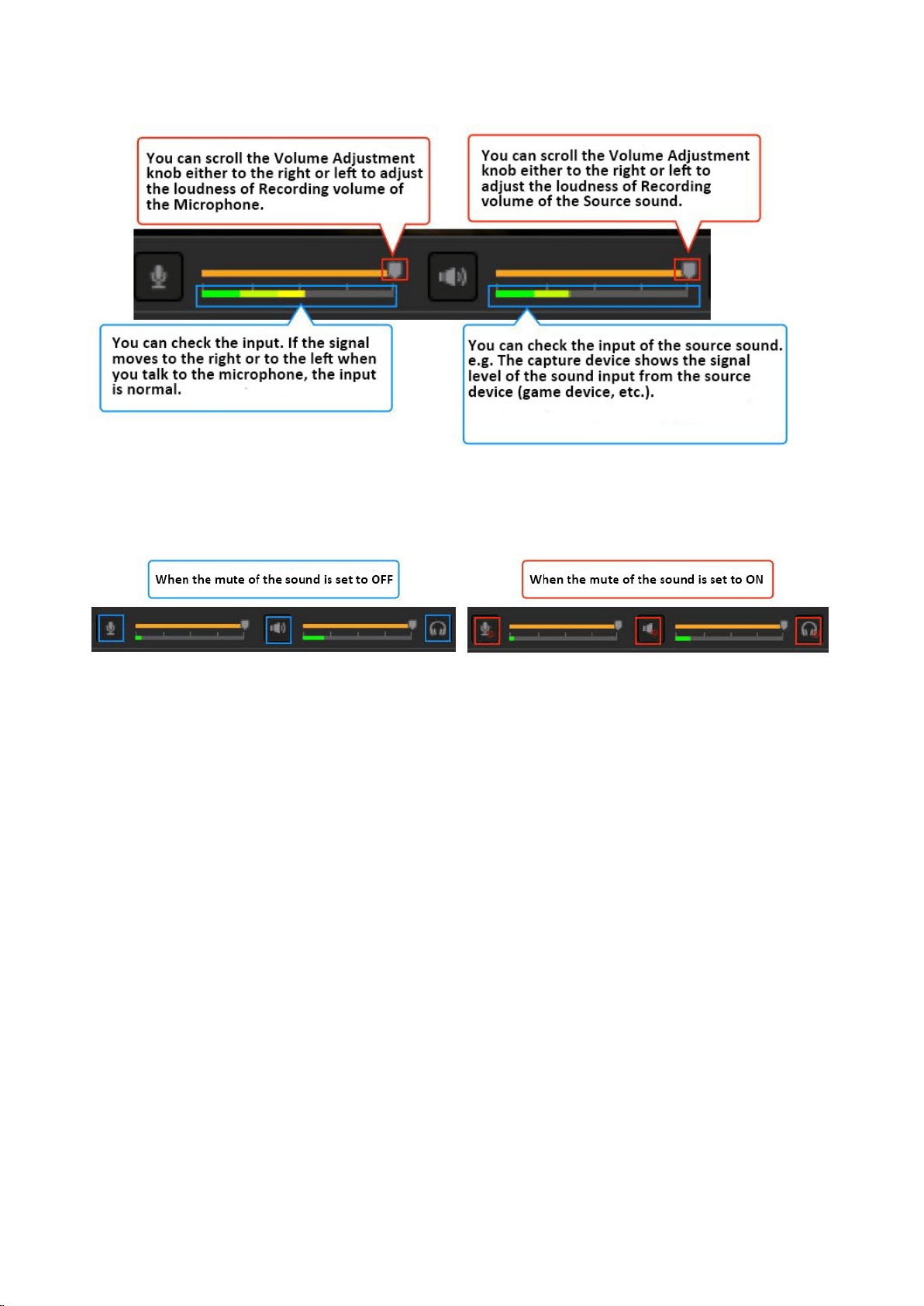
Step 4: Sound Settings
As you see below, you can adjust the volume of recording (“source sound” and
“microphone sound” etc., of the capture device) and turn the preview sound on/off (the sound
you are listening to).
In addition, click the “Audio Mixer” icon to make detailed settings for adding a microphone, play/
record sound
(→ See page 18).
You can set the sound even during recording.
① How to View Sound Settings
① Audio
・ (PC sound) system sound that played on PC (applications, games, media player, browser, etc.)
・ Input sound of the capture device (output sound from game machine / video camera / video device)
②
External Audio
・ Microphone sound
・ Sound from other audio devices
③
Turn Device Preview sound on / off (capture device / video / microphone sound, etc.)
※ When you do not want to hear any source sound, mute Device Preview (Playback) sound.
※ Even when the Device Preview (Playback) sound is muted, audio recording still works.
※ PC audio preview playback cannot be muted.
17 / 91
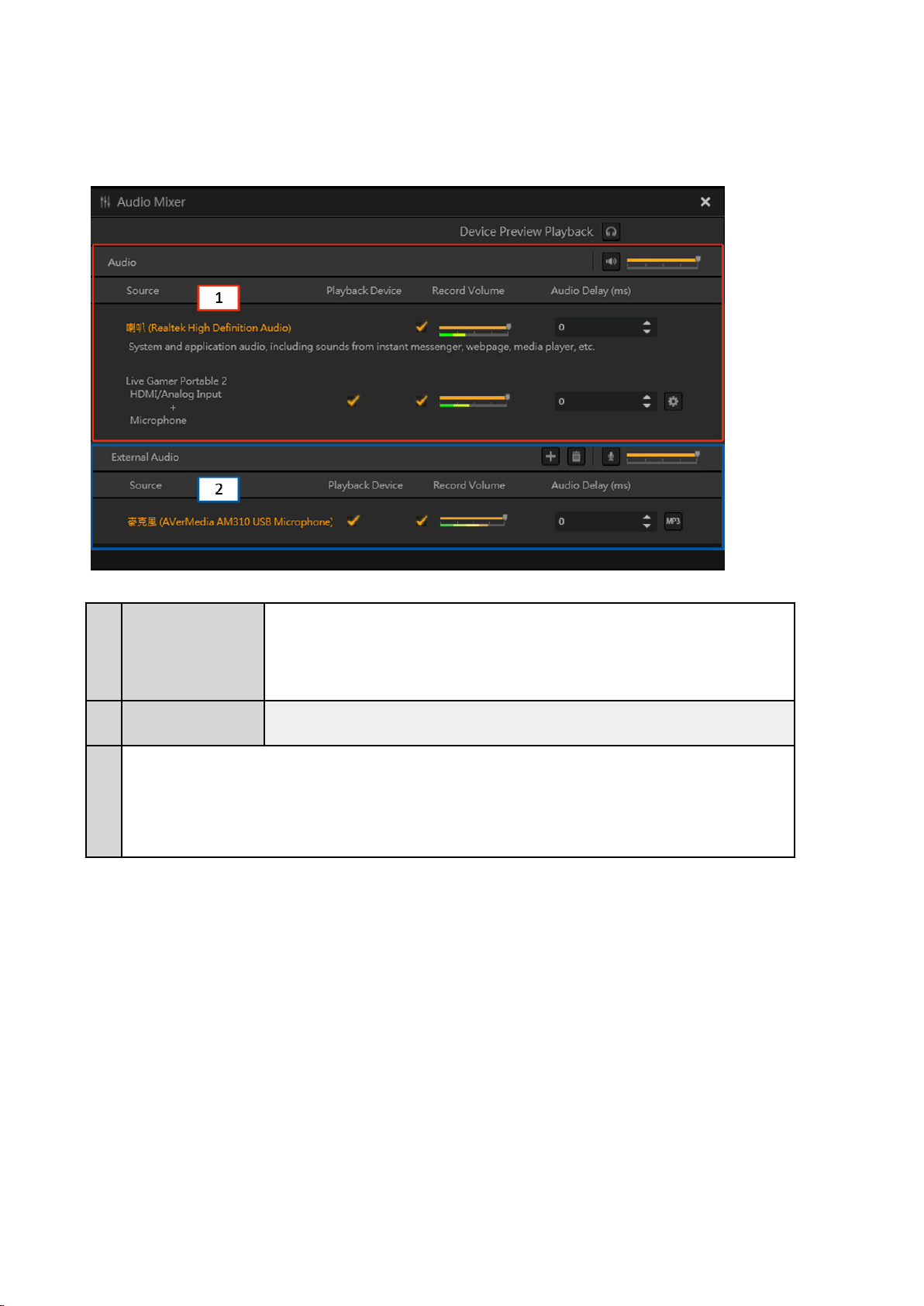
② How to Adjust Volume / Mute
Click the source sound or microphone sound icon to turn the mute on or off.
18 / 91
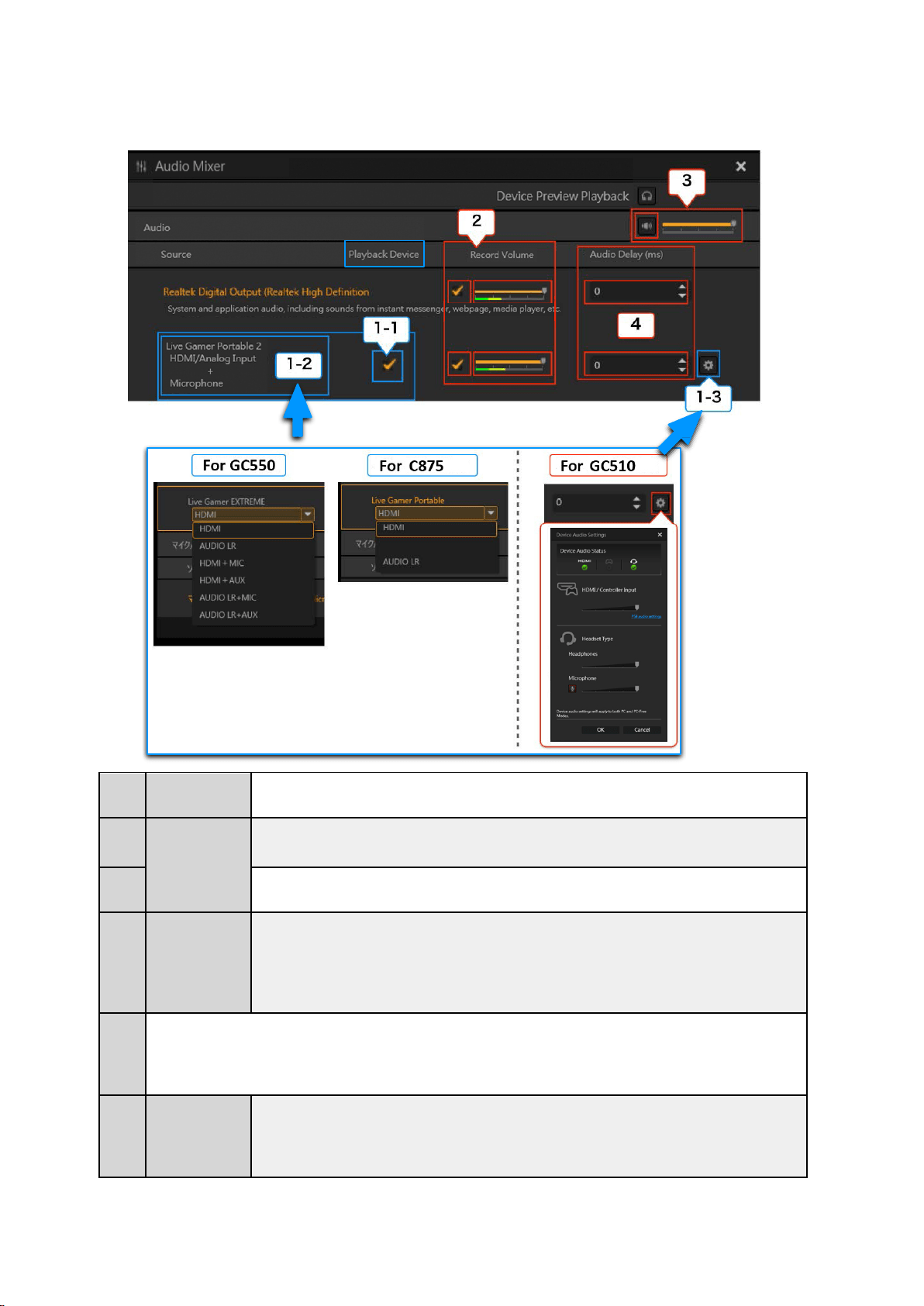
③Audio Mixer
0. Overview
1 Audio
2 External Audio
・ Microphone sound
・ Sound from other audio devices
3
Turn preview sound on / off (capture device / Video / microphone sound, etc.)
Audio source such as PC, capture device, and video
・ The system sound that played on the PC (applications, games, media player, browser, etc.)
・ Input sound of the capture device (output sound from the game machine/video camera/video device
・ (※ If you use Multi Mode) Video sound
※ When you do not want to hear any source sound, please turn the preview sound to Mute (mute the source sound).
※ Even when the preview sound is set to mute, recording / streaming works properly (will not affect recording /
streaming)
※ You cannot mute the PC preview sound.
19 / 91
1. Source Sound Settings
1-1
Playback Device
Sound
・
Turn on / off the Capture Device sound
(Checked: enable playback; unchecked: disable playback)
1-2
Device Audio
Settings
(※ If you use a GC550 or C875)
Select sound input source of the capture device.
1-3
(※ If you use a GC510)
You can click the “gear” icon for advanced settings, and set the sound of device.
2
Record Volume
・ Adjust the loudness (volume) of the recording / streaming sound of the PC / capture device.
・ Turn ON / OFF the volume of the PC / capture device.
(Checked: enable recording / streaming sound
Unchecked: disable recording / streaming microphone / sound device, disable audio source playback
except PC audio.
3
・ Adjust the loudness (volume) for recording / streaming the mixed sound of all the Audio sources.
・
Mute/unmute recording / streaming the mixed sound of all the Audio sources.
4 Sound Lag
Delay the source sound.
・
If the video and sound are not synchronous because of the source type, you may enter a number in
the “Sound Lag (ms)” to delay the sound of the source device.
・ms = millisecond
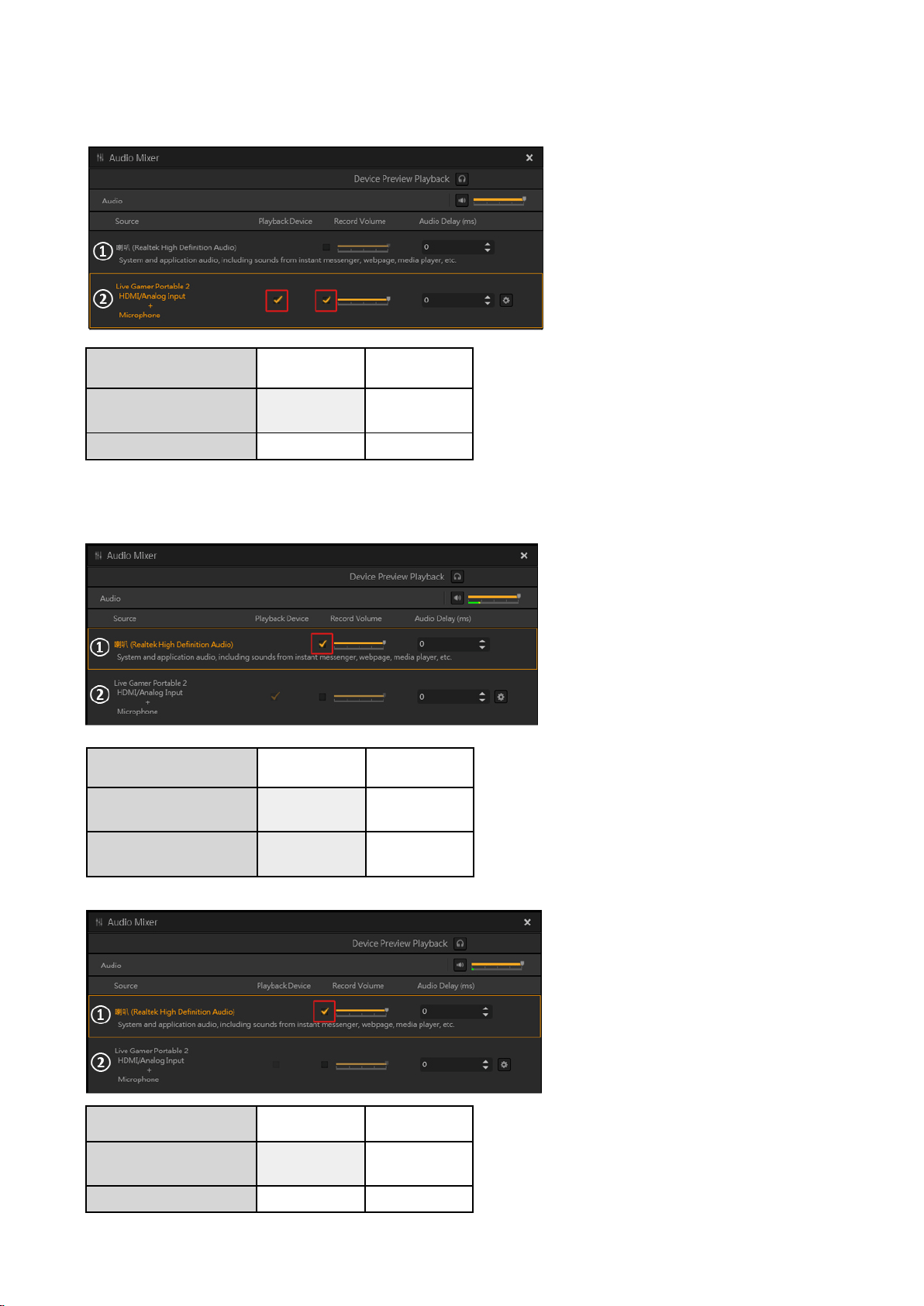
20 / 91
Settings Example:
1) If you only record or stream the sound of capture device
Source
Playback Device
Record Volume
① PC sound
__
(cannot be set)
② Capture sound
☑ ☑
2) If you only record or stream the PC sound
PC sound = system sound that played on the PC (applications, games, media player, browser, etc.)
Source
Playback Device
Record Volume
① PC sound
一
(cannot be set)
☑
② Capture sound
(don’t play)
OR
Source
Playback Device Record Volume
① PC sound
一
② Capture sound
☑
☑
(can
not be set)
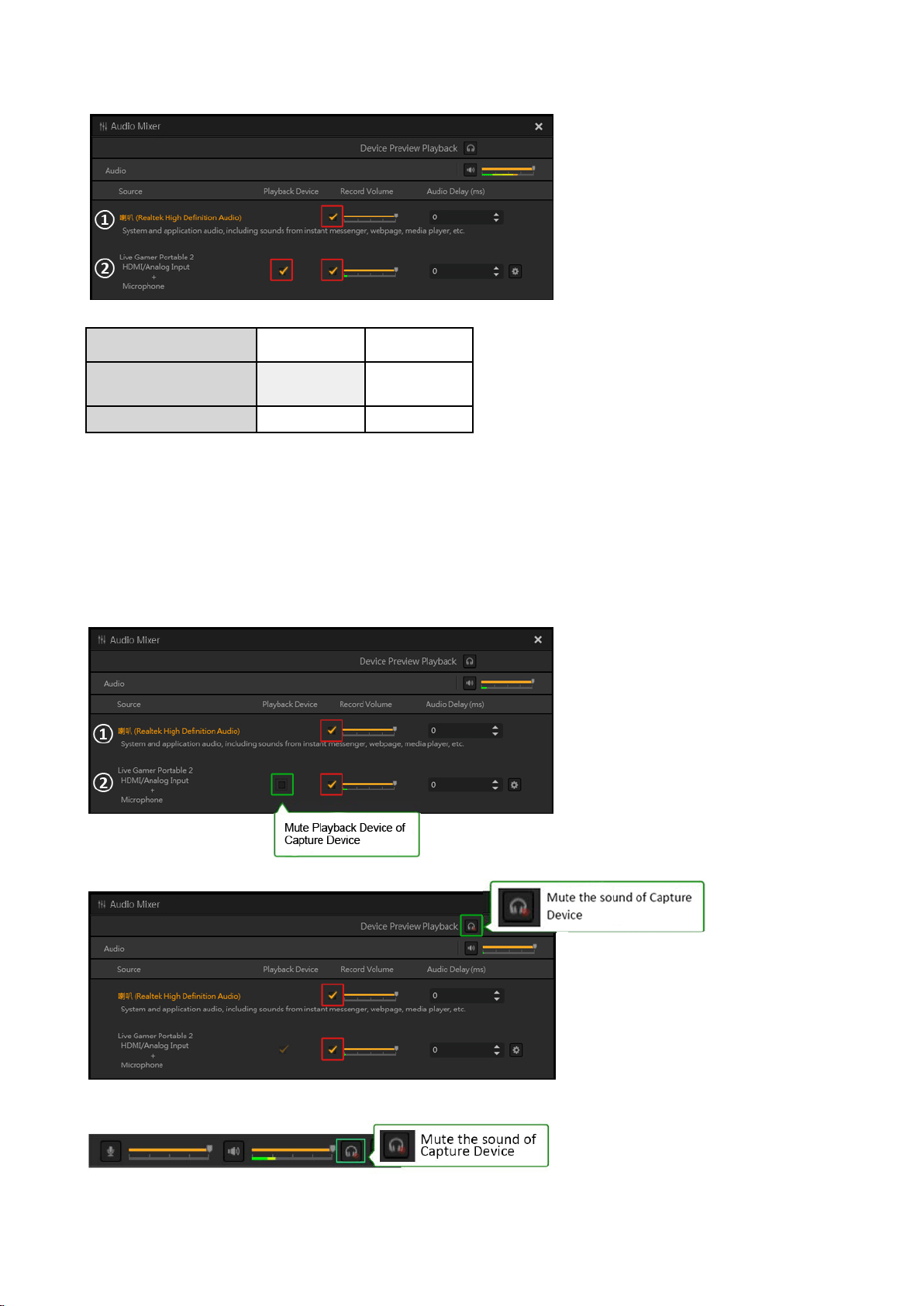
21 / 91
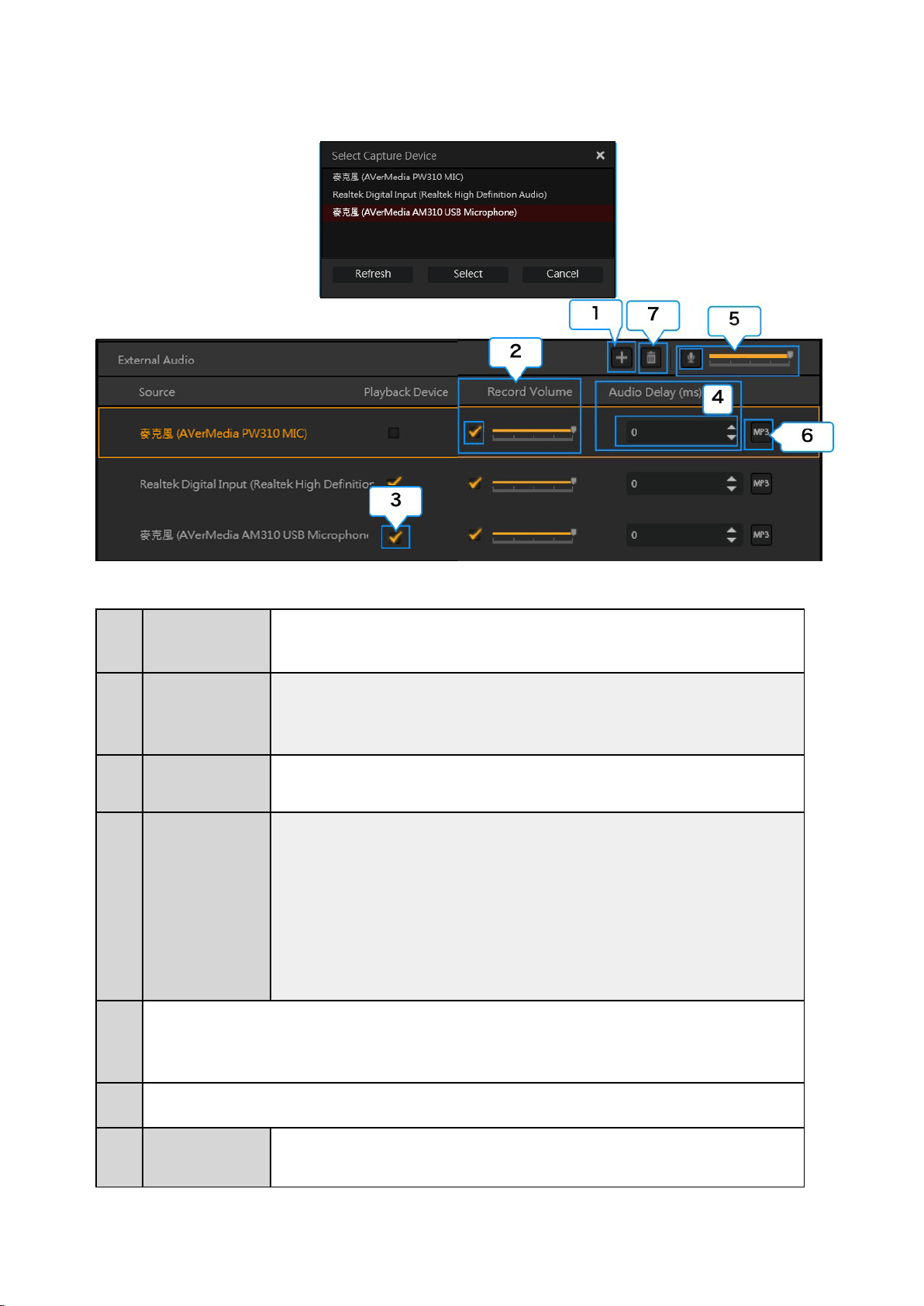
3) If you record or stream the sound of capture device and PC simultaneously
Source
Playback Device
Record Volume
① PC sound
一
(cannot be set)
② Capture sound
※ If you record a capture device and PC (system sound that played on the PC) sounds simultaneously and the recorded sounds
become abnormal, or there are noises, try muting (unchecking) the “Playback Device”, as shown in the figure below.
※ If you use the pass-through output (of the capture device), and you find sound coming from both the PC and TV set, causing
the sound to become overlapped, try muting the “Playback Device”, as shown in the figure below (mute the game sound
from PC).
OR
OR
☑
☑
☑
22 / 91
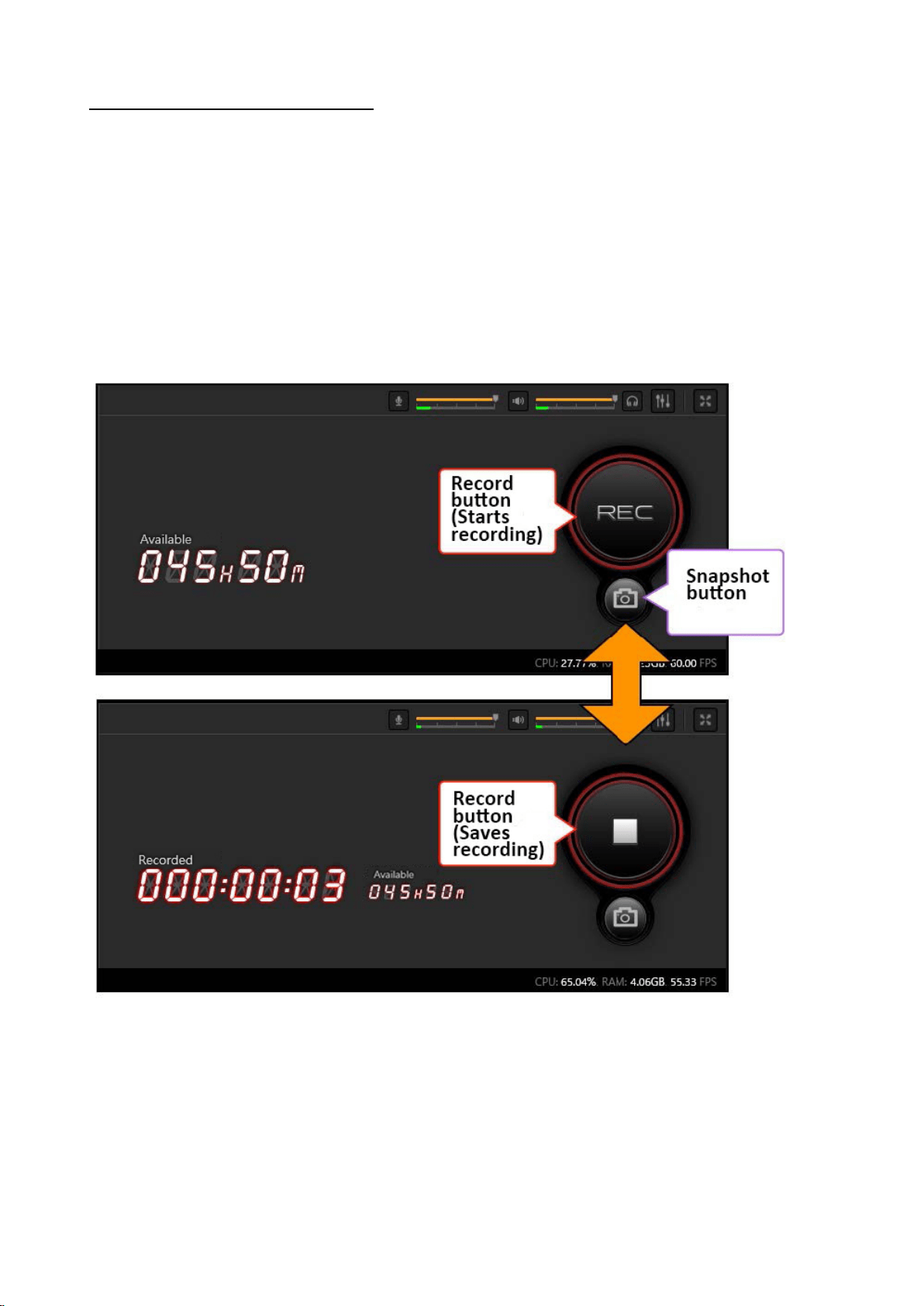
2. Microphone Sound Settings
1
Add Microphone /
Sound Device
Click to add a microphone / sound device (e.g. sound card, sound input terminal of capture device,
webcam microphone).
※ You can specify more than one microphone / sound device at the same time.
2
Record Volume
・ Adjust the loudness of the recording / streaming sound of the microphone / sound device.
・ Turn ON / OFF sound recording / streaming of microphone / sound device.
(Checked: enable recording / streaming sound
Unchecked: disable recording / streaming microphone / sound device.)
3
Playback Device
・ Turn ON / OFF monitoring microphone / sound device
(Checked: enable playback; Unchecked: disable playback)
4
Audio Delay (ms)
Delay sound of microphone / sound device.
・ Audio Delay can be used to delay the microphone sound (your voice). When your capture device
causes some sound delays, this function allows you to synchronize the screen and sound of the
game. For example, if your microphone sound comes earlier than the game sound, you can delay
the microphone sound so that it comes together with the game sound. After adjusting the
timing, you can start recording and/or streaming.
・ If the video and sound are not synchronous because of the source types, you can enter a
number in the “Sound Lag (ms)” to delay the microphone sound.
・ ms = millisecond
5
・ Adjust the loudness (volume) for recording / streaming the mixed sound of all the External Audio devices
・ Mute/unmute recording / streaming the mixed sound of all the External Audio devices.
6 Save the sound of microphone / sound device as a separate MP3 file.
7
Delete the
microphone /
sound device
Select a microphone / sound device, and click the “trash can” icon to delete it.
23 / 91
Step 5: Start and End Recording
When ready, press the “Record” button or the short-cut key on the keyboard. If you want to
end recording, press the “Record” button or the same key on the keyboard again.
※ If you want to check the recorded files, you can select “Media Share” from Function Dial
t
o check/manage/share
the recorded files.
※ You can take a snapshot while recording.
※
See page 81 for more information about Media Share.
※ See page 83 for more information about short-cut key.
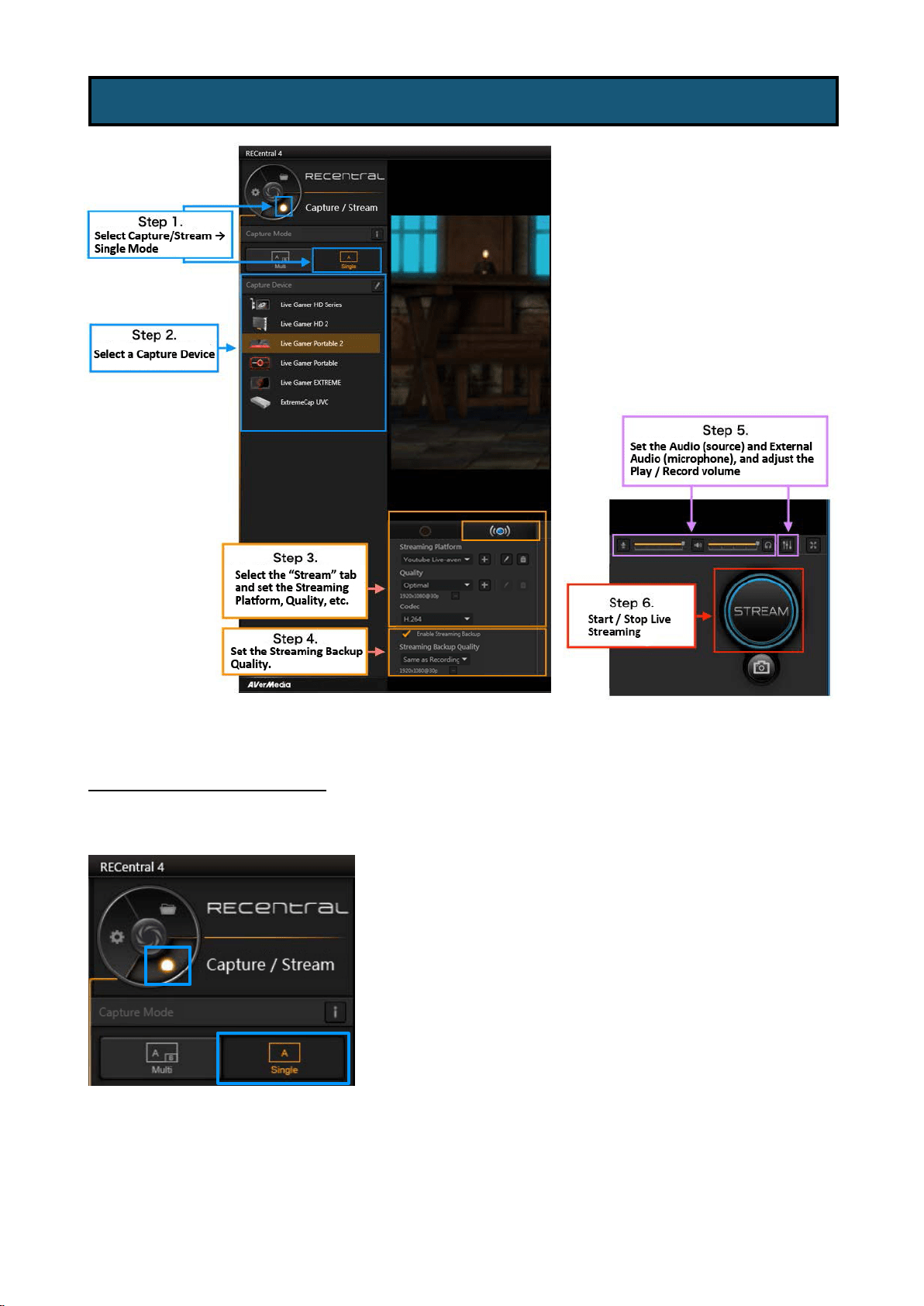
24 / 91
Step 1: Select Single Mode
Select “Capture / Stream” on Function Dial to show the record and stream menu. Click the Single
Mode icon.
3-2-1. Steps to Live Streaming (Single Mode)
25 / 91
Step 2: Select A Capture Device
Select your capture device on the list of connected capture devices. You can set up the capture
device by clicking the “pen” icon.
※ Detailed description of Capture Device settings: See page 10.
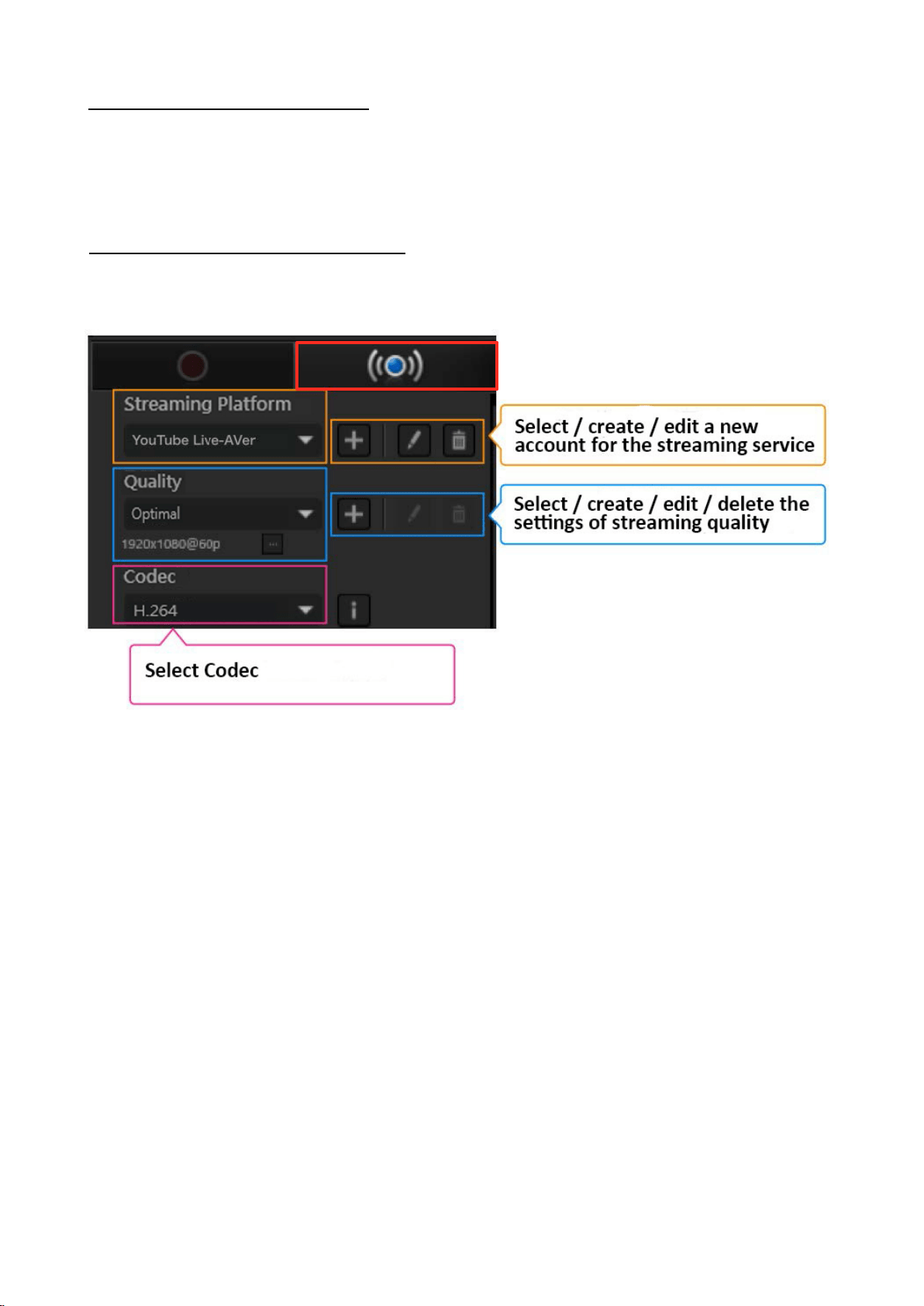
Step 3: Select a Streaming Platform
Select the “Stream” tab. Create or select a new Streaming Platform (streaming service), and set
“Streaming Quality (resolution, FPS, bit rate, etc.)” and “Codec”.
・ Select an account for streaming platform.
Use ▼ to open the menu, and select an account.
・ Create a new Streaming Platform account (streaming service)
Click “+” icon to create a new account for Streaming Service.
・ Set Up the Streaming Platform (resolution/FPS/bit rate, etc.)
Use ▼ to open the menu. Select the account and click the “pen” icon.
・ Delete a Streaming Platform account
Use ▼ to open the menu. Select the account and click the “trash can” icon.
・ Set a Codec
Detailed description of Codec: See page 15.
26 / 91
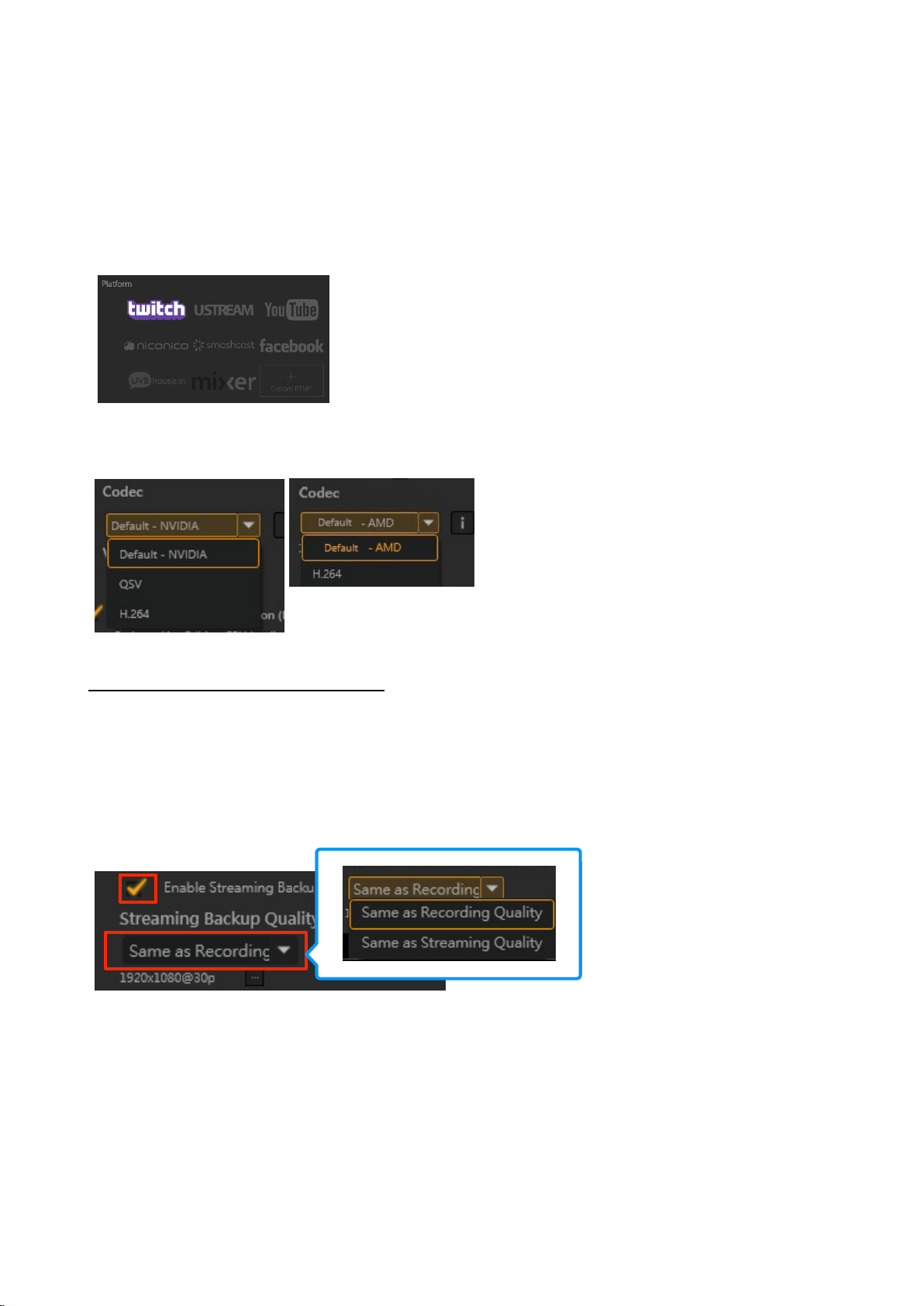
How to Set Up Streaming Platform and Quality
See the related pages for detailed description of streaming steps and settings on three
popular streaming services.
・ Twitch:
See page 29.
・ YouTube Live: See page 33.
・ Facebook: See page 44.
How to Set Up Codec
Detailed description of Codec: See page 15.
Step 4: Enable Streaming Backup
If you want to record and save the streaming content automatically, check the “Enable
Streaming Backup” box.
You can also set the streaming and recording quality separately. For example, you can stream
on YouTube Live at low quality, while backing up the video at high quality as shown in the
figure below.
※ If you select “Same as Recording Quality”, you can record (back up) streaming at the same
resolution level / FPS as you set in the Recording.
※ If you want to check the saved recorded file, select “Media Share” at Function Dial to check /
manage / share the recorded file.
※
See page 81 for more information about Media Share.
27 / 91
Step 5: Set the Sound
You can adjust the volume for streaming or recording using Audio (source) and External Audio
(microphone) controls, and mute/unmute sound monitoring (the sound you are listening to)
using Device Preview.
In addition, click the “Audio Mixer” icon to make detailed settings for adding a microphone,
playing or streaming sound.
※ You can set the sound even during live streaming.
※
For detailed description of the sound settings (source audio, external (mic.) audio, audio
mixer functions, etc.): See pages 16 – 23.
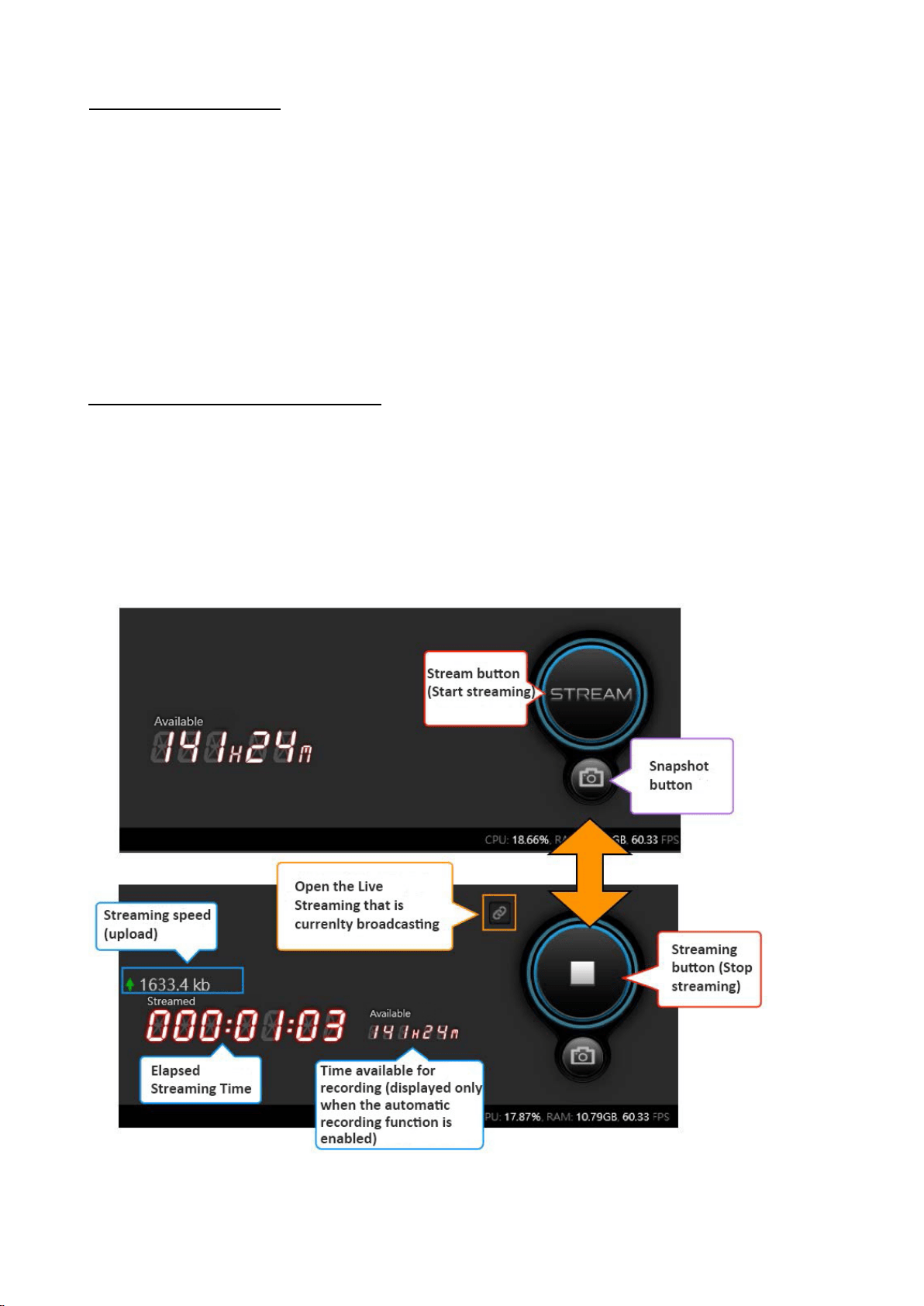
Step 6: Start and Stop Streaming
When ready, press the “Stream” button or the short-cut key on the keyboard. Press again to
end streaming.
※ While using the Live Streaming, click the “Link” icon to launch the browser, and skip to the
live streaming page that is currently in use (YouTube Live, etc.).
※ You can take a snapshot while live streaming.
※
See page 83 for more information about the short-cut key.
28 / 91
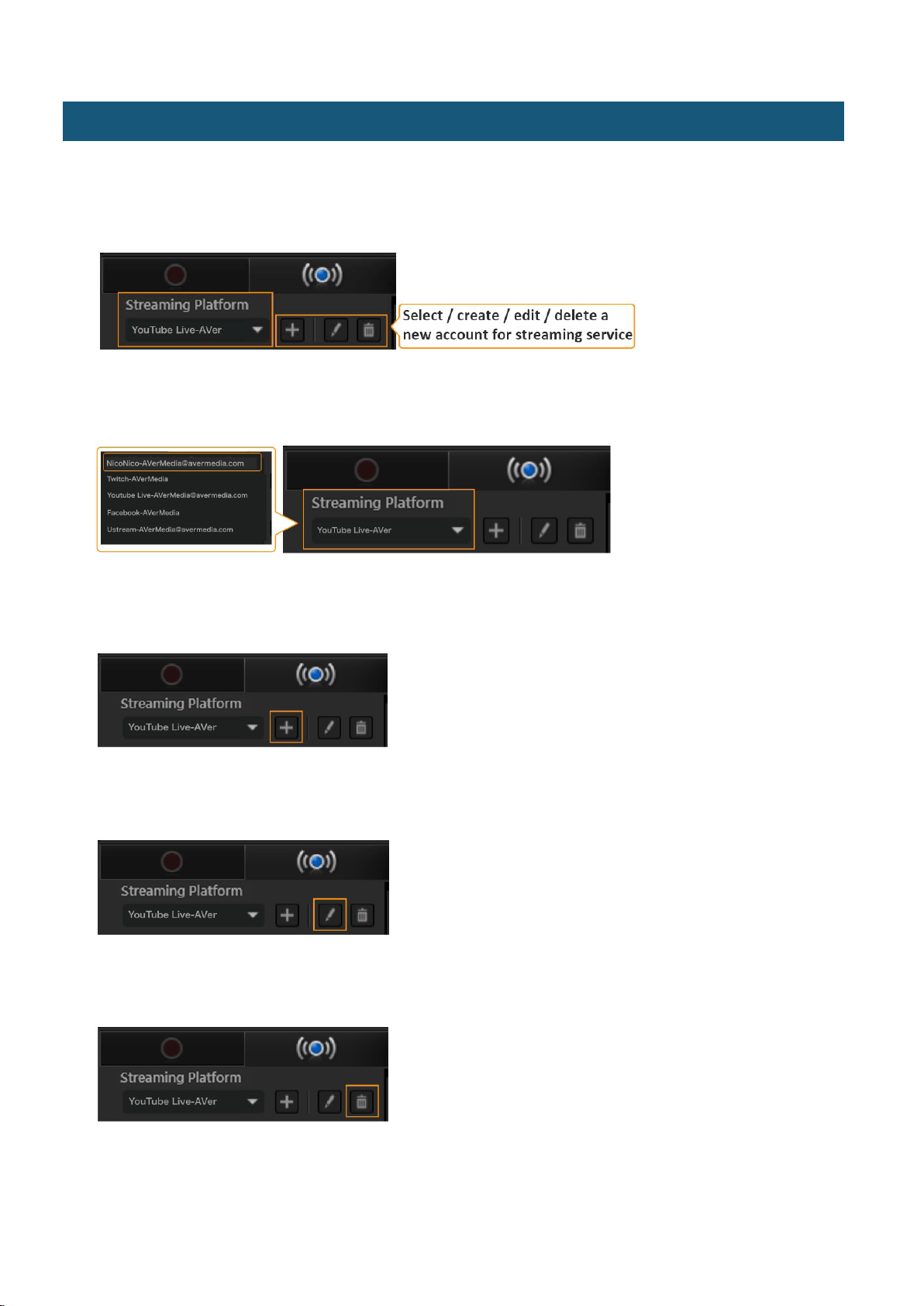
An account for streaming service is required to use the Live Streaming mode of RECentral. Select the Streaming
Service that you want to use, such as “niconico Live Broadcast”, “Twitch”, “YouTube Live”, “Facebook”, or
“RTMP” (enter RTMP, Stream Key).
・ Select an account of streaming platform.
Use the ▼ to open the menu, and select an account.
・ Create a new account of Streaming Platform (Streaming Service)
Click the “+” icon if you want to create a new account for Streaming Service.
・ Set the account of Streaming Platform (resolution/FPS/bit rate, etc.)
Use the ▼ to open the menu. Select the account and click the “pen” icon.
・ Delete the account of Streaming Platform
Use the ▼ to open the menu. Select the account and click the “trash can” icon.
3-2-3. Steps to Create A Streaming Account for Streaming Service
29 / 91
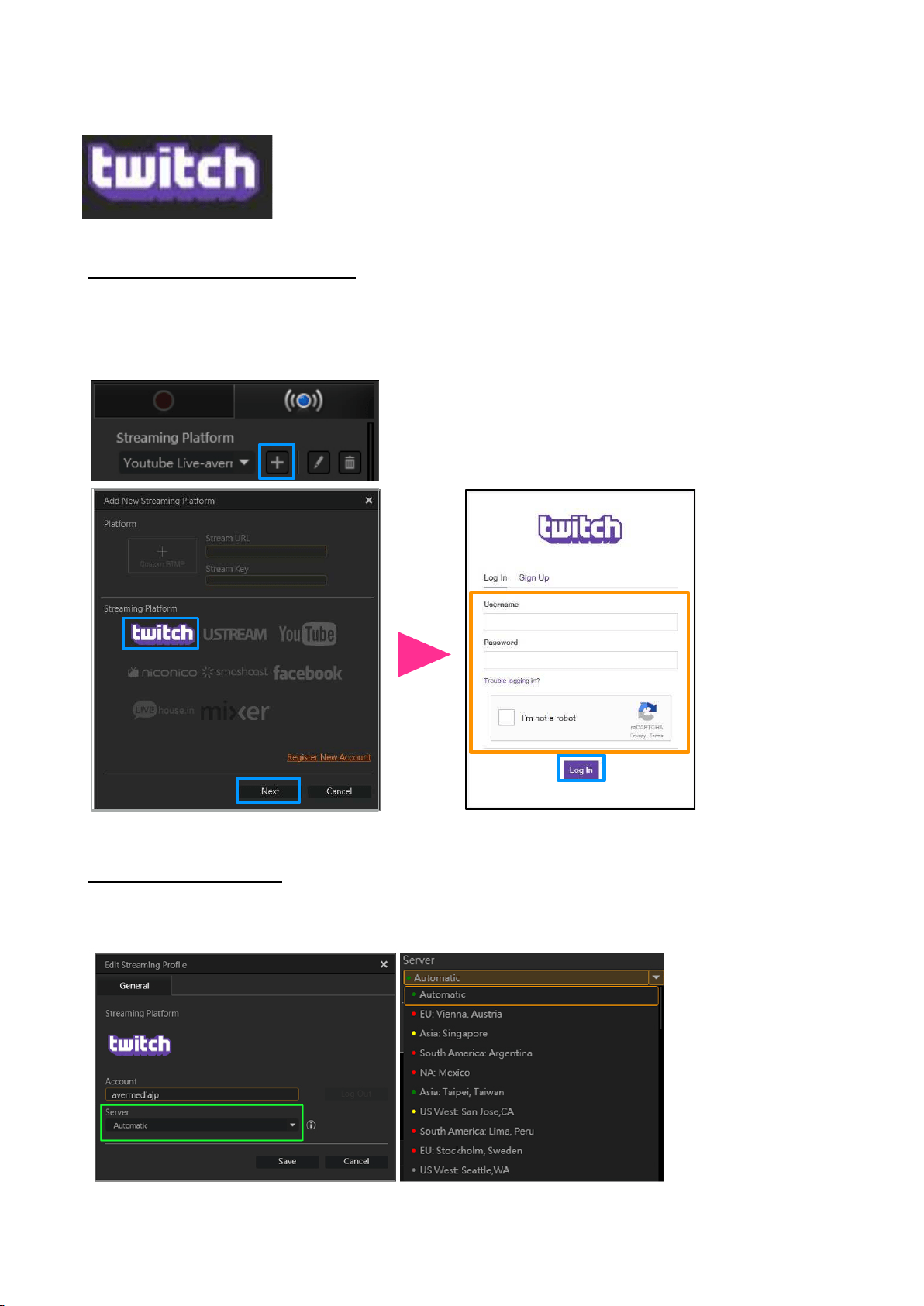
1. Twitch
Step 1: Create a New Account
Select the “Stream” tab in Capture/Stream in RECentral. Click the “+” icon on the
“Streaming Platform”, select “Twitch”, and click Next. The Twitch login window appears.
Enter the correct email address and password, then click “Log In”.
Step 2: Set the Server
When logging in, the window is switched to the screen below. Click the ▼ in the Server drop-
down menu to select a server.
30 / 91
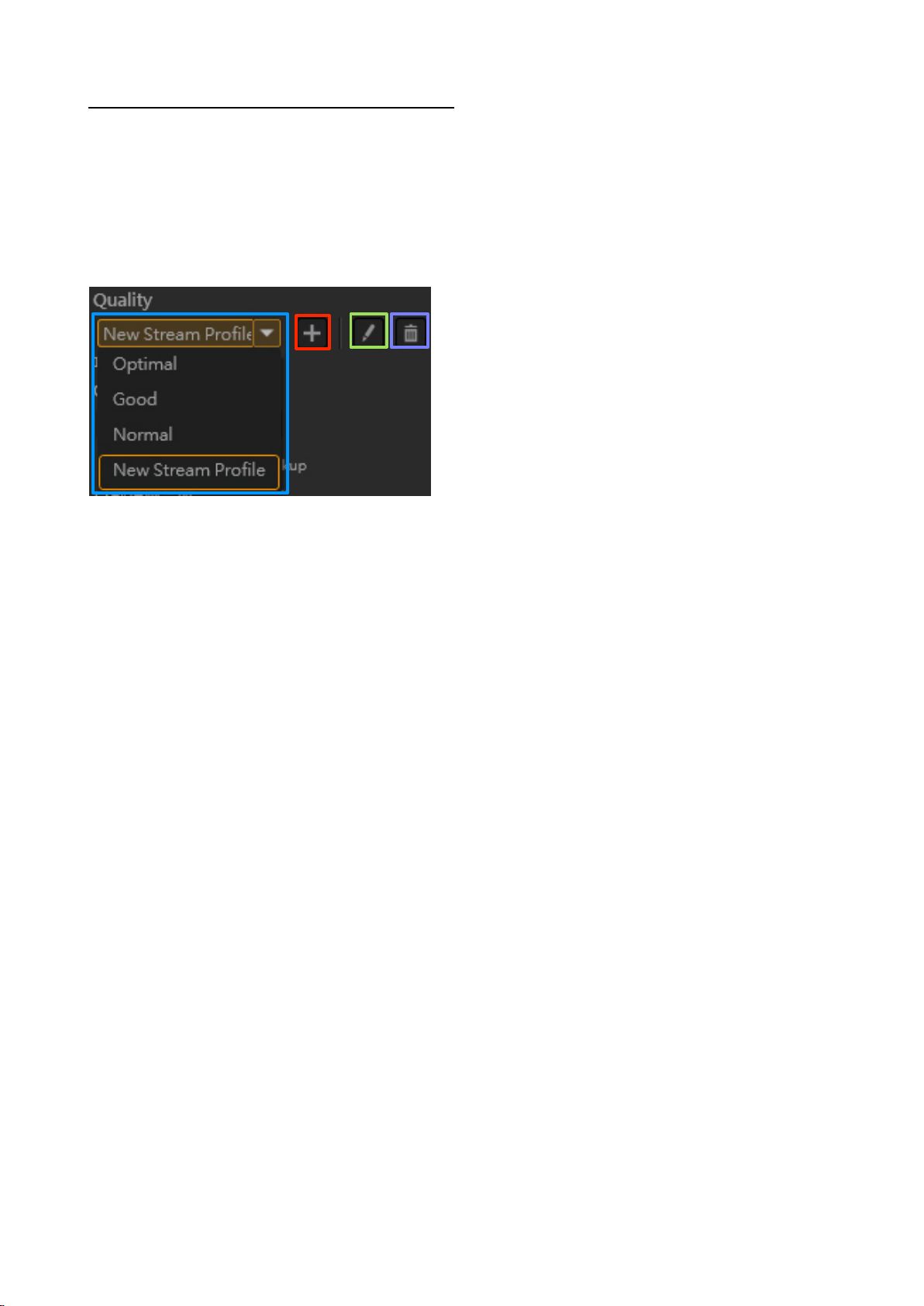
Step 3: Streaming Image Quality settings
Set the streaming image quality. Select Optimal, Good, Normal, or choose from a
saved streaming profile. Click the “+” icon to create a New Stream Profile (see the
table on the next page for available settings). When the settings are complete, click Save to
finish.
Next, click the “pen” icon to edit the specified profile. Click the “trash can” icon to delete the
specified profile.
Set the recording image quality. Select Optimal, Good, or Normal, or choose from a saved
profile. Click the “+” icon to create a new recording profile. See the table on the next page for
items available for settings.
In addition, you can click the “pen” icon to edit the specified profile. Click the “trash can” icon
to delete the specified profile.
31 / 91
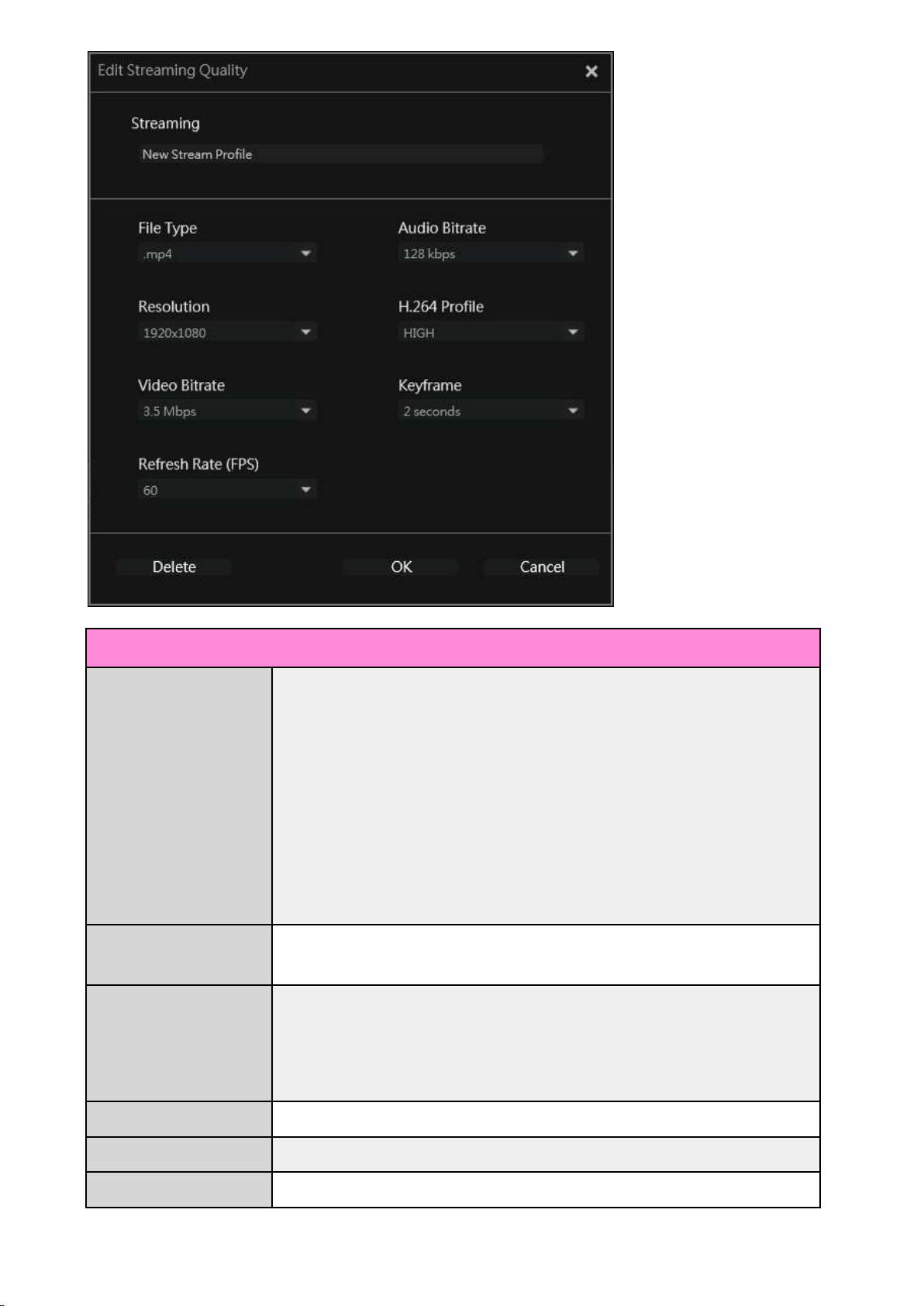
Streaming Quality Settings
Resolution
1920x1080, 1680x1050, 1440x900, 1360x768, 1280x1024, 1280x800,
1280x768, 1280x720, 1024x768, 800x600, 848x480, 768x480,
720x576, 720x480, 640x480, 640x360, 576x360
※ The resolution can be selected is determined by the output
resolution / FPS of the video source (you cannot set 1920x1080 in
some cases).
Video Bitrate
50, 40, 30, 20, 19, 18, 17, 16, 15, 14, 13, 12, 11, 10, 9, 8.5, 8, 7.5, 7, 6.5,
6, 5.5, 5, 4.5, 4, 3.5, 3, 2.5, 2, 1.5, 1, 0.9, 0.8, 0.7, 0.6, 0.5, 0.4, 0.3 Mbps
Frame Rate (FPS)
60, 59.94, 50, 30, 29.97, 25, 24, 23.98, 20, 15
※ The frame rate can be selected is determined by the output
resolution.
Audio Bitrate
128, 96, 64, 32 kbps
H.264 Setting
HIGH, MAIN, BASELINE
Key Frame
5, 4, 3, 2, 1 seconds
32 / 91
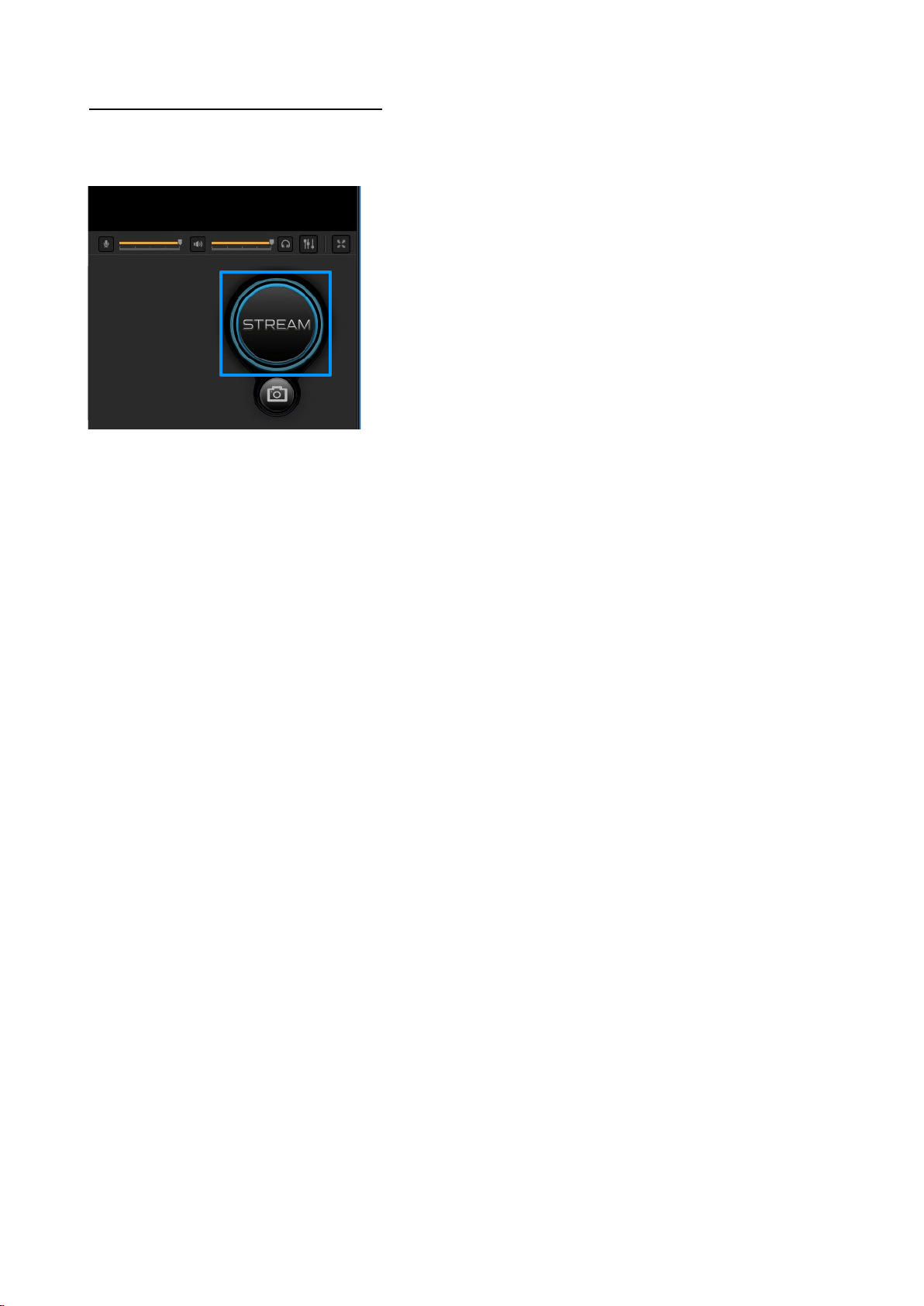
Step 4: Start and Stop Streaming
When ready, press the “Stream” button or the short-cut key on the keyboard to start. If you want
to end streaming, press the “Stream” button or the same key on the keyboard again.
33 / 91
2. YouTube Live (YouTube Gaming)
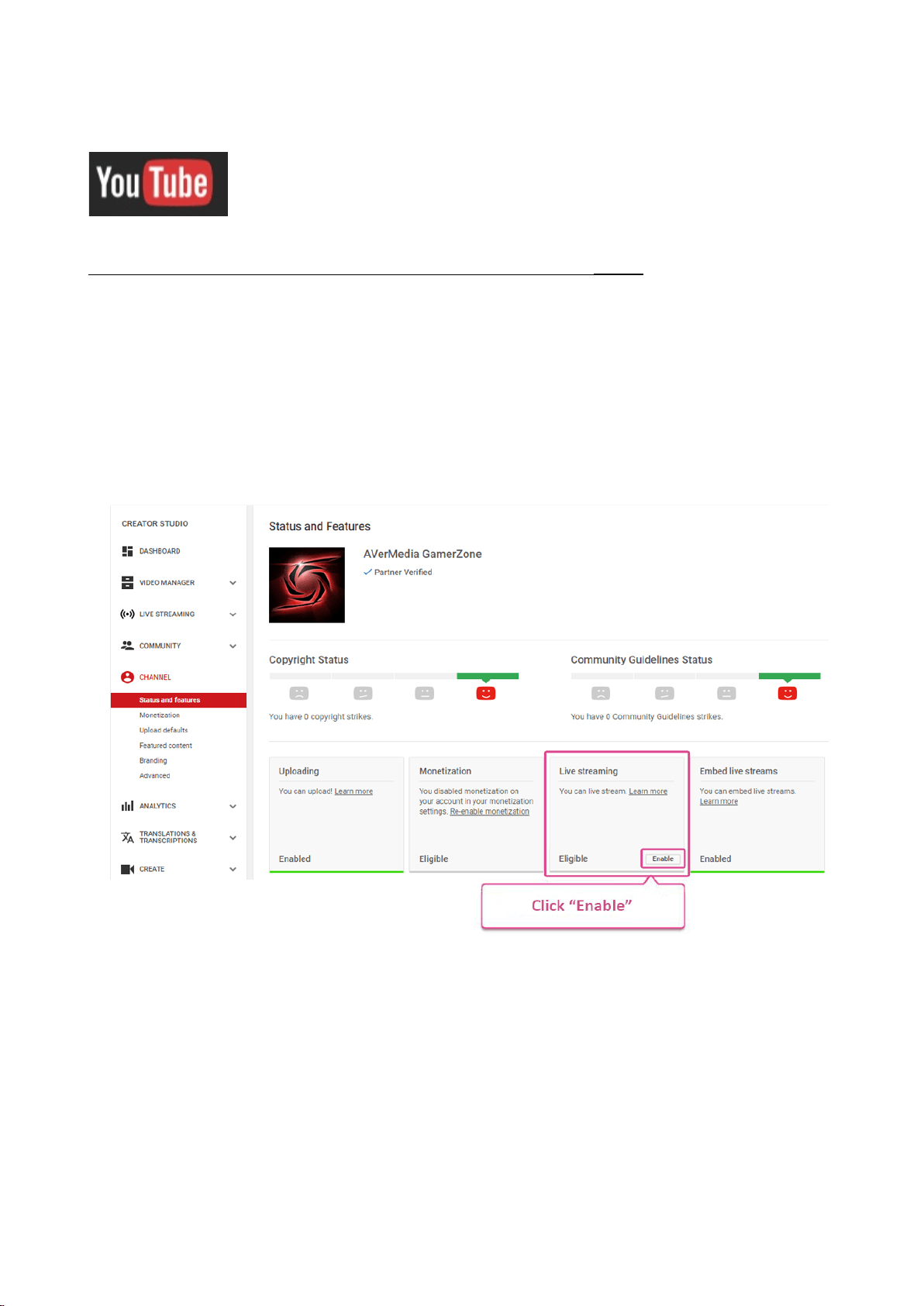
Step 0: Preparation in advance - Enable Live Streaming in Creator Studio
1.
You need to have a verified account for Live Streaming Service in order to use YouTube Live,
and open the
Creator Studio page on YouTube (※ it is recommended to use Google Chrome).
Log in to your Google account. Then, click the user icon at the top right → Creator Studio →
CHANNEL → Status and Features, and click the “Enable” button in the Live Streaming function.
34 / 91
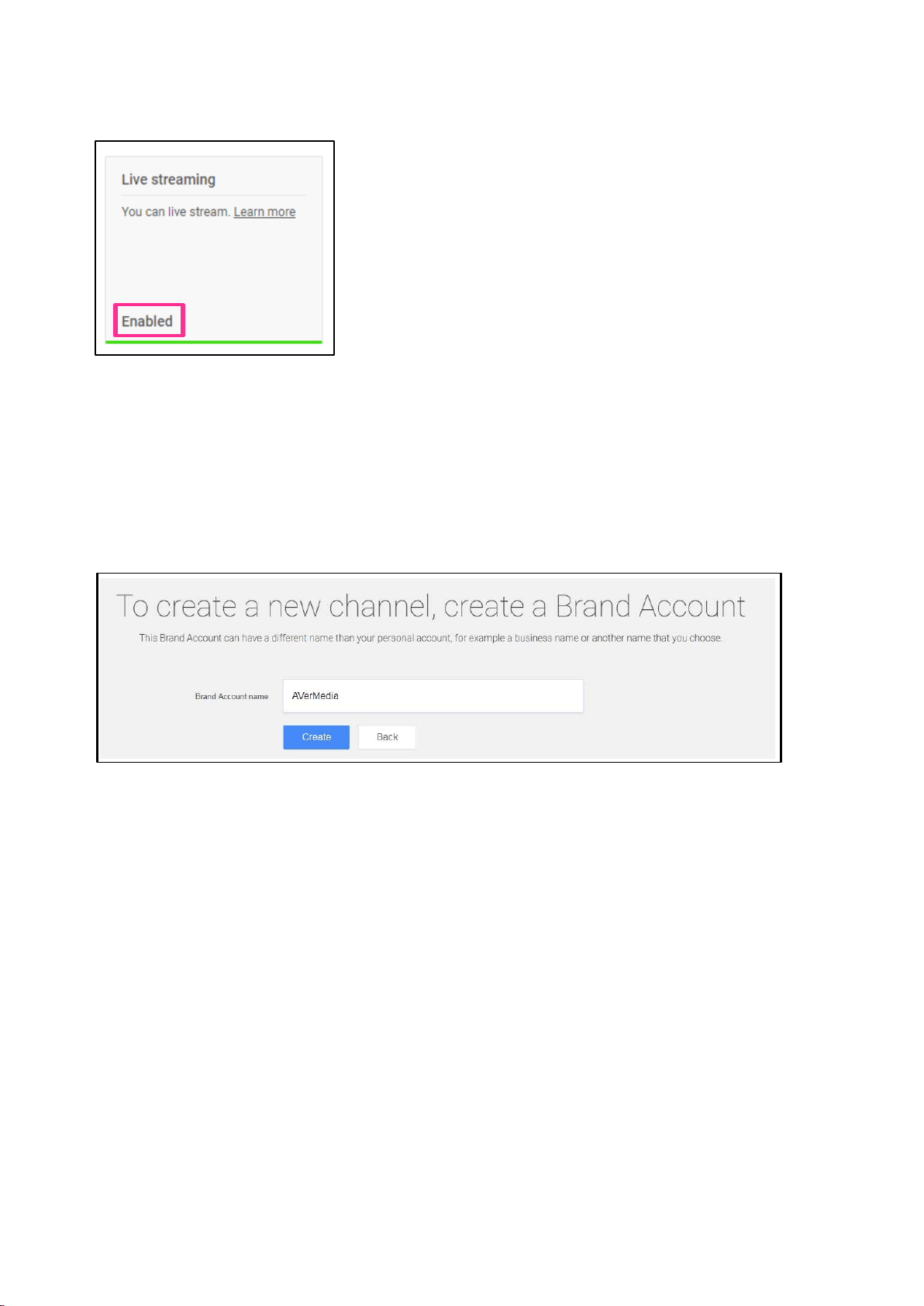
When Live Streaming is enabled, “Enabled” will be indicated as shown in the image below.
You may now live stream on YouTube Live.
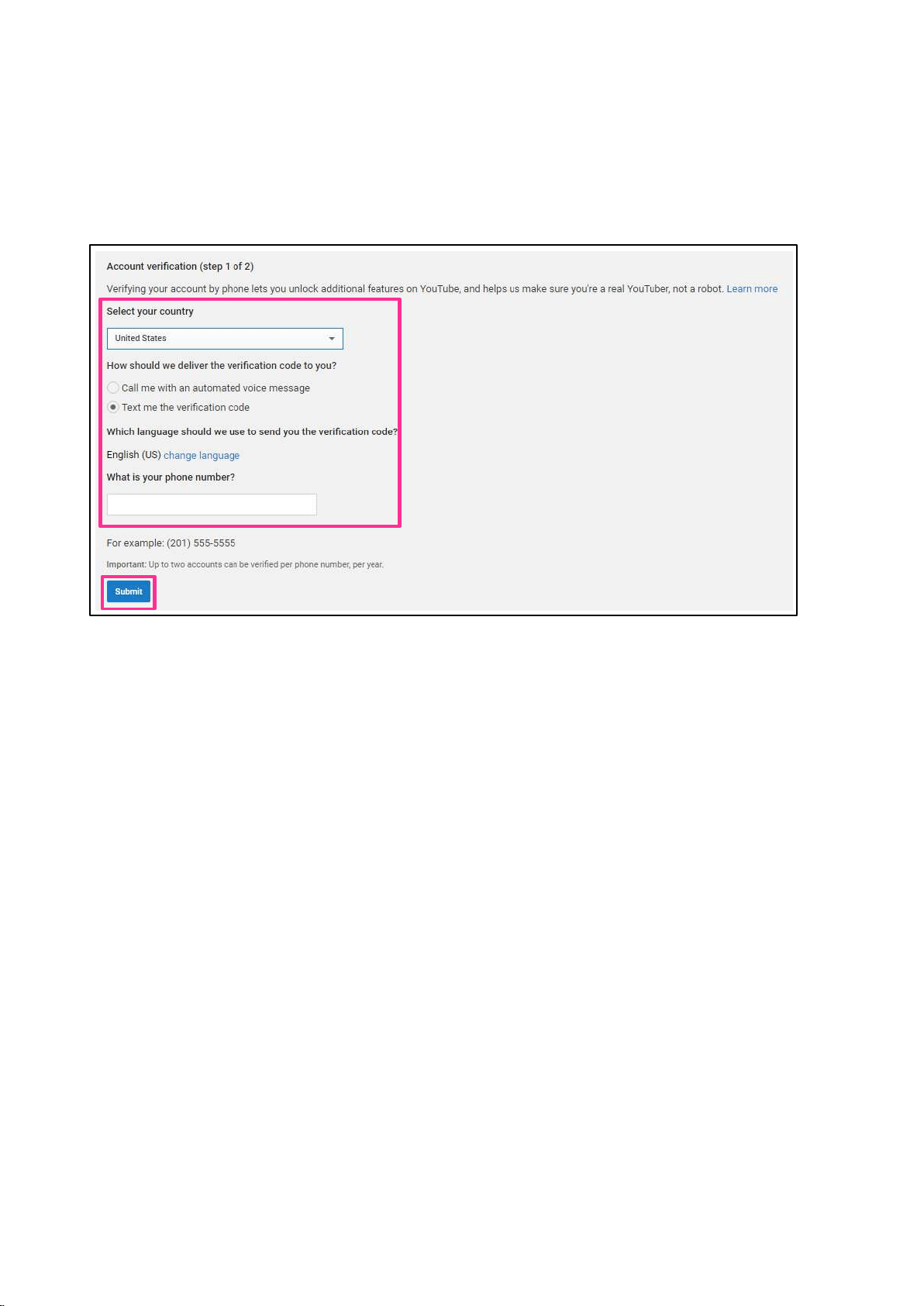
If Live Streaming has not been enabled, follow the steps below:
2.
Click the user icon at the top right → Click "gear" icon to open YouTube Settings → Click on
Create a new channel → Enter a name and click Create → Creator Studio → CHANNEL →
Status and features → Live streaming → Enable
35 / 91
3.
Once Enable is clicked, the “Account verification” page will be prompted on your screen.
Select the country and “How to Receive the verification code” (by voice or text message) and
enter your phone number. Then, click “Submit”. (※ When the authentication message “I’m
not a robot” is displayed, click the checkbox next to the text and accept the authentication.
36 / 91
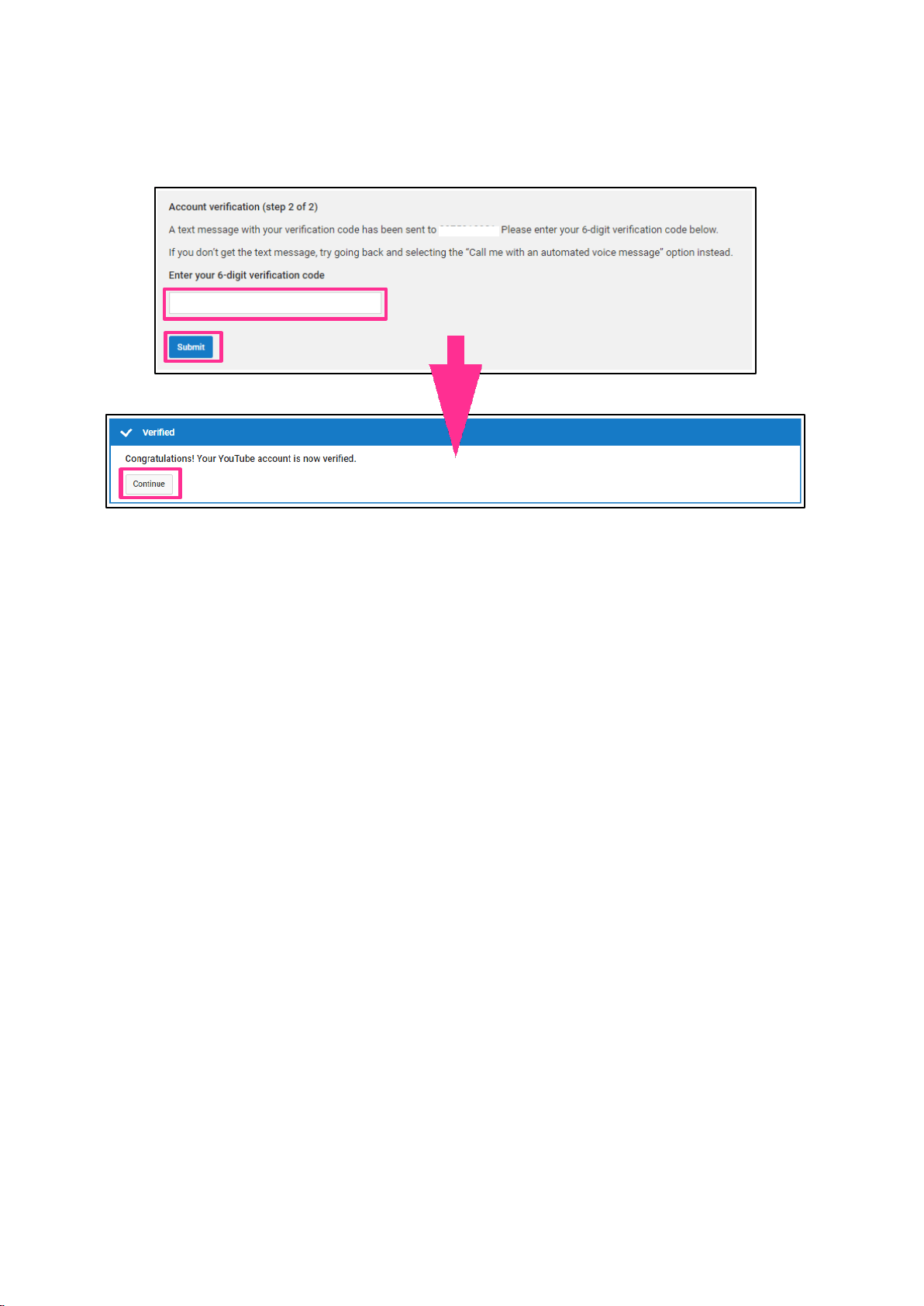
4.
(If receiving via SMS is selected) Enter the correct verification code, and press “Submit”.
The settings work properly if the Verified message is shown. Click “Continue”.
If the Terms of Use is displayed. Please read it carefully, and click “Agree”.
123456
37 / 91
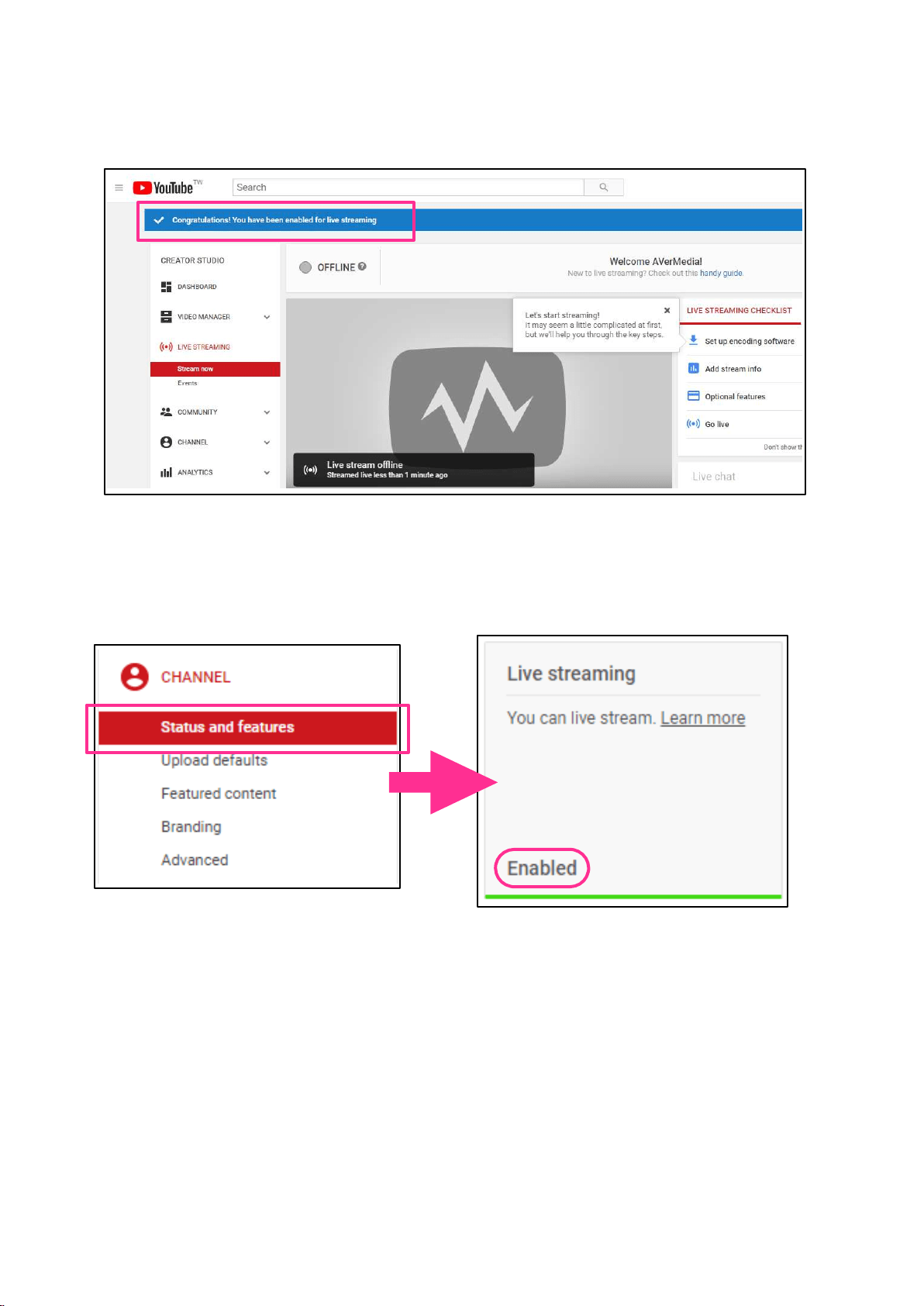
5.
The screen goes back to the initial status, and the message “You have been enabled for live
streaming” is shown on the screen.
Click “CHANNEL” → “Status and features”. When the message “You can live stream." is
shown, the Live Streaming is enabled. The settings on YouTube Live is now complete.
38 / 91
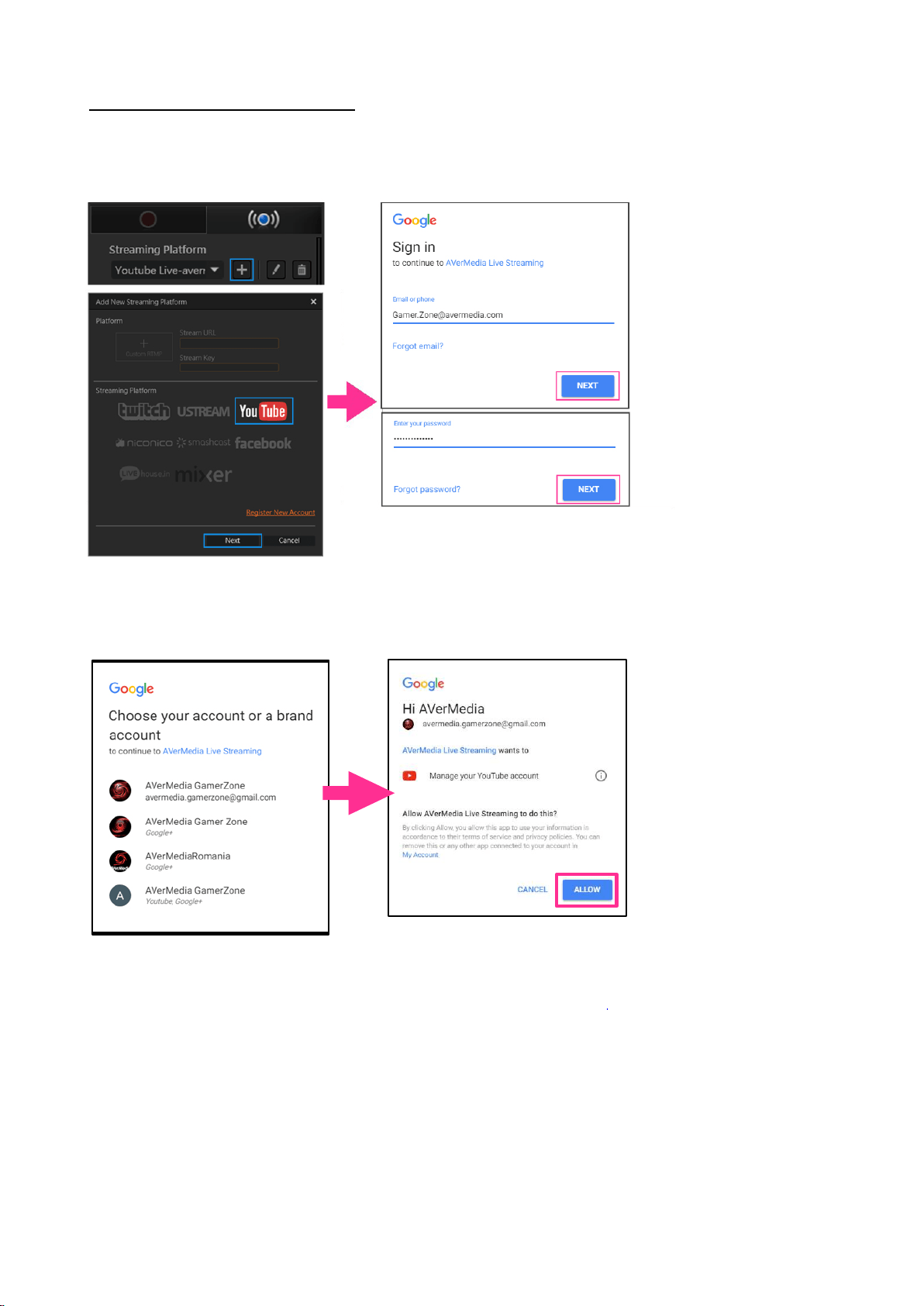
Step 1: Create a New Account
Click the “Stream” tab in RECentral. Then click the “+” icon on the “Streaming Platform”, select
YouTube and click Next. And then, the Google login window pops up. After entering the correct
email address and password, click Next.
Choose your account or a brand account. Then the app will ask for your permission to manage
your YouTube account. Click “ALLOW” to continue.
※ If you cannot log in:
When you create / authenticate a YouTube streaming account, the message
“Invalid account or password” may be shown and you cannot log in even if the correct
account /password is entered. In this case, open the
Creator Studio on YouTube (※ It is
recommended to use Google Chrome), and verify if “Live Streaming” is enabled. If not, you
cannot log in even if you have entered the correct account and password. Please enable it. If
Live Streaming is disabled, follow the instructions on pages 43–47 to enable it and try again.
39 / 91
Step 2
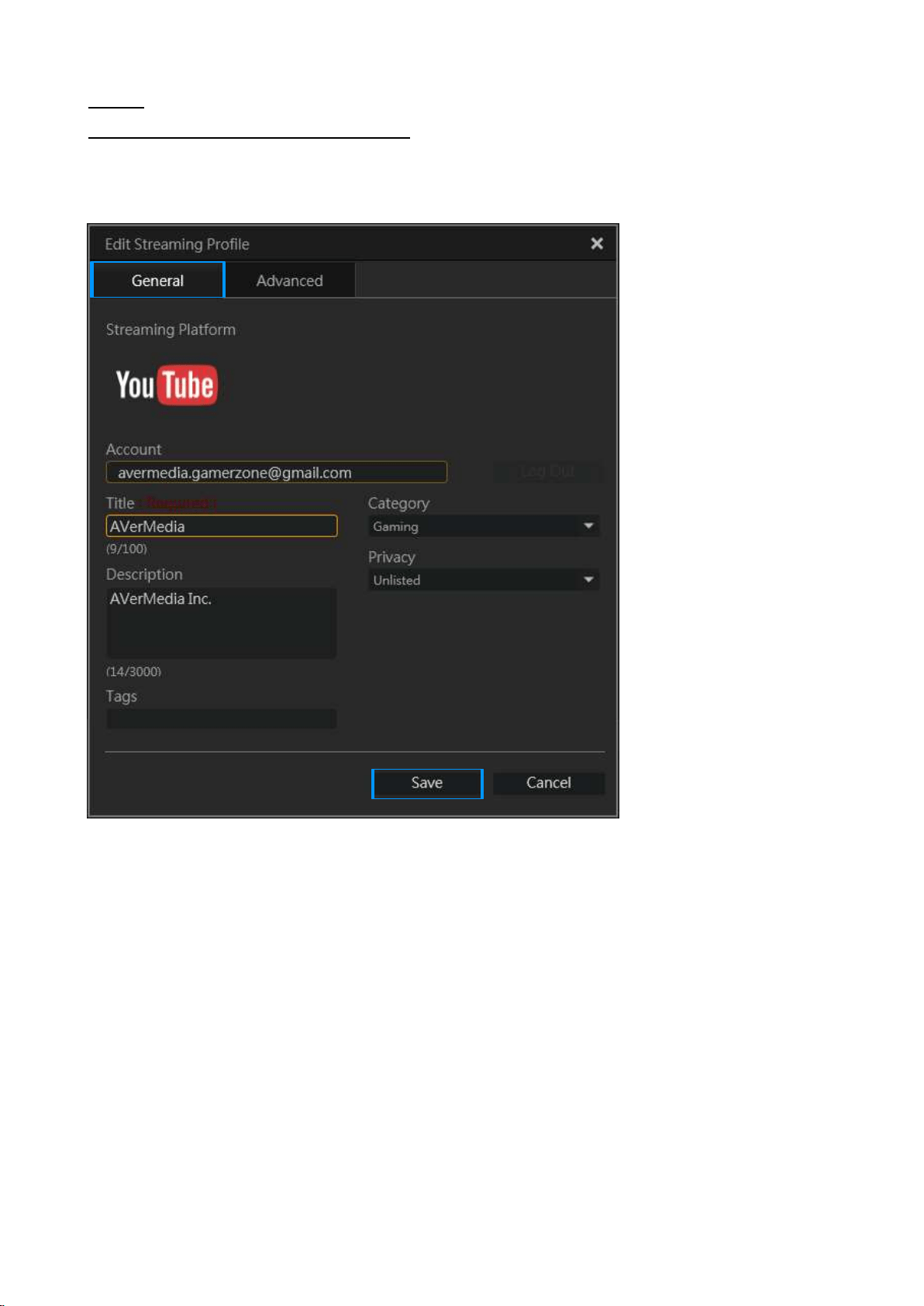
① Streaming Information Settings:
Log in and switch to the following screen. Under the “General” tab, set the streaming
information such as Title, Category, Description, Tags, Privacy (Public/Non-Public/Private), etc.
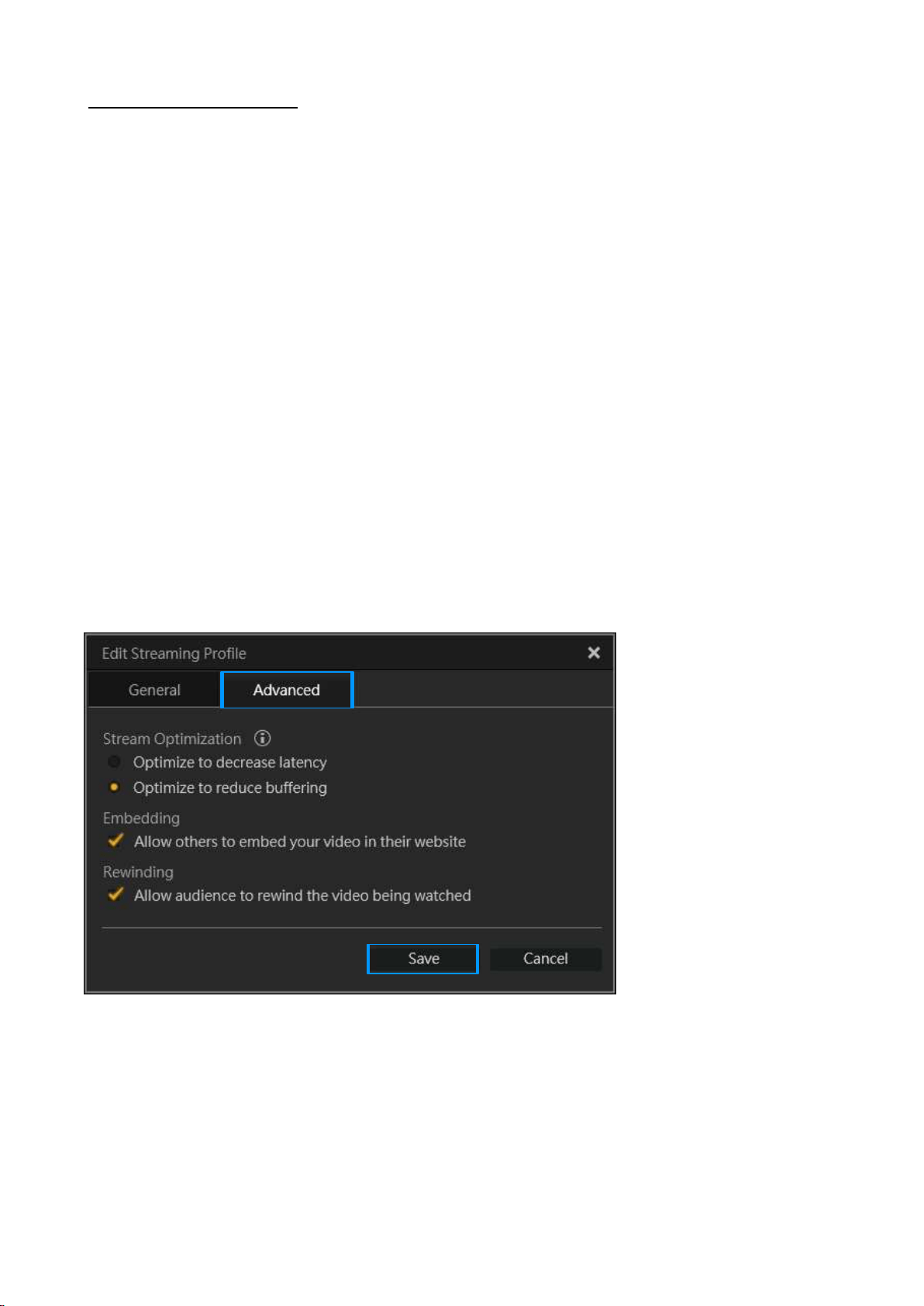
40 / 91
② Streaming Settings:
1. Stream Optimization
・ Optimize interaction with viewers (low latency)
The shorter the streaming latency is, the faster the streaming screen responds. But in a case
where a viewer’s Internet speed is slow, the message “buffering (screen freezes
temporarily)” often appears while the video is being played.
・ Optimize to reduce buffering at viewer’s end
The display frequency of the message “buffering” can be decreased during streaming or
when the video is being played on the viewer’s side, but the speed of streaming screen may
become slower.
2. Embedding
Allows to embed a video into other sites.
3. Rewinding
Enable DVR
(A user can rewind the video while enjoying live streaming.)
Under the “Advanced” tab, set the details of streaming as shown in the image
below. Once the settings are complete, click Save to finish.
41 / 91
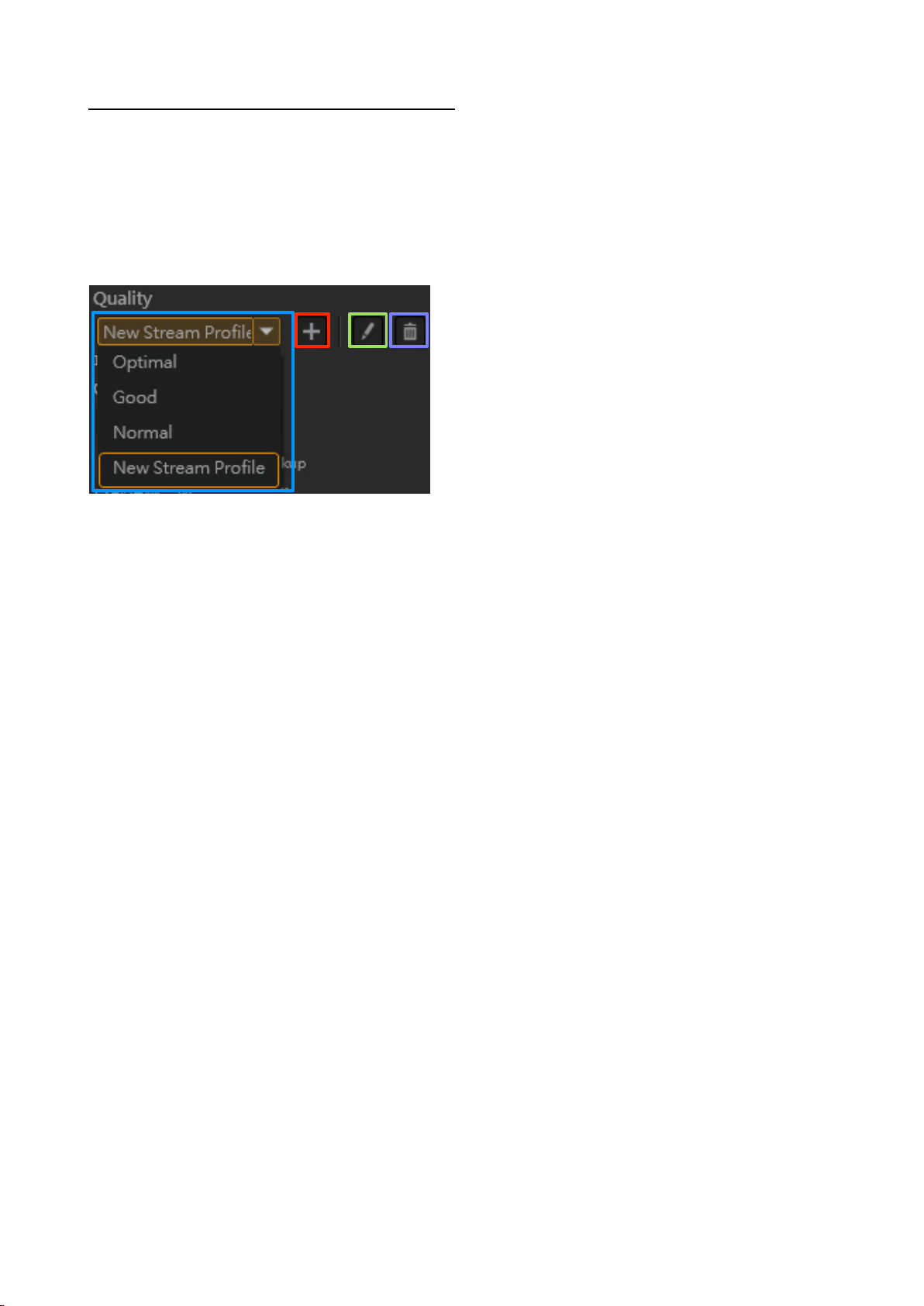
Step 3: Streaming Image Quality Settings
Set the streaming image quality. Select Optimal, Good, or Normal, or choose a previously saved
profile. Click the “+” icon to create a New Stream Profile (see the table on the next page for
available settings). When the settings are complete, click “Save” to finish.
In addition, you can click the “pen” icon to edit the profile. Click the “trash can” icon to delete
the specified profile.
Set the recording image quality. Select Optimal, Good, or Normal, or choose a previously saved
profile. Click the “+” icon to add a new Recording Quality profile. See the table on the next page
for available settings. In addition, you can click the “pen” icon to edit the specified profile. Click
the “trash can” icon to delete the specified profile.
42 / 91
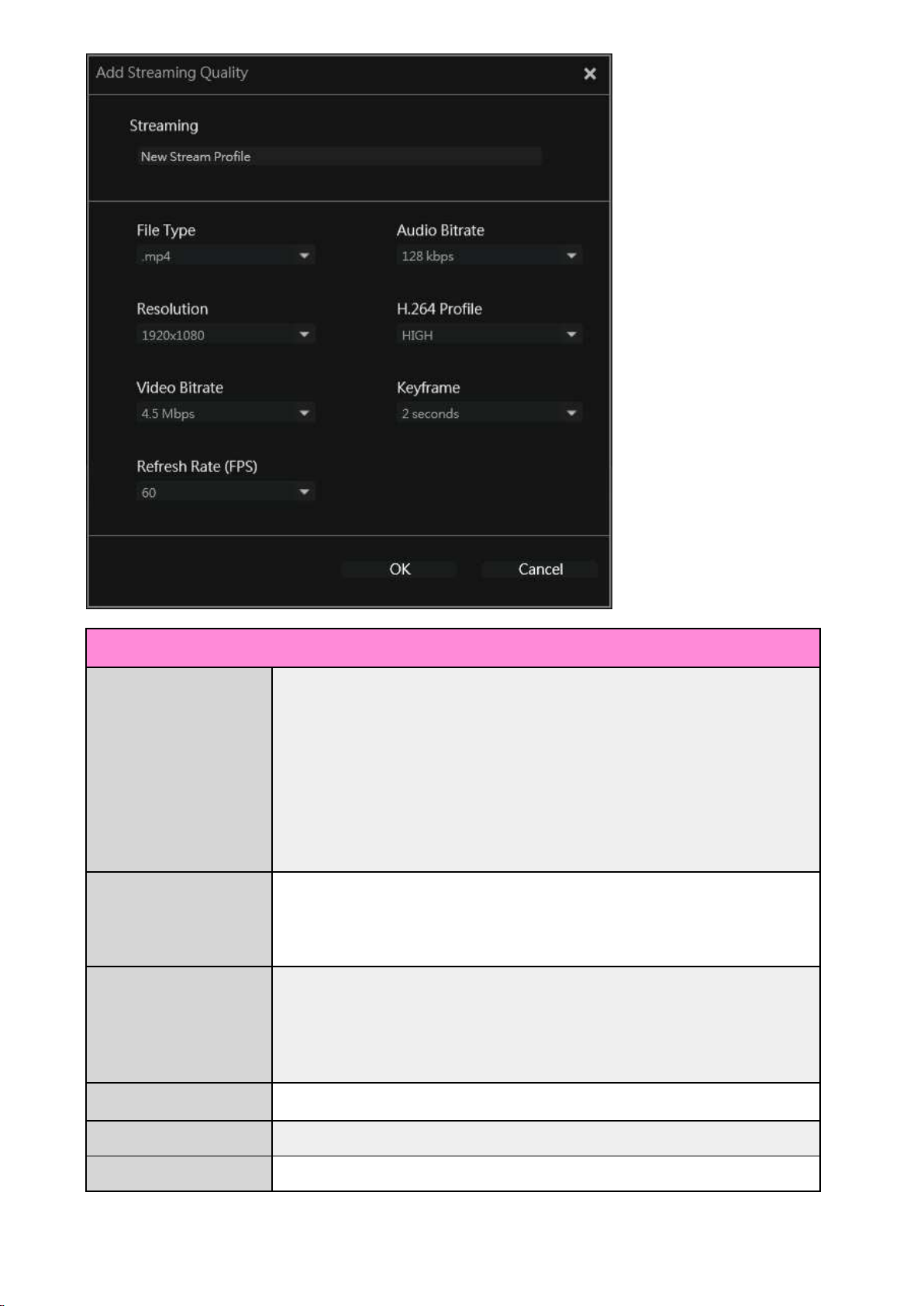
Custom Settings
Resolution
1920x1080, 1280x720, 848x480, 768x480, 720x480, 640x480,
640x360, 576x360
※ The resolution can be selected is determined by the output
resolution / FPS of
the video source (you cannot set 1920x1080 in
some cases).
Video bit rate
50, 40, 30, 20, 19, 18, 17, 16, 15, 14, 13, 12, 11, 10, 9, 8.5, 8,7.5, 7, 6.5, 6,
5.5, 5, 4.5, 4, 3.5, 3, 2.5, 2, 1.5, 1, 0.9, 0.8, 0.7, 0.6, 0.5, 0.4, 0.3 Mbps
Frame rate (FPS)
60, 59.94, 50, 30, 29.97, 25, 24, 23.98, 20, 15
※ The frame rate to be selected is determined by the output
resolution.
Audio bit rate
128, 96, 64, 32 kbps
H.264 setting
HIGH, MAIN, BASELINE
Key Frame
5, 4, 3, 2, 1 seconds
43 / 91
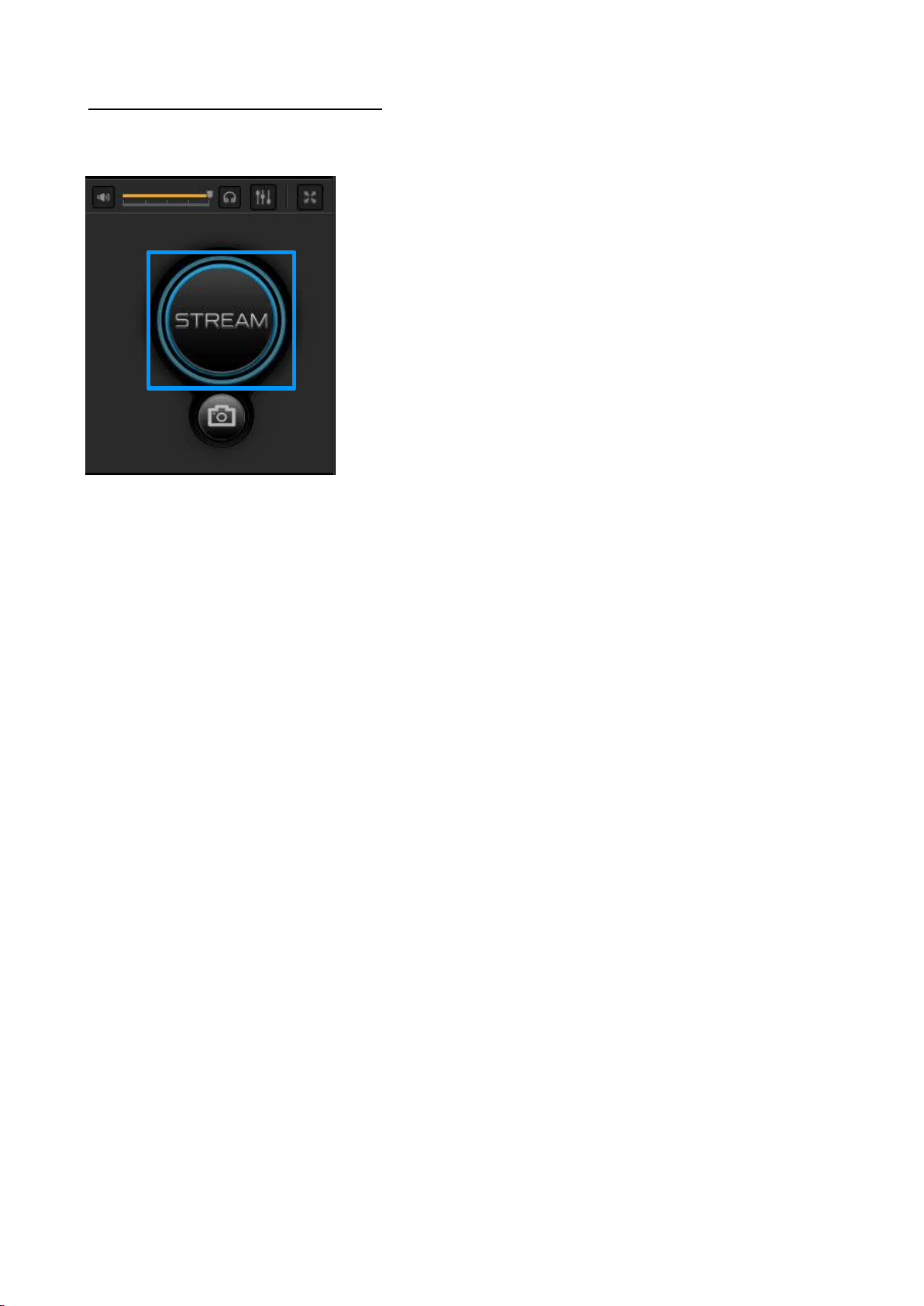
Step 4: Start and Stop Streaming
When ready, press the "Stream" button or the short-cut key on the keyboard to start. If you
want to end streaming, press the Stream button or the same key on the keyboard again.
44 / 91
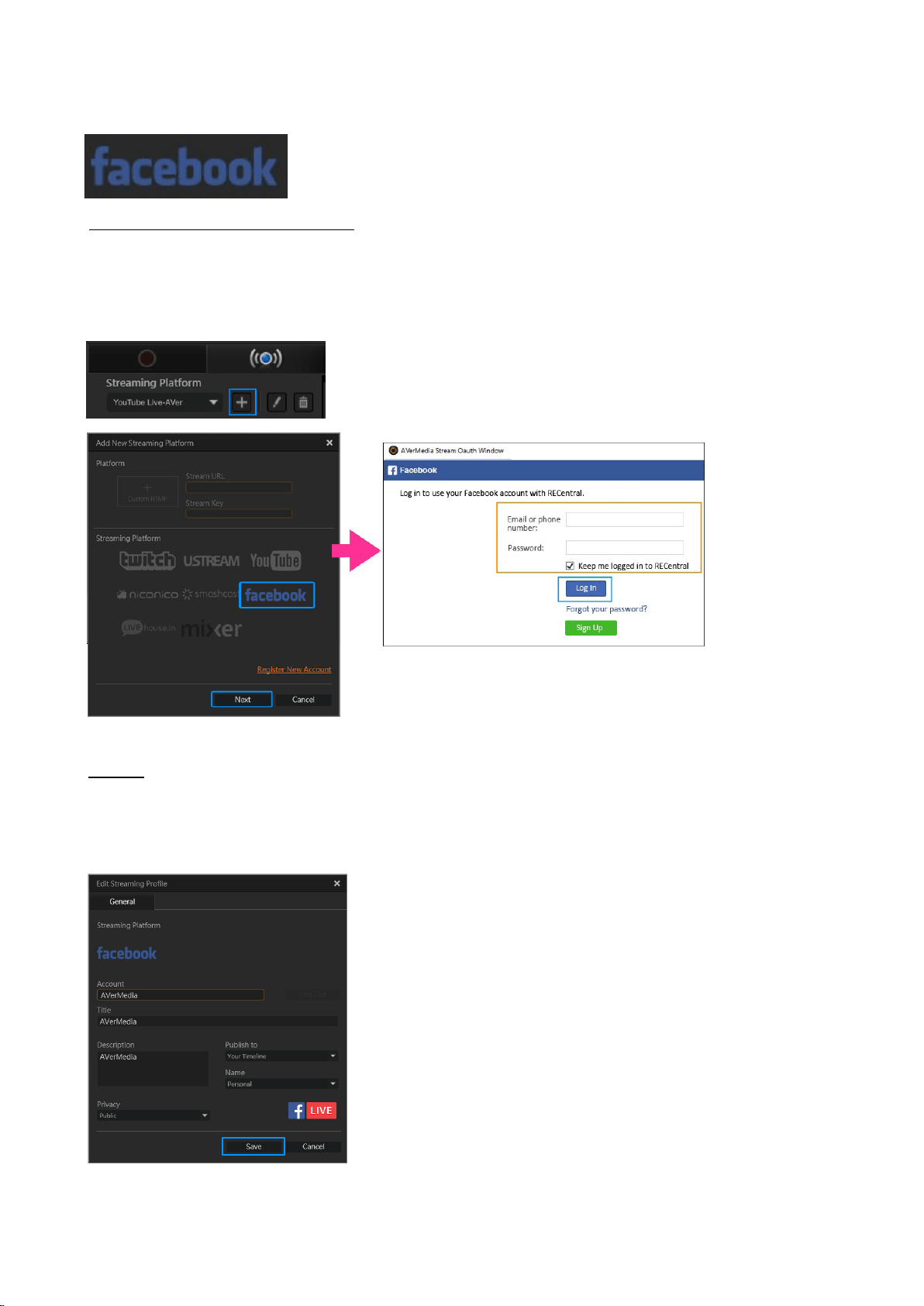
3.Facebook
Step 1: Create a New Account
Click the “Stream” tab in RECentral. Click the “+” icon on the “Streaming Platform", select
Facebook and click “Next”. The Facebook login window is shown. Enter the correct email or
phone number, and password. Click the checkbox “Keep me logged in to RECentral”, and click
Log In.
Step 2
① Streaming Information Settings:
Log in and switch to the following screen. Set the Title, Description, Name, where to post,
Privacy (Private, friend, friend’s friend, public), etc.
45 / 91
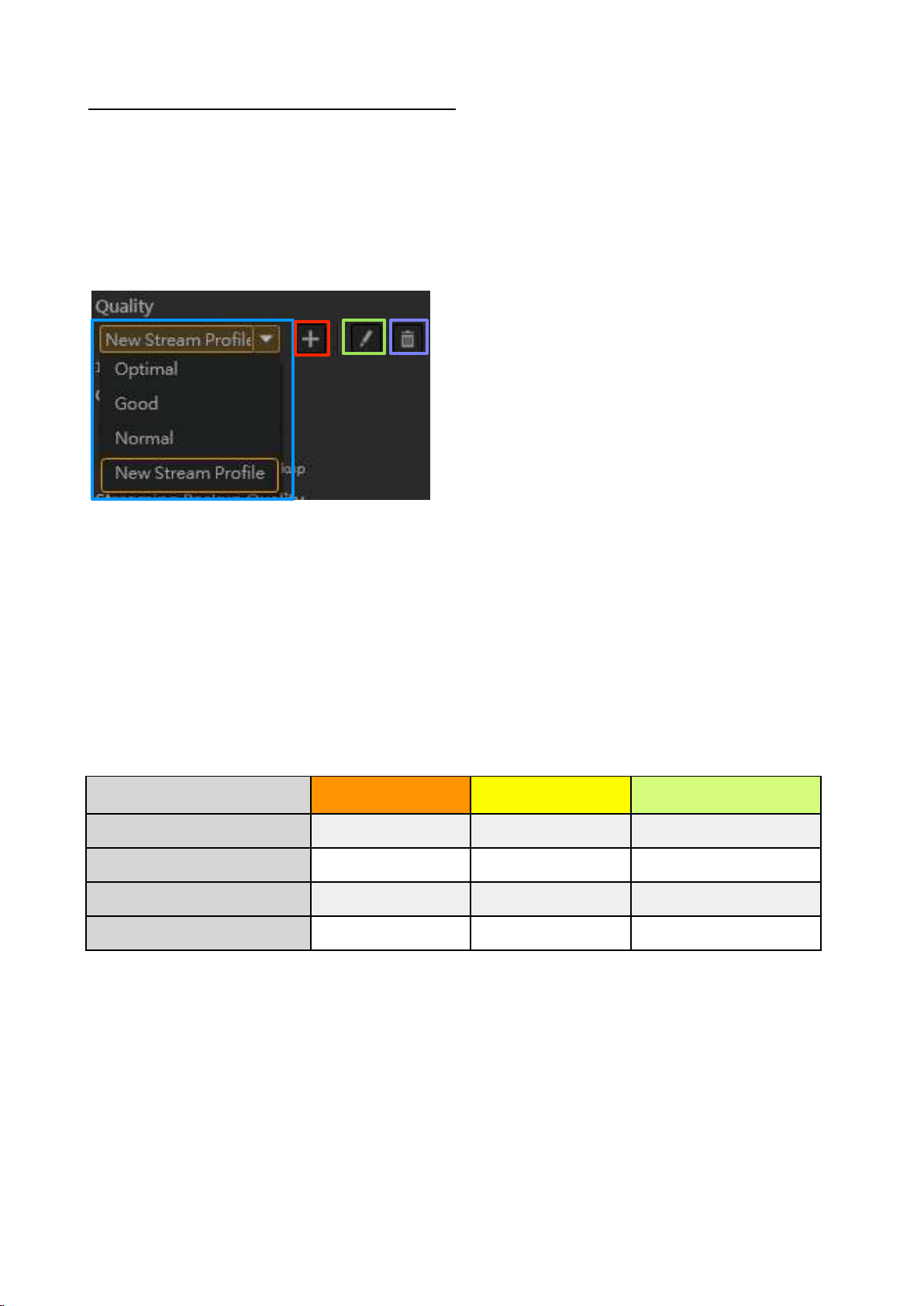
Step 3: Streaming Image Quality Settings
Set the streaming image quality. Select Optimal, Good, or Normal, or choose a previously saved
profile. Click the “+” icon to create a New Stream Profile (see the table on the next page for
available settings). When the settings are complete, click Save to finish.
In addition, you can click the “pen” icon to edit the profile. Click the “trash can” icon to delete
the specified profile.
Best Good Standard
Resolution
1280x720 848x480
640x480
Frame rate (FPS)
30 30 30
Video bit rate
3.5 Mbps 2 Mbps 1 Mbps
Sound bit rate
128 kbps 128 kbps 128 kbps
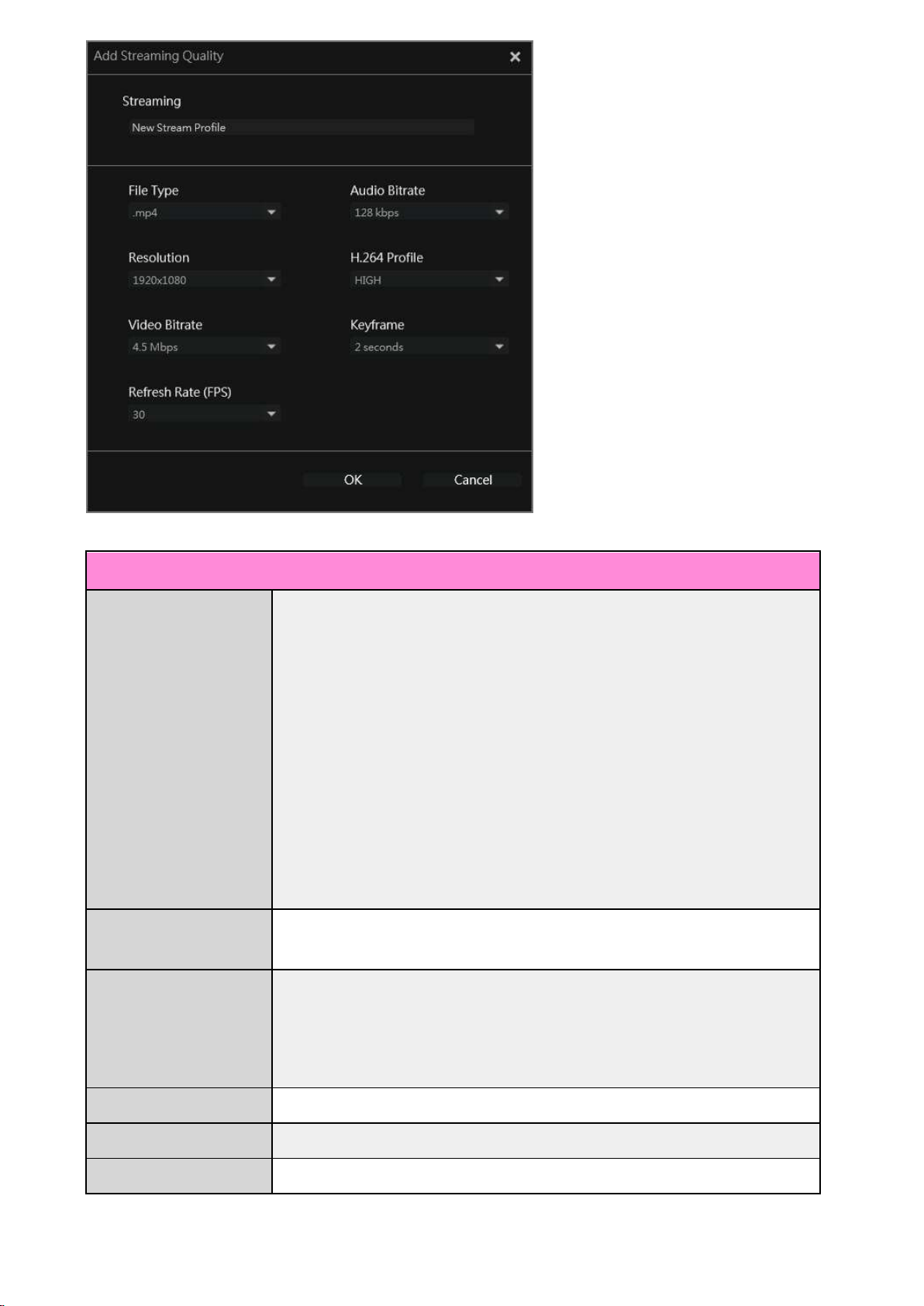
Set the recording image quality. Select Optimal, Good, or Normal, or choose a previously saved
profile. Click the “+” icon to add a new Recording Quality profile. See the table on the next page
for available settings. In addition, you can click the “pen” icon to edit the specified profile. Click
the “trash can” icon to delete the specified profile.
46 / 91
Custom Settings
Resolution
1280x720, 1152x864, 1024x768, 960x540, 800x600, 848x480,
768x480, 720x576, 720x480, 704x576, 640x480, 640x360,
480x576, 480x480, 352x576, 352x480, 576x360, 352x288,
352x240, 320x240, 320x180
※ The resolution can be selected is determined by the output
resolution / FPS of
the video source (you cannot set 1920x1080
in some cases).
Video Bitrate
4, 3.5, 3, 2.5, 2, 15, 1, 0.9, 0.8, 0.7, 0.6, 0.5, 0.4, 0.3 Mbps
Frame Rate (FPS)
30, 29.97, 25, 24, 20, 15
※ The frame rate to be selected is determined by the output
resolution.
Audio Bitrate
128, 96, 64, 32 kbps
H.264 Setting
HIGH, MAIN, BASELINE
Key Frame
5, 4, 3, 2, 1 seconds
47 / 91
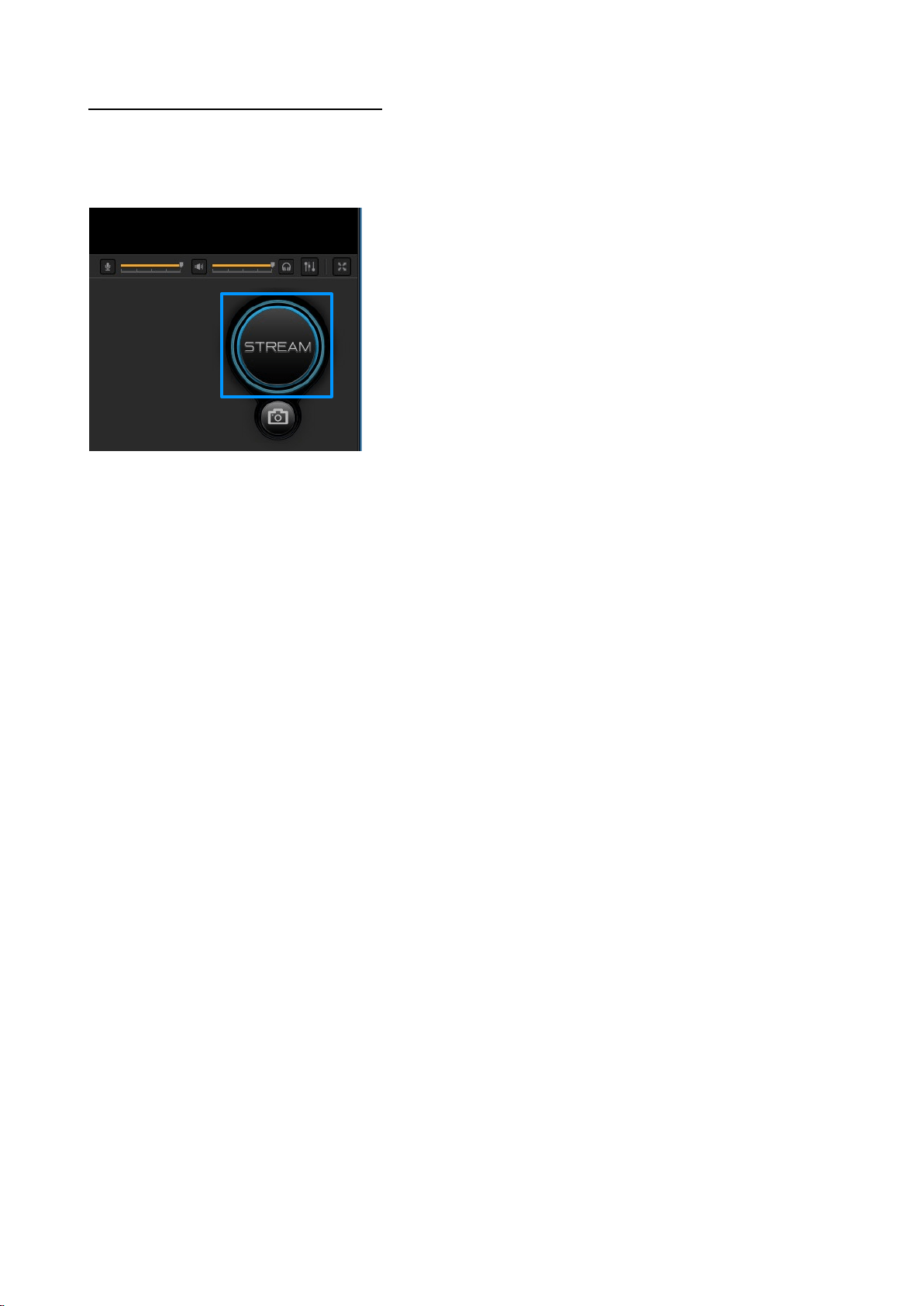
Step 4: Start and Stop Streaming
When ready, press the "Stream" button or the short-cut key on the keyboard to start
streaming. If you want to end streaming, press the Stream button or the same key on the
keyboard again.
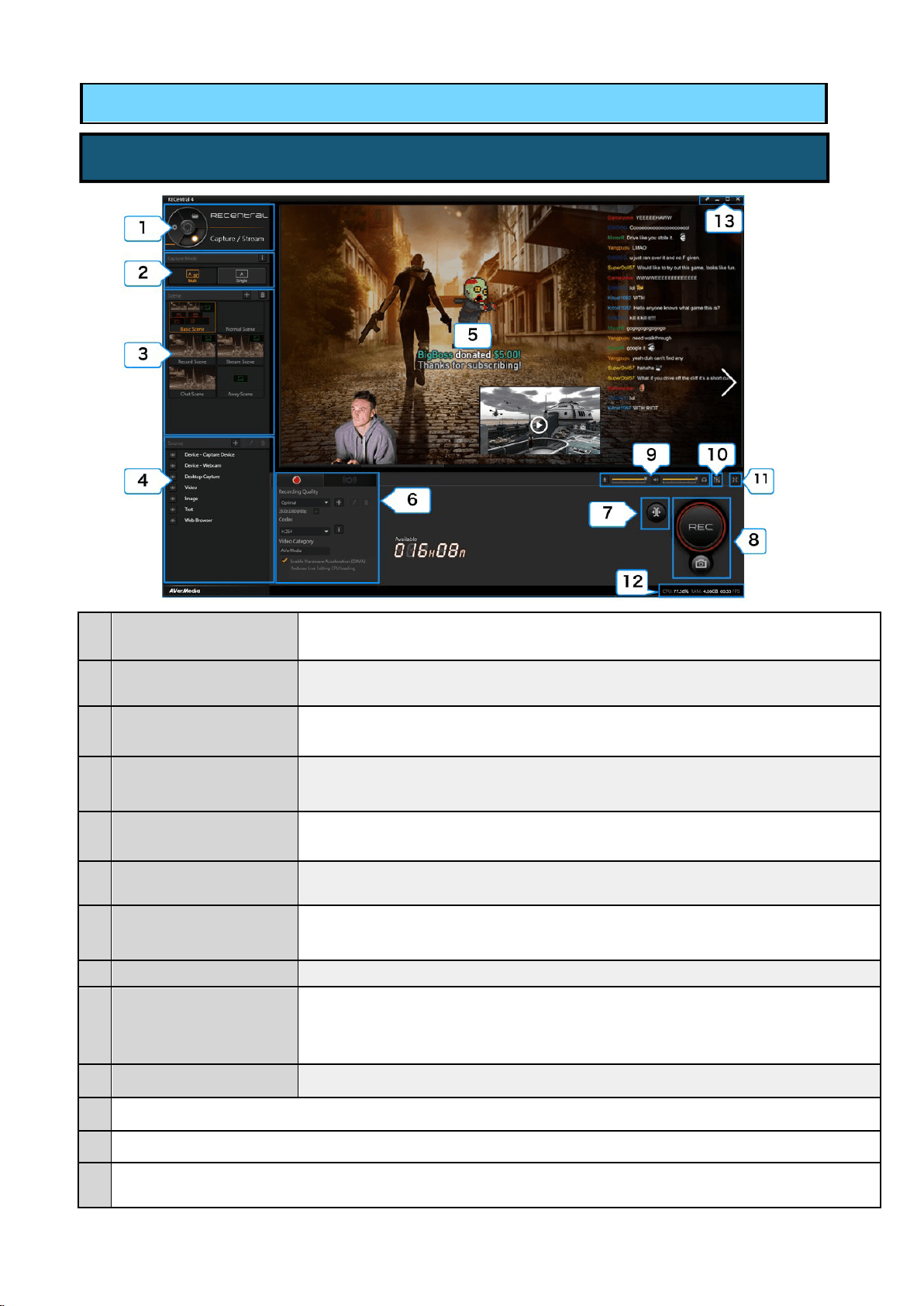
48 / 91
1
Function Dial
Switch among 3 functions: Capture / Stream, Media Share and Settings.
(
→ See page 04)
2
Capture Mode
Switch between Single Mode (→ See page 08) and Multi Mode.
3
Scene
(※ Multi Mode Selected)
Select / add / delete scenes. (→ See page 55)
4
Source
(※ Multi Mode Selected)
Select / add / set / delete a Source (capture device, webcam, PC screen, video,
image, text, web pages, etc.). (
→ See page 60)
5
Preview Window
Show source video screen
6
Record / Stream
Switch to Record or Stream to execute the recording / streaming settings.
7
Live Editing Button
Enable / disable the Live Editing function. (※ when the Multi Mode is used)
(
→ See page 78)
8
Capture Button
・Start /Stop the recording / streaming ・Save the Live Editing・ Take a snapshot
9
Source Volume
Adjustment
(→ See page 16)
・ Adjust the recording volume of the microphone sound, or turn the mute on / off
・ Adjust the recording volume of the source sound, or turn the mute on / off
・ Adjust the playing volume of the source sound, or turn the mute on / off
10
Audio Mixer
(
→ See page 18)
Set the mixing of the source and microphone sound
11
Switch to the full screen view
12
Shows CPU and RAM usage, as well as the FPS value of the source
13
・
Turn on/off Preview Window・Minimize/maximize the window (full screen view) in the taskbar
Chapter 4 Capture Mode: How
4-1. Main Men
u in Multi Mode
to Use Multi Mode
・Quit RECentral

49 / 91
1: Select Multi Mode
In the Function Dial, select “Capture / Stream”, then select the Multi Mode icon.
4-2. Steps to Recording and Live Streaming (Multiple Mode)
50 / 91
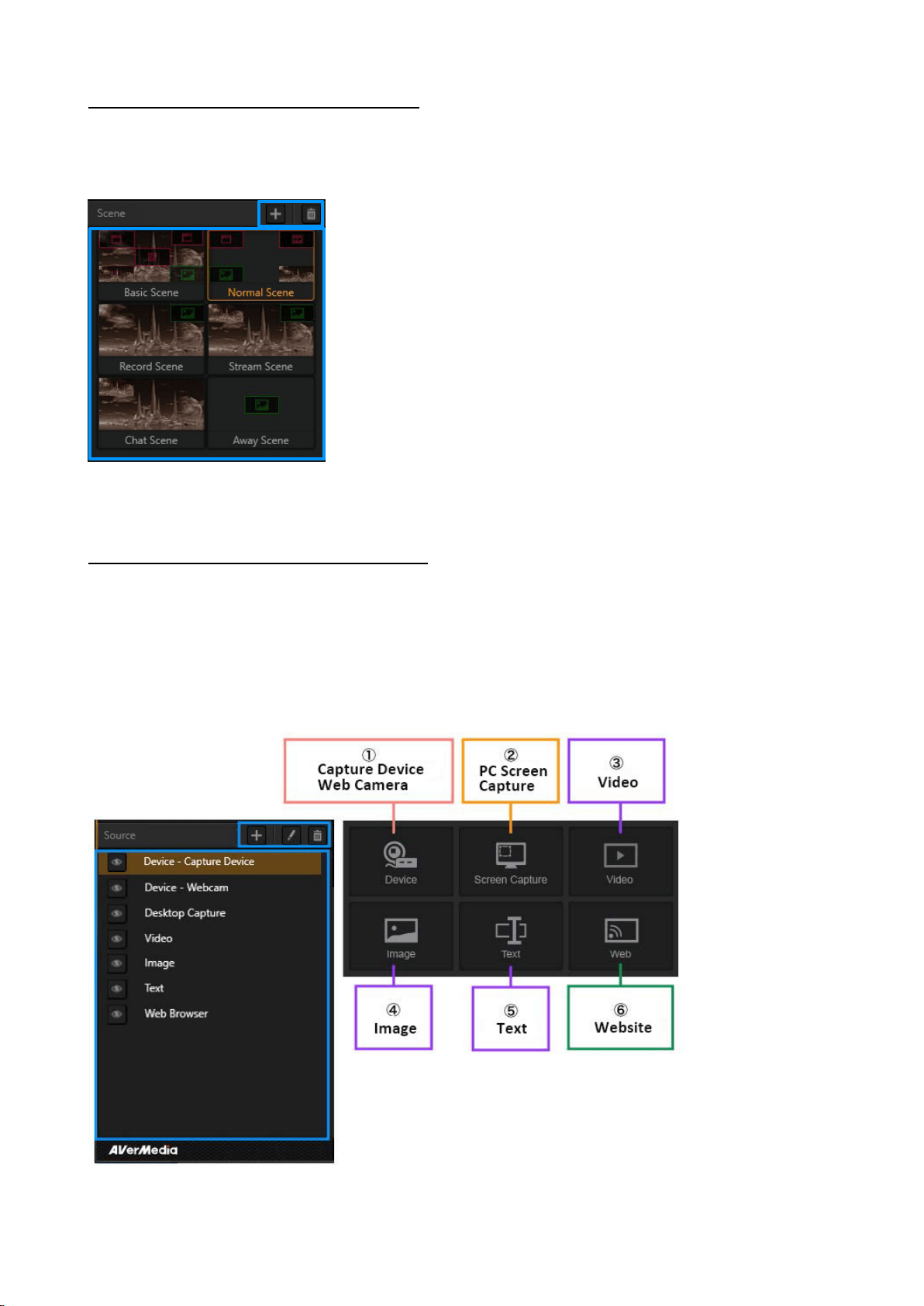
Step 2: Select and Manage the Scene
Select the scene you want to view, or create a new Scene.
※ Detailed description of the Scene settings: See pages 54—57.
Step 3: Select and Manage the Source
Select the scene, and place the source into the Preview Window. If you want to add a source,
click the “+” icon to select the type of source you want.
You can also click the “pen” icon to edit the specified source. Click the “trash can” icon to delete
the specified source.
※ Detailed description of the Source: See pages 57—77.
51 / 91
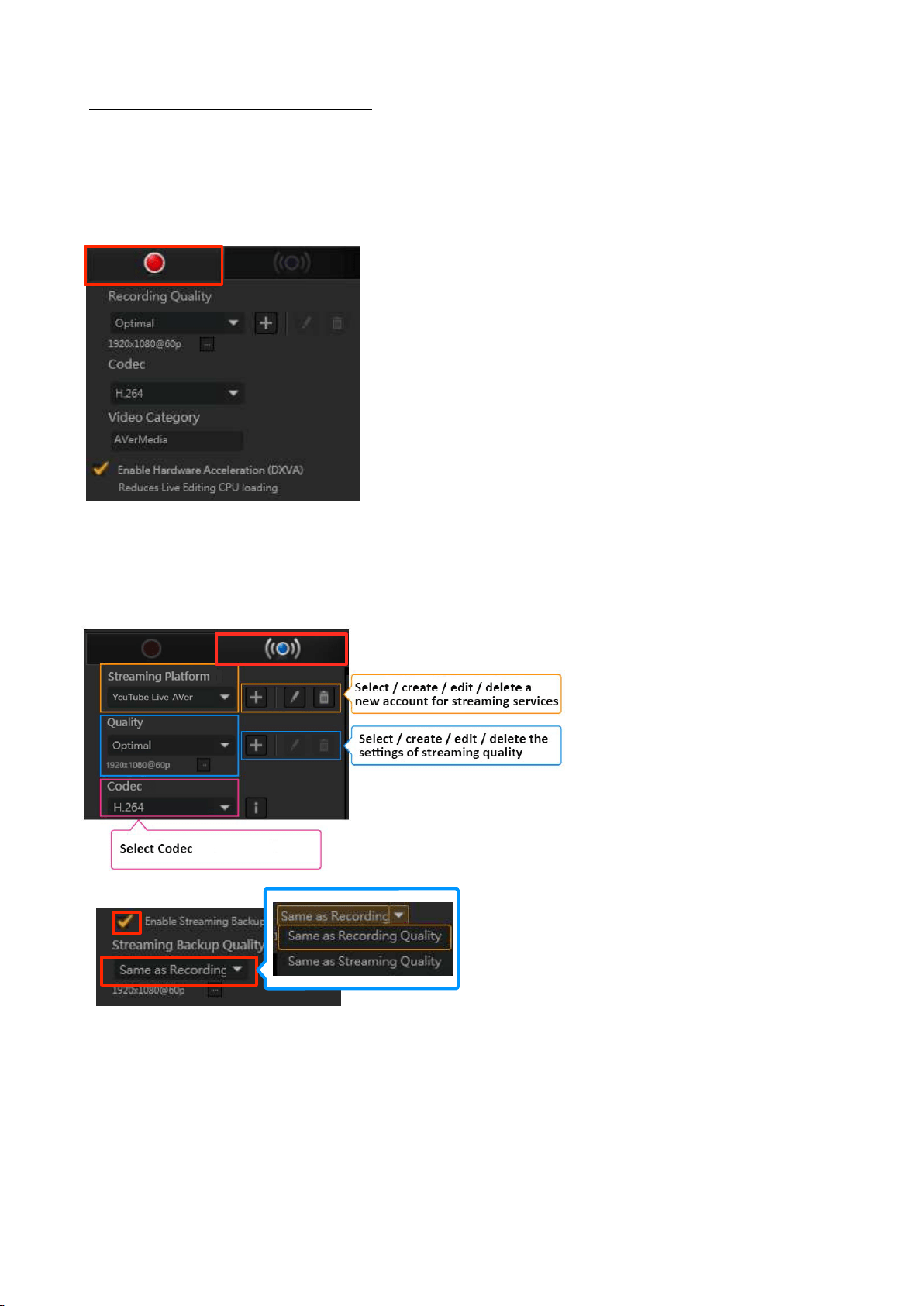
Step 4: Set the Record / Stream
A. If You Select Record
Select the “Record” tab. Set the Recording Quality, Codec, Video Category and so on.
※ Detailed description of the recording settings: See pages 12—16.
B. If You Select Stream
Select the “Stream” tab. Create or select a Streaming Platform (streaming service), and set the
Quality (resolution, FPS, bit rate, etc.), Codec, and Enable Streaming Backup.
※ Detailed description of streaming: See pages 25—26.
※ Detailed description of each live streaming platform: See pages 29—47.
52 / 91
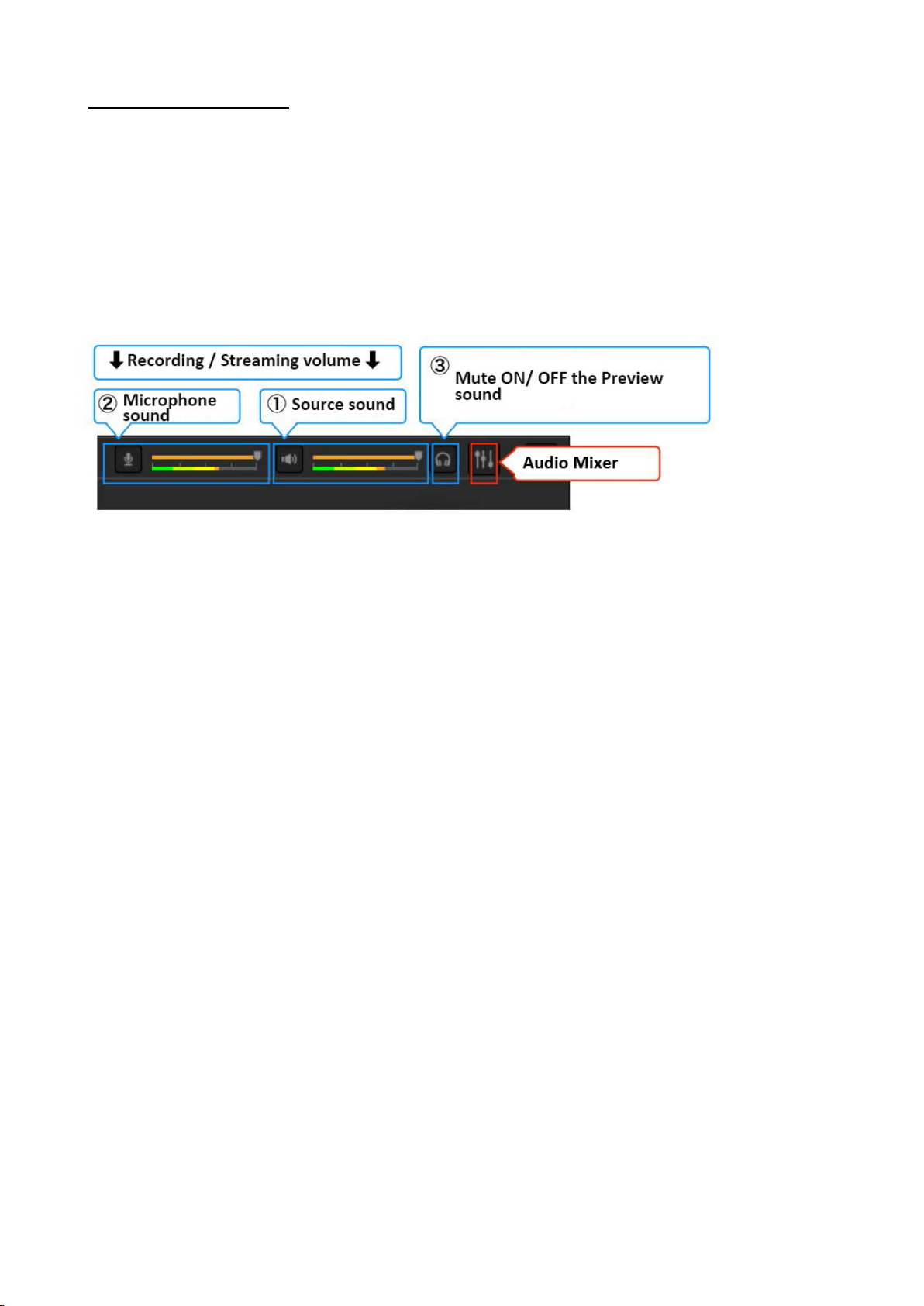
Step 5: Sound Settings
You can adjust the recording / streaming volume (Source Sound, Microphone Sound etc. of the
Capture device), and turn ON / OFF the Preview Sound (the sound you are listening to). You can
also click the “Audio Mixer” icon to make detailed settings of playing/recording/streaming the
sound and adding a microphone.
※ You can set the sound even while recording or
l
ive streaming.
※
Detailed description of the Sound Settings (source sound, microphone sound, mixer function,
etc.): See page 16.
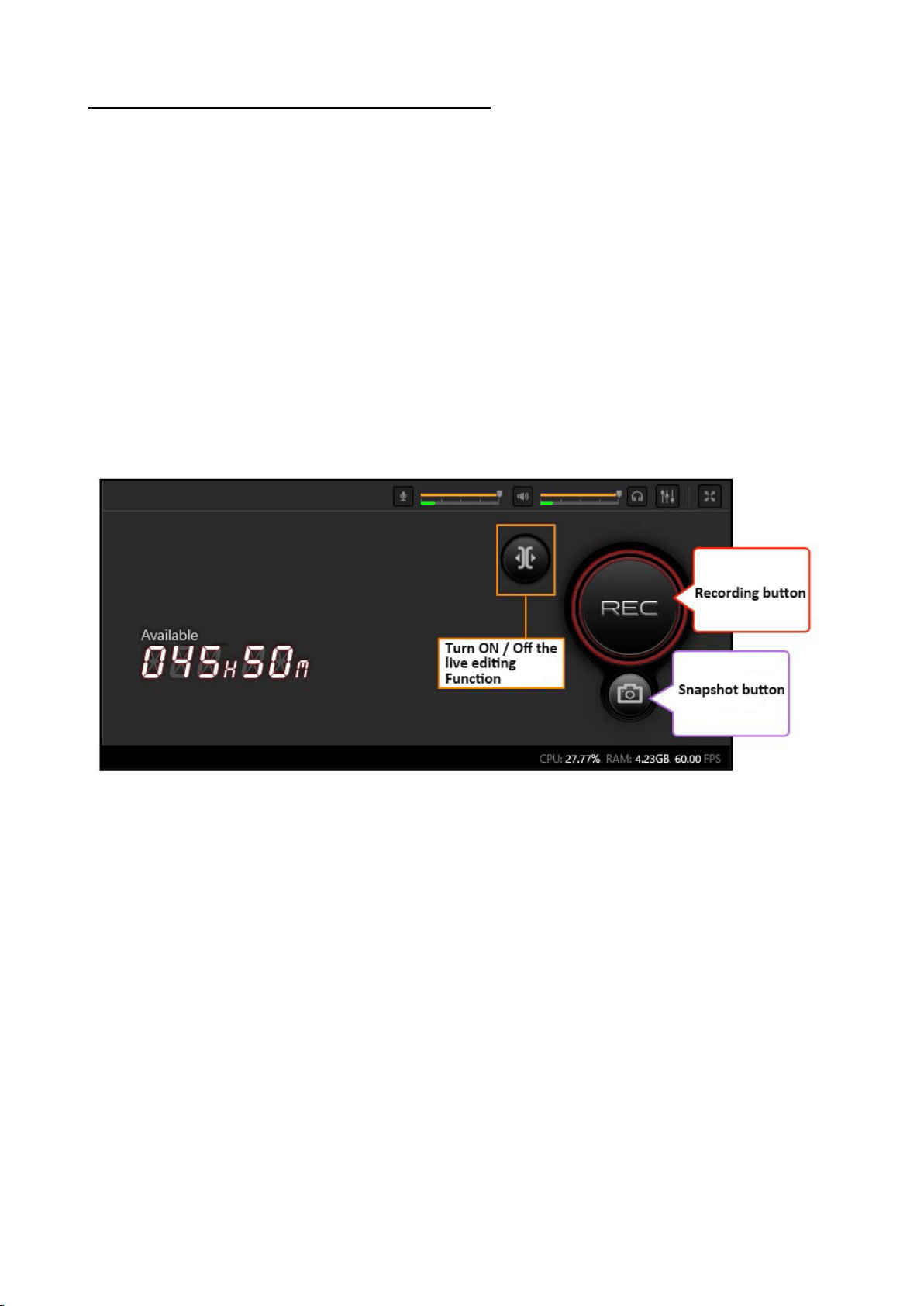
53 / 91
Step 6: Start and Stop Recording / Streaming
A. If You Select Record
When ready, press the “Record” button or the short-cut key on the keyboard to start. If you
want to end recording, press the “Record” button or the same key on the keyboard again. Click
the “Live Editing" button next to the “Record” button to turn it ON, and enable the Live Editing
Function. Click the “Live Editing" function button again to disable this function.
※ Detailed description of Live Editing: See page 78.
※
If you want to check up the saved recording file, select “Media Share” in the Main menu to
check / manage / share the recording file.
※ You can take a snapshot while recording.
※ See page 81 for more information about “Media Share”.
※ See page 83 for more information about the short-cut keys.
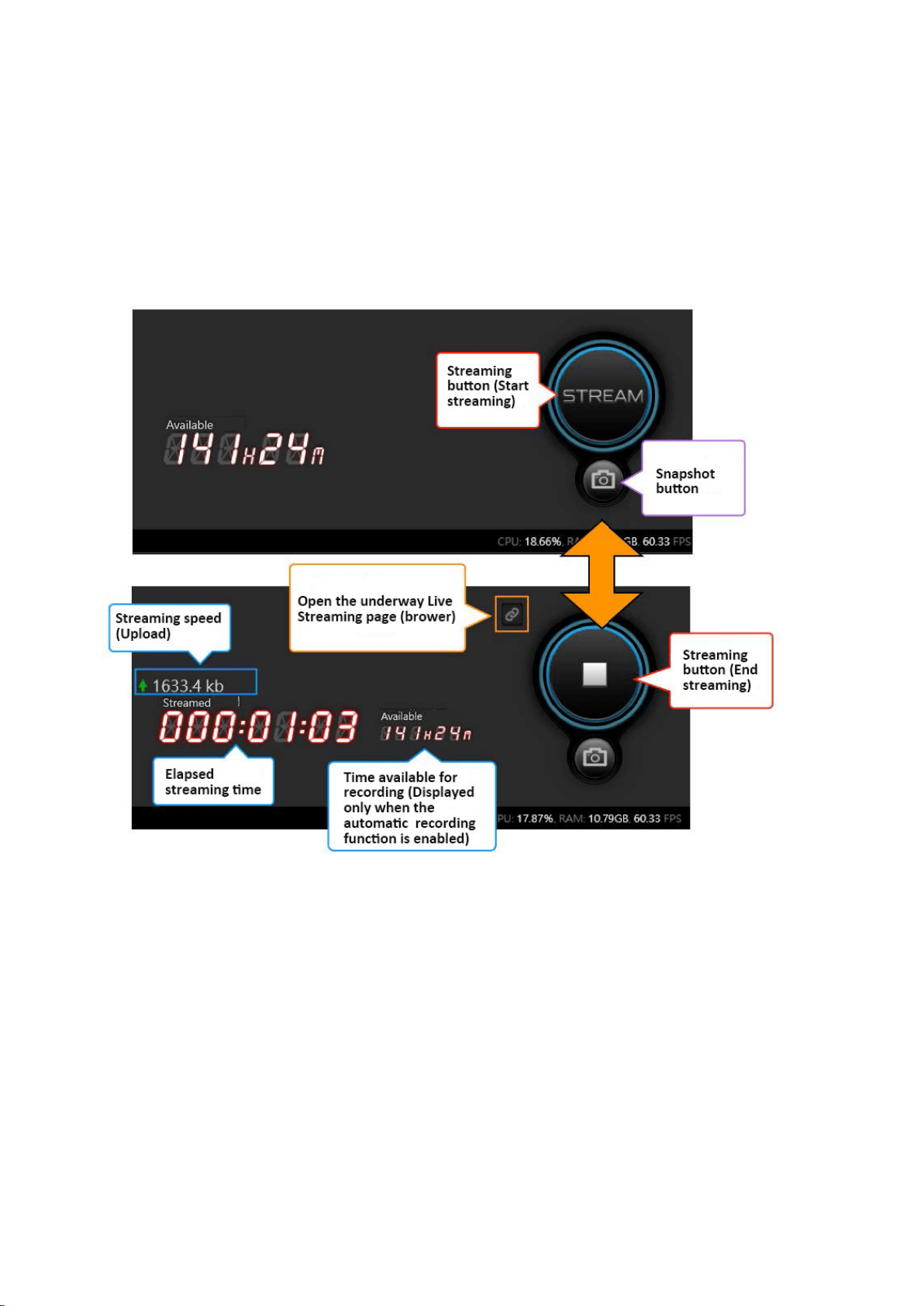
54 / 91
B. If You Select Streaming
When ready, press the Stream button or the short-cut key on the keyboard to start. If you want to
end streaming, press the Stream button or the same key on the keyboard again.
※ While streaming, click the “Link” icon to launch your browser and watch the live broadcast
(e.g. YouTube Live).
※ You can take snapshots during streaming.
※
See page 83 for more information about the short-cut keys.
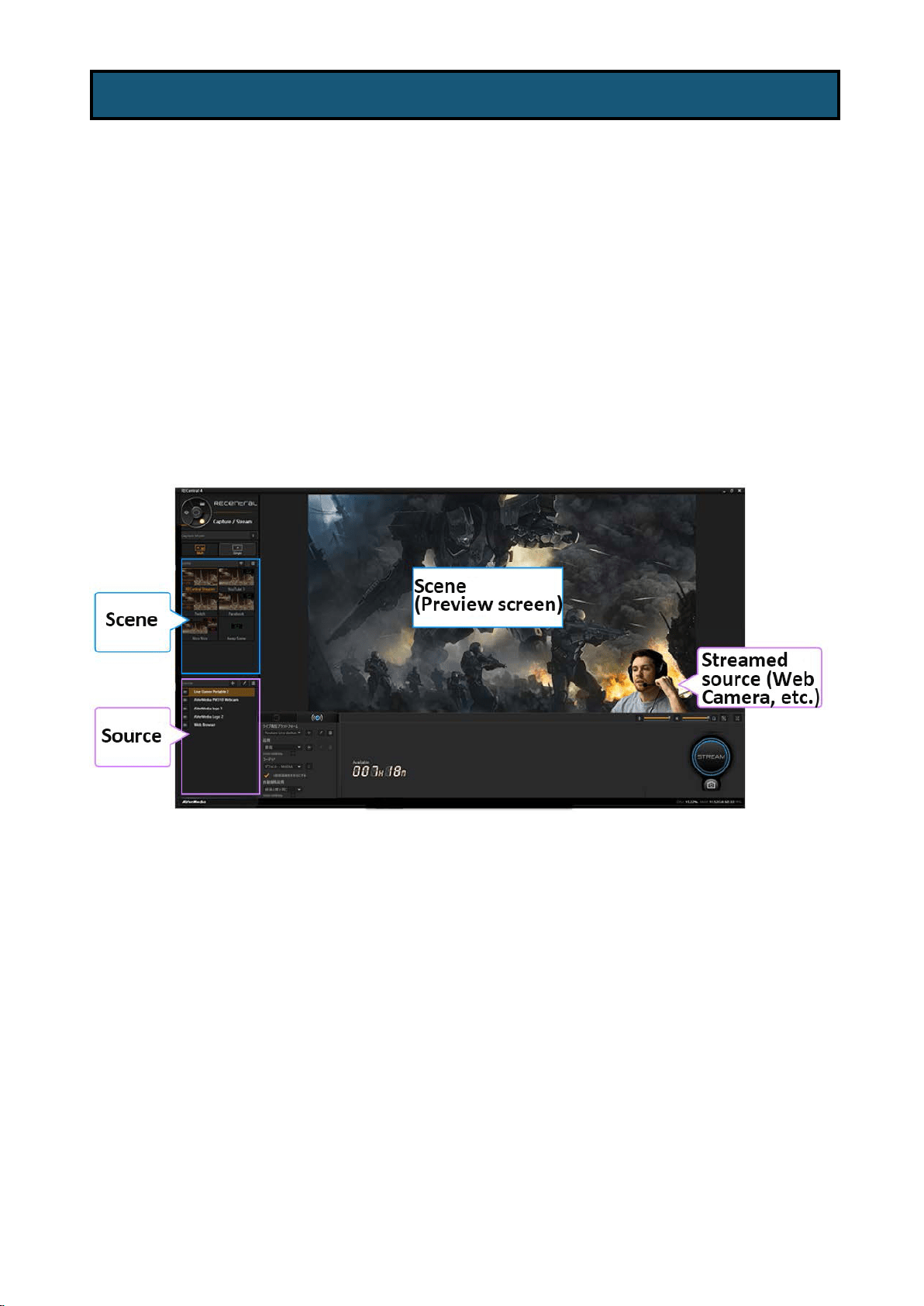
55 / 91
The "Scene" function provides an instant change from the current scene to another one. You
can use this function to simply switch to many different “Scenes” instantly. If you have set
different streaming scenes in advance, you can, with one click, switch to Record scene, Stream
scene, Chat scene, Away scene, and more, depending on your needs during live streaming. (This
allows users to change scenes instantly). In each scene, you can customize the layout, so that
you can easily set your favorite scenes.
RECentral, with the Picture in Picture (PiP) function, provides an effect that shows another frame
for the sources such as videos or still images on your screen. Use RECentral to have webcam,
image, video, web pages, or texts displayed on the game screen (video source of the capture
device). You can customize the streaming screen as you want.
In addition, RECentral supports capturing PC screen, so that you can enjoy a variety of use.
4-3. Scene Function and Source (PiP Function)
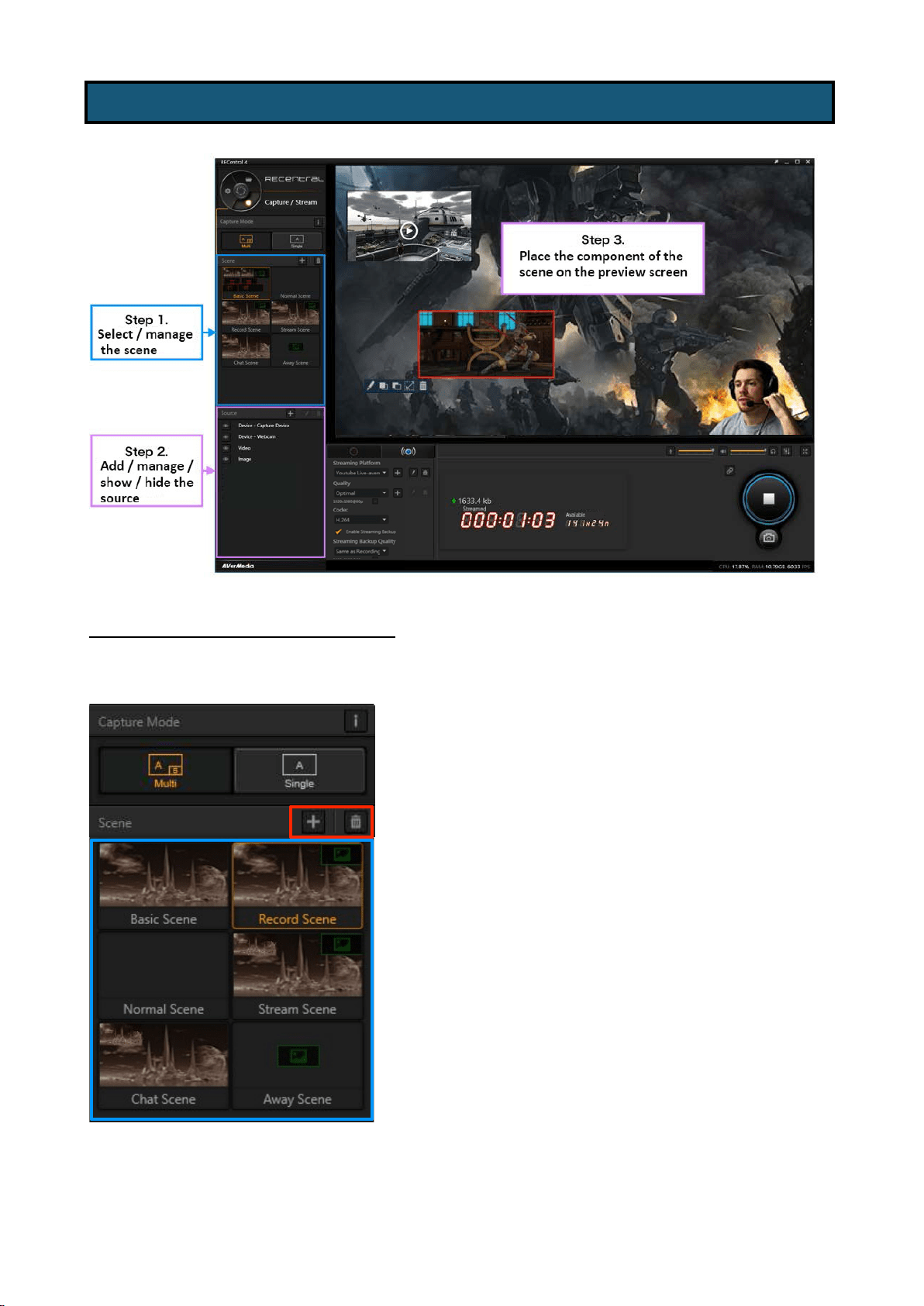
56 / 91
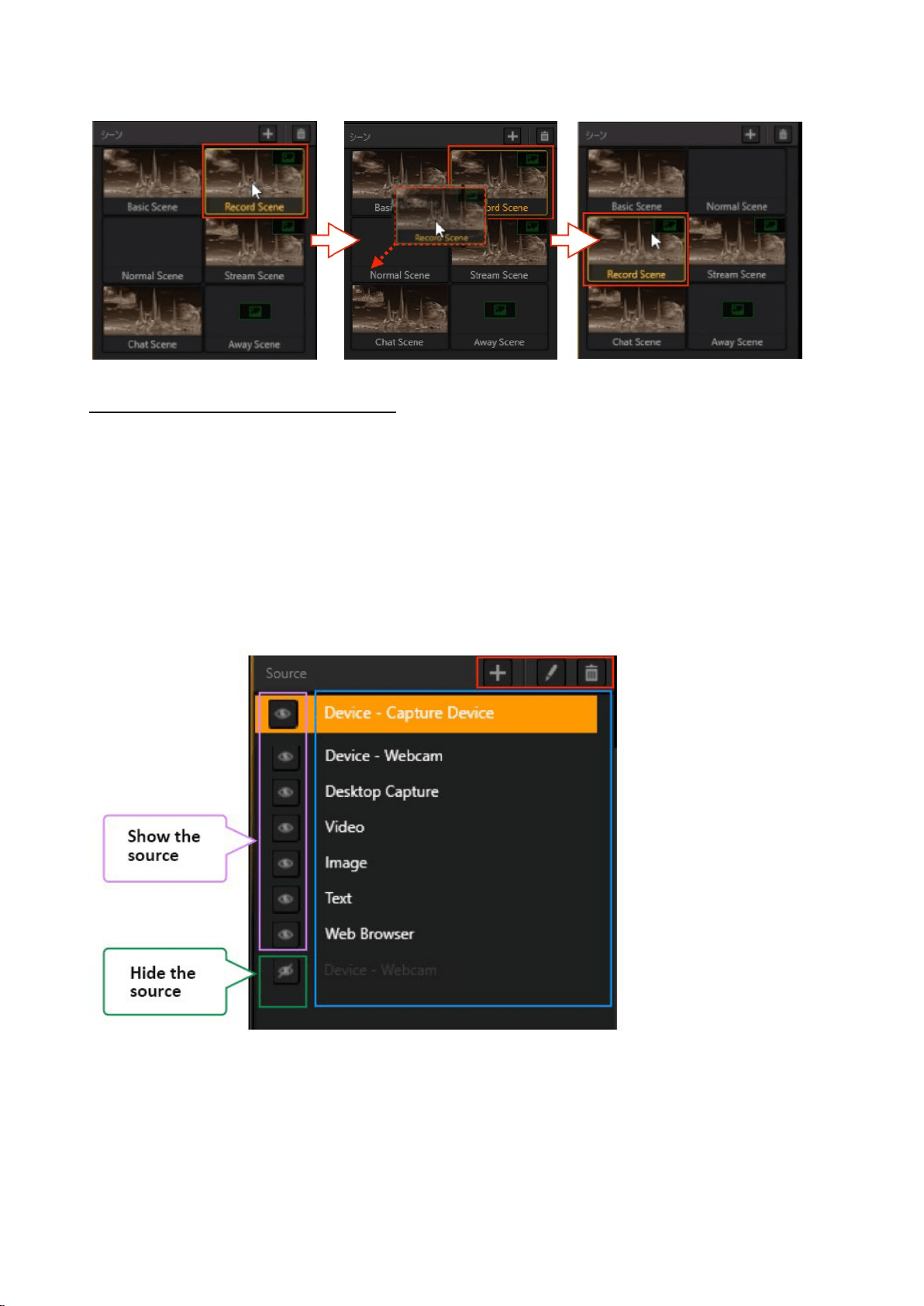
Step 1: Select / Manage the Scene
Select the scene you want to use, or click the “+” icon to create a new scene. In addition, click
the “trash can” icon to delete the specified scene.
4-3-1. Steps to set Scene function and Source Operation
57 / 91
You can select the scene to drag and drop, and adjust the order of the scenes.
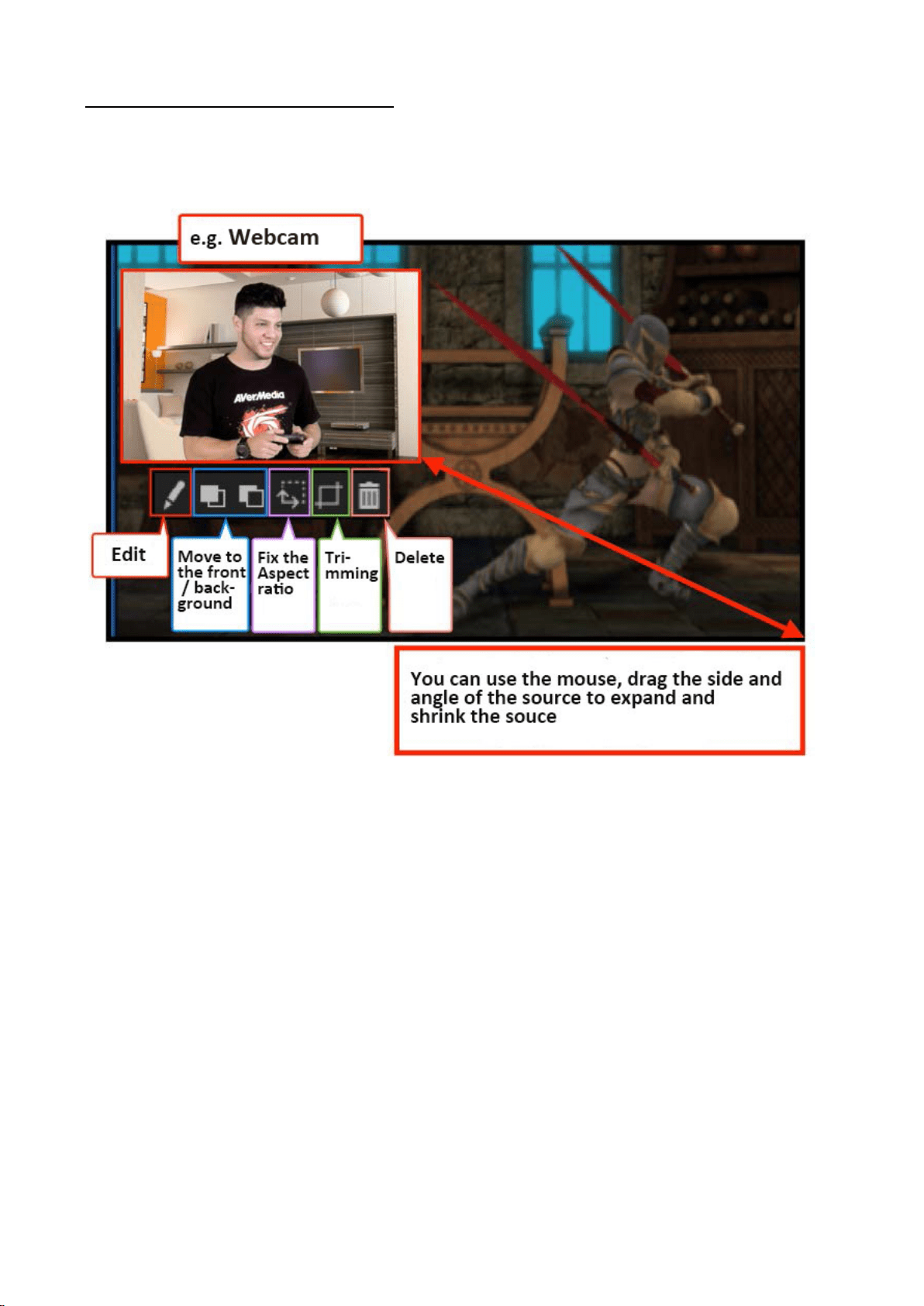
Step 2: Place / Manage the Source
Place the source you want into the Preview Window. Click the “+” icon to add the source. You
can also click the “pen” icon to fine-tune the specified source. Click the “trash can” icon to
delete the settings file (※The workload of the PC can be reduced).
If you want to hide the source, click the “Eye” icon next to the source. (Click it once again to
show the source). For example, during live streaming, you can hide personal information of the
source (the screen is not shown to viewers).

58 / 91
※ You can enter text in the Name field by clicking the source once, and change the source name.
※ Notes:
・ If you place many sources, it may cause some sound delay (lag, mismatching), depending on
your PC configuration. When the delay occurs, delete one scene at a time and try again.
・ If you place many sources, the CPU utilization rate may reach 100%, depending on the status of
the PC configuration, causing crash as a whole or the movie completed with some sound delay.
It is recommended to change the “Codec” setting to ‘NVIDIA,’ ‘AMD,’ or ‘QSV (※ if you are
using QSV Intel-based CPU).’
・
Detailed description of Codec: See page 15.
59 / 91
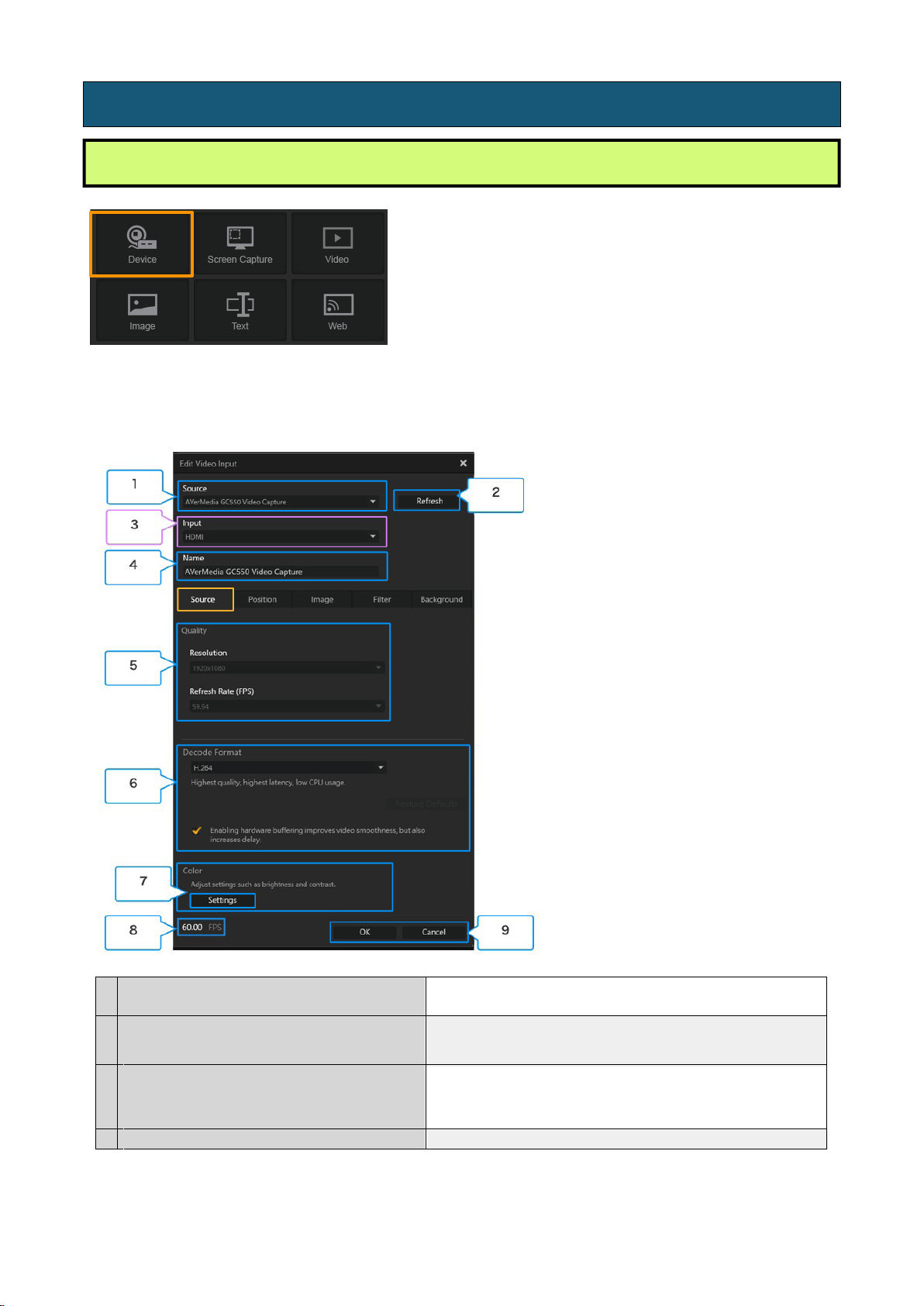
Step 3: Place / Manage the Source
Please make sure that the source you placed is shown on the Preview Window in RECentral.
Select the source you want to change (※ the source is highlighted in a red circle), move, edit,
resize the source, and move it to the front or back.
60 / 91
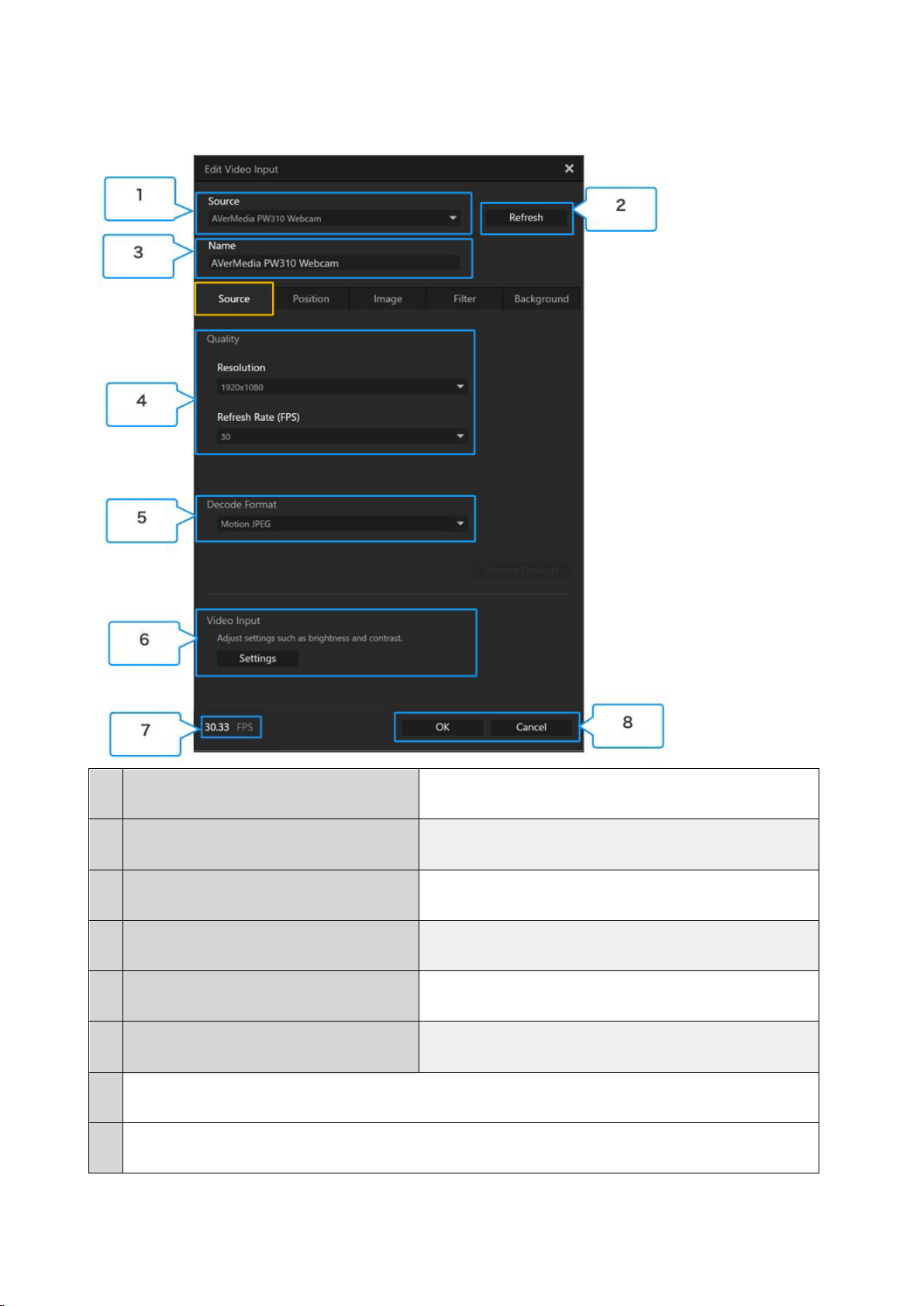
① Source: 1. Capture Device
The settings shown below may vary depending on the type and specifications of the capture device.
1
Source (capture device)
Switch to the connected capture device from the drop-down list, and
specify it.
2 Re-detect the capture device and update the status.
3
Input
(※ When a device with HDMI & component input terminals
selected, this item is displayed.)
Select which terminal to be used for video output from game machine
or the video device that you are using. Select either “HDMI” or
“component”
4
Name
Click on the name shown on the source list to change.
4-3-2. Set the Source
1. Device (Video Source: Capture Device, Webcam)
Refresh

61 / 91
5
Quality (resolution, frame rate)
The resolution and frame rate (FPS) of the video source device (such as game machine)
are shown (※ If the quality needs to be improved, change the resolution settings of the
source device).
6
Codec Format
(※This item is displayed when certain types
have been selected.)
You can change the video format of the capture device: H.264/YUY2/ Motion JPEG
(MJPEG)/NV12.
7
Color
(※ The items that you can set may vary
depending on
the type and specifications of
the device)
You can change the color settings of the video terminal (HDMI / component) of the
capture device. The items that you can set including:
・ Color range: standard (16–235), extended (0–255)
・ Color adjustment: brightness, contrast, hue, saturation
8
You can verify in the FPS view if the processing failed is taking place. In case that the FPS value is “lower” (worse) than the value of
the specified quality, carrying out the following operations.
① Close other applications that you are using (game, video software, browser, etc.).
② Change the video format.
- When H.264 / YUY2 is set: Try to choose Motion JPEG or NV12.
- When Motion JPEG or Nv12 is set, try to select H.264 or YUY2.
③ (Only when an NVIDIA GeForce graphic card is in use) Launch the NVIDIA control panel, and select the "3D settings" → "3D
controlling settings" → "Program settings" in order, and specify the RECentral, then set to High Performance NVIDIA Processor.
④ Click "Control Panel (Windows)" → "System and Security" → "Power option" in order, try to set the power supply plan to High
Performance.
9
・ Click OK when you want to save the settings.
・ Click Cancel when you do not want to save the settings.
62 / 91
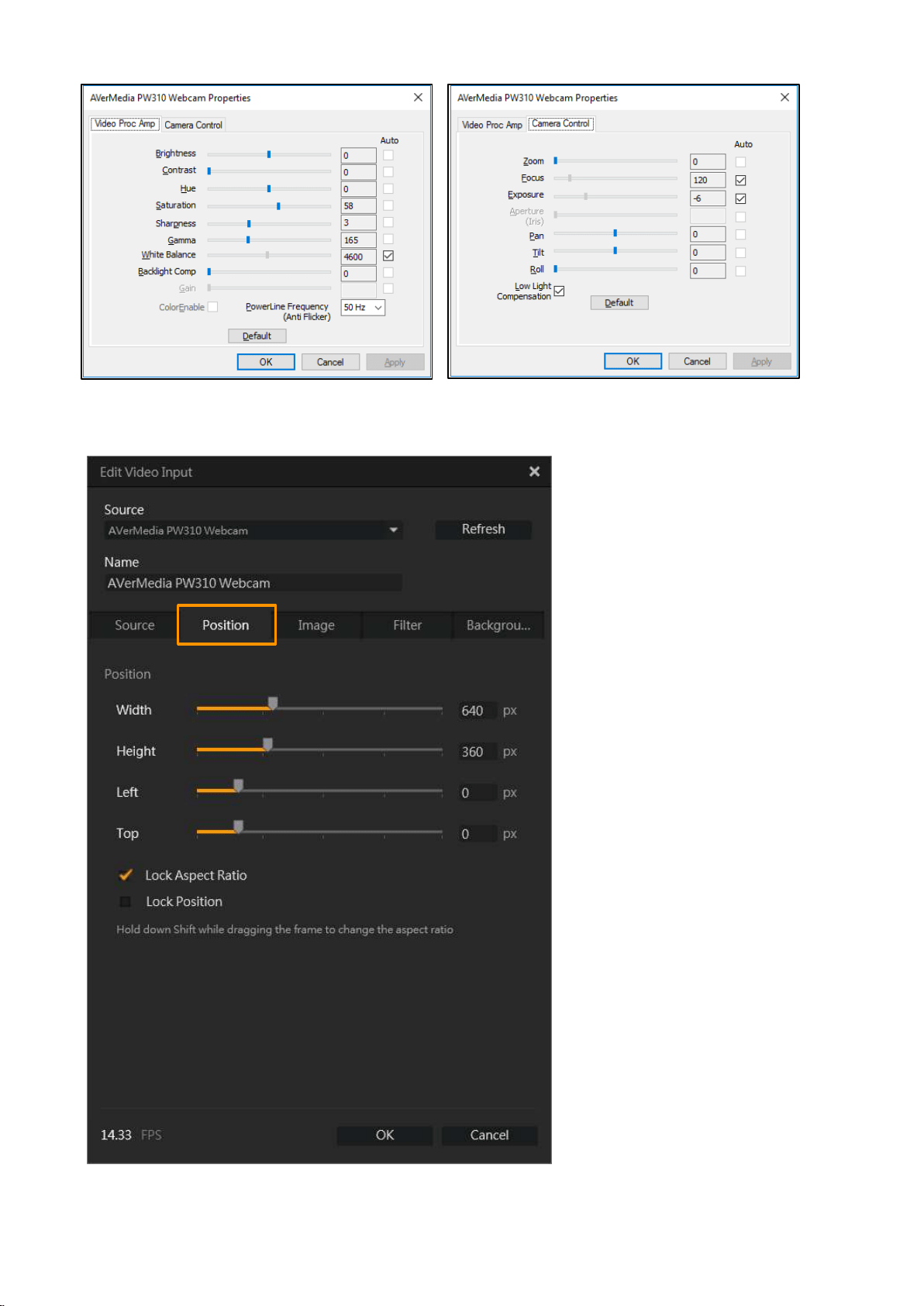
① Source: 2. Webcam
②
The settings shown below may vary depending on the type and specifications of the webcam.
1
Source (webcam)
Switch to the connected webcam. Select from the drop-
down list and specify it.
2
Re-detect the webcam and update the status.
3
Name Click on the name shown on the source list to change.
4
Quality (resolution, frame rate)
You can set the input resolution and frame rate (FPS) of
the webcam.
5
Decode Format You can change the video format of the webcam.
6
Video Input
You can change the settings of image (color) adjustment,
camera control (zoom), etc.
7 You can confirm if there is processing failed by using the FPS view.
8
・ Click “OK” if you want to save the settings.
・
Click “Cancel” if you do not want to save the settings.
Refresh
63 / 91
② Position
64 / 91
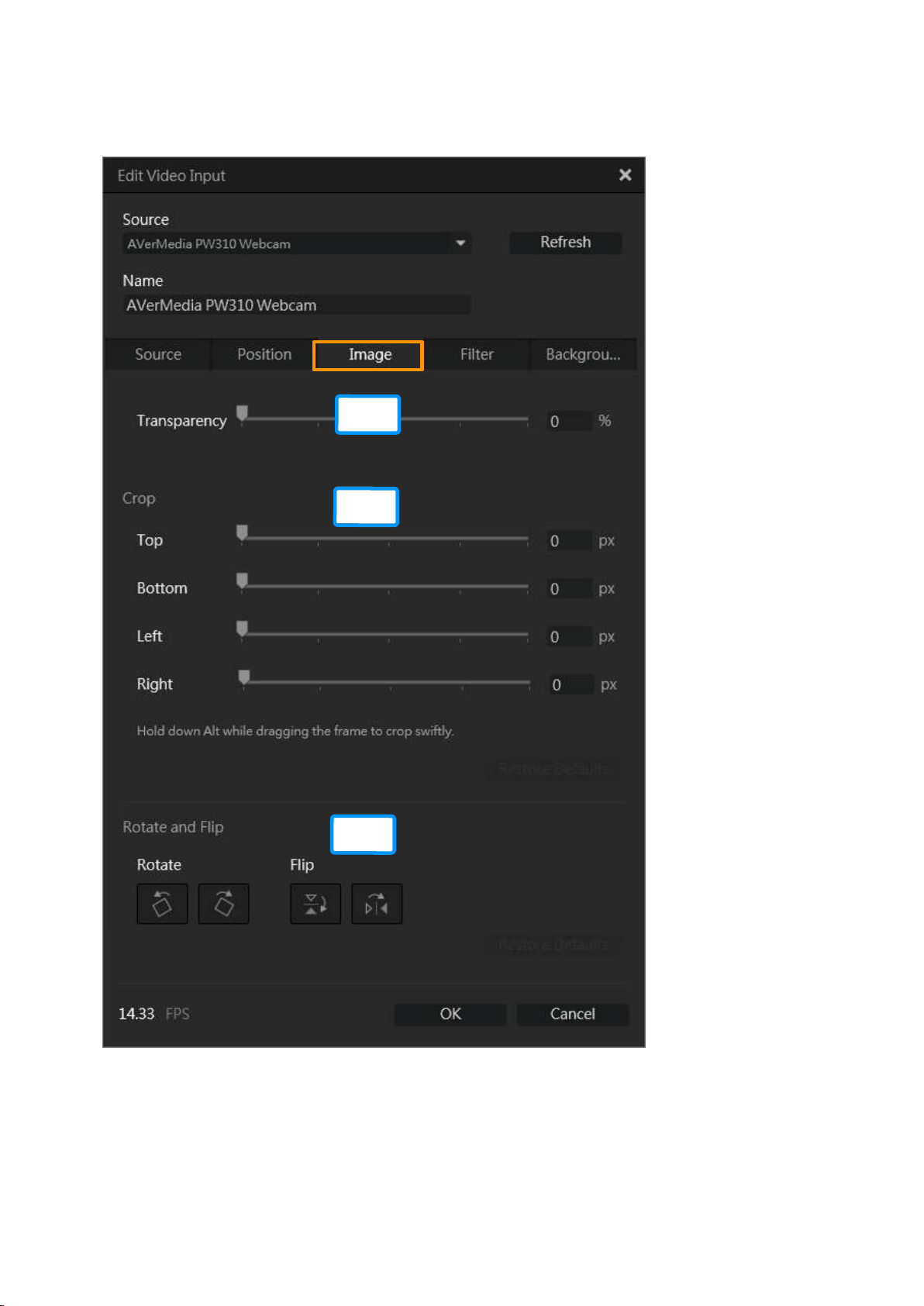
③ Video:
1) Transparency, 2) Crop, 3) Rotate and Flip
1
2
3
65 / 91
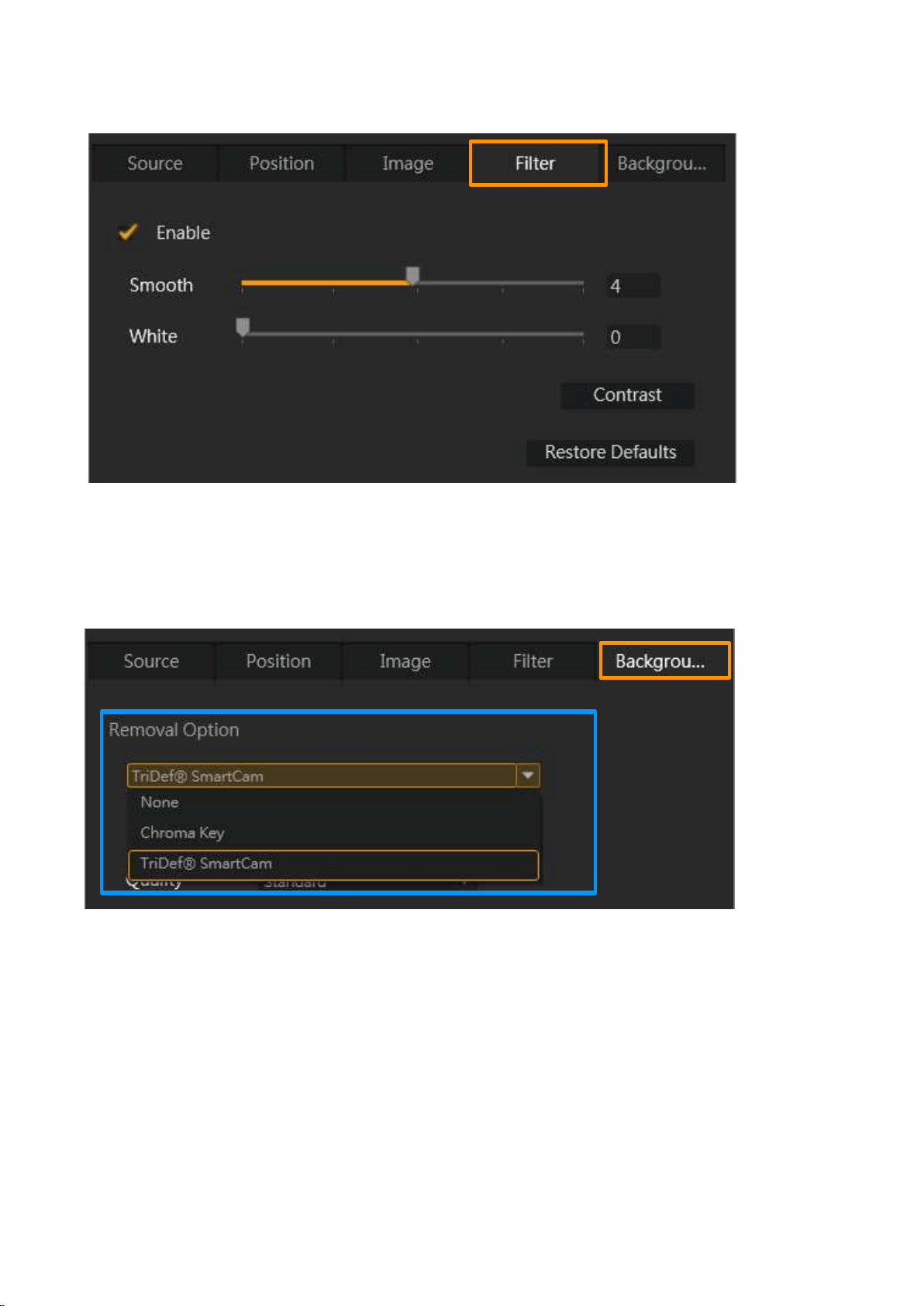
④ Filter
⑤ Background Removal
Open the menu by clicking ▼ in the "Removal Option" setting, and select “None”, “Chroma Key”,
or “TriDef SmartCam (※ a paid service)”.
66 / 91
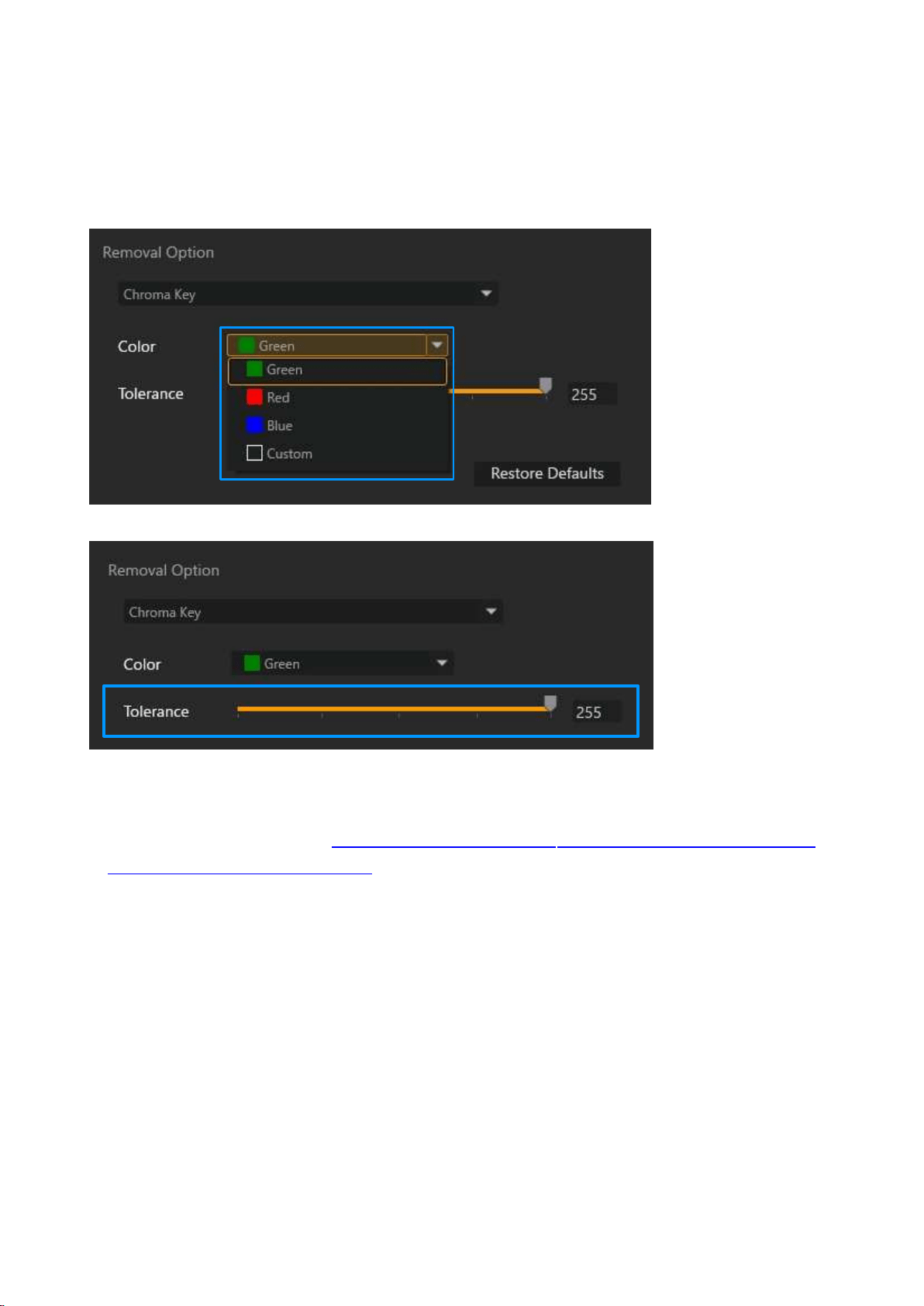
・ Background Removal Option:
1) Chroma Key
Set the background color (green, red, blue, and custom) from the drop-down list, and adjust the
allowable value.
※ If you use Chroma Key, you need to install a backdrop for photographing separately (green
background / chromakey green). Use the link below to check out on Amazon—purchase
backdrops for photographing:
https://www.amazon.com/s/ref=nb_sb_noss?url=search-alias%
3Daps&field-keywords=Chromakey
)
67 / 91
・ Background Removal Option:
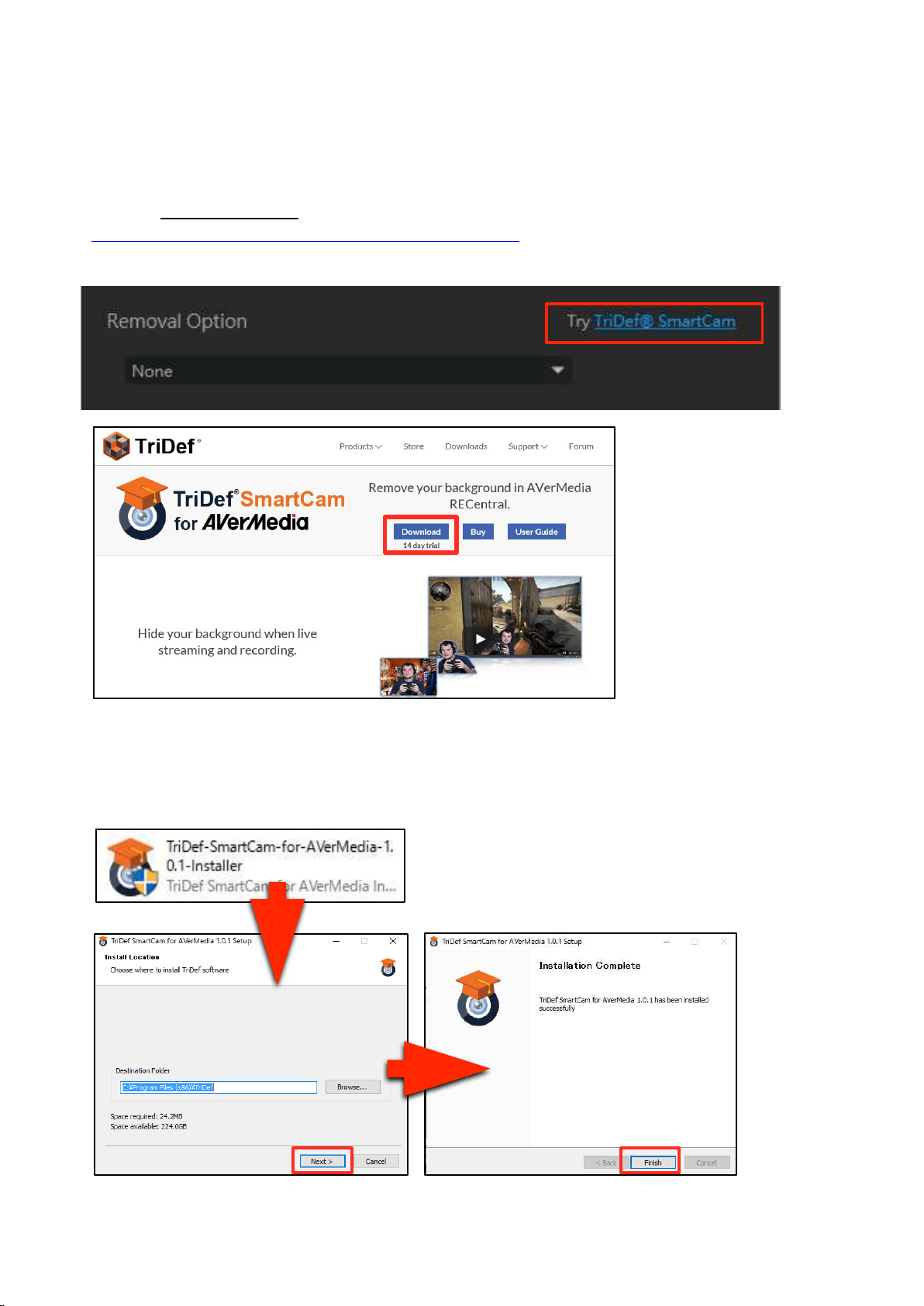
2) TriDef SmartCam (first-time setup)
Step 1.
Click “Try TriDef® SmartCam” to access TriDef Official Site
(
https://www.tridef.com/products/smartcam-avermedia), and download “TriDef SmartCam for
AVerMedia”.
Step 2.
When download is complete, double-click the icon to launch the installer and follow the on-
screen instructions to install it.
68 / 91
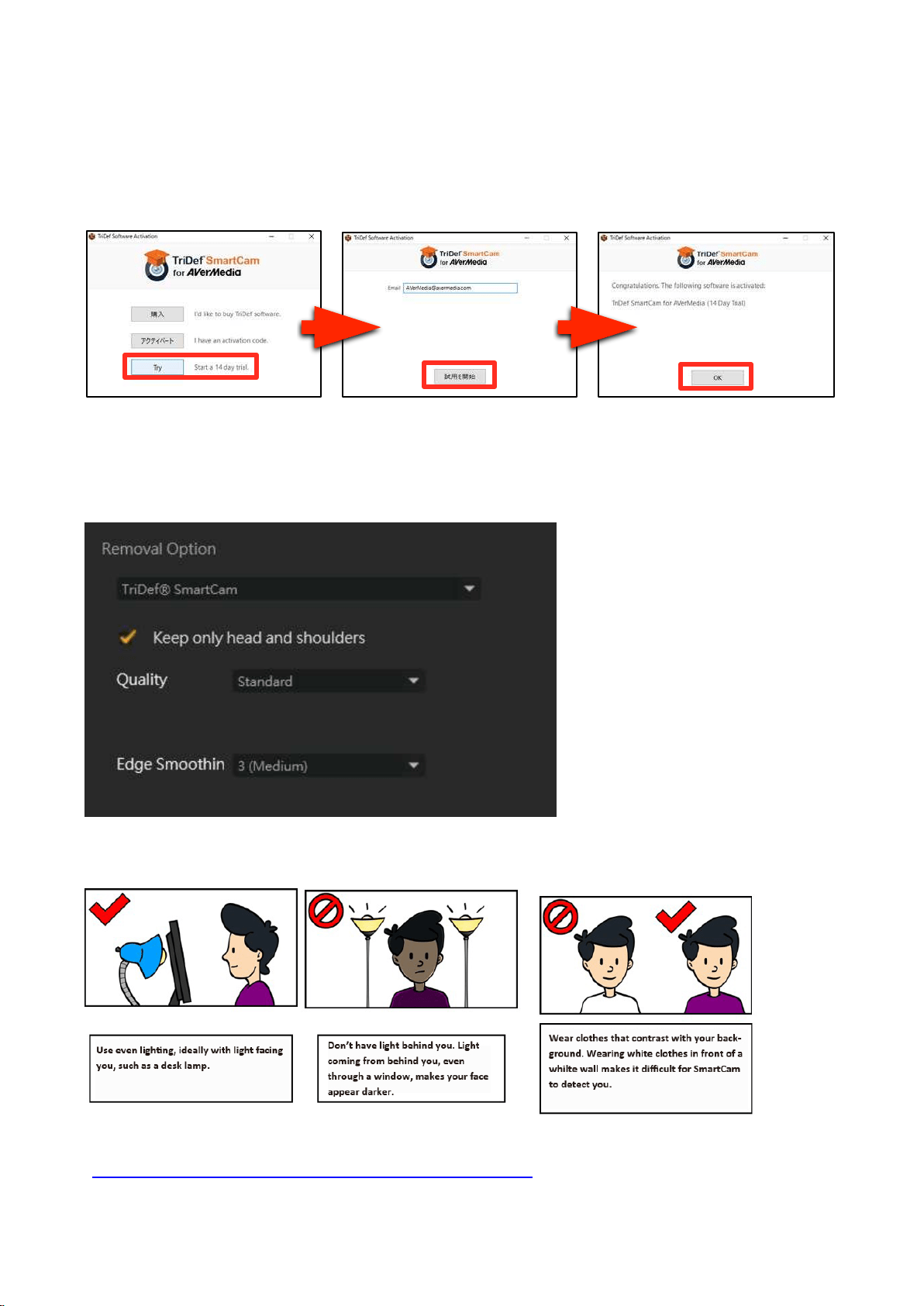
Step3.
When installation is complete, the “TriDef Software Activation” window appears. Click “Try” and
follow the on-screen instructions to proceed.
※ You can use TriDef SmartCam free of charge for 14 days. After that, you need to buy a license
for this software.
Step 4.
Select “TriDef SmartCam”, and then set “Keep only head and shoulders”, “Quality” and “Edge
Smoothing” accordingly.
Precautions for Use
※ See the TriDef SamrtCam user guide here:
https://www.tridef.com/user-guide/smartcam-avermedia
69 / 91
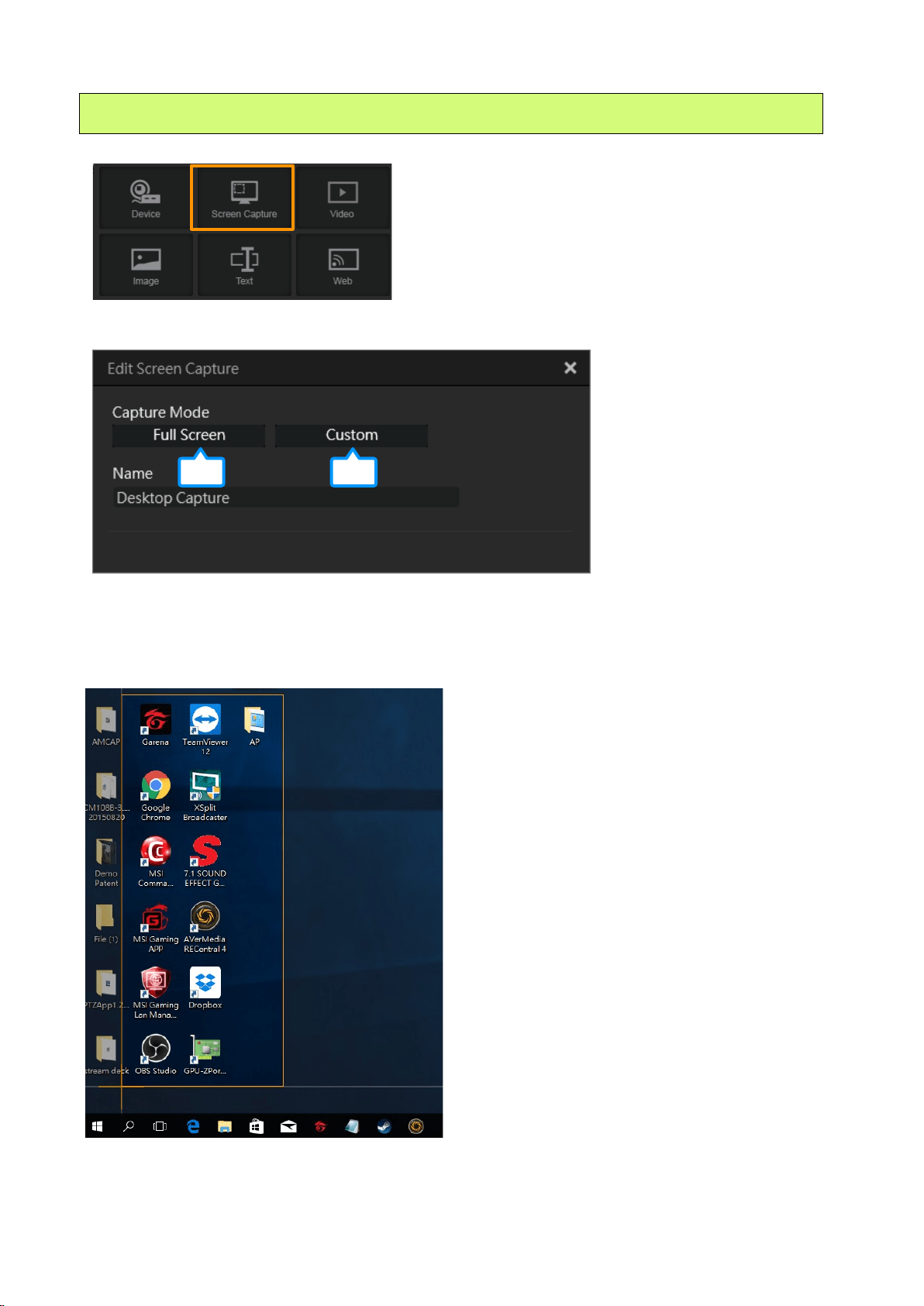
① Capture Mode
Select the Capture Mode:
1) Full Screen: Captures the whole PC screen (desktop).
2) Custom: Use the mouse to drag an area you want to capture it.
2. Screen Capture
1 2
70 / 91
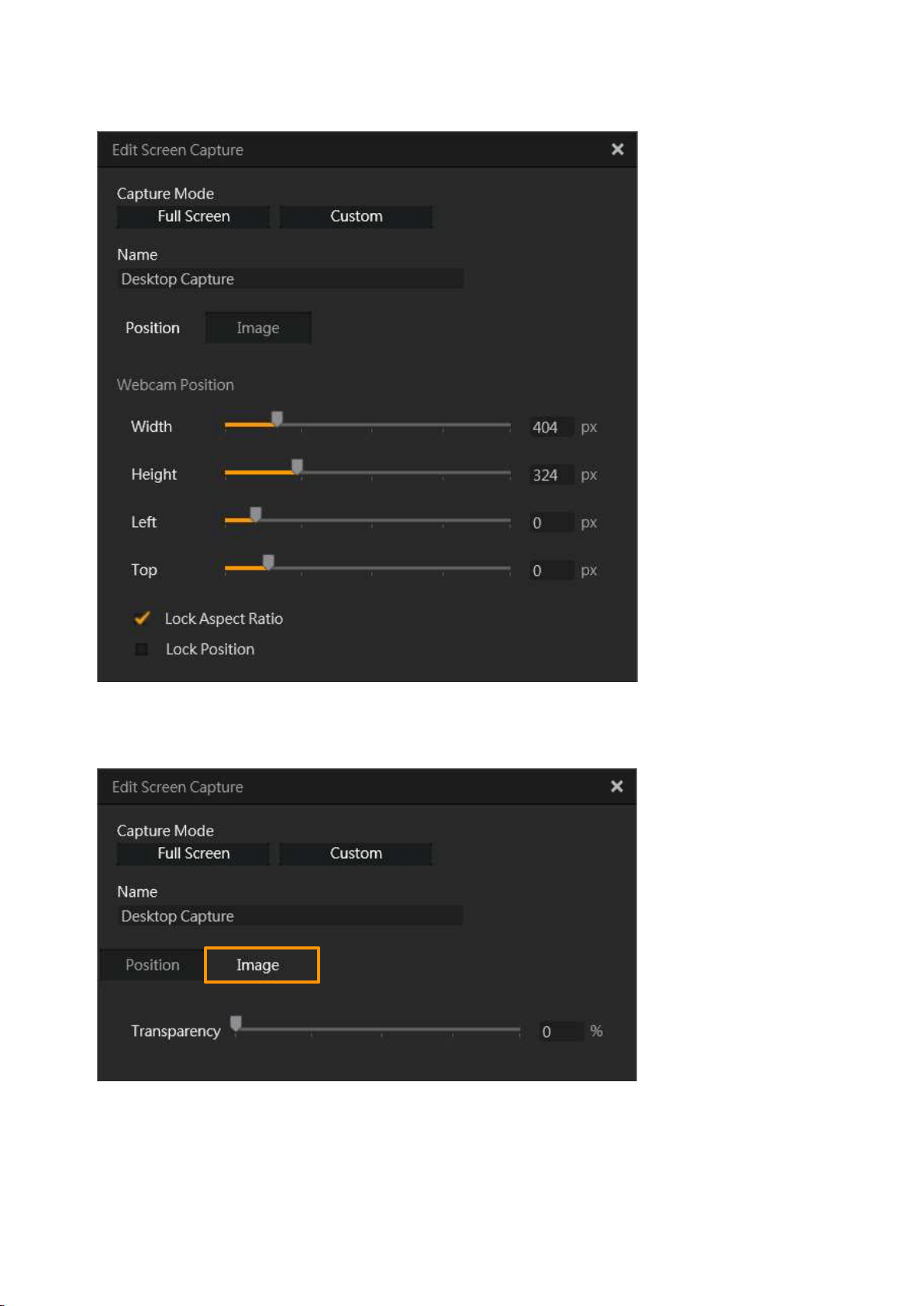
② Webcam Position
③ Transparency
71 / 91
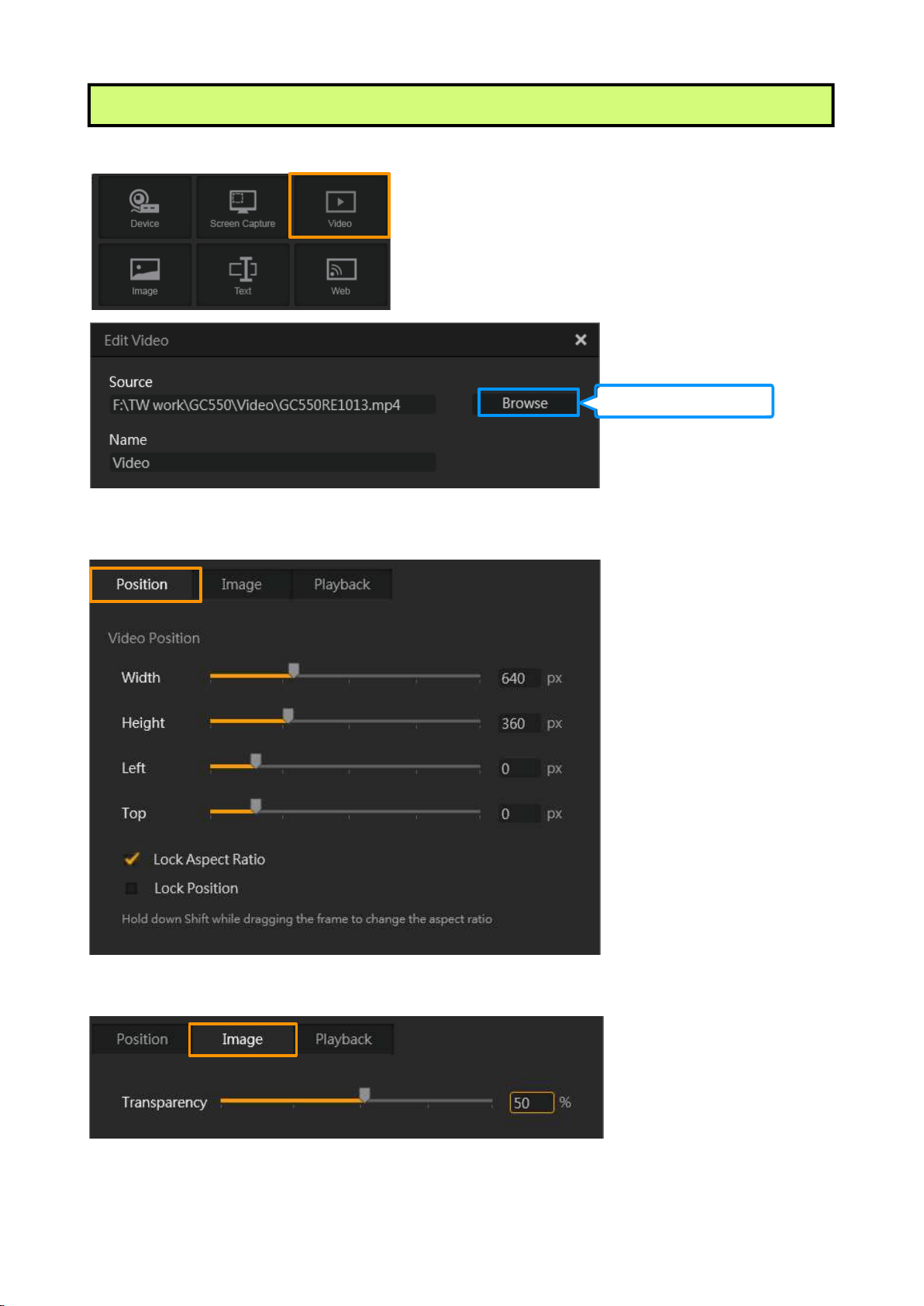
① Video Position
② Transparency
3. Video
Change the file (video)
72 / 91
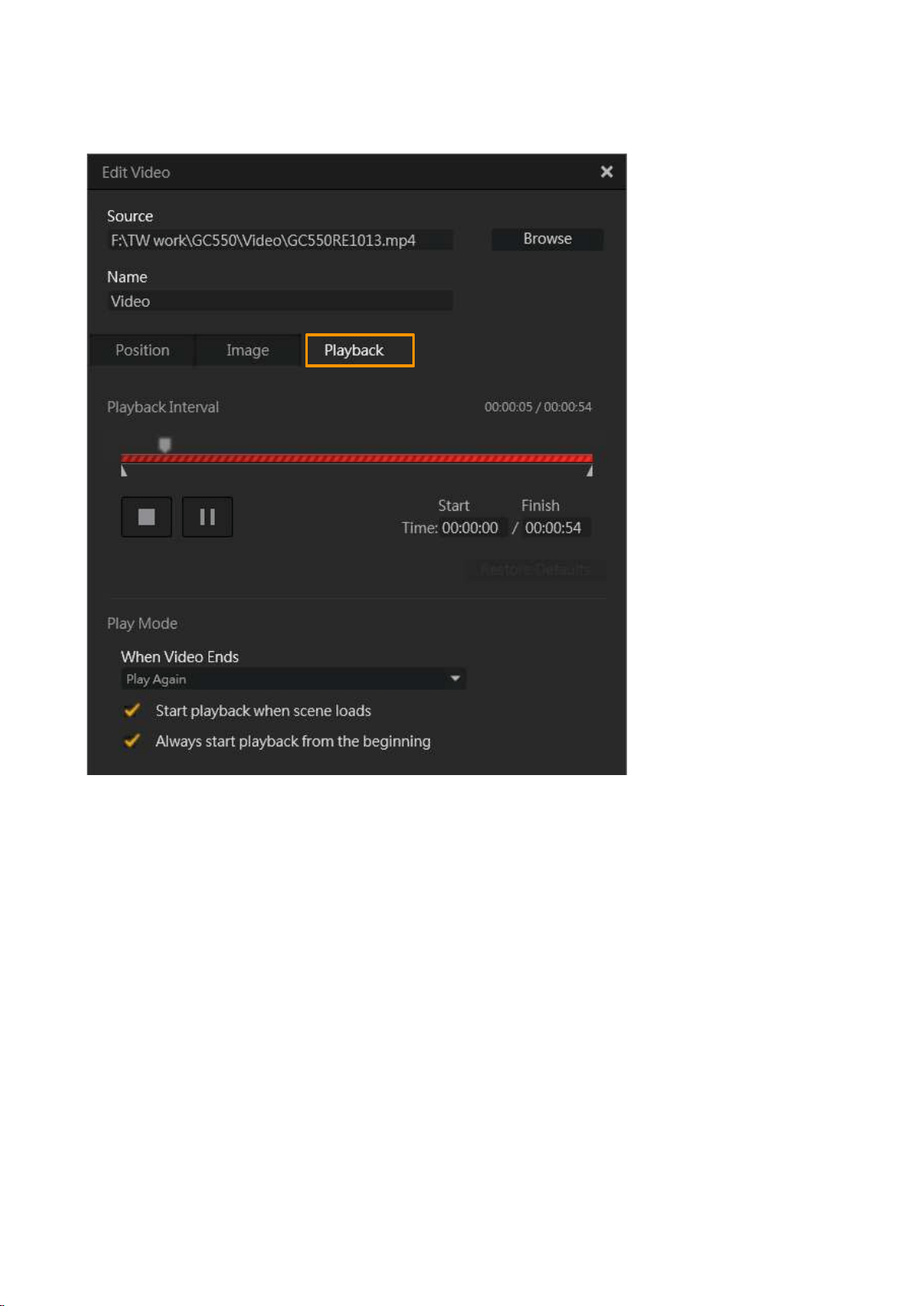
③ Playback (Playback Interval / Play Mode)
73 / 91
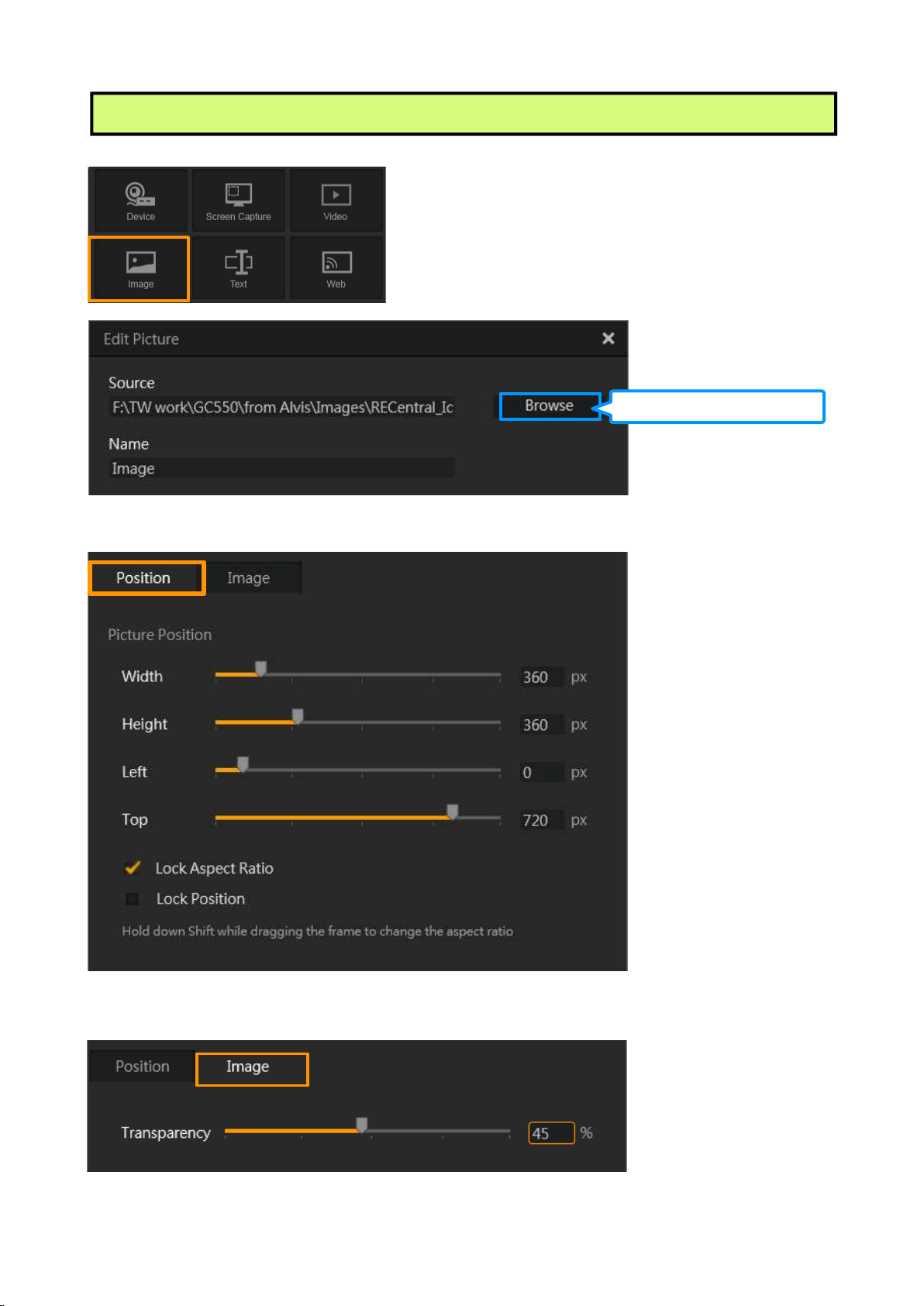
① Picture Position
② Transparency
4. Image
Change the file (still image)
74 / 91
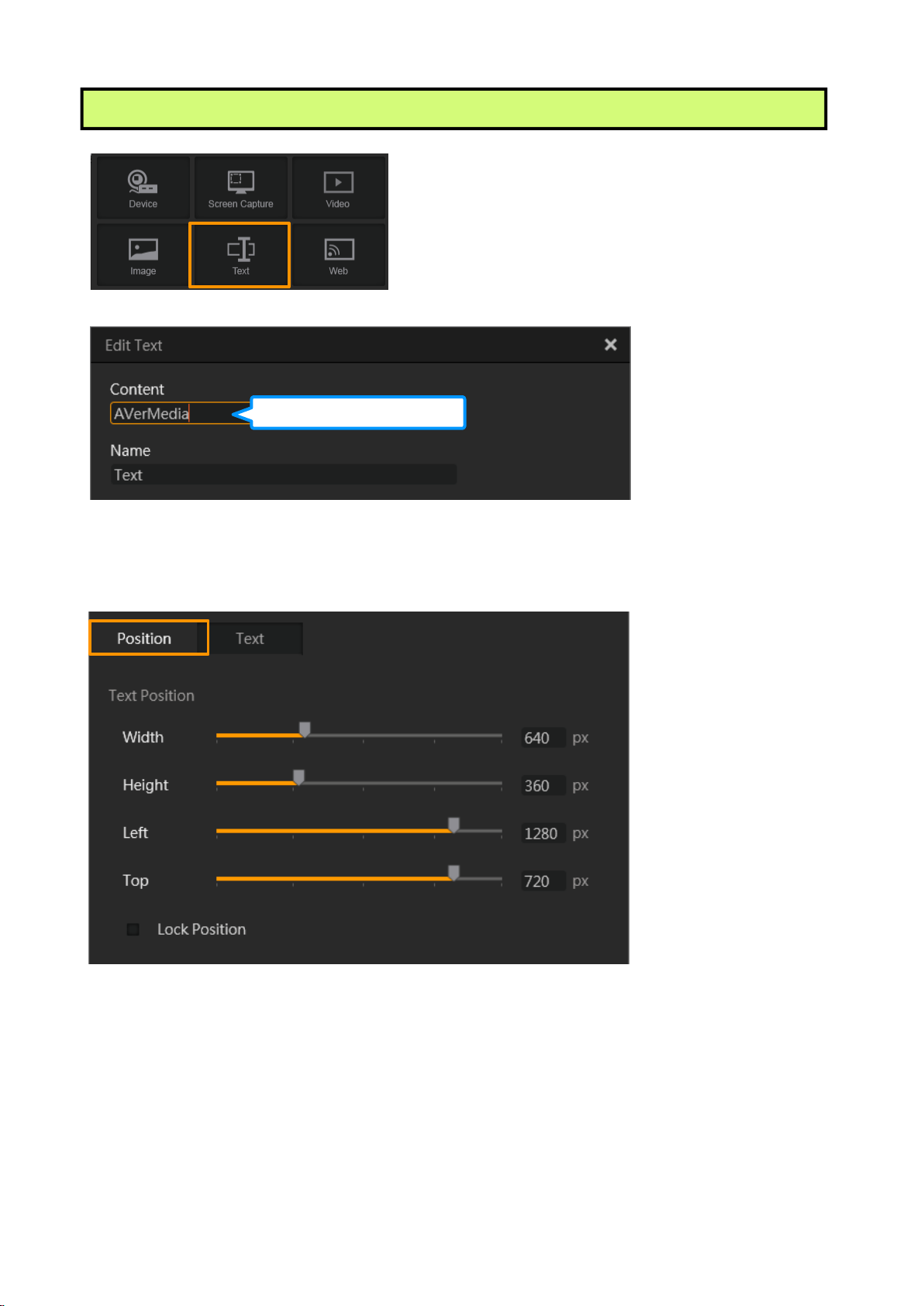
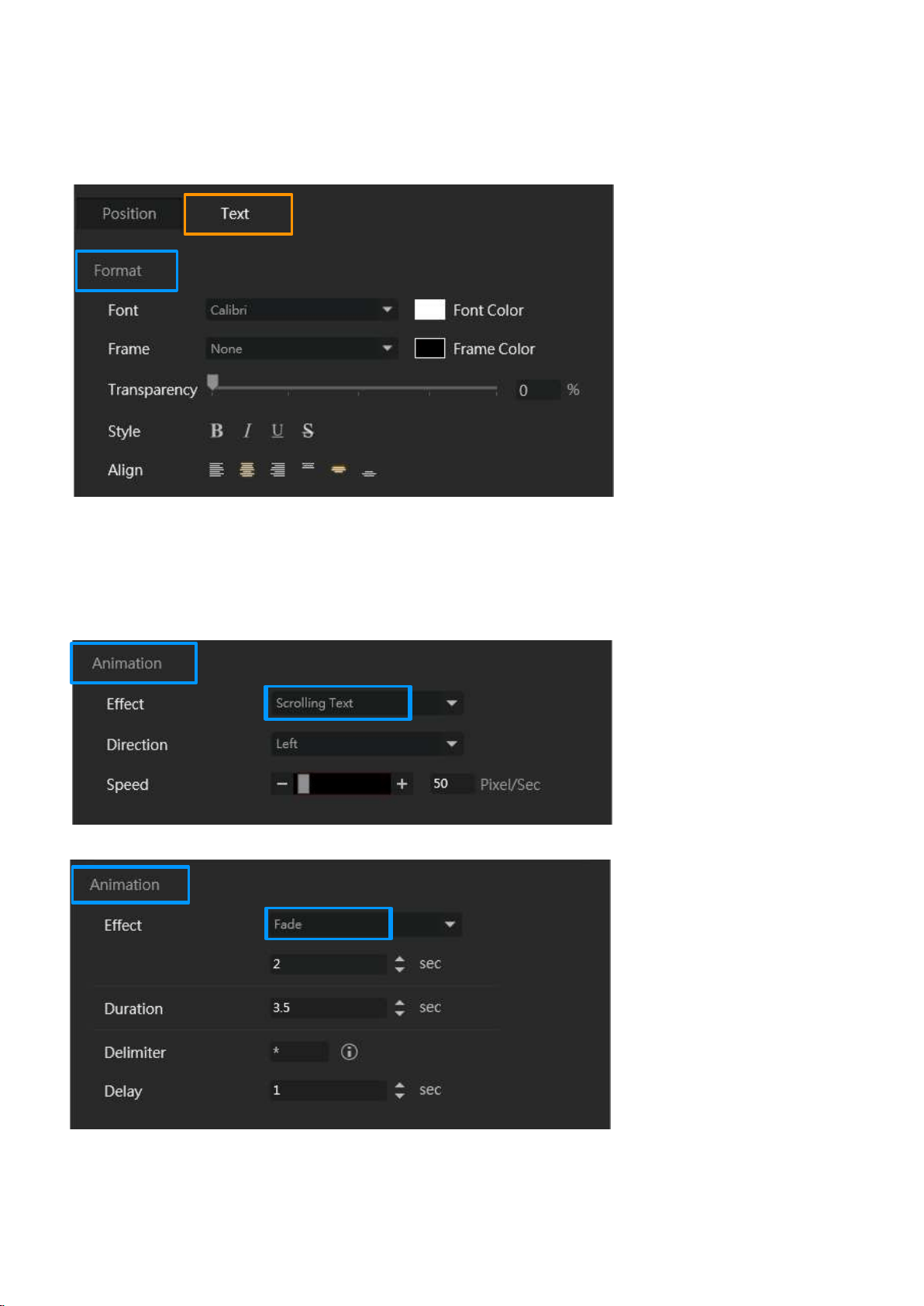
① Text Position
5. Text
Enter the text
75 / 91
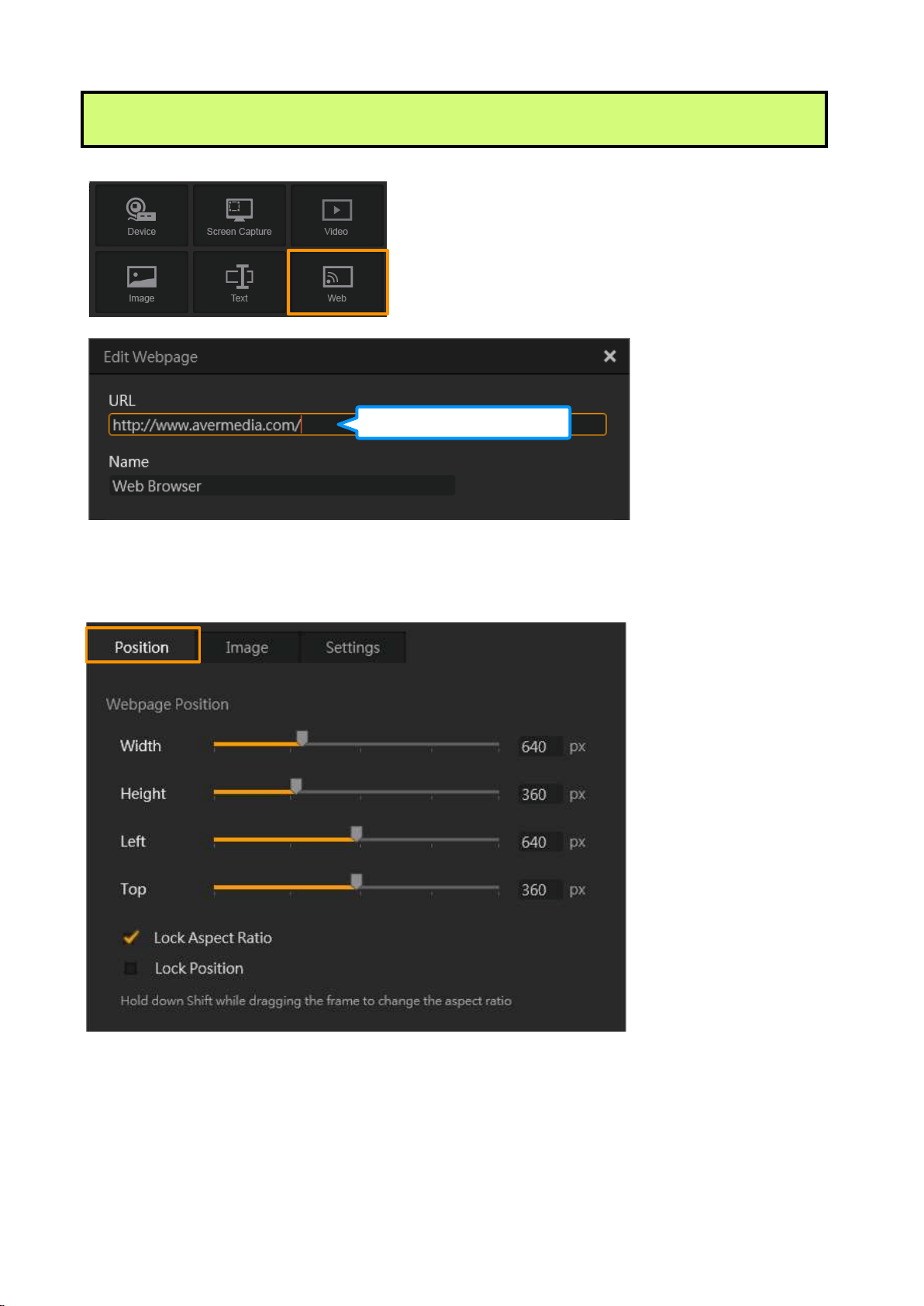
② Text
1) Format
2) Animation (Scrolling Text and Fade)
76 / 91
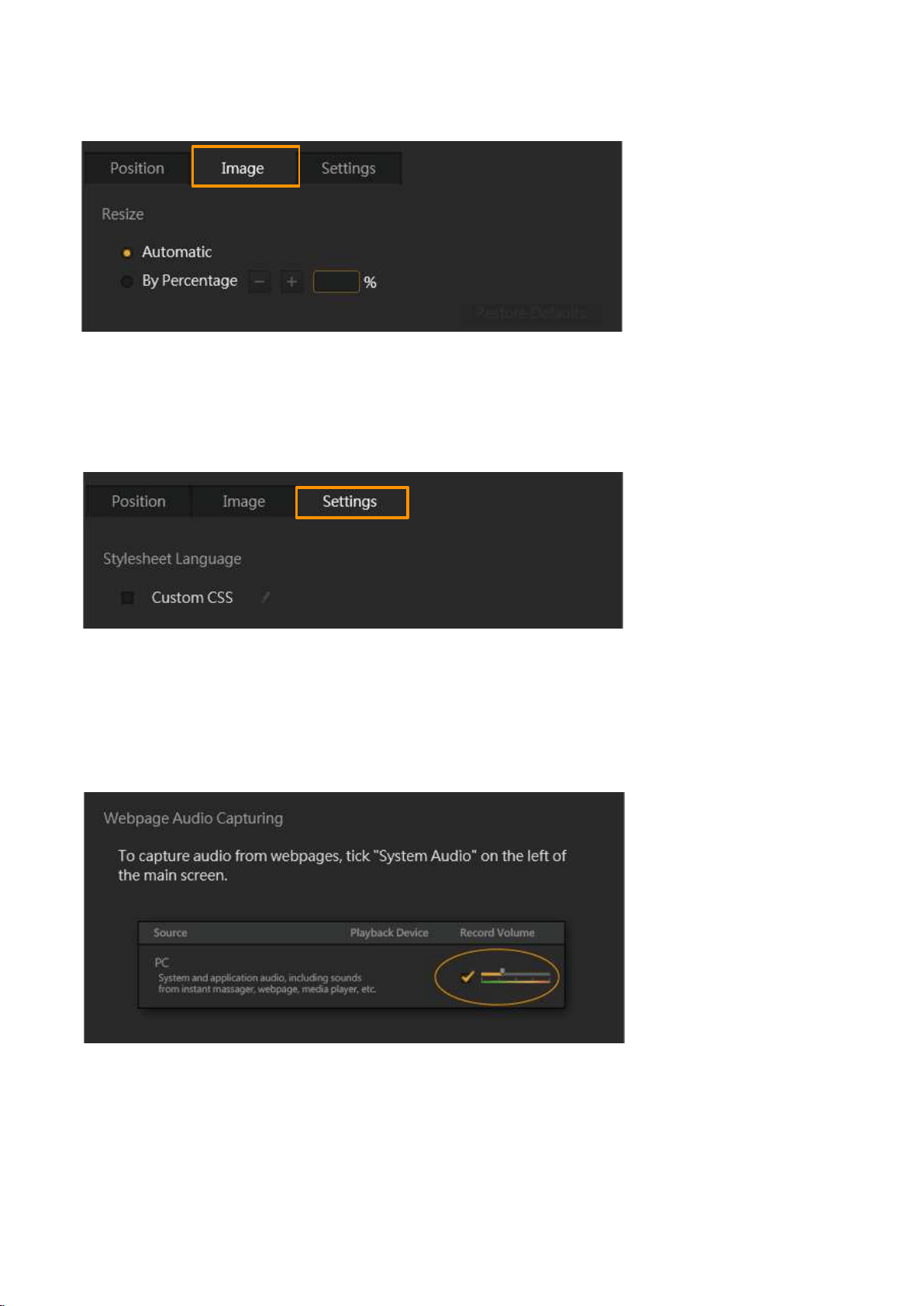
① Webpage Position
6. Web
Enter the address
78 / 91
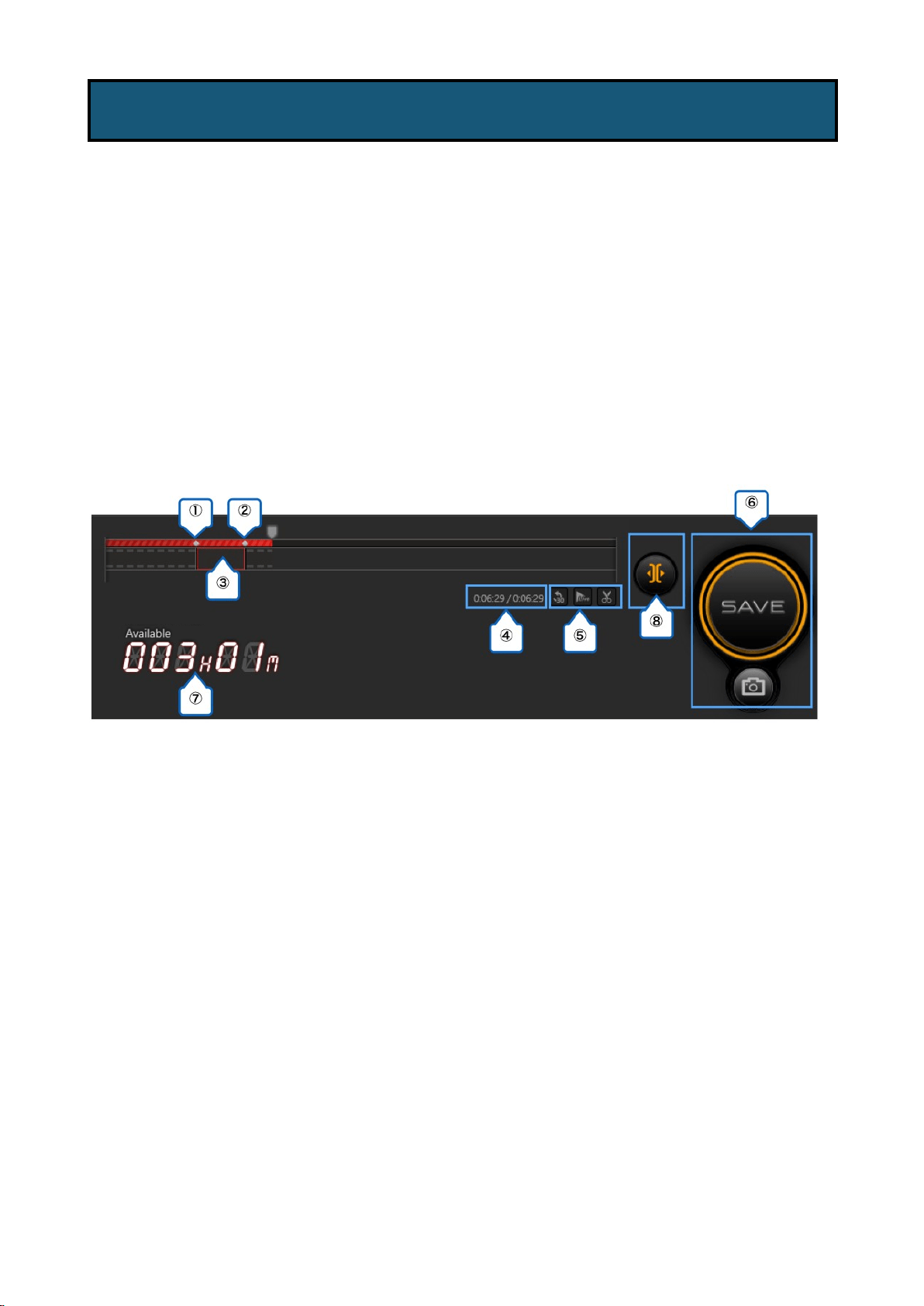
Live Editing is the function in which you can view and cut the videos cached in your storage.
When the storage is full, older footages will be overwritten.
※ Notes:
How to View Live Editing
① - ③ Time marks of the start/stop point of the video clip created (delimiter)
④ Specified time / currently updated time
⑤ (30): Go back 30 seconds
(Live): Go back to the currently updated video screen
(Scissors): Add/remove time marks
⑥ SAVE button, Snapshot button
⑦ Remaining time for Live Editing (calculated based on the remaining HDD capacity)
⑧ Enable / disable Live Editing
4-3-3. Live Editing
・ Live Editing is only available in Multi Mode.
・ Live Editing is designed for recording therefore cannot be used during live streaming.
・ You can also take snapshots (still image) while recording.
・ If you want to enable Live Editing, it is recommended to change the Codec to “NVIDIA”,
“AMD”, or “QSV” (※ if you can use Intel QSV).
79 / 91
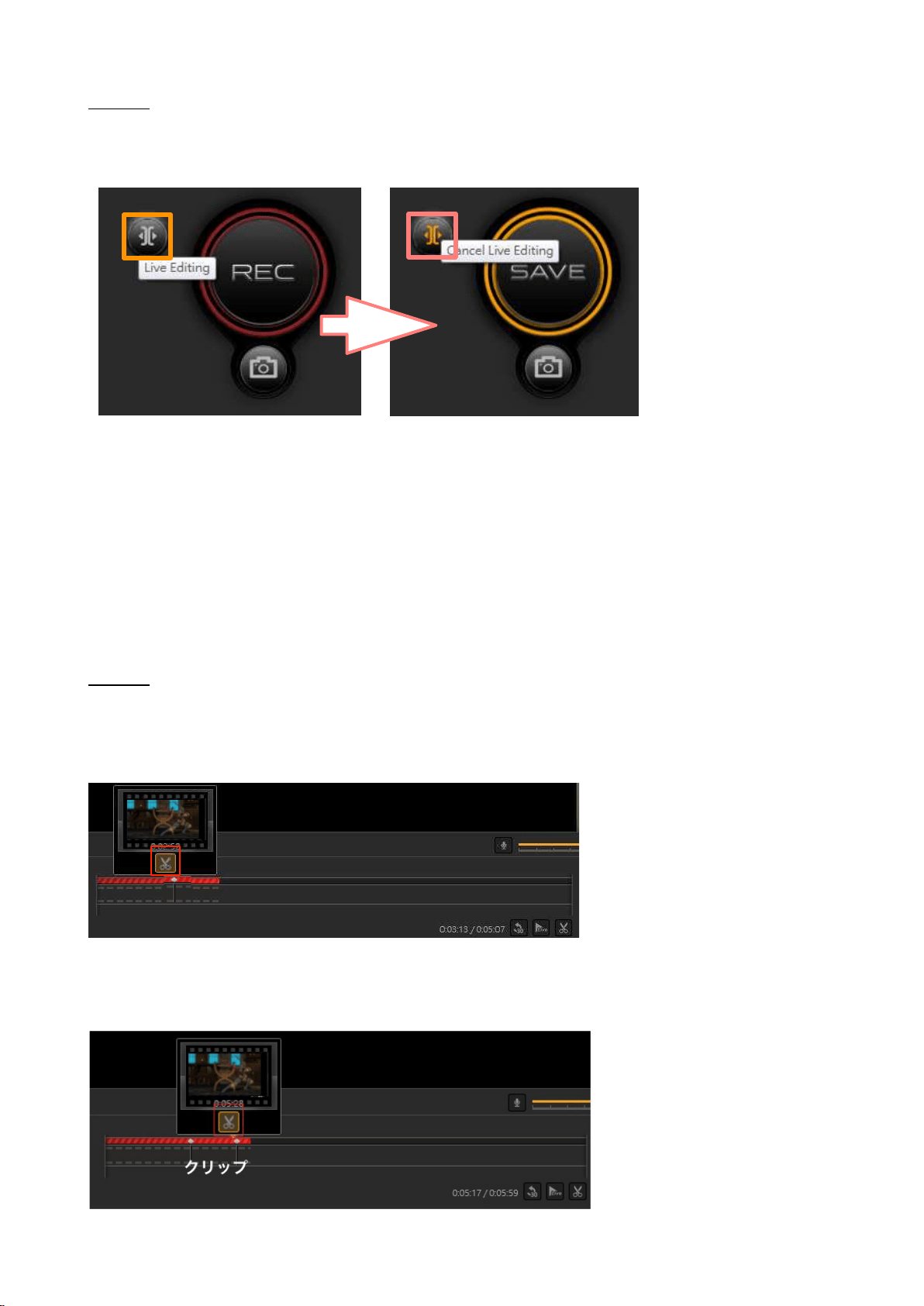
Step 1:
Click the “Live Editing" button next to the “Record” button to enable the function. Click the
“Live Editing" button again to disable the function.
※ When Live Editing is enabled, click the SAVE but
ton to save the cache
d data. As the cached
data are saved, the time left for Live Editing changes according to the remaining HDD
capacity.
※ Once Live Editing is enabled, you cannot change the recording quality settings.
※ Whenever you change “Live Editing” to “Cancel Live Editing", a confirmation message will
prompt you to make sure if you want to discard the temporarily buffered data.
Step 2:
Add a ƚime ŵark ŽŶ the video ƚŝŵĞůŝŶĞfirst, and then create a delimiter. Specify the time and
click the “Scissors” icon or right-click your mouse to add the time mark at the starting point.
※ Right-click the time mark again to delete it.
Follow the same steps to add a time mark at the ending point. Then a delimiter is created.
Creating a clip between the starting mark and the ending mark.
80 / 91
Step 3:
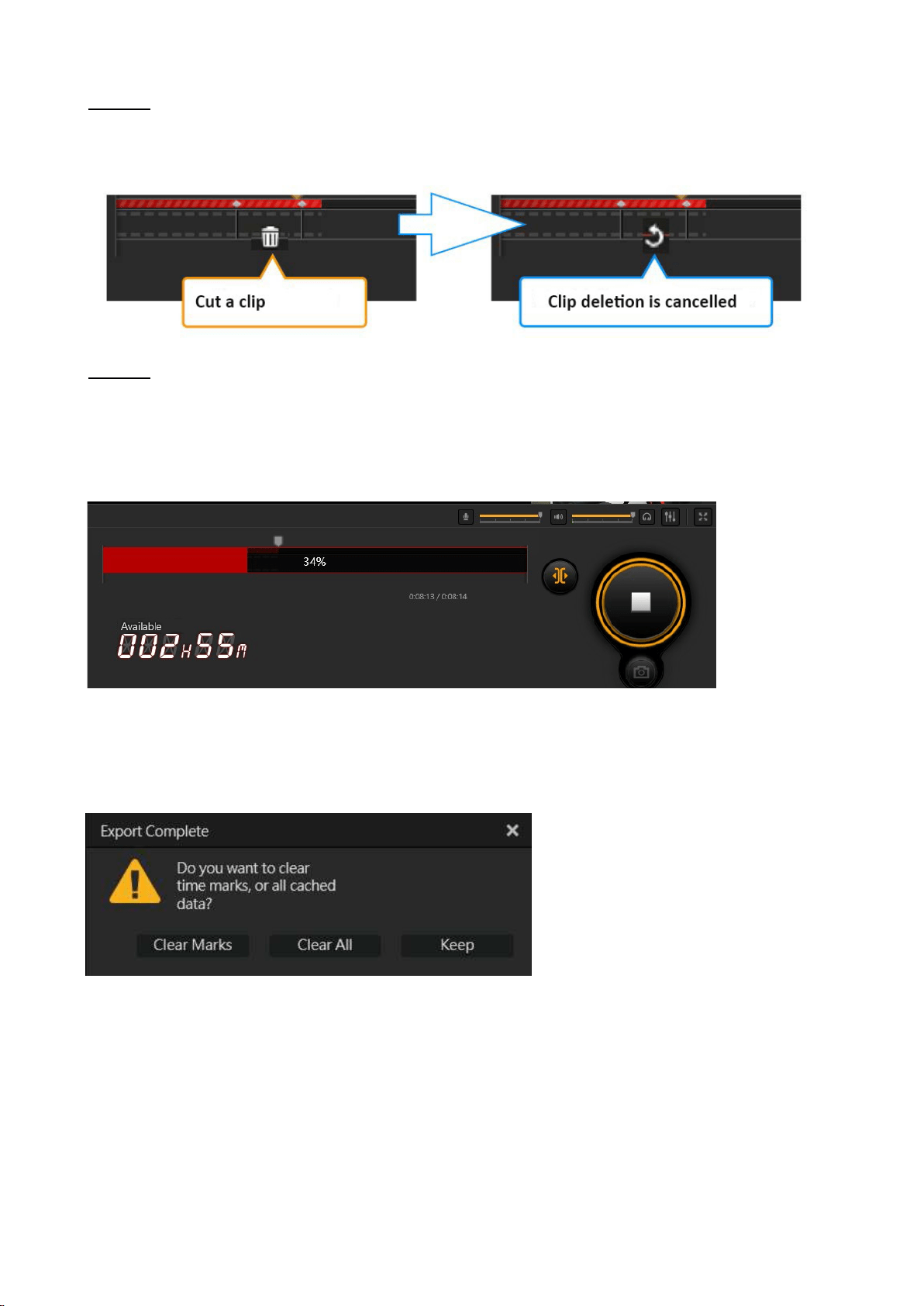
You can specify the clip, click once to delete (cut) it temporarily (not yet deleted at this stage).
If you want the clip back, click again to restore the clip.
Step 4:
Click the “SAVE” button to start exporting the video that you just cut and edited. The time
required depends on the length / quality of the video and the performance of your PC. The
video with longer time and higher quality requires more time because of its larger file size. (The
bar in the center shows the progress of the task.)
Once the exporting is complete, a confirmation window will prompt you to delete the time
marks and data (temporarily cached video), or keep all the data.
81 / 91
Use Function Dial to select “Media Share” to display the file managing and sharing menu.
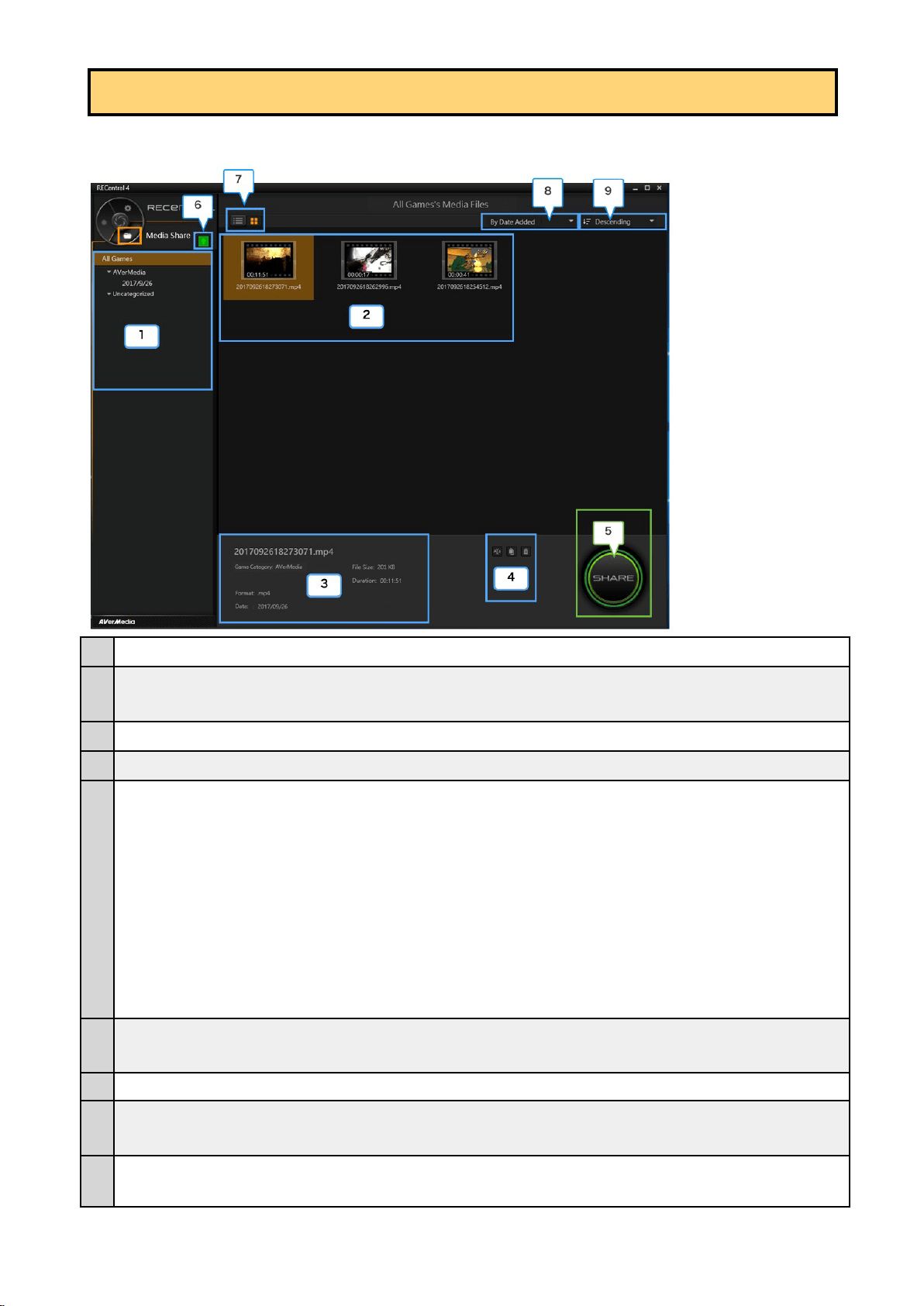
1
Folders of video / still image files are sort
ed by category or created date
2
Video / still Image list (videos / still image files classified in this category): Double-click the
video / still images to launch the software and play the files.
3
Information of the selected videos / still images
4
Rename / change category of / delete the selected videos / still images.
5
Share the selected videos / still images on video / social media sites.
Available videos / social media sites: YouTube (video / still image), Facebook (video / still
image), Twitter (still image only)
When you share the video or still images for the first time, you need to set up an account of
the video / social media site and have it verified.
Each time you share the videos and still images, you need to enter the following information:
YouTube: title, description, tag, category, privacy
Facebook: description, scope of sharing
Twitter: description, scope of sharing
6
You can check and delete sharing history of the videos / still images. In addition, you can
pause / resume the video that is being uploaded.
7
Switch the display methods of videos and still images (list view / icon view).
8
Change the display order of the videos and still images by date added, filename, file type, file
size, or duration.
9
Switch between ascending and descending display order of the videos and still images.
Chapter 5: How to View Media Share
82 / 91
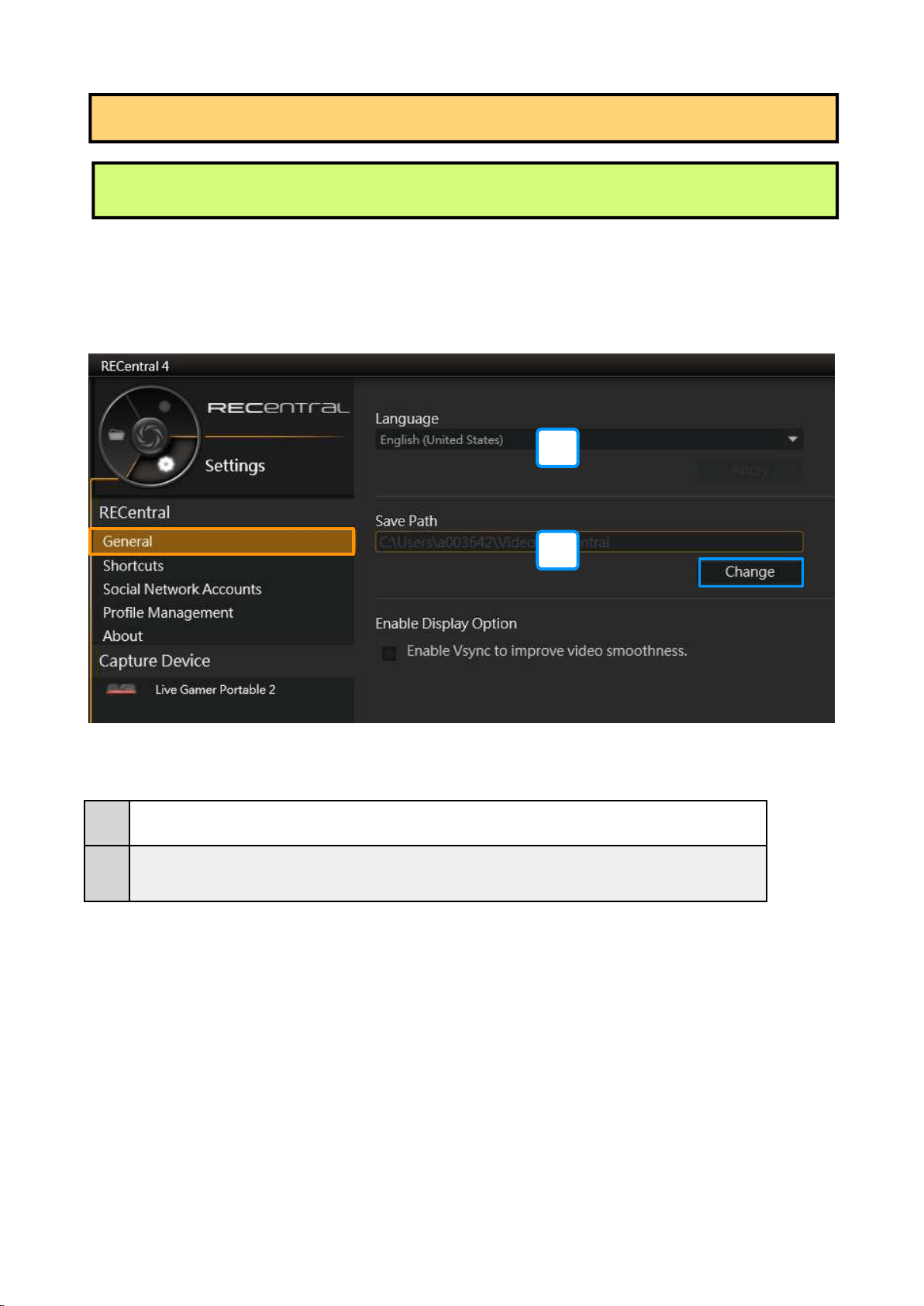
On Function Dial, click the "gear" icon to switch to “Settings”.
1. General
1
Change interface language.
2
Set locations to save videos or snapshots. Click “Change” to specify a save path
for files.
Chapter 6: Settings
6-1. RECentral Settings
1
2
83 / 91
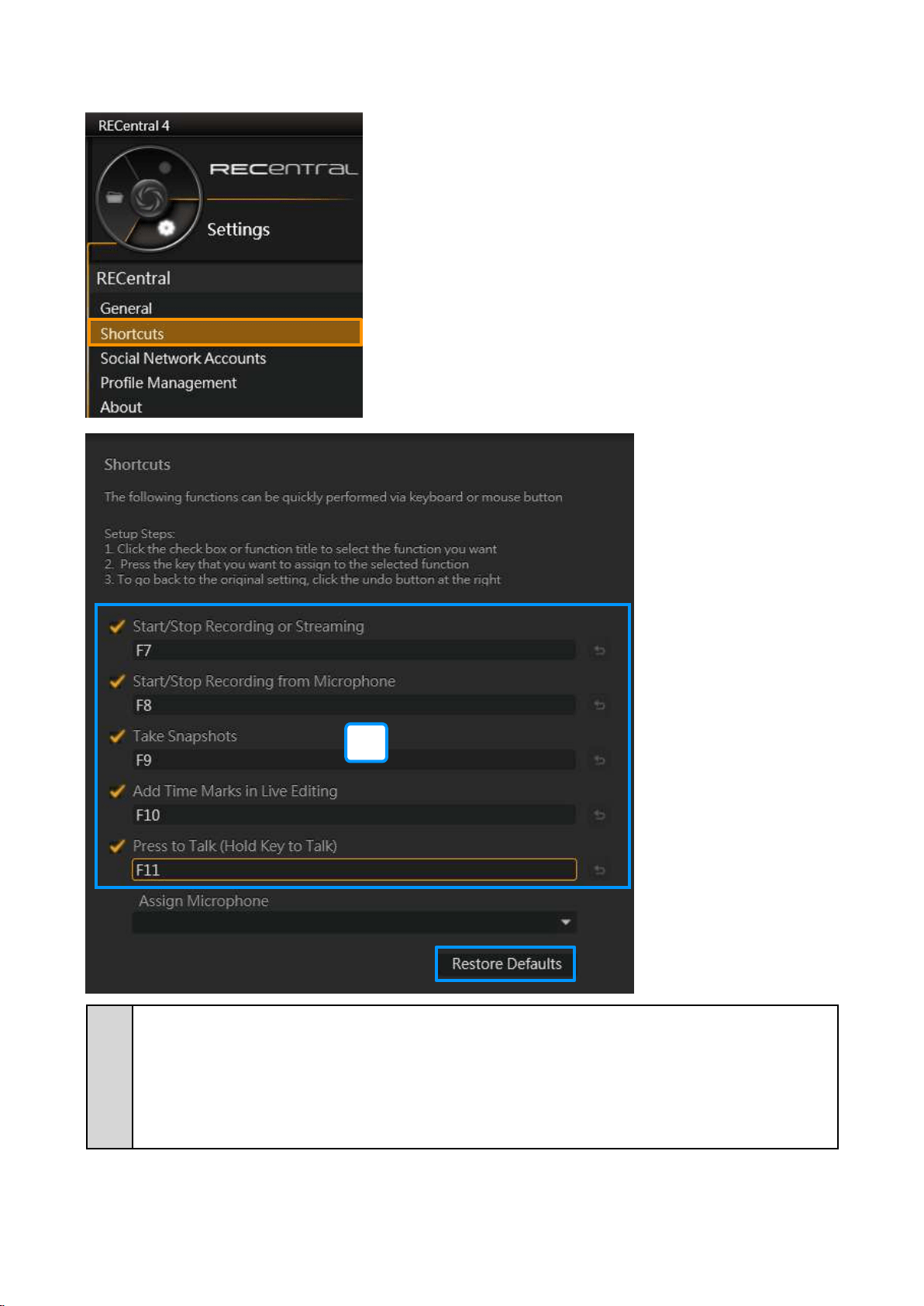
1
2. Shortcuts
1
Assign five short-cut keys to perform “Start / Stop (Save) Recording / Streaming”, “Start /
Stop Recording from Microphone”, “Take Snapshots”, “Add Time Marks in Live Editing”,
and “Press to Talk”.
Click the “Restore Default” button to reset to the original settings.
84 / 91
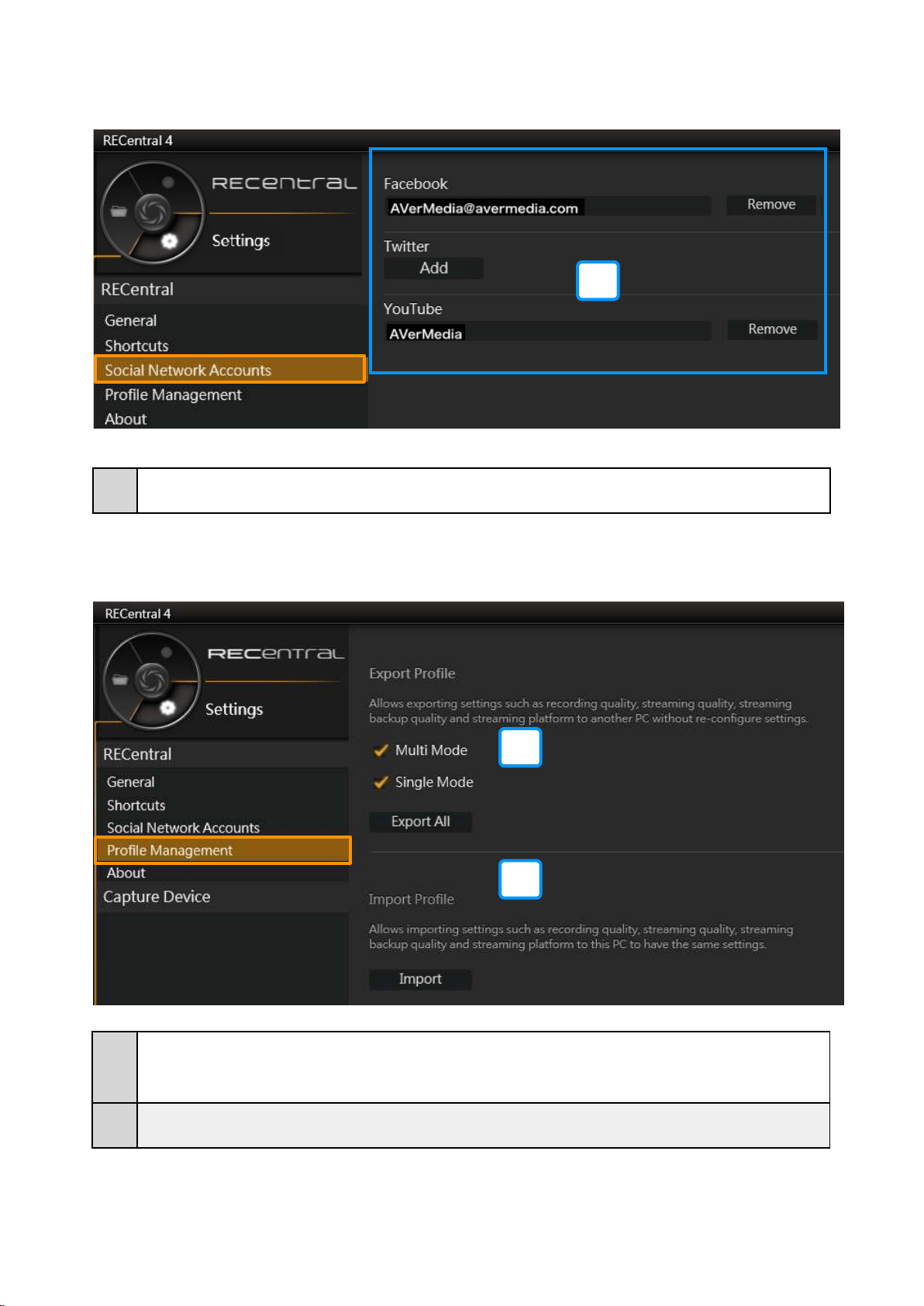
3. Social Network Accounts
4. Profile Management
1
Export saved profile settings (Single Mode, Multi Mode).
2
Import profile settings into RECentral.
1
Add / delete a Facebook / Twitter / YouTube account.
1
1
2
85 / 91
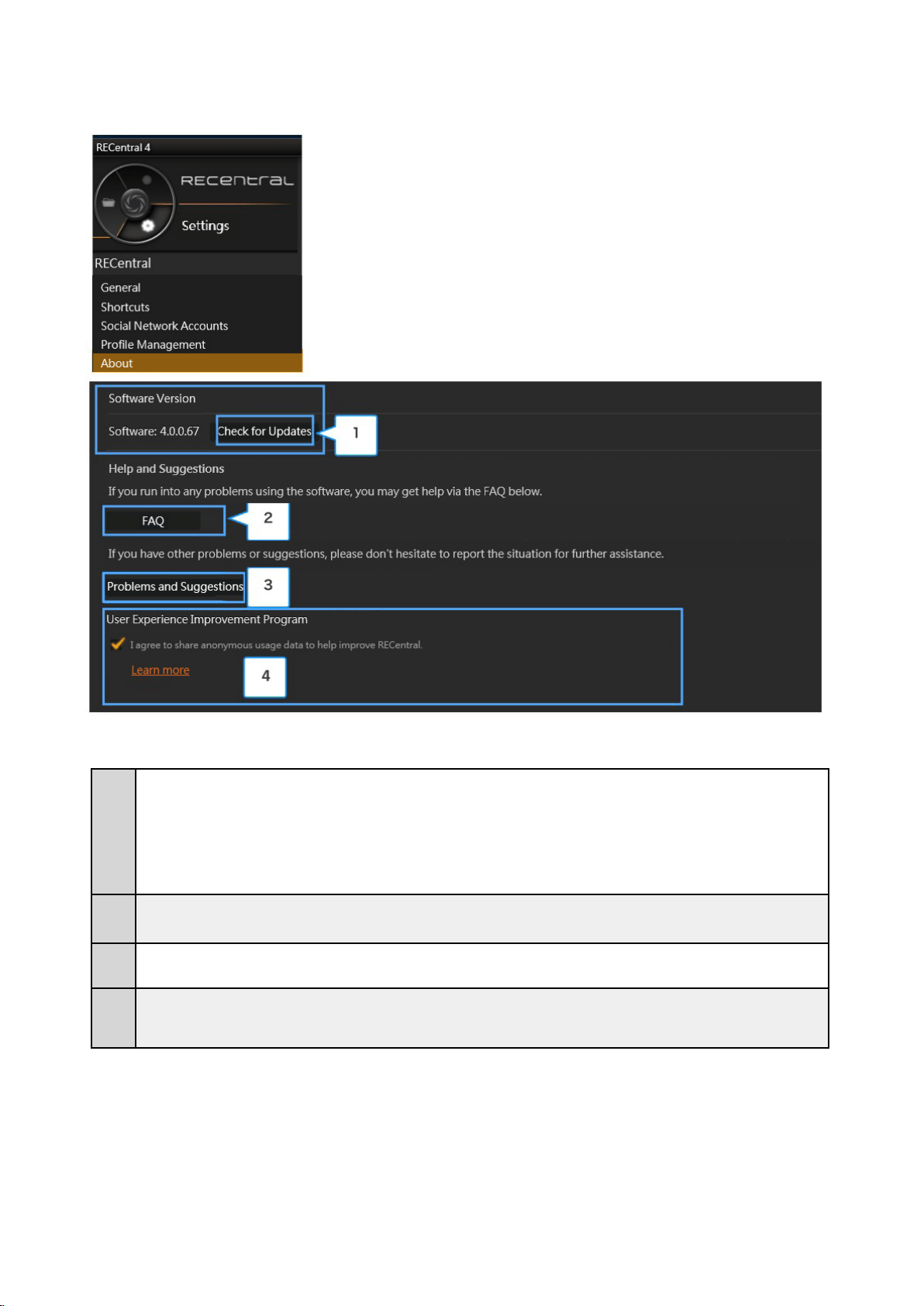
5.About RECentral
1
RECentral version information:
Click “Check for Updates” to connect to the Internet, and run a check for RECentral
updates.
2
Link to FAQs on the AVerMedia website.
3
Fill in the form with your opinions and requests and send to AVerMedia.
4
Improvement program intends to improve user experience.
86 / 91
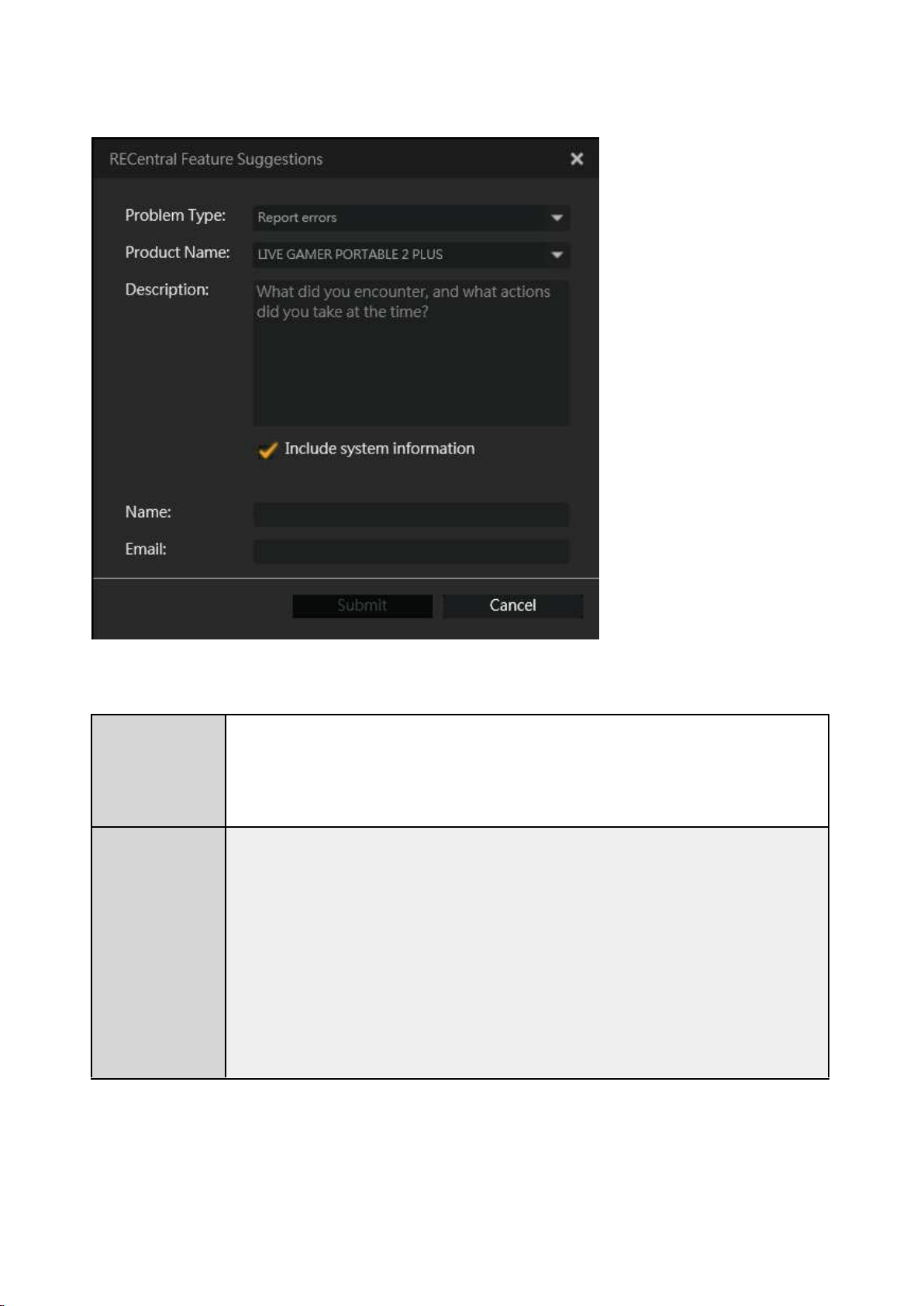
・ Feedback:
Problem Type
Product Name
(Some are supported by RECentral 4)
・LIVE GAMER PORTABLE 2 PLUS = GC513
・LIVE GAMER PORTABLE 2 = GC510
・LIVE GAMER PORTABLE = C875
・Live Gamer EXTREME = GC550
・Live Gamer HD 2 = GC570
・Live Gamer HD = C985 / GL510E
・ExtremeCap UVC = BU110
・AVerMedia PW310 Webcam = PW310
① About the newly added functions and malfunctions
② Requests and opinions about new functions and functions to be
improved
87 / 91
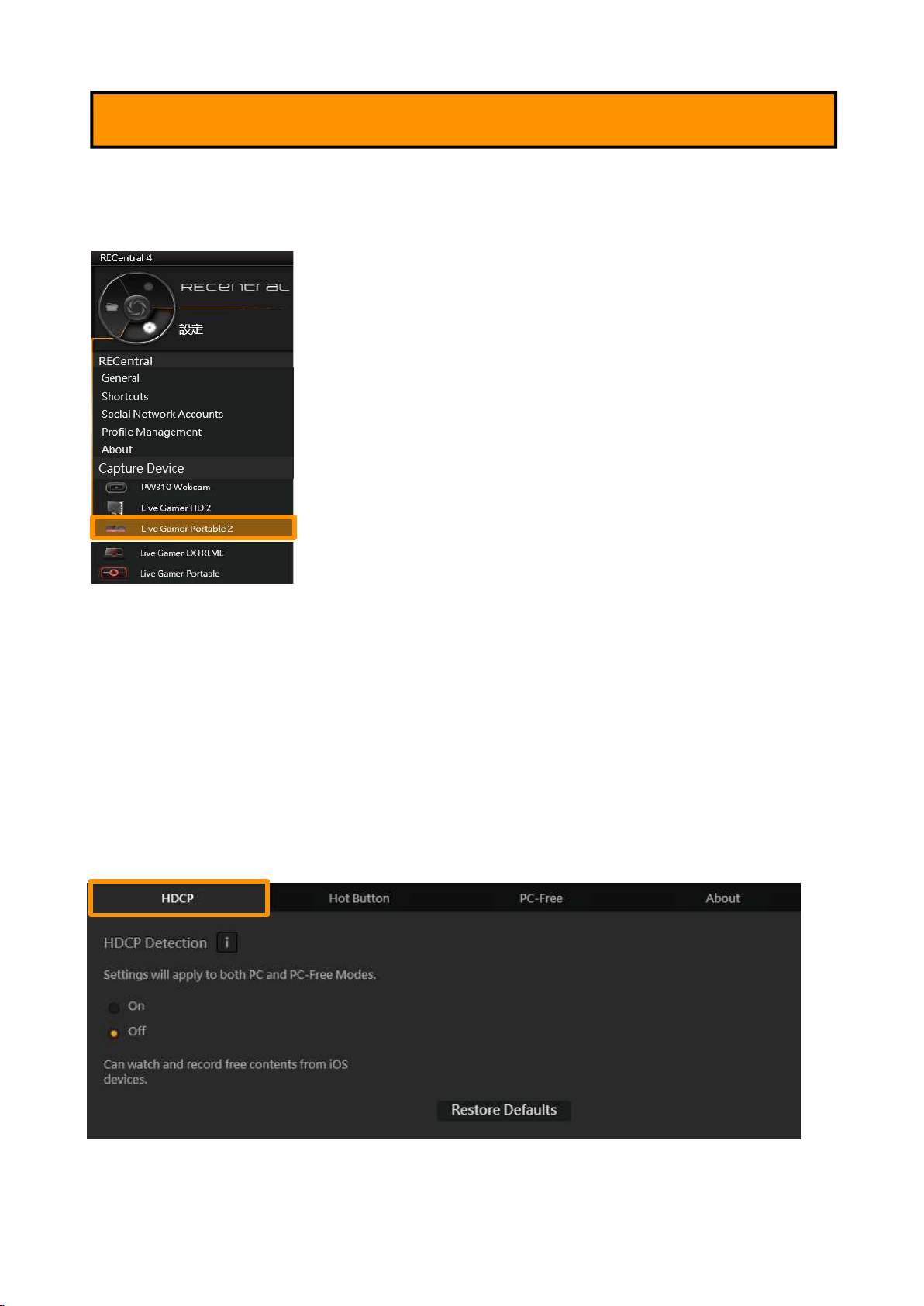
Set the video / sound / functions of the capture device. Here takes the GC510 (Live Gamer
Portable 2) for example.
① Set Up HDCP
・ HDCP Detection Function:
Turn
ON / OFF the “HDCP Detection” function of the GC510.
※If you want to record / stream iOS devices (iPhone, etc.), turn
OFF GC510's HDCP Detection.
※If you want to record / stream PlayStation 4 (PS4), turn
OFF HDCP from the PS4 settings in
advance.
6-2. Set Up a Device
88 / 91
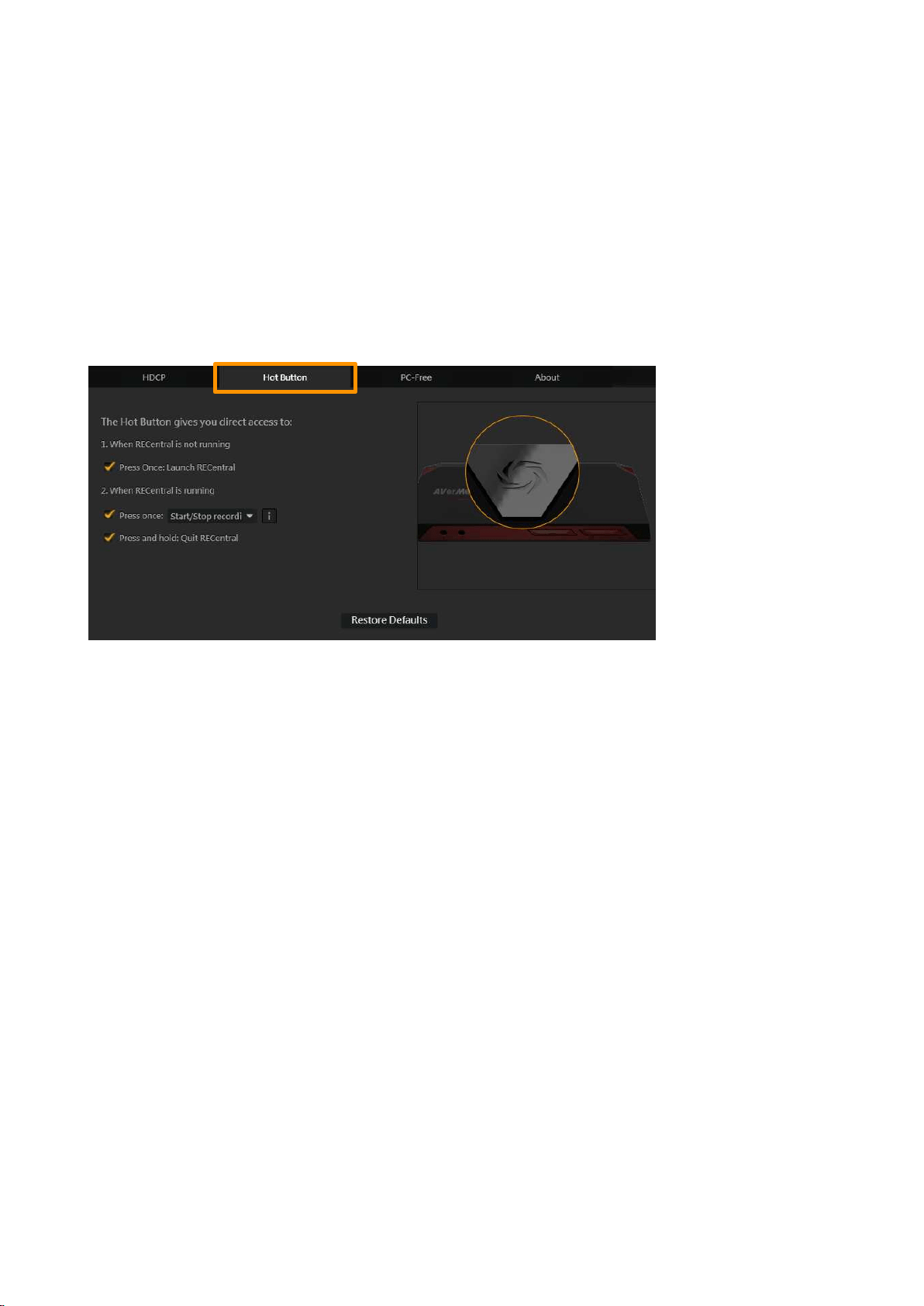
② Hot Button
Set up Hot Button on the GC510.
1. When RECentral is not running
- Press once: launch RECentral
2. When RECentral is running
-
Press once: three actions can be set including: “Start / Stop recording”, “Start / Stop
streaming”, and “Take a snapshot”.
-
Press and hold: quit RECentral
89 / 91
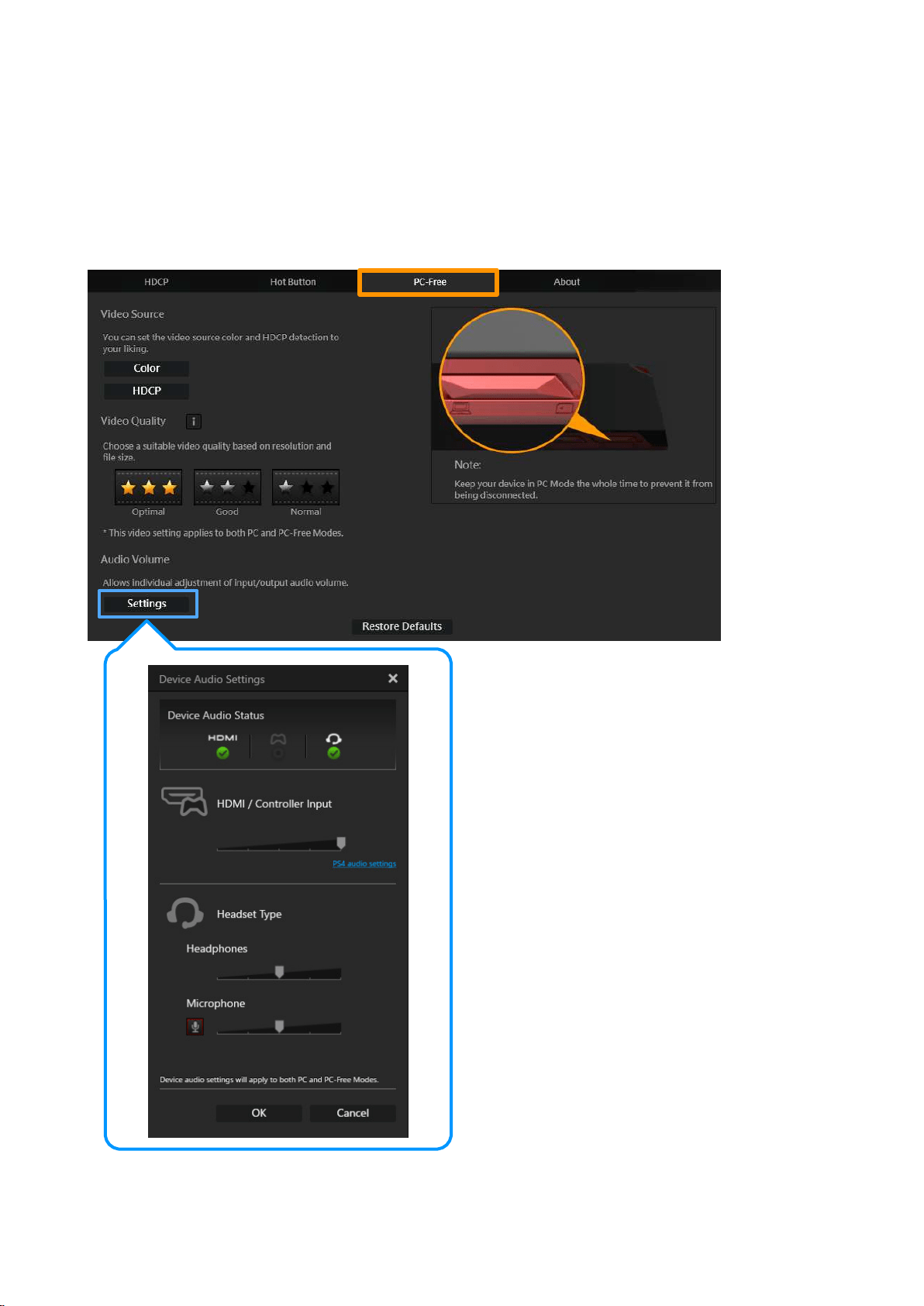
③ PC-Free
・ Video Source: Set the Color, HDCP.
・ Video Quality (Single Recording mode): Select the video quality from Optimal, Good, and
Normal.
・ Audio Volume: Adjust the volume of the input / output sound of the device.
90 / 91
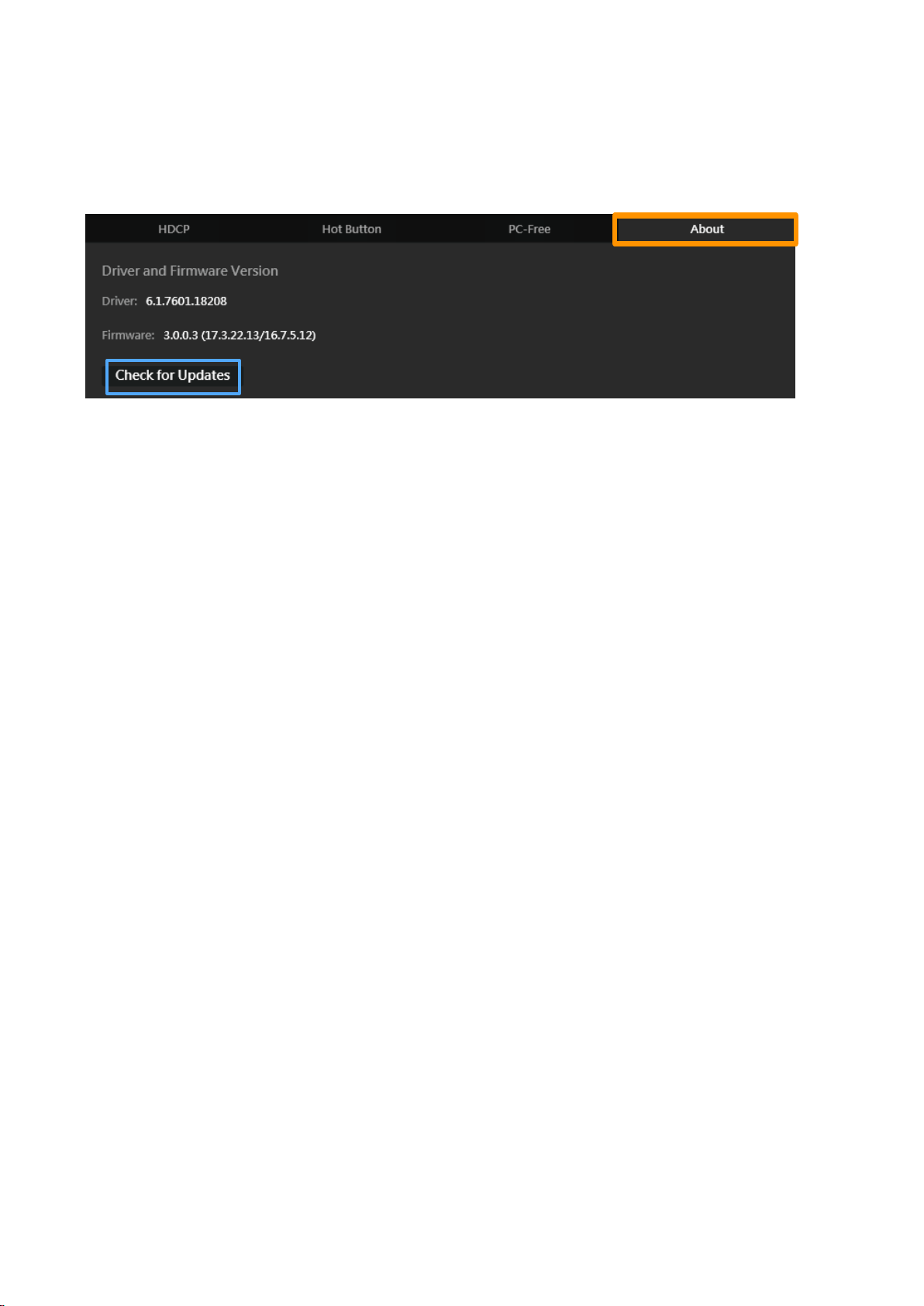
④ About
Information about the device driver and firmware version.
Click “Check for Updates” to connect to the Internet and run the program update.

91 / 91
Protecting Customer Privacy
・ AVerMedia Technologies collects customer's personal information only for the purpose of
dealing with customers and providing them service. In addition, the customer personal
information collected will not be disclosed to any third party without prior approval by the
customer.
・ AVerMedia Technologies Inc. website:
http://www.avermedia.com
Contact Information
Notes:
・ Specifications and appearance are subject to change without prior notice to improve product
quality.
・ AVerMedia Technologies shall not be responsible for any direct and indirect damages
resulting from the use of the product.
・ Any reproduction, distribution and distribution of any recorded content with this product for
the purpose other than private use without prior consent and approval by related copyright
owners and owners of other rights is prohibited by copyright law and provisions of
international treaties.
・ “AVerMedia” is the trademark (or registered trademark) of AVerMedia Technologies, Inc. All
other trademarks described in the document are the properties of their respective holders.
・ All trademarks described in the document are the registered trademarks or trademarks of
their respective holders.
Chapter 7: Other Information
・ For the inquiry on the products before purchase, other questions, repairs after purchase and
technical support, contact:
AVerMedia Technical Support link here.
※ Open: 9:00 AM—5:00 PM, Monday to Friday (except public holidays)
※ For more information, visit the AVerMedia Official Site and go to “Contact Us” → "Contact
Inquiry" or click
here.