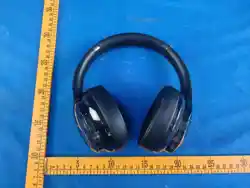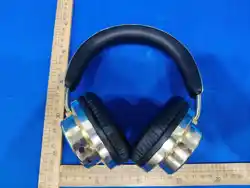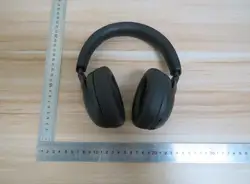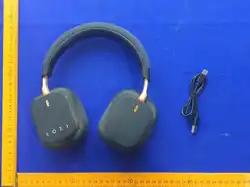
• On the right earcup,carefuIIy plug the Type-C cable into Type-C charging port. and connect the
other end of the cable to either a computer USB port or to a USB-compatible car or wall charger
.
• Solid red LED light will appear to indicate when the headphone is charging.
• When charging is complete, the LED light will turn Blue.
• Charging time is approximately 3.5 hours.
Charge It
Turn It On/Off
• Press & hold the power button on the right side of the headphone for about 3 seconds until the
LED indicator light turns on.
•
Press & hold the power button again for 4 seconds until the LED light turns off.
Pair & Connect With New Device
• Power on the wireless bluetooth headphone(refer to the "Turn It On" section).
• To pair the headphone with a new device,the Red and blue LED light blink to indicate it is ready
to be paired with your device.
• On your Bluetooth-enabled smartphone,tabIet or media player
,navigate to the Bluetooth settings
menu,turn on the Bluetooth feature,and search for new devices
After a few seconds you will see
“P102ANC Pro ”listed.
•
Tap this modei to select it.Solid blue LED light indicate your device has successfully paired.
• With your previously paired device’s Bluetooth turned on and in range,The headphone will
automatically reconnect to the last Bluetooth device it was connected to.
Play
• Connect your device to the headphone via Bluetooth(refer to the” Pair & Connect" section)
• Open your favorite music app and press play.
• Control the music,track & volume from your device,or control the music & volume.Press the
Power button once to play/pause music & answer caIIs,press it twice to redial the last number
called on your phone,and press & hold it to reject an incoming call.
•
All audio,incIuding music,games,videos,and notifications will be routed through the headphone.
Button Function
Troubleshooting
• No power
• Music is not playing over Bluetooth
• Bluetooth device will not reconnect with the headphone
- Navigate to your Bluetooth settings menu on your Bluetooth device,tap “P102ANC Pro” , and select
"Forget" .
- Now follow the steps to pair your device again.Or
, press & hold the power button on the
headphone (while powered on) to disconnect the headphones from any connected devices.
Then follow the steps to reconnect your device.
- Make sure your Bluetooth device has A2DP profile. Check if both devices are paired and
connected over Bluetooth.Restart the headphone to reconnect your Bluetooth device.
- Recharge your wireless bluetooth headphone using the
Type-C cable.
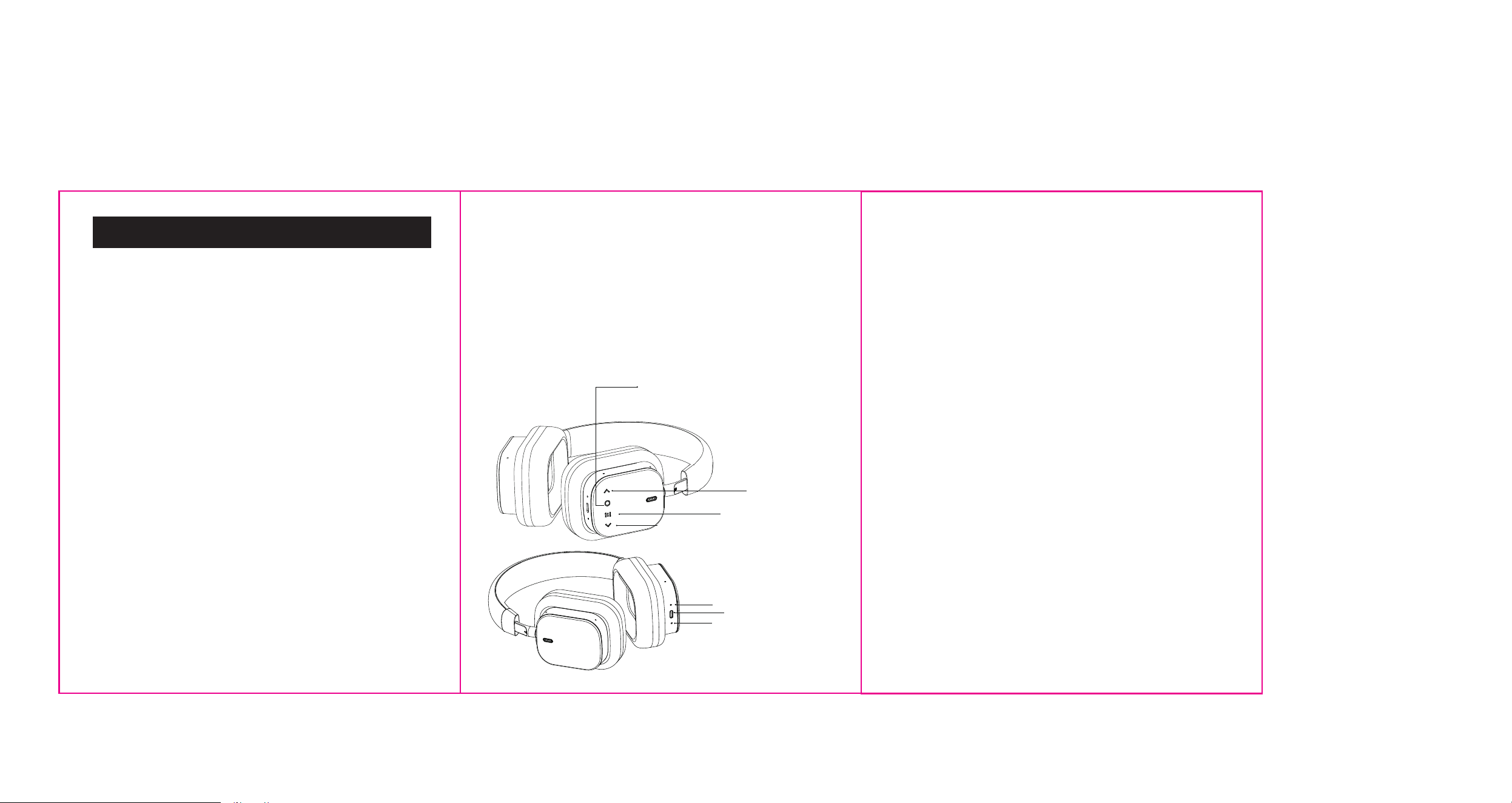
Product Diagram
press & Hold (3 Sec):Power On
Press & Hold (4 Sec):Power Off
Play/Pause,Answer/End Calls
Double Click: Re-dial Last Dialed Phone Number
Press & Hold (1-2 Sec):Reject Incoming Call
Type-C Charging / AUX Port
Microphone
LED indicator
NOTE:If the headphone is not used within 5 minutes.the headphones will automatically
turn off to save battery.
Previous Track / Volume Down
ANC Button
Next Track / Volume Up
SW-150
USER MANUAL
• Press < area(refer to product Diagram) to next track.
• Press > area(refer to product Diagram) to previous track.
• Press & Hold < area(refer to product Diagram) to turn up the volume.
• Press & Hold > area(refer to product Diagram) to turn down the volume.
• Press ANC buton (refer to product Diagram) once then the White LED light on means ANC
function turn on.
• This device complies with part 15 of the FCC Rules.
• Operation is subject to the following two conditions:
(1) This device may not cause harmful interference, and
(2) this device must accept any interference received, including interference that may cause
undesired operation.
• Any changes or modifications not expressly approved by the party responsible for compliance
could void the user's authority to operate the equipment.
• NOTE: This equipment has been tested and found to comply with the limits for a Class B digital
device, pursuant to Part 15 of the FCC Rules. These limits are designed to provide reasonable
protection against harmful interference in a residential installation. This equipment generates, uses
and can radiate radio frequency energy and, if not installed and used in accordance with the
instructions, may cause harmful interference to radio communications. However, there is no
guarantee that interference will not occur in a particular installation.
• If this equipment does cause harmful interference to radio or television reception,
• which can be determined by turning the equipment off and on, the user is encouraged to try to
correct the interference by one or more of the following
• measures:
-- Reorient or relocate the receiving antenna.
-- Increase the separation between the equipment and receiver.
-- Connect the equipment into an outlet on a circuit different
• from that to which the receiver is connected.
-- Consult the dealer or an experienced radio/TV technician for help.
• The device has been evaluated to meet general RF exposure requirement. The device can be
used in portable exposure condition without restriction.