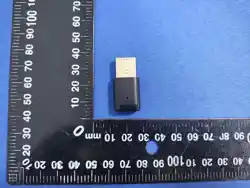
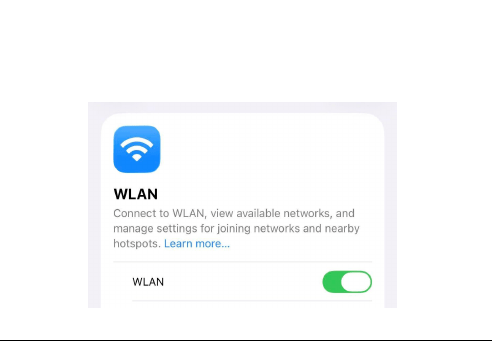
Note: Before using this product, please enable WIFI and Siri on your
phone! Otherwise, the product cannot be used!
Note: WIFI is prohibited from connecting to any WiFi network!
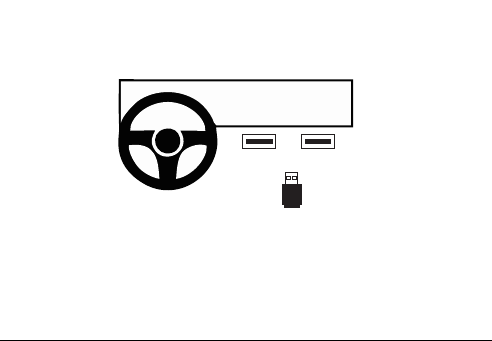
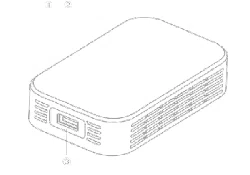
1.Plug it into the USB or Type-C port in the car for data transfer; it
cannot be a USB port that only supports charging.
2.The central control screen will automatically switch to the CarPlay
interface; for some vehicle models, it is necessary to manually select
CarPlay!
USB-A USB-C
Use USB Connection
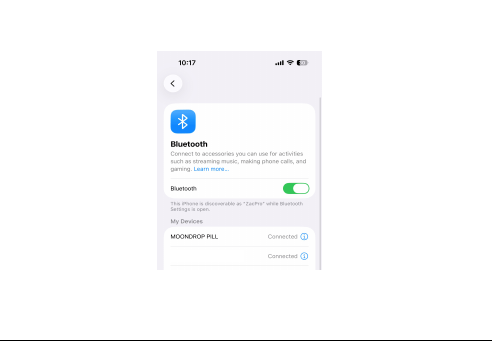
3.On your phone, turn on Bluetooth → search for "Carplay_box_****"
→ tap to connect
After Bluetooth is connected, please wait 5 seconds on your phone
for the screen to jump/switch.
Carplay_box_****
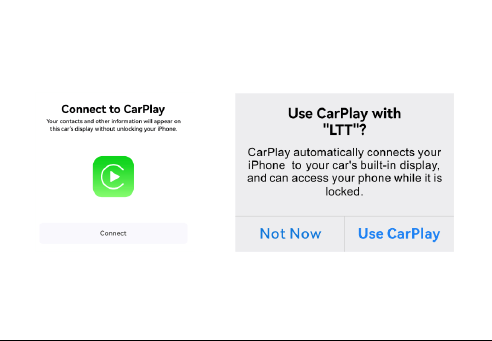
4.Allow CarPlay to be used
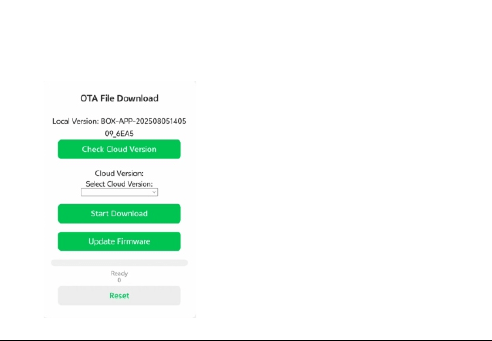
If our CarPlay Box shows no display, has delays, freezes, or fails to
work in your car, please connect it to the local area network (LAN) to
update the CarPlay Box.

Apple System Update
1. Connect to WiFi: carplay_box_xxxx | Password: 12345678
2. On your phone, open the browser and enter 192.168.43.1
3. After entering the interface, click "Check Cloud Version" (to check
the cloud version) and then click "Start Download" (to start
downloading).
4. After the download is complete, click "Update Firmware" (to update
the firmware) and wait for the update to finish.
Android System Update
1. Connect to WiFi: carplay_box_xxxx | Password: 12345678
2. On your phone, open the browser and enter 192.168.43.1
3. After entering the interface, turn on your phone's mobile data, click
"Check Cloud Version" (to check the cloud version), and then click
"Start Download"
4. Once the download completion is displayed, reconnect to the WiFi:

carplay_box_xxxx,Repeat the operation of the first step.
5. After connecting to the WiFi, click "Update Firmware" (to update
the firmware) and wait for the download to complete.
Note: Do not cut off the power during the upgrade!
After the
Note: If the device still fails to work or your issue is not resolved after
the upgrade, please inform us of your in-vehicle infotainment system
model (e.g., "BMW 530Li 2017 Model"). We will perform a back end
upgrade within 5 working days. After this backend upgrade, please
upgrade the CarPlay Box again, and it will be ready for use!
upgrade is completed, the product will restart automatically. There is
no need to manually plug in or unplug the product, so as to avoid
upgrade interruption and system crash caused by incomplete upgrade.
After each update and upgrade, the CarPlay logo interface will refresh
automatically. This indicates that the upgrade has been completed, and
you can use it normally!

Warning:
This device complies with Part 15 of the FCC Rules. Operation is subject to the following two
conditions: (1) this device may not cause harmful interference, and (2) this device must accept
any interference received, including interference that may cause undesired operation.
Changes or modifications not expressly approved by the party responsible for compliance could
void the user's authority to operate the equipment.
NOTE: This equipment has been tested and found to comply with the limits for a Class B digital
device, pursuant to Part 15 of the FCC Rules. These limits are designed to provide reasonable
protection against harmful interference in a residential installation. This equipment generates,
uses and can radiate radio frequency energy and, if not installed and used in accordance with the
instructions, may cause harmful interference to radio communications. However. there is no
guarantee that interference will not occur in a particular installation.
If this equipment does cause harmful interference to radio or television reception which can be
determined by turning the equipment off and on, the user is encouraged to try to correct the
interference by one or more of the following measures:
--Reorient or relocate the receiving antenna.
-- Increase the separation between the equipment and receiver
--Connect the equipment into an outlet on a circuit different from that to which the receiver is
connected.
--Consult the dealer or an experienced radio/TV technician for help
NOTE: This device and its antenna(s) must not be co-located or operation in conjunction with any
other antenna or transmitter
The device has been evaluated to meet general RF exposure requirement. The device
can be used in portable exposure condition without restriction.