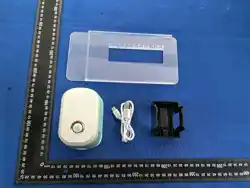

User Manual
APP
“FOODPENPRO”(安卓/ios)
2. 取出下盖板,打开打印机底部电源开关,ON/OFF会伴随滴答声进入就位状态。
3. 第一次连接打印机,会提示您打开,蓝牙、定位权限。下次
连接时,都要开启定位和蓝牙权限。
4. 搜索蓝牙“FOODPENPRO”连接,就可以正常使用食品打印机。
1. R
emove the ink cartridge from the black protective case, and peel off
the blue protective film on the cartridge nozzle.
2. Press and hold the PRESS button on the printer to remove the top
cover. Insert the ink cartridge into the printer cartridge compartment
according to its shape, and press firmly to ensure the nozzle fits
closelywith the printer base.
3. Reattach the top cover, align the spring pins with the bayonets while
holding the PRESS button on the cover, then gently press down to
complete the printer assembly
Ins
talling the Ink Cartridge
1.Do
wnload the FOODPENPRO app from the app store (Android / iOS).
2.Remove the lower cover, turn on the power switch at the bottom of
theprinter. The ON/OFF indicator will beep and enter the ready state.
3. When connecting the printer for the first time, you will be prompted
toenable Bluetooth and location permissions. Both Bluetooth and
locationpermissions must be enabled for all subsequent connections
4.Search for the Bluetooth device FOODPENPRO and connect to it; the
food printer is then ready for normal use.
Mobile Connec
tion
1
T
est / Reprint
10 No
zzle Protection Pad
6 Print
er Nozzle
2 T
op Cover
7
P
ower Switch
8 U
SB Charging Port Indicator
9 U
SB Charging Port
3 Middle Co
ver
4 Ink T
ank
5
Print
er Ink Cartridge
11 Bo
ttom Cover
1. 墨盒不使用的时候
,不可以简单的把喷嘴保护膜贴回,或把墨盒放回墨盒包装,
会因为虹吸现象导致四种墨水被吸出并混合,构成桥梁,最终导致墨盒内部颜色
混色。墨盒不使用时请直接放于机器中关机即可,长时间不用的话可以放在密封
袋中避免接触空气。
2. 编辑界面右上角的电池图标可以看到当前电量,旁边是显示的是蓝牙的连接如果
没有连接到 可前往蓝牙中重新连接好继续编辑,请尽量避免低电量使用机器。
3. 安装墨盒的时候 ,一定要观察好墨仓和墨盒的形状和方向。对好墨盒要用点力
挤压,让墨盒底部的喷嘴和盖板底部贴合。在安装上上盖板。
4. 在连续打印时,按一下打印按钮松开,打印机会发出滴答的声音和指示灯会不间断
的闪烁匀速移动打印即可,请勿一直按着打印按钮打印。
5. 若常时间不使用导致打印嘴有粉尘,用柔软棉布或纸巾轻轻擦拭,禁止用力擦拭,
否则导致混色。
6. 食品级墨盒在开封后无论是否用完,必须每6个月更换一次。
1. When the ink c
artridge is not in use, do not simply reattach the nozzle
protective film or put the cartridge back into its packaging.Doing so may
cause the four inks to be siphoned out and mixed together, forming a
color bridge, which will eventually result in color mixing inside the
cartridge.When not in use, simply leave the cartridge installed in the
machine and turn off the power. For long-term storage, place it in a
sealed bag to avoid exposure to air.
2. The battery icon in the top-right corner of the editing interface shows
the current power level, and the icon next to it indicates the Bluetooth
connection status.If Bluetooth is disconnected, please reconnect it in
your device’s Bluetooth settings before continuing to edit.Avoid using
the machine when the battery is low.
3. When installing the ink cartridge, make sure to align the shape and
orientation of the ink compartment with the cartridge.Press firmly to
ensure the nozzle at the bottom of the cartridge fits tightly against the
bottom cover, then install the top cover.
4. For continuous printing, press and release the print button once.The
printer will emit a ticking sound, the indicator light will flash
continuously, and the print head will move at a constant speed to start
printing.Do not hold down the print button during printing.
5.If the print nozzle becomes dusty due to prolonged non-use, gently wipe
it with a soft cotton cloth or tissue.Do not wipe forcefully, as this may c
ause color mixing.
6.Food-grade ink cartridges must be replaced every 6 months after opening,
regardless of whether they are used up or not.
Pr
ecautions
No
te: Image uploads do not support overall color modification. Color
adjustment is only available for SVG file uploads.
1.
The printer editing interface features clear categories: Local Gallery,
Upload Image, Draw, Edit Text, and Tutorial Videos.
2.For Local Gallery: Select a preview image to confirm, then tap Start
Print and wait for data preparation and file transmission.Once completed,
the printer button will beep continuously and flash repeatedly.After that,
no further operation is needed—simply move the printer at a constant
speed to print.For repeated printing, briefly press the button.
3.For Upload Image: You may upload images from your phone’s album
with proportional scaling.It is recommended to remove the background
of the image to be printed for a more refined printed pattern.Tap Start
Print and wait for the process to finish
4.For Draw: Use your finger to create any desired pattern, then start
printing directly.
5. For Edit Text: Enter text, adjust font size, font style, and color, then
tap to print.
6.Tutorial Videos provide step-by-step guidance on the installation and
operation of the FOODPENPRO food printer.
Pinting Pr
ocess
7
8
9
10
11
1
2
3
4
5
6
MINI PRINTER

This device complies with part 15 of the FCC Rules. Operation is subject to the
following two conditions: (1) This device may not cause harmful interference, and (2)
this device must accept any interference received, including interference that may cause
undesired operation.
Any Changes or modifications not expressly approved by the party responsible for
compliance could void the user's authority to operate the equipment.
Note: This equipment has been tested and found to comply with the limits for a Class B
digital device, pursuant to part 15 of the FCC Rules. These limits are designed to
provide reasonable protection against harmful interference in a residential installation.
This equipment generates uses and can radiate radio frequency energy and, if not
installed and used in accordance with the instructions, may cause harmful interference
to radio communications. However, there is no guarantee that interference will not
occur in a particular installation. If this equipment does cause harmful interference to
radio or television reception, which can be determined by turning the equipment off and
on, the user is encouraged to try to correct the interference by one or more of the
following measures:
-Reorient or relocate the receiving antenna.
-Increase the separation between the equipment and receiver.
-Connect the equipment into an outlet on a circuit different from that to which the
receiver is connected.
-Consult the dealer or an experienced radio/TV technician for help.
FCC Radiation Exposure statement
The device has been evaluatec to meel general RF exposure requirement. The device
can be used in portable exposure condition without restriction.