Guide to Add Reolink Cameras to Google Home
Preparation
To add your Reolink cameras to Google Home, you need to have the following
devices and Apps set up:
Reolink App and Google Home App
Reolink camera that supports Smart Home
Google Device: A TV with Chromecast/A media player with Chromecast/A
Google Home Hub/A Google Nest
Add Reolink Cameras to Google Home with Reolink App 4.52 and Later
The Reolink App version 4.52 has optimized the process of adding your cameras to
Google Home. We recommend upgrading to version 4.52 or later for a smoother
setup experience.
Step 1. Link Reolink to Google Home
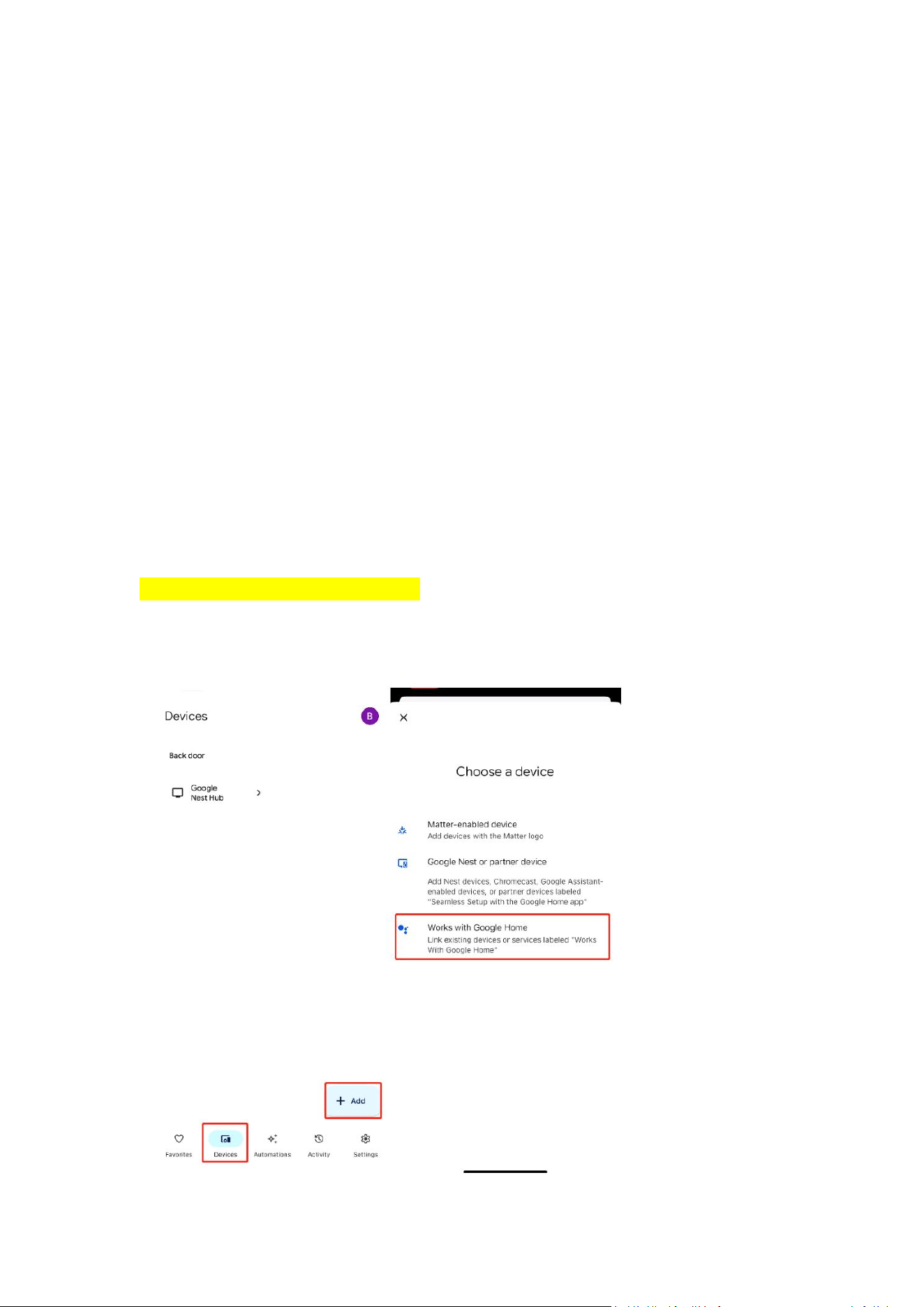
1. Launch the Google Home App, tap Devices > Add device > Works with Google
Home.
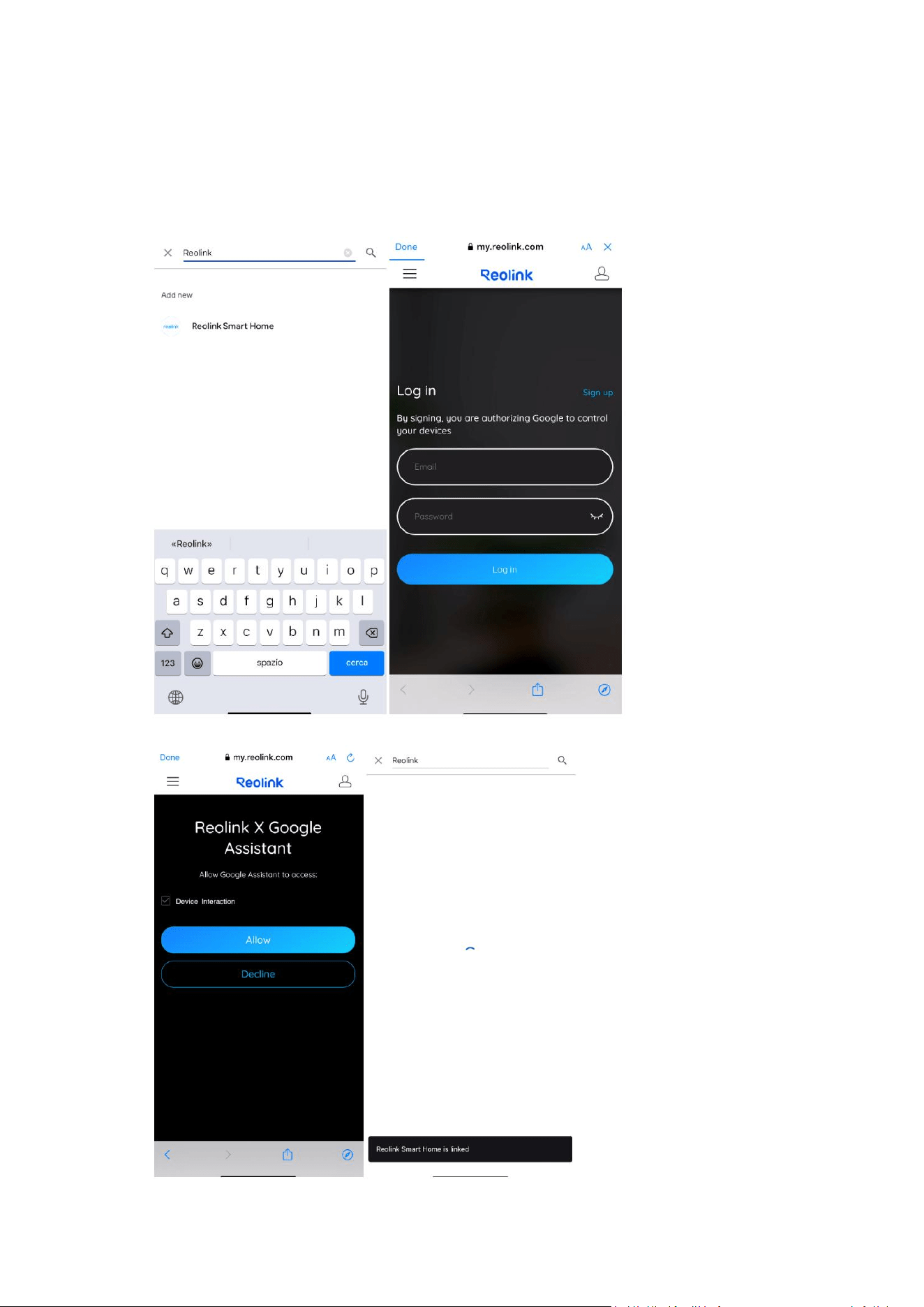
2. Search Reolink in the search bar. Tap Reolink Smart Home and log in to your
Reolink account (make sure it is the same one that the device is linked to on the
Reolink App). Once you’ve logged in, tap Allow and it will show "Reolink Smart
Home is linked."
Step 2. Enable Smart Home Skill on Reolink App
1. Launch the Reolink App and add the camera to the Reolink App. If the camera is
added to a Reolink Home Hub, please add the Home Hub to the Reolink App.
Note:
To add a camera to Reolink Smart Home, it is essential to ensure that the camera is
connected to the internet. You can check whether the camera can be accessed
remotely with an external network to verify its internet connection.
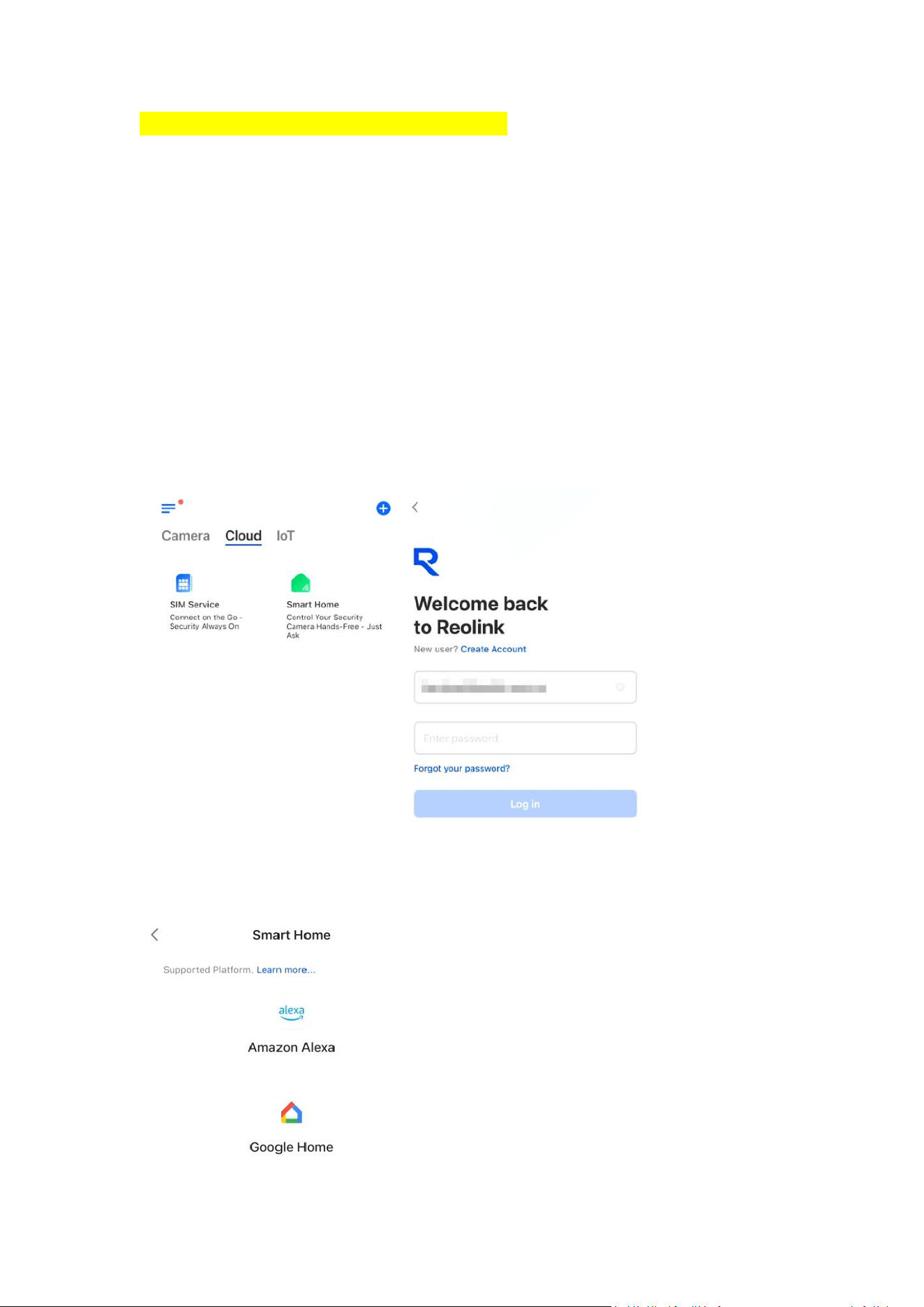
2. Tap Cloud > Smart Home section. If you did not log into your Reolink account on
the App, you will be asked to log in after you tap the Smart Home section.
Please make sure the account is the same as the one that you used on the Google
Home App.
3. Tap Google Home on the Smart Home page.
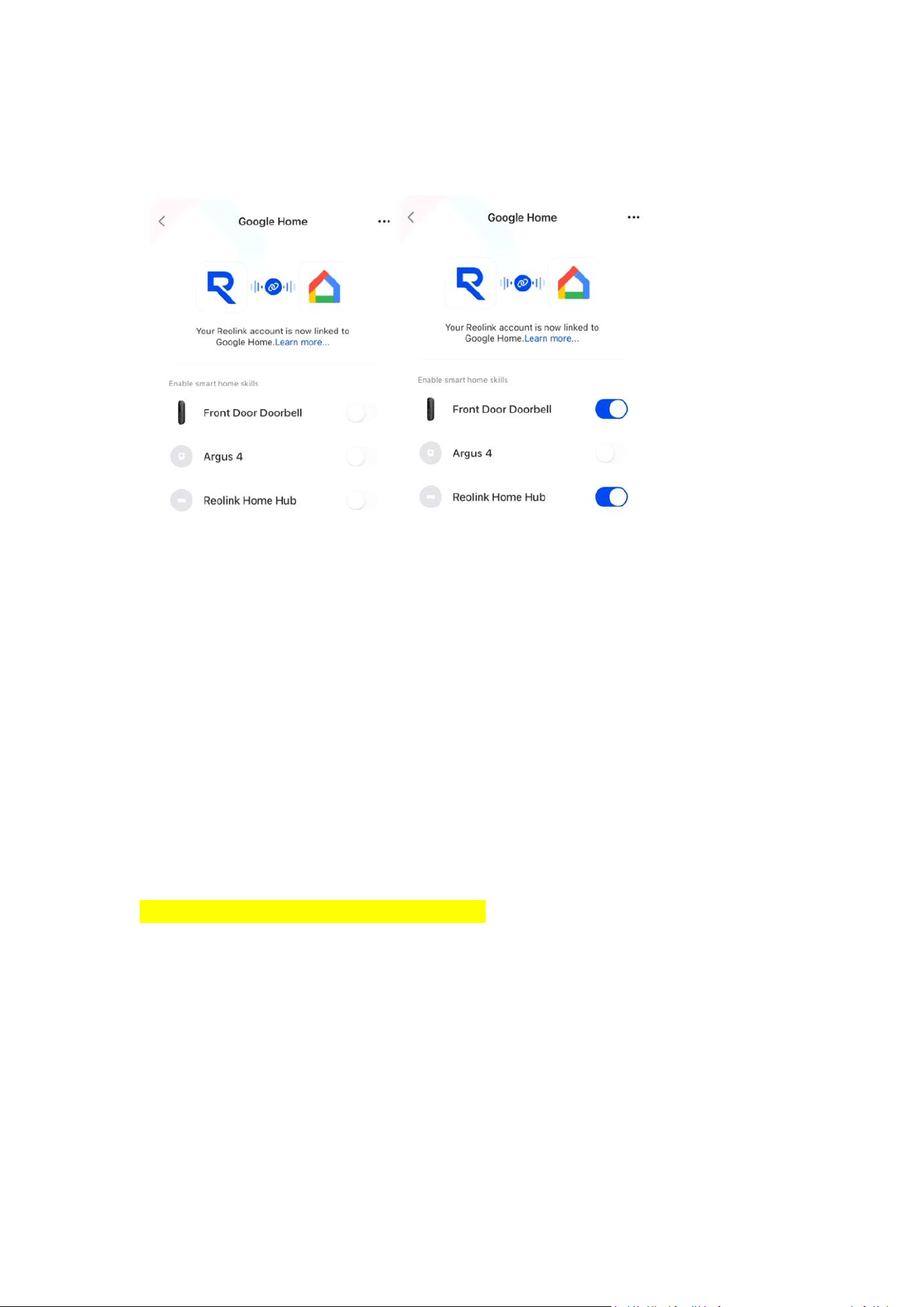
4. The devices that are added to the Reolink App and support Smart Home
integration will show up in the list. Find the device you want to add to Google Home.
Tap to turn the button blue to enable the smart home skill for that device.
Note:
1. If the camera is linked to Reolink Home Hub/Home Hub Pro, only the hub will be
visible, enabling you to add several cameras to Reolink Smart Home at once. Once
you enable the hub, it indicates that the smart home function for all cameras added
to the hub is activated.
(The cameras shown in the image above are not connected to the Home Hub but are
stand-alone cameras already added to the Reolink App and support Smart Home
integration.
2. You'd better change the camera name to make your voice command easily
recognized via Google. Front Door or Backyard Camera or names like these will be
great.
Step 3. Set up Cameras on Google Home App
Now launch the Google Home App. The Reolink camera that has enabled the smart
home feature in the Reolink App will show up on the Device page. If the cameras are
added to a Reolink Home Hub/ Home Hub Pro, each device (such as cameras or
doorbells) will appear as a separate entity.
To link the camera to your Google Home device, follow these steps:
1. Tap on the camera to access its settings page.
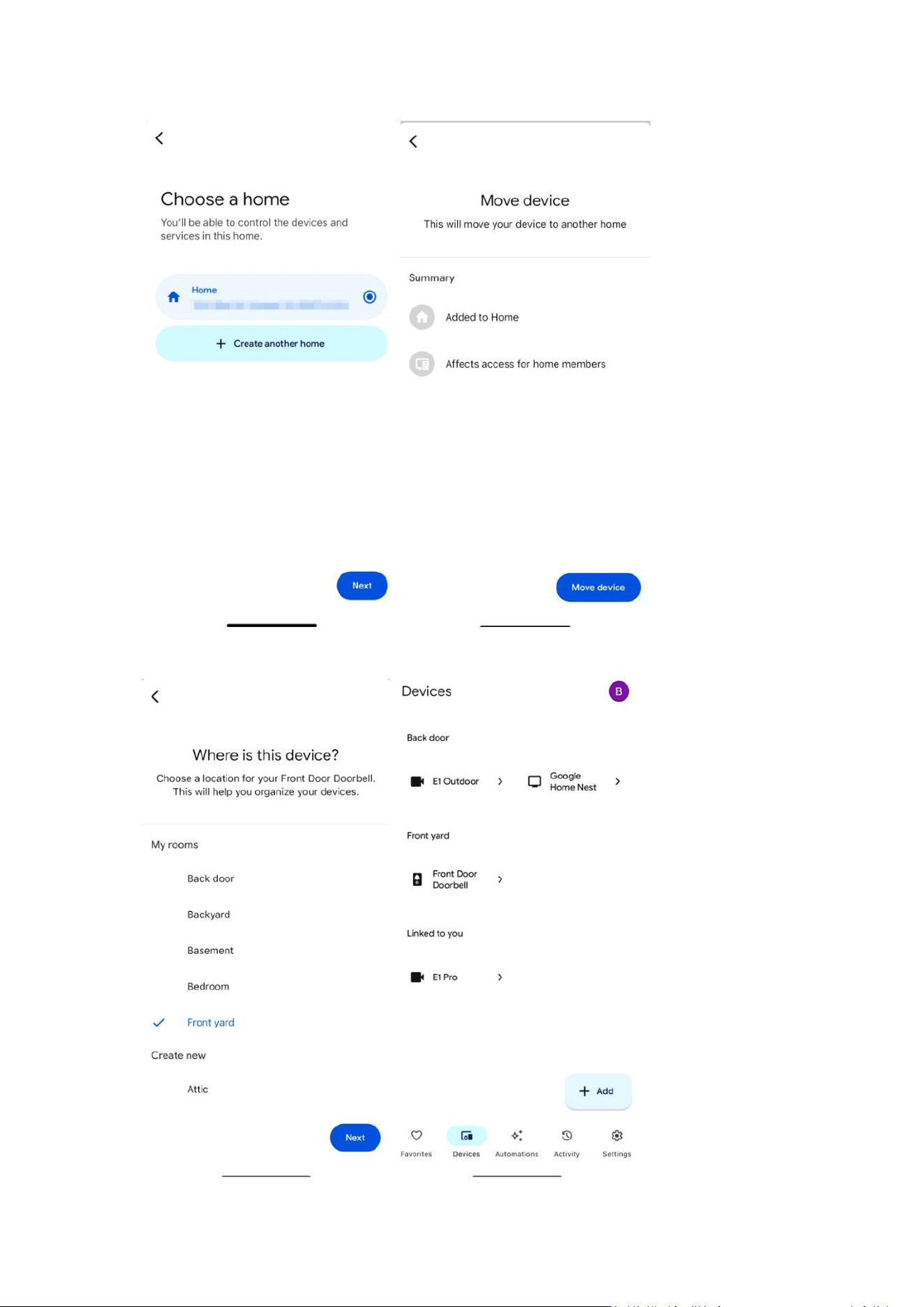
2. Navigate to the Home section and assign the camera to a specific home.
3. Tap Next > Move device.
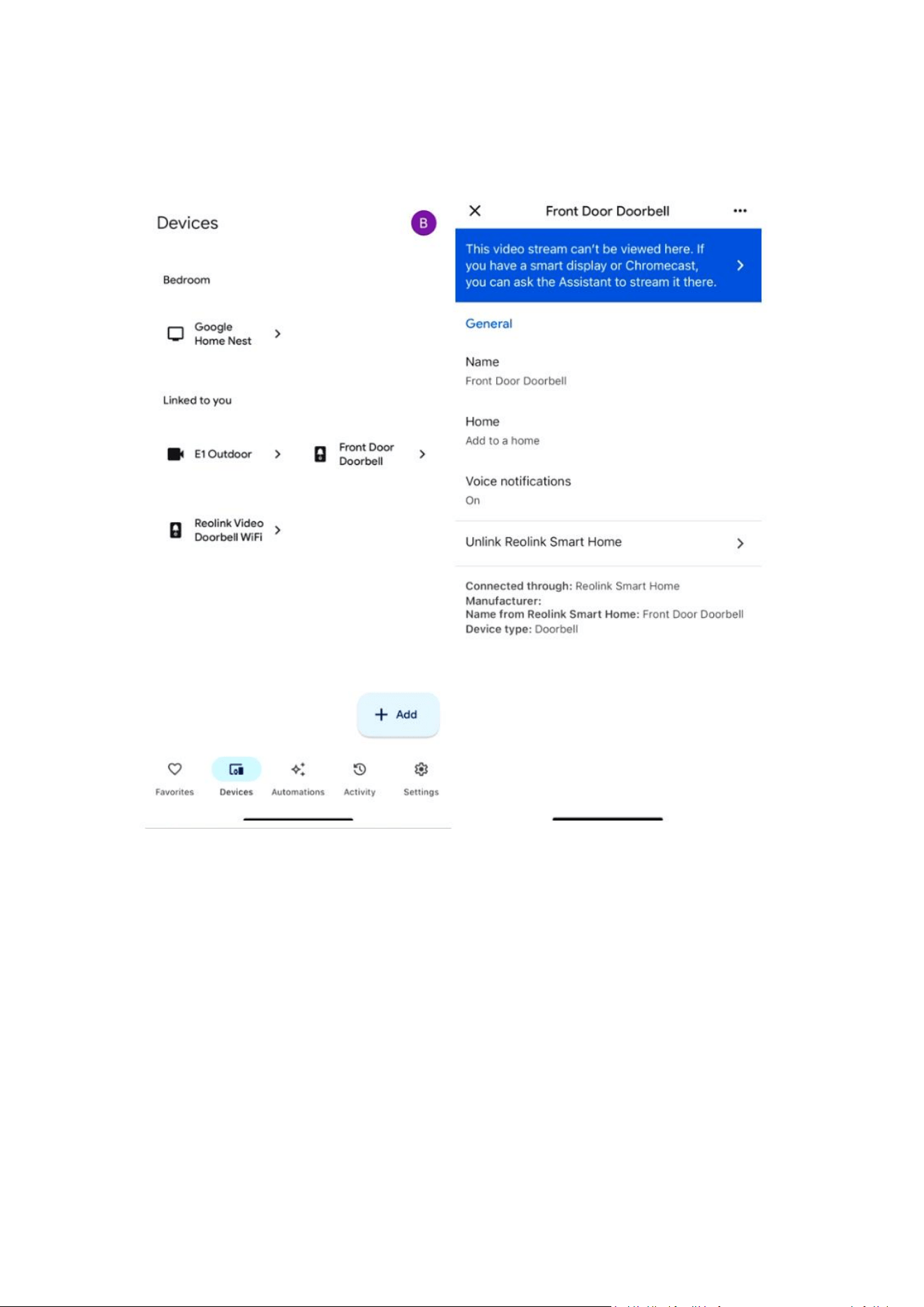
4. Choose the appropriate location for the camera, tap Next, and you’re all set!
Your camera is now successfully linked to Google Home and ready to use.
Live View of Reolink Camera on Google Home
Live View on Google Device
If you have already added the Google device (the Chromecast or Google Home Hub,
etc.) to the Google Home App, the camera added to the Google Home App will be
connected to the Google device automatically, and then you can tap on the screen to
find and live view the camera or just say “Hi Google, show [name of the camera]" to
view the live stream, and say "Hi Google, stop [name of the camera]" to stop the
live stream.
If you can not call out the camera with the voice command, you may change the
camera name and try again. Front Door or Backyard Camera or names like these will
be great.
Live View on Google Home App
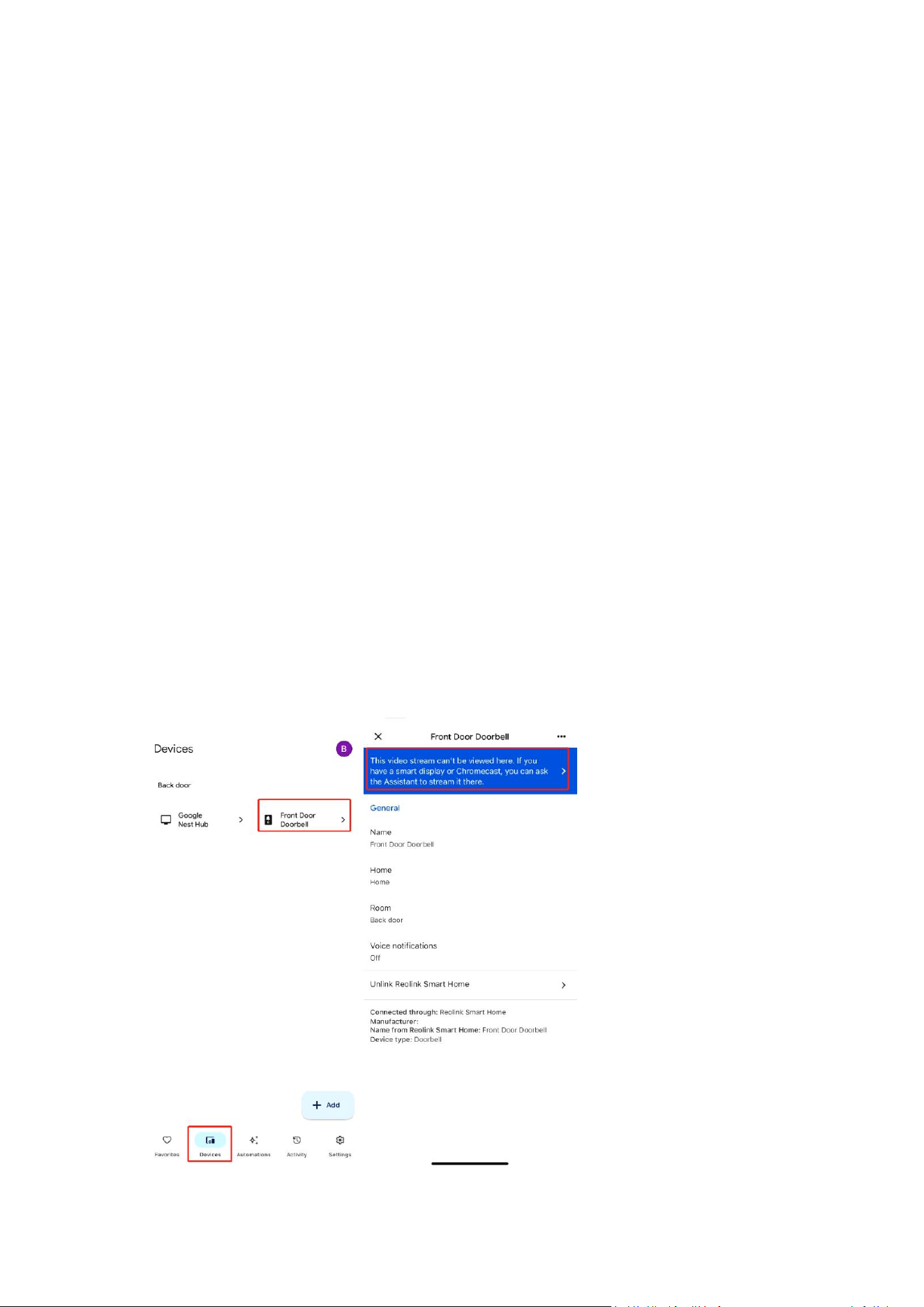
Tap the camera on the Device page of the Google Home App, you can check the live
stream or go to the settings page.
Note:
If you see a message “This video stream can't be viewed here. If you have a smart
display or Chromecast, you can ask the Assistant to stream it there”, it means your
camera does not support previewing in the Google Home App. It is recommended to
use a Chromecast device or a Google screen device to view the camera.