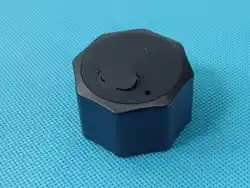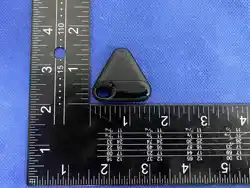

Nocaus
Start
User Manual
��
�. Power On/Off
Press and hold the function button of the Nocaus Locator; it
will make two "ticks" to indicate that it is powered on.
To power off the Nocaus locator, press the same button five
times consecutively, and you will hear a long "tick" to
indicate that the Nocaus locator has been turned off.
�. Check For Updates
When using Apple's Find My app to locate items, it is
recommended to update to the latest version of iOS,
iPadOS, watchOS and macOS.
Add Your Nocaus
��
�. Launch The APP
Open Find My app on your supported iPhone.
�.Connect Your Nocaus
Long press the function button to power on your Nocaus.
Open Find My App, click "Add Item", then click "Other
Supported Items."
When the Nocaus is located, click "Connect".
Enter a name and choose an emojifor your Nocaus, then
click "Continue."
The Find My app will send a confirmation request to connect
your Apple ID to the Nocaus locator. Click "Agree."
Then click "Finish", your Nocaus locator is now connected
and ready to use.
Locating The Nocaus
��
�. Find Nocaus When It’s Nearby
Open the Find My app, and select the "Items" option.
Click on the Nocaus from the list
Click "Play Sound" and your Nocaus will make a beeping
sound.
When you find your item, click "Stop Sound" to pause the
sound.
�. Find Nocaus ’s Location
Open the Find My app and select the "Items" option.
Click on the Nocaus in the list
The location of your Nocaus will appear on the map.
Note: "Notify when found" can only be activated when your
item locator is out of range.
1 2 3
Notification
��
�. Enabling “Notify When Left Behind”
Open the Find My app and select the "Items" option.
Click on the Nocaus from the list
Under the "Notifications" option, activate the "Notify When
Left Behind" option.
You will be notified when you leave your Nocaus and it is out
of range of your device.
�. Launch "Notify when found"
Under the "Notifications" option, enable "Notify When Left
Behind"toggle
You will receive a notification when you leave your Nocaus
behind and it’s no longer in range of your device.
Note: Notify When Found can only be activated if your item
locator is out of range!
4
When Your Nocaus Is Lost
��
�.Enabling "Lost Mode"
Open the Find My app and select the "Items" option.
Click on the Nocaus from the list
Under"Lost Mode", click "Start".
A detailed description of "Lost Mode" will pop up on the
screen, click "Continue".
Enter your cell phone number or email address and click
"Continue".
You can enter a message that can be shared with the person
who found your item.
Click "Enable".
Note: When "Lost Mode" is activated, "Notify When found" is
automatically activated.
Note: When "Lost Mode" is activated, your Nocaus will be
locked and cannot be paired with a new device.
5
Resetting Nocaus
��
�.Remove The Nocaus From Find My App
Open Find My app and select the "Items" option.
Click Nocaus from the list
Please ensure "Lost Mode" is disabled
Scroll down to the bottom of the screen and click "Remove
Item".
A summary will appear on your screen. Click on "Remove" to
confirm
�.Factory Reset Your Nocaus
After you have successfully removed the Nocaus from the
Find My App, press the Nocaus function key twice quickly to
hear a ringtone, then press and hold until you hear a
ringtone and release.
The Nocaus is now reset and ready to be paired to a new
Apple ID.
6
Additional Content
��
�. Unwanted Tracking
If any Find My network accessory separated from its owner is
seen moving with you over time, you’ll be notified in one of
two ways:
(1) If you have an iPhone or iPad, the Find My app will send a
notification to your Apple device, this feature is available for
IOS, iPadOS 14.5 or later.
(2) If you don’t have an ios device or a smartphone, a Find
My network accessory that isn’t with its owner for a period
of time will emit a sound when it’s moved. These features
are designed to prevent people from trying to track you
without your knowledge.
7
Apple, Apple Find My, Apple Watch, Find My,
iPhone, iPad, iPadOS, Mac, macOS and
watchOS are the trademarks of Apple Inc. IOS
is a trademark or registered trademark of Cisco
in the U.S. and other countries and is used
under license.
This device complies with part 15 of the FCC Rules. Operation is subject to the following two conditions: (1) this device may
not cause harmful interference, and
(2) This device must accept any interference received, including interference that may cause undesired operation.
Changes or modifications not expressly approved by the party responsible for compliance could void the user’s authority to
operate the equipment. This equipment has been tested and found to comply with the limits for a Class B digital device,
pursuant to Part 15 of the FCC Rules. These limits are designed to provide reasonable protection against harmful interference
in a residential installation. This equipment generates uses and can radiate radio frequency energy and, if not installed and
used in accordance with the instructions, may cause harmful interference to radio communications. However, there is no
guarantee that interference will not occur in a particular installation. If this equipment does cause harmful interference to radio
or television reception, which can be determined by turning the equipment off and on, the user is encouraged to try to correct
the interference by one or more of the following measures:
‐‐ Reorient or relocate the receiving antenna.
‐‐ Increase the separation between the equipment and receiver.
‐‐Connect the equipment into an outlet on a circuit different from that to which the receiver is connected.
‐‐ Consult the dealer or an experienced radio/TV technician for help.ct.
*RF warning for Portable device:
The device has been evaluated to meet general RF exposure requirement.
The device can be used in portable exposure condition without restriction.