CIRQA
™
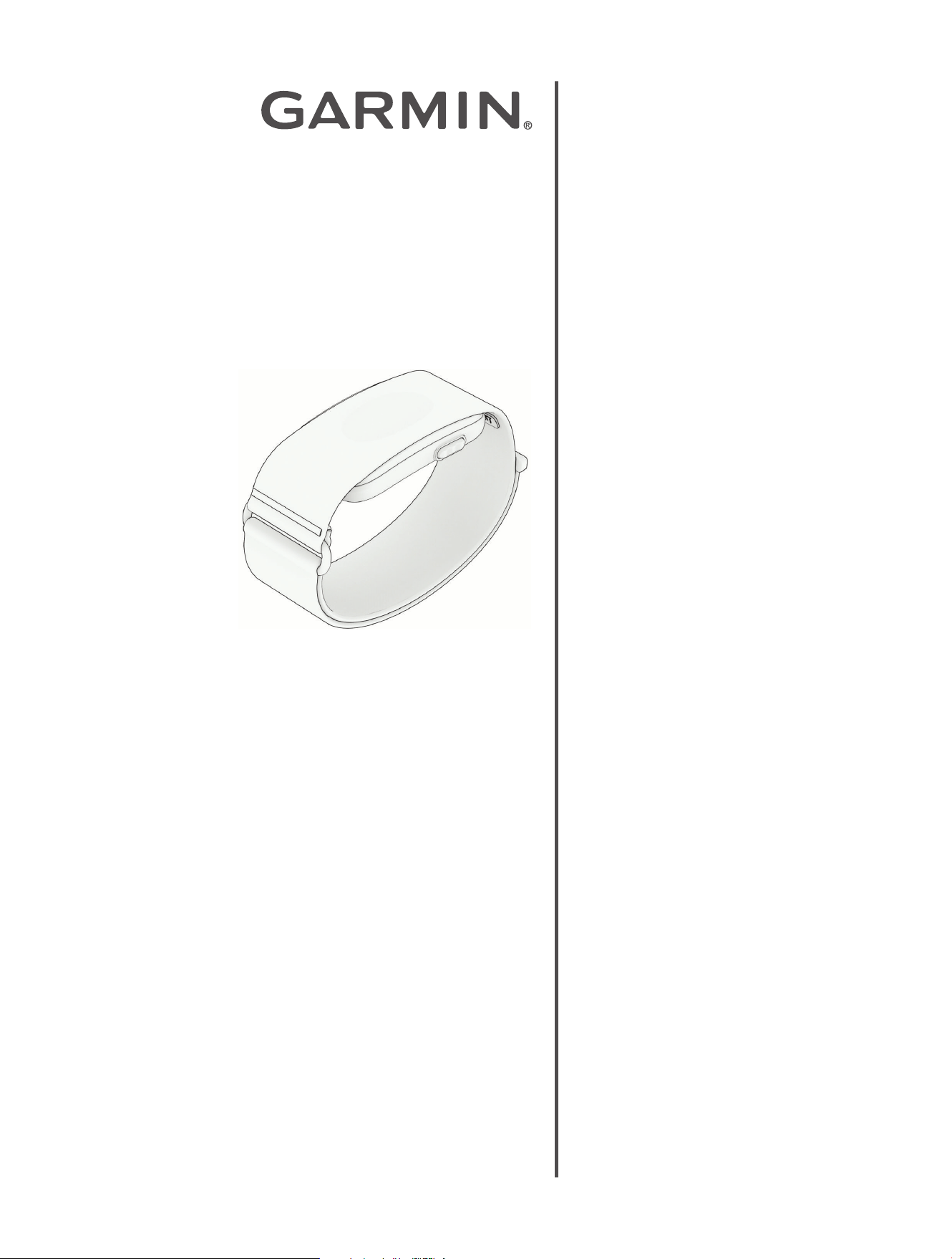
Smart Band
Owner's
Manual

Table of Contents
Introduction......................................3
Getting Started................................ 3
Activating the CIRQA Smart Band........ 3
Device Overview.............................. 4
Putting on the CIRQA Smart Band........4
Tips for Wearing the Band...............5
Module Status LED...........................6
Pairing and Setup............................. 8
Pairing Your Device with the Garmin
Connect
™
App................................. 8
Garmin Connect
™
............................. 8
Garmin Connect+
™
Subscription....... 9
Using the Garmin Connect
™
App.......9
Home Settings............................10
Manually Syncing Data with the
Garmin Connect
™
App.................. 11
Activity Tracking............................ 12
Activities...................................... 12
Recording an Activity from the CIRQA
Smart Band...................................12
Recording an Activity from Garmin
Connect
™
......................................12
Adding or Removing a Favorite
Activity.........................................13
Auto-Detected Activities.................. 13
Turning Auto-Detected Activities On
and Off..................................... 13
Starting a Workout..........................13
Activity Settings............................. 13
Sleep Tracking............................... 14
Using Automated Sleep Tracking.......14
Alarms........................................... 15
Setting an Alarm............................ 15
Editing an Alarm......................... 15
Snoozing or Stopping an Alarm...... 15
Health & Wellness Settings.............16
Setting the Pulse Oximeter Mode.......16
Broadcasting Heart Rate Data...........16
Notifications & Alerts Settings........17
Setting an Abnormal Heart Rate
Alert............................................ 17
Power Manager Settings................ 18
User Profile Settings...................... 19
Changing the Wear Location.............19
Viewing Your Fitness Age................ 19
Getting Your VO2 Max. Estimate........19
Wheelchair Mode........................... 19
About Heart Rate Zones.................. 20
Gender Settings............................. 20
Safety and Tracking Features......... 21
Turning On and Off LiveTrack........... 21
Adding Contacts......................... 21
System Settings............................. 22
Customizing Pace and Speed
Preferences.................................. 22
Device Information......................... 23
Charging the Device........................23
Checking the Battery Level............... 23
Connecting the Device to Your
Computer..................................... 23
Changing the Band......................... 24
Device Care...................................24
Machine Washing........................25
Specifications............................... 25
Troubleshooting............................. 26
Product Updates............................ 26
Resetting the Device....................... 26
Locating a Lost Device.................... 26
Getting More Information.................26
Introduction
WARNING
See the Important Safety and Product Information guide in the product box for product warnings and other
important information.
Always consult your physician before you begin or modify any exercise program.
Getting Started
When using your device the first time, you should complete these tasks to set it up and get to know the basic
features.
1 Plug the device into the charger to turn it on (Activating the CIRQA Smart Band, page3).
2
Download the Garmin Connect
™
app to your phone, and pair the devices (Pairing Your Device with the Garmin
Connect
™
App, page8).
3 Charge the device (Charging the Device, page23).
4
Check for software updates (Updating the Software Using the Garmin Connect
™
App, page9).
For the best experience, you should keep the software on your device up to date. Software updates provide
changes and improvements to privacy, security, and features.
5 Start an activity (Recording an Activity from the CIRQA Smart Band, page12).
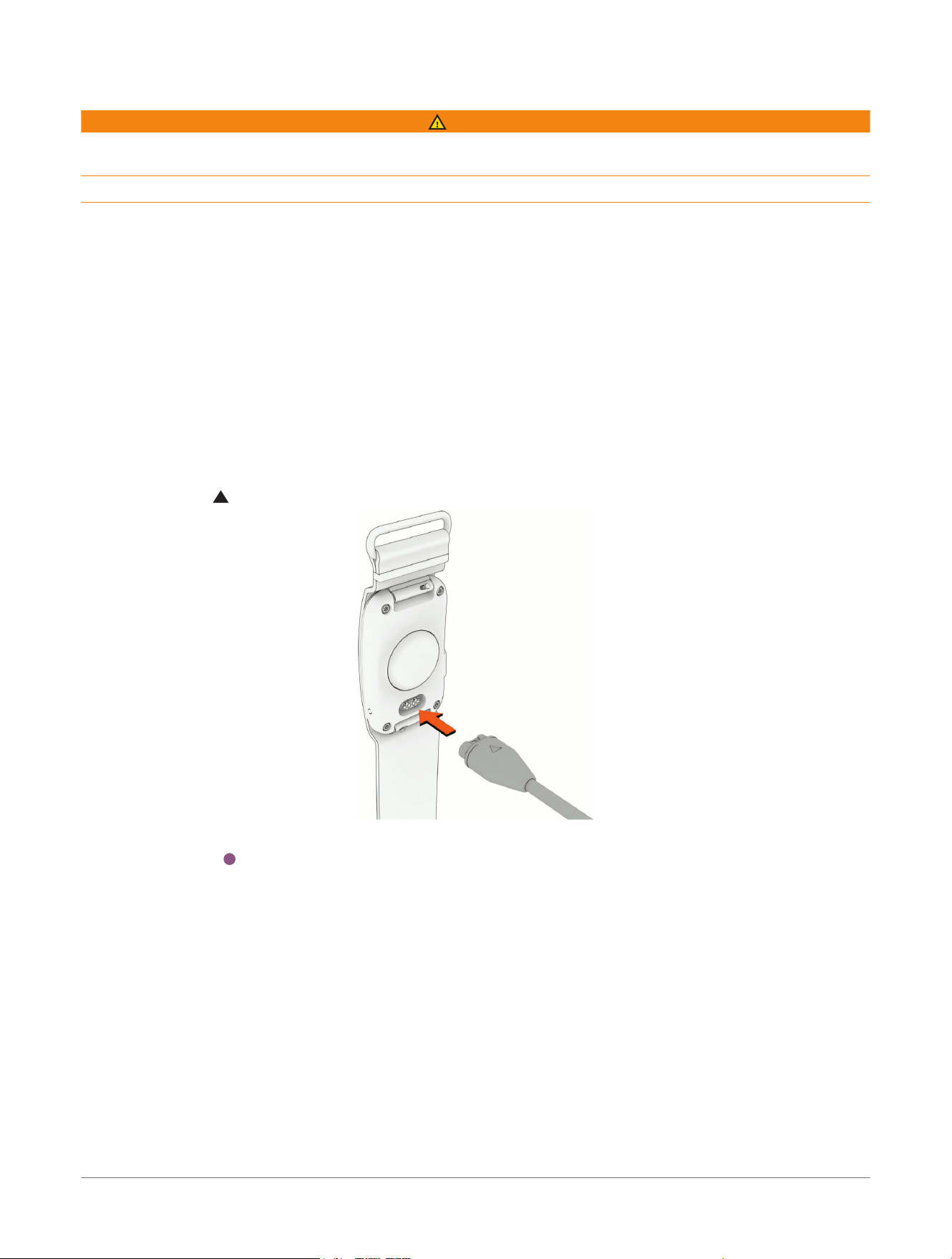
Activating the CIRQA Smart Band
1 Plug the cable ( end) into the charging port.
2 Plug the other end of the cable into a USB charging port.
The LED flashes (purple) in active pairing mode (Pairing Your Device with the Garmin Connect
™
App,
page8).
Introduction
CIRQA™ Smart Band
Owner's Manual
3
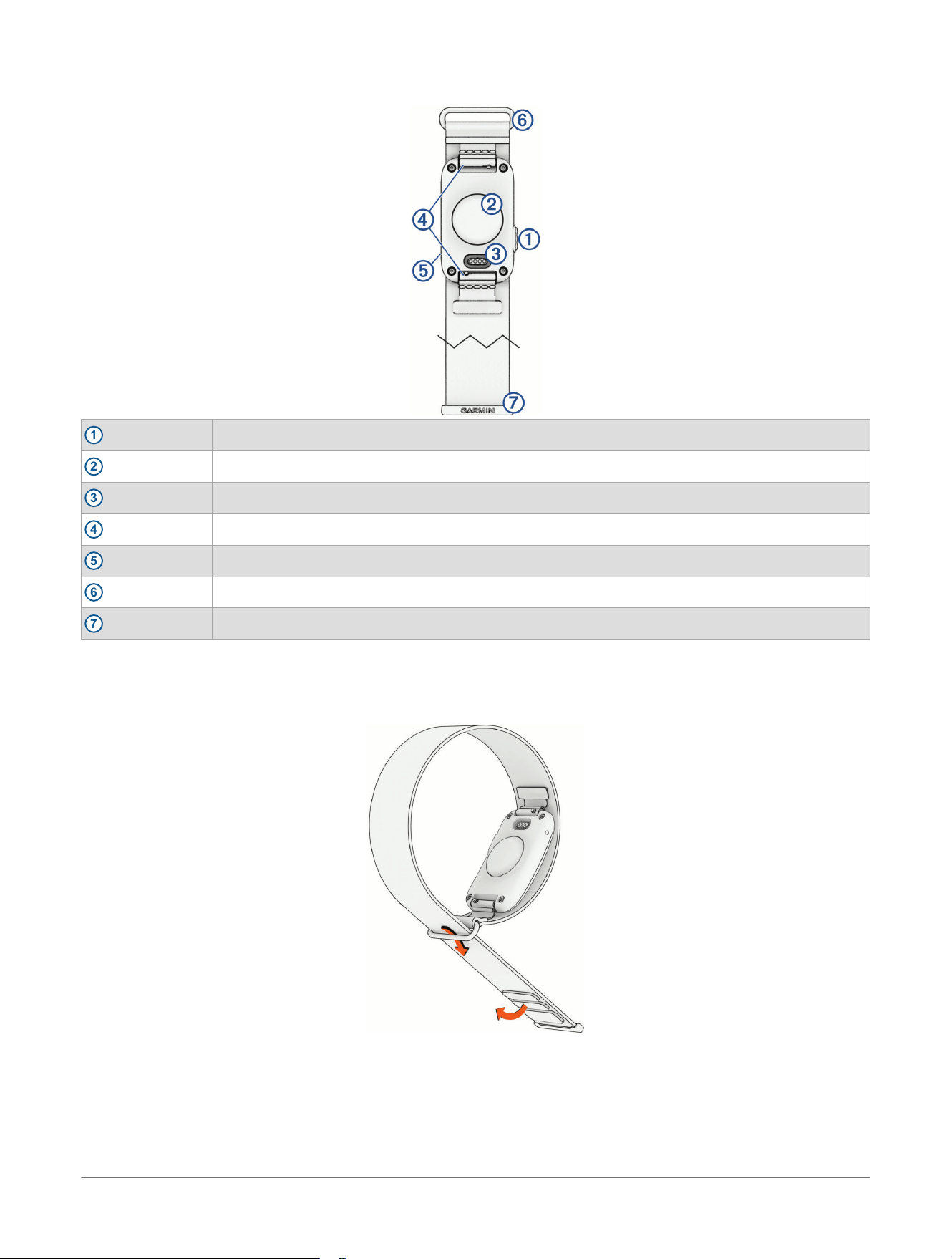
Device Overview
1
Button
2
Sensor
3
Charging port
4
Quick-release pins
5
LED
6
Retaining bar
7
Band
Putting on the CIRQA Smart Band
1 Unfold the band.
2 Form a loop by threading the band through the retaining bar.
3 Place your arm or wrist into the loop.
4 Select an option:
• If you are wearing the band on your wrist, fasten the end of the band onto a hook and loop section.
• If you are wearing the band on your arm, proceed to step 5.
5 Slide the band onto your upper arm.
4
CIRQA™ Smart Band
Owner's Manual
Introduction
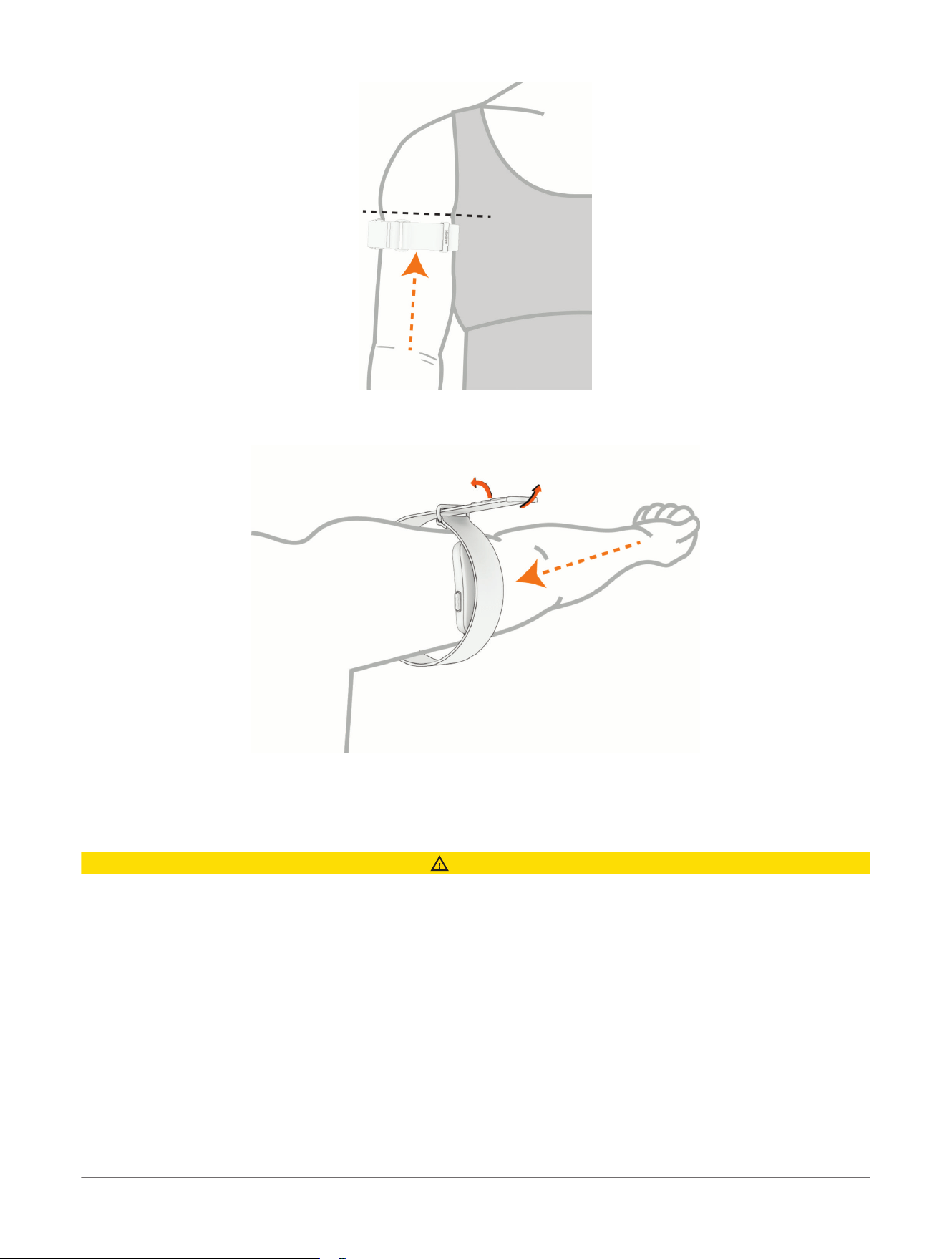
The arm band should be above your elbow.
6 Bend your arm, and fasten the end of the band onto a hook and loop section.
7 If necessary, remove the band from your arm, and adjust the band so it is comfortable (Tips for Wearing the
Band, page5).
8 Position the module where it will not interfere with your activities or be laid on during sleep.
Tips for Wearing the Band
CAUTION
Some users may experience skin irritation after prolonged use of the band, especially if the user has sensitive
skin or allergies. If you notice any skin irritation, remove the band and give your skin time to heal. To help
prevent skin irritation, ensure the band is clean and dry, and do not overtighten the band on your arm.
The CIRQA smart band should be lightly snug on the arm or wrist while remaining comfortable.
• For larger arms and wrists, fasten the strap closer to the retaining bar.
• Check your band fit to minimize discomfort.
It may take time to find a comfortable fit.
• Wear the band above your wrist bone.
Introduction
CIRQA™ Smart Band
Owner's Manual
5
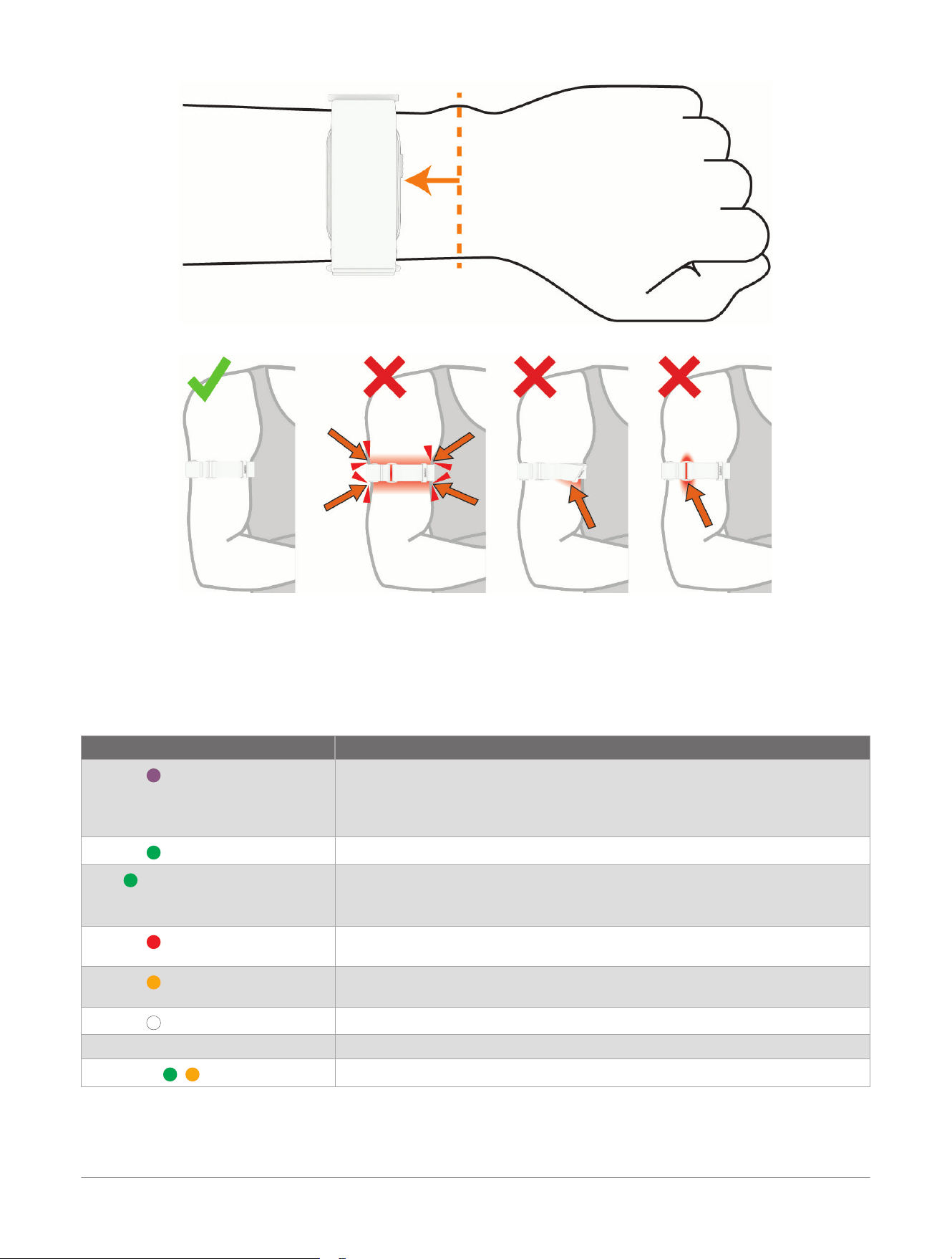
• Do not overtighten the band on the arm or wrist.
• Position the module on the outside of the arm.
TIP: You can adjust the module closer to the inside of your arm if that is more comfortable.
• Avoid laying directly on top of the module.
• Avoid tight clothing that could compress the band.
• Wash the band regularly, and before wearing it for the first time (Machine Washing, page25).
Module Status LED
LED Activity Status
Flashing (purple)
The module is in active pairing mode. The device is in pairing mode for 15
minutes.
The device remains in pairing mode longer than 15 minutes if it has never been
paired.
Flashing (green) during activity
The activity was started. The LED continues to flash during the activity.
Solid (green) during activity
The activity is paused.
Pausing an activity is available only in the Garmin Connect
™
app (Recording an
Activity from Garmin Connect
™
, page12).
Flashing (red) during activity
The activity was stopped. The LED continues flashing until the activity is saved,
resumed, or discarded.
Flashing (orange)
The module is broadcasting heart rate data (Broadcasting Heart Rate Data,
page16).
Flashing (white)
The paired module is turning on or rebooting.
Flashing all colors The unpaired module is turning on.
Alternating (green, orange)
The module is updating software.
6 CIRQA™ Smart Band
Owner's Manual
Introduction
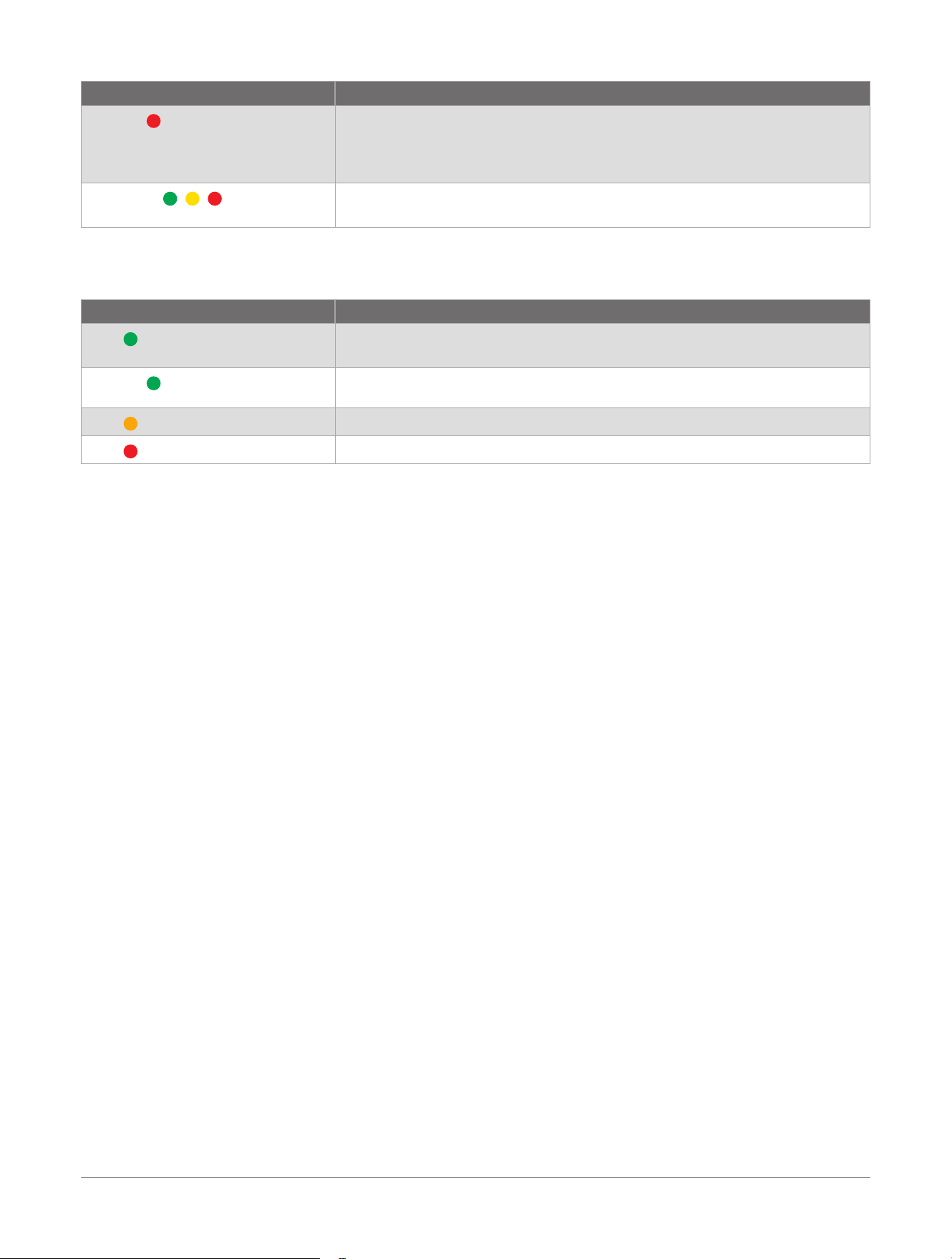
LED Activity Status
Flashing (red)
Pairing failed. You should pair again (Pairing Your Device with the Garmin
Connect
™
App, page8).
An error occurred. You may need to reset the module (Resetting the Device,
page26).
Alternating (green, yellow,
red)
The module is resetting to factory default values.
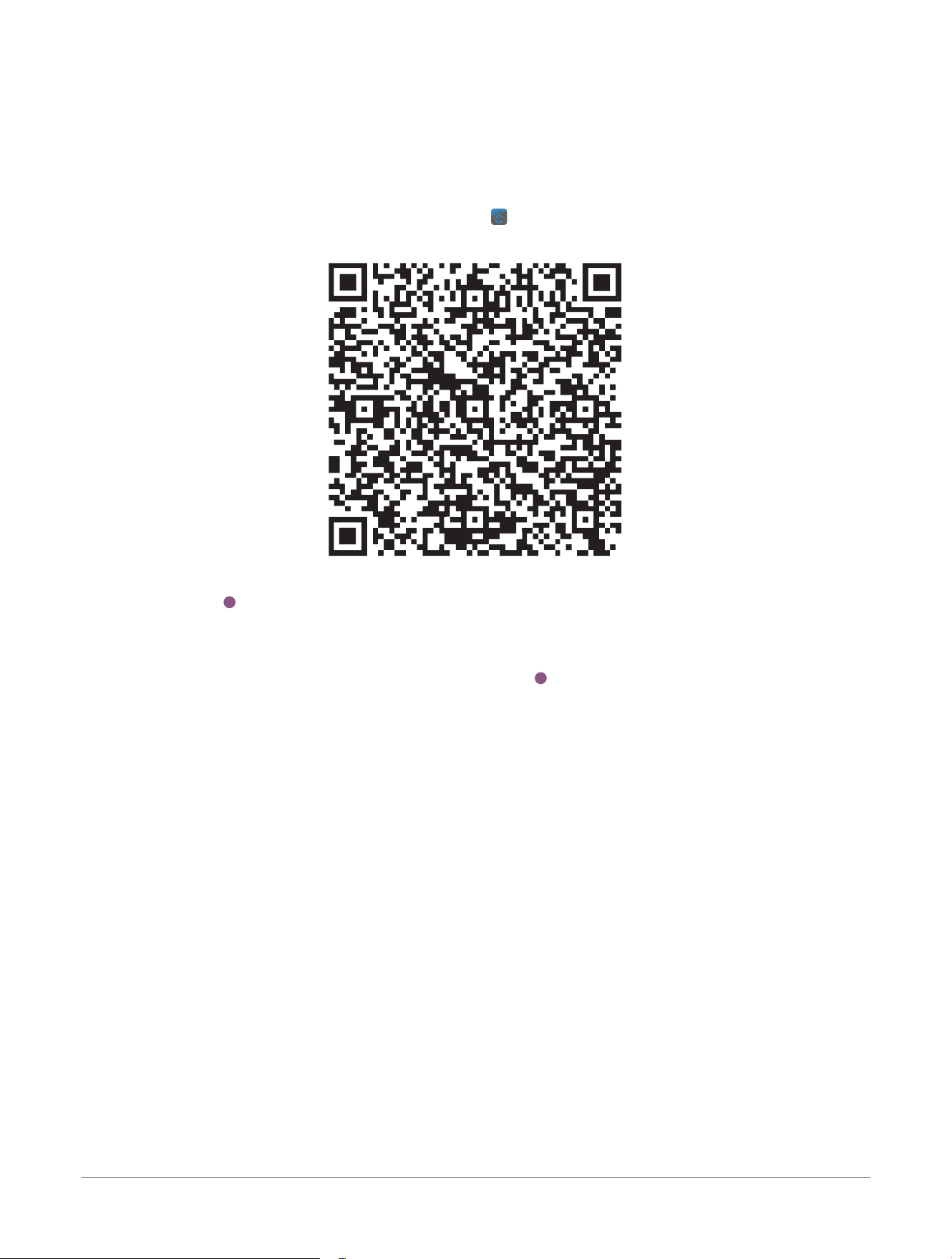
Battery Status LED
When enabled in the Garmin Connect app, you can tap the top of the device twice to view the current battery
status (Power Manager Settings, page18).
LED Activity Status
Solid (green) for approximately 2
seconds
Indicates a fully charged battery.
Flashing (green)
The module is charging. As the charge increases, the flash period increases
until it is fully charged.
Solid (orange)
Indicates a low battery.
Solid (red)
Indicates a critically low battery.
Introduction CIRQA™ Smart Band
Owner's Manual
7
Pairing and Setup
Pairing Your Device with the Garmin Connect
™
App
To use the CIRQA smart band, including connected features and viewing health and activity data, it must be
paired with the Garmin Connect app.
1 Bring your phone within 10 m (33 ft.) of your device.
2 From the app store on your phone, install and open the Garmin Connect app.
You can scan the QR code with your phone to open the Garmin Connect app.
3 Plug the module into a power source with the USB cable (Activating the CIRQA Smart Band, page3).
The LED flashes (purple). The device remains in pairing mode until it is paired. If needed, press the button
to reactivate pairing mode.
TIP: If you have already paired the device, you must remove it from your phone's Bluetooth
®
settings before
manually entering pairing mode. To manually enter pairing mode, press the button quickly three times or hold
the button for approximately 6 seconds until the LED flashes (purple) (Module Status LED, page6).
4 Follow the on-screen instructions in the Garmin Connect app.
Garmin Connect
™
Garmin Connect gives you the tools to track and analyze your health and activity data. You can connect with
your friends on Garmin Connect to share and encourage each other. Record the events of your active lifestyle
including runs, walks, rides, swims, hikes, and more. To sign up for a free account, you can download the app
from the app store on your phone (garmin.com/connectapp), or go to connect.garmin.com.
Store your activities: After you complete and save an activity with your device, you can upload that activity to
your Garmin Connect account and keep it as long as you want.
Analyze your data: You can view more detailed information about your activity, including time, distance, heart
rate, and calories burned.
8
CIRQA™ Smart Band
Owner's Manual
Pairing and Setup
Plan your training: You can choose a fitness goal and load one of the day-by-day training plans.
Track your progress: You can track your daily steps, join a friendly competition with your connections, and meet
your goals.
Share your activities: You can connect with friends to follow each other's activities or share links to your
activities.
Manage your settings: You can customize your device and user settings on your Garmin Connect account.
Garmin Connect+
™
Subscription
You can enhance the data, connections, and training available on your Garmin Connect account with a Garmin
Connect+ subscription. To sign up, you can download the Garmin Connect app from the app store on your
phone, or go to connect.garmin.com.
Active Intelligence (AI): Receive AI insights about your data and activities, including nutrition.
LiveTrack+: Send LiveTrack text messages, receive a personalized profile page, and view previous LiveTrack
sessions.
Track indoor activities: View your indoor activity and workout data in real time, enabling you to adjust your
performance during the activity.
Live Activity Stats: Follow a workout in the Garmin Connect app and view your training data in real time.
NOTE: This feature is not available for all activities or devices.
Training guidance: Get additional expert support and guidance for select Garmin
®
Coach training plans.
Nutritional logging: Track your daily nutrition with extensive food databases and view detailed reports on
macronutrients and calories consumed. From your compatible Garmin device, you can easily view your daily
nutritional overview, log food manually, and receive morning and evening nutrition reports. From the Garmin
Connect app, you can scan the UPC, log new food items, create nutrition goals, and more.
Performance dashboard: View your training data your way with customized charts and graphs, including
nutrition metrics.
Social features: Gain access to exclusive badges, badge challenges, and double points for challenges. You can
update your profile avatar with customizable frames.
Using the Garmin Connect
™
App
After you pair your device with your phone (Pairing Your Device with the Garmin Connect
™
App, page8), you can
use the Garmin Connect app to upload all of your activity data to your Garmin Connect account.
1 Verify the Garmin Connect app is running on your phone.
2 Bring your device within 10m (30ft.) of your phone.
Your device automatically syncs your data with the Garmin Connect app and your Garmin Connect account.
Updating the Software Using the Garmin Connect
™
App
Before you can update your device software using the Garmin Connect app, you must have a Garmin Connect
account, and you must pair the device with a compatible phone (Pairing Your Device with the Garmin Connect
™
App, page8).
Sync your device with the Garmin Connect app (Manually Syncing Data with the Garmin Connect
™
App,
page11).
Pairing and Setup
CIRQA™ Smart Band
Owner's Manual
9
Unified Training Status
When you use more than one Garmin
®
device with your Garmin Connect
™
account, you can choose which device
is the primary data source for everyday use and for training purposes.
From the Garmin Connect app, select > Settings.
Primary Training Device: Sets the priority data source for training metrics like your training status and load
focus.
Primary Wearable: Sets the priority data source for daily health metrics like steps and sleep. This should be the
wearable you use most often.
TIP: For the most accurate results, Garmin recommends that you sync often with your Garmin Connect account.
Home Settings
Your Garmin Connect
™
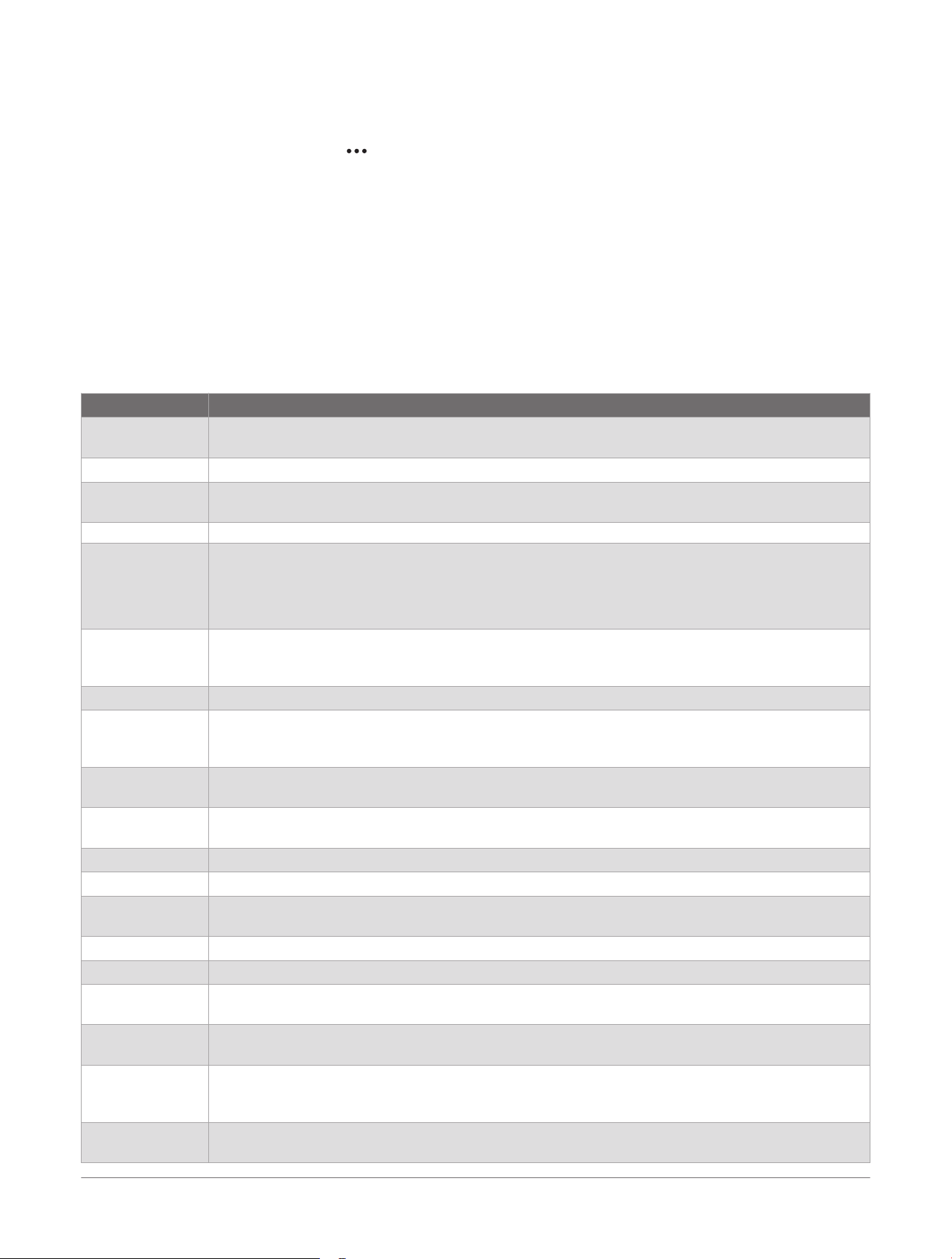
home screen provides quick information that syncs throughout the day. You can
customize your home screen to reflect your fitness or health goals. Some settings require a Garmin Connect+
subscription.
TIP: If you have additional devices connected to your Garmin Connect account, you have additional settings.
From the Garmin Connect home screen, scroll down, and select Edit Home.
Name Description
Body Battery
™
With all-day wear, displays your current Body Battery level and a graph of your level for the last
several hours (Body Battery
™
, page11).
Calories burned Displays your calorie information for the current day.
Challenges Tracks your progress when you participate in a Garmin Connect challenge or create your own
challenge.
Events Displays races or other events from your Garmin Connect calendar.
Fitness age Displays your calculated fitness compared with a person of the same sex. Your device uses
information, such as your age, body mass index (BMI), resting heart rate data, and vigorous
activity history to provide a fitness age. If you have an Index
™
scale, your device uses the body fat
percentage metric instead of BMI to determine your fitness age. Exercise and lifestyle changes can
impact your fitness age.
Garmin
®
coach
plans
Displays scheduled workouts when you select a Garmin coach adaptive training plan in your
Garmin Connect account. The plan adjusts to your current level of fitness, coaching and schedule
preferences, and race date if applicable.
Global badges
Tracks your progress if you participate in challenges from other regions.
Health status
Displays health metrics, such as your respiration and heart rate variability.
TIP: You can select each factor to view your history, see your baseline, and gain insight into your
data.
Heart rate Displays your current heart rate in beats per minute (bpm) and a graph of your average resting
heart rate (RHR).
Home screen
insights
Displays insights about your health metrics and activities.
HRV status Displays your seven-day average of your overnight heart rate variability.
Hydration Tracks the amount of water you consume and the progress toward your daily goal.
Intensity minutes Tracks your time spent participating in moderate to vigorous activities, your weekly intensity
minutes goal, and progress toward your goal.
Last 7 days Displays a list of your activities, average sleep score, and health metrics for the last seven days.
Last activity Displays a brief summary of your last recorded activity.
Lifestyle logging Tracks your day-to-day behaviors, and allows you to see how the behaviors affect certain health
metrics.
Menstrual cycle Tracks your physical symptoms, sex drive, sexual activity, ovulation days, and more. You can learn
more and set up this feature in the Health Stats settings of the Garmin Connect app.
Nutrition Displays your daily nutritional overview, including calories and macronutrients. You can also log
your food intake. You must have an active Garmin Connect+ subscription to track and view your
nutrition (Garmin Connect+
™
Subscription, page9).
Pulse oximeter Displays your pulse oximeter recorded throughout the day or during sleep, depending on your
current settings.
10 CIRQA™ Smart Band
Owner's Manual
Pairing and Setup
Name Description
Pushes In wheelchair mode, tracks your daily wheelchair push count, push goal, and data for previous days
(Wheelchair Mode, page19).
Reset Home Allows you to choose from a list of default home screen layouts. This overrides any custom
settings.
Respiration Displays your current respiration rate in breaths per minute, average respiration while awake, and
average respiration during sleep(xref).
Sleep score Displays total sleep time, a sleep score, and sleep stage information for the previous night. You can
also view any overnight breathing variations (Sleep Tracking, page14).
Steps Tracks your daily step count, step goal, and data for previous days.
Stress Displays your current stress level and a graph of your stress level. If you are too active for the
device to determine your stress level, stress measurements are not recorded.
Trends (activity
based)
Displays a brief summary of your last recorded activity and history of the specified sport.
VO2 max. Displays your current VO2 max. estimate as a number, description, and position on the color
gauge(xref).
Weight
Displays your recent weight trends and history. You can enter your weight manually. If you have an
Index scale paired to your Garmin Connect account, your weight data appears in the glance.
Yesterday Displays a list of your activities, sleep score, and health metrics for the previous day.
Body Battery
™
Your device analyzes your heart rate variability, stress level, sleep quality, and activity data to determine your
overall Body Battery level. Like a gas gauge on a car, it indicates your amount of available reserve energy. The
Body Battery level range is from 5 to 100, where 5 to 25 is very low reserve energy, 26 to 50 is low reserve
energy, 51 to 75 is medium reserve energy, and 76 to 100 is high reserve energy.
You can sync your device with your Garmin Connect
™
account to view your most up-to-date Body Battery level,
long-term trends, and additional details
(Tips for Improved Body Battery
™
Data, page11).
Tips for Improved Body Battery
™
Data
• For more accurate results, wear the device while sleeping.
• Good sleep charges your Body Battery.
• Strenuous activity and high stress can cause your Body Battery to drain more quickly.
• Food intake, as well as stimulants like caffeine, has no impact on your Body Battery.
Manually Syncing Data with the Garmin Connect
™
App
The CIRQA device periodically syncs data with the Garmin Connect app automatically when your device is
awake and connected to the Garmin Connect app. You can also manually sync data at any time.
1 Bring the device near the paired phone.
2 Open the Garmin Connect app.
TIP: The app can be open or running in the background.
3 Select > Garmin Devices.
4 Select the CIRQA device.
5 Select .
6 Wait while the data syncs.
7 View your sleep data in the Garmin Connect app.
Pairing and Setup
CIRQA™ Smart Band
Owner's Manual
11
Activity Tracking
The activity tracking feature records your daily step count, distance traveled, intensity minutes, calories burned,
and sleep statistics for each recorded day. Your calories burned includes your base metabolism plus activity
calories.
The number of steps taken during the day appears in your Garmin Connect
™
account. The step count is updated
periodically.
When wheelchair mode is enabled, the device records different metrics, such as pushes instead of steps
(Wheelchair Mode, page19).
For more information about activity tracking and fitness metric accuracy, go to garmin.com/ataccuracy.
Activities
From the Garmin Connect
™
app, select > Garmin Devices, select your device, and select Activity Options> All
Activities.
NOTE: Some activities appear in more than one category.
Some activities may require a Garmin Connect+ subscription.
Category Activities
Gym Boxing, Cardio, Climb Indoor, Elliptical, Floor Climb, HIIT, Jump Rope, Mixed Martial Arts, Mobility,
Pilates, Row Indoor, Stair Stepper, Strength, Walk Indoor, Yoga
Outdoor Archery, Bouldering, Disc Golf, Golf, Hike, Horseback, Inline Skating, Mountaineering, Walk
Running Indoor Track, Run, Track Run, Trail Run, Treadmill, Obstacle Racing
Cycling Bike, Bike Commute, Bike Indoor, Bike Tour, BMX, eBike, eMTB, Gravel Bike, Handcycle, Handcycle
Indoor, MTB, Road Bike
Swimming Swim
Racket Sports Badminton, Padel, Pickleball, Racquetball, Squash, Table Tennis, Tennis
Team Sports American Football, Baseball, Basketball, Cricket, Field Hockey, Gaming, Ice Hockey, Lacrosse, Rugby,
Soccer/Football, Softball, Volleyball, Ultimate Disc
Winter Sports Ice Skating, Ski, Snowboard, Snowshoe, XC Classic Ski, XC Skate Ski
Water Sports Boat, Fish, Kayak, Row, Snorkel, SUP
Other Breathwork, Meditation, Dance Fitness, Other
Recording an Activity from the CIRQA Smart Band
You can select a favorite activity in the Garmin Connect
™
app (Adding or Removing a Favorite Activity, page13).
1 Press the button on the CIRQA smart band.
The LED flashes (green) and the CIRQA smart band vibrates when it begins recording your activity.
2 After you finish the activity, press the button on the CIRQA smart band again.
The LED flashes (red) and the CIRQA smart band vibrates. The activity appears in the Garmin Connect app
after the device syncs.
Recording an Activity from Garmin Connect
™
You can start and stop an activity from the Garmin Connect app. You can also start and stop one activity from
the CIRQA smart band (Adding or Removing a Favorite Activity, page13).
1 From the Garmin Connect app, select > Record Activity.
2 Select an activity.
3 Select Start Recording.
Your CIRQA smart band vibrates and the LED flashes (green).
4 Select Lap to mark a lap (optional).
5 Select Stop.
6 Select an option:
• To discard the activity, select Discard.
• To resume the activity, select Resume.
• To save the activity, select Save.
12
CIRQA™ Smart Band
Owner's Manual
Activity Tracking

Adding or Removing a Favorite Activity
You can set a favorite activity to start and stop from the CIRQA smart band.
1 From the Garmin Connect
™
app, select > Garmin Devices.
2 Select your device.
3 Select Activity Options> Edit.
4 Select an activity.
When you press the button on your CIRQA smart band, it starts the favorite activity type.
Auto-Detected Activities
Your device uses recorded motion and exertion data, along with historical data from your account, to
automatically identify your activities. This may include GPS location data from your connected phone. When
an activity is detected and recorded, it is automatically uploaded to your Garmin Connect
™
account, where you
can edit or discard it. You must consent to your location data being used for this feature. For more information
on auto-detected activities, go to garmin.com/autoactivitydetection.
Turning Auto-Detected Activities On and Off
1 From the Garmin Connect
™
app, select > Garmin Devices.
2 Select your device.
3 Select Health & Wellness> Auto-Detected Activities.
Starting a Workout
You can use the Garmin Connect
™
app on your phone to guide you through multiple steps in a workout while
you're wearing your CIRQA device.
This feature requires a Garmin Connect+ subscription.
1 From the Garmin Connect app, select > Garmin Devices.
2 Select your device.
3 Select Workouts.
4 If necessary, select Find Workout.
5 Select a workout.
6 Select Do Workout> Start Recording.
After you begin a workout, your phone displays each step of the workout, step notes (optional), and the current
workout data.
Activity Settings
These settings allow you to customize each preloaded activity based on your needs. Not all settings are
available for all activity types.
From the Garmin Connect
™
app, select > Garmin Devices, select your device, select Activity Options, and
select an activity.
Alerts: Sets the training alerts for the activity.
Laps: Sets the options for the Auto Lap feature to automatically mark laps. The Auto Distance option marks laps
at a specific distance.
Phone GPS: Turns phone GPS on or off for the activity.
Band Position: Sets the band position to your arm or wrist.
The default position is the side you selected in your user profile (Changing the Wear Location, page19).
Rep Counting: Enables rep counting during a workout. The Workouts Only option enables rep counting during
guided workouts only (Starting a Workout, page13).
Activity Tracking
CIRQA™ Smart Band
Owner's Manual
13

Sleep Tracking
While you are sleeping, the device automatically detects your sleep and monitors your movement during your
normal sleep hours. You can set your normal sleep hours in the Garmin Connect
™
app. Sleep statistics include
total hours of sleep, sleep stages, sleep movement, and sleep score. Your sleep coach provides sleep need
recommendations based on your sleep and activity history, circadian rhythm, and HRV status. You can view
detailed sleep statistics on your Garmin Connect account.
Using Automated Sleep Tracking
1 Wear your device while sleeping.
2
Upload your sleep tracking data to your Garmin Connect
™
account (Using the Garmin Connect
™
App, page9).
You can view your sleep statistics on your Garmin Connect account.
14 CIRQA™ Smart Band
Owner's Manual
Sleep Tracking

Alarms
Setting an Alarm
Before you can set an alarm, your CIRQA device must be connected to the Garmin Connect
™
app.
1 From the Garmin Connect app, select > Garmin Devices.
2 Select the CIRQA device.
3 Select Alarms> Add Alarm.
4 Select Time to set the alarm time.
5 Select Repeat to set or customize the alarm recurrence.
6 To set an alarm to gently wake you in the 30-minute window before your scheduled alarm based on optimal
sleep timing, turn on Smart Wake Alarm.
NOTE: Your alarm will always go off at your selected time in addition to any earlier alarms. For example, if
you set your alarm for 8:00 am, the alarm may gently alert you to wake up some time between 7:30 and 8:00
am.
7 To set an alarm that starts vibrating softly and then gets stronger, turn on Quiet Start.
8 Select Save.
9 To set and save additional alarms, select Add Alarm and repeat steps 4 through 8.
Editing an Alarm
1 From the Garmin Connect
™
app, select > Garmin Devices.
2 Select the CIRQA device.
3 Select Alarms> Edit.
4 Select an alarm.
5 Select an option.
6 Select Save.
Snoozing or Stopping an Alarm
You can use the Garmin Connect
™
app to set an alarm (Setting an Alarm, page15).
While the module is vibrating, select an option:
• To snooze the alarm, press the button.
• To stop the alarm, hold the button.
Alarms
CIRQA™ Smart Band
Owner's Manual
15

Health & Wellness Settings
From the Garmin Connect
™
app, select > Garmin Devices, select your device, and select Health & Wellness.
Heart Rate Status: Enables the heart rate monitor.
Disabling the wrist-based heart rate monitor also disables features such as your VO2 max. estimate, sleep
tracking, intensity minutes, the all-day stress feature, and the wrist-based pulse oximeter sensor.
Broadcast Heart Rate: Enables heart rate broadcasting and the ability to start and stop broadcasting from the
device (Broadcasting Heart Rate Data, page16).
Pulse Oximeter: Sets the pulse oximeter mode (Setting the Pulse Oximeter Mode, page16).
Daily Steps: Allows you to use an automatic average to set a daily steps goal or set your own goal.
Weekly Intensity Minutes: Allows you to set an intensity minutes goal, and enable using heart rate zones to
measure intensity.
Auto-Detected Activities: Enables automatic activity detection (Auto-Detected Activities, page13).
Setting the Pulse Oximeter Mode
1 From the Garmin Connect
™
app, select > Garmin Devices.
2 Select your device.
3 Select Health & Wellness> Pulse Oximeter.
4 Select an option:
• To turn on measurements while you are inactive during the day, select All Day.
NOTE: Turning on All Day mode decreases battery life.
• To turn on continuous measurements while you sleep, select During Sleep.
NOTE: Unusual sleep positions can cause abnormally low sleep-time SpO2 readings.
• To turn off automatic measurements, select Off.
Broadcasting Heart Rate Data
You can broadcast your heart rate data from your CIRQA smart band and view it on paired devices. For example,
you can broadcast your heart rate data to an Edge
®
bike computer while cycling.
NOTE: Broadcasting heart rate data decreases battery life.
1 From the Garmin Connect
™
app, select > Garmin Devices.
2 Select your device.
3 Select Health & Wellness> Broadcast Heart Rate.
4 Select Status to turn heart rate broadcasting on or off.
5 Select Device Control to be able to hold the button on your device for three seconds to turn heart rate
broadcasting on or off (optional).
When device control is turned on, you can hold the button on your CIRQA smart band for three seconds until
the LED flashes (yellow) to start broadcasting.
6 Pair your CIRQA smart band with your Garmin
®
compatible device.
NOTE: The pairing instructions differ for each Garmin compatible device. See your owner's manual.
16
CIRQA™ Smart Band
Owner's Manual
Health & Wellness Settings
Notifications & Alerts Settings
From the Garmin Connect
™
app, select > Garmin Devices, select your device, and select Notifications &
Alerts.
Abnormal Heart Rate Alerts: Customizes high and low heart rate alerts (Setting an Abnormal Heart Rate Alert,
page17).
Bedtime Approaching: Enables an alert when your bedtime is approaching (Sleep Tracking, page14).
Fitness Age: Enables alerts when your fitness age changes.
Goal Alerts: Enables goal alerts, including steps and weekly intensity minutes goals.
High Stress: Enables high stress alerts.
Sleep Score Ready: Enables an alert when your sleep score is ready.
VO2 Max. Change: Enables alerts when your VO2 max. changes.
Setting an Abnormal Heart Rate Alert
CAUTION
This feature only alerts you when your heart rate exceeds or drops below a certain number of beats per minute,
as selected by the user, after at least ten minutes of inactivity. This feature does not notify you when your heart
rate drops below the selected threshold during your chosen sleep window configured in the Garmin Connect
™
app. This feature does not notify you of any potential heart condition and is not intended to treat or diagnose
any medical condition or disease. Always defer to your health care provider for any heart-related issues.
You can set the heart rate threshold value.
1 From the Garmin Connect app, select > Garmin Devices.
2 Select your device.
3 Select Notifications & Alerts> Abnormal Heart Rate Alerts.
4 Select High Alert or Low Alert.
5 Set the heart rate threshold value.
Each time your heart rate exceeds or drops below the threshold value, a message appears on your phone and
the device vibrates.
Notifications & Alerts Settings
CIRQA™ Smart Band
Owner's Manual
17
Power Manager Settings
From the Garmin Connect
™
app, select > Garmin Devices, select your device, and select Power Manager.
Battery Saver: Reduces LED brightness and disables heart rate, start activity, auto activity detection, and pulse
oximeter settings to extend battery life.
Low Battery Alert: The device vibrates and the LED flashes (red) when the battery level is low (Checking the
Battery Level, page23).
Battery Fully Charged Alert: The device vibrates and the LED flashes (green) when the battery is fully
charged.
Battery Status: When enabled, you can tap the device twice to view the the battery level (Module Status LED,
page6).
18 CIRQA™ Smart Band
Owner's Manual
Power Manager Settings

User Profile Settings
You can update your personal information, such as height, weight, heart rate zones, and more. The device uses
this information to calculate accurate training data.
From the Garmin Connect
™
app, select > Garmin Devices, select your device, and select User Profile.
VO2 Max: Allows you to see your current VO2 max. estimate and when it was last updated (Getting Your VO2
Max. Estimate, page19).
Fitness Age: Displays your current fitness age (Viewing Your Fitness Age, page19).
Gender: Sets your sex (Gender Settings, page20).
Birth Date: Displays your birth date.
To change your birth date, you must update your account profile on garmin.com.
Height: Sets your height.
Weight: Sets your weight.
Wearing Location: Allows you to select which arm or wrist the band is worn on (Changing the Wear Location,
page19).
Wheelchair Mode: Turns wheelchair mode on or off and sets exercise frequency (Wheelchair Mode, page19).
Sleep Schedule: Allows you to set your sleep schedule (Sleep Tracking, page14).
Heart Rate Zones: Allows you to estimate your maximum heart rate and determine custom heart rate zones
(About Heart Rate Zones, page20).
Changing the Wear Location
Your CIRQA smart band uses the wearing location of the device to determine health and activity tracking
metrics. You can also set the wear location for each activity (Activity Settings, page13).
1 From the Garmin Connect
™
app, select > Garmin Devices.
2 Select your device.
3 Select User Profile> Wearing Location.
4 Select a wearing location.
Viewing Your Fitness Age
Your fitness age gives you an idea of how your fitness compares with a person of the same sex. Your device
uses information, such as your age, body mass index (BMI), resting heart rate data, and vigorous activity history
to provide a fitness age. If you have an Index
™
scale, your device uses the body fat percentage metric instead of
BMI to determine your fitness age. Exercise and lifestyle changes can impact your fitness age.
NOTE: For the most accurate fitness age, complete the user profile setup (User Profile Settings, page19).
From the Garmin Connect
™
app, select > Health Stats> Fitness Age.
Getting Your VO2 Max. Estimate
The device requires wrist-based heart rate data and a timed 15-minute brisk walk or run to display your VO2
max. estimate.
1 From the Garmin Connect
™
app, select > Performance Stats> Training Status> VO2 Max.
If you have recorded a 15 minute brisk walk or run, your VO2 max. estimate appears. The device updates
your VO2 max. estimate each time you complete a timed walk or run.
2 Select Help> How to Get VO2 Max.
3 Follow the on-screen instructions.
A message appears when the test is complete.
Wheelchair Mode
Wheelchair mode updates your available activities. For example, wheelchair mode has indoor and outdoor push
and handcycling activities, such as Push - Run Speed and Push - Walk Speed, instead of running and walking
activities. When wheelchair mode is turned on, your device tracks your movements as pushes rather than steps.
The device does not update your VO2 max. estimate while in wheelchair mode.
TIP: For optimal performance, you should wear the band on your wrist instead of your upper arm.
The first time you enable wheelchair mode, you can select your exercise frequency in order to set your activity
level to the correct algorithm. You can turn wheelchair mode on or off in your user profile settings (User Profile
Settings, page19).
User Profile Settings
CIRQA™ Smart Band
Owner's Manual
19

For more information about wheelchair physiology, go to garmin.com/en-US/garmin-technology/health-science/
wheelchair-physiology/.
About Heart Rate Zones
Many athletes use heart rate zones to measure and increase their cardiovascular strength and improve their
level of fitness. A heart rate zone is a set range of heartbeats per minute. The five commonly accepted
heart rate zones are numbered from 1 to 5 according to increasing intensity. Generally, heart rate zones are
calculated based on percentages of your maximum heart rate.
Gender Settings
When you first set up the device, you must choose a sex. Most fitness and training algorithms are binary. For
the most accurate results, Garmin
®
recommends selecting your sex assigned at birth. After the initial setup, you
can customize the profile settings in your
Garmin Connect
™
account.
Profile & Privacy: Enables you to customize the data on your public profile.
User Settings: Sets your sex. If you select Not Specified, the algorithms that require a binary input will use the
sex you specified when you first set up the device.
20 CIRQA™ Smart Band
Owner's Manual
User Profile Settings
Safety and Tracking Features
CAUTION
The safety and tracking features are supplemental features and should not be relied on as a primary method to
obtain emergency assistance. The Garmin Connect
™
app does not contact emergency services on your behalf.
NOTICE
To use the safety and tracking features, the CIRQA smart band must be connected to the Garmin Connect app
using Bluetooth
®
technology. Your paired phone must be equipped with a data plan and be in an area of network
coverage where data is available. You can enter emergency contacts in your Garmin Connect account.
For more information about safety and tracking features, go to garmin.com/safety.
LiveTrack: Allows friends and family to follow your races and training activities in real time. You can invite
followers using email or social media, allowing them to view your live data on a web page.
Turning On and Off LiveTrack
Before you can start your first LiveTrack session, you must set up contacts in the Garmin Connect
™
app (Adding
Contacts, page21).
1 From the Garmin Connect app, select > Safety & Tracking> LiveTrack.
2 Select an option:
• To start a LiveTrack session each time you start an outdoor activity, select Auto Start.
• To start a session right away, select Start LiveTrack.
Adding Contacts
You can add up to 50 contacts to the Garmin Connect
™
app. Contact emails can be used with the LiveTrack
feature.
1 From the Garmin Connect app, select > Contacts.
2 Follow the on-screen instructions.
After you add contacts, you must sync your data to apply the changes to your device (Manually Syncing Data
with the Garmin Connect
™
App, page11).
Adding Assistance Contacts
Assistance contact phone numbers are used for the safety and tracking features.
1 From the Garmin Connect
™
app, select .
2 Select Safety & Tracking> Safety Features> Assistance Contacts> Add Assistance Contact.
3 Follow the on-screen instructions.
Your assistance contacts receive a notification when you add them as an assistance contact, and can accept or
decline your request. If a contact declines, you must choose another assistance contact.
Safety and Tracking Features
CIRQA™ Smart Band
Owner's Manual
21

System Settings
From the Garmin Connect
™
app, select > Garmin Devices, select your device, and select System.
Format: Sets the time format and units of measure. You can also set pace or speed preferences for each
activity (Customizing Pace and Speed Preferences, page22).
Reset: Configures data backups and resets user data and settings (Resetting the Device, page26).
Software Update: Installs downloaded software updates and allows you to manually check for updates (Product
Updates, page26).
Power Off: Turns off the CIRQA smart band.
USB Mode: Sets the device to use MTP (media transfer protocol) or Garmin
®
mode when connected to a
computer.
About: Displays device, software, and license information.
Customizing Pace and Speed Preferences
You can set activities to record using your pace or your speed.
1 From the Garmin Connect
™
app, select > Garmin Devices.
2 Select your device.
3 Select System> Format> Pace/Speed Preference.
4 Select an activity.
22 CIRQA™ Smart Band
Owner's Manual
System Settings
Device Information
Charging the Device
WARNING
This device contains a lithium-ion battery. See the Important Safety and Product Information guide in the product
box for product warnings and other important information.
NOTICE
To prevent corrosion, thoroughly clean and dry the contacts and the surrounding area before charging.
NOTE: The device will not charge when it is outside of the approved temperature range (Specifications,
page25).
Your device comes with a proprietary charging cable. For optional accessories and replacement parts, go to
garmin.com, or contact your Garmin
®
dealer.
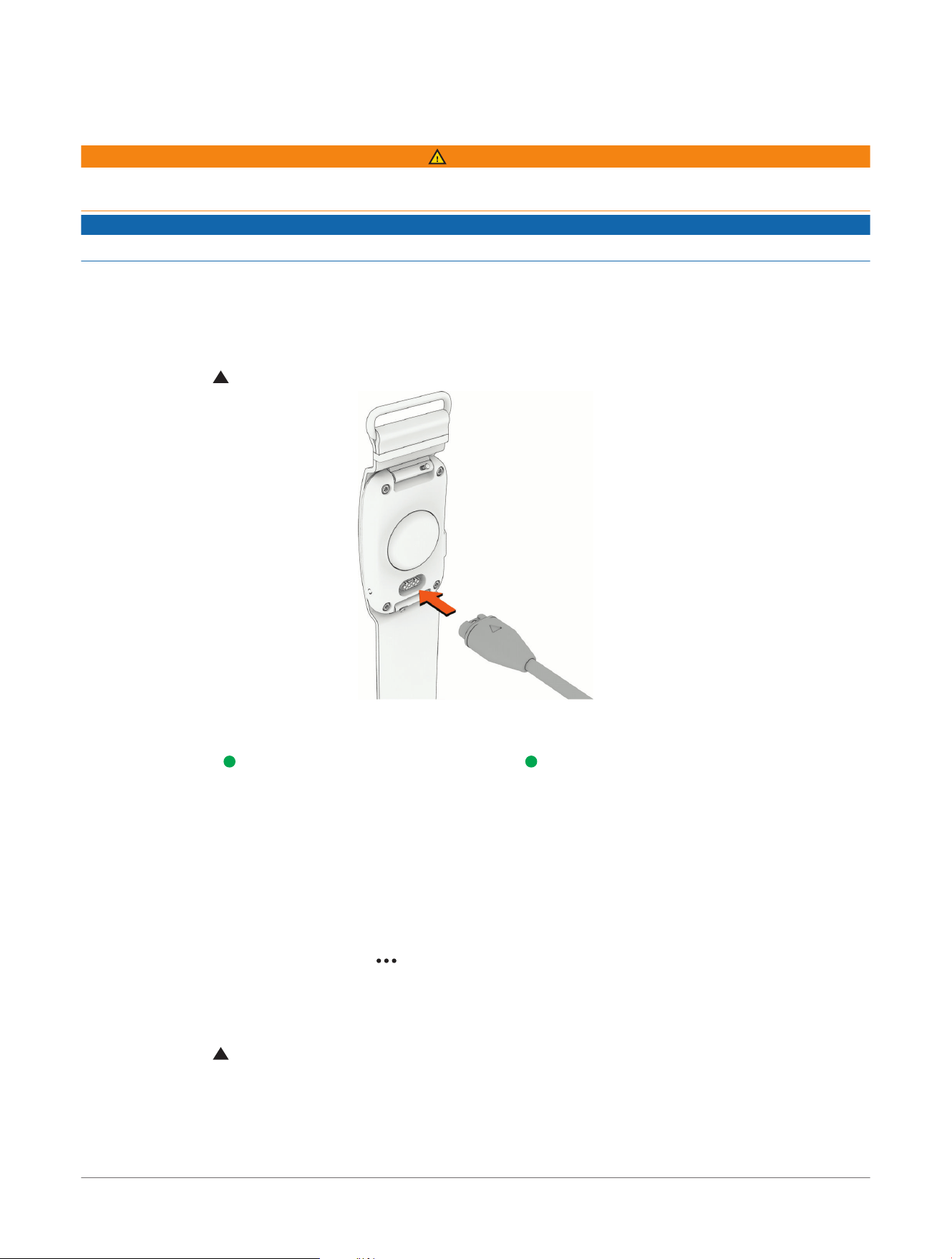
1 Locate the back of the module.
2 Plug the cable ( end) into the charging port.
3 Plug the other end of the cable into a USB charging port.
4 Charge the device completely.
The LED flashes (green) while charging. The LED is solid (green) when charging is complete.
Charging the device can take up to 90 minutes.
Checking the Battery Level
From the Garmin Connect
™
app, select your device icon in the upper-right corner.
The battery status appears next to the device name.
Connecting the Device to Your Computer
You can connect the CIRQA device to your computer to install software updates or transfer activity files or data
to your computer.
1 From the Garmin Connect
™
app, select > Garmin Devices.
2 Select the CIRQA device.
3 Select System> USB File Access.
4 Enable File Access Over USB.
5 Plug the cable ( end) into the charging port on the device.
6 Plug the other end of the cable into a computer USB port.
Depending on your computer operating system, the device appears as either a portable device, a removable
drive, or a removable volume.
NOTE: Mac
®
operating systems do not detect the device by default. You must use Garmin Express
™
software
to interact with files on your device.
Device Information
CIRQA™ Smart Band
Owner's Manual
23
Changing the Band
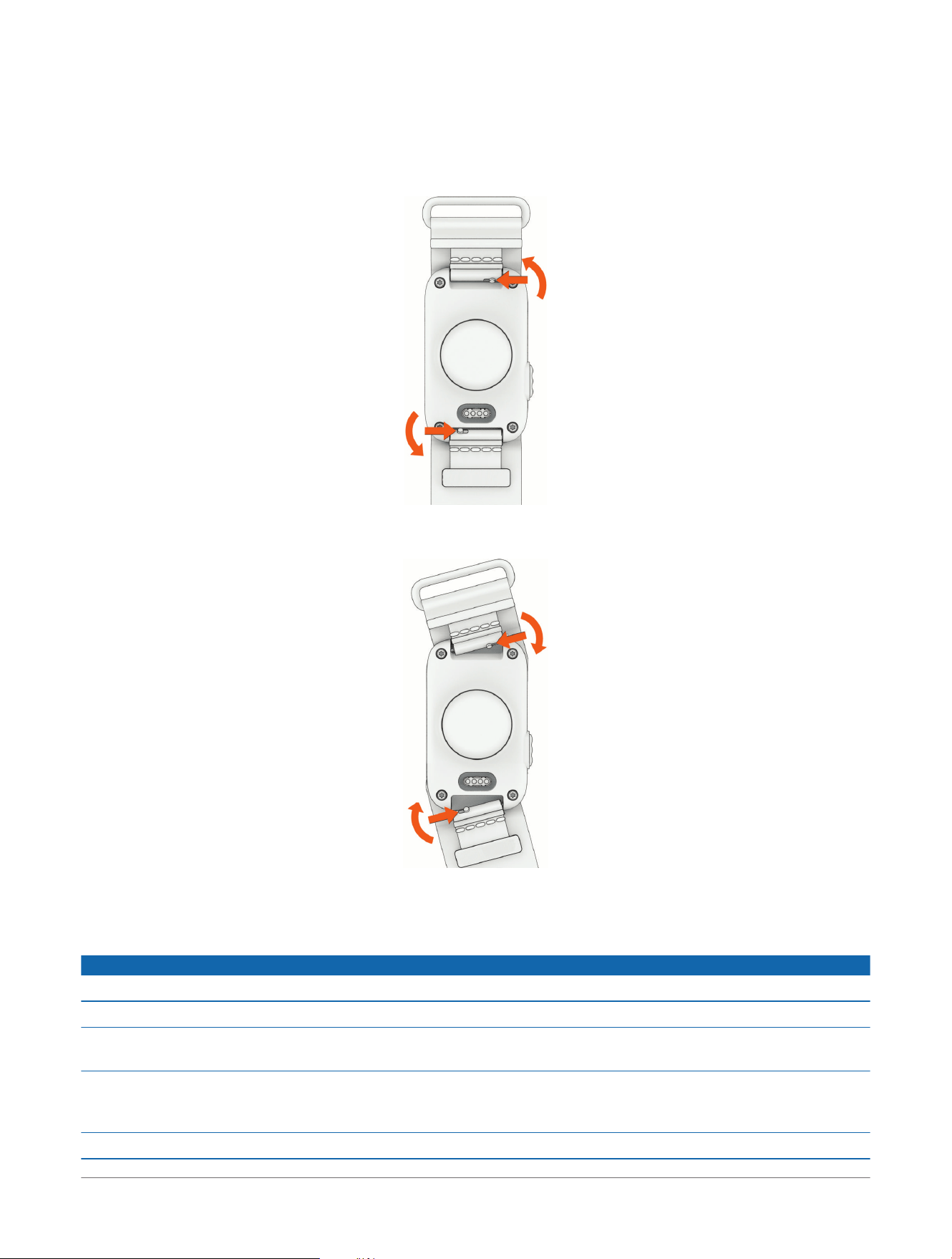
You can replace the band with an arm band or wrist band. To purchase bands, go to garmin.com.
The module is compatible with 24 mm wide fabric bands with a 14 mm wide quick-release pin.
The module is not compatible with third-party bands.
1 Slide the quick-release pin on the spring bar to remove the band.
2 Repeat the previous step on the other side.
3 Insert one side of the spring bar for the new band into the module.
4 Slide the quick-release pin, and press the band into place.
5 Repeat the previous steps to install the other end of the band.
Device Care
NOTICE
Avoid extreme shock and harsh treatment, because it can degrade the life of the product.
Avoid chemical cleaners, solvents, and insect repellents that can damage plastic components and finishes.
Do not store the device where prolonged exposure to extreme temperatures can occur, because it can cause
permanent damage.
Do not wash the module in the washing machine. The module should withstand occasional rain or water
splashes. Putting the module in the washing machine or dryer may damage the module (Machine Washing,
page25).
Do not use a sharp or abrasive object to clean the module.
24
CIRQA™ Smart Band
Owner's Manual
Device Information
Avoid scratching the sensor on the back of the module.
Machine Washing
Before washing the band in a washing machine, you must remove the module from the band.
• Attach the hook and loop closures on the band before washing.
• Wash the band in the washing machine with a regular load of laundry or by itself.
• Place the band in a washing bag or mesh laundry bag to prevent it from getting tangled.
• Use a small amount of mild detergent.
NOTE: Do not use bleach or detergents that contain harsh chemicals, fabric softener, bleach, or abrasive
materials.
• Run the washing machine on the gentle cycle, with warm water at a maximum temperature of 40°C (104°F).
• When air drying the band, hang it up or lay it flat.
Specifications
Arm band S/M: 36.0 x 2.4 x 0.2 cm (14.2 x 9.5 x 0.08 in.)
L/XL: 50.0 x 2.4 x 0.2 cm (19.7 x 9.5 x 0.08 in.)
Wrist band S/M: 24.5 x 2.4 x 0.2 cm (9.6 x 9.5 x 0.08 in.)
L/XL: 28.5 x 2.4 x 0.2 cm (11.2 x 9.5 x 0.08 in.)
Battery type Rechargeable, built-in lithium-ion battery
Battery life Up to 10 days
Operating temperature range From -20° to 60°C (from -4° to 140°F)
Charging temperature range From 0° to 45°C (from 32° to 113°F)
Wireless frequency 2400 - 2483.5 MHz: < 13 dBm
Water rating
5ATM
1
1
The device withstands pressure equivalent to a depth of 50m. For more information, go to www.garmin.com/waterrating.
Device Information CIRQA™ Smart Band
Owner's Manual
25
Troubleshooting
Product Updates
Your device automatically checks for updates when paired with a phone using Bluetooth
®
technology. You can
manually check for updates from the system settings (System Settings, page22). On your phone, install the
Garmin Connect
™
app.
This provides easy access to these services for Garmin
®
devices:
• Software updates
• Data uploads to the Garmin Connect app on your phone
• Product registration
Resetting the Device
Before you reset all default settings, you should sync the device with the Garmin Connect
™
app to upload your
activity data.
You can reset all of the device settings to the factory default values.
1 From the Garmin Connect app, select > Garmin Devices.
2 Select the CIRQA device.
3 Select System> Reset.
4 Select an option:
• To reset all of the device settings to the factory default values, including user profile data, but save
activity history and downloaded apps and files, select Reset Default Settings.
• To reset all of the device settings to the factory default values and delete all user-entered information and
activity history, select Delete Data and Reset Settings.
The LED flashes continuously, until the reset is complete.
Resetting the device can take up to 10 minutes.
5
Pair again (Pairing Your Device with the Garmin Connect
™
App, page8).
Locating a Lost Device
You can use this feature to help locate a lost Garmin
®
device that is within range of a paired phone.
If your device is not within range, the last time it was connected appears and the last known GPS location
appears on the map.
1 From the Garmin Connect
™
app, select > Garmin Devices.
2 Select your device.
3 Select Find My Band.
The phone begins searching for the paired CIRQA smart band. The device vibrates until you press the button.
4 From the Garmin Connect app, select OK.
Getting More Information
• Go to support.garmin.com for additional manuals, articles, and software updates.
• Go to garmin.com, or contact your Garmin
®
dealer for information about compatible devices and
replacement parts.
• Go to www.garmin.com/ataccuracy.
This is not a medical device. The pulse oximeter feature is not available in all countries.
26
CIRQA™ Smart Band
Owner's Manual
Troubleshooting


support.garmin.com
© 2026 Garmin Ltd. or its subsidiaries
Garmin
®
and the Garmin Logo are trademarks of Garmin Ltd. or its subsidiaries, registered in the USA and other countries. CIRQA
™
and Garmin Connect
™
are
trademarks of Garmin Ltd. or its subsidiaries. These trademarks may not be used without the express permission of Garmin. These trademarks may not be
used without the express permission of Garmin.
The Bluetooth
®
word mark and logos are owned by the Bluetooth SIG, Inc. and any use of such marks by Garmin is under license. Other trademarks and trade
names are those of their respective owners. Mac
®
is a trademark of Apple Inc., registered in the U.S. and other countries and regions.
M/N: AA5192
July 2026 GUID-D3BE589F-1A6C-4B6F-9ABC-07DB9AA6C739 v1