Copyright © 2026 LG Electronics Inc. All Rights Reserved
OWNER’S MANUAL
NOTEBOOK
MFL05836402
For the safe and convenient use of the product, please read this owner’s manual before use.
www.lg.com
1 Important Safety Precautions
ENGLISH
Important Safety Precautions
Check the following ‘Important Safety Precautions’ to prevent unexpected
danger or damage in advance.
‘Important Safety Precautions’ is divided into ‘WARNING’ and ‘CAUTION.’
WARNING: Noncompliance with the instruction may cause serious
physical damage or fatal injuries.
CAUTION: Noncompliance with the instruction may cause minor
damage to the body or the machine.
NOTE
•
For more information on safety precautions, refer to LG Easy Guide /
LG Troubleshooting.
PC Cleaning Guide
Use a dedicated cleaning agent when cleaning the PC.
Use a small amount of the dedicated cleaning agent on a clean microfiber
cloth to clean the exterior surface of the product, and make sure it is
completely dry before using it again.
WARNING
• If the PC is wet while used, an electric shock or
fire may occur.
Contents
Important Safety Precautions ......................................................1
Precautions before Product Use ..................................................3
Checking the Components ............................................................3
Connecting and Turning On the PC ............................................4
System Shutdown / Power Off ....................................................4
Using Stylus Pen ..............................................................................4
Pre-Tech Support Checklist ...........................................................6
Appendix ............................................................................................6
Open Source Software Notice Information ..................................................6
2Important Safety Precautions
ENGLISH
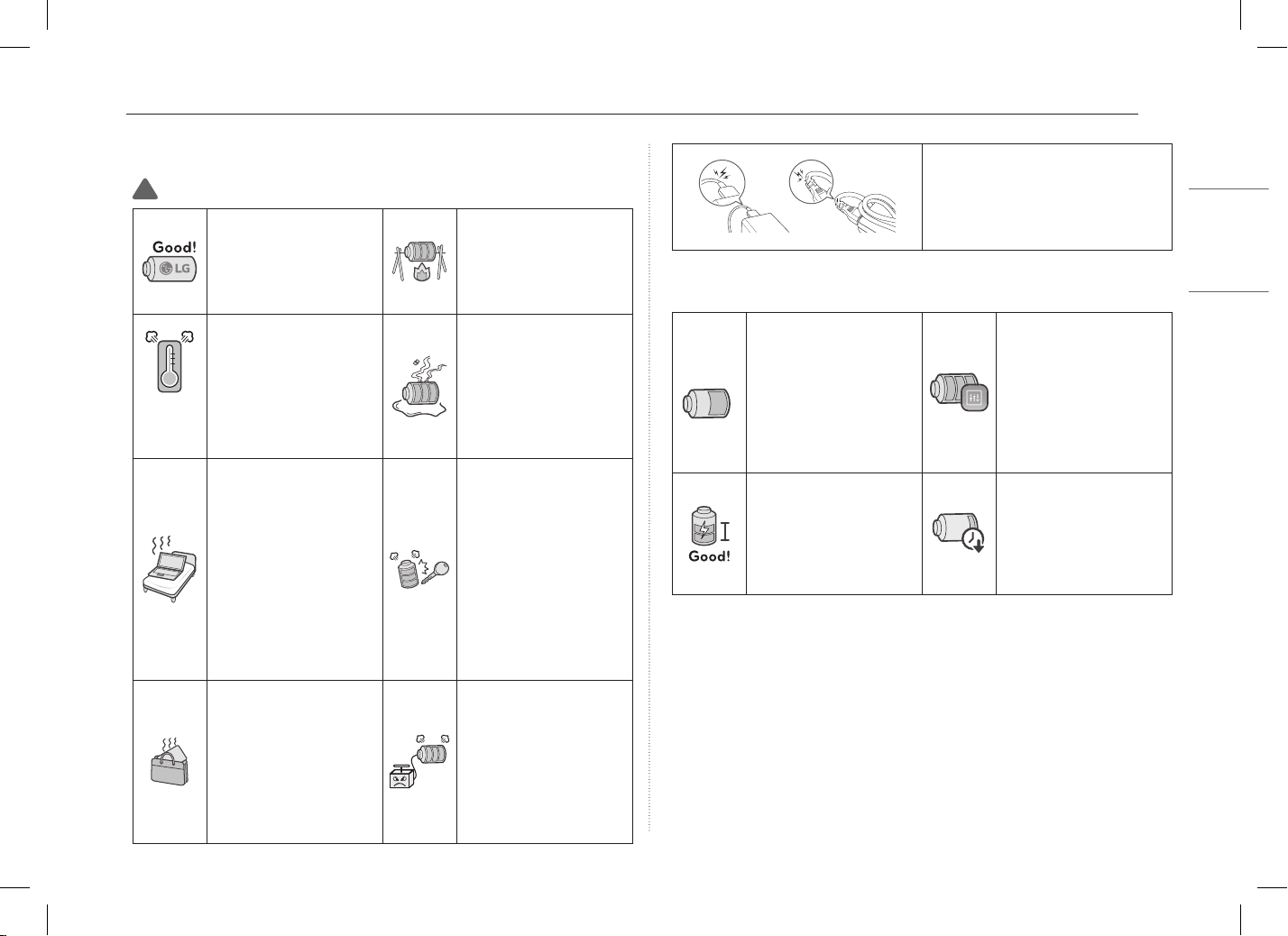
While Using the Product
WARNING
Use batteries certified
and acknowledged by
LG Electronics Inc.
•
Otherwise, an explosion
or fire may occur.
Keep the battery away
from heat.
•
Otherwise, an explosion
or fire may occur.
60 °C
(140 °F)
Do not store in places
with temperatures above
60 °C (140 °F) and high
humidity (in cars or
saunas).
•
Otherwise, an explosion
or fire may occur.
If you find leakage or
smell bad odor from the
battery, contact the local
call center.
•
Otherwise, an explosion
or fire may occur.
Do not use the product
on top of carpet, blanket
or bed. Also, do not put
the adapter under the
blanket.
•
The product and
the adapter may
malfunction or cause
a fire or burn to the
user due to internal
temperature increase.
Prevent the battery from
coming in contact with
any metallic object like a
car ignition key or a paper
clip.
•
Otherwise, this may
cause damage to the
battery, a fire or burn
due to overheat in the
battery.
Do not leave the
powered-on product in
a space without enough
ventilation (i.e. bags)
for an extended time or
repeatedly.
•
The battery may
overheat and cause a fire.
Charge the battery
only with the provided
instrument.
•
Otherwise, the battery
may be damaged, or fire
may occur.
Do not bend the power cable
connected to the adapter too much.
•
Otherwise, the wires inside the
cable may break and cause an
electric shock or fire.
Guide on Battery Usage
50 %
When the PC is not used
for an extended period
of time, keep the battery
level at 50 % to increase
the battery lifespan.
Use the Extend Battery
Life function in the
My gram. You can limit
the battery charge to
80 % of the maximum
charging capacity to
increase the battery
lifespan.
To increase battery
lifespan, use the battery
for a while before
charging it rather than
keeping the battery
completely charged.
If you don't use the
product for a long
time with the battery
completely discharged,
the battery lifespan may
decrease.
3 Precautions before Product Use
ENGLISH
NOTE
•
This product has a built-in battery pack. After purchasing your PC, be
sure to charge the battery pack completely before using it for the first
time.
- The battery is a wearable good and thus the battery may not last as
long as before after the battery has been used for a long time.
- The internal battery cannot arbitrarily be removed or replaced.
Removing it may void the warranty.
- If you need to disassemble or replace the battery, please contact the
designated Call Center.
- We charge a fee for removing or replacing the battery.
- For the safe use of the product, the charge level may be adjusted or
blocked from the product when the excessive reduction in battery
capacity is detected. Since the battery is a consumable item, if the
runtime has been significantly reduced, please replace the battery.
Precautions before Product Use
Any malfunction in the built-in solid state drive (SSD) may result in loss of
stored data. You must back up all critical user data to an external storage
device (USB HDD, memory card, etc.).
If you shut the system down before it is completely loaded, the product
may not shut down properly. Shut down the system after it is completely
loaded. (It takes about one or two minutes to completely load the system
and may vary depending on the conditions.)
Some details may differ depending on the PC model and software version.
For the convenience of users, LG Easy Guide / LG Troubleshooting are
provided in an electronic format.
For more information on how to use the PC, refer to LG Easy Guide /
LG Troubleshooting.
In the search window of the Windows taskbar, search LG Easy Guide /
LG Troubleshooting and run it.
NOTE
•
It is recommended to use the PC by connecting to the Internet in order
to keep the LG Easy Guide / LG Troubleshooting latest.
Checking the Components
•
PC Main Body
•
Owner’s Manual
•
Adapter
•
Power Cable
1
•
Stylus Pen
1 For the power cable, the normal power cable or USB-C® power
cable is provided. The USB-C® power cable only supports power
supply and USB 2.0 specifications.
CAUTION
• Do not use the power cable for other
purposes than power supply.
NOTE
•
Depending on the model, additional components (LAN adapter,
etc.) may be provided.
4Connecting and Turning On the PC
ENGLISH
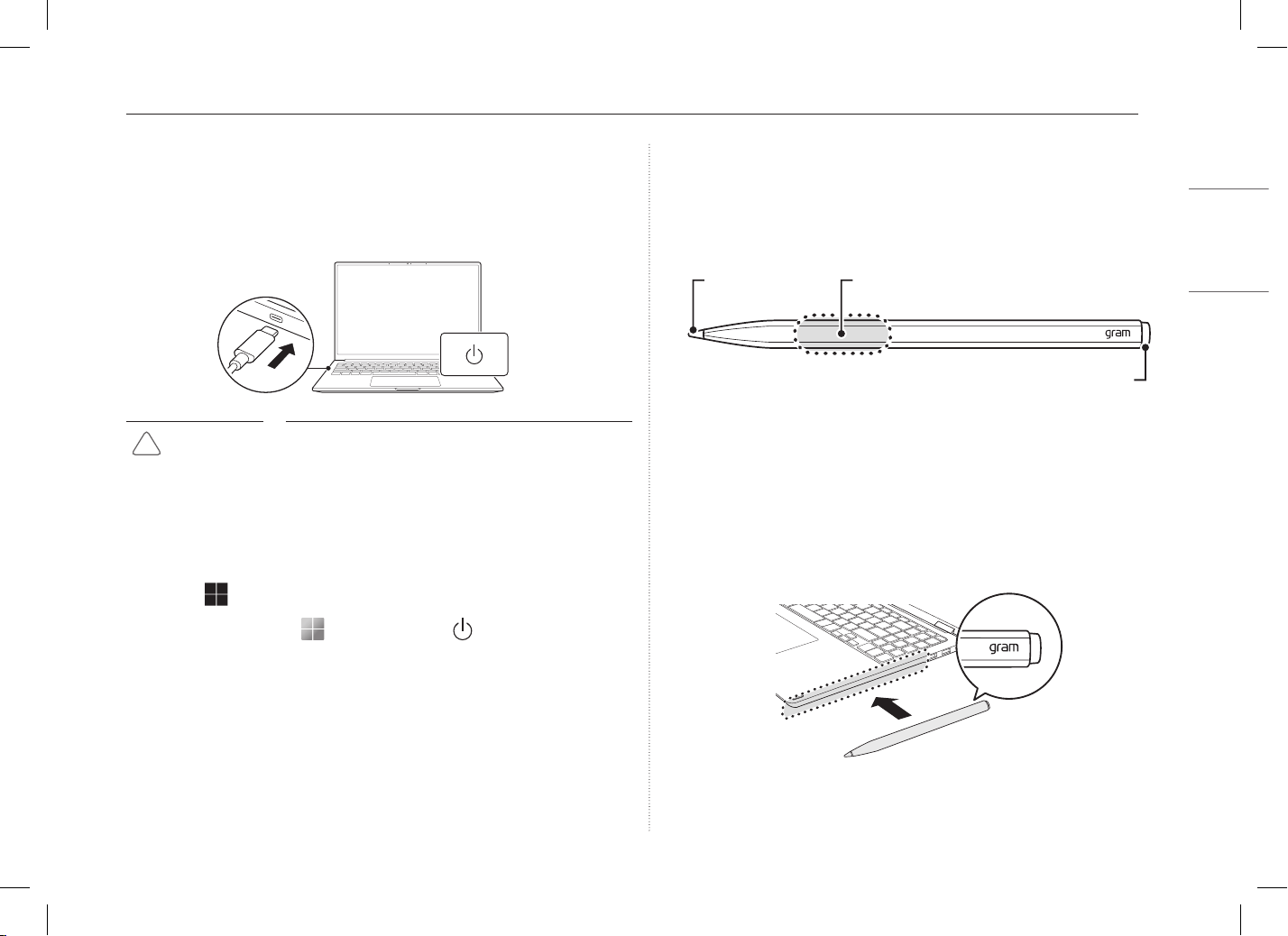
Connecting and Turning On the PC
Connect the adapter to the USB-C® port of the PC and press the Power
button to turn on the power.
CAUTION
• Do not use any other adapter than the one that
was provided with the PC.
System Shutdown / Power Off
Press the [ ] key or [Ctrl] + [Esc] to display the Start menu.
-
Press the Start button [ ] > Power button [ ] and select
[Shut down].
Using Stylus Pen
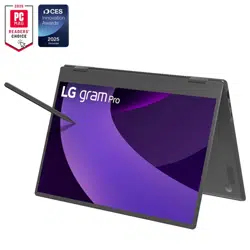
If you use the Stylus Pen for the 16T95TP/16TB95TP/16TS95TP models,
you can do fine touch operations that are difficult with fingers.
Basic Usage
If you are using the Stylus Pen for the first time, make sure that you
activate the pen first.
Attach the gram logo side of the Stylus Pen to the magnetic connector on
the right side of the keyboard to activate the Stylus Pen.
Pen Tip Touch Button
Eraser Button
5 Using Stylus Pen
ENGLISH
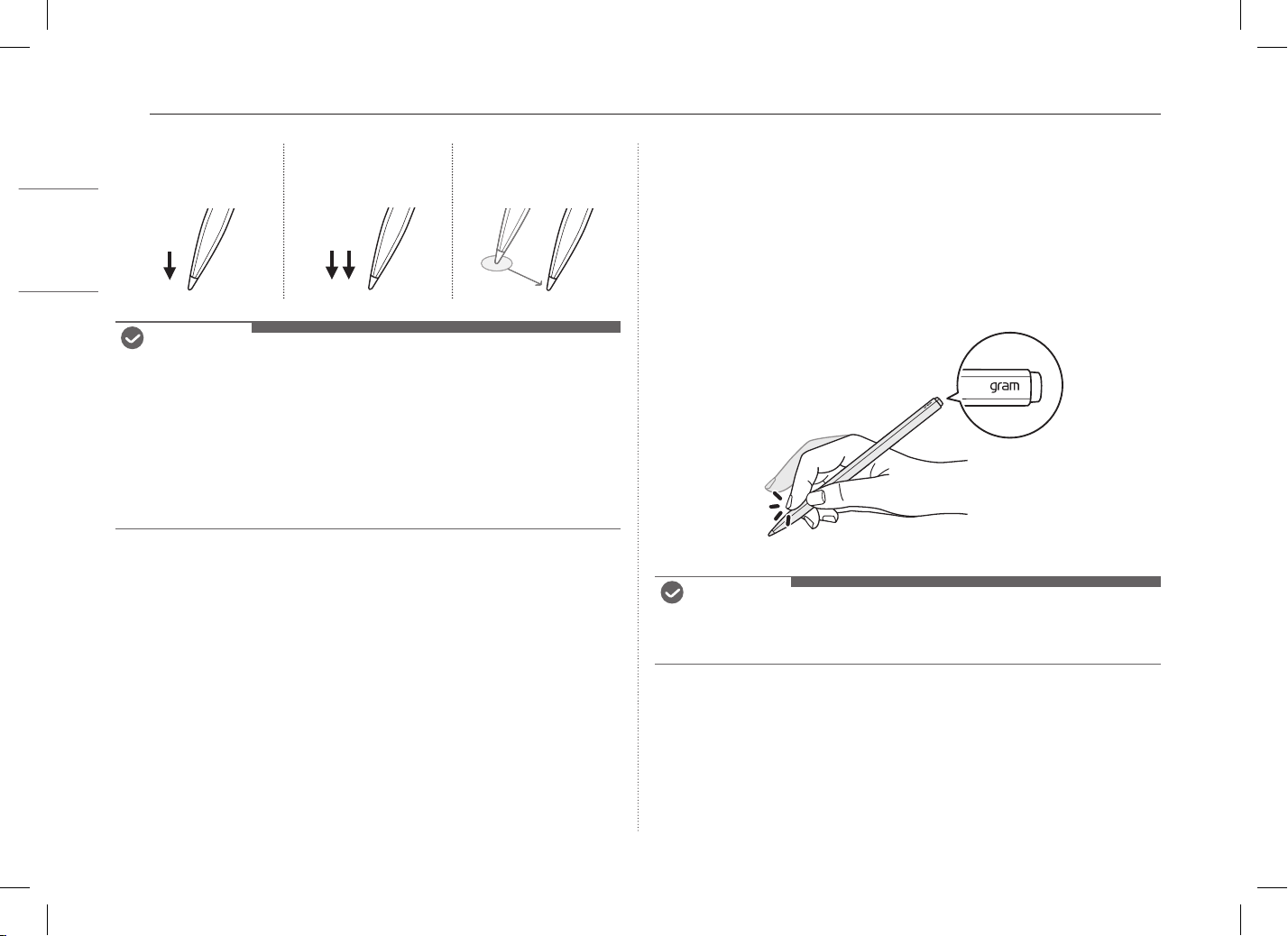
Touching Once Touching Twice
Drag
(moving while
pressing down)
NOTE
•
Do not apply excessive force on the Stylus Pen. Doing so may cause the
pen tip or the pen to fail.
•
If the Stylus Pen is not used for more than 1 minutes, it switches to
power saving mode to reduce battery consumption.
•
To disable the power saving mode, shake and wake up the Stylus Pen.
•
When charging Stylus Pen is complete, it is no longer charged.
•
For more information on Stylus Pen, refer to LG Easy Guide.
Using Touch Button
You can quickly run the Stylus Pen function by performing the double-tap
& hold gesture on the Touch Button where the gram logo displayed in the
hovering status.
After searching and running [My gram] in the search window on the
Windows taskbar, you can set the function in [PC Maintenance] >
[Keyboard & Pen] > [Pen Settings] > [Touch Button Settings].
NOTE
•
Double-tap & Hold: Maintain the status of tapping twice with your
finger.
6Pre-Tech Support Checklist
ENGLISH
Pre-Tech Support Checklist
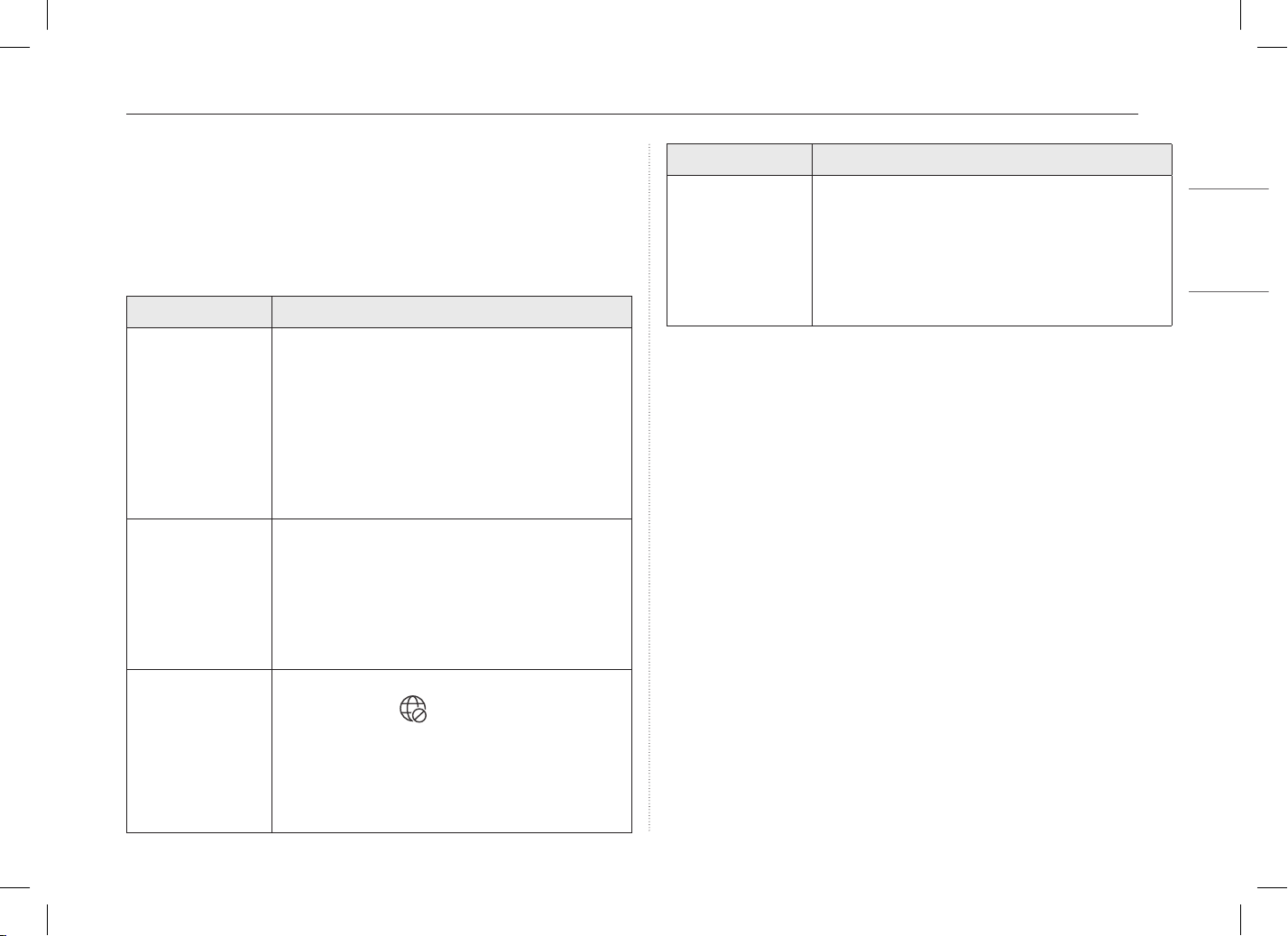
Troubleshooting
If the following symptoms appear while using the product, check again.
It may not be a malfunction.
Symptom Cause and Solution
The power does not
turn on.
• Check if the power cord is connected.
• After disconnecting the power cord and
reconnecting it, press the power button of the
product.
• If the power is not on after reconnecting the power
cord, remove the adapter and hold the power
button for at least 20 seconds to reset the system.
(Do not release the button even if the error
inspection screen appears or the power turns off.)
The system stops
during use or does
not properly turn
off.
• Remove the adapter and press the power button
for approximately 20 seconds to reset the system.
(Do not release the button even if the error
inspection screen appears or the power turns off.)
- Caution: Unsaved data may be lost. Pressing the
power button while the PC is in use may cause
damage to the storage device or a system error.
The wireless
network is not
connected.
• If the Airplane Mode is turned on, set to [Off].
Click the Wi-Fi [ ] icon on the right side of the
taskbar and check if AP displays properly.
• You may not be able to access a secure
wireless network. Contact the wireless network
administrator.
• Reinstall the wireless network driver.
Symptom Cause and Solution
I want to reinstall
the driver.
• After searching and running [App and Function]
or [Installed apps] in the search window of the
Windows taskbar, remove the driver you want to
reinstall.
• After searching and running [LG Update & Renew]
in the search window of the Windows taskbar,
reinstall the driver through the [Update] menu.
Appendix
Open Source Software Notice Information
To obtain the source code that is contained in this product, under GPL,
LGPL, MPL, and other open source licenses that have the obligation to
disclose source code, and to access all referred license terms, copyright
noticesandotherrelevantdocumentspleasevisit
https://opensource.lge.com.
LG Electronics will also provide open source code to you on CD-ROM for a
charge covering the cost of performing such distribution (such as the cost
ofmedia,shipping,andhandling)uponemailrequestto
This offer is valid to anyone in receipt of this information for a period of
threeyearsafterourlastshipmentofthisproduct.
7 Appendix
ENGLISH
USA
Battery take-back information
In case rechargeable battery is included in this product, the entire device
should be recycled in compliance with rechargeable battery recycling standards
because of the internal battery.
To dispose of properly, call (800) 822-8837 or visit www.call2recycle.org.
Battery replacement
The internal battery cannot arbitrarily be removed or replaced. Removing it
may void the warranty.
• Either in warranty or not, If you need to disassemble or replace the battery
please contact the designated Call Center.
• We can charge a fee for removing or replacing the battery.
• Battery is only available for 4 years after the end of product production.
It may differ by model.
Trade Name
Address
Email
Responsible Party
LG Electronics USA, Inc.
Supplier’s Declaration of Conformity
111 Sylvan Avenue, North Building
Englewood Clis, New Jersey
07632
LG
ENERGY STAR®
ENERGY STAR® Specifications
• LG Electronics Inc. participates in ENERGY STAR® and
the energy efficiency of this product complies with the
specifications of ENERGY STAR®.
• ENERGY STAR® is a set of regulations that encourages
manufacturers of electronic devices to create more energy
efficient products.
• The energy consumption of this product was decreased
along with the cost. Also, it helps preserve natural
resources.
• The PC is set to switch to Modern Standby after
5 minutes of inactivity.
• To exit from the sleep mode, press the power button.
(If an external mouse is connected, clicking the mouse will
clear the sleep mode.)
Stylus Pen Regulatory Information
Stylus Pen Product Specifications
Item Content
Dimension
6.37 in ± 0.019 in /
Φ
0.409 in
(162 mm ± 0.5 mm /
Φ
10.4 mm)
Length / Diameter
Weight 0.028 lbs (13 g ± 0.5 g) Including battery
Protocol MPP 2.0 18 ~ 210 kHz
Operation
Temperature
41.00 °F ~ 104.00 °F
(+5 °C ~ +40 °C)
-
Battery 80 mAh (Built-in battery) Li-Ion (3.85 V)
Model Name PEW8
Brand LGE
8Appendix
ENGLISH
USA
FCC compliance
This equipment has been tested and found to comply with the limits for a
Class B digital device, pursuant to part 15 of the FCC Rules. These limits are
designed to provide reasonable protection against harmful interference in a
residential installation.
This equipment generates, uses and can radiate radio frequency energy and, if
not installed and used in accordance with the instructions, may cause harmful
interference to radio communications.
However, there is no guarantee that interference will not occur in a particular
installation. If this equipment does cause harmful interference to radio or
television reception, which can be determined by turning the equipment off
and on, the user is encouraged to try to correct the interference by one or
more of the following measures:
• Reorient or relocate the receiving antenna.
• Increase the separation between the equipment and receiver.
• Connect the equipment into an outlet on a circuit different from that to which
the receiver is connected.
• Consult the dealer or an experienced radio/TV technician for help.
This device complies with part 15 of the FCC Rules. Operation is subject to the
following two conditions:
1) This device may not cause harmful interference, and
2) This device must accept any interference received, including interference
that may cause undesired operation.
FCC RF Radiation Exposure Statement
This equipment complies with FCC radiation exposure limits set forth for
an uncontrolled environment. This transmitter must not be co-located or
operating in conjunction with any other antenna or transmitter.
FCC ID: BEJSP-PEW8
Stylus Pen Service Information
Repairs and product servicing arising out of the following circumstances are
subject to service fees. Refer to the Service section on the Limited Warranty
Statement of your LG 16T95TP/16TB95TP/16TS95TP Laptop for service and
support instructions.
• Improper use of the product
• User’s negligence (breaking or submerging the product in water, dismantling or
remodeling of the product by someone other than a technician at a designated
service center)
• Failure to heed the precautions in the user manual
• Natural disaster (fire, salt air, gas, earthquake, storm and flood, etc.)
• Using incorrect voltage or defect in the connecting device
• Replacing expendable parts
• Damage from external causes (not product defect)
Singapore