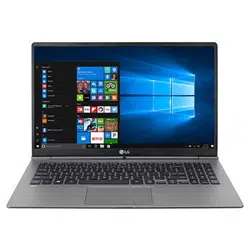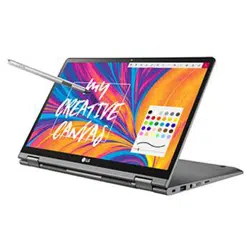

LG EASY GUIDE
NOTEBOOK
14T990 Series
www.lg.com
Copyright © 2019 LG Electronics Inc. All rights reserved.
2
Instruction / Safety Information
Instruction / Safety Information
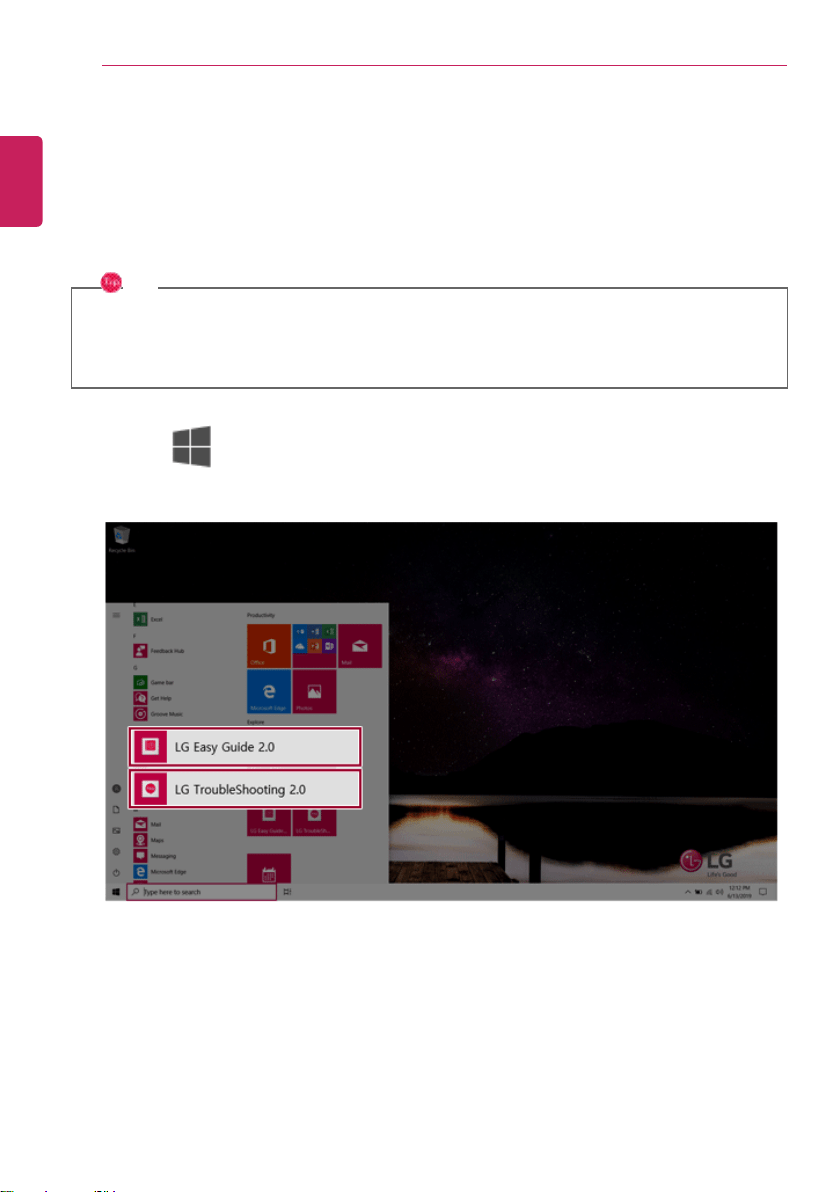
Using LG Easy Guide, LG TroubleShooting
LG Electronics Inc. provides LG Easy Guide (User's Guide) and LG TroubleShooting (Troubleshooting
Guide) to users for their easy and convenient use of the product.
TIP
LG Easy Guide and LG TroubleShooting are offered through a UWP app. You can reinstall it
through Microsoft Store if it was deleted. If you want to delete and reinstall the application,
access Microsoft Store, search for the application, and install it.
• Press the [ ] button to run [LG Easy Guide 2.0] or [LG TroubleShooting 2.0].
ENGLISH
Instruction / Safety Information
3
Information/Precautions Before Using
Before reading LG Easy Guide, first check the following information.
• This LG Easy Guide has been written for the Windows 10 operating system.
• The screen and menu configurations may differ from this manual depending on the status of the
Windows and software update.
• Since representative images are used in LG Easy Guide, the product you purchased may differ in
appearance and color.
• LG Easy Guide includes instruction about optional products. There may be information about
products you did not purchase.
• The contents of LG Easy Guide are subject to change without prior notice.
• Use, duplication, or reproduction of any part of LG Easy Guide without prior permission from LG
Electronics Inc. is strictly prohibited.
• LG Electronics Inc. does not provide warranty for data loss. In order to minimize damage from data
loss, please make backup copies of important data.
• The optical disk drive (DVD, CD-ROM, etc.) is optional and may not be provided upon purchasing the
product.
• Manufacturers and installers cannot provide ser vices related to human safety as this wireless device
may cause radio interference.
Safety Precaution Notations
The below symbols are to inform you of dangers and safety concerns that you must be aware of. Read
the symbol-indicated instructions with caution to avoid any possible mishap.
WARNING
Appears in the case of noncompliance with the instruction that may cause serious physical
damage or fatal injuries.
CAUTION
Appears in the case of noncompliance with the instruction that may cause minor damage to the
body or the machine.
Text Notations
The symbols below are used to display information required to use the product. Familiarize yourself
with the instructions marked by the symbols to ensure proper operation of the product.
ENGLISH
4
Instruction / Safety Information
TIP
Indicates that the following information is added to help the user utilize the machine more
conveniently.
OPTION
The Option symbol indicates that the concerned device is not included in the product package
and thus has to be purchased separately, or the device may not be applied to the user's machine
depending on model type.
Manufacturer and Copyright
Microsoft™, MS™, WinPE™, and Windows
®
are the registered trademarks of Microsoft Corporation™.
USB Type-C™ and USB-C™ are the trademarks of USB Implementers Forum.
Manufacturer and Copyright represent the logo and trademark of the manufacturer, and bear no
relationship to the functions supported by the product.
LG logo is a registered trademark of LG Electronics, inc.
Micro SD Logo is a trademark of SD-3C, LLC
For DTS patents, see http://patents.dts.com. Manufactured under license from DTS
Licensing Limited. DTS, the Symbol, & DTS and the Symbol together, DTS-HD, Play-Fi,
Headphone:X, DTS:X, the DTS Headphone:X logo, and the DTS:X logo are registered
trademarks or trademarks of DTS, Inc. in the United States and/or other countries. ⓒ
DTS, Inc. All Rights Reserved.
The terms HDMI and HDMI High-Definition Multimedia Interface, and the HDMI Logo
are trademarks or registered trademarks of HDMI Licensing Administrator, Inc. in the
United States and other countries.
The SuperSpeed USB Trident logo is a registered trademark of USB Implementers
Forum, Inc.
LG Easy Guide may contain undetectable errors despite our dedicated efforts to provide users with
reliable information. We ask for your understanding.
ENGLISH
Instruction / Safety Information
5
The illustrated figures in LG Easy Guide may differ in appearance with the actual products.
Unauthorized reproduction or duplication of any part of LG Easy Guide is strictly prohibited.
LG Electronics Inc. reserves the right to modify any part of this manual for quality purposes, without
prior notice.
Copyright (C) 2019 LG Electronics Inc. Digitalmate Co., LTD
Country of Origin China
Manufacturer LG Electronics Inc.
Open Source Software Notice Information
To obtain the source code under GPL, LGPL, MPL, and other open source licenses, that is
contained in this product, please visit http://opensource.lge.com.
In addition to the source code, all referred license terms, warranty disclaimers and copyright
notices are available for download.
LG Electronics will also provide open source code to you on CD-ROM for a charge covering the
cost of performing such distribution (such as the cost of media, shipping, and handling) upon
This offer is valid for a period of three years after our last shipment of this product. This offer is
valid to anyone in receipt of this information.
System Protection Feature
If the system becomes too hot, the system protection feature automatically stops recharging and
switches the power mode to Hibernate or Off.
The PC system has to cool down before it can be reactivated.
Information on Hard Drive / Memory Capacity
Information on Hard Drive (HDD, SSD, eMMC) Capacity
The hard drive capacity shown by Windows is lower than that stated by the hard drive manufacturer
due to a difference in calculation.
Manufacturer Hard drive manufacturers use a decimal definition of 1 KB = 1,000 Bytes.
100 GB Storage Device (HDD, SSD, eMMC): 100,000 MB / 1,000 Bytes = 100
GB
Windows Windows use the binary definition of 1 KB = 1,024 Bytes.
100 GB Storage Device (HDD, SSD, eMMC): 100,000 MB / 1,024 Bytes =
97.6 GB
ENGLISH
6
Instruction / Safety Information
RAM Capacity
RAM capacity shown by Windows may be lower than the actual capacity because the PC uses shared
memory for BIOS and the integrated graphics card.
Due to BIOS using shared memory, 1,024 MB RAM may be reported as 1,022 MB or slightly less.
If the PC has integrated graphics card, 1,024 MB RAM may be reported as 1,022 MB or less than
1,000 MB.
Adjusting Volume (headset and speakers)
Check the volume before listening to music.
CAUTION
• Before using the headset, check if the volume is too high.
• Do not use the headset too long.
ENGLISH

Instruction / Safety Information
7
Important Safety Precautions
Please use the machine in the proper environment to extend the machine's lifespan. Use the machine
in a safe and stable place.
The warranty does not cover any damage resulting from reckless use or use in undesirable
environments.
ENGLISH
8
Instruction / Safety Information
Product Installation/Usage Precautions
CAUTION
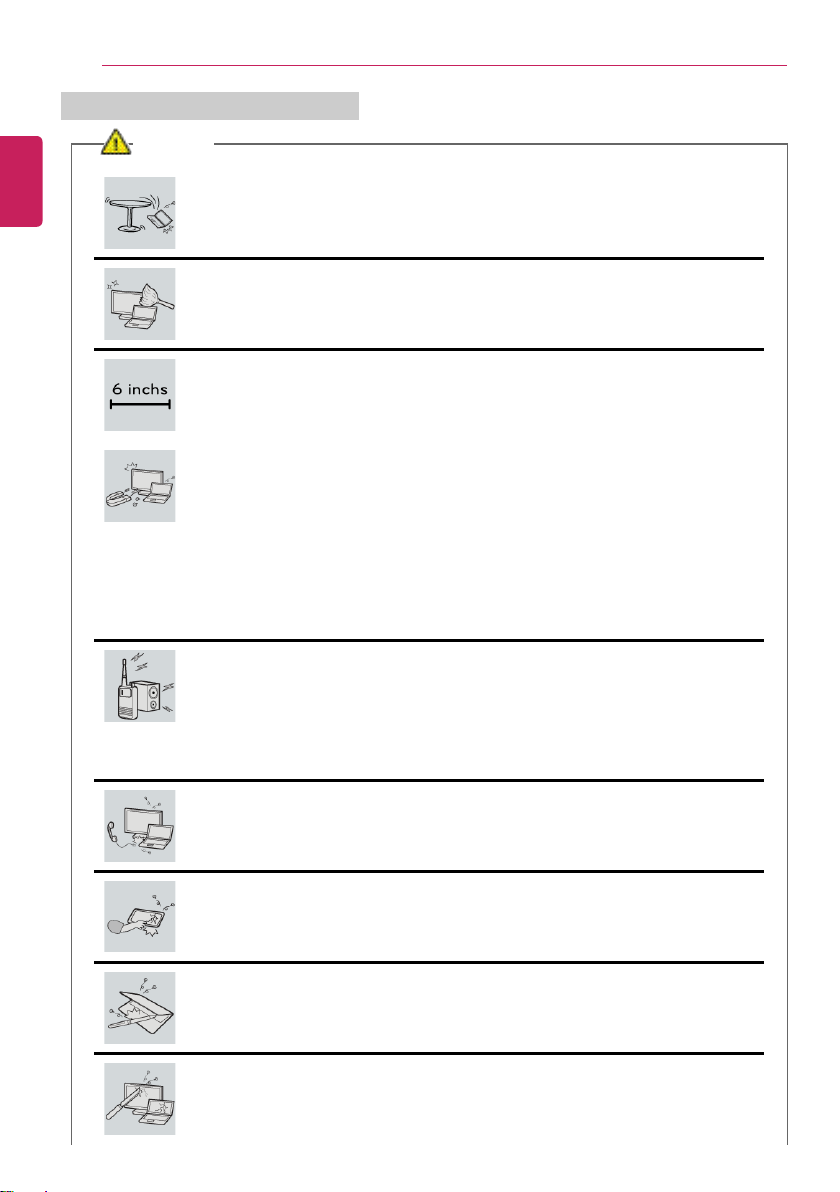
Place the machine in a safe place so it does not fall.
• If dropped, the machine may be damaged or cause an injury.
Use the product in a clean, dust-free environment.
• Otherwise, the system may not function properly.
Do not place any objects within 6 inches of the PC.
• Lack of ventilation may overheat the PC from inside and put users at risk of
burn injuries.
Do not store or use the PC near a magnetic object (i.e. a bag with a
magnetic object, a diary, a wallet, a memo board, high-powered speakers, a
bracelet, or etc.).
• Otherwise, the storage device (HDD, SSD, eMMC) and the system may be
damaged, and the system may fail to operate properly.
Do not use the PC on a bag with magnetic objects attached to it.
• Otherwise, the storage device and the system may be damaged, and the
system may fail to operate properly.
Operate the product where there is no electromagnetic interference.
• Keep a proper distance between the PC and electronic appliances such as
radios or speakers that generate strong magnetic fields.
• Otherwise, data may be lost from the storage device (HDD, SSD, eMMC) or
the LCD color may be damaged.
Do not connect a key-phone line to a wired LAN port.
• A fire may occur or the product may get damaged.
If the LCD screen is damaged, do not touch LCD with your hands.
• Contact the service center as it may cause an injury.
Do not leave any objects such as a pen between the keypad and the LCD.
• You might break the LCD by unwittingly closing it with a foreign object
remaining on the pad.
Do not press or scratch the LCD with a sharp object.
• It may cause impairment.
ENGLISH
Instruction / Safety Information
9
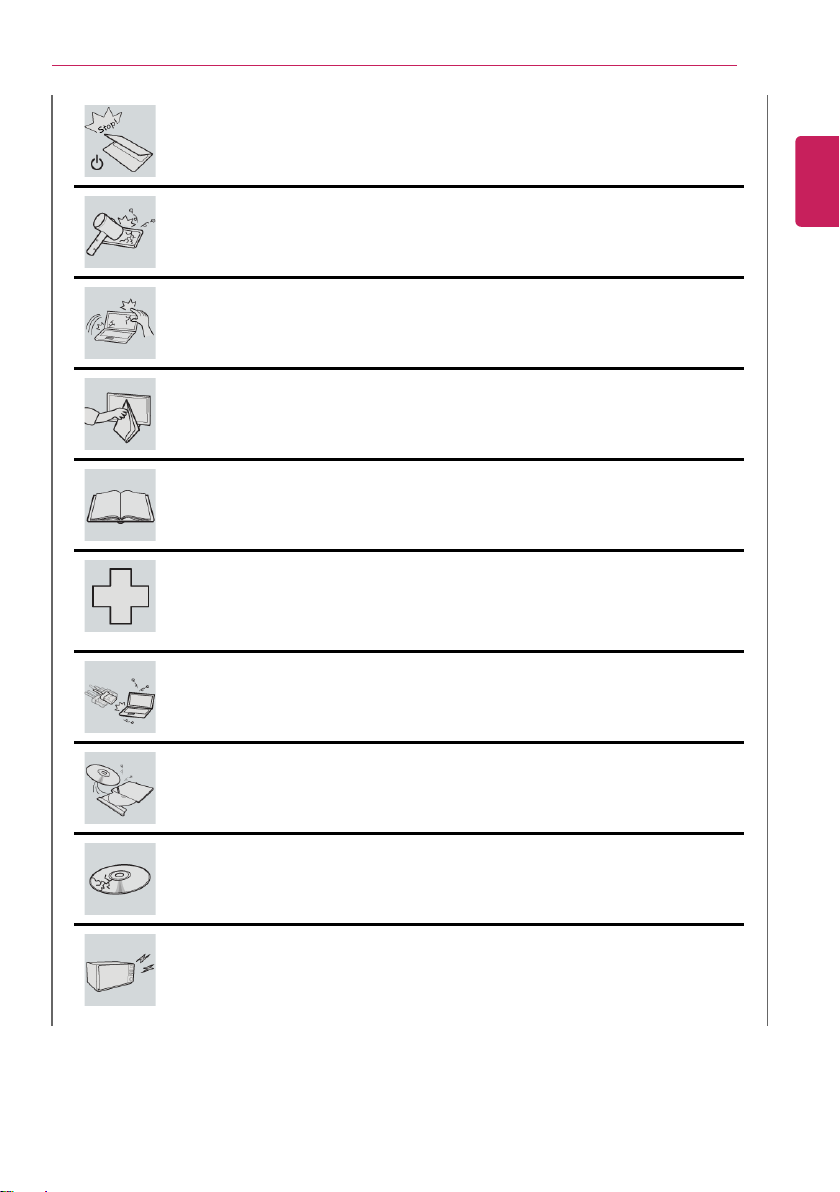
Ensure the power is off before shutting the LCD.
• The product may catch fire, be broken or deformed due to temperature rise.
Do not impose excessive force on the LCD screen or drop it.
• You may break the LCD glass panel.
Do not lean the LCD screen backward too much. Do not apply too much
force to the LCD screen.
• The LCD screen or the moving parts may be damaged.
To clean the LCD screen, use designated agents and soft cloth and rub the
screen in one direction.
• Too much force may damage the LCD screen.
When handling PC parts, follow the instructions in the manual.
• Otherwise, the product may get damaged.
Install a vaccine program on your PC and do not download illegal programs
nor access any corruptive web site such as those pushing pornographic
contents.
• The system may be infected and impaired.
Do not insert devices other than designated ones in the ports.
• Otherwise, the product may get damaged.
Do not press the eject button while the optical disk drive (CD/DVD/Blu-ray)
is running.
• An error may occur or the disc may be ejected, causing injury.
Do not use a damaged optical disc (CD/DVD/Blu-ray).
• Otherwise, the product may get damaged or cause physical injury.
Avoid using a wireless LAN connection within the 16 foot radius of a
microwave or plasma lamp. If you have to use wireless LAN and a plasma
bulb within the range, do so between channels 11 and 13.
• The transmission rate may drop even if the connection is made.
ENGLISH
10
Instruction / Safety Information
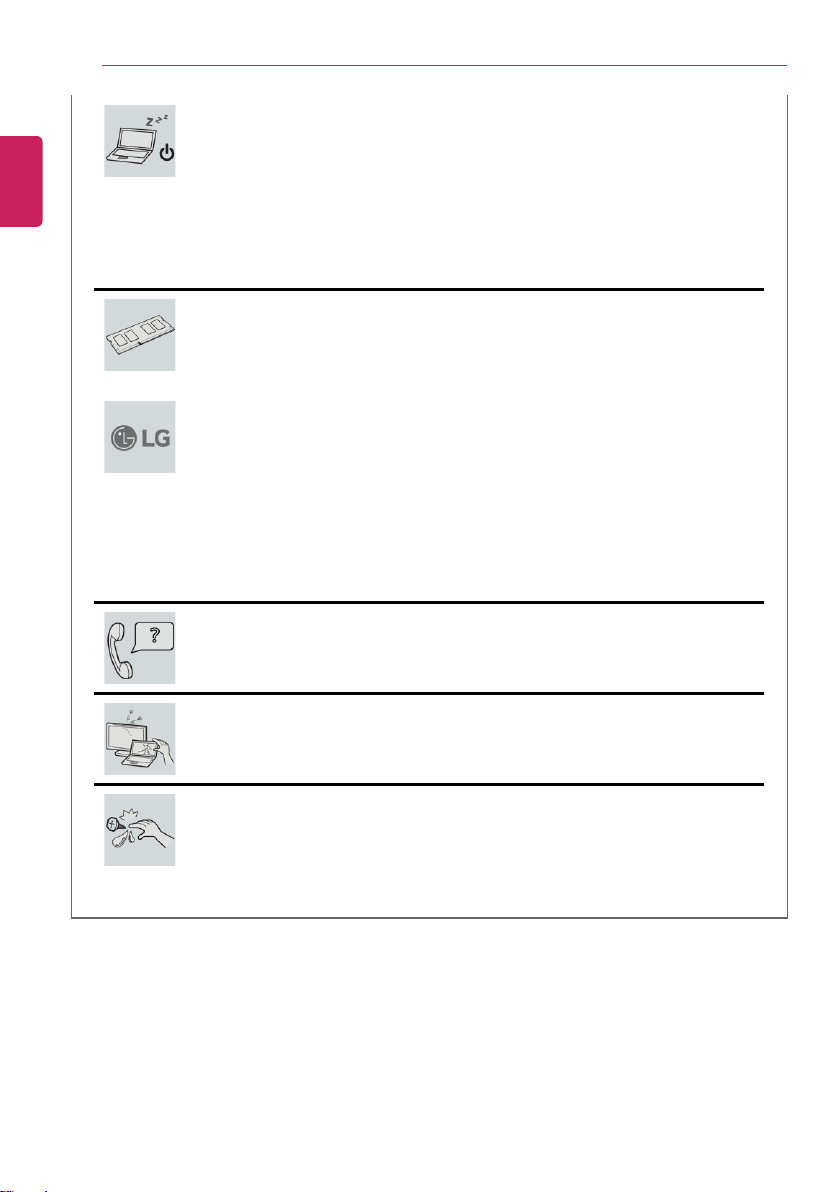
Turn off the PC if you are not going to use it for an extended period of time.
• It may overheat the battery.
Make sure that the memory cover is securely closed before turning on the
PC.
• Do not use the machine when the memory cover is open. It may damage the
machine.
Please use parts certified by LG Electronics, Inc.
• Otherwise, a fire or product damage may occur.
If there is a problem with peripheral devices, contact the device
manufacturer.
• The product may get damaged.
Handle devices and parts of the machine with care.
• The product may get damaged.
Do not drop any part or device of the machine while disassembling it.
• If dropped, it may be damaged and cause an injury.
ENGLISH
Instruction / Safety Information
11
WARNING
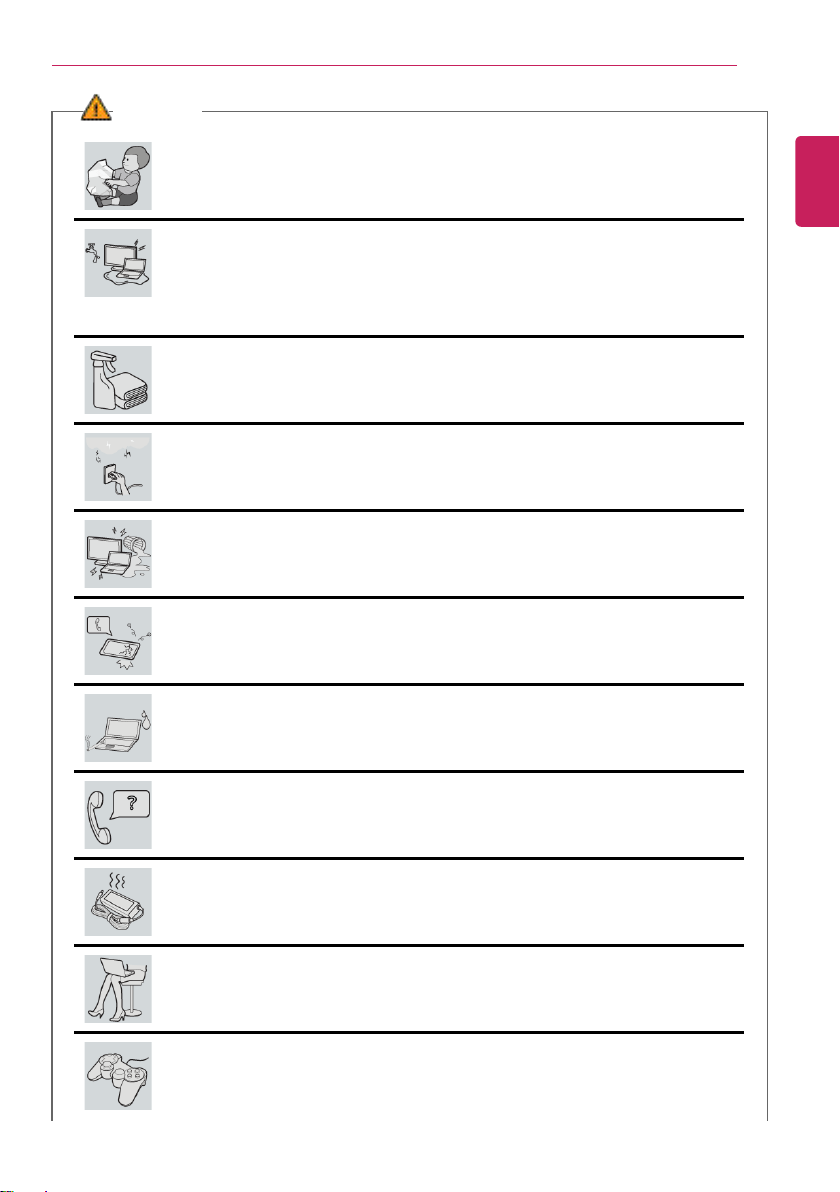
Dispose of the desiccating agent and plastic wrap properly.
• The desiccating agent and plastic wrap may cause suffocation.
Do not use the machine in damp places like a laundry room or bathroom.
• Moisture may cause a glitch or electric shock.
• Please use the machine within the appropriate temperature range (50 °F to
95 °F) and humidity range (20% RH to 80% RH).
Clean the PC with a proper agent and dry it completely before using it again.
• If the PC is wet while used, an electric shock or fire may occur.
When lightning f lashes in your area, disconnect the power, wired LAN and
other connections.
• An electric shock or fire may occur.
Do not leave a cup or other containers filled with watery substance near the
PC.
• In the case that liquid goes inside the PC, a fire or electric shock may occur.
If you have dropped or damaged the PC, disconnect the power and contact
the local service center for a safety check.
• If a damaged PC is used continuously, an electric shock or fire may occur.
Do not put a lit candle or live cigarette on the PC.
• A fire may occur.
If you detect or smell smoke from the PC, stop use immediately and
disconnect the power source before contacting your local service center.
• A fire may occur.
As the AC adapter can be hot, do not touch it with bare skin while using it.
• Extended period of exposure may cause burn.
The bottom of the PC gets hot when the system is in operation. Do not
touch or put it on your lap.
• Extended period of exposure may cause burn.
Do not play PC games excessively.
• Playing a PC game for an extended period of time may cause a mental
disorder. It may also inflict physical impairments on the elderly and children.
ENGLISH
12
Instruction / Safety Information
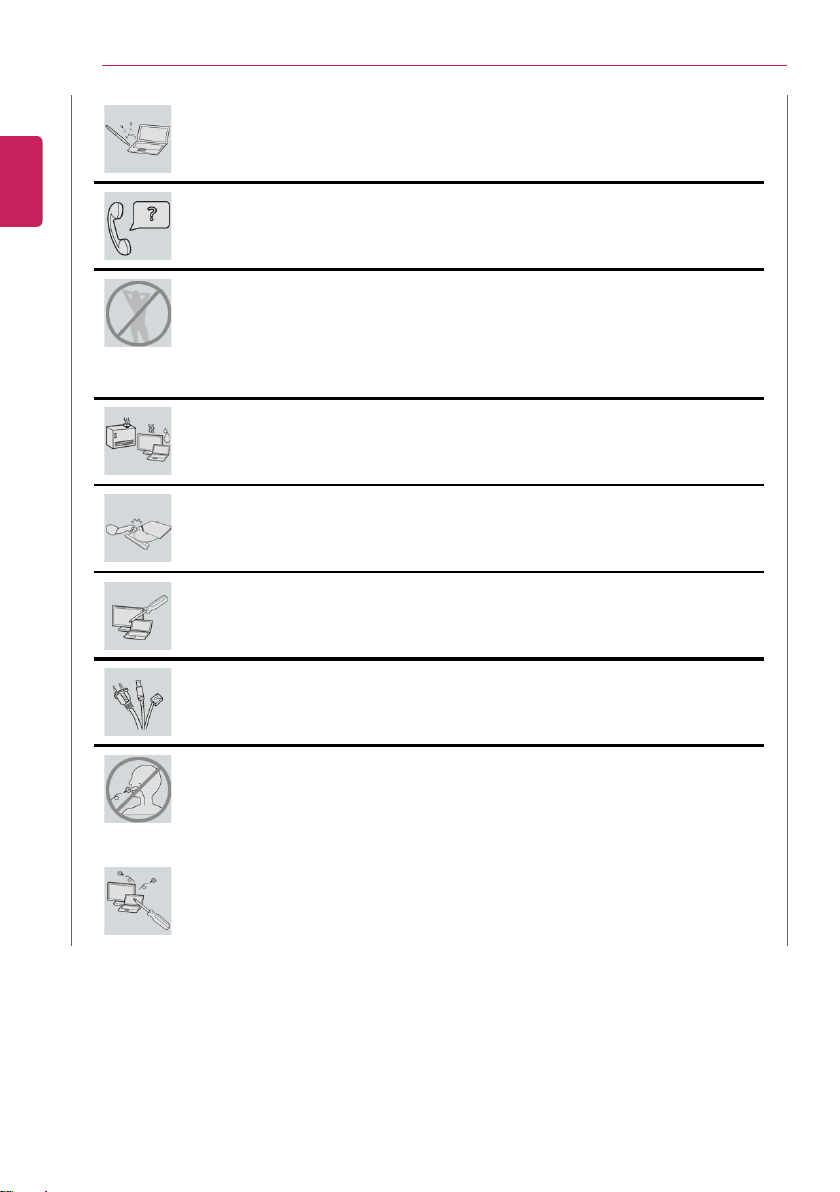
Do not put your finger or an object into PC ports.
• An injury or electric shock may occur.
Ask one of our engineers to run a safety check after your computer has been
repaired.
• Otherwise, an electric shock or fire may occur.
For minors, we recommend a program that blocks access to illegal or
pornographic web sites.
• Minors' exposure to adult-only contents may inflict psychological instability or
even trauma. Take extra precaution for your children if the whole family is
using this machine.
Keep the machine away from heat-emitting devices such as a heater.
• The product may get deformed or catch on fire.
Prevent children from thrusting their finger into the optical disk drive (CD/
DVD/Blu-ray) tray.
• The finger may be stuck in the tray and injured.
Do not block the ventilation hole with any object.
• Otherwise, an electric shock may occur.
When upgrading your PC, turn off the power and disconnect the power
cable, battery, and LAN.
• There is a risk of electric shock or fire and the product may be damaged.
When you upgrade the PC, ensure that children will not swallow any parts
including bolts.
• If a child swallows a nut, he or she may suffocate.
• In that case, seek emergency help immediately.
Do not disassemble or modify the machine arbitrarily.
• There is a risk of electric shock and the product may be no longer covered by
the warranty.
ENGLISH
Instruction / Safety Information
13
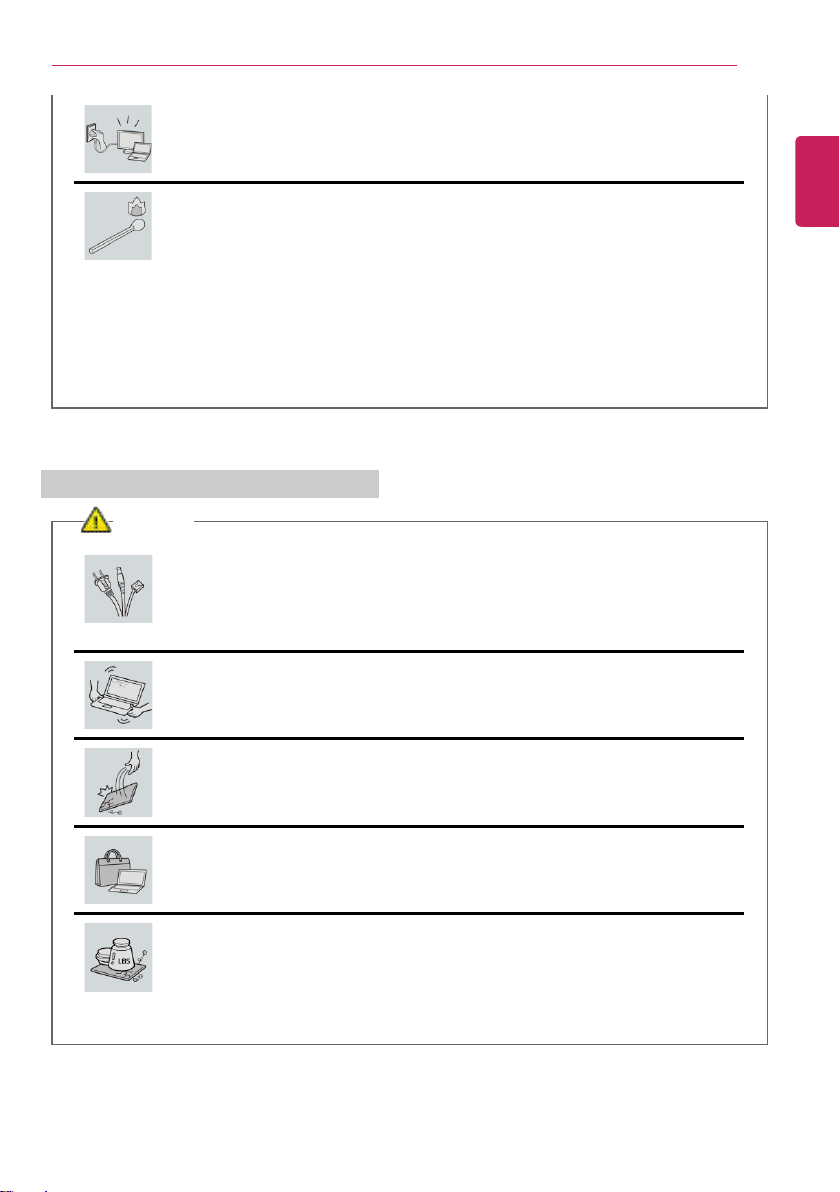
If you dissemble the PC, connect the power after reassembly is done.
• There is a risk of electric shock or product damage, if you touch the
disassembled PC.
Do not put in metal items such as coins, hair pin or other irons or
inflammables such as paper or matches. Especially, ensure that children will
not do so.
• There is a risk of product damage, fire, or electric shock.
• If any foreign substance gets in the product, unplug the product and contact
the local service center.
Product Storage/Transportation Precautions
CAUTION
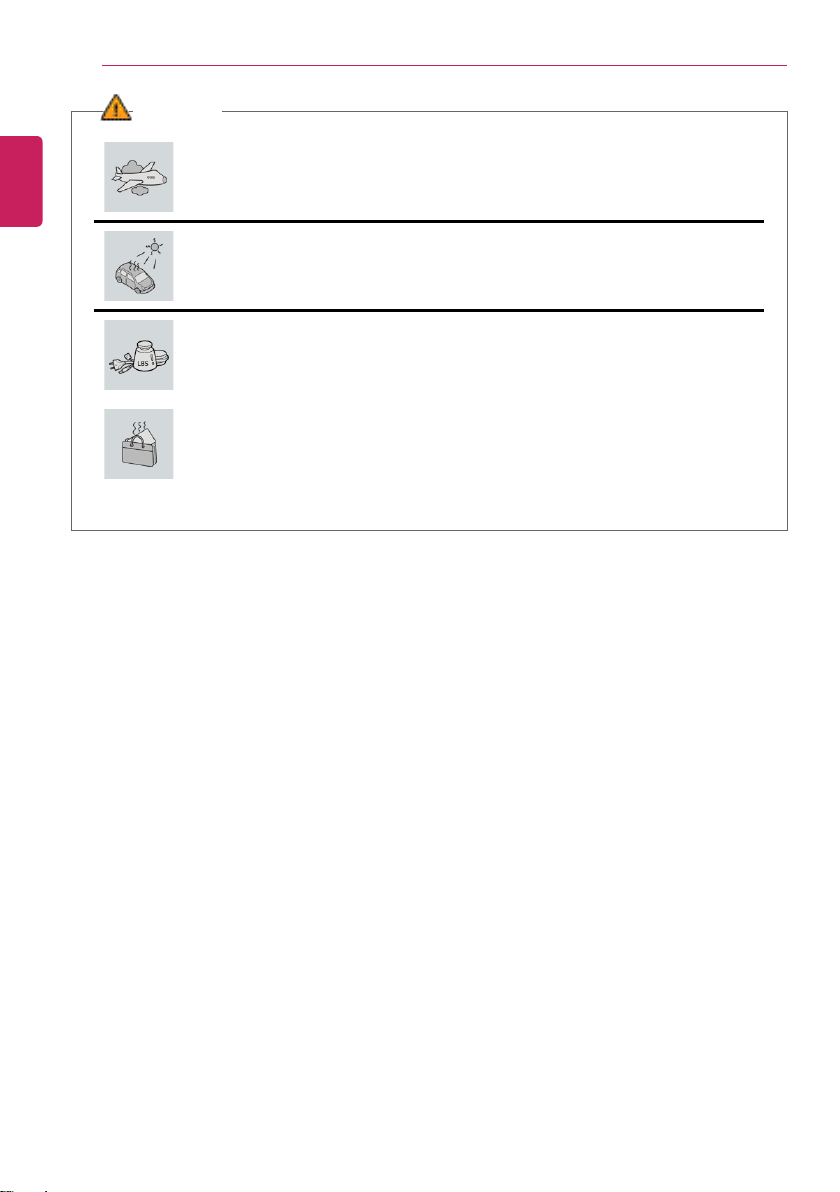
Before carrying the machine, turn off the power and disconnect all the
cables.
• Otherwise, you may trip over the wire, damaging the PC and sustaining an
injury.
Do not carry the machine with the LCD open.
• Otherwise, the product may get damaged.
Protect the machine from any shock while carrying it.
• System damage or an injury may result.
Carry the product in a bag designed for it.
• Carrying it in another type of bag may result in product damage.
Do not put any heavy object on the PC.
• There is the risk of malfunction. If the object were to fall, it may cause an
injury or damage the machine.
ENGLISH
14
Instruction / Safety Information
WARNING
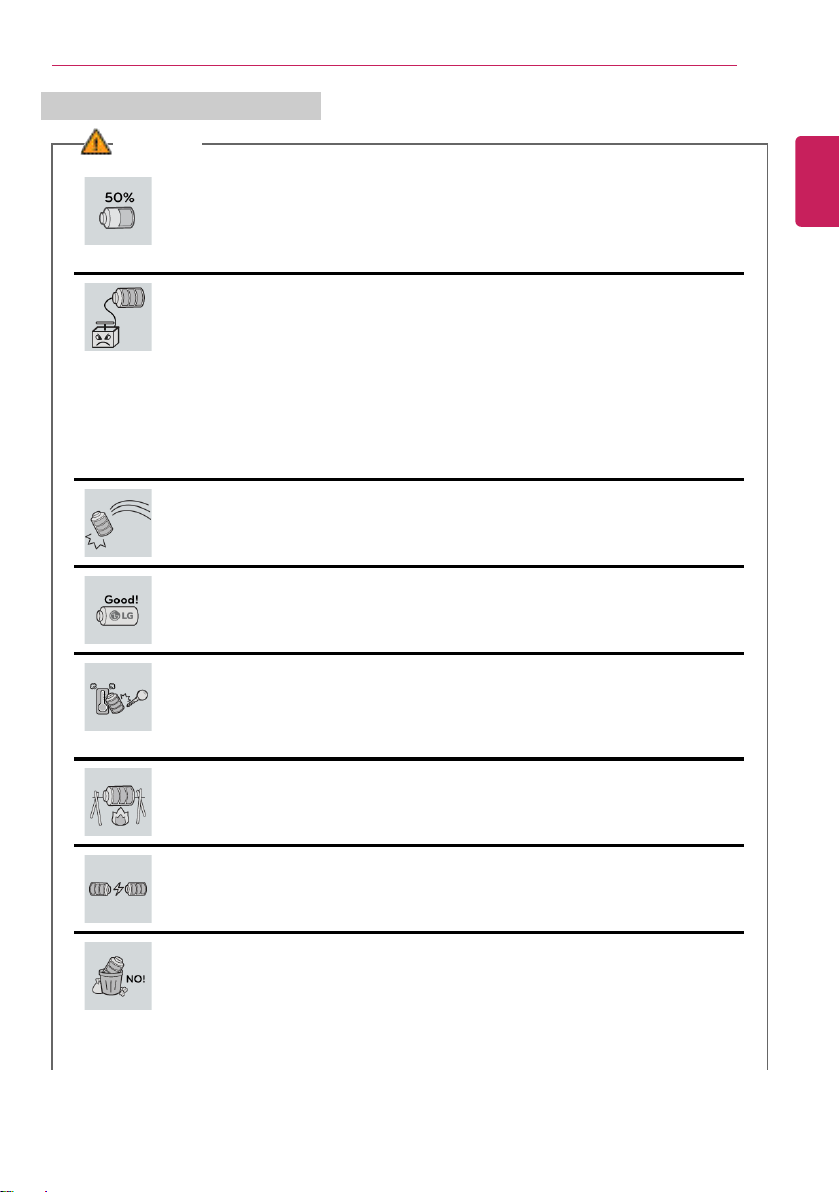
During air travel, follow the directions of flight attendants.
• Using the PC during flight may cause an aircraft accident.
When leaving the machine in a car, avoid exposure to direct sunlight.
• The product may get deformed or catch on fire due to a temperature rise.
Do not put any heavy object on the power cable and AC adapter, and avoid
damage from impacts.
• A malfunction or fire may occur.
Do not leave the powered-on PC in a space without enough ventilation (i.e.
bags) for an extended or repeated time.
• The battery may overheat and cause a fire.
ENGLISH
Instruction / Safety Information
15
Battery and AC Adapter Precautions
WARNING
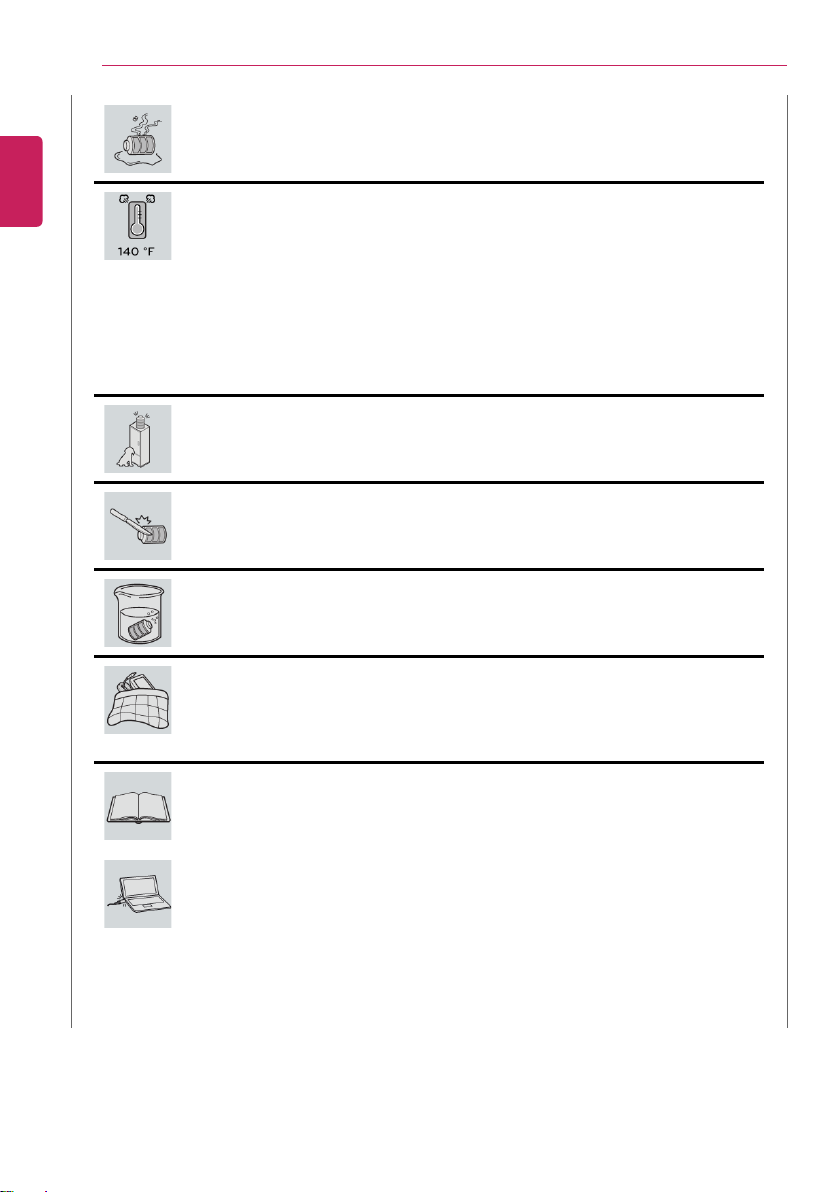
When the PC is not used for an extended period of time, keep the battery
level at about 50%.
• Do not leave the product with discharged battery for an extended period of
time. It may damage the battery.
Charge the battery only with the provided instrument.
• Otherwise, the battery may be damaged presenting a risk of fire.
Do not throw or disassemble the battery.
• The resulting damage may cause an injury, explosion, or fire.
Use batteries certified and acknowledged by LG Electronics Inc.
• Otherwise, an explosion or fire may occur.
Prevent the battery from being in contact with any metallic object like a car
ignition key or a paper clip.
• Otherwise, this may cause damage to the battery, a fire or burn due to
overheat in the battery.
Keep the battery away from heat.
• Otherwise, an explosion or fire may occur.
Do not short-circuit the battery.
• Otherwise, it may explode.
Do not dispose of a spent or backup (standby) battery arbitrarily.
• It may explode or cause a fire.
• Disposal methods may differ by country and region. Dispose of spent batteries
in accordance with the laws and safety rules of the country and region you
reside in.
ENGLISH
16
Instruction / Safety Information
If you find leakage or smell bad odor from the battery, remove the battery
and contact the local service center.
• It may explode or cause a fire.
Do not store in places with temperatures above 140 °F and high humidity (in
cars or saunas).
• It may explode or cause a fire.
Keep the battery out of the reach of children or pets.
• If damaged, it may cause an injury.
Keep the battery from being pierced by a sharp object or chewed by pets.
• It may explode or cause a fire.
Do not put the battery in water.
• Otherwise, the battery may be damaged or explode.
Do not use the PC on top of carpet, blanket or bed. Also, do not put the
adapter under the blanket.
• This may cause a malfunction, fire or burn due to overheat in the PC and
adapter.
Read the battery usage precautions carefully before use.
• Keep the battery at room temperature. LG Easy Guide Refer to the Tip. Using
a Battery in the installation guide to store the battery properly.
Connect the power plug properly by pushing it to the end.
• If a contact failure occurs, it may cause product damage or fire.
ENGLISH
Instruction / Safety Information
17
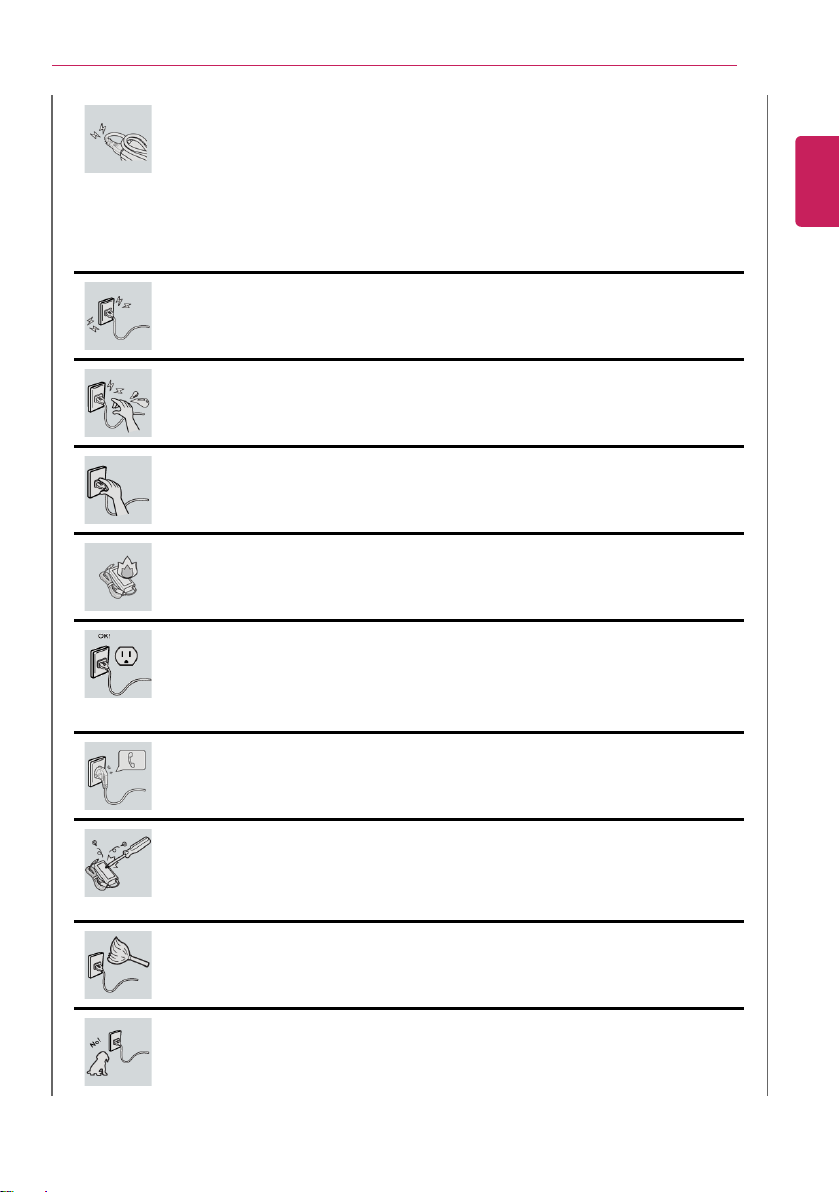
Do not bend the power cable for AC adapter too much or get stamped by a
sharp object.
• The wires inside the cable may break and cause electric shock or fire.
Do not use loose plugs or damaged power cords.
• An electric shock or fire may occur.
Do not touch the power cord with your hands wet.
• Otherwise, an electric shock may occur.
Pull the plug, not the cord, to disconnect the AC adapter and power jack.
• Otherwise, a fire or product damage may occur.
Operate the product at the proper voltage.
• Excessive voltage may result in damage on the product, electric shock or fire.
Use power outlets with an earth pin installed and proper supply of rated
electricity.
• An electric leakage may cause an electric shock or fire.
• The shape of the power cord and outlet may differ by country and region.
In the case of strange noise from the cord or plug, disconnect the power
cord from the outlet immediately and contact the service center.
• A fire or electric shock may occur.
Use the power supply/adapter provided with the product and never
disassemble the product.
• Using a different product or disassembling it may cause an electric shock or
fire.
Always keep the AC adapter and power outlet clean.
• A fire may occur.
Keep children and pets from damaging the power cord.
• It may cause a fire or an electric shock.
ENGLISH
18
Instruction / Safety Information
Disconnect the PC completely before cleaning it.
• Otherwise, an electric shock or impairment may occur.
If the power/AC adapter or the product is soaked, disconnect the battery,
power/AC adapter, and all other lines before contacting the local service
center.
• An electric shock or fire may occur.
Ensure that the battery pack is locked to the machine after installation.
• Otherwise, the battery may be damaged.
ENGLISH
Instruction / Safety Information
19
Other Safety Precautions
CAUTION
Handle the machine with care to prevent loss of data from the storage
device (HDD, SSD, eMMC).
• Since the storage device is fragile, you need to back up your important data
frequently.
• The manufacturer is not responsible for any storage device data loss caused by
a user's mistake.
Damage to the storage device (HDD, SSD, eMMC) and data loss may occur
when:
• External shocks are inflicted on the machine while disassembling or installing it.
• The machine is reset (i.e. restarted) or turned on again after a power outage
while the storage device is operating.
• The PC is infected with a virus, tainting the data irrecoverably.
• Abrupt turning-of f of the PC can damage the PC.
• If the product is moved, shaken or exposed to external shock while the storage
device is running, file damage or bad sectors may occur.
To minimize data loss resulting from storage device damage (HDD, SSD,
eMMC), frequently back up important data.
• The manufacturer is not responsible for any data loss.
We do not refund or replace a product that malfunctions due to the
installation or use of an operating system other than the one provided by LG
Electronics Inc.
• Some software applications may not work properly in other operating systems.
Such malfunctions are not covered by the warranty.
ENGLISH
20
Instruction / Safety Information
ENERGY STAR
®
ENERGY STAR®
ENERGY STAR
®
Specifications
• LG Electronics Inc. participates in ENERGY STAR
®
and the energy efficiency of this
product complies with the specifications of ENERGY STAR
®
.
• ENERGY STAR
®
is a set of regulations that encourages manufacturers of
electronic devices to create more energy ef ficient products.
• The energy consumption of this product was decreased along with the cost. Also,
it helps preserve natural resources.
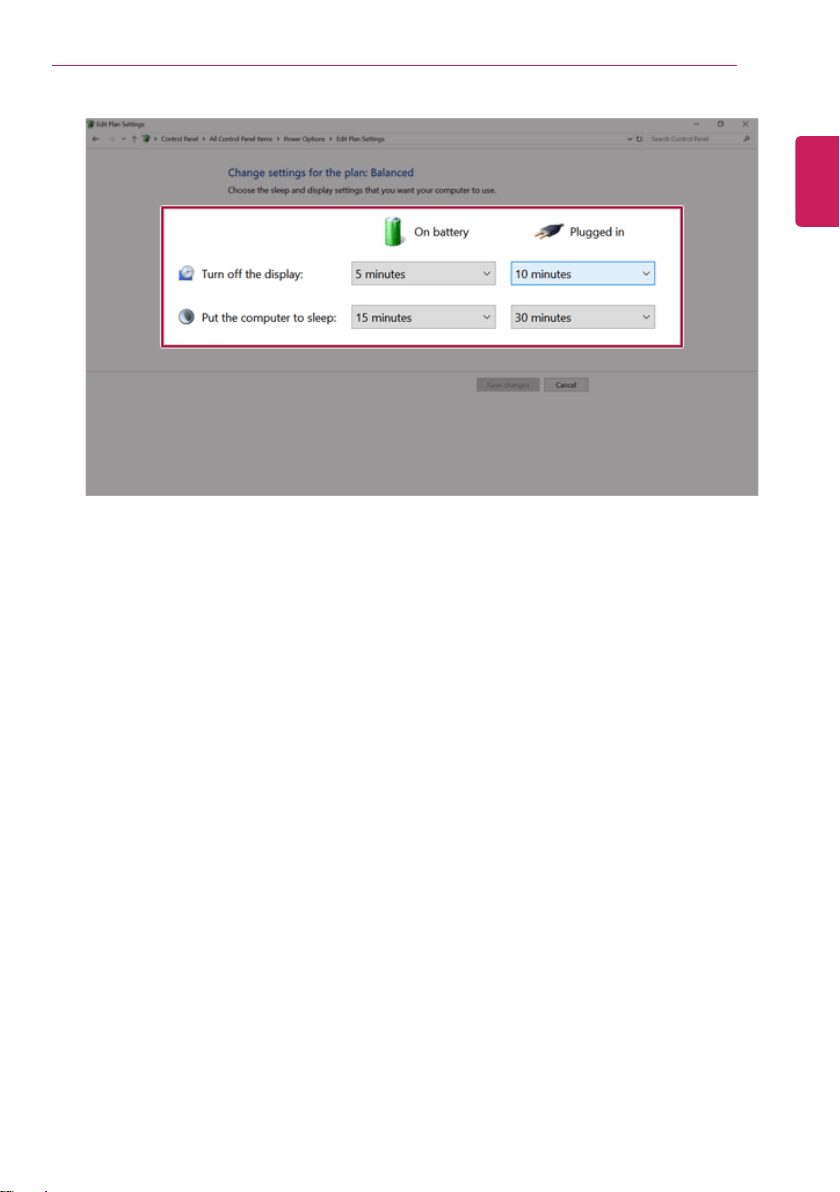
• This PC includes the following power management functions.
- Turn off the display: When you don't use the PC for up to 15 minutes.
- Sleep after: When you don't use the PC for up to 30 minutes.
• To exit from the sleep mode, press the power button or the sleep button.
(If an external mouse is connected, clicking the mouse will clear the sleep mode.)
Power Management Options
Power management options of this PC are as follows:
TIP
Power management settings may be changed when Windows update is performed.
ENGLISH
Instruction / Safety Information
21
• Turn off the display: If the PC is not used for a predefined time, the screen turns off.
• Put the computer to sleep: If the PC is not used for a predefined time, it enters the Sleep mode.
ENGLISH
22
Instruction / Safety Information
Regulatory Notices
ENGLISH
Instruction / Safety Information
23
ENGLISH
24
Instruction / Safety Information
ENGLISH
Instruction / Safety Information
25
ENGLISH
26
Instruction / Safety Information
ENGLISH
Instruction / Safety Information
27
ENGLISH
28
Instruction / Safety Information
ENGLISH
Instruction / Safety Information
29
ENGLISH
30
Instruction / Safety Information
ENGLISH
Instruction / Safety Information
31
ENGLISH
32
Instruction / Safety Information
ENGLISH
Instruction / Safety Information
33
ENGLISH
34
Instruction / Safety Information
ENGLISH
Instruction / Safety Information
35
ENGLISH
36
Instruction / Safety Information
ENGLISH
Instruction / Safety Information
37
ENGLISH
38
Instruction / Safety Information
ENGLISH
Instruction / Safety Information
39
ENGLISH
40
Instruction / Safety Information
ENGLISH

Instruction / Safety Information
41
ENGLISH
42
Instruction / Safety Information
ENGLISH
Instruction / Safety Information
43
ENGLISH
44
Instruction / Safety Information
ENGLISH
Instruction / Safety Information
45
ENGLISH
46
Instruction / Safety Information
ENGLISH
Instruction / Safety Information
47
ENGLISH
48
Instruction / Safety Information
ENGLISH
Instruction / Safety Information
49
ENGLISH
50
Instruction / Safety Information
ENGLISH
Instruction / Safety Information
51
ENGLISH
52
Instruction / Safety Information
ENGLISH
Instruction / Safety Information
53
ENGLISH
54
Instruction / Safety Information
ENGLISH
Instruction / Safety Information
55
Product Specifications
PC Specifications
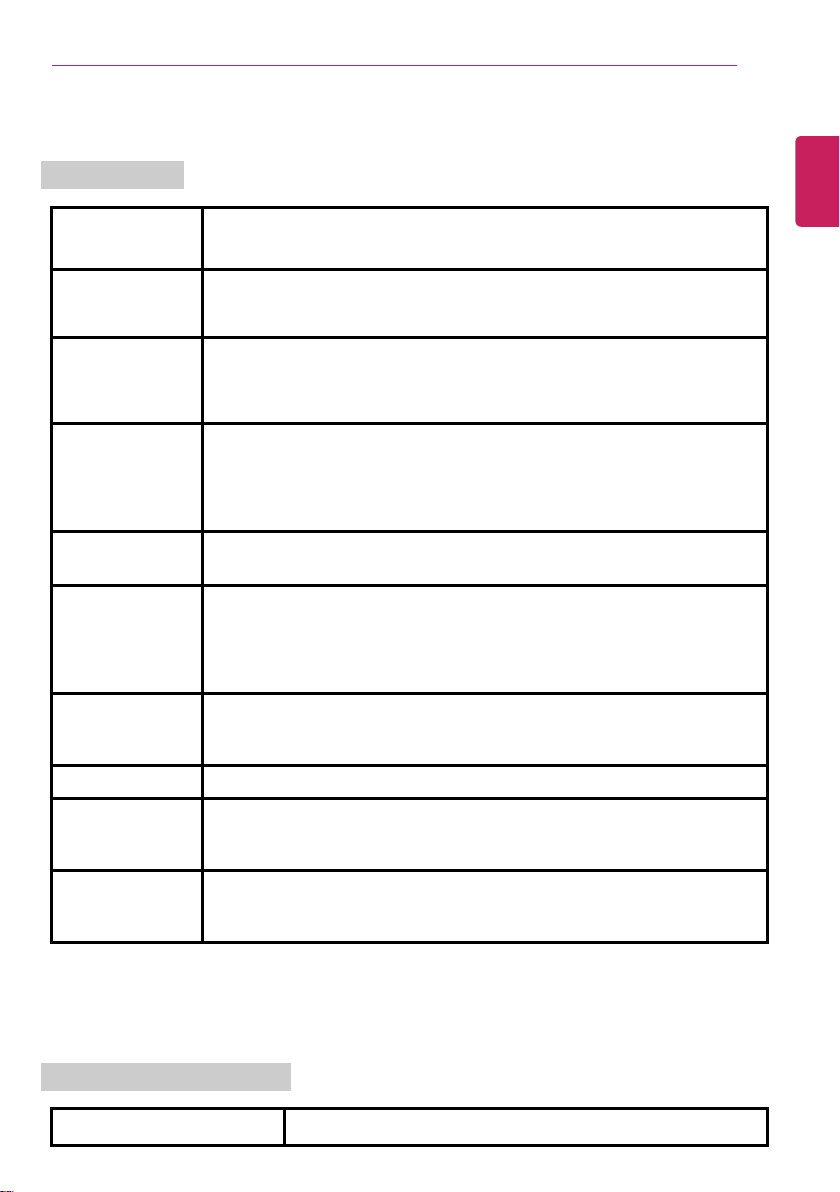
Display 14 inch IPS LCD with Pen Touch
The display resolution may differ by model.
CPU
Intel
®
Core™ i7 / i5 / i3 processor
The CPU differs depending on model type and cannot be replaced by the
user.
GPU
Intel
®
UHD Graphics 620
When processing large graphic data, it utilizes dynamically allocated system
memory. The size of the allocated memory depends on the system memory
size.
System Memory DDR4 SODIMM
The maximum capacity of the main board is 16 GB.
Memory of 3 GB or more is supported only in a 64-bit O/S.
Memory size may differ depending on the model. The user must not
arbitrarily replace the memory.
Storage Device
M.2 SSD (2280)
SSD capacity may differ depending on the model.
Bluetooth Bluetooth 5.0
If you connect to Bluetooth device and wireless LAN at the same time, the
system may become slow.
In order to use Bluetooth 5.0, the device you want to connect to must support
Bluetooth 5.0.
Wireless LAN Intel
®
9560D2W
Manufacturers and installers cannot provide services related to human
safety as this wireless device may cause radio interference.
Web Camera HD Webcam
LAN
10/100 Megabit or Gigabit
To use a wired LAN, you need to have a LAN adapter installed separately.
The performance of the provided adapter depends on the model.
Product Weight
Approx. 2.52 lbs (battery included)
Weight varies by configuration and manufacturing process.
The product dimensions and specifications differ by model type and cannot be replaced by the
user.
Power Supply and Environments
AC Adapter (Free Voltage)
Power Rating: 48 W / 65 W
ENGLISH
56
Instruction / Safety Information
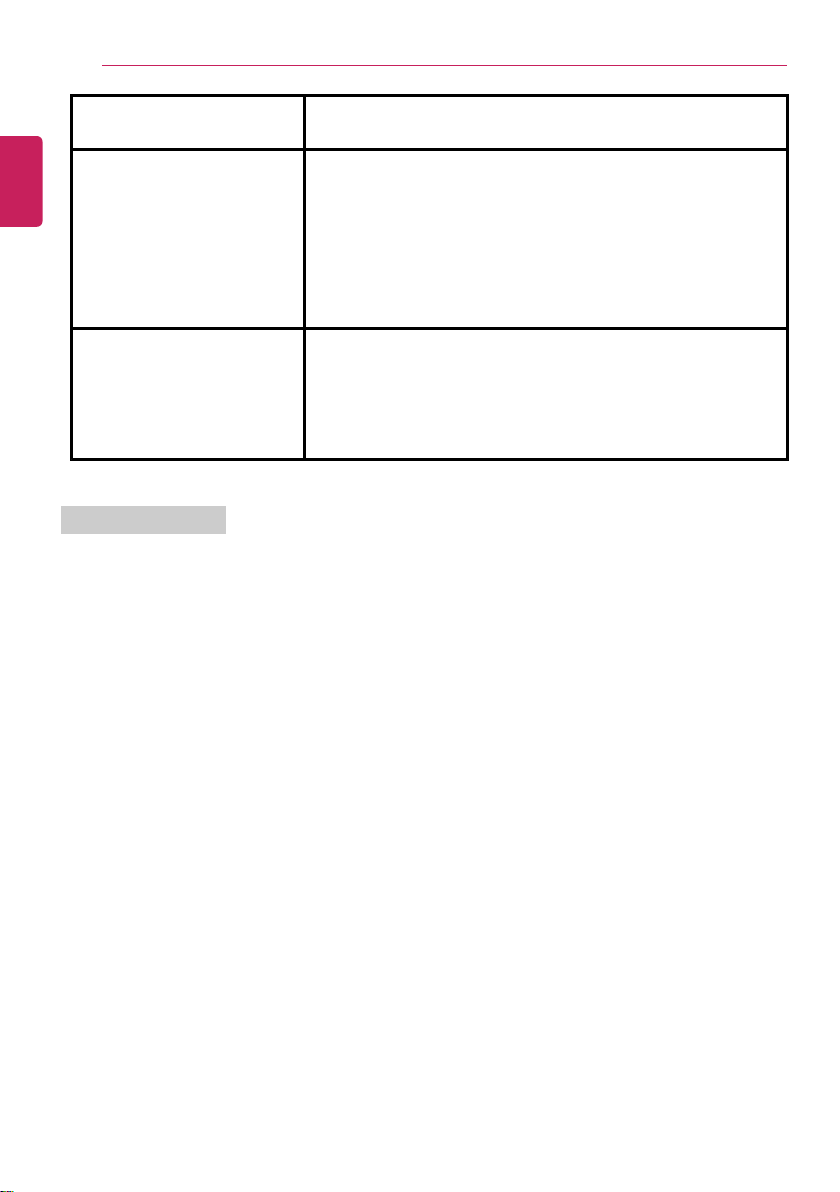
Input: AC 100 V to 240 V, 1.5 A to 1.6 A 50 / 60 Hz
Output: DC 19 V, 2.53 A (48 W) or 19 V, 3.42 A (65 W)
Battery
Lithium Ion battery
Charging Hours: 3.0 hours
Charging hours may be longer if the battery is not used for a long
time or the system is on.
When temperature is outside the operating temperature
specification, the battery may not be charged or charging hours
may be longer.
Operating temperature may be different from the actual room
temperature.
Operating and Storage
Conditions
Operating Temperature: 50 °F to 95 °F
Operating Humidity: 20 % RH to 80 % RH
Storage Temperature: 23 °F to 104 °F
Storage Humidity: 5 % RH to 90 % RH
Power Consumption
Power consumption during sleep, operation, standby, and manual off modes may differ depending
on the product specifications and the adapter type. Even when the system is turned off, it
consumes a minute amount of power, if supplied. To cut off the power supply completely,
disconnect the power cord from the power outlet.
ENGLISH
Using Windows 10
57
Using Windows 10
Start Menu
A New Start Menu
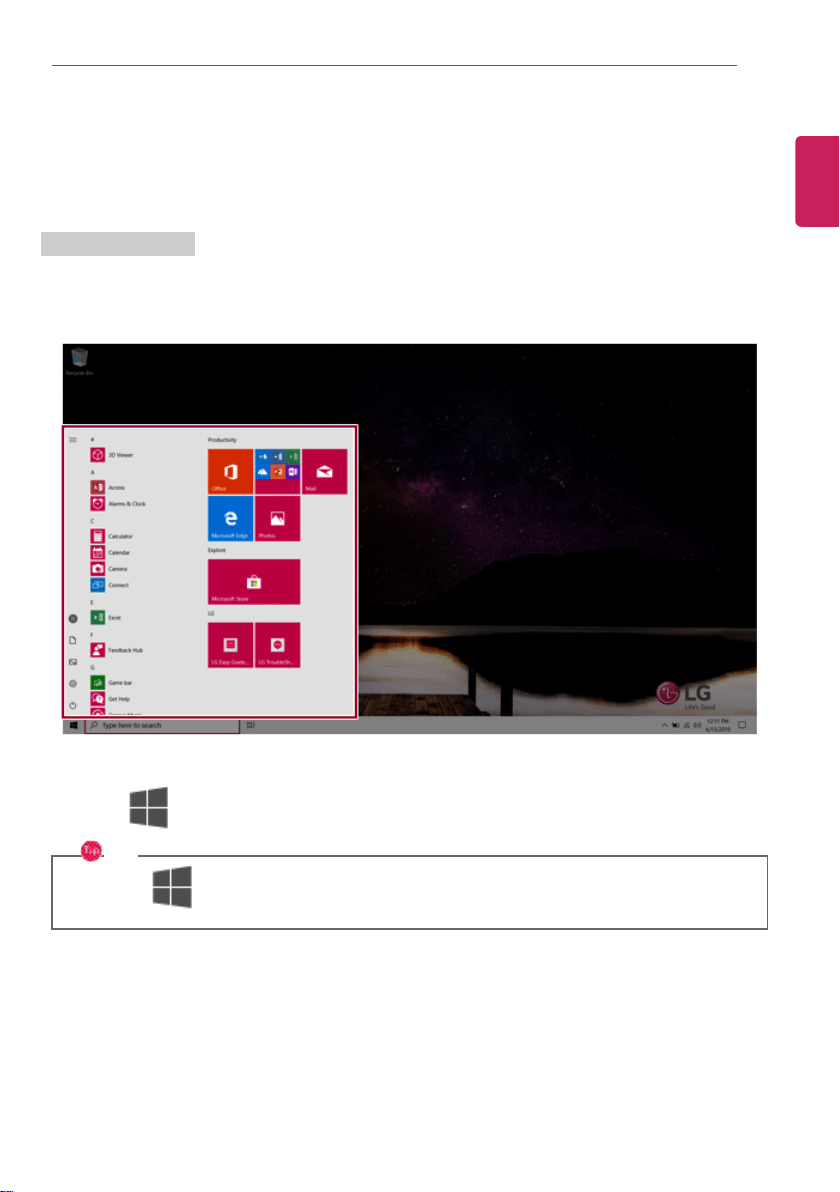
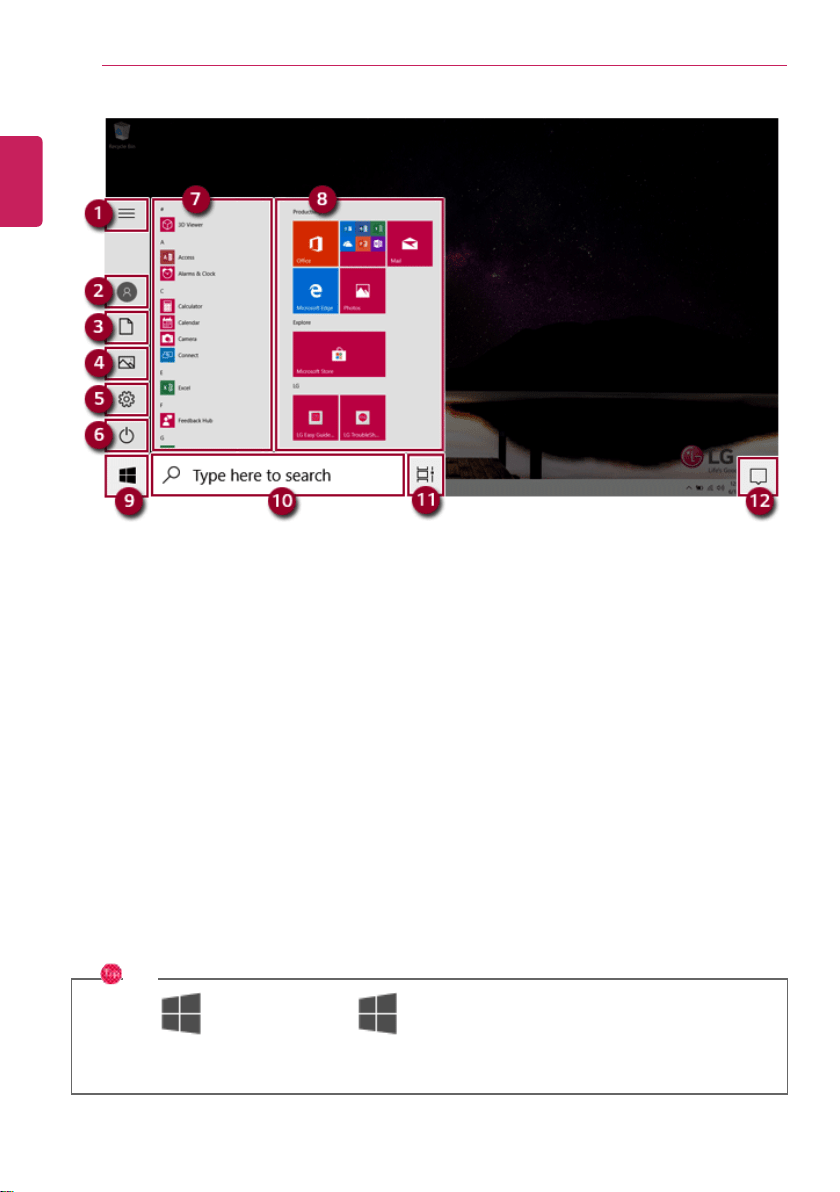
The Start menu in Windows 10 has been changed so you can use Windows quickly and easily.
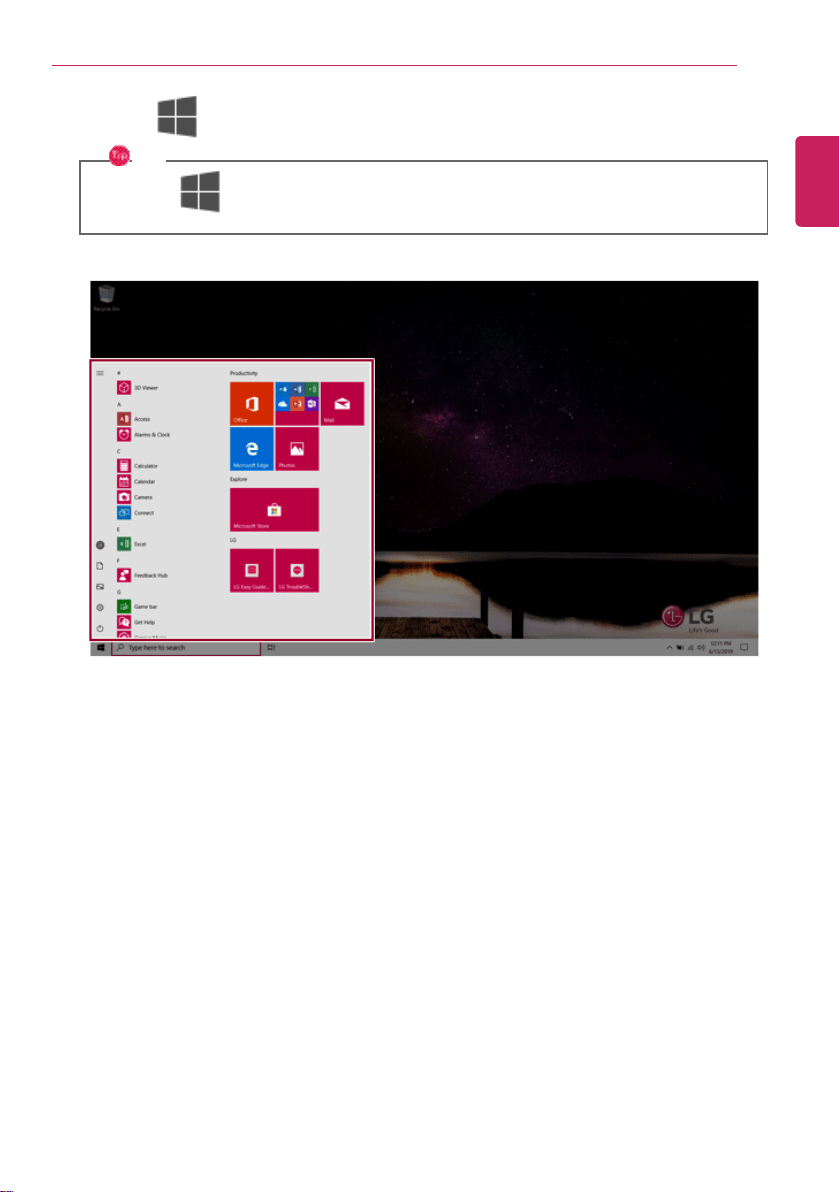
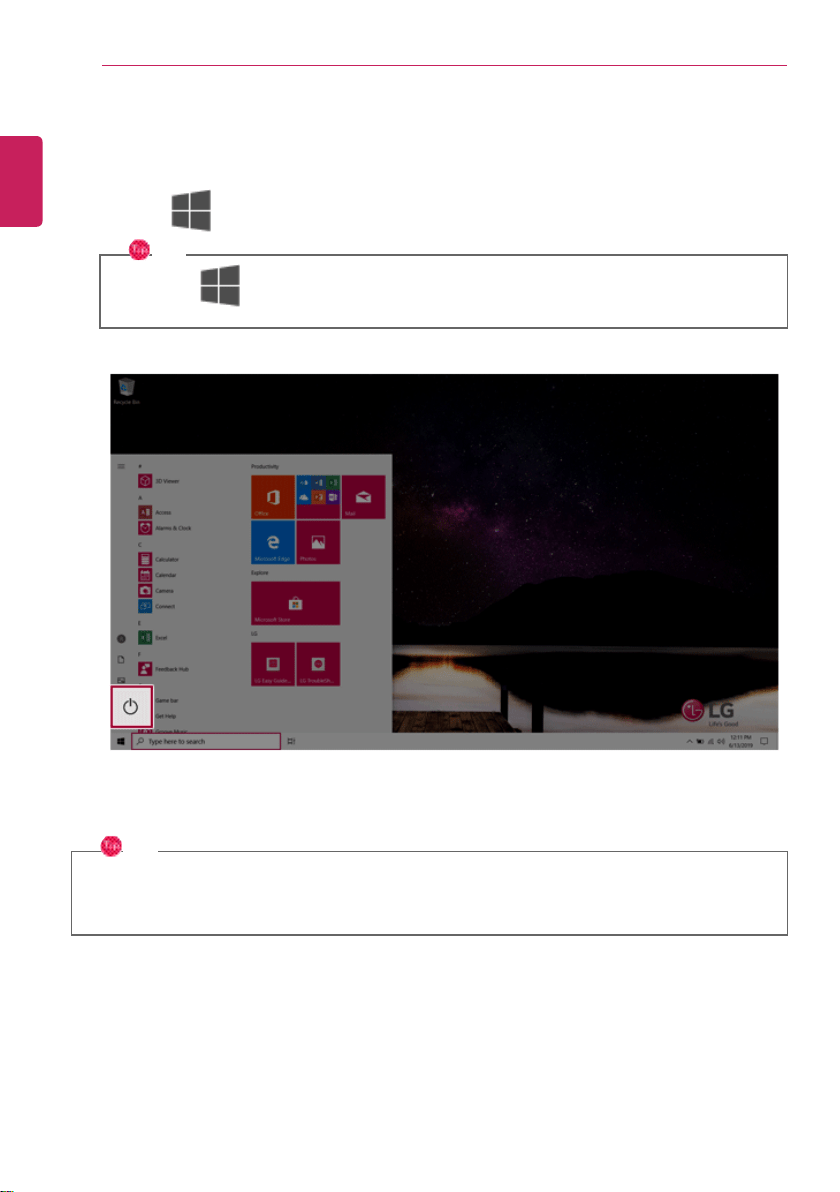
Press the [ ] button in the lower-left corner of the screen to display the Start menu.
TIP
Press the [
] key or [Ctrl] + [Esc] to display the Start menu.
ENGLISH
58
Using Windows 10
1 Expand: Displays the names of all menu items.
2 User Account: Displays the current user's information. You can use functions such as Change
Account Settings, Lock or Logout.
3 Document: Opens the default document folder in Windows.
4 Pictures: Opens the default photo folder in Windows.
5 Settings: You can set up the system including the network settings.
6 Power: Sleep, System Shutdown, and Restart menus are available.
7 App List: Displays the app list.
8 App Tile: Apps added to the Start menu are displayed in tile format.
9 Start Button: Opens or closes the Start menu.
10 Windows Search: Searches for the text entered by the user in My Items (system) or the Internet.
11 Task View: You can add a Desktop screen or switch to the screen to display the history of recent
PC usage.
12 Action Center: You can view the system-related notification messages and change PC settings.
TIP
• Press [ ] + [X], and then the [ ] button pop-up menu appears. You can use the
pop-up menu to easily access the shortcuts such as Windows Explorer, Search, System
Shutdown, and Desktop.
ENGLISH

Using Windows 10
59
Desktop Apps and Windows Apps
The Desktop apps remain unchanged from the previous Windows apps, but Windows apps have been
changed to include various functions.
The Windows apps provide easy-to-use menus according to the window size and a variety of
convenient functions such as Update and Alarm.
ENGLISH
60
Using Windows 10
Using Apps
Running and Exiting Apps
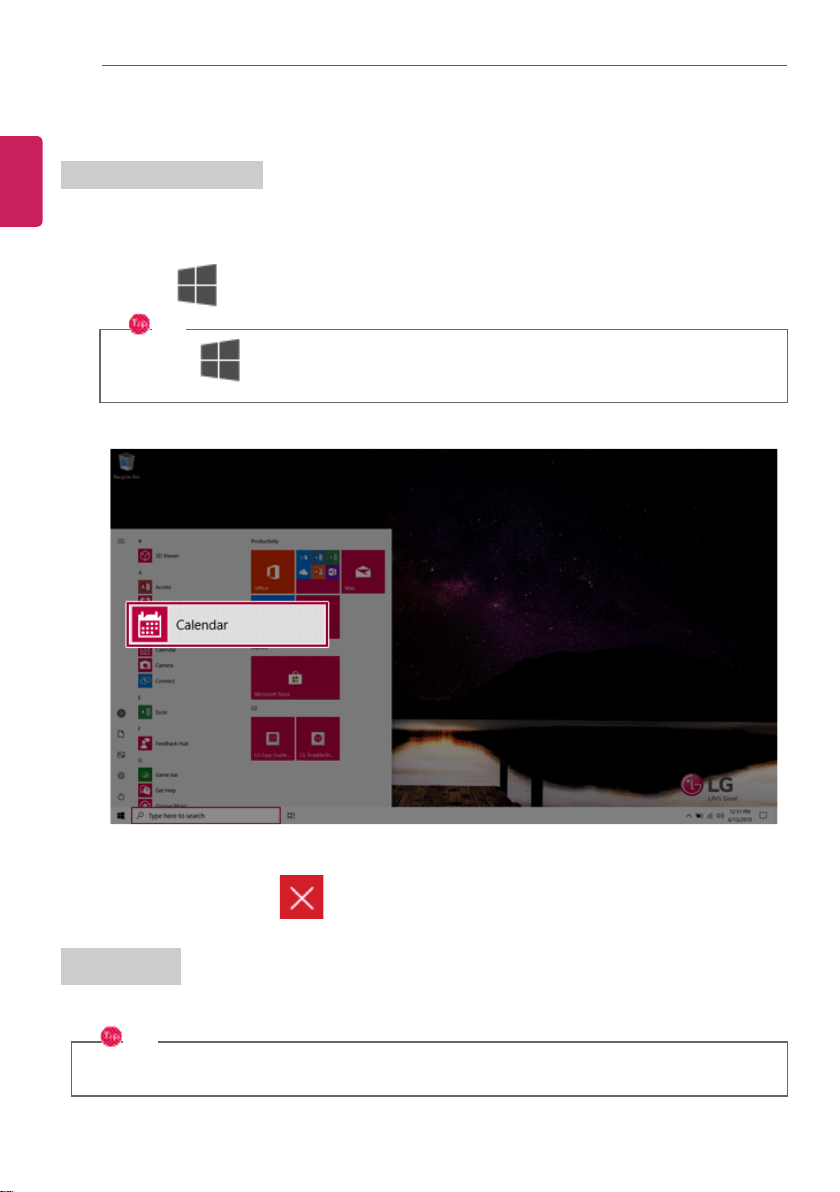
Run apps that were not added to the Start menu or apps that were installed on the system using the
following method:
1 Press the [
] button and select and run the app you want from the app list.
TIP
Press the [
] key or [Ctrl] + [Esc] to display the Start menu.
2 To exit an app, press the [ ] button on the top of the app screen.
Deleting Apps
You can delete apps from the Start menu tiles or the app list.
TIP
The basic Windows apps that are required may not be deleted.
ENGLISH
Using Windows 10
61
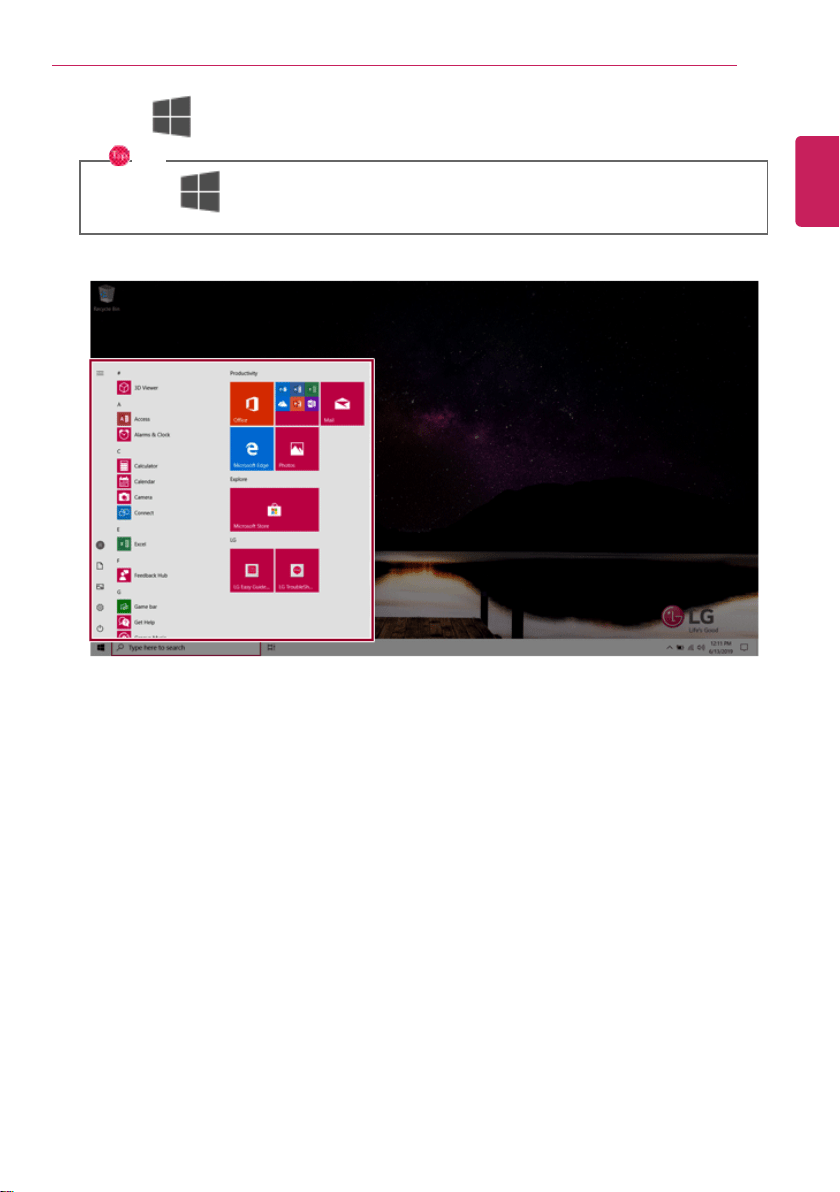
1 Click the [
] button to display the Start menu.
TIP
Press the [
] key or [Ctrl] + [Esc] to display the Start menu.
ENGLISH
62
Using Windows 10
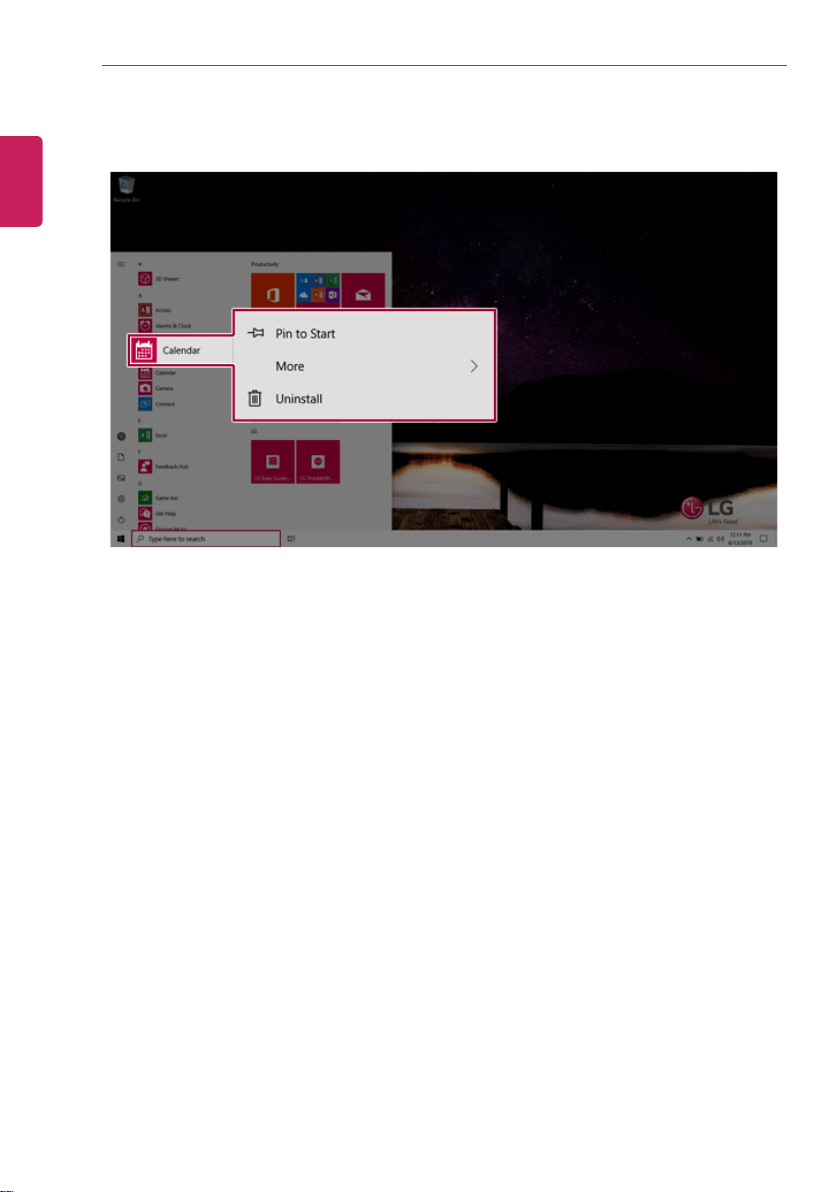
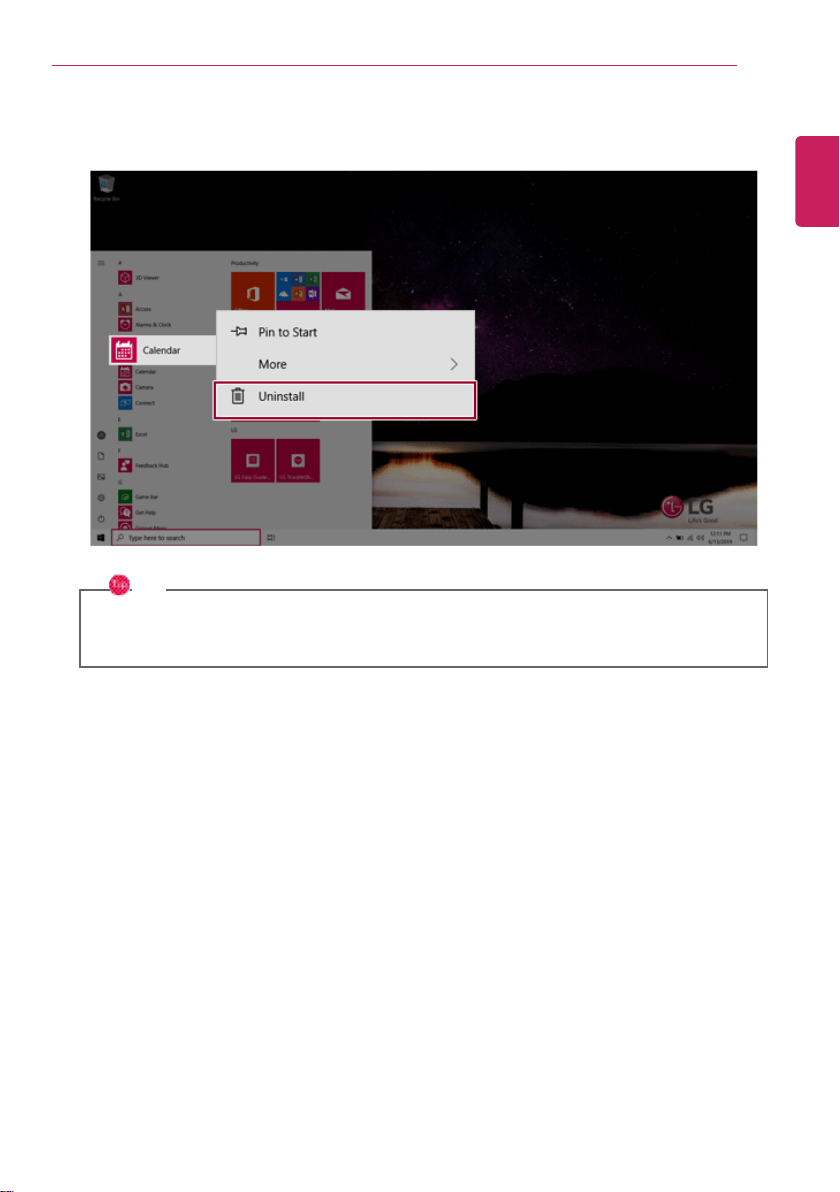
2 Go to the Start menu app tiles or the app list and right-click the app you wish to delete.
ENGLISH
Using Windows 10
63
3 When the pop-up menu appears, select [Uninstall].
TIP
If you are deleting a desktop app, the [Programs and Features] window appears. Right-click
the app you wish to delete and press the [Uninstall/Change] button.
ENGLISH
64
Using Windows 10
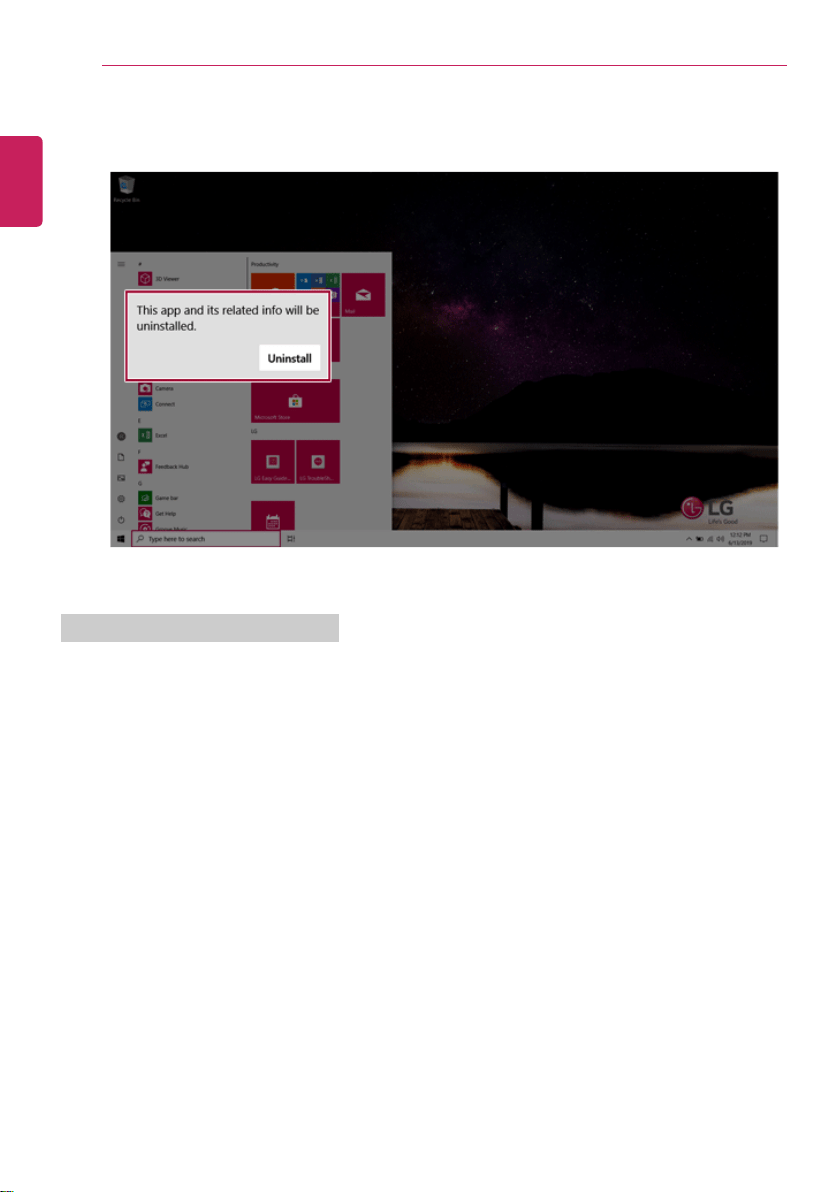
4 When prompted to confirm the deletion, click the [Uninstall] button to delete the app.
Adding Apps to Start Menu/Taskbar
You can add frequently used apps on the Start menu and taskbar for easy and quick access.
ENGLISH
Using Windows 10
65
1 Press the [
] button to display the Start menu.
TIP
Press the [
] key or [Ctrl] + [Esc] to display the Start menu.
ENGLISH
66
Using Windows 10
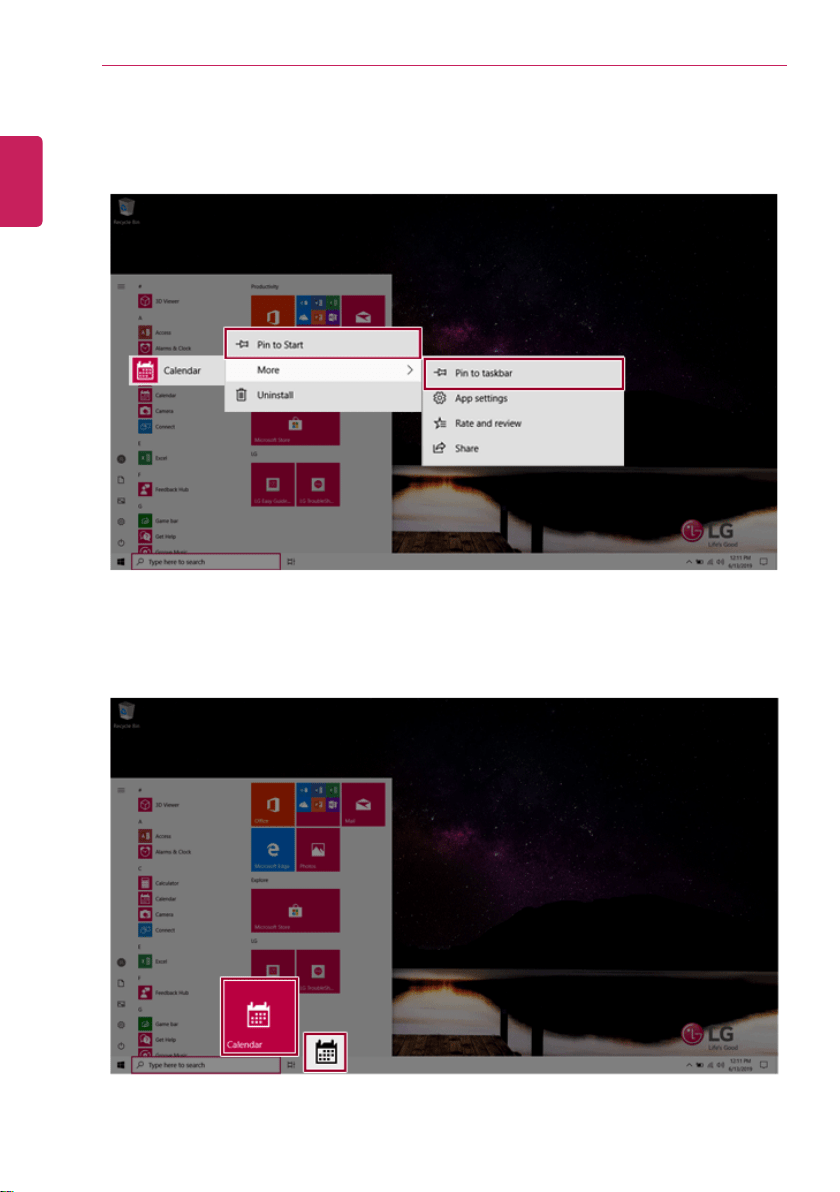
2 Right-click the app you want from the app list, and then click [Pin to Start] or [More] > [Pin to
taskbar].
3 The selected app is added to the Start menu or taskbar.
ENGLISH
Using Windows 10
67
Toggling and Adding Apps/Desktops
In Windows 10, you can toggle the running apps easily and quickly, and add desktops to use them like
multiple PCs.
TIP
For an app that does not allow multitasking, you may be switched to the desktop where the app
was executed, or you may have an error message.
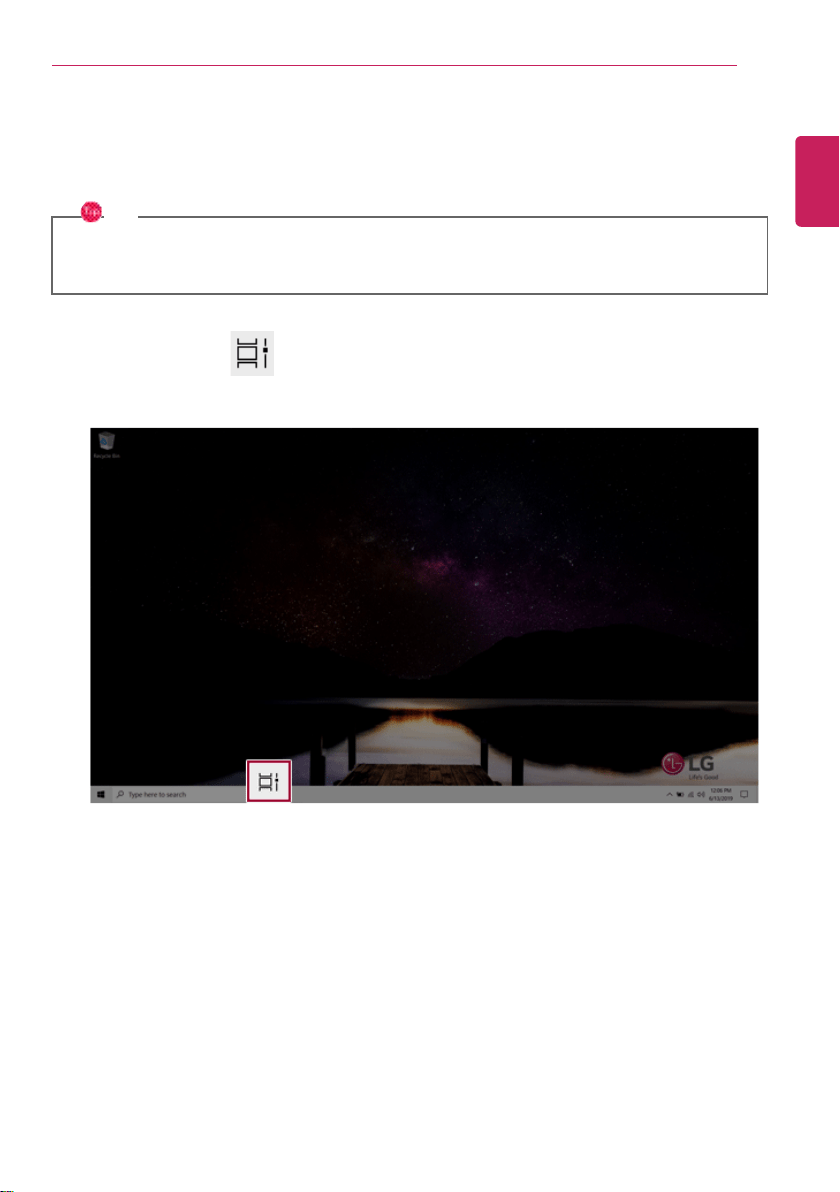
1 In the taskbar, press [ ].
ENGLISH
68
Using Windows 10
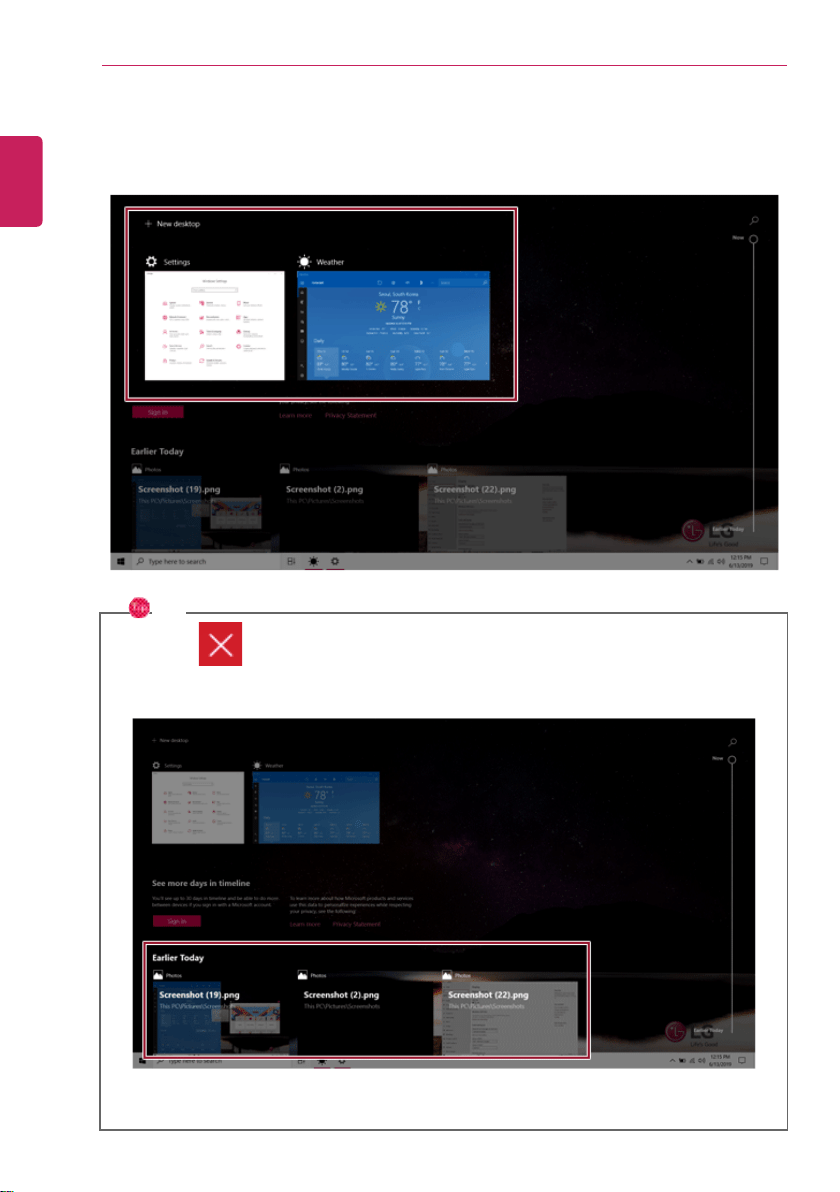
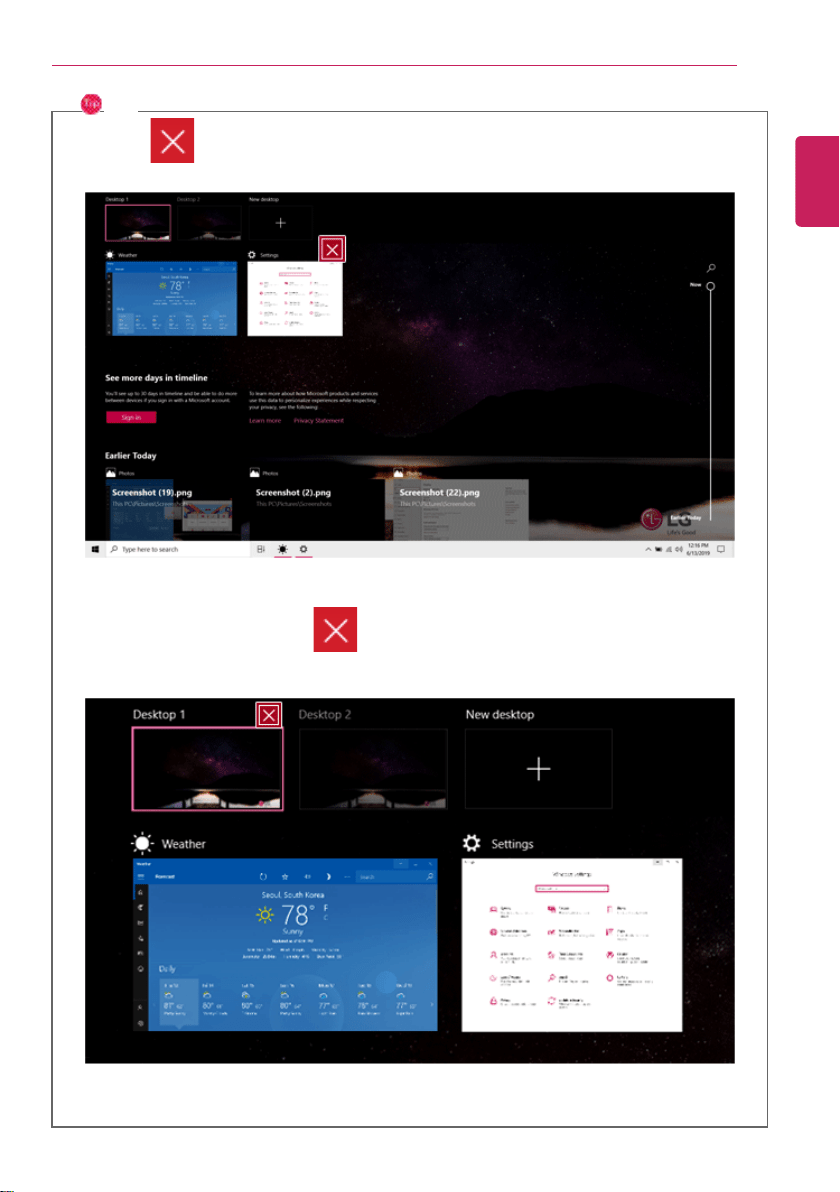
2 The screen to switch between apps and desktops appears and the running apps are displayed in
the preview.
TIP
Press the [
] button of an app in the preview to exit the app.
You can use the timeline displayed on the Desktop screen to check the history of PC usage.
ENGLISH
Using Windows 10
69
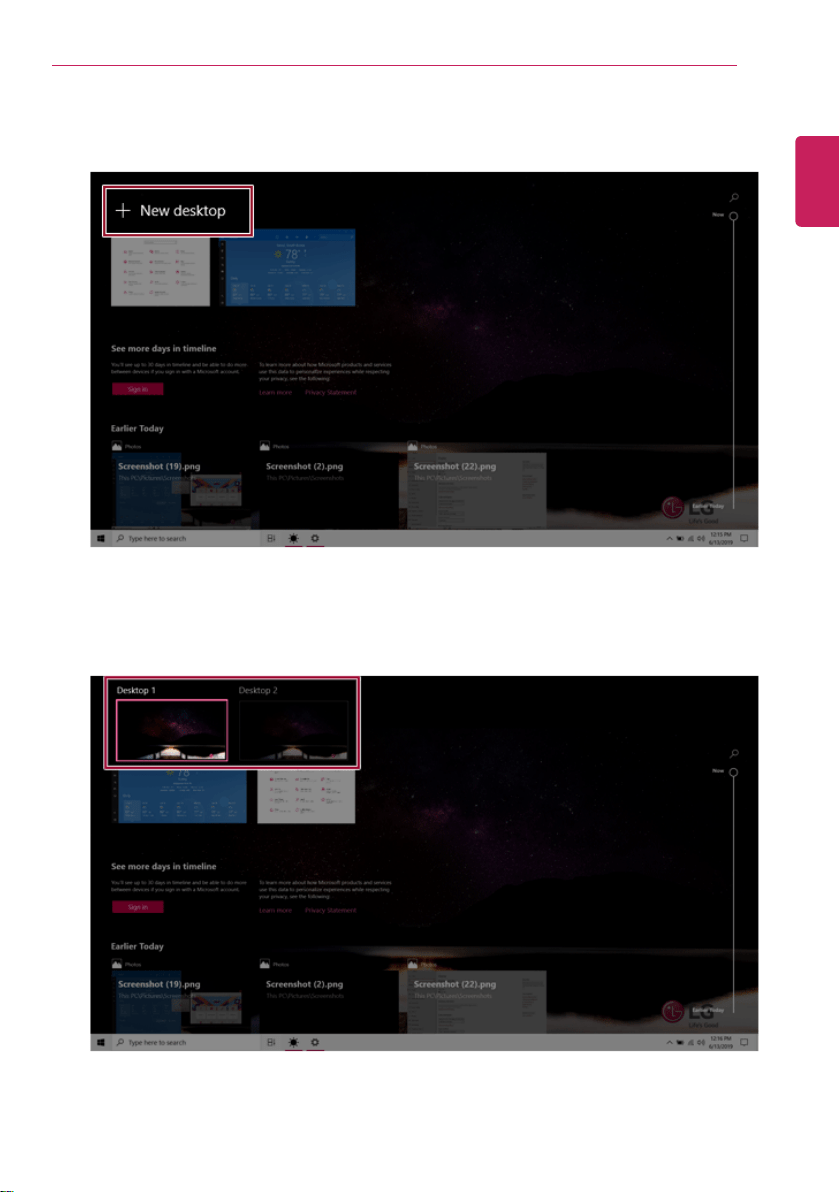
3 Click the [New desktop] tile.
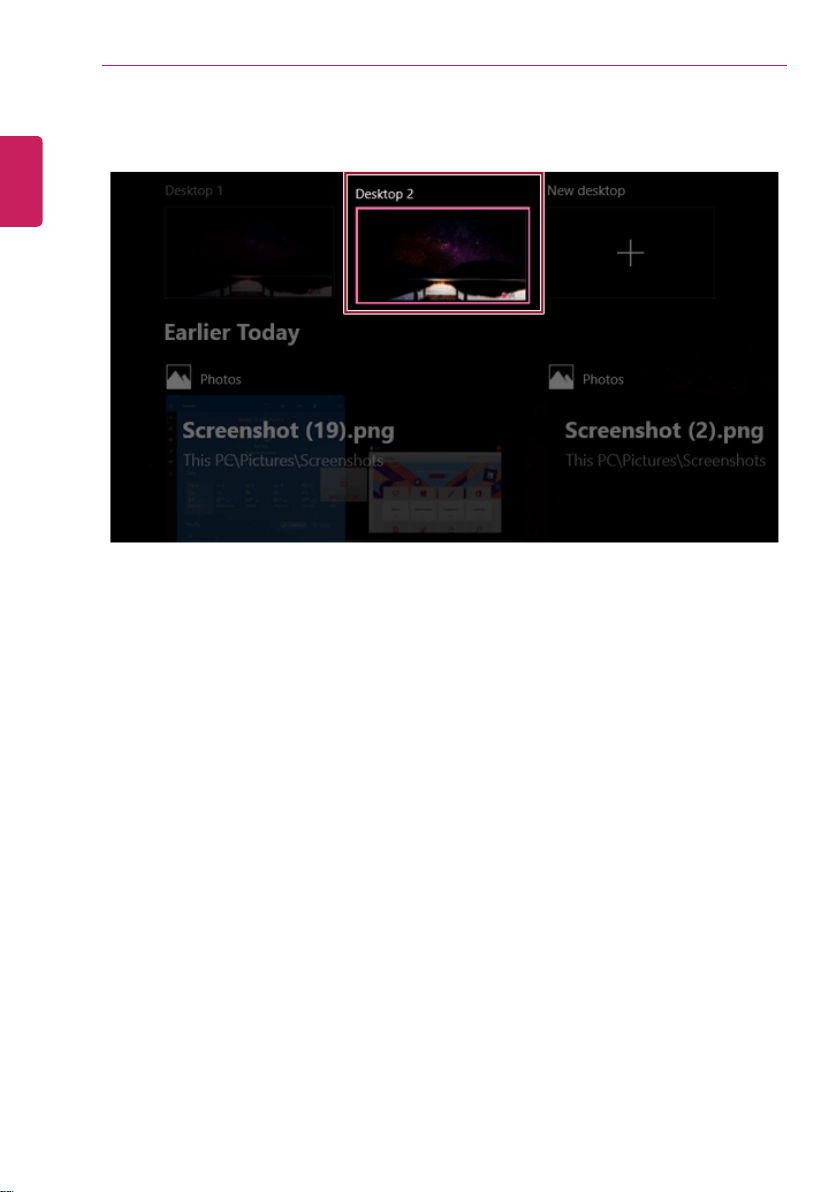
4 [Desktop 1] and [Desktop 2] are created.
ENGLISH
70
Using Windows 10
5 Select an app in the preview or desktop.
6 The screen is toggled to the selected app or desktop.
ENGLISH
Using Windows 10
71
TIP
Press the [
] button in the app preview to exit the app.
In the desktop preview, press the [ ] button to delete the desktop and move running apps
to another desktop.
ENGLISH
72
Using Windows 10
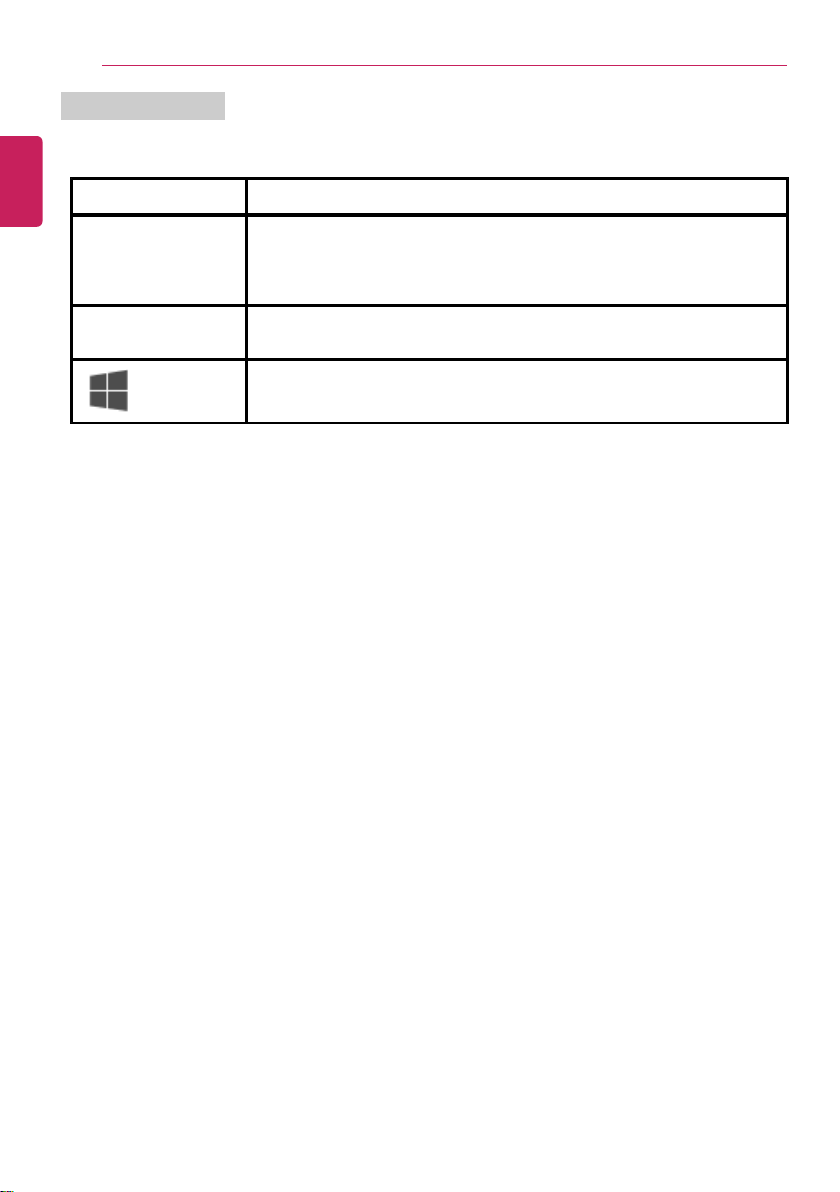
Using Shortcut Keys
Use the shortcut keys to quickly toggle between apps and desktops.
Shortcut Keys
Comments
[Alt] + [Tab] Hold down the [Alt] key and press the [Tab] key to view the running apps
in the preview.
Press [Tab] repeatedly to select the app you wish to switch to and then
release the [Alt] key.
[Alt] + [Ctrl] + [Tab]
The running apps on the screen are displayed in the preview.
Select and switch to an app.
[
] + [Tab]
If the desktop toggling screen appears, select an app or desktop you wish
to switch to.
ENGLISH

Using Windows 10
73
Splitting the App Screen
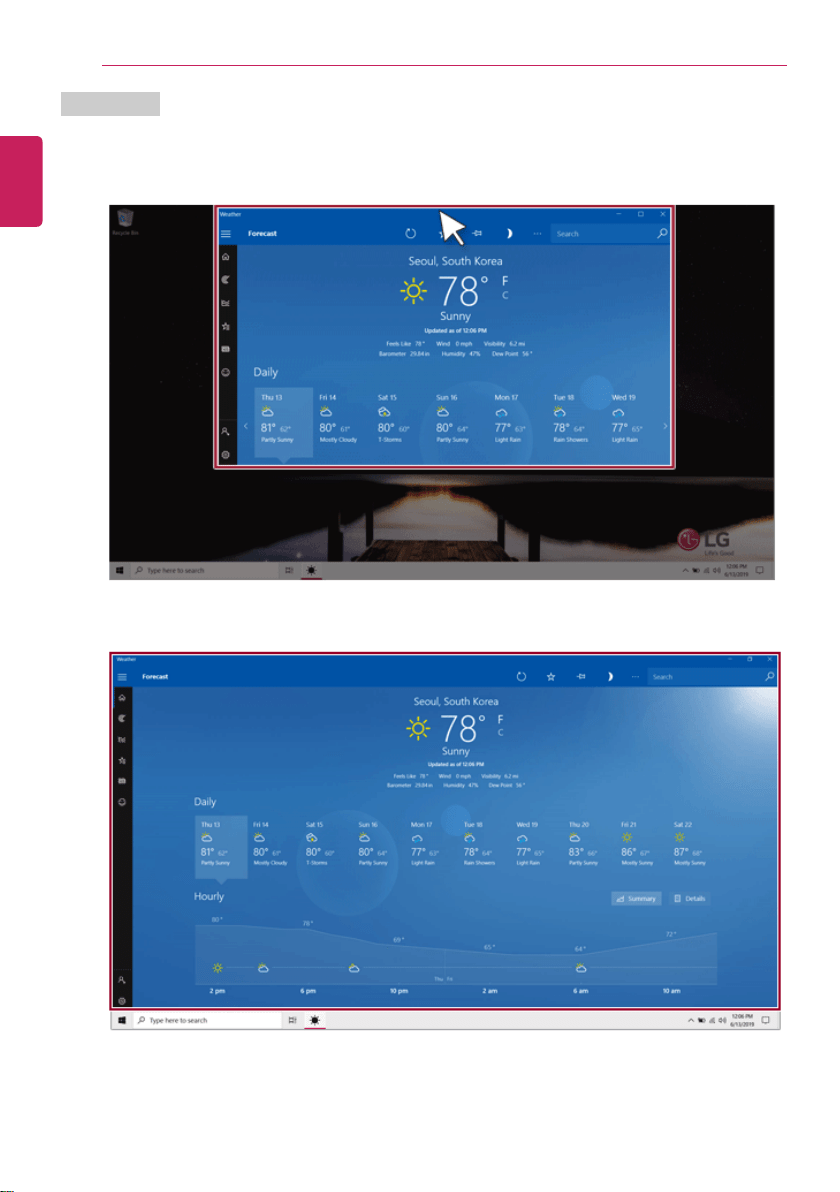
In Windows 10, you can easily adjust window sizes and split windows if necessary.
TIP
Some apps that cannot adjust the window size do not support the screen split.
ENGLISH
74
Using Windows 10
Full Screen
1 Drag and drop an app to the top end of the screen to change the app to the full screen size.
2 Drag and drop the app again to a different location to return to its original size.
ENGLISH
Using Windows 10
75
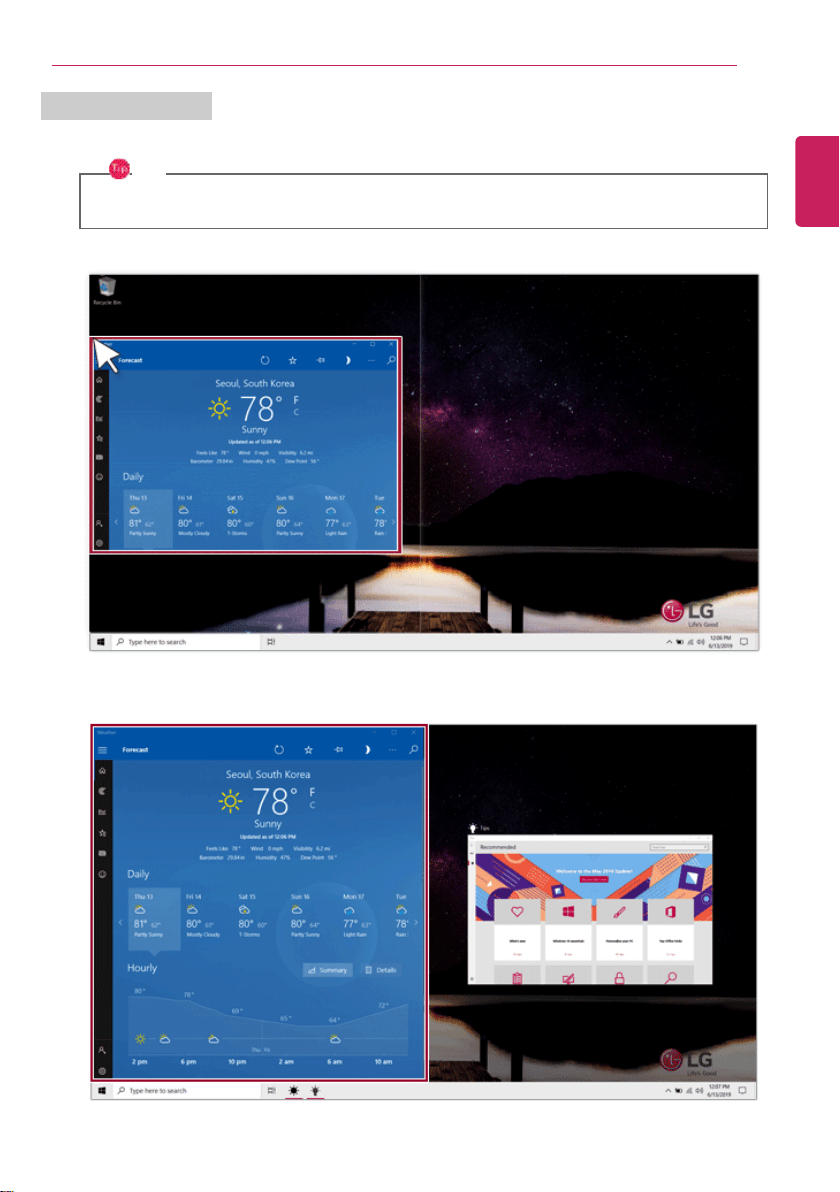
Screen Split into Two
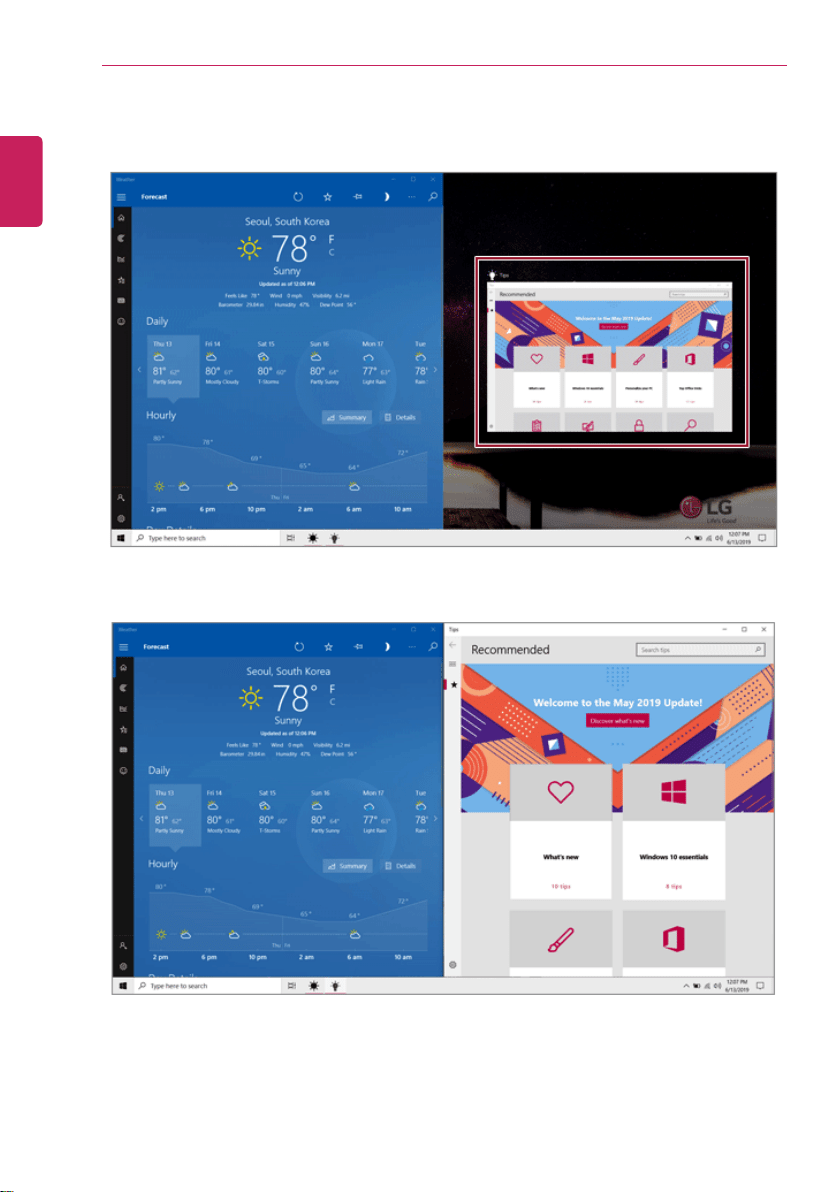
1 Drag and drop an app to the right end or left end to reduce the size by half.
TIP
The screen is split according to the guideline.
ENGLISH
76
Using Windows 10
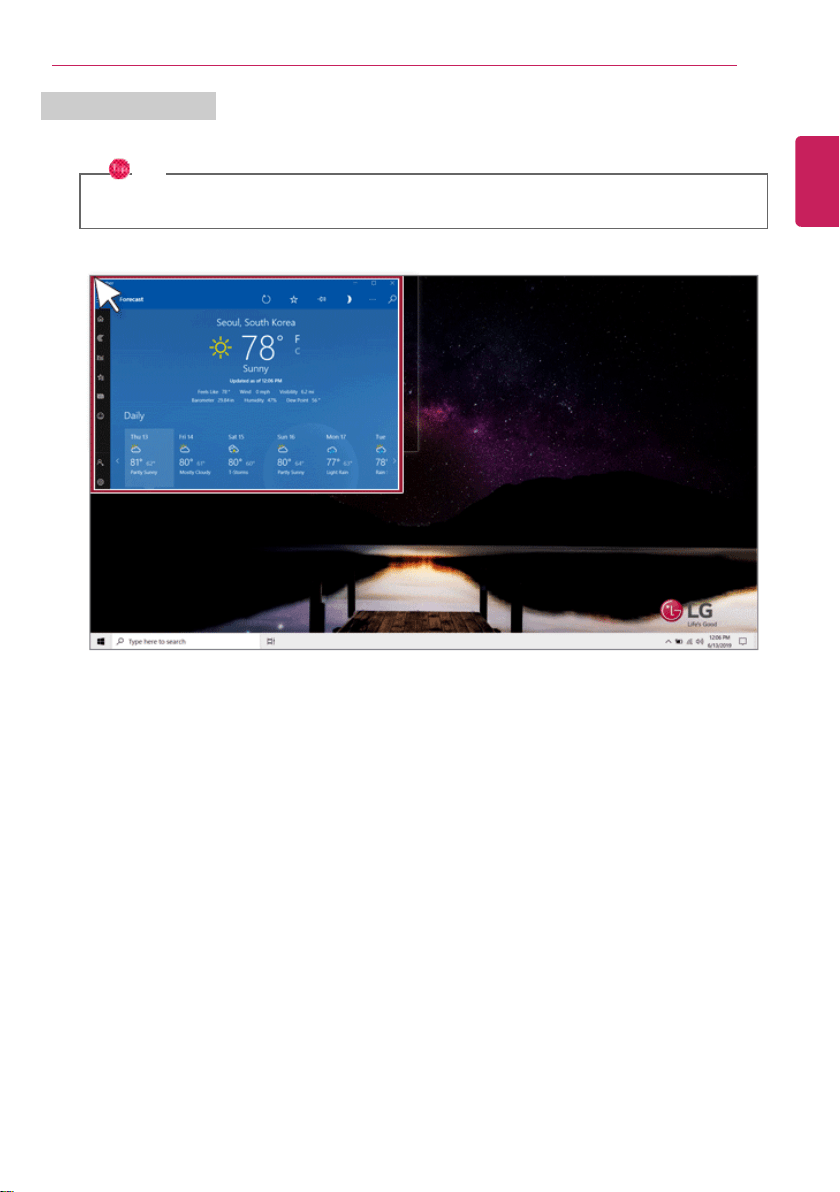
2 Select a running app displayed in the preview on the split screen.
3 Drag and drop the app again to a different location to return to its original size.
ENGLISH
Using Windows 10
77
Screen Split into Four
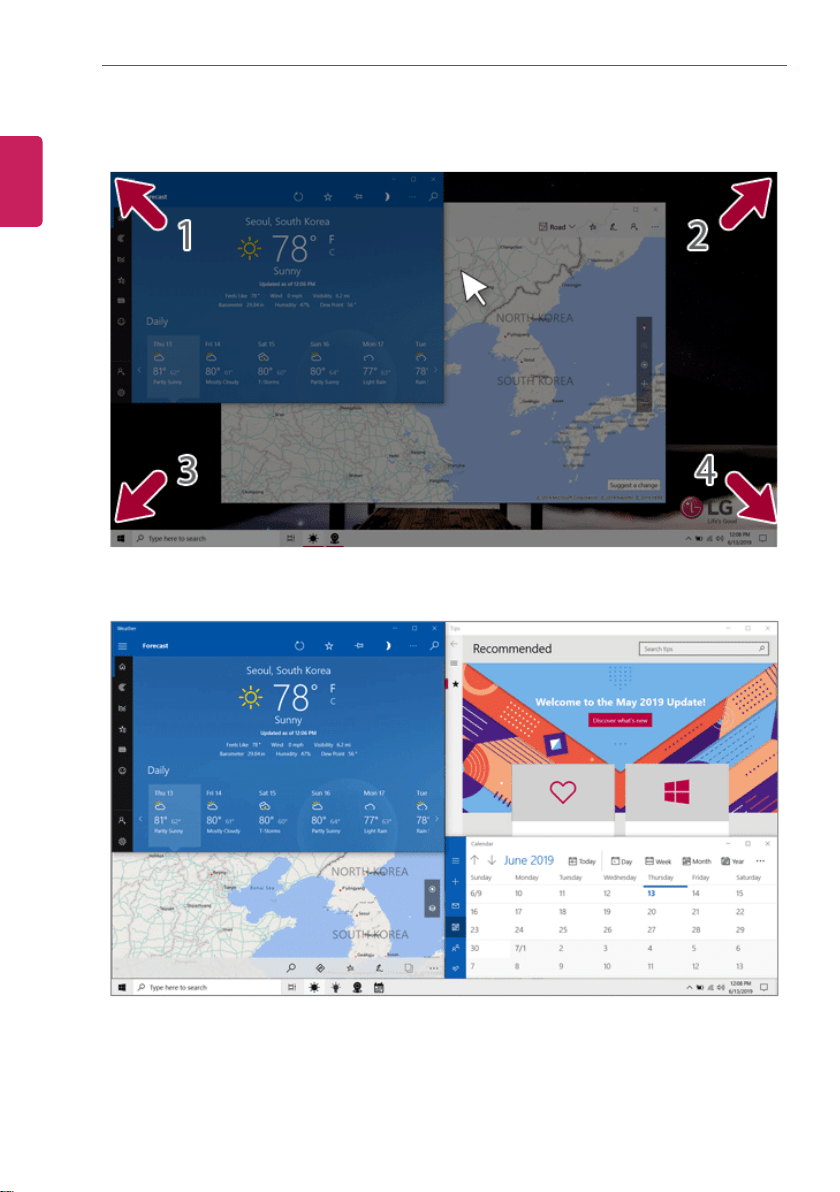
1 Drag and drop an app to the left corner to reduce the app to 1/4 size of the screen.
TIP
The screen is split according to the guideline.
ENGLISH
78
Using Windows 10
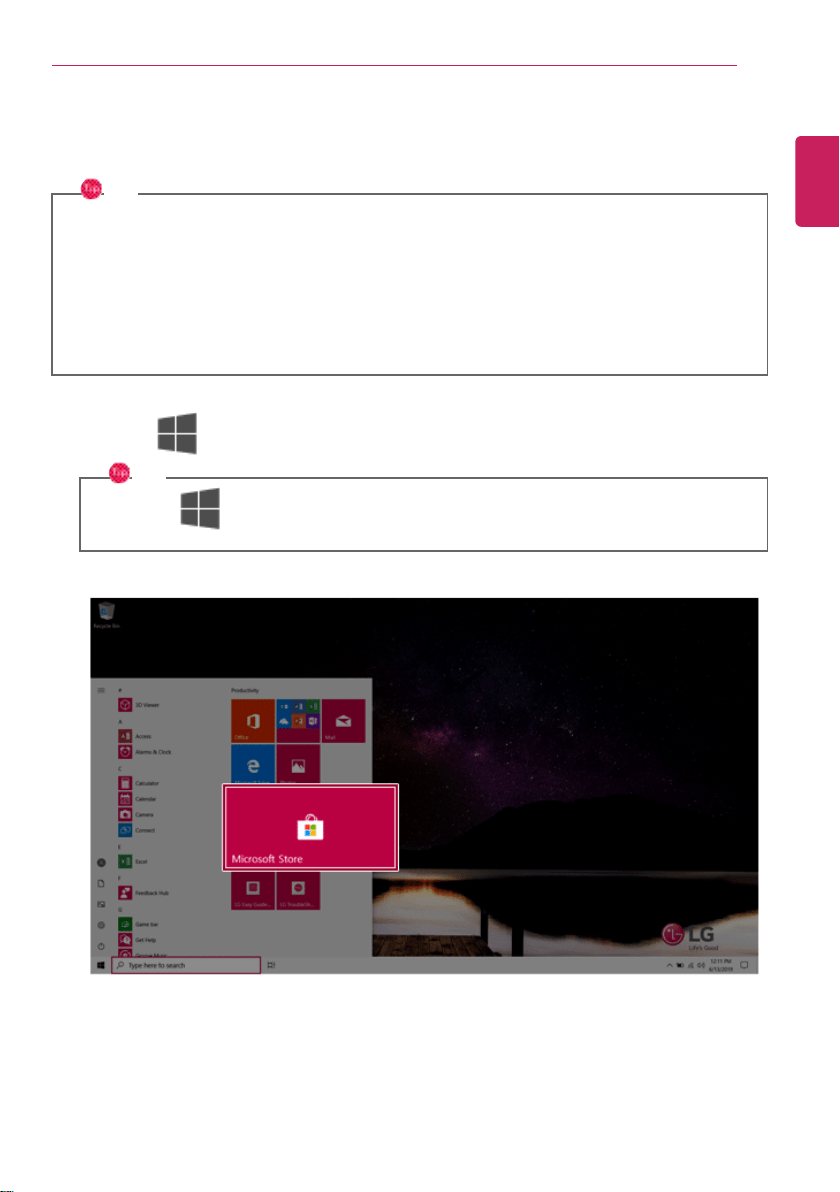
2 You can use this method to place up to four apps on the screen.
3 Drag and drop the app again to a different location to return to its original size.
ENGLISH
Using Windows 10
79
Using the Store
You can purchase apps or get free apps from Windows Store.
TIP
If a local account is being used, a window to switch to a Microsoft account appears while using
Windows Store. Follow the instructions on the screen to switch the local account to a
Microsoft account.
You can also do so by selecting [Start menu] > [Account] > [Change Account Settings].
If you switch to a Microsoft account, your PC settings (background, user settings, etc.) may be
changed to the previous settings.
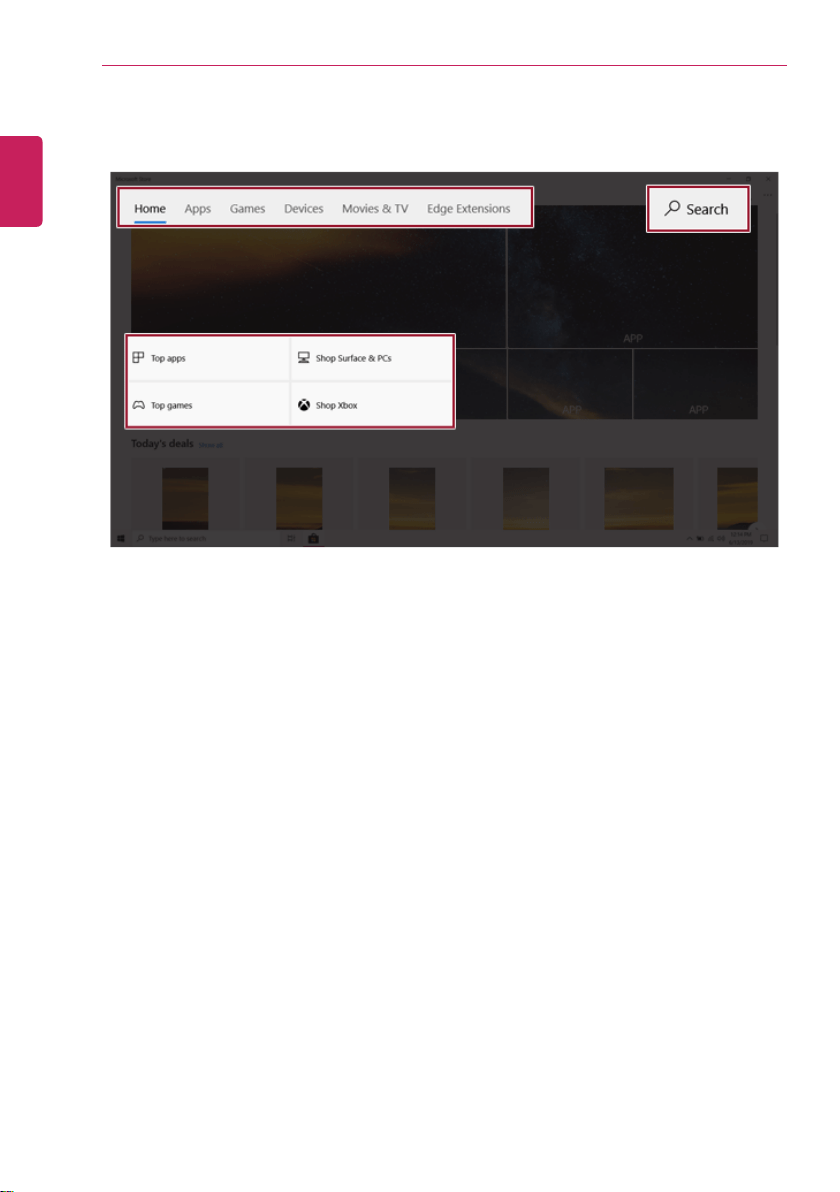
1 Press the [ ] button to move to the Start menu and select the [Microsoft Store] tile.
TIP
Press the [
] key or [Ctrl] + [Esc] to display the Start menu.
ENGLISH
80
Using Windows 10
2 Select the app or use the search function on the store screen to install the desired app.
ENGLISH
Using Windows 10
81
Switching to Tablet Mode
If you are using Windows on a tablet PC, you can easily switch to the tablet mode.
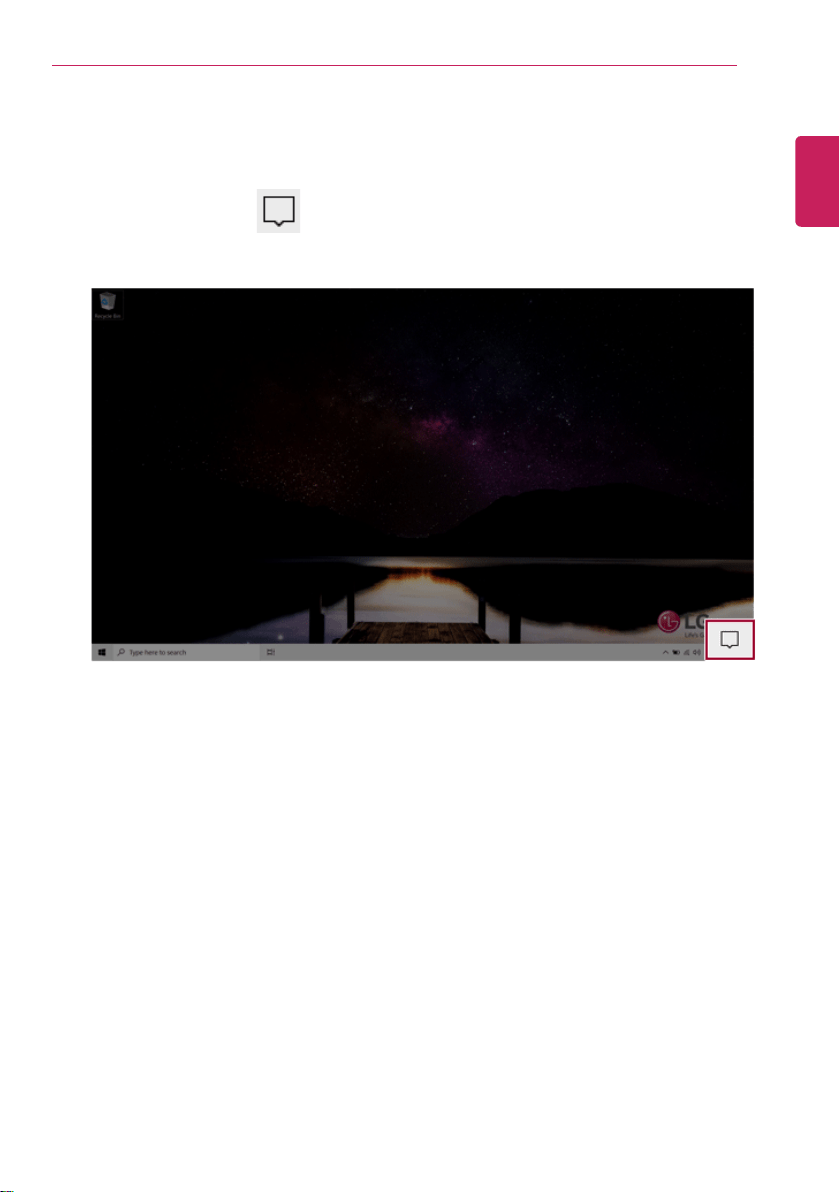
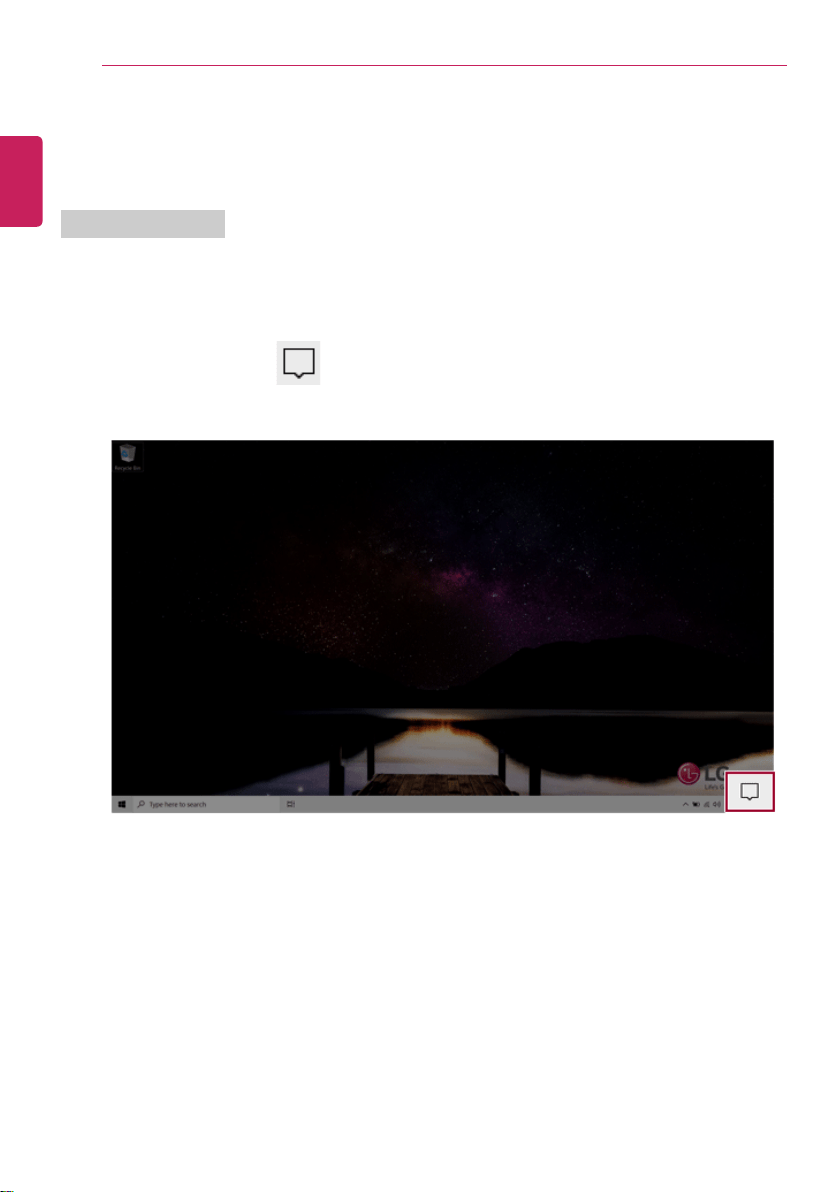
1 Press the Action Center [
] icon on the right side of the taskbar.
ENGLISH
82
Using Windows 10
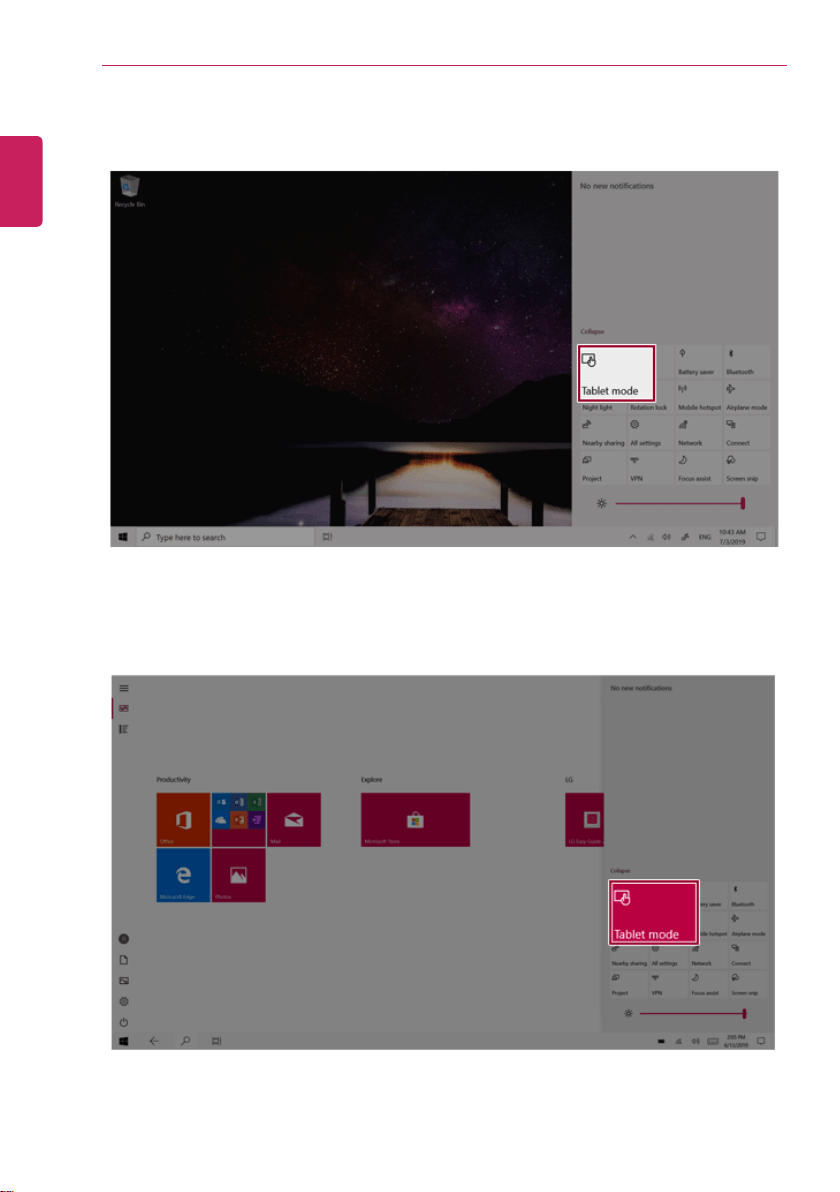
2 Select [Tablet mode] to switch Windows to tablet mode.
3 Select [Tablet mode] again to deactivate the mode.
ENGLISH
Using Windows 10
83
Unlocking the Screen
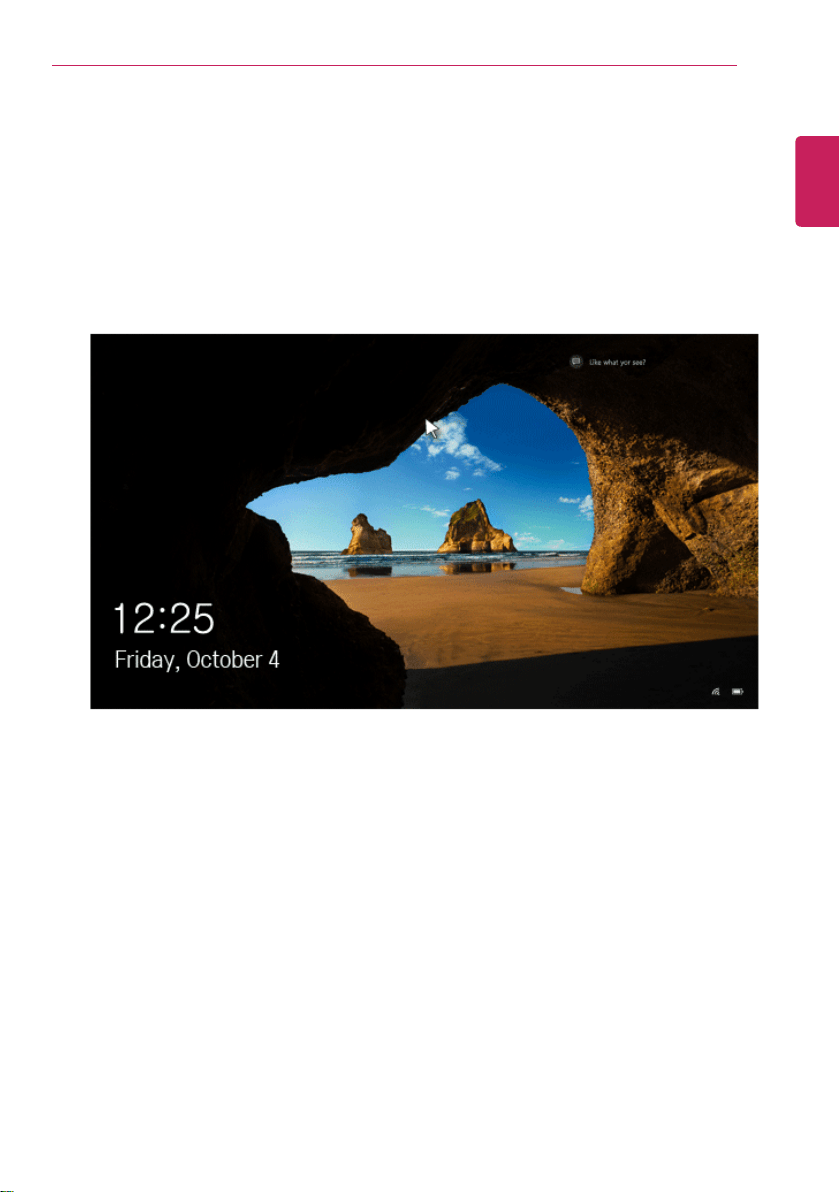
If the PC is not used for an extended period, it goes into a locked state.
When the PC is used again, a lock screen appears for security purposes and may be unlocked by using
the following method.
1 From the lock screen, press any key on the keyboard or drag up while you click and hold the mouse
button.
2 When the login window appears, enter the password and click [Enter].
(If no password is set, press the login button to immediately unlock the screen.)
ENGLISH
84
Using Windows 10
Setting the PC
Windows 10 supports various functions so that the user can change the PC setting easily and quickly.
Using Action Center
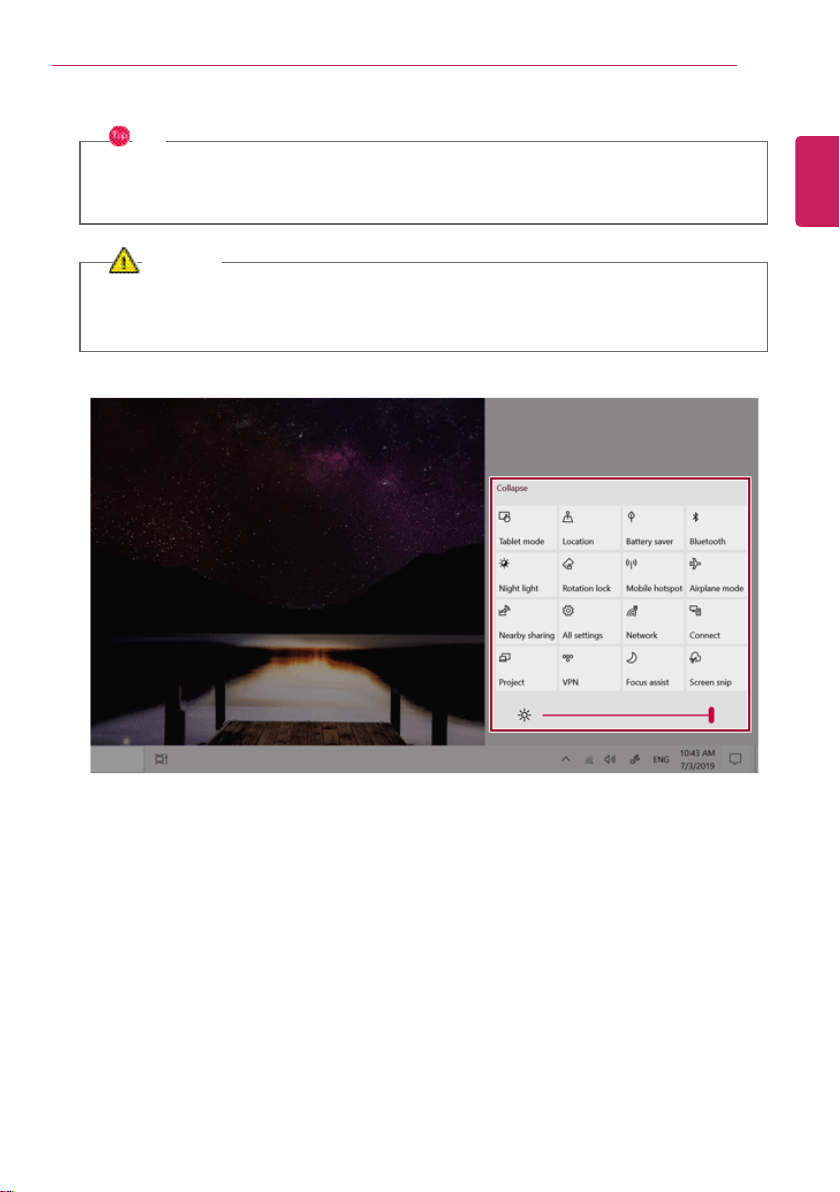
You can use the Action Center to easily change the settings for tablet mode, display, media connection
and network settings.
The functions supported by the Action Center may differ depending on the model.
1 Press the Action Center [
] icon on the right side of the taskbar.
ENGLISH
Using Windows 10
85
2 Change the PC settings as needed.
TIP
If the tile does not appear, press the [Expand] menu.
[Rotation lock] tile is activated when in the tablet PC mode.
CAUTION
Using the Reader Mode and the Night light at the same time can cause color distortion.
If color distortion occurs, deactivate the Reader Mode or the Night light.
ENGLISH
86
Using Windows 10
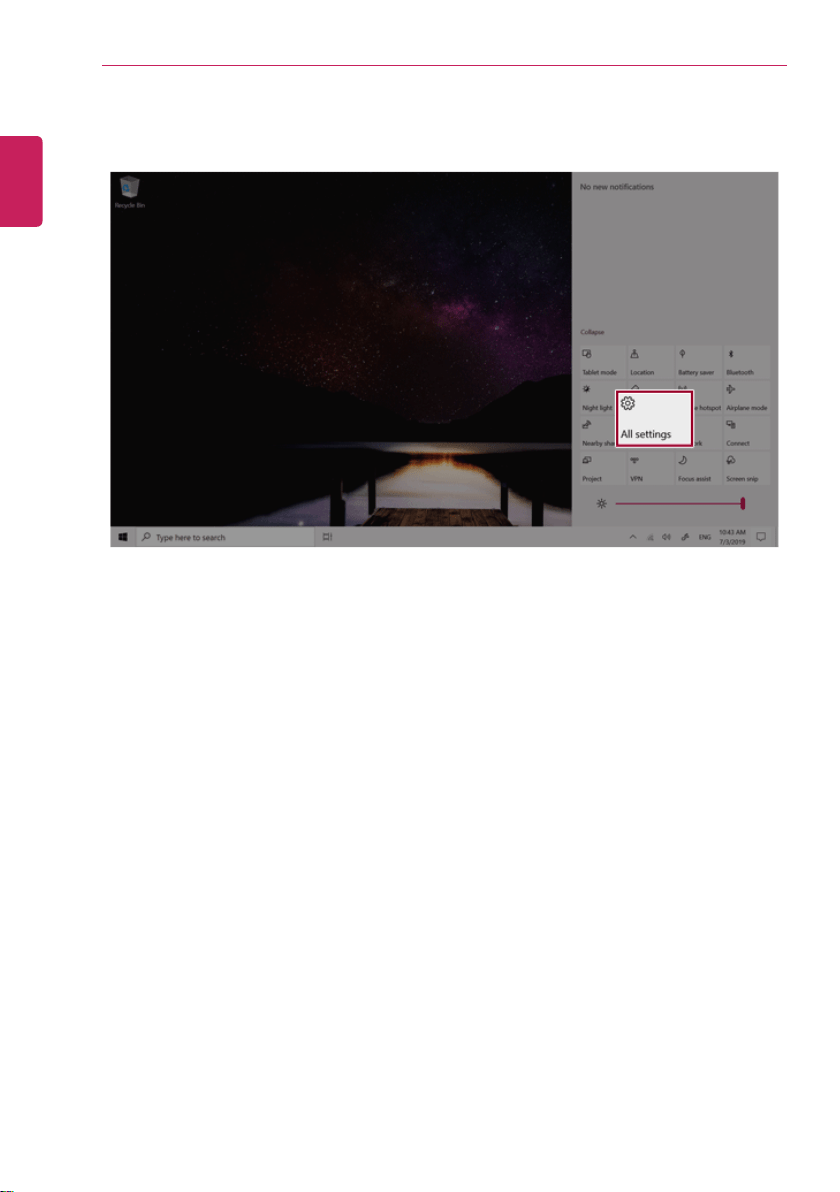
3 To change the detailed settings of the PC, press the [All settings] tile.
ENGLISH
Using Windows 10
87
Using the Start Menu
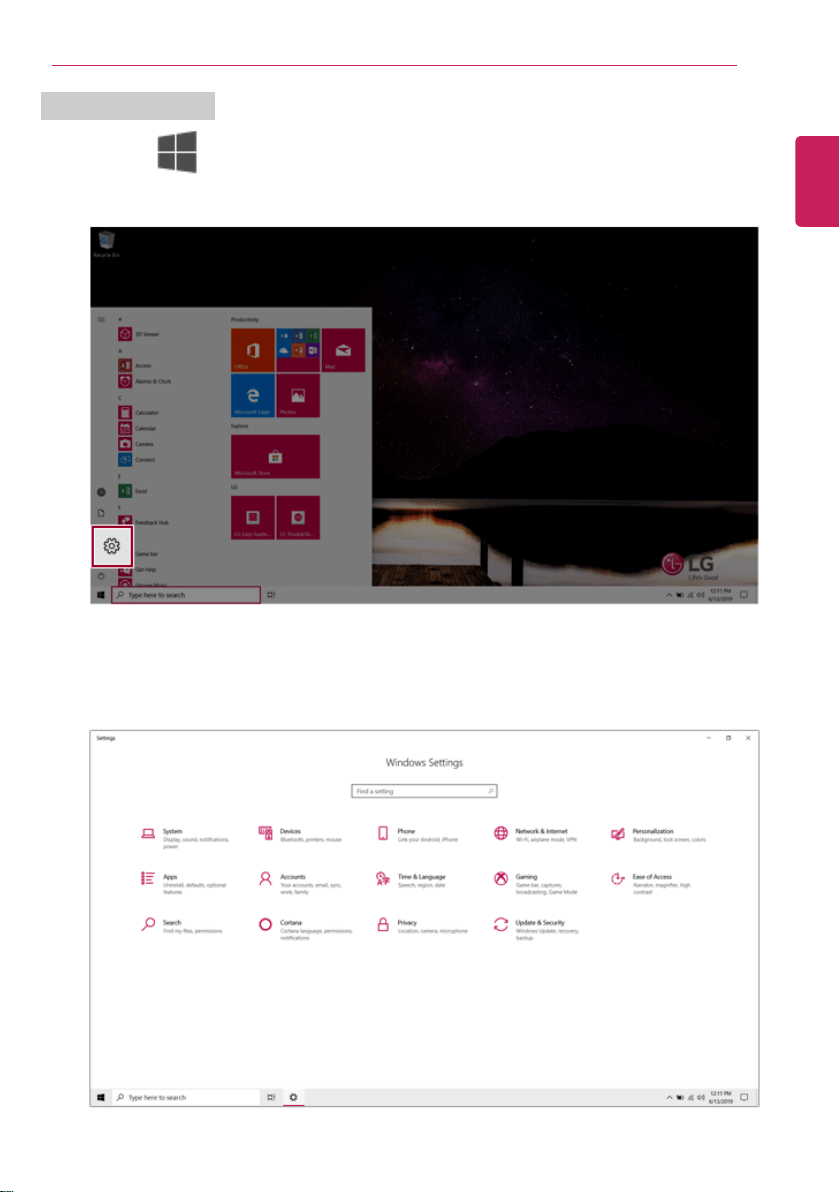
1 Press the [
] button and select the [Settings] menu.
2 When the screen for PC's detailed settings appears, select and change the settings as needed.
ENGLISH
88
Using Windows 10
Windows Shutdown Option
In Windows 10, you can use the Windows shutdown option by following these steps:
1 Click the [
] button and select the [Power] menu.
TIP
Press the [
] key or [Ctrl] + [Esc] to display the Start menu.
2 Select a Windows shutdown option.
TIP
On the Desktop screen, press [Alt] + [F4] to use the Windows shutdown option.
(Pressing [Alt] + [F4] on a running app may end the app.)
ENGLISH
Using the PC
89
Using the PC
Charging the Product / Using the Tablet PC Mode
Connect the AC adapter to power and charge the product.
TIP
The power cable and the AC adapter type may differ per model type and country and there
is no difference in functionality.
This product has a built-in battery pack.
The internal battery should not be arbitrarily disassembled or replaced. Arbitrarily
disassembling the product may void the warranty.
If you need to disassemble or replace the battery, please visit the designated LG Electronics
Service Center.
We charge a fee for removing or replacing the battery.
Using an AC Adapter
An AC adapter of 100 V to 240 V can be used.
1 Connect the AC adapter to a power outlet.
2 Connect the AC adapter to the PC.
3 Adjust the LCD to the most comfortable angle.
4 Press the PC's power button to turn on the system.
CAUTION
Do not leave a liquid container on the PC.
• The system may be short-circuited and damaged.
ENGLISH
90
Using the PC
WARNING
Please use an AC adapter certified by LG Electronics Inc.
• Uncertified batteries may explode.
• It may cause a problem in battery charging or system operation.
When you use an AC adapter, follow the below directions.
• 140 °F or more high-humidity spaces, for example, inside cars or saunas, should be
avoided when you use or store it.
• Do not disassemble or modify the AC adapter.
• Do not twist the AC adapter plug.
• When you connect the AC adapter, do not forcefully push the plug.
Using Tablet PC Mode
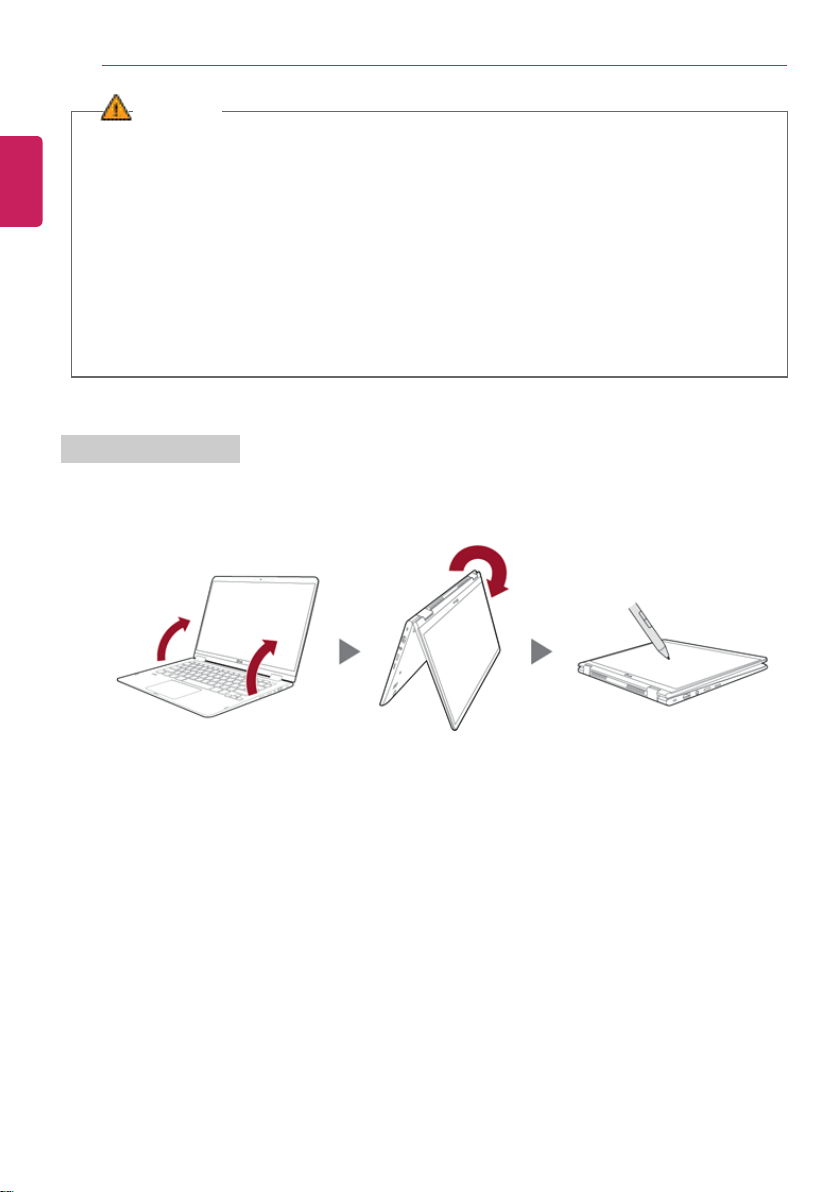
1 Unfold the notebook and rotate the LCD as shown in the picture to use it as a tablet PC.
ENGLISH
Using the PC
91
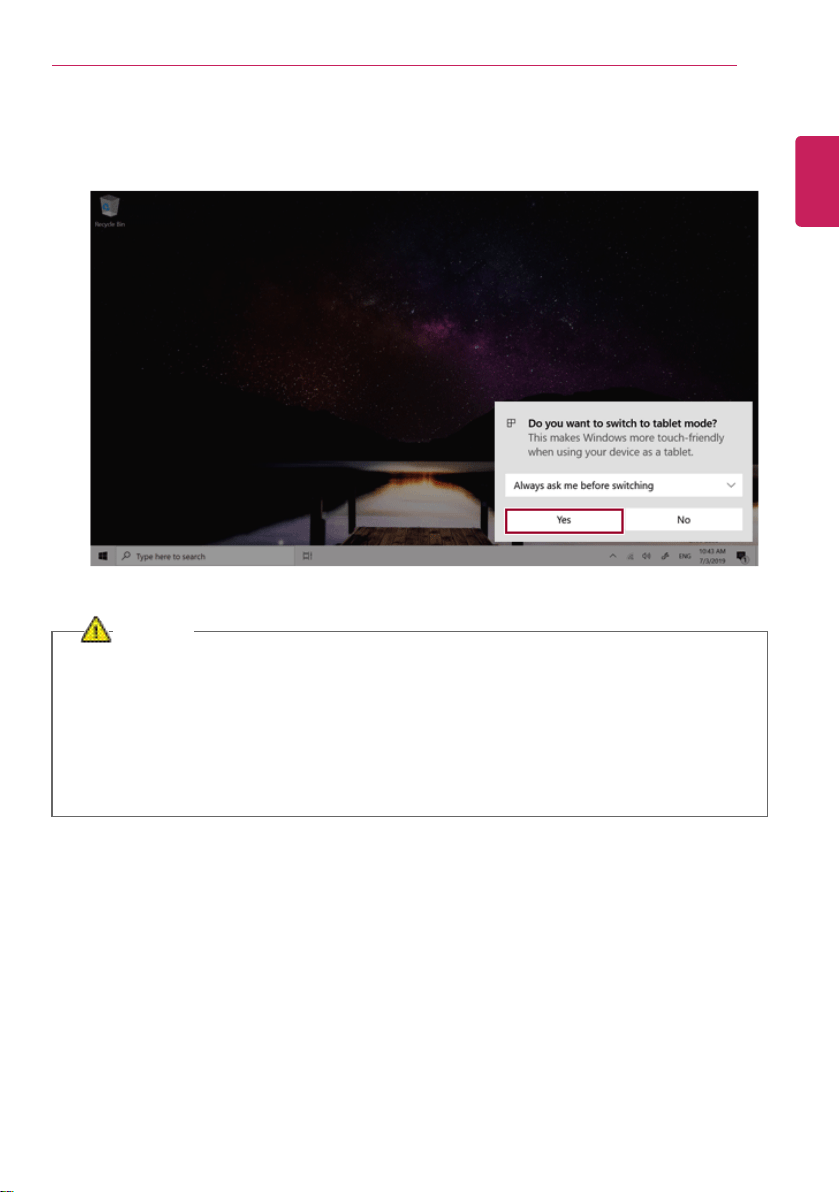
2 When the ‘Switching to tablet mode’ message appears on the Windows screen, press [Yes] to
switch to tablet mode.
CAUTION
• When packing or moving the product, close the LCD panel to protect it.
• Be careful not to pinch your fingers between the PC main body and the LCD panel.
• Do not rotate the LCD panel with excessive force. This may damage the hinge connecting
the PC body and the LCD panel.
• In tablet PC mode, the keyboard faces the bottom of the product. Clean around the
product to prevent the keyboard and PC body from being damaged.
ENGLISH
92
Using the PC
TIP
• In tablet PC mode, the screen is automatically rotated according to the current screen
angle.
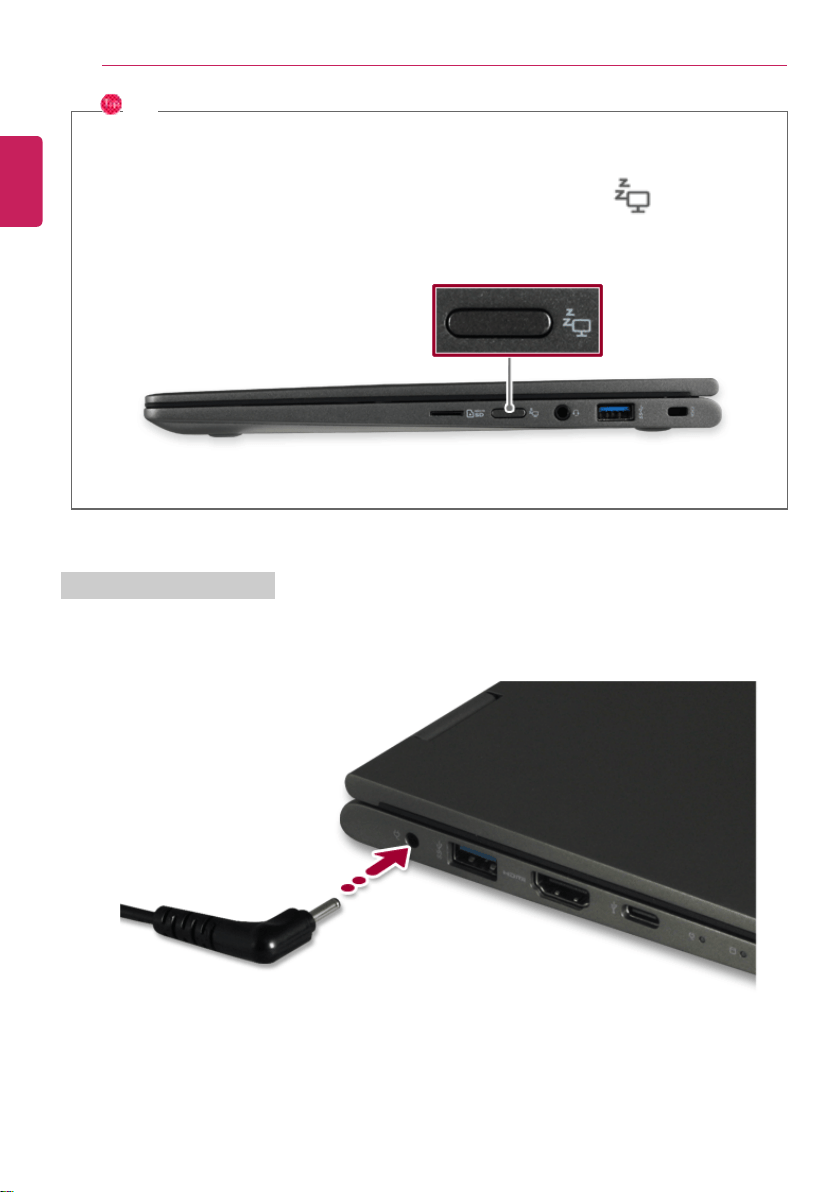
• To leave sleep mode (LCD off), press the power button or sleep button ( ).
Checking the Battery State
1 Connect the AC adapter to the power port in the PC.
ENGLISH

Using the PC
93
2 Open the LCD and check the charging state.
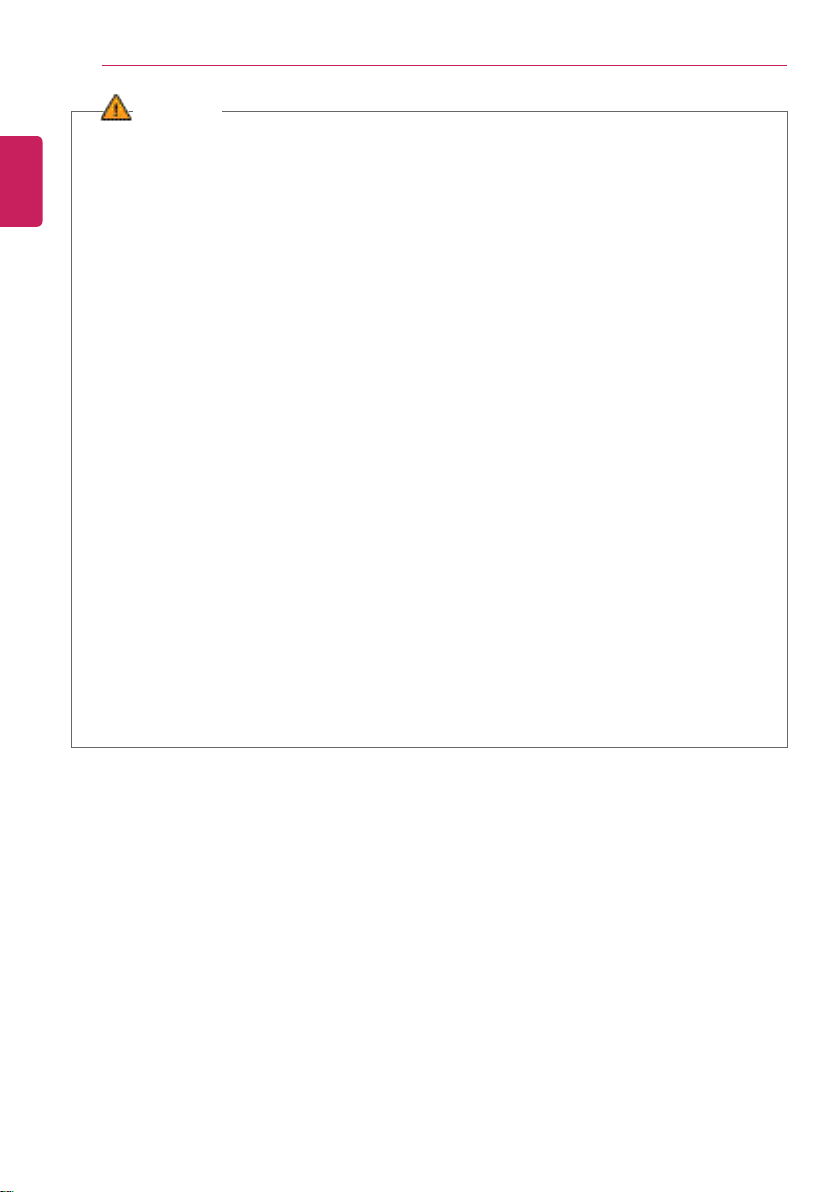
When the AC adapter lamp is blinking, charge it fully with the AC adapter before using it.
CAUTION
Use batteries certified and acknowledged by LG Electronics Inc.
• Uncertified batteries may explode.
ENGLISH
94
Using the PC
WARNING
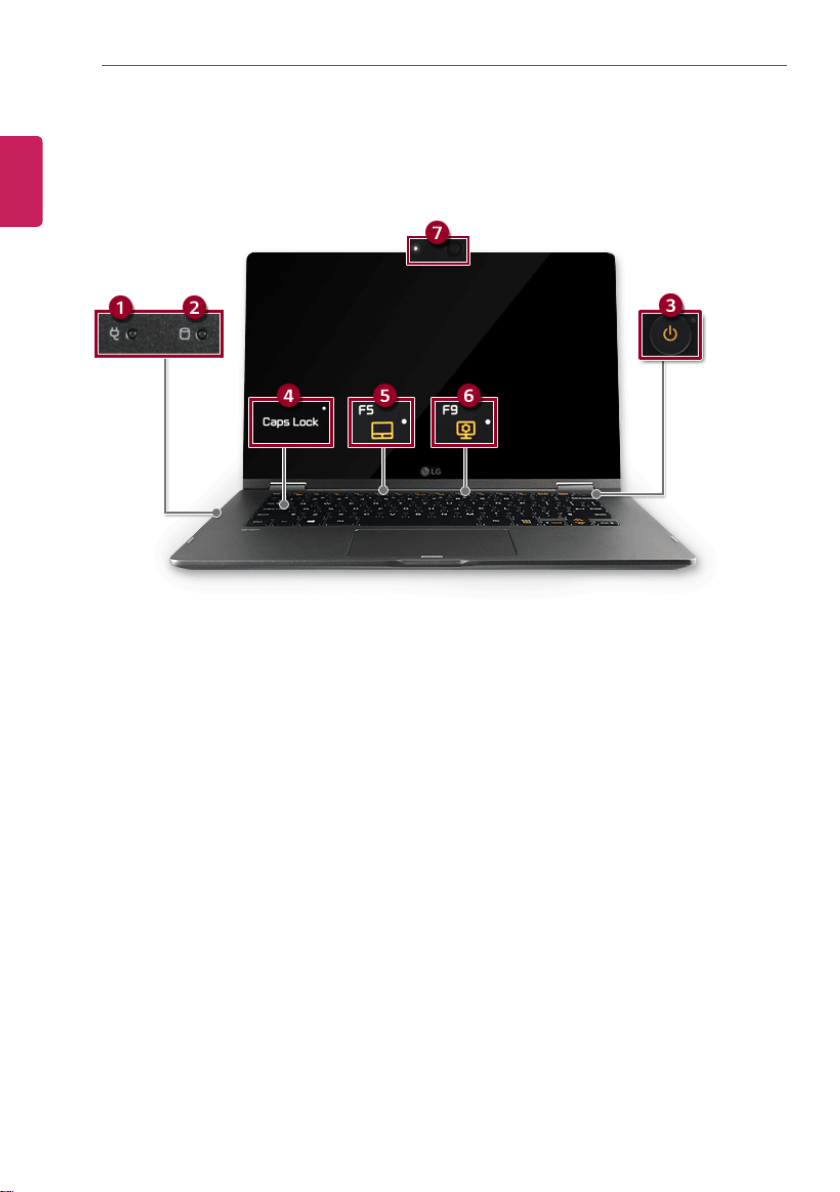
The battery may explode or cause a fire due to excessive heat. For a safe and efficient use
of the battery, follow the directions below.
• Do not short-circuit the battery.
• Keep the battery out of reach of children.
• A visible swelling of the batter y pack indicates a possible danger. When this occurs, contact
your local vendor or service center immediately.
• Use only a certified and designated recharger.
• Keep the battery pack away from heat. (Never put it in a microwave.)
• Do not leave inside a car under the summer heat.
• Do not leave or use at a hot and humid place like a sauna.
• Do not use the machine placed on a heating blanket or other heat reserving materials.
• Do not leave the machine turned on inside a closed space.
• Make sure that the battery ports are not touched by any metallic objects like a key, coin,
necklace, and watch.
• Use only a lithium secondary battery certified and guaranteed by mobile device
manufactures.
• Do not disassemble or modify the battery. Do not compress or pierce the battery.
• Do not apply shock to the battery. For example, do not drop the battery from a high place.
• Keep the room temperature between 23 °F and 104 °F. Do not expose the PC to heat
hotter than 140 °F.
• Keep the machine dry.
• Do not discard the battery arbitrarily as you are requested to follow the local procedure
for discarding the battery.
• Before using this machine, read this guide carefully.
ENGLISH

Using the PC
95
TIP
When the PC is not to be used for a long period of time, refer to the following:
• Check the battery charge level on a regular basis and keep it at 50 %. This allows you to
extend the battery life.
• If the battery is left fully charged for an extended period of time, the battery capacity and
battery running time may be reduced.
• Keeping battery fully discharged for an extended period of time may cause the battery to
become over discharged, thereby making charging unavailable.
For more efficient use of the battery, read the following carefully.
• The battery runs low naturally even if it is kept unused.
• To increase battery lifespan, use the battery for a while before charging it rather than
keeping the battery completely charged.
• If you don't use the product for a long time with the battery completely charged, the
battery lifespan may decrease.
The battery capacity may change due to chemical reactions during charge and discharge.
• LG Notebook frequently checks the charge level of its battery based on usage conditions,
and then calculates and correctly indicates the actual remaining level of the battery.
• The battery is wearable goods and thus the life span may become shorter with use. The
battery running time may also become shorter accordingly.
• When the battery is fully charged, the machine stops recharging. It resumes recharging
when the battery charge rate drops below 95%. This feature secures the safe and efficient
use of the battery.
• When the temperature of the battery drops below 50 °F, it is charged in a low current to
protect the battery cells. In this case, charging time may stretch to up to 32 hours.
If you use the system at a low temperature, refer to the following:
• The battery capacity may be reduced depending on the chemical characteristics of the
battery and the system may not be turned on after it freezes or it is turned off.
• If the system freezes or if it is not turned on, connect the AC adapter to the system and
charge the battery fully before use.
• If there is any error in the indication of the battery capacity, charge and discharge the
battery two or three times at room temperature to return to the normal operation.
ENGLISH
96
Using the PC
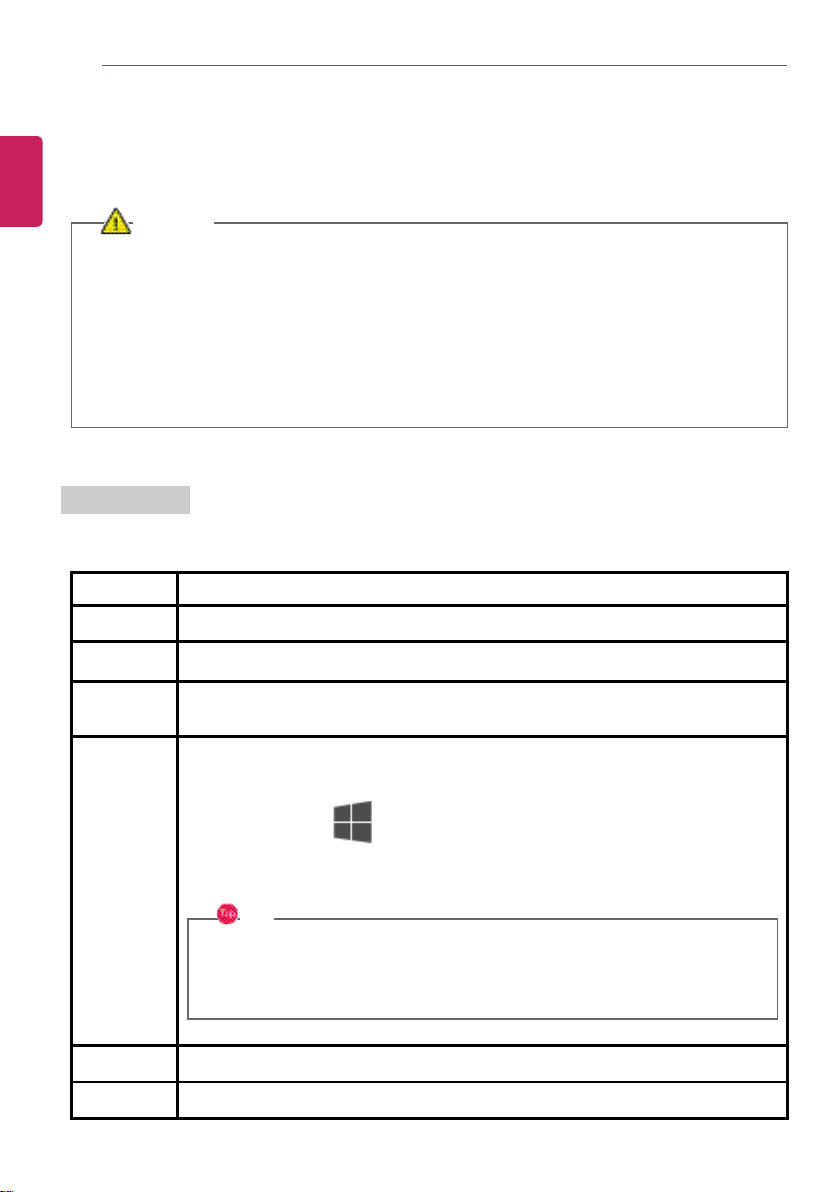
Operation Status Lamps
1 AC Adapter Lamp
• On: The AC adapter is connected.
• Off: The AC adapter is not connected.
If you try to turn on the system that has entered the Hibernate mode or been turned off
after a low-battery alarm, the system will not be turned on but the lamp will blink three
times. If this is the case, connect the AC adapter and charge the battery sufficiently before
using it.
2 Storage Device (HDD, SSD, eMMC) Indicator Lamp
• When the PC accesses the storage device, the indicator lamp turns on.
Do not turn of f the power forcibly while the storage device indicator lamp is on or blinking.
Otherwise, the disk or its data may get damaged.
3 Power Lamp
• On: The system is on and running by the AC adapter or batter y.
• Off: When the system is turned off or in Hibernate mode
• Blinking: The system is in the standby mode.
4 Caps Lock Lamp
• On: When the Caps Lock is activated
• Off: When the Caps Lock is deactivated
ENGLISH

Using the PC
97
5 Touchpad Lamp
• On: When the touchpad is activated
• Off: When the touchpad is deactivated
6 Reader Mode Lamp
• On: When reader mode is activated
• Off: When reader mode is deactivated
7 Webcam Operation Status Lamp
• On: When the webcam is operating
• Off: When the webcam is not operating
ENGLISH
98
Using the PC
Keyboard
The keyboard allows the user to input data or give commands.
The keyboard may differ in appearance and color depending on your country.
CAUTION
• Spilling a watery substance like coffee or juice on the keyboard may cause a fault,
malfunction, or electric shock.
• The keys may not work properly when you use several keys at the same time while playing
a PC game.
• Either change the key combination settings according to the combinations necessary for
the game play or use an external keyboard dedicated for the game which supports infinite
simultaneous inputs.
Using Hot Keys
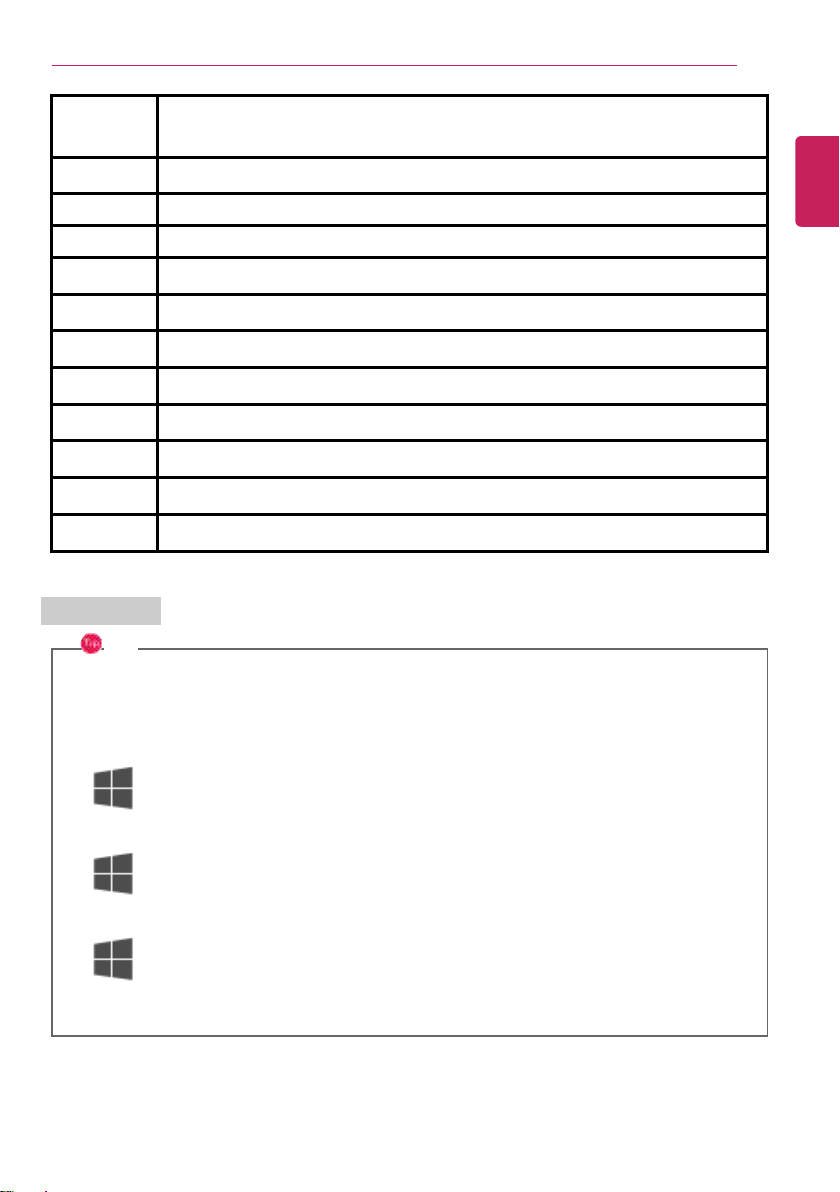
You can use the hot keys shown below to use the PC conveniently.
Fn + F1
Executes LG Control Center.
Fn + F2
Decreases LCD brightness, which can have eleven different levels.
Fn + F3
Increases LCD brightness, which can have eleven different levels.
Fn + F4
Runs the mode defined in Windows Sleep Mode. (Example: Standby Mode,
Hibernate Mode)
Fn + F5
Every time you press [Fn] + [F5], the mode switches between Touchpad Off
(touchpad is disabled) and Touchpad On (touchpad is enabled).
To set Touchpad Auto (touchpad is disabled when an external USB mouse is
inserted), press the [
] button and disable [Turn on touchpad when a mouse is
connected] under [Settings] > [Device] > [Touchpad].
Every time you press [Fn] + [F5], the mode switches between Touchpad Off and
Touchpad Auto.
TIP
Since it takes about 1 to 2 seconds to initialize after switching to the
touchpad function, we recommend you to use the device after initialization is
completed.
Fn + F6
Airplane Mode ON/OFF (Wireless LAN and Bluetooth OFF/ON)
Fn + F7
Switches between monitor and projector.
ENGLISH
Using the PC
99
Fn + F8
Switches the Keyboard Backlight mode.
Fn + F9
Switching to Reader Mode
Fn + F10 Mute
Fn + F11
Turns down the volume.
Fn + F12
Turns up the volume.
Fn + Prt Sc
Works as the Scroll Lock [Scr Lk] key.
Fn + Delete
Works as the [Insert] key.
Fn + Ctrl
Works as the [Pop-up Window] key.
Fn + ◀
Works as the [Home] key.
Fn + ▶
Works as the [End] key.
Fn + ▲
Works as the [Page Up] key.
Fn + ▼
Works as the [Page Down] key.
Shortcut Keys
TIP
• To change the input mode temporarily, you can press the [Shift] key together with the
letter you want to enter. By doing so, you can enter an uppercase letter when the Caps
Lock key is not pressed and a lowercase letter when it is pressed.
To use Windows more conveniently, remember the following Windows key combinations:
• + R
Displays an input window for program execution.
• + Tab
Displays the running desktop in the preview.
• + M
Minimizes the current window.
ENGLISH
100
Using the PC
Keyboard Backlight
You can set the Keyboard Backlight function to use the product in a dark environment.
The figures herein are subject to change without prior notice.
OPTION
This only applies to the products that have the Keyboard Backlight function.
Configuring Keyboard Backlight
TIP
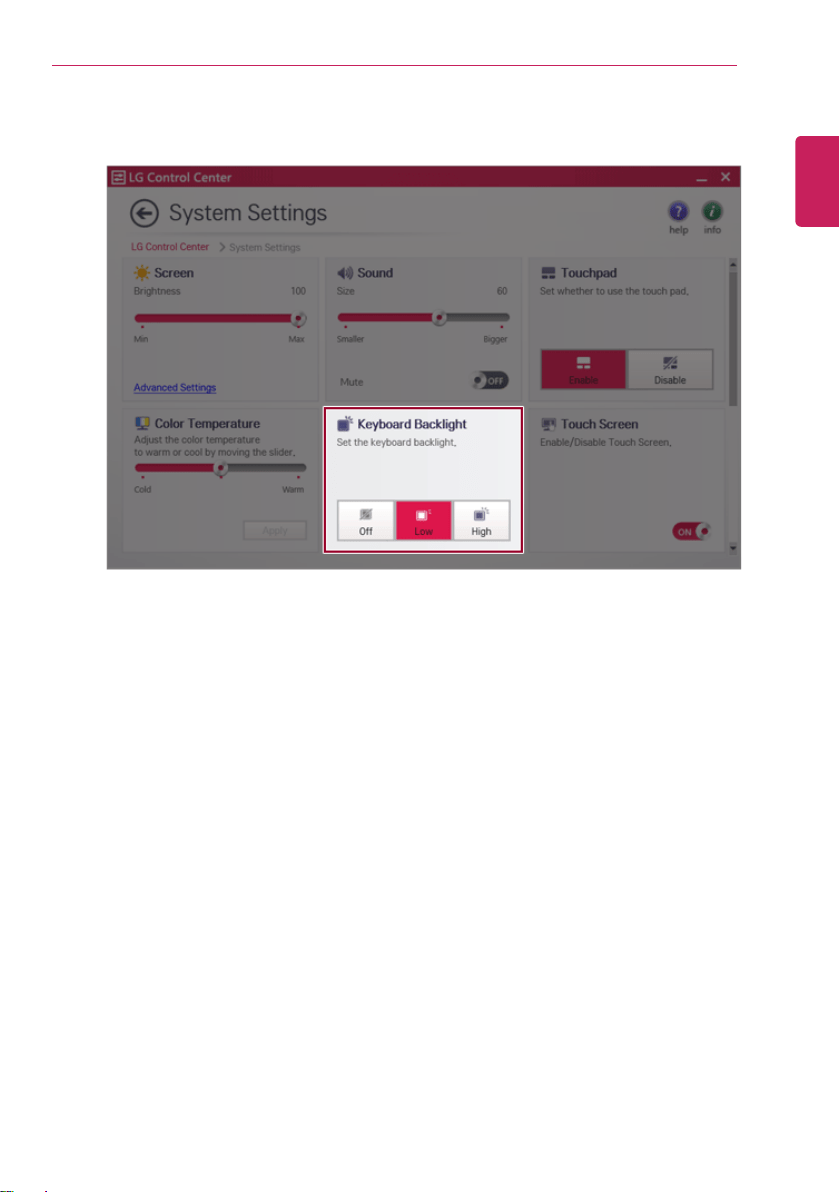
You can use hot keys to use the Keyboard Backlight function more conveniently.
• Each time you press the [Fn] + [F8] keys, the status changes to KBD Backlight Off, KBD
Backlight Low, and then KBD Backlight High in the specified order.
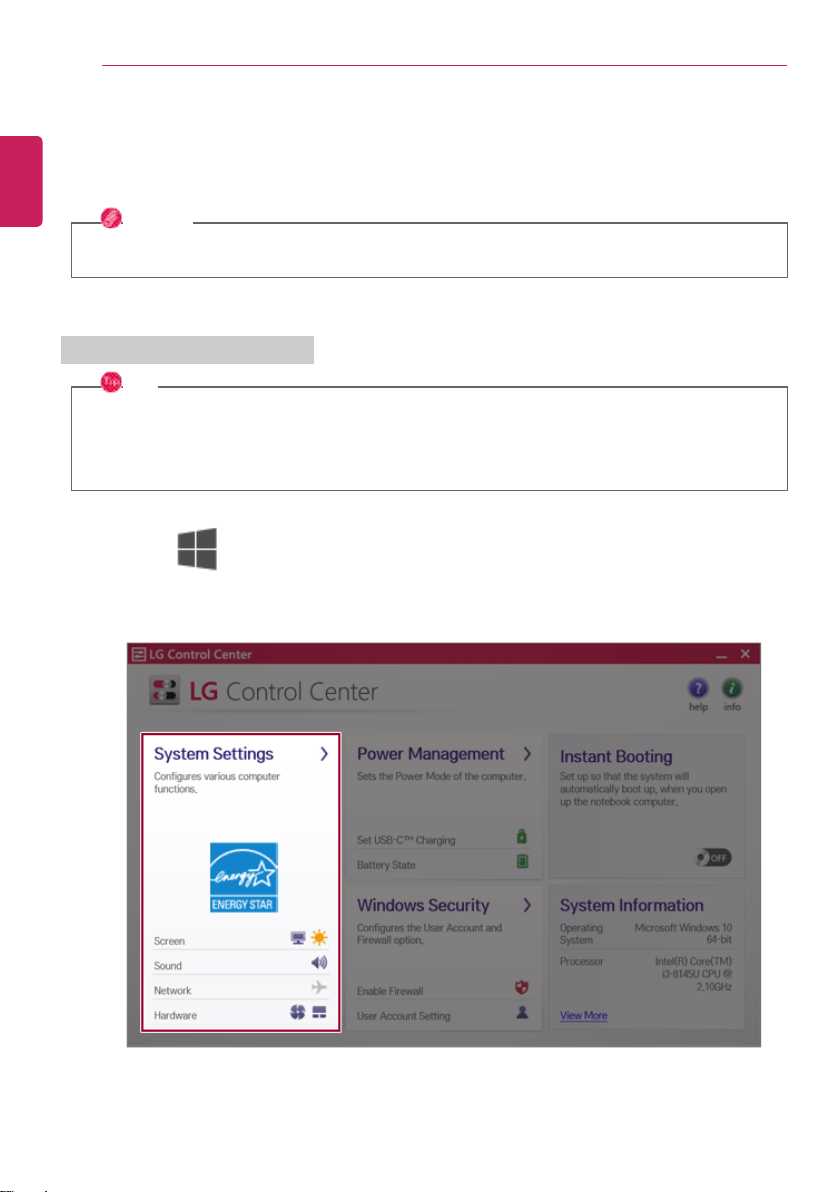
1 Press the [ ] button to execute [LG Control Center].
2 On the LG Control Center screen, select the [System Settings] menu.
ENGLISH
Using the PC
101
3 Go to Keyboard Backlight and select your desired options.
ENGLISH
102
Using the PC
Adjusting Screen Brightness and Volume
LG PC allows you to use the hot keys to easily adjust the screen brightness and volume.
TIP
According to the model type, a button for volume control (mute, volume up / down, DTS, etc.)
may be available.
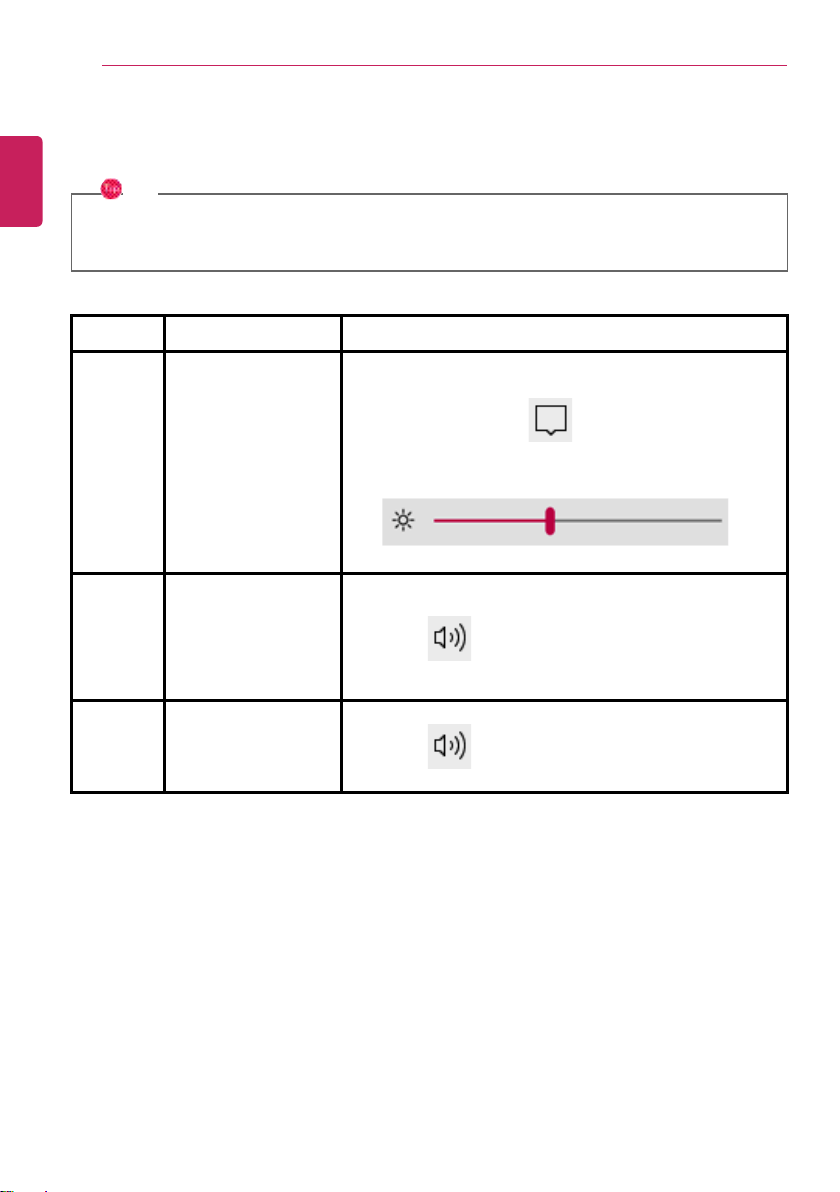
Function Hot Keys Description
Screen
Bright-
ness
[Fn] + [F2], [F3] Press the [F2] key to darken the screen or the [F3] key to
brighten it.
Press the Action Center [
] icon on the right side of
taskbar to run the Action Center. Then move the screen
brightness bar to adjust the screen brightness.
Volume
[Fn] + [F11], [F12] Press the [F11] key to lower the volume or [F12] key to
increase the volume.
Press the [
] icon on the right side of the taskbar to
adjust the volume.
Mute
[Fn] + [F10]
Press the button to turn on or off the mute feature.
Press the [
] icon on the right side of the taskbar to
mute the sound.
ENGLISH
Using the PC
103
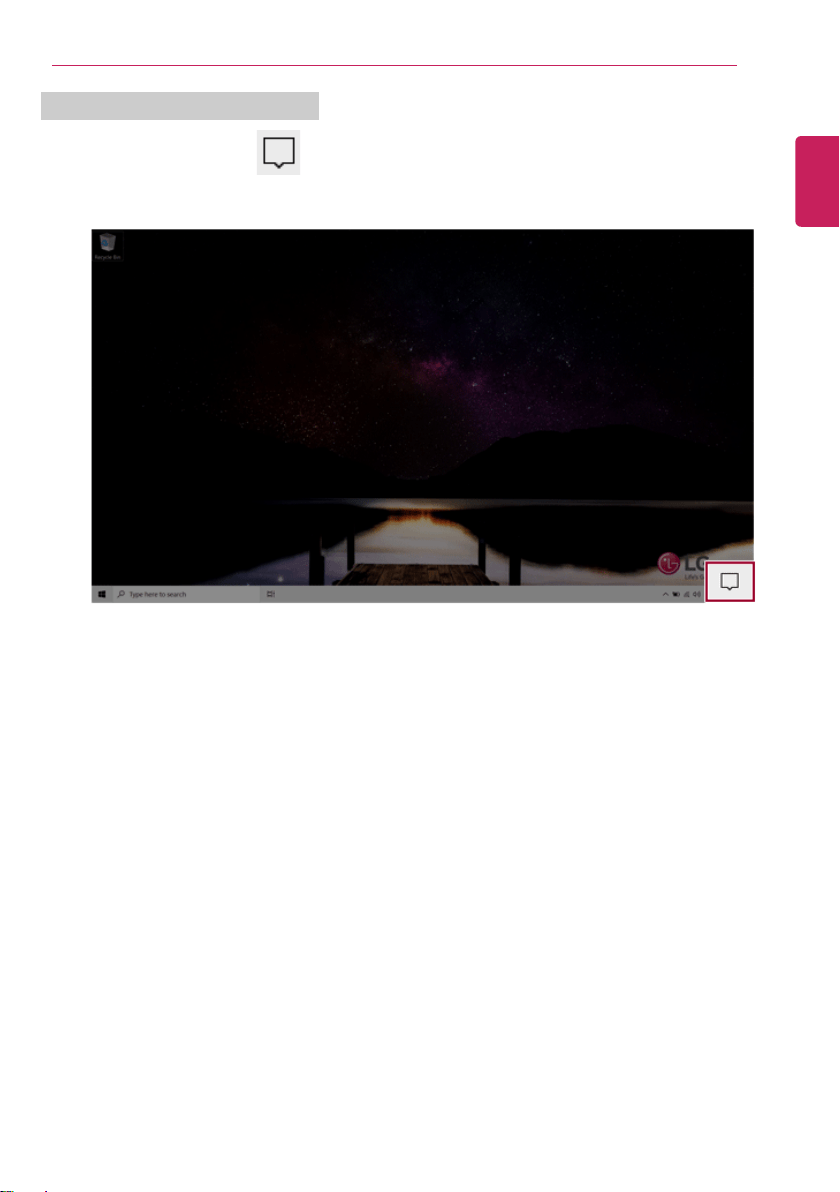
Locking / Unlocking Screen Rotation
1 Press the Action Center [
] icon on the right side of the taskbar.
ENGLISH
104
Using the PC
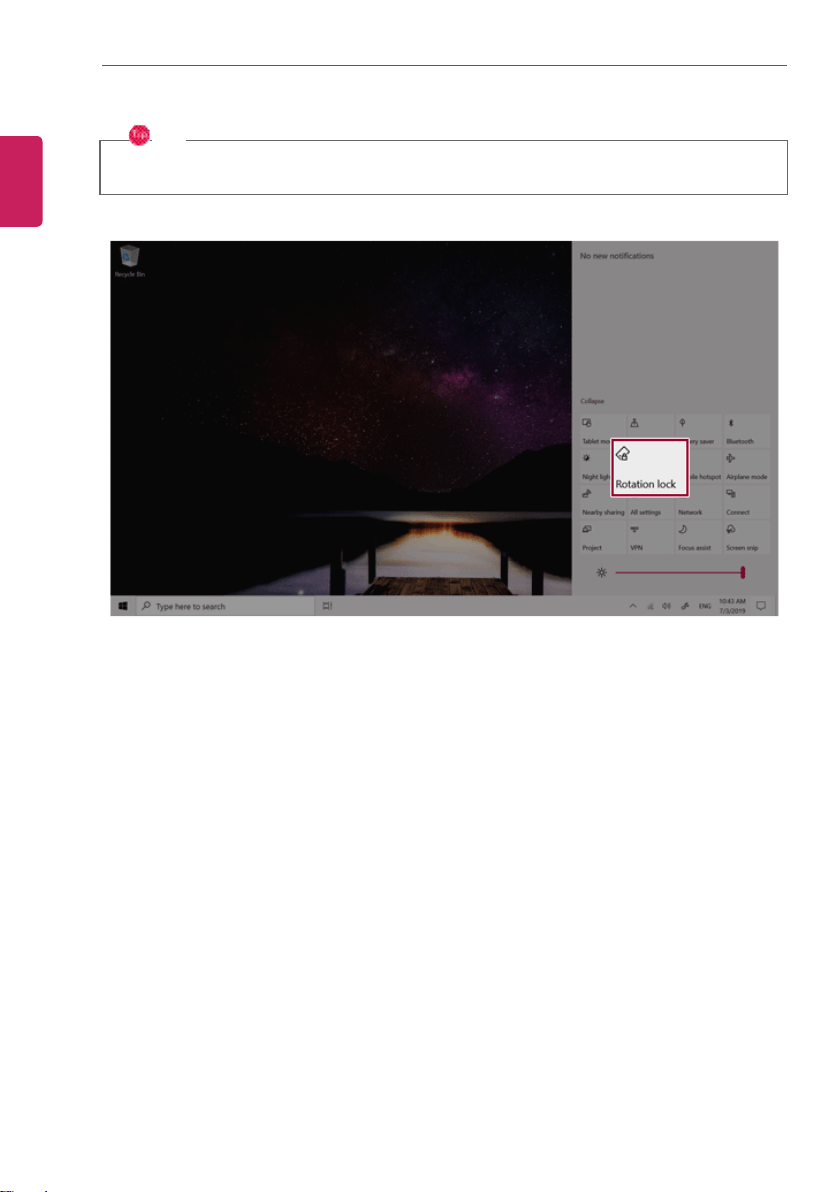
2 Press [Rotation lock] tile to lock the screen rotation.
TIP
[Rotation lock] tile is activated when in the Tablet PC mode.
ENGLISH
Using the PC
105
Hearing Protection Feature
The product is equipped with a hearing protection function to protect your ears from high sound
volume while using an earphone or headphone.
The hearing protection function is set to OFF by default. You can turn on/off the hearing
protection function as follows:
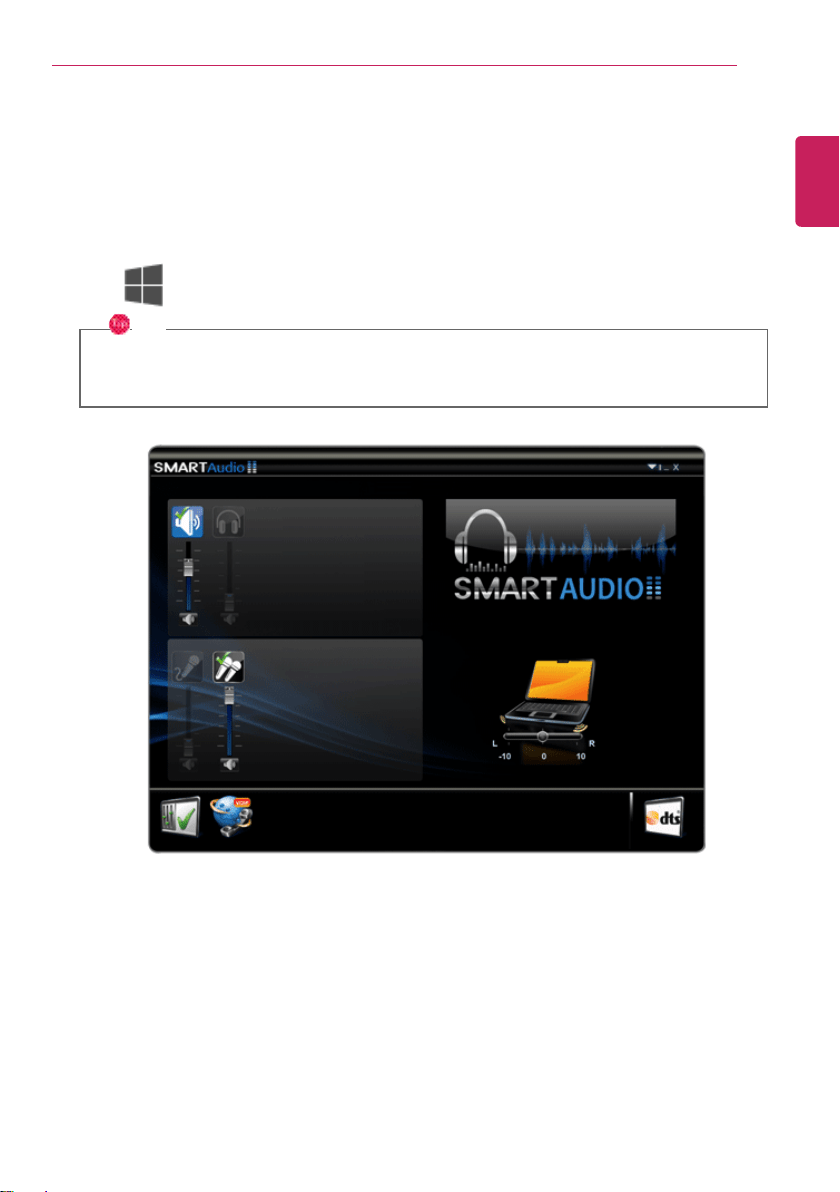
1 Click [
] button > [SmartAudio 2] button to execute SMART Audio.
TIP
It may take 2 to 5 minutes to execute the function for the first time due to the initial
settings.
ENGLISH
106
Using the PC
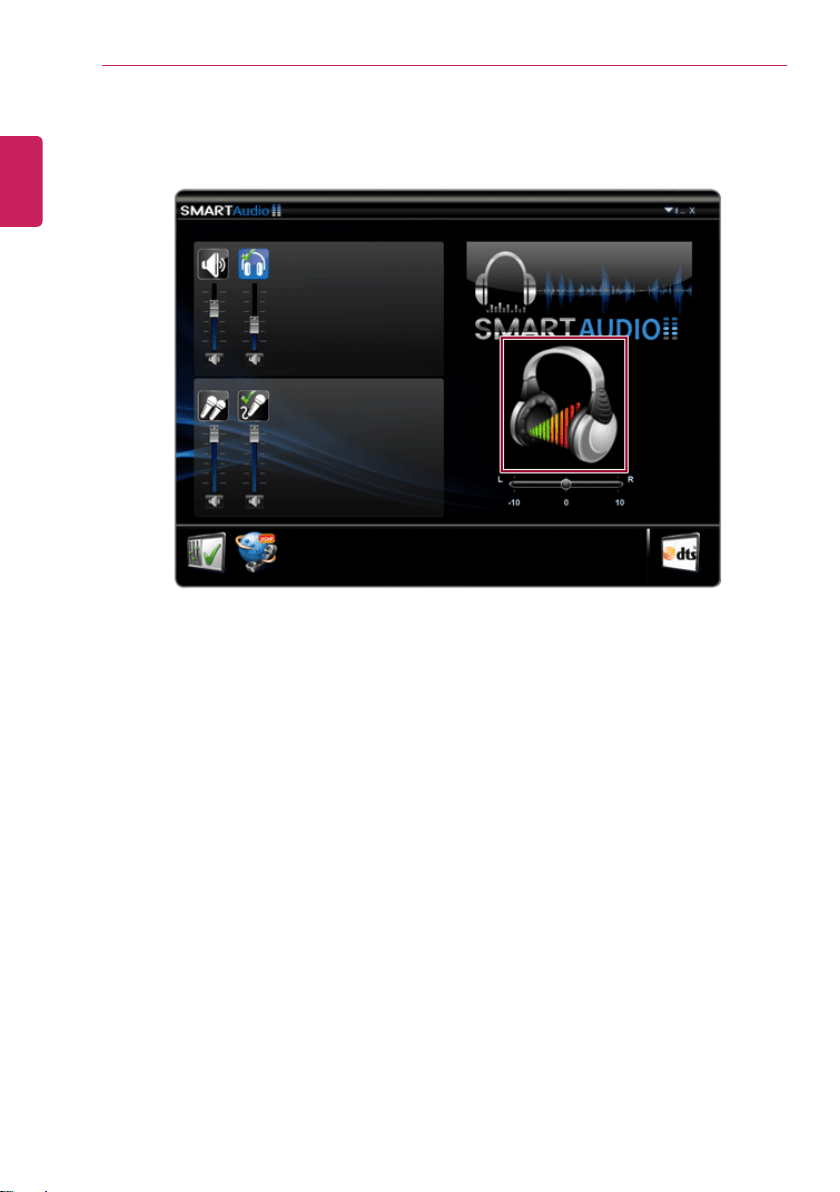
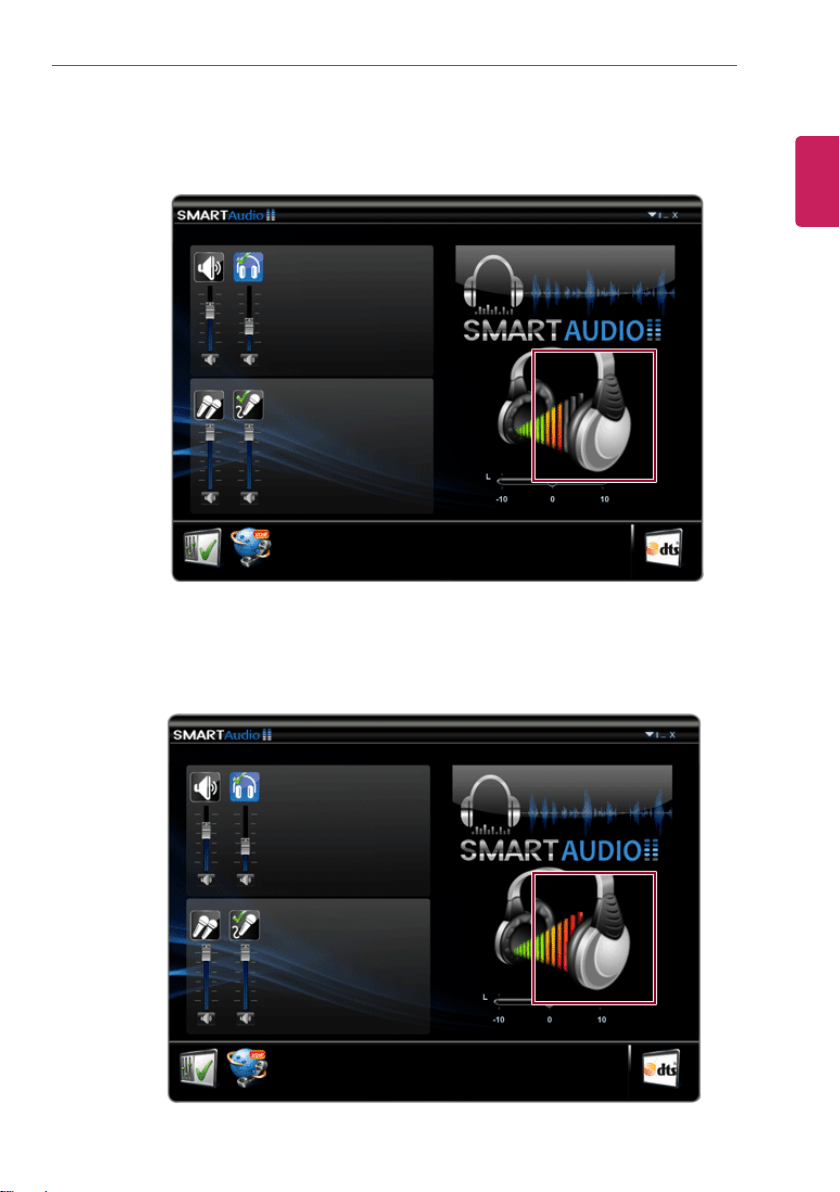
2 If an earphone or headphone is connected, the picture on the screen changes to a picture of
headphone.
ENGLISH
Using the PC
107
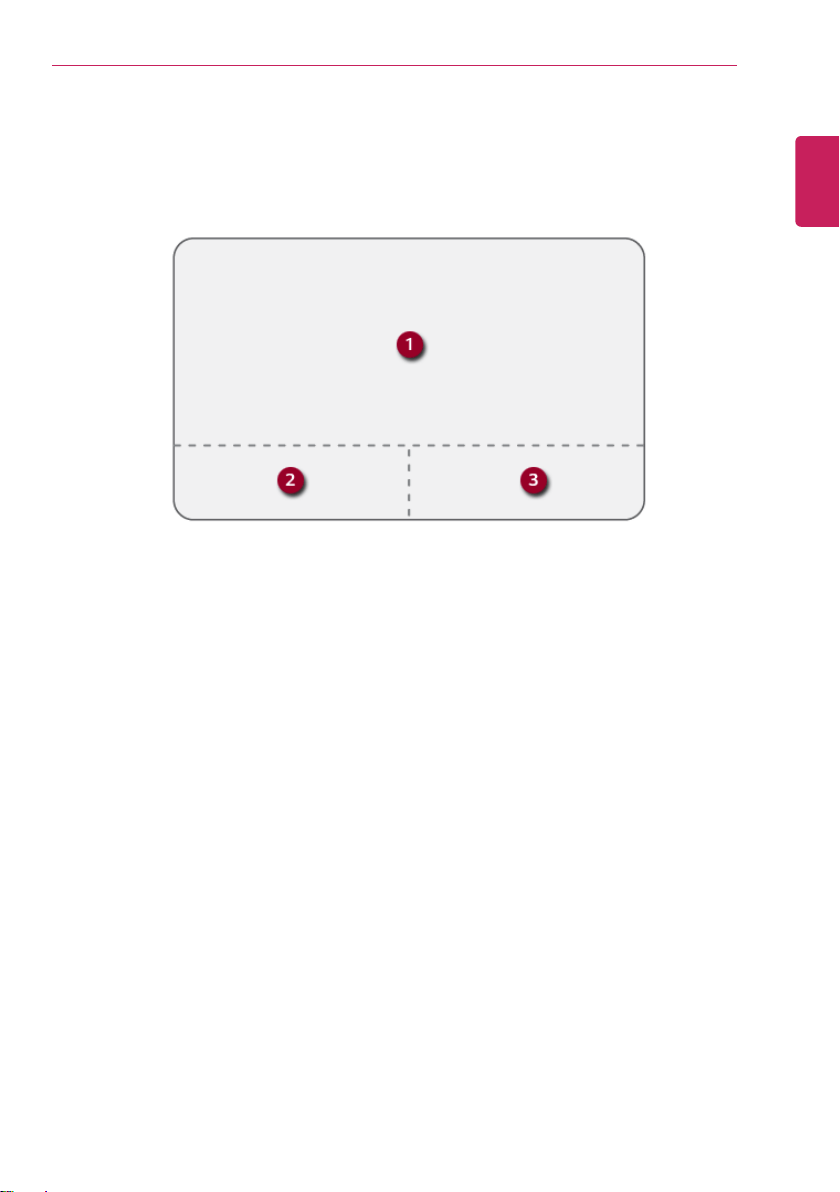
3 Whenever you touch the headphone image, the hearing protection function turns on or off.
• Hearing protection function OFF
• Hearing protection function ON
ENGLISH

108
Using the PC
TIP
When the hearing protection function is on, a warning message appears if the sound is set to a
high volume.
ENGLISH
Using the PC
109
Using the Touchpad
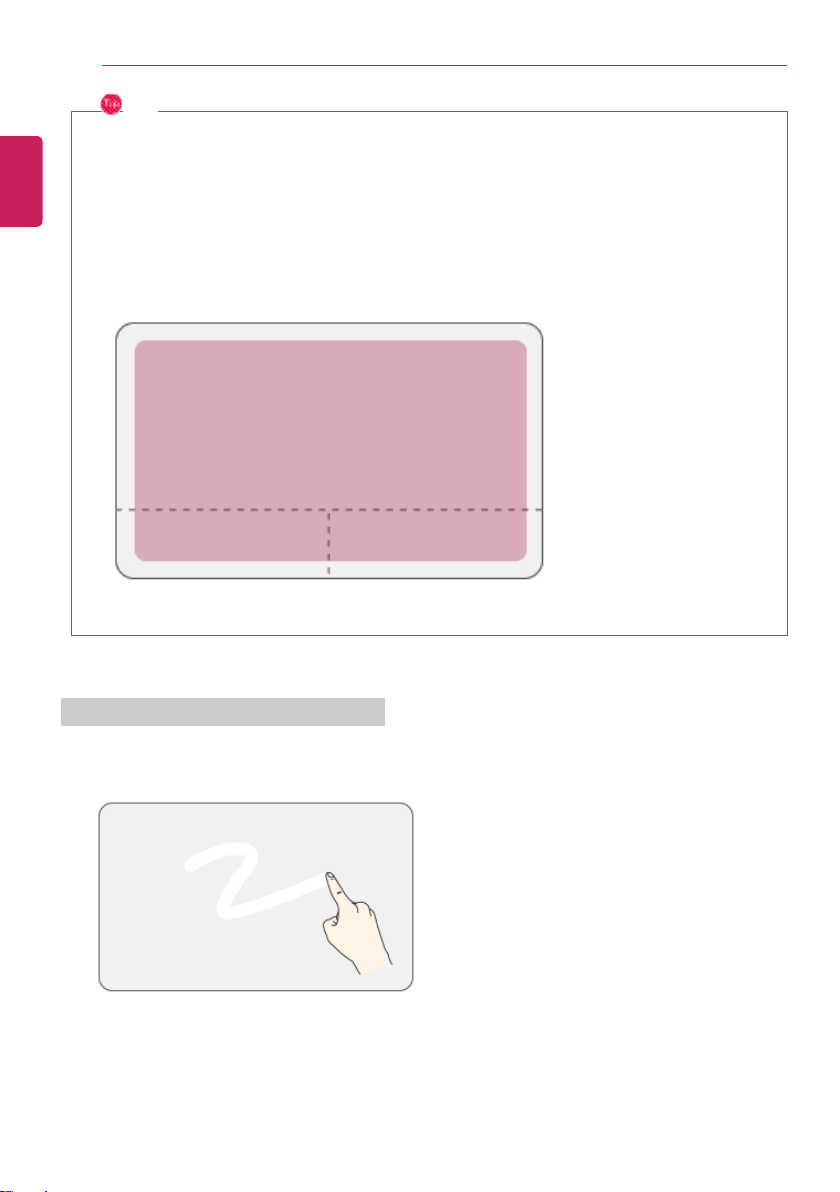
The built-in touchpad provides the same functionality as an external mouse. You can use the touchpad
and USB mouse simultaneously.
1 Touchpad
• Moves the cursor.
2 Left button
• Use to select or execute programs.
3 Right button
• Functions as the right button of a mouse in most cases. However, the usage may differ
depending on programs.
ENGLISH
110
Using the PC
TIP
Scroll function is offered through gestures. Refer to the description about Touchpad Gesture
below.
Precautions for Using the Touchpad
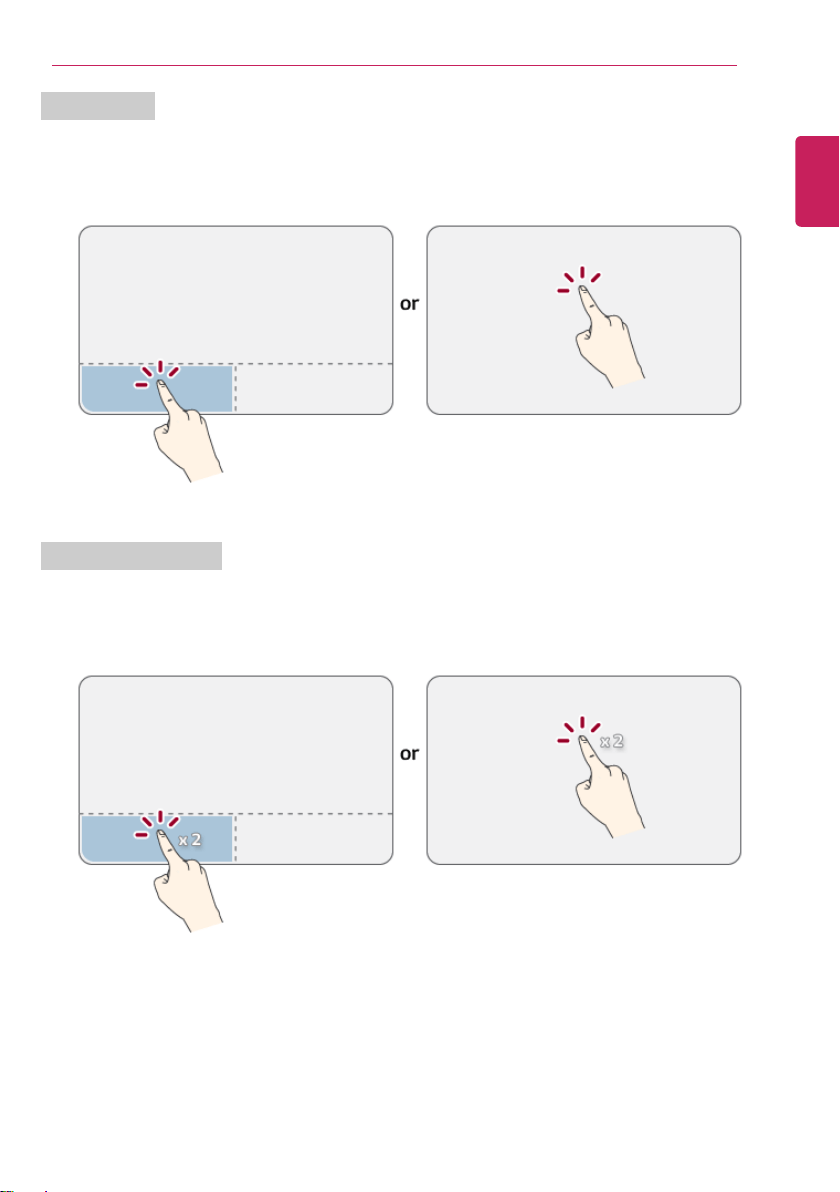
• If you are using a touchpad, use the area marked with a red line shown below. Touching an
edge or border of the touchpad may not work. (The functioning touch area may differ
depending on the product.)
Moving the Cursor (Pointer) on the Screen
Place a finger on the touchpad and glide the finger.
ENGLISH
Using the PC
111
Click (Select)
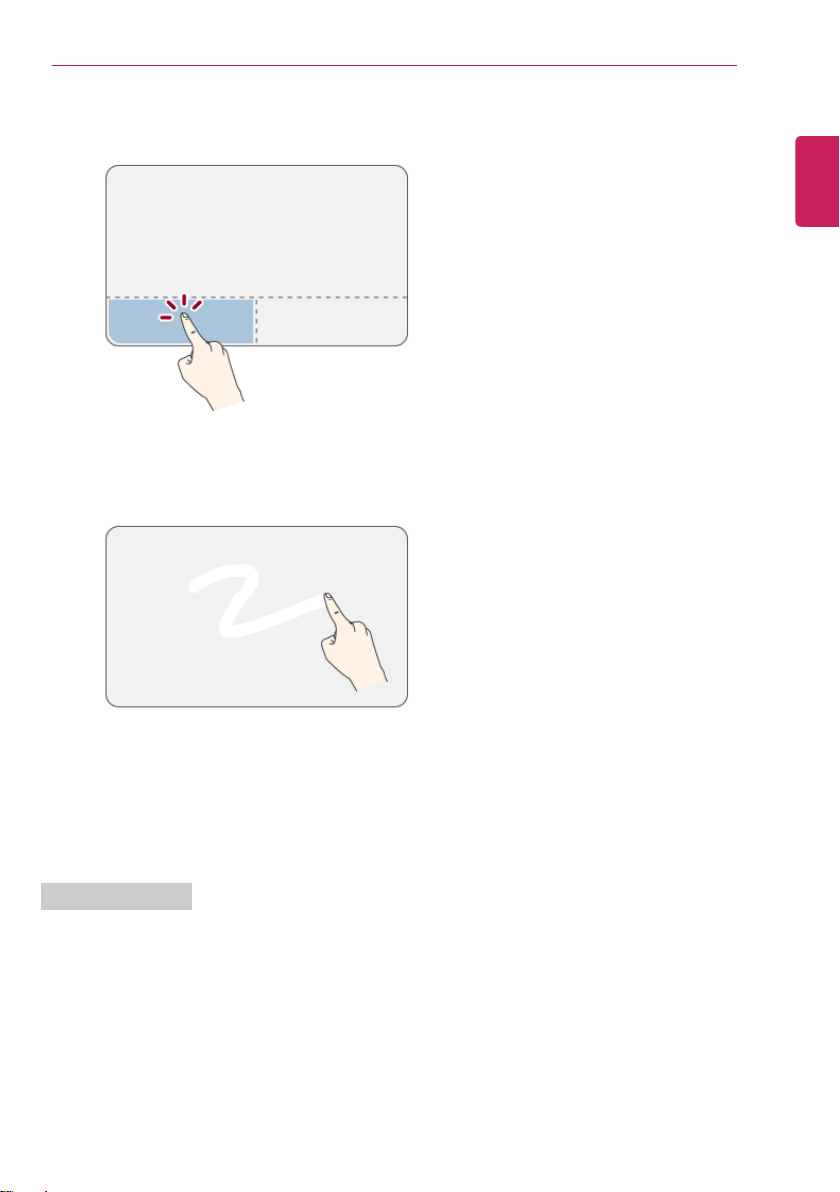
Press and release the left button swiftly with a finger. (Or tap the touchpad once.)
Do this, for example, to select a menu or icon and to place the cursor to type on a word processor file.
Double-click (Execute)
Press the left button twice consecutively and release the button. (Or tap the touchpad twice.)
Do this, for example, to run a program after selecting its execution file (or icon).
ENGLISH
112
Using the PC
CAUTION
Notes on Using the Touchpad
• Do not use a sharp object such as a pen on the pad nor peel the cover. It may cause an
impairment.
• Do not place more than one finger, and do not use while wearing a glove or when the
hand is wet. The Touchpad will not work properly. Oil or dirt at the fingertip can also cause
an impairment.
• The touchpad is sensitive. Do not impose excessive force or maintain an uncomfortable
position. Otherwise, it may result in a finger or wrist injury.
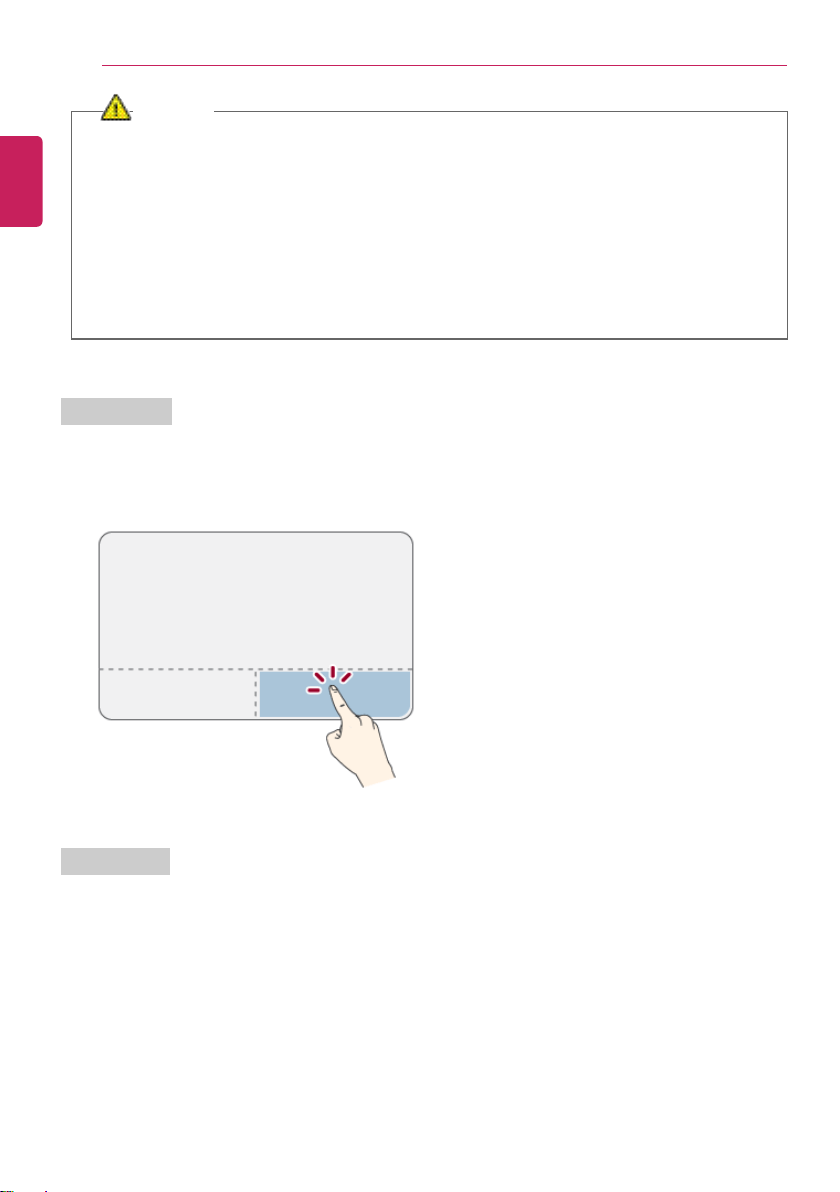
Right button
Press and release the right button swiftly.
Functions as the right button of a mouse, but the usage may differ depending on programs.
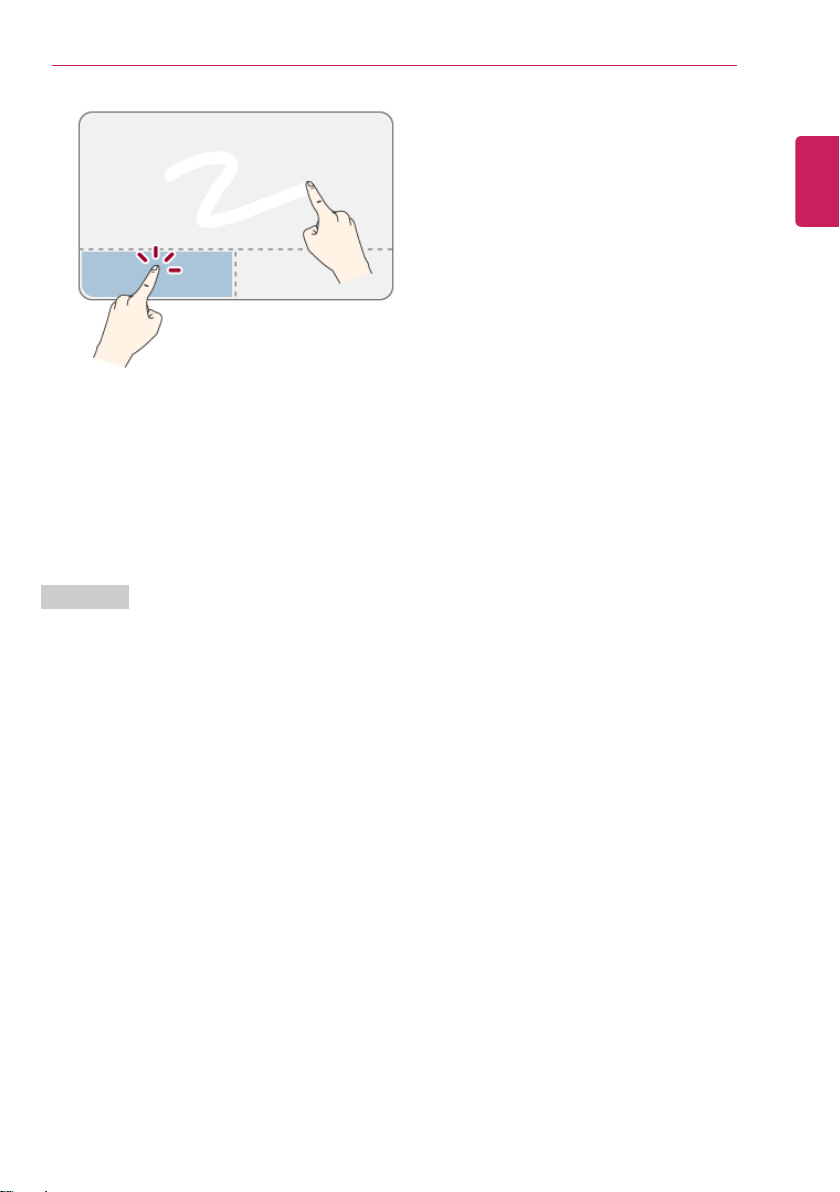
Drag & Drop
To drag, click and hold an icon, and move it to another location.
To drop, release the dragged icon in the location you want.
To move a file icon to another folder or to Recycle Bin, place the cursor (or the pointer) on the icon,
press and hold the left button, and glide another finger on the touchpad until the icon reaches the
aimed location. After reaching the destination, release the left button.
ENGLISH
Using the PC
113
1 Drag
• Glide one finger on the pad with another finger pressing and holding the left button.
2 Drop
• Release the left button to drop it into the Recycle Bin. (By using this, you can drop a file into the
Recycle Bin at will.)
ClickLock
When activated, this feature allows you to drag/scroll without pressing and holding the left button.
ENGLISH
114
Using the PC
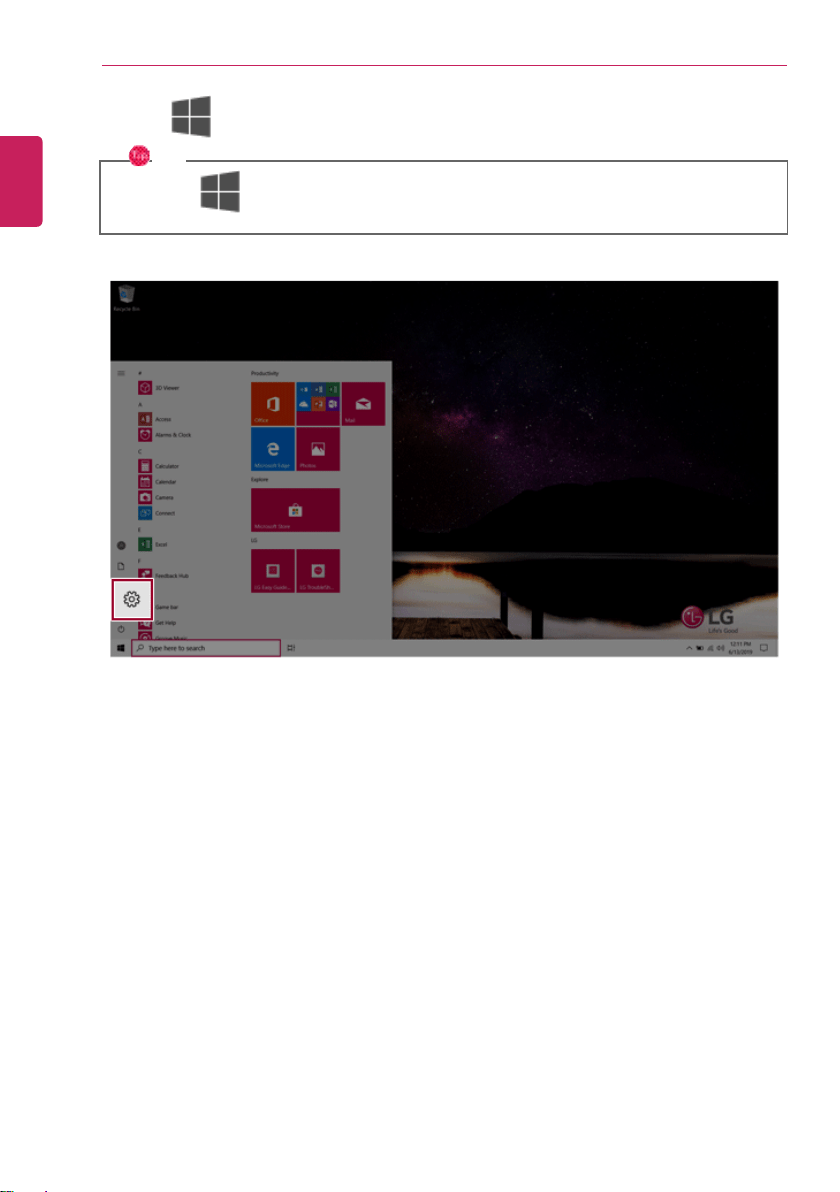
1 Click the [
] button and select the Settings menu.
TIP
Press the [
] key or [Ctrl] + [Esc] to display the Start menu.
ENGLISH
Using the PC
115
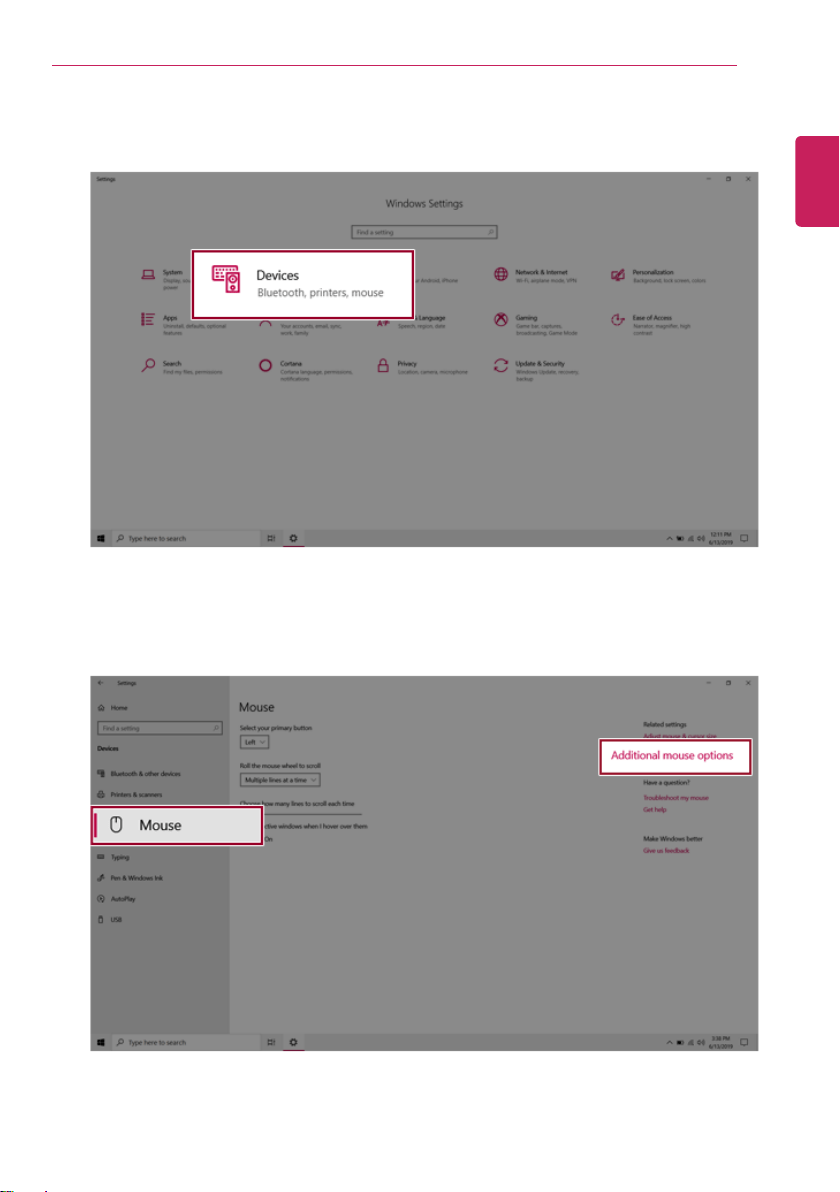
2 When the [Settings] screen appears, select [Devices].
3 Select [Mouse] > [Additional mouse options].
ENGLISH
116
Using the PC
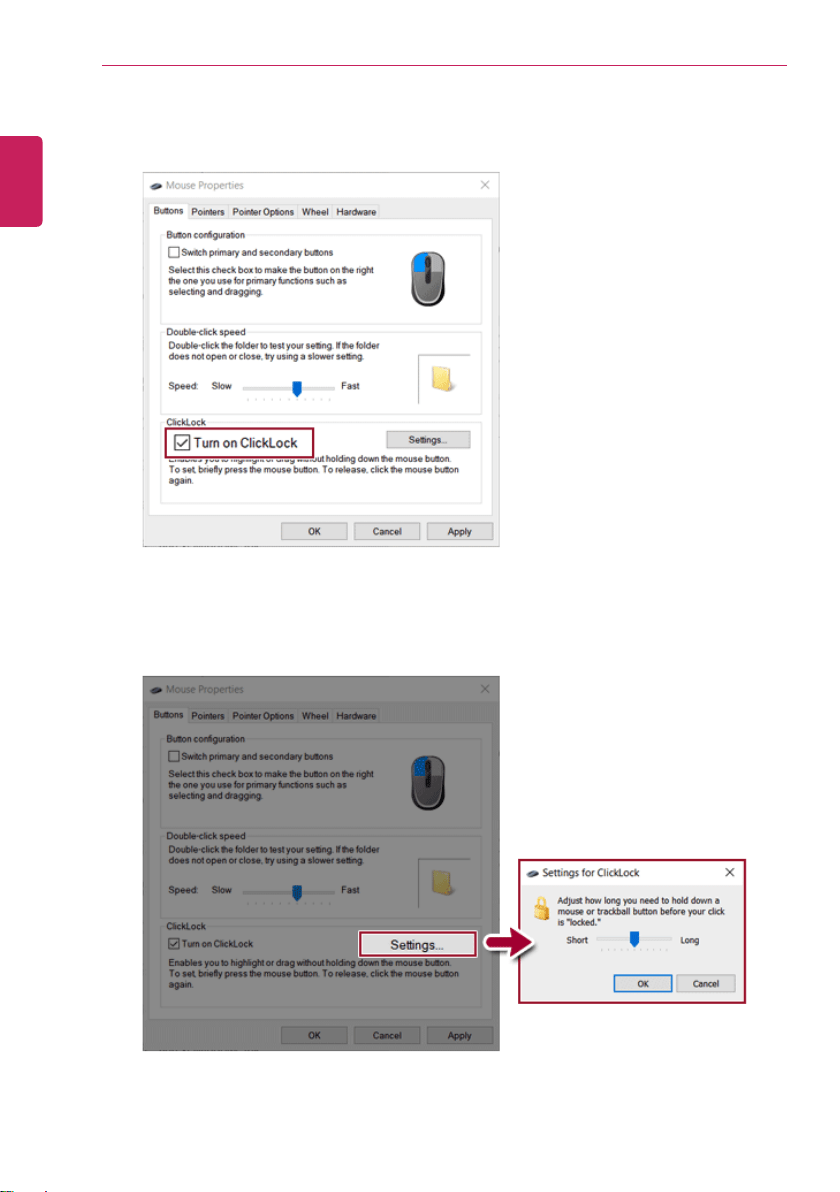
4 When [Mouse Properties] screen appears, select [Turn on ClickLock].
5 Press [Settings] to set the time for the ClickLock.
ENGLISH
Using the PC
117
6 Press the left button of the touchpad and release it to change the button into the pressed state.
7 Move on the touchpad to use the drag/scroll feature.
8 Press the left mouse button to turn off the ClickLock.
Touchpad Gesture
The touchpad gesture feature allows you to use Windows programs more easily by utilizing multi-
touch functions.
In Windows 10, touchpad gestures allow you to use the PC more easily.
The touchpad gesture feature may not be supported in some models.
ENGLISH
118
Using the PC
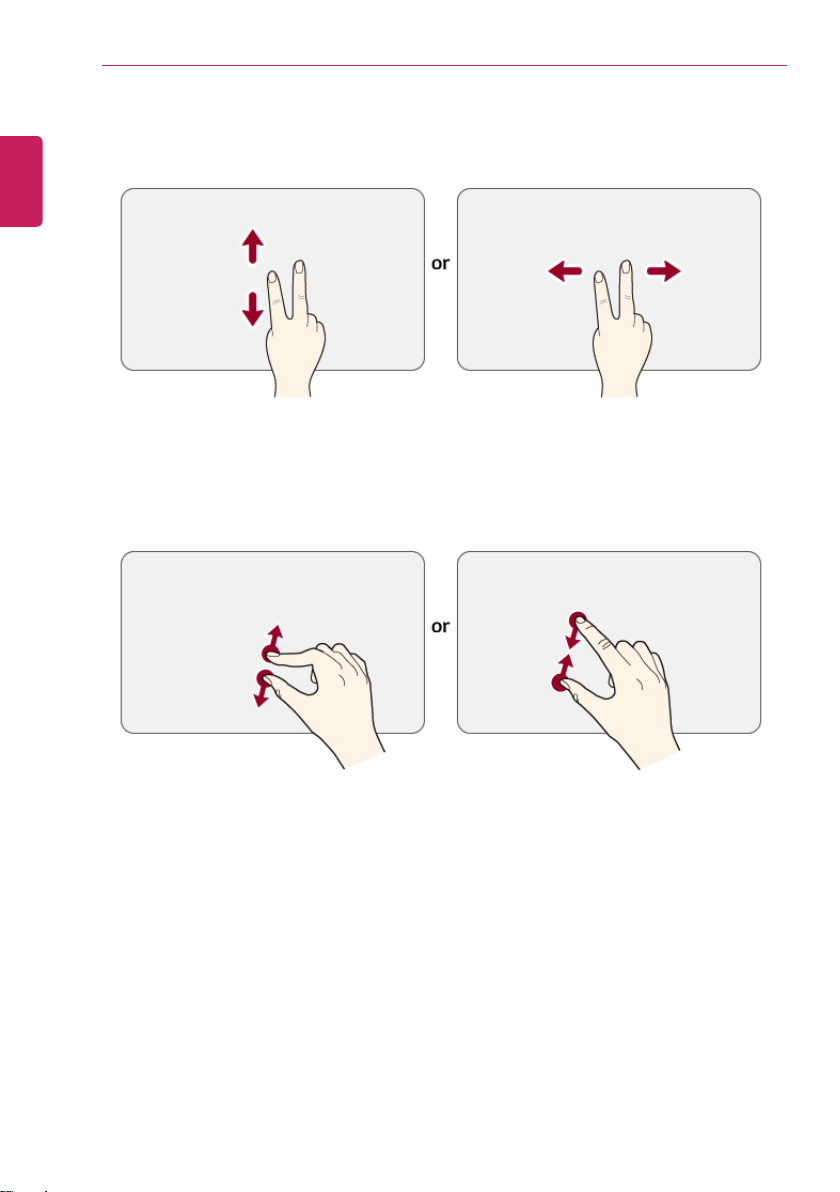
• Place two fingers on the touchpad and move up/down/left/right to scroll the screen.
(It operates only on an app or screen which scrolling is available.)
• Place two fingers on the touchpad and widen or narrow them to zoom out or in.
ENGLISH
Using the PC
119
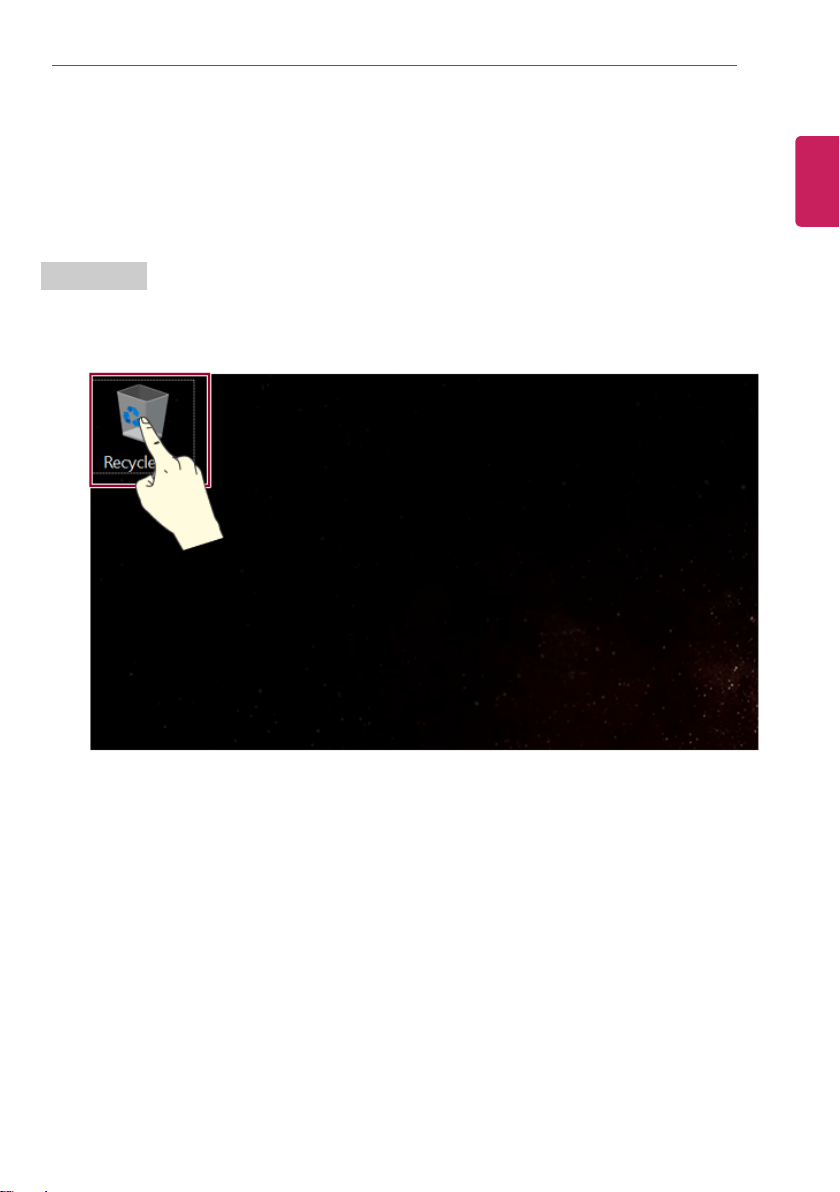
Setting Touchpad
You can change the touchpad features or enable/disable the gesture feature.
The figures herein may differ by language selection and are subject to change without prior
notice.
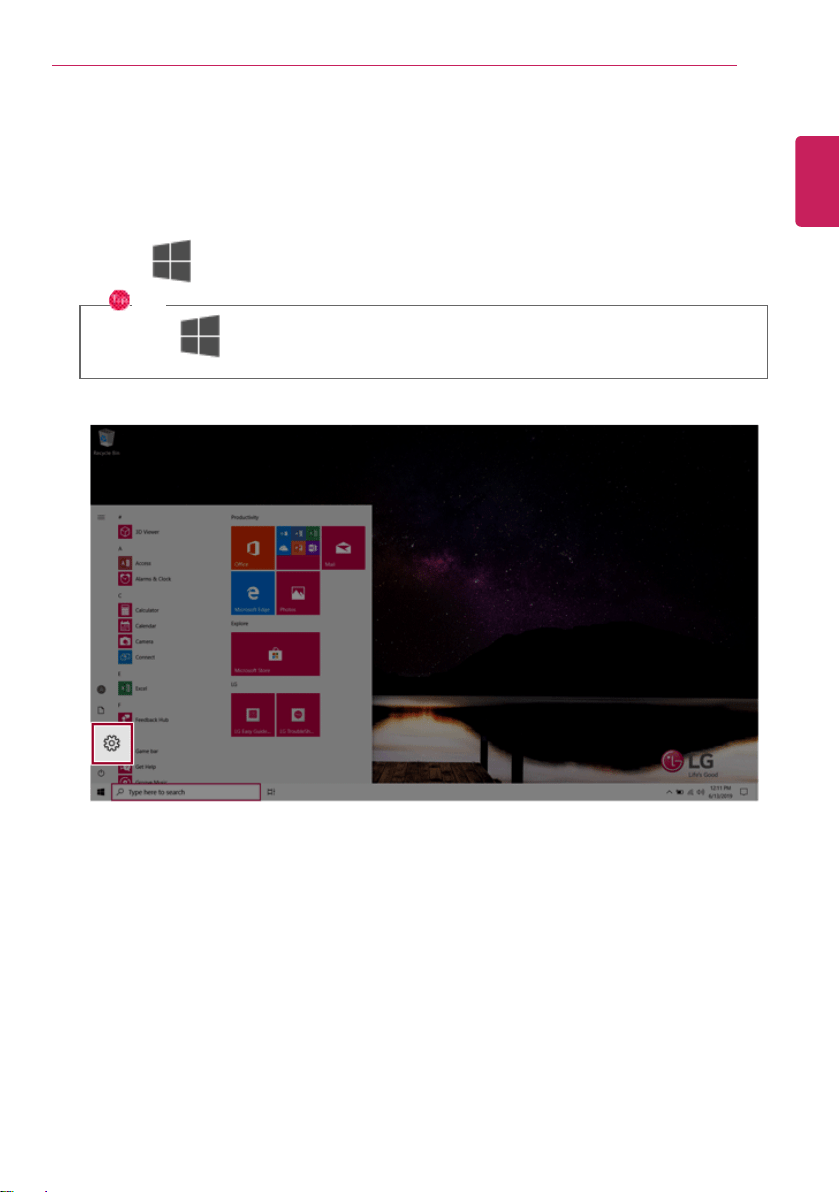
1 Click the [
] button and select the Settings menu.
TIP
Press the [
] key or [Ctrl] + [Esc] to display the Start menu.
ENGLISH
120
Using the PC
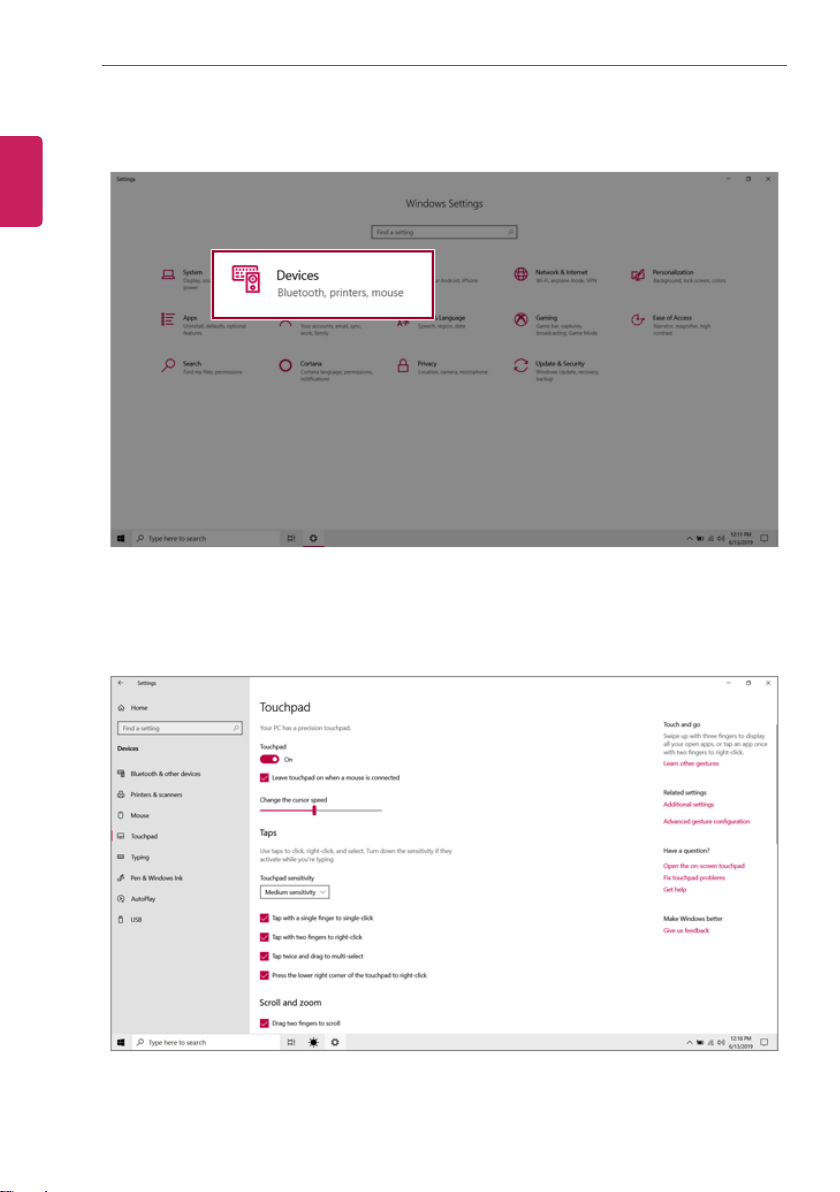
2 When the [Settings] screen appears, select [Devices].
3 Change the settings as needed on the [Touchpad] menu.
ENGLISH
Using the PC
121
Using Touch Panel
Use the touch panel for a faster and more convenient use of the PC. All gestures provided by Windows
10 can be used.
For more details about the Windows 10 gestures, refer to Windows help.
Basic Usage
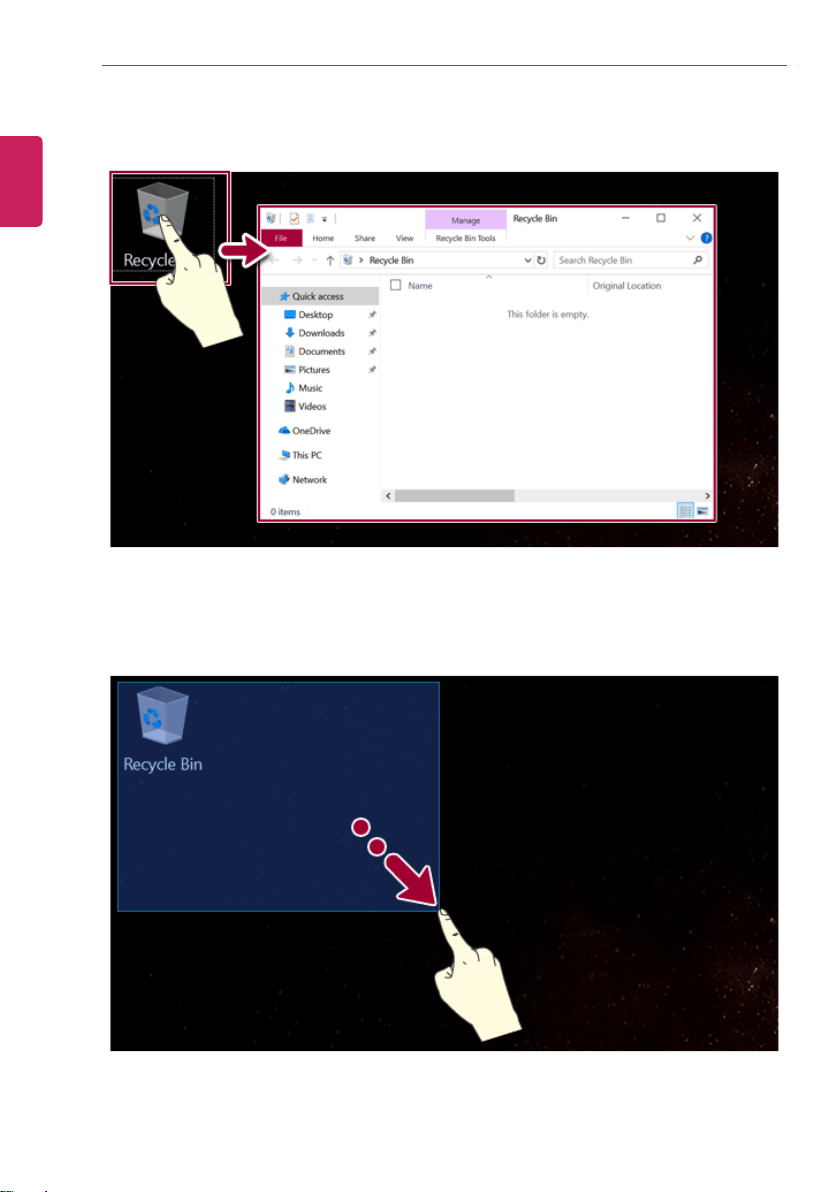
1 Touching Once: Touch the panel once to use as left mouse button.
ENGLISH
122
Using the PC
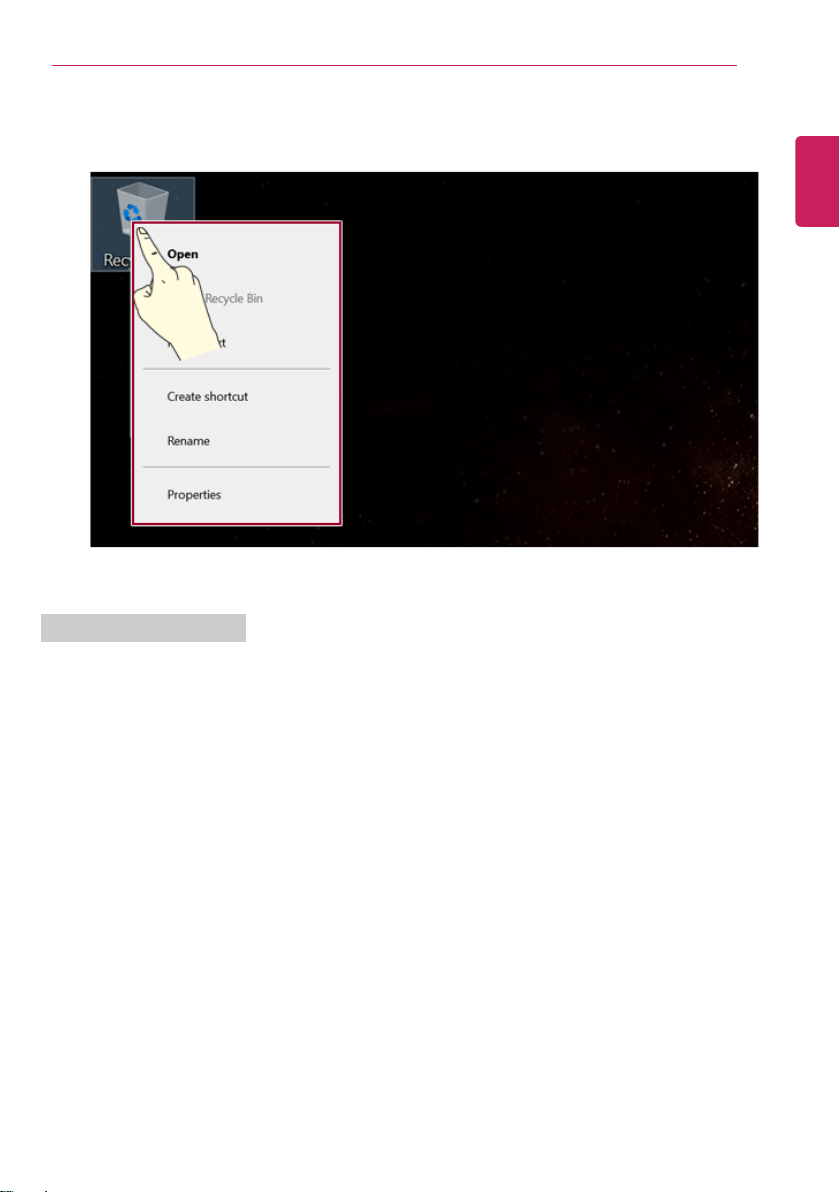
2 Touching Twice: Touch the panel twice to use as double-click.
3 Drag: After touching the start point, finger movement can be used instead of the mouse.
ENGLISH
Using the PC
123
4 Touching Longer: Touch the panel for a longer time to use as right mouse button.
Using the Touch Keyboard
1 Right-click the task bar and select [Show touch keyboard button].
ENGLISH
124
Using the PC
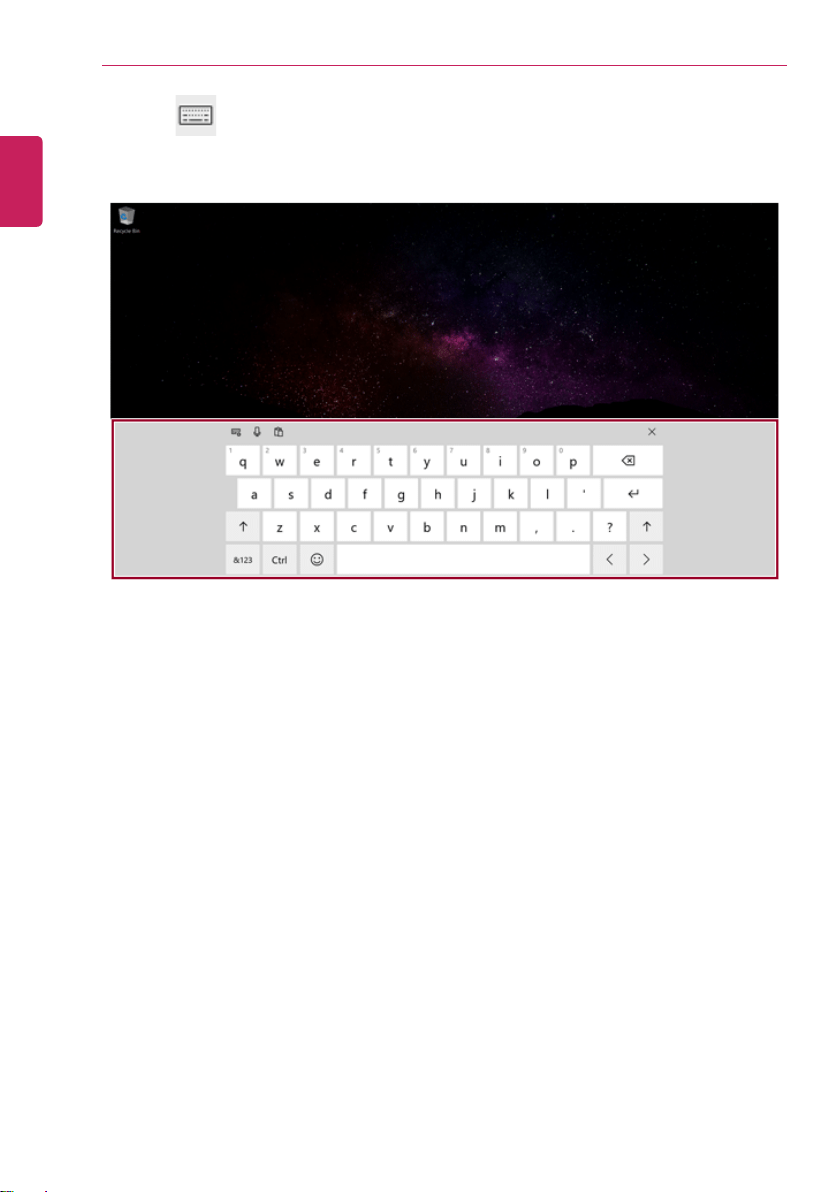
2 Press the [
] icon on the right side of taskbar to display the [Keyboard] screen as shown
below.
ENGLISH
Using the PC
125
Using Stylus Pen
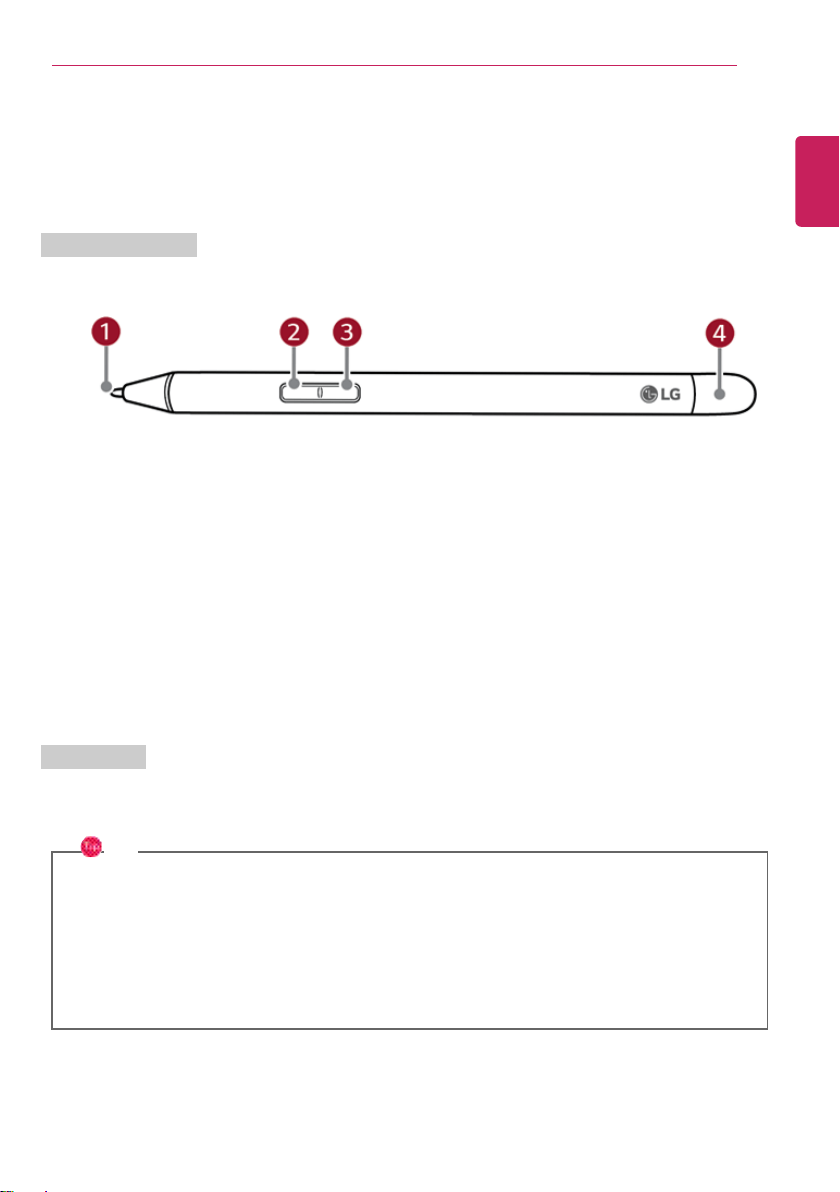
If you use a Stylus Pen for 14T990 model, you can perform more precise touch control than when
using fingers.
Name of Each Part
1 Pen tip
• Performs the same function as a mouse cursor.
2 Left mouse button
• Use to select or execute programs.
3 Right mouse button
• Performs the same function as a right mouse button.
4 Pen cap
How to Use
Buttons on the Stylus Pen basically have the same functions as mouse buttons and their functions
may change depending on the program used.
TIP
Applying excessive force when using the Stylus Pen may cause a failure of the pen or the pen
tip.
The Stylus Pen automatically enters the sleep mode if the pen is not used for more than 10
minutes or the pen tip is pressed for more than 4 minutes.
To leave sleep mode, simply touch the screen with the Stylus Pen or click any of the mouse
buttons.
ENGLISH
126
Using the PC
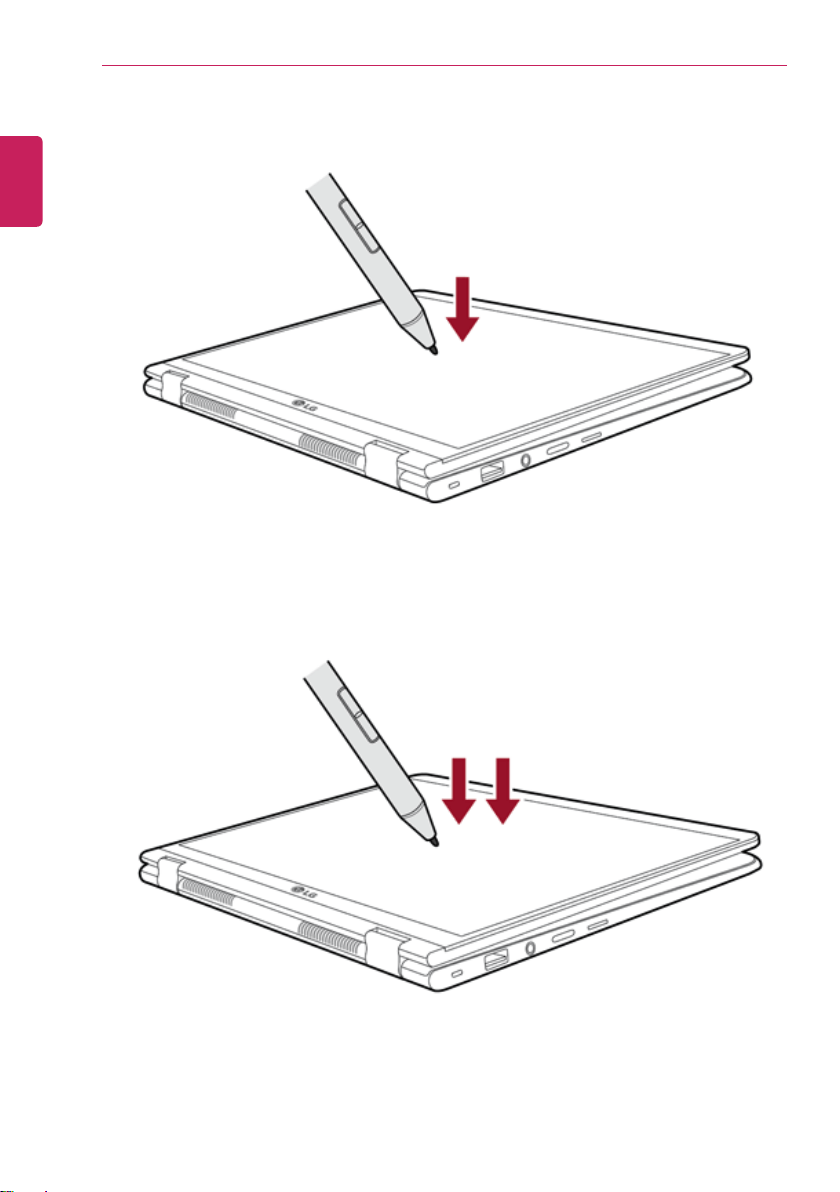
1 Click: Touch a screen with the Stylus Pen once to use it as a left mouse click.
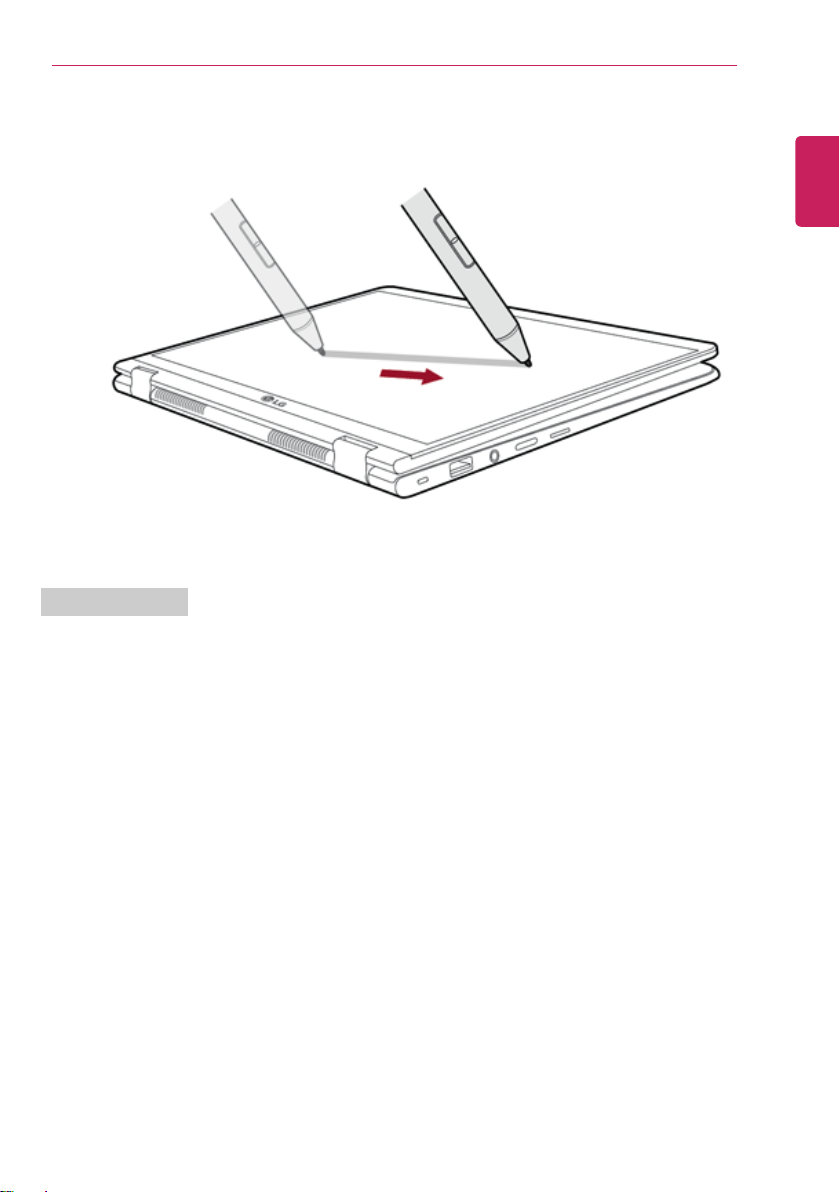
2 Double Click: Touch a screen with the Stylus Pen twice to use it as a double click.
ENGLISH
Using the PC
127
3 Drag: Move the Stylus Pen while pressing the screen with it to use it as a mouse drag function.
Drawing a Picture
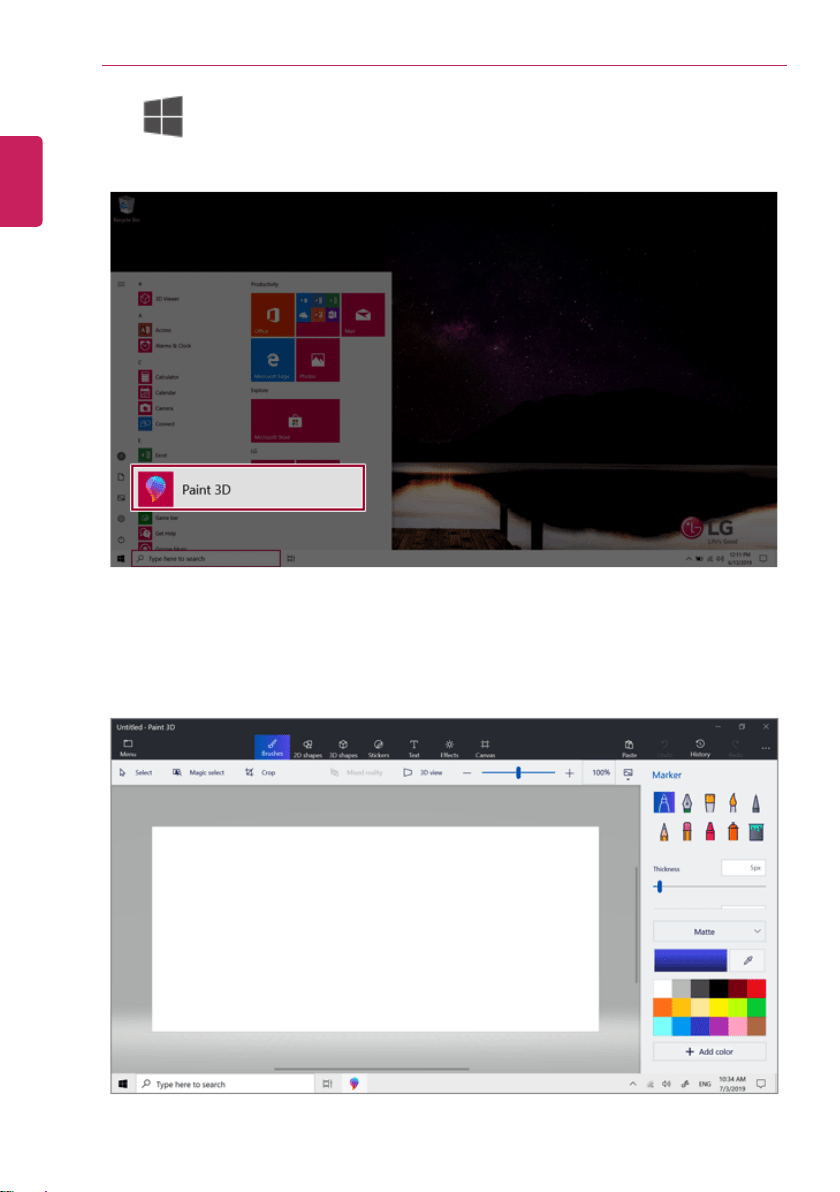
You can draw a picture with a Stylus Pen using the Paint program, which is supplied with Windows 10,
or a painting app that you purchased separately.
ENGLISH
128
Using the PC
1 Click [
] button > [Paint 3D] to execute the program.
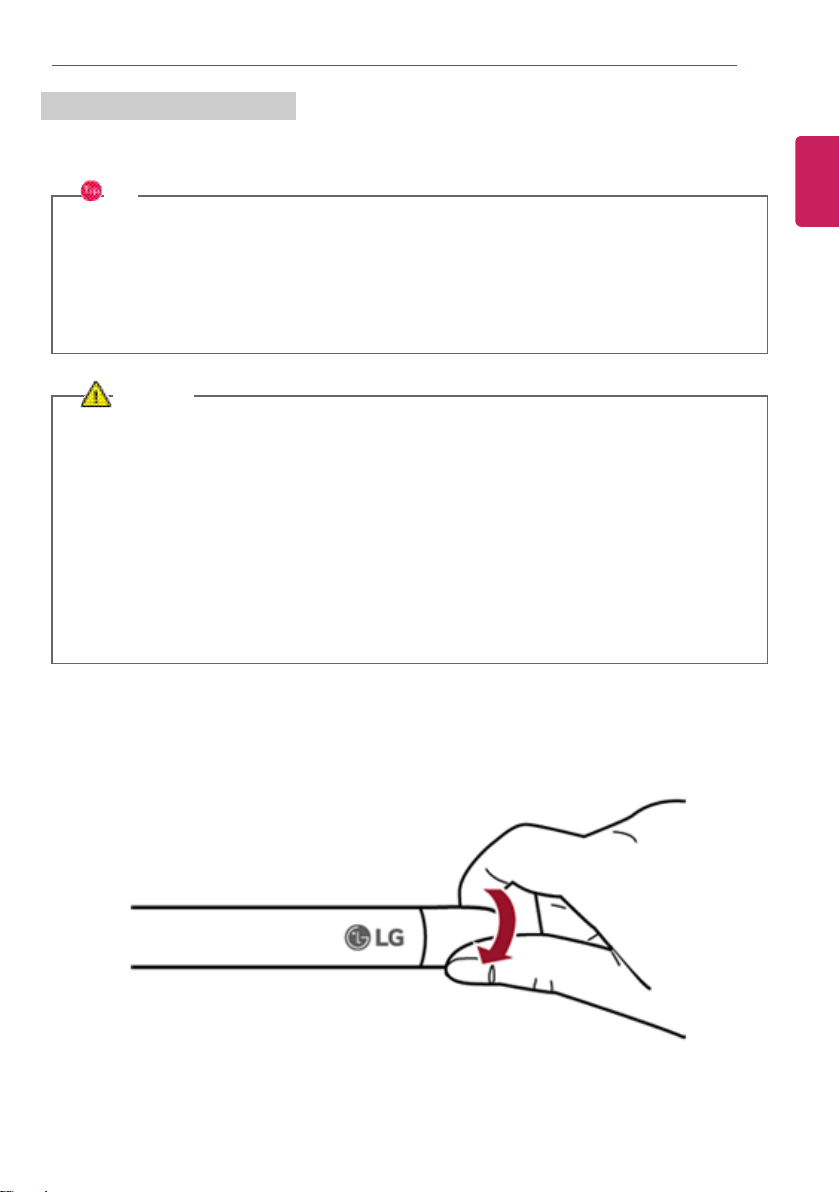
2 Select a brush type and size in the Paint app and draw a picture freely just like drawing a picture
with a pencil.
ENGLISH
Using the PC
129
Inserting and Replacing Batteries
1.5V batteries of an AAAA size is provided with the product. Insert the batteries before using the pen
as follows.
TIP
If the battery level is low, the pen operation may be interrupted or the pen may not be
recognized.
If the batteries have not been replaced for a long time, replace the batteries before using the
pen.
AAAA-size batteries can be purchased through an on-line shopping mall.
CAUTION
If a battery of incorrect specifications or a rechargeable battery is used, the normal operation is
not guaranteed.
If the pen is not used for a long period of time, store the pen after removing the batteries.
Otherwise, the battery liquid may leak and cause a failure.
Do not apply excessive force when inserting the battery or detaching/attaching the pen cap.
Otherwise, the product may be damaged.
If the pen is stored or moved with the pen tip pressed, it may cause the batteries to discharge
quickly.
If you apply excessive shock to the pen or drop it, it may cause a failure.
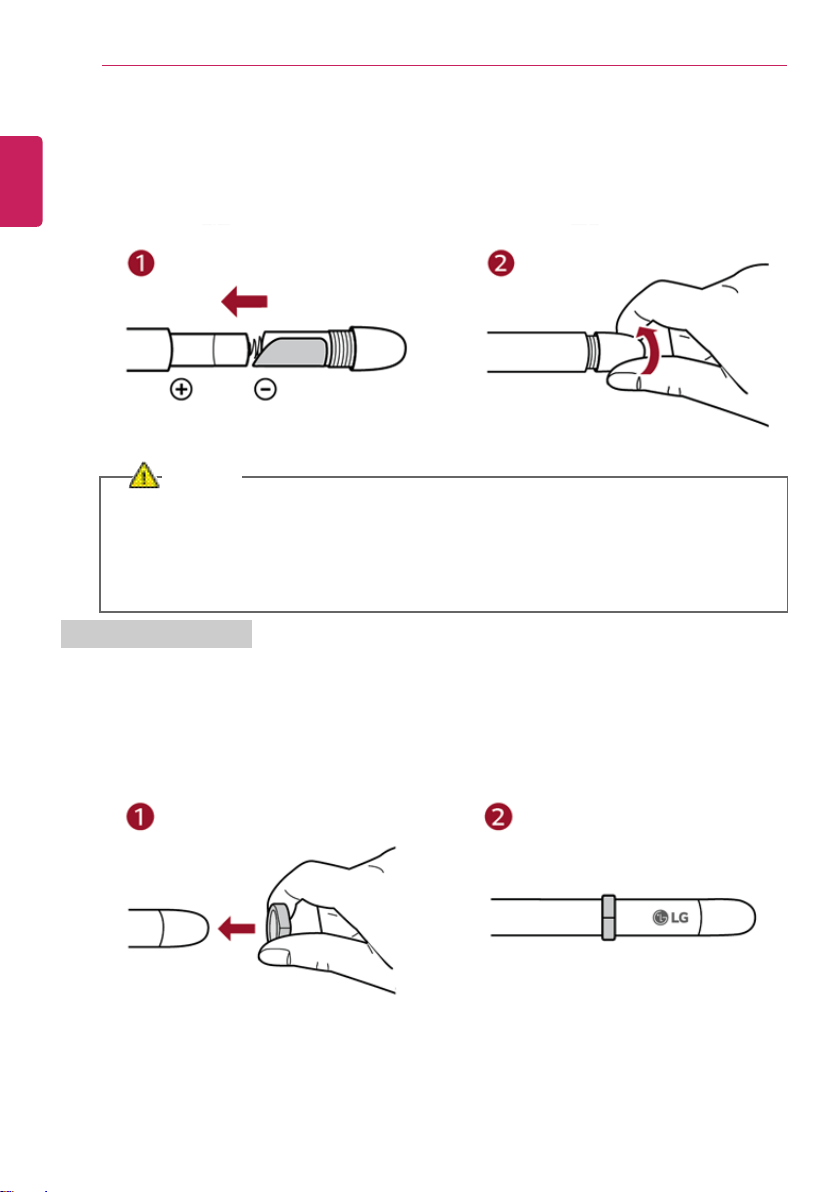
1 Hold the pen cap and turn it in the direction of the arrow to disassemble it.
ENGLISH
130
Using the PC
2 After inserting batteries in the correct direction, close the pen cap by turning it in the direction of
the arrow.
• When replacing batteries, remove the existing batteries and do the same as above.
CAUTION
Make sure that no foreign substance is caught in the screw line when detaching/attaching
the pen cap.
Make sure that the pen and the pen cap are level with each other when attaching the pen
cap. Otherwise, the product may malfunction.
Inserting a Rubber Ring
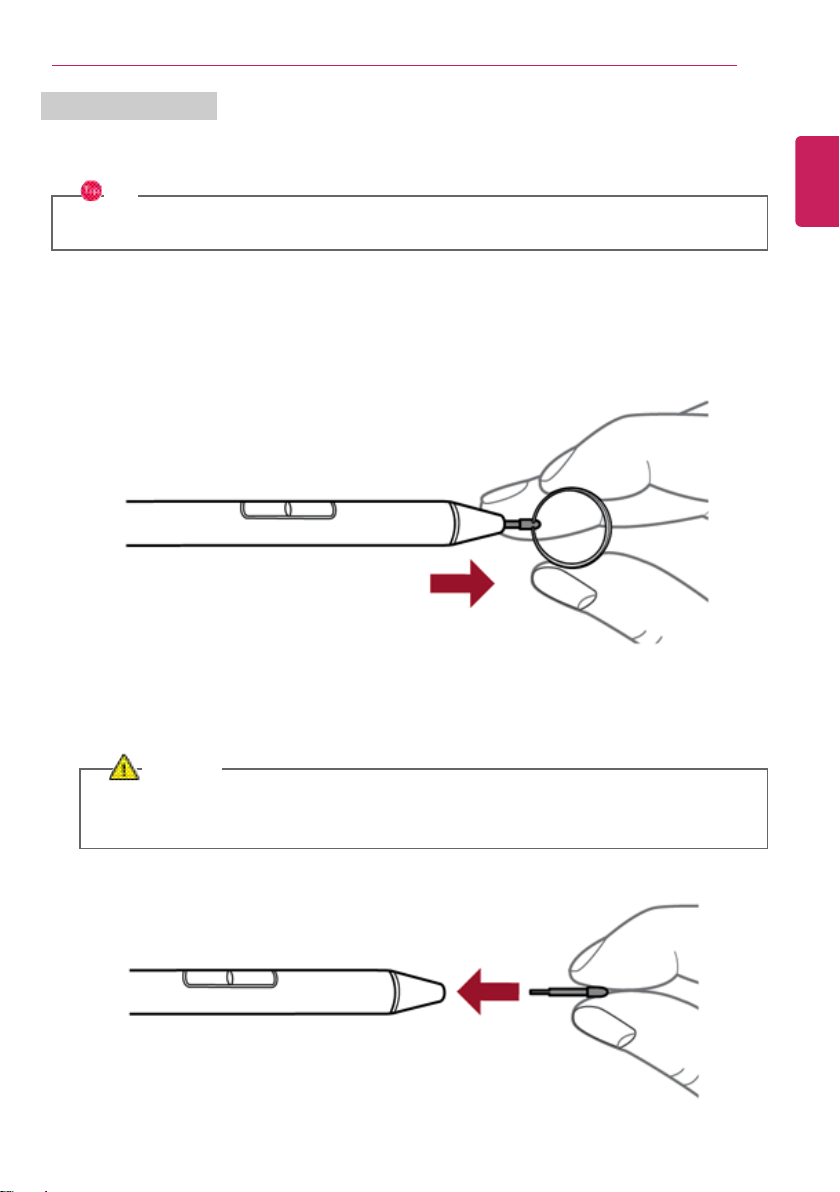
A rubber ring prevents the Stylus Pen from rolling on a flat surface such as a desk. Insert a rubber
ring as described below if necessary.
1 Insert a rubber ring in the direction of the arrow on a place you desire.
ENGLISH
Using the PC
131
Replacing the Pen Tip
A replacement pen tip is provided with the product. You can replace the pen tip using the method
described below.
TIP
If the pen tip wears out, replace it.
1 Use a tweezer to grab the end of the pen tip, and pull toward the direction of the arrow to
separate it from the Stylus Pen.
2 Insert a replacement pen tip to the Stylus Pen.
CAUTION
If you push the pen tip with excessive force or insert it in the opposite direction, it may
cause a failure.
ENGLISH
132
Using the PC
Connecting to External Display
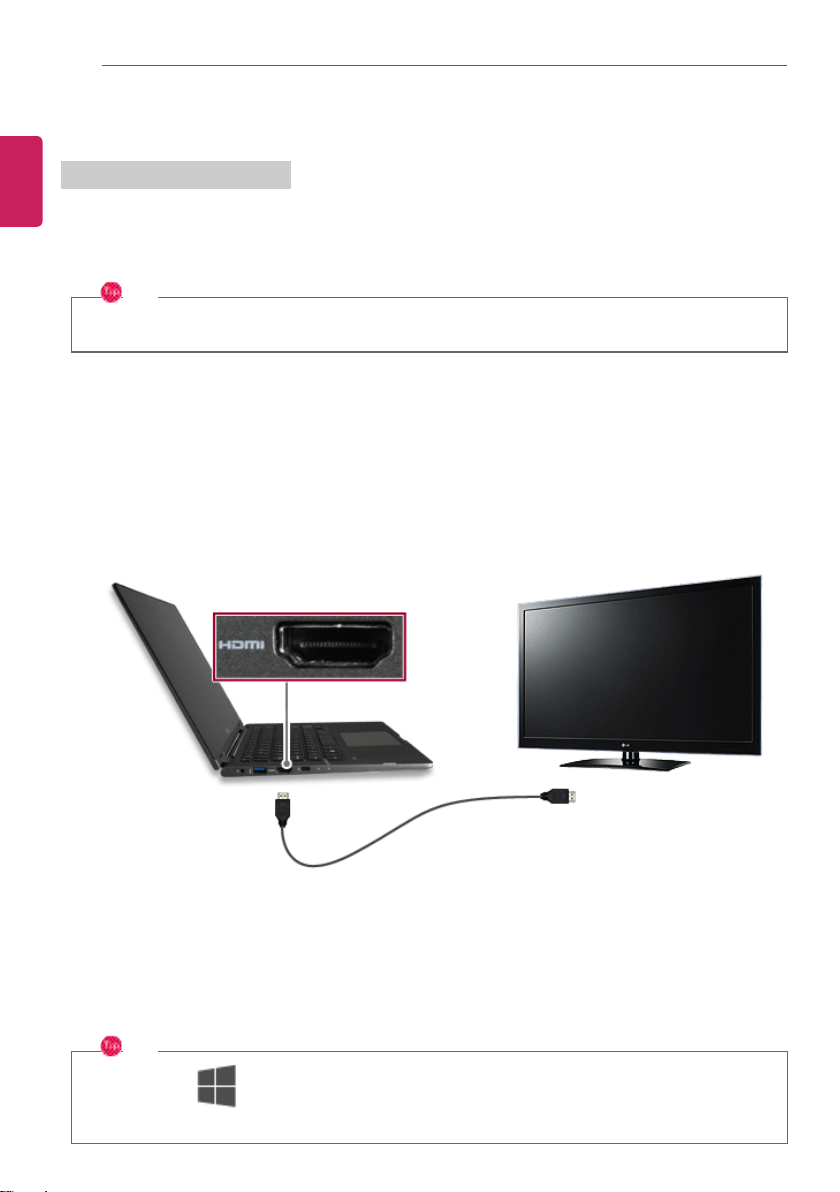
Connecting to the HDMI Port
HDMI is a high-speed multimedia interface that can transfer uncompressed full digital audio and video
signals.
In some models, DTS Audio may not work when you use HDMI.
TIP
Ensure the monitor power is off before connecting the external monitor to the PC.
1 Connect the HDMI cable to the PC and the external device (TV, monitor) that supports HDMI.
2 HDMI port transfers both video and audio simultaneously. Hence, there is no need for a separate
audio connection.
3 On the PC, press [Fn] + [F7] to display monitor (projector) toggling screen. Select the desired
screen output.
TIP
• Every time [ ] + [P] keys are pressed, the screen output option changes. Release the
keys to display the selected screen output.
ENGLISH
Using the PC
133
CAUTION
• If you do not set Speaker as the default value after disconnecting the HDMI cable, the
system may not produce any sound.
• If a program was running already, you must exit and restart the program to produce sound.
ENGLISH
134
Using the PC
Connecting to Wireless Display
The wireless display feature connects the PC screen and sound to a display (TV, projector, etc.).
OPTION
• To use the wireless display feature, the display device must support this feature.
• To connect to the display device that does not support wireless display, you must
separately purchase a wireless display connection device.
• Once the wireless display connection is established, no additional procedures and searching
are necessary the next time you try to connect.
Connecting to Wireless Display
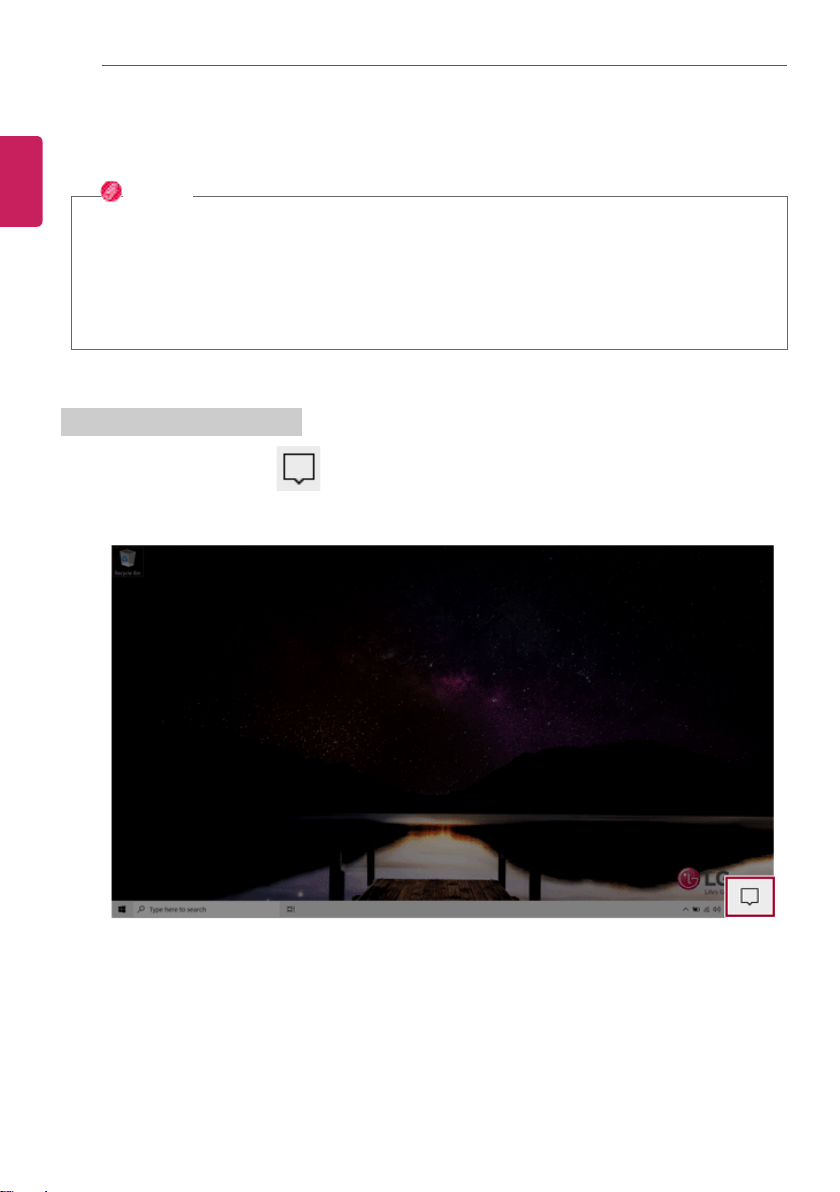
1 Press the Action Center [ ] icon on the right side of the taskbar.
ENGLISH
Using the PC
135
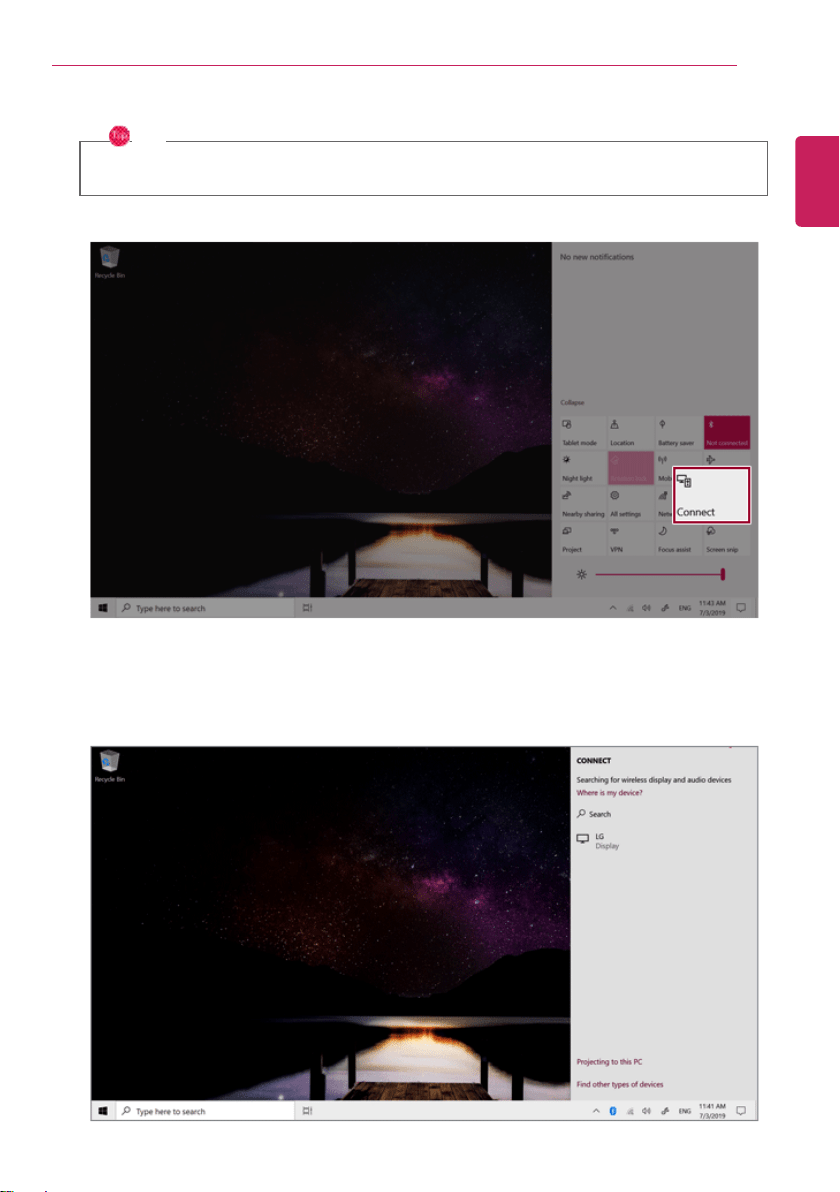
2 When the Action Center screen appears, press the [Connect] tile.
TIP
If the tile does not appear, press the [Expand] menu.
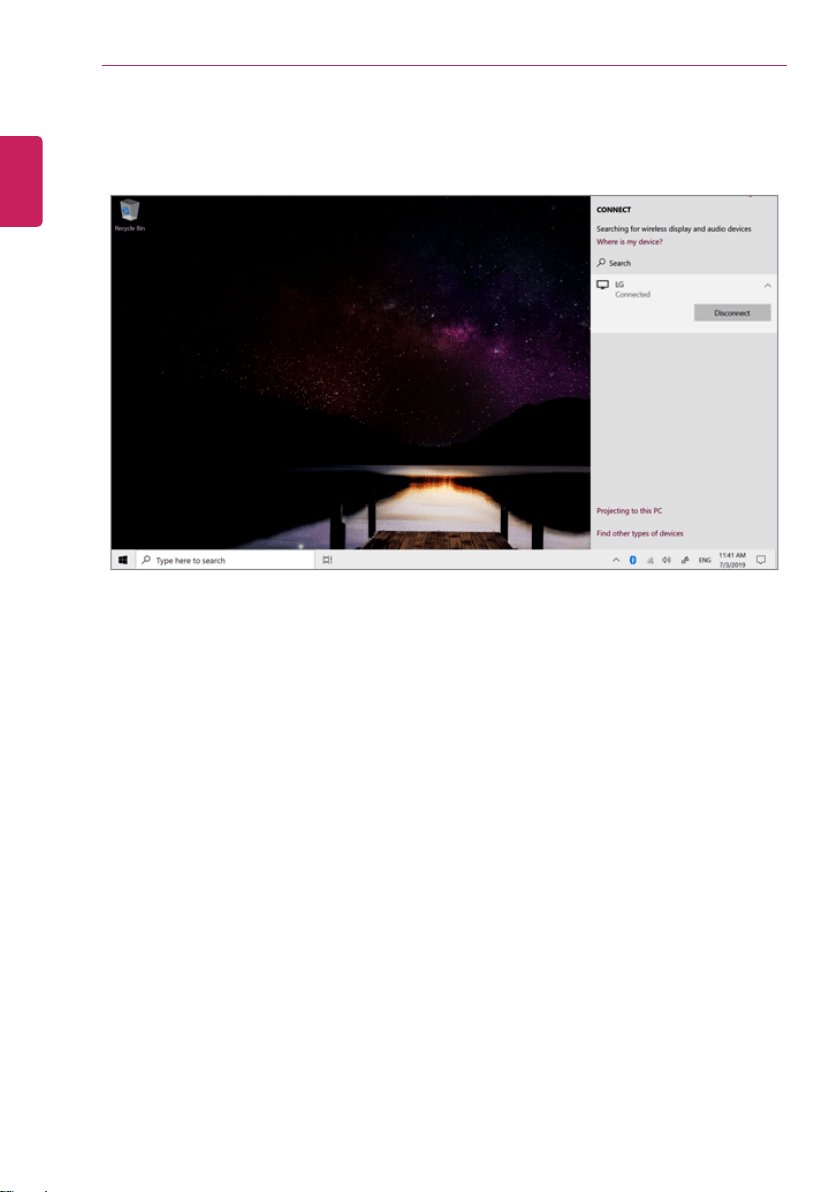
3 Search for wireless display devices in the proximity.
ENGLISH
136
Using the PC
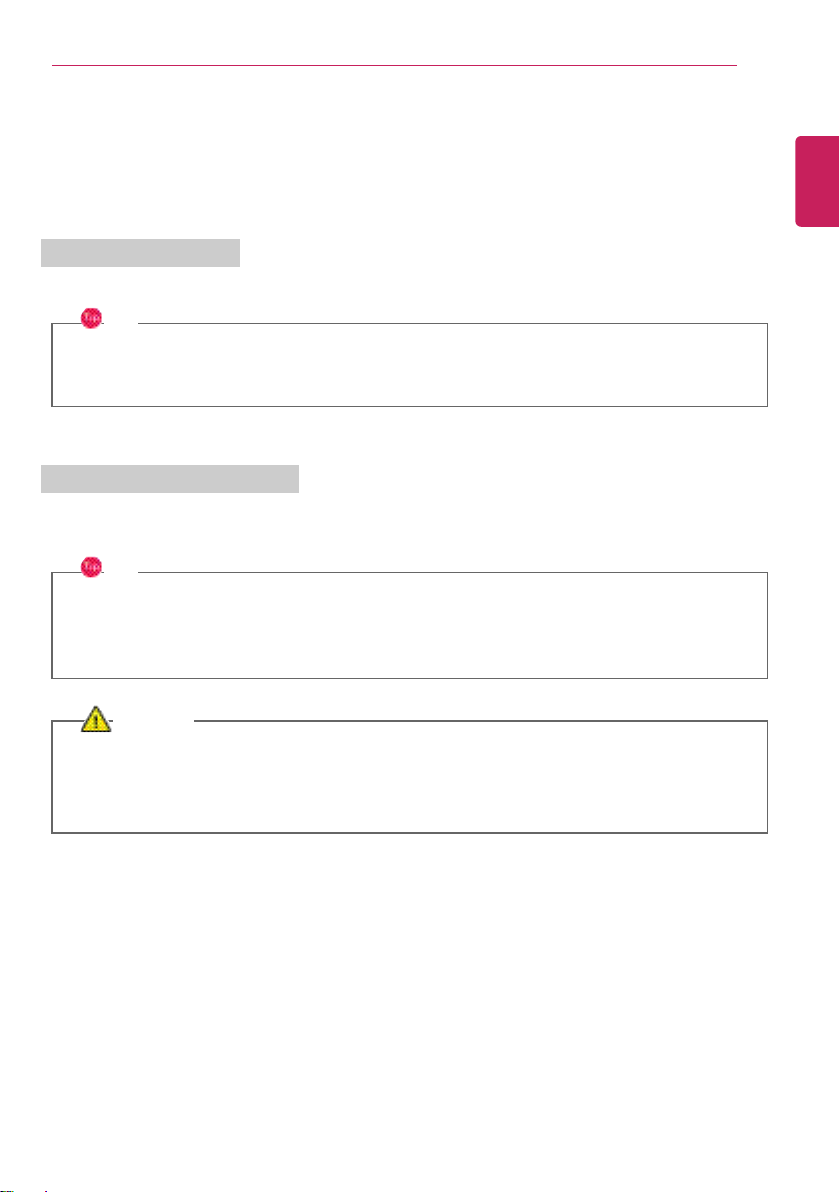
4 If the device is connected as shown below, the PC screen and sound are produced on the wireless
display device.
ENGLISH
Using the PC
137
Connecting an External USB-C™ Device
The USB-C™ port mounted on this product supports USB 3.1 Gen 2 standards.
Use the USB-C™ port to connect USB devices or to output a screen to an external display.
Connecting a USB Device
If a USB device is connected to a USB-C™ port, the port works as an ordinary USB port.
TIP
To use a conventional USB device, a separate conversion adapter should be used.
(Conversion adapters may be purchased separately.)
Outputting to an External Display
By connecting a display that supports USB-C™ Alternate Mode, you can use the USB-C™ port to
output a screen to an external display.
TIP
The Alternate mode allows you to use the DP (Display Port) and HDMI display outputs through
the USB-C™ port.
We support DP (Display Port) interface standards.
CAUTION
You must use a cable that supports Alternate Mode to output a screen to another display.
If you use USB-C™ accessories (cables, interface adapters, etc.) that are used for other products,
you may have compatibility problems (no screen output or a malfunction).
ENGLISH
138
Using the PC
Using USB-C™ Charging Function
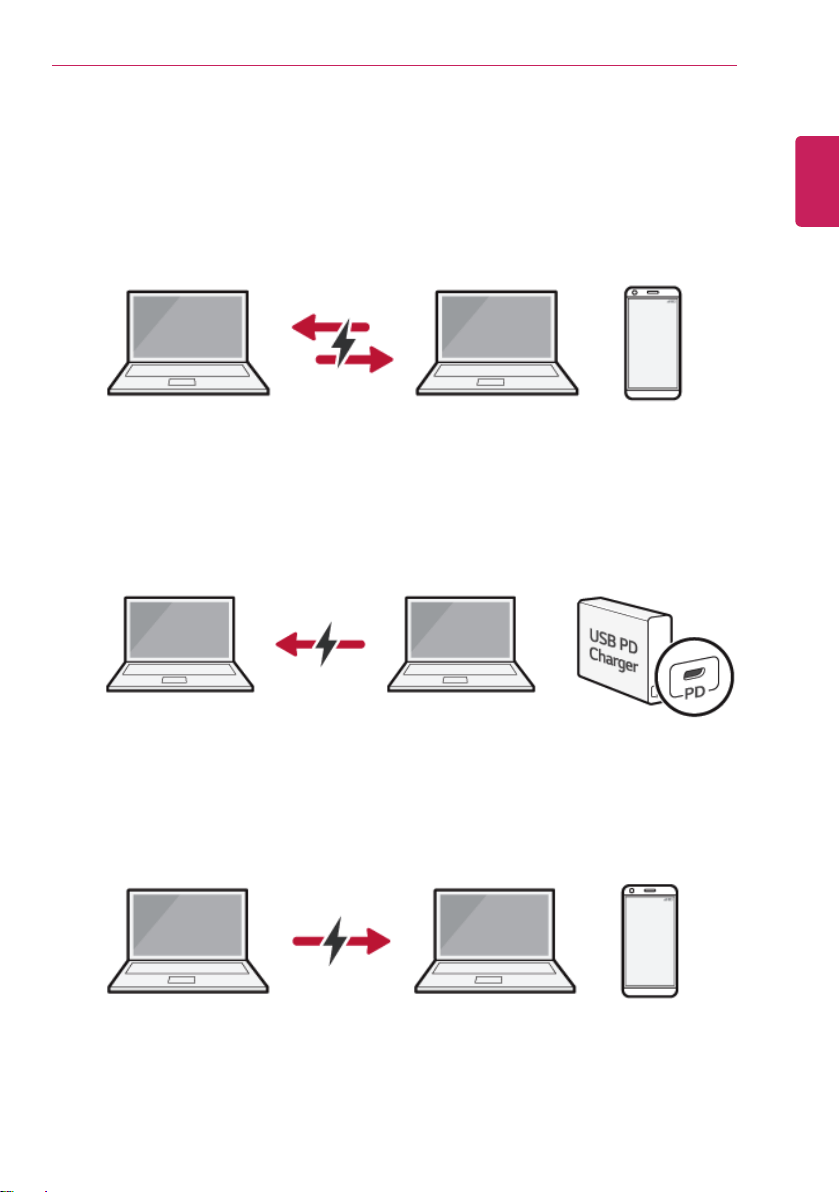
You can connect a USB-C™ device to charge a notebook PC battery or other external devices.
• To charge a notebook PC battery, the external device (USB PD charger, notebook PC, etc.) should
support USB Power Delivery 10 W (5 V / 2 A) or higher profile.
• The external devices that use the USB-C™ port can be charged at 10 W (5 V / 2 A), 15 W (5 V / 3
A), and 18 W (9 V / 2 A).
• A USB PD (Power Delivery) device supports charging at 15W (5V / 3A) or 18W (9V / 2A) when
connected, whereas a regular USB device supports charging at 10W (5V / 2A).
• If the remaining battery level of the notebook PC is 10% or less, both USB PD device and regular
USB device only support charging at 10W (5V / 2A).
• Always-On Charging is supported only with USB-C™ ports, but not with the regular USB ports.
• If you connect an AC adapter while the notebook PC is being used to charge an external device, it
may take more time to charge the notebook PC.
Using the Charging Function
LG Control Center can be used to set one of the three charging functions: Automatic, Sink and
Source.
TIP
For information on how to use LG Control Center, refer to [Using Software] > [].
ENGLISH
Using the PC
139
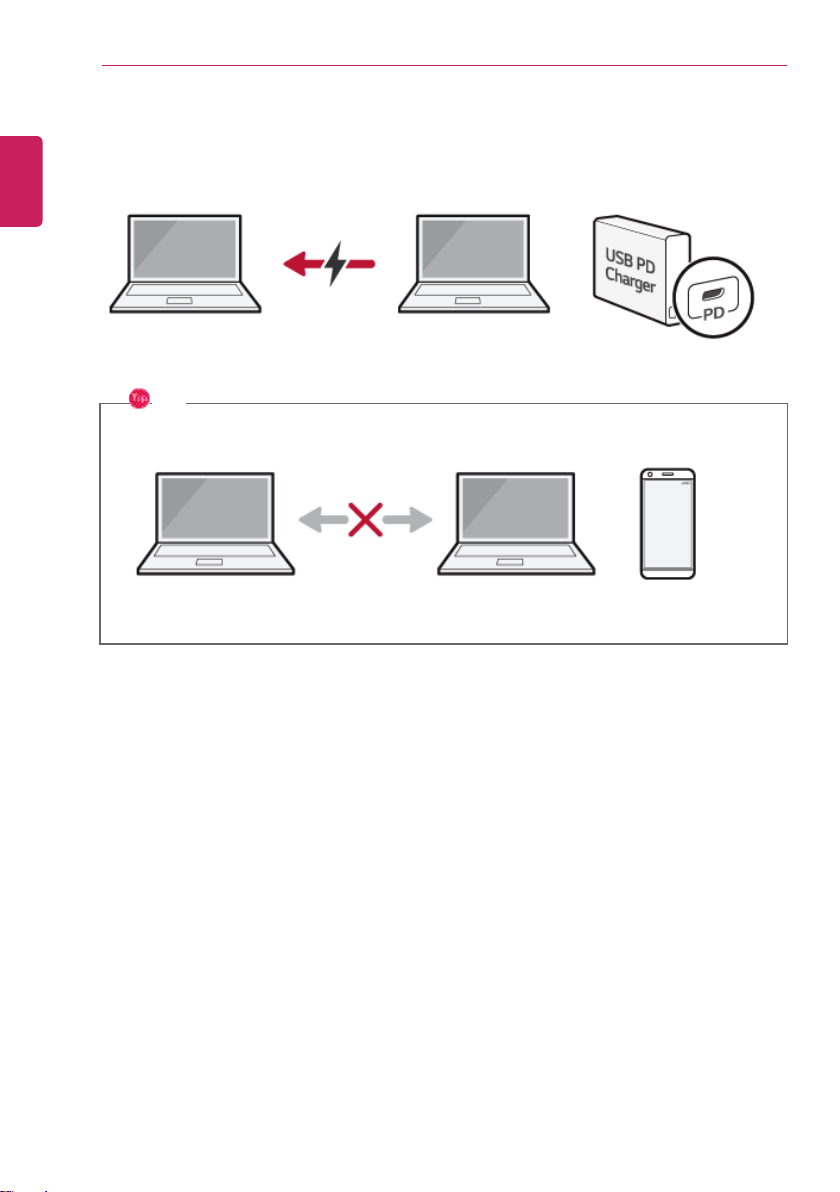
1 Automatic
The operation mode is automatically selected depending the charge settings of the connected
device.
• When the connected device is set to Automatic (Charging the notebook PC or a connected
device. Charging the notebook PC by using the mobile phone is not supported.)
• When the connected device is set to Source (the notebook PC is charged.)
• When the connected device is set to Sink (the connected device is charged.)
ENGLISH
140
Using the PC
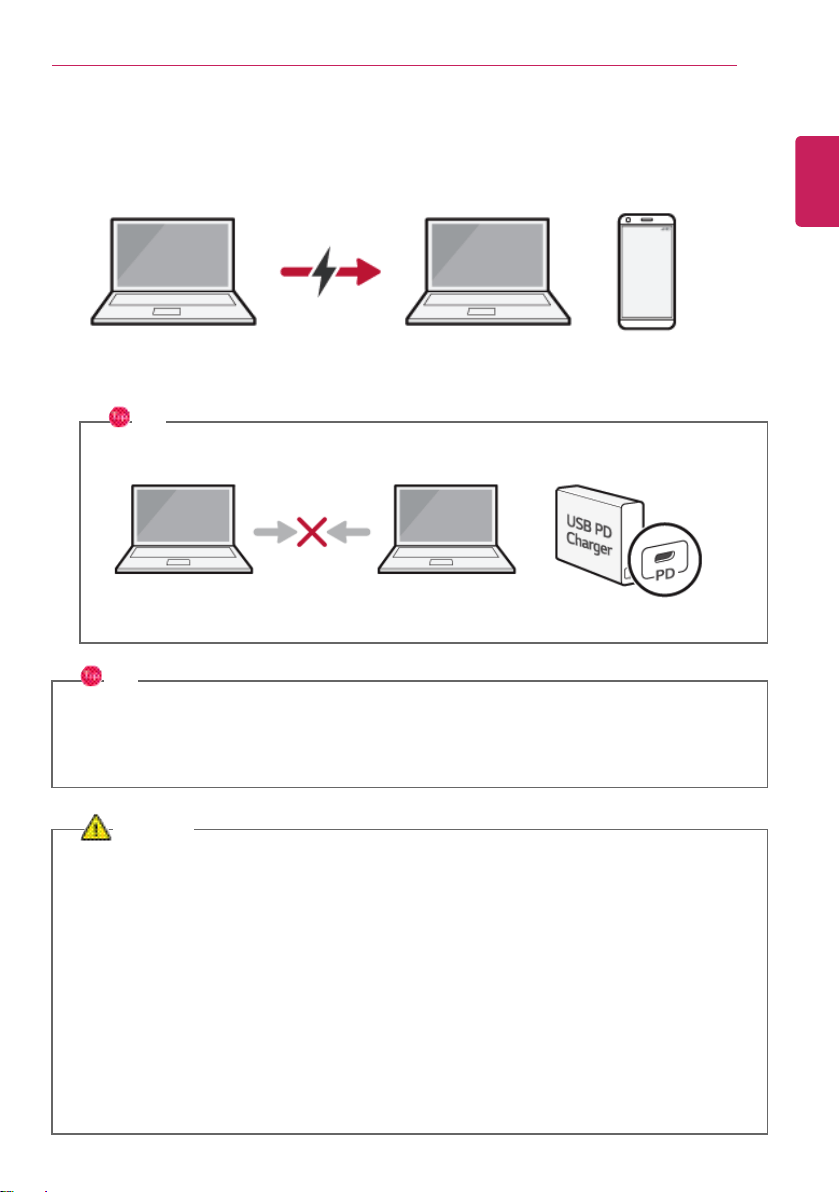
2 Sink
The connected device is used to charge the notebook PC.
TIP
If the connected device is set to Sink, the charging function does not work.
ENGLISH
Using the PC
141
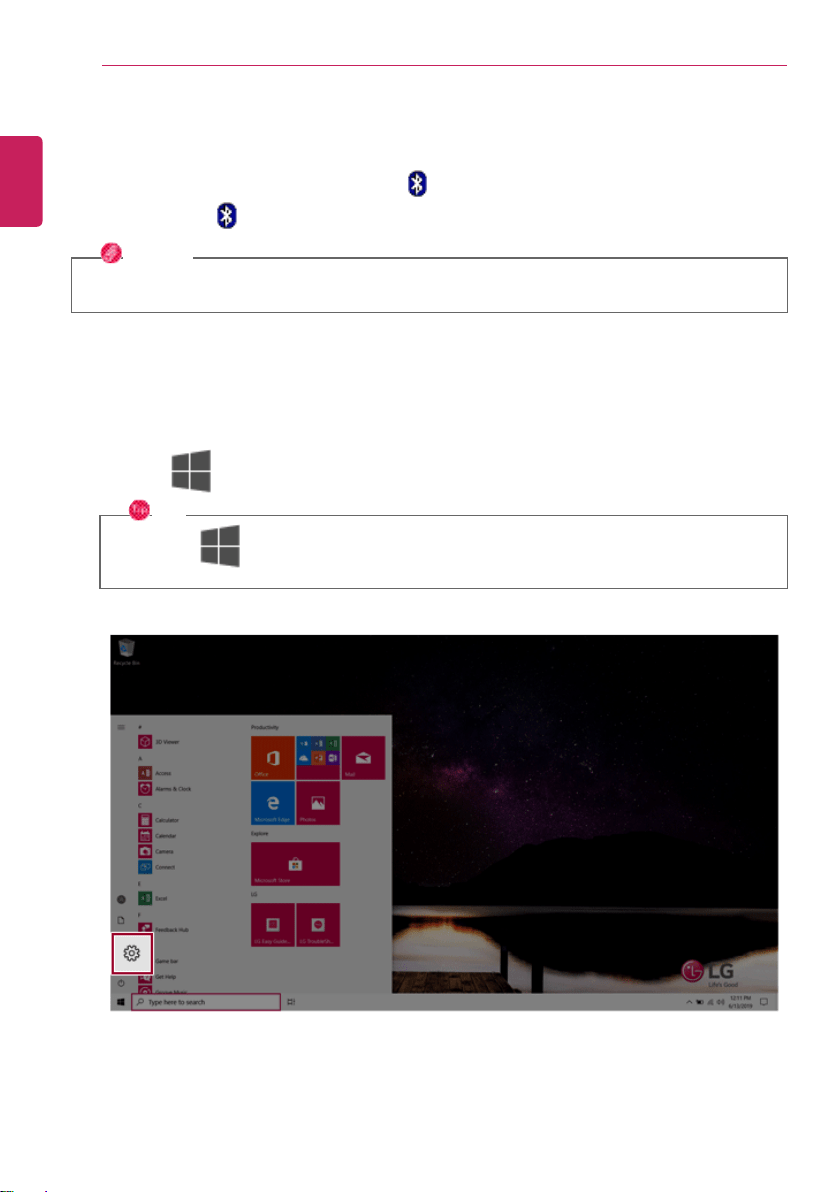
3 Source
The notebook PC is used to charge the connected device.
TIP
If the connected device is set to Source, the charging function does not work.
TIP
The charging status of the external device being charged is not displayed on the notebook PC.
If you connected a smartphone, you should select "Charge mobile phone" on the smartphone
screen to charge the phone battery.
CAUTION
When you set the charging function for a USB-C™ port in LG Control Center, beware of the
following:
• If you changed the charge setting, it is recommended that you remove the USB-C™ cable
and re-connect it.
• If you restart the system or turn off the power, the charge setting is changed to
[Automatic].
• If the charge setting is set to [Sink], some of the devices connected to the USB-C™ port
may not work properly.
• Always-On Charging only supports the ON (automatic) and OFF options.
• If the power consumption of the notebook PC is larger than the power supply from the
external device, the battery may be consumed gradually.
ENGLISH
142
Using the PC
Bluetooth
Bluetooth allows the user to access wirelessly various devices such as camera, cell phone, headset,
printer, and GPS receiver that support Bluetooth
. It can also establish a network and exchange data
with other Bluetooth
-enabled PC or smartphone.
OPTION
The Bluetooth device is optional, and it may not be available in some models.
The figures herein may differ by language selection and are subject to change without prior
notice.
For details on connecting a Bluetooth device, refer to the user manual that came with the
Bluetooth device.
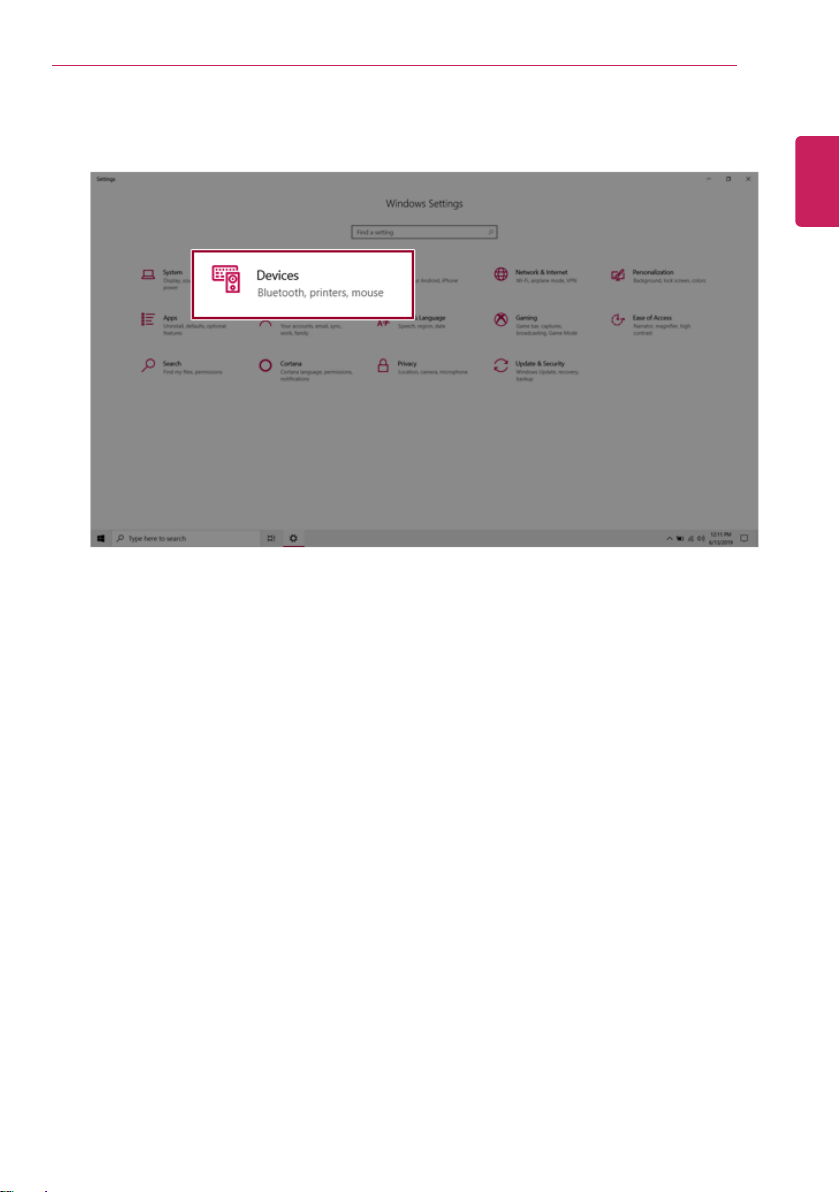
1 Click the [ ] button and select the Settings menu.
TIP
Press the [
] key or [Ctrl] + [Esc] to display the Start menu.
ENGLISH
Using the PC
143
2 When the [Settings] screen appears, select [Devices].
ENGLISH
144
Using the PC
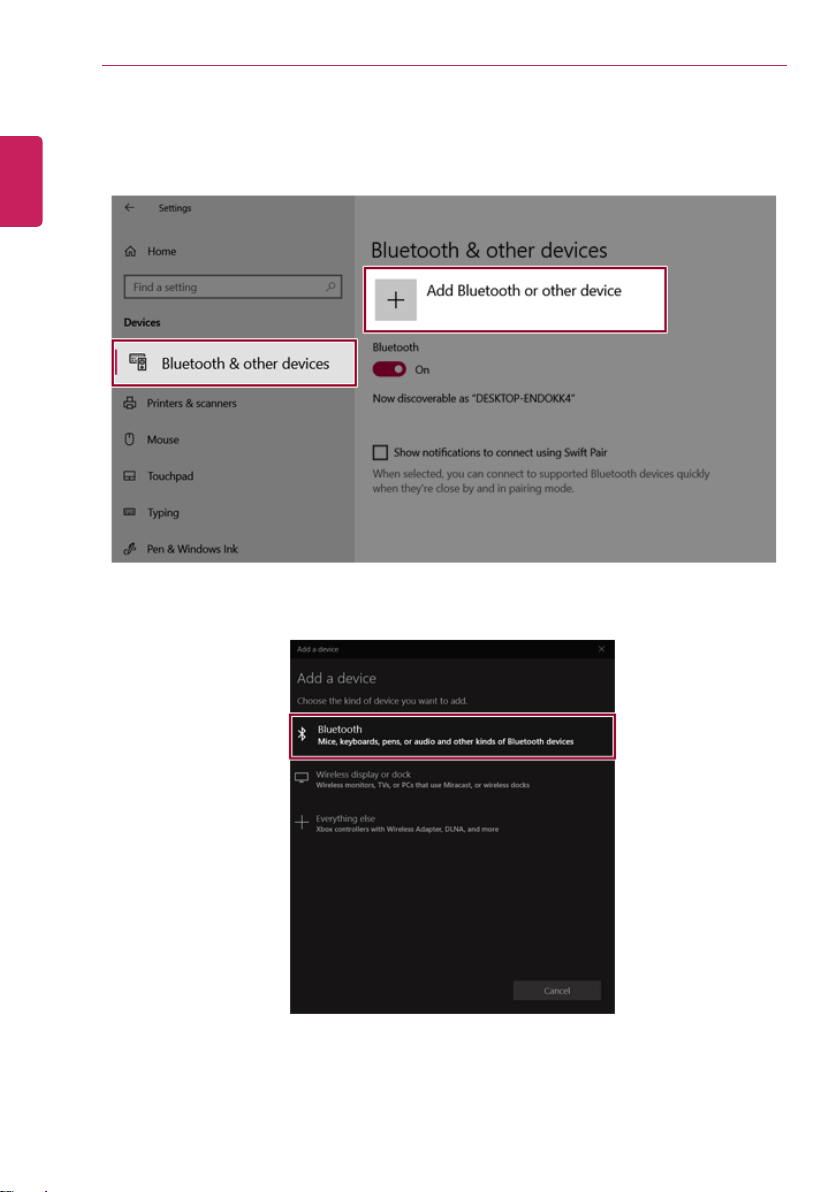
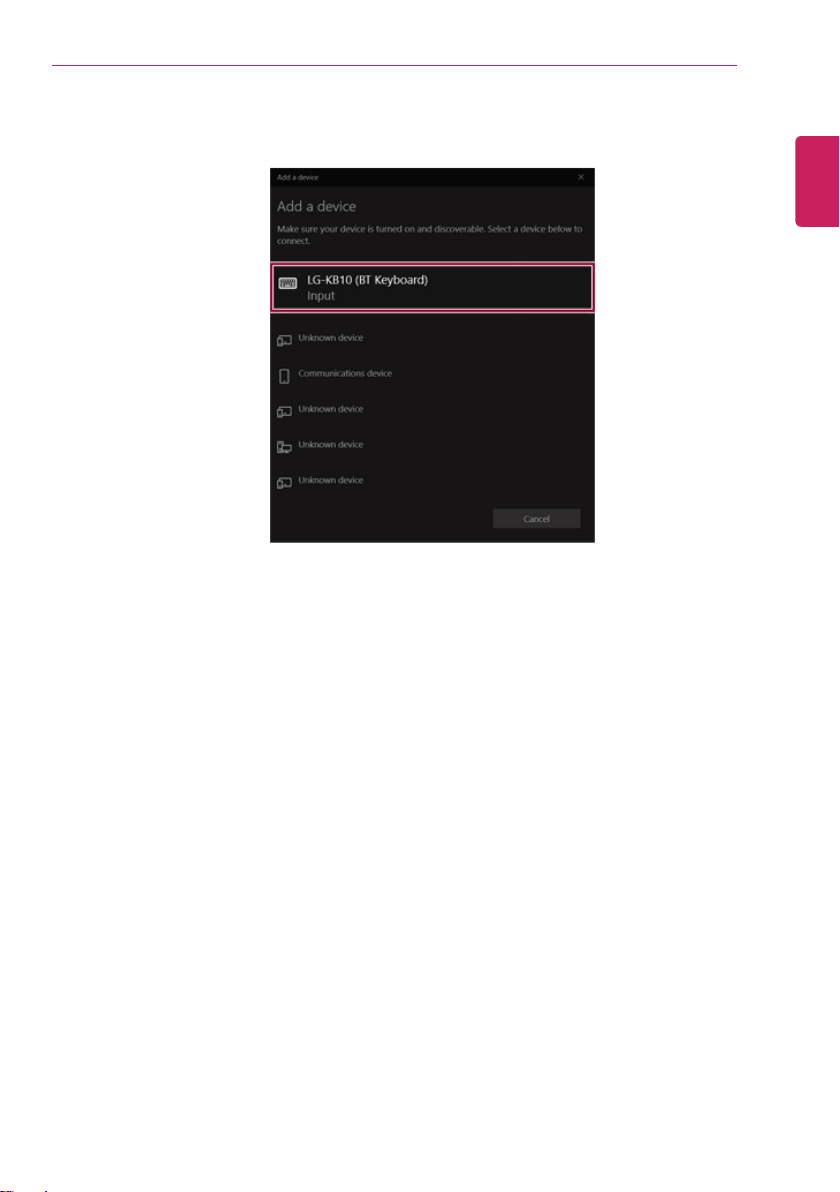
3 Select [Bluetooth & Other Devices] > [Add Bluetooth or other device] > [Bluetooth] to search
for Bluetooth devices.
ENGLISH
Using the PC
145
4 Select a device to connect to.
5 Complete the Bluetooth connection as directed.
ENGLISH
146
Using the PC
Wired LAN
LAN is the network environment that users can connect to by using a cable to connect to their
internet providers or the company's network.
Using Wired LAN
LAN is installed with an automatic IP (DHCP) as default value.
Please refer to the following instructions for details on setting up an automatic IP (DHCP) or manual
IP.
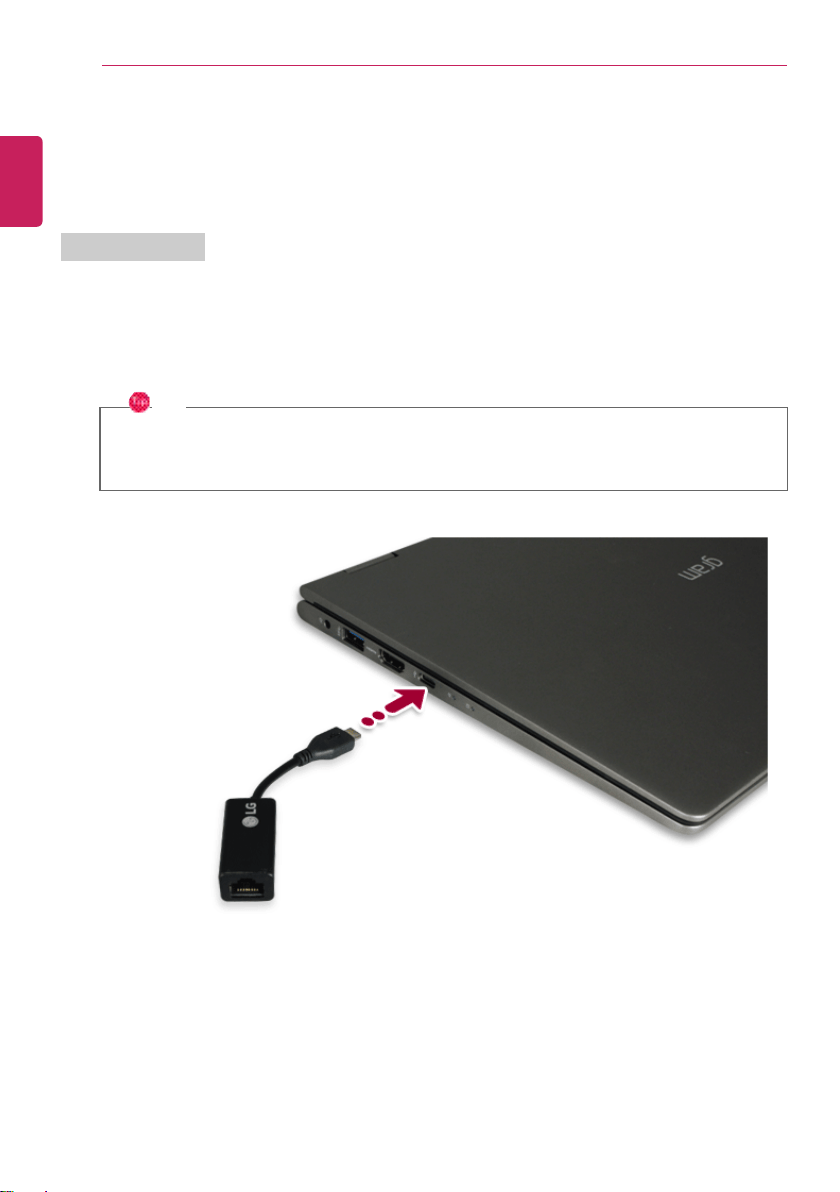
1 Connect the LAN adapter to the USB-C™ port on the PC.
TIP
The recommended network cable for the optimal network environment is CAT5 or higher.
The network (LAN) cable may be connected when the LAN adapter is used.
ENGLISH
Using the PC
147
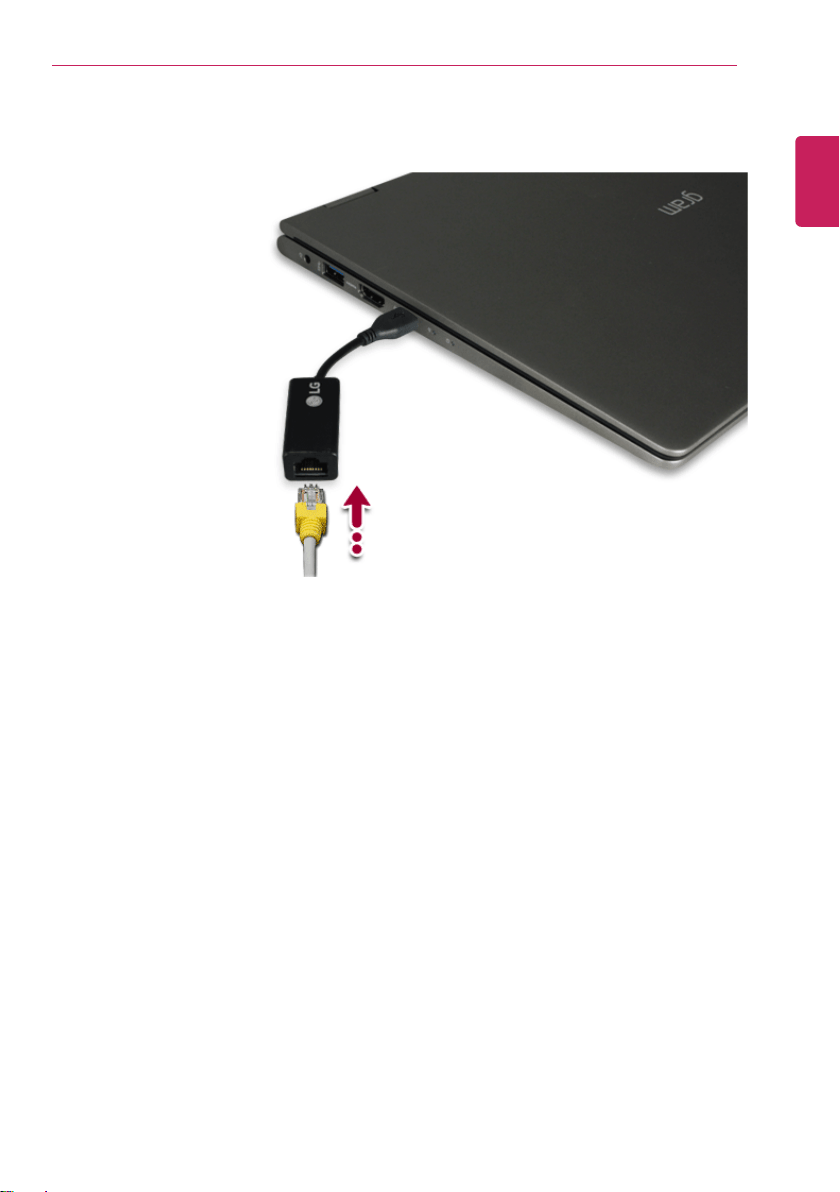
2 Connect the wired LAN cable to the LAN port.
ENGLISH
148
Using the PC
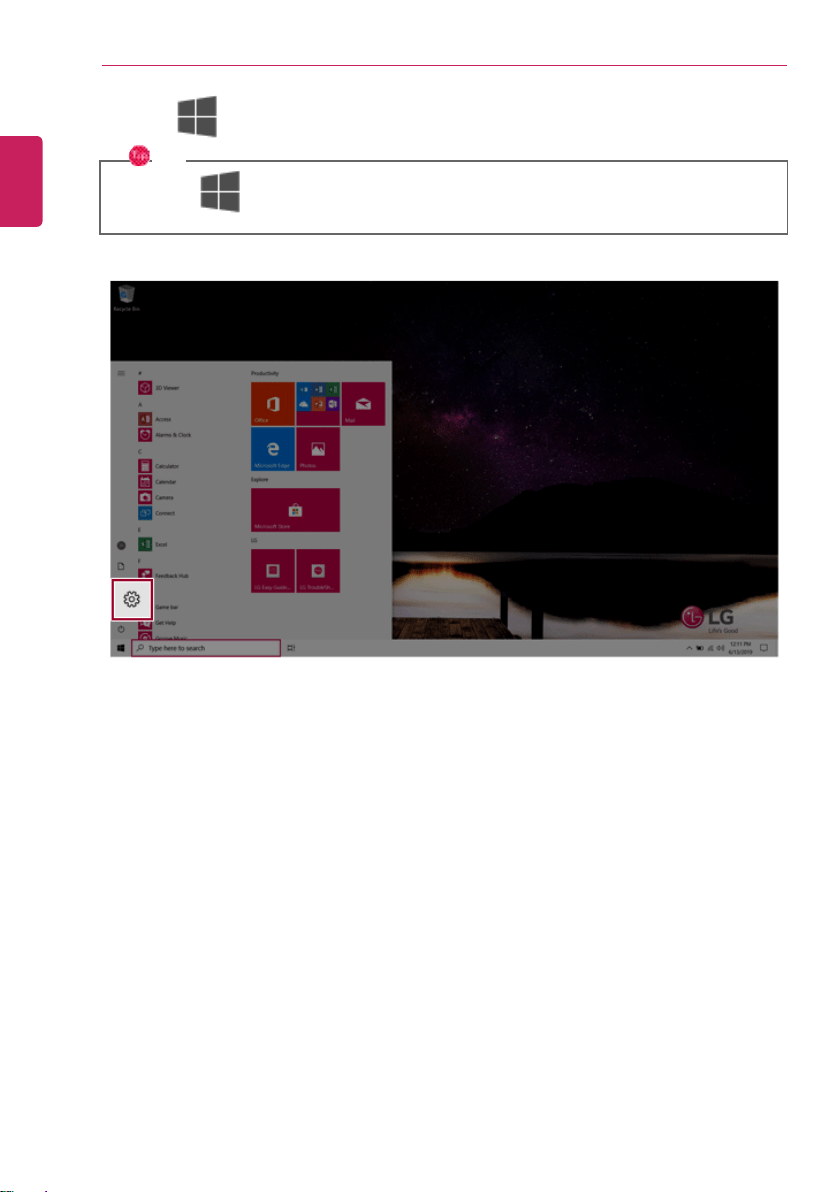
3 Press the [
] button and select the Settings menu.
TIP
Press the [
] key or [Ctrl] + [Esc] to display the Start menu.
ENGLISH
Using the PC
149
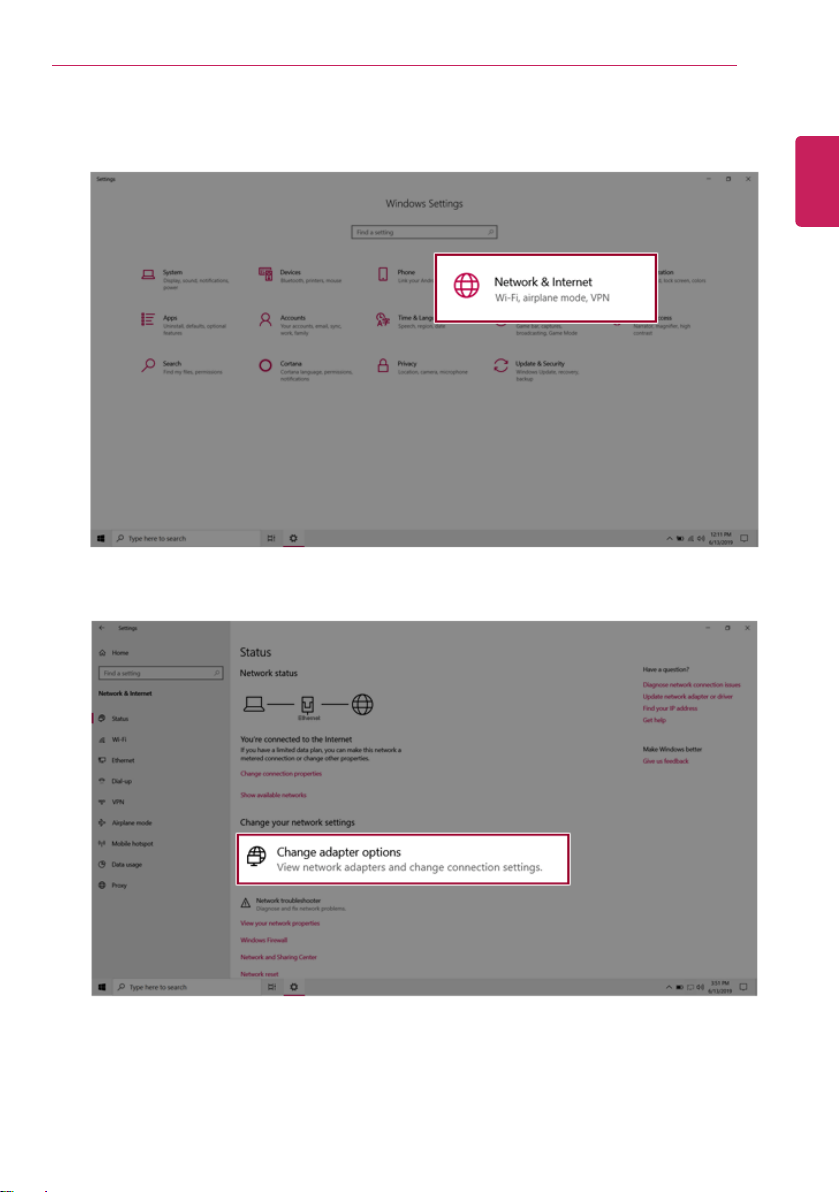
4 Select [Network & Internet] > [Status] > [Change adapter options].
ENGLISH
150
Using the PC
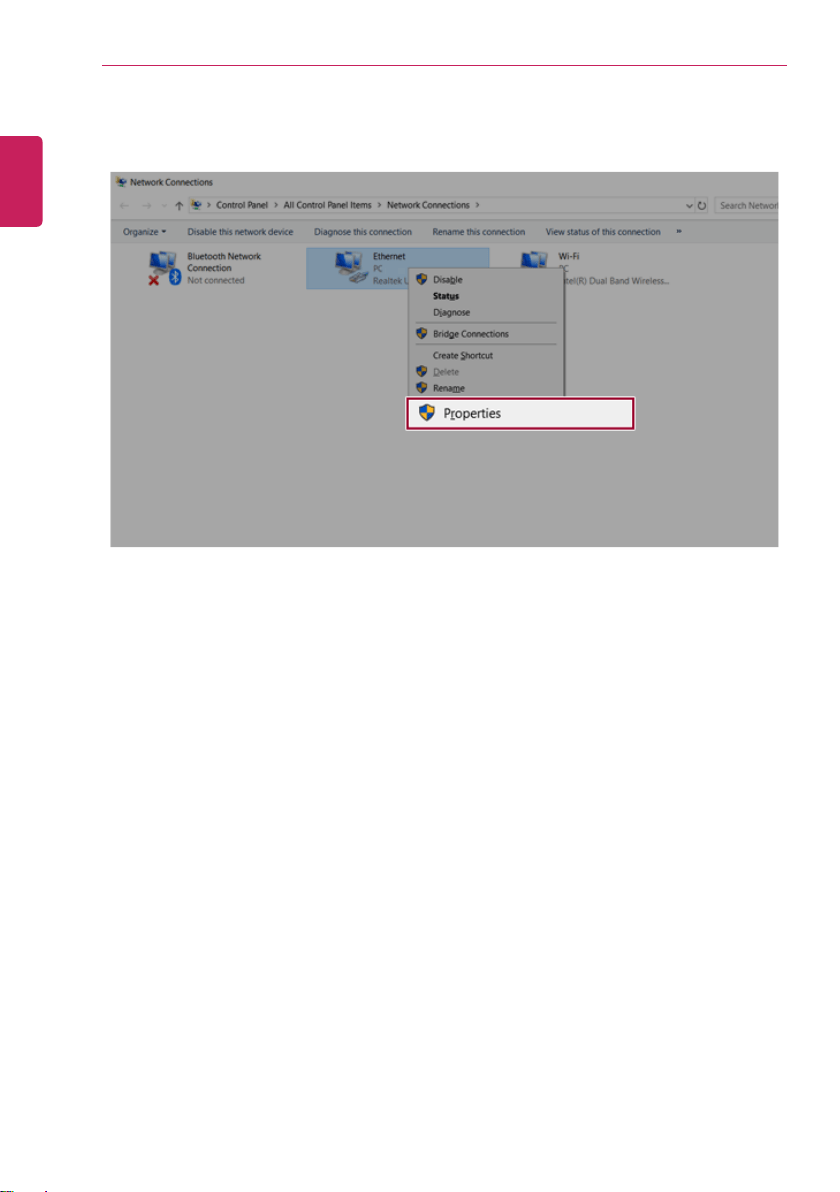
5 Right-click [Ethernet] and select the [Properties] menu.
ENGLISH
Using the PC
151
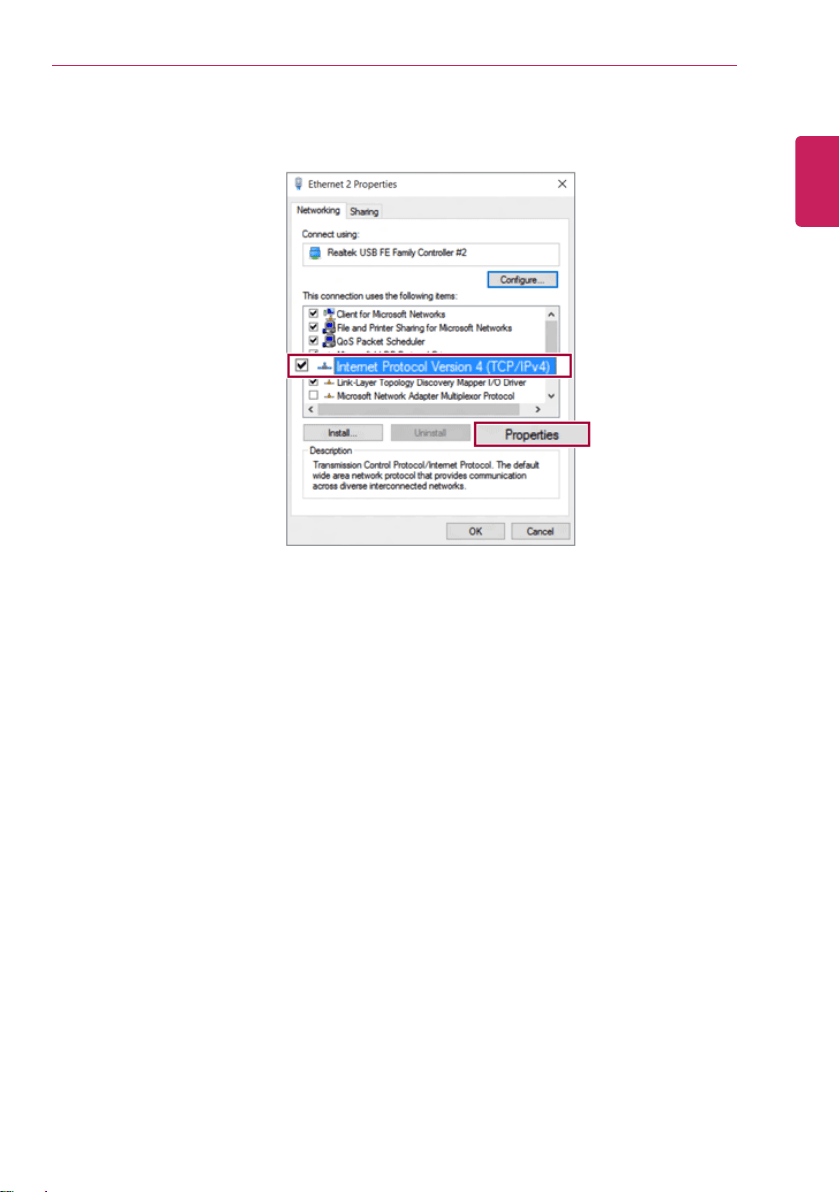
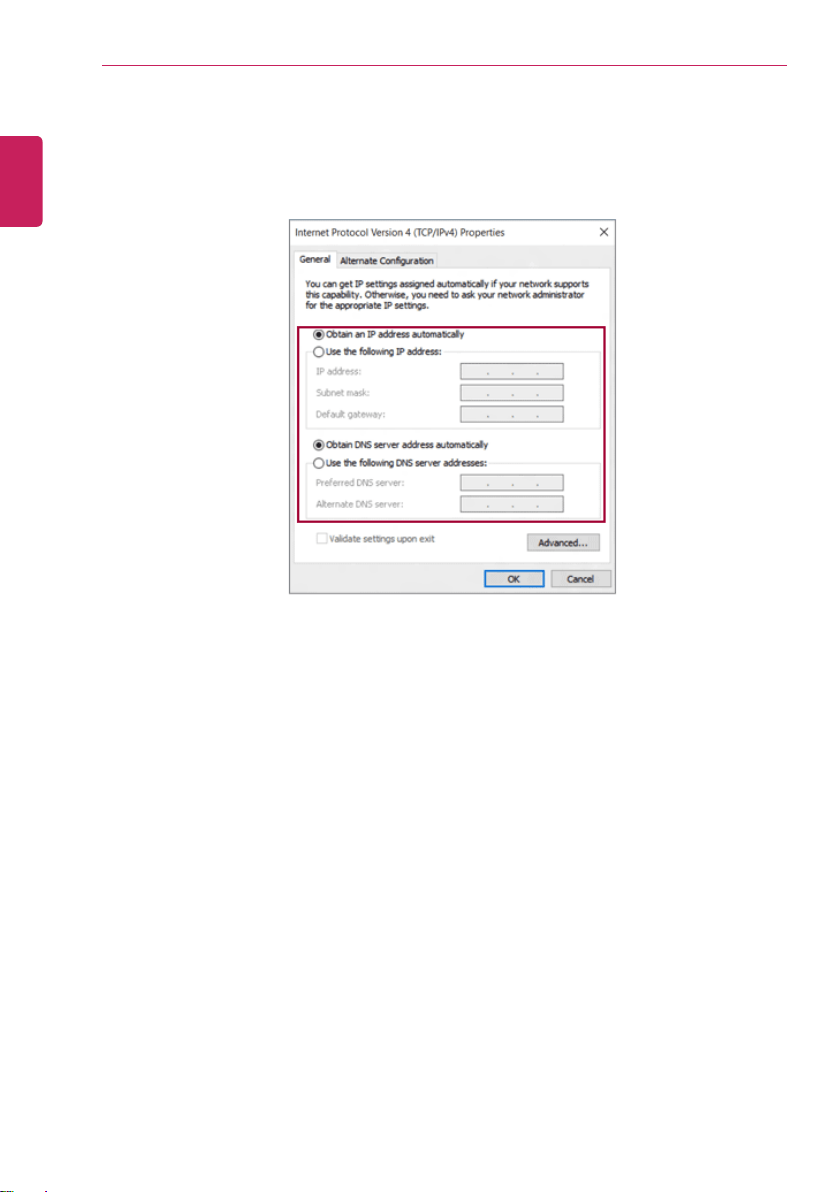
6 Select [Internet Protocol Version 4 (TCP/IPv4)] and then click [Properties].
ENGLISH
152
Using the PC
7 To use an automatic IP(DHCP), select [Obtain an IP Address Automatically]. If you wish to use a
static IP, select [Use Following IP Address] to enter the address.
Contact the network service provider or administrator to use a static IP.
8 Press [OK] to complete the network setup.
9 Click the Web Browser icon to check whether the internet is connected properly.
ENGLISH
Using the PC
153
Wireless LAN
The wireless network (Wireless LAN) is the network environment that connects a PC with the internet
provider or company network through an Access Point (wireless or regular router).
Turning On/Off Airplane Mode
Prior to using the wireless LAN, press [Fn] + [F6] to turn off Airplane Mode.
Pressing [Fn] + [F6] keys will turn on or off the Airplane Mode. If you are not going to use the
product for a while, keep the Airplane Mode turned on to reduce the battery power consumption.
Using the Wireless LAN
If an Access Point (wired or wireless router) is in the vicinity of the PC, the wireless LAN can easily be
accessed.
During the search for a wireless network (Wireless LAN), various Access Points may be found
according to the location where the PC is used.
In case there are no accessible wireless networks (Wireless LAN) near the PC, no Access Points
may be found
A password protected Access Point cannot be accessed without knowing the right password.
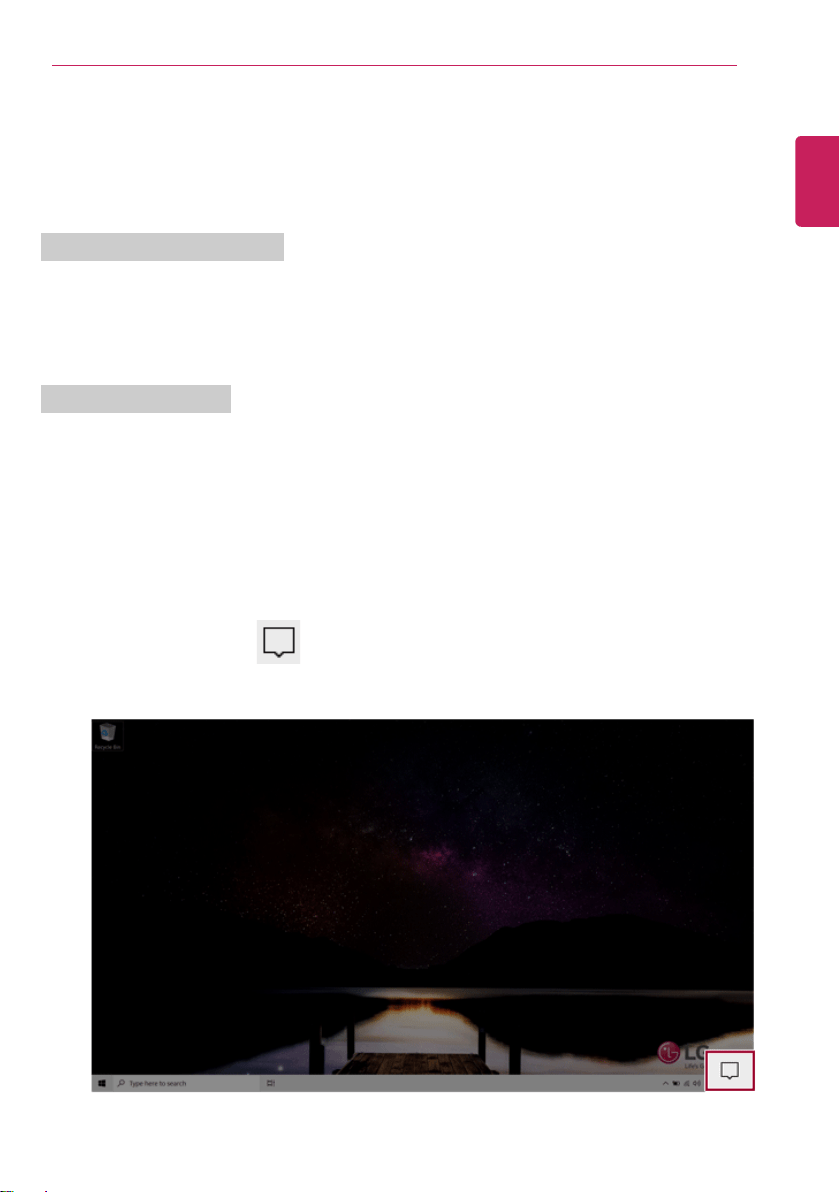
1 Press the Action Center [
] icon on the right side of the taskbar.
ENGLISH
154
Using the PC
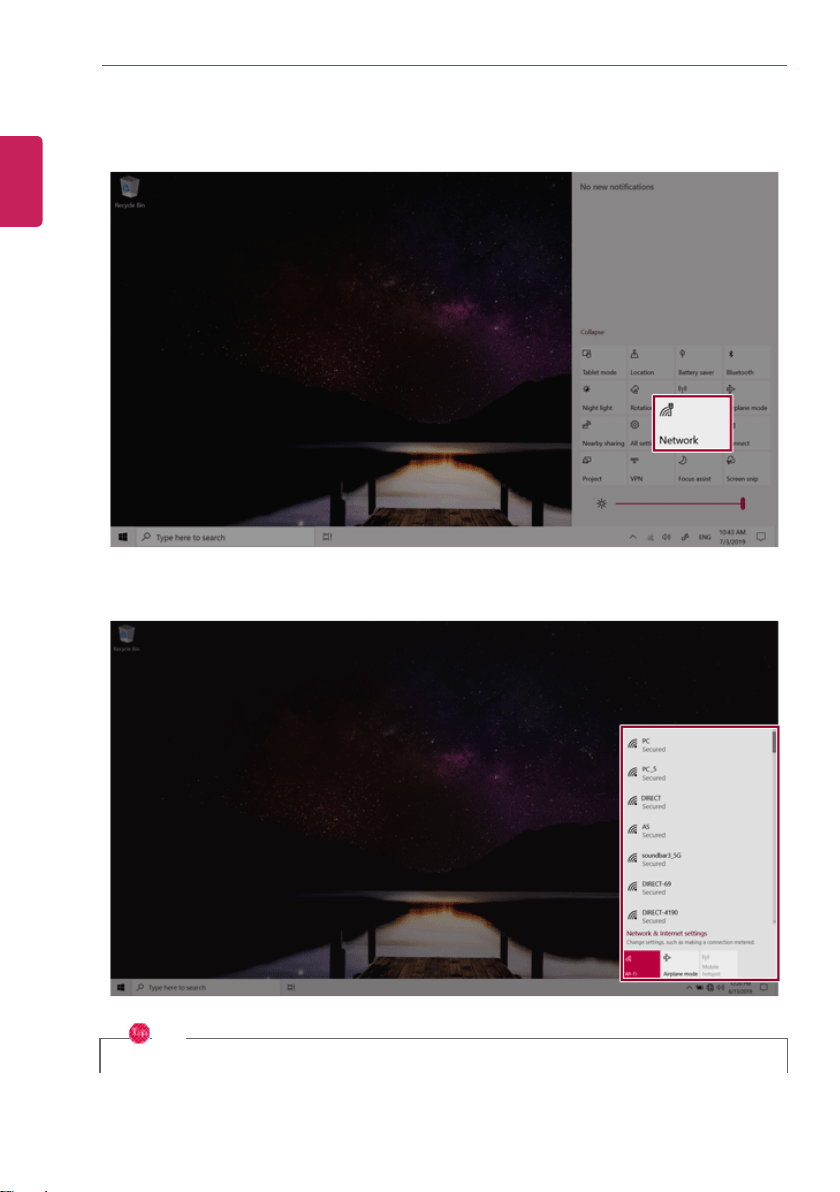
2 Press the [Network] tile to search for a nearby Access Point.
TIP
If Wi-Fi is turned off, press the [Wi-Fi] tile.
ENGLISH
Using the PC
155
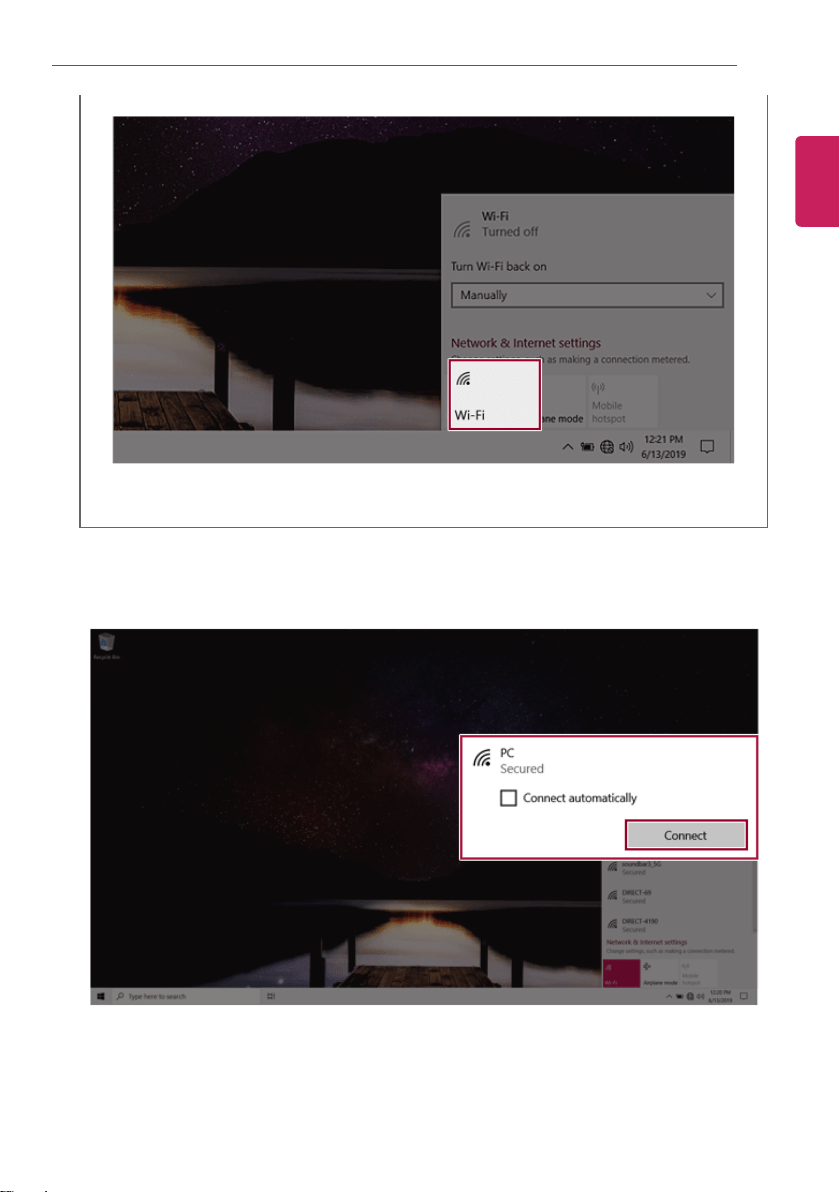
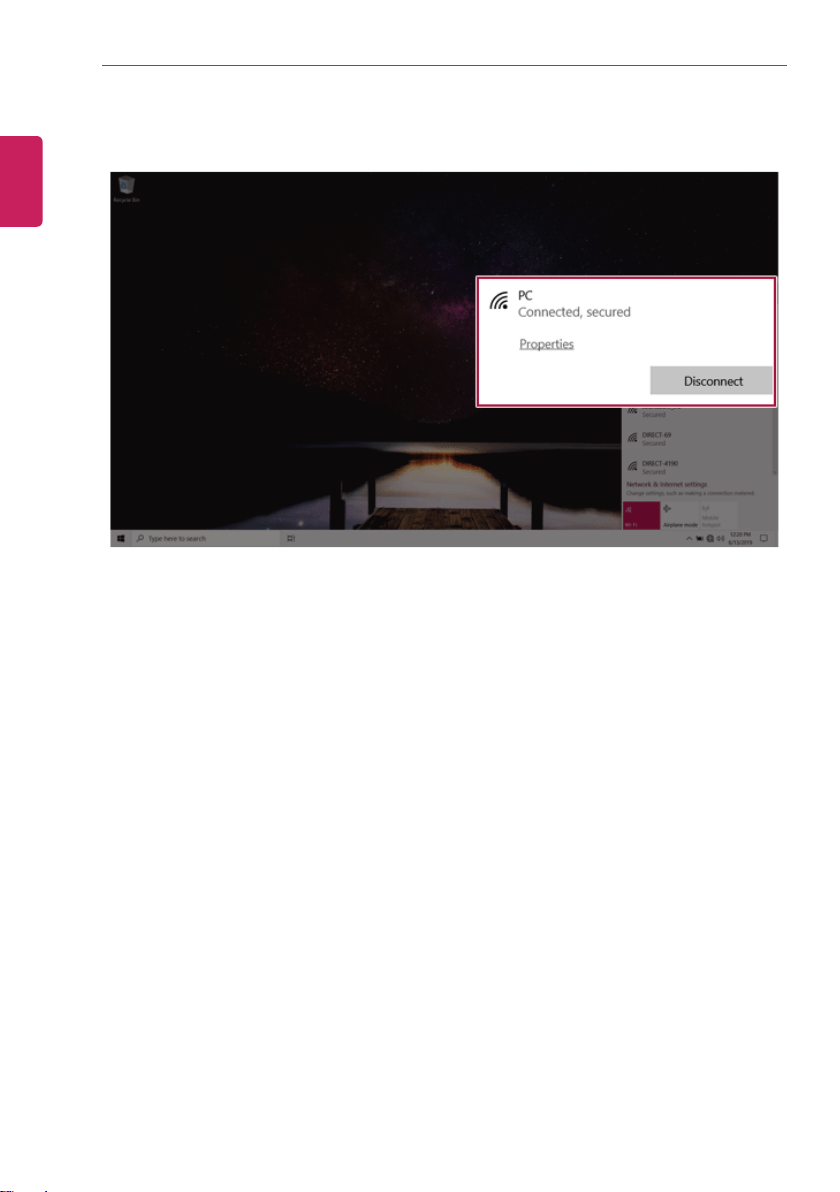
3 Select the Access Point you want to connect to and press [Connect].
ENGLISH
156
Using the PC
4 If a connection is established, [Connected] appears below the Access Point name.
5 Click the Web Browser icon to check whether the internet is connected properly.
ENGLISH

Using the PC
157
Using a Wired/Wireless Router
A wireless / regular router connects several PCs and mobile devices to one internet line and enables
the use of internet and the network.
A wireless / regular router has to be bought separately. Refer to the manual provided by the
manufacturer for instructions.
Connecting a Wireless or Regular Router
If one internet line is used with a wired / wireless router and several devices are connected, this may
result in a slower connection.
In case of a wireless LAN, it is recommended to change the network name and security settings for a
more secure connection.
Network speed can differ according to operation environment and specifications.
1 Connect the internet cable of the modem that was provided by your internet provider to the
router's WAN port.
2 Connect all devices (PC, IPTV, internet phone, etc.) with a LAN cable to LAN ports 1 to 4 of the
router.
The number of LAN ports can vary for each router model.
3 Please refer to the manual provided by the router manufacturer for setup of the network and
internet.
ENGLISH
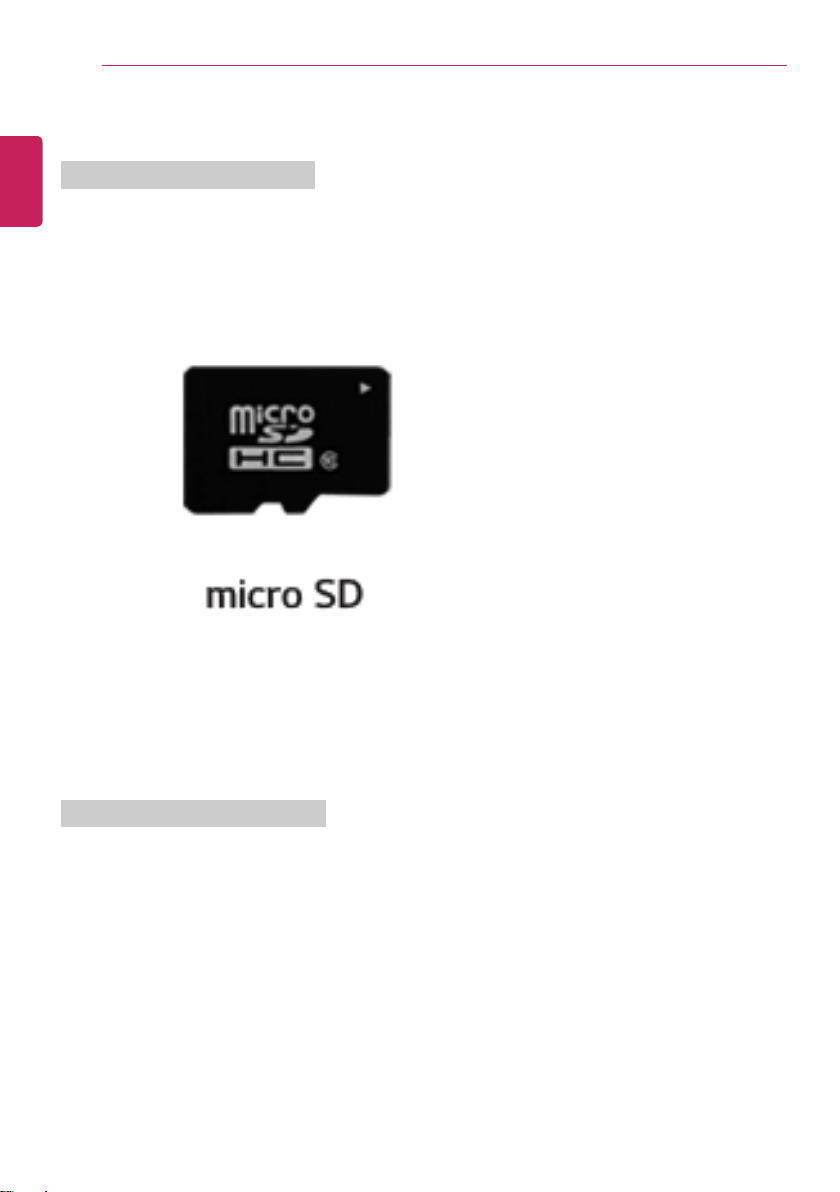
158
Using the PC
Micro SD Slot
Checking Available Memory Card
This model supports Micro SD memory cards.
• Directly applicable memory cards
Mounting and Using Memory Card
This product supports one Micro SD slot.
Check the direction and insert the Micro SD into the multi-card slot until it is locked in place as shown
in the following figure.
ENGLISH
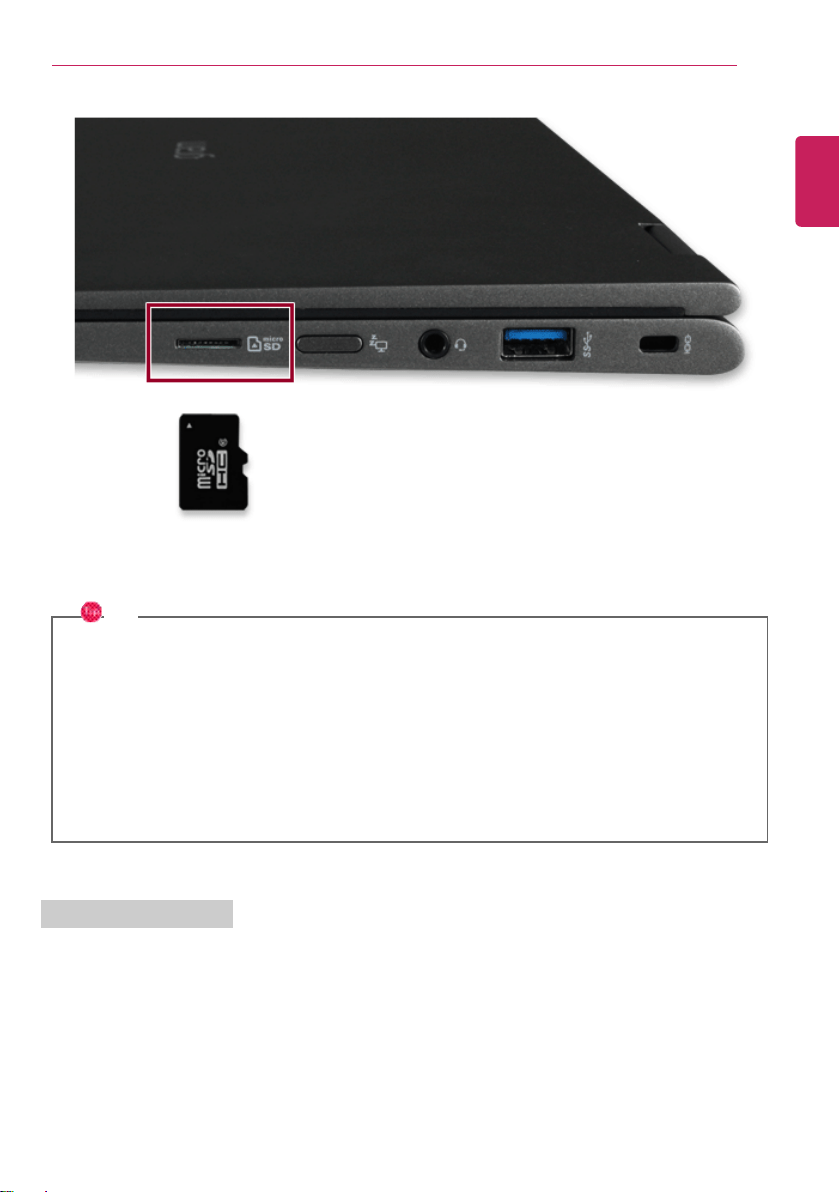
Using the PC
159
TIP
• When the memory card is formatted, the data stored in the memory card will be deleted.
Check whether there are important data before formatting the memory stick.
• To format a memory card, right-click the memory card drive and select Format. When the
Format window appears, press Start to continue.
• If the write protection tab of memory card is locked, the user cannot format the memory
stick nor write or delete the data.
• SD™ memory cards can be used only as storage devices and do not support the copyright
protection feature.
Removing Memory Card
Push the card with your finger to make the card spring out of the slot. Remove the memory card.
ENGLISH
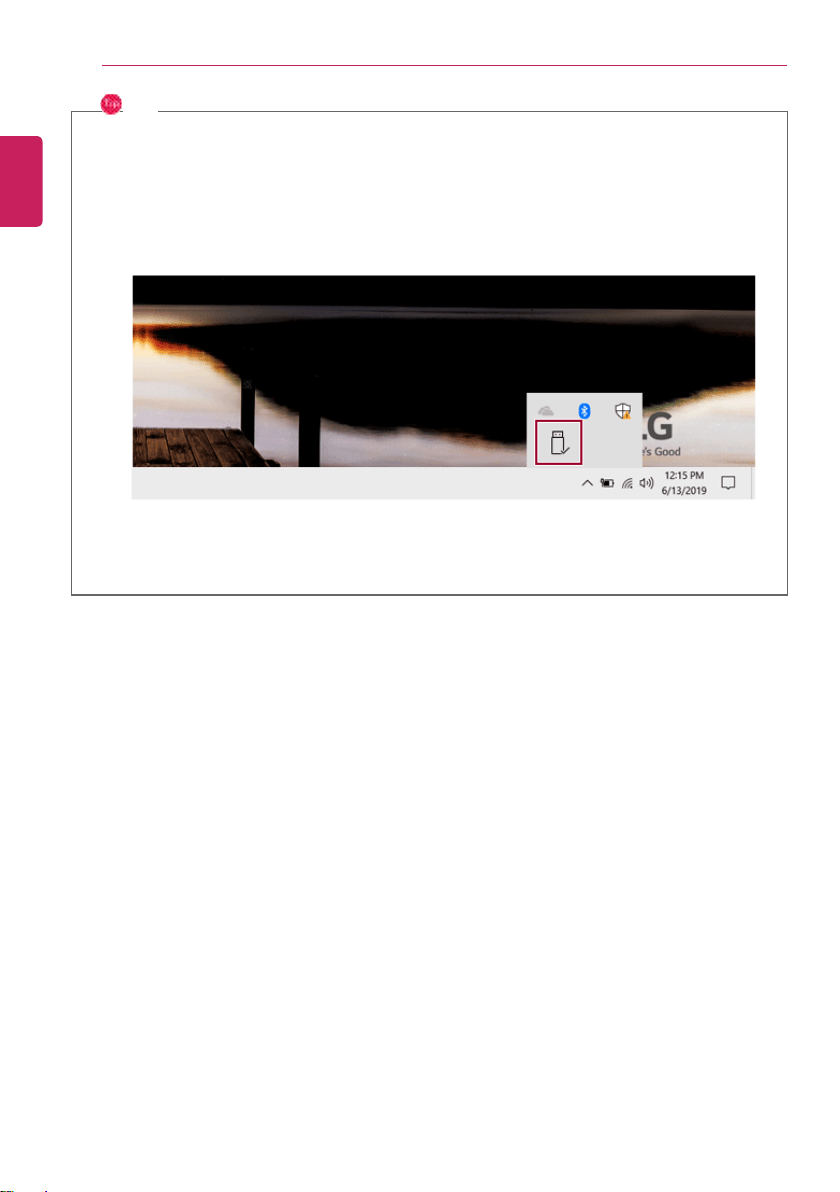
160
Using the PC
TIP
To safely remove a memory card:
The figures herein may differ by language selection and are subject to change without prior
notice.
1 Click Safely Remove Hardware and other Media icon on the right side of the taskbar.
2 Select Remove Multi-Card USB Device to safely remove hardware.
ENGLISH
Using Software
161
Using Software
LG Control Center
LG Control Center is a software that helps you change PC Settings, Power Settings, Windows Security
Settings, etc. as well as check current system information.
TIP
LG Control Center is provided with the UWP app and it can be downloaded again on the
Microsoft Store if it is deleted. If you want to download the files again, connect to the
Microsoft Store, search for LG Control Center and install them.
When launching the UWP app for the first time, you may not be able to run the app through
the hotkeys. This problem is caused by the delayed registration of the startup program of the
UWP app. If this problem occurs, run the app directly and use the hotkeys for normal operation.
The menus displayed in LG Control Center and its supported functions may differ depending on
the model.
The figures herein are subject to change without prior notice.
Executing LG Control Center
Press the [
] button to execute [LG Control Center].
ENGLISH
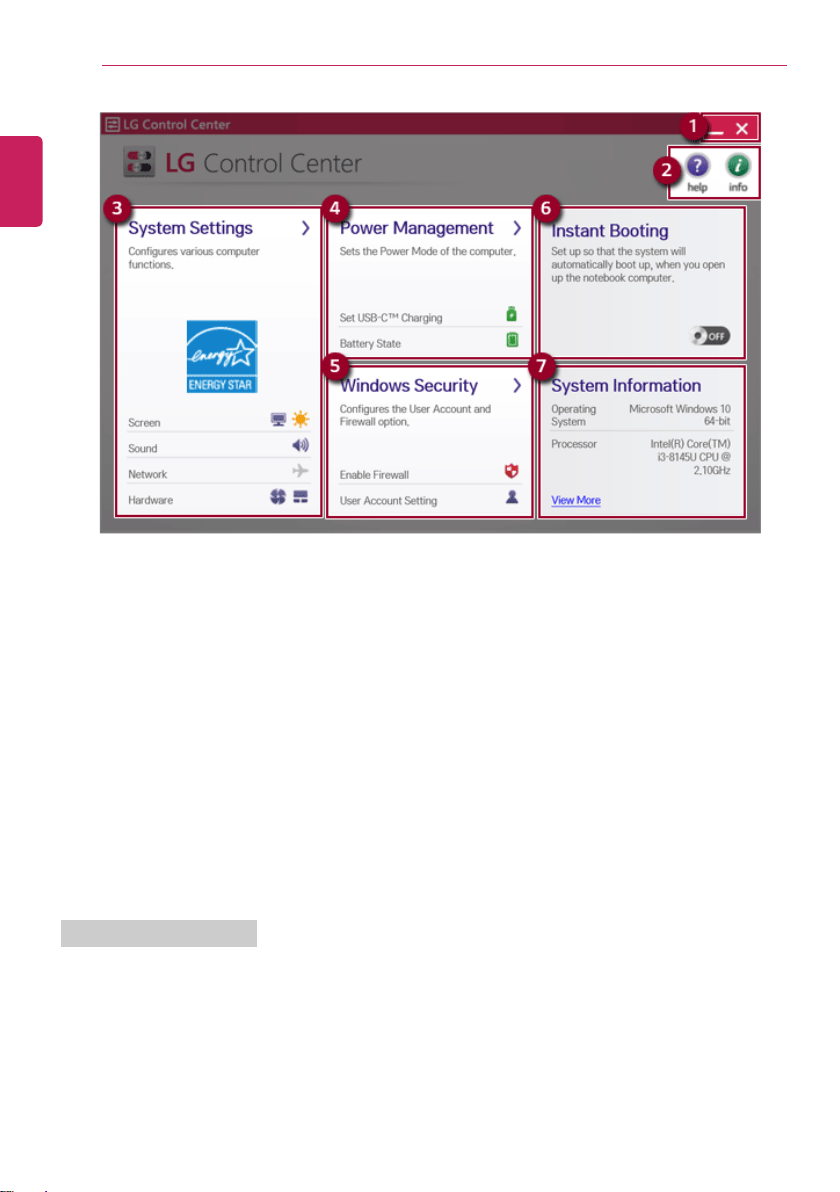
162
Using Software
1 Minimize/Exit Button: Minimizes the size of the window, or exits the software.
2 help/info Button: Runs Help or displays information about the software.
3 System Settings: Sets the device settings such as the screen brightness, sound, and external
display.
4 Power Management: Sets the USB-C™ charging function, battery status and battery life
extension function.
5 Windows Security: Sets User Account Control settings and Firewall settings.
6 Instant Booting: You can set the system to automatically boot whenever you open the notebook
PC.
7 System Information: Displ ays the PC OS in use, processor information and other system
information.
System Settings Screen
You can use this screen to configure various devices in your PC.
ENGLISH
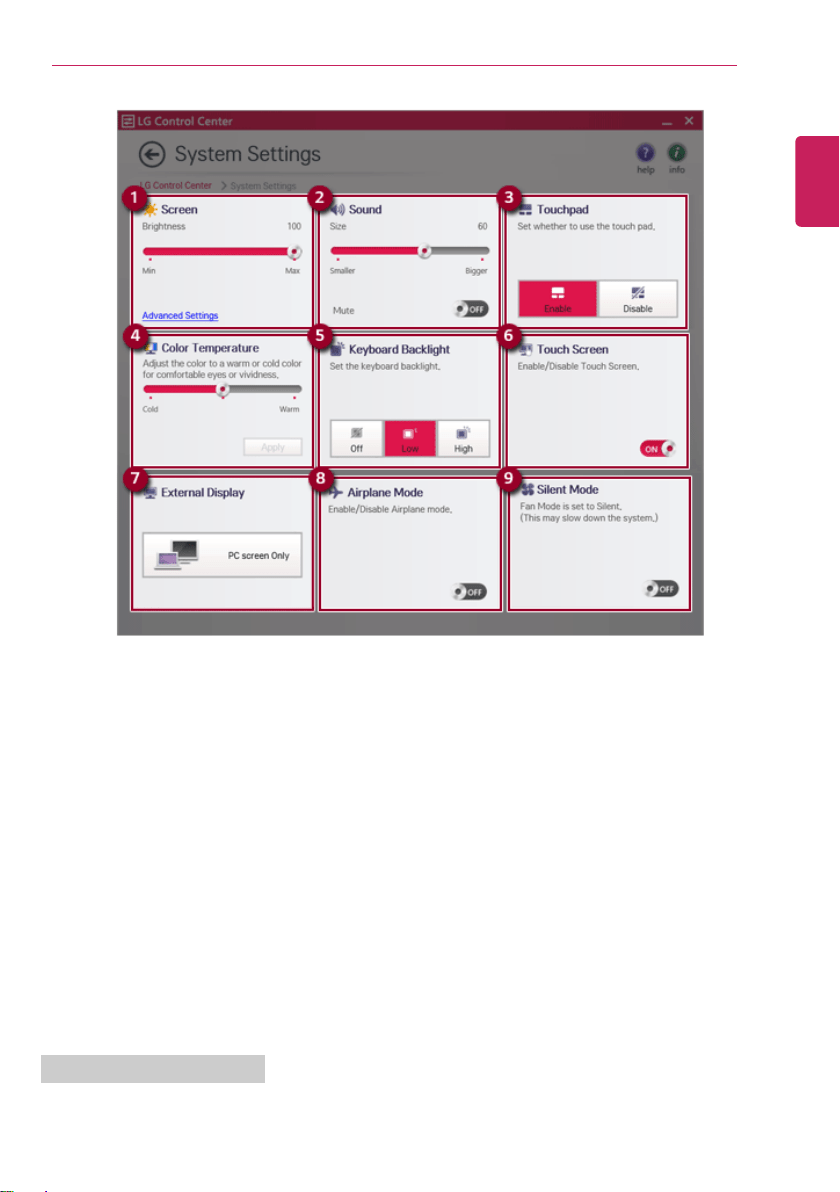
Using Software
163
1 Screen: Allows you to adjust the system brightness. (This function is not supported in a model that
does not provide the brightness settings in Windows.)
2 Sound: Allows you to adjust the volume of the sound or use the mute function.
3 Touchpad: Allows you to set whether to use the touchpad.
4 Color Temperature: The screen color can be set to cold (with a bluish tint) or warm (with a
reddish tint).
5 Keyboard Backlight: Allows you to configure the Keyboard backlight.
6 Touch Screen: Allows you to set whether to use the touch screen.
7 External Display: Allows you to configure the connection mode of an external display connected
to the PC.
8 Airplane Mode: Allows you to set the Airplane mode. (It turns of f the wireless LAN ).
9 Silent Mode: Allows you to set the fan to the Silent mode.
Power Management Screen
You can check or change the settings related to PC USB-C™ port or battery.
ENGLISH
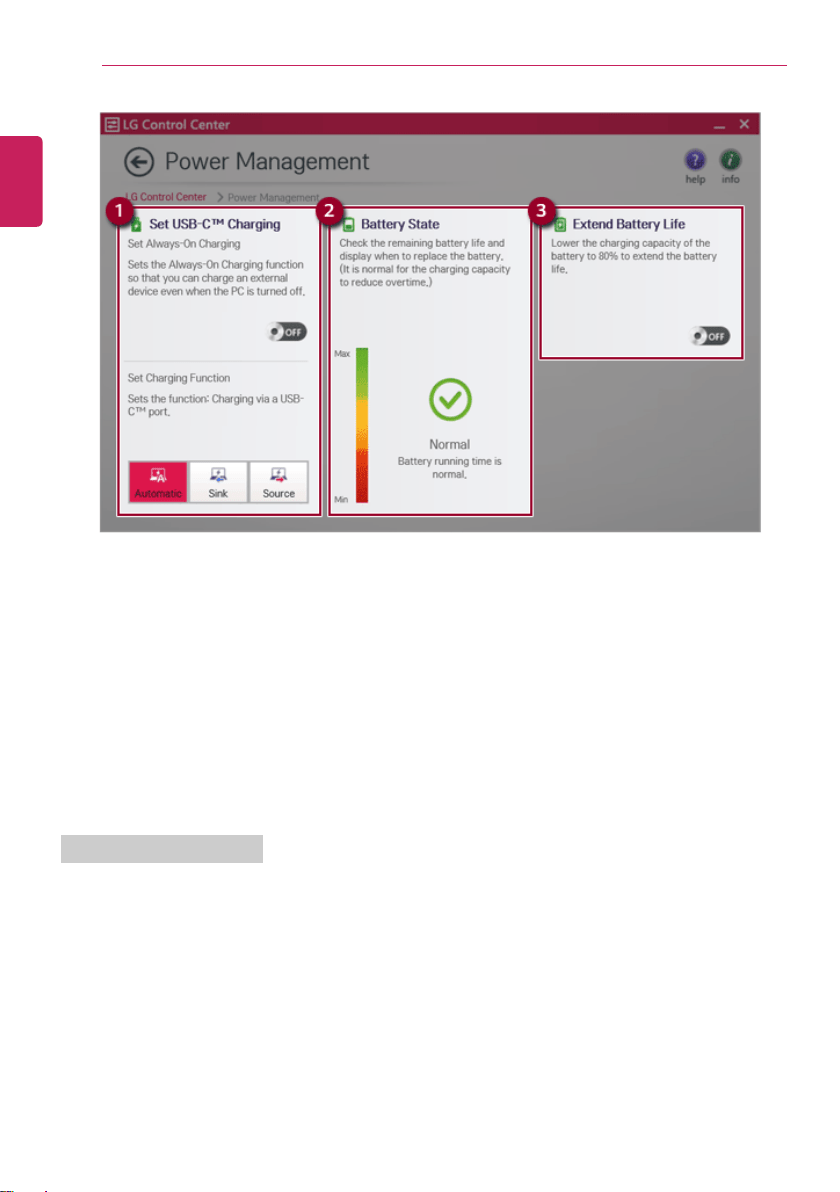
164
Using Software
1 Set USB-C™ Charging
• Set Always-On Charging: Allows you to set the USB-C™ port so that you can perform charging
using the USB-C port even when the PC is turned off.
• Set Charging Function: Allows you to set the charging function for a USB-C™ port (Automatic,
Sink, or Source).
2 Battery Statate: Allows you to measure the battery lifespan so that you can replace it timely.
3 Extend Battery Life: Allows you to increase the battery lifespan by lowering the battery charging
level to 80% of the battery capacity.
Windows Security Screen
You can change the User Account Control and firewall settings in Windows.
ENGLISH
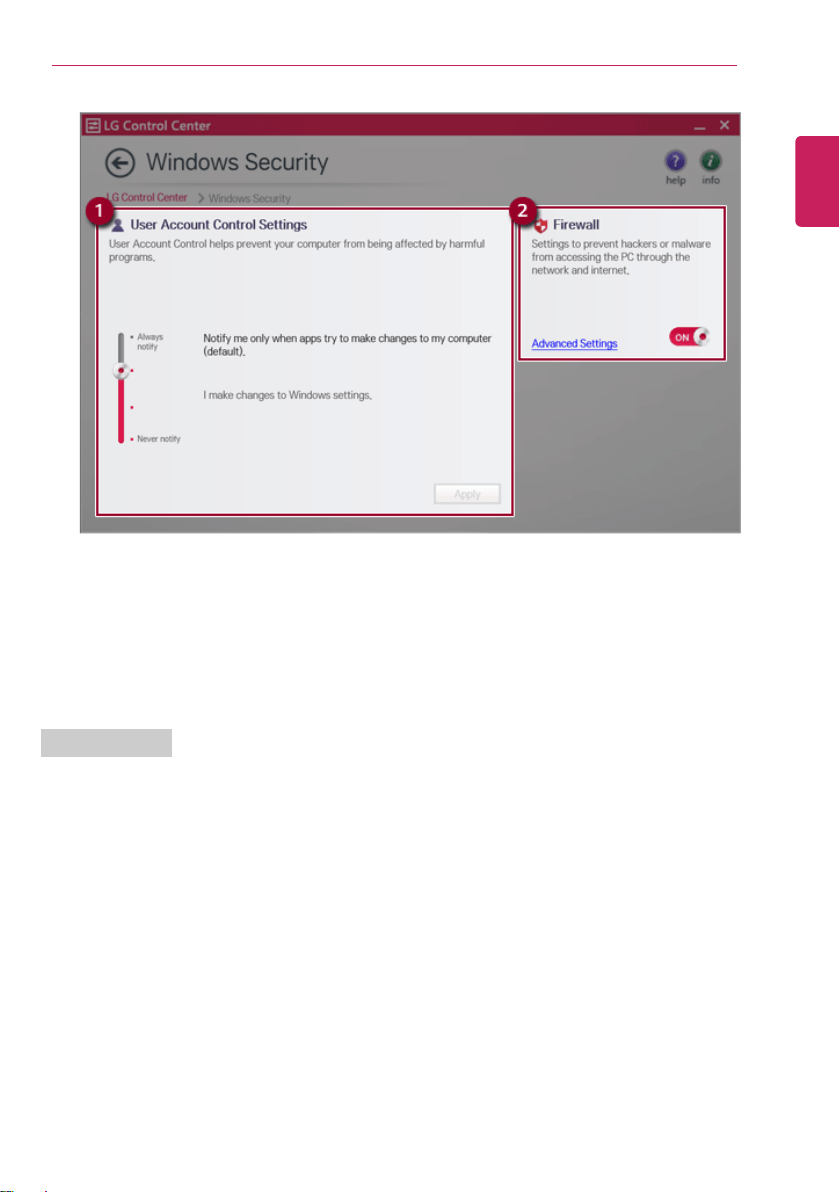
Using Software
165
1 User Account Control Settings: Allows you to change the User Account Control settings in
Windows.
2 Firewall: Turns on/off the Windows firewall. (It may not work if other vaccine software is installed
in the PC.)
Instant Booting
You can set the system to automatically boot whenever you open the notebook PC.
ENGLISH
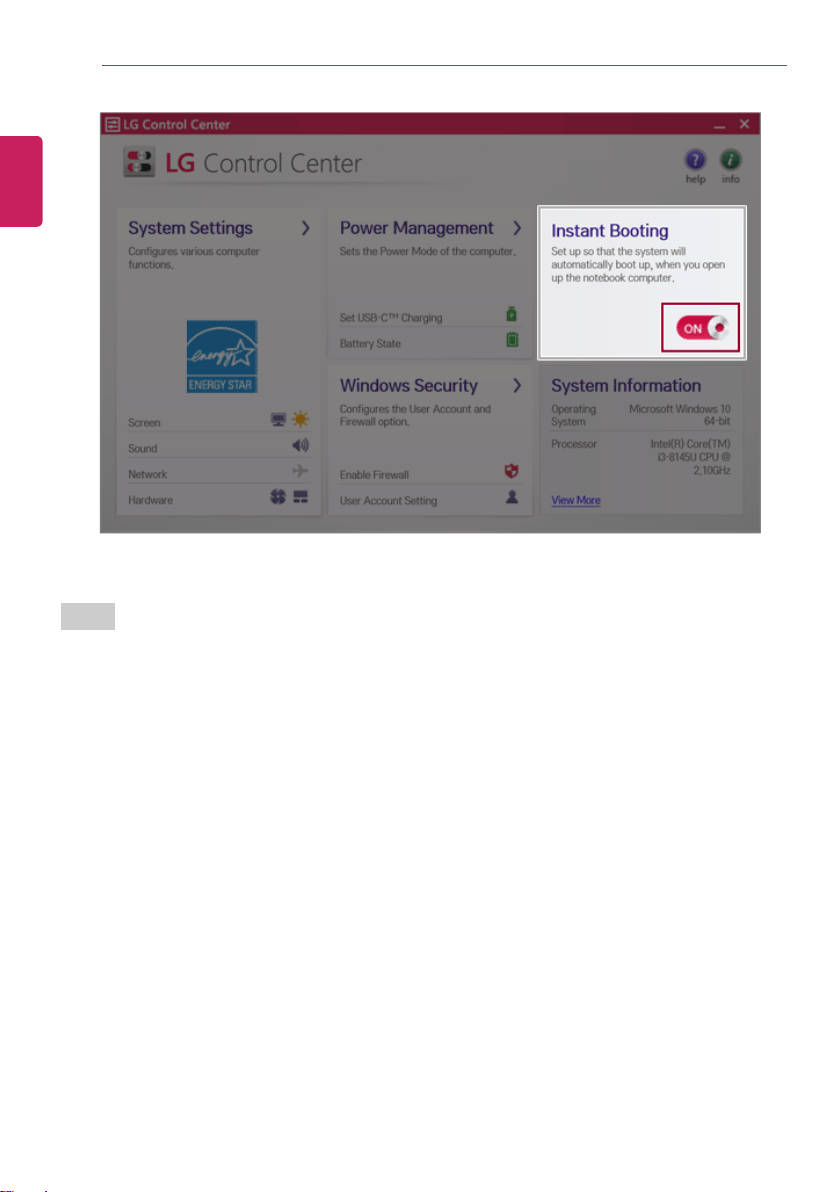
166
Using Software
FAQ
Q: Battery status displays “Warning”.
• The battery is a consumable item and its lifespan may decrease depending on the usage frequency
and environment. It is recommended that you visit the LG Electronics service center to have the
battery replaced.
ENGLISH

Using Software
167
LG Update Center
LG Update Center allows you to install various PC drivers, applications easily.
TIP
It may not work properly depending on user preferences (security tools, etc.) and the network
status.
You can use the LG Update Center to quickly install the latest drivers, or reinstall any deleted
drivers.
Use LG Update Center to keep your system current and optimized.
The figures herein are subject to change without prior notice.
Executing LG Update Center
Select the [
] button > [LG Software] to run [LG Update Center].
1 Minimize/Exit Button: Minimizes the size of the window, or exits the software.
2 help/info Button: Runs Help or displays information about the software.
3 Required Update: Installs critical items that must be applied to the system.
ENGLISH
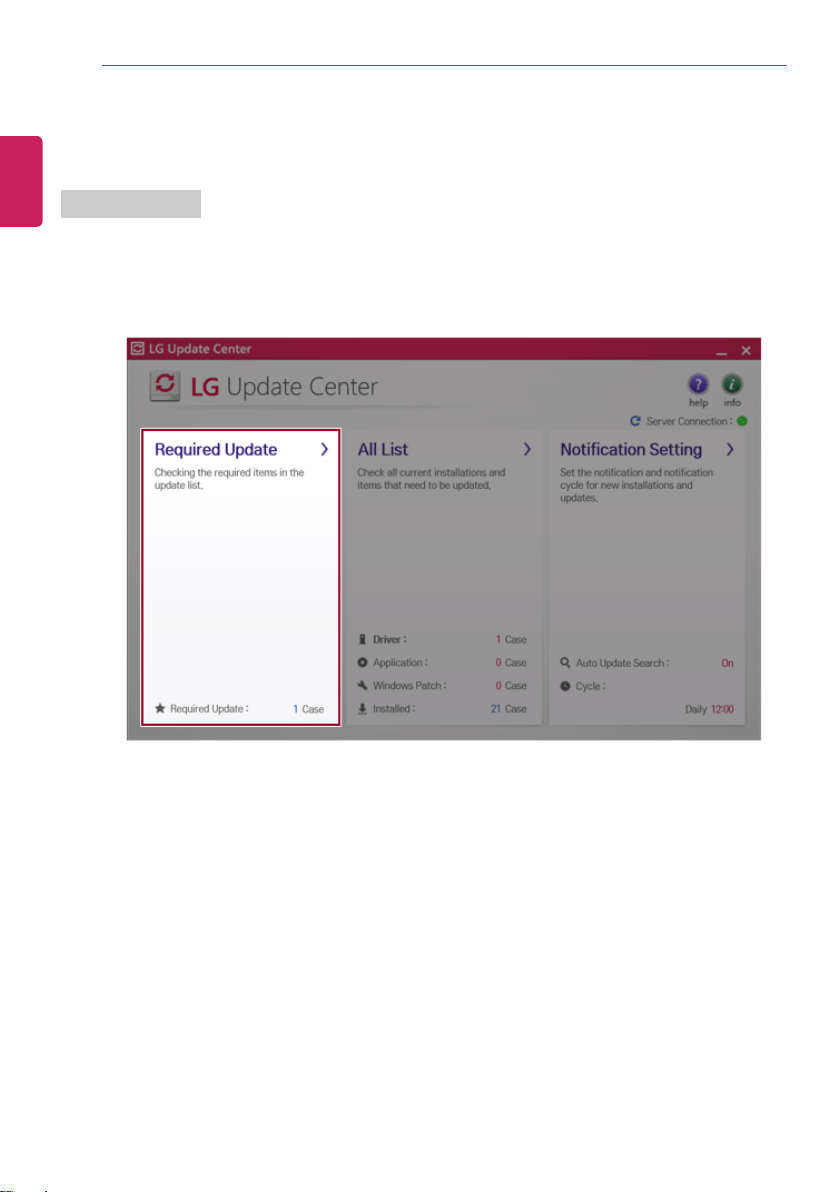
168
Using Software
4 All List: Displays and installs all required items for the system.
5 Notification Setting: Sets up notifications for online updates for installed items.
Required Update
You can install essential updates and drivers that are necessary for the system.
1 Select the [Required Update] menu.
ENGLISH
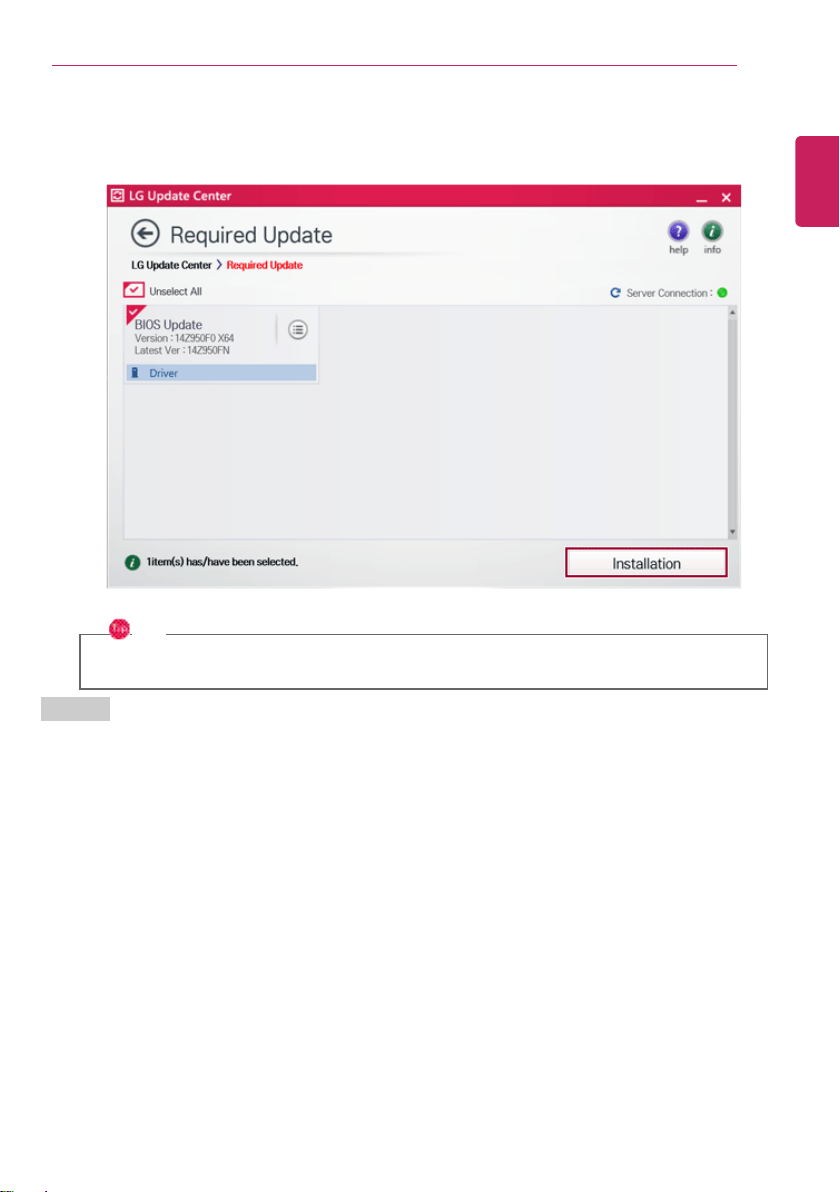
Using Software
169
2 When the Required Update list appears, select the updates to install and press the [Installation]
button.
TIP
All items are selected by default.
All List
You can install all updates and drivers that can be installed in the system.
ENGLISH
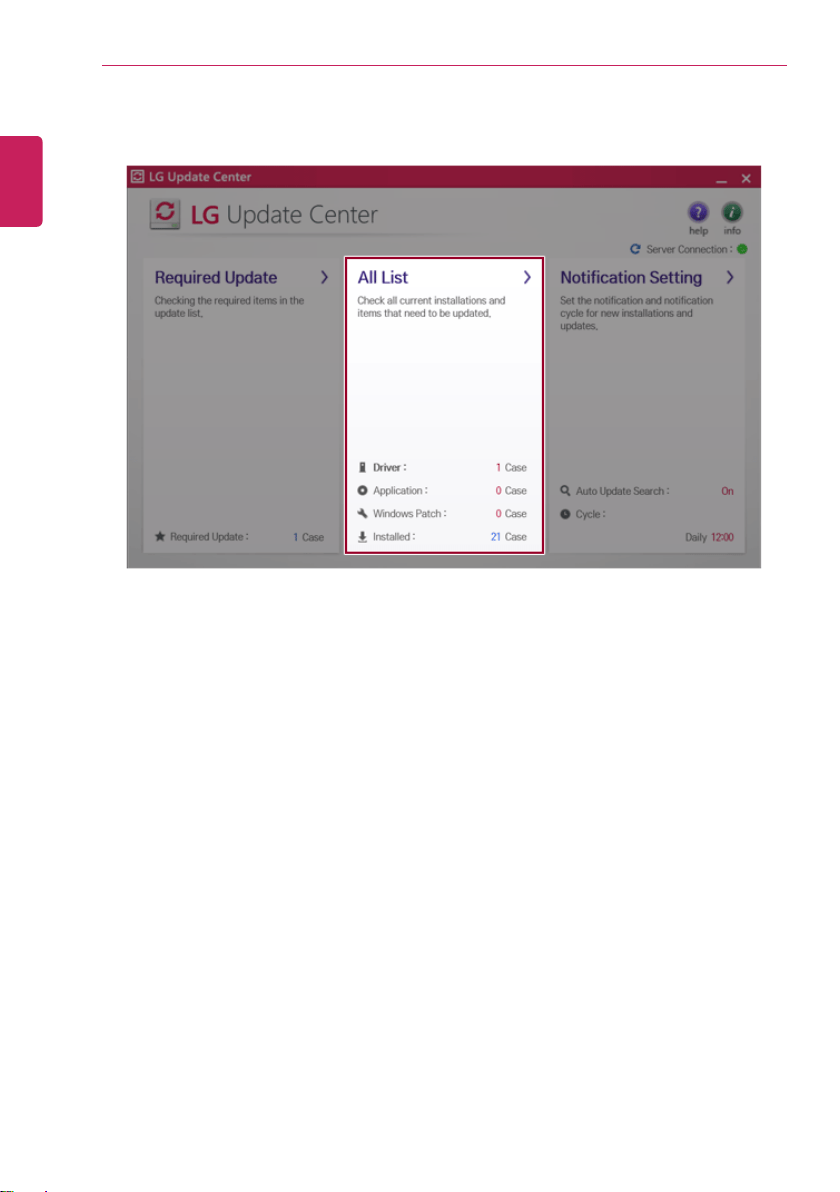
170
Using Software
1 Select [All List] > [Update needed].
ENGLISH
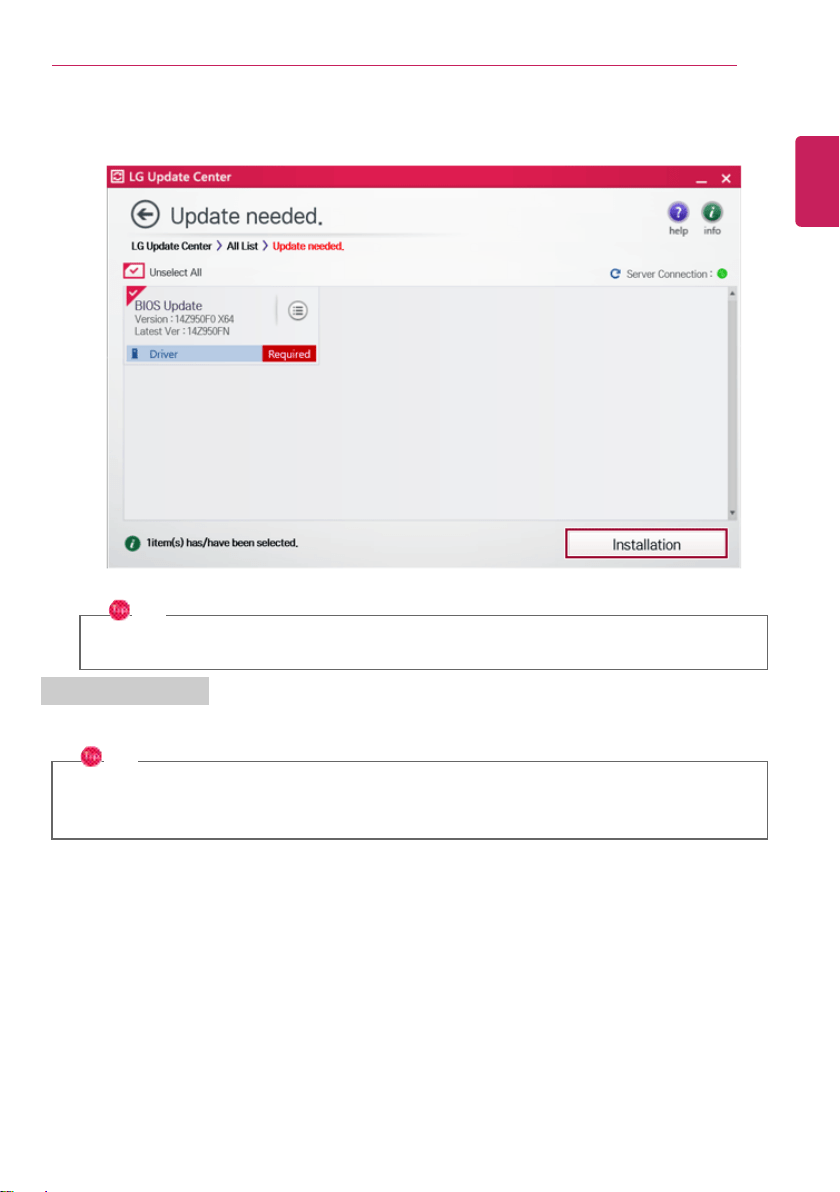
Using Software
171
2 Select a device to install and press the [Installation] button.
TIP
All items are selected by default.
Notification Settings
You can check the critical updates to set whether to display the notifications for update installation.
TIP
The Auto Update Search function is set to [ON] by default. If you set it to [OFF], the
notifications are not displayed.
ENGLISH
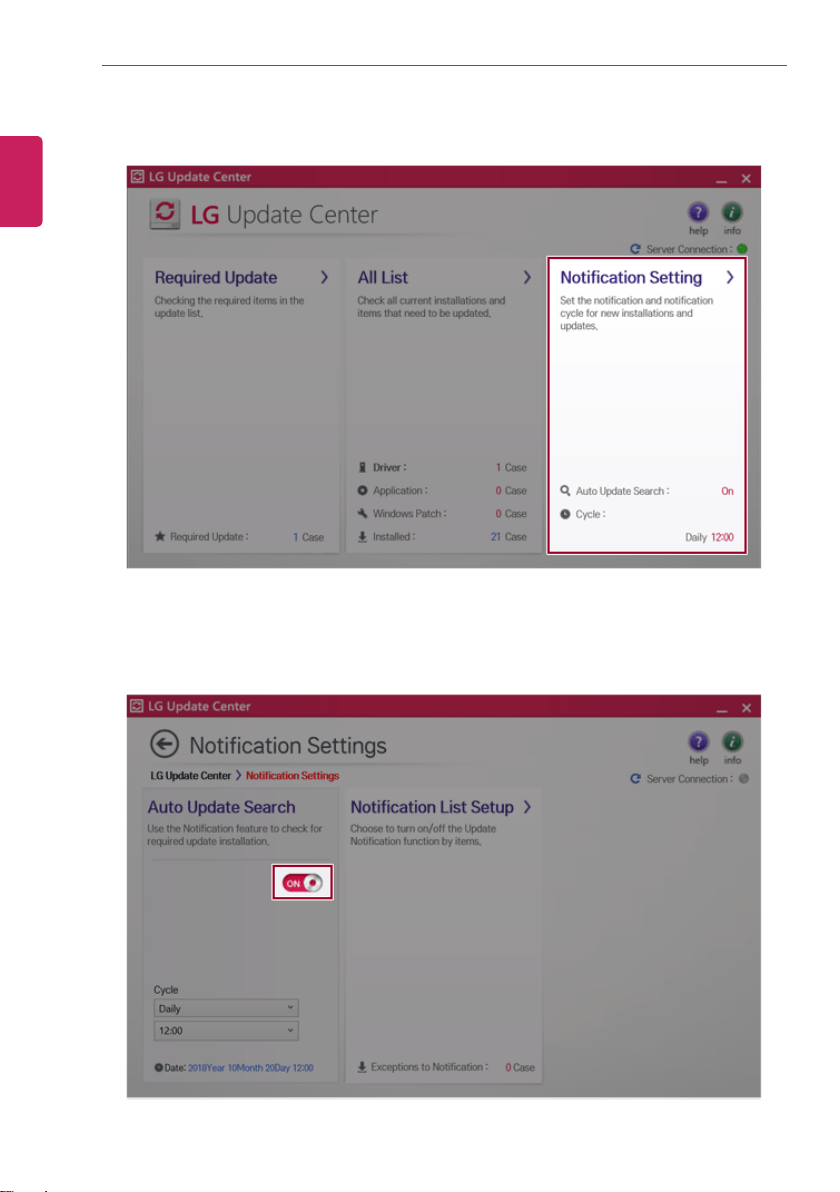
172
Using Software
1 Select the [Notification Settings] menu.
2 Set [Auto Update Search] to [ON] or [OFF].
ENGLISH
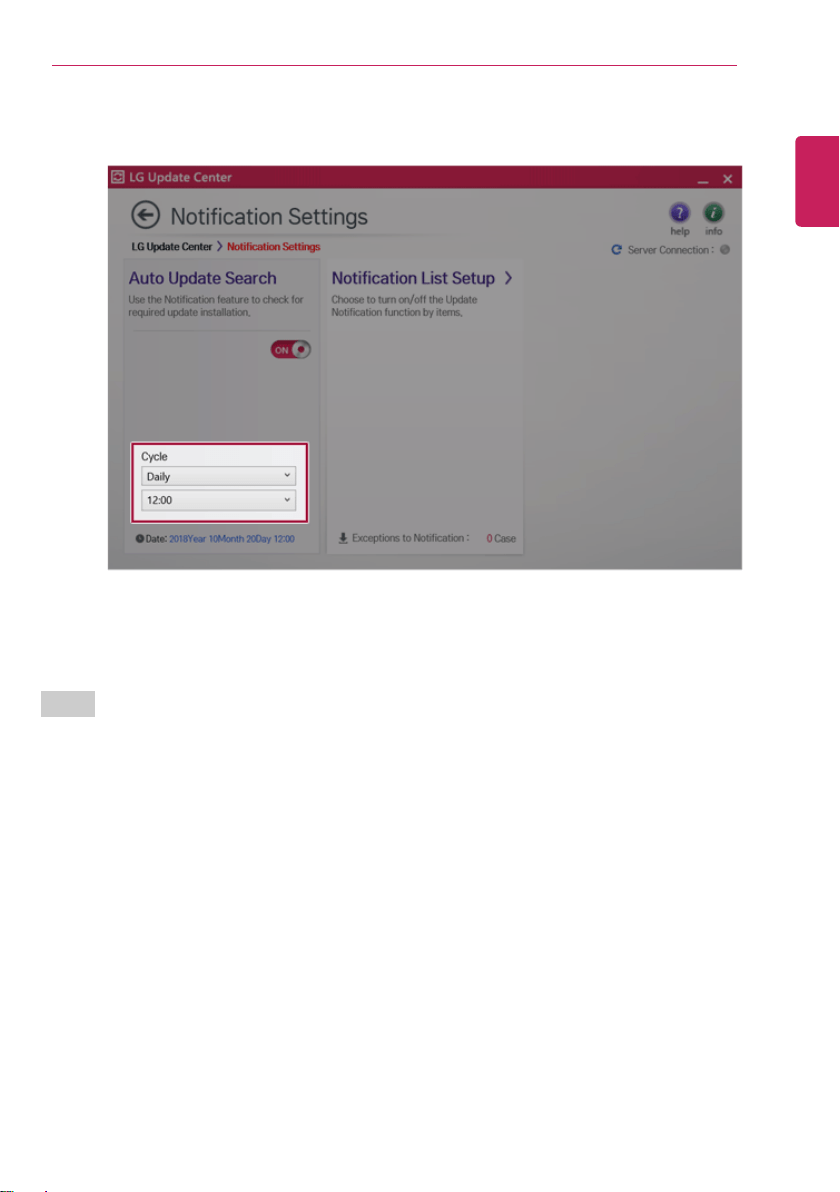
Using Software
173
3 Set the [Cycle].
4 Select [Notification List Setup] menu to turn on/off the notification for each item.
FAQ
Q: Is there a way that I can install the drivers and applications easily?
• You can select [Required Update] or [All List] menu in LG Update Center to automatically install
the drivers and applications that you want.
Q: The server connection status is not displayed in the program.
• Check if your PC is properly connected to the wired or wireless LAN.
• Check if Internet connection works properly.
Q: I want to hide the update notifications.
• Select the [Notification Settings] menu and set the [Auto Update Search] to [OFF].
• Select [Notification List Setup] menu to turn on/off the notification for each item.
Q: How can I update the items that are excluded from the notification list?
• You can also install the items that are excluded from the notification list by using the [Required
Update] or [All List] menu.
ENGLISH
174
Using Software
LG Reader Mode
LG Reader Mode prevents the users from eyestrain and helps them to read the PC screen comfortably
by displaying the screen just like a printed paper.
TIP
LG Reader Mode is offered through a UWP app. You can reinstall it through Microsoft Store if
it was deleted. If you want to delete and reinstall the application, access Microsof t Store, search
for LG Reader Mode, and install it.
When launching the UWP app for the first time, you may not be able to run the app through
the hotkeys. This problem is caused by the delayed registration of the startup program of the
UWP app. If this problem occurs, run the app directly and use the hotkeys for normal operation.
When you delete and reinstall it, it needs to be executed manually once at first. Select the [
] button > [LG Reader Mode].
Using LG Reader Mode
CAUTION
Using the Reader Mode and the Night light at the same time can cause color distortion. When
you use the Reader Mode, turn off the Night light.
• Press the [ ] icon to the right of the taskbar to run the Action Center and press the
[Night light] tile to turn on/off the Night light.
TIP
You can use hot keys to use the Reader Mode function more conveniently.
• Press the [Fn] + [F9] keys to switch the PC screen to reader mode. Press them again to
turn off reader mode.
ENGLISH
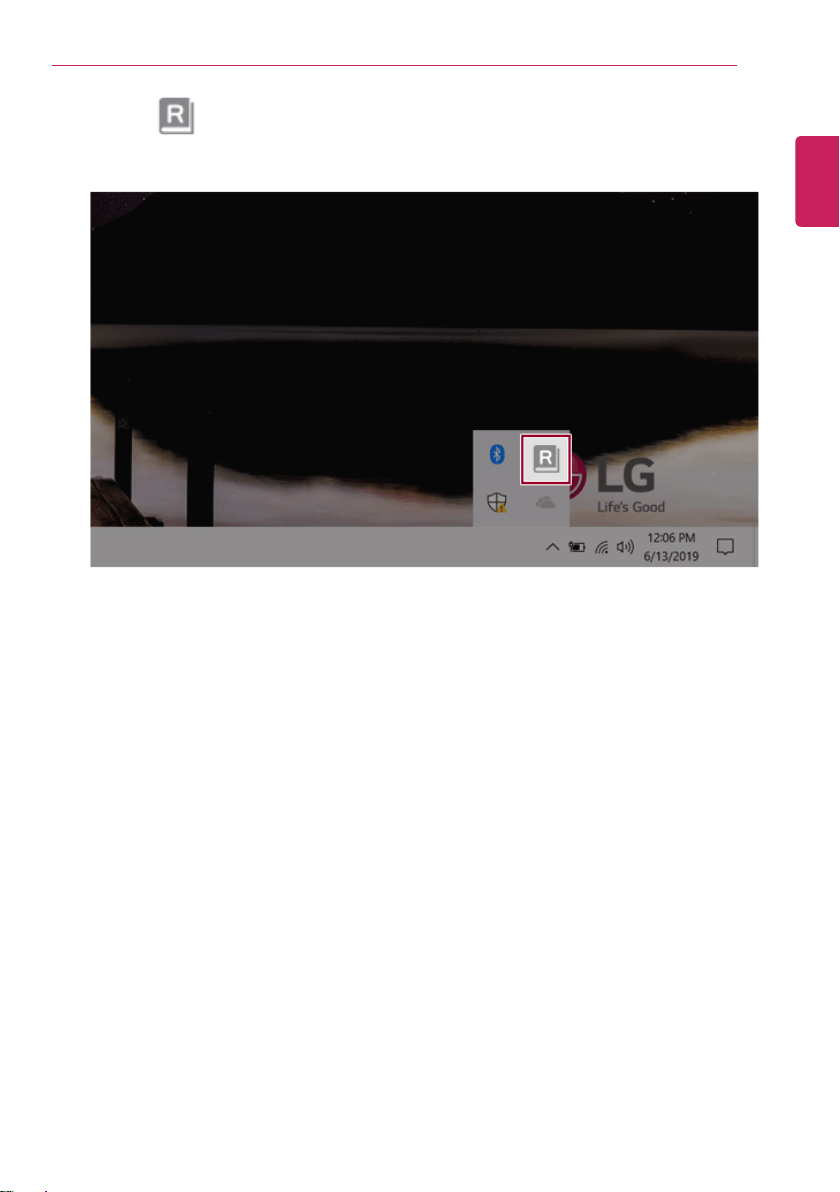
Using Software
175
1 Press the [
] icon on the taskbar.
ENGLISH
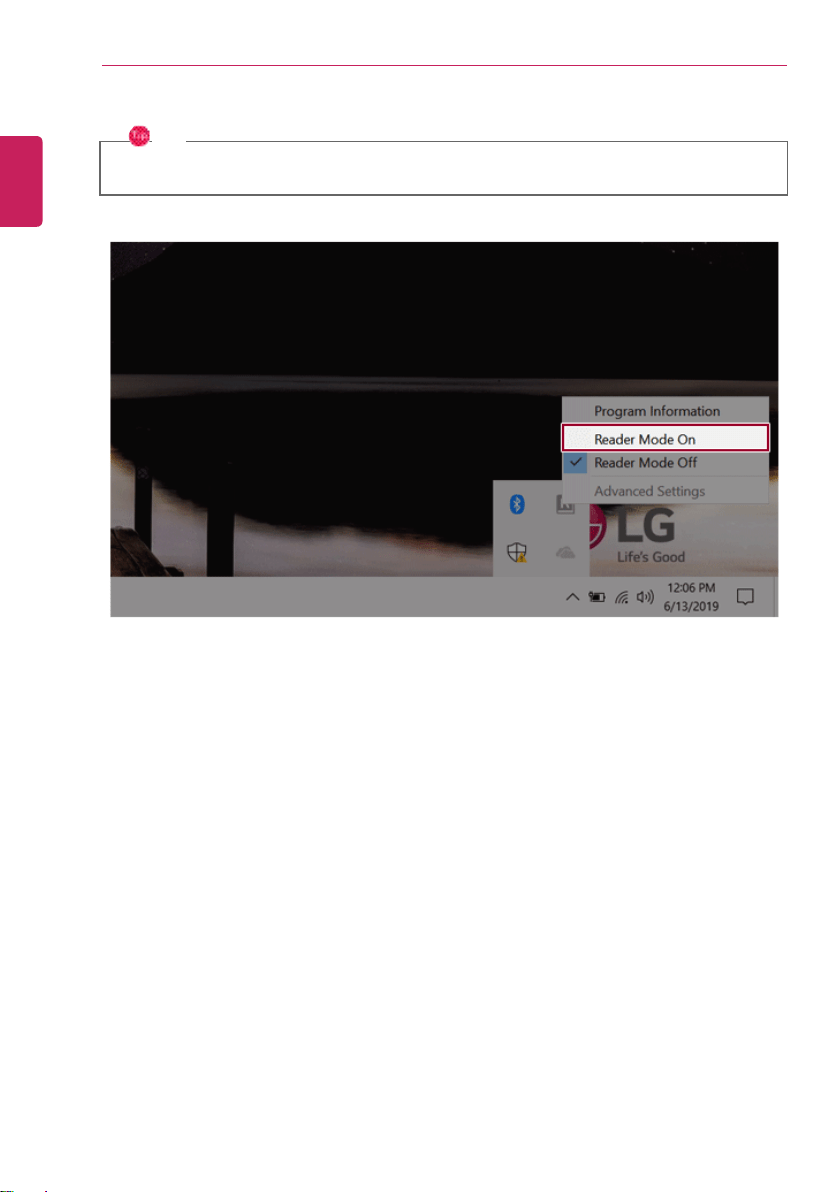
176
Using Software
2 Select the [Reader Mode On] menu to switch to reader mode as shown in the figure.
TIP
Select [Reader Mode Off] to turn off the reader mode.
ENGLISH
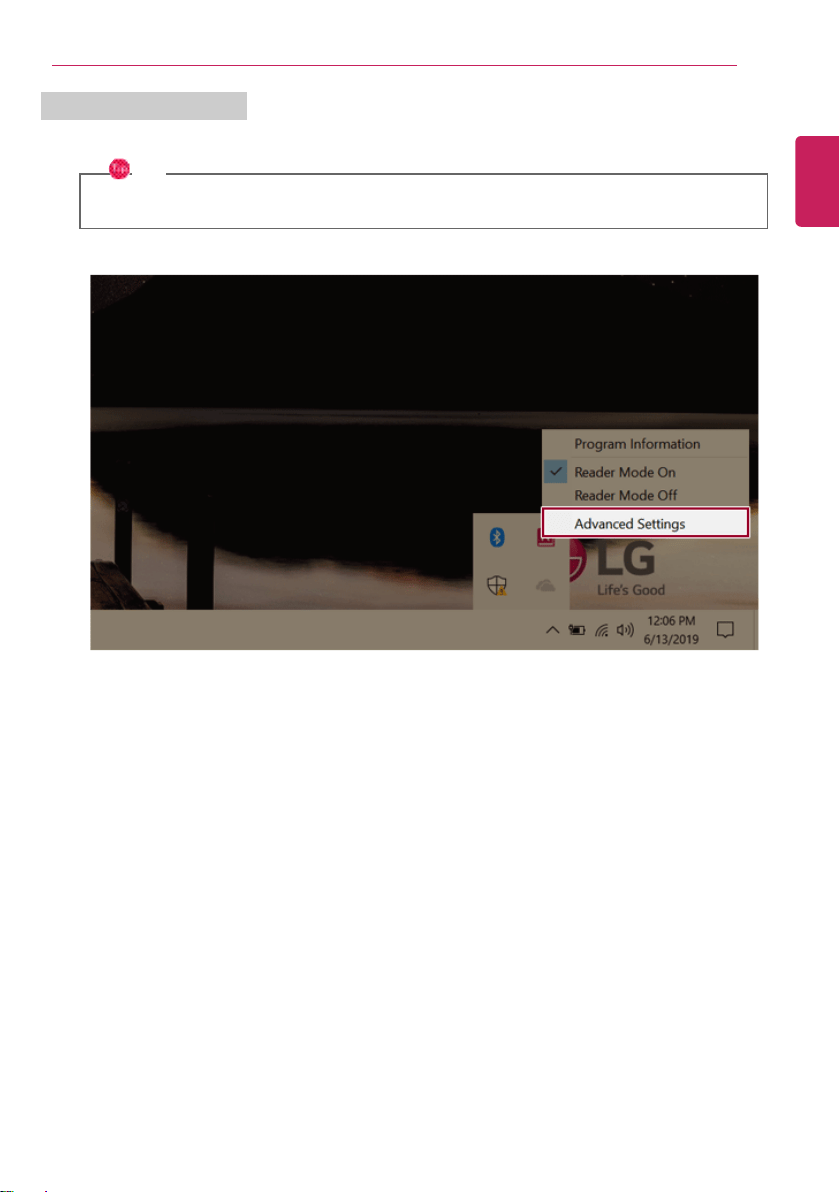
Using Software
177
Using Advanced Settings
1 Select the [Advanced Settings] menu as shown in the figure.
TIP
The [Advanced Settings] menu is activated when Reader Mode is on.
2 The [Advanced Settings] window appears as shown below.
ENGLISH
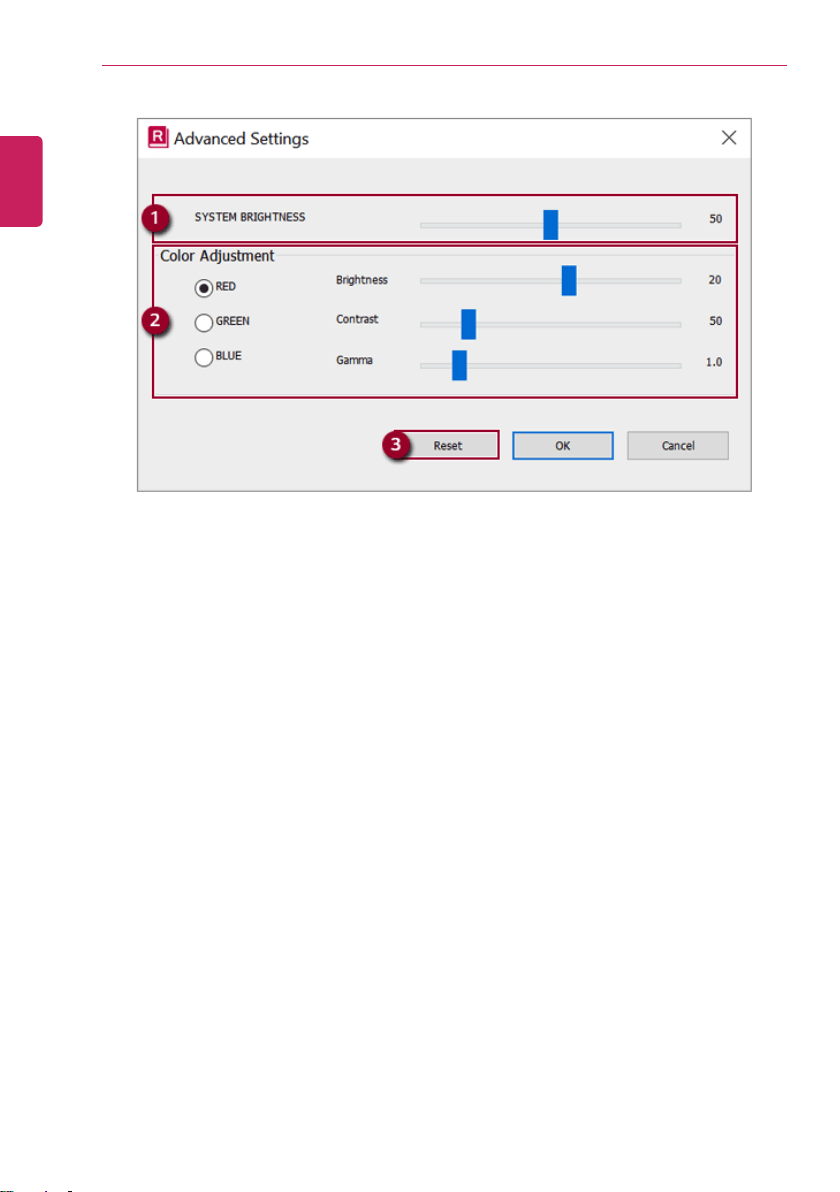
178
Using Software
1 System Brightness: System brightness can be adjusted.
2 Color Adjustment: Color and its brightness, contrast and gamma can be adjusted.
3 Reset: Settings are reset to the default settings.
ENGLISH
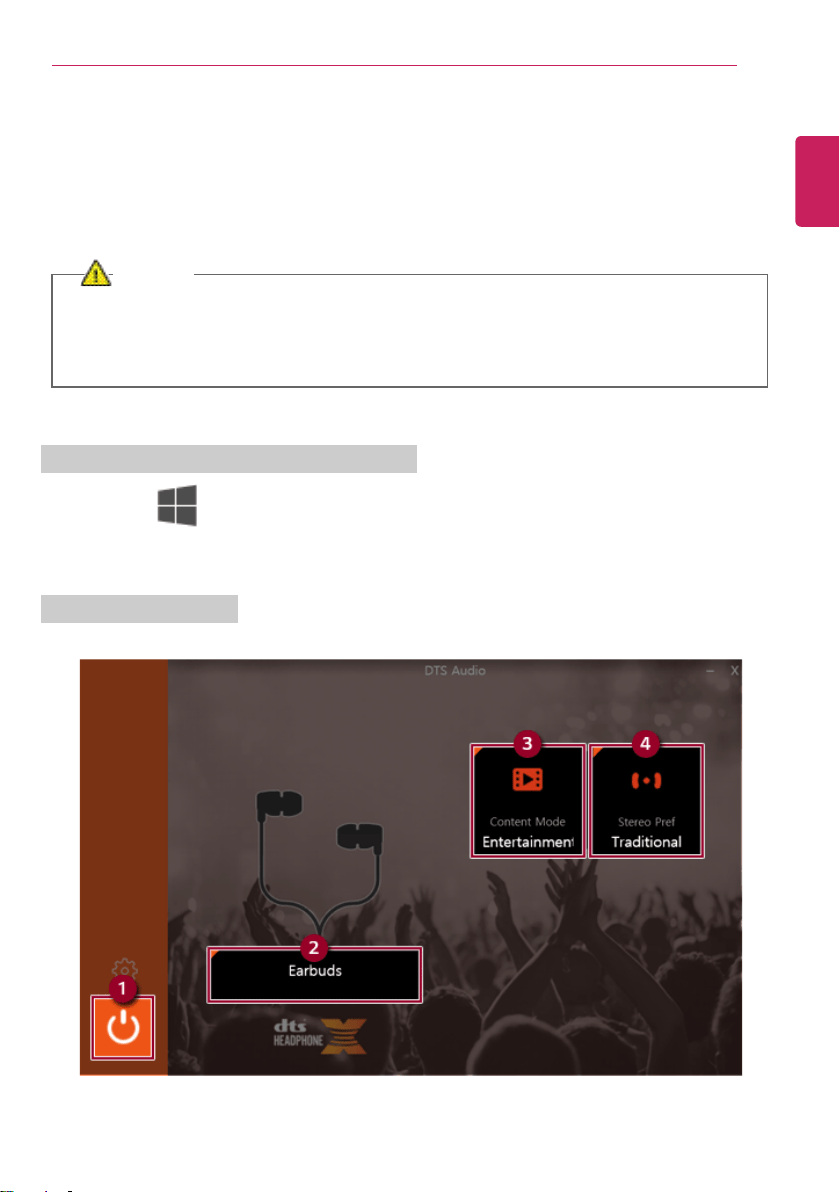
Using Software
179
DTS Headphone: X/DTS Studio Sound
DTS Headphone: X/DTS Studio Sound provides rich, sonorous sound when you listen to music, watch
videos or play games in the PC.
DTS Headphone: X/DTS Studio Sound may not be applied depending on the model.
The figures herein are subject to change without prior notice.
CAUTION
As 3D Fx is a sound effect optimized for watching movies, it may cause sound distortion when
you listen to music in this mode.
Please disable this mode when you use music content.
Executing DTS Headphone: X/DTS Studio Sound
1 Press the [ ] button to execute [DTS HeadphoneX v1].
2 Default is DTS Studio Sound and DTS Headphone: X operates when the earphone is connected.
DTS Headphone: X Tour
ENGLISH
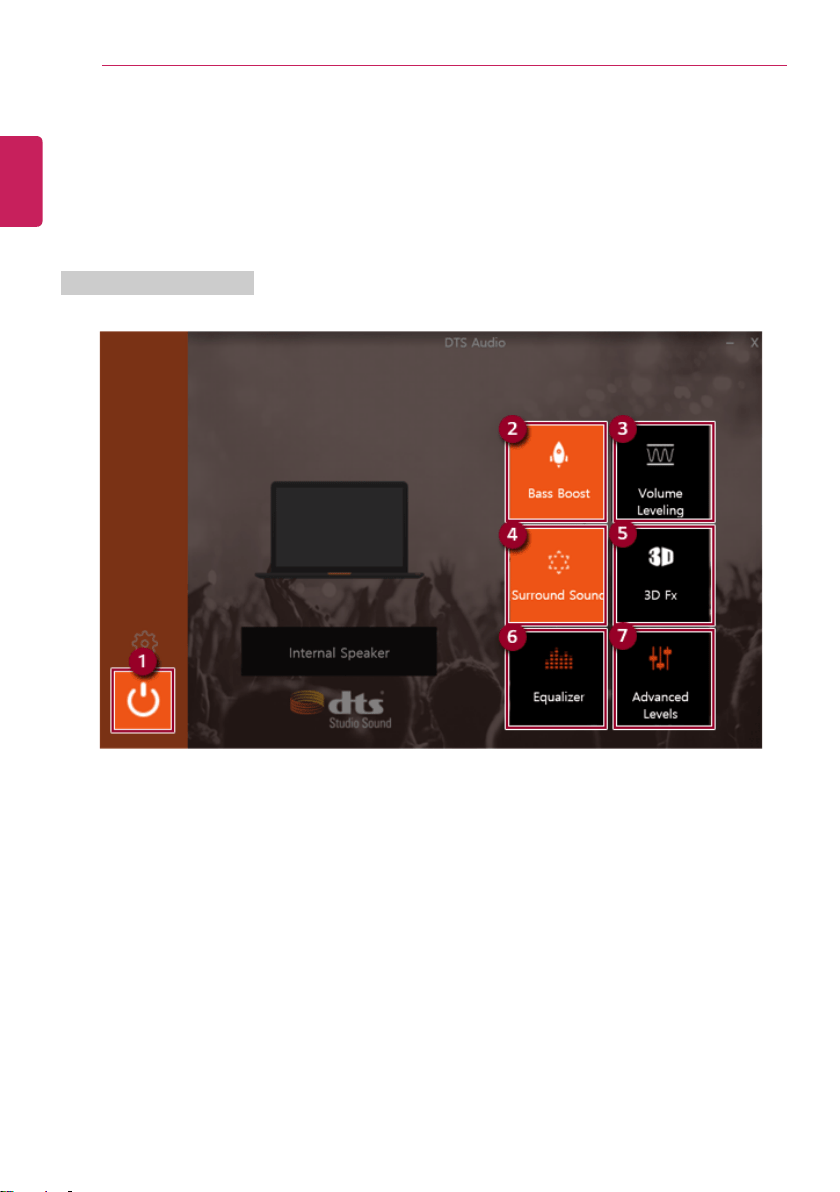
180
Using Software
1 Power: Turns on/off the DTS Headphone: X power.
2 Earbuds: Allows you to select the connected earphone.
3 Content Mode: Allows you to select entertainment/game/sport and provides optimum setting for
each content.
4 Stereo Default Settings: Provides settings for stereo including wide/front/traditional.
DTS Studio Sound Tour
1 Power: Turns on/off the DTS Studio Sound power.
2 Bass Boost: Boosts the lowest frequencies for enhanced bass sound.
3 Volume Leveling: Increases audio level without distortion of sound.
4 Surround Sound: Sets up surround sound effects through the PC's embedded speakers.
5 3D Fx: Sets up 3D sound effects through the PC's embedded speakers.
6 Equalizer: Sets the equalizer.
7 Advanced Levels: Provides the advanced options menu for DTS Studio Sound.
ENGLISH

Using Software
181
TIP
If you want to remove Audio Driver or DTS Headphone: X/DTS Studio Sound, remove [DTS
HeadphoneX v1] and [Synaptics SmartAudio HD Audio Driver] in the order specified and
restart the system.
If you want to reinstall Audio Driver or DTS Headphone: X/DTS Studio Sound, remove [DTS
HeadphoneX v1] and [Synaptics SmartAudio HD Audio Driver] in the order specified and
install [Synaptics SmartAudio HD Audio Driver]. Then restart the system and install [DTS
HeadphoneX v1].
• If you do not remove or install them in the order specified, an error may occur.
ENGLISH
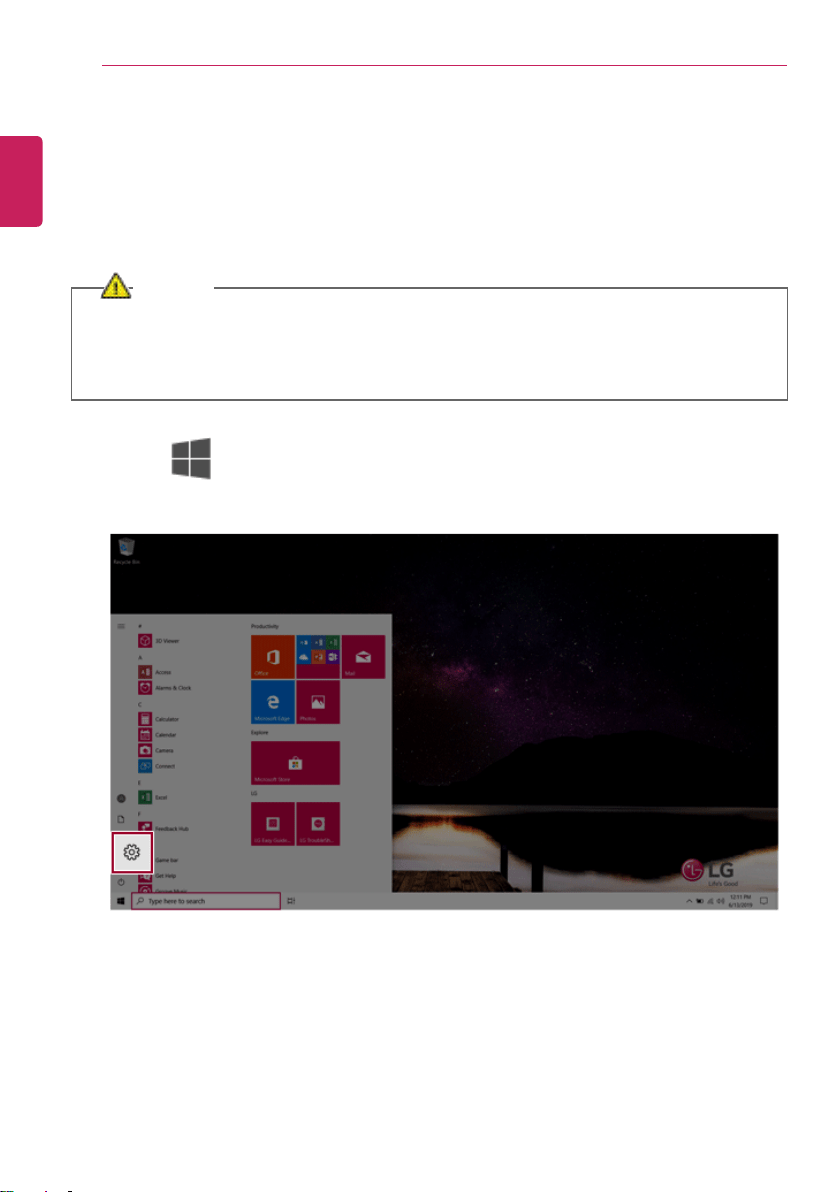
182
Restoring the System
Restoring the System
Restoring the System
If the system has an error, you can use Windows 10's recovery function to recover or restore the
system to its initial pre-purchase state.
CAUTION
If you have deleted the restoration data in the protected area of the disk, or have arbitrarily
installed another operating system, the restore function may not work.
To recover the system, the AC adapter must be connected.
1 Click the [ ] button and select the [Settings] menu.
ENGLISH
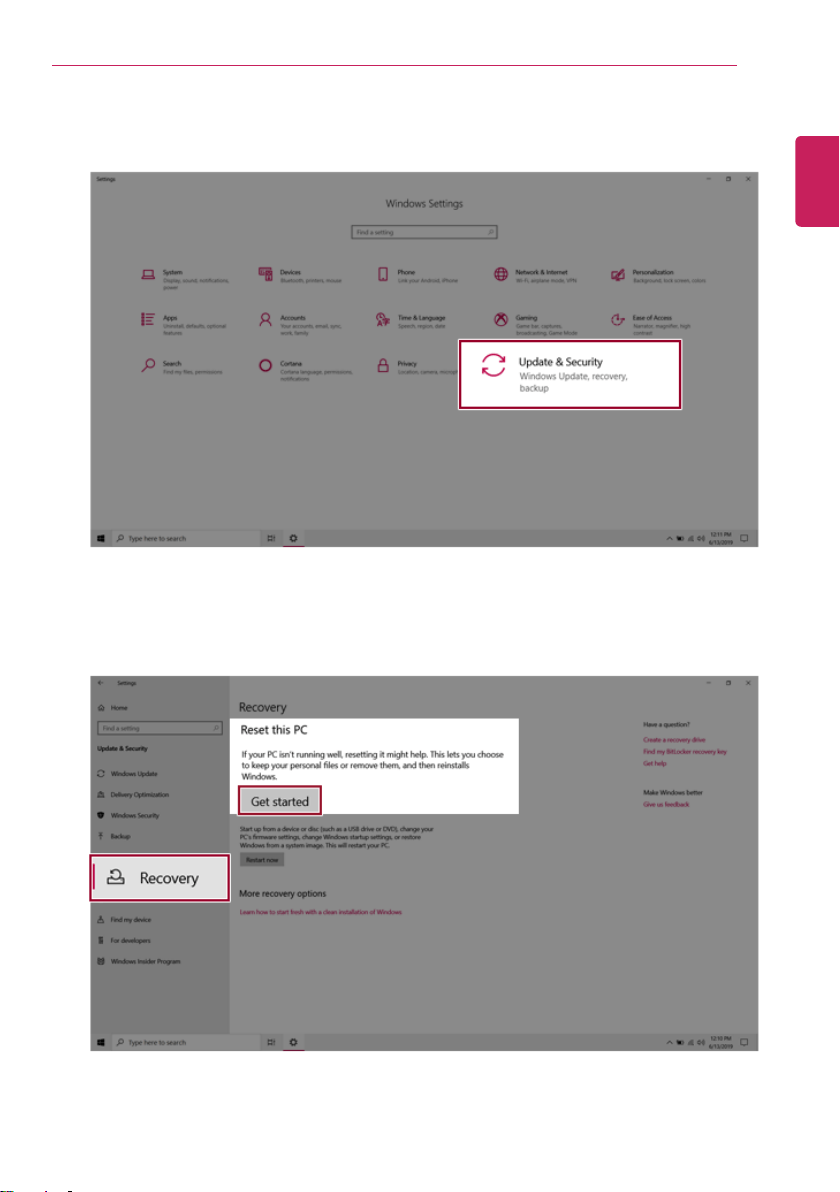
Restoring the System
183
2 When the [Settings] screen appears, select [Update & Security].
3 Select the [Recovery] menu and press [Get started] in the Reset this PC menu.
ENGLISH
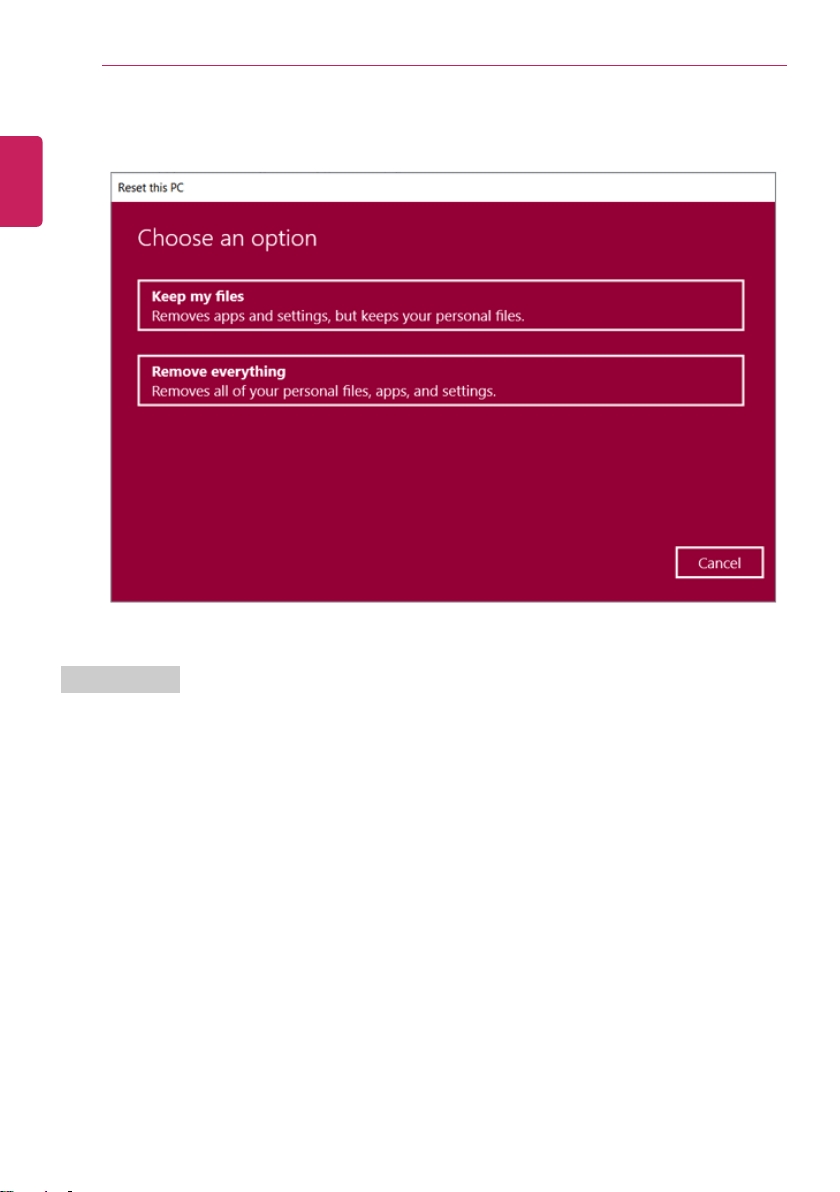
184
Restoring the System
4 If the following screen appears, select a desired option to proceed with recovery.
Keep My Files
It removes the apps and their settings without loss of personal files.
ENGLISH
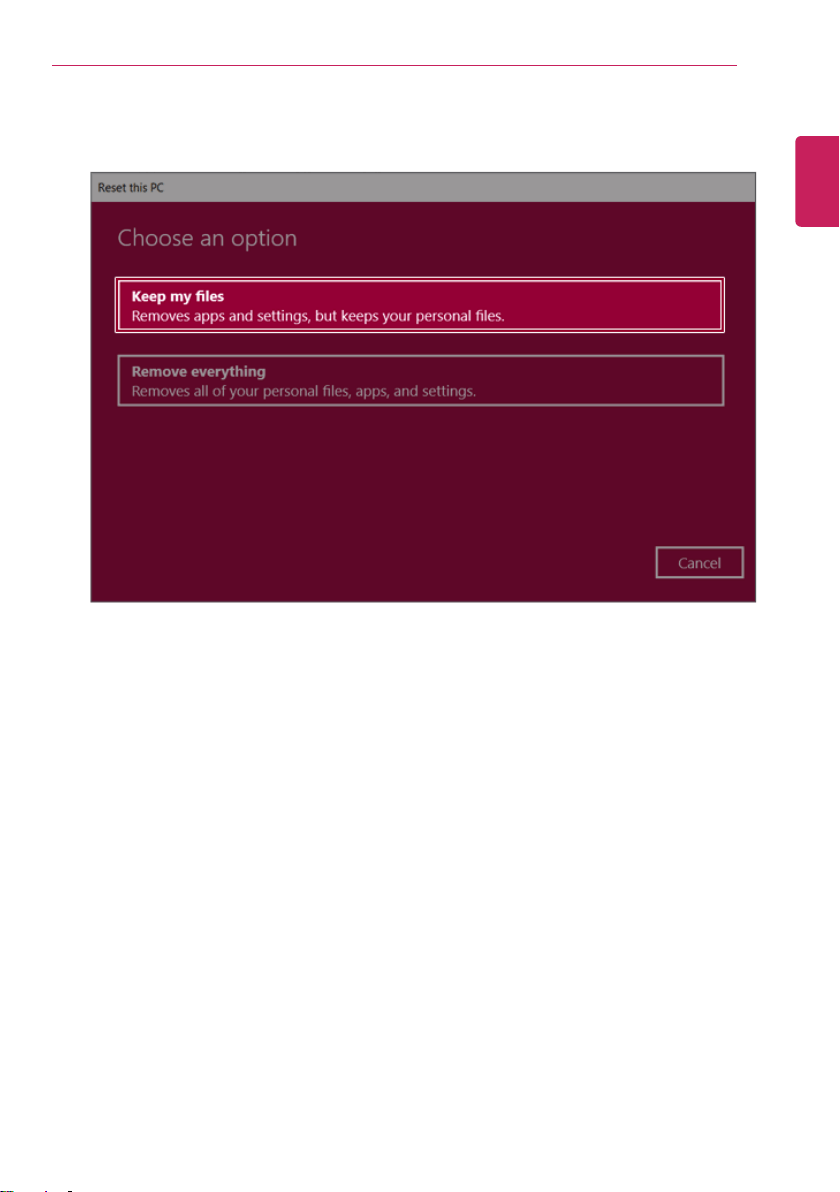
Restoring the System
185
1 Select [Keep my files].
ENGLISH
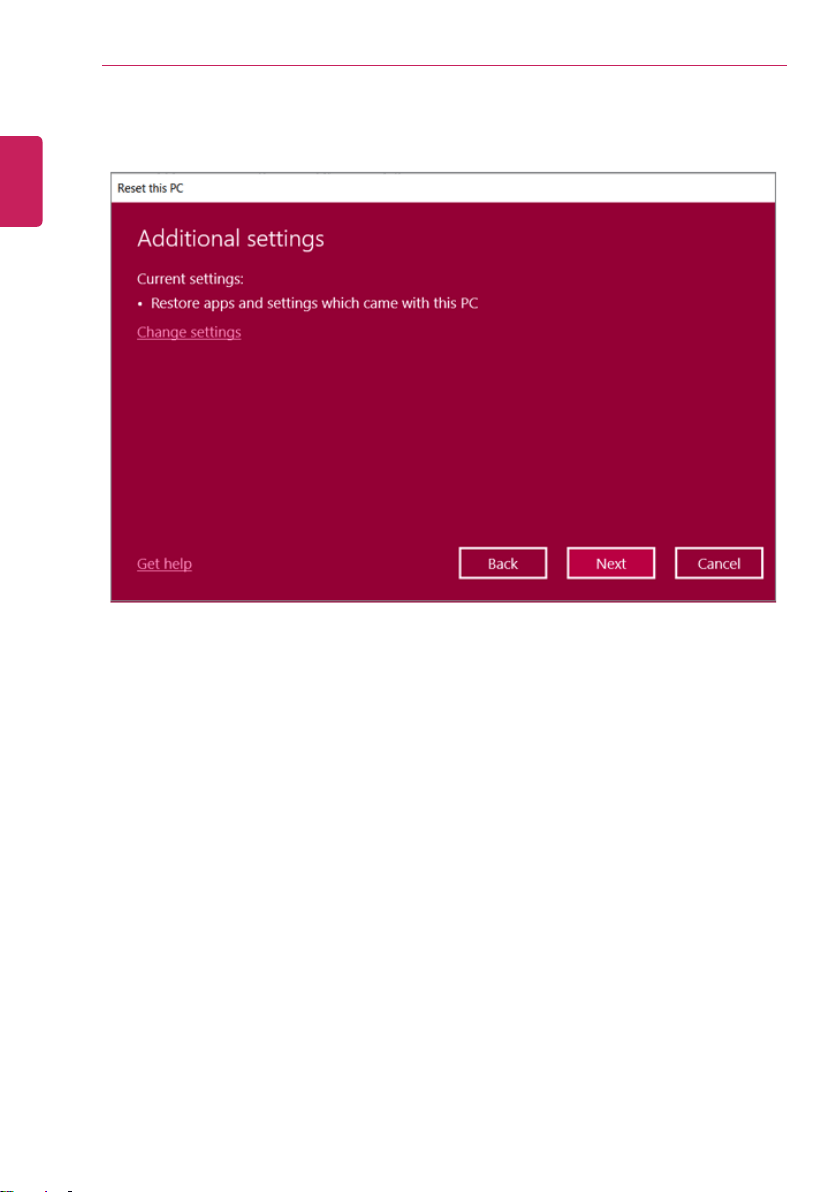
186
Restoring the System
2 Check the current settings.
ENGLISH
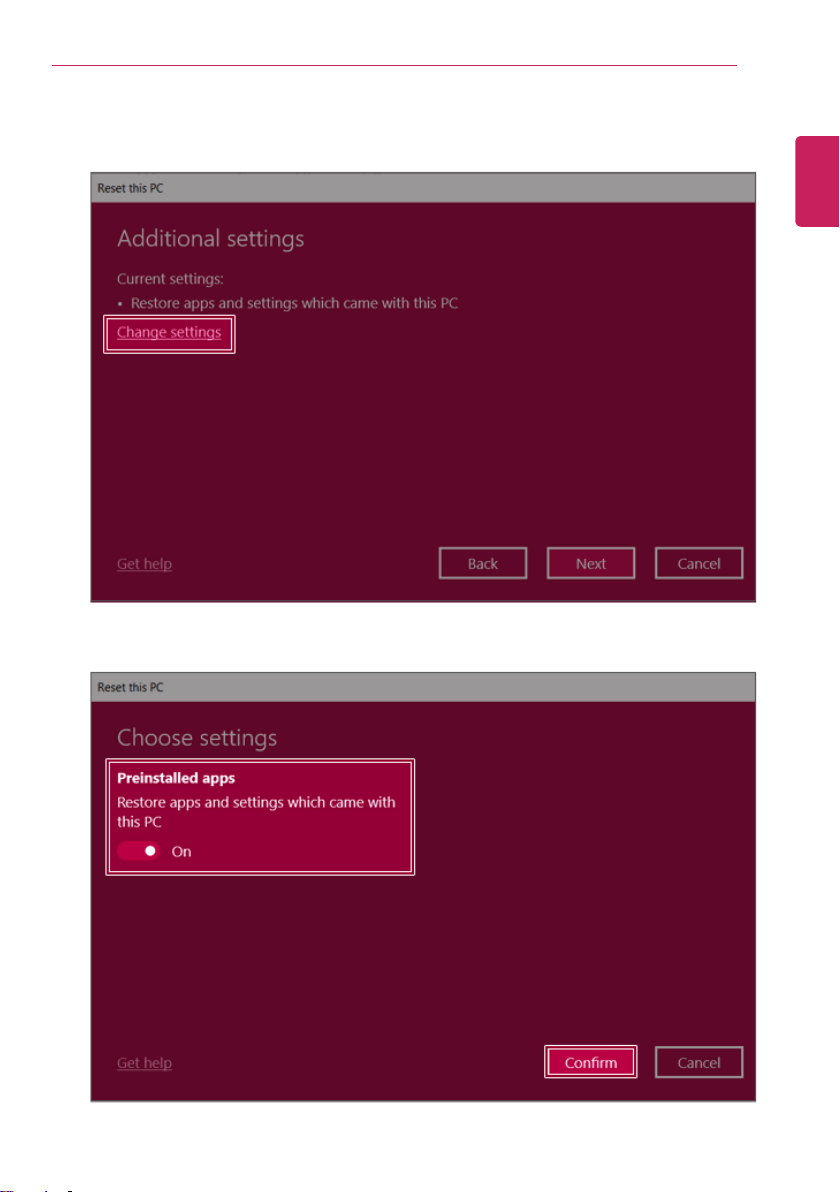
Restoring the System
187
3 If you need to change the settings, press [Change settings] and press the [Confirm] button.
ENGLISH
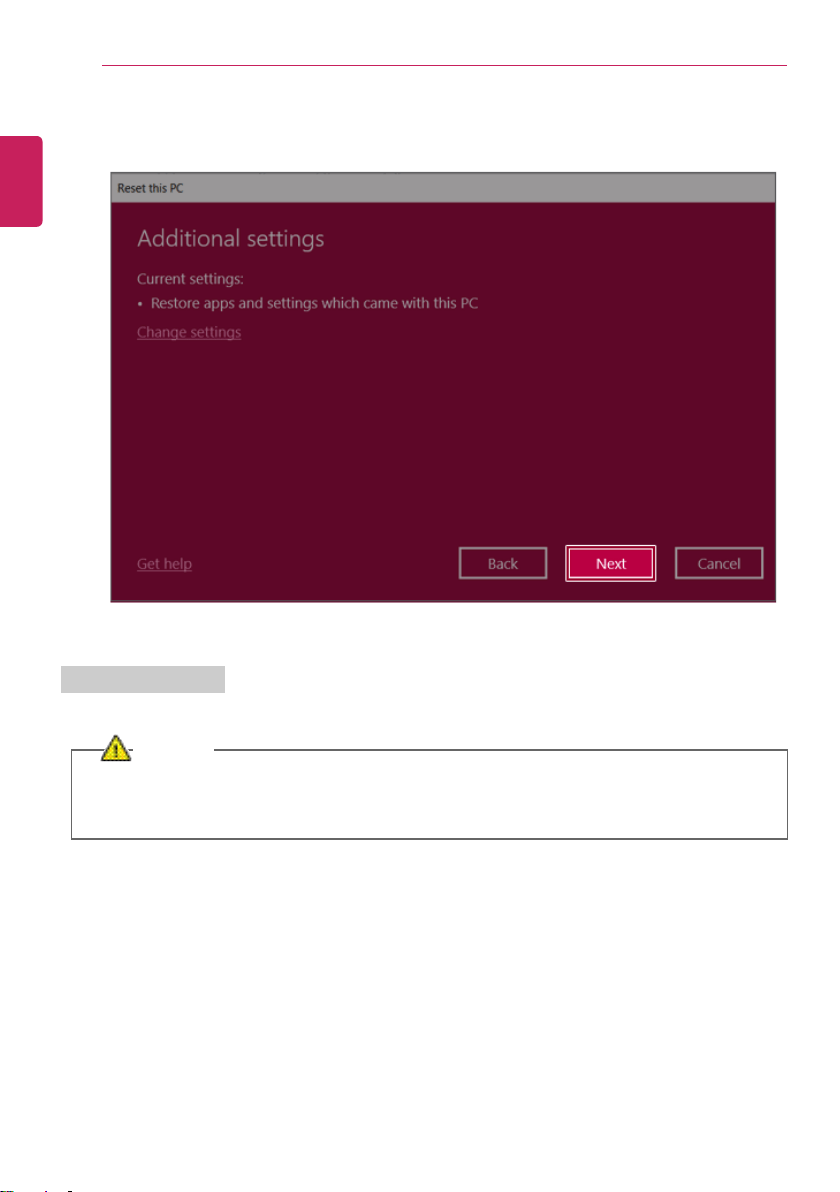
188
Restoring the System
4 Press [Next] to proceed with installation as guided.
Remove everythings
Removes all items from the system and restores the system to its initial pre-purchase state.
CAUTION
All data is lost during the initialization, so you must backup all critical data in advance.
It may take about 5 hours or longer depending on the system conditions.
ENGLISH
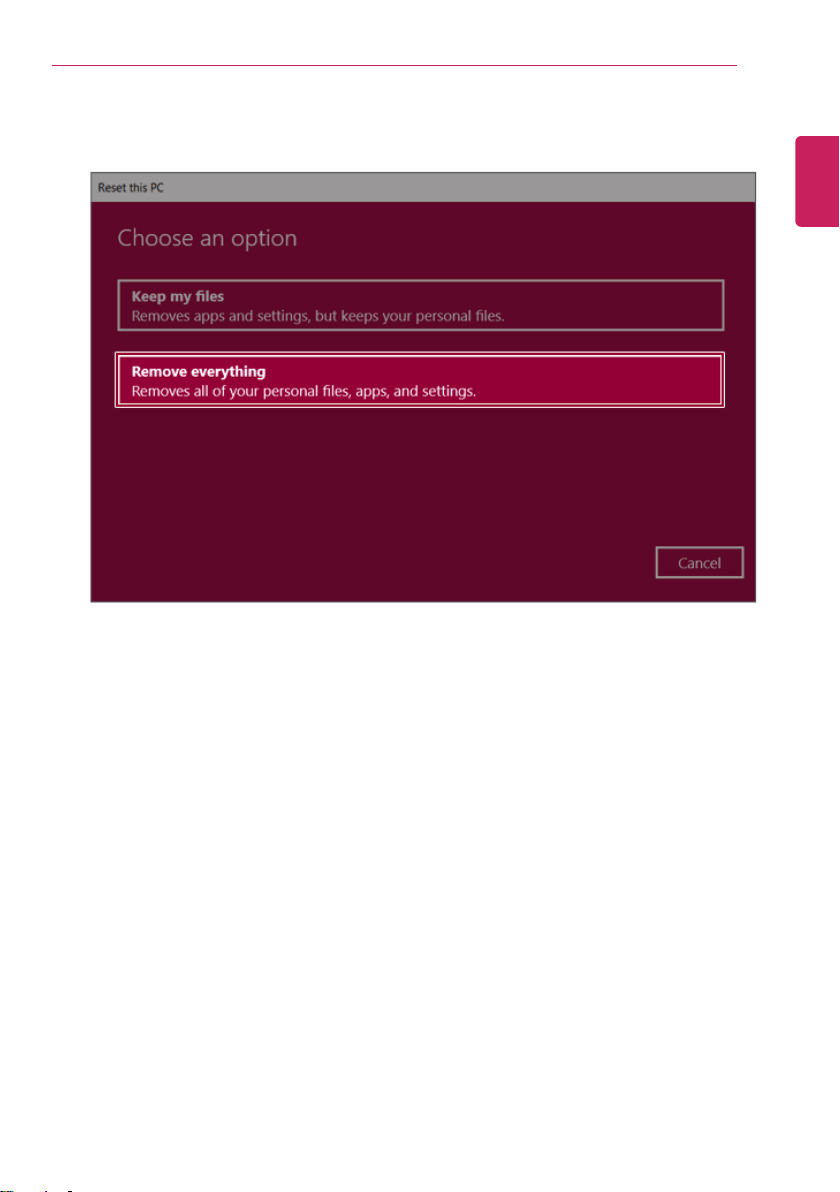
Restoring the System
189
1 Select [Remove everything].
ENGLISH
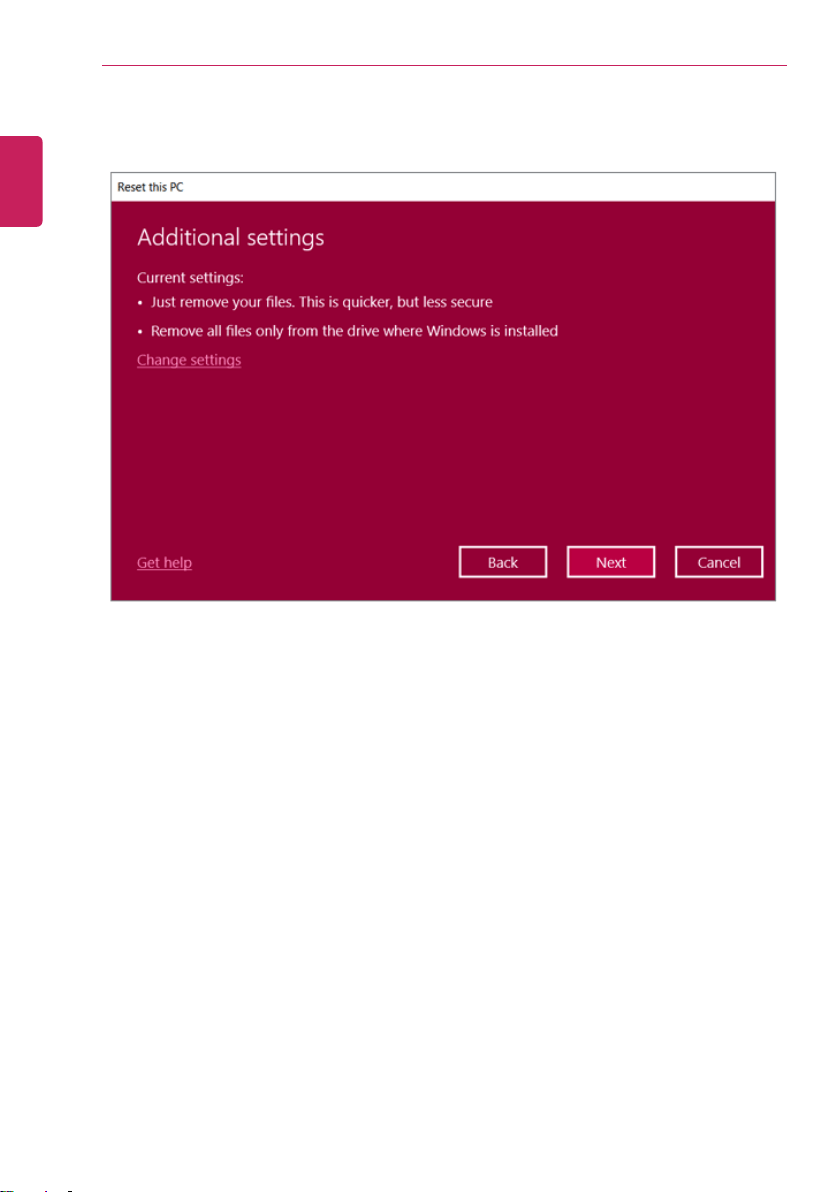
190
Restoring the System
2 Check the current settings.
ENGLISH
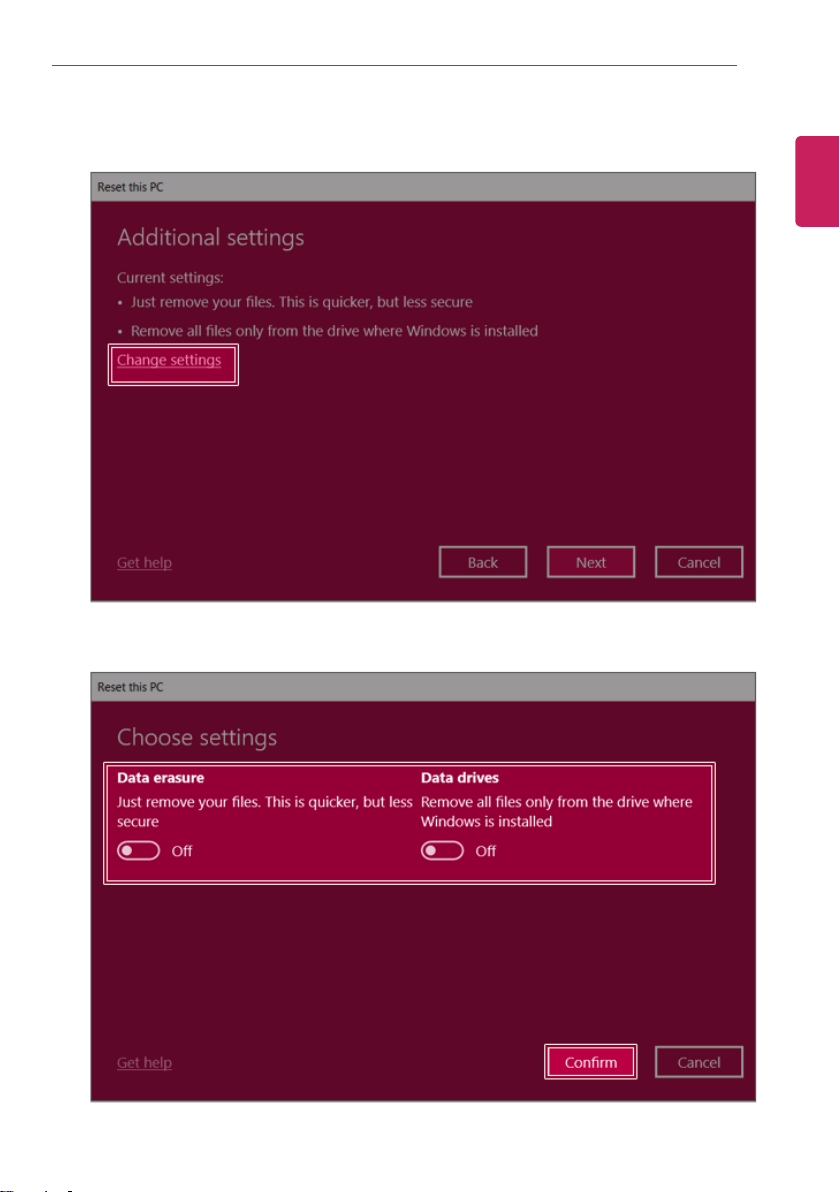
Restoring the System
191
3 If you need to change the settings, press [Change settings] and press the [Confirm] button.
ENGLISH
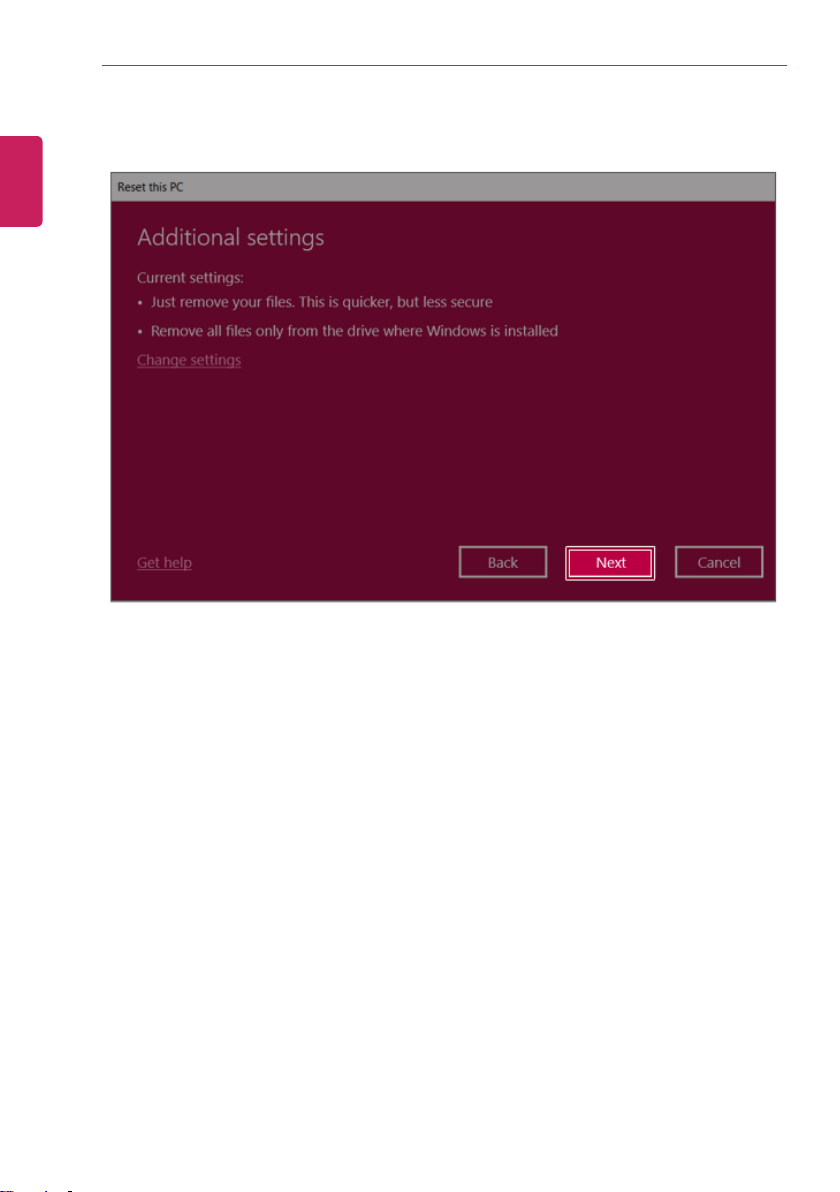
192
Restoring the System
4 Press [Next] to proceed with installation as guided.
ENGLISH
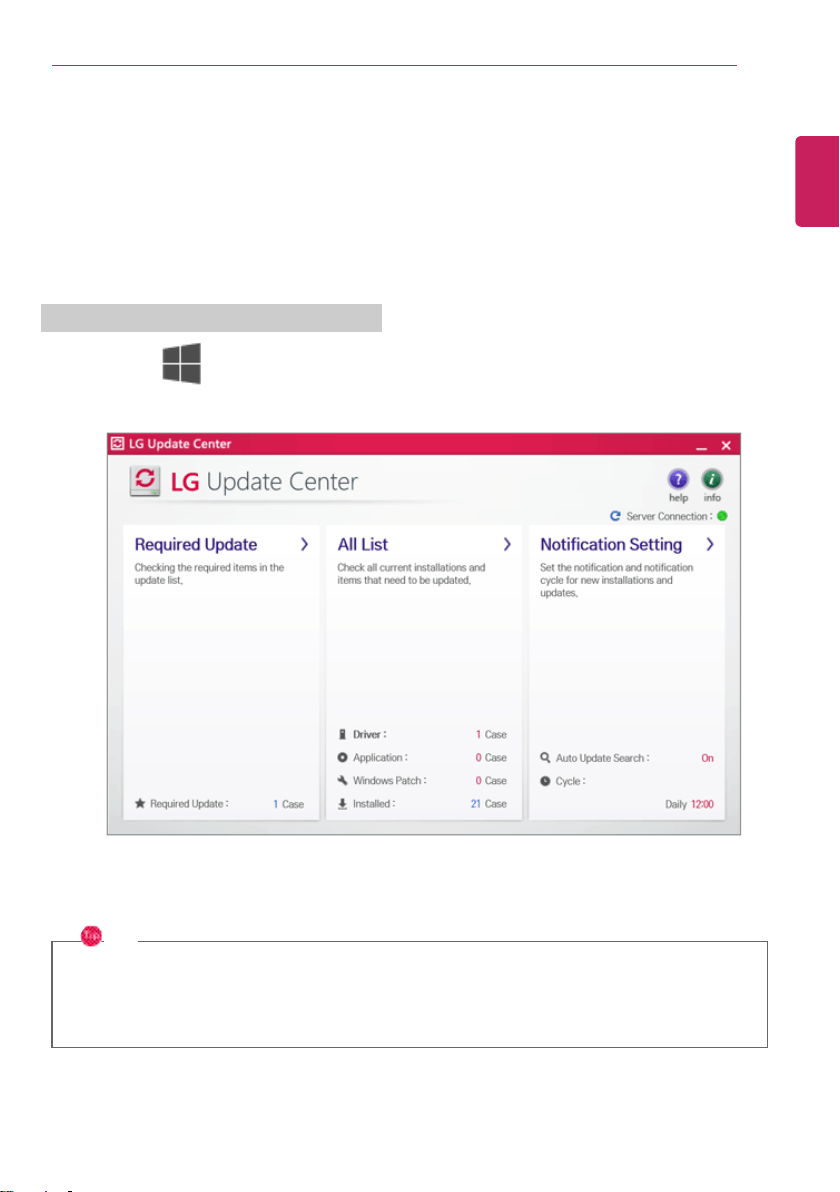
Setup and Upgrade
193
Setup and Upgrade
Installing the Driver
The figures herein may differ by language selection and are subject to change without prior
notice.
Using LG Update Center to install the Driver
1 Select the [
] button > [LG Software] to run [LG Update Center].
2 Select [Required Update] or [All List] to install the driver.
TIP
You can use the LG Update Center to quickly install the latest drivers, or reinstall any deleted
drivers.
Use LG Update Center to keep your system current and optimized.
ENGLISH

194
Setup and Upgrade
Downloading LG Update Center
You can download LG Update Center from the LG Electronics website (www.lg.com).
ENGLISH
Setup and Upgrade
195
Starting System Setup
System setup means storing the hardware configuration information of the PC in the flash memory.
Through system setup, the PC retrieves various information including current date and time, memory
capacity, and hard disk capacity and type.
You setup the system when you set passwords, change the boot order, and add new peripheral devices
to the machine.
Items displayed on the Setup screen may differ by model type and specification. Refer to
• Refer to Setting the Password .
• Refer to Changing or Deleting the Password.
• Refer to Restoring the Factory Default Settings.
TIP
To use the system setup (F2), booting device selection (F10), you need to restart the system
(click [Restart] in the system power menu) and then immediately press the corresponding
function key due to the fast booting speed.
CAUTION
• Do not change the system setup unless necessary. Incorrect system setup may cause
errors during system operation. Use caution when changing the system setup.
• For performance improvement, the system setup menu configuration and the initial setup
status may be changed and may become different from images included in the user
manual.
ENGLISH
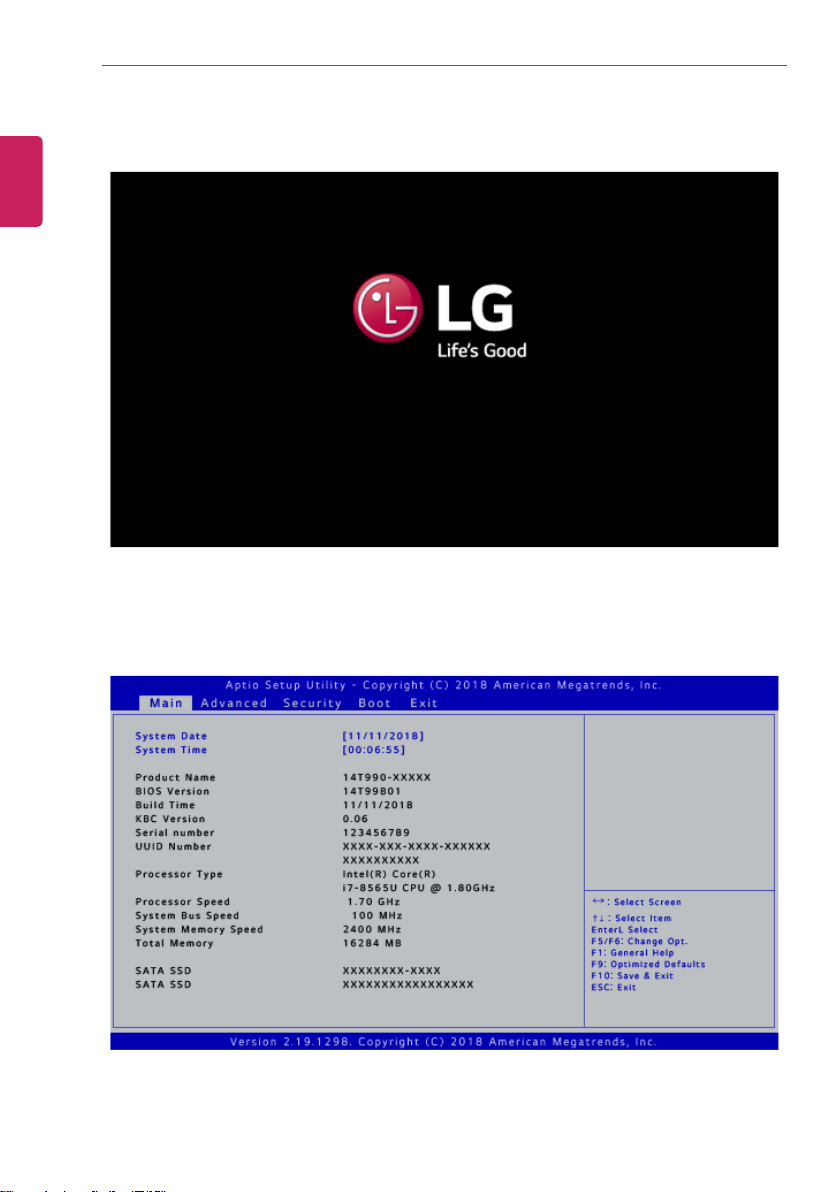
196
Setup and Upgrade
1 Reboot the system and press [F2].
2 In a few moments, the system setup screen appears.
ENGLISH
Setup and Upgrade
197
Keys Used in System Setup
Keys Function
Enter
Selects the current item.
Esc
To deselect the current item or to move to the previous screen.
▲, ▼, ◄, ► (Arrow keys)
Moves the cursor up, down, left, and right.
F5, F6
Increases or decreases the item value.
F10
Saves the new settings or exits the system setup.
ENGLISH
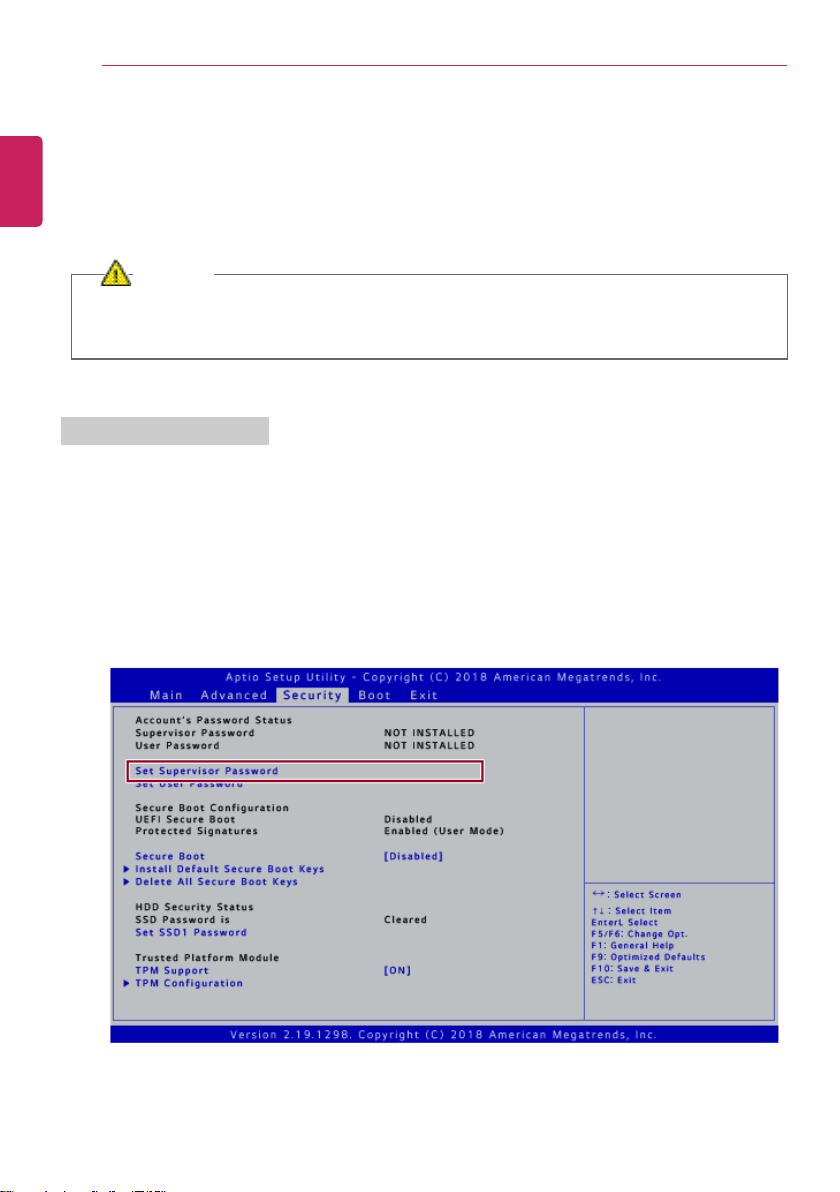
198
Setup and Upgrade
Setting the Password
This process is to set a password so that other people cannot use the PC or change the settings.
The user can set a password while booting the system or setting up the system.
The model in the example can differ from actual models and is subject to change for performance
improvements, without prior notice.
CAUTION
• Without the registered password, access to the system will be denied. Write down and
keep the password in a safe place.
Set Supervisor Password
The password prevents unauthorized people from accessing the PC. By default, no password is set for
the machine. If an unauthorized person changes the password in the System Setup, you will be unable
to access the system.
1 After opening the system setup screen, use the arrow keys to move to [Security].
2 When the following screen shows up, click [Set Supervisor Password] by using the arrow keys
and press [Enter].
ENGLISH
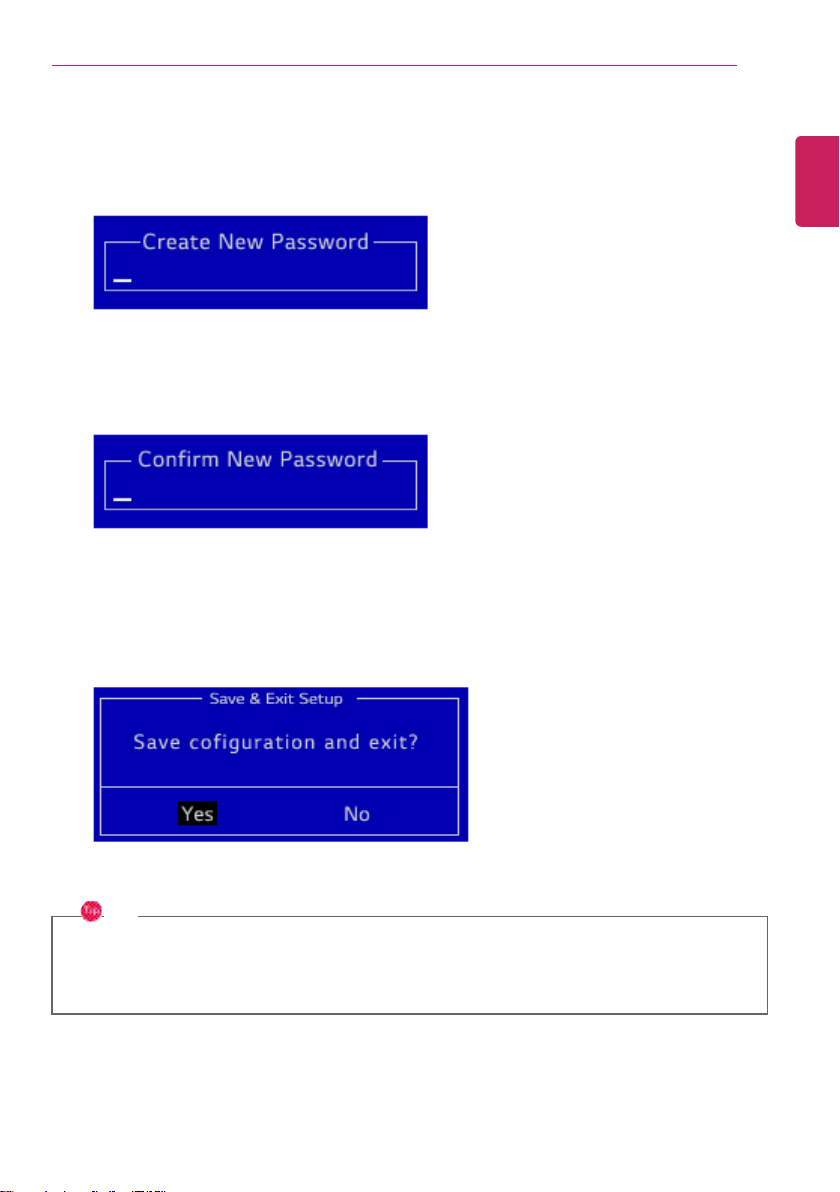
Setup and Upgrade
199
3 When the following message appears on the screen, enter the password and press [Enter]. The
password should not exceed 20 characters and should consist of English letters (A - Z), numbers
(0 - 9), and special characters or a combination of them.
4 When the following message shows up on the screen, enter the password again and press [Enter].
5 To save the changes in the system setup, press [F10].
6 When the following message appears, select [Yes] and press [Enter]. The PC will restart.
TIP
• With Supervisor Password, you are authorized to set all items in the System Setup and
to set [Power on Password]. In case other people also use the PC, it is recommended to
set the User Password.
ENGLISH
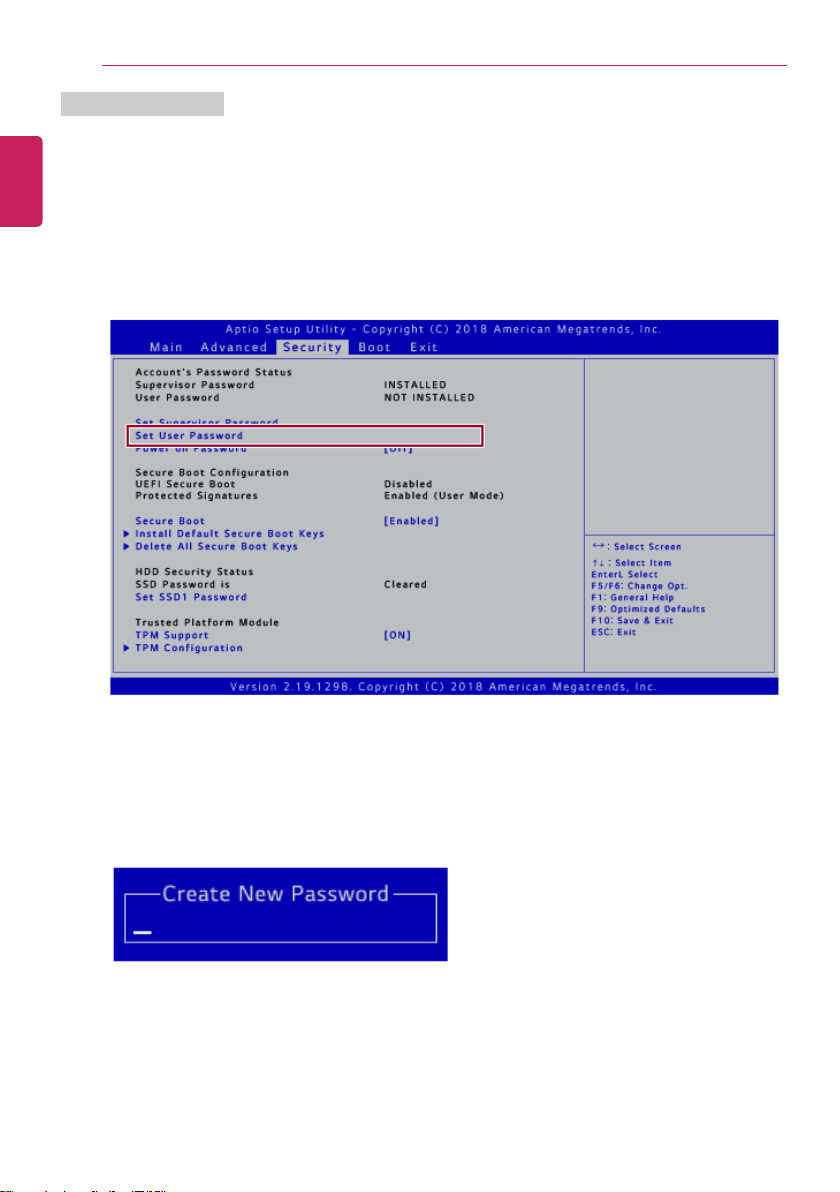
200
Setup and Upgrade
Set User Password
The password set by the Set User Password process is lower than that set by the [Set Supervisor
Password] process, and so the user can use the[Set User Password] only after setting a password in
the [Set Supervisor Password] menu.
1 After opening the system setup screen, use the arrow keys to move to [Security].
2 When the following screen appears, select [Set User Password] and press [Enter].
3 When the following message appears on the screen, enter the password and press [Enter]. The
password should not exceed 20 characters and should consist of English letters (A - Z), numbers
(0 - 9), and special characters or a combination of them.
ENGLISH
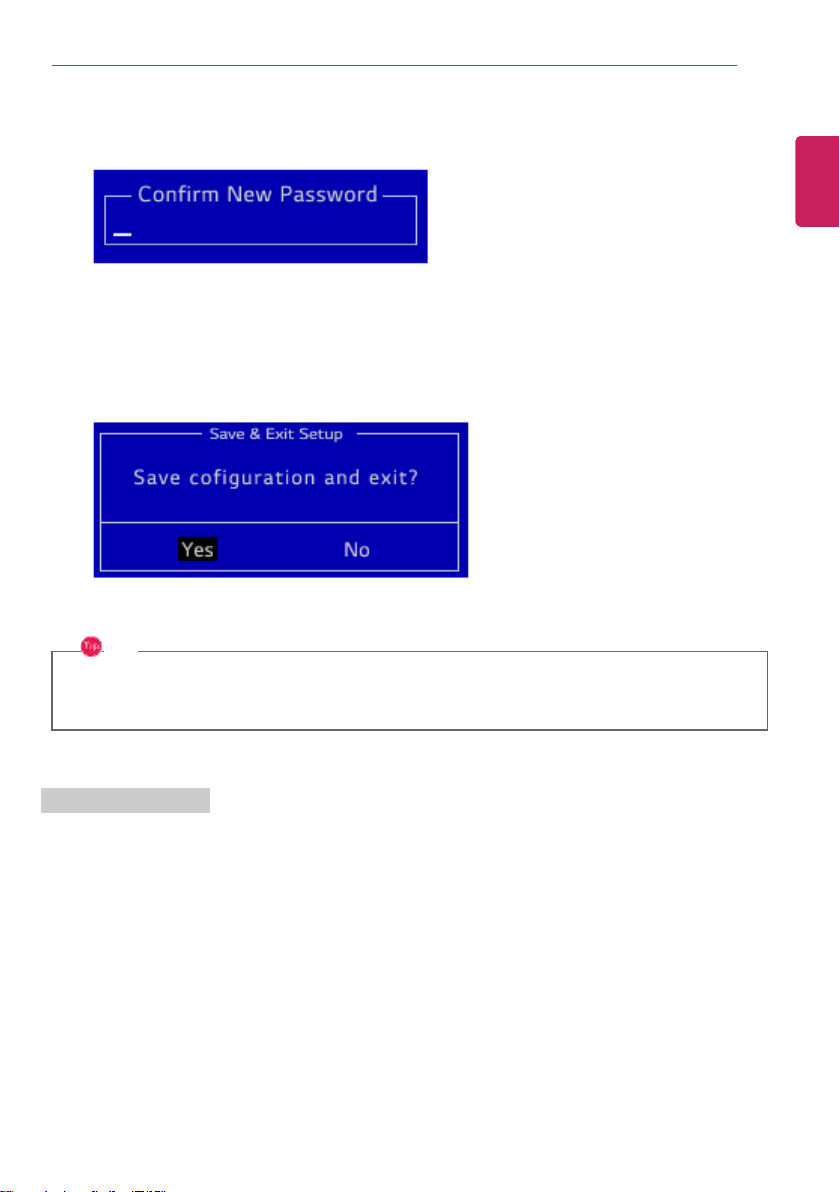
Setup and Upgrade
201
4 When the following message shows up on the screen, enter the password again and press [Enter].
5 To save the changes in the system setup, press [F10].
6 When the following message appears, select [Yes] and press [Enter]. The PC will restart.
TIP
• [User Password] allows only limited access to the items in the System Setup when
compared with the items that can be set with [Supervisor Password].
Power on Password
Power on Password protects the system by requesting [Set Supervisor Password] or [Set User
Password] during boot up.
1 After opening the system setup screen, use the arrow keys to move to [Security].
ENGLISH
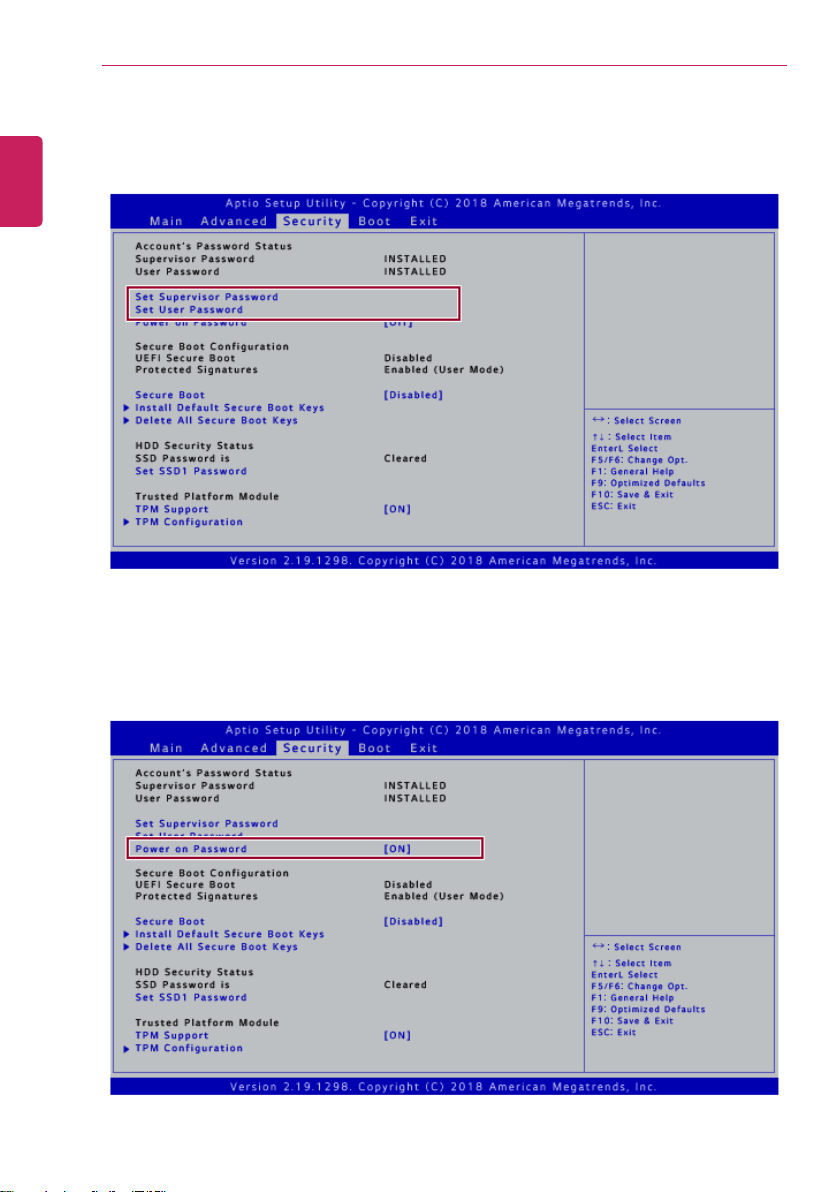
202
Setup and Upgrade
2 When the following screen appears, set [Set Supervisor Password] only or both [Set Supervisor
Password] and [Set User Password].
3 The popup screen will show up, after selecting [Power on Password] and press [Enter]. Select
[ON] and press [Enter] to finish setting the [Power on Password].
ENGLISH
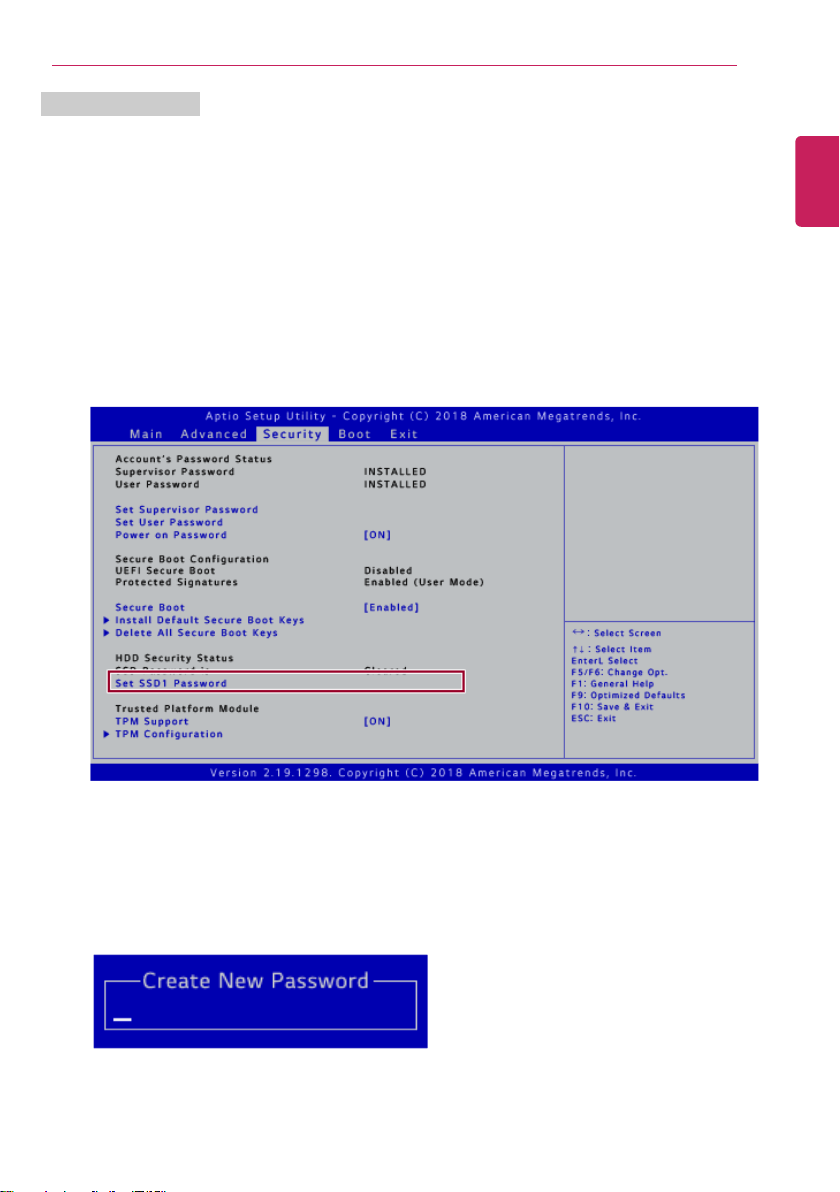
Setup and Upgrade
203
Set SSD Password
SSD Password is to set a password in the SSD separately from the Super visor Password.
For a model equipped with two SSD devices, the menu name may be displayed as SSD1, SSD2, etc.
For a model equipped with two SSD devices, you can set a password for each device. If both
passwords are set, the password input window appears twice during the booting process.
The password input windows appear according to the [Boot Priority order] in the [Boot] menu.
1 After opening the system setup screen, use the arrow keys to move to [Security].
2 When the following screen shows up, click [Set SSD1 Password] by using the arrow keys and
press [Enter].
3 When the following message appears on the screen, enter the password and press [Enter]. The
password should not exceed 32 characters and should consist of English letters (A - Z), numbers
(0 - 9), and special characters or a combination of them.
ENGLISH
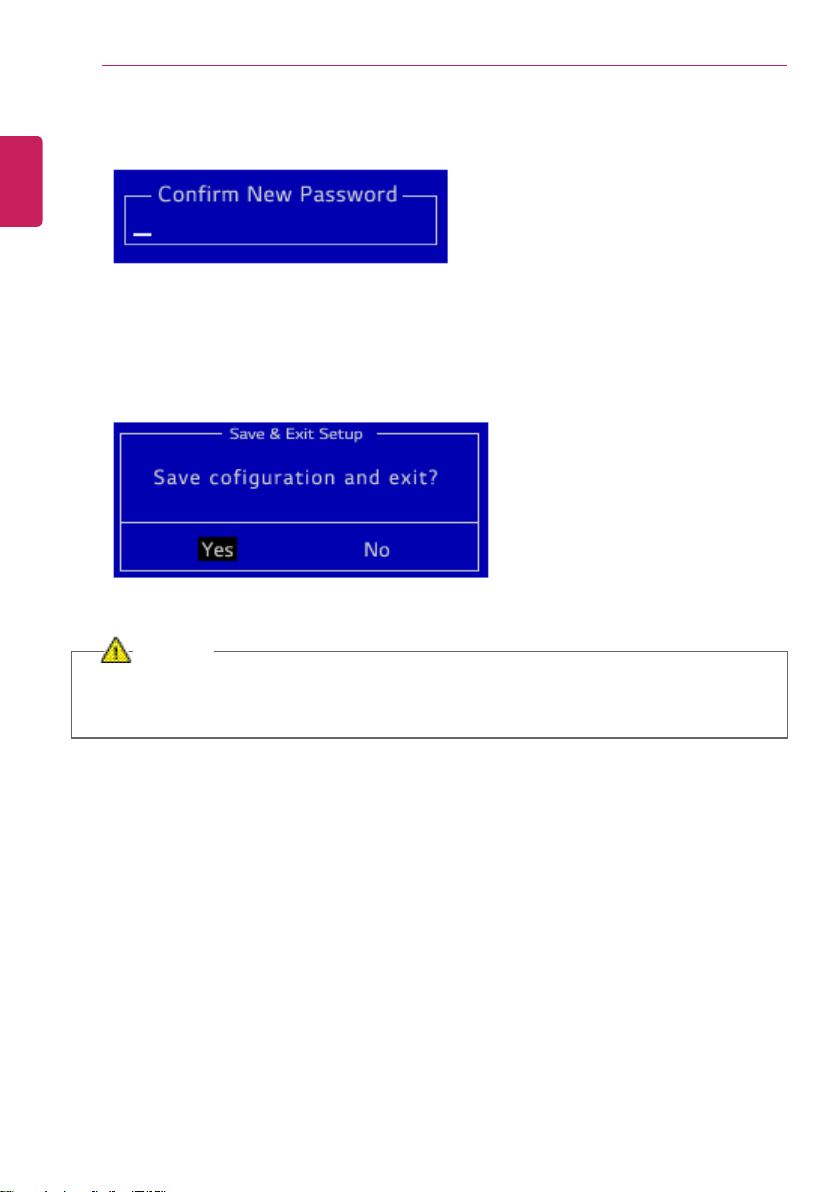
204
Setup and Upgrade
4 When the following message shows up on the screen, enter the password again and press [Enter].
5 To save the changes in the system setup, press [F10].
6 When the following message appears, select [Yes] and press [Enter]. The PC will restart.
CAUTION
If you forget SSD Password, you cannot restore the SSD.
• The replacement of SSD due to a forgotten SSD Password is not covered by the warranty.
ENGLISH
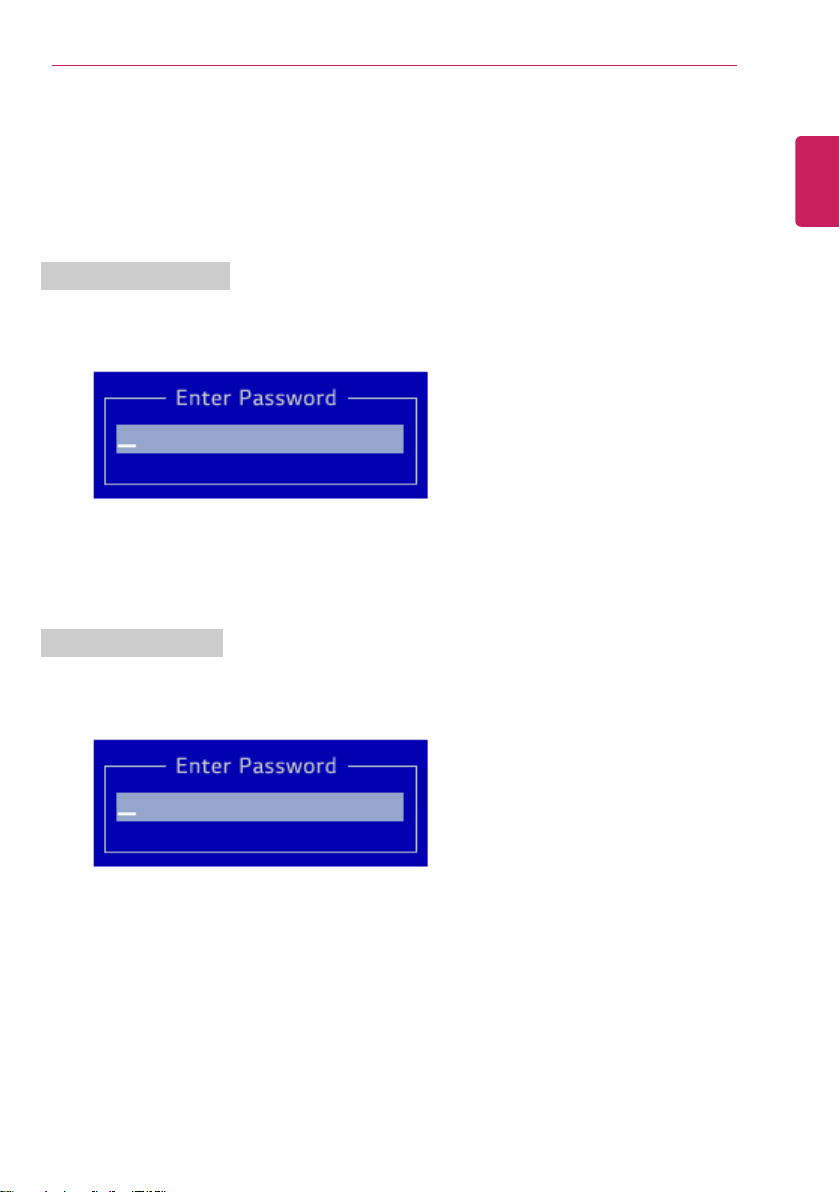
Setup and Upgrade
205
Changing or Deleting the Password
You can delete or change the password only after entering the current password.
The model in the example can differ from actual models and is subject to change for performance
improvements, without prior notice.
Changing the Password
1 Execute System Setup, enter the password, and click [Enter].
2 Change the password in the same way as setting one.
Deleting the Password
1 Execute System Setup, enter the password, and press [Enter].
ENGLISH
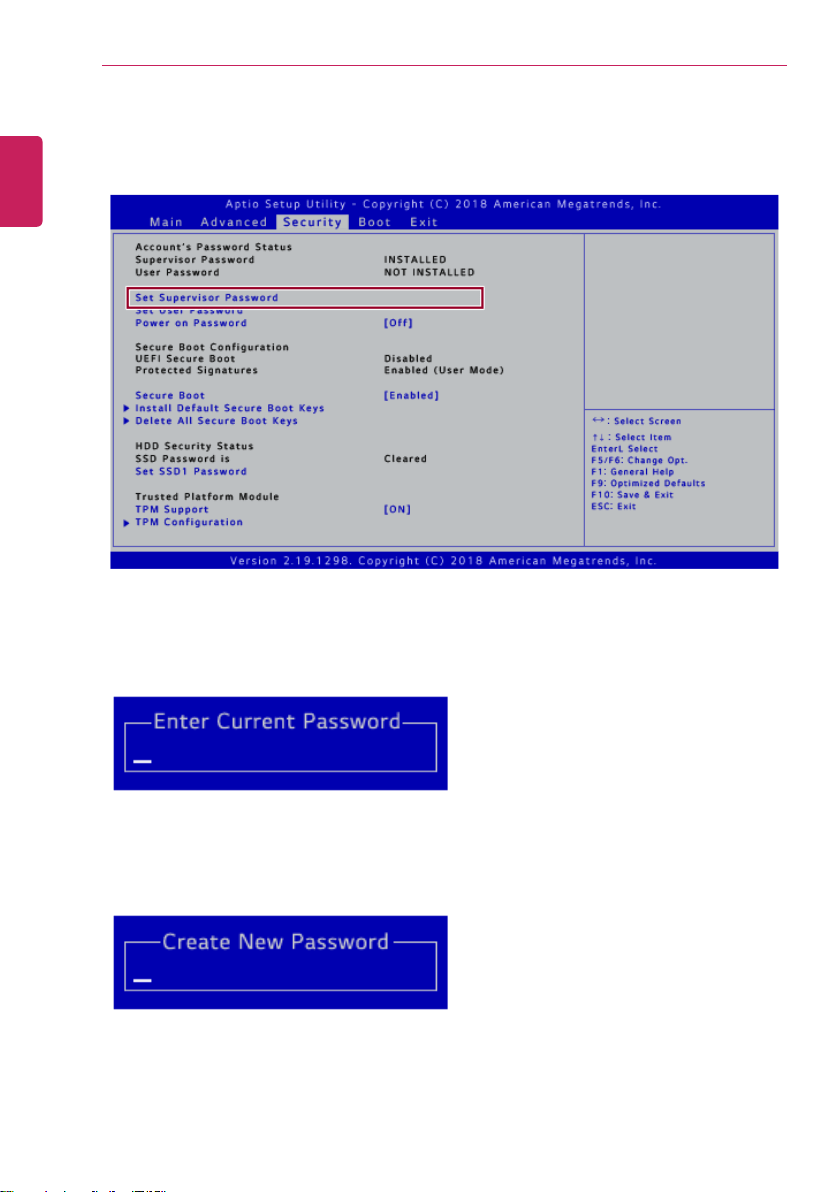
206
Setup and Upgrade
2 After moving [Security] by using the arrow keys from the setup start screen, click[Set Supervisor
Password] and press [Enter].
3 Type the current password and press Enter.
4 When the following message appears on the screen, press [Enter].
ENGLISH
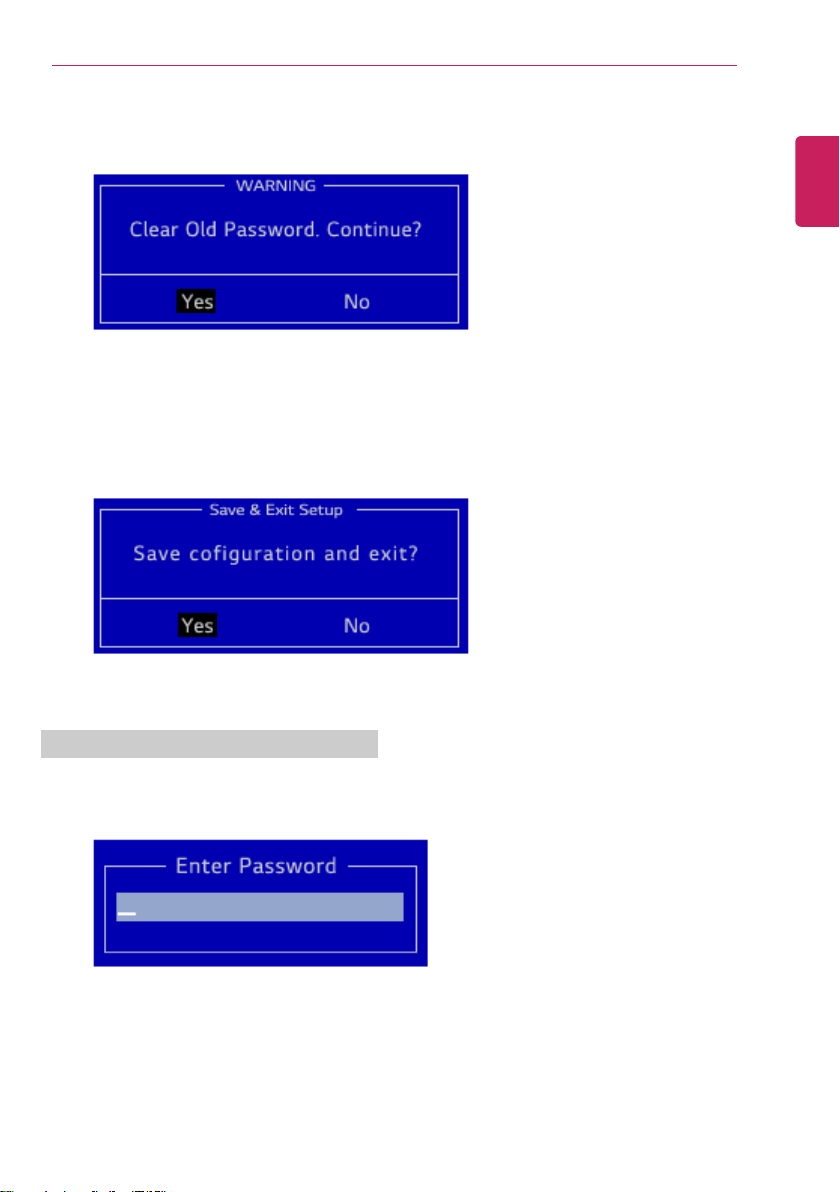
Setup and Upgrade
207
5 When the following message appears, select [Yes] and press [Enter].
6 To save the changes in the system setup, press [F10].
7 When the following message appears, select [Yes] and press [Enter]. The PC will restart.
Deleting the Password (Set SSD Password)
1 Execute System Setup, enter the password, and press [Enter].
ENGLISH
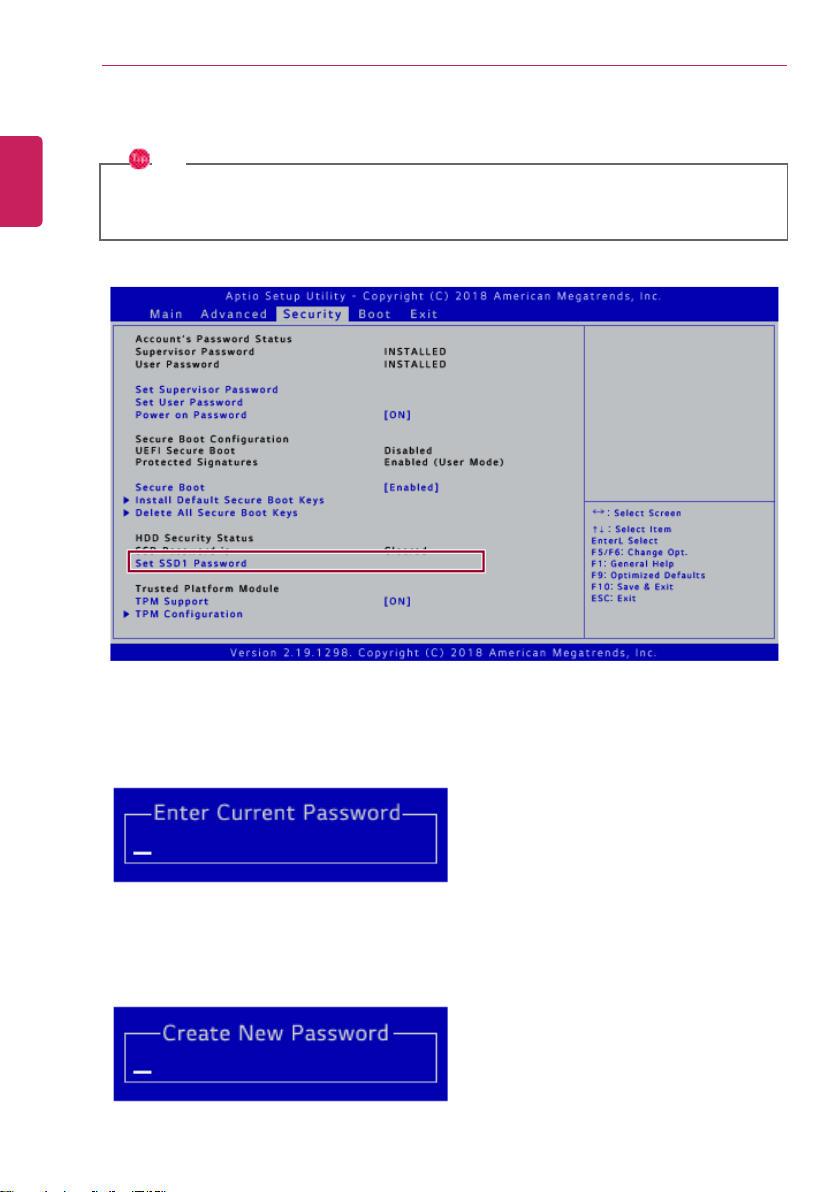
208
Setup and Upgrade
2 After moving [Security] by using the arrow keys from the setup start screen, click [Set SSD1
Password] and press [Enter].
TIP
For a model equipped with two SSD devices, the menu name may be displayed as SSD1,
SSD2, etc.
3 Type the current password and press Enter.
4 When the following message appears on the screen, press [Enter].
ENGLISH
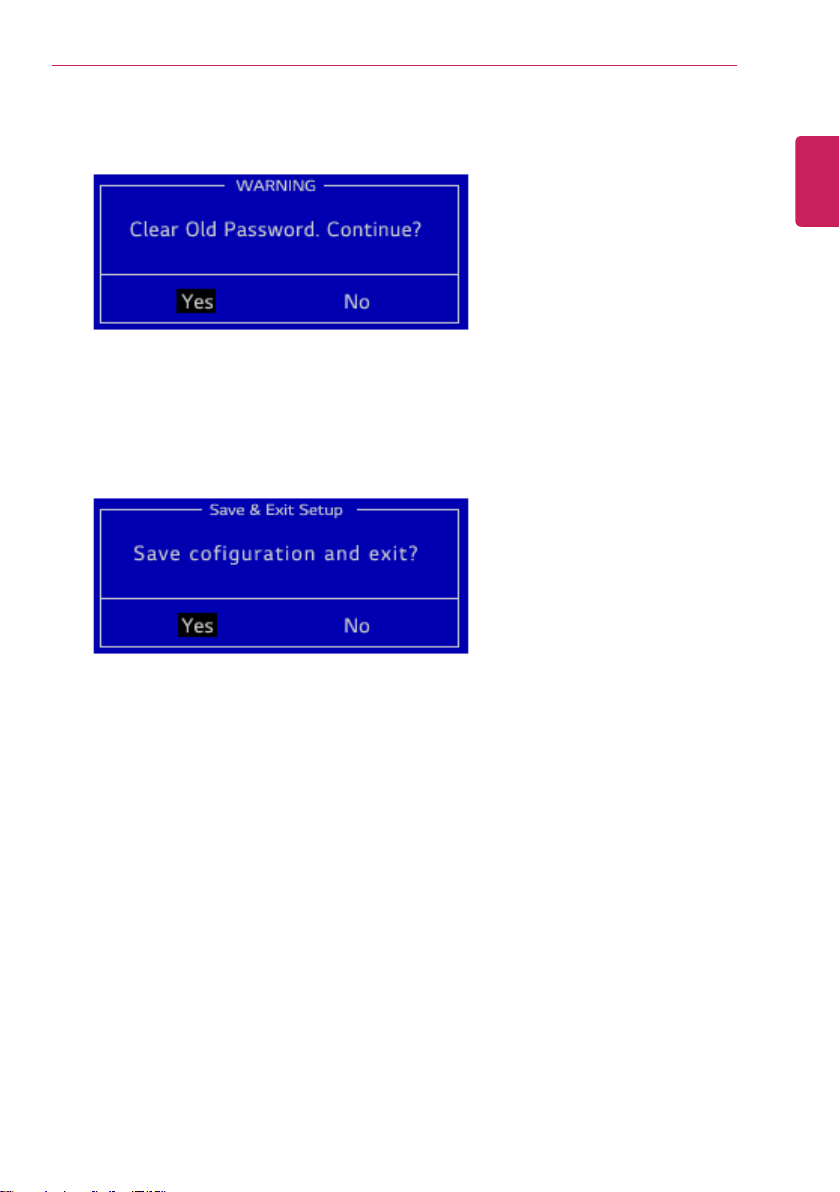
Setup and Upgrade
209
5 When the following message appears, select [Yes] and press [Enter].
6 To save the changes in the system setup, press [F10].
7 When the following message appears, select [Yes] and press [Enter]. The PC will restart.
ENGLISH
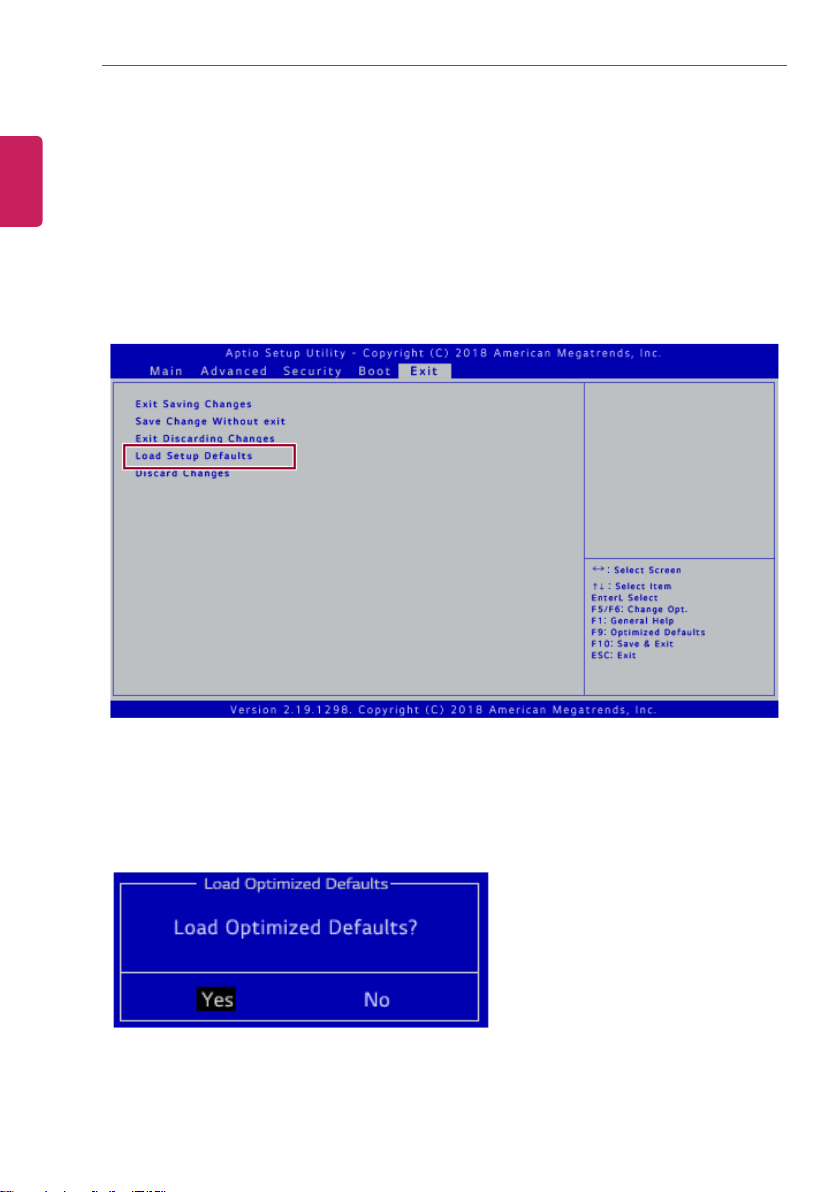
210
Setup and Upgrade
Restoring the Factor y Default Settings
If you have changed the system setup by mistake, you can restore the default settings.
The model in the example can differ from actual models and is subject to change for performance
improvements, without prior notice.
1 After opening the system setup screen, use the arrow keys to move to [Exit].
2 Click [Load Setup Defaults] by using the arrow keys and pressing [Enter].
3 When the following message appears, select [Yes] and press [Enter]. The settings will be reset to
the factory default.
4 To save the changes in system setup, press [F10].
ENGLISH
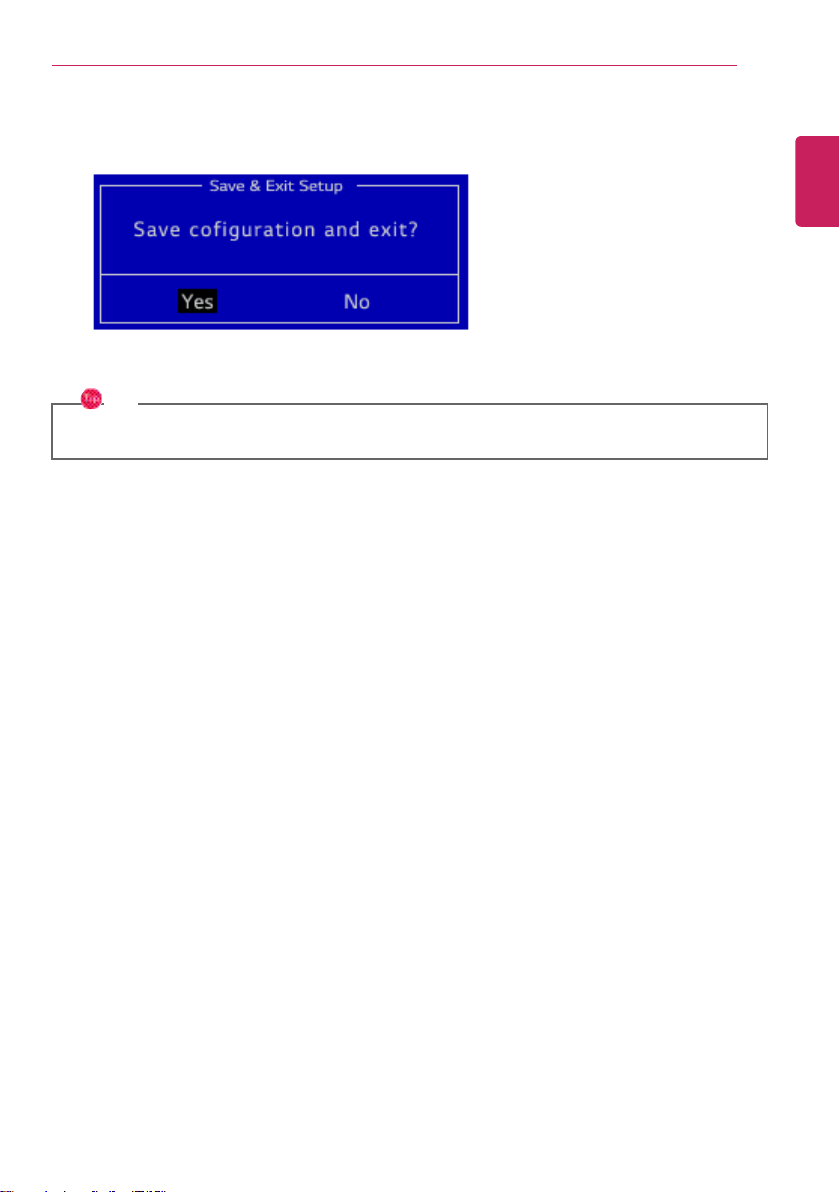
Setup and Upgrade
211
5 When the following message appears, select [Yes] and press [Enter]. The PC will restart.
TIP
• When you press [F9], you can use [Load Setup Defaults].
ENGLISH
212
Setup and Upgrade
Changing the Boot Order
The user can change the boot order according to his or her needs, or select a boot device
The model in the example can differ from actual models and is subject to change for performance
improvements, without prior notice.
TIP
To use the system setup (F2), booting device selection (F10), you need to restart the system
(click [Restart] in the system power menu) and then immediately press the corresponding
function key due to the fast booting speed.
Changing the Boot Order
1 Reboot the system and press [F2].
2 Move to the [Boot] menu when the system setup screen appears.
ENGLISH
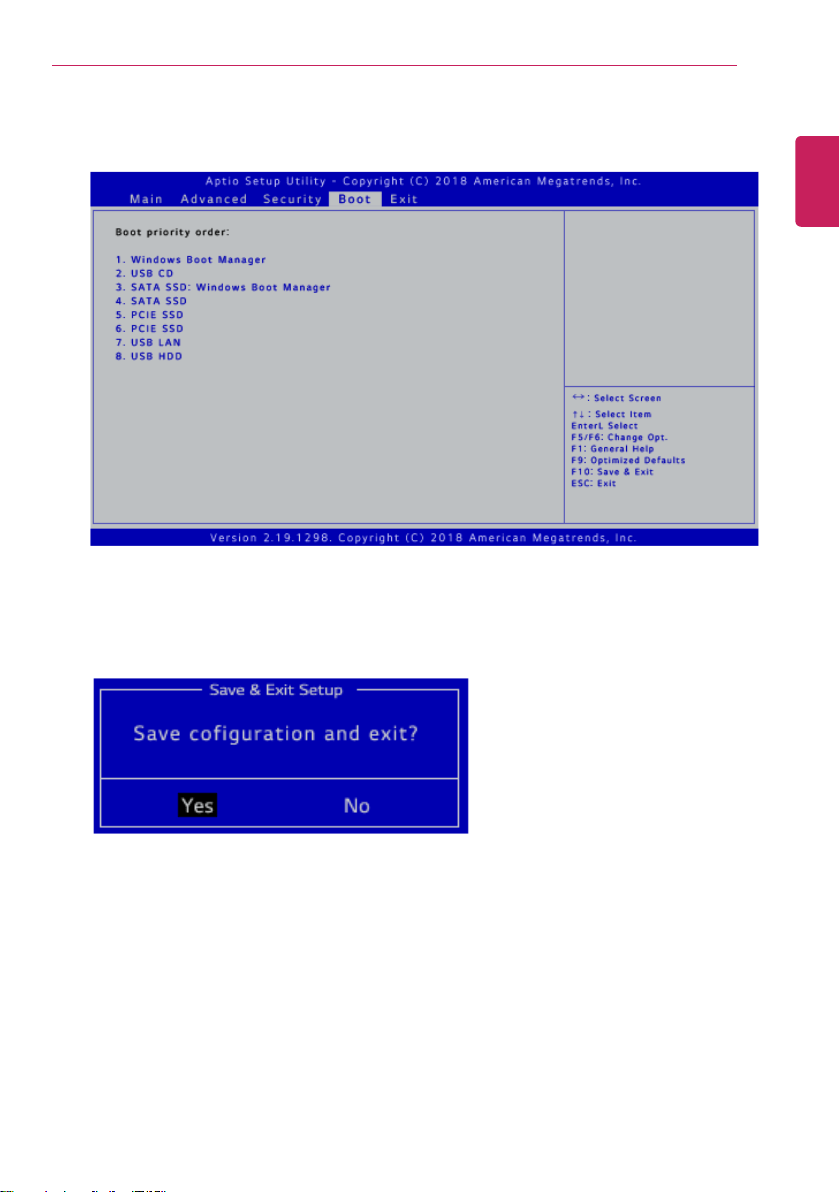
Setup and Upgrade
213
3 Go to [Boot priority order] and press [F5] or [F6] to change the booting order.
4 When you press [F10] and the following screen appears, select [Yes] and press [Enter].
5 The changes are saved and the system reboots.
ENGLISH
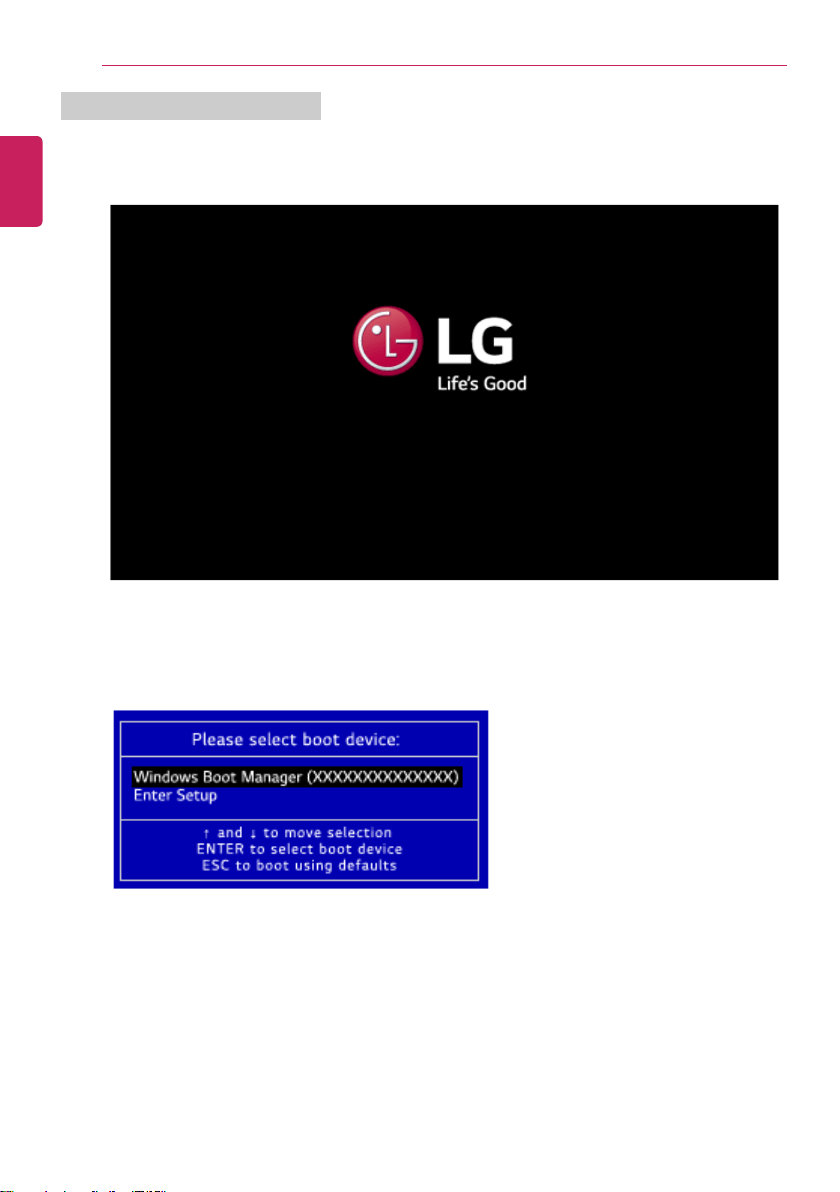
214
Setup and Upgrade
Selecting a Booting Device to Use
1 Reboot the system and press [F10].
2 When the Select Booting Device screen appears, select the device.
3 Boots using the selected device.
ENGLISH
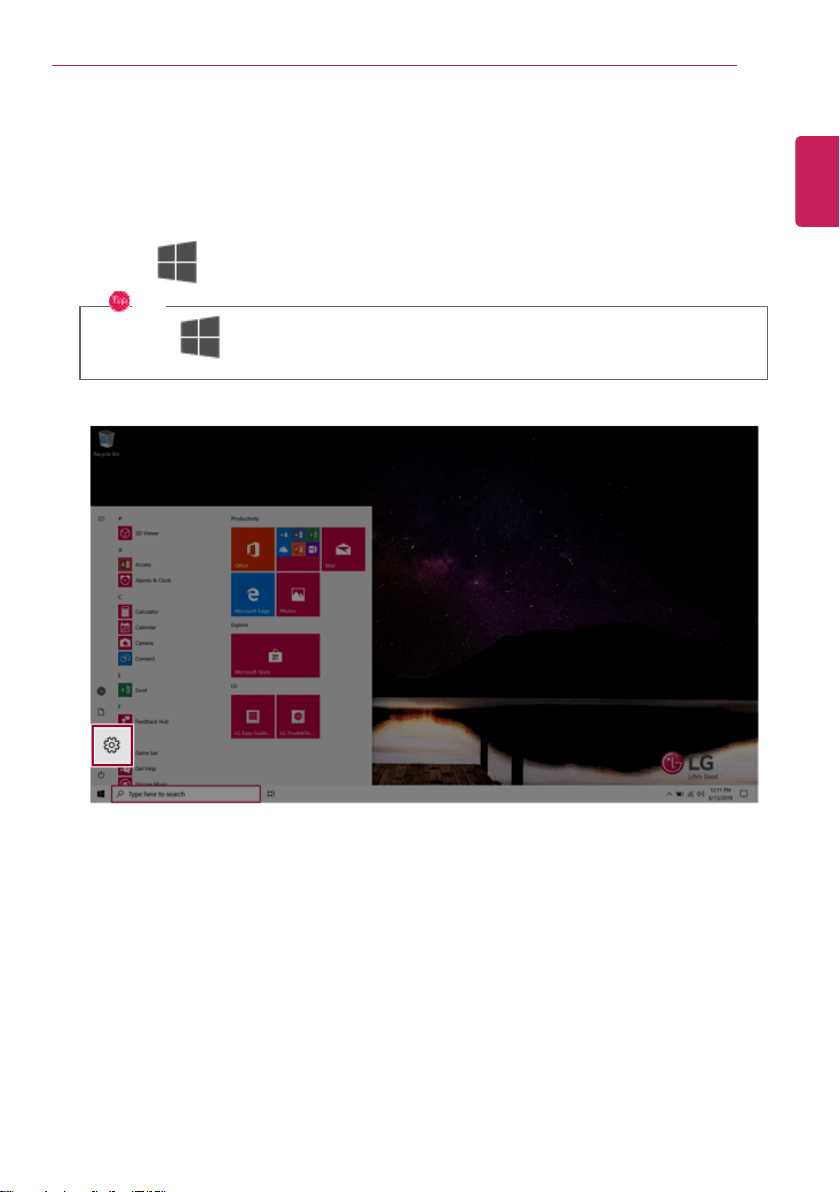
Setup and Upgrade
215
Windows 10 Auto Scaling
The Windows 10 Auto Scaling feature for user's convenience may partially blur the screen or display
some icons and texts larger.
Refer to the following information to change the DPI scaling to suit your needs.
1 Press the [
] button and select the [Settings] menu.
TIP
Press the [
] key or [Ctrl] + [Esc] to display the Start menu.
ENGLISH
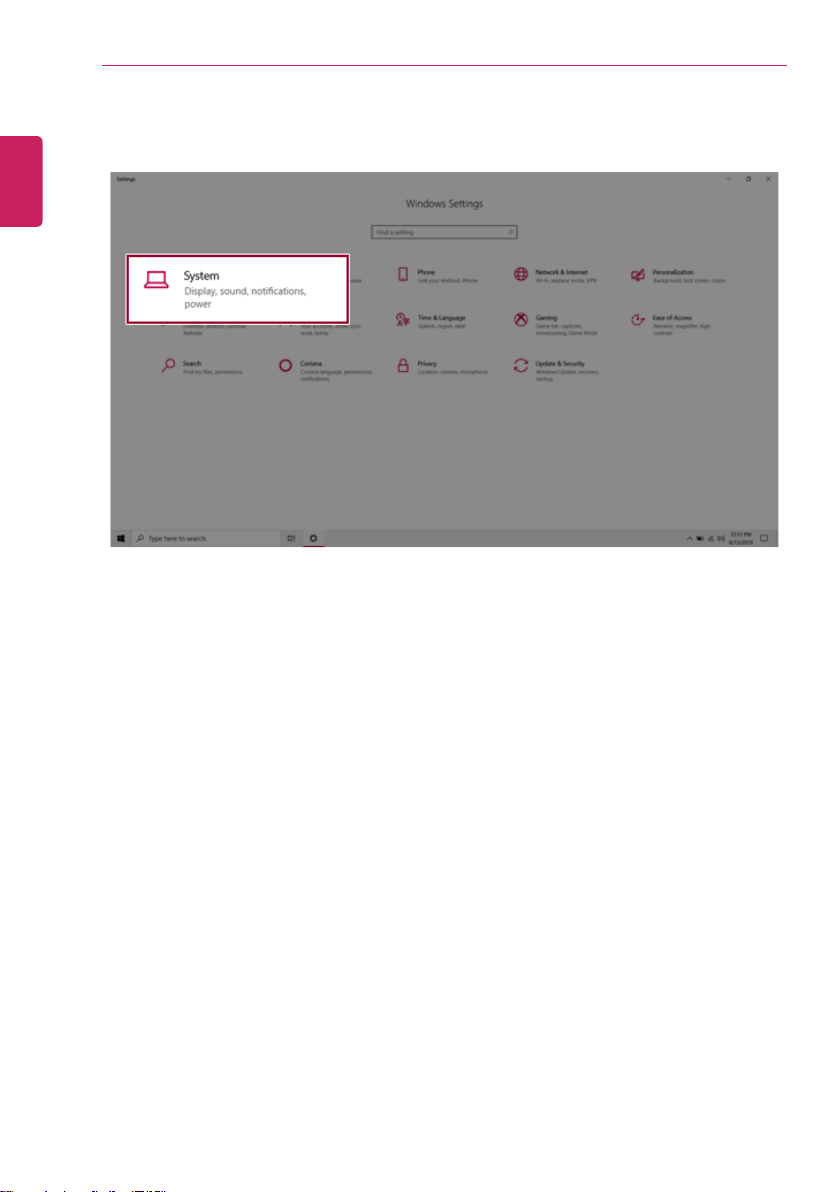
216
Setup and Upgrade
2 Select [System] > [Display].
ENGLISH
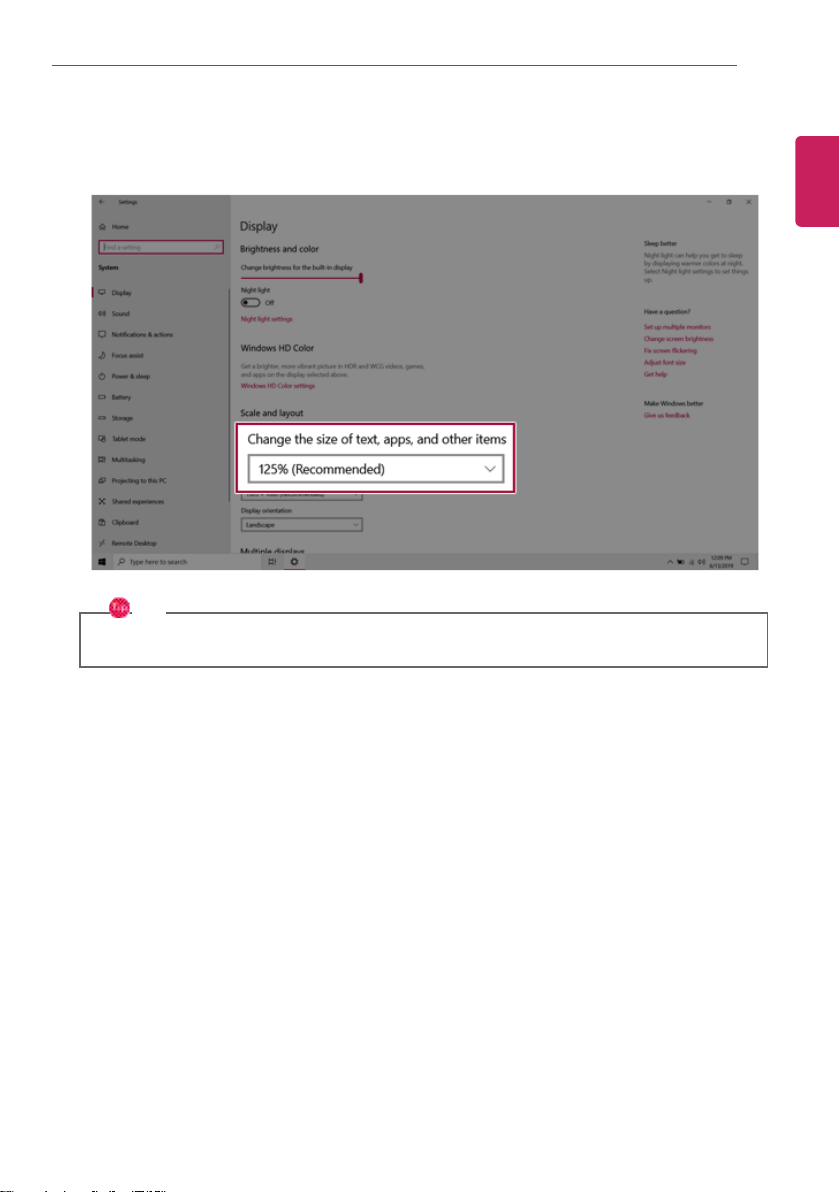
Setup and Upgrade
217
3 Modify the [Change the size of text, apps, and other items] value to change the Auto Scaling
settings.
TIP
After auto scaling, you may need to restart some apps to apply the new scale and layout.
ENGLISH
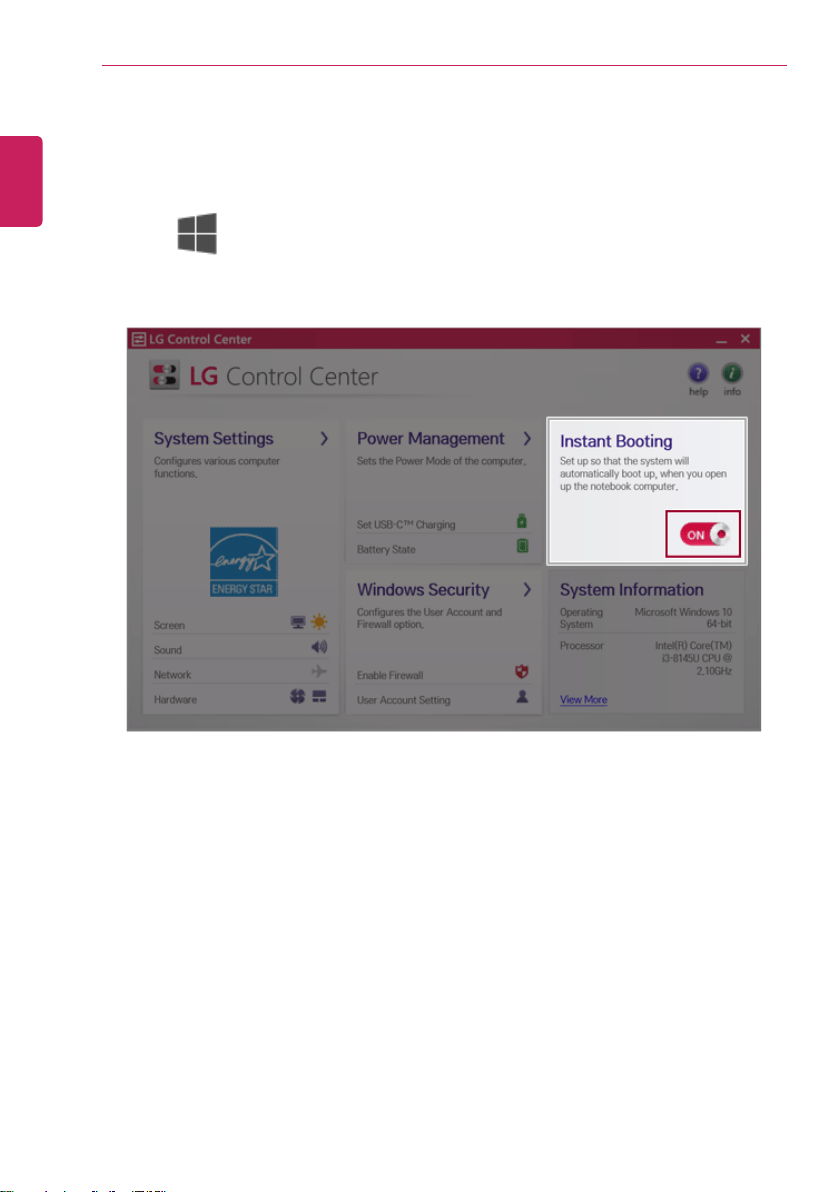
218
Setup and Upgrade
Using Instant Booting
Instant Booting allows the system to boot automatically when the notebook PC cover is opened, so
that you can use the system without pressing the power button.
1 Press the [
] button to execute [LG Control Center].
2 On LG Control Center screen, set the [Instant Booting] to [ON].
3 Shutdown the system and close the notebook PC cover.
4 When the cover is opened, the notebook PC turns on and the system starts to boot automatically.
ENGLISH
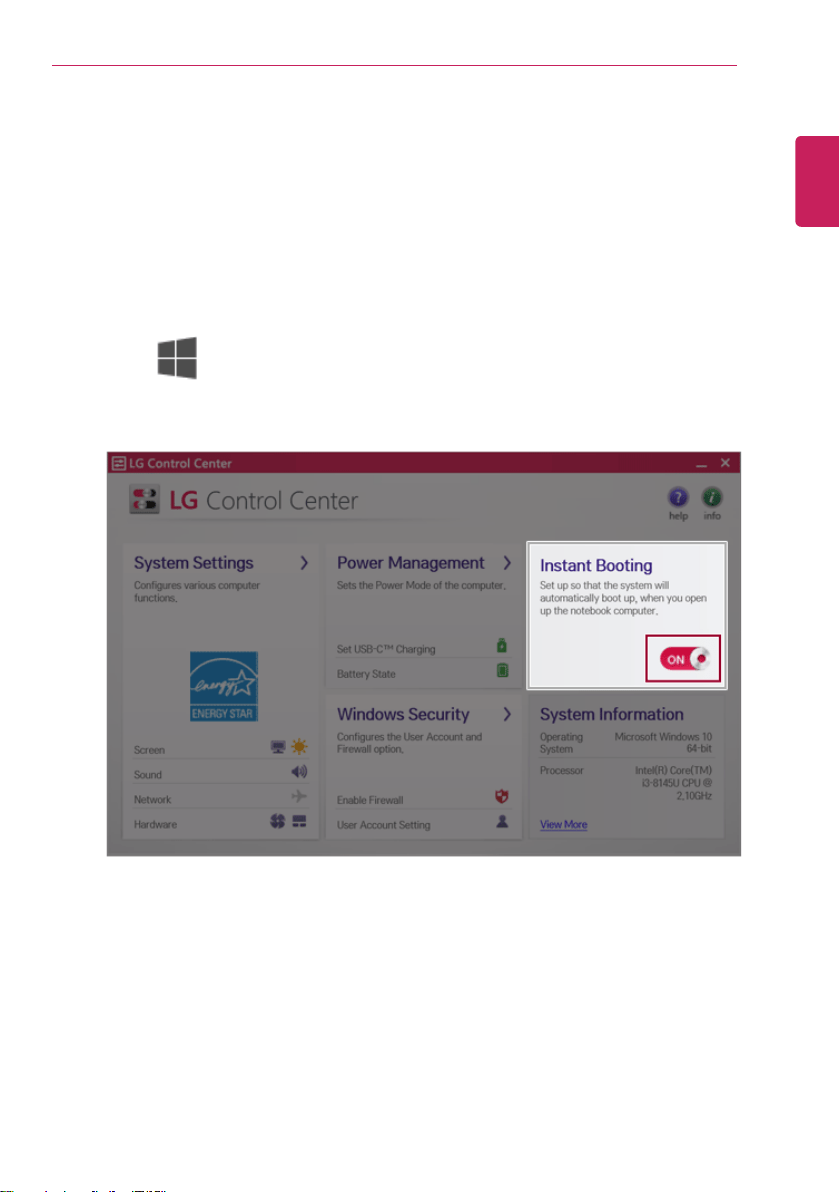
FAQ
219
FAQ
FAQ Content
Using Instant Booting
Instant Booting allows the system to boot automatically when the notebook PC cover is opened, so
that you can use the system without pressing the power button.
1 Press the [
] button to execute [LG Control Center].
2 On LG Control Center screen, set the [Instant Booting] to [ON].
3 Shutdown the system and close the notebook PC cover.
4 When the cover is opened, the notebook PC turns on and the system starts to boot automatically.
ENGLISH
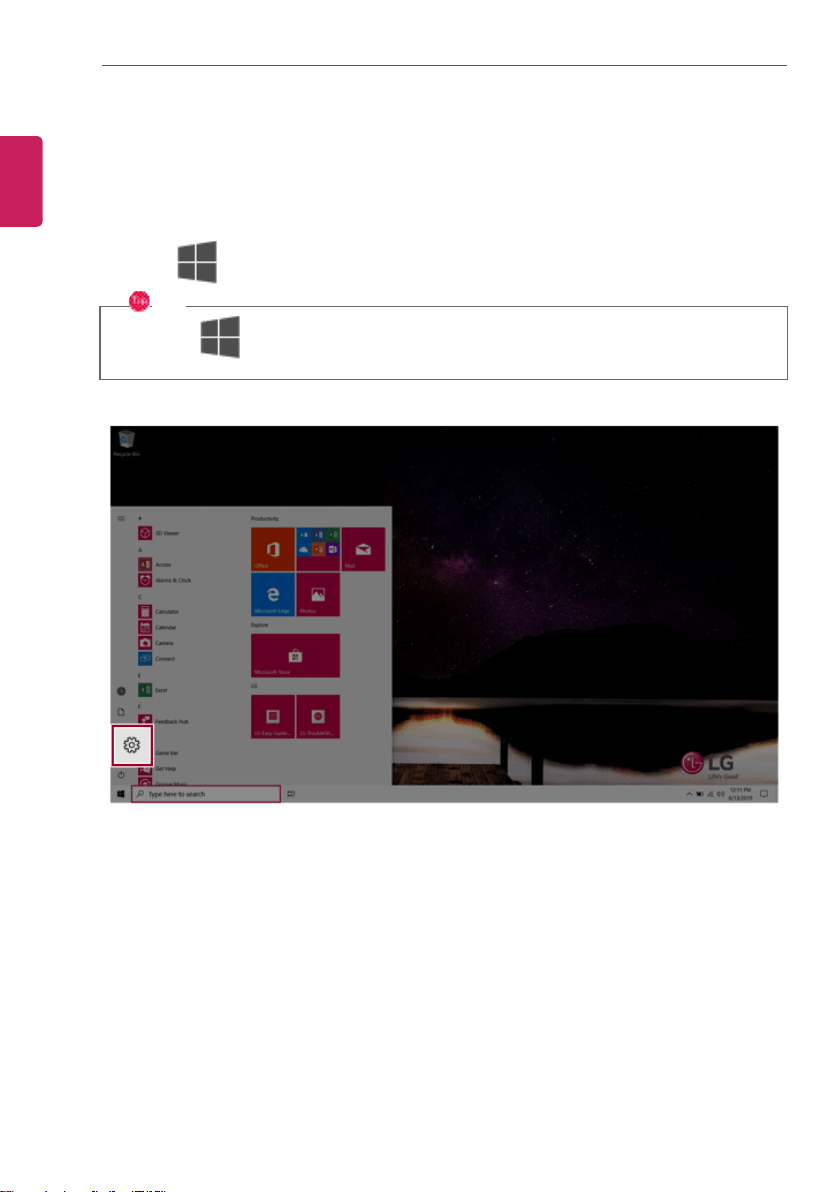
220
FAQ
Windows 10 Auto Scaling
The Windows 10 Auto Scaling feature for user's convenience may partially blur the screen or display
some icons and texts larger.
Refer to the following information to change the DPI scaling to suit your needs.
1 Press the [
] button and select the [Settings] menu.
TIP
Press the [
] key or [Ctrl] + [Esc] to display the Start menu.
ENGLISH
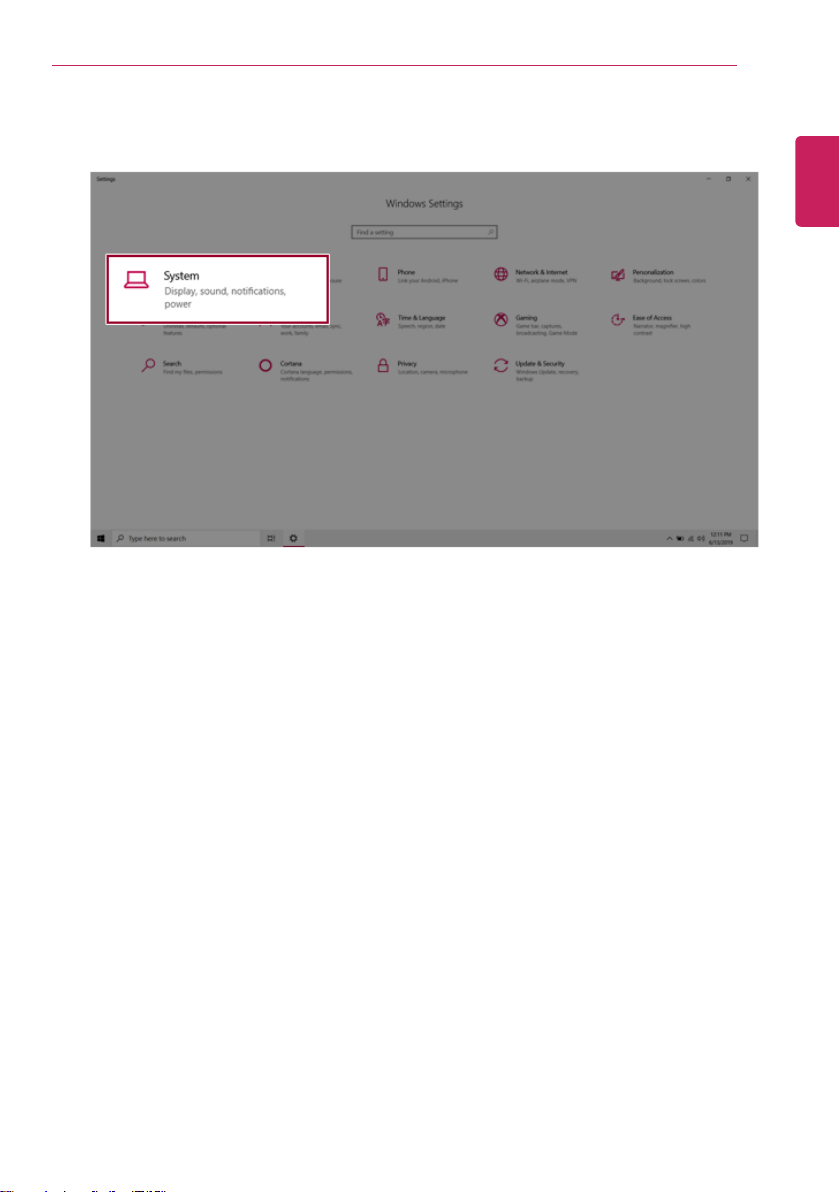
FAQ
221
2 Select [System] > [Display].
ENGLISH
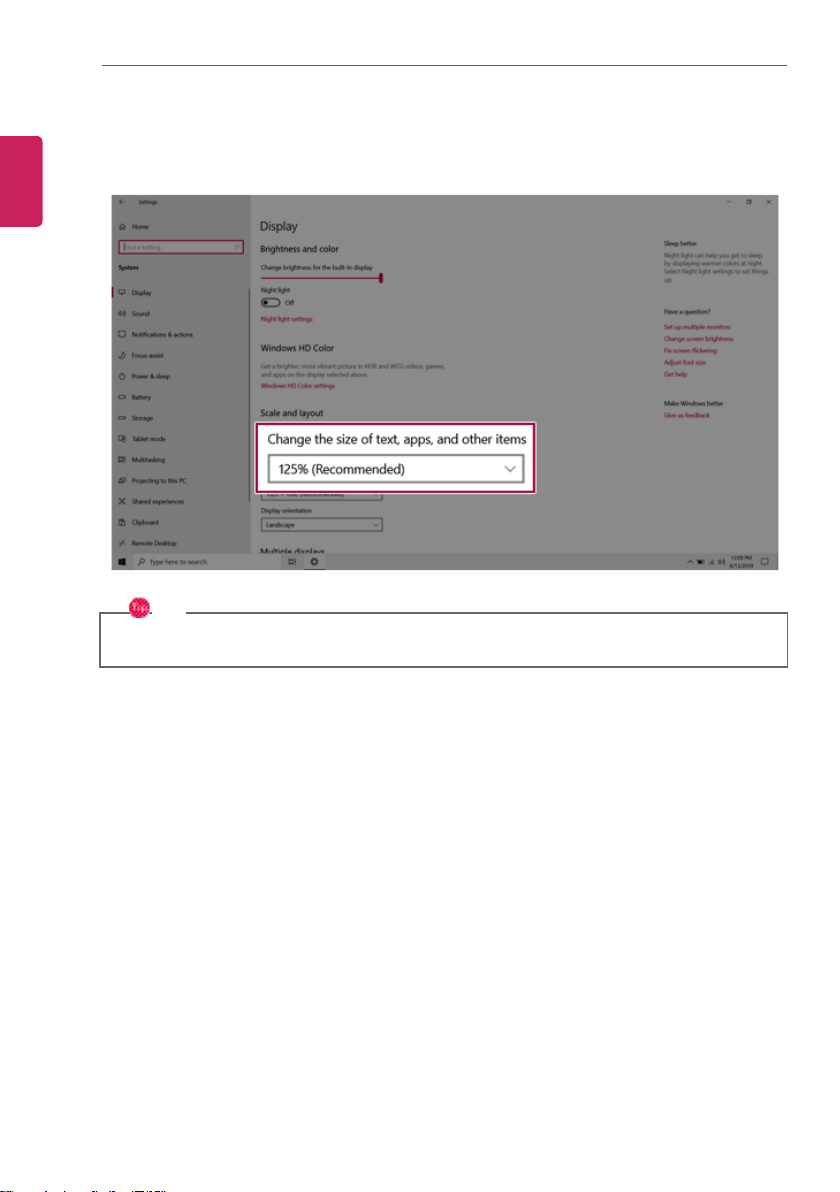
222
FAQ
3 Modify the [Change the size of text, apps, and other items] value to change the Auto Scaling
settings.
TIP
After auto scaling, you may need to restart some apps to apply the new scale and layout.
ENGLISH
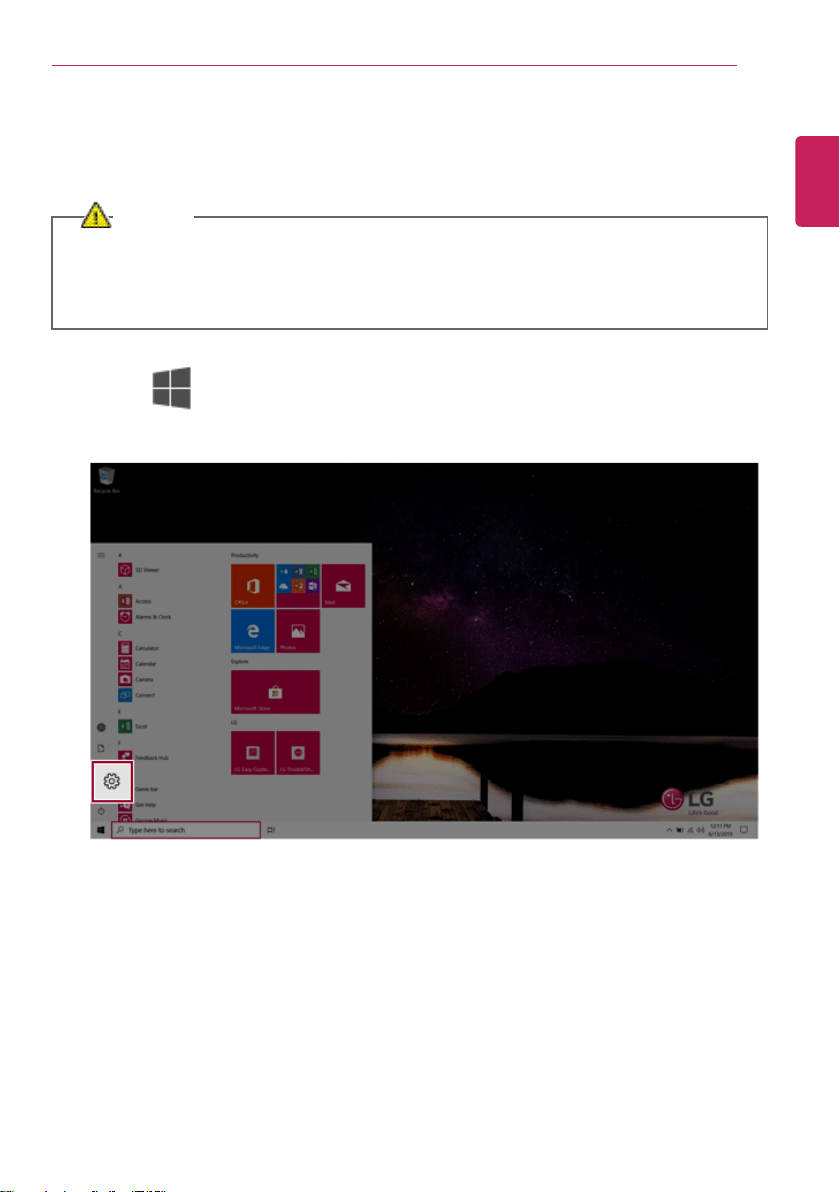
FAQ
223
Restoring the System
If the system has an error, you can use Windows 10's recovery function to recover or restore the
system to its initial pre-purchase state.
CAUTION
If you have deleted the restoration data in the protected area of the disk, or have arbitrarily
installed another operating system, the restore function may not work.
To recover the system, the AC adapter must be connected.
1 Click the [ ] button and select the [Settings] menu.
ENGLISH
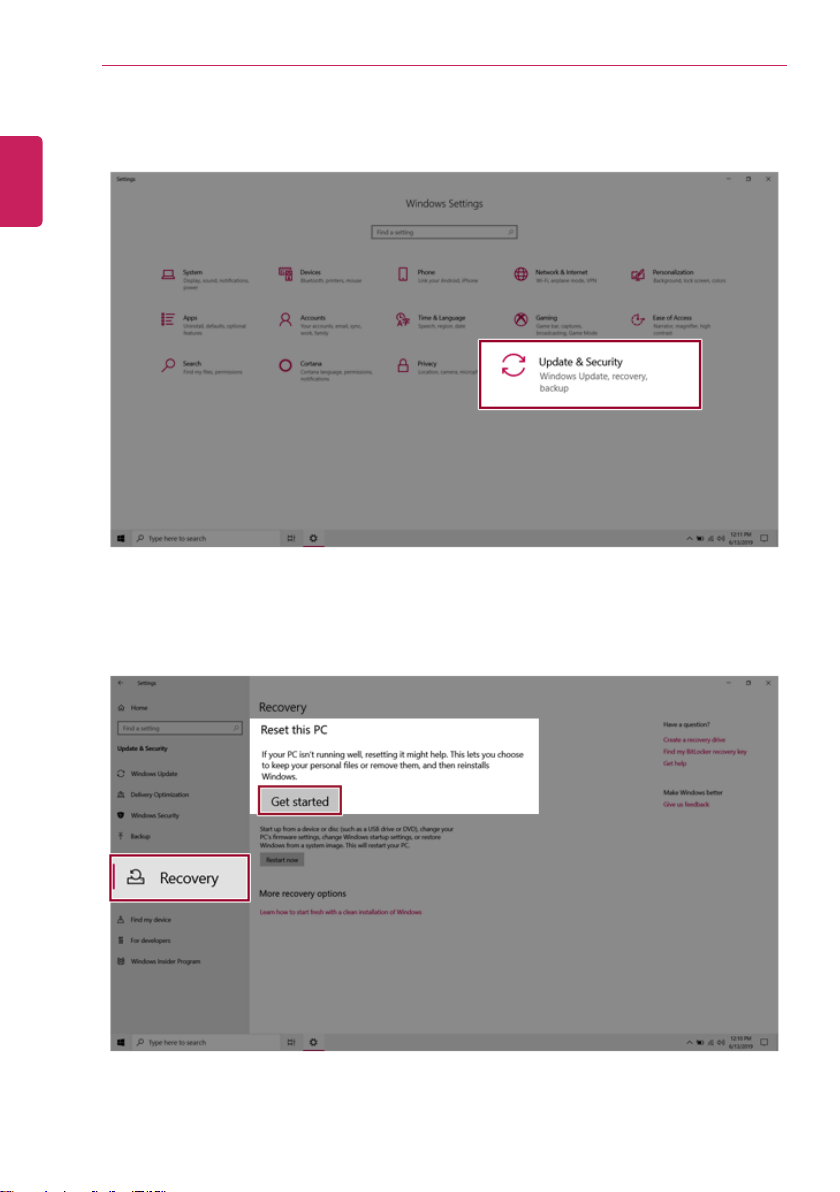
224
FAQ
2 When the [Settings] screen appears, select [Update & Security].
3 Select the [Recovery] menu and press [Get started] in the Reset this PC menu.
ENGLISH
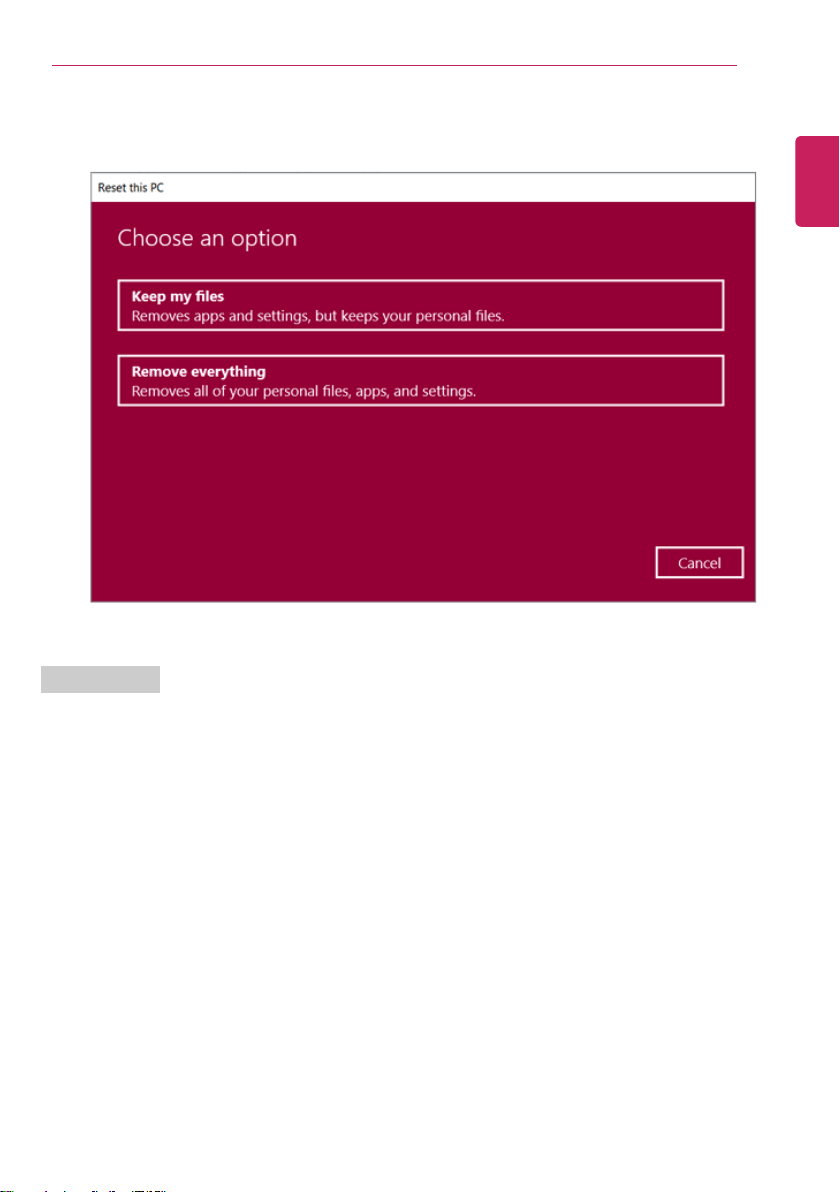
FAQ
225
4 If the following screen appears, select a desired option to proceed with recovery.
Keep My Files
It removes the apps and their settings without loss of personal files.
ENGLISH
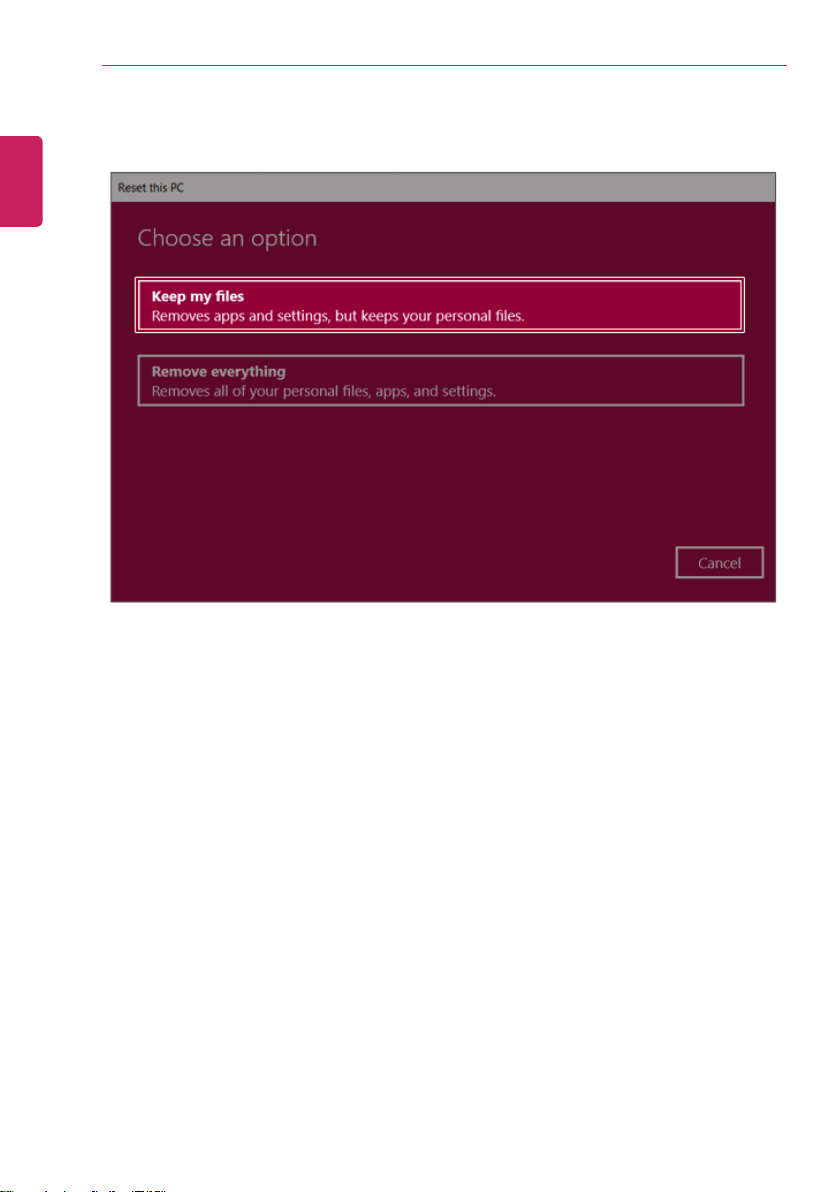
226
FAQ
1 Select [Keep my files].
ENGLISH
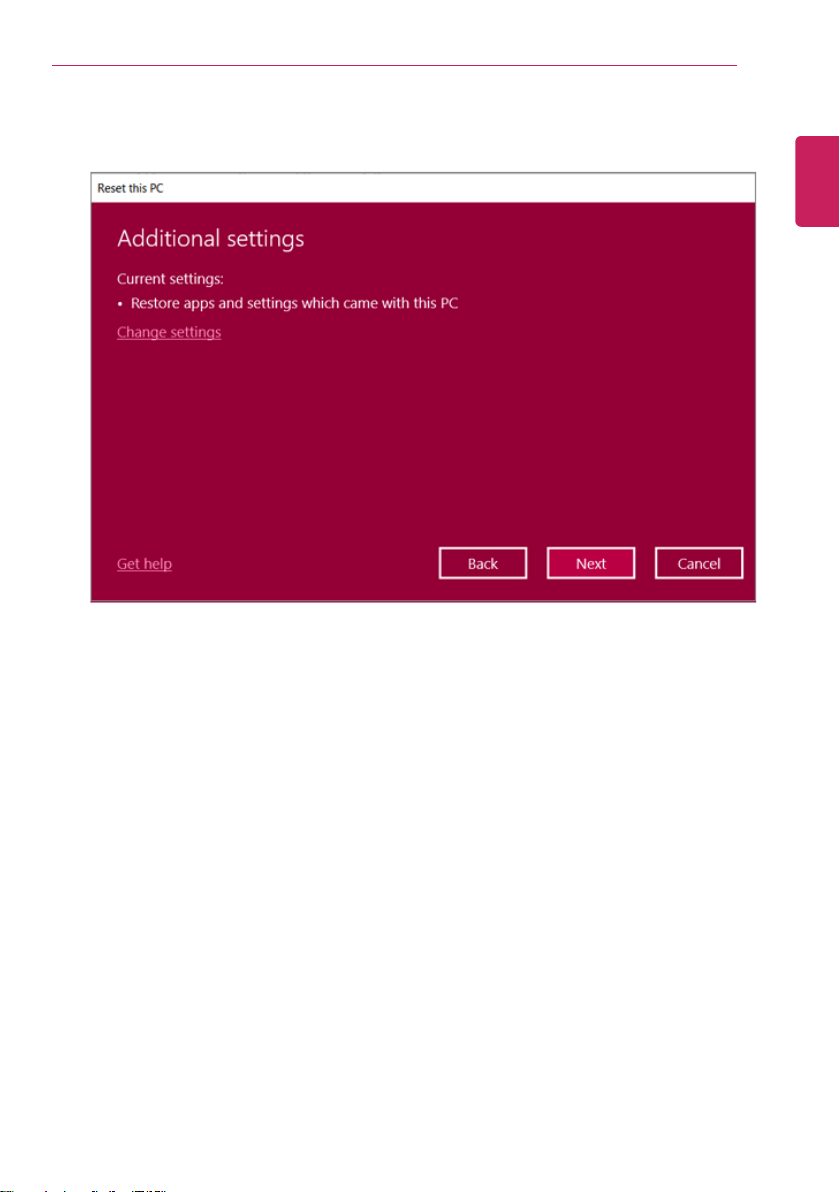
FAQ
227
2 Check the current settings.
ENGLISH
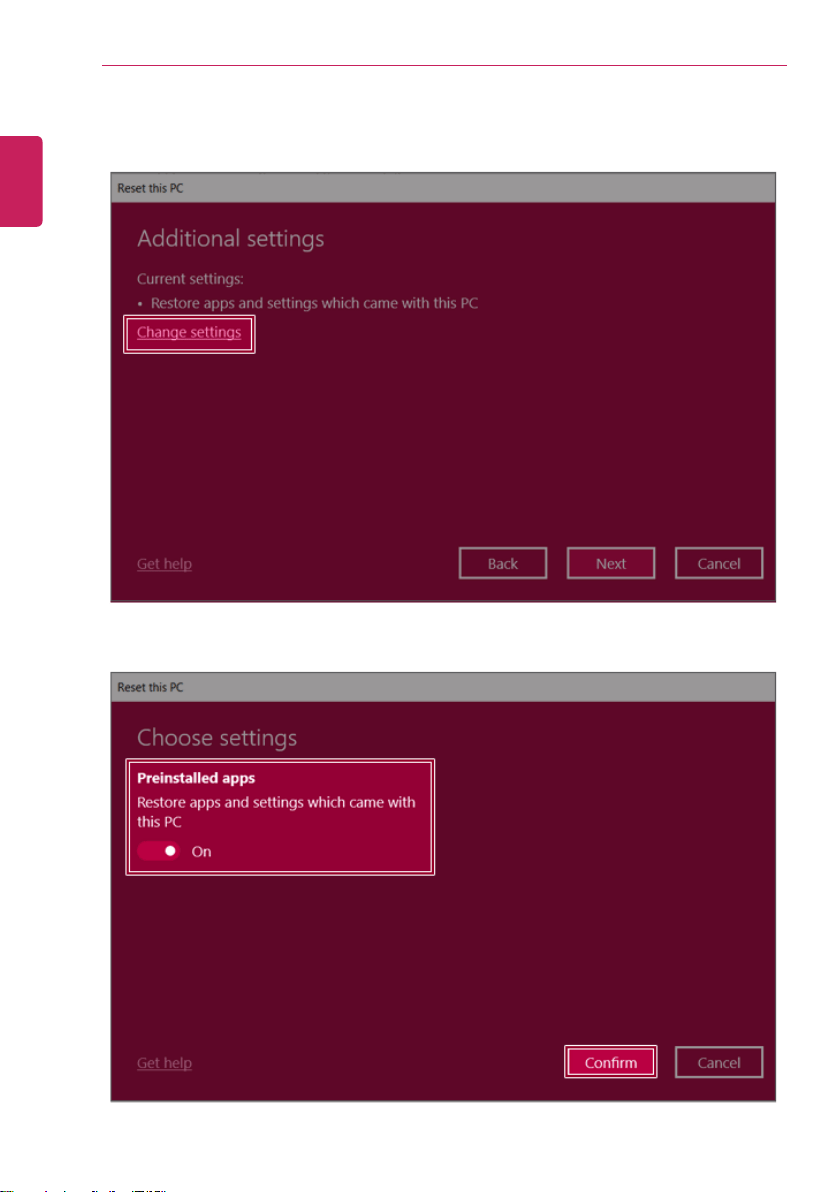
228
FAQ
3 If you need to change the settings, press [Change settings] and press the [Confirm] button.
ENGLISH
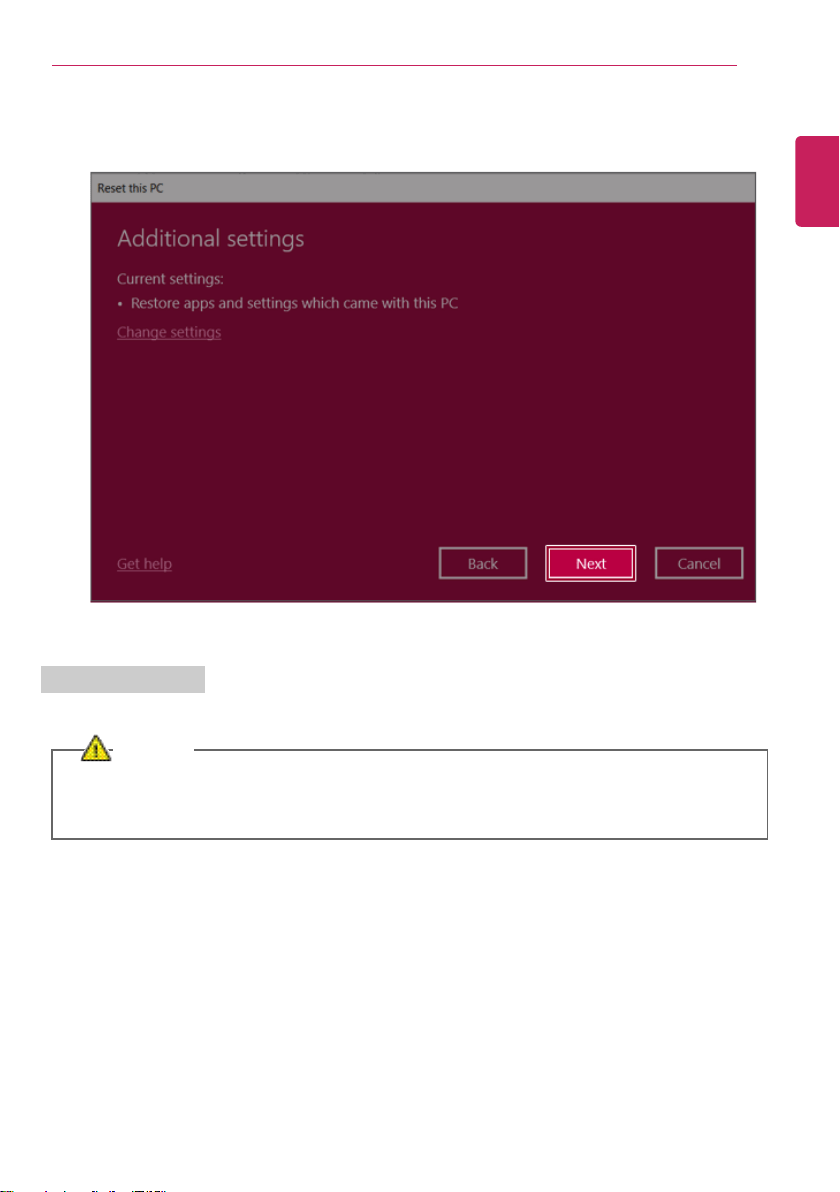
FAQ
229
4 Press [Next] to proceed with installation as guided.
Remove everythings
Removes all items from the system and restores the system to its initial pre-purchase state.
CAUTION
All data is lost during the initialization, so you must backup all critical data in advance.
It may take about 5 hours or longer depending on the system conditions.
ENGLISH
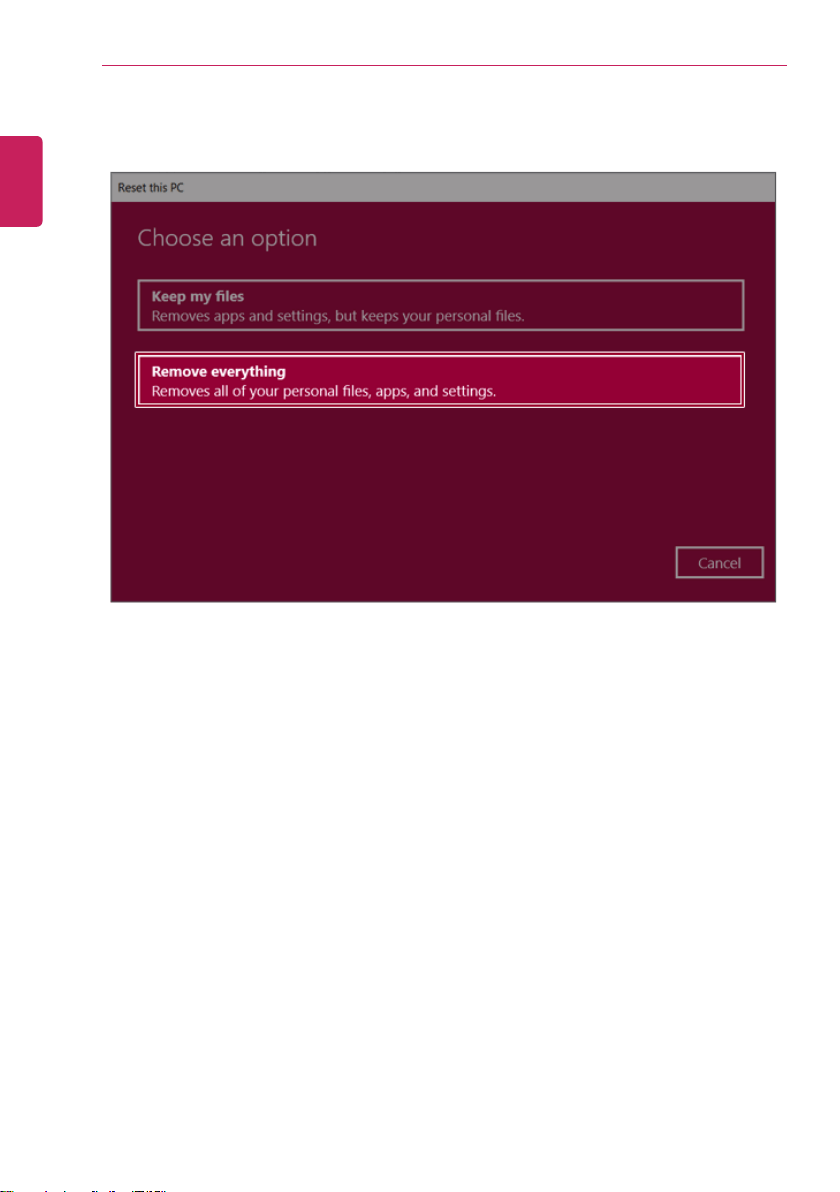
230
FAQ
1 Select [Remove everything].
ENGLISH
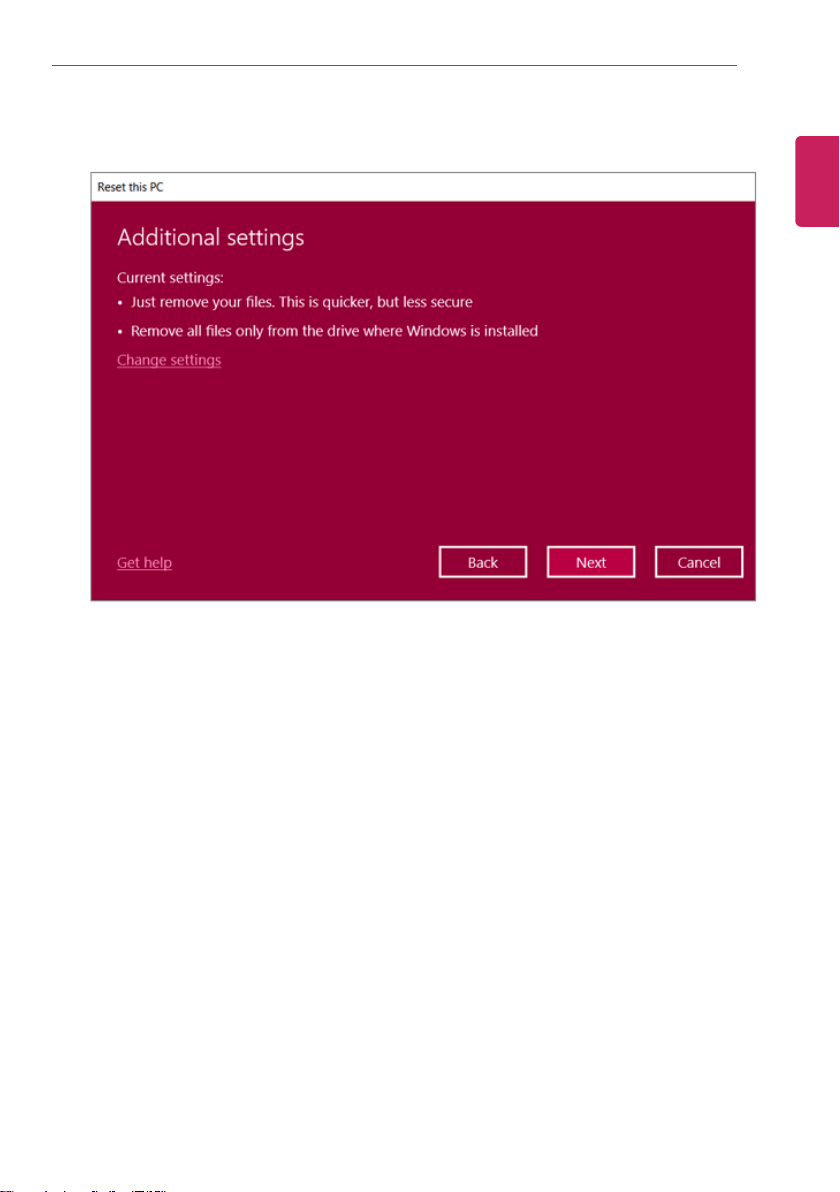
FAQ
231
2 Check the current settings.
ENGLISH
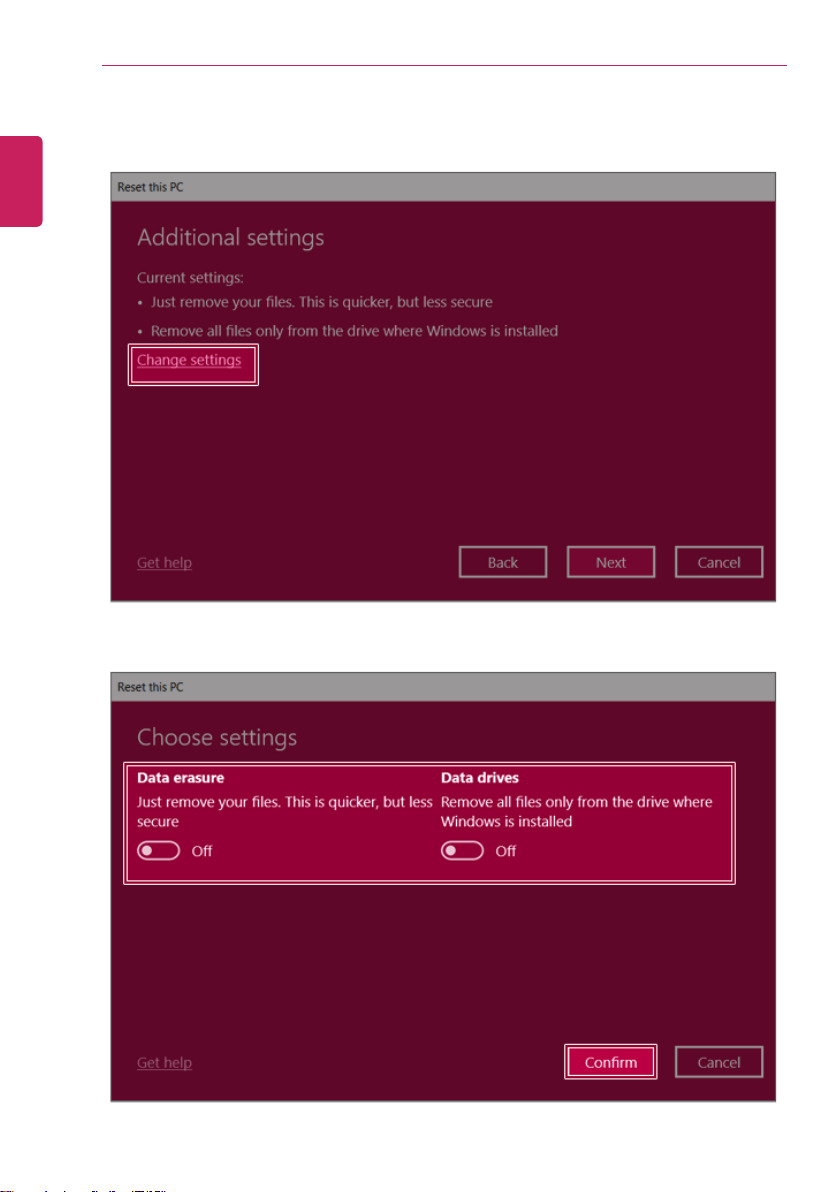
232
FAQ
3 If you need to change the settings, press [Change settings] and press the [Confirm] button.
ENGLISH
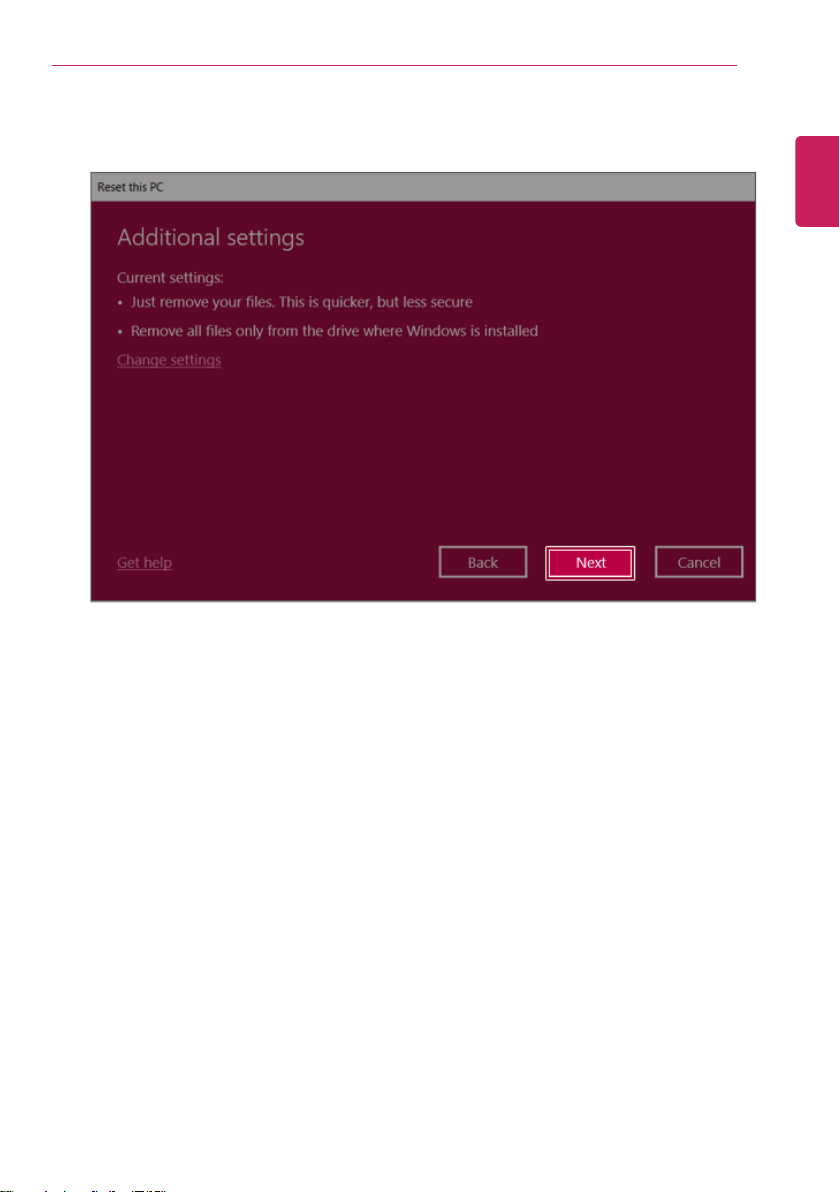
FAQ
233
4 Press [Next] to proceed with installation as guided.
ENGLISH
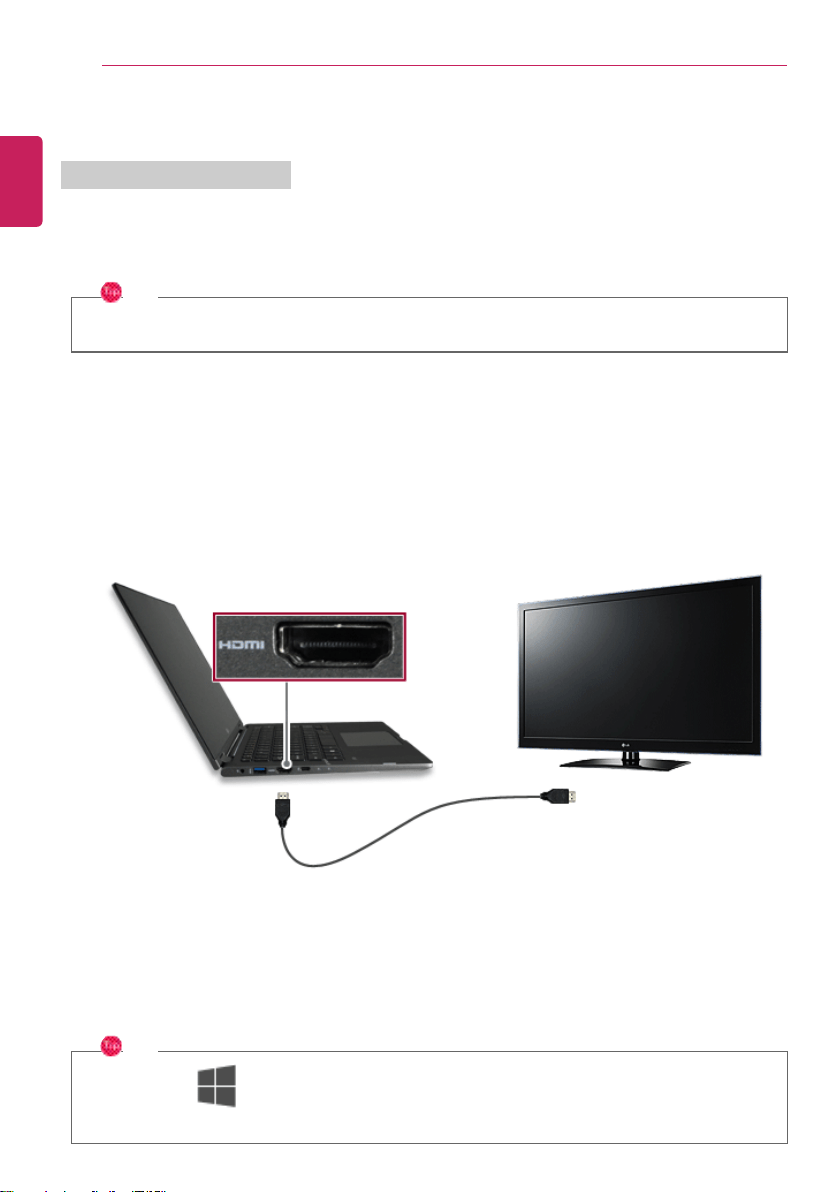
234
FAQ
Connecting to External Display
Connecting to the HDMI Port
HDMI is a high-speed multimedia interface that can transfer uncompressed full digital audio and video
signals.
In some models, DTS Audio may not work when you use HDMI.
TIP
Ensure the monitor power is off before connecting the external monitor to the PC.
1 Connect the HDMI cable to the PC and the external device (TV, monitor) that supports HDMI.
2 HDMI port transfers both video and audio simultaneously. Hence, there is no need for a separate
audio connection.
3 On the PC, press [Fn] + [F7] to display monitor (projector) toggling screen. Select the desired
screen output.
TIP
• Every time [ ] + [P] keys are pressed, the screen output option changes. Release the
keys to display the selected screen output.
ENGLISH
FAQ
235
CAUTION
• If you do not set Speaker as the default value after disconnecting the HDMI cable, the
system may not produce any sound.
• If a program was running already, you must exit and restart the program to produce sound.
ENGLISH

236
FAQ
Using a Wired/Wireless Router
A wireless / regular router connects several PCs and mobile devices to one internet line and enables
the use of internet and the network.
A wireless / regular router has to be bought separately. Refer to the manual provided by the
manufacturer for instructions.
Connecting a Wireless or Regular Router
If one internet line is used with a wired / wireless router and several devices are connected, this may
result in a slower connection.
In case of a wireless LAN, it is recommended to change the network name and security settings for a
more secure connection.
Network speed can differ according to operation environment and specifications.
1 Connect the internet cable of the modem that was provided by your internet provider to the
router's WAN port.
2 Connect all devices (PC, IPTV, internet phone, etc.) with a LAN cable to LAN ports 1 to 4 of the
router.
The number of LAN ports can vary for each router model.
3 Please refer to the manual provided by the router manufacturer for setup of the network and
internet.
ENGLISH
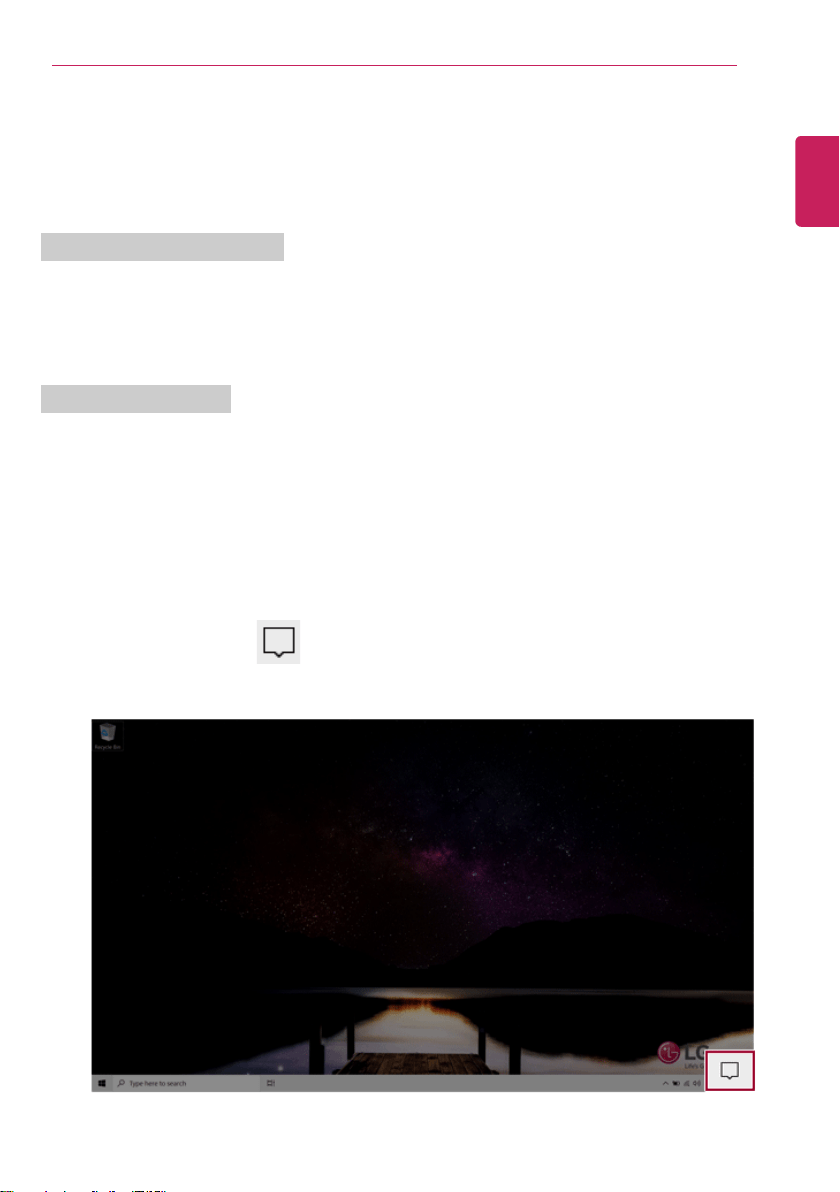
FAQ
237
Wireless LAN
The wireless network (Wireless LAN) is the network environment that connects a PC with the internet
provider or company network through an Access Point (wireless or regular router).
Turning On/Off Airplane Mode
Prior to using the wireless LAN, press [Fn] + [F6] to turn off Airplane Mode.
Pressing [Fn] + [F6] keys will turn on or off the Airplane Mode. If you are not going to use the
product for a while, keep the Airplane Mode turned on to reduce the battery power consumption.
Using the Wireless LAN
If an Access Point (wired or wireless router) is in the vicinity of the PC, the wireless LAN can easily be
accessed.
During the search for a wireless network (Wireless LAN), various Access Points may be found
according to the location where the PC is used.
In case there are no accessible wireless networks (Wireless LAN) near the PC, no Access Points
may be found
A password protected Access Point cannot be accessed without knowing the right password.
1 Press the Action Center [
] icon on the right side of the taskbar.
ENGLISH
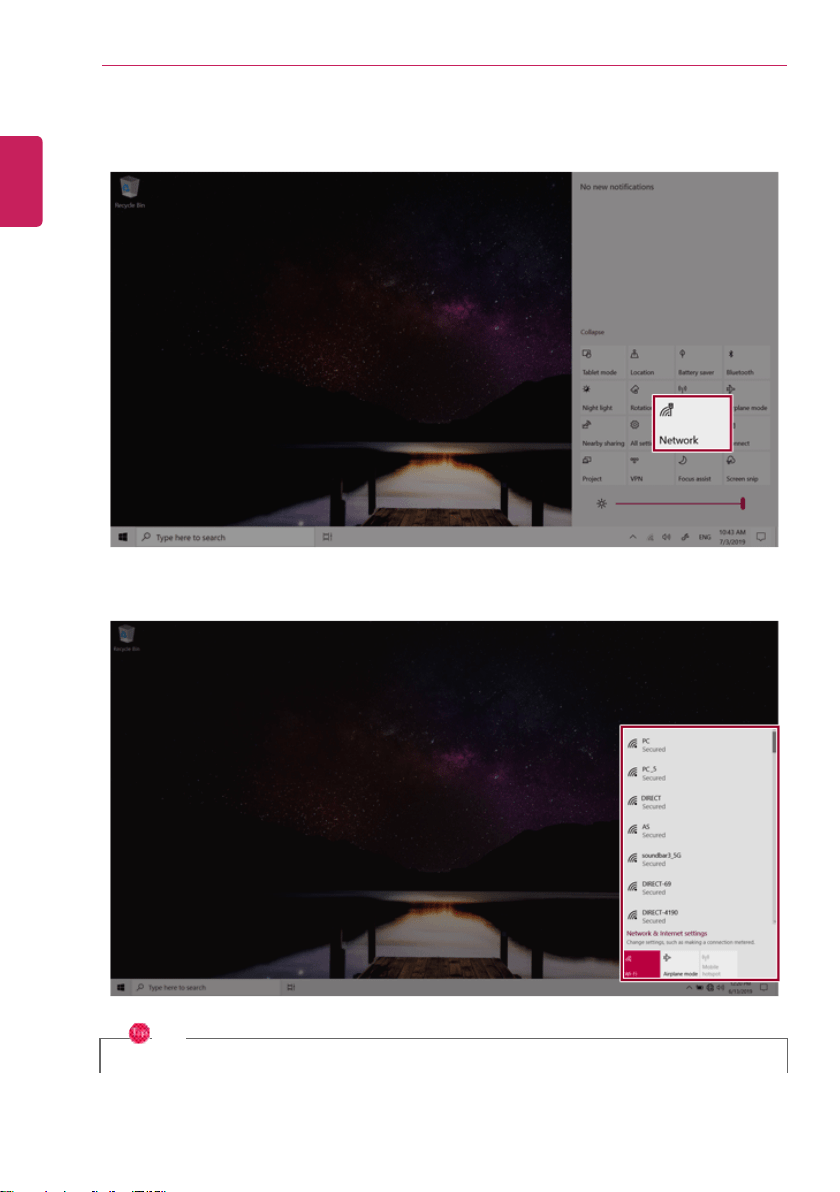
238
FAQ
2 Press the [Network] tile to search for a nearby Access Point.
TIP
If Wi-Fi is turned off, press the [Wi-Fi] tile.
ENGLISH
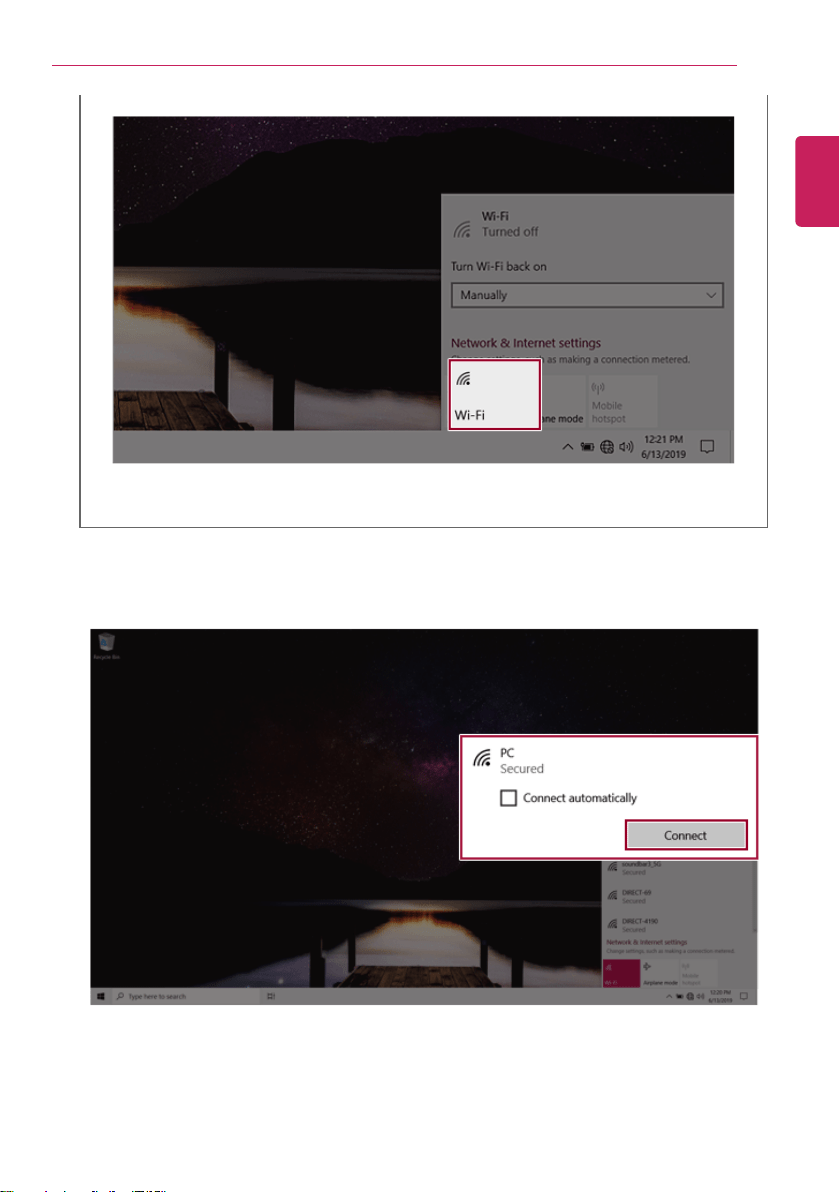
FAQ
239
3 Select the Access Point you want to connect to and press [Connect].
ENGLISH
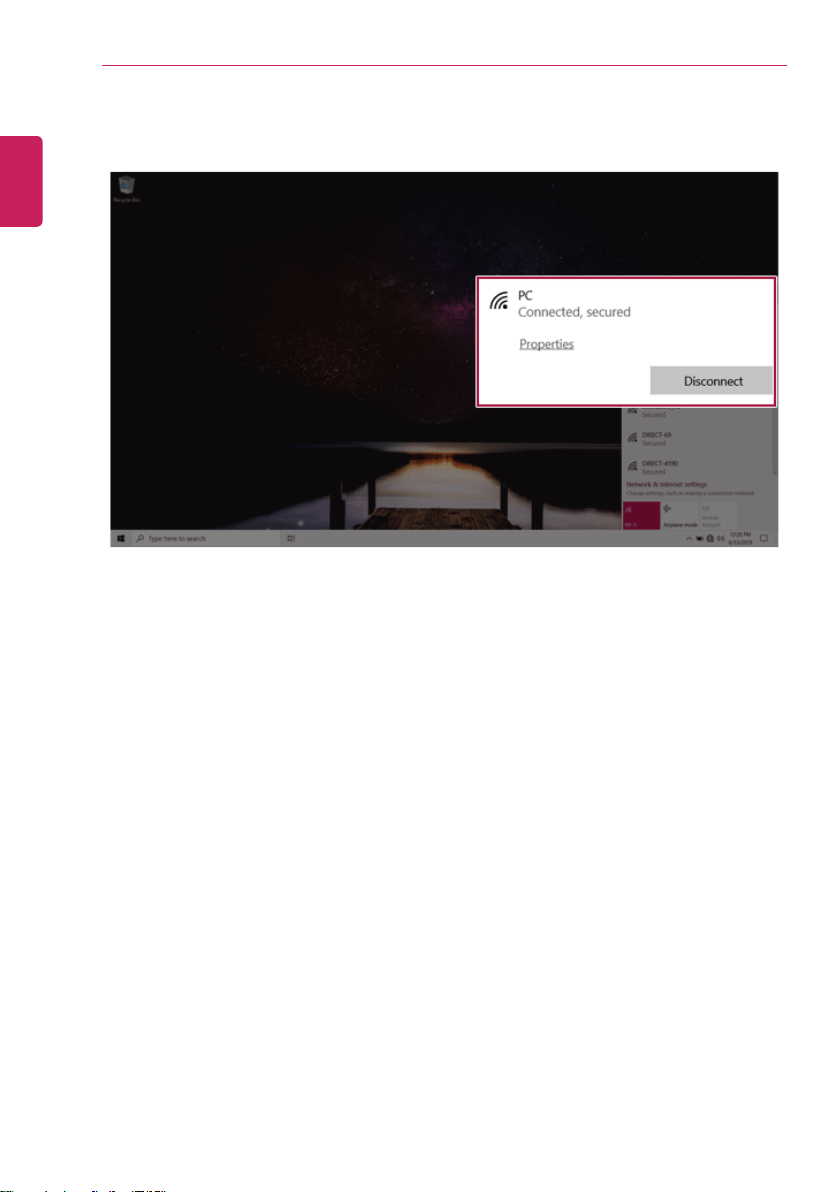
240
FAQ
4 If a connection is established, [Connected] appears below the Access Point name.
5 Click the Web Browser icon to check whether the internet is connected properly.
ENGLISH