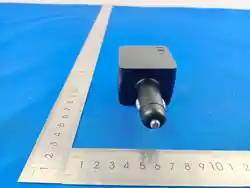

60mm×75mm
2.
注意事項
取扱説明書
CIO-CAR-G65W2C-CR
お買い上げありがとうございます。ご使用の前に「取扱説明書」を
よくお読み の上 、正しくお 使 いください 。
1.
はじめに
もくじ
1.はじめに •••••••••••••••••••••••••••••••••••••••••••••••••••• 2
2.注意事項
••••••••••••••••••••••••••••••••••••••••••••••••• 3-4
3.製品概要
••••••••••••••••••••••••••••••••••••••••••••••••••• 5
4.各部名称
••••••••••••••••••••••••••••••••••••••••••••••••••• 6
5.使用方法
••••••••••••••••••••••••••••••••••••••••••••••••7-19
5-1.デバイスへの充電
••••••••••••••••••••••••••••••••••••••• 7-8
5-2.FindMyの設定(iPhoneの場合)
•••••••••••••••••••••••••9-11
5-3.FindHubの設定(Androidの場合)
••••••••••••••••••••• 12-15
5-4.リセット方法
••••••••••••••••••••••••••••••••••••••••••••16
6.NovaIntelligence機能概要
•••••••••••••••••••••••••••••• 17-19
7.NovaSafety機能概要
•••••••••••••••••••••••••••••••••••••••20
8.付属品
••••••••••••••••••••••••••••••••••••••••••••••••••••21
9.仕様
•••••••••••••••••••••••••••••••••••••••••••••••••• 21-22
10.AppleFindMy商標
•••••••••••••••••••••••••••••••••••••••23
11.GoogleFindHub商標
•••••••••••••••••••••••••••••••••••••24
12.製品保証
••••••••••••••••••••••••••••••••••••••••••••• 25-26
死亡や重傷に結びつく恐れがある内容です。
警告
警告
重傷を負う可能性及び、物的損害に結びつく恐れがある内容です。
注意
注意
5-1.
デバイスへの充電
5-2.Find My
の 設 定(
iPhone
の場合)
NovaIntelligence(
電力自動振り分け機能
)
について
12.製品保証
この度は株式会社
CIO
の製品をご購入いただき誠にありがとうございます。
商品に初期不良などの不具合がある場合、初期不良品として交換対応を
実 施 させ ていた だきます。
正しくご使用いただいた状態で保証期間内に発生した故障の場合も
交換対応を実施させていただきます。
納品書兼保証書もしくは、販売店レシートが
保証書の代わりとなりますので大切に保管してください。
※商品の保証は原則、交換対応とさせていただきます。
返品・返金は承っておりませんのでご了承ください。
以下の場合は保証を実施いたしかねますので、ご了承ください。
1.
使用上の取り扱い不注意による事故
(
落下や水没など
)
。
2.
使用者による任意での内部改造による故障。
3.
火災・水害などによる故障。
■
製品お問い合わせ窓口
https://connectinternationalone.co.jp/contact/customer/
お問い合わせフォーム
または
下記メールアドレスよりお問い合わせください。
メー ルアドレス
保証書【
CIO-CAR-G65W2C-CR
】
販売店名
保証期間:
1
年
お買い上げ年月日:
年
月
日
8.
付属品
9.
仕様
NovaPort DUO 65W2C Built in CORD REEL for CAR
型番
: CIO-CAR-G65W2C-CR
入力
: 12V-24V
⎓
7.0A
出力
(USB-Cable1): 5V
⎓
3A, 9V
⎓
3A, 12V
⎓
3A, 15V
⎓
3A, 20V
⎓
3.25A,
PPS: 5-21V
⎓
3A, AVS: 9~20V
⎓
3A(60W max)
出力
(USB-Cable2): 5V
⎓
3A, 9V
⎓
3A, 12V
⎓
3A, 15V
⎓
3A, 20V
⎓
3.25A,
PPS: 5-21V
⎓
3A, AVS: 9~20V
⎓
3A(60W max)
出力
(USB-Cable1+USB-Cable2): 45W+20W/20W+45W or 30W+30W
サイズ
:
約
52.9
95
39.5mm
ケーブル 長
:
約
70cm(
コネクタ除く
)
重 量:約
118 g
内蔵 バッテリー:スーパーキャパシタ
通信規格
: Bluetooth® 5.2
Bluetooth
接続距離
:
約
10m
本体に記載の
Pair SN
は
Find My
の
SN
になります。
■本製品
■取扱説明書
NovaPort DUO 65W2C
Built in CORD REEL for CAR
本製品から異音、異臭、膨張、異常な発熱が確認された場合や、異物の侵入が確認された
場合は直ちに使用を中止してください。
分解及び改造は絶対に行わないでください。火災、感電、怪我の原因となります。
運転中に本製品および取り付けたスマートフォンなどの操作をしないでください。
運転中の視界や運転操作を妨害する位置、エアバッグの動作範囲内に本製品を設置しな
いでください 。
本製品は、道路運送車両の保安基準に定められた前方視界を妨げない位置に設置してく
ださい。
本製品は防水仕様ではありません。本製品を水につけたり濡らしたりしないでください。
また濡れた手でコネクタやケーブルに触れないでください。感電や故障の原因となります。
本製品を落としたり重いものをのせたり、衝撃を与えないでください。発火、感電、破裂、故
障、怪我の原因となります。
UBS-Cケーブルをデバイスに差し込む際は、USB-Cポートの奥までしっかりと差し込ん
で使用してください。差し込みが不十分な場合、接触不良などによって火災、感電、故障の
原 因となります。
本製品は磁石、電磁波を生じる無線送信機を内蔵しています。ペースメーカーなどの医療
機器をお使いの方は、ご使用前に医師とご相談ください。
お子様だけで使用したり、幼児の手の届くところに放置したりしないでください。
本来の用途以外に使用しないでください。
本製品を使用して接続された機器の破損・損傷・故障およびデータの消失
に関して当社では一切の責任を負いかねます。あらかじめご了承ください。
本製品は磁石を内蔵しています。クレジットカードなどを本製品に近づけな
いようにしてください。磁気やRFIDチップを破損させる場合があります。
直射日光が当たる場所や夏場の車内など、周囲温度が著しく高くなる場所
に放置しないでください。故障や変形の原因となるおそれがあります。
USBコネクタを損傷させたり、金属と接触させたりしないように注意してく
ださい。故障の原因となります。
本製品を破棄する場合は、内蔵バッテリー(スーパーキャパシタ)をすべて放
電してから、各自治体の指示に従って廃棄してください。
製品仕様は改善のため予告なく変更する場合があります。そのため説明書
記載の内容と異なる場合があります。
記載の社名、製品名などは各社の商標、商標登録です。
4.
各部名称
①内蔵ケーブル
(USB-C)
②ボタン
③
LED
インジ ケーター
④車載用電源プラグ
本製品は、コードリールを内蔵した車載用
USB
充電器です。最大
65W
の 出 力 に 対 応 し 、ノ ー ト
PC
への充 電や、スマートフォンとタブレットを
2
台同時に充 電できます。
また、
Apple
の
Find My
および
Google
の
Find Hub
に対応しています。
旅行先などで車を駐車したコイン
パーキングの位置を忘れてしまった
際 、ス マ ー ト フ ォ ン な ど の ア プ リ か ら
おおよその駐車位置を確認できます。
3.
製品概要
※
USB Type-C® and USB-C® are registered trademarks of USB Implementers Forum.
※
The Bluetooth® word mark and logos are registered trademarks owned by Bluetooth
SIG, Inc. and any use of such marks by CIO Co., Ltd. is under license. Other
trademarks and trade names are those of their respective owners.
LINE限定クーポン
Amazonや楽天市場等でご利用いただける超お得なクーポンを
LINEでいち早く公開!SALEや新商品の情報も盛りだくさんです!
メリット
02
LINEでカスタマーサポート
故障時や使い方が分からない場合など、チャットだからスムーズ!
LINEで簡単にお問合せOK!是非お気軽にご利用ください。
メリット
01
CIO
公式
LINE アカウント
フォロ ー して ね!
スマートフォンでスキャンしてください。
LINE
の友達を追加
欲しい商品が見つかる!
新しくスマホやPCを買ったけどどんな充電器、製品が最適なんだろう...。
CIOの製品の特長を分かりやすく解説!あなたに合うベストな製品が見つかる!
メリット
02
市場未公開情報ゲット!
開発中の商品情報や開発秘話などをいち早く公開!
市場未公開の商品情報をCIO社員が詳しく解説します!
メリット
01
CIO
公式
YouTubeアカウント
チャン ネ ル 登 録 して ね!
セール情報お得なクーポン
CO UPON
SALE
&
スマートフォンでスキャンしてください。
YouTube
のチャンネ ル 登 録
5.
使用方法
5-3.Find Hub
の 設 定(
Android
の場合)
【
LED
インジ ケーターについて】
・通電中は紫色に点灯
※建物内や立体駐車場での正確な位置特定には対応しておりません。
※設定方法につきましては、
9~12
ペ ー ジ をご 確 認ください 。
※
Apple Find My
と
Google Find Hub
は同時にサポートされません 。
6. NovaIntelligence
機能概要
複数デバイスへの同時充電はデバイスの組み合わせにより
45W+20W /
30W+30W
など、デバイス側の電圧をもとに合計
最大
65W
内で自動的に
最適な電力に振り分けます。
(例
2
)
・ス マ ー ト フ ォ ン
30W
・スマートフォン
30W
(例
1
)
・タ ブ レ ット
45W
・スマートフォン
20W
【取出方法】
1.
内蔵ケーブル
(USB-C)
のコネクタを持ち、使用する長さまでゆっくり引き出しま
す。
2.
内蔵ケーブル
(USB-C)
のコネクタから手を放し、巻き取り動作が始まらないこと
を確 認してください 。
【収納方法】
1.
内蔵ケーブル
(USB-C)
のコネクタを持ちながら、ケーブルを少し引き出してくだ
さい。
2.
ケーブルの巻き取りが始まったら、内蔵ケーブル
(USB-C)
のコネクタを持ったま
ま ゆっくり収 納 し てくだ さい 。
※ケーブルの巻き取りが始まらない場合は、再度ケーブルを少し引き出してください。
●ケーブルの巻き取り中は充電しないでください。
●ボタンはケーブルを巻き戻すためのものではありません。
●ケーブルを無理に引っ張ったり、引き出した状態で強い力を加えたりしない
でください 。
①
②
③
④
① ア クセサリー ソケット
(
シ
ガ ー ソケット
)
に車載用電源プ
ラグ を 奥 まで 差し込んでくだ
さい。
②内蔵ケーブル
(USB-C)
のコ
ネ ク タ を つ か み 、ケ ー ブ ル を
ゆっくり引 き出 してくだ さい 。
③内蔵ケーブル
(USB-C)
のコ
ネクタを、デバイスに接 続して
ください 。
12V / 24V
両対応
※シガーソケットの設置場所、周辺状況によっては
差し込みが不十分になる場合があります。
※デバイスへの 充電 が始まらない 場合 は、
車載用電源プラグが奥まで差し込まれているかを確認してください。
コードリー ルについて
12V / 24V
両対応
5-2-1.
登録方法
【ペアリング済みの場合】
【単体でペアリングする場合】
5-2-2.
解除方法
TM
5-3-1.
登録方法
5-3-2.
解除方法
5-4.
リセット方法
3
4
2
21
65 7
8 18
9 12
11
25 26
15
革新的なデバイス識別技術
従来の多ポート充電器では、各ポートに固定された出力が一般的でした。これ
により、デバイスを間違ったポートに接続すると、低速充電や
PC
の充電不可
などの問題が発生していました。
しかし、
CIO
の「
NovaIntelligence
」技術は、これらの問題を解決します。
効率的な充電体験
この技術は、接続されたデバイスの種類を瞬時に判別し、最適な電力を
供給します。そのため、ユーザーはポートを選ぶ必要がなく、デバイスに適し
た電力振り分けが自動で行われます。結果として、同時充電時でも最適な電力
配分を提供し、ストレスフリーな充電体験を実現します。
製品仕様のご確認
手動での電力振り分けの調整はできません。デバイスの相性により、
最大電力での充電が不可能な場合があります。
PC
の充電には、各メーカーに
よる異なる仕様が必要です。詳細は
PC
のメーカーにお問い合わせください。
複数ポートを同時に使用する際、
PC
の充電が不安定になることがあります。
その場合、単一ポートでの充電をお試しください。
17
10 14
22
13
16
23
10.AppleFindMy商標
24
20
7.NovaSafety機能概要
NovaSafety
は、進化した安全保護機能です。
この機能の目的と特徴は以下の通りです。
温度監視
製品が安全な温度範囲内で動作しているかを、常に監視して
います。
製品の保護
製品が安全な温度範囲内で動作しているかを監視し、内部
部品への負荷や早期劣化を軽減。長期間にわたり高い耐久
性と信頼性を維持します。
NovaSafety
は、長期間安心して製品をご使用いただくために設計されており、
皆様に安全で信頼性の高い充電体験を提供します。
11.GoogleFindHub商標
19
※手動での電力振り分けはできません
※デバイスの相性によっては最大電力にならない場合があります。
※
PC
への充電は各メーカーによって必要な電圧・電力が異なります
ので、詳しくは
PC
各メーカーにお問い合わせください。
※複数ポート同時使用時にて、
PC
の充電が不安定な場合は、単ポー
トにて充電を行ってください。
※複数デバイスでの充電時、電力自動振り分け機能により接続してい
るデバイスに合った電圧値を決定するための動作として、デバイス側
で一定時間充電の
ON/OFF
が数回繰り返されることがございますが、
正常な動作となりますのでご安心ください。
瞬断抑制機能に関して:
バッテリーを搭載しないモバイルモニターなど一部の製品について
は、充電対象製品の仕様上、瞬断が発生する場合があります。
接続する
iPhone(
または
iPad
など
)
を用意し、自動車のエンジンを始動
させて、本製品を通電させてください。通電すると
LED
インジケー
ターが紫色に点灯します。
※必ず安全な場所に停車した状態で操作してください。運転中の操作はおやめくださ
い。
1.
ボタンを
2
回連続で押します。メロディ音が鳴り、他のデバイスとペ
アリングしていていないことを確認します。
※すでに他のデバイスとペアリングが完了している場合は、確認音
(
「ピッ」
)
が鳴り
ます。
2.iPhone
の「設定」アプリを開き、
Blutooth
の設定をオンにしてくだ
さい。
3.iPhone
の「探す」アプリを開き、「持ち物を探す」タブをタップし
てください。「新しい持ち物を追加」をタップして、「その他対応し
ている持ち物をタップ」して、「持ち物を探索中
...
」にしてください。
4.
「探す」アプリ上に本製品「
CIO-CAR-G65W2C-CR
」が表示されるの
で本製品を登録してください。ペアリングが完了すると、確認音
(
「ピ
ピピッ」
)
が鳴ります。
※
iOS
やアプリのバージョンにより、画面表示や操作手順が異なる場合があります。
解除する
iPhone(
または
iPad
など
)
を用意してください。
1.iPhone
の「探す」アプリを開いてください。
2.
「持ち物を探す」タブをタップしてください。
3.
登録済みの本製品を選択してください。
4.
「持ち物を削除」をタップしてください。
5.
画面の案内に従って削除を完了してください。
※
iOS
やアプリのバージョンにより、画面表示や操作手順が異なる場合がありま
す。
※削除後も本製品内に登録情報が残っている場合があります。別のサービスへ登録
する場合は、本製品をリセットしてください。
接続する
Andriod
スマートフォン
(
またはタブレットなど
)
を用意し、自
動車のエンジンを始動させて、本製品を通電させてください。通電す
ると
LED
インジケーターが紫色に点灯します。
※必ず安全な場所に停車した状態で操作してください。運転中の操作はおやめくださ
い。
1.Google Play
ストアで「
Google
の
Find Hub
」アプリがインストール
されているか確認してください。
※未インストールの場合はダウンロードしてください。
2.
「設定」アプリを開き、
Bluetooth
および位置情報を「オン」にして
ください。
※本機能のご利用には
Android 9.0
以降が必要です。
解除する
Andriod
スマートフォン
(
またはタブレットなど
)
を用意して
ください。
※必ず安全な場所に停車した状態で操作してください。運転中の操作
はおやめください。
1.Google Find Hub
を開いてください。
2.
登録済みの本製品を選択してください。
3.
デバイスの削除または登録解除を実行してください。
4.
画面の案内に従って削除を完了してください。
※
OS
のバージョンや機種により、画面表示、メニュー名称、操作手順が異なる場合
があります。
※削除後も本製品内に登録情報が残っている場合があります。別のサービスへ登録
する場合は、本製品をリセットしてください。
1. Apple, Apple Find My, Apple Watch, Find My, iPhone, iPad, iPadOS,
Mac, macOS and watchOS are the trademarks of Apple Inc., registered
in the U.S. and other countries. IOS is a trademark or registered
trademark of Cisco in the U.S. and other countries and is used under
license.
2. To use the Apple Find My app to locate this item, the latest version
of iOS, iPadOS, or macOS is recommended. The Find Items app on
Apple Watch requires the latest version of watchOS.
3. Use of the Works with Apple badge means that a product has been
designed to work specifically with the technology identified in the
badge and has been certified by the product manufacturer to meet
Apple Find My network product specifications and requirements.
Apple is not responsible for the operation of this device or use of this
product or its compliance with safety and regulatory standards.
4. Apple, Apple Find My, Apple Watch, Find My, iPhone, iPad, iPadOS,
Mac, macOS and watchOS are the trademarks of Apple Inc., registered
in the U.S. and other countries. The trademark
“
iPhone" is used with a
license from Aiphone K.K.
1.This product has been certified by Google to meet Find Hub
network accessory specifications. Google is not responsible for
the operation of this product. Google is also not responsible for
ensuring that the product complies with any applicable safety
standards or other requirements.
Google, Android™, and Find Hub are trademarks of Google LLC.
2.Find Hub network requires location services and Bluetooth to
be turned on. Requires cell service or internet connection. Works
on Android 9+ and in certain countries for age-eligible users.
【スーパーキャパシタについて】
本製品は車からの給電によって、内蔵のスーパーキャパシタに電気を
蓄えます。
●
使い始めの場合
本製品を車に接続した直後は、スーパーキャパシタの充電が不十分なた
め、「探す機能」(
Find My / Find Hub
)を 使 用 で き な い 場 合 が あ り ま す 。
●
長期間エンジンを停止していた場合
スーパーキャパシタが完全に放電している場合は、再度車から給電し、
充電されるまで「探す機能」を使用できない場合があります。
※充電時間の目安
:
約
1
時間 「探す機能」を使用できる期間の目安
:
満
充電の状態から約
1
カ月
1.
本製品を通電している状態にしてください。
※または、内蔵バッテリー
(
スーパーキャパシター)に十分な残量がある状態にしてく
ださい。
2.
接続範囲内
(
約
10m
以内
)
にペアリング済のデバイスが入ると、自動で
接続します。
3.
接続が完了すると、確認音
(
「ピピピッ」
)
が鳴ります。
【ペアリング済みの場合】
【単体でペアリングする場合】
1.
本製品を通電している状態にしてください。
※ ま た は 、内 蔵 バ ッ テ リ ー
(
スーパーキャパシター)に十分な残量がある状態にしてください。
2.
接続範囲内
(
約
10m
以内
)
に ペ ア リ ン グ 済 の デ バ イ ス が 入 る と 、自 動 で 接 続
します。
3.
接続が完了すると、確認音
(
「ピピピッ」
)
が鳴ります。
1.
ボタンを
3
秒長押しします。確認音
(
「ピッ」
)
が鳴り、
LED
インジケーター が
点 滅します。
※操作をせずに
5
分間放置すると、
LED
インジケ ーター が 消 灯します。
2.Android
スマートフォンの「設定」アプリを開き、
Blutooth
および位置情報
の 設 定 を「 オ ン 」に し て く だ さ い 。
3.Andriod
スマートフォン に ポ ップ アップ 通 知
(
「
CIO-CAR-G65W2C-CR
」
)
が
表示されたら「接続」をタップし、画面の案内に従って登録を完了させてくだ
さい。
4.
ペアリング が 完了すると
LED
イ ン ジ ケ ー タ ー が 消 灯 し 、確 認 音(「 ピ ピ
ピ ッ 」)が 鳴 り ま す 。
※
OS
のバージョンや機種により、画面表示、メニュー名称、操作手順が異なる場合があります。
内蔵バッテリー
(
スーパー キャパシター
)
に十分な残量がある場合、エンジ
ンをかけていない状態でも、ペアリングの設定を行えます。
1.
ボタンを
3
秒長押しします。確認音
(
「ピッ」
)
が鳴り、
LED
インジケーター
が点 滅します。
※操作をせずに
5
分間放置すると、
LED
インジケーターが消灯します。
2.iPhone
の「設定」アプリを開き、
Blutooth
の 設 定 をオン にしてください 。
3.iPhone
の「探す」アプリを開き、「持ち物を探す」タブをタップして
ください。「新しい持ち物を追加」をタップして、「その他対応してい
る持ち物をタップ」して、「持ち物を探索中
...
」にしてください。
4.
「探す」アプリ上に本製品「
CIO-CAR-G65W2C-CR
」が表示されるので本製
品 を 登 録 し て く だ さ い 。ペ ア リ ン グ が 完 了 す る と
LED
インジケーター が 消 灯し、
確 認 音(「 ピ ピ ピ ッ 」)が 鳴 り ま す 。
※
iOS
やアプリのバージョンにより、画面表示や操作手順が異なる場合があります。
3.
本製品のボタンを
2
回連続で押します。メロディ音が鳴り、接続待機
状態になります。
※すでに他のデバイスとペアリング済みの場合は、確認音
(
「ピッ」
)
が鳴ります。
4.Andriod
スマートフォンにポップアップ通知
(
「
CIO-CAR-G65W2C-CR
」
)
が表示されたら「接続」をタップし、画
面の案内に従って登録を完了させてください。
※通知が表示されない場合は、スマートフォンの
Bluetooth
を一度「オフ」から「オ
ン」にし直すか、「
Google
の
Find Hub
」アプリを開いて画面を更新してください。
5.
ペアリングが完了すると、確認音
(
「ピピピッ」
)
が鳴ります。
※
OS
のバージョンや機種により、画面表示、メニュー名称、操作手順が異なる場合
があります。
1.
本製品を通電している状態にしてください。
※または、内蔵バッテリー
(
スーパーキャパシター
)
に十分な残量がある状態にして
ください。
2.
ボタンを
4
回連続で押すと、デバイスから通知音が鳴ります。
3.
通知音が鳴ったら、すぐにボタンを約
6
秒間長押しします。
4.
リセットの完了を知らせる通知音が鳴った後にボタンを離すと、
工場出荷時設定へのリセットが完了します。

60mm×75mm
1.Introduction ••••••••••••••••••••••••••••••••••••••••••••••••••••••••••••••••••••••••••••••••••••• 3
2.Safety Precautions. ••••••••••••••••••••••••••••••••••••••••••••••••••••••••••••••••••••••••• 4-6
3.About This Product•••••••••••••••••••••••••••••••••••••••••••••••••••••••••••••••••••••••••••• 7
4.Part Names and Descriptions ••••••••••••••••••••••••••••••••••••••••••••••••••••••••••••••• 8
5.How to Use ••••••••••••••••••••••••••••••••••••••••••••••••••••••••••••••••••••••••••••••••• 9-18
5-1.Charging Devices •••••••••••••••••••••••••••••••••••••••••••••••••••••••••••••••••••• 9-10
5-2.Setting Up Find My (for iPhone)••••••••••••••••••••••••••••••••••••••••••••••••••11-13
5-3.Setting Up Find Hub (for Android) •••••••••••••••••••••••••••••••••••••••••••••••14-17
5-4.How to Reset•••••••••••••••••••••••••••••••••••••••••••••••••••••••••••••••••••••••••••••18
6.NovaIntelligence ••••••••••••••••••••••••••••••••••••••••••••••••••••••••••••••••••••••••••19-21
7.NovaSafety ••••••••••••••••••••••••••••••••••••••••••••••••••••••••••••••••••••••••••••••••••••22
8.Package Contents••••••••••••••••••••••••••••••••••••••••••••••••••••••••••••••••••••••••••••23
9.Product Overview•••••••••••••••••••••••••••••••••••••••••••••••••••••••••••••••••••••••••23-24
10.Apple Find My Trademarks •••••••••••••••••••••••••••••••••••••••••••••••••••••••••••••••25
11.Google Find Hub Trademarks ••••••••••••••••••••••••••••••••••••••••••••••••••••••••••••26
12.Product Warranty •••••••••••••••••••••••••••••••••••••••••••••••••••••••••••••••••••••••27-28
Thank you for your purchase.
Please read the user manual carefully before use and use it correctly.
1.Introduction
Contents
Caution
12. Product Warranty
Please note that we do not accept returns or refunds.
Please note that the warranty cannot be provided in the following cases.
Thank you for purchasing CIO product. If the product has any defects
such as initial malfunction, please contact us before reviewing.
We will replace it as an initial malfunction product.
In case of malfunction occurred within the warranty period or correct
use, we will also replace it.
Invoice/warranty or dealer'a receipt will become warranty so please
keep it. The product will be guaranteed for replacement with it.
1. Accident due to careless handling while using it.
(e.g. dropping, submerging and so on.)
2. Failure due to any internal modification by the user.
3. Failure due to fire or water damage.
We will be posting information about
We will be posting information about
our new crowdfunding project,
our new crowdfunding project,
new products, and special discounts.
new products, and special discounts.
Stay Updated with
All the Latest News!
One Year Warranty【CIO-CAR-G65W2C-CR】
Dealer's Name
The date of purchase:
Support Information
Email address: [email protected]
Founded in 2017 in Osaka, Japan, CIO Co., Ltd. is a manufactur-
ing and sales company focused on dealing with the latest gadgets
and smartphone accessories. With the concept of "Delivering the
latest, most exciting gadgets", the company offers its products
through its e-commerce site and physical stores.
We always pay attention to the latest technology and continuously
strive to develop products that increase the level of convenience
for users. We offer high quality products in accordance with
Japanese standards, but at the same time, we offer high cost
performance as only an overseas manufacturer can.
It is our pleasure to provide convenient gadgets to our customers.
This is content that could lead to
death or serious injury.
Warning
2.Safety Precautions
There is a possibility of serious injury or
damage to property.
Caution
Warning
If you notice any abnormalities such as unusual noise, unusual odor,
swelling, or abnormal heat generation, or if foreign matter has
entered the product, stop using it immediately.
Do not disassemble or modify this product. Doing so may cause fire,
electric shock, or malfunction.
Do not operate this product or any attached device, such as a
smartphone, while driving.
Do not install this product in a position that obstructs your view while
driving or interferes with vehicle operation, or within the deployment
range of airbags.
Install this product in a position that does not obstruct the driver’s
forward field of view in accordance with applicable vehicle safety
regulations.
Do not allow water or other liquids to enter the product. Doing so
may cause fire, electric shock, or malfunction.
Do not drop or subject the product to strong impact. This may cause
fire, electric shock, or malfunction.
When using the USB charging port of this product, fully insert the
USB power plug into the port.
Insufficient insertion or poor contact may cause fire, electric shock,
or malfunction.
If you are using medical electronic devices such as implantable
cardiac pacemakers, consult your physician before using this
product, as it contains magnets.
Keep this product out of reach of children, and do not place it where
infants or young children can access it.
Do not use this product for purposes other than its intended use.
Damage, malfunction, or data loss of devices connected to this product is
not covered by warranty. Please understand this in advance.
This product contains magnets. Keep it away from credit cards, magnetic
cards, hard disk drives, and other magnetic storage media to avoid
damage.
If you notice abnormal heat, discontinue use immediately.
Do not leave the product in places where the ambient temperature may
become extremely high, such as in direct sunlight or inside a vehicle in
summer. This may cause malfunction or deformation.
Do not allow metal objects such as coins or hairpins to adhere to this
product.
Doing so may cause heat generation or malfunction.
When removing this product, hold it firmly and remove it slowly to avoid
damage.
Product specifications and appearance are subject to change without
notice.
When disposing of this product, completely discharge the built-in battery
(supercapacitor) and dispose of it in accordance with your local laws and
regulations. Do not dispose of it with general household waste.
The contents of this manual may differ from the actual product.
Company names and product names mentioned are trademarks or
registered trademarks of their respective owners.
FCC Warning Statement
This device complies with part 15 of the FCC Rules. Operation is subject
to the following two conditions:(1) This device may not cause harmful
interference, and (2) this device must accept any interference received,
including interference that may cause undesired operation.
Any Changes or modifications not expressly approved by the party
responsible for compliance could void the user's authority to operate the
equipment.
This equipment has been tested and found to comply with the limits for a
Class B digital device, pursuant to part 15 of the FCC Rules. These limits
are designed to provide reasonable protection against harmful
interference in a residential installation. This equipment generates uses
and can radiate radio frequency energy and, if not installed and used in
accordance with the instructions, may cause harmful interference to radio
communications. However, there is no guarantee that interference will not
occur in a particular installation. If this equipment does cause harmful
interference to radio or television reception, which can be determined by
turning the equipment off and on, the user is encouraged to try to correct
the interference by one or more of the following measures:
- Reorient or relocate the receiving antenna.
- Increase the separation between the equipment and receiver.
- Connect the equipment into an outlet on a circuit different from that to
which the receiver is connected.
- Consult the dealer or an experienced radio/TV technician for help.
FCC RF exposure statement:
The equipment complies with FCC radiation exposure limits set forth for
an uncontrolled environment. This equipment should be installed and
operated with minimum distance between 20cm the radiator your body.
12V / 24V Compatible
2
43
5
6
27 28
USER MANUAL
CIO-CAR-G65W2C-CR
NovaPort DUO 65W2C
Built in CORD REEL for CAR
5-1.Charging Devices
5-2.Setting Up Find My (for iPhone)
NovaIntelligence(AutomaticPowerAllocation)
8. Package Contents
9. Product Overview
Product Name:
NovaPort DUO 65W2C Built in CORD REEL for CAR
Model Number
: CIO-CAR-G65W2C-CR
Input: 12V-24V
⎓
7.0A
Output(USB-Cable1): 5V
⎓
3A, 9V
⎓
3A, 12V
⎓
3A, 15V
⎓
3A, 20V
⎓
3.25A,
PPS: 5-21V
⎓
3A, AVS: 9~20V
⎓
3A(60W max)
Output(USB-Cable2): 5V
⎓
3A, 9V
⎓
3A, 12V
⎓
3A, 15V
⎓
3A, 20V
⎓
3.25A,
PPS: 5-21V
⎓
3A, AVS: 9~20V
⎓
3A(60W max)
Output(USB-Cable1+USB-Cable2): 45W+20W/20W+45W or 30W+30W
Dimensions
:
Approx.
52.9
95
39.5mm
Cable Length: Approx. 65.6cm(excluding connectors)
Weight: Approx.
118 g
Built-in Power Supply: Supercapacitor
Communication Standard: Bluetooth® 5.2
Bluetooth Connection Distance: Approx. 10m
The Pair SN printed on the unit is the Find My SN.
■MainUnit■InstructionManual
4. Part Names and Descriptions
①
Built-in USB-C Cable
②
Button
③
LED Indicator
④
Car Charger Plug
This product is an in-car USB charger featuring two Built-in
USB-C Cables. With a maximum output of 65W, it supports
charging a laptop or charging two devices simultaneously,
such as a smartphone and a tablet.
It also supports Apple Find My
and Google Find Hub. If you
forget where you parked, such
as in a pay-and-display lot
while traveling, you can check
your car's location using a
smartphone app.
3. About This Product
※
USB Type-C® and USB-C® are registered trademarks of USB Implementers Forum.
※
The Bluetooth® word mark and logos are registered trademarks owned by Bluetooth
SIG, Inc. and any use of such marks by CIO Co., Ltd. is under license. Other
trademarks and trade names are those of their respective owners.
5. How to Use
5-3.Setting Up Find Hub (for Android™)
【
About the LED Indicator
】
・
Lights up purple during power supply / charging.
* It does not support identifying specific floor levels in
multi-story parking garages or similar facilities.
* For setup instructions, please refer to pages 9–12.Apple
* Find My and Google Find Hub cannot be used simultane-
ously.
6. NovaIntelligence
When charging multiple devices simultaneously, the system automatically
allocates the optimal power distribution within a total maximum of 65W
basedonthedevicevoltage,suchas45W+20Wor30W+30Wdependingon
thedevicecombination.
(Example 2)
・
Smartphone 30W
・
Smartphone 30W
(Example 1)
・
Tablet 45W
・
Smartphone 20W
【
How to Extend
】
1. Hold the Built-in USB-C Cable connector and slowly pull it out to the
desired length.
2. Release the Built-in USB-C Cable connector and ensure it does not
start rewinding.
【
How to Retract
】
1. While holding the Built-in USB-C Cable connector, pull the cable
slightly outward.
2. Once rewinding starts, guide the cable back slowly while holding the
Built-in USB-C Cable connector.
*If the cable does not start rewinding, pull it slightly outward again.
●
Do not charge devices while rewinding the cable.
●
Do not pull the cable all the way out beyond its maximum length.
●
The button is not used for rewinding the cable.
●
Do not pull the cable forcibly or apply strong force while it is
extended.
①
②
③
④
①
Insert the Car Charger
Plug fully into the cigarette
lighter socket (accessory
socket).
②
Hold the Built-in USB-C
Cable connector and gently
pull the cable out.
③
Connect the pulled-out
USB-C connector to your
device.
12V / 24V Compatible
*Depending on the location and condition of the socket,
it may not be fully inserted.
*If charging does not start, check if the Car Charger Plug is fully inserted.
About the Cable Reel
23
87 9
10
20
11 14
13
17
19
25
10.AppleFindMyTrademarks
26
22
7.NovaSafety
NovaSafety is an advanced safety feature.
The purpose and features of this feature are
as follows:
Temperature monitoring:
Constantly monitors that the product is operating
within a safe temperature range.
Product Protection:
Monitors that the product is operating within a safe
temperature range to reduce load on internal
components and prevent premature deterioration. This
maintains high durability and reliability over a long
period.
NovaSafety is designed to ensure long-term peace of mind when using
the product, providing users with a safe and reliable charging
experience.
11.GoogleFindHubTrademarks
21
Prepare the iPhone (or iPad, etc.) you wish to connect, start the
car engine, and power on this product. When powered on, the
LED indicator lights up purple.
*Please be sure to operate this while parked in a safe location. Do
not operate it while driving.
1. Press the button on this product twice in succession. A chime
will play; confirm that it is not paired with another device.
*If it is already paired with another device, a confirmation tone
("Beep") will sound.
2. Open the "Settings" app on your iPhone and turn on Bluetooth.
3. Open the "Find My" app on your iPhone, tap the "Items" tab, tap
"Add New Item," then tap "Other Supported Item" to set it to
"Searching for Items..."
4. When "CIO-CAR-G65W2C-CR" appears in the "Find My" app,
register this product. Once pairing is complete, a confirmation
tone ("Beep-Beep-Beep") will sound.
*Screen displays and operation procedures may vary depending
on the iOS or app version.
Prepare the iPhone (or iPad, etc.) from which you wish to remove
this product.
*Please be sure to operate this while parked in a safe location. Do
not operate it while driving.
1. Open the "Find My" app on your iPhone.
2. Tap the "Items" tab.
3. Select this registered product.
4. Tap "Remove Item."
5. Follow the on-screen instructions to complete the removal.
*Screen displays and operation procedures may vary depending
on the iOS or app version.
*Registration information may remain in this product even after
removal. If you wish to register it to another service, please reset
this product.
Prepare the Android smartphone (or tablet, etc.) you wish to
connect, start the car engine, and power on this product. When
powered on, the LED indicator lights up purple.
*Please be sure to operate this while parked in a safe location. Do
not operate it while driving.
1. Check if the "Google Find Hub" app is installed via the Google
Play Store.
*If it is not installed, please download it.
2.Open the "Settings" app and turn on Bluetooth and Location
Services.
*Android 9.0 or later is required to use this feature.
3.Press the button on this product twice in succession. A chime
will play, and it will enter connection standby mode.
*If it is already paired with another device, a confirmation tone
("Beep") will sound.
Prepare the Android smartphone (or tablet, etc.) from which you
wish to remove this product.
*Please be sure to operate this while parked in a safe location. Do
not operate it while driving.
1. Open the "Google Find Hub" app on your Android smartphone.
2. Select this registered product.
3. Tap "Remove device."
4. Follow the on-screen instructions to complete the removal.
*Screen displays, menu names, and operation procedures may
vary depending on the OS version or device model.
*Registration information may remain in this product even after
removal. If you wish to register it to another service, please reset
this product.
1. Apple, Apple Find My, Apple Watch, Find My, iPhone, iPad, iPadOS,
Mac, macOS and watchOS are the trademarks of Apple Inc., registered
in the U.S. and other countries. IOS is a trademark or registered
trademark of Cisco in the U.S. and other countries and is used under
license.
2. To use the Apple Find My app to locate this item, the latest version
of iOS, iPadOS, or macOS is recommended. The Find Items app on
Apple Watch requires the latest version of watchOS.
3. Use of the Works with Apple badge means that a product has been
designed to work specifically with the technology identified in the
badge and has been certified by the product manufacturer to meet
Apple Find My network product specifications and requirements.
Apple is not responsible for the operation of this device or use of this
product or its compliance with safety and regulatory standards.
4. Apple, Apple Find My, Apple Watch, Find My, iPhone, iPad, iPadOS,
Mac, macOS and watchOS are the trademarks of Apple Inc., registered
in the U.S. and other countries. The trademark
“
iPhone" is used with a
license from Aiphone K.K.
1.This product has been certified by Google to meet Find Hub
network accessory specifications. Google is not responsible for
the operation of this product. Google is also not responsible for
ensuring that the product complies with any applicable safety
standards or other requirements.
Google, Android™, and Find Hub are trademarks of Google LLC.
2.Find Hub network requires location services and Bluetooth to
be turned on. Requires cell service or internet connection. Works
on Android 9+ and in certain countries for age-eligible users.
【
About the Supercapacitor
】
This product stores electricity in the built-in supercapacitor using power
supplied from the car.
●
When starting use
Immediately after connecting this product to the car, the supercapacitor may not
be sufficiently charged, so the "Find" feature (Find My / Find Hub) may not be
available.
●
When the engine has been turned off for a long period
If the supercapacitor is completely discharged, the "Find" feature may not be
available until it is recharged by power from the car again.
*Estimated charging time: Approx. 1 hour
*Estimated period the "Find" feature can be used: Approx. 1 month from a full
charge
*Manualpowerallocationisnotavailable.
*Maximumpoweroutputmaynotbeachieveddependingondevice
compatibility.
*ThevoltageandpowerrequirementsforUSBchargingtoaPCvaryby
manufacturer.Fordetails,pleasecontactthePCmanufacturer.
*IfPCchargingisunstablewhenusingmultipleportssimultaneously,
pleasechargeusingasingleport.
*Whenchargingmultipledevices,theautomaticpowerallocationfunction
maycausechargingtorepeatedlyturnonandoffonthedevicesidefor
acertainperiodoftimeinordertodeterminetheappropriatevoltagefor
eachconnecteddevice.Thisisnormaloperation.
Aboutmomentarydisconnection:
Forsomeproducts,suchasmobilemonitorsthatdonothaveabuilt-in
battery,momentarydisconnectionoutagesmayoccurduetothe
specificationsofthepowereddevice.
Innovative device identification technology
Conventional multi-port chargers generally have fixed outputs for each port.
This caused problems such as slow charging and PC charging inability when
devices were connected to the wrong ports. However, CIO's
"NovaIntelligence" technology solves these problems.
Efficient charging experience
This technology instantly identifies the type of connected device and delivers
optimal power. Therefore, the user does not need to select a port, and the
power is automatically allocated to the appropriate device. As a result, it
provides optimal power distribution even when simultaneously charging
devices, ensuring a stress-free charging experience.
Product Specifications
Manual adjustment of power allocation is not possible.
Charging at maximum power may not be possible due to device compatibility.
USB charging of PCs requires different specifications by each manufacturer.
Please contact your PC manufacturer for details.
PC charging may become unstable when using multiple ports simultaneously. In
this case, please try charging with a single port.
12
15
24
5-2-1.Registration Method
5-2-2.How to Unpair / Remove
5-3-1.Registration Method
5-3-2.How to Unpair / Remove
16
18
[When Already Paired]
1.Ensure this product is powered on.
*Or ensure that the built-in battery (supercapacitor) has sufficient remaining
power.
2.When a paired device is brought within connection range
(approx. 10m / 33ft), it will connect automatically.
3.Once connected, a confirmation tone ("Beep-Beep-Beep") will
sound.
[When Pairing Using the Built-in Battery Alone]
If the built-in battery (supercapacitor) has sufficient power, you
can configure pairing even with the car engine turned off.
1.Press and hold the button for 3 seconds. A confirmation tone
("Beep") will sound once, and the LED indicator will start flashing.
*If left unoperated for 5 minutes, the LED indicator will turn off.
2.Open the "Settings" app on your iPhone and turn on Bluetooth.
3.Open the "Find My" app on your iPhone, tap the "Items" tab, tap
"Add New Item," then tap "Add Other Item" to set it to "Searching
for Items..."
4.When "CIO-CAR-G65W2C-CR" appears in the "Find My" app,
register this product. Once pairing is complete, the LED Indicator
will turn off and a confirmation tone ("Beep-Beep-Beep") will
sound.
*Screen displays and operation procedures may vary depending
on the iOS or app version.
4.When a pop-up notification ("CIO-CAR-G65W2C-CR") appears on
your Android smartphone, tap "Connect" and follow the on-screen
instructions to complete registration.
*If the notification does not appear, turn Bluetooth off and back
on again on your smartphone, or open the "Google Find Hub" app
and refresh the screen.
5.Once pairing is complete, a confirmation tone
("Beep-Beep-Beep") will sound.
*Screen displays, menu names, and operation procedures may
vary depending on the OS version or device model.
[When Already Paired]
1.Ensure this product is powered on.
*Or ensure that the built-in battery (supercapacitor) has sufficient
remaining power.
2.When a paired device is brought within connection range
(approx. 10m / 33ft), it will connect automatically.
3.Once connected, a confirmation tone ("Beep-Beep-Beep") will
sound.
[When Pairing Using the Built-in Battery Alone]
If the built-in battery (supercapacitor) has sufficient power, you
can configure pairing even with the car engine turned off.
1.Press and hold the button for 3 seconds. A confirmation tone
("Beep") will sound once, and the LED indicator will start flashing.
*If left unoperated for 5 minutes, the LED indicator will turn off.
2.Open the "Settings" app on your Android smartphone and turn
on Bluetooth and Location Services.
3.When a pop-up notification ("CIO-CAR-G65W2C-CR") appears on
your Android smartphone, tap "Connect" and follow the on-screen
instructions to complete registration.
4.Once pairing is complete, the LED Indicator will turn off and a
confirmation tone ("Beep-Beep-Beep") will sound.
*Screen displays, menu names, and operation procedures may
vary depending on the OS version or device model.
5-4.How to Reset
1.Ensure this product is powered on.
*Or ensure that the built-in battery (supercapacitor) has sufficient
remaining power.
2.Press the button 4 times in quick succession, and a notification
tone will sound from the device.
3.Once the notification tone sounds, immediately press and hold
the button for approx. 6 seconds.
4.Release the button after the notification tone announcing reset
completion sounds, and the reset to factory default settings is
complete.