DESCENT
™
S1
Owner’s Manual

© 2025 Garmin Ltd. or its subsidiaries
All rights reserved. Under the copyright laws, this manual may not be copied, in whole or in part, without the written consent of Garmin. Garmin reserves the right to change
or improve its products and to make changes in the content of this manual without obligation to notify any person or organization of such changes or improvements. Go to
www.garmin.com for current updates and supplemental information concerning the use of this product.
Garmin
®
, the Garmin logo, and ANT
®
are trademarks of Garmin Ltd. or its subsidiaries, registered in the USA and other countries. Descent
™
, Garmin Dive
™
, and SubWave
™
are
trademarks of Garmin Ltd. or its subsidiaries. These trademarks may not be used without the express permission of Garmin.
The BLUETOOTH
®
word mark and logos are owned by the Bluetooth SIG, Inc. and any use of such marks by Garmin is under license. USB-C
®
is a registered trademark of USB
Implementers Forum. Wi‑Fi
®
is a registered mark of Wi-Fi Alliance Corporation. Other trademarks and trade names are those of their respective owners.
M/N: A03996

Table of Contents
Introduction......................................1
Device Overview...................................... 1
Getting Started........................................ 2
Charging the Buoy................................... 2
Turning the Buoy On or Off..................... 3
Status LED............................................... 3
Diving............................................... 3
Dive Warnings..........................................4
Dive Cautions...........................................4
Dive Notices.............................................5
Setting Up the Buoy with the Garmin Dive
App........................................................... 5
Dive Network........................................... 5
Starting a Dive Session........................... 7
Buoy Positioning Tips............................. 8
Garmin Dive App...............................8
Updating the Device Software................ 8
Device Information........................... 9
Device Care.............................................. 9
Specifications.......................................... 9
Troubleshooting............................. 10
Getting More Information..................... 10
Resetting the Buoy................................ 10
Dive Product and Feature
Compatibility......................................... 10
About SubWave Technology................ 11
Table of Contents i

Introduction
WARNING
See the Important Safety and Product Information guide in the product box for product warnings and other
important information.
NOTICE
For optimal performance, all devices paired with the Descent S1 device must be updated to the latest software
release. Failure to update your devices could result in compatibility or functionality issues.
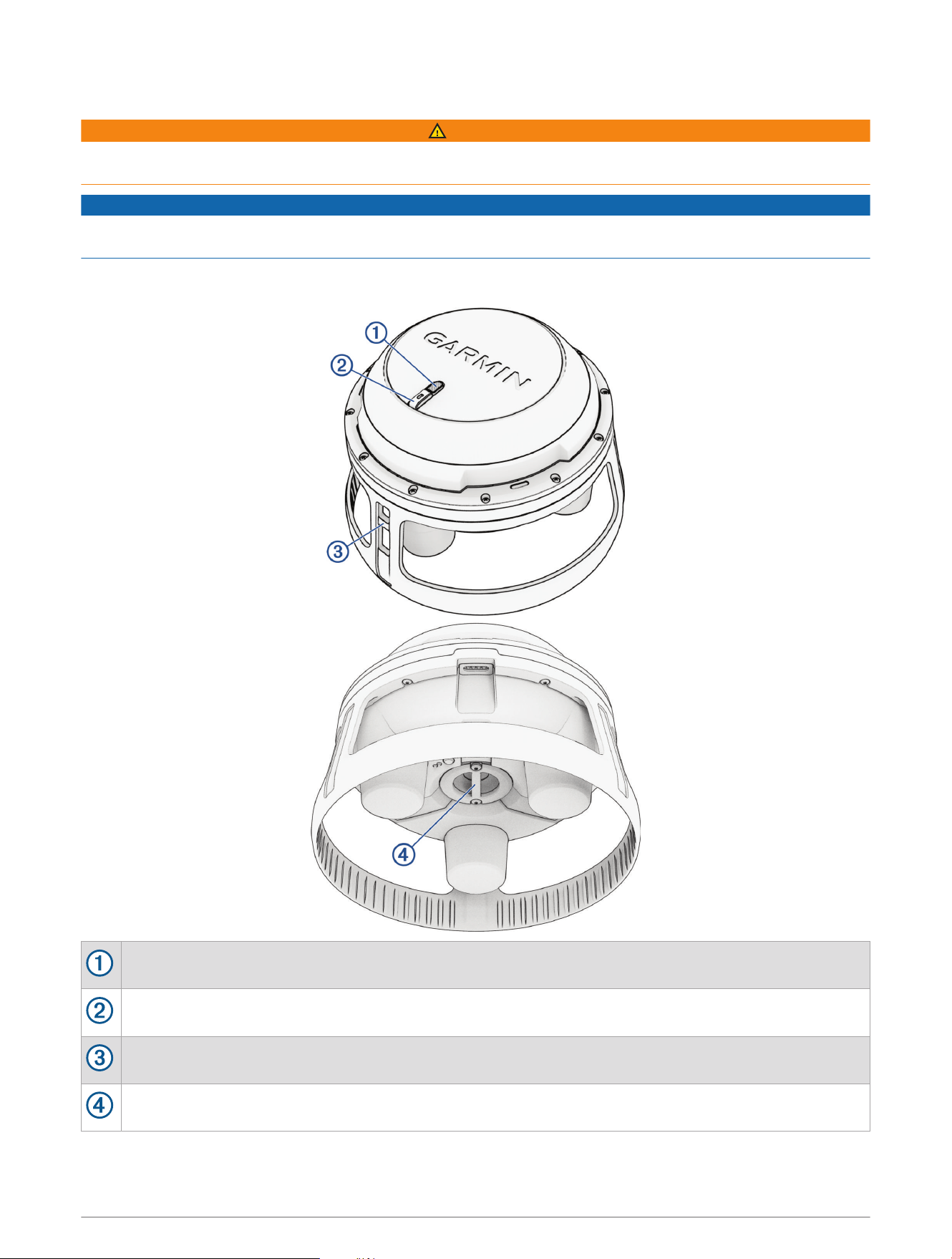
Device Overview
Power button (Turning the Buoy On or Off, page3)
Status LED (Status LED, page3)
Side tether attachment point for a boat or surface marker buoy (Buoy Positioning Tips, page8)
Bottom tether attachment point for an anchor (Buoy Positioning Tips, page8)
Introduction 1
Getting Started
When using your buoy for the first time, you should complete these tasks. To ensure compatibility when you are
pairing devices, you should be in a location with internet access so that your devices can download the required
software updates.
1 Charge the buoy (Charging the Buoy, page2).
2 Turn on the buoy (Turning the Buoy On or Off, page3).
3 Set up the buoy using the Garmin Dive
™
app (Setting Up the Buoy with the Garmin Dive App, page5).
4 Check for software updates (Updating the Device Software, page8).
For the best experience, you should keep the software on your buoy up to date. Software updates provide
changes and improvements to privacy, security, and features.
5 Create a dive network by pairing each diver's Descent transceiver and dive computer with other divers and
the buoy (Dive Network, page5).
6 Start a dive session (Starting a Dive Session, page7).
Charging the Buoy
WARNING
This device contains a lithium-ion battery. See the Important Safety and Product Information guide in the product
box for product warnings and other important information.
NOTICE
To prevent corrosion, thoroughly clean and dry the contacts and the surrounding area before charging or
connecting to a computer. Refer to the cleaning instructions (Device Care, page9).
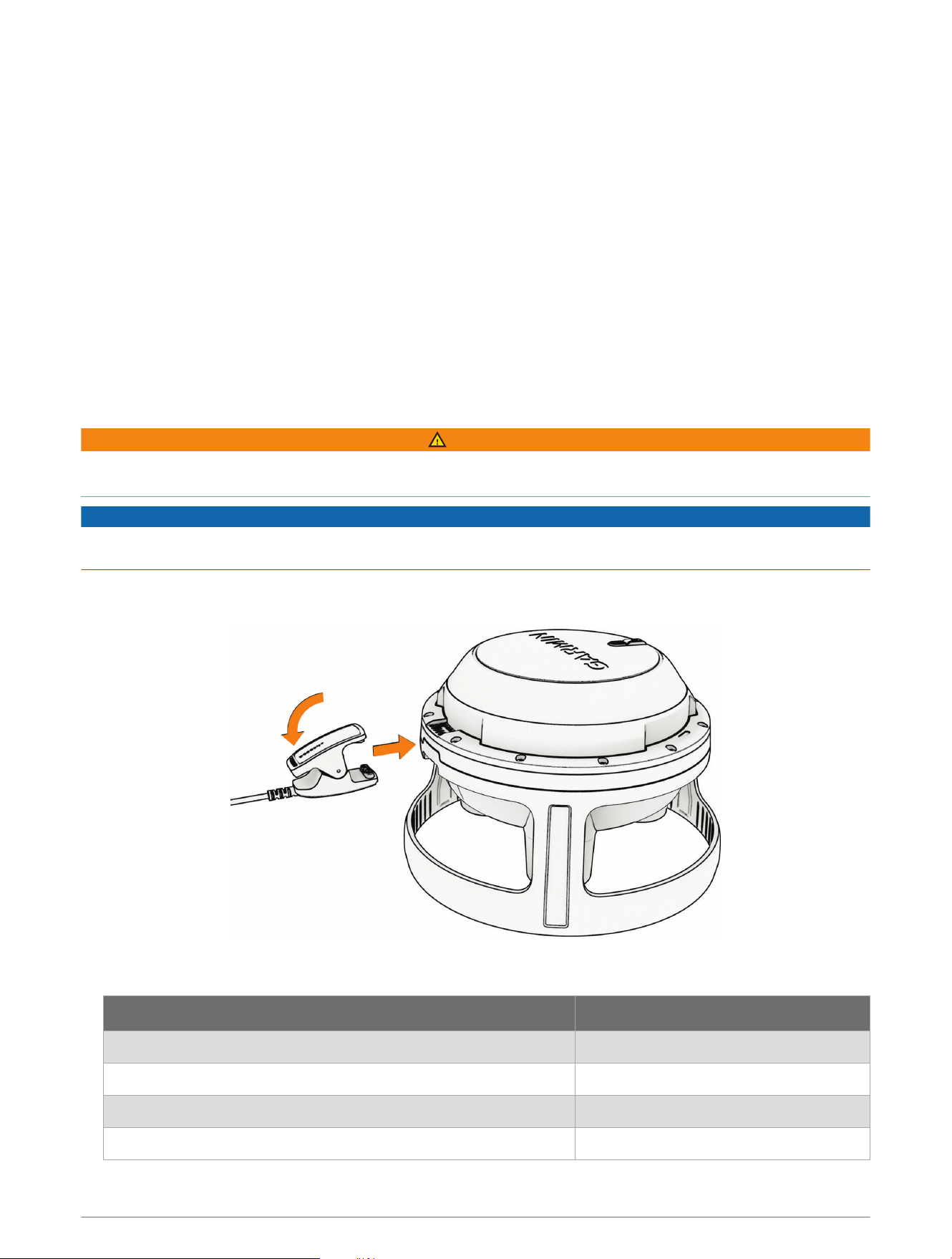
1 Pinch the sides of the charging clip.
2 Align the clip with the contacts on the bottom of the buoy, and release the clip.
3 Plug the cable into a USB-C
®
charging port or wall adapter (5 W minimum output power).
The status LED indicates the battery charge level.
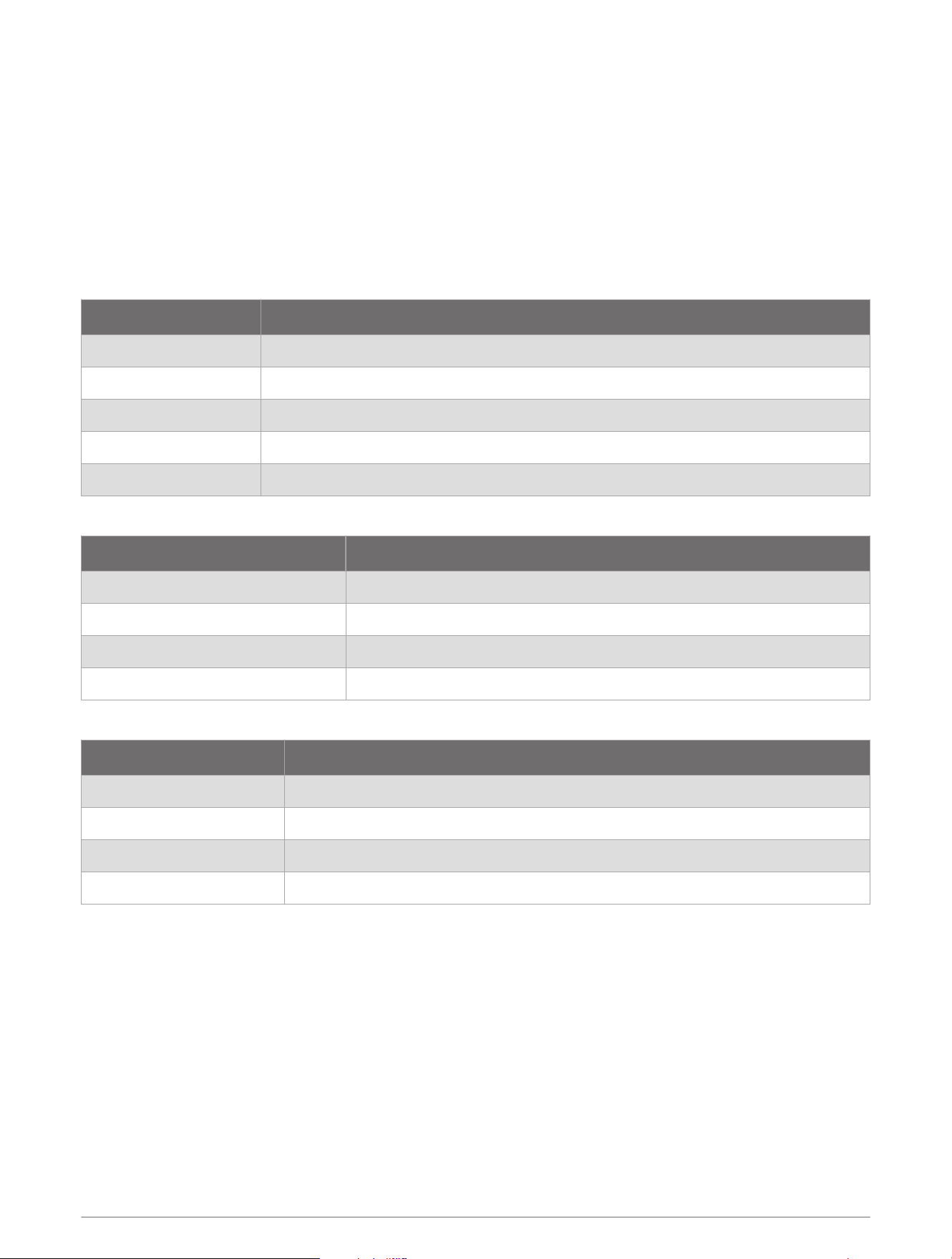
LED Activity Battery Level
Flashing orange 0 to 24%
Rapidly flashing green 25 to 74%
Slowly flashing green 75 to 99%
Solid green 100%
2 Introduction
Turning the Buoy On or Off
• To turn on the buoy, hold the button for two seconds until you hear a beep.
The buoy beeps, and the status LED flashes green while the buoy is powering on. A tone plays, and the status
LED slowly flashes white when you can connect to the buoy.
• To turn off the buoy, hold the button for five seconds until a tone plays.
The status LED is solid white while you hold the button, and a tone plays when the buoy turns off.
Status LED
System Status
LED Activity Status
Flashing green The buoy is powering on
Flashing yellow The buoy software is updating.
Flashing orange The buoy is resetting to the factory default settings.
Solid red There is a system error.
Solid purple The software is invalid. Contact Garmin
®
Product Support.
Connectivity Status
LED Activity Status
Flashing blue The buoy is in Bluetooth
®
pairing mode.
Slowly flashing white The buoy is in Wi‑Fi
®
connectivity mode.
Solid cyan The buoy has established a Wi‑Fi connection.
Flashing a white double blink The buoy is connected to a device using Wi‑Fi connectivity.
Charging Status
LED Activity Status
Flashing orange The battery is charging, and the battery level is between 0 to 24%.
Rapidly flashing green The battery is charging, and the battery level is between 25 to 74%.
Slowly flashing green The battery is charging, and the battery level is between 75 to 99%.
Solid green The battery is fully charged.
Diving
You can use a compatible Descent dive computer paired with a Descent T2 transceiver and the Descent S1 buoy
to start a diving activity. During a dive, users on the surface can send and receive messages with divers, view
their approximate underwater location, and view diver depth and tank pressure status information. Underwater
divers can send messages to the surface and navigate back to the buoy using location data shown on their dive
computers. At the end of the dive, divers can sync their dive computers with the buoy to view their underwater
heat maps in the Garmin Dive app. See your Descent dive computer owner's manual for more information.
Diving 3
Dive Warnings
WARNING
• Do not exceed the maximum dive depth rating for the device (Specifications, page9).
• Make sure that you fully understand the use, displays, and limitations of your device. If you have questions
about this manual or the device, always resolve any discrepancies or confusion before diving with the device.
Always remember that you are responsible for your own safety.
• When appropriately configured and connected to a compatible device, this device can track a connected
diver’s estimated tank pressure. This is for informational purposes only and should not be relied upon as the
only source of this information.
• Perform pre-dive safety checks, such as checking proper device function and settings, display function,
battery level, tank pressure, and bubble checks to check hoses and connections for leaks.
• For safety reasons, you should never dive alone. Dive with a designated buddy, even if you have someone
monitoring your dive from the surface. You should also stay with others for an extended time after a dive,
because the potential onset of decompression illness (DCI) may be delayed or triggered by surface activities.
• This device is not intended for commercial or professional dive activities. It is for recreational purposes only.
Commercial or professional dive activities can expose the user to extreme depths or conditions that increase
the risk of DCI.
Dive Cautions
CAUTION
• Dive messaging and navigation requires line of sight between two compatible receivers with the latest
compatible software versions. Obstructions and other environmental factors may affect receiver connectivity
and may delay or prevent the sending and receiving of messages. With good connectivity, data can be
successfully sent between divers in under 20 seconds. If connectivity is poor, devices will attempt to send
data for up to two minutes. This is a supplemental feature that should not be relied upon as a method to
receive emergency assistance and should not replace traditional dive safety tools and procedures.
• To send messages and/or to track the location of compatible devices, this device must be connected to
a compatible mobile device using the device's Wi‑Fi connection and the Garmin Dive app. The connectivity
range of the device's Wi‑Fi connection will vary depending on the make and model of the mobile device used.
This product should not be relied upon as a method to receive emergency assistance and should not replace
traditional dive safety tools and procedures.
• Surface conditions can affect device function and connectivity. Certain objects, including, but not limited to,
vessel hulls, swim platforms, reefs, or kelp, can block the device's signal and cause gaps or delays in data
transmission.
• You should not rely solely on the buoy for underwater navigation. The navigate to buoy feature requires line of
sight with the buoy. Location and distance information from the buoy is not precise, and should be used as a
supplement, and not a replacement, for diver training in navigation, search, and positioning.
• This device is not a personal floatation device and cannot support the weight of a person or any diving gear.
Use of this device in such a manner could result in possible personal injury and/or property loss or damage.
• The device range and availability of messaging and/or location tracking depends on the type of compatible
devices to which this device is communicating (Dive Product and Feature Compatibility, page10).
4 Diving

Dive Notices
NOTICE
• For best results, ensure that this device is tied off to a tag line, surface marker buoy, or anchor line on
the surface where it is not obstructed by the hull of the boat and has a clear line of sight to divers with
compatible devices.
• If you are towing the device, ensure that it is affixed to an appropriate surface marker buoy and flag so that it
is visible to vessels.
• Submerging the device for extended periods of time can degrade device performance and/or damage the
device.
Setting Up the Buoy with the Garmin Dive App
Before you use the buoy for the first time, you must connect to it with the Garmin Dive app and set up Wi‑Fi
connectivity. To ensure compatibility when you are pairing devices, you should be in a location with internet
access so that your devices can download the required software updates.
1 To turn on the buoy, hold the button for two seconds until you hear a beep.
The buoy beeps, and the status LED flashes green while the buoy is powering on. A tone plays, and the status
LED slowly flashes white.
2 Select an option:
• Download the Garmin Dive app using the mobile device you will use on the surface during the dive
session.
• If you already have the Garmin Dive app on your mobile device, update the app to the latest version.
3 Scan the QR code on the bottom of the buoy with the camera on your mobile device.
When your mobile device connects to the buoy's Wi‑Fi network, the status LED is solid cyan for three
seconds. Then the status LED flashes a white double-blink while your mobile device is connected.
NOTE: You can manually connect to the buoy's Wi‑Fi network through the system settings on your mobile
device. The Wi‑Fi network name is "DescentS1-" followed by the six-digit device ID located next to the QR
code. On your mobile device, select the Wi‑Fi network for your buoy, and enter "TSB" followed by the six-digit
device ID.
4 (Optional) In the Garmin Dive app, you can change the Wi‑Fi network password.
NOTE: If necessary, you can change the Wi‑Fi password later in the Garmin Dive app. Select More > Garmin
Devices, select the buoy, and select General > Manage Wi-Fi Password.
Dive Network
When you pair your devices, your Descent S1 buoy creates a dive network that connects the surface users
using the Garmin Dive app with divers below the surface using both a Descent dive computer and Descent T2
transceiver.
At the end of a dive, the buoy syncs with the dive computers, and each user can view their underwater heat
maps for approximate location information in the Garmin Dive app.
Pairing Dive Computers and Transceivers
For more information about pairing and software updates, see the owner's manual for the Descent devices. To
ensure compatibility when you are pairing devices, you should be in a location with internet access so that your
devices can download the required software updates.
• Pair each user's dive computer with a Descent T2 transceiver, and set the placement location to My Tank.
• Pair each user's dive computer with the Garmin Dive app on their phone.
• Check for software updates for each user's dive computer and Descent T2 transceiver using the Garmin Dive
app.
• Pair each user's dive computer with every other diver's Descent T2 transceiver, and set the placement
location to Another Diver.
Diving 5

Pairing Dive Computers Using Bluetooth
You can pair compatible Descent dive computers with the buoy using either Bluetooth or Wi‑Fi technology
(Pairing Dive Computers Using Wi‑Fi, page6).
NOTE: Descent Mk2i dive computers can only pair using Wi‑Fi technology.
1 Pair all Descent dive computers and transceivers and check for software updates (Pairing Dive Computers
and Transceivers, page5).
2 Bring the compatible Descent dive computers within 10m (33ft.) of the buoy.
3 To turn on the buoy, hold the button for two seconds until you hear a beep.
The buoy beeps, and the status LED flashes green while the buoy is powering on. A tone plays, and the status
LED slowly flashes white.
4 Press the button twice to enter Bluetooth pairing mode.
A tone plays, and the status LED flashes blue when you can start pairing.
NOTE: You should wait about 0.5 seconds between button presses. The buoy does not register rapid button
presses.
5 On the dive computers, select Dive Setup > Dive Network & Air Integration > Buoys > Add New.
6 Select the buoy ID that matches the number printed on the bottom of the buoy next to the QR code.
7 Press BACK, select SubWave Features, and confirm that the Location Sharing and Messaging options are
enabled.
8 Repeat steps 5 through 7 for all dive computers you plan to use on the dive.
9 Press the button twice to exit Bluetooth pairing mode.
A tone plays, and the status LED flashes white when Wi‑Fi connectivity mode is enabled.
The next time the buoy and paired dive computers are turned on and within wireless range, they connect
automatically.
Pairing Dive Computers Using Wi‑Fi
You can pair compatible Descent dive computers with the buoy using either Wi‑Fi or Bluetooth technology
(Pairing Dive Computers Using Bluetooth, page6).
1 Make sure all Descent dive computers and transceivers are paired and the software is up to date (Pairing
Dive Computers and Transceivers, page5).
2 Bring the compatible Descent dive computers within 10m (33ft.) of the buoy.
3 To turn on the buoy, hold the button for two seconds until you hear a beep.
The buoy beeps, and the status LED flashes green while the buoy is powering on. A tone plays, and the status
LED slowly flashes white.
4 On the dive computers, select Dive Setup > Dive Network & Air Integration > Buoys > Add New.
5 Select the buoy ID that matches the number printed on the bottom of the buoy next to the QR code.
NOTE: The dive computers automatically attempt to connect with the default Wi‑Fi password. If you have
changed the Wi‑Fi password, you must enter the current password.
6 If necessary, enter the Wi‑Fi password for the Descent S1 buoy.
7 Press BACK, select SubWave Features, and confirm that the Location Sharing and Messaging options are
enabled.
8 Repeat steps 4 through 7 for all dive computers you plan to use on the dive.
The next time the buoy and paired dive computers are turned on and within wireless range, they connect
automatically.
6 Diving
Starting a Dive Session
CAUTION
For best results, you should calibrate the compass before every dive. Failure to calibrate the compass may
result in poor location data, and divers may receive incorrect data about the direction to the buoy.
NOTICE
Calibrate the electronic compass outdoors. To improve heading accuracy, do not stand near objects that
influence magnetic fields, such as vehicles, buildings, and overhead power lines.
Before you start a dive session, you must set up the buoy with the Garmin Dive app (Setting Up the Buoy with the
Garmin Dive App, page5), and set up the dive network for all the divers in the group (Dive Network, page5).
1 To turn on the buoy, hold the button for two seconds until you hear a beep.
The buoy beeps, and the status LED flashes green while the buoy is powering on. A tone plays, and the status
LED slowly flashes white.
2 On your mobile device, open the system settings, and connect to the Descent S1 buoy's Wi‑Fi network.
3 In the Garmin Dive app, select More > Garmin Devices, select the buoy, and select Start Session.
4 Follow the on-screen compass calibration instructions and slowly rotate the device through the 3-axis
rotations.
The Garmin Dive app indicates when the calibration is complete.
5 Select Divers, and confirm that all the divers appear in the list.
6 Use a tether to attach the buoy to the boat or surface marker buoy, and deploy the buoy into the water (Buoy
Positioning Tips, page8).
7 Begin the dive, and use the Garmin Dive app to monitor the divers from the surface.
8 Select Location to view the approximate location of underwater divers.
TIP: Divers can navigate back to the buoy during a dive using location data shown on their dive computer.
See your Descent owner's manual for more information.
9 Select Messaging to send messages to one or more divers and view received messages.
10 Select Stats to view data about each diver's depth and tank pressure.
11 At the end of the dive session, select > Exit Session.
At the end of a dive when the paired dive computers are out of the water and within range of the buoy,
they connect and sync automatically, and you can view your underwater heat maps for approximate location
information in the Garmin Dive app. If necessary, you can select Dive Setup > Dive Network & Air Integration >
Buoys, select the buoy, and select Sync to manually sync with the buoy after a dive.
Diving 7
Buoy Positioning Tips
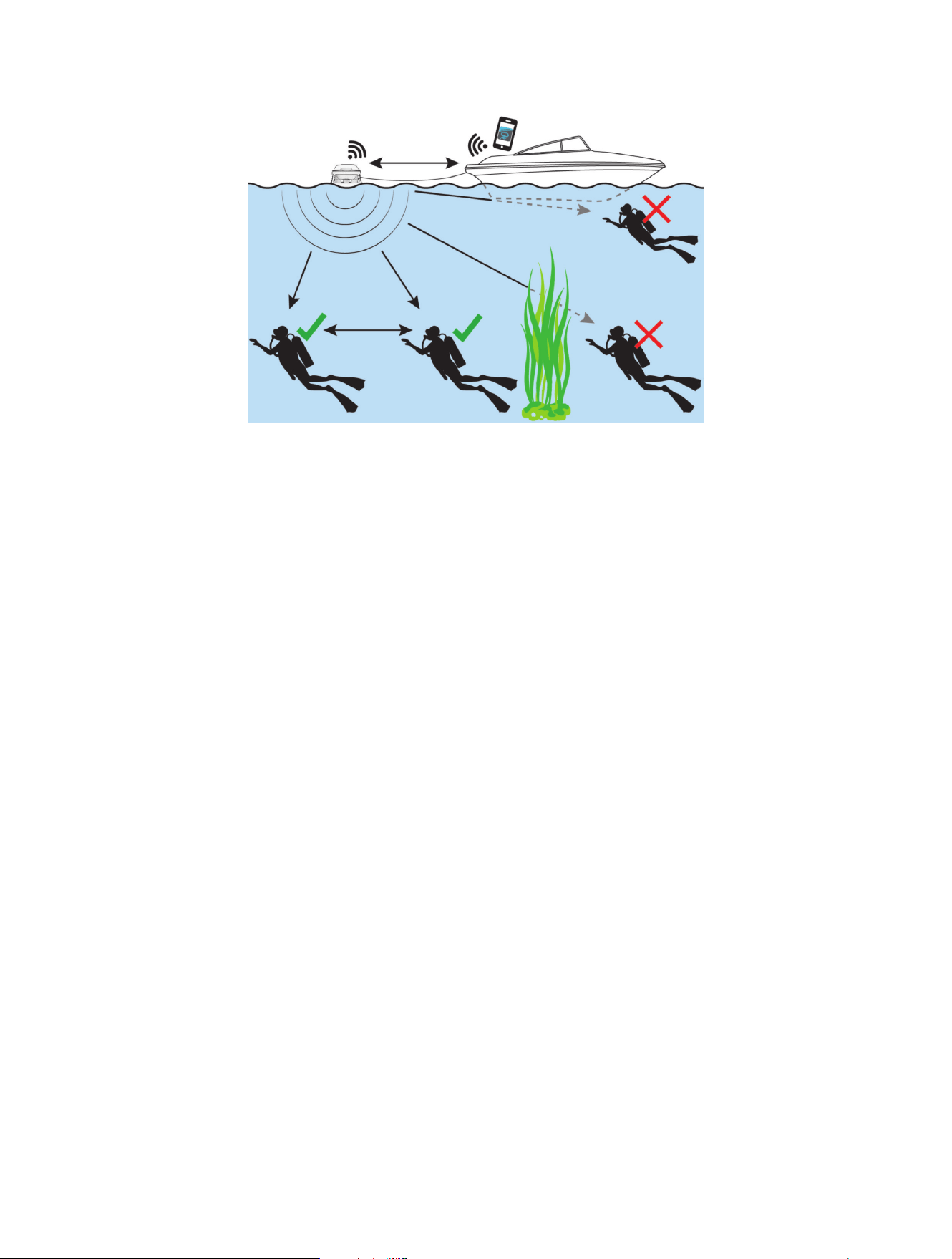
• For boat tethering, attach the tether from the boat's tag line or anchor line to the side tether attachment point
on the Descent S1 buoy.
• For divers towing the buoy, attach the tether from a surface marker buoy to the side tether attachment point
on the Descent S1 buoy, with the diver's reel tied off to the surface marker buoy.
• To anchor the buoy, attach the tether from the anchor to the bottom tether attachment point on the Descent
S1 buoy. For visibility, attach another tether from a surface marker buoy to the side tether attachment point
on the Descent S1 buoy. Do not attach a flag directly to the buoy.
• For best results and to maximize connectivity, position the buoy within 60 m (197 ft.) of surface support and
in the direction of the dive site.
• Make sure that the buoy has a clear line of sight to the divers below the surface. Any obstructions, such as
the boat hull or underwater objects, can interfere with sending and receiving data.
Garmin Dive App
The Garmin Dive app allows you to upload your dive logs from your compatible Garmin device. You can
add more detailed information about your dives, including environmental conditions, photos, notes, and dive
buddies. You can use the map to browse for new dive locations, and view the location details and photos
shared by other users. When you dive with a Garmin buoy and compatible Garmin devices, you can view your
underwater heat maps for approximate location information.
The Garmin Dive app syncs your data with your Garmin Connect
™
account. You can download the Garmin Dive
app from the app store on your phone (garmin.com/diveapp).
Updating the Device Software
You can use the Garmin Dive app to update the Descent S1 software when you connect your mobile device
using Wi‑Fi technology.
1 Connect your mobile device to the buoy's Wi‑Fi network (Setting Up the Buoy with the Garmin Dive App,
page5).
2 In the Garmin Dive app, select More > Garmin Devices.
3 Select the buoy from the devices list.
4 Select General > Check for Updates.
The app checks for a software update, and prompts you to install the update if one is available.
8 Garmin Dive App
Device Information
Device Care
NOTICE
Do not use a sharp object to clean the device.
Avoid chemical cleaners, solvents, and insect repellents that can damage plastic components and finishes.
Thoroughly rinse the device with fresh water after exposure to chlorine, salt water, sunscreen, cosmetics,
alcohol, or other harsh chemicals. Prolonged exposure to these substances can damage the case.
Avoid extreme shock and harsh treatment, because it can degrade the life of the product.
Do not store the device where prolonged exposure to extreme temperatures can occur, because it can cause
permanent damage.
Discontinue use if the device is damaged or if it is stored at a temperature outside the specified storage
temperature range.
Cleaning the Buoy
1 After each dive, rinse the buoy with fresh water to remove salt and debris.
2 If necessary, clean the buoy with a soft cloth.
Long-Term Storage
When you do not plan to use the Descent S1 device for several months, you should charge the battery to at least
50% before you store the device. You should store the device in a cool, dry place with temperatures around the
typical household level. After storage, you should fully recharge the device before using it.
Specifications
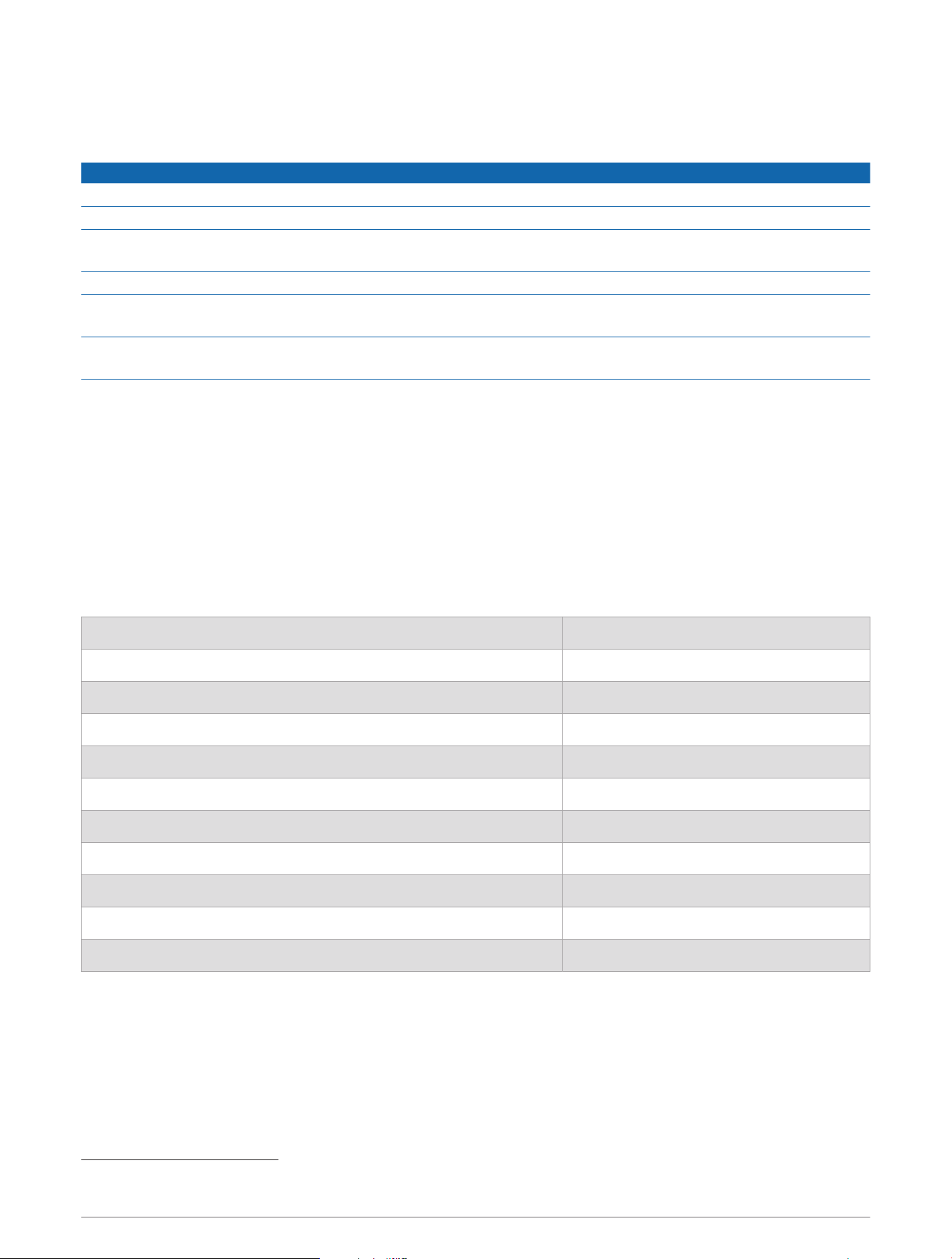
Battery Rechargeable, built-in lithium-ion battery
Battery life Up to 15 hours
Operating and storage temperature range From -20 to 60°C (from -4 to 140°F)
Underwater temperature range From 0 to 40°C (from 32 to 104°F)
Charging temperature range From 0 to 45°C (from 32 to 113°F)
Wireless frequency and transmit power 2.4GHz @ 19.16 dBm maximum
EU SAR <0,308 W/kg torso, limb
Surface transmission range for ANT
®
and Bluetooth technology Up to 10m (33ft.)
Surface transmission range for Wi‑Fi technology Up to 60 m (197 ft.)
Underwater transmission range for SubWave
™
sonar technology Up to 100 m (328ft.) line of sight
Water rating IEC 60529 IPX8 up to 10 m (33 ft.)
1
1
The device withstands continuous immersion in water up to 10 m deep. For more information, go to www.garmin.com/waterrating.
Device Information 9

Troubleshooting
Getting More Information
You can find more information about this product on the Garmin website.
• Go to support.garmin.com for additional manuals, articles, and software updates.
• Go to buy.garmin.com, or contact your Garmin dealer for information about optional accessories and
replacement parts.
Resetting the Buoy
You can reset the buoy to remove all paired devices and reset the Wi‑Fi password.
1 While the buoy is turned off, hold the button for ten seconds until you hear three beeps.
The status LED is solid green while you are holding the button, and flashes orange while the buoy is
resetting.
2 Wait for the buoy to reset.
The buoy beeps once, and the status LED flashes green while the buoy is powering on. A tone plays, and the
status LED slowly flashes white when you can connect to the buoy.
Dive Product and Feature Compatibility
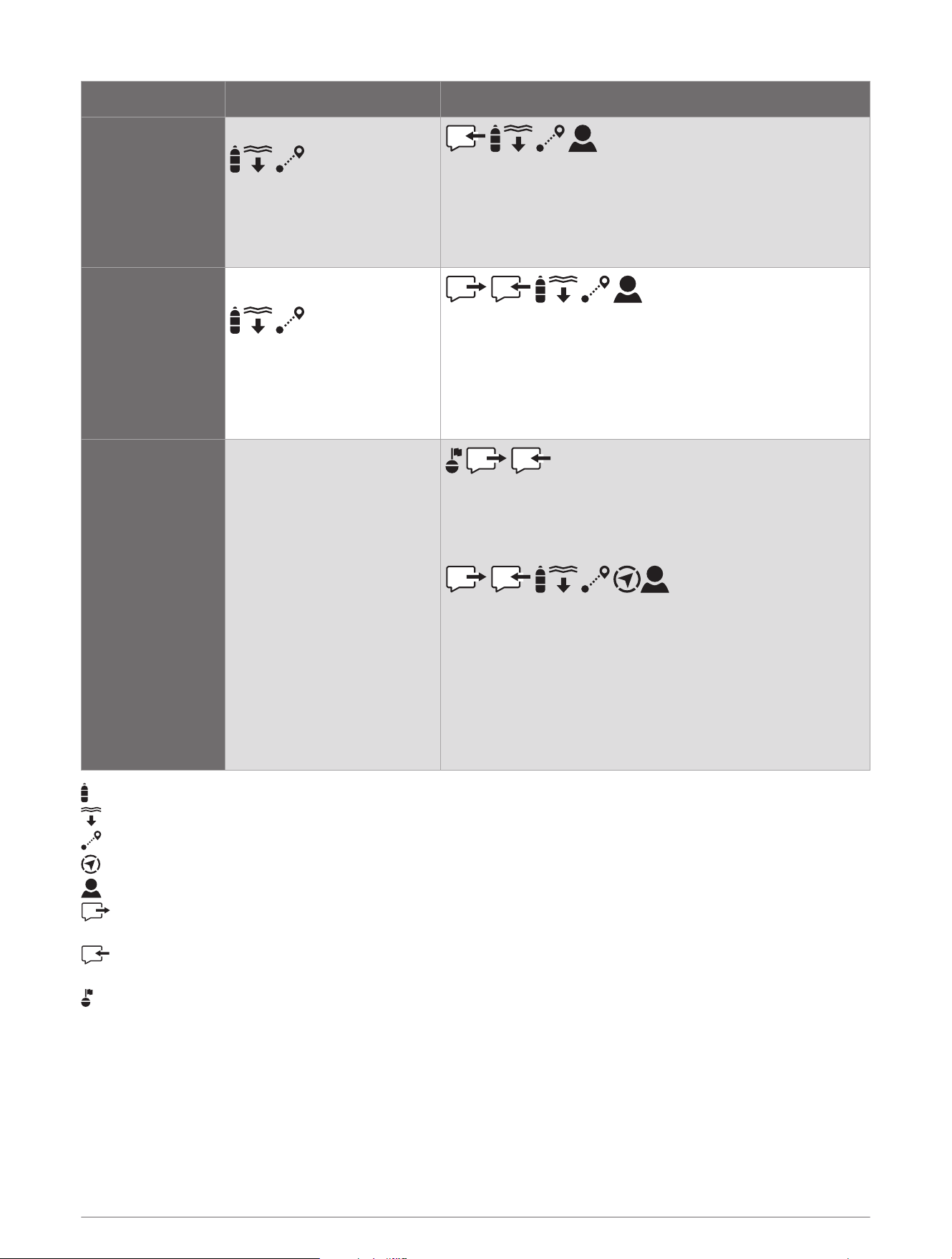
You can pair multiple Descent devices to form a dive network for you and your fellow divers. Not all features are
available for older devices. See your Descent device owner's manual for more information.
NOTICE
You should update your devices to the latest software versions to access all features and improvements. If the
software versions are incompatible, the following alert appears on the dive computer: Transmitter %1 failed to
connect.. "%1" is replaced with the transceiver name.
10 Troubleshooting
Descent T1 Descent T2
Descent Mk2i
• View tank pressure
• View diver depth
• View diver distance
• Receive messages
• View tank pressure
• View diver depth
• View diver distance
• View public tank name
Descent Mk3i
Descent X50i
• View tank pressure
• View diver depth
• View diver distance
• Send messages
• Receive messages
• View tank pressure
• View diver depth
• View diver distance
• View public tank name
Descent S1 Not compatible
Using a paired dive computer during a dive:
• Navigate to buoy
• Send messages to the surface
• Receive messages from the surface
Using the Garmin Dive app from the surface:
• Send messages
• Receive messages
• View tank pressure
• View diver depth
• View diver distance
• View diver direction
• View public tank name
: View tank pressure for yourself and connected divers.
: View diver depth for connected divers.
: View diver distance for connected divers.
: View the direction to connected divers.
: View the public transceiver names for yourself and connected divers.
: Send pre-defined messages to divers with a Descent T2 transceiver or to the surface with a Descent S1
buoy.
: Receive in-dive messages from divers with a paired Descent T2 transceiver or from the surface with a
Descent S1 buoy.
: View distance and direction information to navigate back to the Descent S1 buoy.
About SubWave Technology
Compatible Descent devices use SubWave sonar technology to communicate with other compatible Descent
devices. There are many factors that can affect device-to-device communication. For more information, go to
garmin.com/subwave.
Troubleshooting 11

support.garmin.com
GUID-F032AB3F-3DE6-4822-9233-C99458D861B6 v1July 2025
