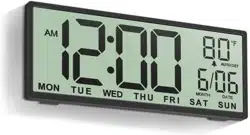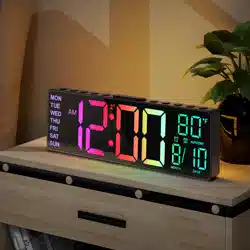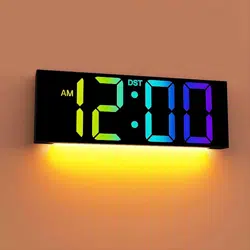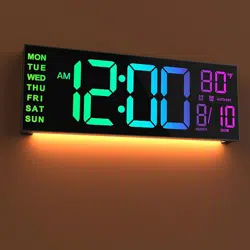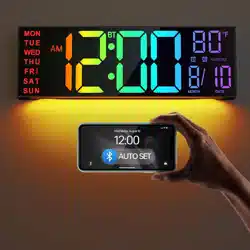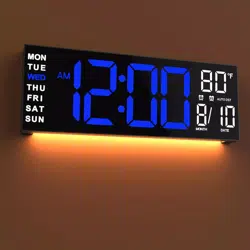
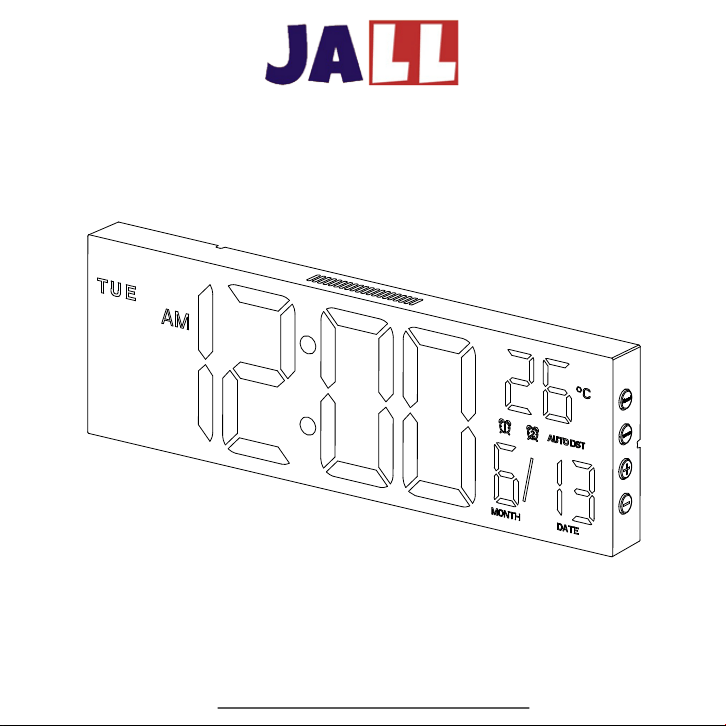
Digital Wall Clock User Manual
ThreeDucksDirect@outlook.com
8 In 1
Colors
Model: PH-01-B

1. Installation -------------------------------------------------- 1
2. First use ------------------------------------------------------ 2
3. Overview ----------------------------------------------------- 3-4
4. Time Set ------------------------------------------------------ 5
5. Alarm Set ----------------------------------------------------- 6-7
6. Temperature --------------------------------------------------- 7
7. Screen brightness, Font Colors, Night light -------------- 8
8. Countdown, Volume Setting -------------------------------- 9
9. Daylight saving time ----------------------------------------- 10
10.
Settings with device
buttons -------------------------------- 11-13
11.
FAQ ----------------------------------------------------------
14
12.
Warranty ---------------------------------------------------- 15
Contents
ThreeDucksDirect@outlook.com
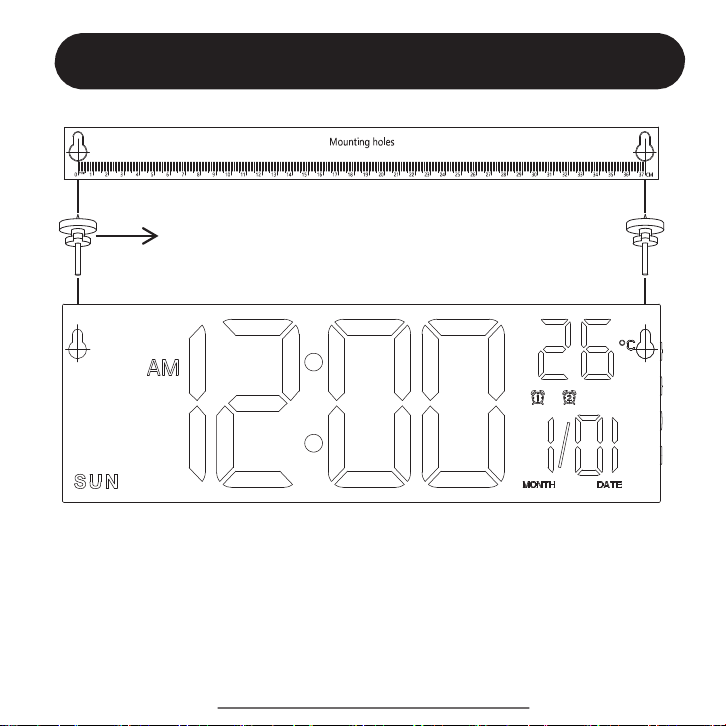
Installation
2 * hanging nails
1. Align the positioning hole to nail the hanging nail to the wall.
2. Hang the alarm clock on the nail.
3. Installation completed
ThreeDucksDirect@outlook.com
1
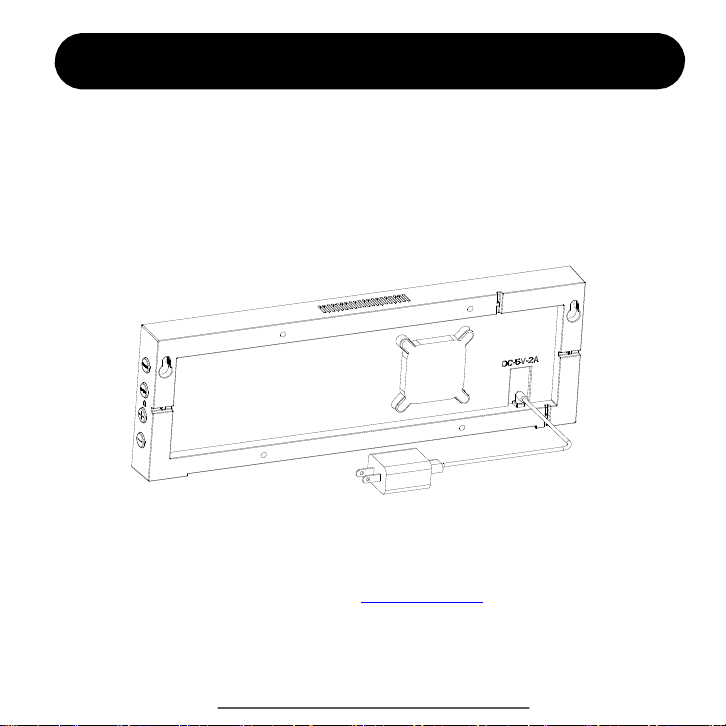
Start to power on
Power on for the first time
Connect the DC power plug to the back connector of the alarm clock, and the USB plug
at the other end is connected to the charging head to plug into the 100V-240V home
socket. As shown in the following figure:
This alarm clock must work with power adapter. We provide lifetime warranty for
every customer. We strongly recommend you to contact us with your order ID to
activate the warranty. You can also visit www.jall-us.com to activate lifetime
warranty. If missing any accessories, please contact us for replacements.
ThreeDucksDirect@outlook.com
2
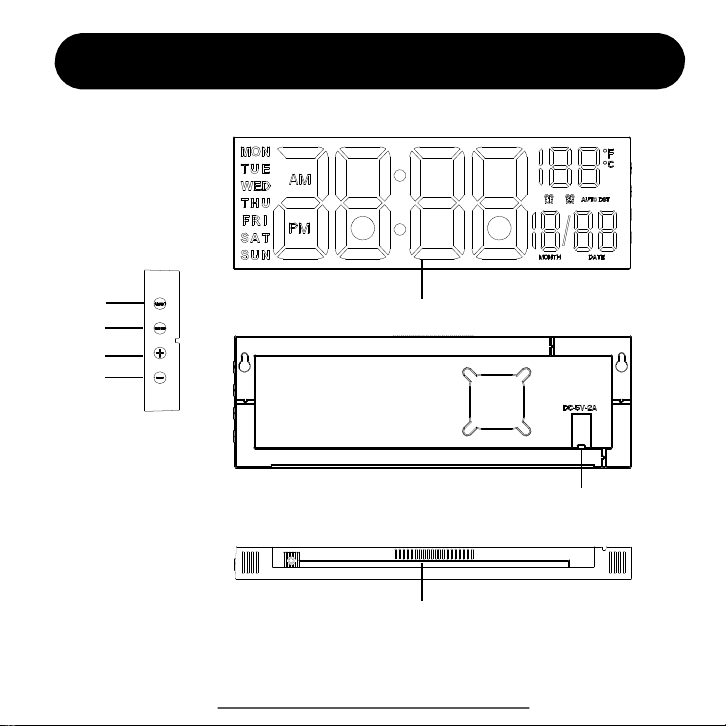
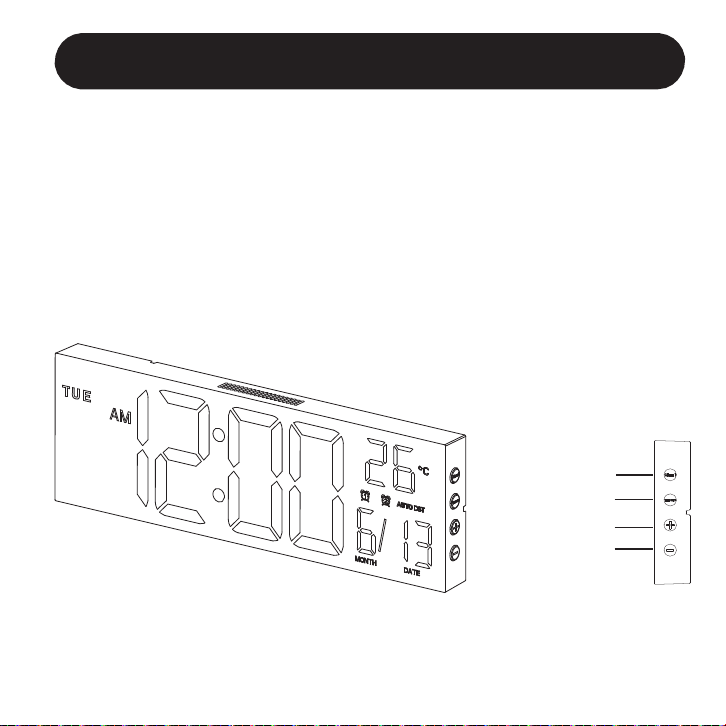
Device Overview
Alarm setting
Time setting
+
-
ThreeDucksDirect@outlook.com
3
Time display area
DC input
Night Light
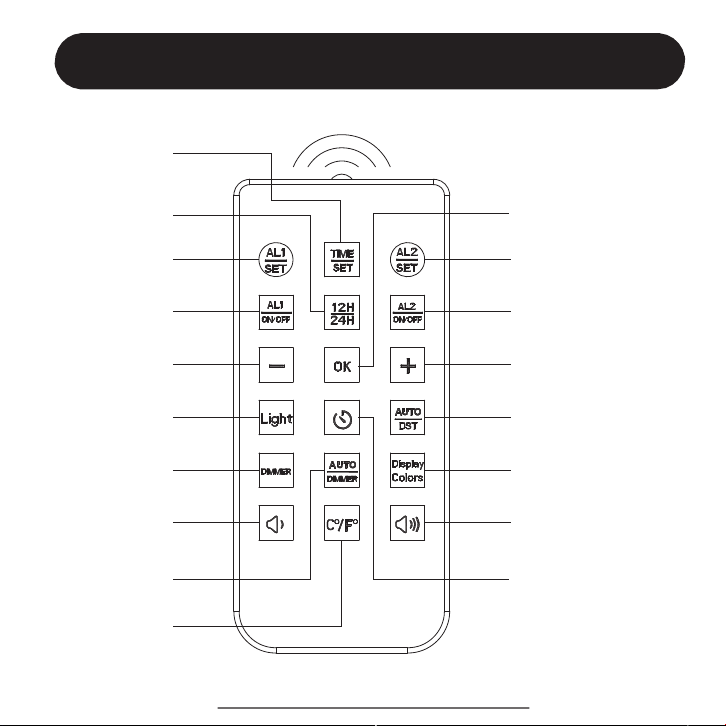
Remote Control Overview
Alarm 1 setting
Alarm 1 switch
DOWN “ - ”
Time setting
12H / 24H
Night light switch
Screen Brightness
Volume down
Auto Brightness
C° / F° unit
Alarm 2 setting
Alarm 2 switch
UP “ + ”
Auto Daylight
Saving Time
Display letter color
Volume up
Countdown setting
Confirm and Next
4
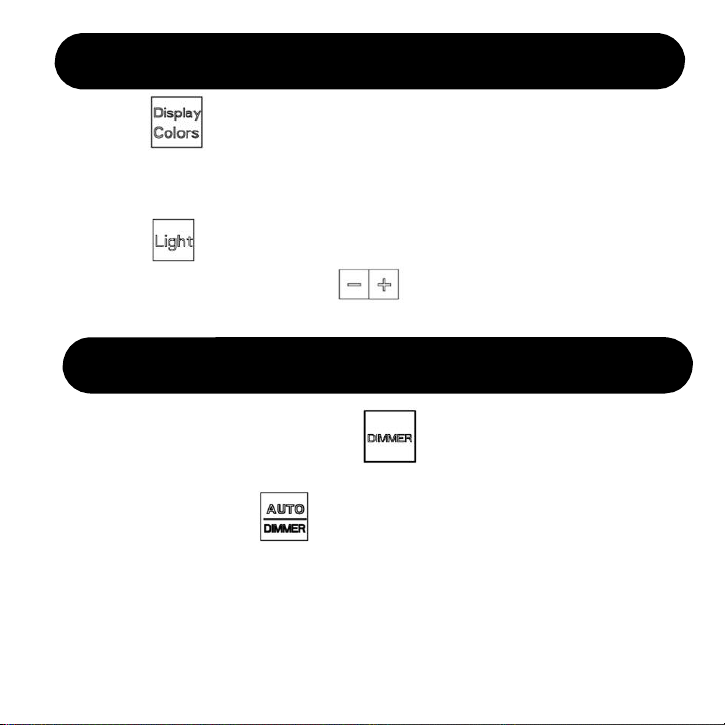
Font Displaying Colors & Night Light
1. Press to change digits colors. This clock includes more
than 8 colors mode to choose from. If you want to freeze certain
color, you can hold the button and release it to get it fixed.
1. In the time display state, press to adjust the screen brightness
from High -> Low -> High.
2. You can also press auto-dimmer button to auto adjust the
screen brightness. In this mode, the brightness will auto change
according to the environment light, makes it dimmer at night and
brighter at daytime. It shows “ON”, which means it’s turned ON,
while “OFF” means it’s turned OFF.
Screen Brightness
2. Press to turn ON / OFF the night light at the bottom.
3. When the light is on, press to adjust the brightness of
the light (range: L01-L10)
5
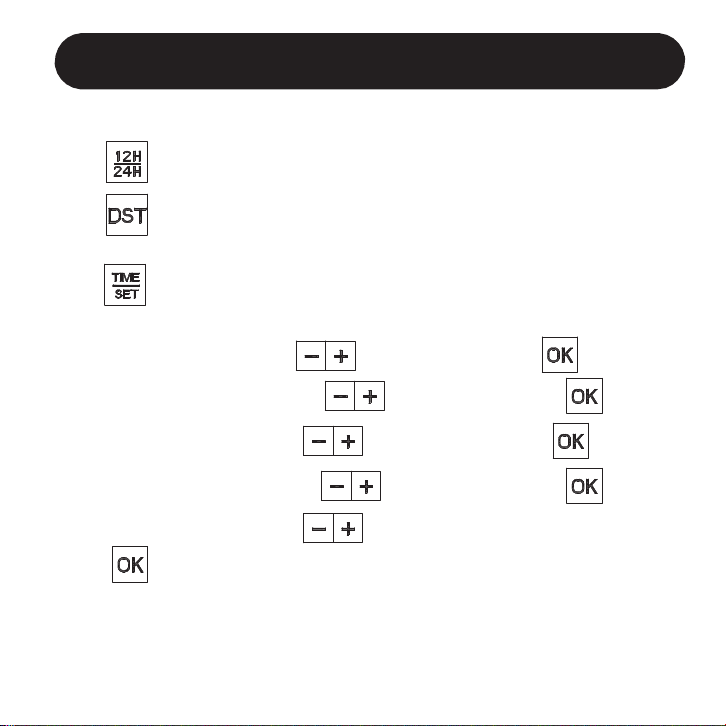
5. Then “Minute” is flashing, press to select value. Press and next.
3. Press to enter the time setting, you will set in sequence for
Hour > Minute > Year > Month > Date
Time Setting (by remote control)
Note: we strongly recommend to set with remote control for the whole setting.
1. Press to select 12-Hour or 24-Hour mode according to your habits.
2. Press to turn on AUTO DST, it’s for daylight saving time area.
If you don’t need it, just ignore this step.
4. The “Hour” is flashing, press to select value. Press and next.
6. Then “Year” is flashing, press to select value. Press and next.
7. Then “Month” is flashing, press to select value. Press and next.
8. Then “Date” is flashing, press to select value.
Press to finish time setting.
Note: You don’t have to set the day of the week. It’s calculated automatically.
If you find the day is wrong, it’s most likely you’ve set a wrong “YEAR”.
When you turn on Auto DST, time will auto adjust on March and November.
If you don’t need auto DST, please turn it off.
6
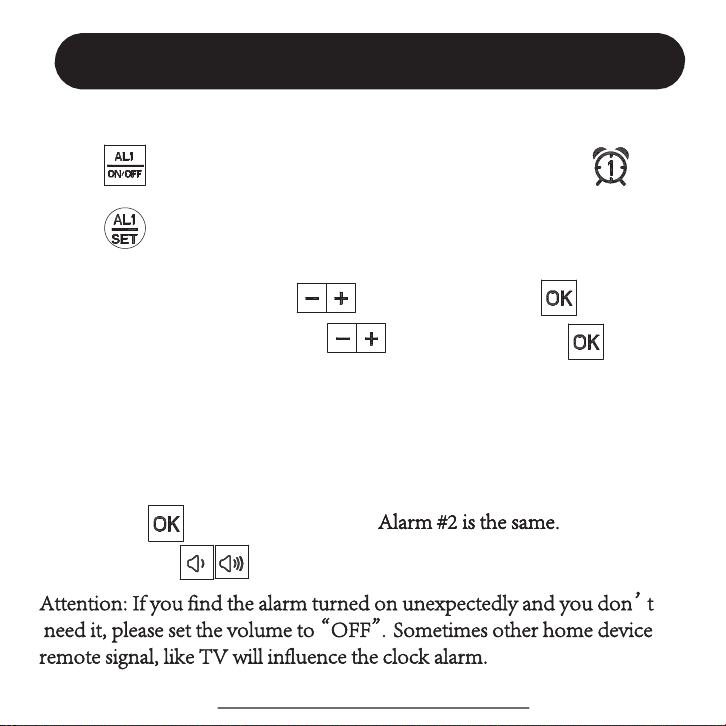
4. Then “Minute” is flashing, press to select value. Press and next.
2. Press to enter the alarm #1 setting, you will set in sequence for
Alarm Hour > Minute > Alarm Mode (MON-SUN, MON-FRI, SAT-SUN).
Alarm Setting (by remote control)
1. Press to activate / inactivate alarm #1. You will see the icon appears,
that means alarm #1 is activated, while disappears means alarm #1 is inactivated.
3. The “Hour” is flashing, press to select
value. Press and next.
5. Then select your alarm mode. There’re 3 modes to choose from.
1-7 means alarm works for Monday to Sunday (every day).
1-5 means alarm only works for Monday to Friday.
6-7 means alarm only works for Saturday to Sunday.
Then press to finish alarm setting.
6. You can press to adjust alarm volume from V01 to V05.
Note: Please follow the same setting to set Alarm #2.
ThreeDucksDirect@outlook.com
7
How to stop alarm?
1. When the alarm goes off, press any buttons on remote control to
stop the alarm. It will go off the next day.
2. Without any operation, the alarm will ring for 20 minutes and stop
automatically. It will still go off the next day.
Note: If you want to disable the alarm permanently,
press or to turn it off so that it won’t go off the next day.
You will see the alarm icon disappear on the screen.
Temperature Unit
Press to change temperature from C° to F°.
Note: The temperature
is detected by the sensor inside the clock. You
can’t set it manually.
ThreeDucksDirect@outlook.com
8
1. Countdown switch
In the time display screen, press to set countdown time,
Press to set your desired time (range from 1~30MIN).
Press to start counting down. If you want to stop it and return to
time display screen. Just hold for 2s to quit.
2. How to stop the bell rings?
1) Press any buttons to stop it.
2) The bell will ring for 60 seconds and stop automatically.
Countdown Setting
Volume Setting
to set alarm volume
In the time display screen, press
range from (OFF - V01-V05).
9
If you find the alarm is turned on,
unexpectedly and you don’t need it, please set the volume to “OFF”
Daylight Saving Time
1. Press to turn ON / OFF AUTO DST, it’s for daylight saving time area.
It will automatically adjust displaying time on the 2
nd
Sunday of March and
1
st
Sunday of November. When it’s ON, the screen will show “AUTO DST”.
2. If your area doesn’t apply to daylight saving time, please turn DST OFF.
Tips for remote control
Please aim at the product when using the remote control.
10
We recommend users to set by remote control.
For any reasons, if missing remote control, you can set up basic settings
by pressing buttons on the device. However, functions like “Night light”,
“DST”, “Countdown”, “Brightness setting”, “Display Colors”, “Volume”
can only set by remote control.
Settings without remote control
Alarm setting
Time setting
+
-
11
3. Then do the same for “Hour”, “Minute”, “Year”, “Month” and “Date”.
Time Setting (by device buttons)
Note: we strongly recommend to set with remote control for the whole setting.
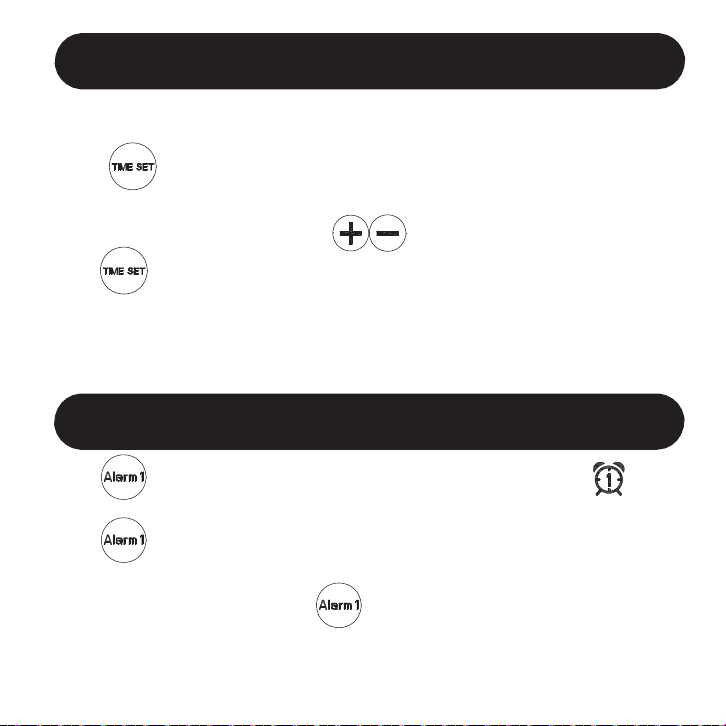
1. Press button on the right of device to enter time setting. You will
set in sequence for 12/24H mode > Hour > Minute > Year > Month > Date
2. The “12H / 24H” is flashing, press to select value.
Press to confirm and next.
Note: You don’t have to set the day of the week. It’s calculated automatically
.
Auto DST can only set by remote control.
Alarm Setting (by device buttons)
2. Hold button for 2 seconds to enter the alarm #1 setting, you will set in
sequence for Alarm Hour > Minute > Alarm Mode (MON-SUN,
MON -FRI , SAT-SUN). Press button to confirm and next.
1. Press to activate / inactivate alarm #1. You will see the icon appears,
that means alarm #1 is activated, while disappears means alarm #1 is inactivated.
5. After setting Hour, Minute, you will need to choose alarm mode:
1-7 = Monday to Sunday, 1-5 = Monday to Friday, 6-7 = Saturday to Sunday
6.
Alarm #2 can only set by remote control.
12
Font Displaying Color
Note: we strongly recommend to set with remote control for the whole setting.
1. Press button on the right of device to adjust Displaying Color. You will
have more than 8 colors to choose from.
Brightness
1. Press button to adjust screen brightness from High -> Low -> High.
13
FAQ
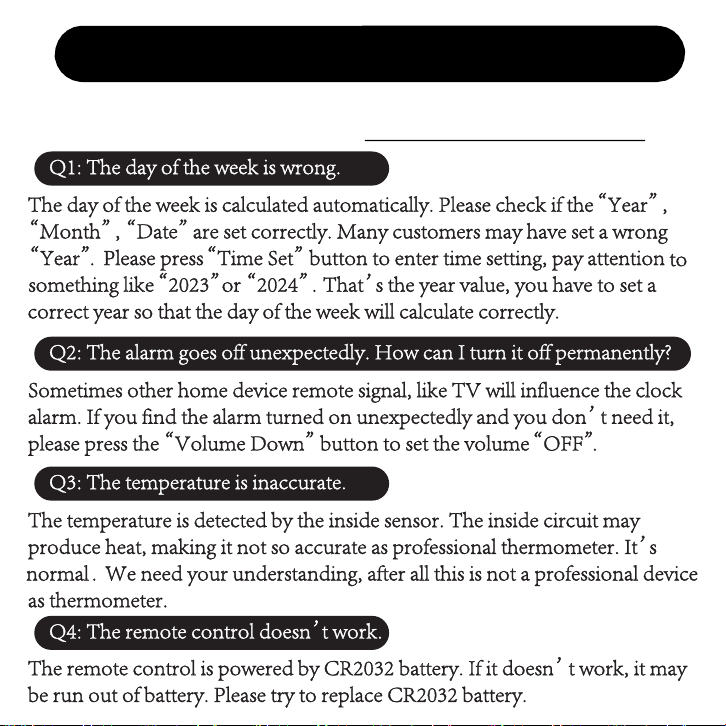
Q1: The day of the week is wrong.
This section summarizes the most common issues you may have. If you’re unable to
solve the issue, please feel free to contact ThreeDucksDirect@outlook.com.
The day of the week is calculated automatically. Please check if the “Year”,
“Month”, “Date” are set correctly. Many customers may have set a wrong “Year”.
The temperature is detected by the inside sensor. The inside circuit may produce
heat, making it not so accurate as professional thermometer. It’s normal. We need
your understanding, after all this is not a professional device as thermometer.
Q2: The temperature is inaccurate
The remote control is powered by CR2032 battery. If it doesn’t work, it may be run
out of battery. Please try to replace CR2032 battery.
Q3: The remote control doesn’t work.
Q4: The remote control is not sensitive.
The sensor is in the front of the device. When you press the remote control, please
point directly to the front of the device.
Q5: The alarm doesn’t go off at preset time.
Please check if your alarm mode is set to 1-5 (Monday to Friday). In this mode, it
won’t go off on Saturday and Sunday.
14
We provide lifetime warranty to every customer.
Contact us to activate your lifetime warranty Now!
Don’t forget to include your order ID when contact.
Warranty
Email
Visit
ThreeDucksDirect@outlook.com
www.jall-us.com
Missing any accessories or any questions during usage, please contact us.
14
15