105*150mm
User Manual
Preface
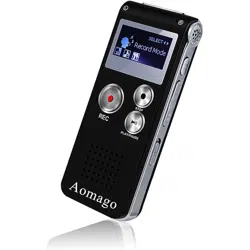
Thank you for purchasing a recorder from Aomago. Customer satisfaction is
our priority. If you have questions or problems, please feel free to contact to us.
.
(),,
(
)
()
.
- Our customer support email: [email protected]
- Keep this booklet for future reference.
)
))
)
music
3/3
2020110311273
2020110311273
2020110311273

105*150mm
. If you have questions or problems, please feel free to contact to us.
.
(),,
(
)
()
.
The Booklet Compiled by 7 main parts: Package Information, Warranty,
Product Feature, Product Sketch, Quick Operation Guide, Basic Operation
Guide, Menu Option.
At Quick Operation Guide and Basic Operation Guide, we can learn how to
use the devices function in short time.
1 year warranty
At the Menu Options Parts, we can find all functions for the devices.
Highly sensitive stereo microphone, record clear voice
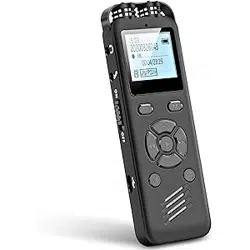
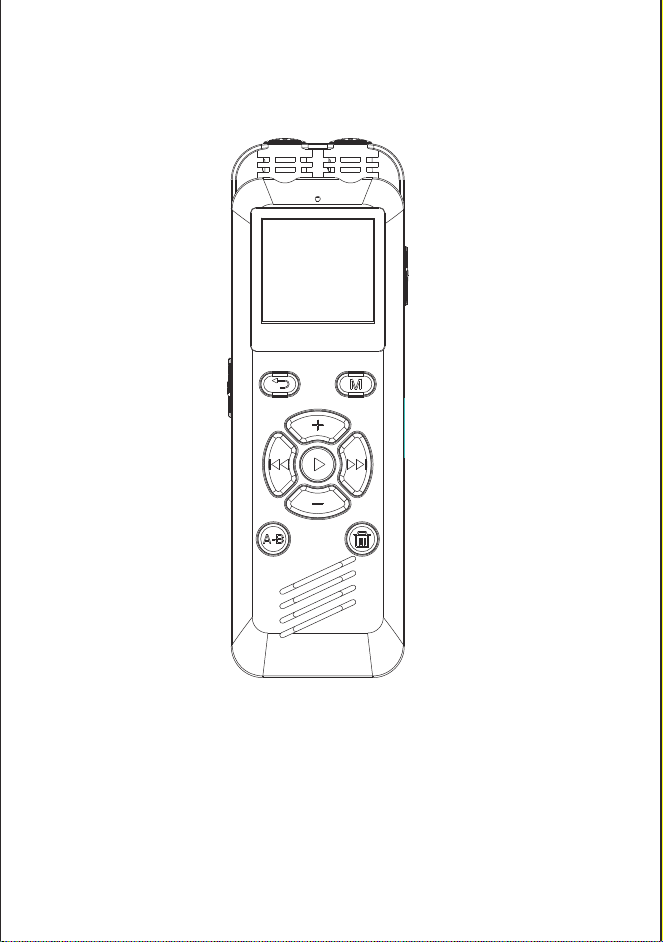
1 x A36 Voice Recorder
Package Information
Product Feature
Warranty
1 x USB Cable
We highly recommend you register at our site to receive an extended
warranty (18months), to verify the product authentication, and to have
better customer service. Registration is free.
Register VIP within 30days via http://www.aomago.com/vip or email to
Recording format: MP3, WAV
Password Protection
Support LINE IN, and external MIC, ideal for recording online lectures
via LINE IN
)
))
)
music
3/3
2020110311273
2020110311273
2020110311273
105*150mm
.
(),,
(
)
()
.
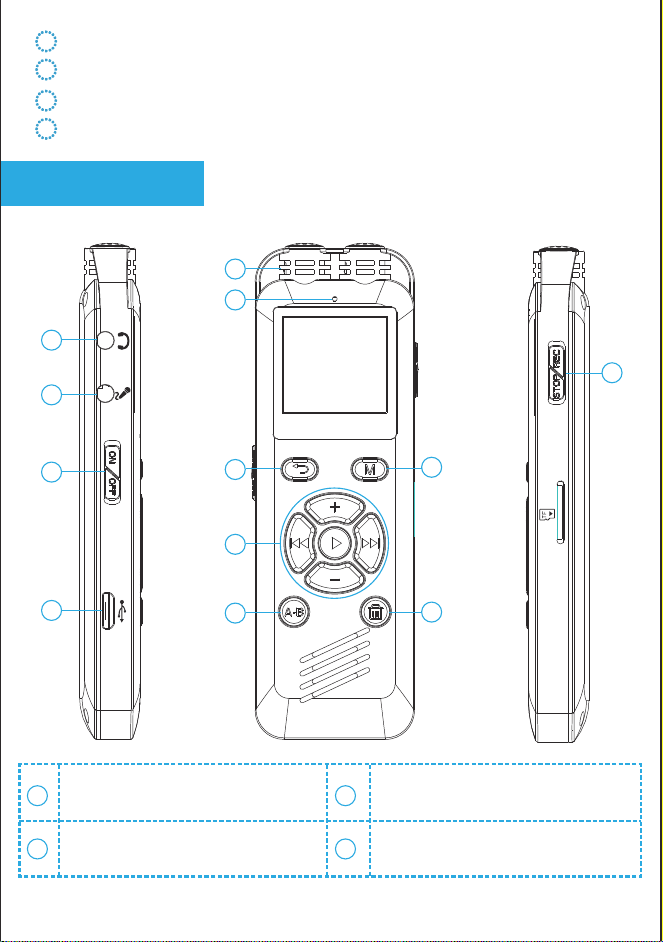
Earphone
ON/OFF
USB Port
External MIC/Line IN
Product Sketch
warranty (18months), to verify the product authentication, and to have
.aomago.com/vip or email to
Support LINE IN, and external MIC, ideal for recording online lectures
A-B Repeat, idea for study and transcribe
MP3 Player, can play MP3, WMA, APE, FLACE, WAV, OGG etc
Built-in speaker, and support earphone
Built-in rechargeable Lion Battery, charging via USB port
OFF
ON
REC
SAVE
12
5
1
2
4
3
6
7
10
9
11
8
1
3
2
4
)
))
)
music
3/3
2020110311273
2020110311273
2020110311273
105*150mm
.
(),,
(
)
()
.
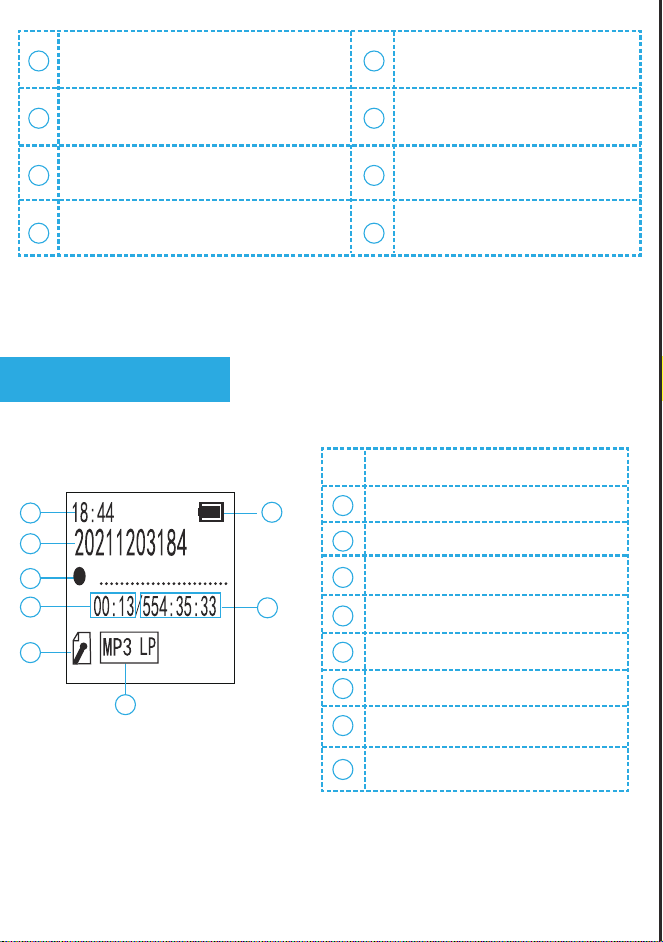
Record/Save
Built-in Microphone
LED Indicatro
navigator buttons
M Button
Return
A-B Repeat
Delete
Display Information
1
3
2
1
3
4
5
6
7
8
2
12
6
8
5
7
9 10
11
4
5
6
7
8
NO. Information
Time
File Name
Recording Status
Recorded Time Length
Recording source
File Format
Battery Bar
Left Time Space
)
))
)
music
3/3
2020110311273
2020110311273
2020110311273
105*150mm
.
(),,
(
)
()
.
Quick Operation Guide
Basic Operations Guide
OFF
ON
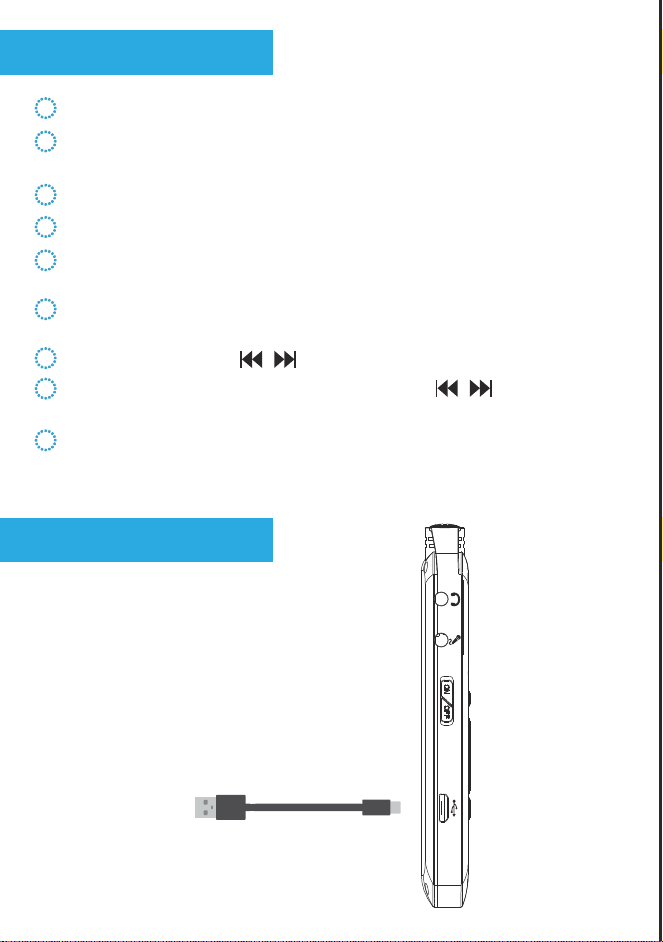
Power Button: left side, turn on/off device power
1)How to Charge
))
)
RECORD: Push up the record button to record
SAVE: Push down record button to save
PRE./NEXT: Press to select previous / next recording
AB REPEAT: During playback, press A-B button to start A-B repeat
function
REWIND/FAST FORWARD: Press and hold to rewind or fast
forward
PLAYBACK: After saving a recording, press PLAY to playback, press
PLAY again to pause
DELETE: At recordings library, press the DEL button to delete selected
recordings
ON/OFF: Press PLAY button 3 seconds to turn on / off the device
(when power button is ON)
music
3/3
2020110311273
2020110311273
2020110311273
105*150mm
.
(),,
(
)
()
.
OFF
ON
OFF
ON
)
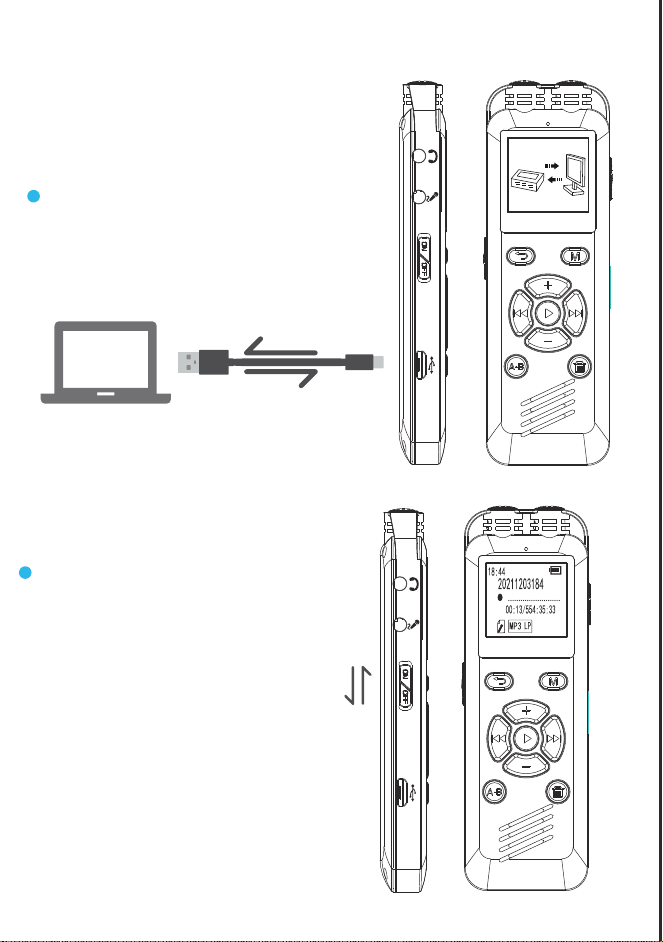
2)How to Transfer File to Computer )
3)Turn ON/OFF
ARD: Press and hold to rewind or fast
button to delete selected
With attached USB cable,
connect to computer.
Power Button: Push up/down
turn on/off the device power
music
3/3
2020110311273
2020110311273
2020110311273
105*150mm
.
(),,
(
)
()
.
REC
SAVE
)
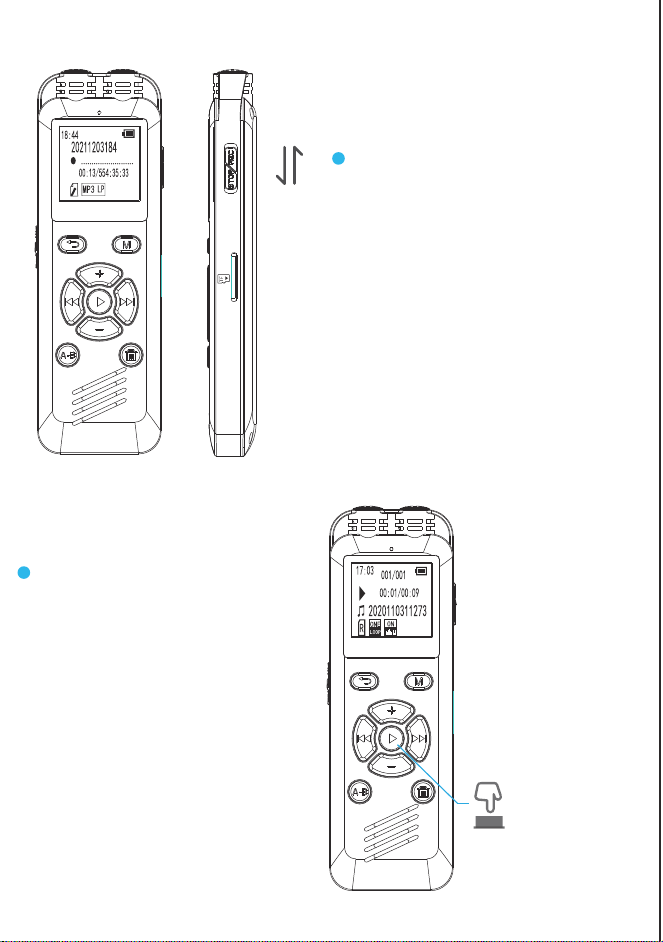
)4)How to Record
)
5) How to Playback
Push up/down to record/save
Press PLAY button
music
3/3
2020110311273
2020110311273
2020110311273
105*150mm
.
(),,
(
)
()
.
)
))
)
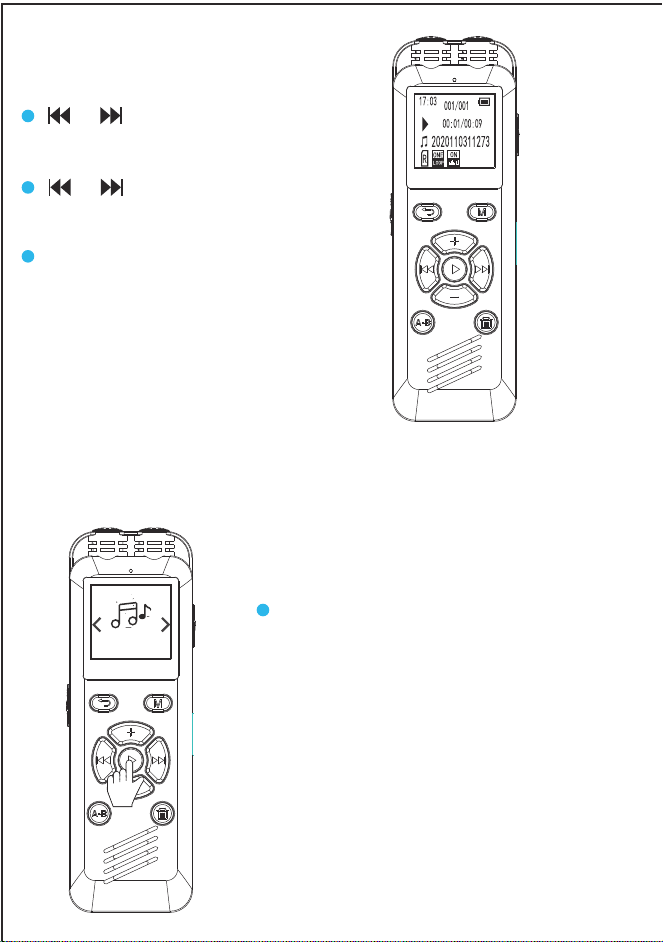
7) How to Play Music
6) The Navigator Buttons Function
Notice: we need create a
MUSIC folder to store music on
the device
/ press and hold for
fast forward or rewind
/ short press to select
next/previous
+/-: adjust volume, or up/down
selection
music
3/3
2020110311273
2020110311273
2020110311273
105*150mm
.
(),,
(
)
()
.
)
))
)
9
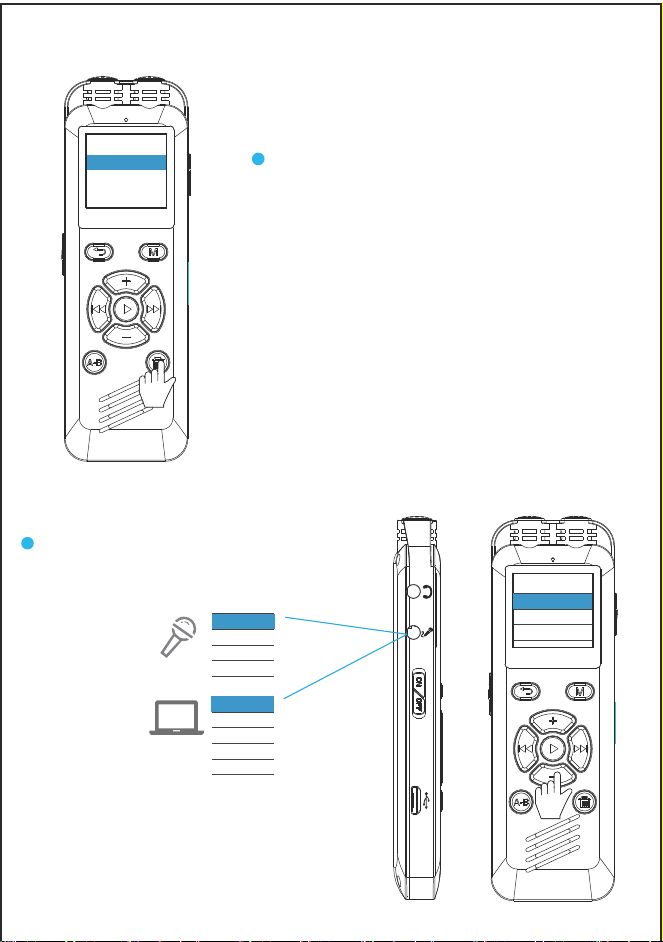
9) How to use External MIC / LINE IN
8) How to Delete
OFF
ON
We can select to delete single
file or delete all, when select
delete single file, it will delete
the file we selected, if select
delete all, all files will deleted,
and be caution, it cannot
restore
Select correct recording source
when use this function
music
line-in
External MIC
line-in
External MIC
line-in
External MIC
3/3
2020110311273
2020110311273
2020110311273
105*150mm
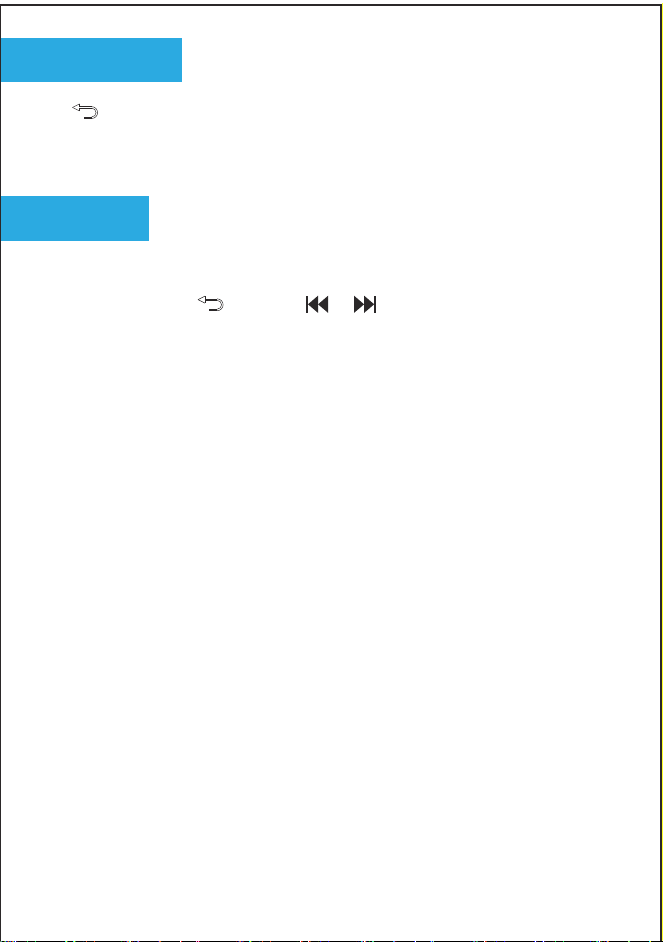
Press we can return to MAIN menu. The PLAY button works as
OK/Confirm in menu options, each settings, we need to press PLAY button to
confirm and let it comes into effect.
(turn on device) -> hit -> press / to select Recording -> Hit PLAY,
we can see all recording files and record settings from here.
Set recording functions from here.
It will show all recordings on the device.
Turn on / off Activated Voice Record Mode.
Select the recording format WAV Rec/ MP3, and recording bit rate, remember
press PLAY to confirm.
Notice: for better recording quality, select at WAV format and higher bit rate as
possible.
.
(),,
(
)
()
.
At AVR mode, we still need to push UP REC button to record, and push down
REC button to save recordings when we complete a recording task.
Turn On this function, plug in earphone, we can hear and monitor what it is
recording.
ON: default. LED indicator light is ON. OFF: turn off the LED indicator light.
We can set this function, and let the device automatically starts to record and
save a recording file at scheduled time.
Record on/off: turn on/off the auto record function.
Recording
Menu Options
)
1. Recordings library
2. Record Format
3. AVR Mode
4. Record Monitor
5. LED Indicator
6. Auto Record
))
)
music
3/3
2020110311273
2020110311273
2020110311273
105*150mm
,
V Rec/ MP3, and recording bit rate, remember
V format and higher bit rate as
Notice:
- In order to let the device work as properly, you need set correctly system for
the device.
- You need turn off password function, if has.
- External Microphone and LINE IN recording cannot use together with this
function.
When recording via External Microphone or LINE IN cable, push up REC
button, and then press +/- button to select correctly recording source, press
PLAY to start recording.
(turn on device)-> tap -> press / to select Music -> Hit
PLAY, we can see all music file on the devices from here
When it is playing recordings or music, press M enter player setting.
Repeat One, Repeat All, Shuffle, Repeat Off.
.
(),,
(
)
()
.
LINE IN: for line in cable recording.
External MIC: for connecting external microphone recording.
REC button to record, and push down
Record Cycle: set auto record function cycle. It can function at Once, Daily or
Work Day.
Start Time: set when the device start to record.
End Time: set when the device save file and stop record.
External Microphone
Music
Player Setting
)
1. Play Mode
))
)
music
3/3
2020110311273
2020110311273
2020110311273
105*150mm
(turn on device)-> tap -> press / to select Music -> Hit
It can set playback speed from -8 to +8, remember to press PLAY to confirm
settings.
(turn on device)-> tap -> press / to select Settings -> Hit
PLAY, we can changes system settings for the devices starts from here.
A. If forgot password, please enter 18 18 18, and then hold button more
than 3 seconds to reset the device.
(),,
(
)
()
Password switch: OFF default. When turn it on, we need to set password for
the device.
Password set: input a 6 digits password. Press +/- to set the numbers. Press
/ to move to next.
Set date: press +/- and to set date. Press PLAY to confirm.
Set time: press +/- and to set time. After setting press PLAY to confirm
setting.
English default. We can select for other language of the device. If,
unfortunately, the device is set to the wrong language, please contact
customer service.
OFF, Vocal, Treble, Bass,Excite, Relax for choice.
Notice
1. Language
2. Date and time
3. Password Set
System Settings
)
2. Variable Playback Speed
3. Sound Effect
))
)
music
3/3
2020110311273
2020110311273
2020110311273

105*150mm
.
(turn on device)-> tap -> press / to select Settings -> Hit
B. If password function is ON, when connect to computer, we need to input
correct password, otherwise, it will fail connect to computer.
we can select from 10seconds, 20seconds, 30seconds or always on. Select
always on, the display will always on, it consume battery a lot.
when set, the device will countdown, no matter we you are doing with the
device, it will force to shut down, when time is ZERO.
Player Information: Device shows the firmware version and the release date.
Disk Space: Device shows the free space and total space.
Restores to factory default. Very helpful if confusion arises when creating
settings.
Select Yes, press PLAY to confirm. Device will start to restore factory settings.
When completed, it will show Restored!
This will format the disk and erase all data on the device, so remember to back
up important files before doing.
Select Yes, press PLAY confirm. Device will start to reformat and erase all
data. Wait until the device reboots and completes the process.
Note: Do not turn off power when formatting device. If, unfortunately, the
devise is mistakenly cut off, it will show as disk error.
To correct disk error.
we can set from 10 to 18, remember to press PLAY to confirm.
set the button press sound, 3 level.
(),,
(
)
()
to confirm
.
4. Backlight Timer
5. Brightness
6.Touch Tone
7. Auto Switch Off
8. Information
9. Factory Reset
10. Format Device
)
))
)
music
3/3
2020110311273
2020110311273
2020110311273

105*150mm
.
to confirm. Device will start to restore factory settings.
This will format the disk and erase all data on the device, so remember to back
Turn off the device. Connect the device to a Windows computer, and format
the disk from the computer to return to normal state.
Note: If you are using a MAC computer, please contact our customer support.
Reformatting on a MAC computer needs different options.
Product Size
Product Weight
Display Size
USB Port
Input
Record Bit Rate
Support System
Headphone Output
Memory
Battery
Playback Time
Max Recording Battery Time
Support Music File Format
102 x 33 x 12MM (4.01 x 1.29 x 0.47Inch)
Micro USB (for charging and data transfer)
< 1A 5V
1536kpbs, 512kpbs, 128kpbs, 64kbps, 32kpbs
Windows / 7/8/10, MacOS, OTG function to
support Android Device
Max 10mW+(30Ohm),Freq20Hz-20K Hz,
S/N Ratio >90db, Distortion rate: 0.05%
8G/16G/32G(Subject to the device in your
hand)
3.7V 270m AH Rechargeable Lion Battery
15Hour(Lab Test Environment)
Recording at 32kpbs MAX 14-20 Hours
MP3/WAV/FLAC/APE/OGG/WMA
33.1g (oz)
128 x 64LCD
.
Technical Parameter
)
))
)
music
3/3
2020110311273
2020110311273
2020110311273