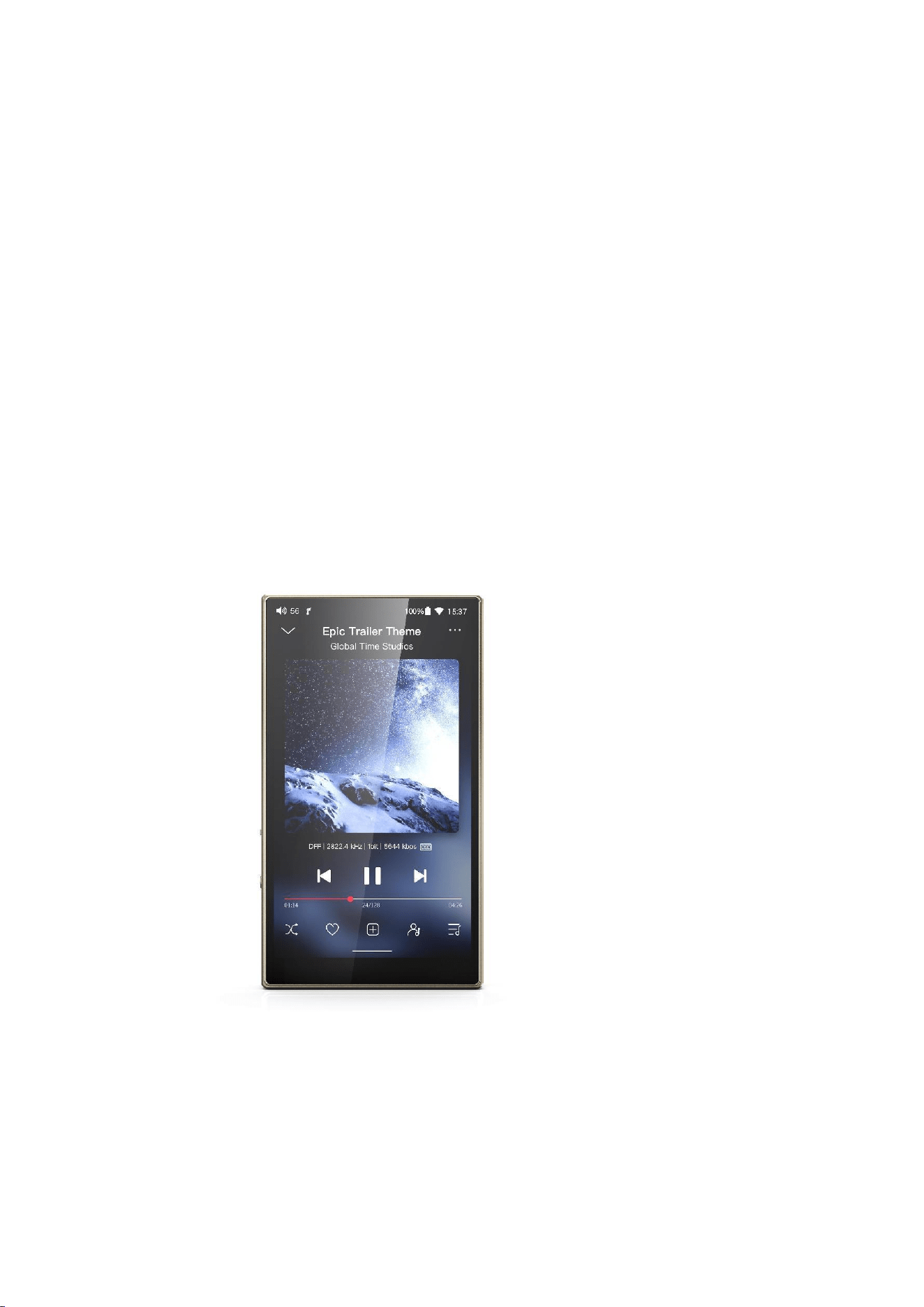
All the pictures below are for illustrations only. Specifics are subject to the actual
product.
M21 Complete User Manual

Foreword
Thank you so much for purchasing FiiO's portable high resolution lossless music
player M21. We have prepared this complete user manual for you. We hope this
manual can help you get the hang of the M21 and unleash its full potential.

Contents
Foreword............................................................................................................................................................ 2
Contents............................................................................................................................................................. 3
Buttons and ports............................................................................................................................................1
1. Pictorial guide to buttons and ports............................................................................................. 1
2. Instructions for buttons and ports.................................................................................................1
Status bar and display page......................................................................................................................... 4
Instructions for entry-level functions........................................................................................................ 5
1. Five working modes........................................................................................................................... 5
2. How to access the storage/SD card after connecting the M21 to a computer?..............7
3. How to upgrade the M21?............................................................................................................... 7
4. How to install third-party apps?.....................................................................................................9
5. How to change the language?........................................................................................................ 9
6. How to enable the USB DAC function?........................................................................................ 9
7. How to use the M21 as a Bluetooth transmitter?................................................................... 10
8. What power supply adapter is suggested to charge the M21?.......................................... 11
9. How to enter the tape mode?....................................................................................................... 12
10. How to use the D.MODE (Desktop Mode) and super high gain mode on the M21? 13
11. How to use the multifunction button?.....................................................................................14
An introduction to system settings menu..............................................................................................15
WiFi............................................................................................................................................................ 15
Bluetooth..................................................................................................................................................16

Bluetooth transmitting.................................................................................................................16
Bluetooth receiving.......................................................................................................................18
Audio......................................................................................................................................................... 19
Display...................................................................................................................................................... 24
Global........................................................................................................................................................ 26
System.......................................................................................................................................................29
Languages & input................................................................................................................................29
Reset options.......................................................................................................................................... 30
FiiO Music APP............................................................................................................................................... 30
Instructions for commonly-used functions............................................................................................39
1. Screenshot...........................................................................................................................................39
2. USB Audio digital output................................................................................................................39
3. FiiO Link Bluetooth control............................................................................................................ 40
4. FiiO Link Wifi control........................................................................................................................40
5.How to use the DLNA function?.................................................................................................... 41
6.How to use the coaxial function of M21?................................................................................... 41
7. What can be done if I forget my password? How to enter recovery mode?.................. 41
Firmware upgrade, factory data reset and technical support .......................................................... 43
1.How to upgrade firmware?............................................................................................................. 43
2.Force to reboot................................................................................................................................... 44
3.Factory data reset...............................................................................................................................44
4.Technical support ............................................................................................................................... 45
1
Buttons and ports
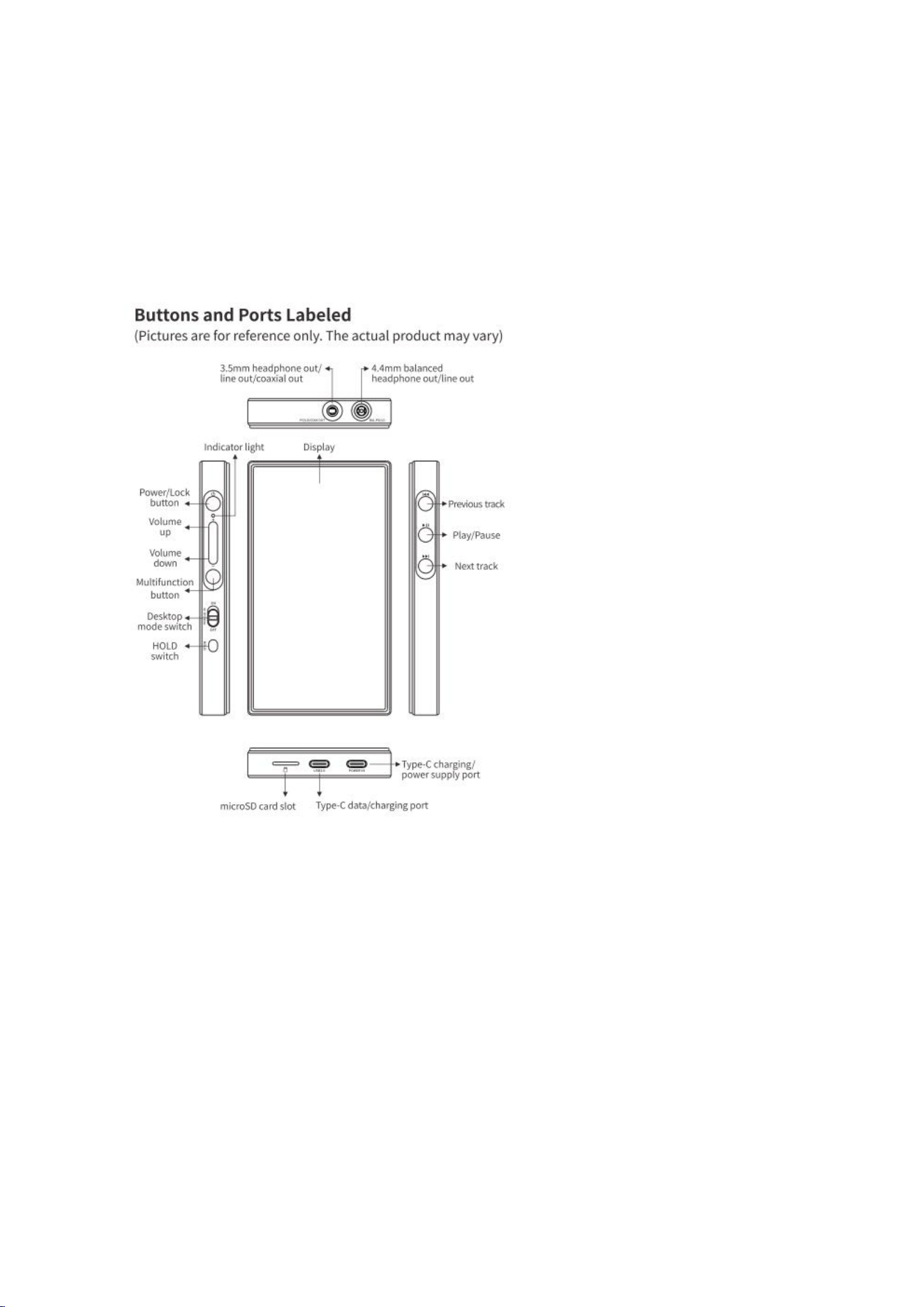
1. Pictorial guide to buttons and ports
2. Instructions for buttons and ports
1) 4.7-inch (750x1334) bezel-less screen: menu and other information
displayed, used with physical buttons to operate the device.
2) Power/Lock button: Hold the Power/Lock button to turn on the M21 while it
is off. On its first startup, tap the preferred language onscreen to enter the main

2
UI. Hold the Power/Lock button while the M21 is on and a shutdown dialogue
will pop up. You can select to turn off or reboot the player.
3) Play/Pause: short press it when music is playing to pause the music; short
press it when music is paused to resume the playback.
4) Volume up/down: press the volume up button to increase the volume, press
the volume down button to decrease the volume.
5) Previous track: short press to play the previous track; long press to rewind.
6) Next track: short press to play the next track; long press to fast forward.
7) Malfunction button: You can select the functions for this button from system
setting-Global-Multifunction button
8) Desktop mode switch: When USB is inserted with D.MODE switch turns ON,
the Desktop Mode will be enabled.
9) Hold switch: If the HOLD switch is turned on, you can enable/disable any
buttons, touch screen.
10) TF card slot: supports one TF card (micro SD card), theoretically up to 2TB
expansion.
11) Type C charging/power supply port: The Type C port marked POWER IN
only supports charging/power supply but not data transfer with computers.

3
12) Type C data/charging port: The Type C port marked USB3.0 supports data
transfer, common charging, USB HOST, USB OTG and so on.
13) 4.4mm balanced output: supports 4.4mm balanced headphone/line-out
output.
14) 3.5mm headphone/line-out/SPDIF output: shared outputs of line-out and
PO. Go to the menu of Settings->Audio->Output selection to switch to
corresponding modes.
The priority of the M21 output port
1. When the 3.5mm and 4.4mm earphones are inserted at the same
time, the output will be given priority in the order of insertion.
2. According to the Android system's own processing method, Bluetooth
transmission and analog output (including SPDIF) will follow the principle of
post-access priority.
4
Status bar and display page
The status bar on the top screen shows the working states of the M21.
5
Instructions for entry-level functions
1. Five working modes
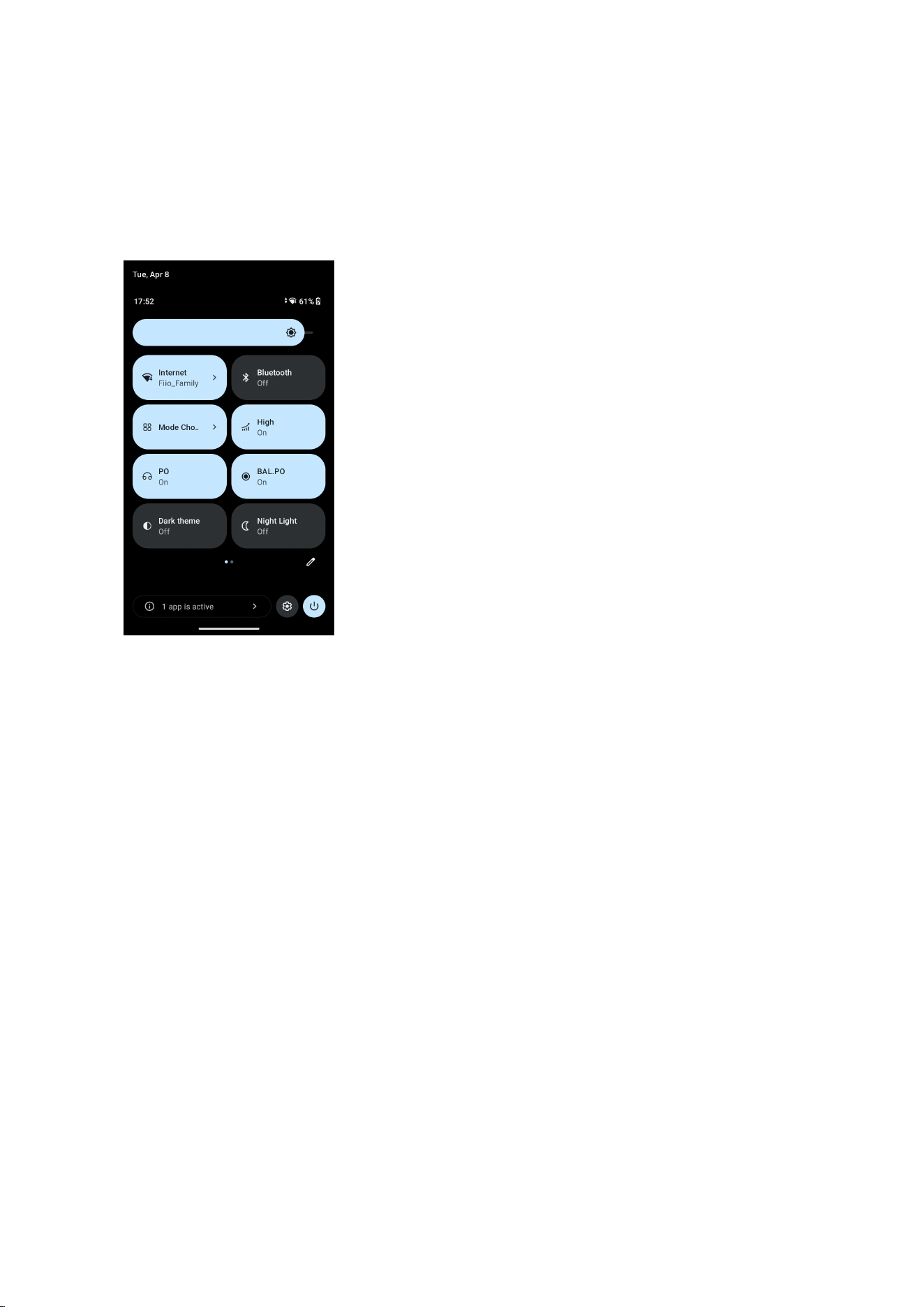
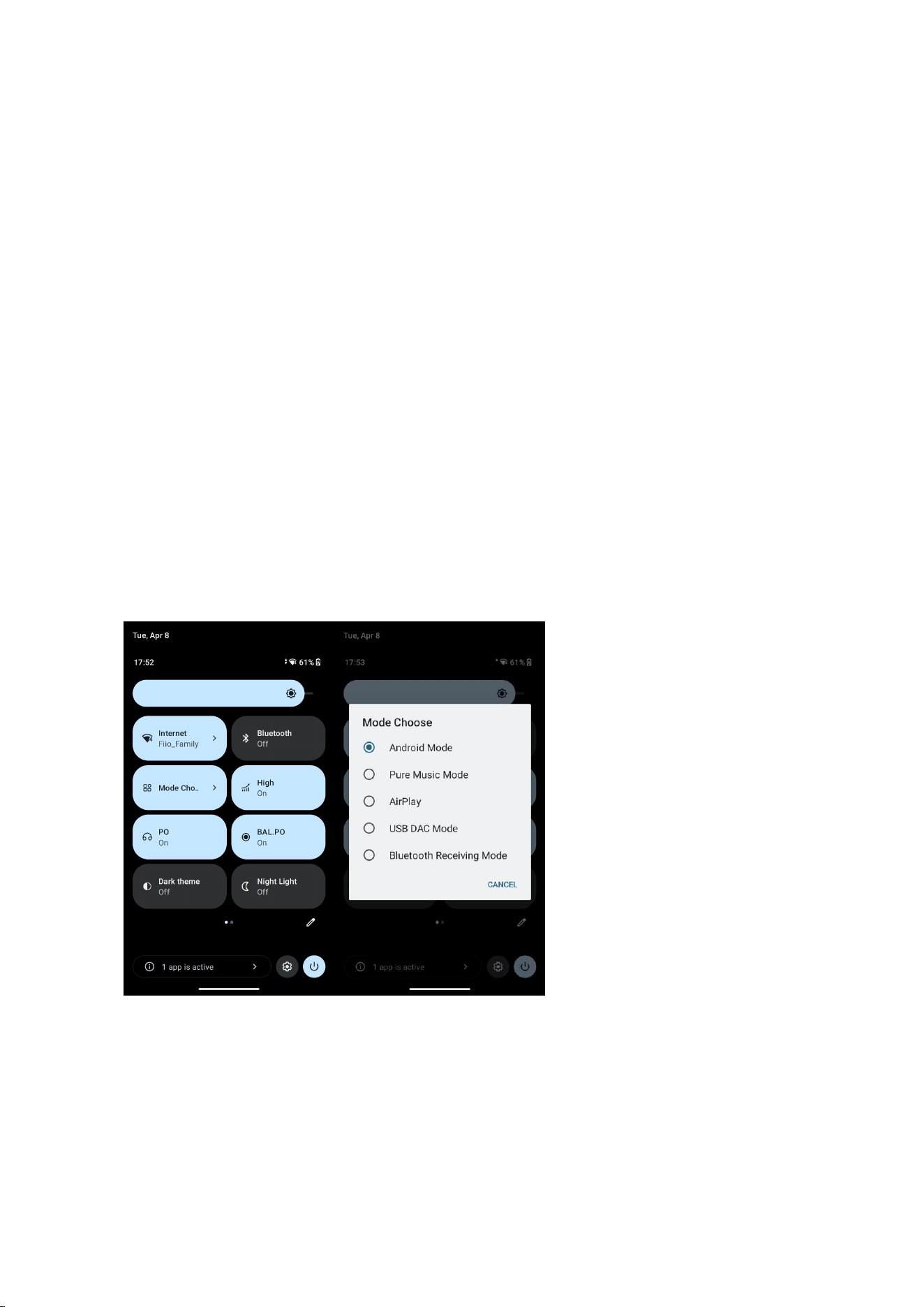
The M21 has 5 independent working modes: Android mode, Pure Music mode,
Bluetooth Receiving mode, USB DAC mode and AirPlay mode. It is defaulted to
be the Android mode, which can be switched to other working modes in the
drop-down menu.
If the player is in other modes but not the Android mode, you can switch it to
other modes through the selection on the display, or tap Settings->Exit to go
back to Android mode.
Android mode
Third party applications will be available at will. It can be switched to other
modes on the drop-down or settings menu.

6
Pure Music mode
Third party applications will be automatically disabled while FiiO Music app will
be auto-enabled. It can be switched to other modes on the drop-down or
settings menu.
AirPlay
The M21 can be connected to Apple devices, receiving audio signals transmitted
from them.
USB DAC mode
In USB DAC mode, the M21 can be connected to other devices like a computer,
working as a USB DAC/Amp. It can be switched to other modes on the
drop-down or settings menu.
Notes: when the M21 is going to work in the USB DAC mode for the first time,
FiiO's exclusive USB DAC driver is required. Please download it on our website
and follow relevant instructions to install it.
Bluetooth Receiving mode
The M21 can be connected to Bluetooth transmitting devices like a mobile
phone, working as a Bluetooth DAC/Amp. It can be switched to other modes on
the drop-down or settings menu.

7
2. How to access the storage/SD card after
connecting the M21 to a computer?
For Windows computers, it is driver-free. After connecting the M21 to the
computer by the included USB cable, the driver will be automatically installed.
Then the FIIO M21 disk can be directly seen on the computer.
【Mac computers need a driver】
1. Visit FIIO's official website https://www.fiio.com/Driver_Download to
download the "Android File Transfer.dmg", and drag the file to the desktop of
the computer.
2. Double-click to open Android File Transfer.dmg, then hold the application icon
for Android File Transfer and drag it onto Applications. Release the icon to drop
it. Wait for the copying to finish.
3. Use a USB data cable to connect the M21 to the Mac computer.
4. Enter “Applications”, and double click the “Android File Transfer”. Then you
can manage the files stored in the internal storage of the M21 or the micro SD
card.
Notes: The M21 folder will directly pop up the next time it is connected to the
same computer.
3. How to upgrade the M21?
The M21 supports online upgrade and local upgrade.
1) Online upgrade

8
If a new firmware is available and can be detected (with the M21 connected to an
available internet), an upgrade notification will show up in the notification center.
Tap on it to enter the update menu for the online upgrade. If there's no upgrade
notification showing up, you can go to the "Technical Support->Firmware
Upgrade" menu, and tap the "Check for updates" icon to check manually.
2) Local upgrade
Also, the M21 can be upgraded locally by a firmware package. Download the
firmware package file from FiiO.com, and copy it to the internal storage of the
M21 or an SD card. Go to the "Technical Support->Firmware Upgrade->Local
Upgrade" menu, and find the firmware package file to start the upgrade.
Notes:
1) Do not unzip the firmware package file.
2) Before the upgrade, ensure the power of the device is adequate (>30%) so to
avoid upgrade failure.
3) If the device goes to factory mode which cannot detect the firmware, the
reason may be that the firmware file is damaged. At this time, press the power
button to reboot the device. Re-download the firmware file and restart the
upgrade.

9
4. How to install third-party apps?
There are two ways to install applications that are similar to mobile phones'.
1.After connecting the device to a valid WiFi, go to FiiO market, Google Play or
other app markets to download and install the app directly.
2.Local installation: copy the APK file to the M21. Go to the file management
menu to find the file and install it.
5. How to change the language?
1.Go to the menu of Settings->System->Languages and input->Languages.
2.Tap "Add a language" to choose the intended one.
3.Press the "=" icon on the right side and drag it to the first line to select the
language successfully.
Note: The language of the FIIO Music app defaults to follow the system's. You
can also go to the FIIO Music app->ME>Languages/语言 to choose the
language independently.
6. How to enable the USB DAC function?
For Mac computers, the M21 runs driver-free.
For Windows computers, please make the settings as the followed steps.
1) Install the FiiO DAC driver in the computer first.
2) Switch the working mode of the M21 to USB DAC mode on the drop-down

10
menu or go to Settings->Mode choose menu to enter the USB DAC mode.
3) Connect the M21 to the computer by the USB port. Select the M21 as the
audio input both in the computer and the music app, so it can work.
Notes:
When in the USB DAC mode, the M21 does not support Bluetooth transmitting.
7. How to use the M21 as a Bluetooth transmitter?
It is similar to mobile phone's. Here are the instructions.
1) Go to the Settings->Bluetooth menu to turn on the Bluetooth function.
2) Make the Bluetooth receiving device, such as Bluetooth earphones, enter the
pairing state. (Please refer to the user manual of the Bluetooth receiving device
about how to enter the pairing state.)
3) Go to the Bluetooth device list of the M21->Pair new device to complete the
connection.
What can be done if the M21 fails to connect to Bluetooth earphones?
If it fails to connect to Bluetooth earphones for the first time, please make sure
the earphones are in the pairing state (the connection will fail if the earphones
are in reconnecting state for the first-time connection). Go to the Bluetooth
menu of the M21 to start the connection.

11
What Bluetooth codecs does the M21 support? And how to switch the
Bluetooth codecs?
The M21 supports LHDC, LDAC, aptX HD, aptX, AAC and SBC. You can switch the
codec on the menu of Settings->Audio->Bluetooth Audio Encoder. Note that it
needs to be disconnected and reconnected to enable the new codec after
changing it.
What can be done if the volume is too low when the M21 is connected to
AirPods?
1.Go to System Settings-Audio and find the Bluetooth volume adjustment mode.
2.Switch the volume adjustment mode to Sync Bluetooth volume.
3.Disconnect and reconnect the Bluetooth device.
8. What power supply adapter is suggested to
charge the M21?
Fast charging protocols including PD2.0 or above are supported. If the power
adapter does not support neither the above protocol, it will not trigger the fast
charging function and super high gain but just common charging. For non-fast
charging adapters, it is suggested to use the 5V 1A/2A power adapters.
12
The POWER IN port only supports PD2.0/3.0 fast charging, while other types are
recognized as normal charging. When connected to PD3.0 fast charging via the
POWER IN port, the maximum charging current can reach approximately 3.5A.
The USB 3.0 port doesn't support fast charging.
Battery capacity: 4000mAh
Battery life:
15 hours (3.5mm standard headphone out)
11.5 hours(4.4mm standard headphone out)
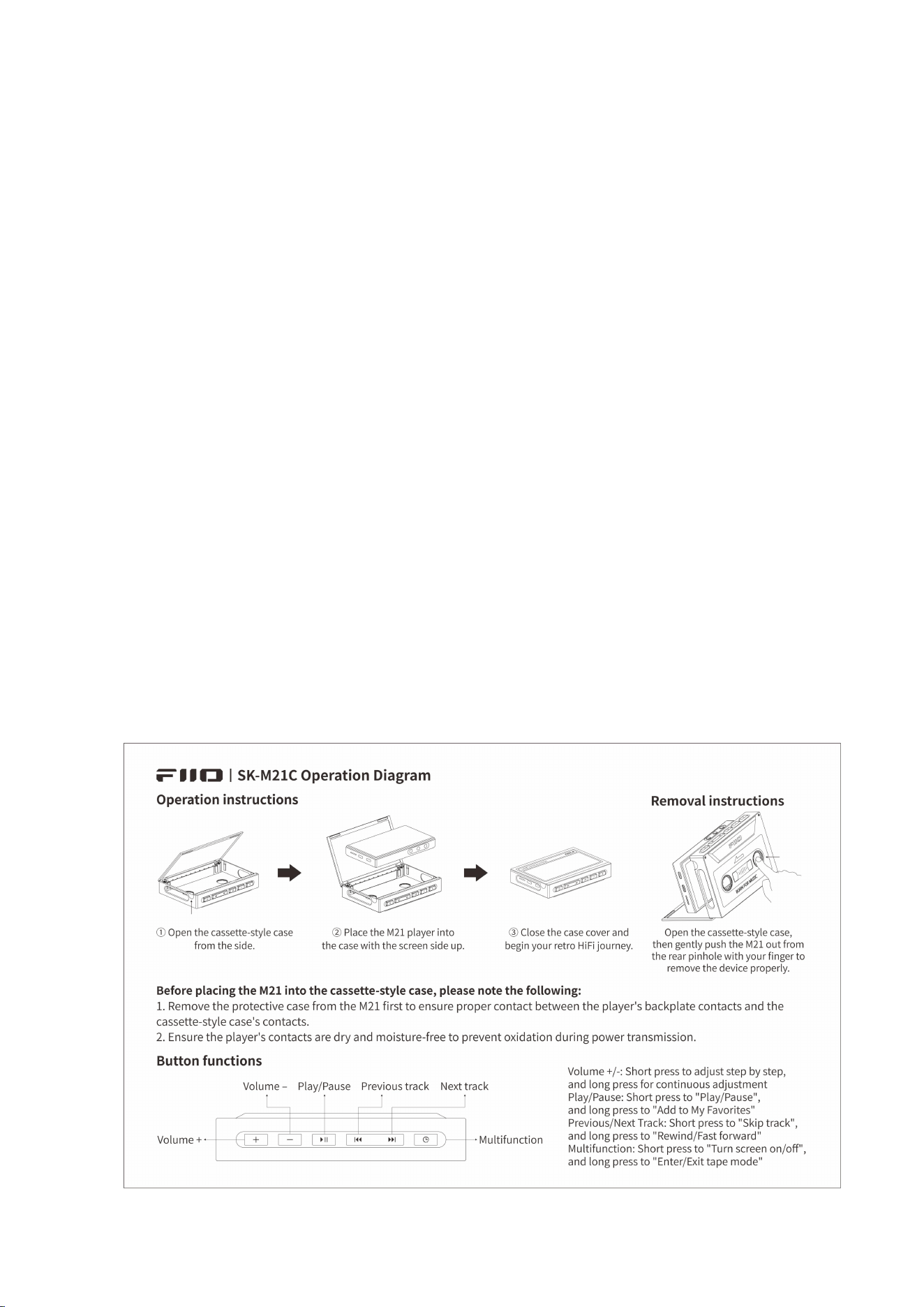
9. How to enter the tape mode?
After installing the tape case, the M21 will automatically enter tape mode. For
detailed instructions, see the following figure:

13
10. How to use the D.MODE (Desktop Mode) and
super high gain mode on the M21?
The definition of Desktop Mode:
When D.mode switched turned on with USB inserted, the desktop mode icon will
appear on the M21 screen. At this time, the M21 is powered directly from the USB
port, without charging the M21 battery or consuming battery power.
Note:
1.If the USB power supply is insufficient, the battery will be required to supply
additional power.
2.When the battery level is below 15%, inserting USB will forcibly charge the
battery even it is in Desktop Mode (charging until the battery is full).
How to enable the D.MODE (Desktop Mode) on the M21?
When USB is inserted and D.MODE is displayed ON, it means the Desktop Mode
is enabled.
The definition of Super High Gain mode:
Super High Gain Mode is an option for Gain. When turned on the headphone will
have more power and greater voltage swing.
How to enable the Super High Gain mode on the M21?
1.Make sure the POWER in port is connected to a fast charging adapter that
supports PD3.0 or PD2.0.
2.Pull down the menu and select Super high gain in Gain option. Or select the
Super high gain option from Settings - Audio - Gain.

14
Note:
When fast charging is plugged in POWER in port and the Desktop Mode is ON, a
prompt will appear asking whether to enable the Super High Gain Mode.
11. How to use the multifunction button?
1. In Player mode: Add to Favorites (default option), Play next song randomly
(randomly play the next song according to random play rules), Play/Pause, Delete
currently playing song, Switch filter (cyclically), Switch equalizer (cyclically), Enter
USB DAC Mode, Enter Bluetooth Receiving Mode, Lock screen/Wake up, No
function
2. In Bluetooth Receiving mode/USB DAC mode, the multifunction button is
forcibly set to: No Function.
Note: This button only responds in Android mode/Pure Music mode, and some
functions only apply to FIIO Music.
15
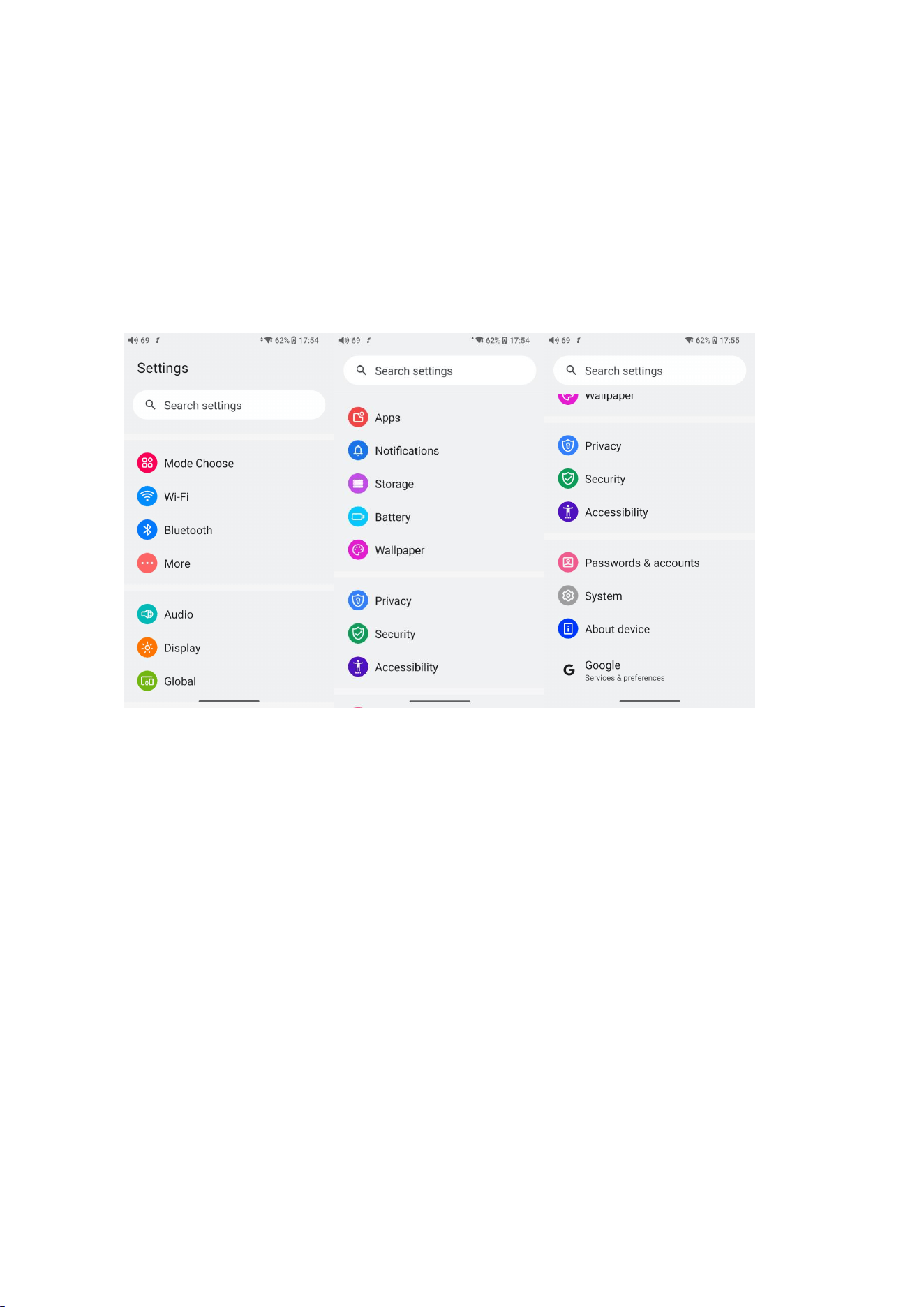
An introduction to system settings
menu
Here is the system settings menu of the M21.
WiFi
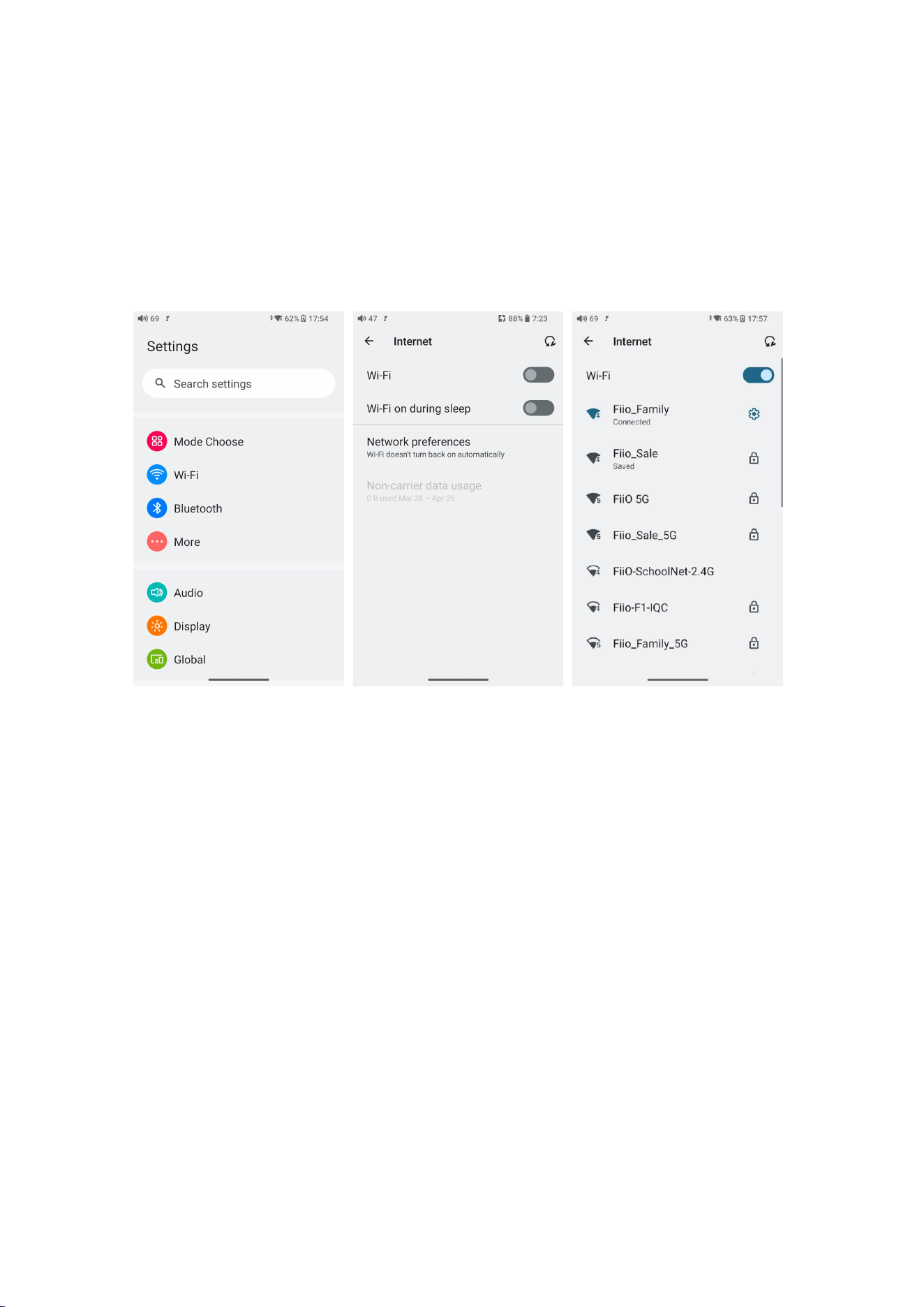
The M21 supports a WiFi connection of 2.4/5G dual-band for music resources
access. Here are the steps to connect the M21 to a new WiFi device.
1) In the settings menu of the M21, tap "WiFi".
2) Turn it on. The M21 will automatically search for and list available WiFi devices
nearby.
3) Tap the intended WiFi device and connect them.
16
Note:When the “Keep WLAN connection during sleep” option is disabled
(default), WiFi will automatically turn off during system sleep and reconnect
upon wakeup, significantly reducing power consumption. Enabling this option
maintains a WiFi connection during sleep with moderately higher power usage.
Bluetooth
The M21 supports lots of Bluetooth codecs for both transmission and reception,
allowing for rich wireless connections.
Bluetooth transmitting
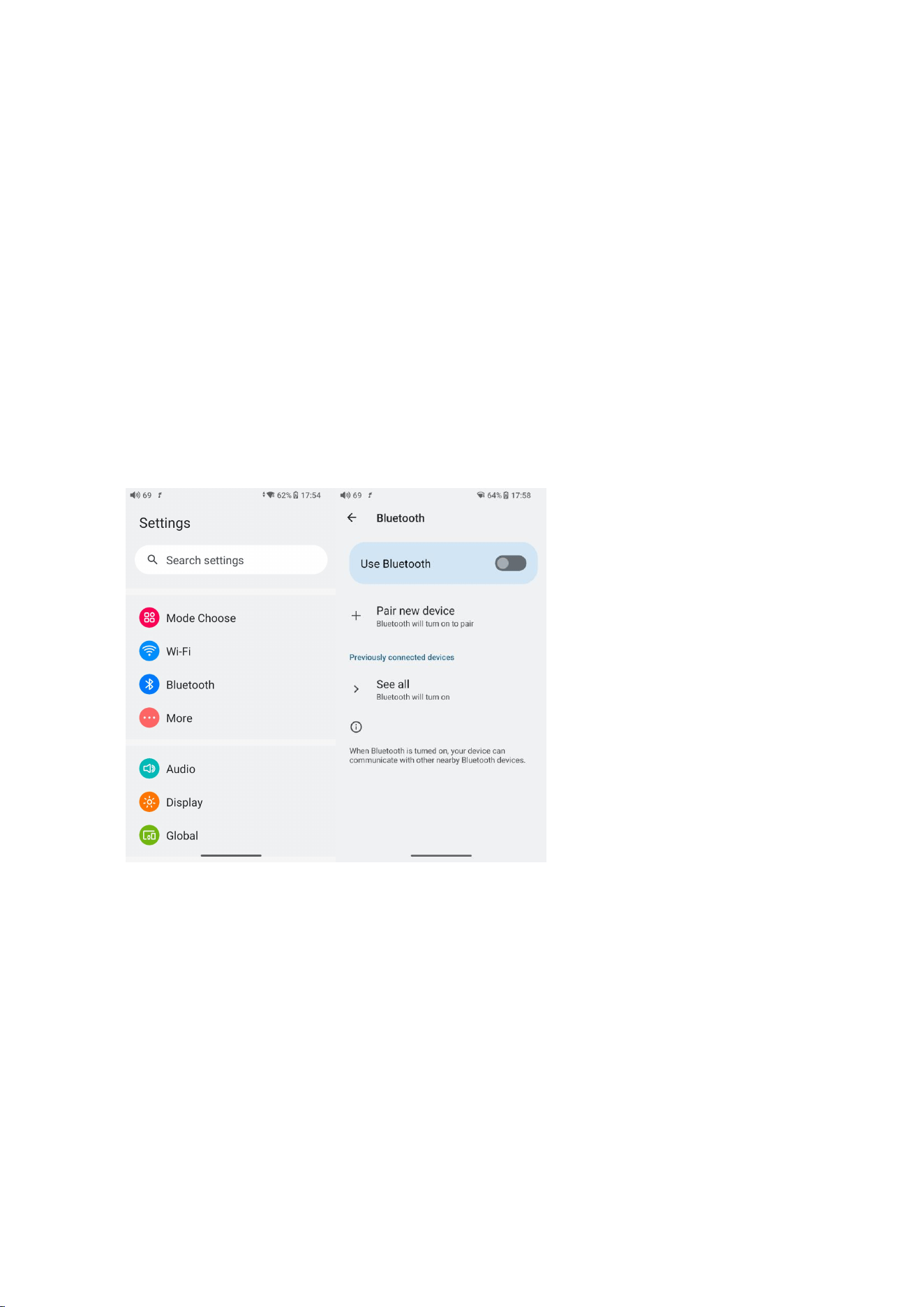
When being a Bluetooth transmitter connecting to new Bluetooth devices (such
as Bluetooth headphones, Bluetooth speakers), the M21 needs to pair with the
Bluetooth device first. Here are the steps.
17
1. Go to the Settings->Bluetooth menu to turn on the Bluetooth function.
2.Make the Bluetooth receiving device, such as Bluetooth earphones, enter the
pairing state. (Please refer to the user manual of the Bluetooth receiving device
about how to enter pairing state.)
3.Go to the Bluetooth device list of the M21->Pair new device to complete the
connection.
What can be done if the M21 fails to connect to Bluetooth earphones?
If it fails to connect to Bluetooth earphones for the first time, please make sure
the earphones are in the pairing state (the connection will fail if the earphones
are in reconnecting state for the first-time connection). Go to the Bluetooth
menu of the M21 to start the connection.

18
What Bluetooth codecs does the M21 support? And how to switch the
Bluetooth codecs?
The M21 supports LHDC, LDAC, aptX HD, aptX, AAC and SBC. You can switch the
codec on the menu of Settings->Audio->Bluetooth Audio Encoder. Note that it
needs to be disconnected and reconnected to enable the new codec after
changing it.
What can be done if the volume is too low when the M21 is connected to
AirPods?
1.Go to System Settings-Audio and find the Bluetooth volume adjustment mode.
2.Switch the volume adjustment mode to Sync Bluetooth volume.
3.Disconnect and reconnect the Bluetooth device.
Bluetooth receiving
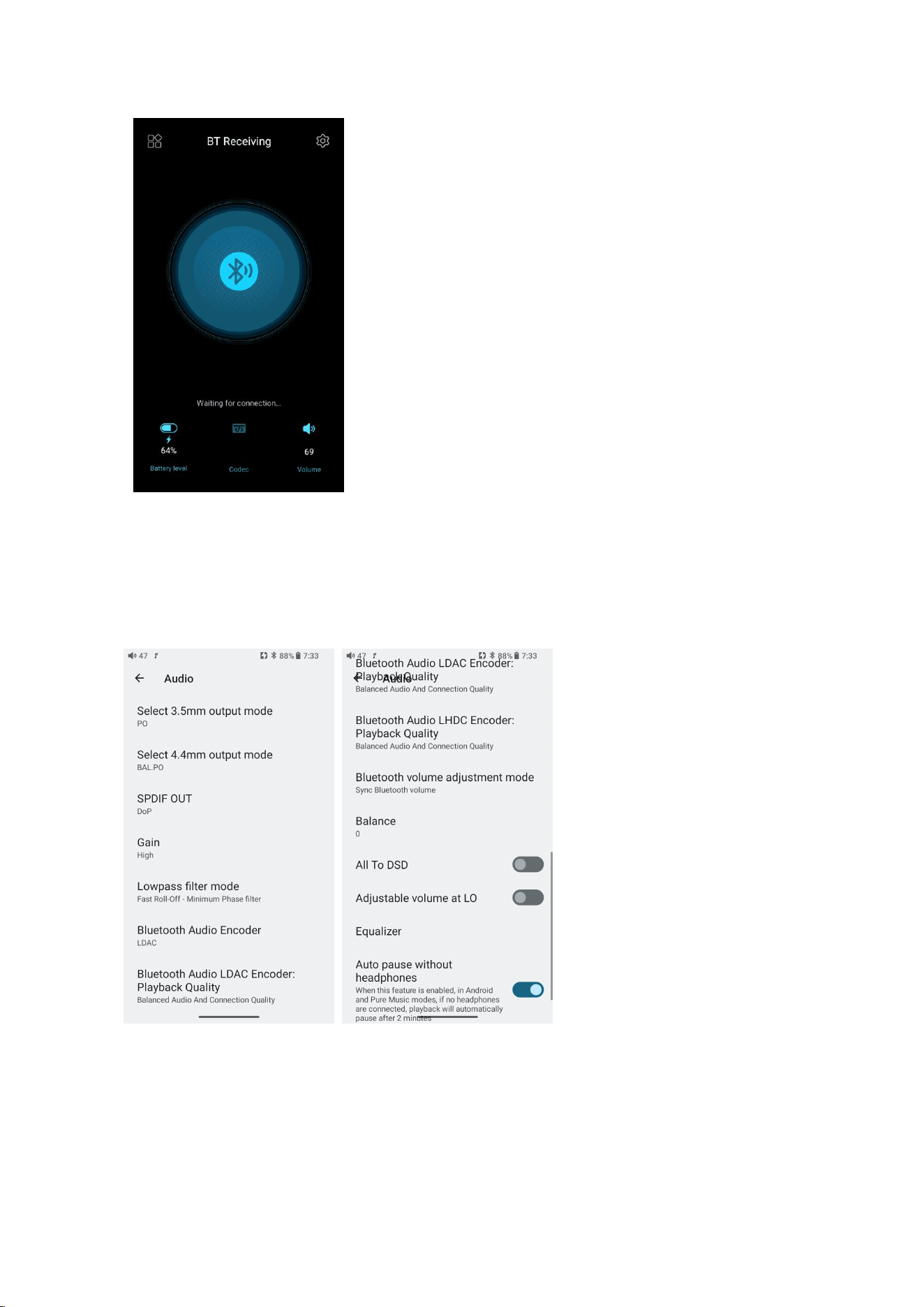
When the M21 is working as a Bluetooth receiver to connect to a new Bluetooth
device, such as a mobile phone, turn on the Bluetooth, go to the Settings
menu-> Mode choose, and select Bluetooth Receiving Mode. When it is enabled,
the M21 will automatically enter the BT Receiving UI.
19
Audio
Select 3.5mm output mode:
switch the output mode of the multifunctional output port, with options for
PO/LO/SPDIF. The default is PO. (When switching to LO, a pop-up prompt will

20
show up saying that Line output is not affected by volume control, and switching
to line output will set the output volume to maximum, potentially causing harm
to headphones and human hearings! Please unplug the headphones and select
the appropriate device for correct connection before switching to line output).
When turning on "Adjustable volume for line output," there is no prompt.
Select 4.4mm output mode:
BAL/BAL LO available, with BAL out as the default.
(The input priority between 3.5mm and 4.4mm headphone ports: The output will
be given priority in the order of insertion.)
SPDIF OUT
This setting needs to be adjusted only when using coaxial output.
*In D2P mode, playing PCM signal will output native PCM signal; playing DSD
signal, the system will convert DSD signal into PCM signal to output;
*In DoP mode, PCM signal and DSD signal will be natively output.
Note: DoP is preferred, and D2P needs to be selected if some devices do not
support DoP.
Gain
There are four gain levels: high, medium, low, and super high gain modes,
corresponding to four levels of output voltage. You can choose different gains
according to your headphones.

21
Note: The Super high gain mode is hidden by default and available only when
inserting a fast charging power supply.
Lowpass filter mode
There are three different filters on the M21. You can choose them according to
your listening preference. Filters are some effects that come with the original
DAC chip, and the adjustment is subtle for the sound.
Bluetooth Audio codec
The default codec for Bluetooth transmission is the highest supported codec,
and you can select the supported codec through this setting.
Bluetooth audio codec LDAC (playback quality)
Allows switching between different playback quality modes for LDAC, including
options for prioritizing audio quality (990kbps/909kbps), balancing audio and
connection quality (660kbps/606kbps), emphasizing connection quality
(330kbps/303kbps), and providing optimal sound quality whenever possible
(Adaptive Bitrate). Only available for Bluetooth transmission.
Bluetooth audio codec LHDC (playback quality)
Allows switching between different playback quality modes for LHDC, including
options for prioritizing audio quality (900kbps), balancing audio and connection
quality (500kbps/560kbps), emphasizing connection quality (400kbps),
prioritizing low latency (256kbps), and providing optimal sound quality

22
whenever possible (Adaptive Bitrate). Only applicable for Bluetooth
transmission.
Bluetooth volume adjustment mode
This function is only available for Bluetooth transmission, which features “Sync
Bluetooth volume” and “Indep Bluetooth volume”. The Sync Bluetooth volume
should also be supported by the receiving device, otherwise, it will be
unavailable. The Indep Bluetooth volume means the volume adjustment of the
receiver and transmitter is independent of each other. The Sync Bluetooth
volume mode can solve the issue of overly small volume when connecting to
some Bluetooth headphones, such as AirPods.
Balance
Channel balance means, by adjusting the output amplitude of the left or right
channel individually to build up a special listening condition suitable for the
users. For users who have no difference in hearing between left and right ears,
there is no need to use this function, as the output of the left and right channels
of the device is balanced. The default value of channel balance is 0, each of the
left and right channels can be adjusted by 20 levels, and each level has a fixed
difference of about 0.5dB.
All to DSD
After turning on the All to DSD, the global PCM audio will be converted to DSD
for output, and the sound quality will be further improved.

23
Principle: The most important thing of All To DSD is to convert the digital signal
in PCM format to DSD format, so that the DSD format can be used when
performing D/A conversion to obtain different styles of sound, more clear and
natural sound. In addition, since the lowest DSD format is DSD64, which is 4
times the data of 44.1k/16bit only calculated from the amount of data, All to
DSD is also equivalent to up-sampling the PCM signal. The effect of All to DSD
also supports third-party apps.
Adjustable volume at LO
When Lineout volume adjustable is enabled, the volume during LO output will
be controlled by the buttons (including both single-ended and balanced LO).
Equalizer
The global PEQ function supports EQ superposition of the FIIO Music and other
third-party apps. Here are the processes after enabling the PEQ on the system.
(1) Over 192k sampling rate- SRC processing;
(2) Priority: All to DSD>PEQ>MQA.
Auto pause without headphones
When this function is enabled, under Android and Pure music modes, if the M21
is in music playback state without headphones connected, the system will
automatically pause playback after 2 minutes.
24
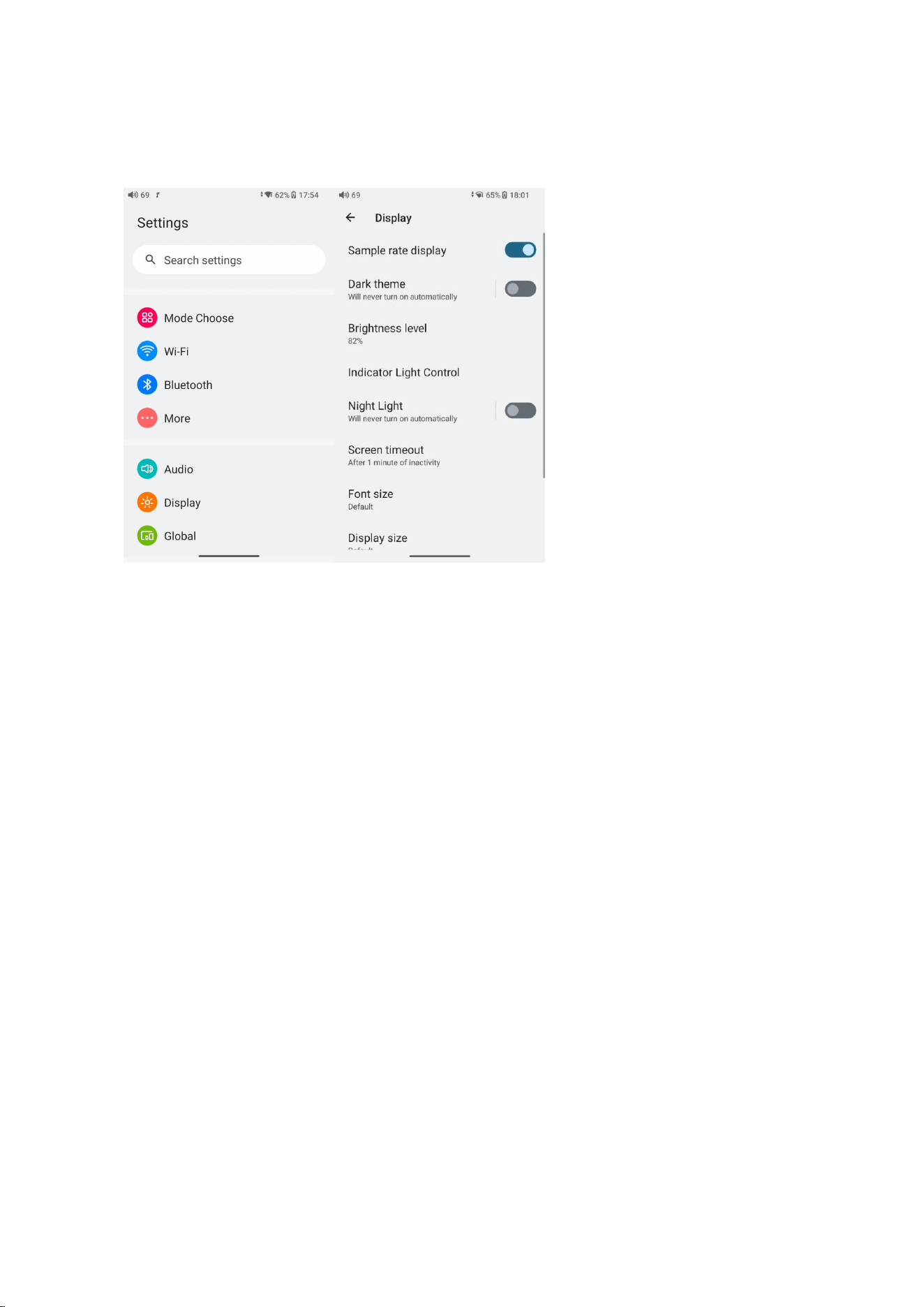
Display
The display settings consist of Sample rate display, Dark theme, Brightness
level,Indicator light control, Night light, Screen timeout, Font size, Display size,
Screen saver and lock screen display. The following are detailed descriptions of
some common item.
Sample rate display
With it turned on, the sample rate of the currently playing song will be displayed.
Dark theme
With it turned on, the theme will switch from the default white theme to a dark
theme.
Brightness level
25
Adjusting the brightness of the M21.
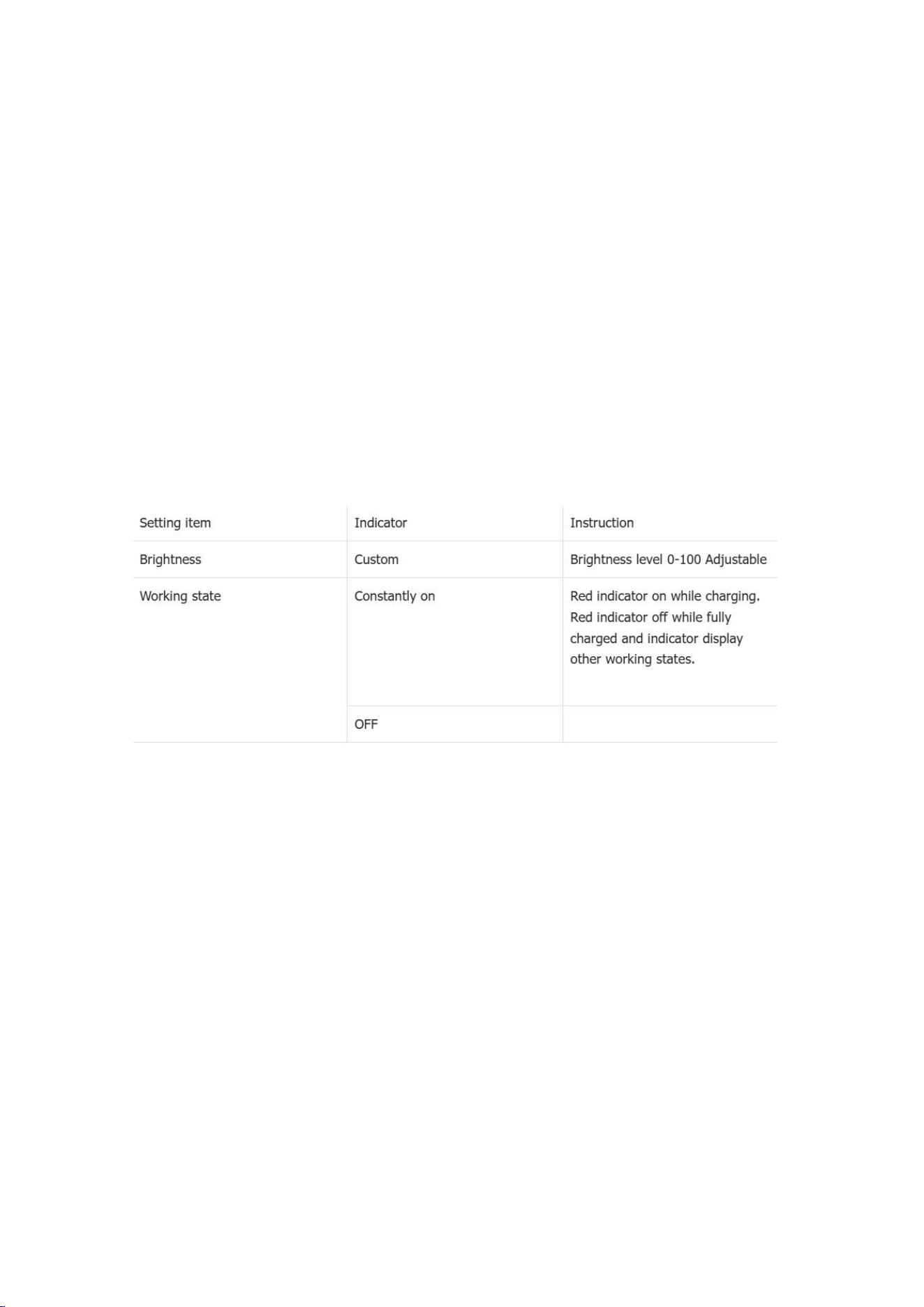
Indicator light control
Working: while working, two states can be set: constantly on and off
On/off with the display: After enabling it, the indicator will on on off
synchronously with the screen
Indicator colour setting instruction:
Night light
The color of the display screen will be adjusted in amber under Night light mode.
You could enable the Night light mode at a custom time , or from sunset to
sunrise.
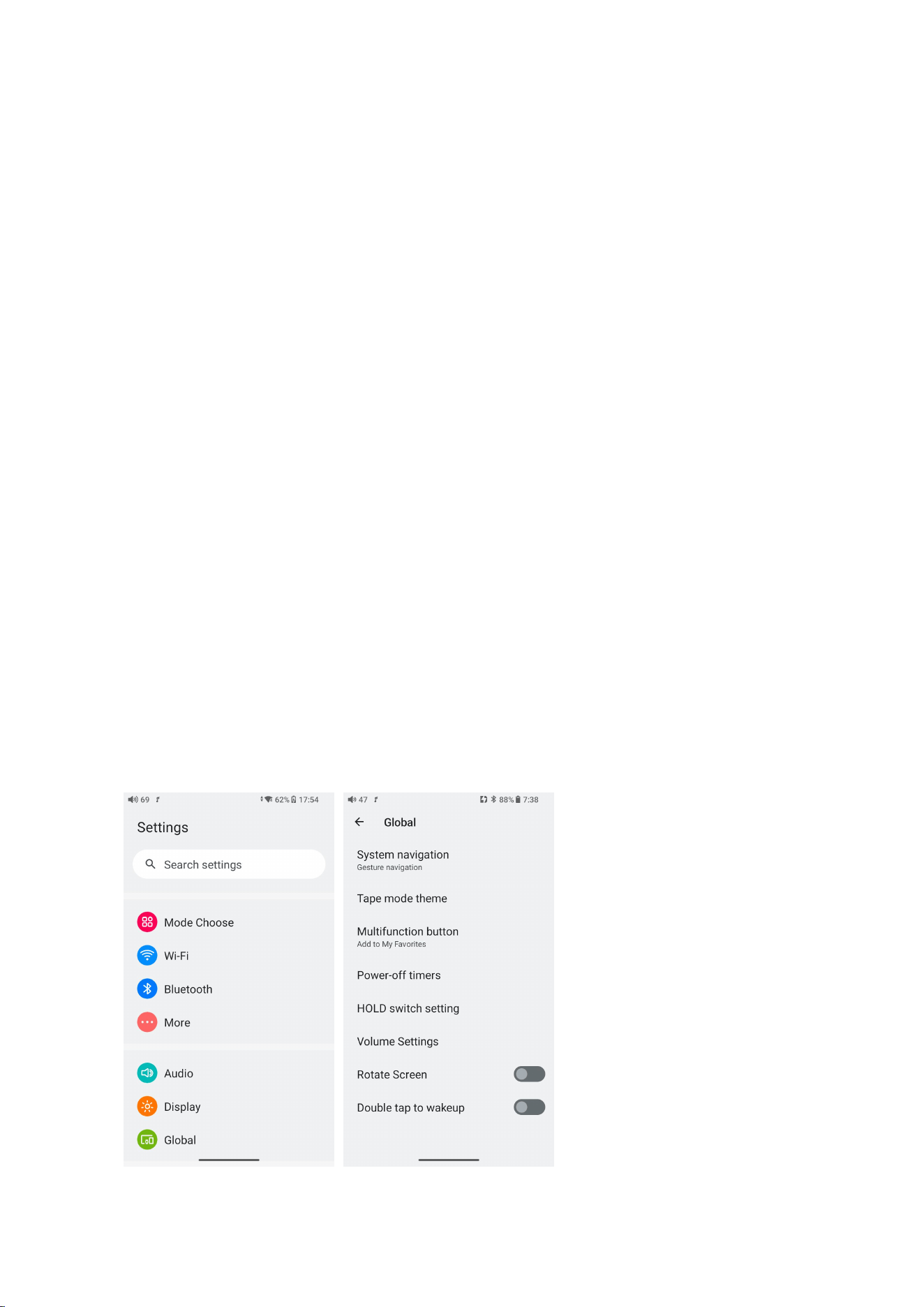
Screen timeout
Consistent with the screen saver time. Adding this option to make it easier for
users to adjust the time.
26
Font size
Customize the font size according to your preference.
Display size
Make the items on your screen smaller or larger according to your preference.
Screen saver
You can choose our customized screen saver or system screen saver for M21.
Lock screen
Setting the content to be displayed when the screen is locked
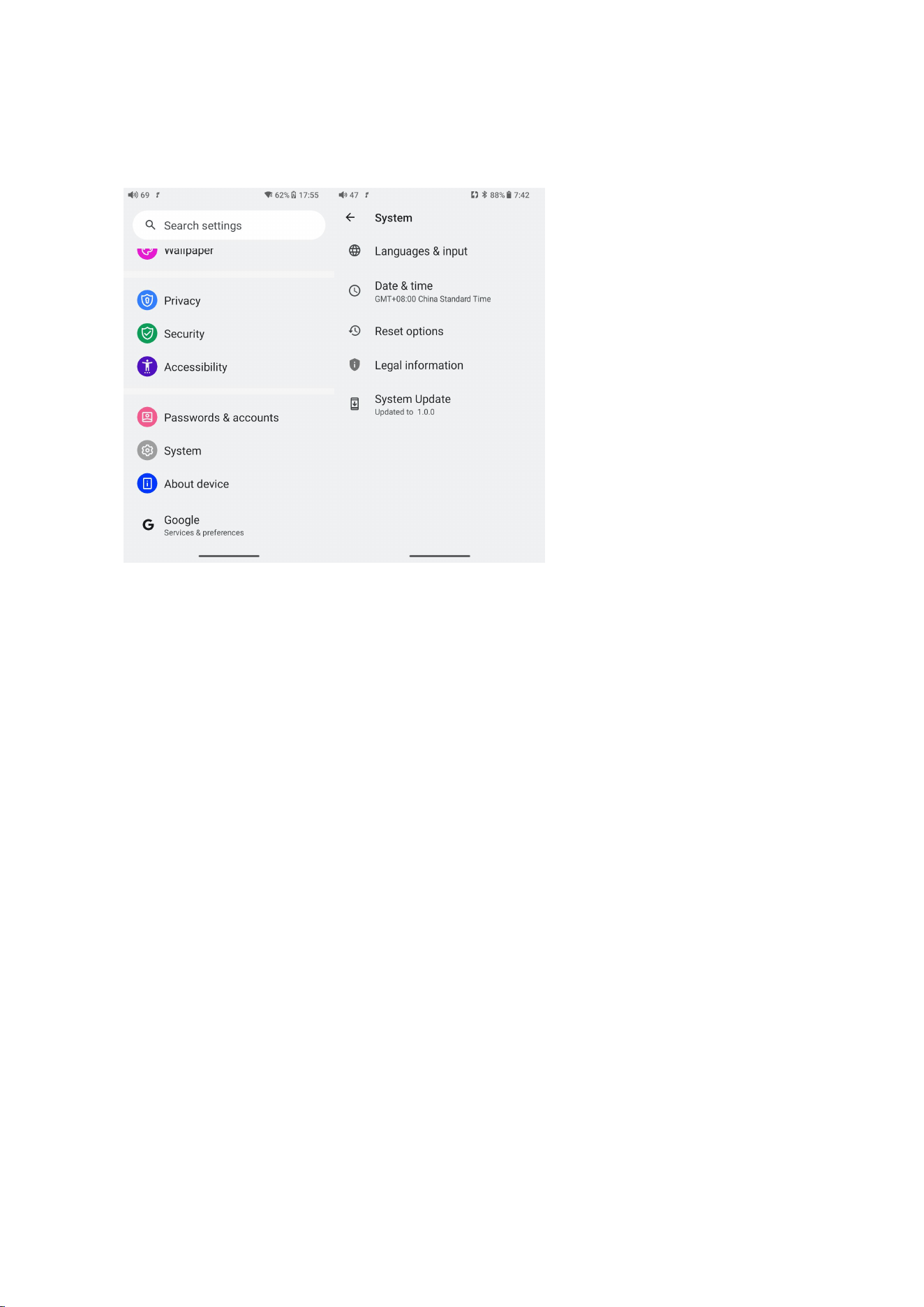
Global

27
System navigation
Gesture, 2-button and 3-button navigation are available.
Tape mode theme
Select the theme after entering Tape mode.
Nultifunction button
1.In Player mode: Add to Favorites (default option), Play next song randomly
(randomly play the next song according to random play rules), Play/Pause,
Delete currently playing song, Switch filter (cyclically), Switch equalizer
(cyclically), Enter USB DAC Mode, Enter Bluetooth Receiving Mode, Lock
screen/Wake up, No function
2.In Bluetooth Receiving mode/USB DAC mode, the multifunction button is
forcibly set to: No Function.
Note: This button only responds in Android mode/Pure Music mode, and some
functions only apply to FIIO Music.
Power-off timers
Sleep: when the set time is up, the M21 will turn off automatically. The sleep time
can be set as any integer values between 0 and 120.
Idle poweroff: the M21 will automatically turn off when the timer reaches the set
time for idle poweroff when there is no operation or playback. During this
process, the timer will restart if there is any operation or playback. The idle

28
poweroff time can be set as any integer values between 0 and 24h. (Note that
this function will be disabled when it is set to OFF.)
HOLD switch settings
If the HOLD switch is turned on, you can enable/disable any buttons, touch
screen.
Volume setting
a.System Maximum volume setting: all other volumes will be lower than this
volume after setting it.
b.Power-up default setting:set the volume of the system when the device is
turned on.
Rotate screen
The display page will rotate 180° if it is enabled.
Double tap to wakeup
If it is enabled, double tap the screen can wake up the M15S when it is under off
or in sleeping states.
29
System
Languages & input
The first time the device starts up, you can choose an appropriate language from
the prompt.
If you want to choose other languages, you can go to the Settings menu. Here
are the instructions.
1) Go to the menu of Settings-> System-> Languages & input-> Languages;
2) In the Languages page, tap Add a language;
3) Select a language;

30
4) After selecting the language, hold the “=” icon on the right side of the target
language and drag it to the top, so to successfully select the language.
Reset options
"Reset WiFi, mobile & Bluetooth" will reset all network settings, including WiFi
and Bluetooth.
"Reset app preferences" will reset all preferences including the items shown in
the following picture.
"Erase all data", i.e. factory reset, will erase all data from your device's internal
storage, and all settings will be reset to default. Please back up your important
data before resetting.
FiiO Music APP
The M21 has built in the FiiO Music app, a professional audio playing application
specially developing for Android-based system and flagship-grade music players.
Homepage
FiiO Music APP will enter the homepage once it starts up as shown below.
FiiO Music will enter the homepage once it starts up as shown below.
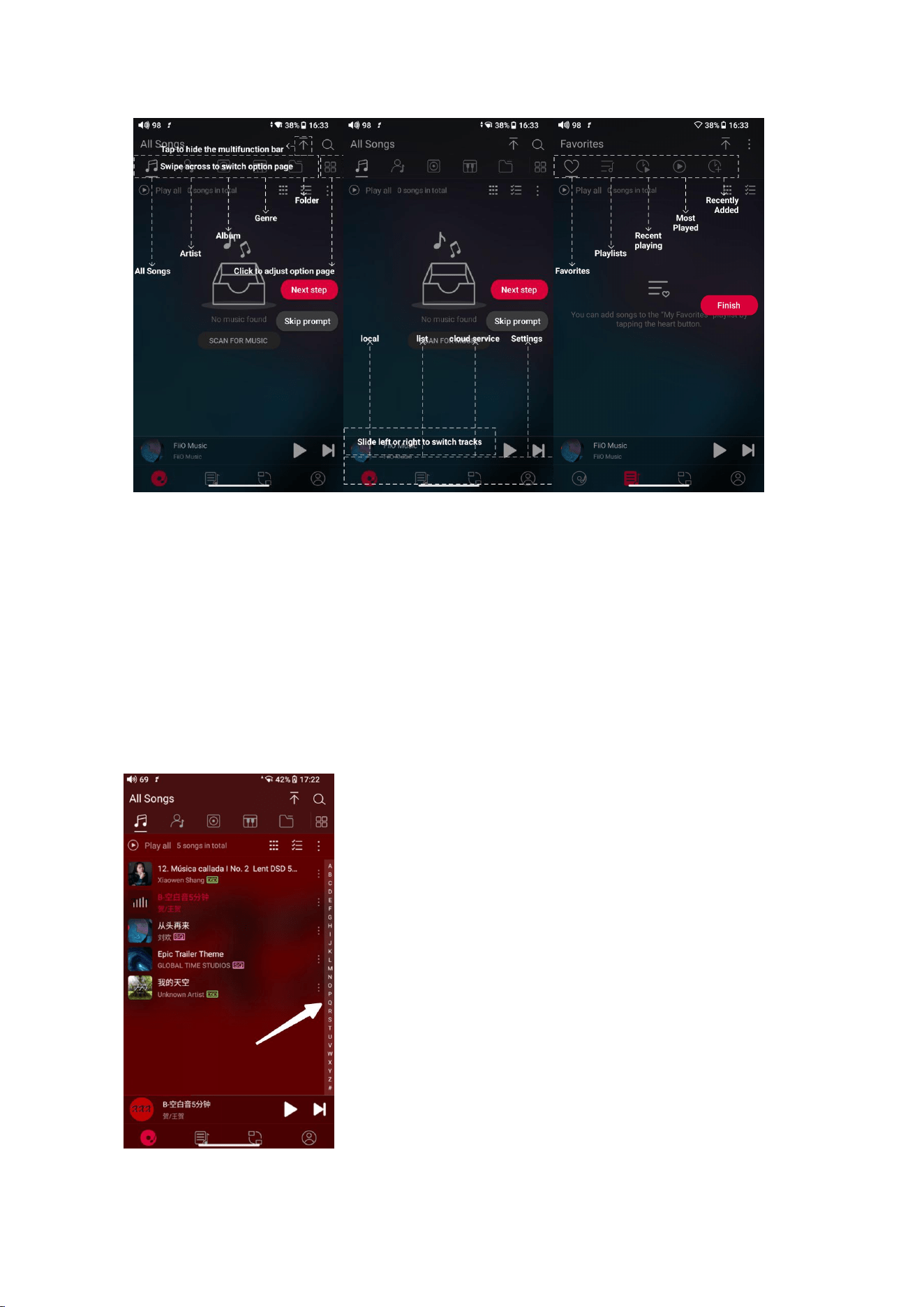
31
Quickly locate all songs
Slide the screen with your finger on the letter bar at the right side. A quick search
icon will show up in the middle of the screen. Sliding to corresponding initials
and relieving your finger, it will directly jump to the songs starting with the initial
you have chosen.
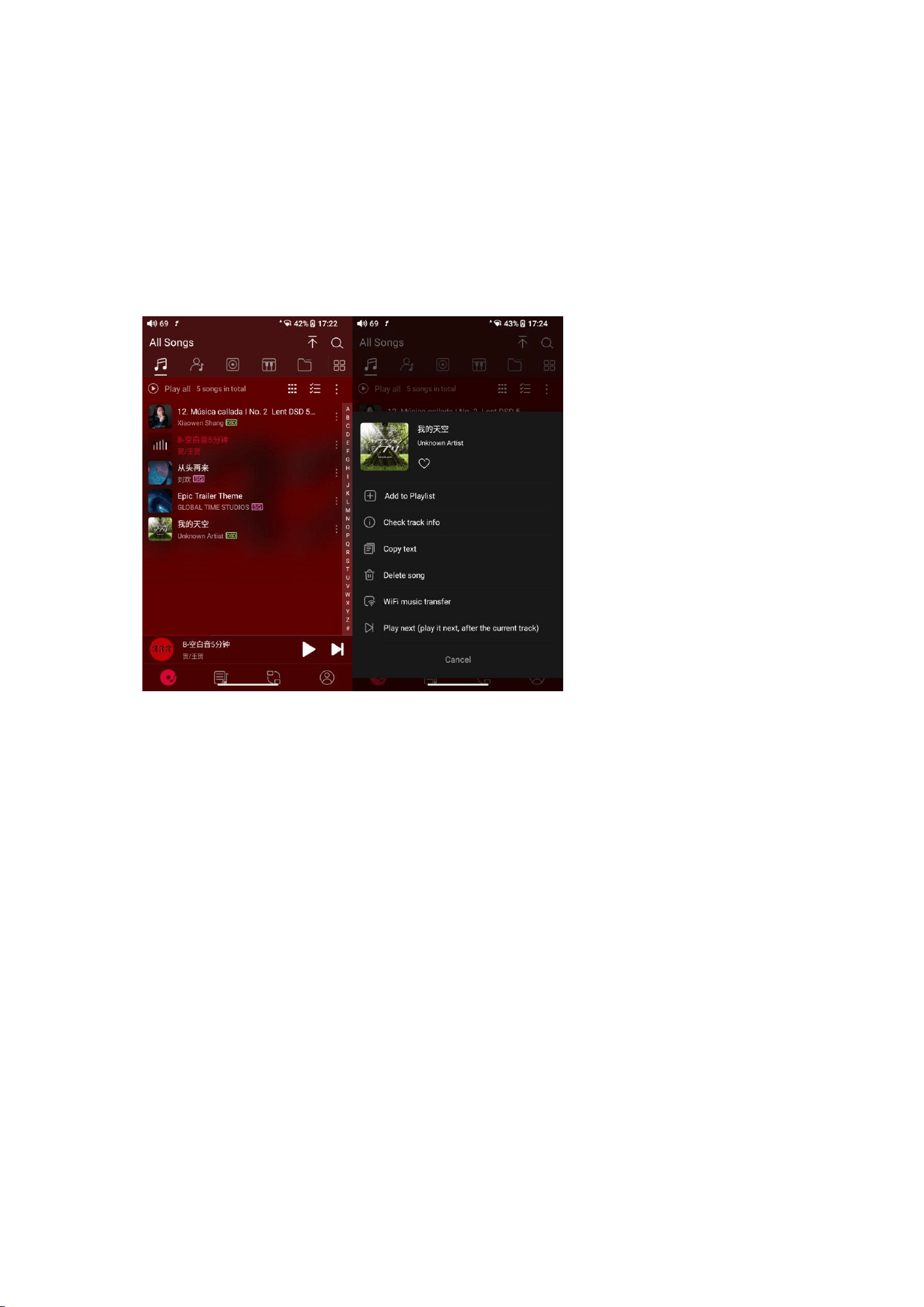
32
Hidden menu
Tap the ┇ icon at the right corner of each track to wake up the hidden menu.
Then tap the icon in the menu to perform corresponding operations.
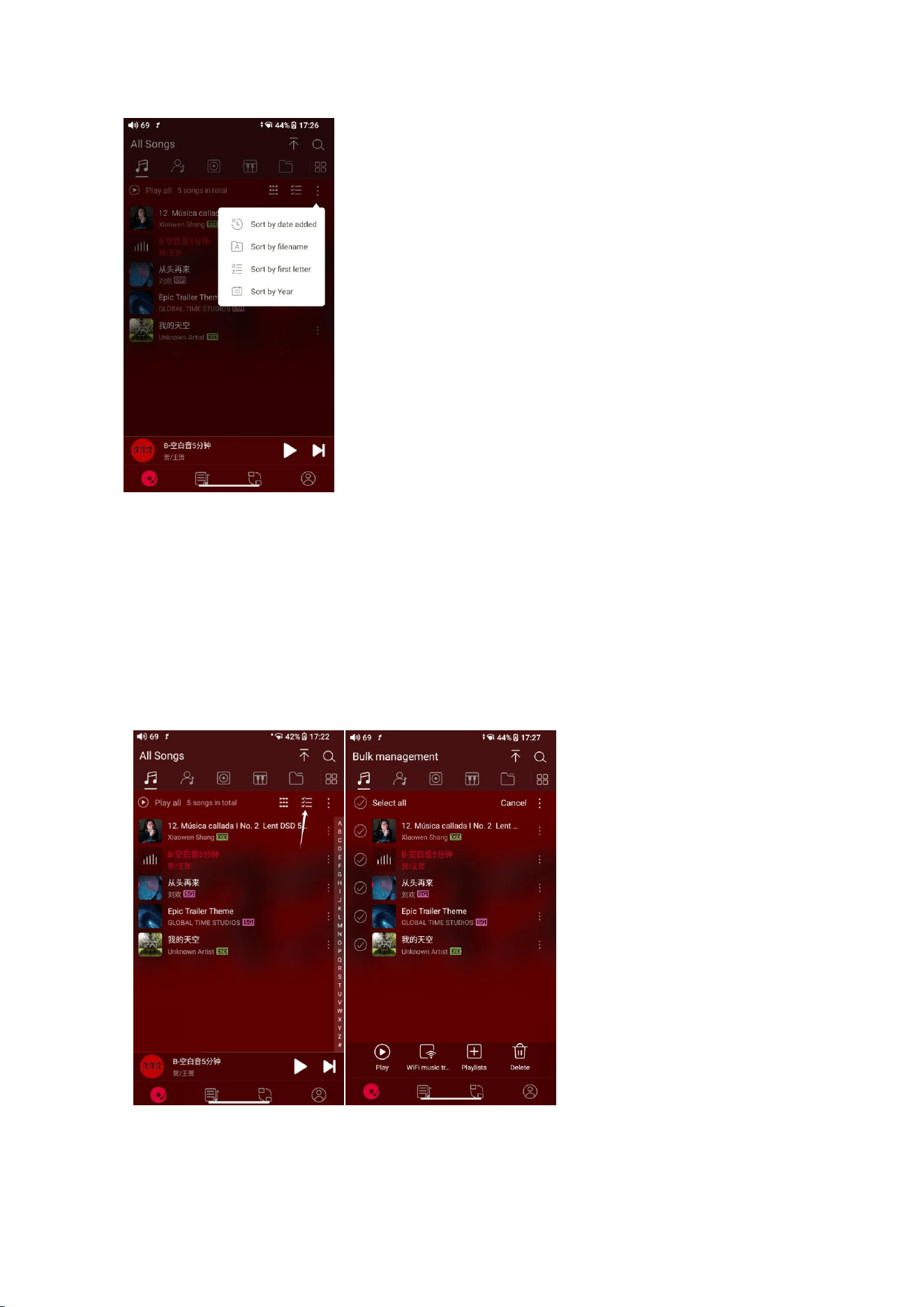
Sort songs
Tapping the hidden menu on the upper right corner of the screen, you can
decide the way of songs sorted as Sort by date added, Sort by filename, Sort by
the first letter and Sort by year.
33
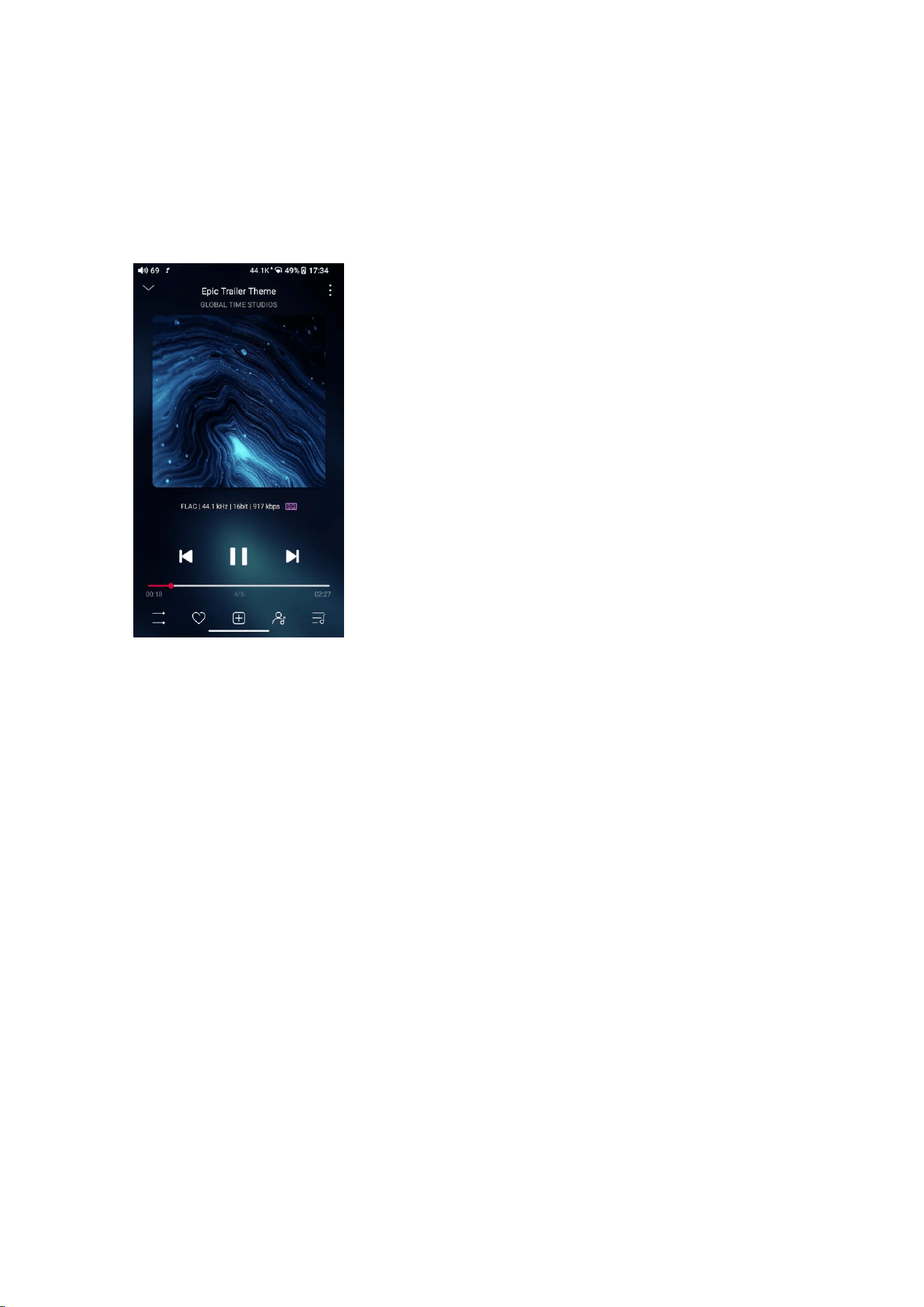
Bulk management
Play music, WiFi music transfer, Add to my favorites, Add to playlists, Delete
selected, and Exit bulk management.
34
Playing page
Tap the album cover in the bottom left corner to enter now playing page.
Switch page
By tapping the middle of the album cover, it will switch pages between album
cover and lyrics circularly. Swipe left and right to switch songs.
Playing progress
Slide left and right on the progress bar below the album cover to quickly adjust
the progress of the now playing song.
Notes: on the lyrics display page, you can adjust the song progress, lyrics
timeline and font size.
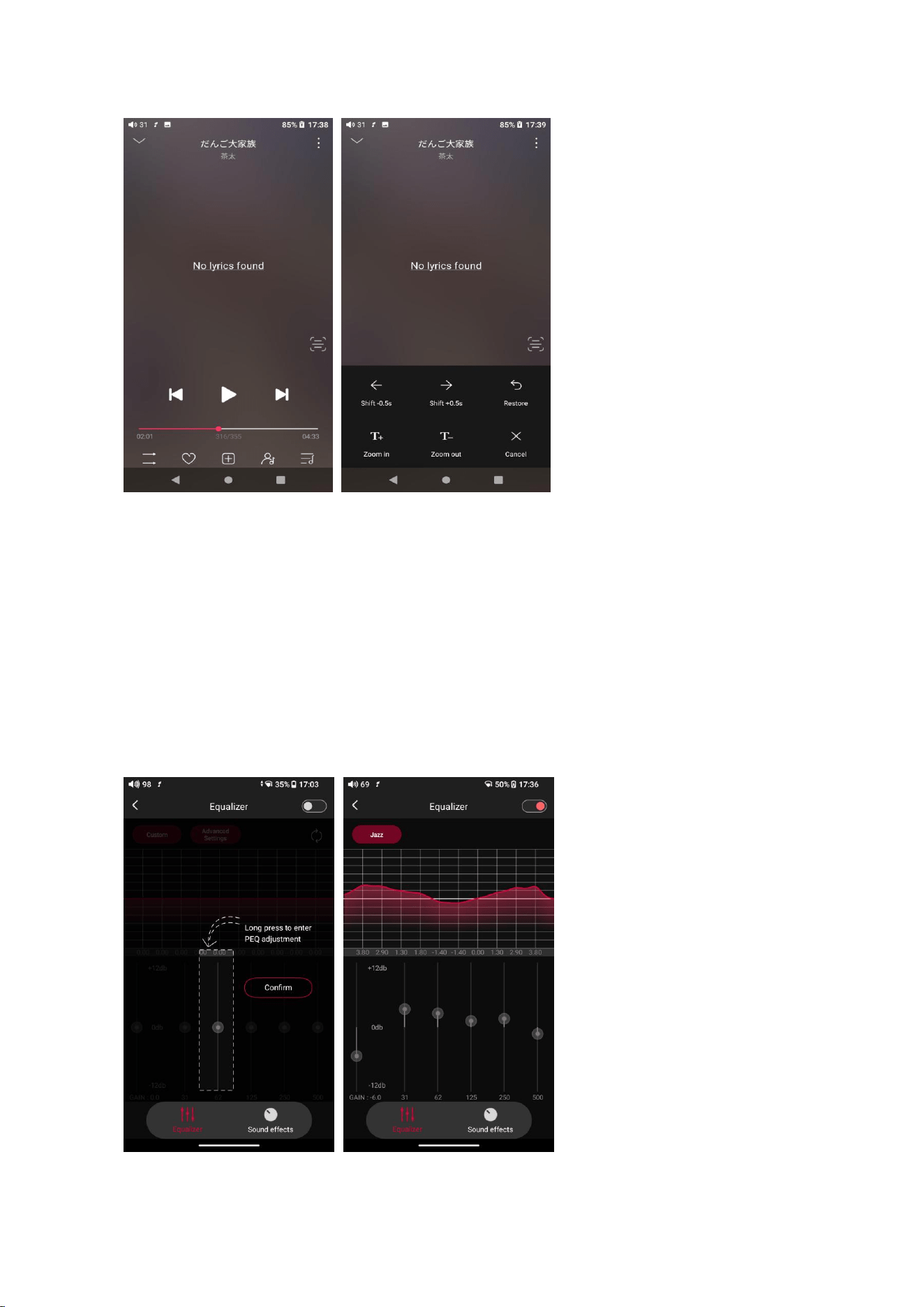
35
Equalizer
FiiO Music has a built-in equalizer, on which you can straightly choose the preset
EQ for listening, or adjust it through the 10 frequency bands within 20Hz~20kHz
from -12 to +12 dB, fully meeting personal music tastes.

36
Choose preset EQ: swipe left or right on the bottom of the screen to switch
equalizer.
Customized EQ: drag the corresponding frequency band up and down to
slightly adjust the EQ curve (on the bands page, switch left and right to change
the option). Successively adjusting the EQ in need, it will immediately take effect.
Reset EQ: Tap the Reset button at the upper right corner to reset the present EQ.
Notes: if the system is reset to factory mode, all EQ settings will be reset to
default.
UV meter
There is a newly added UV meter (audio meter) with a dB threshold and dynamic
pointer displayed. Closing to the red threshold of 0dB means audio distortion.
How to enable it: tap the song cover on the now playing page to enter the UV
meter displaying page.
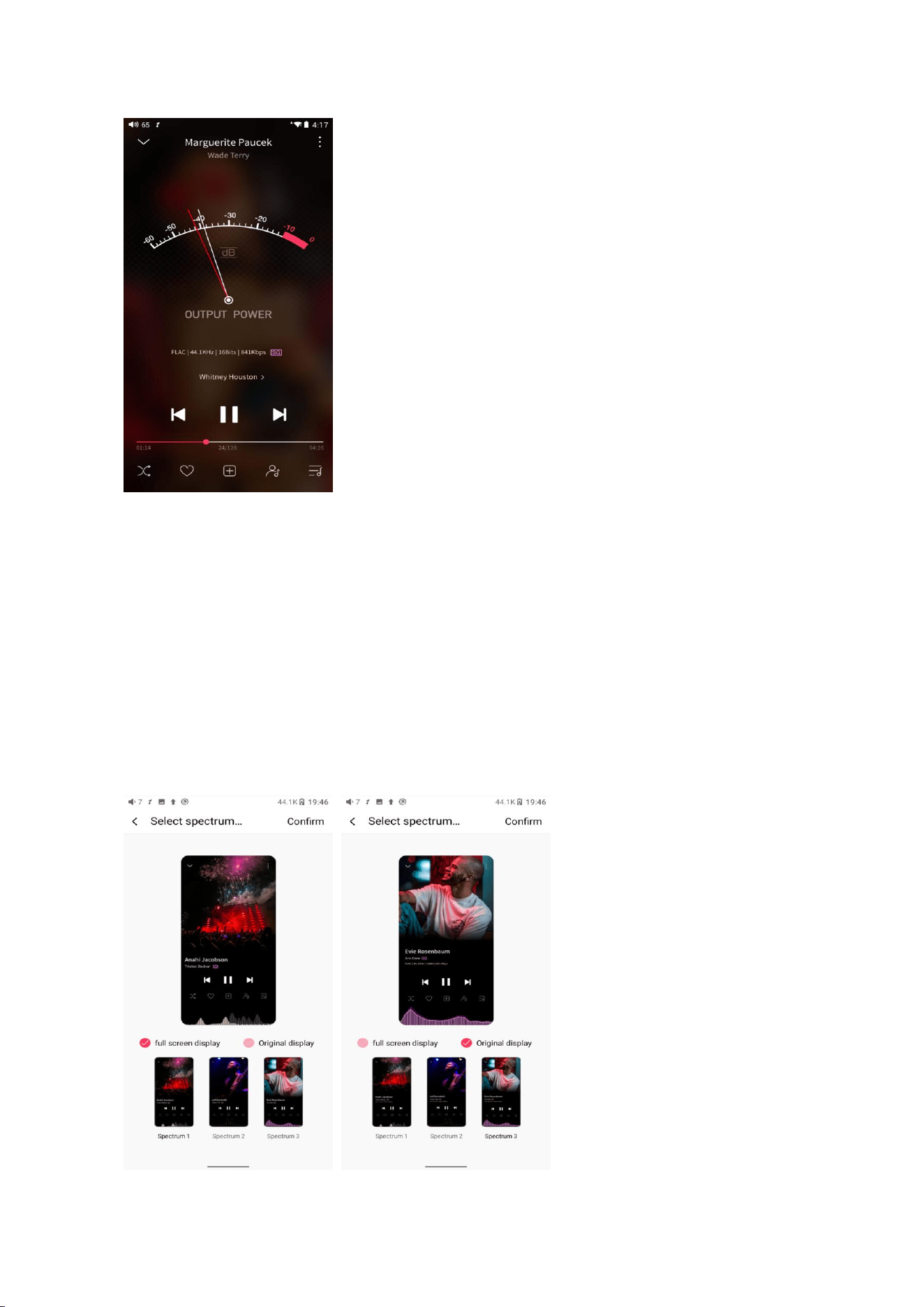
37
Frequency spectrum playing page
There is a newly added frequency spectrum mode in the now playing page, which
has 3 built-in spectrum effects available. Besides, users can self-define Full screen
display or Original display for the spectrum mode.
How to enable it: go to the Settings menu in FiiO Music app->Theme->Now
playing page. Choose Spectrum display.
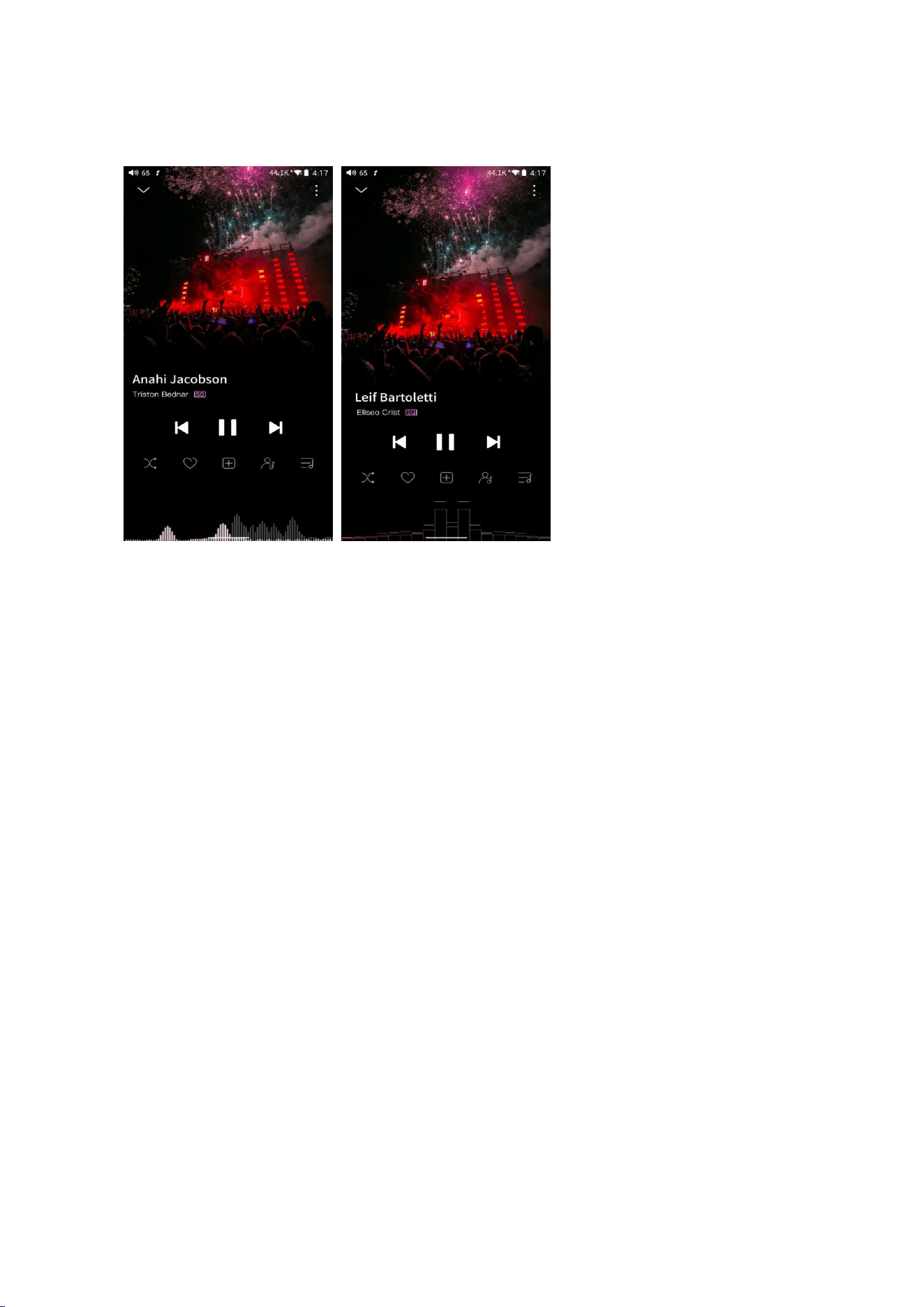
38
Square cover and large cover:
FiiO Music app keeps upgrading and maintaining.

39
Instructions for commonly-used
functions
1. Screenshot
Use 3 fingers to swipe down the screen. Or hold the power button and volume-
button together to get a screenshot.
Where does the screenshot store: FiiO M21\Files\Internal
storage\Pictures\Screenshots
2. USB Audio digital output
The M21 supports USB audio. The setting steps are as follows.
1. Enable ""USB output"" in FiiO Music app of the M21.
2.Use an OTG cable to connect the M21 and the external decoder.
3.Open FiiO Music app or other music applications to use the M21 as a USB
digital output device.
It supports most of the decoding devices on the market. For those unsupported,
you can turn off the USB output in FiiO Music app, or unplug and re-plug the
USB device after quitting the FiiO Music app. If it does not work, please contact
us by sending an email to support@fiio.com for further help.

40
3. FiiO Link Bluetooth control
There are mainly 3 steps.
1) On the FiiO Music app of the M21, Settings->FiiO Link->┆ (on the upper right
corner of the display), choose Bluetooth as the Server.
2) Connect the M21 to the mobile phone through Bluetooth.
3) On the FiiO Music app of the mobile phone, Settings->FiiO Link->┆ (on the
upper right corner of the display), choose Bluetooth as the Client.
Notes: iPhones only support FiiO Link WiFi control but not Bluetooth.
4. FiiO Link Wifi control
There are mainly 3 steps.
1.Make sure the M21 and your mobile phone are connected to the same WiFi
network.
2.On the FiiO Music app of the M21, Settings->FiiO Link->┆ (on the upper right
corner of the display), choosing WiFi as the Server. Now an IP address will show
up.
3. On the FiiO Music app of the mobile phone, Settings->FiiO Link->┆ (on the
upper right corner of the display), choosing WiFi as the Client. Input the IP
address in the pop-up dialog and complete the connection.

41
Notes: iPhones only support FiiO Link WiFi control but not Bluetooth.
5.How to use the DLNA function?
The DLNA function means the M21 can read and receive music files stored on the
device (name it Device A) which supports DLNA function through WiFi.
1. Make sure the M21 and Device A are connected to the same WiFi network.
2.On the FiiO Music app of the M21, tap DLNA on the main menu and search for
Device A to play music of it.
Notes: If there are any devices that cannot use the DLNA function, please give us
feedback for further analysis. FiiO Music app does not support music
transmission at present but only music reception. We will consider adding the
transmission function later.
6.How to use the coaxial function of M21?
1. Player Settings - Audio - 3.5mm output selection, set to SPDIF.
2. Connect one section of coaxial cable to the 3.5mm audio port of M21, and
connect the other end to the coaxial decoding device.
3.Play music on M21 player software to output coaxial signal.
Note: At this time, the coaxial signal is decoded in the third-party decoding
equipment, M21 to realize the turntable function.
7. What can be done if I forget my password? How to enter recovery mode?

42
The device could to be reset to factory data mode in recovery mode if M21 password is
forgotten or M21 freezes or M21 no reaction during update.
Turn off the device first. Hold the volume down button and plug a USB cable in for power
supply. It will enter recovery mode after turning on. On the display, choose "Wipe
data/factory reset->Yes until it finishes. Then choose "Reboot system now" to start the
device.
Notes:
Switch menu: short press the volume +/- buttons or previous/next track button
Confirm: short press the power button.
43
Firmware upgrade, factory data reset and
technical support
1.How to upgrade firmware?
The M21 supports online upgrade and local upgrade.
Online upgrade
If a new firmware is available and can be detected (with the M21 connected to an
available internet), an upgrade notification will show up in the notification center.
Tap on it to enter the update menu for the online upgrade. If there's no upgrade
notification showing up, you can go to the "Technical Support->Firmware
Upgrade" menu, and tap the "Check for updates" icon to check manually.

44
Local upgrade
Also, the M21 can be upgraded locally by a firmware package. Download the
firmware package file from FiiO website, and copy it to the internal storage of the
M21 or an SD card. Go to the "Technical Support->Firmware Upgrade->Local
Upgrade" menu, and find the firmware package file to start the upgrade.
Notes:
1.Do not unzip the firmware package file.
2.Before the upgrade, ensure the power of the device is adequate (>30%) so to
avoid upgrade failure.
3.If the device goes to factory mode which cannot detect the firmware, the
reason may be that the firmware file is damaged. At this time, press the power
button to reboot the device. Re-download the firmware file and restart the
upgrade.
2.Force to reboot
Please hold the power button for around 10 seconds until the "FiiO"logo shows
up.
3.Factory data reset
45
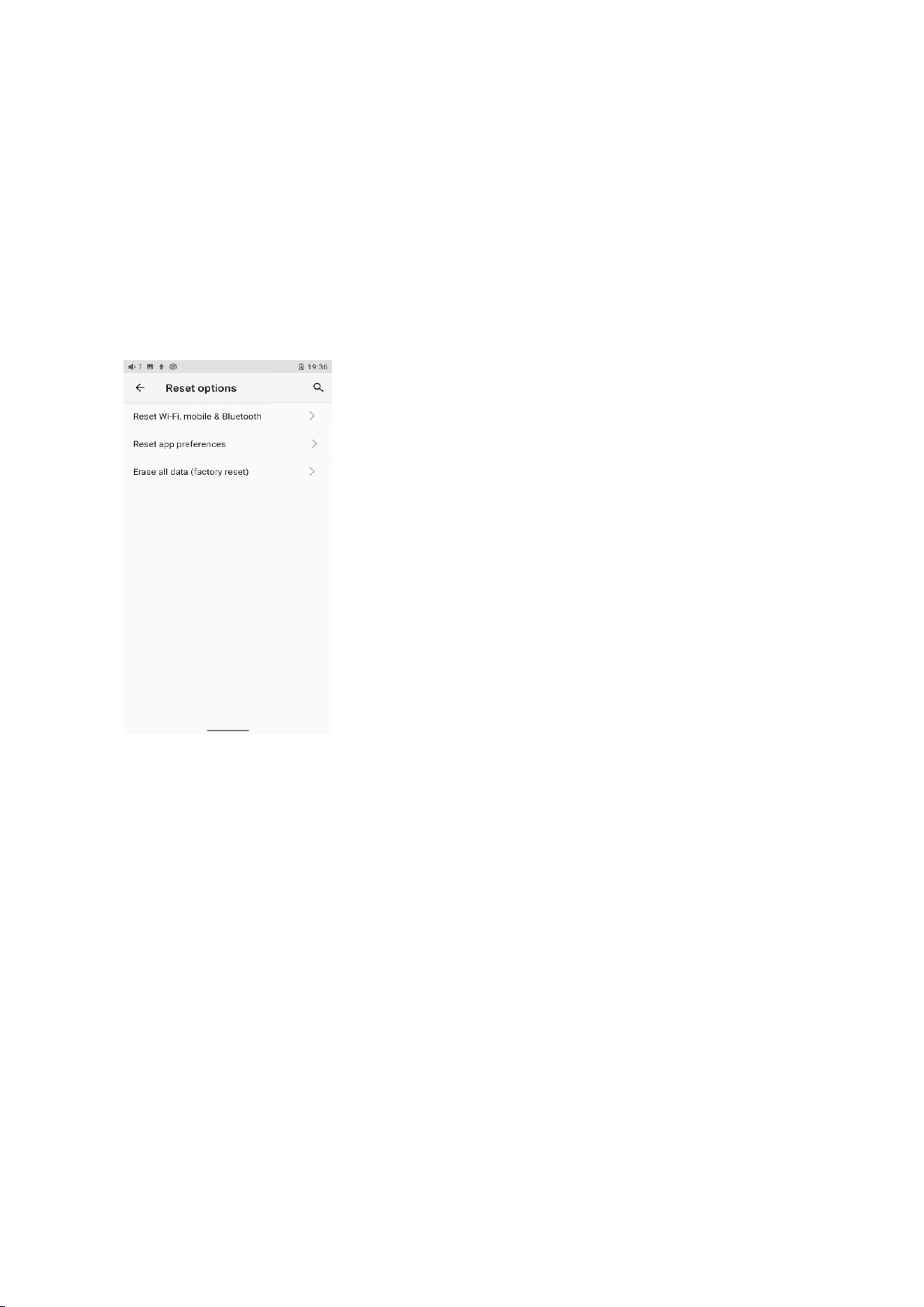
If there are some problems happened to the device, perform the factory data
reset would help (In the menu of Settings->System->Reset options).
Notes: The "Factory data reset" will erase all data from the internal storage and
reset the device to defaults. Please backup corresponding files in advance.
4.Technical support
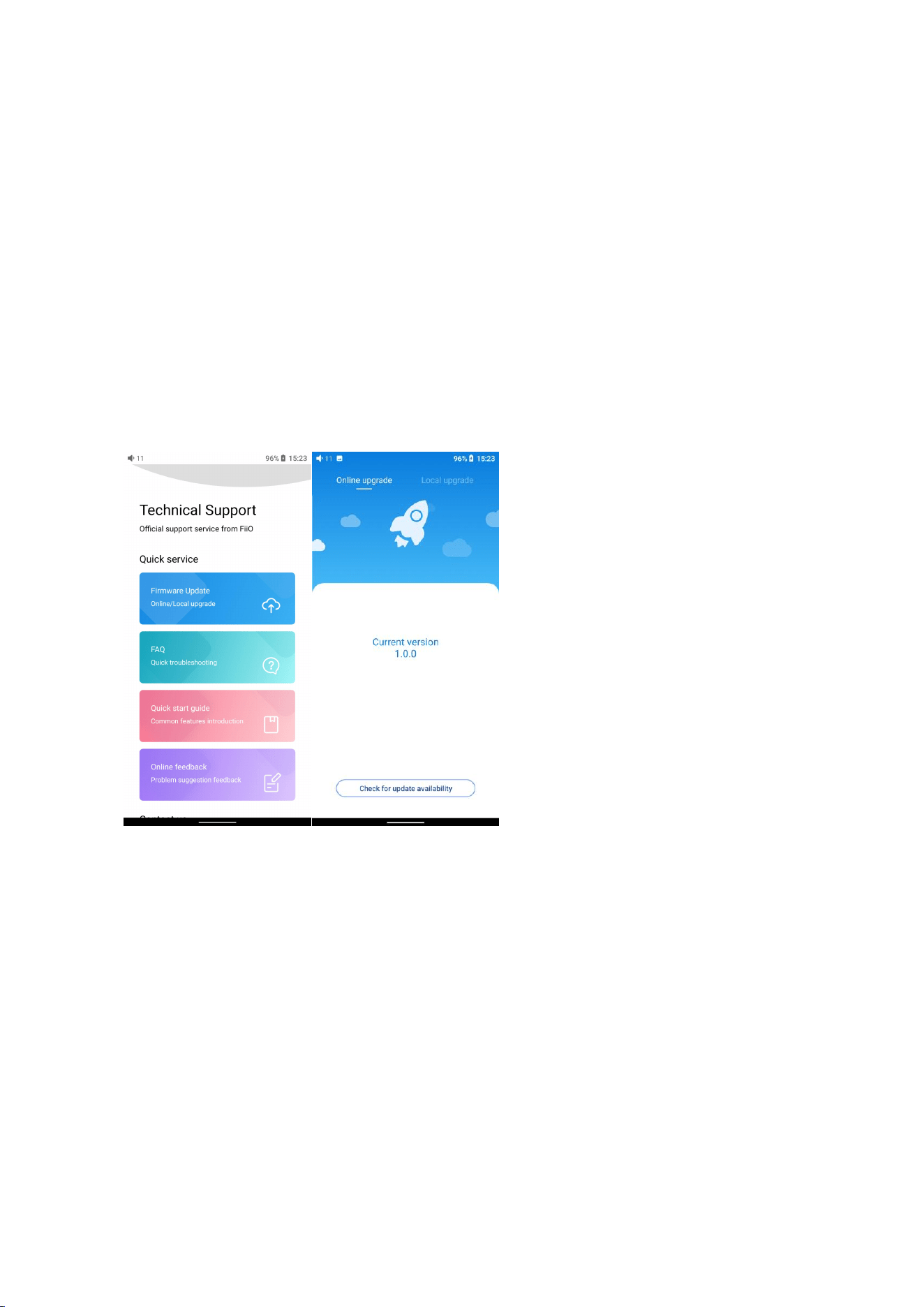
1) On the homepage, tap Technical Support to enter the menu. Here are several
commonly-used functions and our contacts.
2) Firmware update: online and local upgrade are available.
FAQ (frequently asked questions): parts of frequently asked questions and
corresponding measures are listed.
3) Quick start guide: tap to check out the internal quick start guide of the M21.
4) Contact us: here shows our email address, Facebook, Twitter, etc.

46