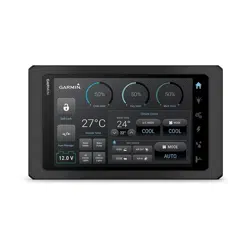
GARMIN SERV
™
/ GARMIN SERV+
™
Owner’s Manual

© 2023 Garmin Ltd. or its subsidiaries
All rights reserved. Under the copyright laws, this manual may not be copied, in whole or in part, without the written consent of Garmin. Garmin reserves the right to change
or improve its products and to make changes in the content of this manual without obligation to notify any person or organization of such changes or improvements. Go to
www.garmin.com for current updates and supplemental information concerning the use of this product.
Garmin
®
, the Garmin logo, Garmin SERV
™
, and EmpirBus
™
are trademarks of Garmin Ltd. or its subsidiaries, registered in the USA and other countries. These trademarks may not be
used without the express permission of Garmin.


Getting Started
WARNING
See the Important Safety and Product Information guide in the product box for product warnings and other
important information.
Using the Touchscreen
• Tap the screen to select an item.
• Drag or swipe your finger across the screen to pan or scroll.
• Pinch two fingers together to zoom out.
• Spread two fingers apart to zoom in.
Turning Off the Display
1 Select to turn off the display.
2 Tap the screen to turn on the display.
Opening an App
The home screen contains shortcuts for frequently used apps. The app drawer contains all of the apps installed
on your device.
Select an option:
• Select an app shortcut from the home screen.
• Select , and select an app.
Changing the Background Image
1 From the home screen, select Settings > Display > Wallpaper.
2 Select an album, and select an image.
Adjusting the Screen Brightness
You can adjust the brightness using either the notification panel or the settings menu.
1 Select an option:
• Swipe down twice from the top of the screen to expand the quick settings in the notification panel.
• Select > Display > Brightness level.
2 Use the slider bar to adjust the brightness.
Voice Command Feature
WARNING
This feature allows you to command the device to perform actions that may not be safe to do while driving.
Failure to use commands when appropriate could result in property damage or a possible accident resulting in
serious personal injury.
You can control the Garmin SERV and the system devices using your voice.
Say "OK Garmin" to wake up the device. You can then say a variety of phrases to control the system. For
example, you can speak a room name, a device name, and a command, such as "OK Garmin, Kitchen light
brighter."
This is a list of commonly used voice commands, but the device does not require these exact phrases, other
than the wake-up phrase or "OK Garmin." You can try saying variations of these commands in a way that is
natural to you.
NOTE: This feature is not available in all languages.
Getting Started 1
Enabling Voice Commands
1 Select Settings > Vehicle Integration > Voice Command > Enable Voice Command.
2 Select Wake screen on "OK Garmin" to allow the device to listen for voice commands when the screen is off.
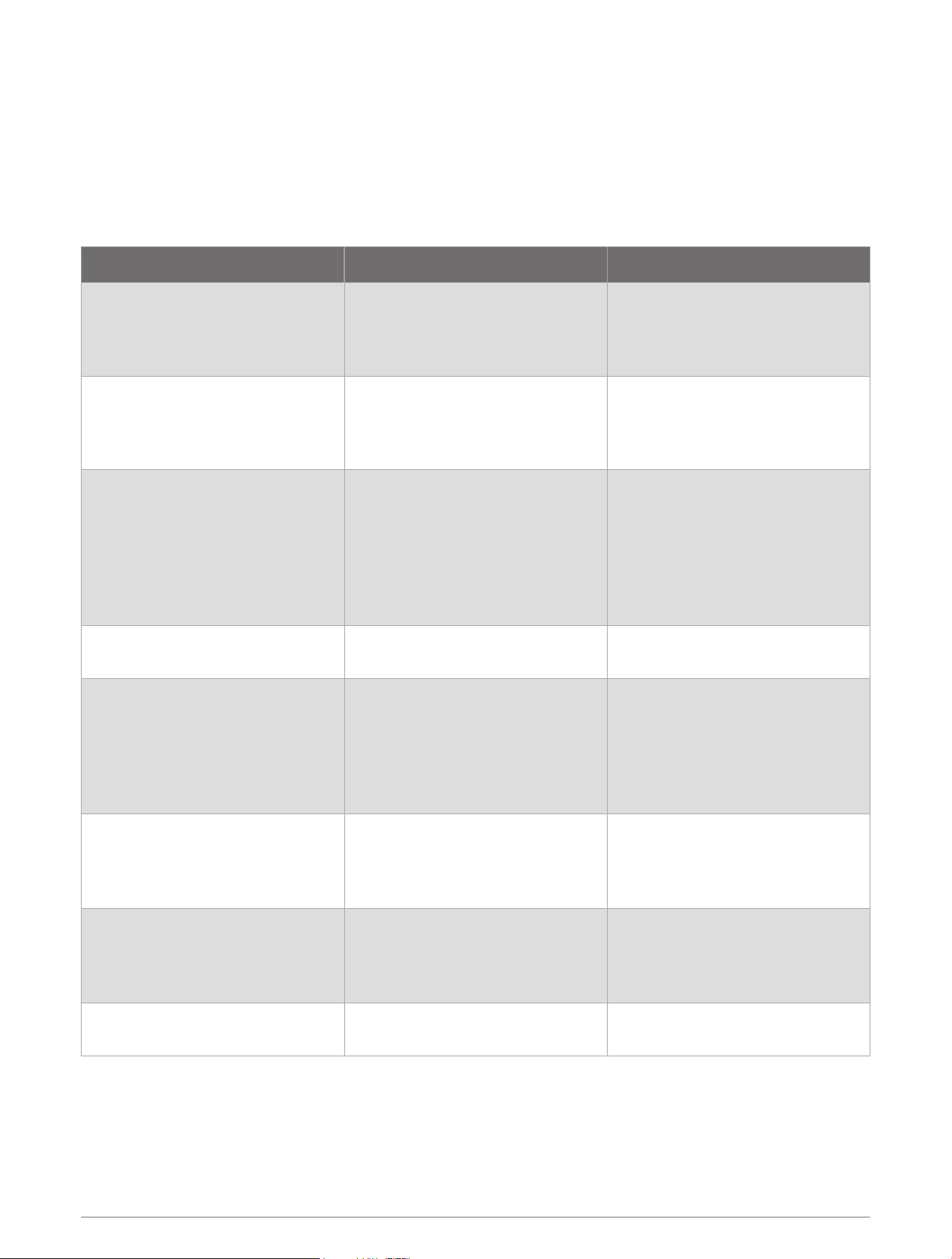
Voice Commands
NOTE: The device must be properly configured by the vehicle manufacturer to control vehicle equipment with
voice commands. Not all commands will work in all vehicles.
Devices Commands Examples
Air conditioner
On
Off
Temperature
Living room air conditioner
Switch the bedroom cooling on
Turn off the AC
Set the temperature to 68
Blinds
Open
Close
Day
Close all blinds
Open the kitchen blinds
Move the window shades to day
position
Lights
On
Off
Low
Medium
High
Brighter
Darker
Turn the outdoor lights on
Set bedroom light to medium
Kitchen light brighter
Exhaust fan
On
Off
Turn on the exhaust fan
Turn off kitchen ventilation
Fan
On
Off
Low
Medium
High
Auto
Turn off the fans
Set living room fan to low
Bedroom fan speed high
Heater
On
Off
Temperature
Turn on the heat
Living room heater off
Bedroom heating on
Living room 72 degrees
Water heater
On
Off
Gas
Electric
Turn off the water heater
Turn off the electric water heater
Gas water heater on
Water pump
On
Off
Turn the water pump on
Pump off
Rooms
All
Bathroom
Bedroom
2 Voice Command Feature

Main Bedroom
Guest Bedroom
Kitchen
Dining Room
Living Loom
Entrance Stairway
Floor
Ceiling
Garage
Outdoor
Awning
Media Examples
NOTE: Requires connection to a properly configured Fusion
®
stereo.
Play Music
Pause Music
Resume
Next Song
Previous Song
Increase Volume
Decrease Volume
Mute
Unmute
Digital Switching
Your Garmin SERV switching display can be used to monitor and control circuits using an EmpirBus
™
digital
switching system or another compatible digital switching system.
For example, you may be able to control the interior lights in your RV.
Opening the Digital Switching Controls
You can open the digital switching controls from the home screen.
Select RV Controls.
A list of available RV controls appears. Available controls vary with each OEM installation. Refer to the
documentation provided by your manufacturer for information about available controls in your vehicle.
Settings
Connecting to a Wireless Network
1 Select Settings > Network & internet > Wi-Fi.
2 If necessary, select the toggle switch to turn on wireless network technology.
3 Select a wireless network.
4 If necessary, enter the encryption key.
The device connects to the wireless network. The device remembers the network information and connects
automatically when you return to this location in the future.
Digital Switching 3
Display Settings
Select Settings > Display.
Brightness level: Sets the display brightness level on your device.
Wallpaper: Sets the wallpaper background on your device.
Screen timeout: Sets the amount of idle time before the device follows the brightness level set in the Keep
screen on setting.
Keep screen on: Sets the screen brightness after the timeout.
Font size: Increases or decreases the font size on your device.
Setting the Text Language
You can select the language for text in the device software.
1 Select Settings > System > Language & Input > Languages.
2 Select a language.
Date and Time Settings
Select Settings > System > Date & Time.
Use network-provided time: Automatically sets the time zone based on information from the connected
network.
Time zone: Sets the time zone.
Use locale default: Enables or disables the 24-hour time format.
Viewing E-label Regulatory and Compliance Information
Select Settings > About device > Regulatory labels.
Restoring the Original Device Factory Settings
Select Settings > System > Reset Options > Erase all data (factory reset).
Appendix
Updating Software Using a Wi‑Fi
®
Network
NOTICE
Software updates may require the device to download large files. Regular data limits or charges from your
internet service provider apply. Contact your internet service provider for more information about data limits or
charges.
You can update the software by connecting your device to a Wi‑Fi network that provides access to the internet.
1 Connect the device to a Wi‑Fi network (Connecting to a Wireless Network, page3).
While connected to a Wi‑Fi network, the device checks for available updates automatically and displays a
notification when an update is available.
2 Select > Software Updates.
The device displays available software updates. When an update is available, Update Available appears.
3 Select Download.
4 If necessary, read the license agreements, and select Accept all to accept the agreements.
NOTE: If you do not agree with the license terms, you can select Reject. This stops the update process. You
cannot install updates until you accept the license agreements.
5 Keep the device connected to external power and within range of the Wi‑Fi network until the update process
is complete.
4 Appendix
Cleaning the Screen
NOTICE
Cleaners containing ammonia will harm the anti-reflective coating.
The device is coated with a special anti-reflective coating which is very sensitive to waxes and abrasive
cleaners.
1 Apply an eyeglass lens cleaner specified as safe for anti-reflective coatings to the cloth.
2 Gently wipe the screen with a soft, clean, lint-free cloth.
Garmin
®
Support Center
Go to support.garmin.com for help and information, such as product manuals, frequently asked questions,
videos, and customer support.
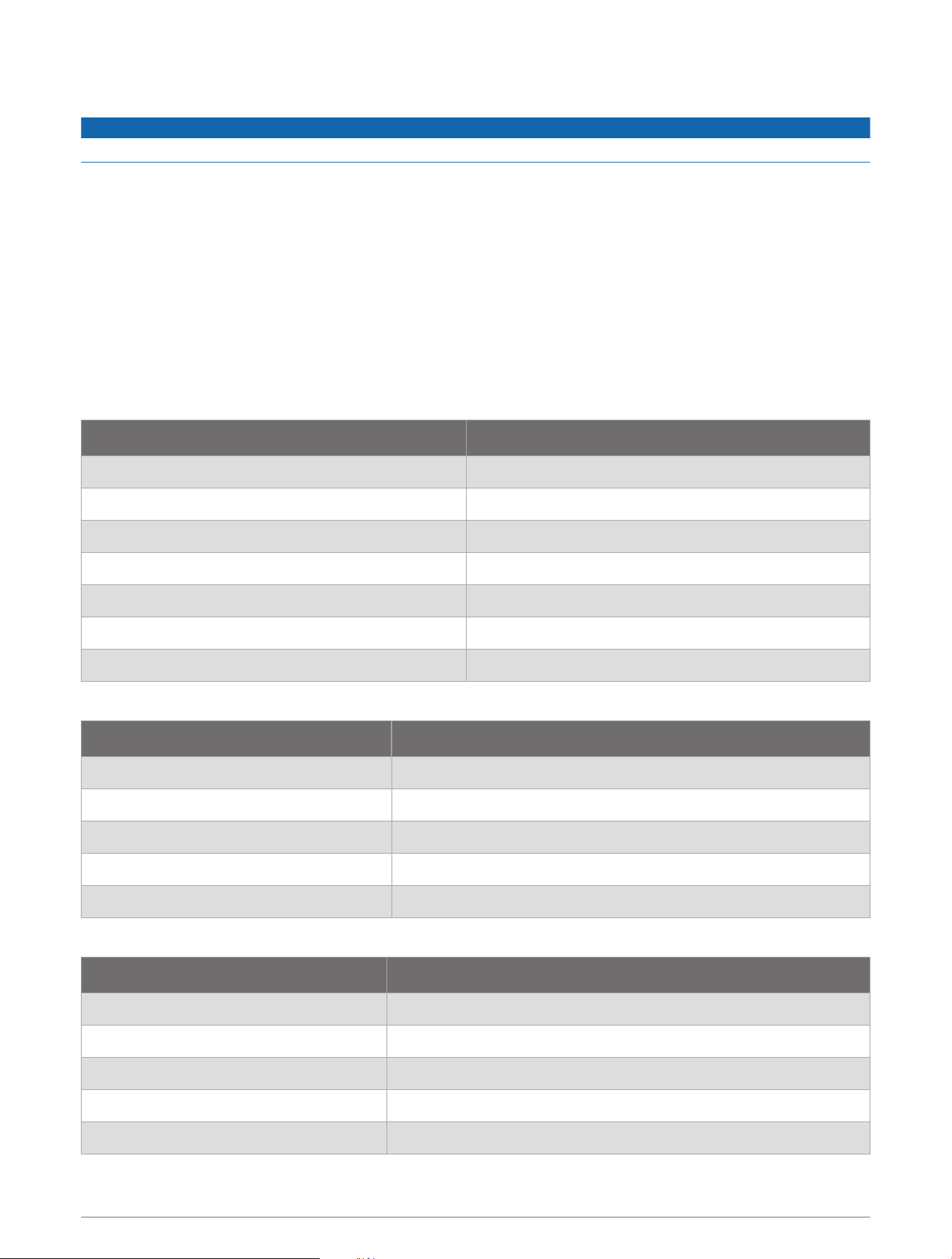
Garmin SERV Specifications
All Models
Specification Measurement
Temperature range From -10° to 60°C (from 14° to 140°F)
Input voltage From 10 to 32Vdc
Fuse 2A
Memory card (not included) 1 microSD
®
card slot; 2 TB max. card size
Wireless frequency and transmit power 2.4 GHz @ 14.3 dBm maximum
Max. Wi‑Fi connected devices 10
Standby current draw 150 mA
Seven-inch Models
Specification Measurement
Dimensions (W × H × D) 209.2 × 123.3 × 38.6mm (8.24 × 4.85 × 1.52in.)
Display size (W × H) 153.2 × 90.1mm (6.03 × 3.55in.)
Weight 386g (0.85lb.)
Typical current draw at 12Vdc 0.25A
Max. current draw at 12Vdc 0.5A
Ten-inch Models
Specification Measurement
Dimensions (W × H × D) 281.2 × 176.4 × 38.7mm (11.07 × 6.94 × 1.52in.)
Display size (W × H) 217.6 × 136.4mm (8.57 × 5.37in.)
Weight 670g (1.48lb.)
Typical current draw at 12Vdc 0.5A
Max. current draw at 12Vdc 0.75A
Appendix 5
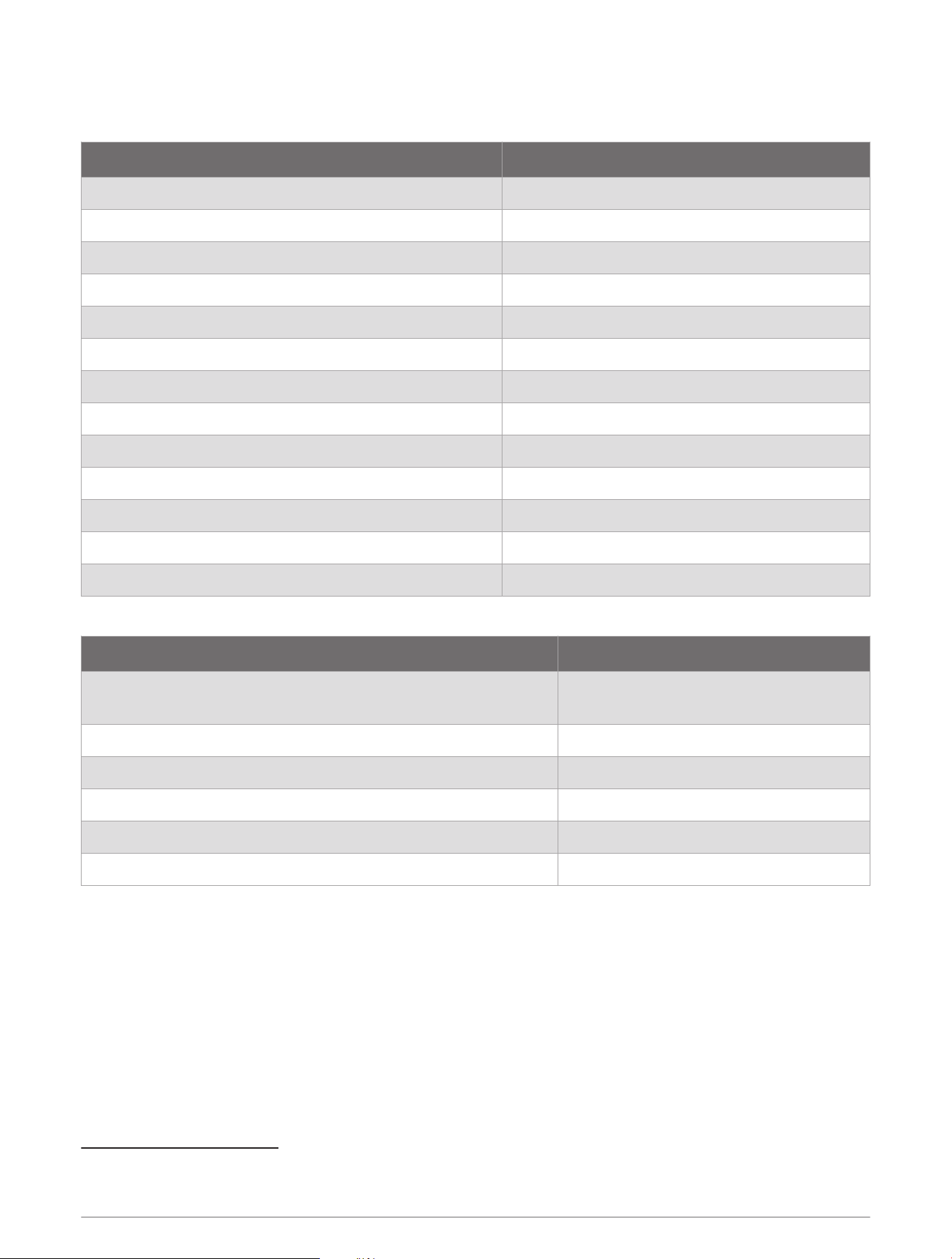
Garmin SERV+ Specifications
All Models
Specification Measurement
Temperature range From -10° to 55°C (from 14° to 131°F)
Input voltage From 10 to 16Vdc
Fuse 30A
Memory card 1 microSD card slot; 2 TB max. card size
Wireless frequency and transmit power 2.4 GHz @ 14.3 dBm maximum
Max. Wi‑Fi connected devices 10
Standby current draw 200 mA
Output channels 6 high side PWM, 1 to 10A
1
Analog input voltage range From 0 to 16 V +/- 1%
2
Analog input resistance range From 0 to 1500 ohm +/- 5%
Configurable I/O pin - max output current drive 50 mA
Digital input peak/average current (12 V) 170 mA/1 mA
Digital input weak signal low side/high side 1 mA/4 mA
Seven-inch Models
Specification Measurement
Dimensions (W × H × D)
209.2 × 123.3 × 38.6mm
8.24 × 4.85 × 1.52in.
Display size (W × H) 153.2 × 90.1mm (6.03 × 3.55in.)
Weight 438g (1.00lb.)
Typical current draw at 12Vdc with all channels off 0.3A
Max. current draw at 12 Vdc with all channels off 0.55 A
Max. current draw at 12Vdc 30A
1
Only two channels >5 A are allowed at one time.
2
Input channel 5 is limited to Vin +0.5 V.
6 Appendix
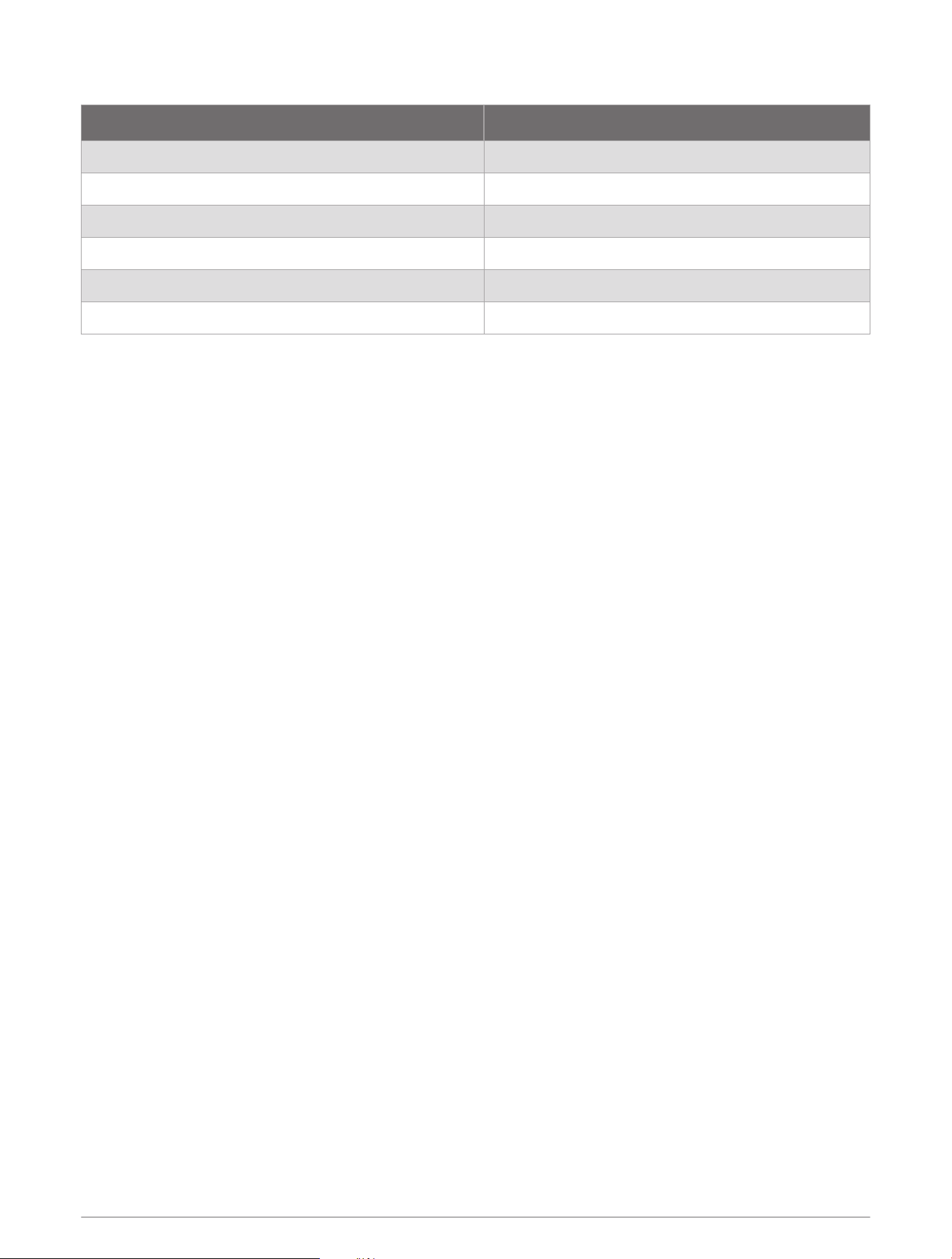
Ten-inch Models
Specification Measurement
Dimensions (W × H × D) 281.2 × 176.4 × 38.7mm (11.07 × 6.94 × 1.52in.)
Display size (W × H) 217.6 × 136.4mm (8.57 × 5.37in.)
Weight 720g (1.6lb.)
Typical current draw at 12Vdc with all channels off 0.55A
Max. current draw at 12 Vdc with all channels off 0.8 A
Max. current draw at 12Vdc 30A
Appendix 7

support.garmin.com
GUID-6A5465E2-7465-4B88-B238-B6BB7D66C8E1 v2February 2025
