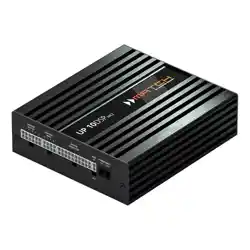
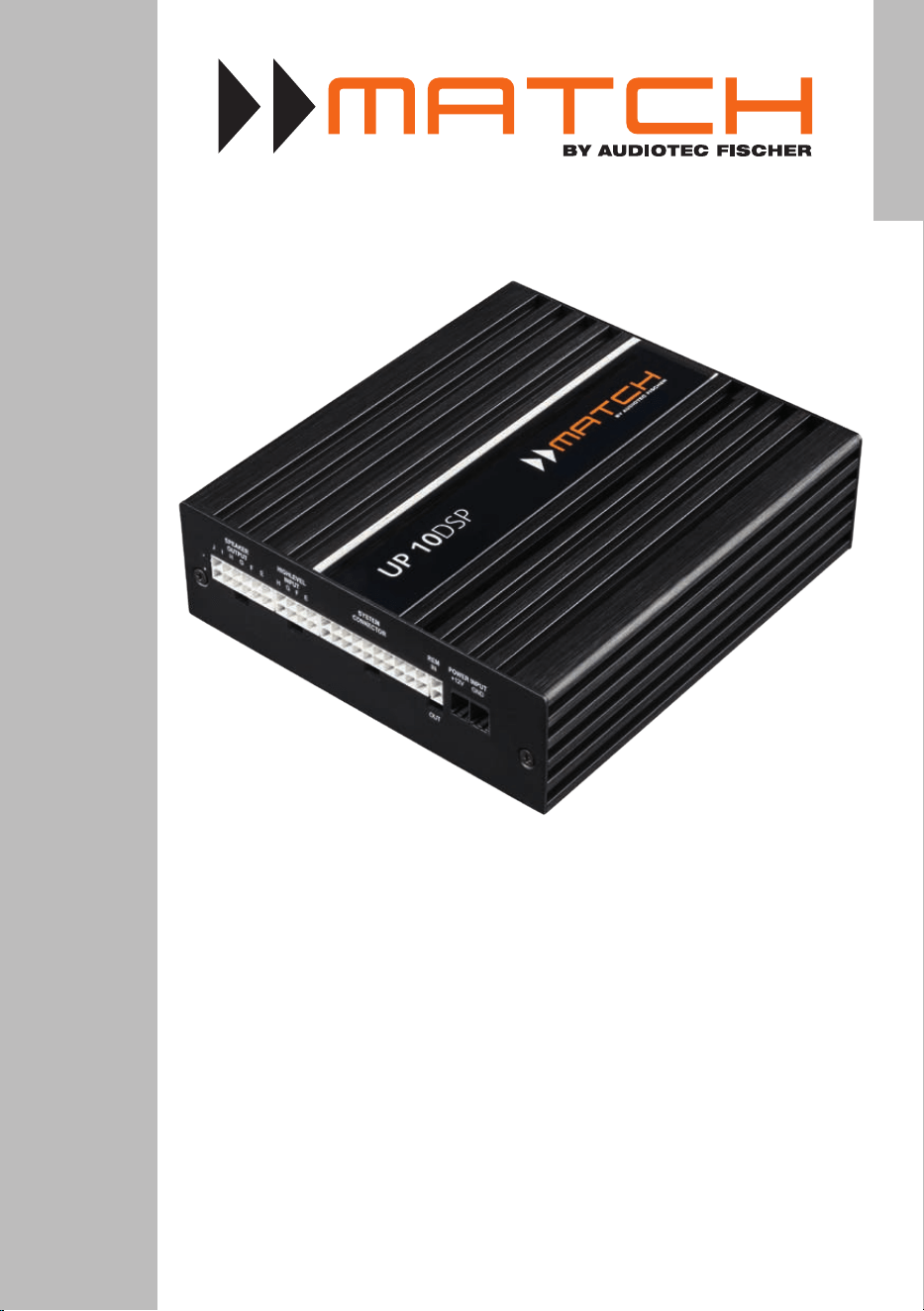
UP 10DSP
UPGRADE
10-Kanal Upgrade-Verstärker mit integriertem
11-Kanal 64 Bit DSP für universelle Anwendungen
10-channel upgrade amplier with integrated
11-channel 64 Bit DSP for universal applications
deutsch / english

2
Sehr geehrter Kunde,
wir gratulieren Ihnen zum Kauf dieses hochwertigen
MATCH Verstärkers mit integriertem DSP.
MATCH setzt mit dem UP 10DSP neue Maßstäbe im
Bereich der Verstärkertechnik. Dabei protieren Sie
als Kunde direkt von unserer mehr als 30-jährigen
Erfahrung in der Forschung und Entwicklung von
Audiokomponenten.
Dieser Upgrade-Verstärker wurde von uns nach
neuesten technischen Erkenntnissen entwickelt und
zeichnet sich durch hervorragende Verarbeitung
und eine überzeugende Anwendung ausgereifter
Technologien aus.
Viel Freude an diesem Produkt wünscht Ihnen das
Team von
AUDIOTEC FISCHER
Allgemeines zum Einbau von MATCH-Kompo-
nenten
Um alle Möglichkeiten des Produktes optimal aus-
schöpfen zu können, lesen Sie bitte sorgfältig die
nachfolgenden Installationshinweise. Wir garantie-
ren, dass jedes Gerät vor Versand auf seinen ein-
wandfreien Zustand überprüft wurde.
Vor Beginn der Installation unterbrechen Sie
den Minusanschluss der Autobatterie.
Wir empfehlen Ihnen, die Installation von einem
Einbauspezialisten vornehmen zu lassen, da der
Nachweis eines fachgerechten Einbaus und An-
schlusses des Gerätes Voraussetzung für die Ga-
rantieleistungen sind.
Installieren Sie Ihren Verstärker an einer trockenen
Stelle im Auto und vergewissern Sie sich, dass
der Verstärker am Montageort genügend Kühlung
erhält. Montieren Sie das Gerät nicht in zu kleine,
abgeschlossene Gehäuse ohne Luftzirkulation oder
in der Nähe von wärmeabstrahlenden Teilen oder
elektronischen Steuerungen des Fahrzeuges.
Im Sinne der Unfallsicherheit muss der Verstär-
ker professionell befestigt werden. Verwenden
Sie hierzu die zwei im Lieferumfang enthaltenen
Montagebleche. Diese werden mit jeweils zwei
kurzen Schrauben (im Lieferumfang enthalten) an
der Unterseite des Verstärkers befestigt. Wenn Sie
den Verstärker mittels Schrauben an der Karosse-
rie befestigen, so vergewissern Sie sich, dass die
Montageäche genügend Halt bietet und keine
elektrischen Kabel und Komponenten, hydraulische
Bremsleitungen, der Benzintank etc. dahinter ver-
borgen sind. Diese könnten sonst beschädigt wer-
den. Achten Sie bitte darauf, dass sich solche Teile
auch in der doppelten Wandverkleidung verbergen
können.
Allgemeines zum Anschluss des UP 10DSP Ver-
stärkers
Der Verstärker darf nur in Kraftfahrzeuge eingebaut
werden, die den 12 V-Minuspol an Masse haben.
Bei anderen Systemen können der MATCH Verstär-
ker und die elektrische Anlage des Kfz beschädigt
werden. Die Plusleitung für die gesamte Anlage
sollte in einem Abstand von max. 30 cm von der
Batterie mit einer Hauptsicherung abgesichert wer-
den. Der Wert der Sicherung errechnet sich aus der
maximalen Stromaufnahme der Car-Hi Anlage.
Verwenden Sie zur Verbindung des MATCH
UP 10DSP Verstärkers ausschließlich die beilie-
genden Anschlusskabel oder einen optional er-
hältlichen MATCH-Kabelbaum! Die Verwendung
anderer Kabel kann zu Schäden an ihrer Anlage
führen. Die Sicherungen im Verstärker dürfen
nur mit den gleichen Werten (2 x 25 A) ersetzt
werden, um eine Beschädigung des Gerätes zu
verhindern. Höhere Werte können zu gefährli-
chen Folgeschäden führen!
Die Kabelverbindungen müssen so verlegt sein,
dass keine Klemm-, Quetsch- oder Bruchgefahr be-
steht. Bei scharfen Kanten (Blechdurchführungen)
müssen alle Kabel gegen Durchscheuern gepols-
tert sein. Ferner darf das Versorgungskabel niemals
mit Zuleitungen zu Vorrichtungen des Kfz (Lüfter-
motoren, Brandkontrollmodulen, Benzinleitungen
etc.) verlegt werden.
Herzlichen Glückwunsch!
Allgemeine Hinweise
3
Anschluss- und Bedienelemente
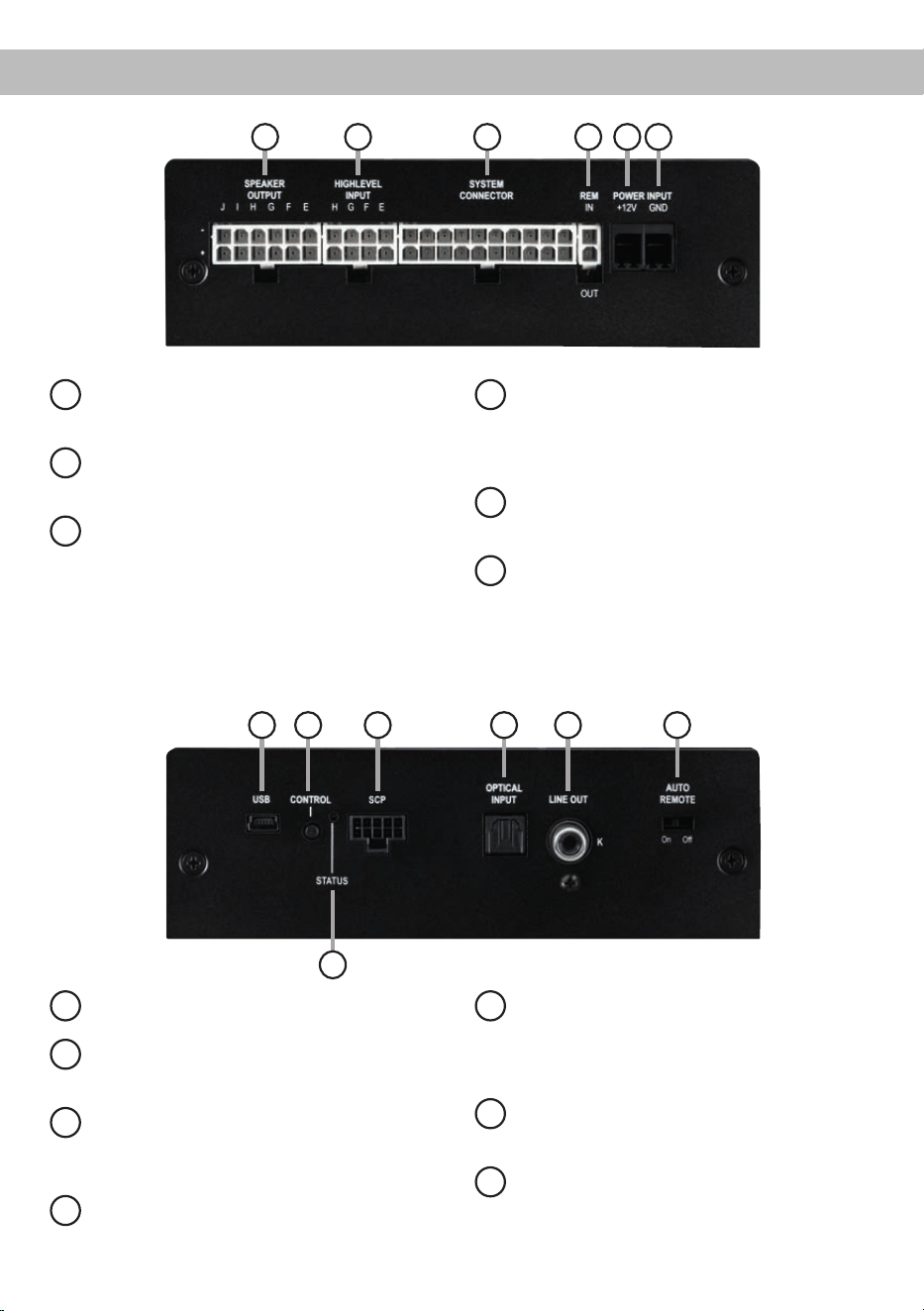
1
Speaker Output E - J
Lautsprecherausgänge der Kanäle E - J zum
Anschluss von Lautsprechersystemen.
2
Highlevel Input E - H
Hochpegel-Lautsprechereingang für die
Kanäle E - H.
3
System Connector
Anschluss für den MATCH Kabelbaum. Ver-
wenden Sie ausschließlich ein MATCH Ori-
ginal-Anschlusskabel, um den Verstärker mit
dem Autoradio zu verbinden.
4
REM IN / OUT
Anschluss für den Remote-Ein- und Aus-
gang. Der Remote-Ausgang muss in jedem
Fall zur Einschaltung weiterer Verstärker ge-
nutzt werden.
5
+12 V
Anschluss für das Versorgungsspannungs-
kabel +12 V der Batterie.
6
GND
Anschluss des Massekabels (Minuspol der
Batterie oder Fahrzeugchassis).
1 2 3 4 5 6
7
USB Eingang
Dient zum Anschluss an den Computer.
8
Control Taster
Dient zum Umschalten der Sound Setups
oder zum Resetten des Gerätes.
9
SCP (Smart Control Port)
Multifunktionsanschluss – dient zum An-
schluss einer Fernbedienung und weiterem
MATCH Zubehör.
10
Optical Input
Optischer Eingang im SPDIF-Format für digi-
tale Stereosignale.
11
Line Out
Mono-Vorverstärkerausgang zum Anschluss
weiterer Verstärker. Zum Einschalten dieser
Verstärker muss der Remote-Ausgang ver-
wendet werden.
12
Auto Remote
Dient zum Aktivieren bzw. Deaktivieren der
automatischen Einschaltung des Verstärkers.
13
Status LED
Die Status LED zeigt den Betriebszustand
des Verstärkers und dessen DSP-Speichers
an.
13
7 8 9 10 11 12

4
1
Speaker Output E - J
Diese Anschlüsse dienen als Lautsprecherausgän-
ge. Die Impedanz der Lautsprecher darf 4 Ohm für
die Ausgänge E - H und 2 Ohm für die Ausgänge I
& J nicht unterschreiten.
Achtung: Es wird dringend empfohlen, vor der er-
sten Inbetriebnahme mit der DSP PC-Tool Software
die grundlegenden Einstellungen im Verstärker vor-
zunehmen. Eine Missachtung kann zur Zerstörung
der angeschlossenen Lautsprecher führen. Dies
gilt insbesondere für die Inbetriebnahme von voll-
aktiven Lautsprechersystemen.
Achtung: Verwenden Sie zum Anschluss aus-
schließlich das mitgelieferte Anschlusskabel mit
dem 12-poligen Stecker und den oenen Kabel
enden oder einen passenden Kabelbaum aus dem
MATCH Zubehörprogramm.
2
Highlevel Input E - H
4-Kanal Hochpegel-Lautsprechereingang. Mit
Hilfe dieses Eingangs kann der Signalprozessor
direkt an die Lautsprecherausgänge eines Werks-/
Nachrüstradios oder eines Werksverstärkers ange-
schlossen werden. Die Eingangsempndlichkeit ist
für alle Kanäle ab Werk auf 11 Volt eingestellt.
Es ist jedoch möglich, die Eingangsempndlichkeit
mit Hilfe der DSP PC-Tool Software (DCM-Menü →
Signalverwaltung) und durch das Umstecken ei-
ner Steckbrücke im Geräteinneren optimal an die
Signalquelle anzupassen (siehe Seite 10, Punkt 4;
Einstellung der Eingangsempndlichkeit).
Wichtig: Es ist zwingend notwendig, die Ein-
gangsempndlichkeit des Geräts vor der ersten
Inbetriebnahme an die Signalquelle anzupas-
sen. Eine Missachtung kann zu Schäden am
Verstärker führen.
Achtung: Verwenden Sie zum Anschluss aus-
schließlich das mitgelieferte Anschlusskabel mit
dem 8-poligen Stecker und den oenen Kabel en-
den oder einen passenden Kabelbaum aus dem
MATCH Zubehörprogramm.
3
System Connector
Diese Buchse dient als Signaleingang zum An-
schluss des Werksradios oder Werksverstärkers
und als Signalausgang der Verstärkerkanäle A - D
zum Anschluss der Lautsprecher. Die Impedanz der
Lautsprecher darf 4 Ohm nicht unterschreiten. Die
Eingangsempndlichkeit ist für alle Kanäle ab Werk
auf 11 Volt eingestellt. Es ist jedoch möglich, die
Eingangsempndlichkeit mit Hilfe der DSP PC-Tool
Software (DCM-Menü → Signalverwaltung) optimal
an die Signalquelle anzupassen (siehe Seite 10,
Punkt 4; Einstellung der Eingangsempndlichkeit).
Achtung: Verwenden Sie zur Verbindung der
MATCH UP 10DSP mit dem Originalradio aus-
schließlich den mitgelieferten Kabelbaum oder eine
Alternative aus dem MATCH Zubehörprogramm.
Die Verwendung anderer oder ähnlicher Kabelbäu-
me kann zur Zerstörung des Verstärkers, des Au-
toradios oder der angeschlossenen Lautsprecher
führen. In jedem Fall führt dies zum Erlöschen der
Garantie.
4
REM IN / OUT
Diese Buchse dient zum Anschluss des Remote-
Ein- und Ausgangs.
IN: Der Remote-Eingang dient zum Einschalten der
UP 10DSP, sofern die am System Connector oder
Highlevel Input E - H angeschlossene Signalquelle
die automatische Einschaltung (Auto Remote) nicht
aktiviert oder der Verstärker bewusst nur über ein
Remote-Signal des REM ein- und ausgeschaltet
werden soll.
Die Remoteleitung wird mit dem Remote-Ausgang /
Antennenanschluss des Steuergerätes (Radio) ver-
bunden. Dieser ist nur aktiviert, wenn das Steuerge-
rät eingeschaltet ist. Somit wird der Verstärker mit
dem Steuergerät ein- und ausgeschaltet.
Hinweis: Dieser Eingang muss nicht belegt wer-
den, wenn der System Connector oder der Highle-
vel Input E - H benutzt wird.
OUT: Der Remote-Ausgang dient zum prozes-
sorgesteuerten Einschalten der am Line Output
angeschlossenen Verstärker. Schließen Sie den
Remote-Ausgang an die Remote-Eingänge Ihrer
Verstärker an. Um Störgeräusche beim Ein- und
Ausschalten zu vermeiden, sollte der Remote-Aus-
gang in jedem Fall belegt werden. Dieser Ausgang
aktiviert sich automatisch, sobald der Bootvorgang
des DSP abgeschlossen ist. Zudem wird dieser
Ausgang bei aktiviertem „Power Save Mode“ und
bei Betriebssoftware-Updates abgeschaltet.
Achtung: Verwenden Sie zum Anschluss aus-
schließlich den mitgelieferten Stecker mit integrier-
ten Schraubklemmen.
Wichtig: Verwenden Sie niemals ein anderes
Signal als den Remote-Ausgang, um angeschlos-
Inbetriebnahme und Funktionen
5
sene Verstärker einzuschalten!
5
+12 V
Anschluss für das +12 V Versorgungskabel. Das
Kabel ist am Pluspol der Batterie anzuschließen
und sollte einen empfohlenen Querschnitt von min-
destens 6 mm² aufweisen.
6
GND
Das Kabel sollte am zentralen Massepunkt (dieser
bendet sich dort wo der Minuspol der Batterie zum
Metallchassis des Kfz geerdet ist) oder an einer
blanken, von Lackresten befreiten Stelle des Kfz-
Chassis angeschlossen werden. Der empfohlene
Querschnitt beträgt mindestens 6 mm².
7
USB Eingang
Mit Hilfe dieses Eingangs wird die UP 10DSP über
das beiliegende Kabel mit dem Computer verbun-
den und kann anschließend über das DSP PC-Tool
konguriert werden.
Hinweis: Es können keine USB Speichermedien
angeschlossen werden.
8
Control Taster
Die UP 10DSP bietet 10 interne Speicherplätze für
Sound Setups. Mit Hilfe des Control Tasters lässt
sich zwischen zwei Speicherplätzen umschalten.
Diese können im DSP PC-Tool festgelegt werden.
1. Setup-Wechsel: Taster 1 Sek. drücken. Werksei-
tig sind die Speicherbereiche eins und zwei einge-
stellt. Der Umschaltvorgang wird durch einmaliges
rotes Blinken der Status LED angezeigt. Alternativ
kann zur Umschaltung die optionale Fernbedienung
URC.3 verwendet werden. Um zwischen allen in-
ternen Speicherplätzen umschalten zu können, ist
optionales Zubehör, wie z.B. die Fernbedienungen
DIRECTOR und CONDUCTOR oder die WIFI
CONTROL notwendig.
2. Geräte-Reset: Taster länger als 5 Sek. gedrückt
halten. Durch ein Geräte-Reset wird der interne
Speicher auf die Werkseinstellung zurückgesetzt!
Dies wird durch ein durchgehendes rotes Leuchten
und grünes schnelles Dauerblinken der Status-LED
angezeigt.
Achtung: Nach dem Resetten des Gerätes kann
die UP 10DSP keine Audiosignale mehr wieder-
geben, bis das Gerät mit Hilfe des DSP PC-Tools
geupdated wurde.
9
SCP (Smart Control Port)
Dieser Multifunktionseingang dient zum Anschluss
von MATCH Zubehörprodukten, wie beispielsweise
einer Fernbedienung, mit deren Hilfe diverse Funk-
tionen des Verstärkers gesteuert werden können.
Die Funktionalität muss je nach Typ der Fernbe-
dienung zuerst im „Device Conguration Menu“ der
DSP PC-Tool Software oder an der Fernbedienung
selbst konguriert werden.
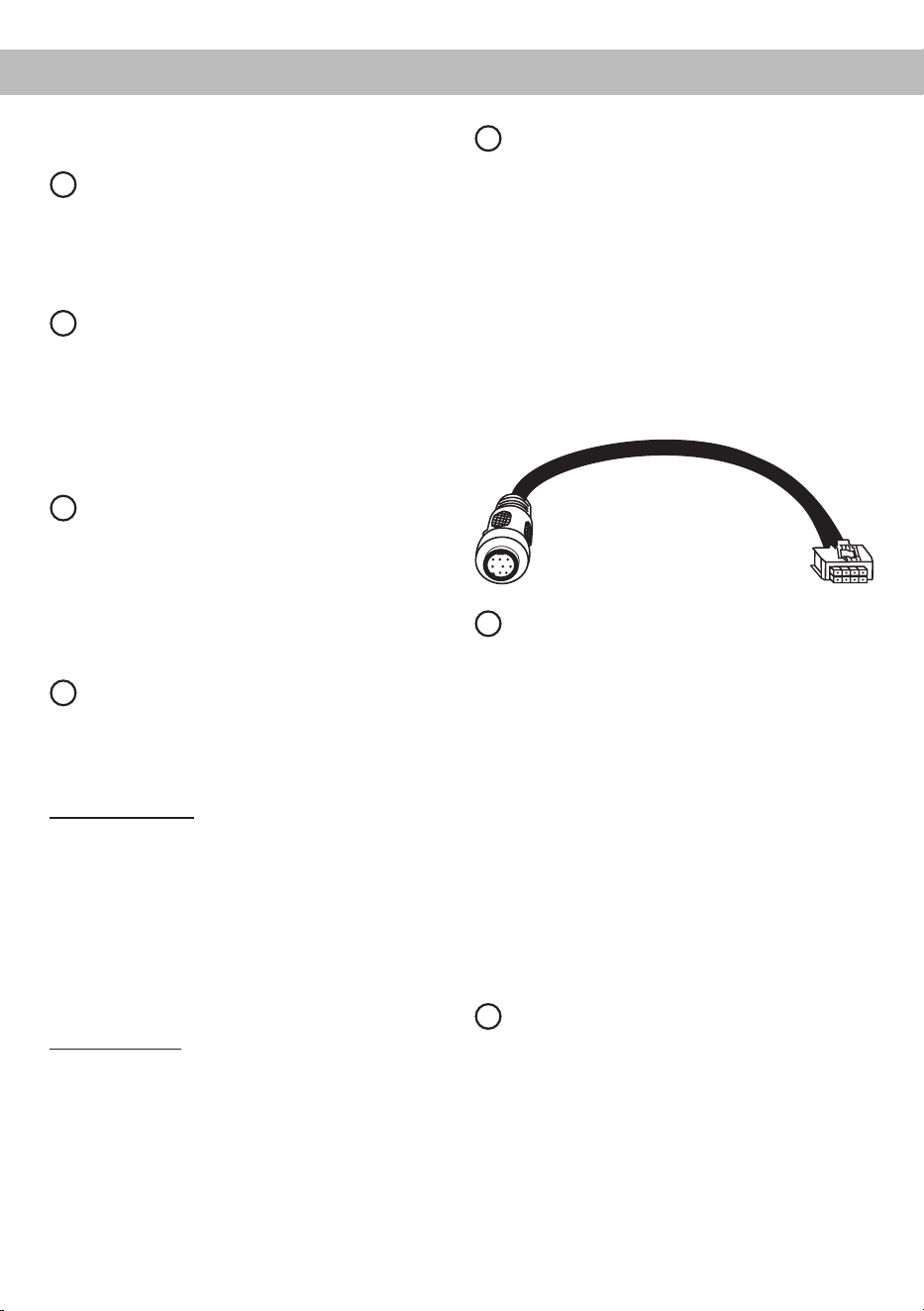
Achtung: Sofern das Zubehörprodukt keinen
NanoFit Stecker besitzt, verwenden Sie zum An-
schluss ausschließlich den mitgelieferten NanoFit
Adapter.
NanoFit Adapter
10
Optical Input
Optischer Eingang im SPDIF-Format für den An-
schluss an Signalquellen mit digitalem Ausgang.
Die „Sampling Rate“ dieses Eingangs muss zwi-
schen 12 - 96 kHz liegen. Das Eingangssignal wird
automatisch an die interne Abtastrate angepasst.
Um diesen Eingang zu aktivieren und in der Laut-
stärke regeln zu können, wird eine optional er-
hältliche Fernbedienung oder die WIFI CONTROL
empfohlen.
Hinweis: Es können ausschließlich Stereosignale
und keine Dolby-codierten Daten verarbeitet wer-
den!
Hinweis: Werkseitig ist die manuelle Einschaltung
des Eingangs über eine optionale Fernbedienung
konguriert.
11
Line Out
Der Line Out ist ein Mono-Vorverstärker-Signalaus-
gang zum Anschluss von zusätzlichen Verstärkern,
der durch den „Balanced Audio Transformer“ von
der Eingangsmasse getrennt ist. Dadurch können
keine Störgeräusche aufgrund von Masseverschlei-
fungen auftreten.
Dieser Ausgang liefert eine maximale Ausgangs-
spannung von 3 Volt RMS. Wenn Sie diesen Aus-
gang verwenden, ist es zwingend erforderlich, den
Remote-Ausgang (REM OUT) zum Einschalten

6
Inbetriebnahme und Funktionen
des / der angeschlossenen Verstärker/s zu ver-
wenden, da ansonsten Störgeräusche auftreten
können.
Der Remote-Ausgang schaltet sich automatisch
während des Power Save Modus sowie bei einem
Software-Update ab. Das Audiosignal kann mit Hilfe
der DSP PC-Tool Software unabhängig von den an-
deren Verstärkerkanälen konguriert werden.
12
Auto Remote
Die Einschaltung des UP 10DSP Verstärkers er-
folgt automatisch bei Ansteuerung über die High-
level-Eingänge des System Connectors, den High-
level Input E - H oder sobald ein Remote-Signal
am Remote-Eingang (REM IN) anliegt.
Mit Hilfe des Auto Remote Schalters kann die auto-
matische Einschaltung über die Highlevel-Eingänge
des System Connector aktiviert bzw. deaktiviert
werden.
Die Deaktivierung sollte vorgenommen werden,
wenn es beispielsweise zu Störgeräuschen beim
Ein- und Ausschalten des Verstärkers kommt.
Hinweis: Werkseitig ist die automatische Ein-
schaltung über die Highlevel-Eingänge aktiviert
(Auto Remote = On).
Hinweis: Wird die automatische Einschaltung des
Verstärkers deaktiviert, muss der Remote-Eingang
belegt werden. Eine automatische Einschaltung
über die Highlevel-Eingänge ist dann nicht mehr
möglich.
13
Status LED
Die Status LED zeigt den Betriebszustand des
Verstärkers und dessen DSP-Speichers an.
Grün: Verstärker eingeschaltet und betriebsbereit.
Orange: Power Save Modus aktiv.
Rot: Protection Mode aktiv. Dieser kann unterschied
-
liche Ursachen haben. Der Verstärker ist mit Schutz-
schaltungen gegen Über- und Unterspannung sowie
Überhitzung ausgestattet. Prüfen Sie in diesem Fall
alle Anschlüsse auf Fehler, wie z.B. Kurzschlüsse
oder fehlerhafte Verbindungen. Ist die Sicherheits
-
schaltung der Temperaturüberwachung aktiv, wird
der Remote-Ausgang sowie die Signalausgabe ab
-
geschaltet, bis ein sicherer Betrieb wieder gewähr-
leistet werden kann.
Rot / grün langsam blinkend: Keine Betriebssoftware
auf dem DSP installiert. Verbinden Sie den Verstär
-
ker mit der DSP PC-Tool Software und bestätigen
das automatische Update der Betriebssoftware. Die
aktuellste Version des DSP PC-Tools nden Sie auf
www.audiotec-scher.com.
Rot / grün schnell blinkend: Aktuell ausgewählter
Sound Setup-Speicherplatz ist leer. Ein neues DSP
Setup muss über die DSP PC-Tool Software einge
-
spielt werden oder schalten Sie auf einen Speicher-
platz mit vorhandenem Sound Setup um.
7
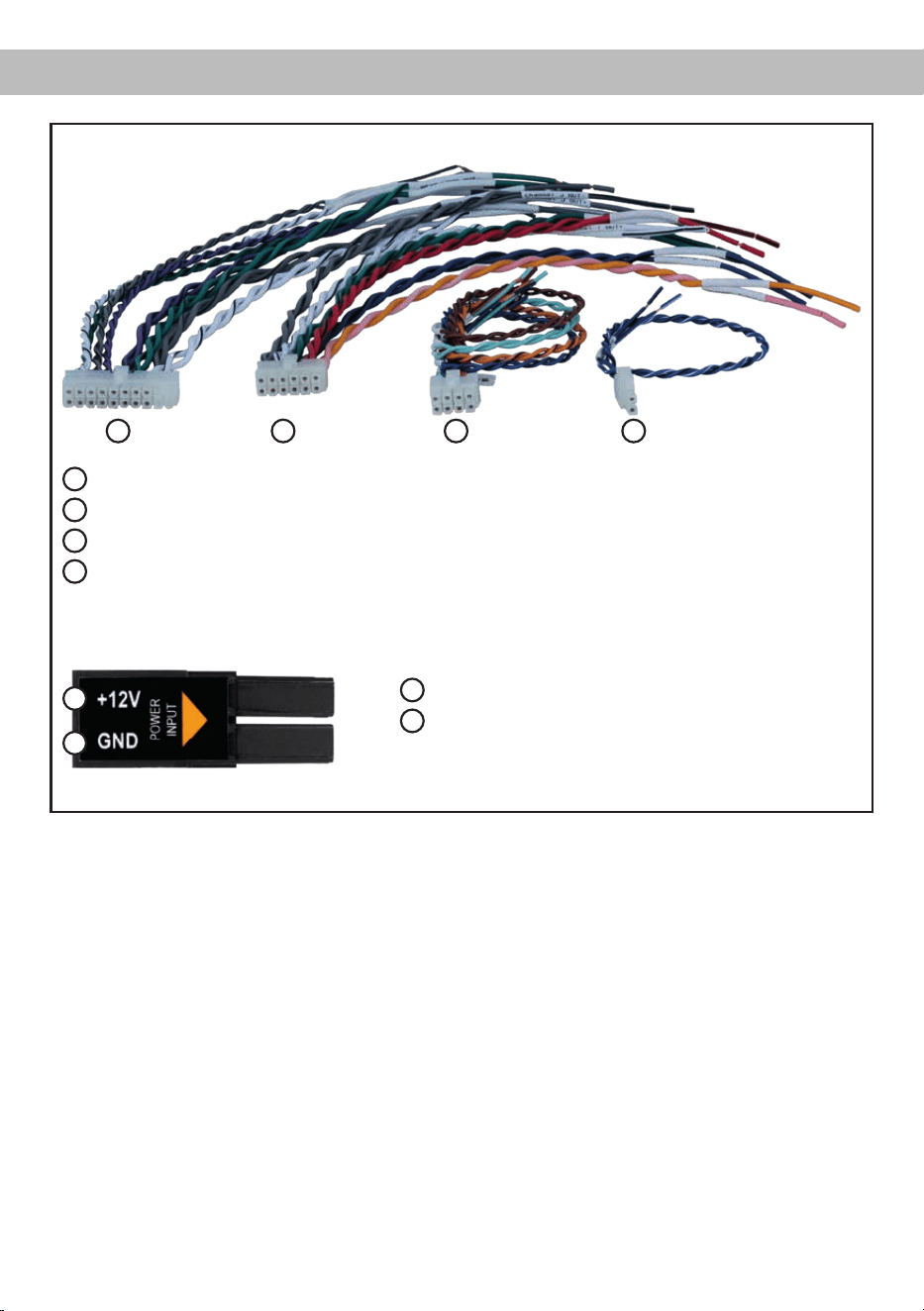
Abb. 1: Übersicht Anschlusskabel
1
System Connector Anschlusskabel
2
Speaker Output E - J Anschlusskabel
3
Highlevel Input E - H Anschlusskabel
4
Remote (REM IN / OUT) Anschlusskabel
1 2 3
Abb. 2: Belegung Power Input Stecker
Steckeroberseite
A
+12 V – Zum Anschluss des +12 V Versorgungskabels.
B
GND – Zum Anschluss des Massekabels.
A
B
4
Einbau und Installation
8
Einbau und Installation
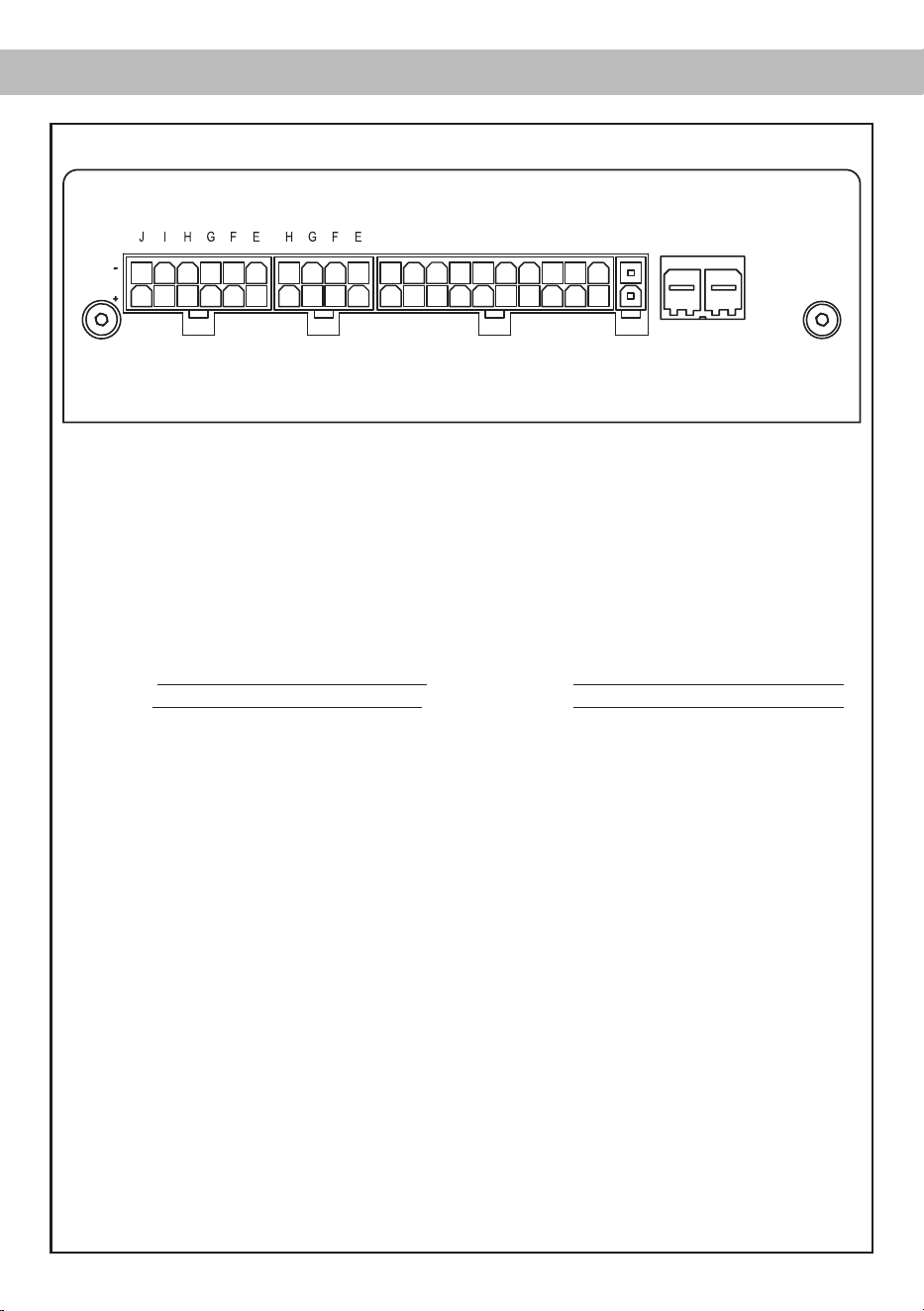
Abb. 3: Pinbelegung UP 10DSP
System Connector
1. Highlevel-Lautsprechereingang hinten links (-) / C
2. Highlevel-Lautsprechereingang vorne links (-) / A
3. Highlevel-Lautsprechereingang vorne rechts (-) / B
4. Highlevel-Lautsprechereingang hinten rechts (-) / D
5. Lautsprecherausgang hinten rechts (-) / D
6. Lautsprecherausgang hinten links (-) / C
7. Lautsprecherausgang vorne rechts (-) / B
8. Lautsprecherausgang vorne links (-) / A
9. Masse* / Wichtig: Pin darf nicht belegt werden!
10. Masse*/ Wichtig: Pin darf nicht belegt werden!
11. Highlevel-Lautsprechereingang hinten links (+) / C
12. Highlevel-Lautsprechereingang vorne links (+) / A
13. Highlevel-Lautsprechereingang vorne rechts (+) / B
14. Highlevel-Lautsprechereingang hinten rechts (+) / D
15. Lautsprecherausgang hinten rechts (+) / D
16. Lautsprecherausgang hinten links (+) / C
17. Lautsprecherausgang vorne rechts (+) / B
18. Lautsprecherausgang vorne links (+) / A
19. +12 Volt* / Wichtig: Pin darf nicht belegt werden!
20. +12 Volt* / Wichtig: Pin darf nicht belegt werden!
Highlevel Input E - H
21. Highlevel-Lautsprechereingang Kanal H (-)
22. Highlevel-Lautsprechereingang Kanal G (-)
23. Highlevel-Lautsprechereingang Kanal F (-)
24. Highlevel-Lautsprechereingang Kanal E (-)
25. Highlevel-Lautsprechereingang Kanal H (+)
26. Highlevel-Lautsprechereingang Kanal G (+)
27. Highlevel-Lautsprechereingang Kanal F (+)
28. Highlevel-Lautsprechereingang Kanal E (+)
* Nicht belegt beim beiliegenden System Connector Anschlusskabel.
HIGHLEVEL
INPUT
POWER INPUT
SPEAKER
OUTPUT
+12V GNDIN
REM
OUT
SYSTEM
CONNECTOR
403938373635 28272625 20191817161514131211
343332313029 24232221 10987654321
Speaker Output E - J
29. Subwooferausgang 2 (-) / J
30. Subwooferausgang 1 (-) / I
31. Lautsprecherausgang H (-)
32. Lautsprecherausgang G (-)
33. Lautsprecherausgang F (-)
34. Lautsprecherausgang E (-)
35. Subwooferausgang 2 (+) / J
36. Subwooferausgang 1 (+) / I
37. Lautsprecherausgang H (+)
38. Lautsprecherausgang G (+)
39. Lautsprecherausgang F (+)
40. Lautsprecherausgang E (+)

9
Der MATCH UP 10DSP Verstärker wird wie nach-
folgend beschrieben montiert und angeschlos-
sen.
Achtung: Für die Durchführung der nachfolgenden
Schritte werden Spezialwerkzeuge und Fachwis-
sen benötigt. Um Anschlussfehler und Beschädi-
gungen zu vermeiden, fragen Sie im Zweifelsfall
Ihren Fachhändler und beachten Sie zwingend die
allgemeinen Anschluss- und Einbauhinweise (siehe
Seite 2).
1. Anschluss des System Connector
1. Anschluss der Highlevel-Lautsprecherein-
gänge A - D: Die Highlevel-Lautsprecherein-
gänge (siehe Seite 8, Abb. 3, Nr. 1 - 4 und
Nr. 1 - 14) können mit Hilfe des beiliegenden
MATCH Anschlusskabels direkt mit den Laut-
sprecherausgängen des Werks- bzw. Nach-
rüstradios oder Werksverstärkers verbunden
werden. Dabei müssen nicht zwingend alle
Eingänge belegt werden. Es ist ausreichend,
zwei der vier Highlevel-Lautsprechereingän-
ge zu belegen. Mit Hilfe der DSP PC-Tool
Software können die Eingangssignale auf
die 11 Ausgangskanäle des Verstärkers indi-
viduell aufgeteilt werden.
Achten Sie bitte auf eine korrekte Polung!
Wenn Sie einen oder mehrere Anschlüsse
verpolen, kann dadurch die Funktion des
Verstärkers beeinträchtigt werden. Bei Ver-
wendung dieses Eingangs muss der Remo-
te-Eingang (REM IN) nicht belegt werden, da
sich der Verstärker automatisch einschaltet,
sobald ein Lautsprechersignal anliegt.
2. Anschluss der Lautsprecherausgänge A - D:
Die Lautsprecherausgänge (siehe Seite 8,
Abb. 3 Nr. 5 - 8 und Nr. 15 - 18) können mit
Hilfe des beiliegenden MATCH Anschluss-
kabels direkt mit den Lautsprecherleitungen
verbunden werden. Verbinden Sie niemals
die Lautsprecherleitungen mit der Kfz-Mas-
se (Fahrzeugkarosserie). Dieses kann Ihren
Verstärker zerstören. Achten Sie darauf,
dass alle Lautsprechersysteme phasenrich-
tig angeschlossen sind, d.h. Plus zu Plus
und Minus zu Minus. Vertauschen von Plus
und Minus hat einen Totalverlust der Bass-
wiedergabe zur Folge. Der Pluspol ist bei
den meisten Lautsprechern gekennzeichnet.
Die Impedanz pro Kanal darf 4 Ohm nicht
unterschreiten, da sonst die Schutzschal-
tung des Verstärkers aktiviert wird.
Achtung: Verwenden Sie zum Anschluss
ausschließlich das mitgelieferte System
Connector Anschlusskabel oder einen pas-
senden Kabelbaum aus dem MATCH Zube-
hörprogramm.
2. Anschluss der Highlevel-Lautsprecherein-
gänge E - H (optional)
Die Hochpegel-Lautsprechereingänge E - H
können direkt mit den Lautsprecherausgän-
gen des Werks- bzw. Nachrüstradios oder des
Werksverstärkers mit Hilfe des beiliegenden
Anschlusskabels verbunden werden (siehe
Seite 8, Abb. 3, Nr. 21 - 28). Achten Sie bitte
auf eine korrekte Polung! Wenn Sie einen oder
mehrere Anschlüsse verpolen, kann dadurch
die Funktion des Verstärkers beeinträchtigt
werden. Bei Verwendung dieses Eingangs
muss der Remote-Eingang (REM IN) nicht be-
legt werden, da sich der Verstärker automatisch
einschaltet, sobald ein Lautsprechersignal an-
liegt.
Achtung: Verwenden Sie zum Anschluss aus-
schließlich das mitgelieferte Anschlusskabel mit
dem 8-poligen Stecker und den oenen Kabel-
enden oder einen passenden Kabelbaum aus
dem MATCH Zubehörprogramm.
3. Anschluss einer digitalen Signalquelle
Sofern Sie über eine Signalquelle mit op-
tischem Digitalausgang verfügen, kann diese
an den Verstärker angeschlossen werden.
Werkseitig ist die manuelle Einschaltung des
Eingangs über eine optionale Fernbedienung
konguriert. Möchten Sie den Eingang automa-
tisch bei Anliegen eines Audiosignals aktivie-
ren, können Sie dies in der DSP PC-Tool Soft-
ware unter dem Menüpunkt Signalmanagement
im DCM kongurieren.
Die Einschaltautomatik des Verstärkers funk-
tioniert bei Verwendung des Digitaleingangs
nicht, so dass der Remote-Eingang (REM IN)
zwingend belegt werden muss.
Wichtig: Das digitale Audiosignal einer Quelle
ist üblicherweise nicht lautstärkegeregelt. Das
10
Einbau und Installation
bedeutet, dass an sämtlichen Ausgängen der
UP 10DSP der volle Pegel anliegt. Dies kann im
Extremfall die angeschlossenen Lautsprecher
zerstören. Wir raten deshalb dringend dazu,
eine optionale Fernbedienung zur Einstellung
der Lautstärke der digitalen Signaleingänge zu
verwenden!
Hinweis: Die UP 10DSP kann nur unkompri-
mierte, digitale Stereo PCM-Signale mit einer
Abtastrate zwischen 12 kHz und 96 kHz ver-
arbeiten. Es können keine MP3- oder Dolby-
codierten Daten verarbeitet werden, sondern
ausschließlich Stereosignale.
4. Einstellung der Eingangsempndlichkeit
Achtung: Es ist zwingend notwendig, die
Eingangsempndlichkeit der UP 10DSP an
die Signalquelle anzupassen, um Schäden
am Verstärker zu vermeiden.
Die Einstellung der Eingangsempndlichkeit
kann mit Hilfe der DSP PC-Tool Software und
durch das Umstecken einer Steckbrücke im Ge
-
räteinneren vorgenommen werden.
Die Einstellung erfolgt dabei in zwei Schritten:
1. Voreinstellung der Eingangsempndlichkeit
mit Hilfe des Jumpers im Inneren des Geräts.
2. Feineinstellung mit Hilfe der DSP PC-Tool
Software.
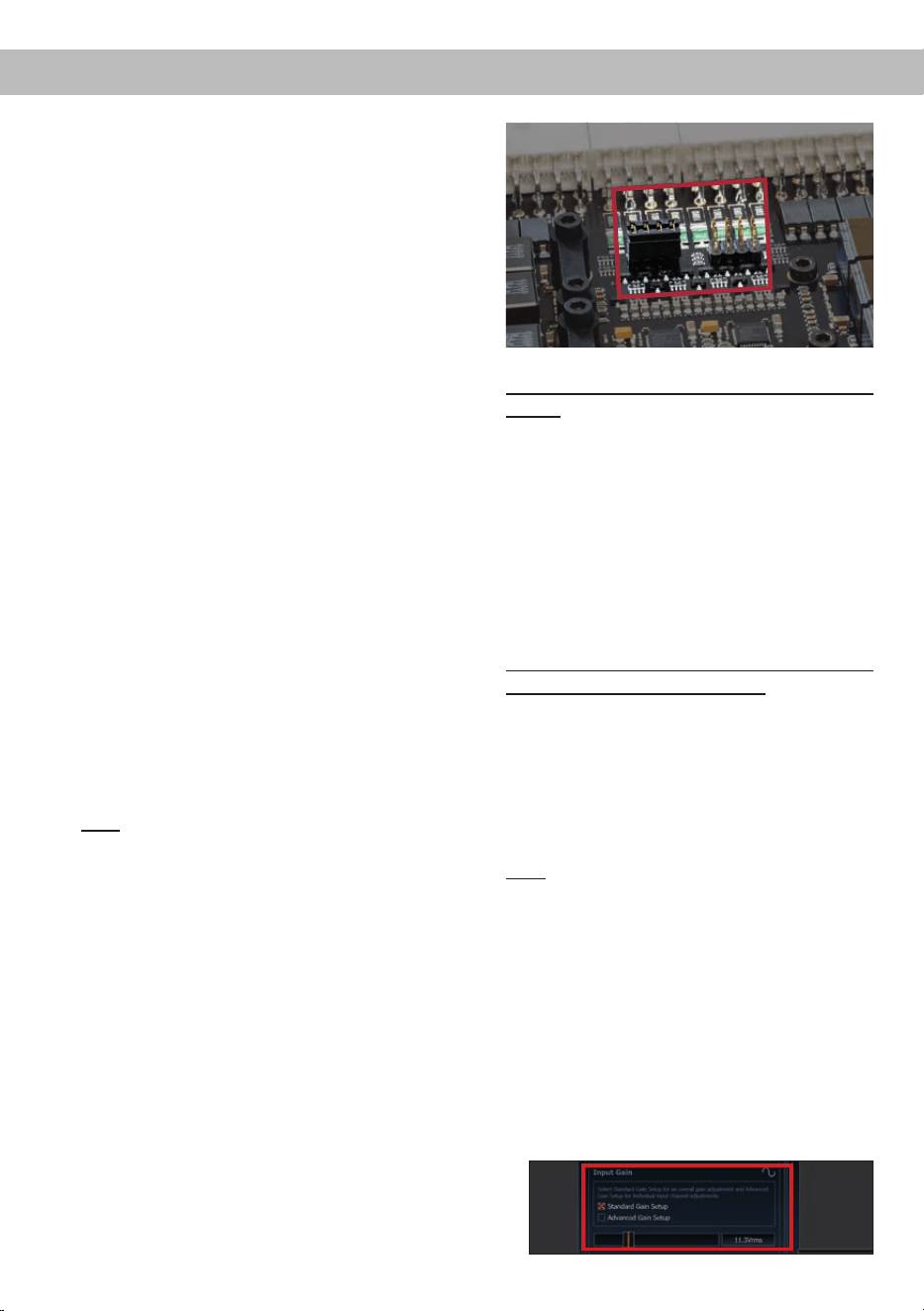
Zu 1: Der werkseitig für alle Kanäle voreingestell
-
te Wertebereich der Eingangsempndlichkeit ist
optimal für viele handelsübliche Radios (11 Volt).
Sofern Ihre Signalquelle jedoch mit bis zu zwei
Leistungskanälen ausgestattet ist, welche eine
Ausgangsspannung zwischen 11 und 32 Volt
liefern, – beispielsweise wenn ein werkseitig ver
-
bauter Verstärker als Signalquelle dient – müs-
sen für diese die Eingangskanäle G und H ver-
wendet werden. Des Weiteren muss ein Jumper
im Inneren des Geräts vor der ersten Inbetrieb
-
nahme zwingend auf den „High Voltage Range“
Bereich (8 - 32 Volt) gesteckt werden. Um die
Jumperposition zu ändern, muss das Gerät ge
-
önet werden. Dazu entfernen Sie zunächst die
drei Kreuzschlitzschrauben des Seitenblechs mit
dem USB-Eingang und nehmen dieses ab. Zie
-
hen Sie nun das Bodenblech zur Seite heraus.
Anschließend haben Sie Zugri auf den Jumper
.
J 1
J 2
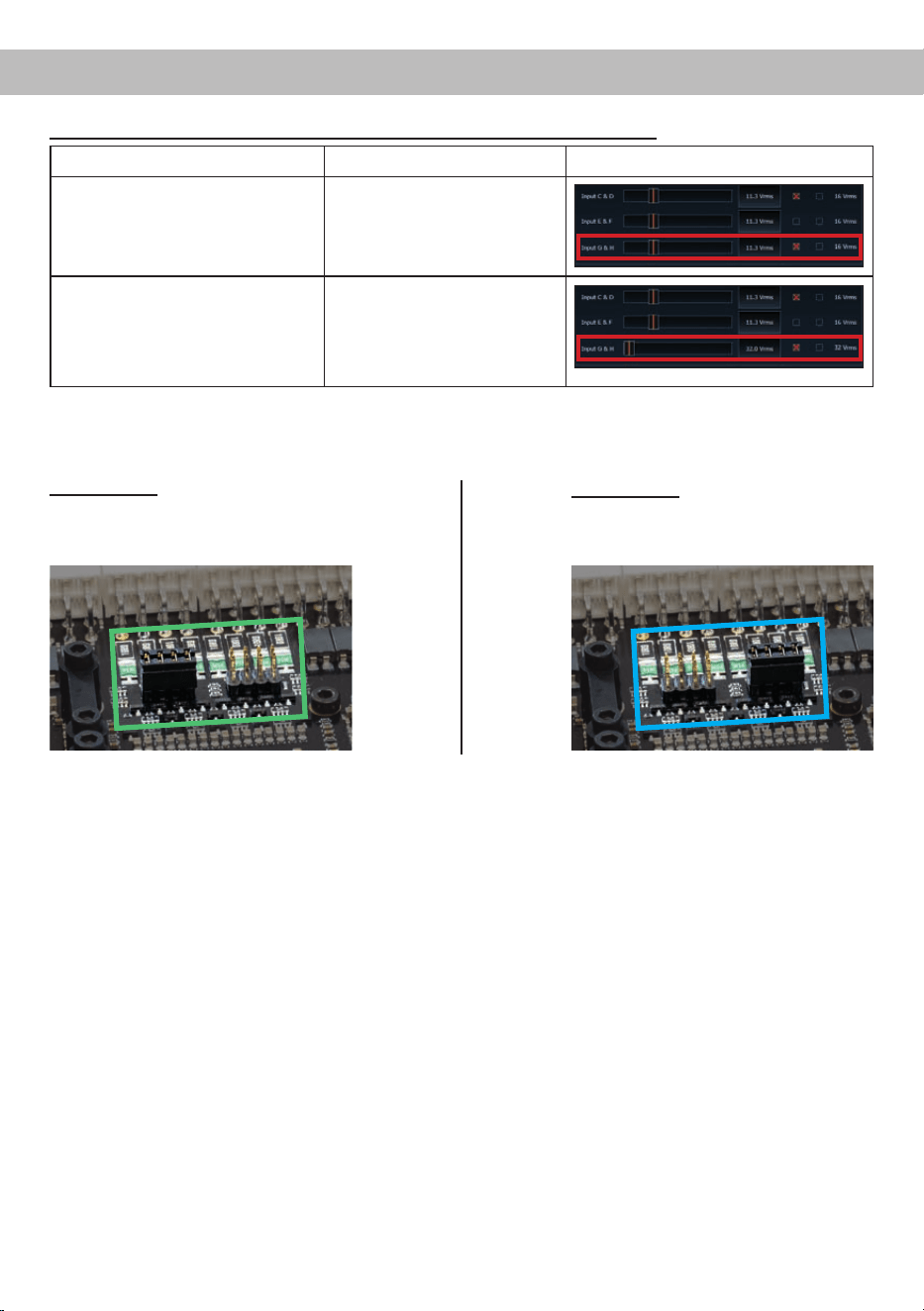
Übersicht Jumper-Steckpositionen Kanäle
G & H:
Der gewünschte Wertebereich wird durch Ein-
stecken des Jumpers deniert.
J 1: Low Voltage Range / 4 - 16 Volt
(werkseitig)
J 2: High Voltage Range / 8 - 32 Volt
Um die Position des Jumpers zu ändern, ziehen
Sie diesen einfach nach oben hin ab und ste-
cken ihn auf die gewünschte Position.
Achten Sie darauf, dass der Jumper vollständig
und nicht versetzt eingesteckt ist.
Sollten Sie sich bzgl. der Ausgangsspannung
Ihrer Signalquelle nicht sicher sein, kontaktie-
ren Sie Ihren MATCH Fachhändler.
Nachdem der Jumper auf die gewünschte
Steckposition platziert wurde, können Sie den
Verstärker wieder zusammensetzen.
Zu 2: Nun kann mit Hilfe der DSP PC-Tool Soft-
ware die Eingangsempndlichkeit optimal an
die Signalquelle angepasst werden.
Hinweis: Muten Sie während dieser Prozedur
die Signalausgänge des DSPs.
Zur Anpassung der Eingangsempndlichkeit
führen Sie bitte die folgenden Schritte durch:
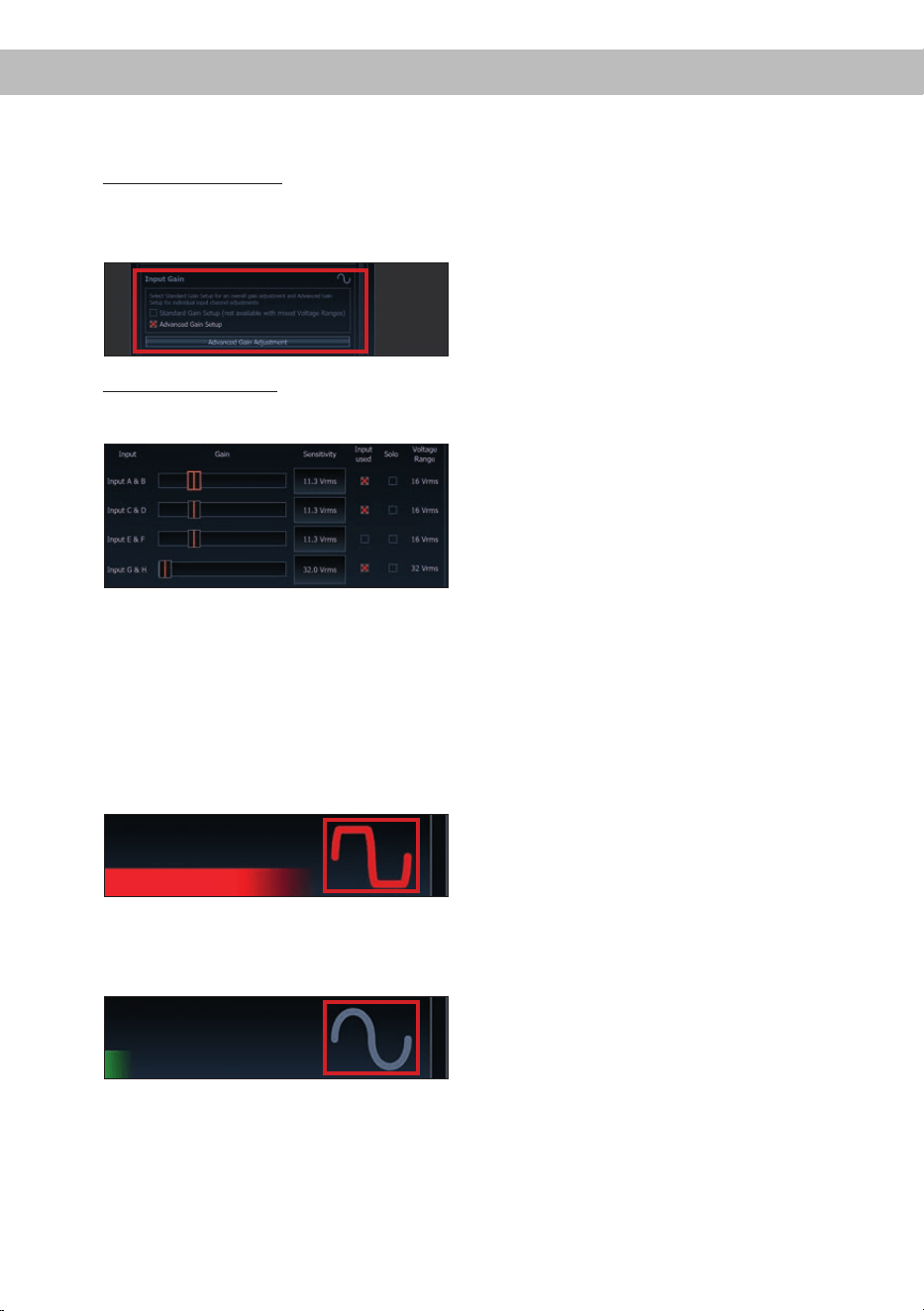
1. Schalten Sie den Verstärker ein und starten
anschließend die Software. Die Funktion n-
den Sie im Tab „ Signalverwaltung“ des DCM-
Menüs unter dem Punkt „Main Input → Input
Gain“.
11
2. Wählen Sie das Setupverfahren zur Einstel-
lung der Eingangsempndlichkeit aus.
Standard Gain Setup: Hier kann die Ein-
gangsempndlichkeit global für alle Kanäle
eingestellt werden (nur bei „Low Voltage
Range“ Jumper-Steckposition – siehe links).
Advanced Gain Setup: Bei diesem Verfahren
ist eine individuelle Einstellung für die einzel-
nen Kanalpaare möglich.
3. Drehen Sie die Lautstärke Ihres Radios auf
90 % der Gesamtlautstärke und spielen Sie
ein geeignetes Testsignal, z.B. Rosa Rau-
schen, (Vollaussteuerung 0 dB) ab.
4. Sollte die Clipping Anzeige im DSP PC-Tool
bereits leuchten (siehe Markierung im fol-
genden Bild), verringern Sie mit Hilfe des
Schiebereglers die Eingangsempndlichkeit,
bis die Clipping Anzeige erlischt.
5. Erhöhen Sie die Eingangsempndlichkeit bis
die Clipping Anzeige aueuchtet. Schieben
Sie nun den Regler zurück bis die Clipping
Anzeige wieder erlischt.
Verschiedene Einstellungsbeispiele für die Ein-
gangsempndlichkeit sind in der Tabelle auf
Seite 13 aufgeführt. Für weitere Anwendungs-
fälle kontaktieren Sie bitte Ihren MATCH Fach-
händler.
5. Anschluss der Stromversorgung
Vor dem Anschluss des +12 V Versorgungs-
kabels an das Bordnetz muss die Autobatte-
rie abgeklemmt werden.
Das +12 V Stromkabel ist am Pluspol der Bat-
terie anzuschließen. Die Plusleitung sollte in
einem Abstand von max. 30 cm von der Batte-
rie mit einer Hauptsicherung (50 A) abgesichert
werden. Verwenden Sie bei kurzen Leitungen
(< 1 m) einen Querschnitt von mindestens
6 mm². Bei längeren Leitungen empfehlen wir
einen Querschnitt von 10 mm² bis 16 mm².
Das Massekabel (gleicher Querschnitt wie das
+12 V Kabel) muss an einem blanken, von
Lackresten befreiten Massepunkt des Kfz-
Chassis oder direkt an dem Minuspol der Auto
batterie angeschlossen werden.
Achtung: Verwenden Sie zum Anschluss aus-
schließlich den mitgelieferten Power Input Ste-
cker (siehe Seite 7, Abb. 2).
6. Anschluss des Remote-Eingangs
Der Remote-Eingang (REM IN) muss mit
dem Remote-Ausgang des Radios verbunden
sein, sofern ausschließlich der Digitaleingang
des Verstärkers als Signaleingang genutzt
wird. Es wird dringend davon abgeraten, den
Remote-Eingang des Verstärkers über das
Zündungsplus des Fahrzeugs zu steuern, um
Störgeräusche beim Ein- und Ausschalten zu
vermeiden. Bei Verwendung einer der Highle-
vel-Eingänge A - H muss der Remote-Eingang
nicht belegt werden, sofern das angeschlos-
sene Radio über BTL-Ausgangsstufen verfügt.
7. Konguration des Remote-Eingangs
Die Einschaltung der MATCH UP 10DSP er-
folgt automatisch bei Ansteuerung über die
Hochpegel-Lautsprechereingänge oder sobald
ein Remote-Signal am Remote-Eingang (REM
IN) anliegt. Mit Hilfe des Auto Remote Schal-
ters (Seite 6, Punkt 12) kann die automatische
Einschaltung über die Hochpegel-Lautspreche-
reingänge deaktiviert werden. Dies sollte vor-
genommen werden, wenn es beispielsweise zu
Störgeräuschen beim Ein- und Ausschalten des
Verstärkers kommt.
Hinweis: Wird die automatische Einschaltung
des Verstärkers deaktiviert, muss der Remote-

12
Einbau und Installation
Eingang belegt werden. Um die automatische
Einschaltung zu deaktivieren, stellen Sie den
Auto Remote Schalter auf die Schalterstellung
„O“.
8. Konguration des internen DSPs
Es wird dringend empfohlen, vor der ersten
Inbetriebnahme die grundlegenden Einstel-
lungen im Verstärker mit Hilfe der DSP PC-
Tool Software vorzunehmen.
Eine Missachtung kann zur Zerstörung der an-
geschlossenen Lautsprecher / Verstärker füh-
ren. Speziell bei Verwendung der UP 10DSP
in vollaktiven Systemen besteht sonst Zerstö-
rungsgefahr für die Hochtöner. Informationen
zum Anschluss des Verstärkers an einen PC
nden Sie auf Seite 16.
9. Anschluss der Lautsprecherausgänge E - J
An die Lautsprecherausgänge können mit Hil-
fe des beiliegenden MATCH Anschlusskabels
Lautsprechersysteme sowie an die zwei Leis-
tungs-Kanäle I & J Subwoofer angeschlossen
werden (siehe Seite 8, Abb. 3, Nr. 29 - 40). Ver-
binden Sie niemals die Lautsprecherleitungen
mit der Kfz-Masse (Fahrzeugkarosserie). Die-
ses kann Ihren Verstärker zerstören. Achten Sie
darauf, dass alle Lautsprechersysteme phasen-
richtig angeschlossen sind, d.h. Plus zu Plus
und Minus zu Minus. Vertauschen von Plus und
Minus hat einen Totalverlust der Basswiederga-
be zur Folge. Der Pluspol ist bei den meisten
Lautsprechern gekennzeichnet. Die Impedanz
pro Kanal darf 4 Ohm für die Kanäle E - H und
2 Ohm für die Kanäle I und J nicht unterschrei-
ten, da sonst die Schutzschaltung des Verstär-
kers aktiviert wird.
Achtung: Verwenden Sie zum Anschluss aus-
schließlich das mitgelieferte Anschlusskabel
mit dem 12-poligen Stecker und den oenen
Kabel enden oder einen passenden Kabelbaum
aus dem MATCH Zubehörprogramm.
10. Anschluss des Remote-Ausgangs
Dieser Ausgang (REM OUT) dient dazu, einen
am Line Out angeschlossenen Zusatzverstär-
ker mit einem Remote-Signal zu versorgen. Bit-
te verwenden Sie ausschließlich dieses Signal
zur Einschaltung externer Verstärker, um Ein-
und Ausschaltgeräusche zu vermeiden.
13
Einstellungsbeispiele für die Eingangsempndlichkeit der Kanäle G & H:
Quelle Jumper position
Input Gain im DSP PC-Tool
OEM-Radio
Bis 25 Watt Sinusleistung pro Kanal
an 4 Ohm bzw. bis 50 Watt Sinuslei-
stung pro Kanal an 2 Ohm
Low Voltage Range (J 1) –
Werkseitige Jumperposition
(siehe Abb. 1)
OEM-Radio mit Zusatzverstärker
Größer 25 Watt bis 200 Watt Sinus-
leistung pro Kanal an 4 Ohm bzw.
bis 100 Watt Sinusleistung pro Kanal
an 8 Ohm
High Voltage Range (J 2)
(siehe Abb. 2)
Abbildung 1:
Wertebereich 4 - 16 Volt
Abbildung 2:
Wertebereich 8 - 32 Volt
Für weitere Anwendungsfälle kontaktieren Sie bitte Ihren MATCH-Fachhändler.
J 2
J 1
14
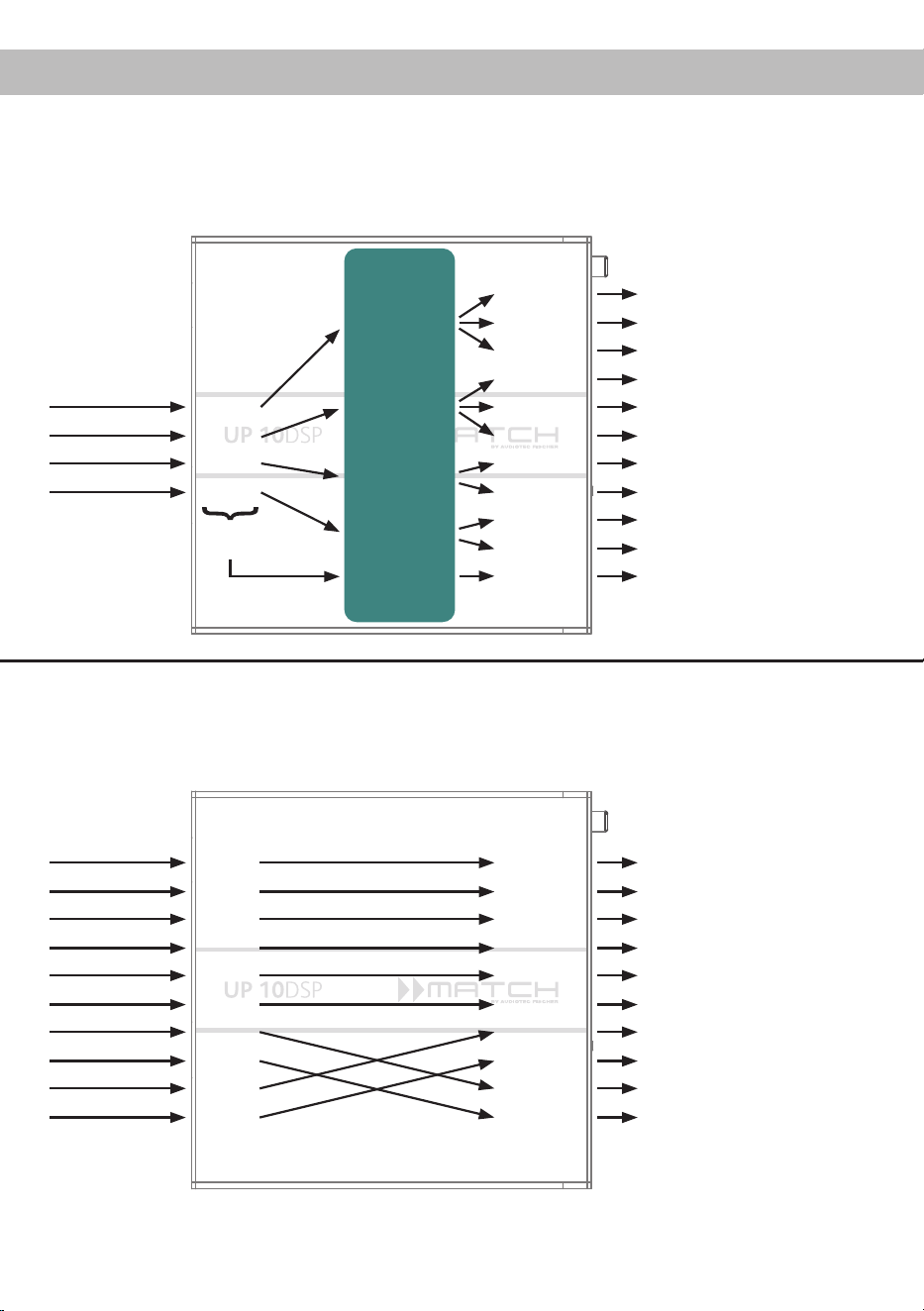
Ein Basic DSP-Setup nden Sie auf www.audiotec-scher.de unter Tools → Sound Setups.
Beispiel 1: Kanalrouting mit Virtual Channel Processing
Vom Autoradio Eingänge Ausgänge Zu den LautsprechernVirtuelle Kanäle
Subwoofer
1
(K)
SFX -
Augmented Bass
Processing
Front L High – Hochtöner VL
Front R High – Hochtöner VR
Front L Mid – Mitteltöner VL
Front R Mid – Mitteltöner VR
Front L Low – Tieftöner VL
Front R Low – Tieftöner VR
Rear L High – Hochtöner HL
Rear R High – Hochtöner HR
Rear L Low – Tieftöner HL
Rear R Low – Tieftöner HR
Subwoofer 1 – Subwoofer
Front L Full
Front R Full
Rear L Full
Rear R Full
Amp Out A
Amp Out C
Amp Out I
Amp Out B
Amp Out D
Amp Out J
Amp Out E
Amp Out G
Amp Out F
Amp Out H
Line Out K
Input A
Input B
Input C
Front L Full (A)
Front R Full (B)
Rear L Full (C)
Rear R Full (D)
Input D
Summen-
signal A bis D
SFX -
Front Processing
SFX -
Front Processing
Kongurationsbeispiele
Beispiel 2: 10-Kanal 1 zu 1 Kanalrouting (IOR) z.B.: Vorne 2-Wege vollaktiv / Hinten 2-Wege passiv /
Center 2-Wege vollaktiv / Subwoofer mit Doppelschwingspule – Nur in Verbindung mit dem optio-
nalen MEC ANALOG IN Modul
Vom Werks-
verstärker
Eingänge Ausgänge Zu den Lautsprechern
Front L High
Front R High
Front L Low
Front R Low
Rear L Full
Rear R Full
Subwoofer L
Subwoofer R
Front Center High
Front Center Low
Front L High – Hochtöner VL
Front R High – Hochtöner VR
Front L Low – Tiefmitteltöner VL
Front R Low – Tiefmitteltöner VR
Rear L Full – 2-Wege Passiv
Rear R Full – 2-Wege Passiv
Front Center High – Hochton Center
Front Center Low – Mittelton Center
Subwoofer 1 – Subwoofer L
Subwoofer 2 – Subwoofer R
Input A
Input B
Input C
Input D
Input E
Input F
Input G*
Input H*
Input I
Input J
Amp Out A
Amp Out B
Amp Out C
Amp Out D
Amp Out E
Amp Out F
Amp Out G
Amp Out H
Amp Out I*
Amp Out J*
* Die hochbelastbaren Signaleingänge G & H (siehe Seite 10,
Punkt 4) werden auf die Subwoofer-Leistungskanäle I & J geroutet.
4-Kanal Headunit > Vorne: 3-Wege vollaktiv; Hinten: 2-Wege vollaktiv + Line Out für externen Subwoofer
15
Ein Basic DSP-Setup nden Sie auf www.audiotec-scher.de unter Tools → Sound Setups.
Für weitere Anwendungsfälle kontaktieren Sie bitte Ihren MATCH-Fachhändler.
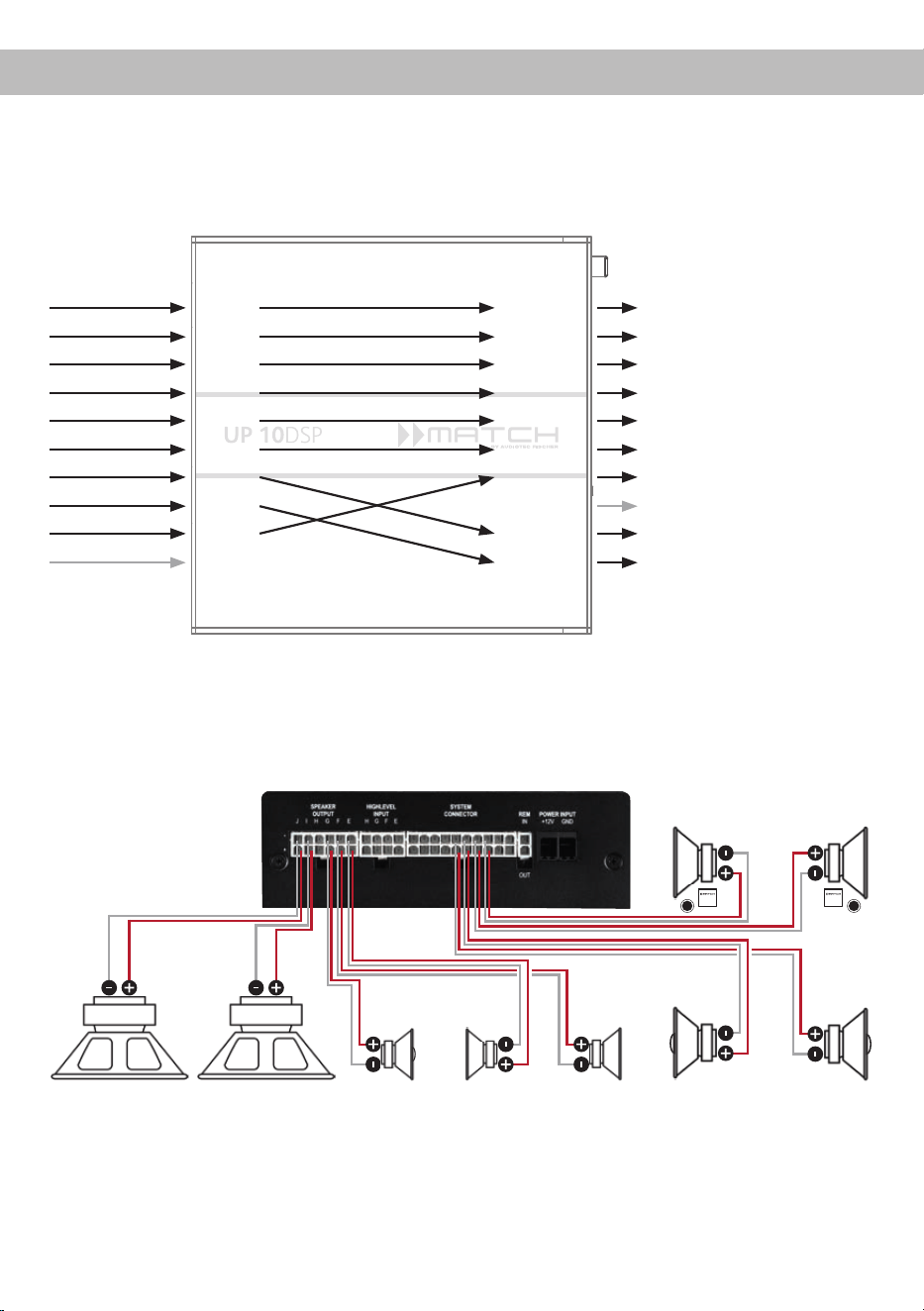
Beispiel 3:
9-Kanal 1 zu 1 Kanalrouting (IOR) z.B. bei Mercedes Burmester oder BMW Harman Kardon
mit den optionalen MATCH UPGRADE Kabelbäumen – Nur in Verbindung mit dem optionalen MEC
ANALOG IN Modul
Vom Werks-
verstärker
Eingänge Ausgänge Zu den Lautsprechern
Front L Full
Front R Full
Rear L Full
Rear R Full
Surround L Full
Surround R Full
Subwoofer L
Subwoofer R
Front Center Full
Not assigned
Front L Full – 2-Wege Passiv VL
Front R Full – 2-Wege Passiv VR
Rear L Full – 2-Wege Passiv HL
Rear R Full – 2-Wege Passiv HR
Surround L Full – Breitbänder L
Surround R Full – Breitbänder R
Front Center Full – Koaxial Center
Not assigned
Subwoofer 1 – Subwoofer L
Subwoofer 2 – Subwoofer R
Input A
Input B
Input C
Input D
Input E
Input F
Input G*
Input H*
Input I
Input J
Amp Out A
Amp Out B
Amp Out C
Amp Out D
Amp Out E
Amp Out F
Amp Out G
Amp Out H
Amp Out I*
Amp Out J*
* Die hochbelastbaren Signaleingänge G & H (siehe Seite 10,
Punkt 4) werden auf die Subwoofer-Leistungskanäle I & J geroutet.
Subwoofer R
Links Rechts
Vorne
Links Rechts
Hinten
Links Rechts
Subwoofer L Center Surround

16
Die MATCH UP 10DSP kann mit Hilfe der
DSP PC-Tool Software frei konguriert werden. Die
Software stellt alle Funktionen übersichtlich und
bedienerfreundlich zur Verfügung, so dass Sie die-
se individuell einstellen können. Dabei können alle
11 DSP Kanäle separat eingestellt werden.
Bevor Sie den Verstärker das erste Mal an einen
Computer anschließen, gehen Sie auf unsere
Homepage und laden die aktuellste Software Ver-
sion des DSP PC-Tools herunter. Es ist ratsam, re-
gelmäßig nach Updates der Software zu schauen,
damit das Gerät immer auf dem aktuellsten Stand
ist.
Die Software sowie eine umfangreiche Knowledge
Base nden Sie auf www.audiotec-scher.com.
Es wird dringend empfohlen, die DSP PC-Tool
Knowledge Base vor der ersten Benutzung durch-
zulesen, um Komplikationen und Fehler zu vermei-
den.
Wichtig: Stellen Sie sicher, dass der MATCH
UP 10DSP Verstärker bei der ersten Installation der
Software noch nicht am PC angeschlossen ist. Ver-
binden Sie diesen erst, wenn die Software samt der
USB-Treiber vollständig installiert ist.
Im folgenden Abschnitt lesen Sie die wichtigsten
Schritte zum Anschluss und der ersten Inbetrieb-
nahme:
1. Laden Sie die DSP PC-Tool Software unter
www.audiotec-scher.com herunter und in-
stallieren diese auf ihrem Computer.
2. Schließen Sie danach die UP 10DSP mit dem
beiliegenden USB-Kabel an den Computer an.
Wenn Sie längere Distanzen zu überbrücken
haben, verwenden Sie bitte eine aktive USB-
Verlängerung mit integriertem Repeater oder
das optional erhältliche WIFI CONTROL Inter-
face.
3. Schalten Sie erst den Verstärker ein und star-
ten Sie anschließend die Software. Sofern die
Betriebssoftware des Verstärkers nicht mehr
aktuell ist, wird diese automatisch aktualisiert.
4. Nun können Sie die UP 10DSP mithilfe der
DSP PC-Tool Software frei kongurieren. Nütz-
liche Hinweise zur korrekten Einstellung ent-
nehmen Sie unserer Knowledge Base, welche
auf unserer Webseite bereit steht.
Achtung: Es wird dringend empfohlen, vor der er-
sten Inbetriebnahme die Lautstärke am Radio auf
Minimum zu drehen und am Line Out des Verstär-
kers noch nichts anzuschließen, bis die grundle-
genden Einstellungen im Verstärker vorgenommen
wurden. Speziell bei Verwendung der UP 10DSP in
vollaktiven Systemen besteht sonst Zerstörungsge-
fahr für die Lautsprecher.
Anschluss an den Computer
17
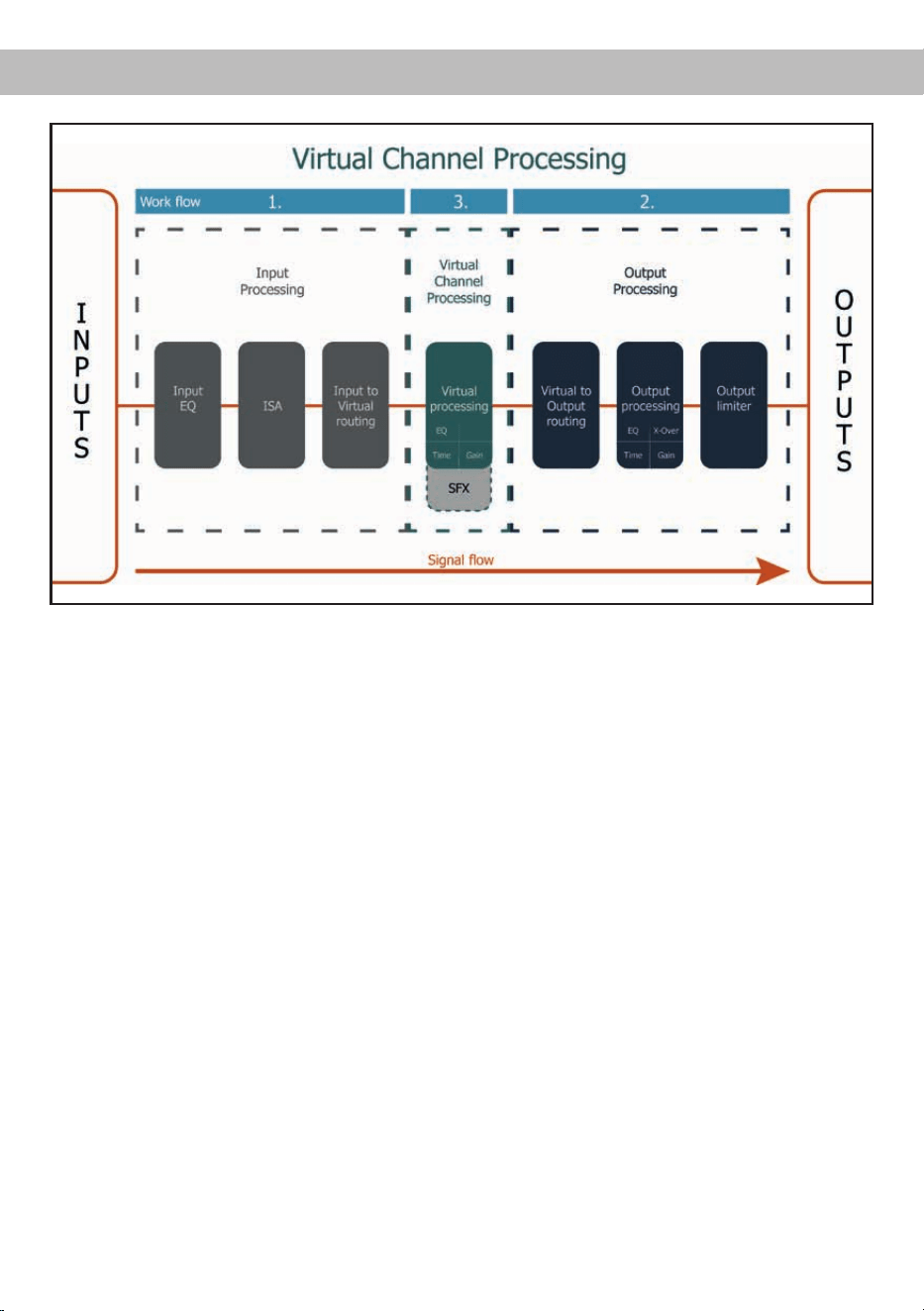
Virtual Channel Processing (VCP)
Das Bedienkonzept des VCP
Im Gegensatz zu bisherigen Methoden ist das Virtual Channel Processing (VCP) ein mehrstuges
Signalverarbeitungs-Konzept, welches die perfekte Konguration komplexer Soundsysteme ermöglicht
und somit ganz neue Möglichkeiten des Klangtunings erönet.
Die Funktion erweitert den bisherigen Umfang des Gerätes um eine neue Ebene an prozessierten Kanälen,
welche sich zwischen den Ein- und Ausgängen bendet.
Insgesamt stehen acht zusätzliche prozessierte virtuelle Kanäle und elf prozessierte Ausgangskanäle zur
Verfügung.
Diese virtuelle Kanalebene bietet diverse Vorteile, gerade in komplexen Systemkongurationen.
Die Hauptvorteile dieses Konzeptes sind folgende:
- Ausgangskanalübergreifender Gruppen-Equalizer
- Mehrwege-Konguration der DSP-Soundeekte (SFX)
- Zusätzliche Funktionen wie Rear Attenuation
18
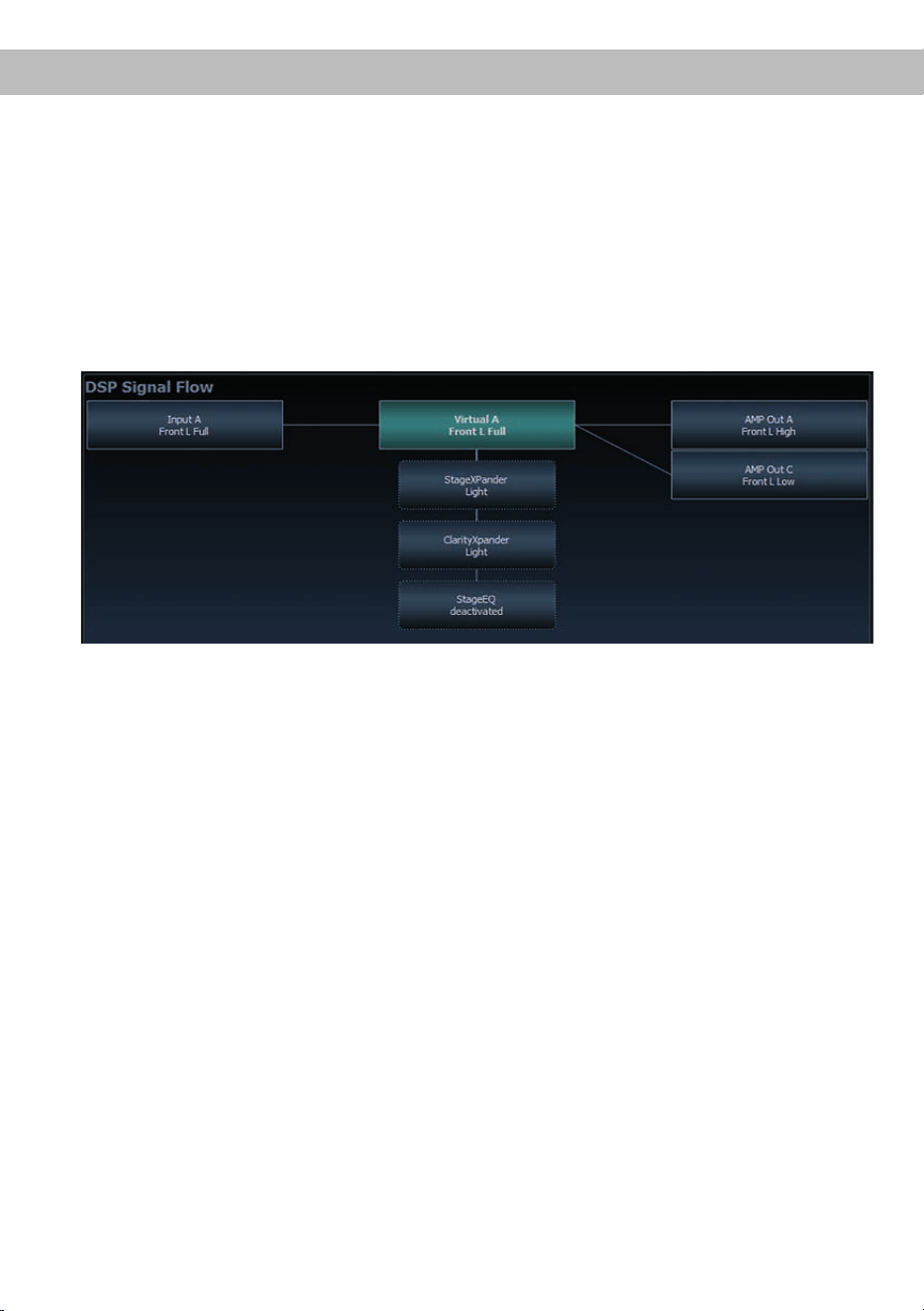
– Kanalübergreifender Gruppen-Equalizer
Beispielanwendung: Aktives Mehrwege- System
Wird ein Eingangssignal (bspw. Vorne links) erst auf einen virtuellen Kanal geroutet (Front L Full)
und dieses Signal anschließend auf ein aktives Mehrwege-System geroutet (bspw. Vorne links –
Hochtöner, Mitteltöner und Tieftöner), so ist es möglich, mit Hilfe des Equalizers des virtuellen Kanals
alle nachgeschalteten einzelnen Kanäle gleichzeitig in ihrer Tonalität zu beeinussen. Der Vorteil dieses
Konzeptes ist, dass sich vor allem die Frequenz- und Phaseneinüsse auf alle nachgeschalteten
Kanäle gleich auswirken, so dass gerade in aktiven Mehrwege-Kongurationen die Abstimmung der
Lautsprecher untereinander nicht negativ beeinusst wird.
– Mehrwege-Konguration der DSP-Soundeekte (SFX)
Beispielanwendung: 2- oder gar 3-Wege Centerlautsprecher
Nach Aktivierung des „Virtual Channel Processing“ sind auch die DSP-Soundeekte wie das
RealCenter-Management oder das Augmented Bass Processing aktiviert. Diese sind nicht mehr fest
mit den Ausgängen verknüpft, sondern an bestimmte „virtuelle Kanäle“ gebunden:
Front Processing: virtuelle Kanäle Front L Full (A) und Front R Full (B)
Center Processing: virtueller Kanal Center Full (E)
Augmented Bass Processing: virtuelle Kanäle Subwoofer 1 (I) und Subwoofer 2 (J). An diese ist auch
die Subwoofer-Lautstärkeregelung gebunden.
Dadurch ist es möglich, die DSP-Soundeekte auf beliebig viele Ausgänge zu routen, um beispiels-
weise 2- oder gar 3-Wege Centerlautsprecher-Kongurationen zu realisieren. Der Flexibilität sind hier
somit kaum noch Grenzen gesetzt.
– Zusätzliche Funktionen
Darüber hinaus ermöglicht das VCP die Realisierung weiterer neuer Funktionen. Eine dieser Funk-
tionen ist beispielsweise die „Rear Attenuation“. Bei dieser kann mit Hilfe einer Fernbedienung die
Lautstärke der virtuellen Kanäle „Rear L Full“ und „Rear R Full“ separat geregelt werden. So ist es auch
ohne Umschalten des Sound Setups möglich, die hinteren Lautsprecher (oder auch jeden anderen
Kanal, welcher durch diese Kanäle geroutet wird) in ihrer Lautstärke zu regeln.
Virtual Channel Processing (VCP)
19
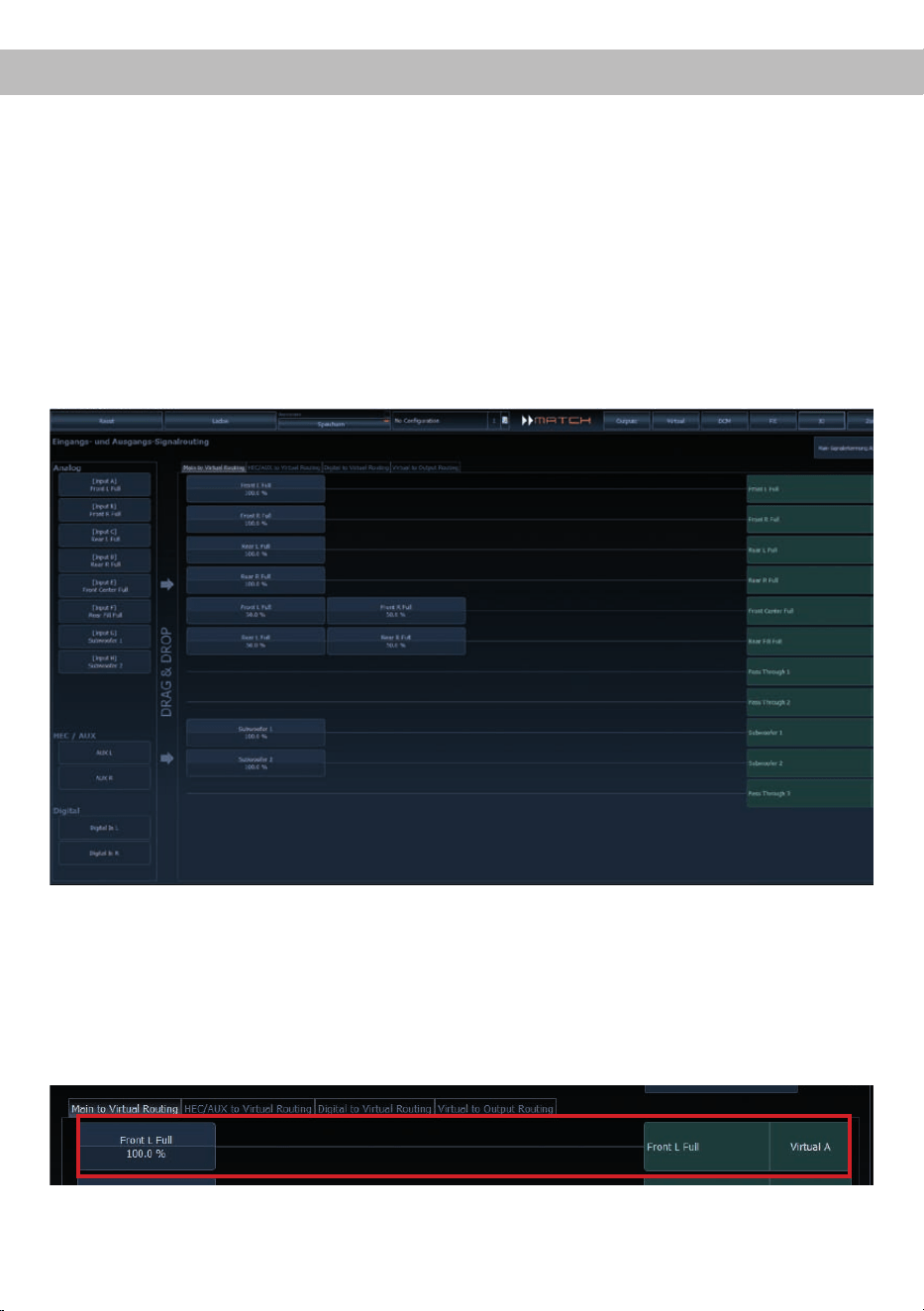
Um das VCP zu kongurieren, muss zuerst das „Virtual Channel Processing“ im DCM-Menü der DSP PC-
Tool Software eingeschaltet werden. Gehen Sie dazu in den „Virtual Channel Processing“-Tab und klicken
auf die rechte Box mit der VCP-Grak. Anschließend erfolgt die Konguration in drei Schritten – hier am
Beispiel einer 3-Wege Konguration mit einem 2-Wege Eingangssignal erläutert.
Workow-Schritt 1 – Eingangsrouting
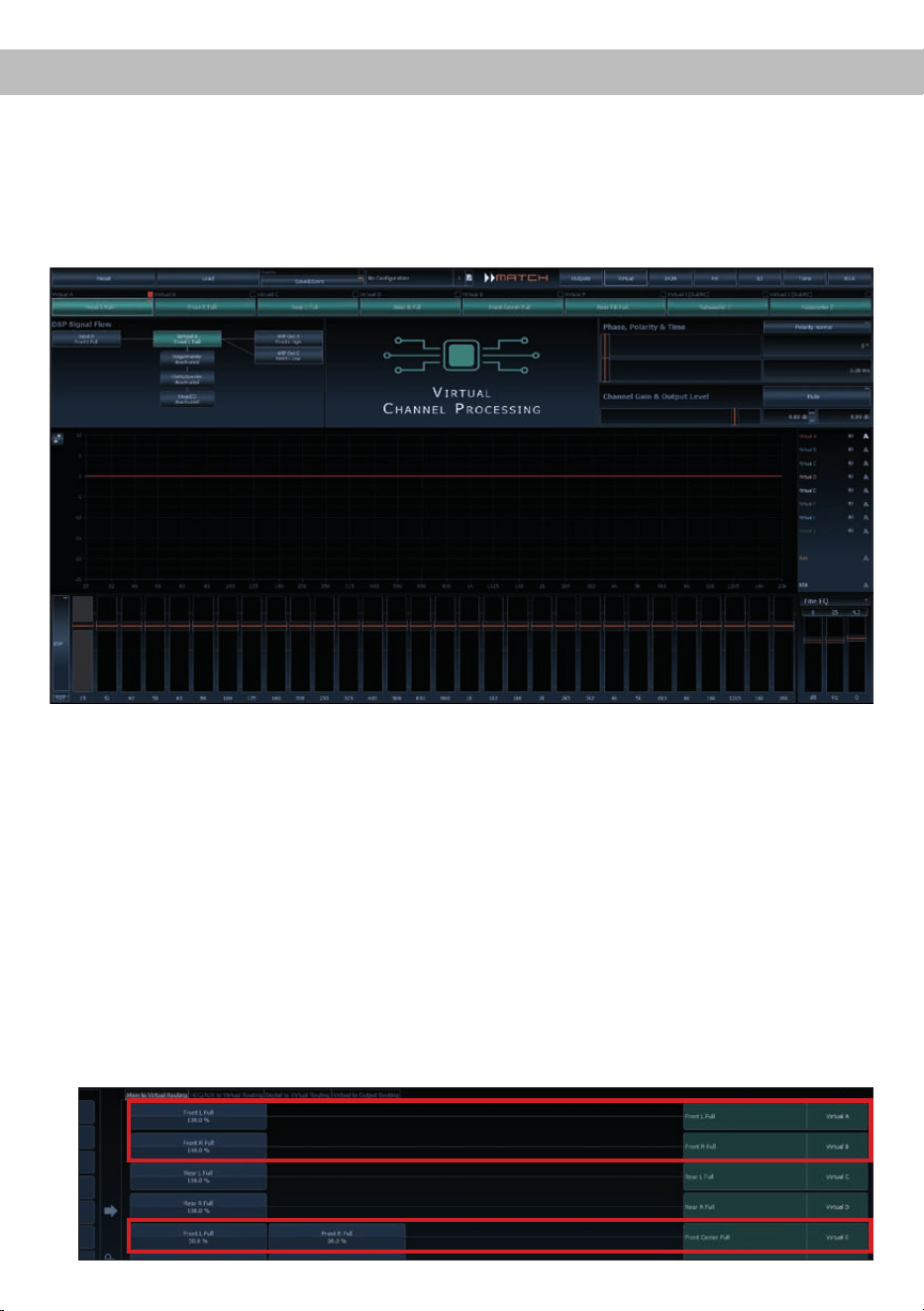
Zuerst müssen die Eingangssignale in den verschiedenen Eingangs-Signalmatrizen („Main to Virtual Rou-
ting“, „HEC/AUX to Virtual Routing“, „Digital to Virtual Routing“) auf die jeweiligen virtuellen Kanäle geroutet
werden. Dies verhält sich genauso wie im normalen Modus, d.h. die Eingangssignale auf der linken Sei-
te werden per Drag & Drop auf die jeweilige Summierungsmatrix gelegt. Der Unterschied zum normalen
Modus ist, dass die Namen und Signaleigenschaften der virtuellen Kanäle an dieser Stelle festgelegt sind
(Front L Full, Front R Full, Rear L Full, Rear R Full, Front Center Full etc.).
a. Zunächst müssen alle Eingangssignale auf die entsprechenden festgelegten Signaltypen der virtu-
ellen Kanäle gelegt werden, d.h. der Eingang, an welchem das Signal vorne links anliegt, muss auf
den virtuellen Kanal „Front L Full“ geroutet werden.
b. Bei OEM-Adaptionen von aktiven Mehrwege-Systemen müssen die Signale an dieser Stelle auf den
virtuellen Kanal „Front L Full“ summiert werden, d.h. mehrere Eingangssignale werden auf einen vir-
tuellen Kanal summiert (der Input–EQ bleibt wie gewohnt in den Eingängen wirksam).
Konguration des Virtual Channel Processing (VCP)
20
Konguration des Virtual Channel Processing (VCP)
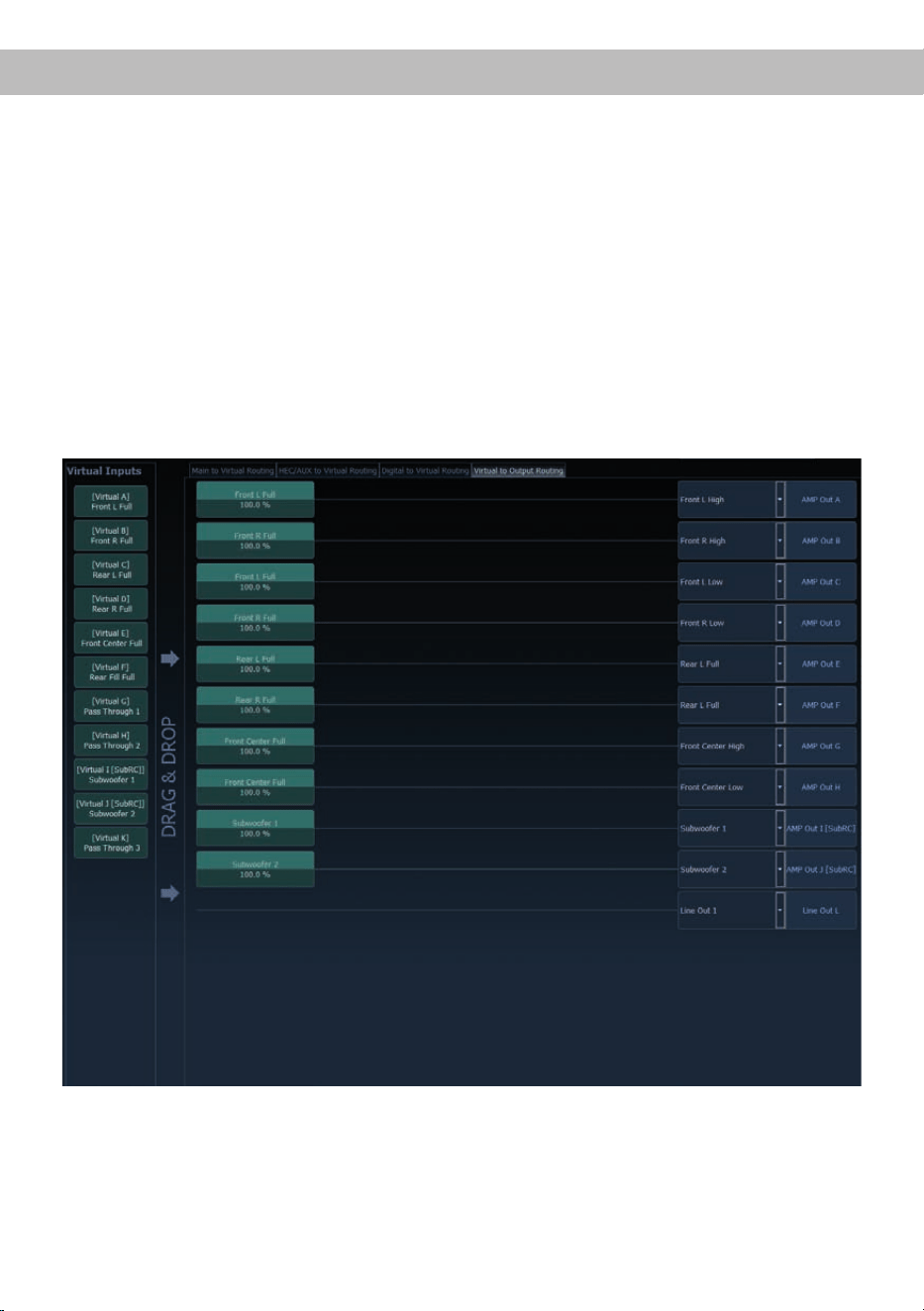
Workow-Schritt 2 – Ausgangsrouting
Nachdem alle genutzten Eingangssignale in den jeweiligen Signal-Routing-Matrizen konguriert wurden,
müssen die virtuellen Kanäle nun den physischen Ausgangskanälen zugeordnet werden. Hierbei kann ein
virtuelles Signal (bspw. Front L Full) mehreren Ausgängen zugewiesen werden, wie beispielsweise dem
vorderen linken Hochtöner, Mitteltöner und Tieftöner. Die Konguration dieser lautsprecherspezischen
Ausgangskanäle erfolgt nach wie vor im „Outputs“-Menü (im normalen Modus „Main“ genannt) des DSP
PC-Tools. Hier können weiterhin die kanalspezischen Equalizer, Hoch- und Tiefpasslter, Laufzeitkorrek-
tur, Ausgangspegel und Phaseneinstellungen konguriert werden.
a. Um die virtuellen Kanäle den jeweiligen Ausgangskanälen zuzuweisen, werden im Ausgangsrouting
(Virtual to Output Routing) die jeweiligen virtuellen Signale per Drag & Drop auf die Ausgangskanäle
gezogen. An dieser Stelle müssen die Signale in der Regel nicht mehr summiert werden, so dass je-
dem Ausgangs signal nur ein virtuelles Signal zugeordnet wird; beispielsweise wird dem vorderen linken
Hochtöner das Signal „Front L Full“ zugeordnet, genauso wie dem vorderen linken Tieftöner.
b. An dieser Stelle kann auch ein virtueller Kanal, in welchem ein DSP-Soundeekt aktiviert wurde, auf
mehrere Ausgangskanäle geroutet werden. So kann beispielsweise das Signal „Front Center Full“ meh-
reren Ausgangskanälen zugewiesen werden, um einen aktiven Mehrwege-Center zu realisieren. Die
entsprechenden Hoch- und Tiefpasslter werden anschließend in den Ausgangskanälen konguriert.
21
Workow-Schritt 3 – Konguration der virtuellen Kanäle und Hinweise zur Anwendung der
DSP-Soundeekte (SFX)
Wechseln Sie nun in das „Virtual“-Menü des DSP PC-Tools. Hier bekommen Sie eine Übersicht über den
Signaluss der einzelnen Kanäle sowie der aktivierten Soundeekte. Zusätzlich ist es möglich beispiels-
weise mit Hilfe des Equalizers, Polarität und weiteren Funktionen alle nachgeschalteten Ausgangskanäle
eines virtuellen Kanals gleichzeitig in ihrer Tonalität zu beeinussen.
Kongurationshinweise für die DSP-Soundeekte (SFX)
Die MATCH UP 10DSP bietet bei aktiviertem Virtual Channel Processing einzigartige DSP-Sound eekte
wie das „Augmented Bass Processing“, den „RealCenter“ und mehr.
Um in den Genuss der DSP-Soundeekte zu kommen, müssen bei der Hard- und Softwarekonguration
bestimmte Einstellungen vorgenommen werden.
Hinweis: Die DSP-Soundeekte stehen bei der UP 10DSP nur im Virtual Channel Processing zur Verfü-
gung. Dieses kann im DCM-Menü der DSP PC-Tool Software aktiviert werden.
Hinweise für das Center Processing mit seiner RealCenter- und ClarityXpander-Funktion
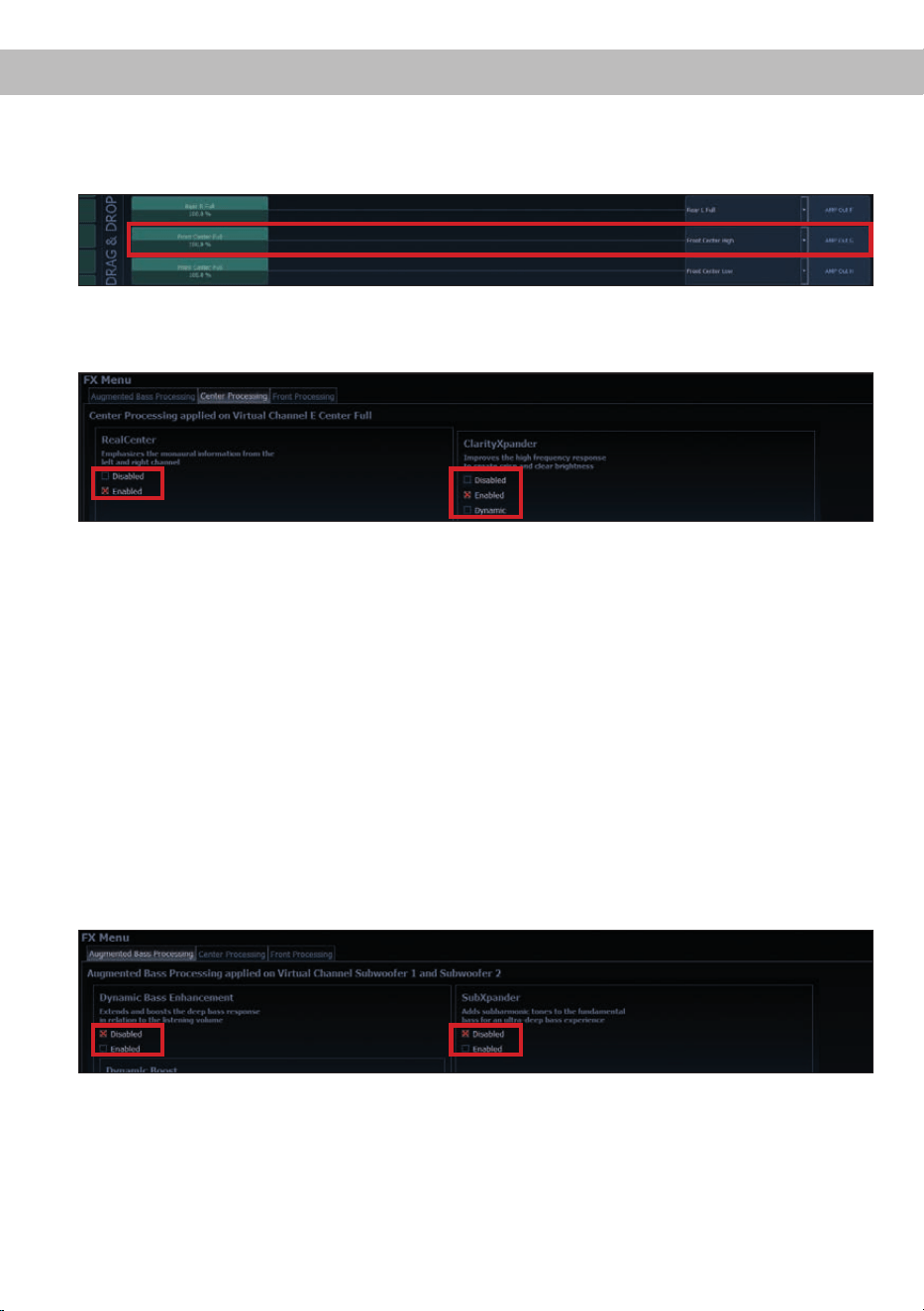
Um die RealCenter- und ClarityXpander-Funktion für einen Center-Lautsprecher nutzen zu können, müs-
sen folgende Schritte durchgeführt werden:
1a. Die virtuellen Kanäle „Front L Full“ und „Front R Full“ müssen mit einem Eingangssignal belegt sein
(siehe Workow-Schritt 1).
1b. Der virtuelle Kanal „Front Center Full“ muss im Eingangsrouting entweder mit einem Summensignal
(Front Links + Front Rechts) oder einem vorhandenen Center-Signal belegt sein.
22
2. Wechseln Sie in die „Virtual to Output Routing“ Matrix und routen den Kanal „Virtual E – Front Center
Full“ auf den oder die gewünschten Ausgangskanäle (wie im Workow-Schritt 2 beschrieben), auf wel-
che das Center Processing angewendet werden soll.
3. Wechseln Sie nun in das FX-Menü und aktivieren im Reiter „Center Processing“ den gewünschten
Soundeekt durch Setzen eines Hakens.
Hinweise für das Front Processing mit seiner StageXpander- und ClarityXpander-Funktion
Die Einstellungen des StageXpanders und Front ClarityXpanders wirken immer auf die virtuellen Kanäle
„Front L Full“ und „Front R Full“.
Hinweise für das Augmented Bass Processing mit seiner Dynamic Bass Enhancement- und
SubXpander-Funktion
Für das Augmented Bass Processing müssen bestimmte Einstellungen vorgenommen werden, um dessen
Soundeekte anwenden zu können.
1. Mindestens einer der virtuellen Subwoofer Kanäle („Subwoofer 1“ oder „Subwoofer 2“) muss mit einem
Eingangssignal belegt sein (siehe Workow-Schritt 1).
2. Wechseln Sie in die „Virtual to Output Routing“ Matrix und routen den Kanal / die Kanäle „Virtual I –
Subwoofer 1“ und / oder „Virtual J – Subwoofer 2“ auf den oder die gewünschten Ausgangskanäle (wie
im Workow-Schritt 2 beschrieben), auf welche das Subwoofersignal geleitet und das Augmented Bass
Processing angewendet werden soll.
3. Wechseln Sie nun in das FX-Menü und aktivieren den gewünschten Soundeekt.
Hinweise zum Eingangsrouting siehe Workow-Schritt 1
Hinweise zum Ausgangsrouting siehe Workow-Schritt 2
Hinweis: Das Bass Processing wird für die Kanäle Subwoofer 1 und Subwoofer 2 gemeinsam ein- und ausgeschaltet,
die beiden Kanäle bleiben dabei für Stereoanwendungen voneinander getrennt.
Konguration des Virtual Channel Processing (VCP)
23
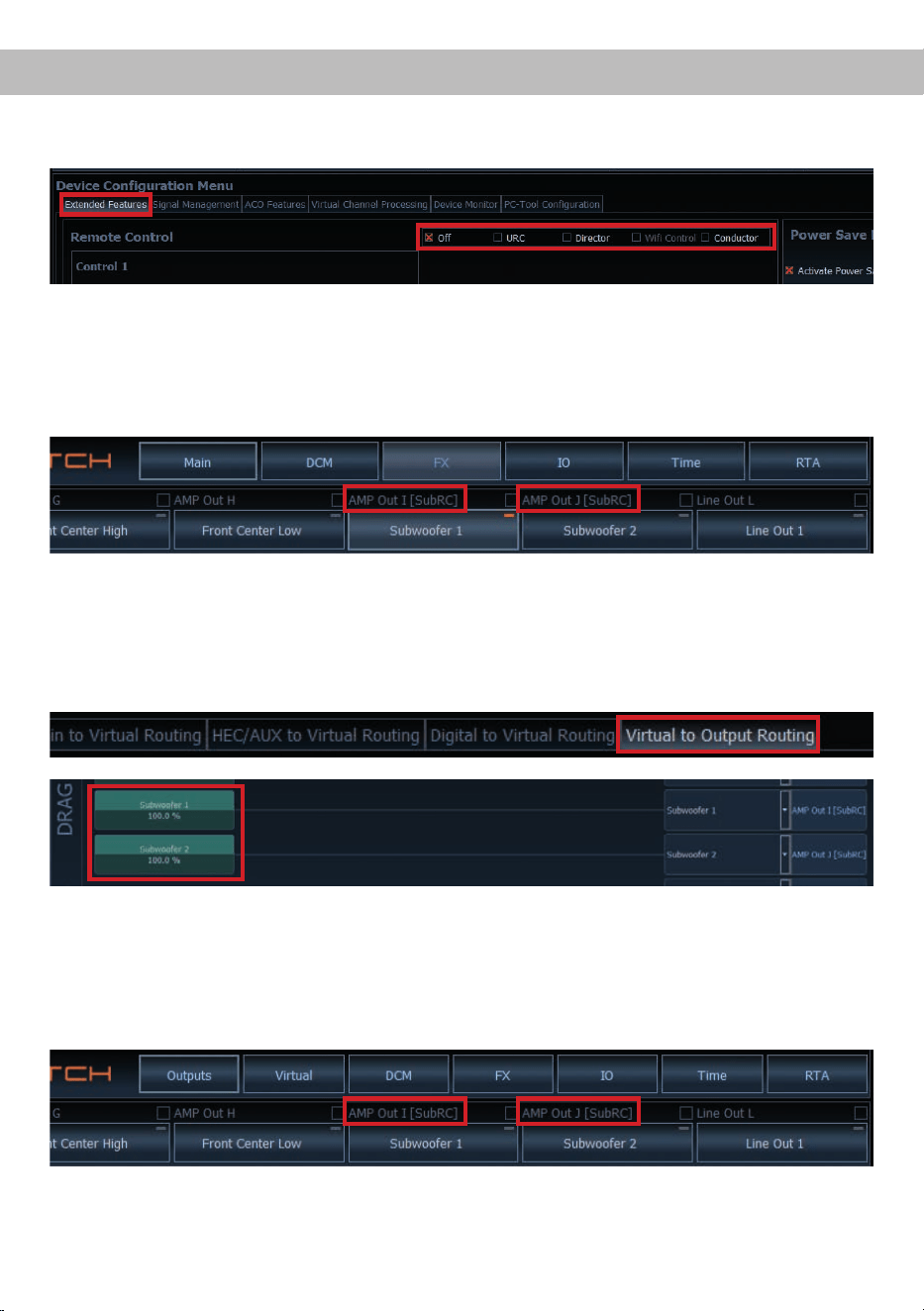
Konguration einer Subwoofer-FernbedienungKonguration einer Subwoofer-Fernbedienung
Zunächst muss die entsprechende Fernbedienung im Tab „Erweiterte Einstellungen“ im DCM Menü der
DSP PC-Tool Software aktiviert und je nach Modell konguriert werden.
Bei aktiviertem VCP hingegen wird die Subwoofer-Fernbedienung den Ausgangskanälen zugeordnet,
welche im „Virtual to Output Routing“ mit einem der beiden virtuellen Subwoofer-Signalen versorgt werden
(„Subwoofer 1“ oder „Subwoofer 2“). Dies kann jede beliebige Kombination an Ausgangskanälen sein.
Im nachfolgenden Beispiel sind es die Ausgänge / Amp Outs I und J:
Anschließend wird die Subwoofer-Regelung auch im Main Menü hinter der Kanalbezeichnung als [SubRC]
angezeigt:
Hinweis: Bitte beachten Sie, dass den beiden virtuellen Subwoofer-Signalen „Subwoofer 1“ und / oder
„Subwoofer 2“ zuvor in den anderen Routing-Matrizen ein Eingangssignal zugewiesen werden muss.
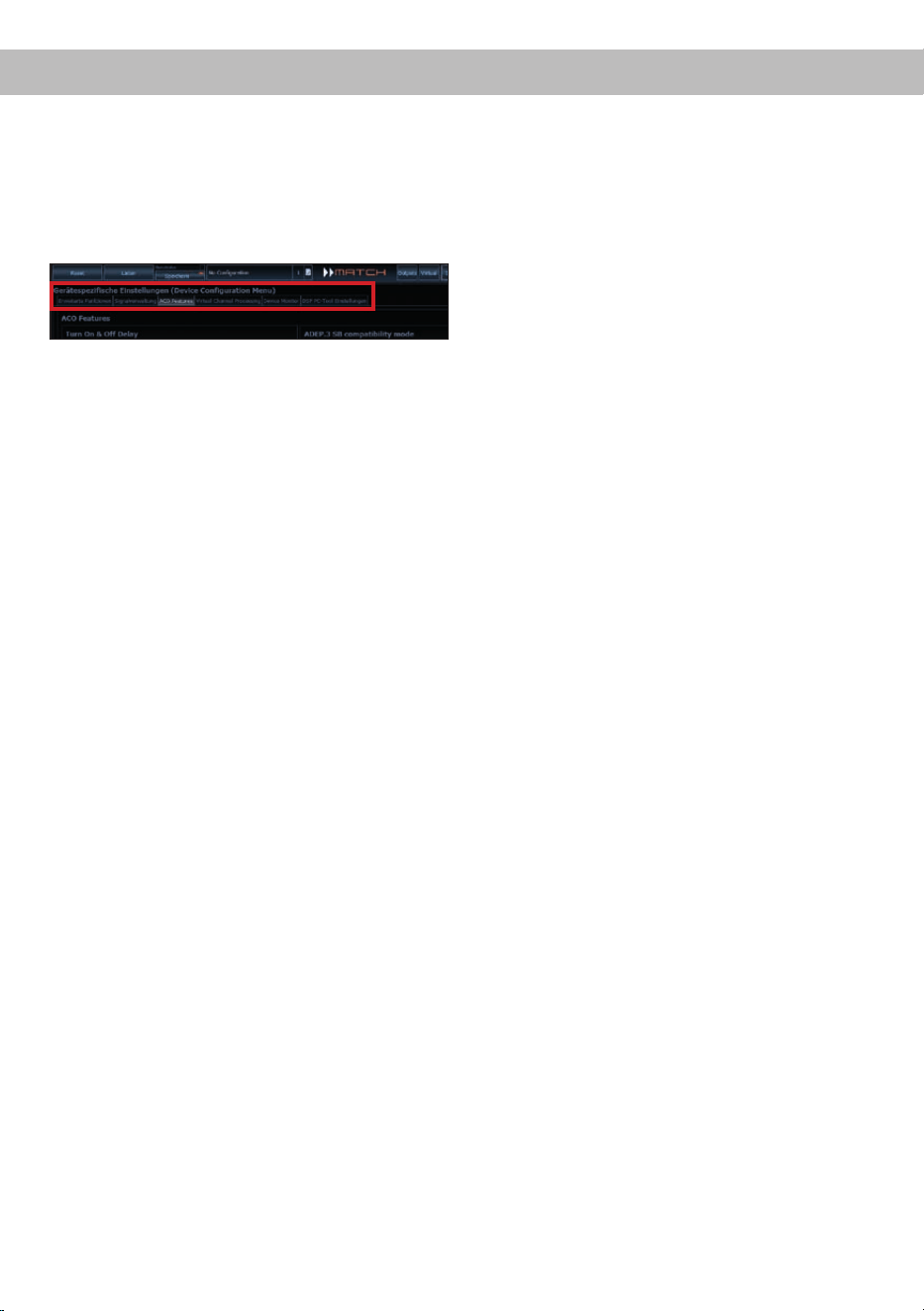
Bei nicht aktiviertem VCP ist die Subwoofer-Fernbedienung bei der UP 10DSP fest den Ausgangskanälen
I und J zugeordnet. In diesem Fall ist es nicht entscheidend, welcher Ausgang in der IO-Routingmatrix mit
„Subwoofer“ benannt wurde.
Im Main Menü wird angezeigt, auf welche Ausgänge die SubRC (Subwoofer-Fernbedienung) wirkt:
24
ACO Plattform-Features
Neben den einzigartigen DSP-Sound eekten bietet
die ACO-Plattform der UP 10DSP zusätzlich eine
Vielzahl an System-Features.
Im DCM Menü der DSP PC-Tool Software können
für einige dieser System-Features individuelle Ein-
stellungen vorgenommen werden.
Turn On & O Delay
Hier kann die Verzögerungzeit, mit welcher der
Verstärker ein- und ausgeschaltet werden soll, fest-
gelegt werden. Werkseitig sind 0,2 Sekunden ein-
gestellt. Eine Änderung der Verzögerungszeit sollte
nur vorgenommen werden, wenn es beispielsweise
zu Störgeräuschen beim Ein- und Ausschalten des
Verstärkers kommt.
URC Setup Switch Conguration
Der ACO bietet Speicherplatz für zehn anstelle der
üblichen zwei Sound Setups.
Mit Hilfe einer optional erhältlichen URC Fernbe
-
dienung, oder des Control Tasters lässt sich zwi-
schen zwei der zehn Sound-Setup Speicherplätze
umschalten. Diese zwei Speicherplätze können in
der „URC Setup Switch Conguration“ festgelegt
werden. Werkseitig sind die Speicherbereiche eins
und zwei ausgewählt.
Um zwischen allen internen
Speicherplätzen umschalten zu können, werden die
optional erhältlichen Fernbedienungen DIRECTOR
und CONDUCTOR oder die HELIX WIFI CONTROL
empfohlen.
Remote Output Conguration
An dieser Stelle kann festgelegt werden, ob der
Remote-Ausgang, der die angeschlossenen End-
stufen ein- bzw. ausschaltet, während eines Sound-
Setup-Wechselvorgangs kurzzeitig deaktiviert wer-
den soll. Standardmäßig ist dieses Feature aktiviert
(ON).
ADEP.3 Conguration
Bei Ansteuerung des Verstärkers über die High-
level-Eingänge kann es in Verbindung mit manchen
Werksradios notwendig sein, den ADEP.3-Schalt-
kreis an den Diagnosemodus des Steuergeräts
anzupassen. Eine Anpassung sollte vorgenommen
werden, wenn es bspw. zu Fehlfunktionen kommt
(Stummschalten des Radios). Standardmäßig ist
der Kompatibilitätsmodus eingeschaltet (Enabled).

25
Class GD Technologie
Audiotec Fischers einzigartiges Class GD Konzept
vereint die Vorteile der Class G-Technologie mit
dem Prinzip eines Class D Verstärkers.
Daraus resultiert ein ungewöhnlich hoher Wir-
kungsgrad, der herkömmliche Class D-Verstärker
nochmals übertrit. Die Vorteile spielt das Class
GD-Konzept bei kleiner und mittlerer Aussteuerung
aus, indem die interne Versorgungsspannung der
Leistungsstufen in Abhängigkeit von der Amplitude
des Eingangssignals stufenweise variiert. Damit
wird die mittlere, vom Verstärker erzeugte Verlust-
leistung drastisch reduziert.
ACO – Advanced 32 Bit CoProcessor
Der MATCH UP 10DSP Verstärker verwendet für
alle internen wie auch externen Steuerungs- und
Kommunikationsaufgaben einen besonders lei-
stungsstarken 32 Bit CoProcessor der neuesten
Generation. Im Gegensatz zum bisher verwende-
ten 8 Bit Prozessor ergeben sich daraus deutliche
Geschwindigkeitsvorteile nicht nur bei der Um-
schaltung zwischen verschiedenen Sound Setups
sondern vor allem auch in der Datenkommunika-
tion mit unserer DSP PC-Tool Software. Ein wei-
terer wesentlicher Vorteil ist der integrierte, native
Bootloader des CoProcessors. Dieser ermöglicht
Software-Upgrades aller Komponenten des DSPs,
um beispielsweise den Mikrocontroller-gesteuerten
ADEP.3-Schaltkreis auch zukünftig auf Änderungen
bei Diagnosesystemen von Werksradios anpassen
zu können oder das Gerät um weitere Schnittstel-
len zu erweitern. Darüber hinaus bietet der ACO
dank des neuen Flashspeichers Platz für 10 Sound
Setups anstelle der üblichen zwei.
Intelligenter Highlevel-Eingang ADEP.3
Moderne, ab Werk verbaute Autoradios werden
bezüglich der Diagnose der angeschlossenen Laut-
sprecher immer intelligenter. Speziell die neueste
Generation ist mit zusätzlichen Überwachungsfunk-
tionen ausgestattet, sodass bei Anschluss eines
zusätzlichen Verstärkers Fehlermeldungen oder
gar Fehlfunktionen auftreten können. Der neue
ADEP.3-Schaltkreis (Advanced Diagnostics Error
Protection Generation 3) verhindert diese Probleme
ohne die Lautsprecherausgänge des Radios bei ho-
hen Pegeln unnötig zu belasten.
Start-Stopfähigkeit
Das Netzteil im UP 10DSP Verstärker stellt die in-
terne Spannungsversorgung auch bei kurzfristigen
Einbrüchen bis hinab zu 6 Volt sicher. Damit ist ge-
währleistet, dass der Verstärker auch beim Motor-
start voll funktionsfähig bleibt. Wenn die Bordspan-
nung für länger als 5 Sekunden unter 10,5 Volt fällt,
geht der Verstärker in den „Protect Mode“ (Status
LED leuchtet dauerhaft rot), um eine weitere Entla-
dung der Batterie zu verhindern.
Automatic Digital Signal Detection
Die UP 10DSP erlaubt eine signalgesteuerte Um-
schaltung zwischen den analogen und dem Digi-
taleingang. Sobald ein Audiosignal am Optical Input
detektiert wird, schaltet der Verstärker auf diesen
Eingang um. In der DSP PC-Tool Software kann
diese Funktion aktiviert oder alternativ eine manu-
elle Steuerung über eine optional erhältliche Fern-
bedienung gewählt werden.
Power Save Modus
Der Power Save Modus erlaubt es, die Leistungs-
aufnahme der UP 10DSP (und ggf. zusätzlich an-
geschlossener Verstärker) drastisch zu reduzieren,
wenn für länger als 60 Sek. kein Eingangssignal an-
liegt. Sobald der „Power Save Mode“ aktiv ist, wer-
den die internen Verstärkerstufen der UP 10DSP
sowie der Remote-Ausgang abgeschaltet und
damit die Stromaufnahme deutlich reduziert. Der
Verstärker geht innerhalb von 2 Sek. wieder in den
normalen Betriebszustand über, sobald ein Musik-
signal an seinem Eingang anliegt. Über die DSP
PC-Tool Software kann die Abschaltverzögerung
variiert bzw. komplett deaktiviert werden.
Spezielle Features der UP 10DSP
26
Einbau einer MATCH Extension Card
Der MATCH UP 10DSP Verstärker kann durch die
Montage einer MATCH Extension Card (MEC) um
weitere Schnittstellen wie beispielsweise einem
Bluetooth
®
Audio Streaming Modul, einer High Re-
solution Audio USB Soundkarte etc. erweitert wer-
den.
Zur Montage einer MEC muss das Seitenblech der
UP 10DSP demontiert und gegen das der MEC bei-
liegende Seitenblech ausgetauscht werden.
Achtung: Installieren Sie ausschließlich für den
UP 10DSP Verstärker vorgesehene MEC Modu-
le an der dafür vorgesehenen Position. Die Be-
nutzung eines nicht für das Gerät spezizierten
MEC Moduls oder eine Installation an einer nicht
dafür vorgesehenen Position im Gerät kann zu
Schäden am MEC Modul, dem Verstärker, des
Radios oder anderen angeschlossenen Geräten
führen.
Im folgenden Abschnitt nun die wichtigsten Schritte
zum Einbau und der ersten Inbetriebnahme eines
MEC Moduls:
1. Ziehen Sie zunächst alle Steckverbindungen
vom Gerät ab.
2. Lösen Sie die zwei Schrauben des Seiten-
blechs der Geräteseite mit dem USB Eingang
mit einem Kreuzschlitzschraubendreher und
entfernen dieses.
3. Ziehen Sie nun das Bodenblech zur Seite he-
raus.
4. Bereiten Sie das Modul für den Einbau in das
Gerät vor. Informationen dazu entnehmen Sie
bitte der Bedienungsanleitung des jeweiligen
MEC Moduls.
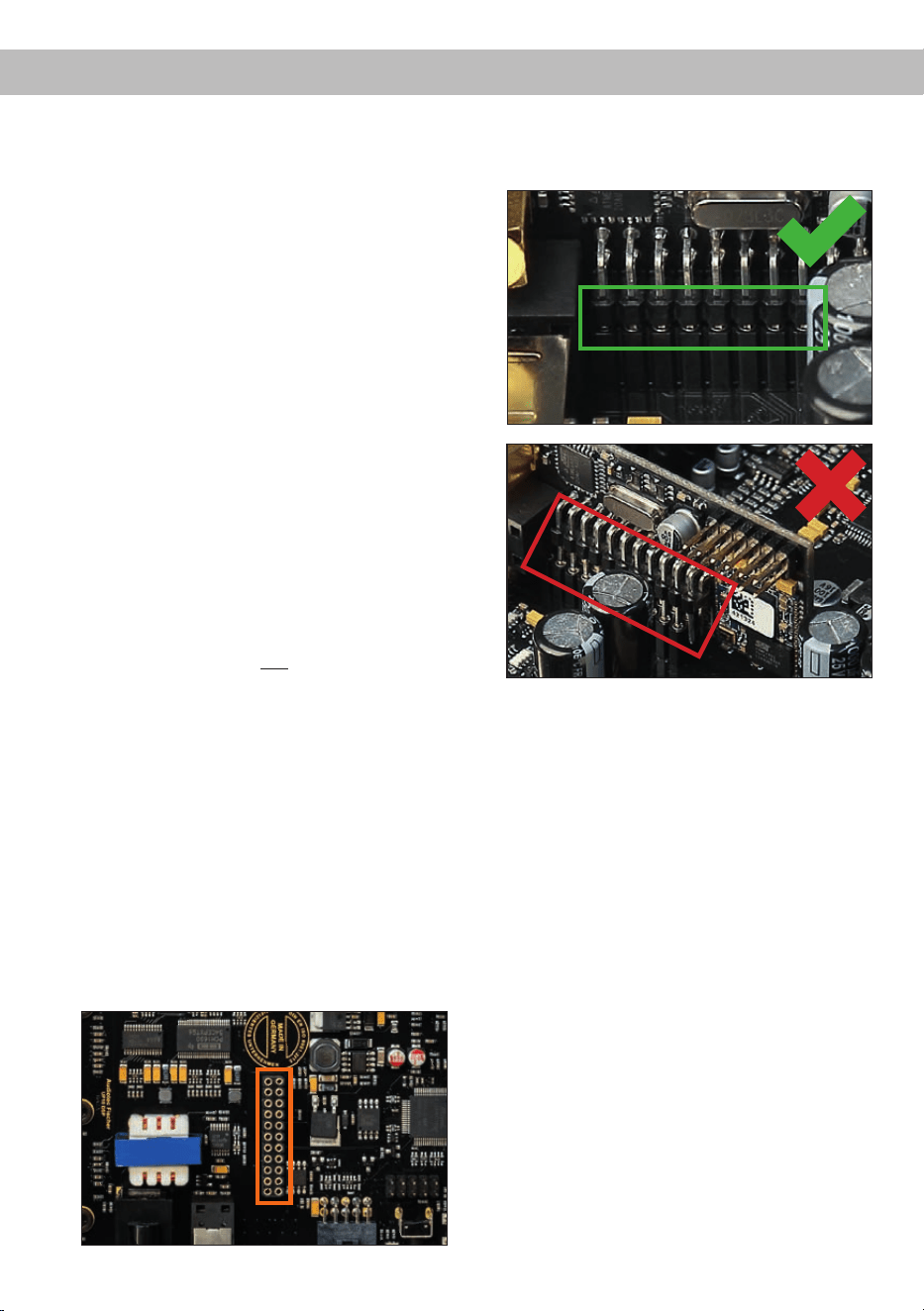
5. Stecken Sie das MEC Modul in den im Gerät
vorgesehenen Sockel (siehe Markierung im
nachfolgenden Bild).
6. Achten Sie auf den richtigen Sitz des MEC Mo-
duls und darauf, dass alle Kontaktstifte vollstän-
dig im Sockel stecken.
7. Schieben Sie das Bodenblech wieder seitlich
in das Gehäuse des Verstärkers. Anschließend
befestigen Sie das neue, dem MEC Modul
beiliegende Seitenblech mit den Kreuzschlitz-
schrauben.
8. Verschrauben Sie das MEC Modul mit dem
Seitenblech. Genaue Informationen zur Befes-
tigung entnehmen Sie bitte der Bedienungsan-
leitung des jeweiligen Moduls.
9. Schließen Sie alle Steckverbindungen wieder
an das Gerät an.
10. Schalten Sie den Verstärker ein. Das installierte
MEC Modul wird nun automatisch vom Gerät
erkannt und die Status LED des MEC Moduls
leuchtet grün.
11. Das Modul kann nun in der DSP PC-Tool Soft-
ware konguriert werden.

27
Technische Daten
Leistung RMS
- Kanal A - H .....................................................................8 x 65 @ 4 Ohm
- Sub Out I - J ................................................................... 2 x 90 Watt @ 4 Ohm
2 x 160 Watt @ 2 Ohm
Verstärkertechnologie ....................................................... Class GD
Eingänge .......................................................................... 8 x Hochpegel-Lautsprechereingang
1 x Optisch SPDIF (12 - 96 kHz)
1 x Remote In
Eingangsempndlichkeit ................................................... Kanäle A - F: 4 - 16 Volt
Kanäle G - H: 4 - 16 Volt oder 8 - 32 Volt
Eingangsimpedanz ........................................................... 9 - 33 Ohm mit ADEP.3
Ausgänge ......................................................................... 10 x Lautsprecherausgang
1 x Cinch
1 x Remote Out
Ausgangsspannung Cinch................................................3 Volt
Frequenzbereich...............................................................10 Hz - 22.000 Hz
DSP Leistung ....................................................................64 Bit / 295 MHz
Abtastrate .........................................................................48 kHz
DSP Typ ...........................................................................Audio Signalprozessor
Signalwandler ................................................................... A/D: BurrBrown
D/A: BurrBrown
Signal- / Rauschabstand (A-bewertet) ............................. Digitaleingang: 105 dB
Analogeingang: 103 dB
Klirrfaktor (THD) ...............................................................< 0,03 %
Dämpfungsfaktor ..............................................................> 100
Betriebsspannung.............................................................10,5 - 18 Volt (max. 5 Sek. bis hinab zu 6 Volt)
Leistungsaufnahme ..........................................................DC 12 V 60 A max.
Leerlaufstromaufnahme....................................................500 mA
Max. Remote-Ausgangsstrom .......................................... 500 mA
Sicherung .........................................................................2 x 25 A LP-Mini-Stecksicherung
Zusätzliche Features ........................................................ Class GD-Technologie mit dynamisch gere-
geltem Netzteil, 32 Bit CoProcessor, ADEP.3-
Schaltkreis, Start-Stop-Fähigkeit, Smart Control
Port, USB, MEC Slot, Auto Remote-Schalter,
galvanisch getrennter Line Out
Abmessungen (H x B x T) ................................................46 x 145 x 163 mm
Die Garantieleistung entspricht der gesetzlichen
Regelung. Von der Garantieleistung ausgeschlos-
sen sind Defekte und Schäden, die durch Überla-
stung oder unsachgemäße Behandlung entstanden
sind. Eine Rücksendung kann nur nach vorheriger
Absprache in der Originalverpackung, einer de-
taillierten Fehlerbeschreibung und einem gültigen
Kaufbeleg erfolgen.
Technische Änderungen und Irrtümer vorbehalten!
Für Schäden am Fahrzeug oder Gerätedefekte, her-
vorgerufen durch Bedienungsfehler des Gerätes,
können wir keine Haftung übernehmen. Dieses
Produkt ist mit einer CE-Kennzeichnung versehen.
Damit ist das Gerät für den Betrieb in Fahrzeugen
innerhalb der Europäischen Union (EU) zertiziert.
Garantiehinweis
Hinweis:
„Die Bluetooth
®
Wortmarke und die Logos sind eingetragene Warenzeichen der Bluetooth SIG, Inc. und jegliche Nutzung dieser Marken
durch die Audiotec Fischer GmbH geschieht unter Lizenz. Andere Handelsmarken und Handelsnamen gehören den jeweiligen Inhabern.“

28
Dear Customer,
Congratulations on your purchase of this innovative
and high-qual ity MATCH product.
Thanks to more than 30 years of experience in
research and development of audio products this
amplier sets new standards in the range of digital
ampliers.
We wish you many hours of enjoyment with your
new MATCH UP 10DSP.
Yours,
AUDIOTEC FISCHER
General installation instructions for MATCH
components
To prevent damage to the unit and possible injury,
read this manual carefully and follow all installation
instructions. This product has been checked for
proper function prior to shipping and is guaranteed
against manufacturing defects.
Before starting your installation, disconnect the
battery’s negative terminal to prevent damage
to the unit, re and / or risk of injury. For a proper
performance and to ensure full warranty coverage,
we strongly recommend to get this product installed
by an authorized MATCH dealer.
Install your UP 10DSP in a dry location with su-
cient air circulation for proper cooling of the equip-
ment.
For safety reasons, the UP 10DSP must be profes-
sionally installed. Therefore, use the two mounting
plates which are included in delivery. These are at-
tached to the bottom of the amplier with two short
screws which are included in delivery, too.
When screwing the amplier to the vehicle chassis,
carefully examine the area around and behind the
proposed installation location to ensure that there
are no electrical cables or components, hydraulic
brake lines or any part of the fuel tank located be-
hind the mounting surface. Failure to do so may re-
sult in unpredictable damage to these components
and possible costly repairs to the vehicle.
General instruction for connecting the
UP 10DSP amplier
The UP 10DSP amplier may only be installed in
motor vehicles which have a 12 Volts negative ter-
minal connected to the chassis ground. Any other
system could cause damage to the amplier and
the electrical system of the vehicle.
The positive cable from the battery for the entire
sound system should be provided with a main fuse
at a distance of max. 30 cm from the battery. The
value of the fuse is calculated from the maximum
total current draw of the car audio system.
Use only the included MATCH cable or an op-
tionally available MATCH cable harness for
connection of the UP 10DSP. The use of other
cables can result in damage of the ampli-
er, the head unit / car radio or the connected
loudspeakers! The fuses of the amplier may
only be replaced by identically rated fuses
(2 x 25 A) to avoid damage of the amplier.
Prior to installation, plan the wire routing to avoid
any possible damage to the wire harness. All
cabling should be protected against possible
crushing or pinching hazards. Also avoid routing
cables close to potential noise sources such as
electric motors, high power accessories and other
vehicle harnesses.
Congratulations!
General instructions
29
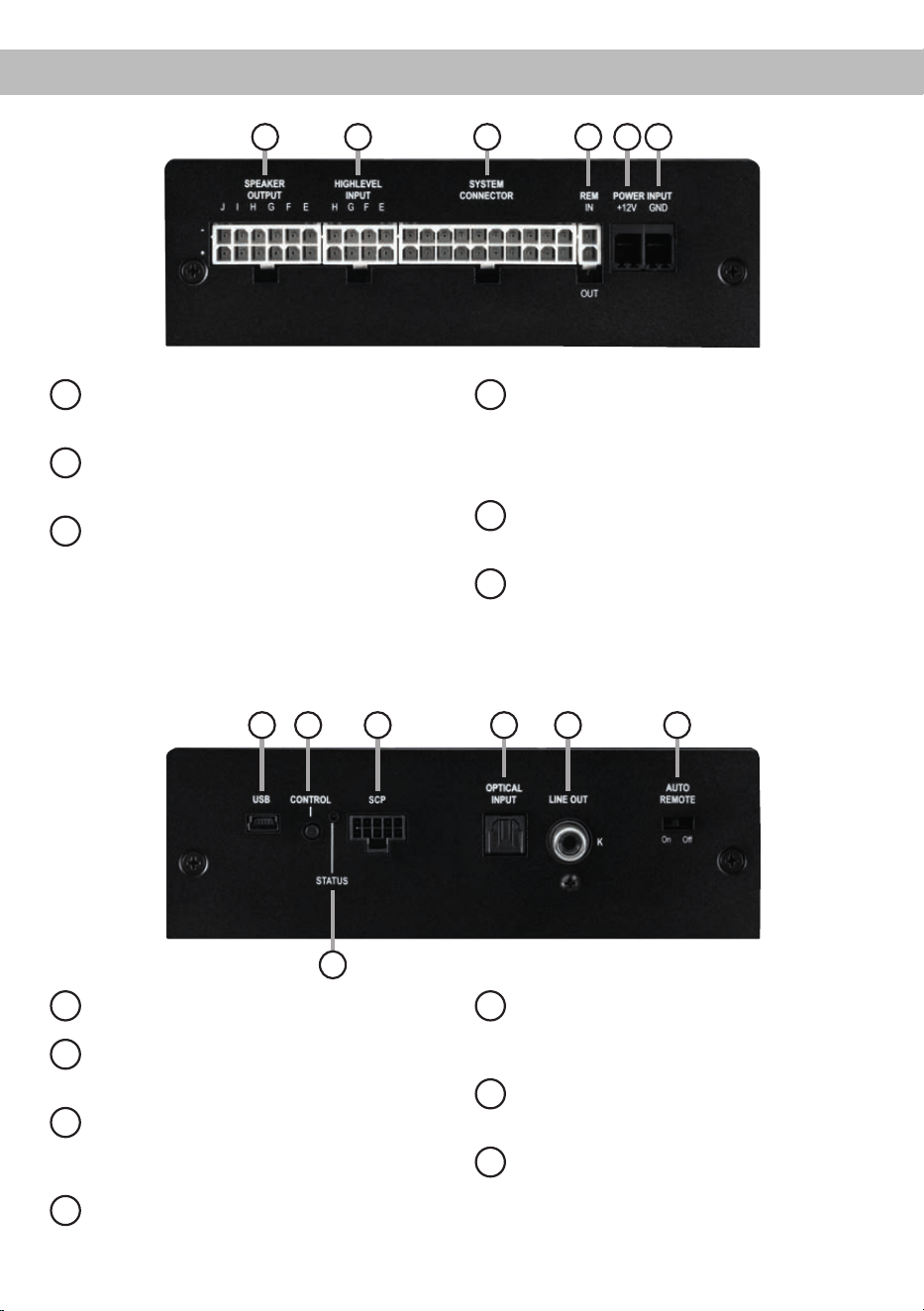
Connectors and control units
1
Speaker Output E - J
Speaker outputs of the channels E - J for
connecting speaker systems.
2
Highlevel Input E - H
Highlevel speaker inputs of the channels
E - H.
3
System Connector
Connector for the MATCH cable harness.
Make sure that you only use a MATCH origi-
nal connection cable to connect the amplier
to the car radio.
4
REM IN / OUT
The remote input can be used to switch on
the UP 10DSP. The remote output has to be
used to switch on external ampliers that are
connected to the Line Out of the amplier.
5
+12 V
Connector for the +12 V power cable to the
positive terminal of the battery.
6
GND
Connector for the ground cable (negative
terminal of the battery or metal body of the
vehicle).
1 2 3 4 5 6
7
USB Input
Connects the UP 10DSP to your PC.
8
Control pushbutton
Use this button to either switch between the
setups or initiate a reset of the device.
9
SCP (Smart Control Port)
Multifunction interface for e.g. an optional
remote control or other MATCH UP 10DSP
accessory.
10
Optical Input
Optical input for digital stereo signals (SPDIF
format).
11
Line Out
Mono line output for connecting external am-
pliers. Make sure that the remote output is
used to turn on these devices.
12
Auto Remote
This switch allows to activate / deactivate the
automatic turn-on feature of the amplier
.
13
Status LED
The Status LED indicates the operating
mode of the amplier and its DSP memory.
13
7 8 9 10 11 12

30
Initial start-up and functions
1
Speaker Output E - J
These outputs are used for connecting speaker
systems. The impedance must not be lower than
4 Ohms for channels E - H and 2 Ohms for channel
I & J.
Important: We highly recommend to make the gen-
eral settings in the DSP PC-Tool software before
the rst start-up. Especially if the UP 10DSP will be
used to drive fully active speaker systems, a wrong
setup can destroy your tweeters right away.
Attention: Solely use the connection cable with the
12-pole connector and ying leads which is includ-
ed in delivery or an optional available cable harness
from the MATCH accessory assortment!
2
Highlevel Input E - H
4-channel highlevel loudspeaker input of the chan-
nels E - H to connect the amplier directly to loud-
speaker outputs of OEM / aftermarket radios or
OEM ampliers that do not have any pre-amplier
outputs. Input sensitivity is factory-set to 11 Volts.
It is possible to optimally adapt the input sensitivity
to the signal source using the DSP PC-Tool soft-
ware (DCM menu → Signal Management). The
control range of the highlevel inputs is 4 - 16 Volts
for channels A - F and 4 - 16 Volts or 8 - 32 Volts for
channels G & H (see page 35, point 4).
Attention: Solely use the connection cable with the
8-pole connector and ying leads which is included
in delivery or an optional available cable harness
from the MATCH accessory assortment!
3
System Connector
This connector is used as signal input from the OE
radio or factory installed amplier and as signal
output of the amplier channels A to D for connect-
ing the loudspeakers. The impedance per channel
must not be lower than 4 Ohms. Input sensitivity
is factory-set to 11 Volts. It is possible to optimally
adapt the input sensitivity to the signal source using
the DSP PC-Tool software (DCM menu → Signal
Management). The control range of the Highlevel
Input is 4 - 16 Volts (see page 35, point 4).
Solely use this terminal in combination with the
connection cable that is included in delivery of the
amplier or an appropriate cable harness from the
MATCH accessories program.
Caution: The use of other harnesses may cause
severe harm to the amplier, your head unit / car
radio and your loudspeakers. In any case the war-
ranty will be void!
4
REM IN / OUT
This input is used for connecting the remote in- and
output.
IN: The remote input has to be used to turn on / o
the amplier if the signal source which is connected
to the System Connector or Highlevel Input E - H is
not activating the “automatic turn-on” function (Auto
Remote) or if the amplier shall only be activated /
deactivated by a remote signal applied to the re-
mote input.
The remote lead should be connected to the remote
output / automatic antenna (aerial positive) output
of the head unit / car radio. This is only activated
if the head unit / car radio is switched on. Thus the
amplier is switched on and o together with the
head unit / car radio.
Note: This input needn´t to be assigned if the Sys-
tem Connector or the Highlevel Input E - H are used.
OUT: We strongly recommend to use this output for
turning on / o additional ampliers that are con-
nected to the Line Out of the MATCH UP 10DSP.
This is essential to avoid any interfering signals.
This output is activated automatically as soon as
the boot process of the DSP is completed. Addition-
ally this output will be turned o during the “Power
Save Mode” or a software update process.
5
+12 V
Connect the +12 V power cable to the positive ter-
minal of the battery. Recommended cross section:
min. 6 mm² / AWG 10.
6
GND
The ground cable should be connected to a common
ground reference point (this is located where the
negative terminal of the battery is grounded to the
metal body of the vehicle) or to a prepared metal lo-
cation on the vehicle chassis i.e. an area which has
been cleaned of all paint residues. Recommended
cross section: min. 6 mm² / AWG 10.
7
USB Input
Connect your personal computer to the UP 10DSP
using the provided USB cable. The required
PC software to congure this amplier can be
downloaded from the Audiotec Fischer website
31
www.audiotec-scher.com.
Please note: It is not possible to connect any USB
storage devices.
8
Control pushbutton
The UP 10DSP provides 10 internal memory lo-
cations for sound setups. The Control pushbutton
allows the user to switch between two memory po-
sitions. These can be dened in the DSP PC-Tool.
1. Setup switch: Press Control pushbutton for 1 sec-
ond. The memory locations one and two are dened
ex works. Switching is indicated by a single red
ash of the Status LED. Alternatively, the optional
URC.3 remote control can be used for switching.
To switch between all internal memory locations,
optional accessories like the DIRECTOR display
remote control, CONDUCTOR or WIFI CONTROL
are required.
2. Device reset: Press pushbutton for ve seconds.
This completely erases the internal memory and is
indicated by a continuous red glowing and constant
green ashing of the Status LED.
Attention: After erasing the setups from memory
the UP 10DSP will not reproduce any audio output
until the device is updated via the DSP PC-Tool
software.
9
SCP (Smart Control Port)
This multi-functional connector is designed for
MATCH accessory products like a remote control
which allows to adjust several features of the am-
plier. Depending on the type of remote control, the
functionality at rst has to be dened in the “Device
Conguration Menu” of the DSP PC-Tool software
or on the remote control itself.
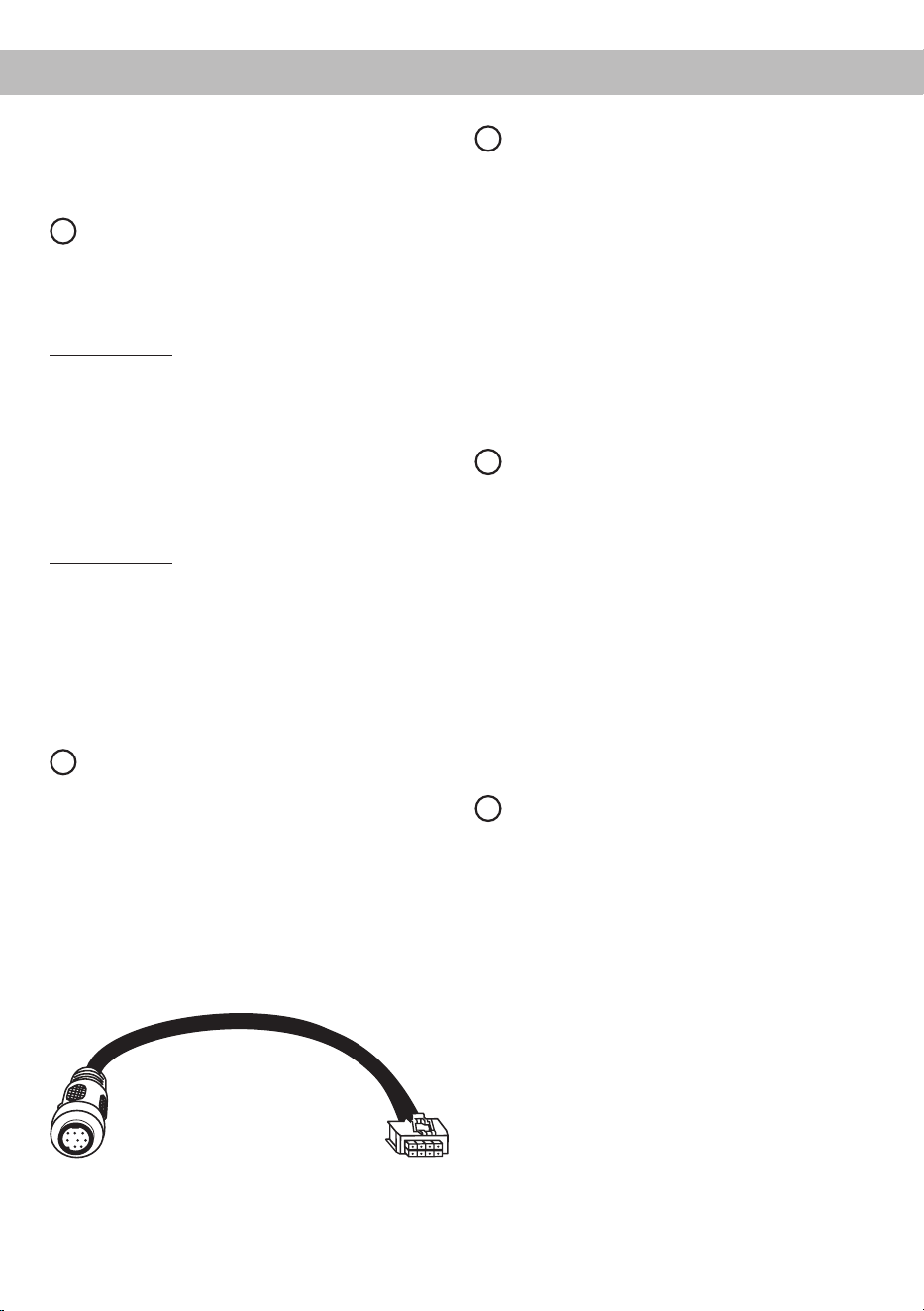
Attention: If the accessory product does not have
a NanoFit connector solely use the NanoFit adaptor
which is included in delivery for connection.
NanoFit adaptor
10
Optical Input
Optical input in SPDIF format for connecting signal
sources with a digital audio output. The sampling
rate of this input must be between 12 and 96 kHz.
The input signal is automatically adapted to the in-
ternal sample rate. In order to control the volume of
this input, we recommend to use an optional remote
control or the WIFI CONTROL.
Note: This amplier can only handle stereo input
signals and no MP3- or Dolby-coded digital audio
stream!
Note: The manual activation of the Optical Input via
an optional remote control is congured ex works.
11
Line Out
The Line Out is a mono oating-ground low level
output (max. 3 Vrms) for connecting additional pow-
er ampliers. A specially designed “Balanced Audio
Transformer” avoids any ground-loops that may
cause undesired alternator noise. Please make
sure that you always turn on / o external ampli-
ers using the remote output (REM OUT) of the
UP 10DSP. Additionally this output will be turned o
when the “Power Save Mode” of the amplier is ac-
tive as well as during software updates.
The output can be congured independently of the
other amplier channels with the DSP PC-Tool soft-
ware.
12
Auto Remote
The UP 10DSP will be turned on automatically if
the highlevel inputs of the System Connector or the
Highlevel Input E - H are / is used or if a signal is
applied to the remote input (REM IN) terminal.
The Auto Remote switch allows to activate / deac-
tivate the automatic turn-on feature of the high level
inputs. The feature should be deactivated (Auto Re-
mote = o) if there are e.g. disturbing noises while
switching on / o the amplier.
Note: The automatic turn-on feature is activated ex
works (Auto Remote = on). If the automatic turn-on
function is deactivated it is mandatory to use the re-
mote input (REM IN) to power up the amplier! The
highlevel signal will be ignored in this case.
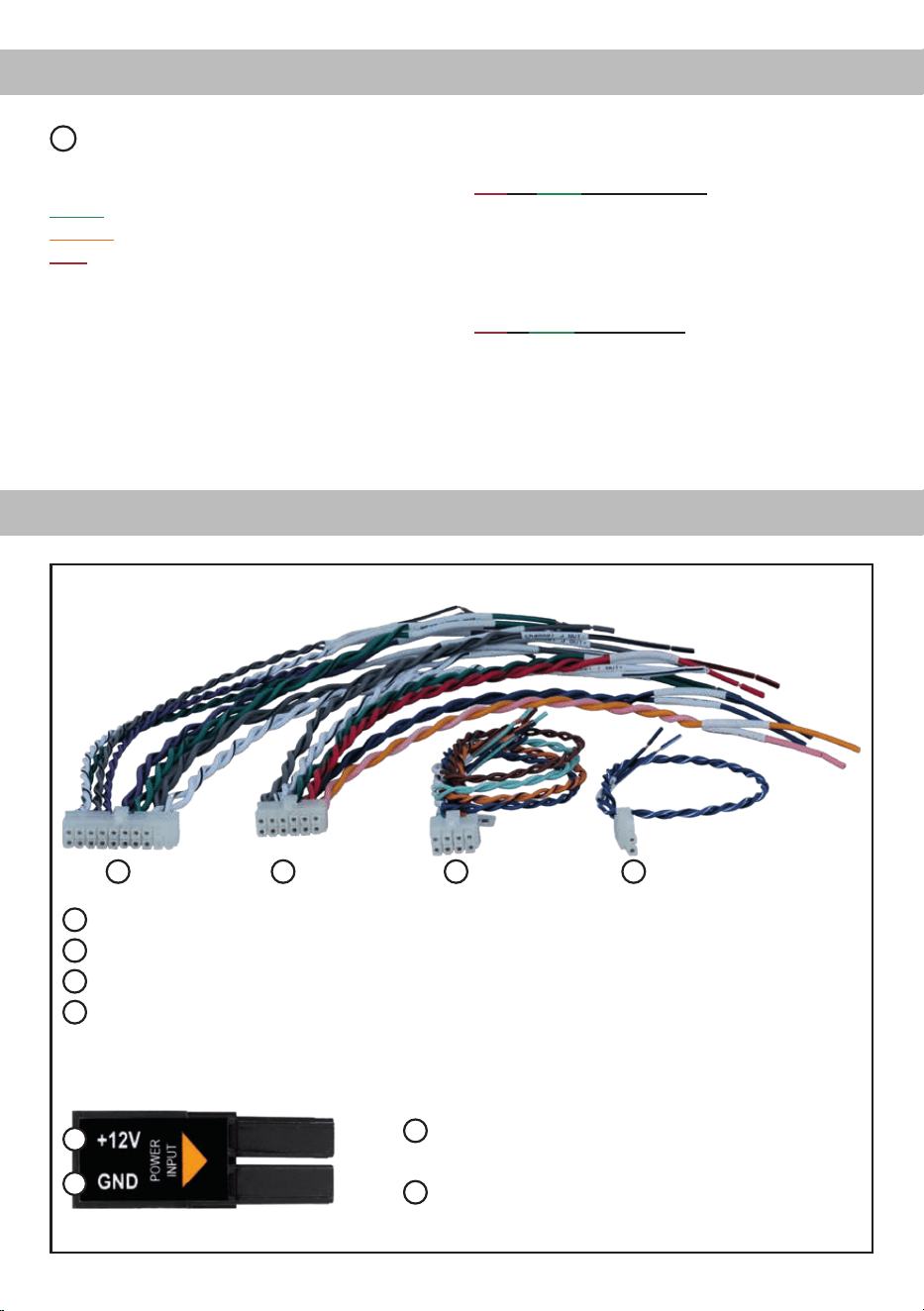
32
Installation
Fig. 1: Overview connection cables
1
System Connector connection cable
2
Speaker Output E - J connection cable
3
Highlevel Input E - H connection cable
4
Remote (REM IN / OUT) connection cable
1 2 3
Fig. 2: Pin assignment Power Input plug
Plug top side
A
+12 V – for connecting the UP 10DSP to the positive
terminal of the car´s battery.
B
GND – for connecting the ground cable.
4
A
B
13
Status LED
The Status LED indicates the operating mode of the
amplier and of the DSP memory.
Green: Amplier is ready for operation.
Orange: Power Save Mode is active.
Red: Protection Mode is active. This may have dif-
ferent root causes. The amplier is equipped with
protection circuits against over- and undervoltage
as well as overheating. Please check for connecting
failures such as short-circuits or other wrong con-
nections.
If the amplier is overheated the internal tempera-
ture protection switches o the remote and signal
output until it reaches a safe temperature level
again.
Red / green slow ashing: No operating soft-
ware installed. Connect the amplier to the DSP
PC-Tool software and conrm the automatic up-
date of the operating system. You will nd the
latest version of the DSP PC-Tool software at
www.audiotec-scher.com.
Red / green fast ashing: The currently selected
sound setup memory is empty. A new setup has to
be loaded via the DSP PC-Tool software or switch
to a memory position with existing sound setup.
Initial start-up and functions
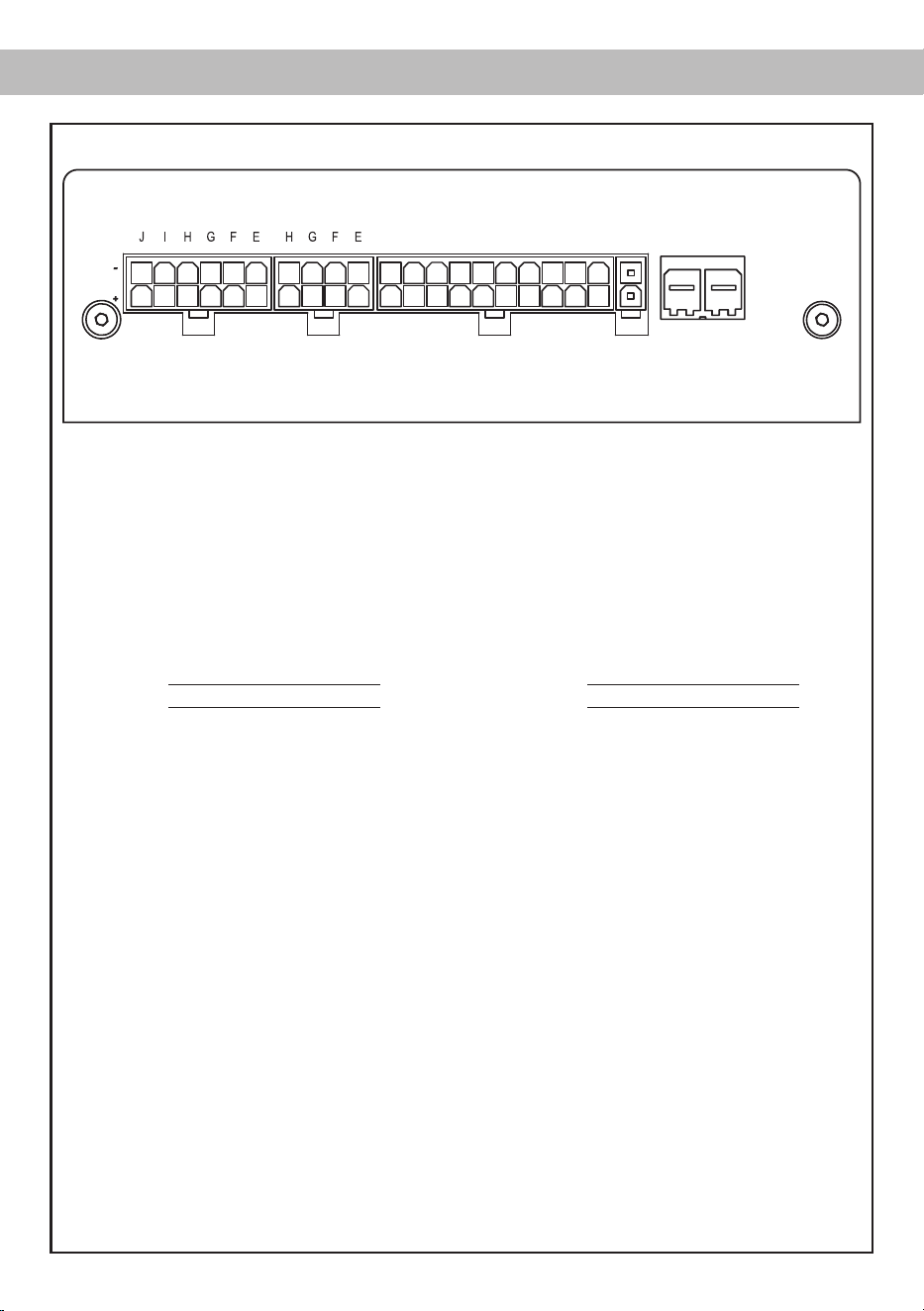
33
Fig. 3: Pin conguration UP 10DSP
System Connector
1. Highlevel loudspeaker input rear left (-) / C
2. Highlevel loudspeaker input front left (-) / A
3. Highlevel loudspeaker input front right (-) / B
4. Highlevel loudspeaker input rear right (-) / D
5. Loudspeaker output rear right (-) / D
6. Loudspeaker output rear left (-) / C
7. Loudspeaker output front right (-) / B
8. Loudspeaker output front left (-) / A
9. Ground* / Warning: Do not use this pin!
10. Ground* / Warning: Do not use this pin!
11. Highlevel loudspeaker input rear left (+) / C
12. Highlevel loudspeaker input front left (+) / A
13. Highlevel loudspeaker input front right (+) / B
14. Highlevel loudspeaker input rear right (+) / D
15. Loudspeaker output rear right (+) / D
16. Loudspeaker output rear left (+) / C
17. Loudspeaker output front right (+) / B
18. Loudspeaker output front left (+) / A
19. +12 Volts* / Warning: Do not use this pin!
20. +12 Volts* / Warning: Do not use this pin!
Highlevel Input E - H
21. Highlevel loudspeaker input channel H (-)
22. Highlevel loudspeaker input channel G (-)
23. Highlevel loudspeaker input channel F (-)
24. Highlevel loudspeaker input channel E (-)
25. Highlevel loudspeaker input channel H (+)
26. Highlevel loudspeaker input channel G (+)
27. Highlevel loudspeaker input channel F (+)
28. Highlevel loudspeaker input channel E (+)
* Not used on the enclosed System Connector connection cable.
HIGHLEVEL
INPUT
POWER INPUT
SPEAKER
OUTPUT
+12V GNDIN
REM
OUT
SYSTEM
CONNECTOR
403938373635 28272625 20191817161514131211
343332313029 24232221 10987654321
Speaker Output E - J
29. Subwoofer output 2 (-) / J
30. Subwoofer output 1 (-) / I
31. Loudspeaker output H (-)
32. Loudspeaker output G (-)
33. Loudspeaker output F (-)
34. Loudspeaker output E (-)
35. Subwoofer output 2 (+) / J
36. Subwoofer output 1 (+) / I
37. Loudspeaker output H (+)
38. Loudspeaker output G (+)
39. Loudspeaker output F (+)
40. Loudspeaker output E (+)

34
Installation
The MATCH UP 10DSP must be installed and
connected as follows:
Caution: Carrying out the following steps will re-
quire special tools and technical knowledge. In
order to avoid connection mistakes and / or dam-
age, ask your dealer for assistance if you have any
questions and follow all instructions in this manual
(see page 28).
1. Connecting the System Connector
1. Connecting the highlevel speaker inputs A -
D: The highlevel loudspeaker inputs (see
page 33, g. 3, no. 1 - 4 and 11 - 14) can
be connected directly to the loudspeaker
outputs of an OEM radio, aftermarket radio
or factory installed amplier by using the
enclosed MATCH connection cable. It is
not mandatory to use all highlevel speaker
inputs. It is sucient if two of four highlevel
loudspeaker inputs are connected. With the
DSP PC-Tool software it is possible to route
the input signals to the 11 output channels
individually.
Make sure that the polarity is correct. If one
or more connections have reversed polarity
it may aect the performance of the amplier.
If this input is used the remote input (REM
IN) does not need to be connected as the
amplier will automatically turn on once a
loudspeaker signal is received.
2. Connecting the loudspeaker outputs A - D:
The loudspeaker outputs (see page 33,
g. 3, no. 5 - 8 and 15 - 18) can be connect-
ed directly to the wires of the loudspeakers
by using the enclosed MATCH connection
cable. Never connect any of the loudspeak-
er cables to the chassis ground as this will
damage your amplier and your speakers.
Ensure that the loudspeakers are correctly
connected (phase), i.e. plus to plus and mi-
nus to minus. Exchanging plus and minus
causes a total loss of bass reproduction. The
plus pole is indicated on most speakers. The
impedance per channel must not be lower
than 4 Ohms, otherwise the amplier protec-
tion will be activated.
Attention: Solely use the System Connector
connection cable which is included in deliv-
ery or an appropriate cable harness from the
MATCH accessories program for connection!
2. Connecting the highlevel speaker inputs E -
H (optionally)
The highlevel loudspeaker inputs E - H can be
connected directly to the loudspeaker outputs
of an OEM radio, aftermarket radio or factory
installed amplier using the enclosed MATCH
connection cable. Make sure that the polari-
ty is correct. If one or more connections have
reversed polarity it may aect the performance
of the amplier. If this input is used the remote
input (REM IN) does not need to be connected
as the amplier will automatically turn on once
a loudspeaker signal is received.
Attention: Solely use the connection cable with
the 8-pole connector and ying leads which is
included in delivery or an appropriate cable har-
ness from the MATCH accessories program!
3. Connecting a digital signal source
If you have a signal source with an optical digi-
tal output you can connect it to the amplier
using the appropriate input. In standard con-
guration the manual activation via an optional
remote control is congured. Alternatively you
can activate the automatic turn-on feature in the
DCM menu of the DSP PC-Tool software.
The feature activates the digital input as soon
as a digital audio signal is detected. The auto-
matic turn-on circuit does not work when a dig-
ital input is used. Therefore it is mandatory to
connect the remote input (REM IN).
Important: The signal of a digital audio source
normally does not contain any information
about the volume level.
Keep in mind that this will lead to full level on
the outputs of the UP 10DSP and your connect-
ed ampliers. This may cause severe damage
to your speakers. We strongly recommend to
use an optional remote control for adjusting the
volume level of the digital signal input!
Information: The MATCH UP 10DSP can only
handle uncompressed digital stereo signals in
PCM format with a sample rate between 12 kHz
and 96 kHz and no Dolby-coded digital audio
stream!
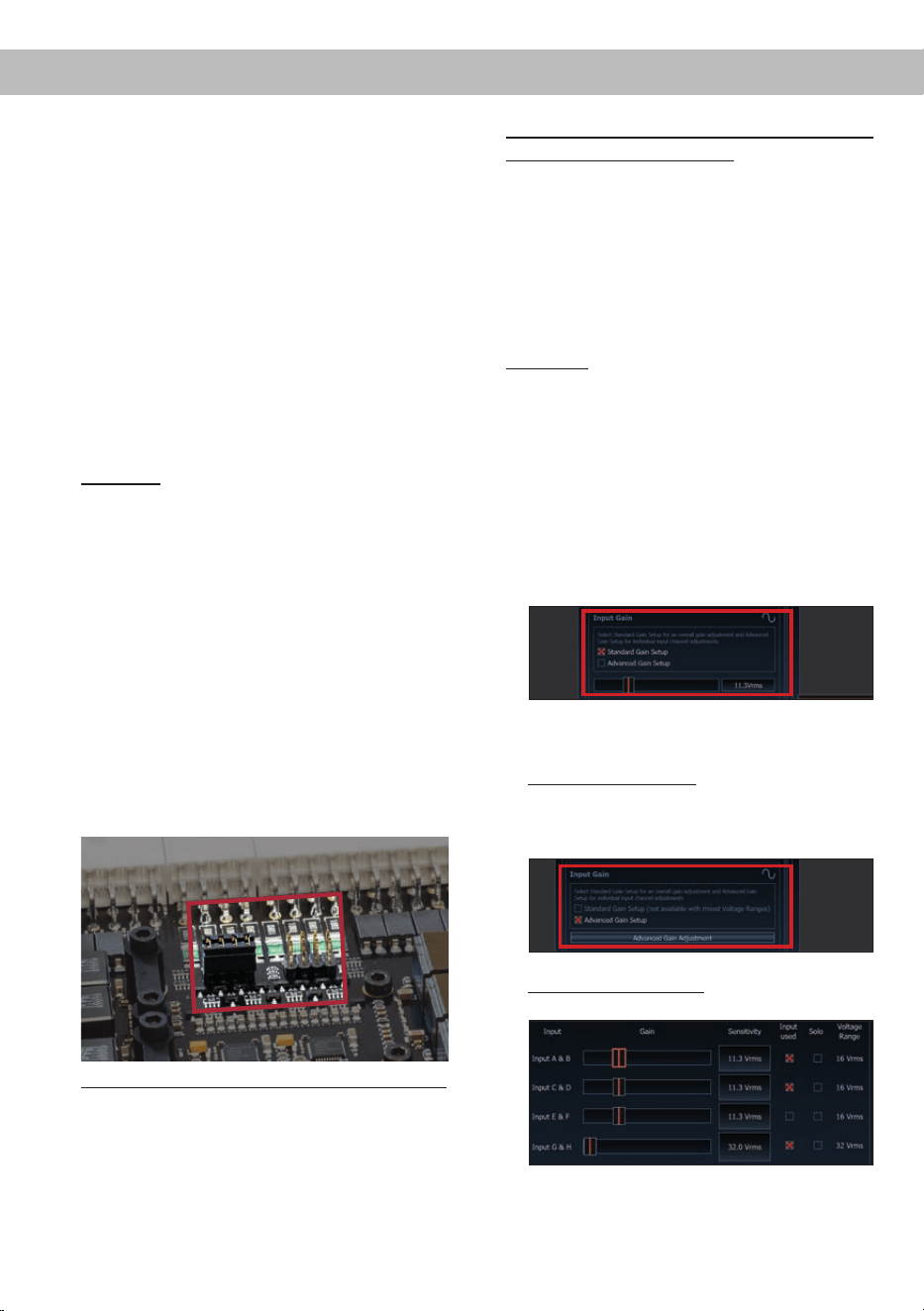
35
4. Adjustment of the input sensitivity
Attention: It is mandatory to properly adapt
the input sensitivity of the UP 10DSP to the
signal source in order to avoid damage to
the amplier.
The input sensitivity can be adjusted via the
DSP PC-Tool software and by changing the po-
sition of a jumper inside the device.
The setting will be undertaken in two steps:
1. Pre-adjustment of the value range using the
jumper inside the device.
2. Exact adjustment of the input sensitivity by
using the DSP PC-Tool software.
To point 1: The factory setting of the input sensi-
tivity (11 Volts) is appropriate for the most com-
mon radios. If the connected signal source is
equipped with up to two high power channels
that supply an output voltage between 11 and
32 Volts – for example, if a factory-installed am-
plier serves as signal source – the input chan-
nels G and H must be used. Furthermore, it is
mandatory to set a jumper inside the device to
the high voltage range (8 - 32 Volts) before the
rst start-up. To get access to the jumpers the
device has to be opened. Therefore dismantle
the side panel where the USB input is located
by removing the three Phillips screws and pull
out the bottom plate sideways.
Now you have access to the jumper.
J 1
J 2
Overview plug-in positions channels G & H:
The desired value range is dened by the plug-
in position of the jumper.
J 1: Low voltage range / 4 - 16 Volts
(ex factory)
J 2: High voltage range / 8 - 32 Volts
For repositioning the jumper simply pull it up-
wards and plug it to the desired plug position.
Make sure that the jumper is reinserted properly
and all pins are fully inserted.
If you are not sure regarding the signal source
output voltage, please contact your MATCH
specialist dealer.
After setting the jumper to the desired plug-in
position, you can reassemble the amplier.
To point 2: Now you can optimally adapt the in-
put sensitivity to the connected signal source by
using the DSP PC-Tool software.
Note: Mute all signal outputs of the UP 10DSP
during this setup.
Therefore follow the subsequent steps:
1. Turn on the amplier and then start the
software. The function can be found in the
“Signal Management” tab of the DCM menu
under the item “Main Input → Input Gain”.
2. Select the setup method to adjust the input
sensitivity.
Standard Gain Setup: This method allows go
globally set the input sensitivity for all input
channels (only with “Low Voltage Range”
jumper plug-in position – see left).
Advanced Gain Setup: This method allows
an individual setting for each channel pair.
3. Adjust the volume of your radio to approx.
90 % of the max. volume and playback an
appropriate test tone, e.g. pink noise (0 dB).
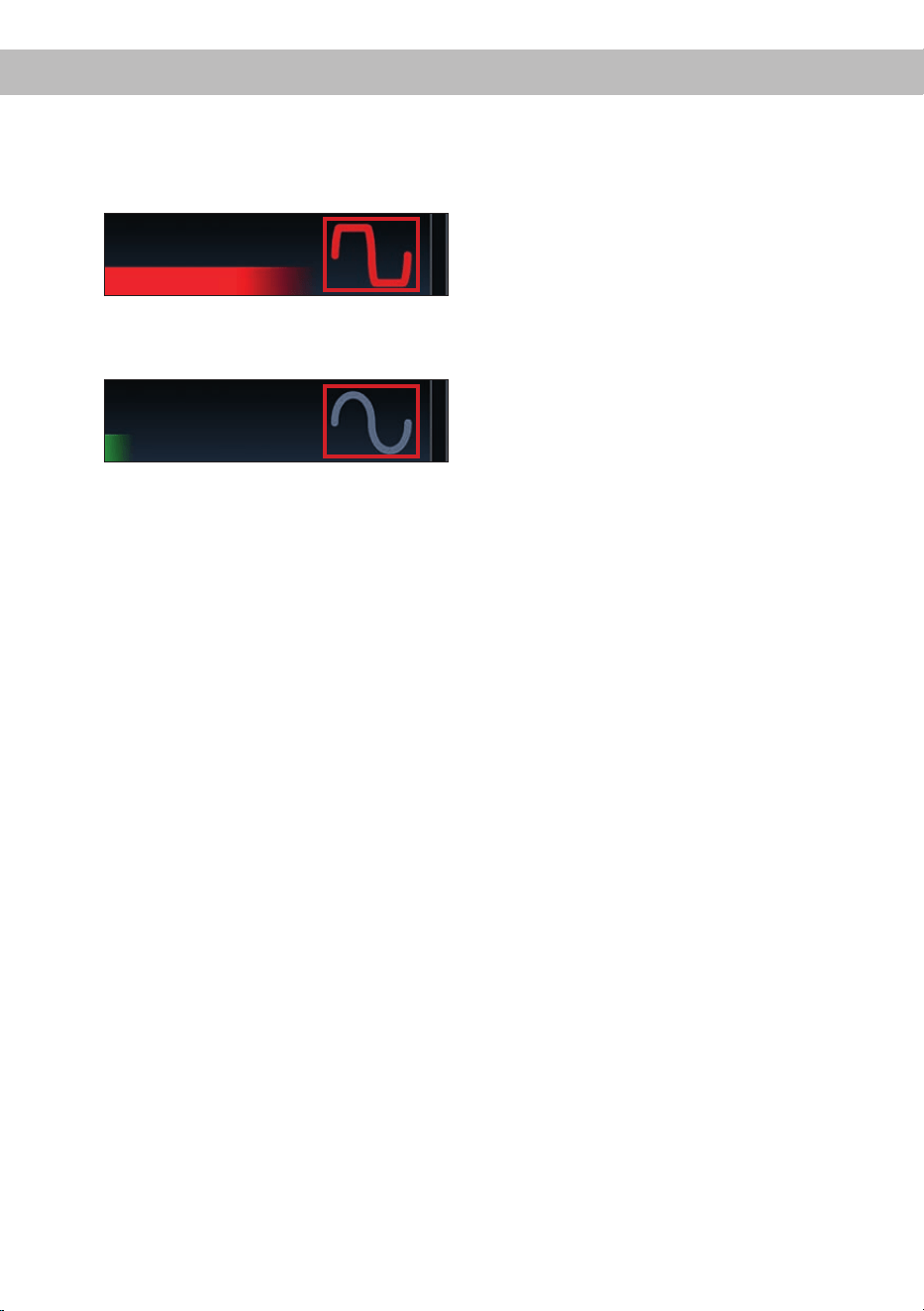
36
Installation
4. If the clipping indicator in the DSP PC-Tool
already lights up (see picture below), you
have to reduce the input sensitivity using the
scroll bar until the indicator turns o.
5. Increase the input sensitivity until the clip-
ping indicator lights up. Now turn the control
back until the indicator turns o again.
Various adjustment examples of the input
sensitivity can be found on page 37. For
further applications please contact your
MATCH specialist dealer.
5. Connection to power supply
Make sure to disconnect the battery before
installing the MATCH UP 10DSP!
Connect the +12 V power cable to the positive
terminal of the battery. The positive wire from
the battery to the amplier power terminals
needs to have an inline fuse (50 A) at a distance
of less than 12 inches (30 cm) from the battery.
If your power wires are short (less than 1 m /
40”) then a wire gauge of 6 mm² / AWG 10 will
be sucient. In all other cases we strongly rec-
ommend gauges of 10 - 16 mm² / AWG 8 – 6!
The ground cable (same gauge as the +12 V
wire) should be connected to a common ground
reference point (this is located where the neg-
ative terminal of the battery is grounded to the
metal body of the vehicle) or to a prepared met-
al location on the vehicle chassis, i.e. an area
which has been cleaned of all paint residues.
Attention: Solely use the Power Input plug
which is included in delivery for connection (see
page 31, g. 2).
6. Connecting the remote input
The remote input (REM IN) has to be connect-
ed to the radio remote output if the ampliers
Optical Input is solely used as signal input. We
do not recommend controlling the remote input
via the ignition switch to avoid pop noise during
turn on / o.
If one of the highlevel inputs A - H is used this
input does not need to be connected as long as
the car radio has BTL output stages.
7. Conguration of the remote input
The UP 10DSP will be turned on automatically
if the highlevel inputs are used or if a remote
signal is applied to the remote input terminal
(REM IN). The Auto Remote switch (page 31,
point 12) allows to deactivate the automat-
ic turn-on feature of the highlevel inputs. The
feature should be deactivated if there are e.g.
disturbing noises while switching on / o the
amplier.
Note: If the automatic turn-on function is deac-
tivated it is mandatory to use the remote input
terminal to power up the amplier! The highlevel
signal will be ignored in this case.
To deactivate the automatic turn-on feature you
have to change the position of the Auto Remote
switch to “O”.
8. Conguration of the internal DSP
The general amplier settings should be
conducted with the DSP PC-Tool software
before using the amplier for the rst time.
Ignoring this advice may result in damaging the
connected speakers / ampliers. Especially if
the UP 10DSP will be used to drive fully active
speaker systems, a wrong setup can destroy
your tweeters right away.
Information on connecting the UP 10DSP to a
computer can be found on page 40.
9. Connecting the speaker outputs E - J
The loudspeaker outputs allow to connect
speaker systems using the included connection
cable as well as subwoofers to the two power
channels I & J (see page 33, g. 3, no. 29 - 40).
Never connect any of the loudspeaker cables
with the chassis ground as this will damage
your amplier and your speakers. Ensure that
the loudspeakers are correctly connected (in
phase), i.e. plus to plus and minus to minus. Ex-
changing plus and minus causes a total loss of
bass reproduction. The plus pole is indicated on
most speakers. The impedance of the speak-
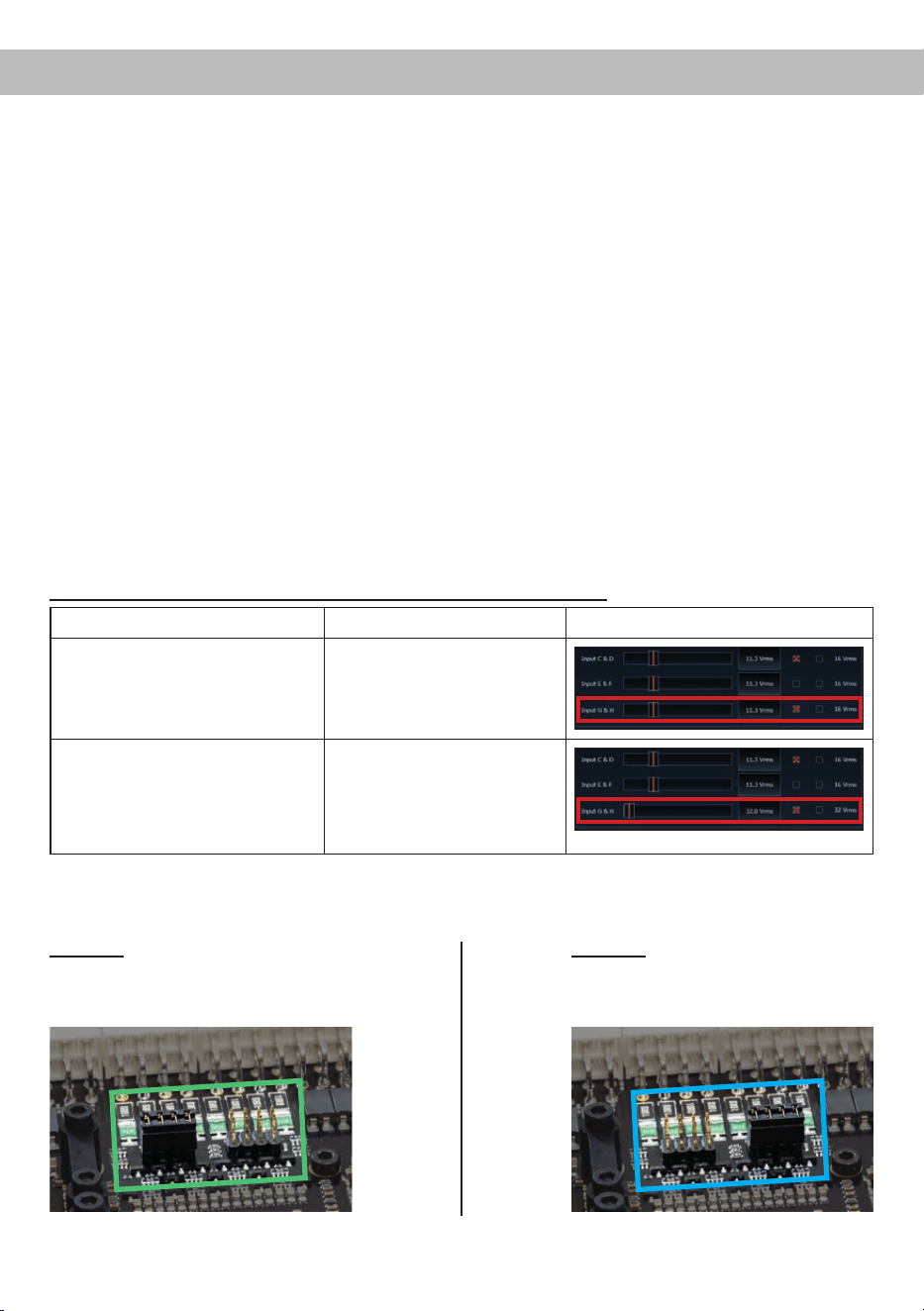
37
For further applications please contact your MATCH specialist dealer.
Examples for adjusting the input sensitivity of the channels G & H:
Source Jumper position
Input Gain in DSP PC-Tool
OEM-Radio
Up to 25 Watts RMS power per
channel at 4 Ohms or up to 50 Watts
RMS power at 2 Ohms
Low voltage range (J 1) –
Ex factory jumper position
(see g. 1)
OEM-Radio with additional
amplier
>25 Watts and up to 200 Watts RMS
power at 4 Ohms or up to 100 Watts
RMS power per channel at 8 Ohms
High voltage range (J 2)
(see g. 2)
Figure 1:
Voltage range 4 - 16 Volts
Figure 2:
Voltage range 8 - 32 Volts
ers must not be lower than 4 Ohms for channel
E - H and 2 Ohms for channel I and J, other-
wise the amplier protection will be activated.
Attention: Solely use the connection cable with
the 12-pole connector and ying leads which is
included in delivery for connecting further loud-
speakers or an appropriate cable harness from
the MATCH accessories program!
10. Connecting the remote output
This output (REM OUT) is used to supply re-
mote signals to additional ampliers that are
connected to the Line Out of the UP 10DSP.
Always use this remote output signal to turn on
the ampliers in order to avoid on / o switching
noises.
J 2
J 1
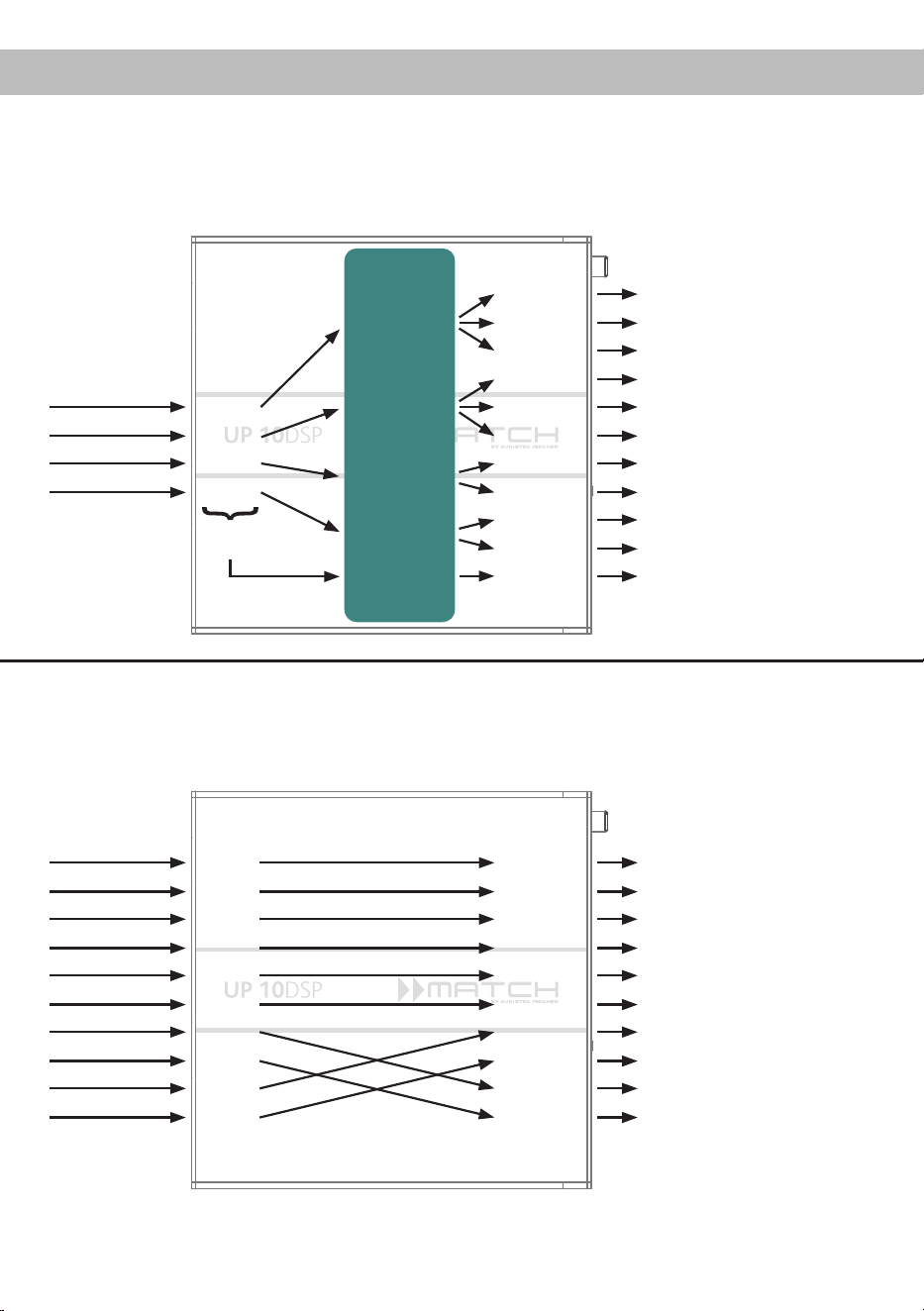
38
Example 1: Channel routing with Virtual Channel Processing
Inputs Outputs To speakersVirtual channels
Conguration examples
4-channel head unit > Front: 3-way fully active; Rear: 2-way fully active + Line Out for external subwoofer
Example 2: 10-channel 1 to 1 channel routing (IOR) e.g.: Front 2-way fully active / Rear 2-way pas-
sive / Center 2-way fully active / Subwoofer with dual voice coil – only in combination with the
optional MEC ANALOG IN module
A basic DSP setup can be found at www.audiotec-scher.de under Tools → Sound Setups.
From car radio
Subwoofer
1
(K)
SFX -
Augmented Bass
Processing
Front L High – tweeter FL
Front R High – tweeter FR
Front L Mid – midrange FL
Front R Mid – midrange FR
Front L Low – mid-woofer FL
Front R Low – mid-woofer FR
Rear L High – tweeter RL
Rear R High – tweeter RR
Rear L Low – mid-woofer RL
Rear R Low – mid-woofer RR
Subwoofer 1 – subwoofer
Front L Full
Front R Full
Rear L Full
Rear R Full
Amp Out A
Amp Out C
Amp Out I
Amp Out B
Amp Out D
Amp Out J
Amp Out E
Amp Out G
Amp Out F
Amp Out H
Line Out K
Input A
Input B
Input C
Front L Full (A)
Front R Full (B)
Rear L Full (C)
Rear R Full (D)
Input D
Summen-
signal A bis D
SFX -
Front Processing
SFX -
Front Processing
From factory
amplier
Front L High
Front R High
Front L Low
Front R Low
Rear L Full
Rear R Full
Subwoofer L
Subwoofer R
Front Center High
Front Center Low
Front L High – tweeter FL
Front R High – tweeter FR
Front L Low – mid-woofer FL
Front R Low – mid-woofer FR
Rear L Full – 2-way passive
Rear R Full – 2-way passive
Front Center High –
tweeter center
Front Center Low –
midrange center
Subwoofer 1 – subwoofer L
Subwoofer 2 – subwoofer R
Input A
Input B
Input C
Input D
Input E
Input F
Input G*
Input H*
Input I
Input J
Amp Out A
Amp Out B
Amp Out C
Amp Out D
Amp Out E
Amp Out F
Amp Out G
Amp Out H
Amp Out I*
Amp Out J*
* The high power signal inputs G & H (see page 35, point 4) are
routed to the high power subwoofer channels I & J.
Inputs Outputs To speakersVirtual channels
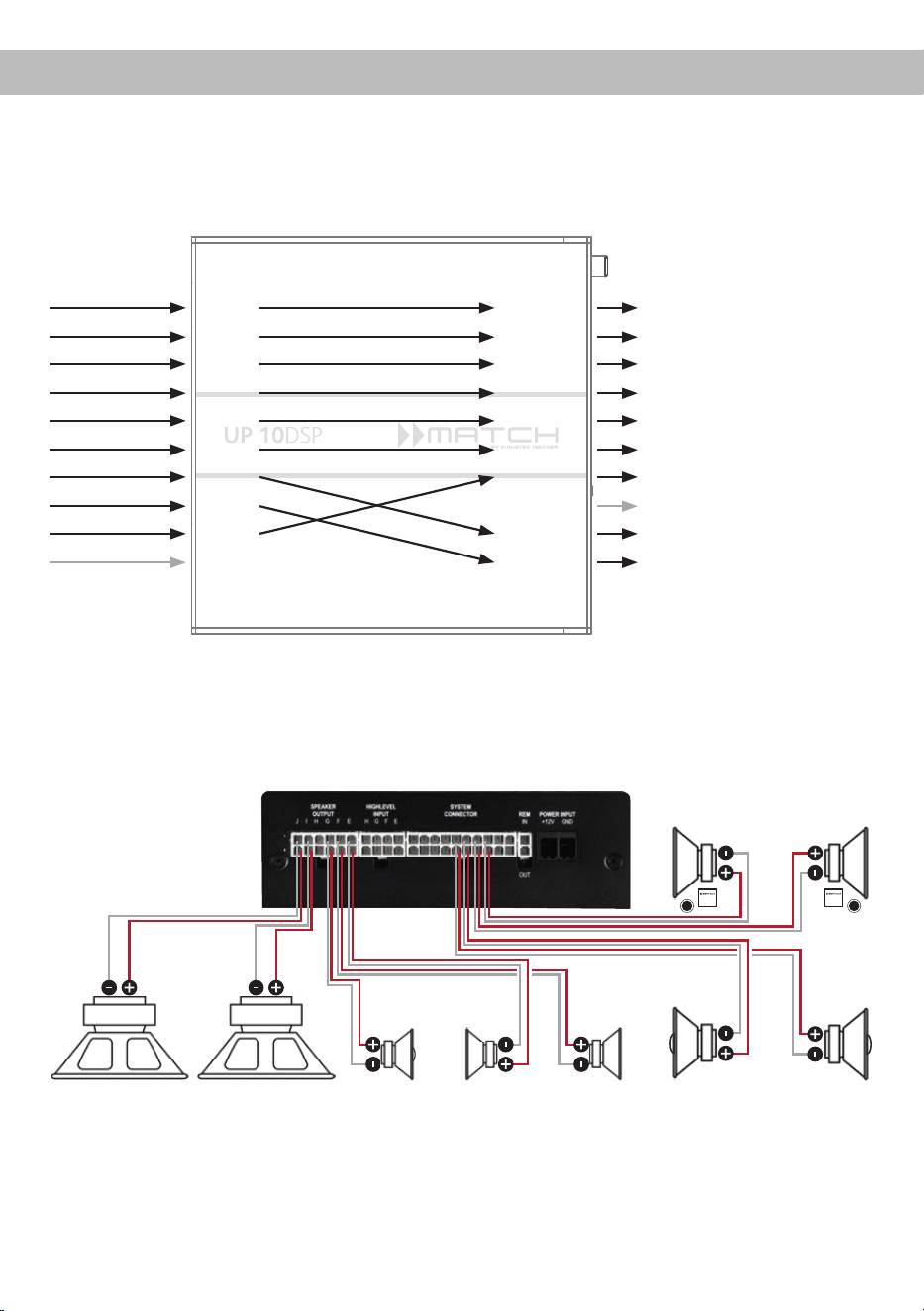
39
Example 3: 9-channel 1 to 1 channel routing (IOR) e.g. Mercedes Burmester or BMW Harman Kar-
don with the optional MATCH UPGRADE harnesses – only in combination with the optional MEC
ANALOG IN module
A basic DSP setup can be found at www.audiotec-scher.de under Tools → Sound Setups.
For further applications please contact your MATCH specialist dealer.
From factory
amplier
Eingänge Ausgänge Zu den Lautsprechern
Front L Full
Front R Full
Rear L Full
Rear R Full
Surround L Full
Surround R Full
Subwoofer L
Subwoofer R
Front Center Full
Not assigned
Front L Full – 2-way passive FL
Front R Full – 2-way passive FR
Rear L Full – 2-way passive RL
Rear R Full – 2-way passive RR
Surround L Full – fullrange L
Surround R Full – fullrange R
Front Center Full – coaxial center
Not assigned
Subwoofer 1 – subwoofer L
Subwoofer 2 – subwoofer R
Input A
Input B
Input C
Input D
Input E
Input F
Input G*
Input H*
Input I
Input J
Amp Out A
Amp Out B
Amp Out C
Amp Out D
Amp Out E
Amp Out F
Amp Out G
Amp Out H
Amp Out I*
Amp Out J*
* The high power signal inputs G & H (see page 35, point 4) are
routed to the high power subwoofer channels I & J.
Subwoofer R
Left Right
Front
Left Right
RearSubwoofer L Center
Left Right
Surround

40
It is possible to freely congure the UP 10DSP with
our DSP PC-Tool software.
The user interface is designed for easy handling
of all functions and allows an individual adjustment
of each of the 11 DSP channels. Prior to connect-
ing the amplier to your PC visit our website and
download the latest version of the DSP PC-Tool
software.
Check from time to time for software updates. You
will nd the software and a huge knowledge base at
www.audiotec-scher.com.
We strongly recommend to carefully read the DSP
PC-Tool knowledge base before using the software
for the rst time in order to avoid any complications
and failures.
Important: Make sure that the amplier is not con-
nected to your computer before the software and
USB driver are installed!
In the following the most important steps how to
connect and the rst start-up are described:
1. Download the latest version of the DSP
PC-Tool software (available on our website
www.audiotec-scher.com) and install it on
your computer.
2. Connect the amplier to your computer us-
ing the USB cable that is included in delivery.
If you have to bridge longer distances please
use an active USB extension cable with in-
tegrated repeater or the optionally available
WIFI CONTROL interface.
3. First turn on the amplier and then start the
software. The operating software will be updat-
ed automatically to the latest version if it is not
up-to-date.
4. Now you are able to congure your UP 10DSP
with our intuitive DSP PC-Tool software.
Nevertheless, interesting and useful hints
can be found in our knowledge base at
www.audiotec-scher.com.
Caution: We highly recommend to set the volume
of your car radio to minimum position during rst
start-up. Additionally no device should be connect-
ed to the Line Out until general settings in the DSP
PC-Tool software have been made. Especially if the
UP 10DSP will be used in fully active applications, a
wrong setup can destroy your speakers right away.
Connection to a PC
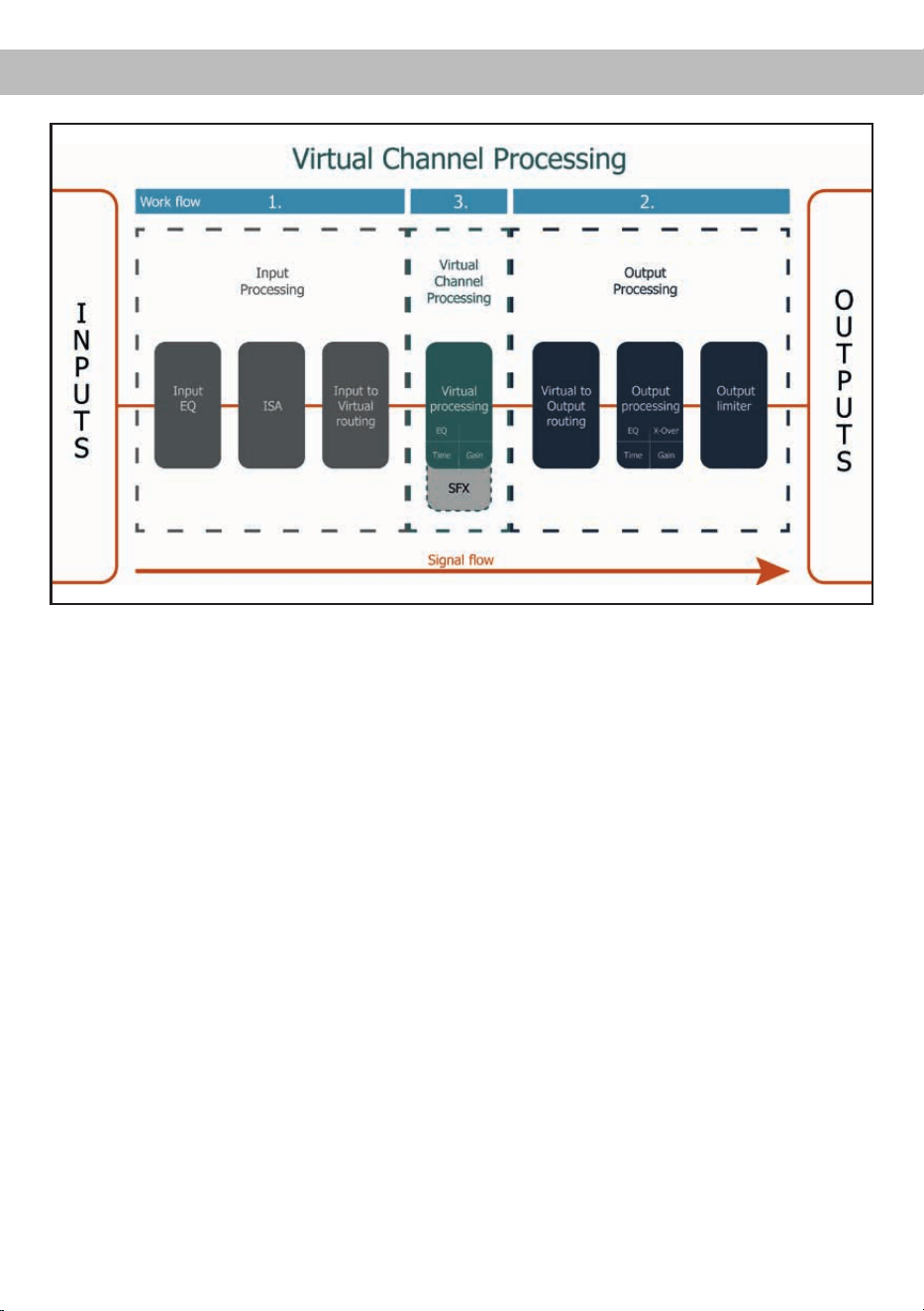
41
Virtual Channel Processing (VCP)
Operating concept of the VCP
In opposite to previous methods the Virtual Channel Processing (VCP) is a multi-stage signal processing
concept that enables the perfect conguration of complex sound systems, opening up completely new
possibilities for sound tuning.
The function extends the previous scope of the device by an additional layer of processed channels, which
is located between the inputs and outputs. A total of eight additional processed virtual channels and eleven
processed output channels are available.
This virtual channel layer oers several advantages, especially in complex system congurations.
The main advantages of this concept are:
- Cross-channel group equalizers that aect several output channels simultaneously
- Multi-way speaker conguration of DSP sound eects (SFX)
- Additional features such as Rear Attenuation
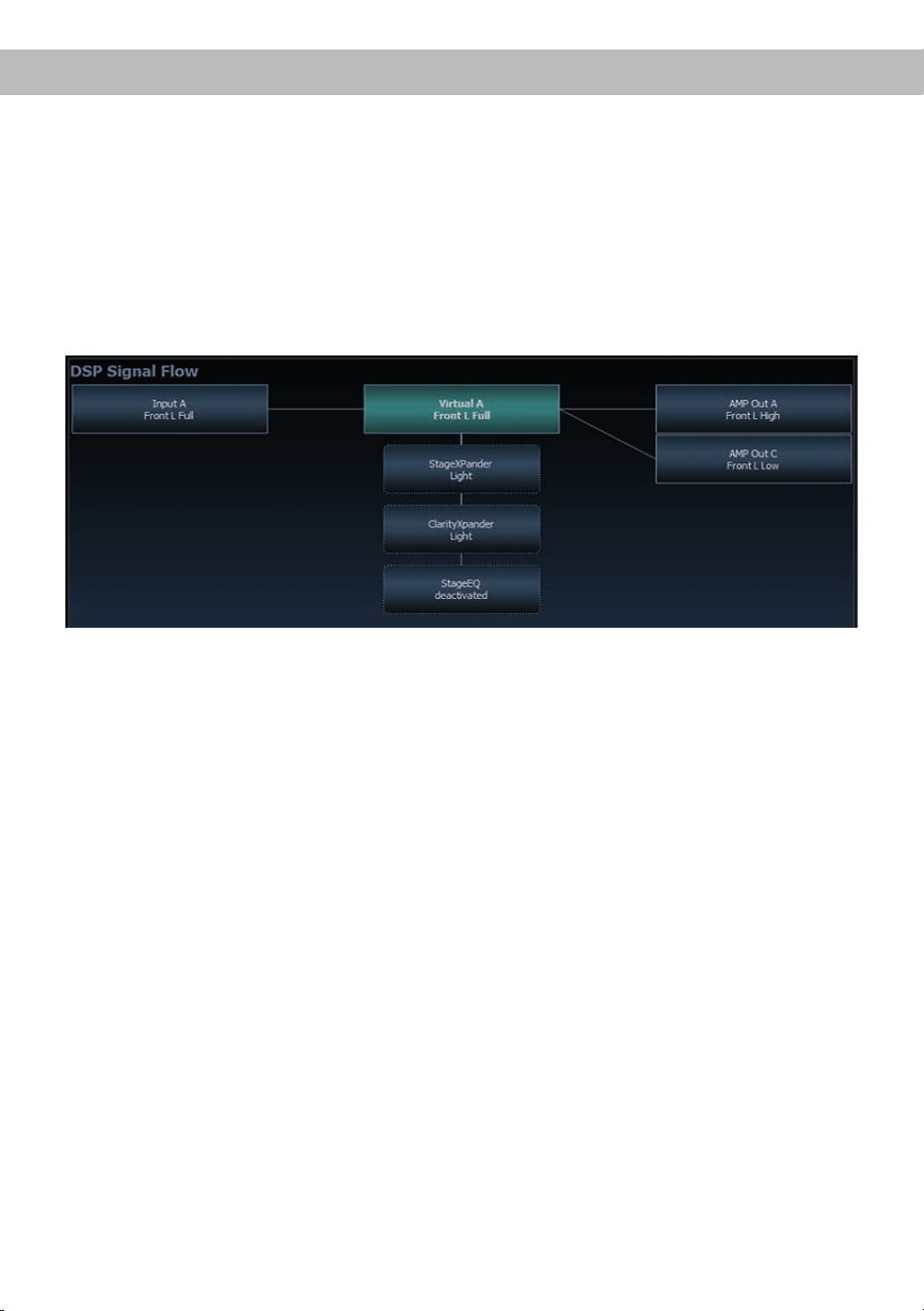
42
– Cross-channel group equalizer
Example application: Active multi-way speaker conguration
If an input signal (e.g. front left) is rst routed to a virtual channel (Front L Full) and this signal is then
routed to an active multi-way system (e.g. front left – tweeter, midrange and woofer), the group equalizer
of the virtual channel will inuence all assigned output channels in their tonality. The advantage of this
concept is that any amplitude and phase shift of the group equalizer is applied to all channels of the
multi-way conguration simultaneously, thus avoiding any negative impact on the interaction of the
individual speaker channels.
– Multi-way conguration of the DSP sound eects (SFX)
Example application: 2- or even 3-way center speaker
After activating “Virtual Channel Processing”, the DSP sound eects, such as RealCenter management
or Augmented Bass Processing, are also available. These are no longer linked to the outputs but tied
to specic “virtual channels”.
Front Processing: virtual channels Front L Full (A) and Front R Full (B)
Center Processing: virtual channel Center Full (E)
Augmented Bass Processing: virtual channels Subwoofer 1 (I) and Subwoofer 2 (J). The subwoofer
volume is also tied to these channels.
This makes it possible to route the DSP sound eects to any number of outputs, for example to realize
2- or even 3-way center speaker congurations. There are hardly any limits to exibility here.
– Additional features
In addition, the VCP enables the implementation of further new functions. One of these is, for example,
the “Rear Attenuation”. With the help of a remote control, the volume of the virtual channels “Rear L
Full” and “Rear R Full” can be controlled separately. So it is possible even without switching the sound
setup, to adjust the volume of the rear speakers (or any other channel, which is routed through these
channels).
Virtual Channel Processing (VCP)
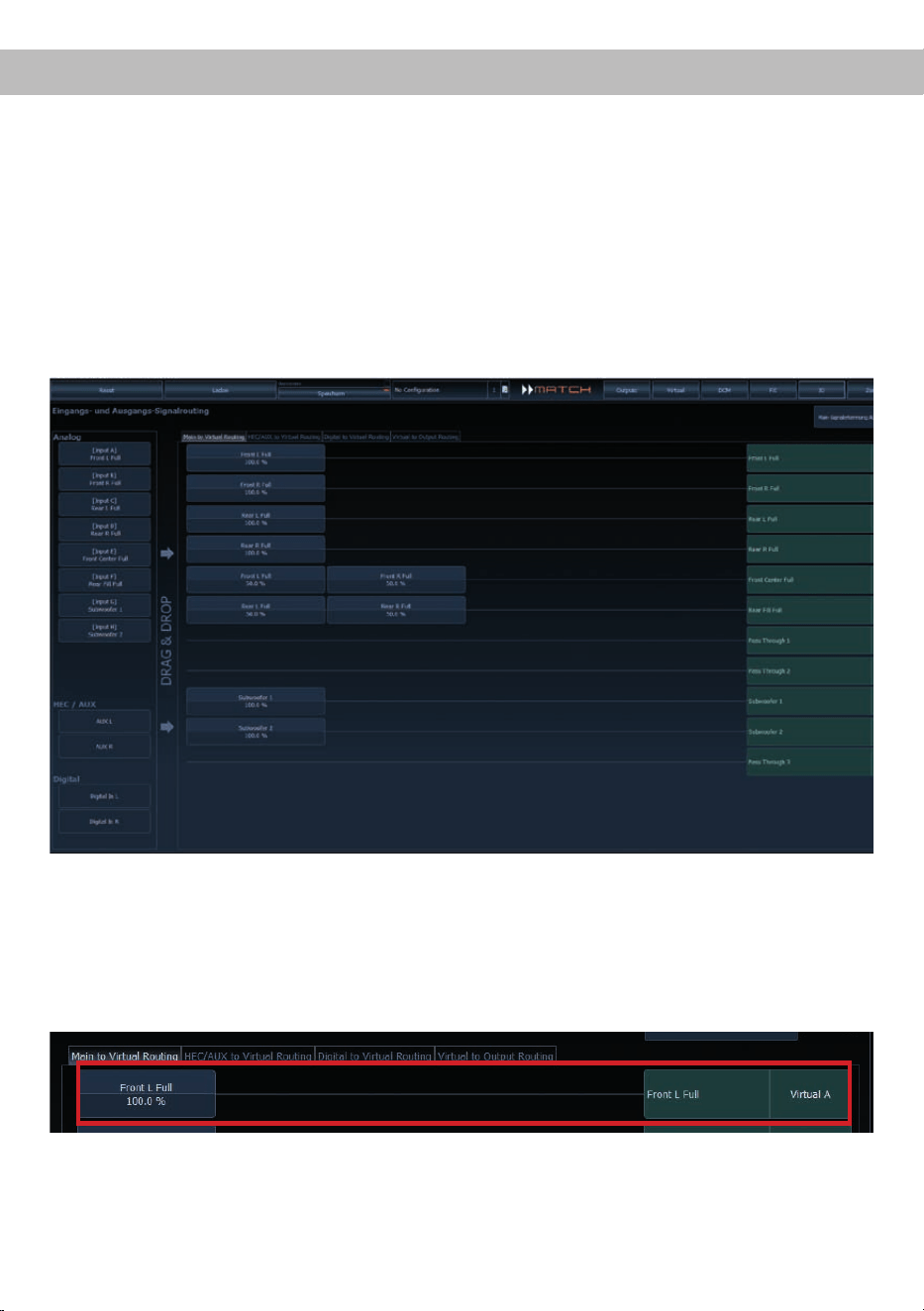
43
To congure the VCP, you rst have to enable “Virtual Channel Processing” in the DCM menu of the DSP
PC-Tool software. Therefore, go to the “Virtual Channel Processing” tab in the DCM menu and click on the
right box with the VCP graphic. Then the conguration will be carried out in two steps. Here’s an example
of a 3-way conguration with a 2-way input signal.
Workow step 1 – Input routing
First, the input signals in the various input matrices (“Main to Virtual Routing”, “HEC / AUX to Virtual Rout-
ing”, “Digital to Virtual Routing”) need to be routed to the respective virtual channels. This is the same as
in normal mode, means that the input signals on the left side are dragged and dropped onto the respective
summation matrix. The dierence to normal mode is that the names and signal properties of the virtual
channels are dened here (Front L Full, Front R Full, Rear L Full, Rear R Full, Front Center Full etc.).
a. First, all input signals must be applied to the respective designated signal types of the virtual channels,
means the input with the signal “front left” must be routed to the virtual channel “Front L Full” and so
forth.
b. In the case of an adaptation of an OEM active multi-way system, all “front left” signals in this example
have to be summed up on the virtual channel “Front L Full” (the input EQ remains eective in the
inputs as usual).
Conguration of the Virtual Channel Processing (VCP)
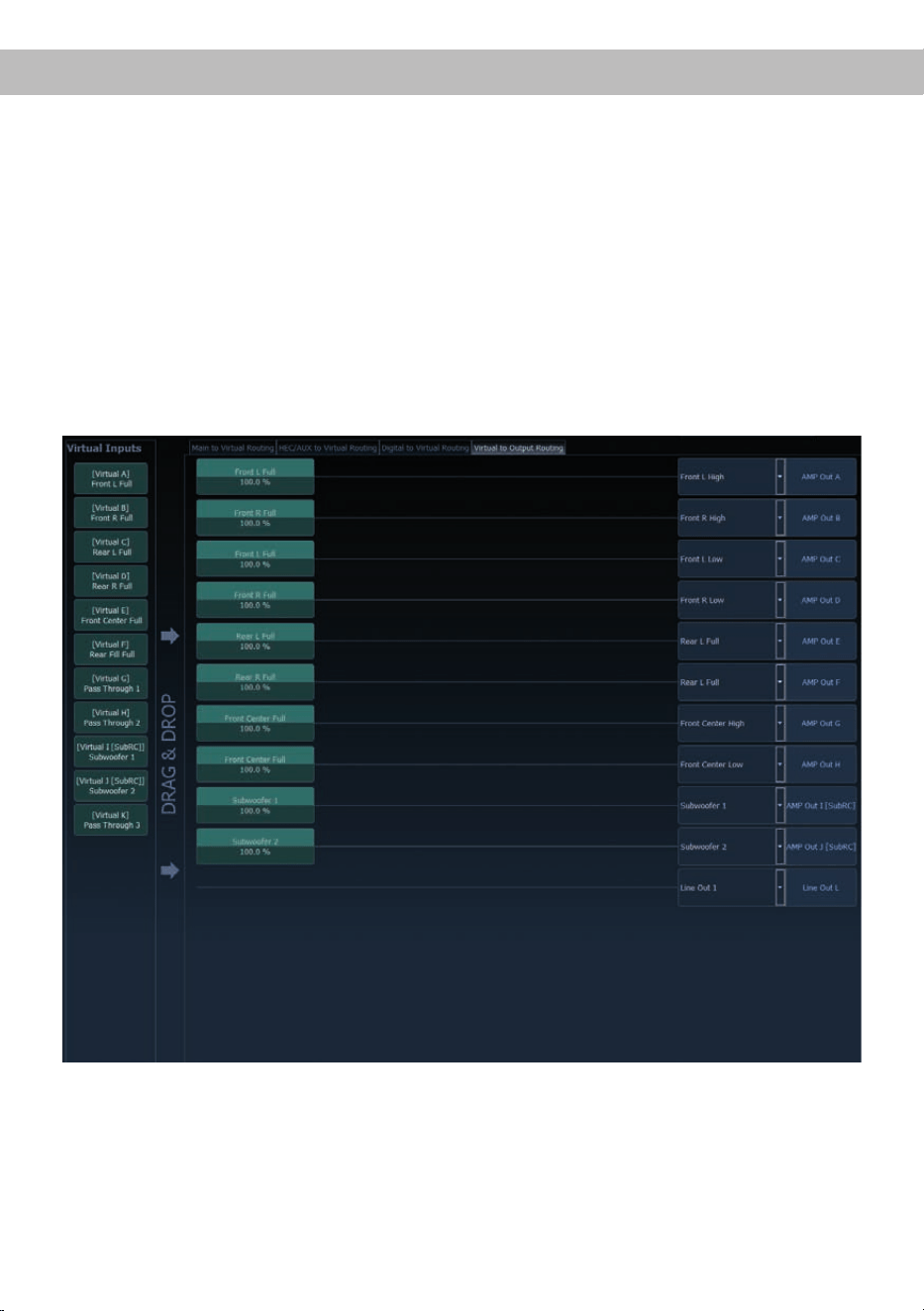
44
Conguration of the Virtual Channel Processing (VCP)
Workow step 2 – Output routing
After all the input signals used in the respective signal routing matrix have been congured, the virtual
channels must now be assigned to the physical output channels. Here, a virtual signal (e.g. Front L Full)
can be assigned to multiple outputs, such as “front left” tweeter, midrange and woofer. The conguration of
these speaker-specic output channels is done in the “Outputs” menu (called “Main” in normal mode) of the
DSP PC-Tool. Here you can also congure the channel-specic equalizers, high- and lowpass lters, time
alignment, output level and phase settings.
a. In order to assign the virtual channels to the respective output channels the individual virtual signals in
the output routing matrix (“Virtual to Output Routing”) are dragged and dropped onto the output chan-
nels. At this point, the signals typically needn’t to be summed, means that each output of this matrix only
receives one virtual signal. For example, the output “Front L High” is linked to the virtual signal “Front L
Full”; the same is done for the Front L Low”.
b. At this point, even a virtual channel in which a DSP sound eect has been activated can be routed to
multiple output channels. For example, the “Front Center Full” signal can be assigned to multiple output
channels to create an active multi-way center speaker. The corresponding high- and lowpass lters are
then congured in the output channels of the “Main” menu.
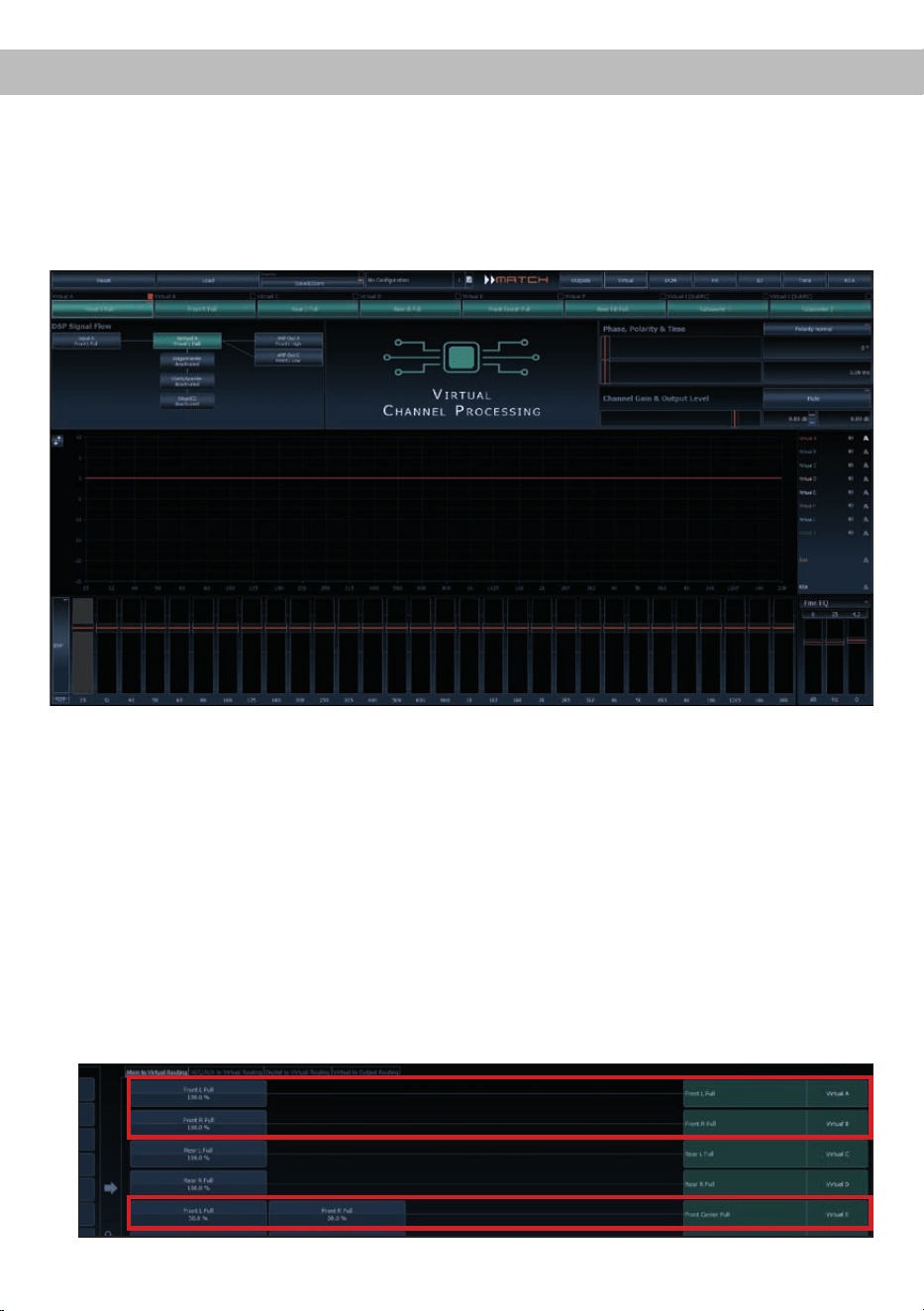
45
Workow step 3 – Conguration of the virtual channels and notes on the application of the DSP
sound eects (SFX)
Now switch to the “Virtual” menu of the DSP PC-Tool. Here you get an overview of the signal ow of the
individual channels and the activated sound eects. In addition, it is possible to inuence the tonality of all
subsequent output channels of a virtual channel at the same time, for example with the help of the equal-
izer, polarity and other functions.
Notes on the conguration of the DSP sound eects (SFX)
The MATCH UP 10DSP provides unique DSP sound eects such as Augmented Bass Processing,
RealCenter, and more when “Virtual Channel Processing” is enabled. In order to enjoy the DSP sound
eects, certain settings must be made in the hardware and software conguration.
Note: The DSP sound eects are only available in the UP 10DSP when “Virtual Channel Processing” is
enabled. “VCP” can be activated in the DCM menu of the DSP PC-Tool software.
Notes for center processing with its features “RealCenter” and “ClarityXpander”
To be able to use the RealCenter and ClarityXpander function for a center speaker, the following steps must
be carried out:
1a. It is necessary to assign an input signal to the virtual channels “Front L Full” and “Front R Full” (see
workow step 1).
1b. In the input routing you have to assign either a sum signal (front left + front right) or an existing center
signal to the virtual channel “Front Center Full”.
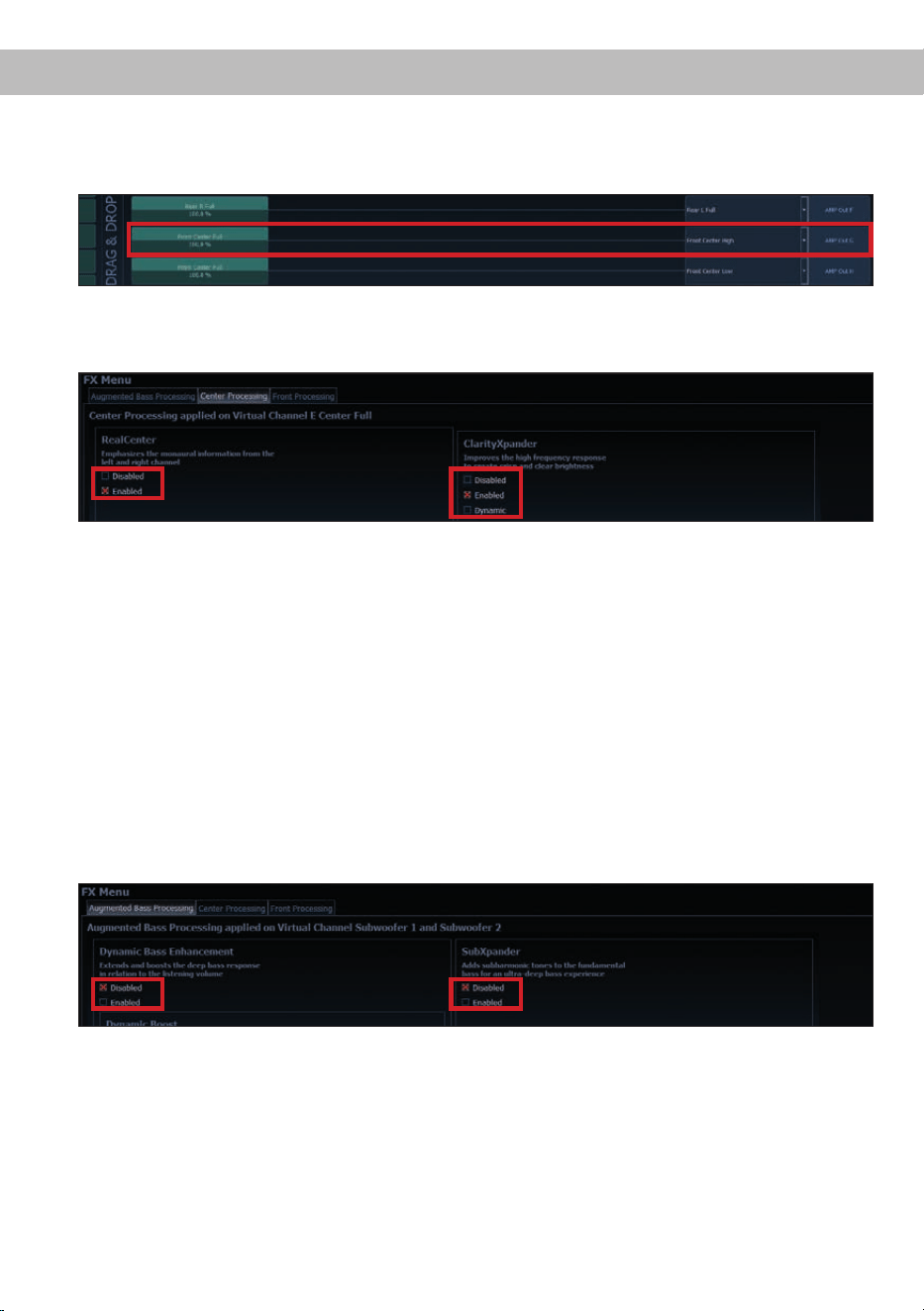
46
2. Change to the “Virtual to Output Routing” matrix and route the “Virtual E – Front Center Full” channel to
the desired output channels (as described in workow step 2) to which the center processing shall be
applied.
3. Now switch to the FX menu and activate the desired sound eect in the “Center Processing” tab by
setting the appropriate check mark. Soundeekt durch Setzen eines Hakens.
Notes for front processing with its StageXpander and ClarityXpander features
The StageXpander and Front ClarityXpander settings always aect the virtual channels “Front L Full” and
“Front R Full”.
Hints for “Augmented Bass Processing” with its “Dynamic Bass Enhancement” and “SubXpander”
function
For Augmented Bass Processing certain settings have to be made in order to use it.
1. An input signal has to be assigned to at least one of the virtual subwoofer channels (“Subwoofer 1” or
“Subwoofer 2”) (see workow step 1).
2. Change to the “Virtual to Output Routing” matrix and route the channel (s) “Virtual I – Subwoofer 1” and /
or “Virtual J – Subwoofer 2” to the desired output channel or channels (as described in workow step 2)
to which the subwoofer signal and its Augmented Bass Processing shall be applied to.
3. Now switch to the FX menu and activate the desired sound eect.
For information about input routing see workow step 1
For information about output routing see workow step 2
Note: the bass processing is switched on and o together for both “Subwoofer 1” and “Subwoofer 2” channels,
nevertheless the two channels still remain separately processed for stereo applications.
Conguration of the Virtual Channel Processing (VCP)
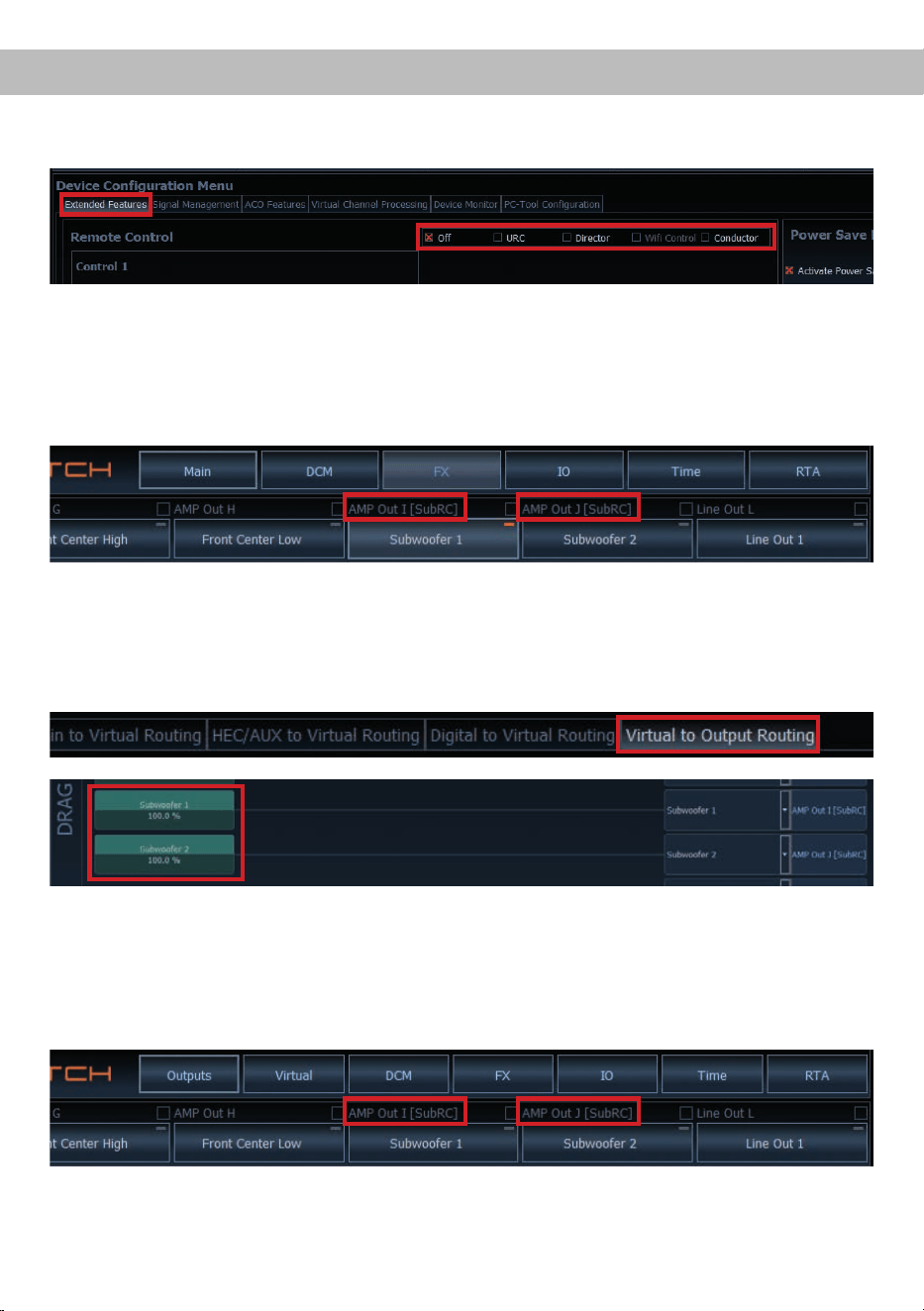
47
First, the appropriate remote control must be activated in the “Extended Features” tab in the DCM menu of
the DSP PC-Tool software and congured, depending on the model.
Conguration of a subwoofer remote control
When VCP is activated, the subwoofer remote control is tied to the output channels that are supplied with
one of the two virtual subwoofer signals (“Subwoofer 1” or “Subwoofer 2”) in the “Virtual to Output Routing”
matrix. This can be any combination of output channels.
In the following example these are the amplier outputs I and J:
If the VCP is not activated, the subwoofer remote control of the UP 10DSP is permanently assigned to
the output channels I and J. In this case it does not matter which output is named “Subwoofer” in the IO
routing matrix.
In the main menu you can also see to which outputs the SubRC (subwoofer remote control) is tied:
Afterwards, the subwoofer control is also displayed in the Main menu next to the name of the channel
[SubRC]:
Note: Please note that an input signal must be assigned to the two virtual subwoofer signals “Subwoofer 1”
and / or “Subwoofer 2” in the other routing matrices.
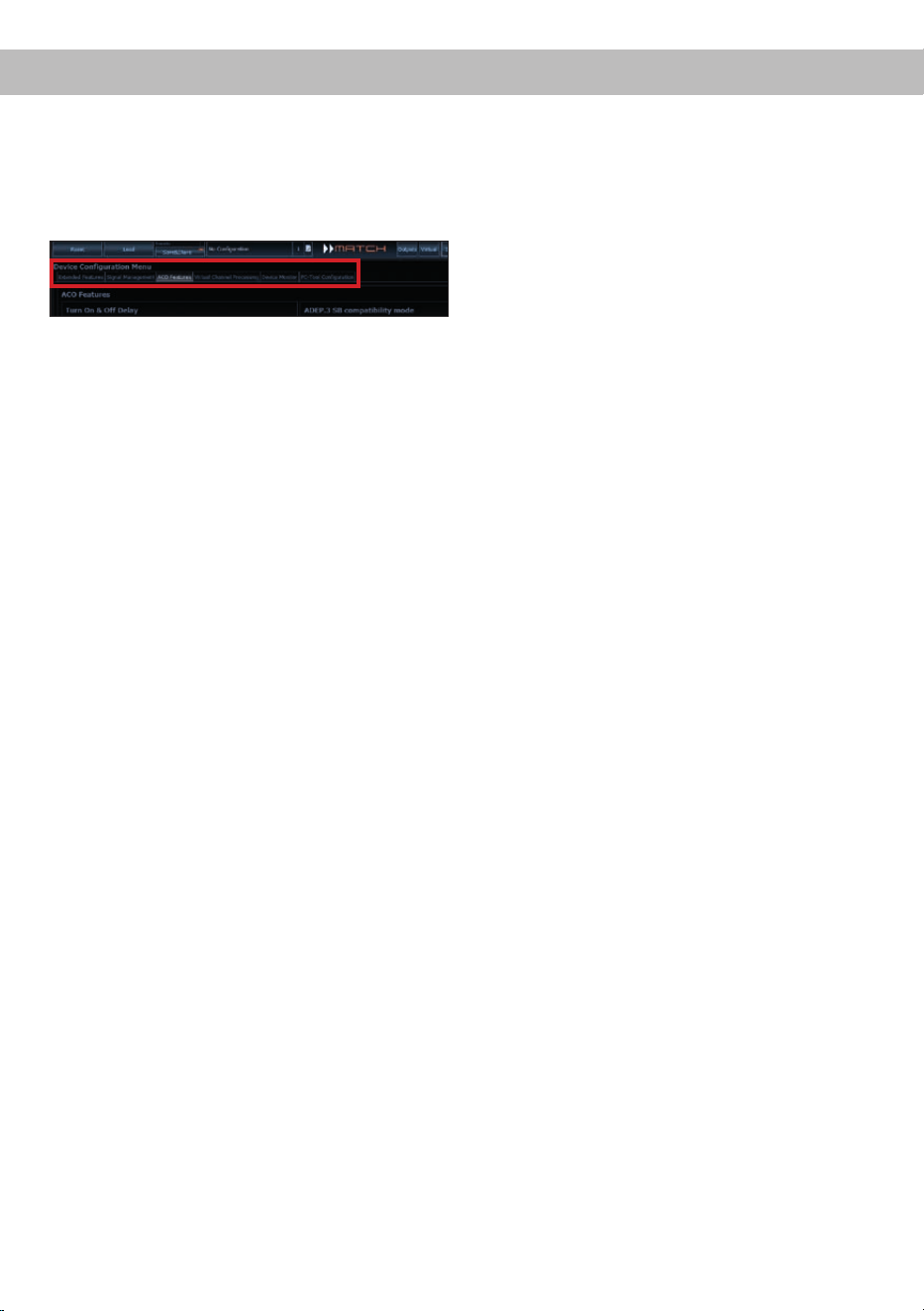
48
ACO platform features
Beside the unique DSP sound eects the UP 10DSP
provides a bunch of new system features.
In the DCM menu of the DSP PC-Tool software in-
dividual settings can be made for several of these
system features.
Turn On & O Delay
This function allows to determine the delay time
with which the integrated DSP is switched on and
o. The factory setting is 0.2 seconds. The delay
time should only be modied if there are e.g. noises
while switching on / o the amplier.
URC Setup Switch Conguration
The ACO provides ten internal memory locations for
sound setups instead of the common two.
By using an optional URC remote control or the Con
-
trol pushbutton it is possible to toggle between two
of the ten memory locations. These two memory lo
-
cations can be determined in the “URC Setup Switch
Conguration”. The memory locations one and two
are preassigned ex works. To switch between all
internal memory locations, the optionally available
remote controls DIRECTOR and CONDUCTOR or
the HELIX WIFI CONTROL are / is recommended.
Remote Output Conguration
This function controls if the remote output (which
switches on and o the connected ampliers) will
be temporarily deactivated during a sound setup
switch. This function is activated (ON) ex works.
ADEP.3 Conguration
If the UP 10DSP is connected to an OEM radio via
the highlevel inputs it may happen that the ADEP.3
circuit has to be adapted to the diagnostic mode of
the radio if the latter is equipped with a so-called
“class SB” output stage.
The ADEP.3 circuit should be adjusted if there are
e.g. distortions in the upper volume range.
The compatibility mode is disabled ex works.

49
Unique Features of the UP 10DSP
Class GD technology
Audiotec Fischer´s proprietary Class GD concept
takes the eciency of conventional Class D amps
to the next level. By varying the internal supply volt-
age in several steps depending on the amplier’s
input signals, idle losses are signicantly reduced
and overall eciency is close to maximum at any
time. So heat dissipation is almost negligible, thus
allowing smallest heat sinks and most compact
form factors.
ACO – Advanced 32 Bit CoProcessor
The MATCH UP 10DSP amplier incorporates an
extraordinary powerful 32 Bit CoProcessor of the
latest generation for all monitoring and communi-
cation tasks, both internally and externally. In oppo-
site to the 8 Bit predecessor generation this MCU
achieves way higher speeds with respect to setup
switching and data communication with our DSP
PC-Tool software. A further signicant advantage
is the integrated, native boot loader of the CoPro-
cessor. It allows software upgrades of all compo-
nents of the DSP in order to adjust the microcontrol-
ler-controlled ADEP.3 circuit for example at future
modications / changes in the diagnostic system of
factory radios or if the device will be extended with
additional interfaces. In addition, thanks to the new
ash memory, the ACO oers 10 memory locations
for sound setups instead of the common two.
Smart highlevel input ADEP.3
Modern, factory-installed car radios incorporate so-
phisticated possibilities of diagnosing the connect-
ed speakers. In particular the latest generation of
car radios are equipped with additional monitoring
functions so that failure messages and loss of spe-
cic features (e.g. fader function) quite often appear
if a common amplier will be hooked up - but not
with the UP 10DSP.
The new ADEP.3 circuit (Advanced Diagnostics
Error Protection, 3rd Generation) avoids all these
problems without loading the speaker outputs of the
OE radio during high volumes unnecessarily.
Start-Stop capability
The switched power supply of the MATCH
UP 10DSP assures a constant internal supply volt-
age even if the battery’s voltage drops to 6 Volts
during engine crank. If the supply voltage drops be-
low 10.5 Volts for more than ve seconds the am-
plier goes to “Protect mode” (Status LED lights up
red) in order to avoid any further discharge of the
car’s battery.
Automatic Digital Signal Detection
The UP 10DSP allows signal-controlled switching
between the analog inputs and the digital input. As
son as an input signal is detected on the Optical
Input, the amplier automatically switches to this
input. This feature can be deactivated in the DSP
PC-Tool software. Alternatively you can use an op-
tional remote control for manual switching between
analog and digital inputs.
Power Save Mode
The Power Save Mode is incorporated in the ba-
sic setup. It allows to signicantly reduce the pow-
er consumption of the UP 10DSP and potentially
connected ampliers once there’s no input signal
present for more than 60 seconds. Please note that
in many up-to-date cars with “CAN” or any other in-
ternal bus structures it may happen that the radio
remains “invisibly” turned on for up to 45 min. even
after locking and leaving the car! Once the “Power
Save Mode“ is active the remote output and there-
fore the connected ampliers will be turned o. The
MATCH UP 10DSP will reactivate the remote output
within a second if a music signal is applied. It is pos-
sible to either modify the turn-o time of 60 sec. or
completely deactivate the “Power Save Mode” via
the DSP PC-Tool software.
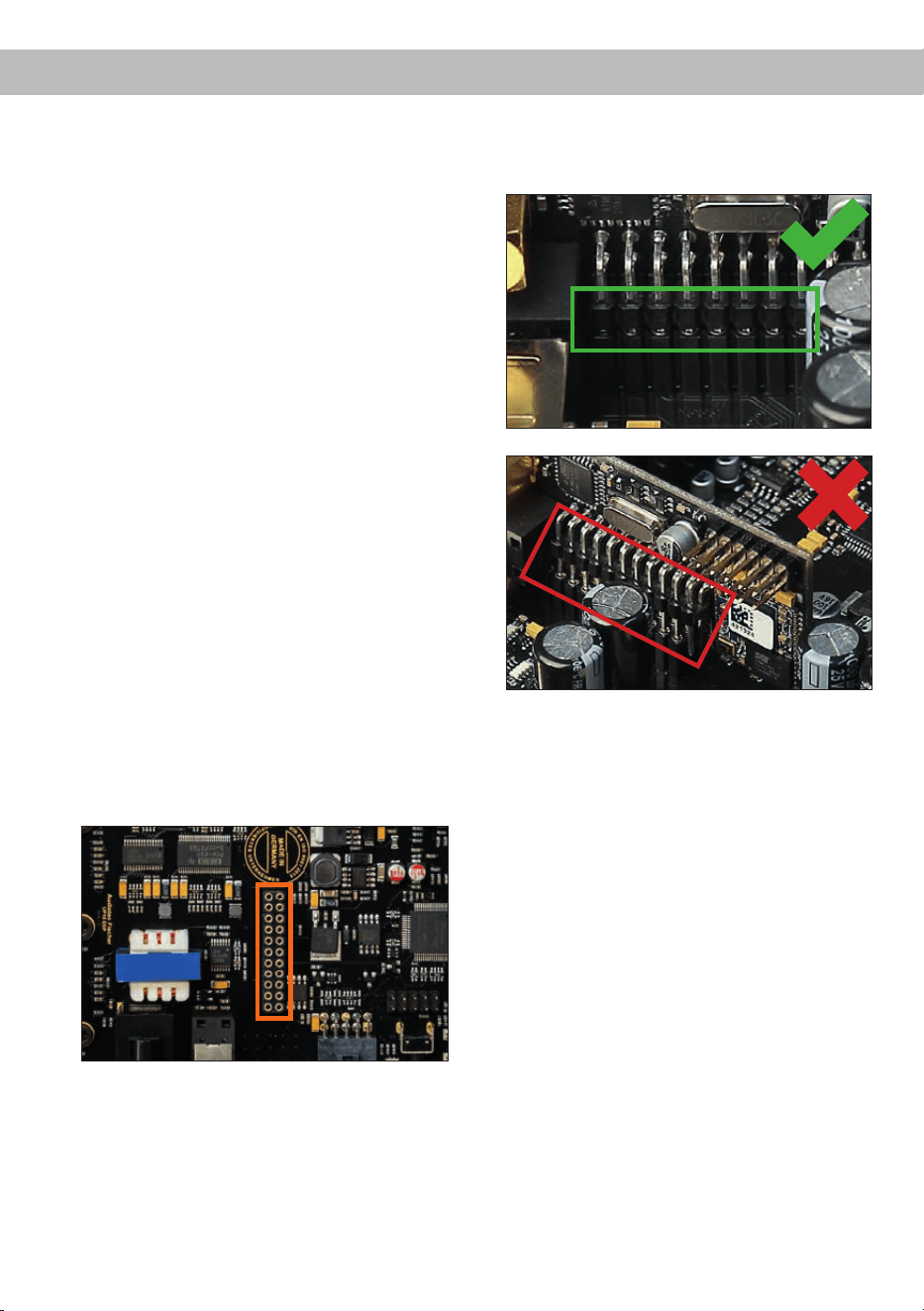
50
Installation of a MATCH Extension Card
It is possible to extend the functionality of the
MATCH UP 10DSP amplier by adding further in-
terfaces like a Bluetooth
®
Audio Streaming module,
a High Resolution Audio USB soundcard etc.
To install a MATCH Extension Card it is necessary
to remove the side panel of the UP 10DSP and re-
place it by the new side panel that comes with the
MEC module.
Attention: Install the MEC module only in the
designated device and its specic slot. Using
the MEC module in other devices or slots can
result in damage of the MEC module, the ampli-
er, the head unit / car radio or other connected
devices!
Read in the following the steps how to install a MEC
module:
1. First disconnect all cables from the device.
2. Dismantle the side panel where the USB input
is located by removing the Phillips screws.
3. Pull out the bottom plate.
4. Prepare the module for installing it into the de-
vice. Any further mounting information will be
found in the instruction manual of the respective
MEC module.
5. Insert the MEC module into the specic slot of
the device which is marked in the following pic-
ture.
6. Make sure that the MEC module is installed
properly and all pins are fully inserted into the
socket.
7. Reinsert the bottom plate and x the new side
panel which is delivered with the MEC module
with the Phillips screws.
8. Bolt the MEC module to the side panel. Pre-
cise mounting information will be found in
the instruction manual of the respective MEC
module.
9. Reconnect all cables to the device.
10. Turn on the amplier. The MEC module is auto-
matically detected by the device and the Status
LED of the MEC module lights up green.
11. Now you are able to congure the MEC module
in the DSP PC-Tool software.

51
Technical Data
Output power RMS
- Channel A - H ....................................................................8 x 65 Watts @ 4 Ohms
- Sub Out I - J ...................................................................... 2 x 90 Watts @ 4 Ohms
2 x 160 Watts @ 2 Ohms
Amplier technology ............................................................ Class GD
Inputs ................................................................................... 8 x Highlevel speaker input
1 x Optical SPDIF (12 - 96 kHz)
1 x Remote In
Input sensitivity .................................................................... Channels A - F: 4 - 16 Volts
Channels G - H: 4 - 16 Volts or 8 - 32 Volts
Input impedance .................................................................. 9 - 33 Ohms with ADEP.3
Outputs ................................................................................ 10 x Speaker output
1 x RCA / Cinch
1 x Remote Out
Output voltage RCA / Cinch................................................. 3 Volts
Frequency response ............................................................ 10 Hz - 22,000 Hz
DSP power ..........................................................................64 Bit / 295 MHz
Sampling rate ...................................................................... 48 kHz
DSP type .............................................................................Audio signal processor
Signal converters ................................................................. A/D: BurrBrown
D/A: BurrBrown
Signal-to-noise ratio (A-weighted) ....................................... Digital input: 105 dB
Analog input: 103 dB
Distortion (THD) ................................................................... < 0.03 %
Damping factor .................................................................... > 100
Operating voltage ................................................................ 10.5 - 18 Volts (max. 5 sec. down to 6 Volts)
Power rating ........................................................................ DC 12 V
60 A max.
Current draw ........................................................................ 500 mA
Max. remote output current ................................................. 500 mA
Fuse..................................................................................... 2 x 25 A LP-Mini-fuse (APS)
Additional features ............................................................... Class GD technology with dynamically
controlled power supply, 32 Bit CoProcessor,
ADEP.3 circuit, Start-Stop capability, Smart
Control Port, USB, MEC slot, Auto Remote
switch, galvanically isolated Line Out
Dimensions (H x W x D) ...................................................... 46 x 145 x 163 mm / 1.81 x 5.71 x 6.42”
The warranty service is based on the statutory reg-
ulations. Defects and damage caused by overload
or improper handling are excluded from the warran-
ty service. Any return can only take place following
prior consultation, in the original packaging together
with a detailed description of the error and a valid
proof of purchase.
Technical modications and errors excepted! We
accept no liability for damage to the vehicle or
device defects caused by the incorrect operation
of the device. This product has been issued a CE
marking. This means that the device is certied for
use in vehicles within the European Union (EU).
Warranty Disclaimer
Note:
“The Bluetooth
®
word mark and logos are registered trademarks owned by Bluetooth SIG, Inc. and any use of such marks by
Audiotec Fischer GmbH is under license. Other trademarks and trade names are those of their respective owners.”

Audiotec Fischer GmbH
Hünegräben 26 · 57392 Schmallenberg · Germany
Tel.: +49 2972 9788 0 · Fax: +49 2972 9788 88
E-mail: match@audiotec-scher.com · Internet: www.audiotec-scher.com
Made in Germany