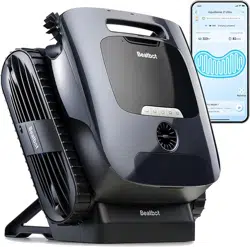
User Manual
AquaSense 2 Ultra
EN FR ES DE IT

LANGUAGE
EN
User Manual
1
18
35
52
69
FR
Manuel de l'utilisateur
ES
Manual de usuario
DE
Bedienungsanleitung
IT
Manuale d'uso
EN
1
Safety Regulations
IMPORTANT SAFETY INSTRUCTIONS
1.1 Warnings and Cautions
READ AND FOLLOW
ALL INSTRUCTIONS.
This product can be used by children
aged 8 years and above and persons
with physical, sensory, or intellectual
deficiencies, or limited experience or
knowledge under the supervision of a
parent or guardian to ensure safe
operation and to avoid any risks.
Cleaning and maintenance shall not be
done by children without supervision.
Children shall not play with this product.
Ensure children and pets are kept at a
safe distance from the robotic pool
cleaner while it is in operation.
Prevent unintentional starting. Ensure
the robot is turned off before picking up
or carrying it. Carrying the robot with
your finger on the power button invites
accidents.
Under abusive conditions, battery
liquid may be expelled. Avoid contact.
If contact occurs, rinse with water. If
liquid contacts the eyes, seek medical
attention. Battery liquid may cause
irritation or burns.
Do not use a battery or appliance that
is damaged or modified. Damaged or
modified batteries may exhibit unpre-
dictable behavior resulting in fire,
explosion or risk of injury.
This product contains batteries that can
only be replaced by qualified techni-
cians. Do not modify or attempt to
repair the appliance or the battery
except as indicated in the instructions
for use and care. Have servicing
performed by a qualified repair person
using only identical replacement parts.
This will ensure that the safety of the
product is maintained.
Do not enter pool while the robot is
working in water.
READ ALL INSTRUCTIONS BEFORE USING
When installing and using this electrical equipment, basic safety precautions should
always be followed, including the following:
WARNING: Read all safety warnings and instructions. Failure to follow the warnings
and instructions may result in electric shock, fire and/or serious injury.
1
Do not use any third-party battery or
charge dock. Use only with Beatbot
RCDS01 supply unit specified by the
manufacturer. If the supply cord is
damaged, it must be replaced by the
manufacturer, its service agent or
similarly qualified persons in order to
avoid a hazard.
Make sure the robot is turned off and
the charge dock is unplugged before
performing maintenance.
Do not place the charge dock near a
heat source. Follow all charging instruc-
tions and do not charge the appliance
outside of the temperature range speci-
fied in the instructions. Charging
improperly or at temperatures outside
of the specified range may damage the
battery and increase the risk of fire.

EN
2
The robot is equipped with a range of
cutting-edge sensors that play a crucial
role in its functionality and perfor-
mance. To ensure the robot's perfor-
mance and lifespan, please do not
place the robot under extreme environ-
mental conditions for a long time, such
as high temperature, strong light, or
low temperature. It is recommended to
use and store the robot within the
requirements of this manual.
Exceeding an altitude of 2100 m
(6889.77ft) will cause the robotic
pool cleaner to be unable to function
properly. Therefore, please ensure
that the robot is used in areas that
comply with this altitude restriction
to avoid any issues arising from
operating the robot at high altitudes.
1.2 FCC/IC Statement
Any changes or modifications not expressly approved by the part responsible for compliance
could void the user's authority to operate the equipment. This equipment has been tested and
found to comply with the limits for a Class B digital device, under part 15 of the FCC Rules. These
limits are designed to provide reasonable protection against harmful interference in a residen-
tial installation. This equipment generates uses and can radiate radio frequency energy and, if
not installed and used in accordance with the instructions, it may cause harmful interference to
radio communications. However, there is no guarantee that interference will not occur in a
particular installation. If this equipment does cause harmful interference to radio or television
reception, which can be determined by turning the equipment off and on, the user is encour-
aged to try to correct the interference by one or more of the following measures:
Reorient or relocate the receiving antenna.
Increase the separation between the equipment and receiver.
Connect the equipment to an outlet on a circuit different from that to which the receiver is
connected.
Consult the dealer or an experienced radio/TV technician for help.
Do not expose a battery pack or
appliance to fire or excessive tem-
perature. Exposure to fire or tem-
perature above 130°C may cause
explosion. The temperature of 130°C
can be replaced by the temperature
of 265°F.
When the robotic pool cleaner is
underwater or other scenarios
where it is not convenient to lift the
robot directly, it needs to be pulled
out using the supplied hook. Please
use the hook correctly and carefully
to avoid any accidental injury.
Under normal use of condition, this
equipment should be kept a separa-
tion distance of at least 20 cm (7.87
inches) between the antenna and the
body of the user.
SAVE THESE INSTRU-
CTIONS.

EN
1.4 MPE Requirements
To satisfy FCC / IC RF exposure requirements, a separation distance of 20 cm or more should be
maintained between the antenna of this device and persons during device operation. To ensure
compliance, operation closer than this distance is not recommended.
Under normal use conditions, this equipment should be kept a separation distance of at least
20cm between the antenna and the body of the user.
1.5 CEC
Press and hold "Custom Mode" button for about 20s to enable CEC Mode. And press any button to
disable it.
1.3 5G Statement
The device for operation in the band 5150-5250 MHz is only for indoor use to reduce the poten-
tial for harmful interference to co-channel mobile satellite systems;
For devices with detachable anterna(s), the maximm antenna gain peruitted for devices in the
bands 5250-5350 MHz and 5470-5725 MHz shall be such that the equipment still complies with
the e.i.r.p. limit.
3
1.6 Sensor Description
Sensor Description
Al vision sensor: It is used for collecting pictures and identifying
object types in the pictures through Al algorithm, which is used to
improve the cleaning effect.
Model: XBC20E70 V3, Specification: 640H*480V@10bit 180fps,
Test distance: Max 70cm.
Ultrasonic sensor, after directional transmission of ultrasonic
wave, canroughly distinguish different objects according to the
echo value, and can also be used to measure the distance of
surrounding objects.
Model: AW-UD1000DV3.3.0-2S5-3L1001,
Specification: Test distance: 60-2000mm.
Infrared light wave edge sensor used for mapping, directional
emission of infrared light wave, according to whether there is
reflection and reflection strength to judge the pool edge.
Model: A05, Specification: Max 1000mm in water.
AI Vision Sensor
Ultrasonic Sensor
TOF Sensor
Water Pressure Sensor measuresthe water pressure to calculate
the water depth, and can also measure water temperature.
Model: LIGOFA05LRYT4-02, Specification: 75-150kpa, -40-125°C.
Water PressSensor
EN
EN
EN
4
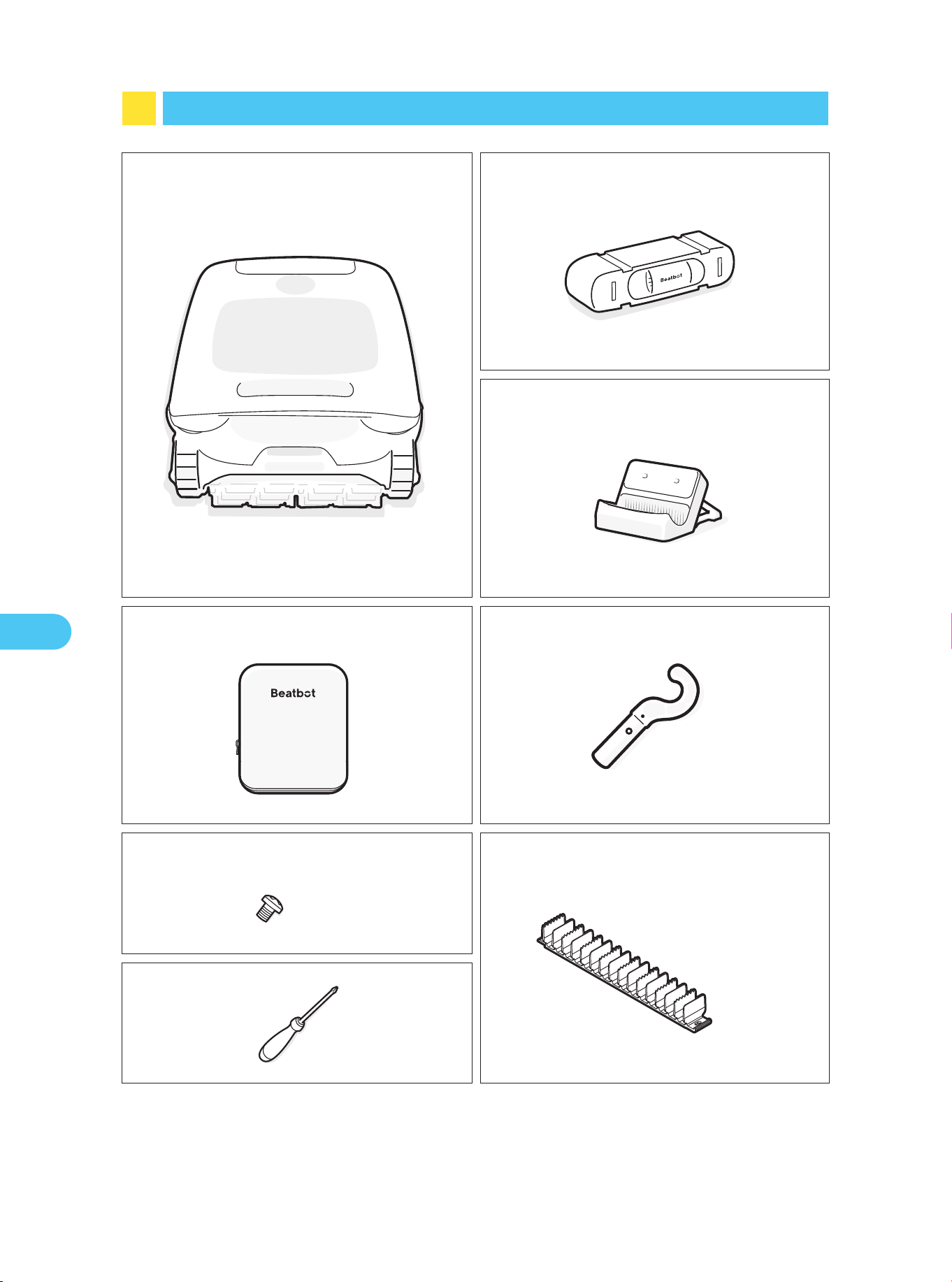
2 Packaging and Accessories
Robotic Pool Cleaner Clarifying Agent Kit
Charge Dock
Screwdriver
Hook
9
10
Genuine Dust and Water-Proof Cover
Screws For Side Brush Side Brush
× 4
× 4
EN
5
Clarifying Agent Kit
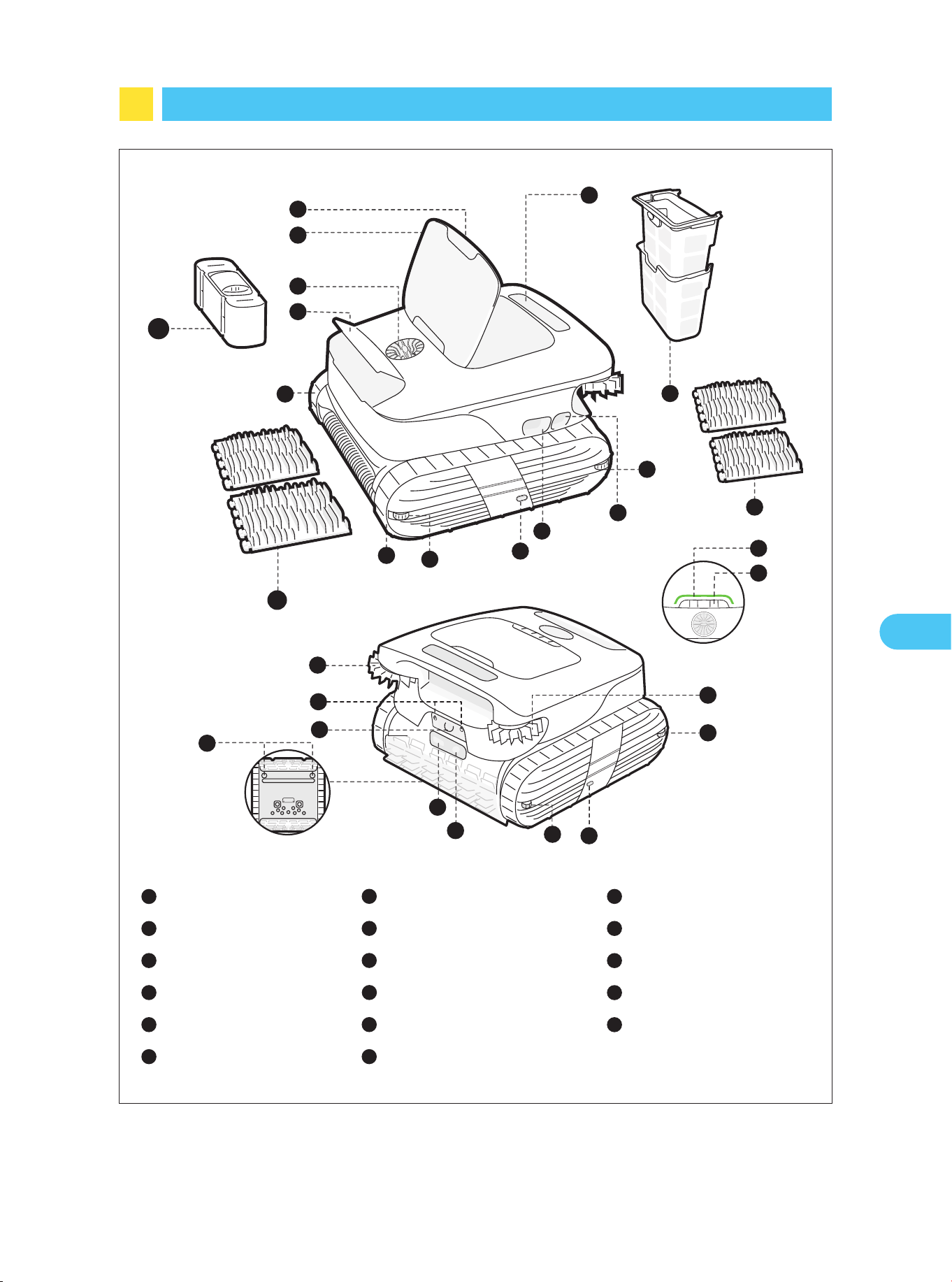
Product Structure Diagram
3
* The diagram is for reference only. Please refer to the actual product for accuracy.
Push-to-Open Switch
Filter Basket Cover
Water Outlet
Agent Kit Cover
TOF Sensor*2
1
2
3
4
Track Wheel*2
5
Handle
6
Ultrasonic Sensor*4
7
8
9
10
Dual-Group Roller Brush
11
Panel Indicator
12
Dual Filter Basket
Mode Button
Side Brush*2
AI Vision Sensor
Supplementary Light*2
13
14
15
16
Guide Wheel*6
17
10
11
5
6
11
12
13
1
3
4
2
7
5
8
17
14
16
15
14
17
7
8
7
17
17
17
17
9
EN
EN
6
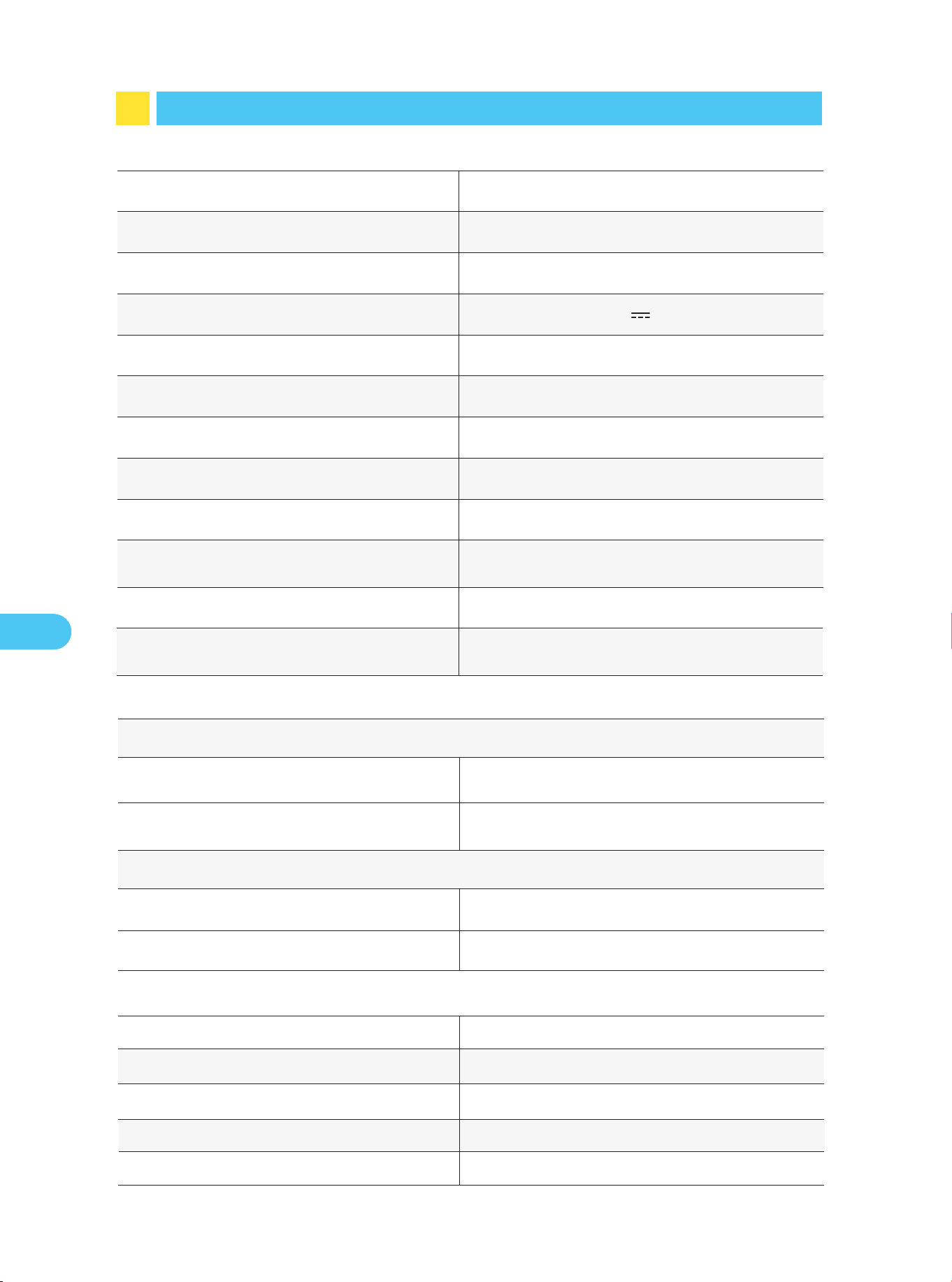
4 Product Specifications
Model
AquaSense 2 Ultra
Robotic pool cleaner:21.6 V
Charge dock: 100-240 V, 50/60 Hz
Working Voltage
≈ 4.5 h
Run Time
Charge Input
13400 mAh
≈ 4.5 h
Nominal Capacity
Charging Time
Charge Output
4.1 Basic Parameters
Charge dock:28 V 3 A
3.7 L
Max Capacity of Filter Basket
Charging Environment Temperature
0℃~40℃ (32℉~104℉)
Product Storage Temperature
(Robotic Pool Cleaner andCharge Dock)
-20°C~45°C (-4°F~113°F)
Humidity
RH
<=75%
IP68 for robotic pool cleaner,
IPX4 for charge dock
Ingress Protection
Working Temperature
Max 4 PPMChlorine
Max 5000 PPMSalt
PH
0.5-3.0 m (1.64-9.84 ft)
Water Depth
4.3 Water Conditions for Robot Use
6-35℃ (43-95 ℉)
Recommended 7.0-7.8
4.2 Wireless Technology Specifications
Wi-Fi
Operating Frequency
Transmitter Power (EIRP)
Operating Frequency
Transmitter Power (EIRP)
2.4G: 2.400-2.4835 GHz
5G: 5.150-5.725 GHz
2.4G: ≤ 19 dBm
5G: ≤ 21 dBm
2.400-2.4835 GHz
≤ 10 dBm
Bluetooth
EN
7
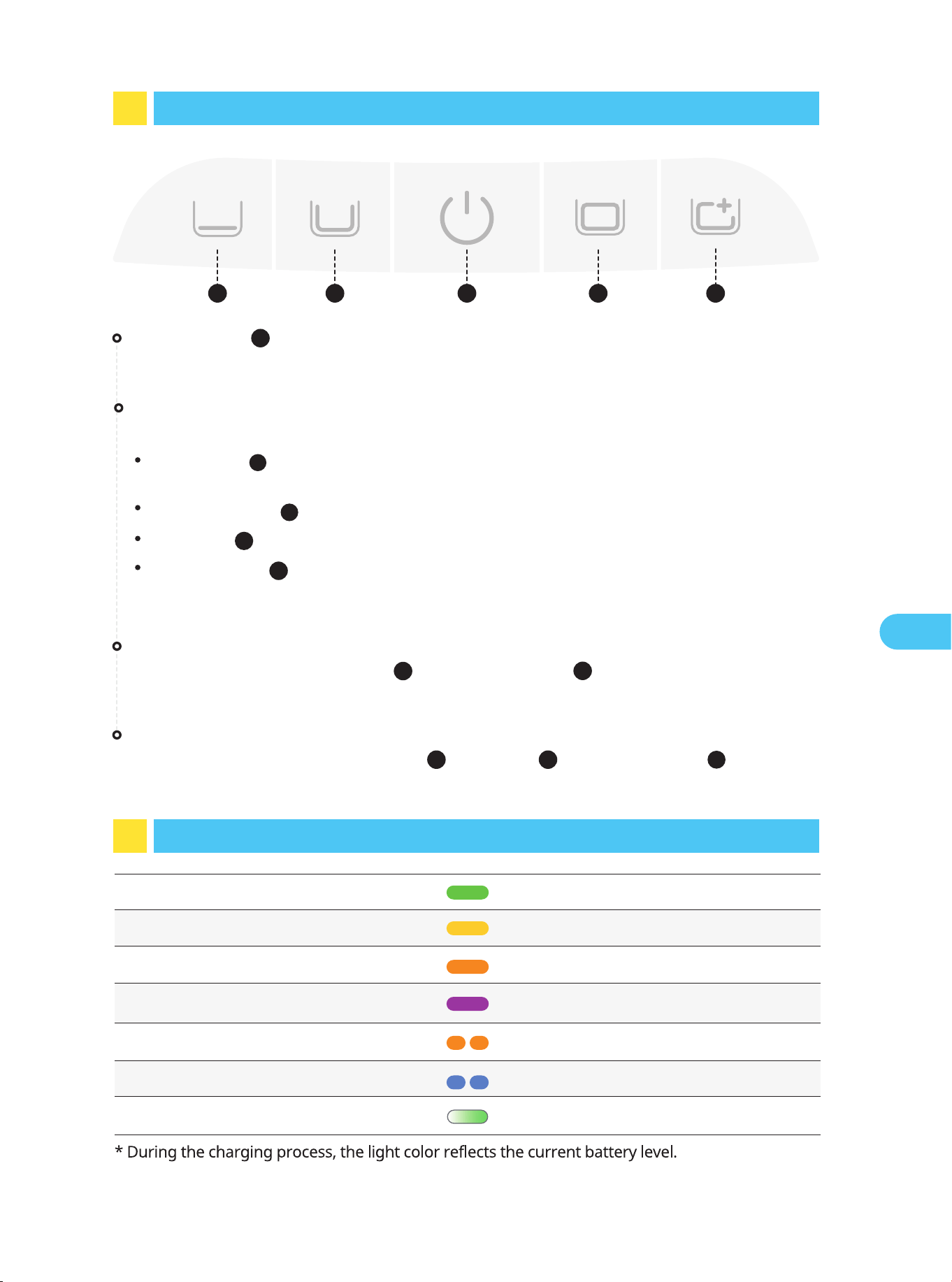
5 Robot Buttons
1 2 43 5
5
6 Lighting Effects
Battery sufficiently chargedSolid green light
Network configuring/OTA upgradingFlashing blue light
Solid yellow light
Battery nearing depletion
Solid orange light
Robot malfunctionFlashing orange light
ChargingBreathing light
Solid purple light
Clarifier dispensing
Factory Reset
Press and hold the "Standard Mode ( )", "Power ( )" and "Pro Mode ( )" buttons
simultaneously for about 10s to restore the factory settings.
Hotspot Configuration
Press and hold both the "Power ( )" and "Floor Mode ( )" buttons simultaneously for
about 3s to trigger the hotspot configuration.
Power Button
Short press to turn the robot on, and press and hold for about 3s to turn it off.
Short press the corresponding mode button to switch.
Floor Mode ( ): Clean the floor;
(Press and hold for about 3s to enable the dispensing of clarifier.)
Standard Mode ( ): Clean in the order of floor, walls and waterline;
Pro Mode ( ): Clean in the order of floor, walls, waterline and surface;
Custom Mode ( ): You can set the cleaning area and duration according to your needs via
the App. Once your settings are successfully configured in the App, they will sync with this
mode button.
Mode Button
1
2
5
4
4
1
3
3
2
3
Battery low
EN
8
7 APP
Please check the following items before connecting:
Make sure the robot is turned on;
Confirm that both your mobile phone and the robot are within the same Wi-Fi cover-
age range with a strong signal;
Bring the phone close to the robot (the distance between your phone and the robot
should be within 1m).
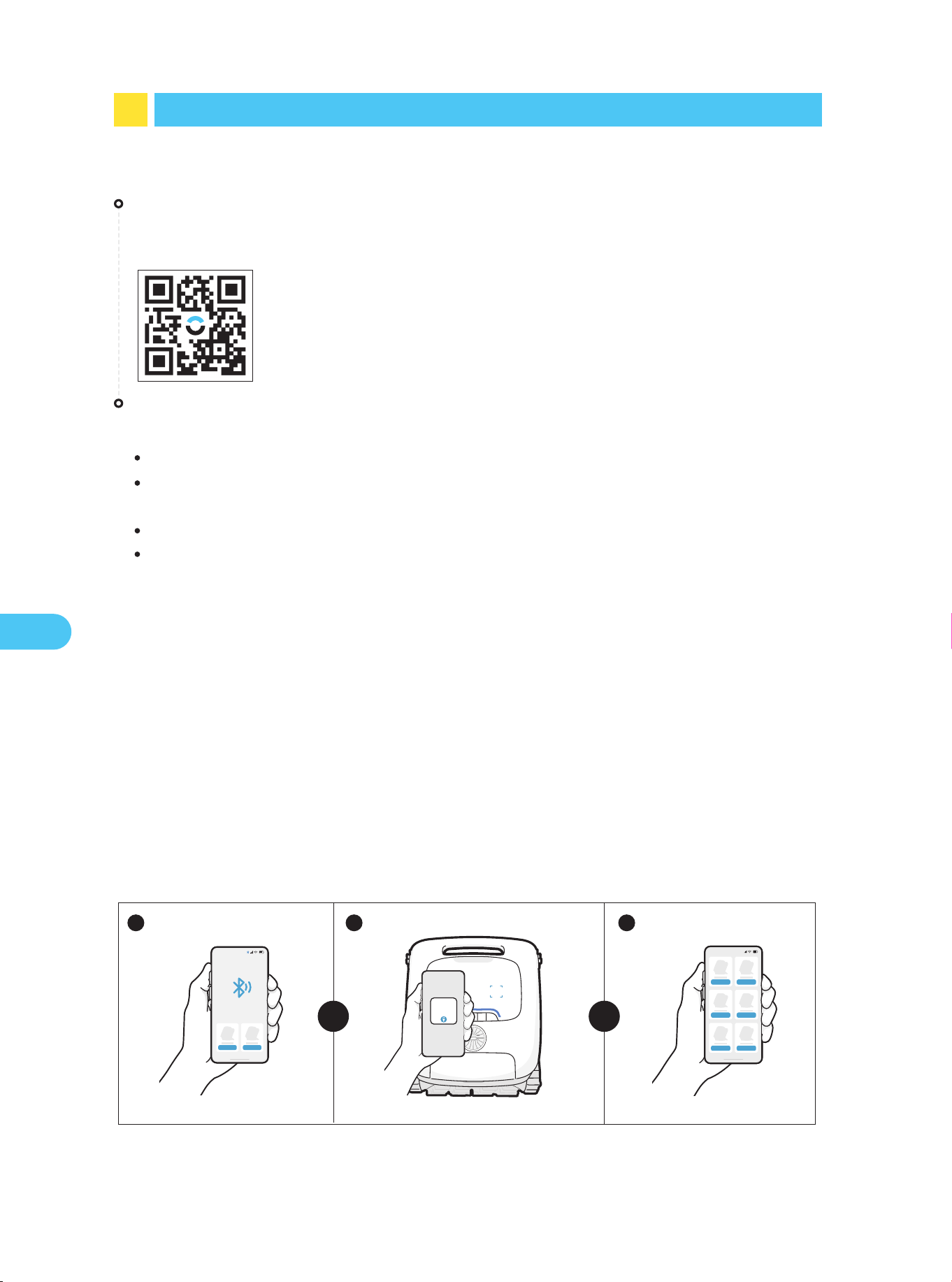
7.1 Instructions for Using the APP
You can either scan the QR code below or search for "Beatbot" in the App Store or
Google Play to download the latest App.
APP Download
Robot Connection
Ensure your phone is connected to Wi-Fi;
Press the "Power" and "Floor Mode" buttons simultaneously for about 3s, and when you
see the indicator flashing blue, the robot is ready for network setup. Then, you can choose
either of the following methods to complete the connection:
B. Scan to Add
:
Tap the "Scan to Add" on the home page of the App, aim the camera at the QR
code on the robot, and follow the App instructions to complete the connection.
A. Add via Bluetooth: Make sure that the bluetooth of your mobile phone is turned on before
connection. Tap "Add Device" on the home page of the App, and it will automatically search for your
robot model. Follow the App instructions to complete the connection.
C. Add Manually: Tap the "Add Device" on the home page of the App, choose your robot model, and
follow the App instructions to complete the connection.
A B C
OR OR
EN
9
8 Product Operation
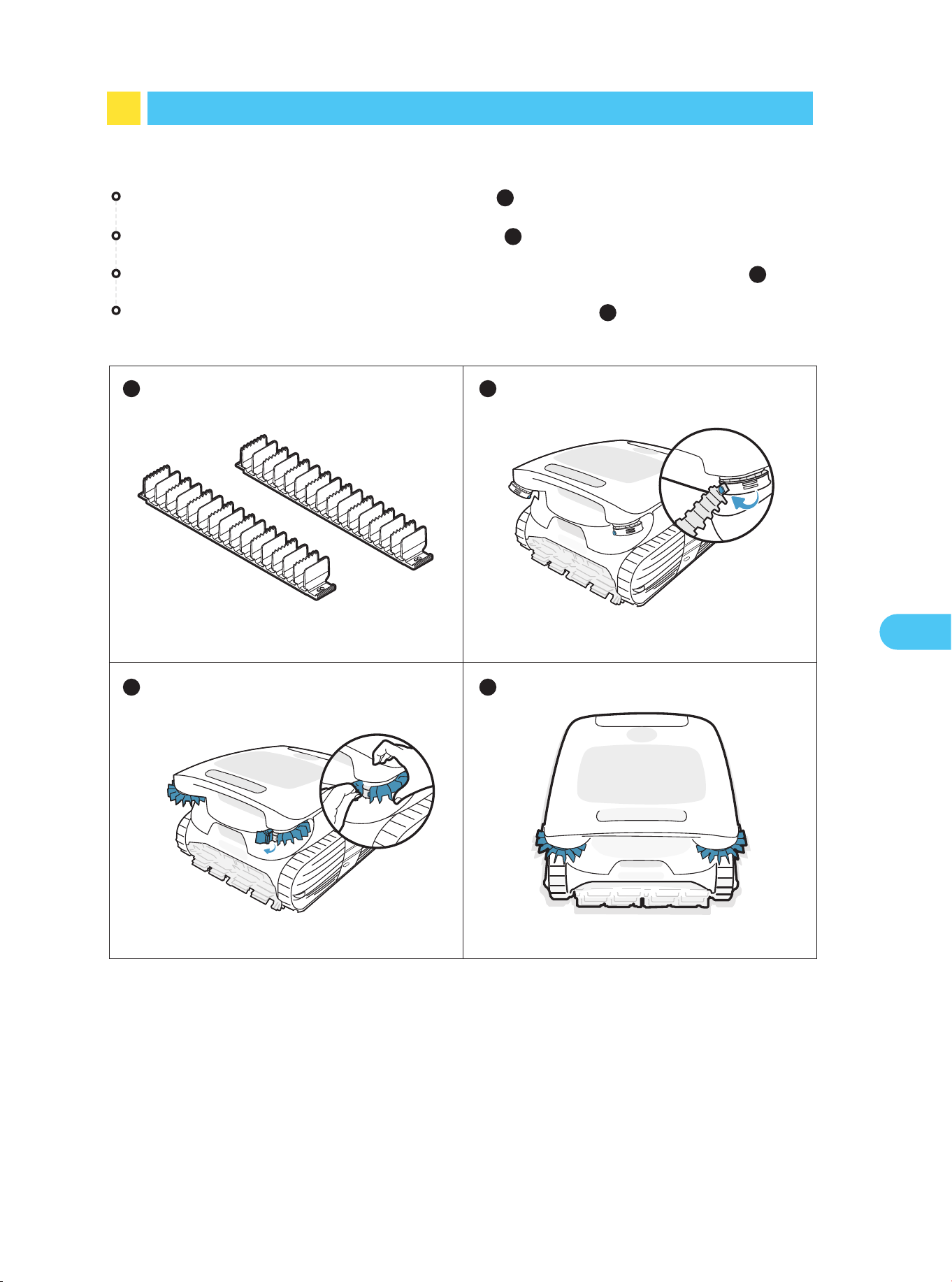
8.1 Installation of Side Brush
Rotate the brush around the hub and secure the other end to the protrusion ( ).
Ensure both brushes are firmly attached and rotate freely ( ).
Attach one end of the brush to the protrusion ( ).
1
4
2
3
1 2
3 4
Take out the side brushes from the package ( ).
EN
10
8.2 Installation of Clarifying Agent Kit
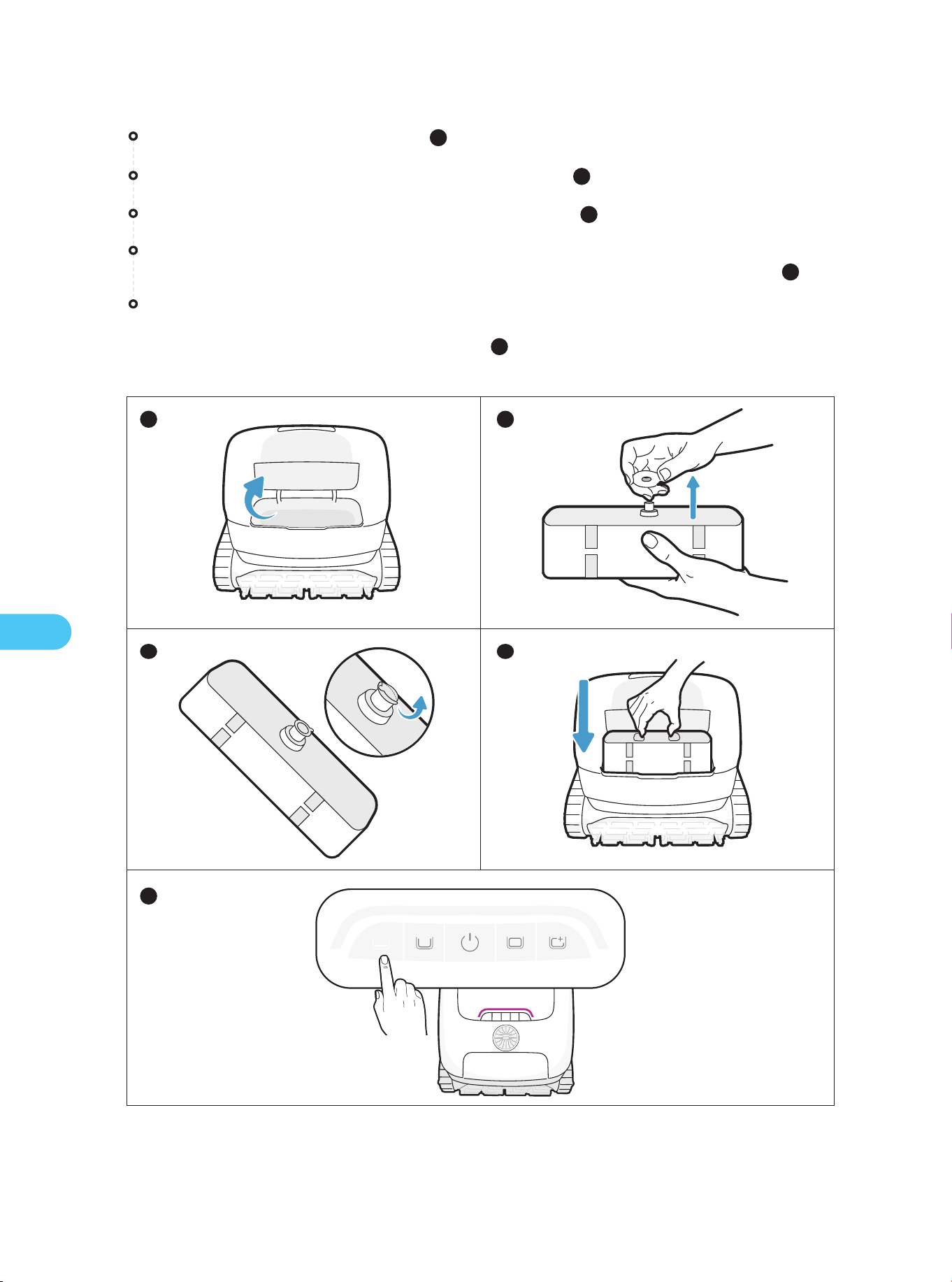
Tear off the aluminum film on the interface of the kit ( ).
Position the kit onto the robot with the interface facing downwards. Gently but firmly press
it into place until you hear a "click" sound or a voice prompt. Then, close the cover
( ).
Press and hold the "Floor Mode" button for about 3s to activate the clarifier dispensing.
The purple light on the robot indicates a successful activation. Press and hold the
button for about 3s again to deactivate it ( ).
Open agent kit cover of the robot ( ).
Take out the clarifying agent kit and remove the cap ( ).
1
4
5
2
3
1
5
2
3 4
EN
11
Before using the robot, please make sure it is sufficiently powered.
The charging temperature is 0~ 40℃ /32~104°F. While charging, it is recommended to keep the
robot within the Wi-Fi coverage area and away from moisture and direct sunlight.
Tips
1
3 4 5
21
3 4 5
2
UP
UP
UP
UP
8.3 Charging
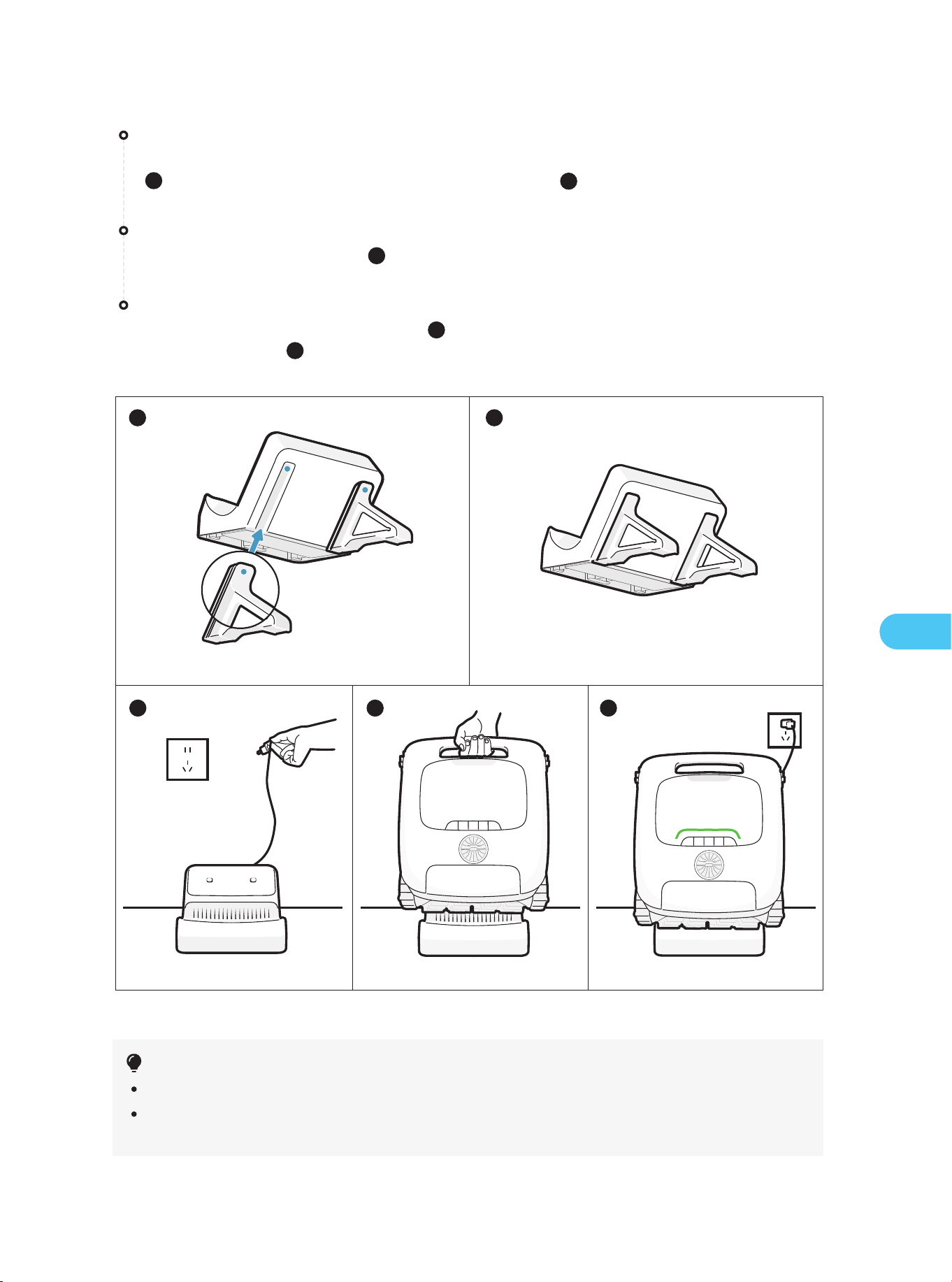
Install the charge dock
Push the bracket from the bottom up into the groove on the back of the charge dock
( ). It is properly installed when you hear a "click" ( ).
2
Connect the power supply
Plug into the power source ( ).
3
Charge the robot
Place the robot on the charge dock ( ). When the panel indicator on the robot shows
a breathing light ( ), it means the robot is charging.
4
5
1
EN
12
8.4 Preparations Before Cleaning
Before cleaning, please make sure there are no foreign objects such as towels or toys in
the pool.
Tips
Before entering the water, it is crucial to place the robot on a level ground and
to wait for about 5s for it to calibrate. By following these steps, you ensure
maximize the effectiveness of the robot's cleaning path.
1 2
3
4
5s
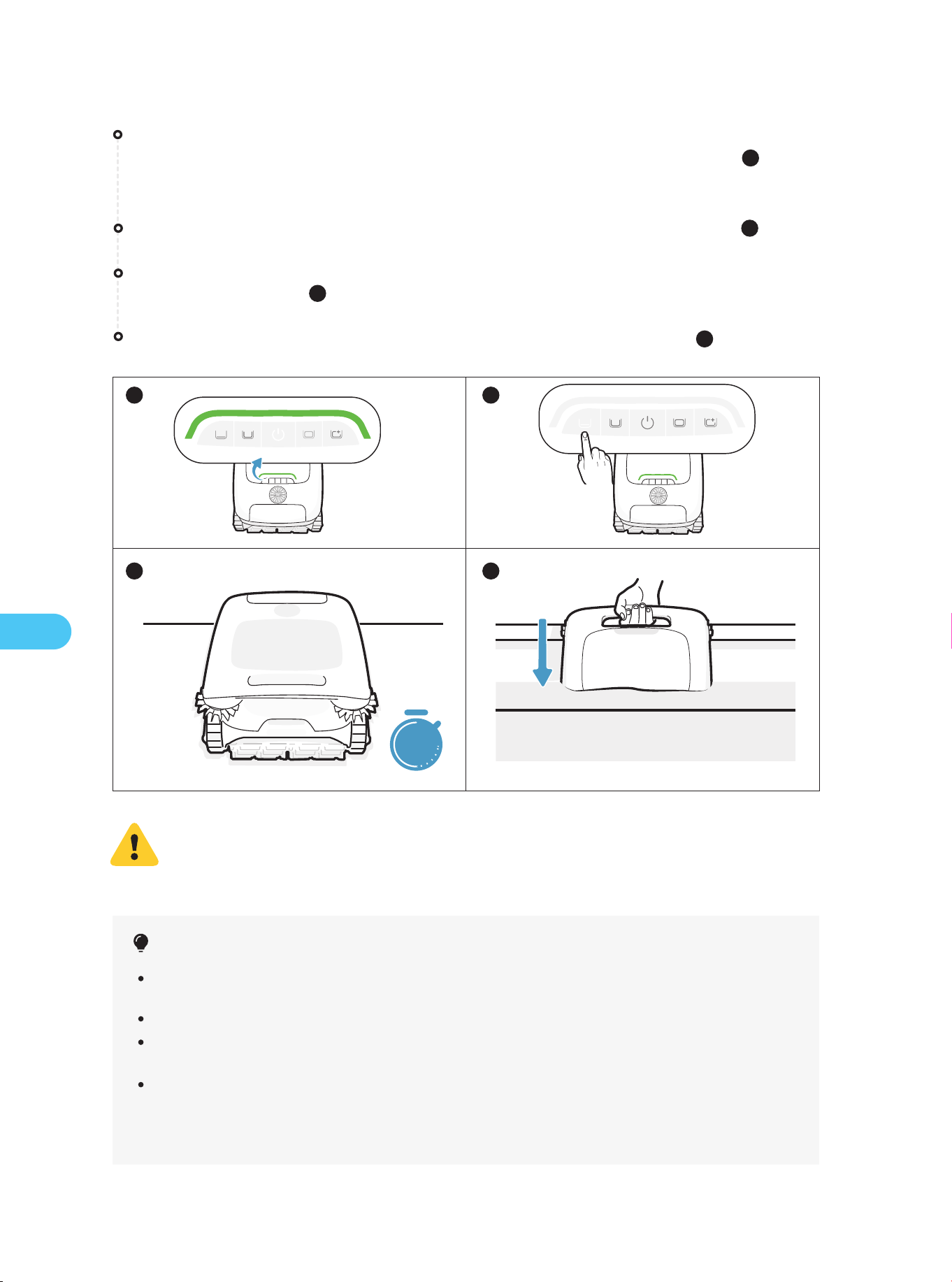
After placing the robot in the water, it will start cleaning automatically ( ).
Set the cleaning mode, and the selected mode button will show solid white ( ).
Before entering the water, place the robot on a level surface and wait for about
5s for it to calibrate ( ).
Before cleaning, make sure the robot is turned on and has enough power. The panel
indicator on the robot should be solid green when the robot is fully charged ( ).
(If you have connected the robot to the App, you can also check the power level
within the App).
3
1
2
4
When the robot enters the water, the Wi-Fi signal weakens and it disconnects from the
phone. Once the robot exits the water, including when it is on the water's surface, the
Wi-Fi signal will be restored. The App will automatically reconnect and synchronize the
relevant cleaning data.
Avoid animals and people from entering the pool during cleaning.
For optimal cleaning results, it’s recommended to operate the robot separately from the
circulation pump.
EN
13
After completing the cleaning and being lifted out of the water, the robot will automatically drain.
After the robot stops dripping water, put it back on the charge dock for the next use.
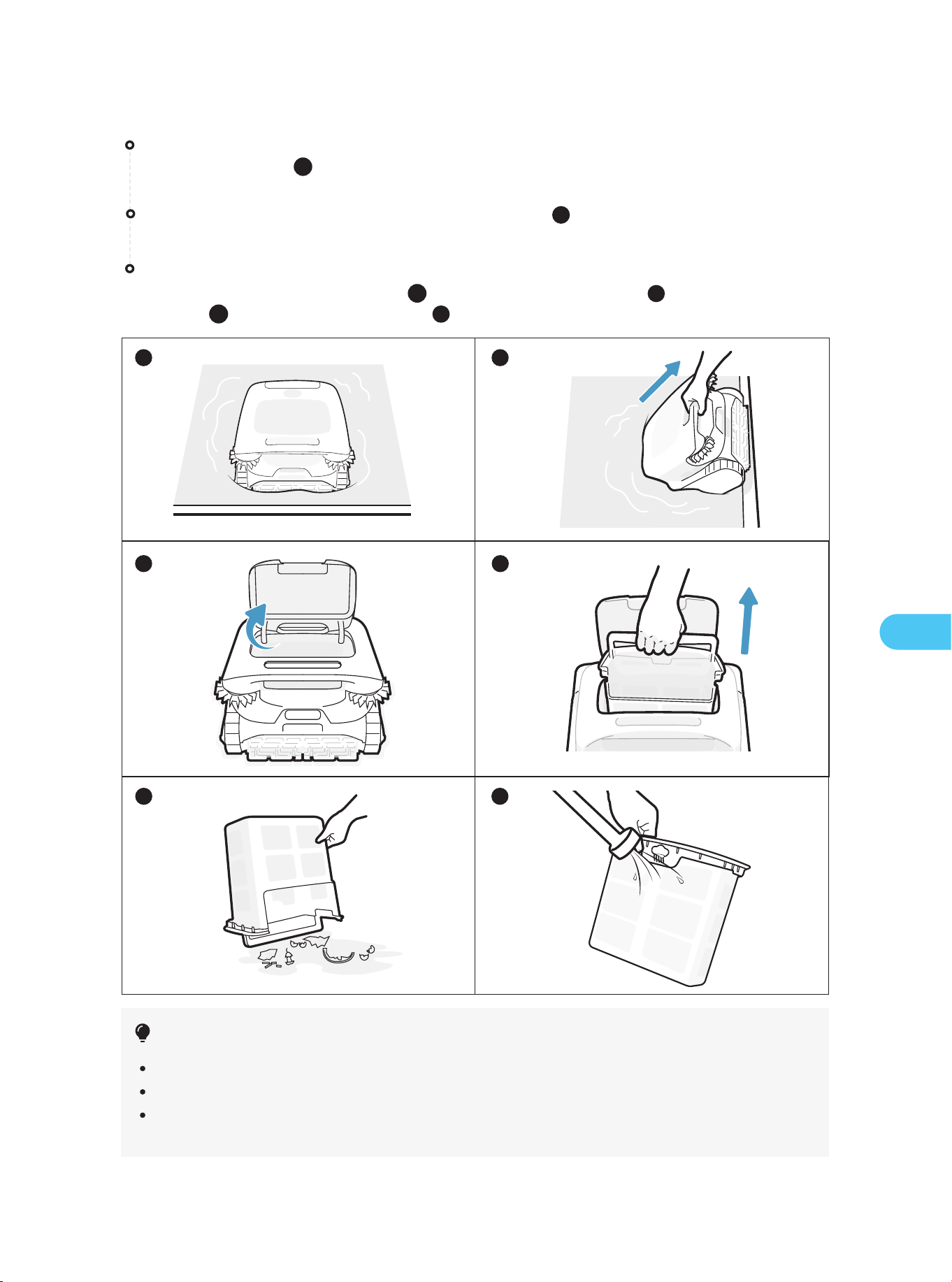
If the robot fails to return to the poolside automatically, you can manually guide it using the
parking/remote control function on the App, or use the supplied hook to lift the robot out.
Tips
Pull the robot out of the swimming pool gently ( ).
After completing the cleaning task, the robot will automatically moor at the
edge of the pool ( ).
8.5 Post-Cleaning Maintenance
1
2
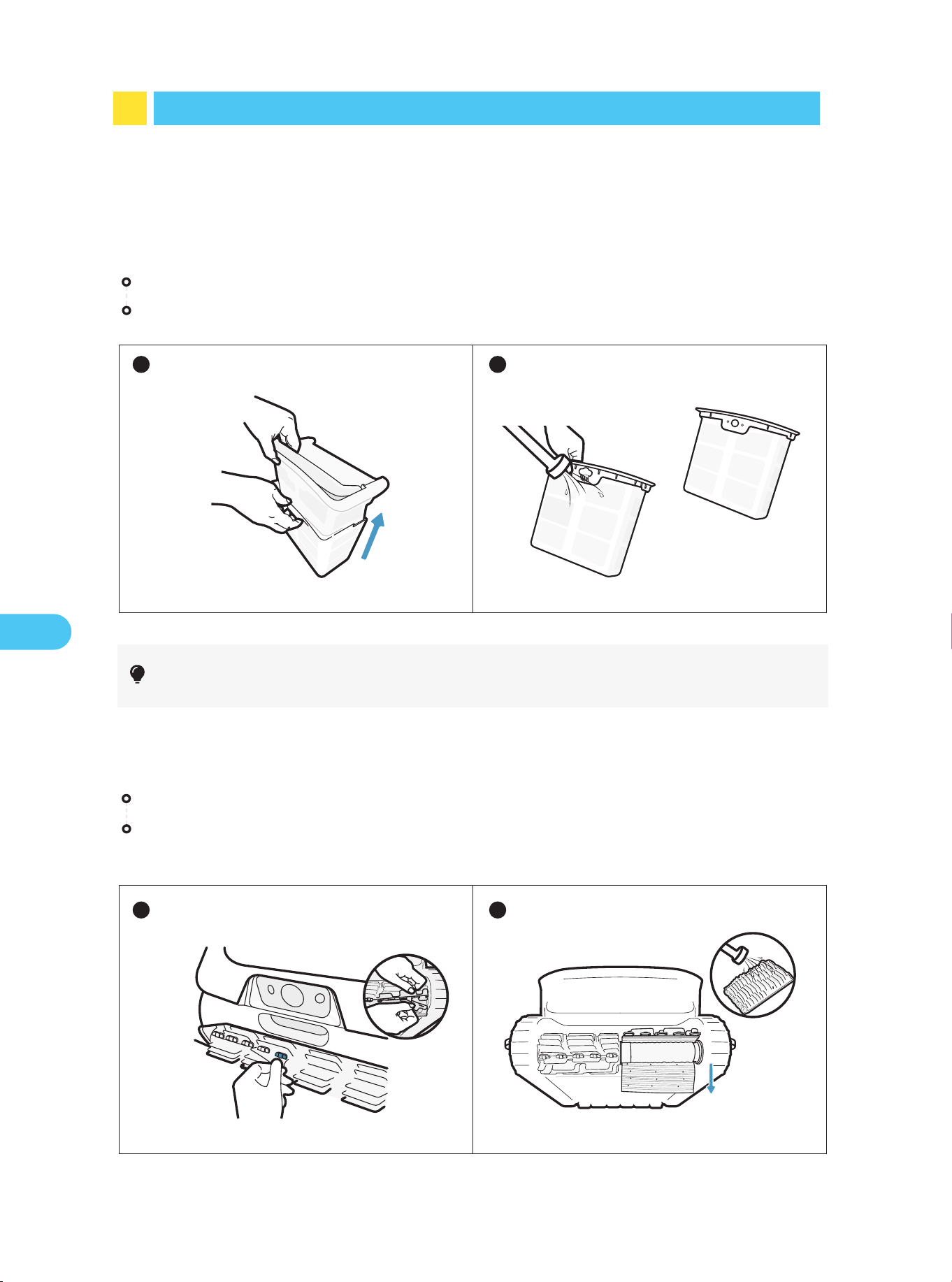
Clean the filter basket
Open the top cover of the robot ( ), take out the filter basket ( ). Empty the filter
basket ( ), and rinse it with water ( ).
3
5
6
4
1 2
5 6
3 4
EN
14
9 Maintenance and Replacement
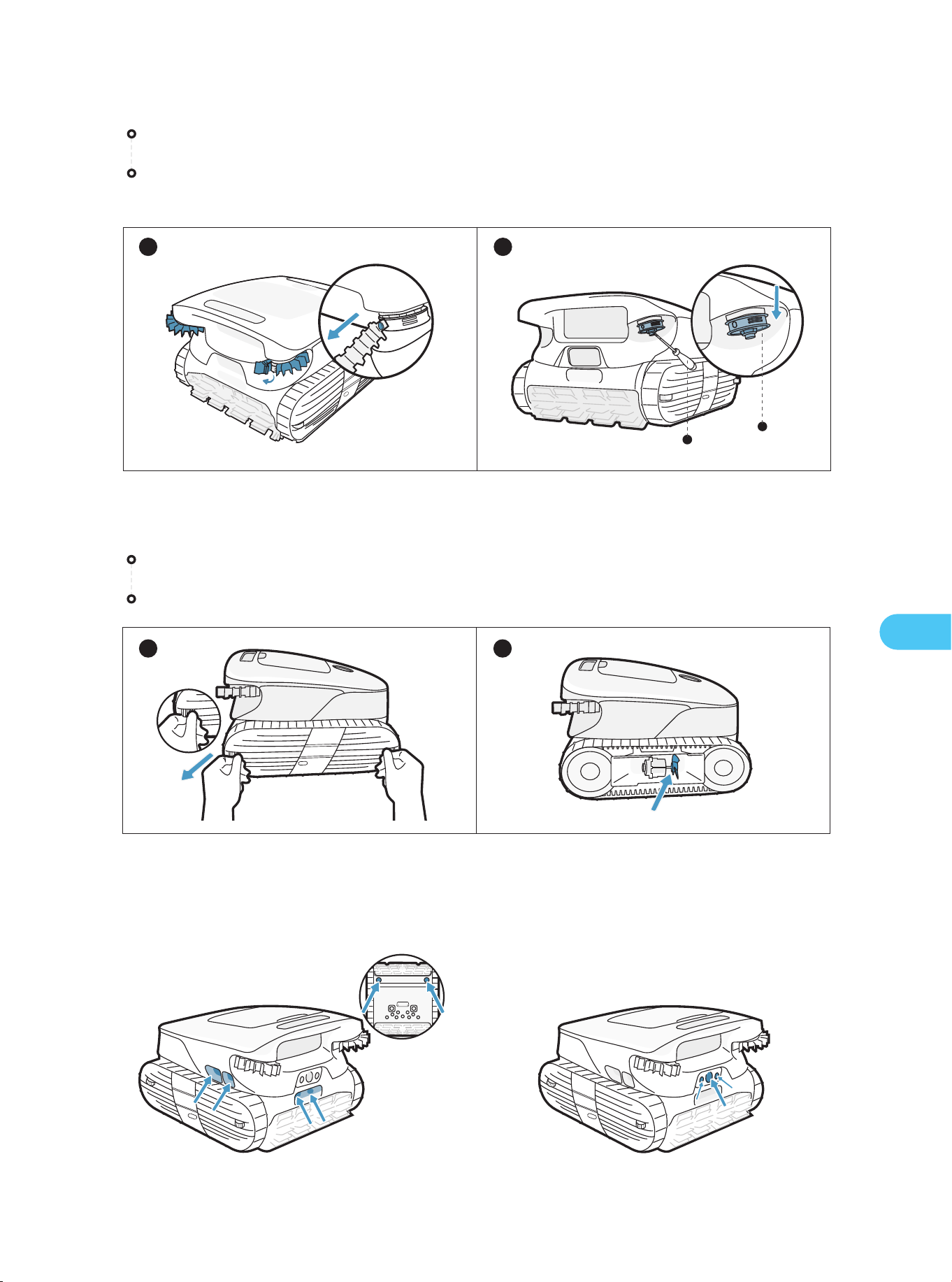
Dual Filter Basket
Separate the outer and inner baskets.
Rinse them with water. For persistent algae buildup, use a brush for cleaning.
Unfasten and remove the roller brush.
If the brush has accumulated debris like mud or tangled hair, rinse it thoroughly using
a hose.
Clean the basket every 2-3 days or as needed based on its dirtiness of it to maintain optimal
working efficiency.
Ensure that the robot is disconnected from the power before performing maintenance.
Roller Brush
To avoid causing damage to the filter basket during this process, it is essential to use a
soft-bristled brush and handle it with care.
1 2
1 2
Tip
EN
15
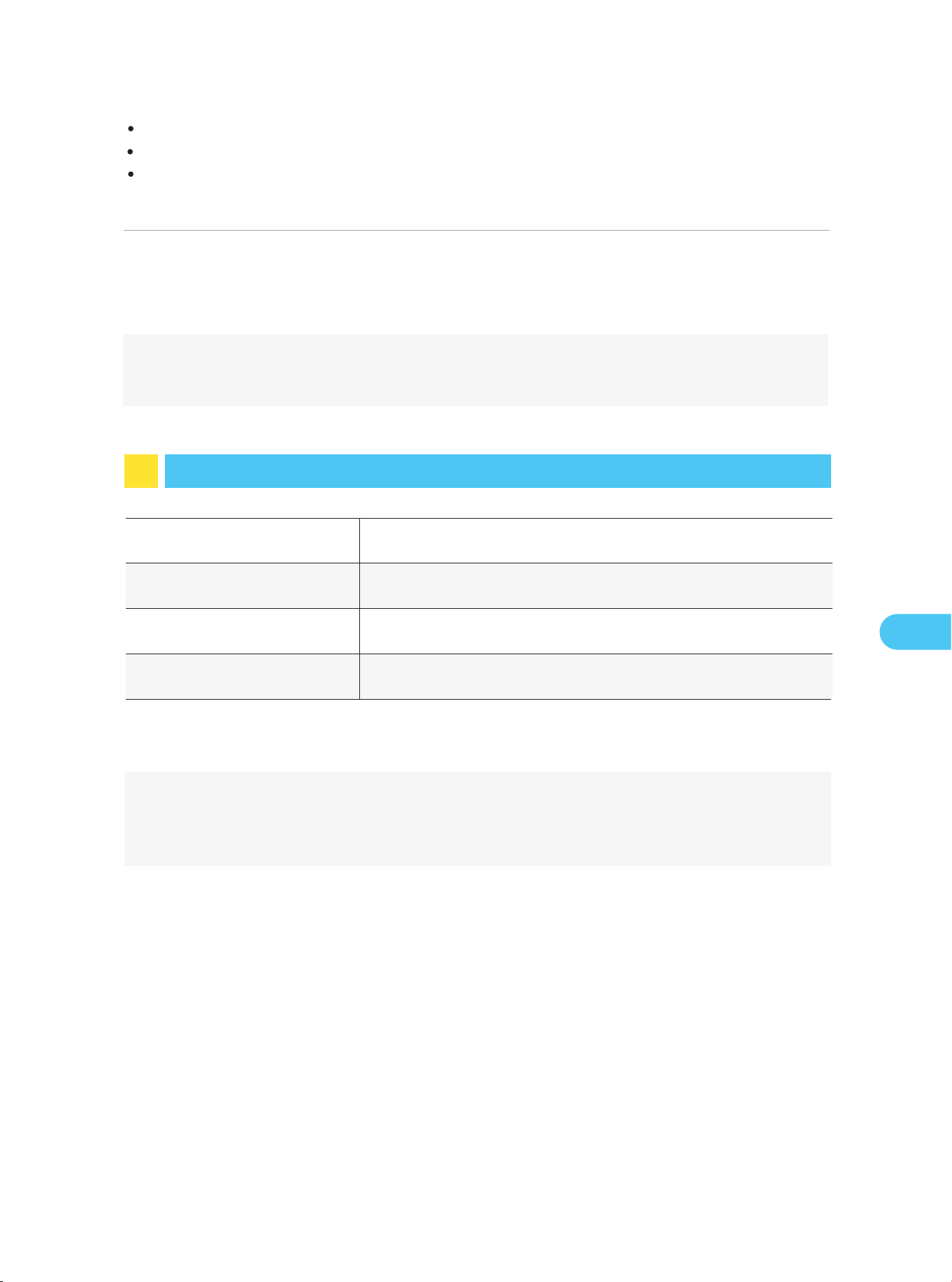
Propeller
Ensure there are no obstructions wrapped around the propellers.
Securely grasp the guide wheels with both hands, and gently slide out the side panel.
Side Brush
Unfasten and remove the side brush.
Use the supplied screwdriver to remove the bottom screw, then pull out the hub.
Clean any debris or entanglements from it.
1
2
1
2
Ultrasonic Sensor&TOF Sensor AI Vision Sensor&Supplementary Light
Wipe them with a soft dry cloth.
Wipe them with a soft dry cloth.
1
2

EN
16
11 FAQ
11.1 Why does the robot not move or move slowly at the pool floor?
It’s recommended to operate the robot separately from the circulation pump.
The robot may be stuck by the drain or other obstacles on the pool floor. If it does not
get out of the trap successfully after a few minutes, please help it manually by using the
hook. And the robot will resume cleaning after getting out of the trap.
If the pool is too dirty, the robot will quickly suction up debris and sludge. Please check
the filter basket promptly to see if it needs cleaning.
11.2 Why does it take so long for the robot to enter the water?
The robot needs some time to release the air in the buoyancy chamber when it enters the
water. Please wait patiently for about 3 minutes.
11.3 Why is the robot offline?
Weak Wi-Fi signal: The robot may be too far from the Wi-Fi signal range or could have
entered the water, causing the network to disconnect. The robot will reconnect auto-
matically once the signal is restored.
Robot shutdown: The robot automatically shuts down when the battery runs out. After
charging and powering it on, the robot will reconnect automatically.
Robot connected by another account: The robot may be connected to another user's
account. You can reset its Wi-Fi settings and reconnect.
Router related: If the router is rebooting, if there are changes to the router's Wi-Fi name
or password, or if the router has blacklisted the device, please address these issues first
to determine if the device comes back online. If the issue persists, reset the Wi-Fi and
reconnect.
10 Storage
Draining: For long-term storage, press and hold the "Pro Mode" button for 3 seconds to
ensure all water inside the robot is fully drained. Please wait approximately 3 minutes
for the draining process to complete.
Safety Precautions: Keep the robot away from extreme temperatures, open flames,
and places accessible to children.
Storage Environment: Find a cool, dry indoor storage space that is shielded from direct
sunlight, rain, and frost.
Dust Protection: Properly protect the robot from dust when stored for a long period of
time. It is recommended to use the supplied cover for storage. Please check the accessory
manual for details.
Power Off and Battery Management: Power off and disconnect the robot from the
power source when storing. Check the battery level at least every 6 months and charge
it to around 50%.
EN
17
11.5 Why is there noise before the robot starts cleaning and finishes cleaning?
This is normal. The robot is draining, and it is expected to last for about 3 minutes.
11.4 Why can't the robot be charged?
Please check if the robot is properly plugged in.
Ensure that the robot is correctly positioned on the charge dock.
Examine whether the charging pins of the dock and the robot are rusted or soiled.
If so, please clean them before attempting to charge again.
WEEE Information
All products bearing this symbol are waste electrical and electronic equipment (WEEE as in
directive 2012/19/EU) which should not be mixed with unsorted household waste. Instead,
you should protect human health and the environment by handing over your waste equip-
ment to a designated collection point appointed by the government or local authorities for
recycling waste electrical and electronic equipment. Correct disposal and recycling will
help prevent potential negative consequences to the environment and human health.
Please contact the installer or local authorities for more information about the location as
well as the terms and conditions of such collection points.
The lithium-ion pack contains substances that are hazardous to the environment.
Before disposing of the robot, please remove the battery pack, then discard or recycle
it. It is used according to local laws and regulations of the country or region.
12 After-sales Service
Warranty Policy
After-sales Email
Official Website
North America Toll Free
www.beatbot.com
(833) 702-4399
Mon-Sun 9:00 am-6:00 pm (CST)
2-year warranty
* Core components, including the main water pump and battery pack, are covered by a 3-year
warranty. For the latest after-sales policy, please refer to the Beatbot official website.
* If you encounter any issues during usage, please visit the official website/APP to check
the FAQ or contact our customer service for help.
