1
Commercial Robot Vacuum Cleaner
User Manual

2
Contents
1. Safety Instructions..................................................................................................................3
2. Product Parts..................................................................................................................................................5
2. 1 Main Body ........................................................................................................................................5
2.2 Parts List..............................................................................................................................................7
3. Product Operation..........................................................................................................................................8
3.1 Preparation Before Using..................................................................................................................... 8
3.2 Charging Mode.....................................................................................................................................8
3.3 Charging............................................................................................................................................... 9
3.4 Switch.................................................................................................................................................10
3.5 Pause...................................................................................................................................................10
3.6 Mode Selection...................................................................................................................................11
4. APP Download and Usage Instructions...................................................................................................... 11
4.1 Registered Account............................................................................................................................ 11
4.2 Way Connecting Robot toWIFI......................................................................................................... 12
4.3 Unbinding Robot................................................................................................................................ 15
4.4 Control Robot..................................................................................................................................... 16
5. Maintenance................................................................................................................................................ 17
5.1 Side Brush Maintenance.....................................................................................................................17
5.2 Roller Brush Maintenance..................................................................................................................17
5.3 Dust Bin and Filters Maintenance...................................................................................................... 18
5.4 Filter Screen Cleaning........................................................................................................................ 19
5.5 Cliff Sensors and Charging Pins Cleaning ....................................................................................... 19
5.6 Replace The Accessories Regularly ................................................................................................. 20
6. Technical Parameter.................................................................................................................................... 21

3
1. Safety Instructions
Before using the electrical appliance, basic precautions should always be followed.
READ ALL INSTRUCITONS BEFORE USING THIS APPLIANCE. PLEASE SAVE THESE INSTRUCTIONS.
About Safety
1. This device is not suitable to be used by children under 8 years old and people with physical or emotional disabilities.
If to use, please operate the device under the supervision of the guardian. Please don’t let the child sit on the robot and
play the robot as a toy.
2. Please remove obstacles before using the robot. Such as power cord and other items. Please fold the edge of the carpet
under the carpet. And also do not let the curtain and tablecloth touch the floor.
3. If there are environment like stairs, please test the robot to see if it can detect the edge of the falling area without
dropping.
4. Please follow the instructions to operate the robot.
5. Make sure the power supply voltage matches the voltage marked on the charging base.
6. Use only in indoor and home environments. Do not use in outdoor, commercial and industrial environment.
7. Only use the original rechargeable battery and charging base provided by the manufacturer. Non-rechargeable batteries
are strictly forbidden to use. Battery specifications please refer to the technical parameters.
About Product
8. Do not flush the robot directly with water.
9. Do not wipe the robot with watery cloth.
10. Do not use on wet or watery floor.
11. Do not use in open fire and fragile environment.
12. Do not use the robot in an environment, temperature over 40 degrees Celsius or less than -5 degrees Celsius.
13. Do not let the hair, cloth and fingers come close to the product's openings or operating parts.
14. Do not let the robot to suck any material that might block the device, such as stones, waste paper, etc.
15. Prohibit robot from absorbing any flammable materials, such as gasoline and toner for printer or photocopier.
16. Do not allow the product to absorb any products that are burning, such as cigarettes, matches, ashes and other products
that may cause a fire.
17. Do not place the product on the sucking mouth. Do not use the robot if sucking mouth blocked. Clean up dust, hair,
cotton, etc., to ensure the air at the sucking mouth flows smoothly.
4
18. Prohibit using the damaged charging base.
19. Use the power cord carefully to avoid damage. Do not use the power cord to drag and pull the product or its charging
base. Do not allow the product to run on the power cord and keep the power cord away from heat source.
20. If the power cord is damaged, to avoid the danger, it must be replaced by the qualified maintenance staff.
21. Make sure the dust bin and filter are properly installed before using.
22. Do not use the robot in an infant sleeping room.
23. Do not use the robot when the product cannot work properly due to drop, damage, water, or outdoor use. And please
let the robot repaired by the manufacturer and its service department.
24. If do not use the product for a long time, disconnect the power supply.
About Maintenance
25. Before cleaning and maintaining the product, please turn off the power switch first.
26. Before cleaning and maintaining the product, please pull the power cord out of power socket.
About Disposal
27. Before disposing of the product, please remove the product from the charging base, turn the power switch off and
remove the battery.
28. Before disposing of batteries, you must follow local laws and regulations.
29. Even if the product is severely damaged, it is forbidden to incinerate the product and the battery may cause an
explosion.
30. Please follow the instructions to use the product. Due to improper use of any loss and damage, the company will not
take any responsibility.
5
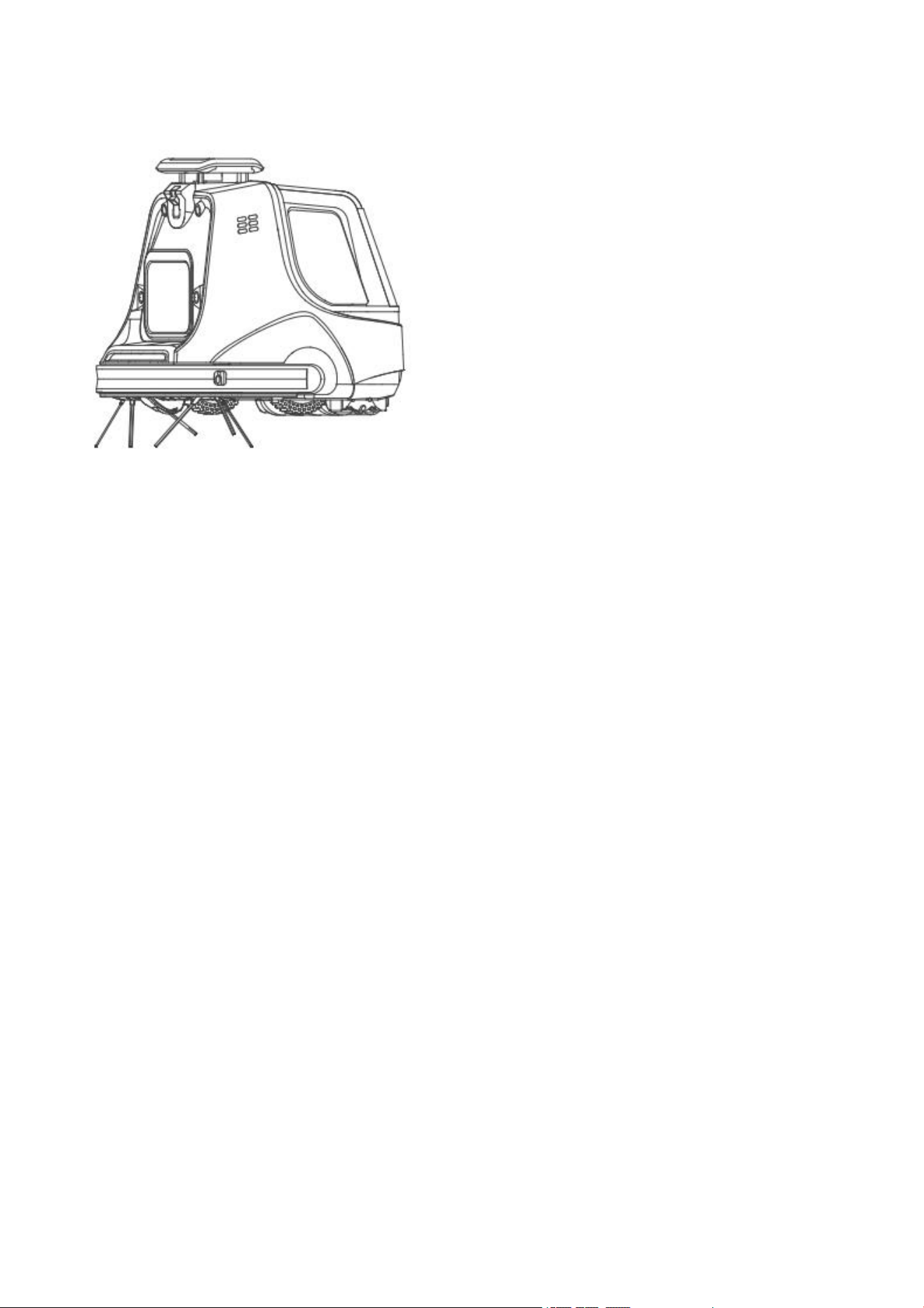
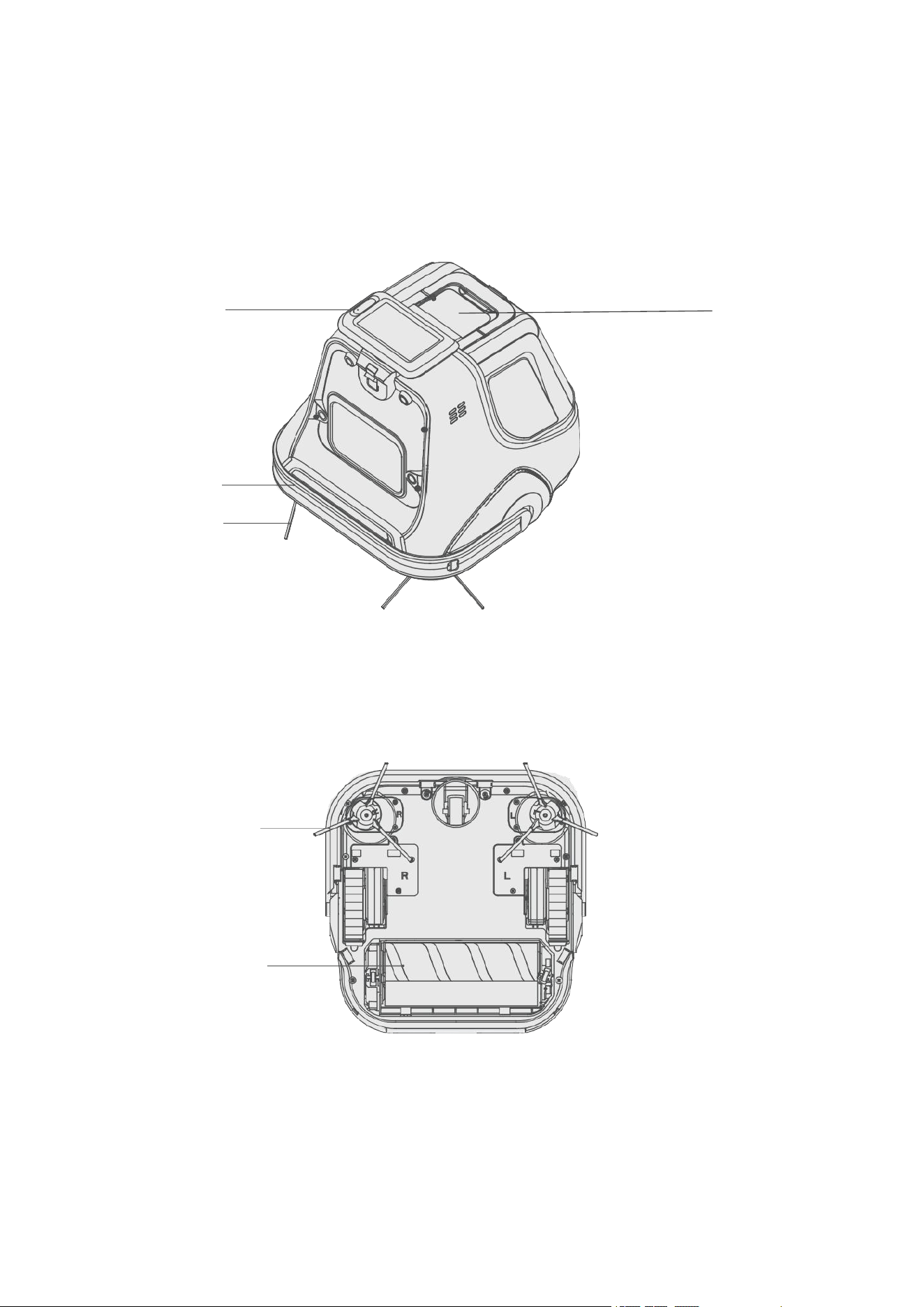
2. Main Product And Parts
2.1 Main Body
Switch
Display
Anti Bump Strip
Side Brush
Side Brush
Roller Brush
6
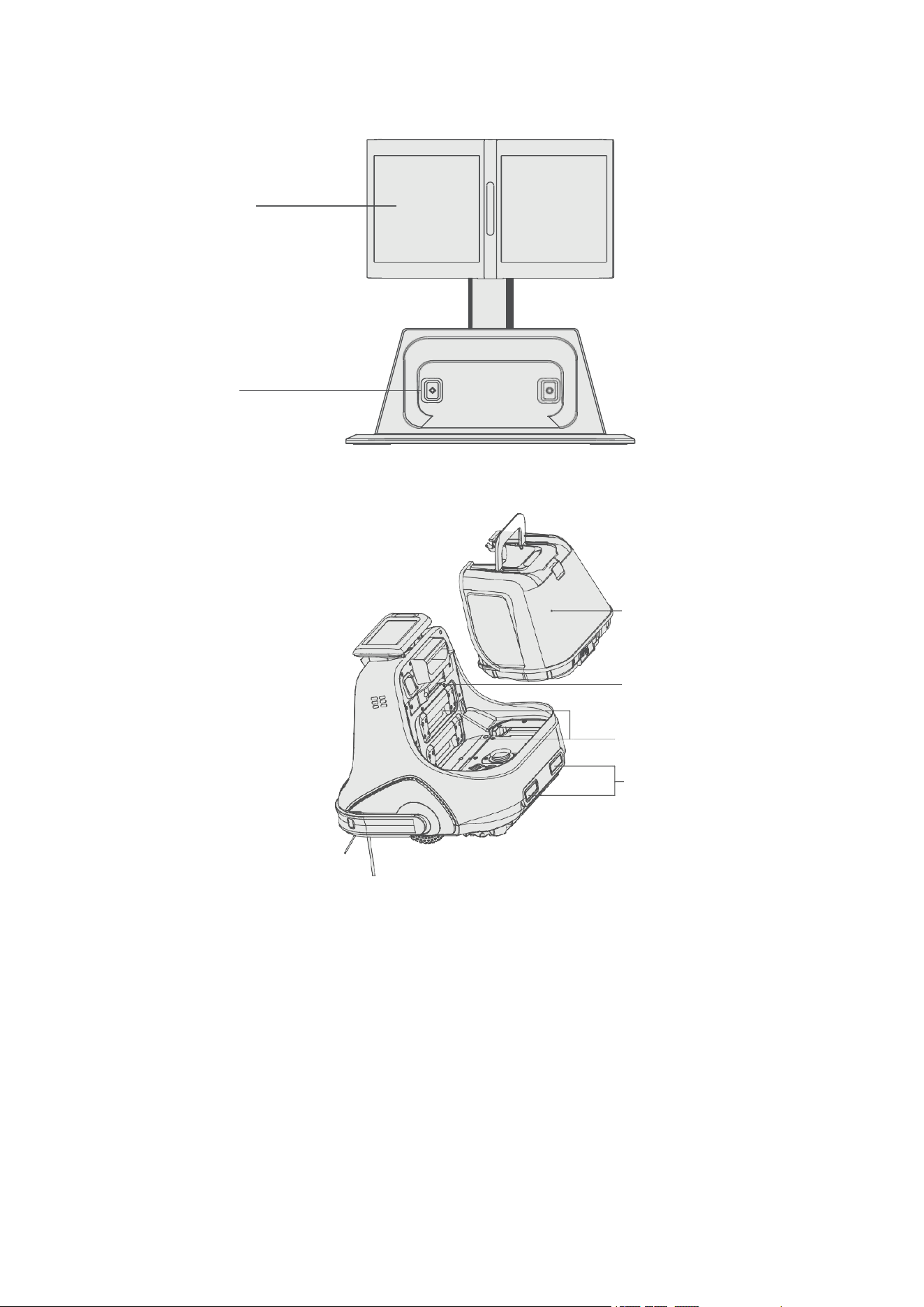
2.1 Main Body
QR Code
Charging Pins
Dustbin
Filter Screen
Battery
Charging Pins
7
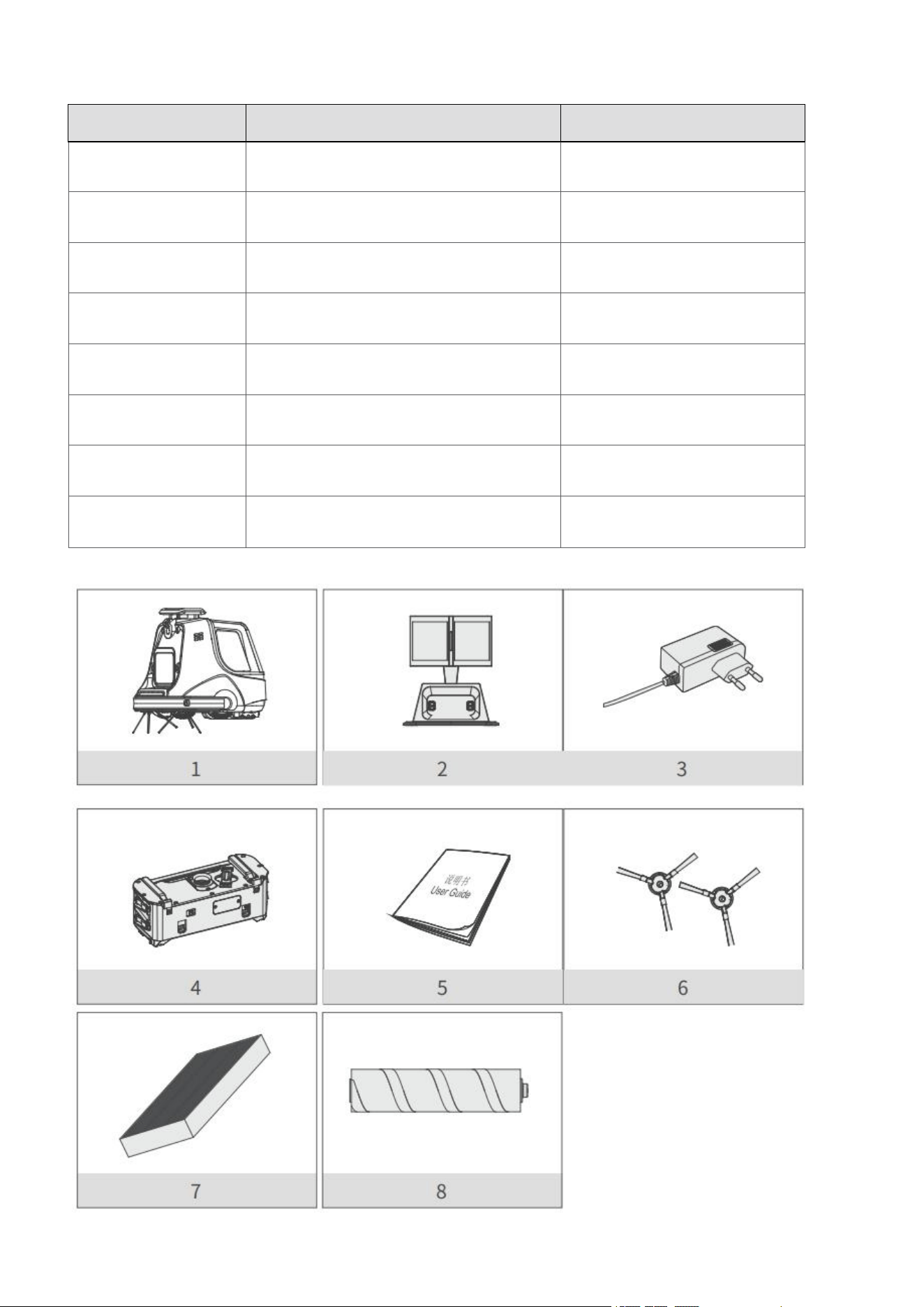
2.2 Parts List
Number
Describe
Quantity
1
Host (With Two Batteries)
1
2
Charging Station
1
3
Power Adapter
1
4
Suction Port Parts
1
5
User Manual
1
6
Left And Right Brush
Left*1/Right*1
7
HEPA Filter
1
8
Front Roller Fluff Assembly Parts
1
8
3. Product Operation
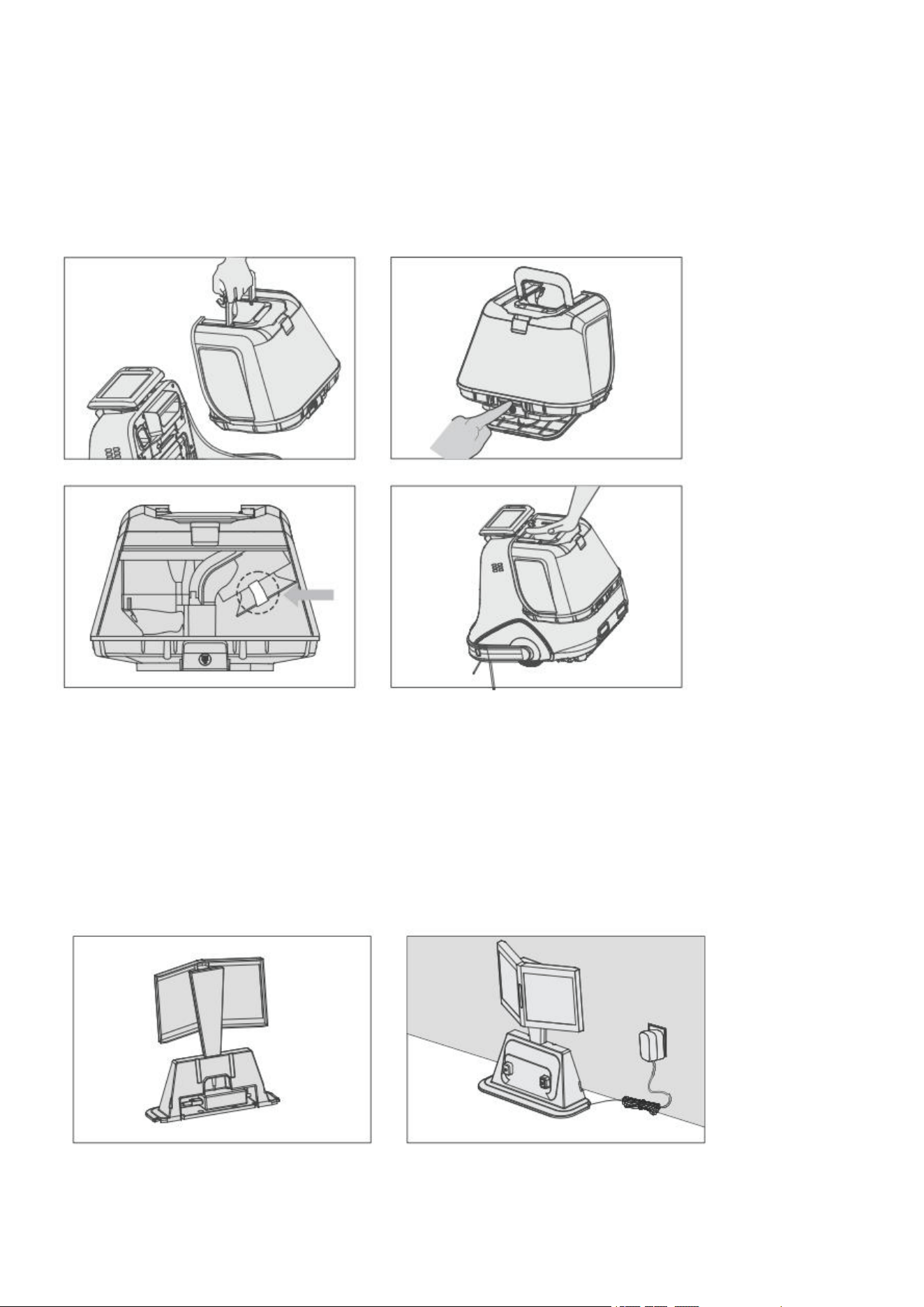
3.1 Preparation Before Using
Take the robot out from pack box and take the dustbin out, lifts the dustbin, presses the dustbin
switch, and tears off the sticker on cover.
Put the dustbin back on the host.
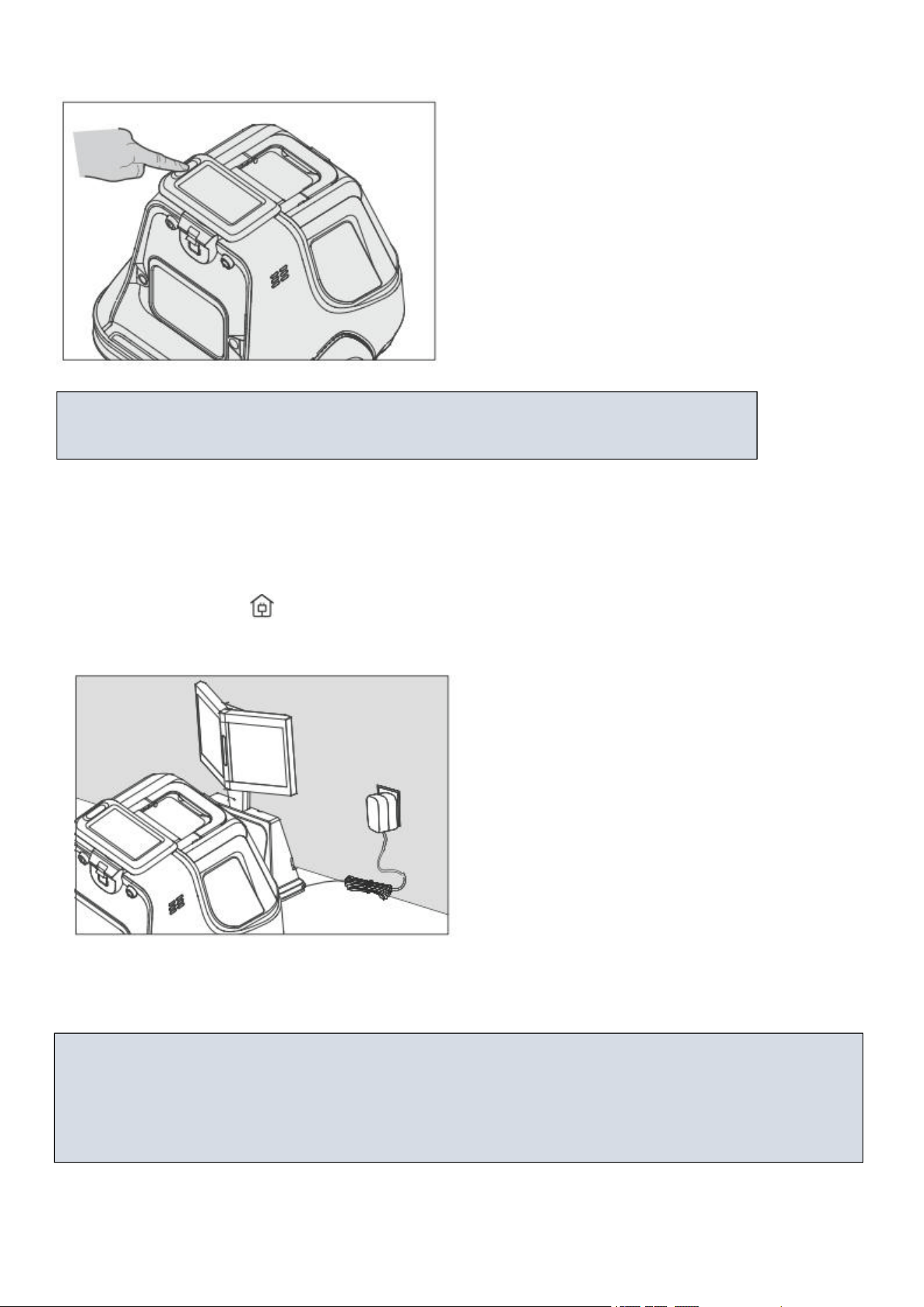
3.2 Charging Mode
Connect the adapter and charging station.
Place the charging station flat against the wall, the surrounding area is open and should not be covered
by objects.
Connect the power.
9
Press the host switch button.
3.3 Charging
Auto charge
Press the recharge button on the robot panel or APP, the device will automatically search for the
charging base to charge.
Tips: During daily use, pay attention to cleaning the charging pin of the charging station, otherwise the
charging effect will be affected.
Tips:After finished cleaning, it is recommended not to turn off the robot; keep the robot in
charging station so that it can better perform in next time.
Tips:
1. In daily use, please place the robot on the charging station, and ensure that the charging station is
connected to the power supply and the host power switch is on.
2. If the robot is not used for a long time, please fully charge the machine, turn off the power, and store it
in a dry and ventilated place.
10
Tips: If the robot is in sleep mode, press again to wake up the robot to enter function selection
mode, press the button again then the machine will start working automatically.
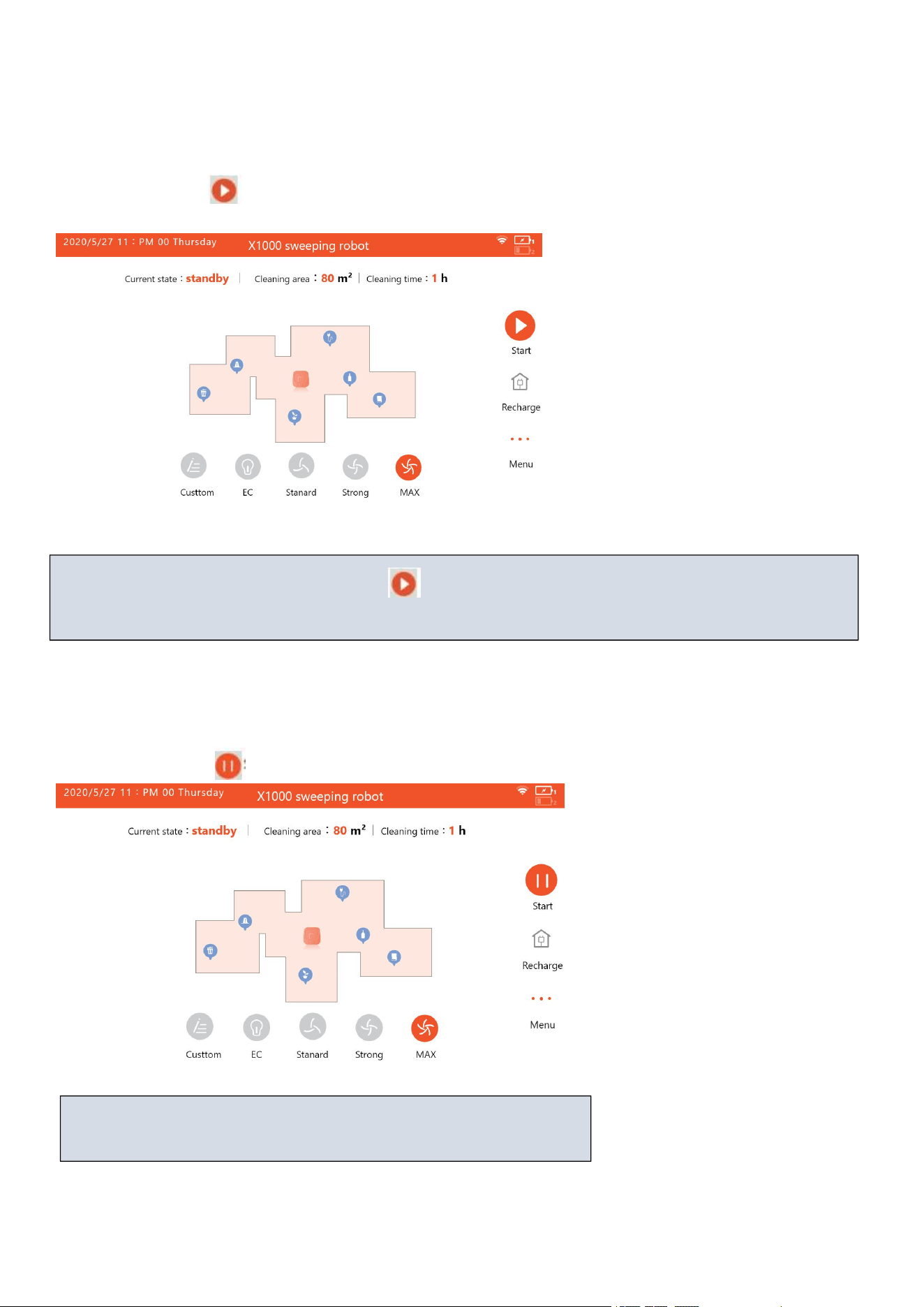
3.4 Switch/Pause
Switch
Make sure the power is on
Press the button on robot&APP to start cleaning.
3.5 Pause
Press the button on robot&APP to pause cleaning.
Tips:
The machine can be re-operated after the machine has been paused.
11
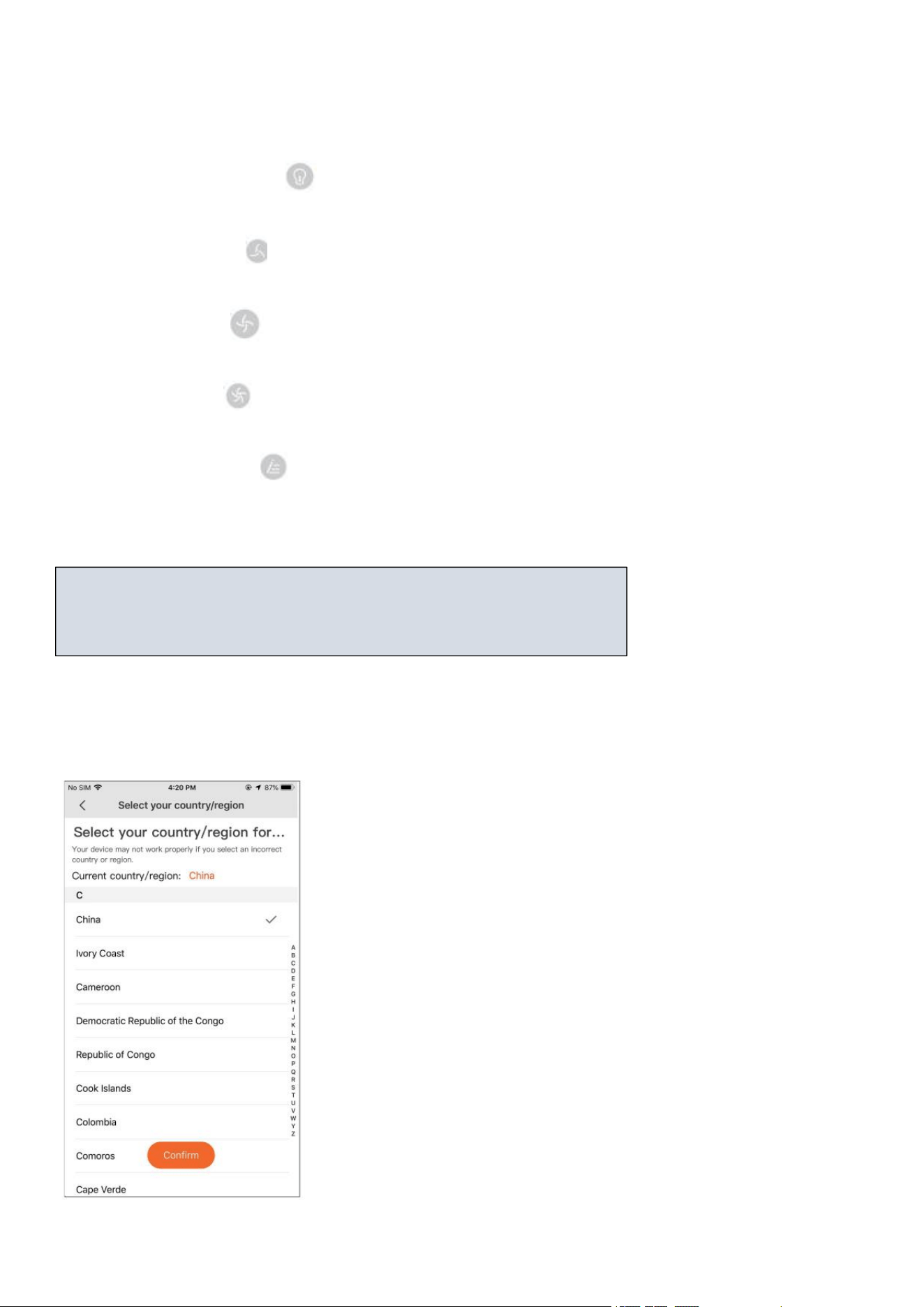
3.6 Mode Selection
Mode selection
Energy Saving
Press the energy saving button on the robot
Standard Mode
Press the standard button on the robot
Strong Mode
Press the power button on the robot
Max
Press the MAX button on the robot
Customize
Press the customize button to customize the side brush, roller brush, volume, suction value
4. APP Download and Usage Instructions
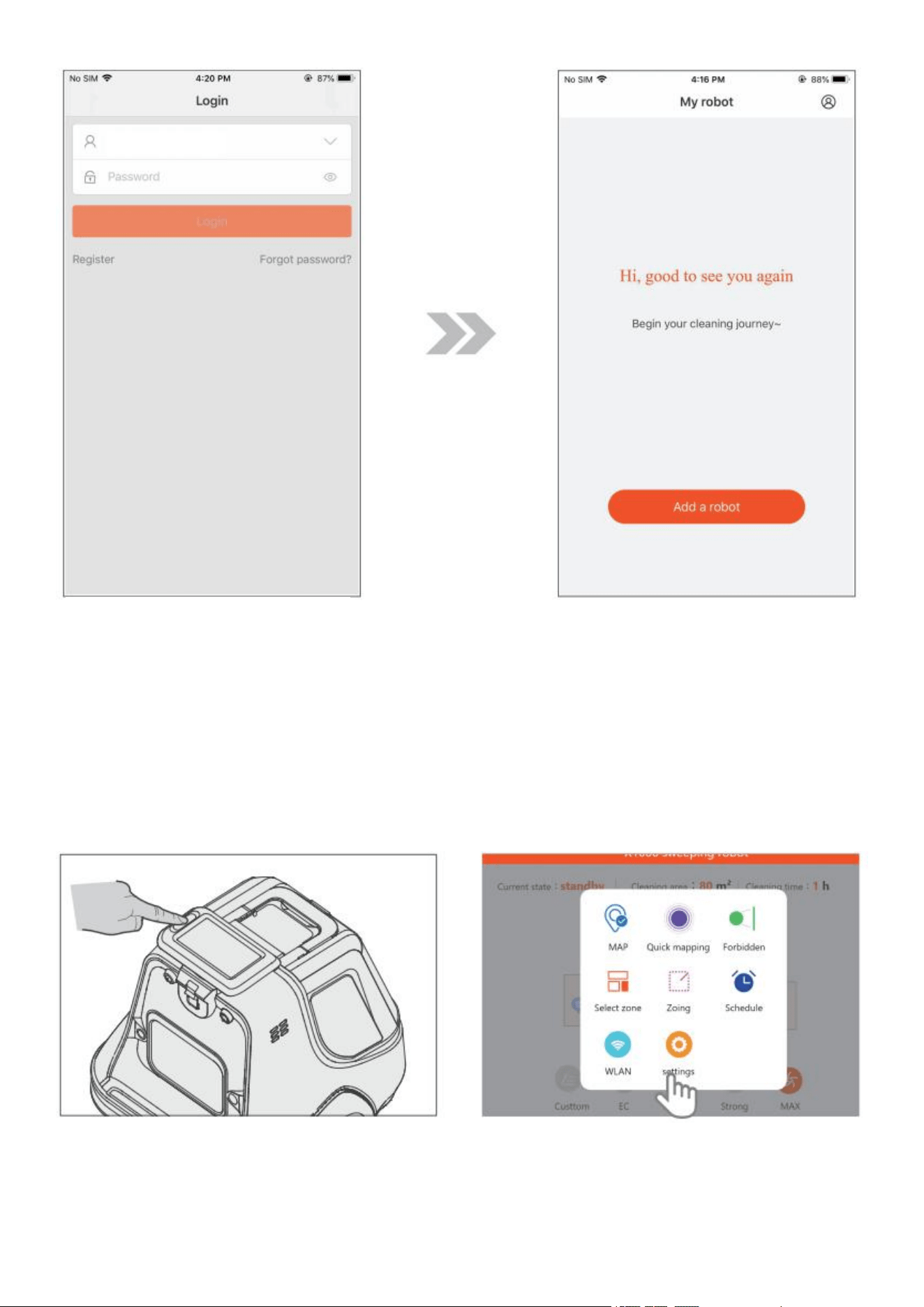
4.1 Registered Account
Register An Account
1. Select the corresponding country or region
This device can be controlled remotely through the mobile APP. Please
operate according to the following guidelines or refer to the product
guide in the APP interface.
12
4.2 Way Connecting Robot to WIFI
Reminder: Connect your mobile phone to an available WIFI network.
Make sure the phone is connected to an available WIFI network indoors and has a good signal.
2.Registered email account (read
and agree with User Registration
Agreement).
3.Click to add the robot
1.Turn on the power of the device, and the
device enters the standby state.
2.Click the function button to enter the setting
page, click Settings to enter Wireless LAN
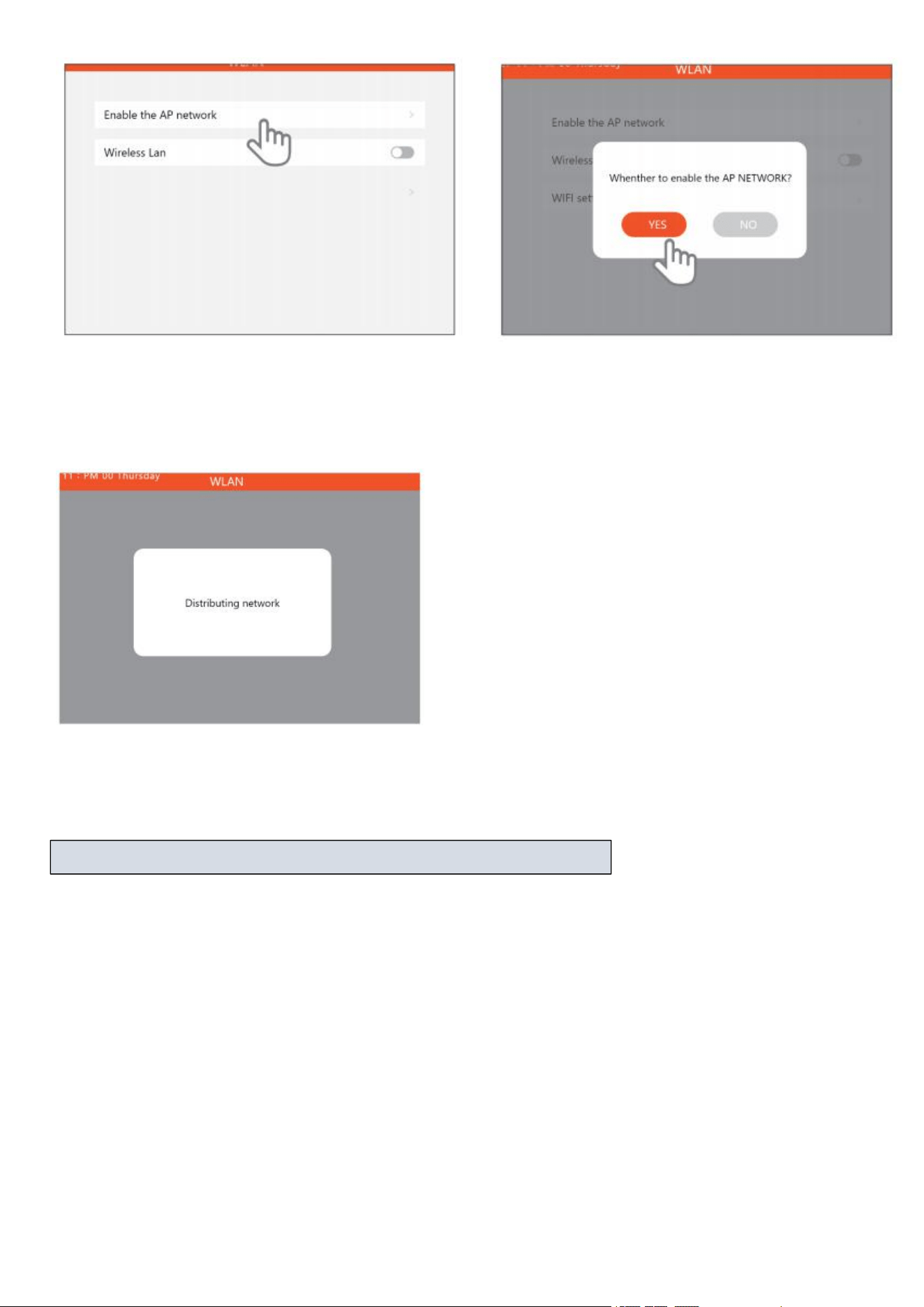
13
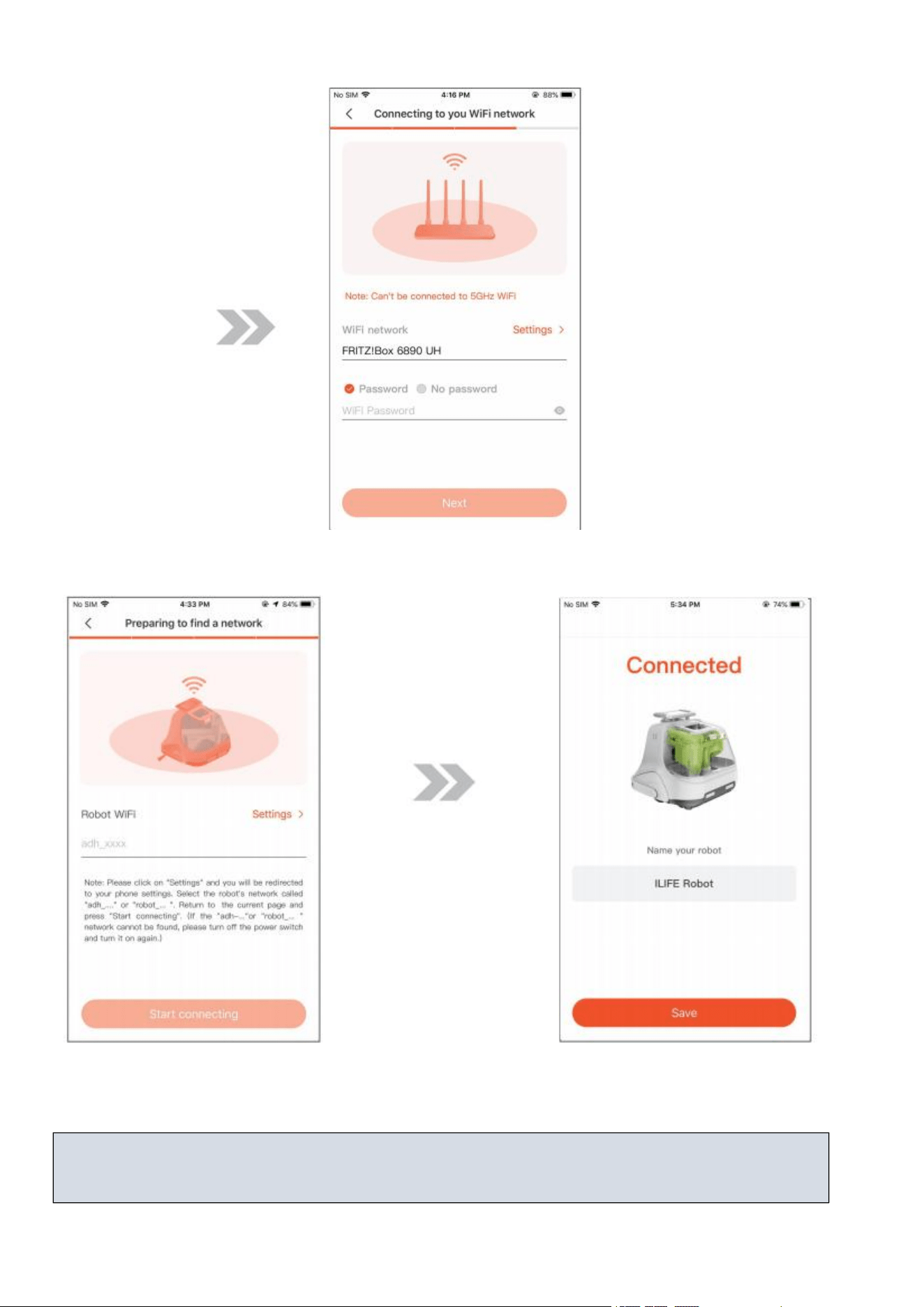
5.The robot prompts: the network is being configured
3.Click to use AP network configuration
4.Click OK, the device will prompt "WIFI
connecting"
Note: Do not configure the network while the device is in charging.
14
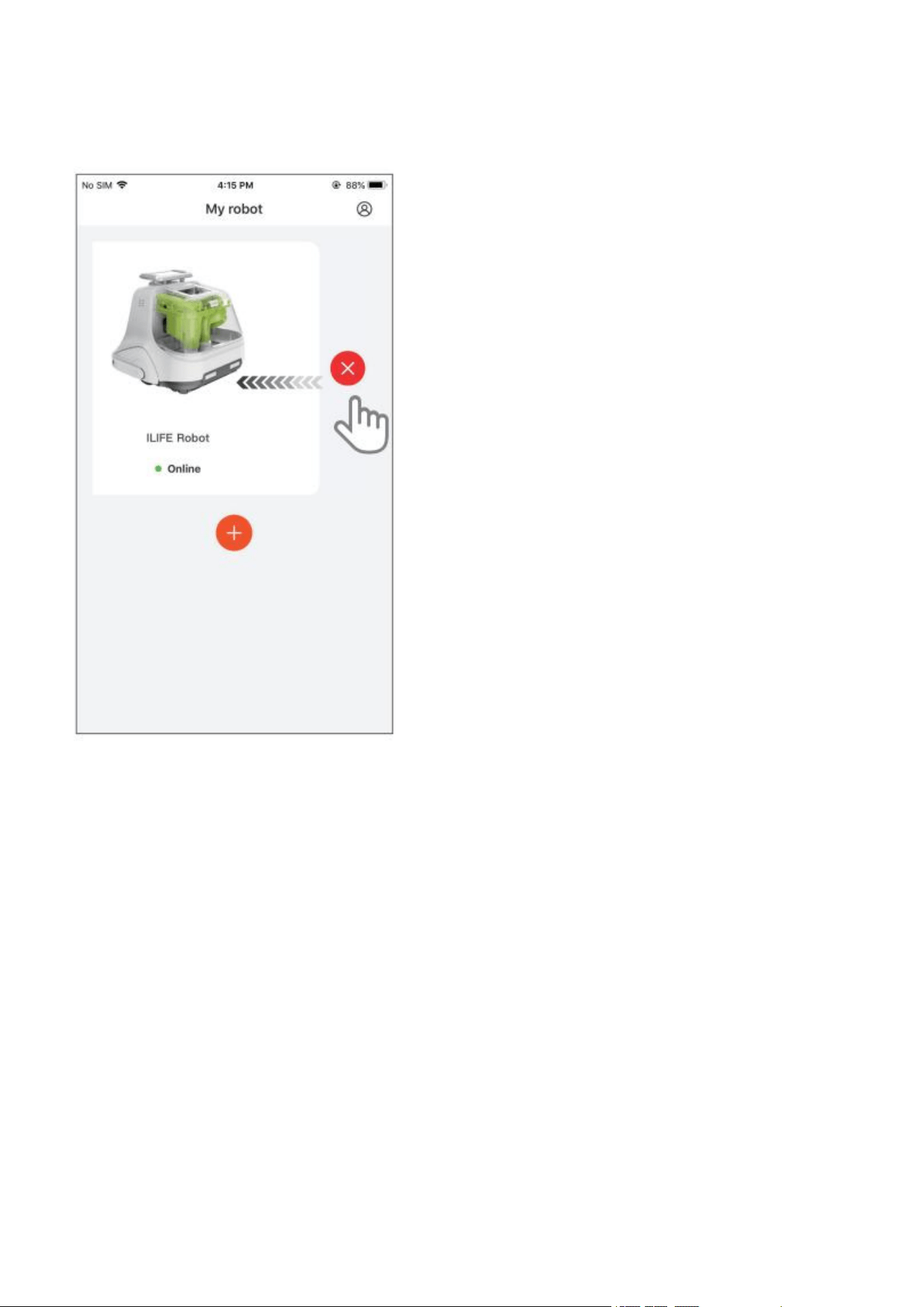
6.Fill in the WIFI password and click next
7. Click Settings to jump to the phone settings page,
click WIFI settings and select the wireless network
from host: adh-xxx
8. The connection is successful, the binding
is completed
Tips:
If the connection fails, please restart the device and follow the steps to configure the network again.
15
4.3 Unbinding Robot
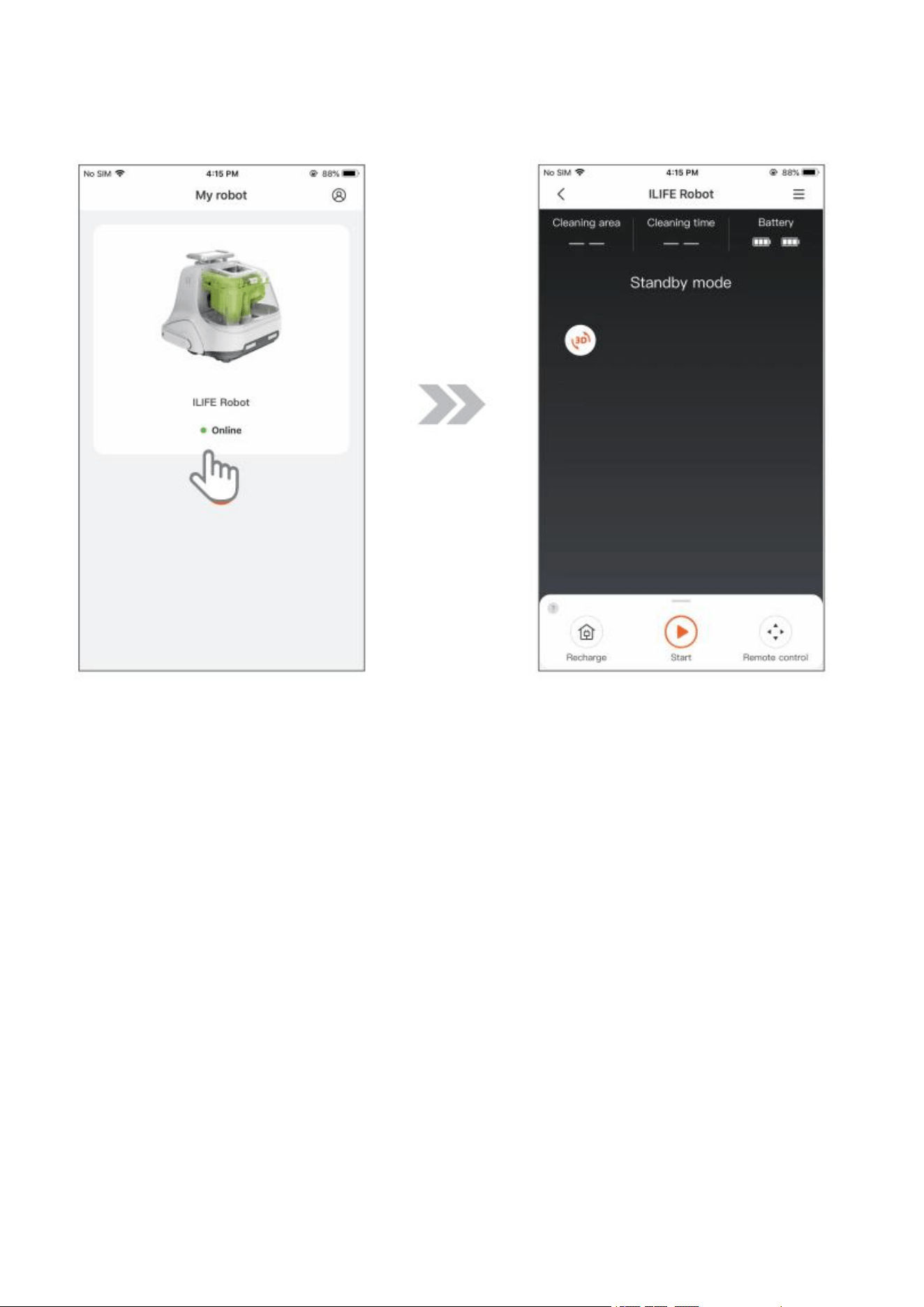
On the device list page of APP, press and hold the device you want to unbind and swipe to the left. An
unbind button will appear on the right side of the device.
Click the Unbind button to unbind the device.
16
4.4 Control Robot
Click to select the device you want to control in the device list to enter the device control page.
17
5. Maintenance
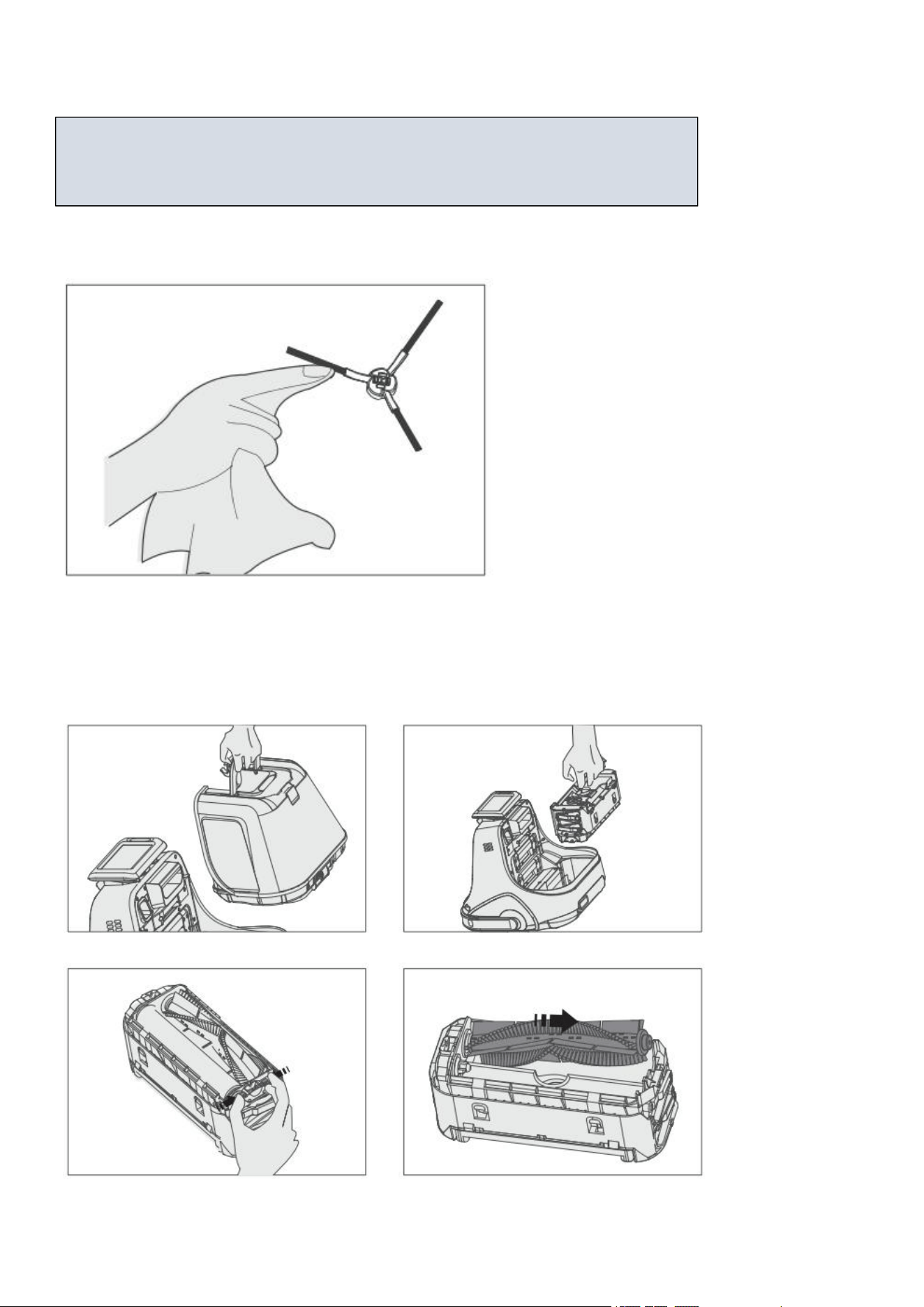
5.1 Side Brush Maintenance
Remove the side brush and wipe with a clean cleaning cloth.
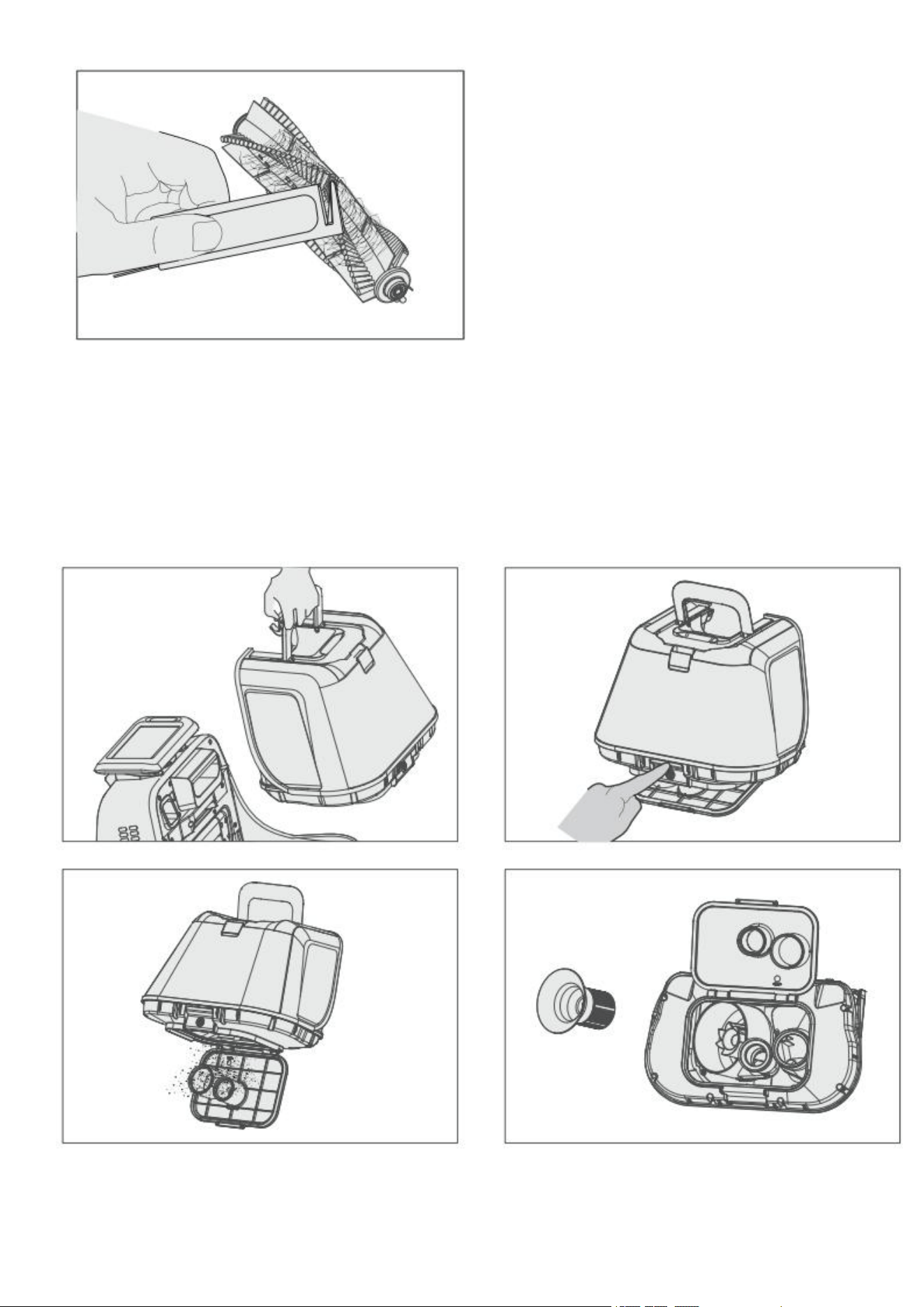
5.2 Roller Brush Maintenance
Remove the dustbin, lift out the roller brush box, hold the two buttons with your hands, pull out the plug,
and use the clean tool to cut the hair wrapped around the roller brush.
Tips:
Note: When cleaning and maintaining the device and accessories, please turn off
the device and unplug the power supply of the charging station.
18
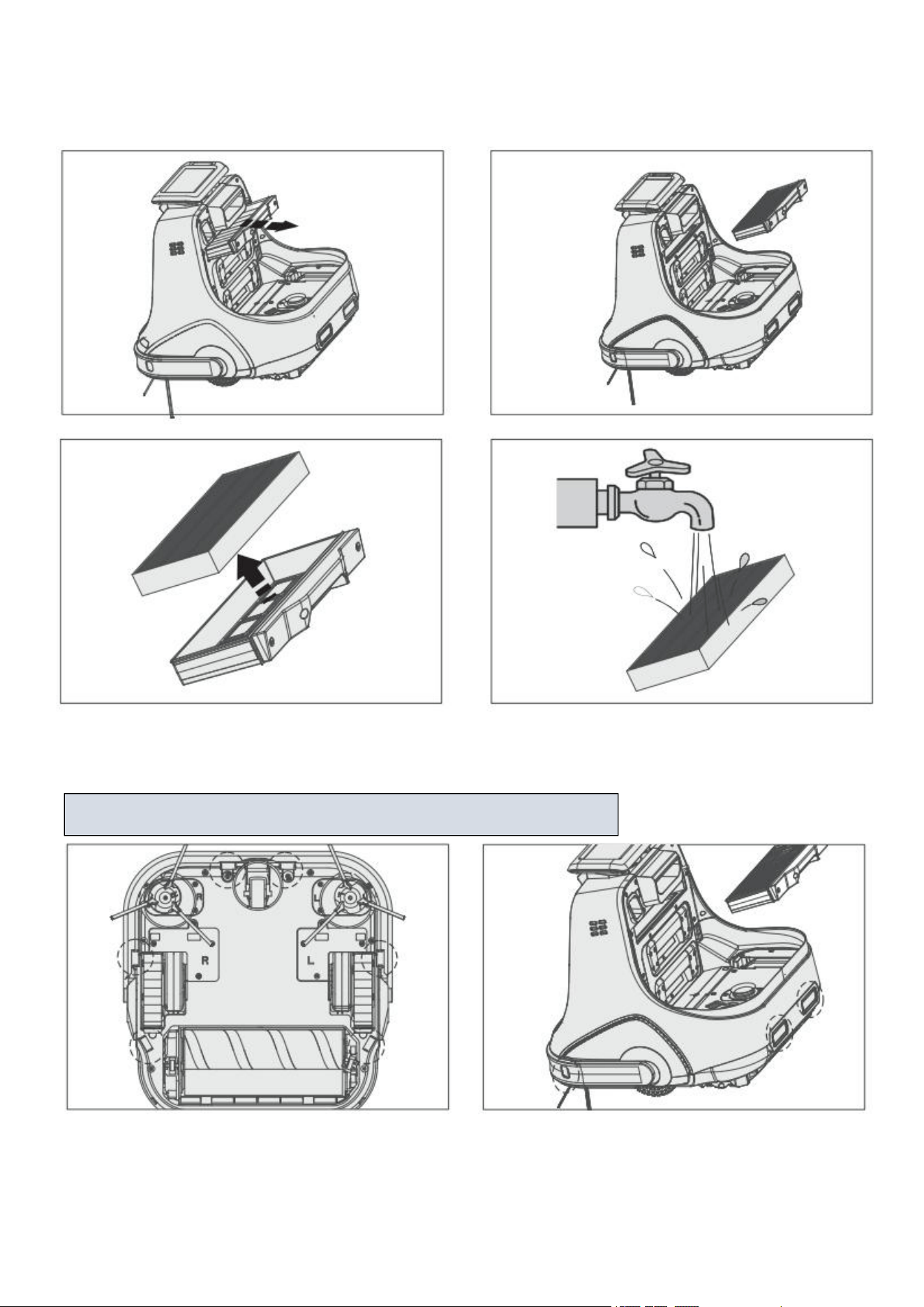
5.3 Dust Bin and Filters Maintenance
①Please clean the dustbin in time after each use.
②Remove the dustbin, press the button on the dustbin, after the bottom cover of dustbin pops up
automatically, empty the dust inside.
③Remove the filter from the dustbin, wash the filter with clean water, and make sure it is completely dry
when reinstalling the filter.
19
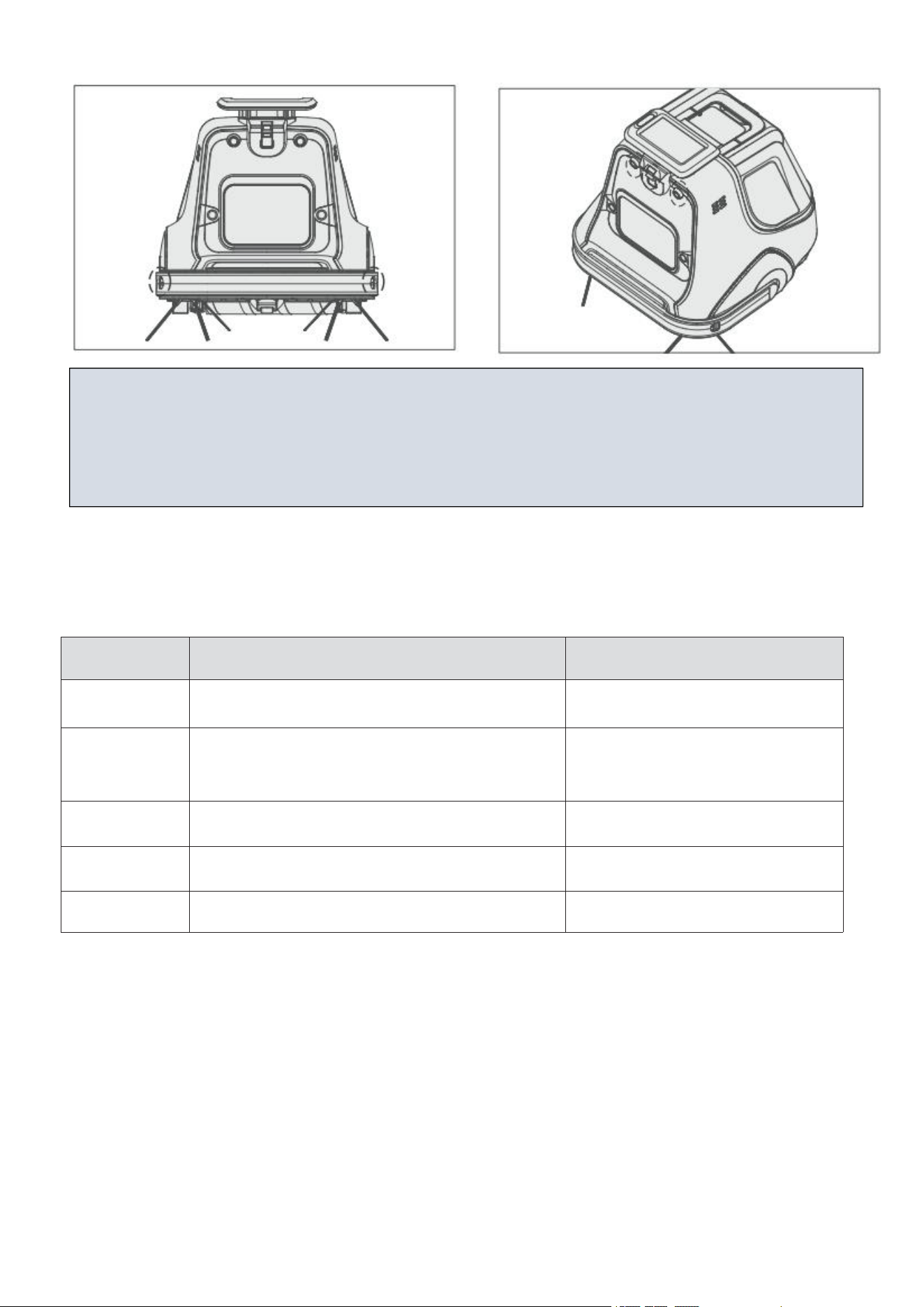
5.4 Filter Screen Cleaning
Remove the high-performance filter, wash with clean water, and place in a cool, ventilated place to dry, do
not squeezing the high-performance filter.
5.5 Cliff Sensors and Charging Pins Cleaning
Gently wipe the sensor and battery connector with a cleaning tool, as shown in the picture:
Tips:Clean the charging pins in time when there is dust on the cover.
20
5.6 Maintenance and Replace Accessories Regularly
Parts
Cleaning
Change Into New One
Dustbin
After each use
No
Filter
Once a week (twice a week for pet families)
Replace the new one every three to
five months
Roller Brush
Once a week (twice a week for pet families)
According to actual needs
Side Brush
Once a week
According to actual needs
Charge Station
Once a week
No
Tips:
When the device not use for a long time, please take out the battery and keep it properly. If the
battery leaks, please remove the battery and wipe the battery.
This device uses a long-life battery and does not need to be replaced frequently. If you need to
replace it, please contact our after-sales service

21
6. Technical Parameter
Product name
Commercial Robot
Vacuum Cleaner
Model
X1000
Nominal voltage
(
V
)
DC 25.2V
Motor power(W)
250W
Charging voltage(V)
32V
Charging time
<360min
Battery capacity
(
mAh
)
4450mAh
Product size (mm)
376x372x365mm
Maximum vacuum(kPa)
20kPa
Net weight (Kg)
11.3
Working times(Min)
240Min
Dust cup capacity(L)
3L