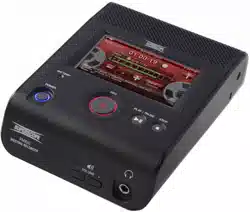

User Guide
© Copyright 201
6
, Superscope LLC.
U.S. Patents Pending
PMR61
PROFESSIONAL AUDIO RECORDER
- ii -
Superscope PMR61 User Guide
Contents
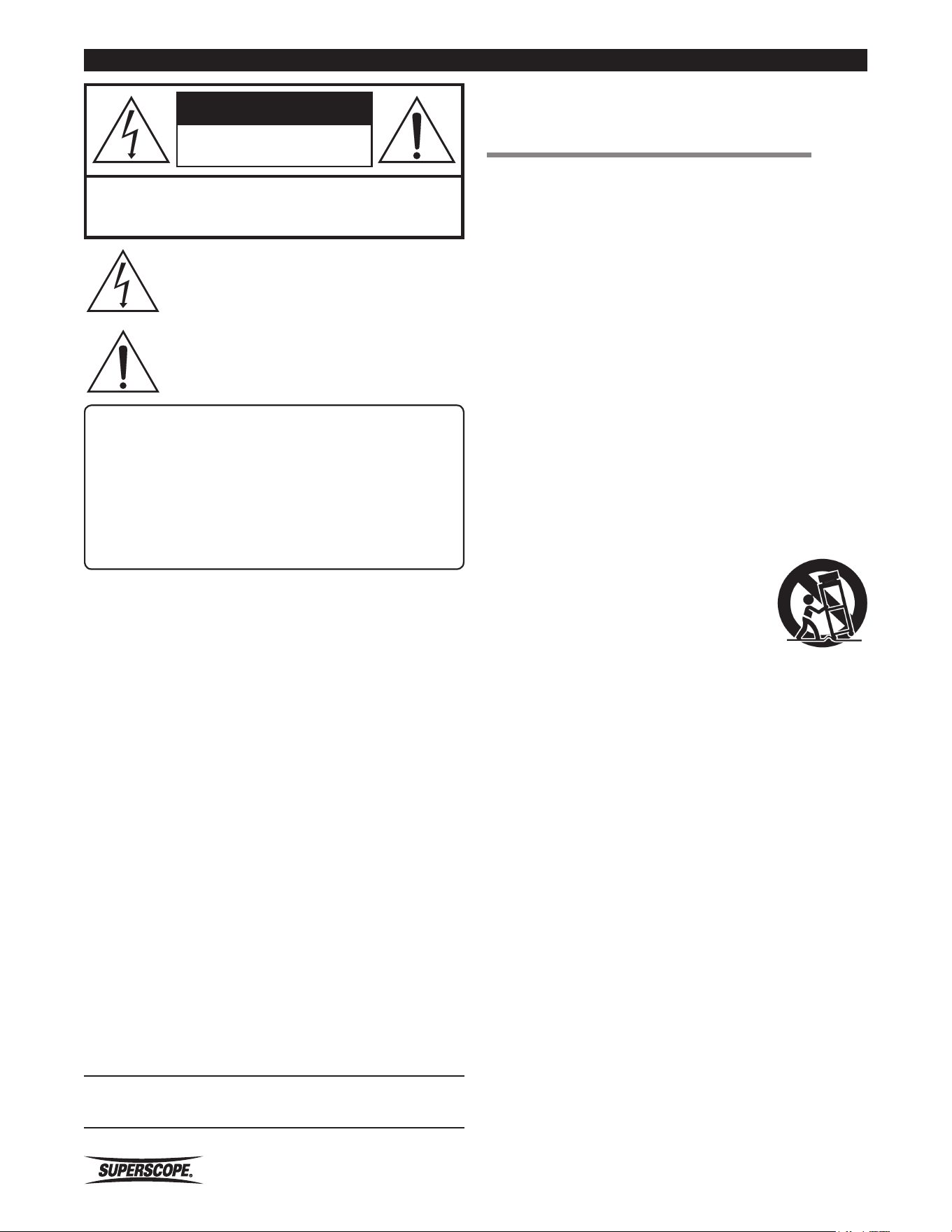
The lightning flash with arrowhead symbol within
an equilateral triangle is intended to alert the
user to the presence of uninsulated "dangerous
voltage" within the product's enclosure that may
be of sufficient magnitude to constitute a risk of
electric shock to persons.
The exclamation point within an equilateral
triangle is intended to alert the user to
the presence of important operating and
maintenance (servicing) instructions in the
literature accompanying the appliance.
■Important Safety
Instructions
READ BEFORE OPERATING EQUIPMENT
This product was designed and manufactured to meet strict quality
and safety standards. There are, however, some installation and
operation precautions which you should be particularly aware of.
1. Read instructions.
2. Keep these instructions.
3. Heed all warnings.
4. Follow all instructions.
5. Clean only with dry cloth.
6. Do not use this apparatus near water.
7. To ventilate the unit, do not install it in a rack or bookshelf, and
note the following: Do not insert objects beneath the unit. Do not
block ventilation slots at the top of the unit. Do not place anything
about 1 meter above the top panel. Make a space of about 8“ (20
cm) around the unit.
8. Do not install near nay heat sources such as radiators, heat
registers, stoves, or other apparatus (including amplifiers) that
produce heat.
9. Do not defeat the safety purpose of the polarized or grounding-
type plug. A polarized plug has two blades with one wider than
the other. A grounding type plug has two blades and a third
grounding prong. The wide blade or the third prong are provided
for your safety. If the provided plug does not fit into your outlet,
consult an electrician for replacement of the obsolete outlet.
10. Protect the power cord from being walked on or pinched
particularly at plugs, convenience receptacles, and the point where
they exit from the apparatus.
11. Only use attachments/accessories specified by
the manufacturer.
12. Use only with the cart, stand, tripod, bracket,
or table specified by the manufacturer, or
sold with the apparatus. When a cart is used,
use caution when moving the cart/apparatus
combination to avoid injury from tip-over.
13. Unplug this apparatus during lightning storms or when unused for
long periods of time.
14. Refer all servicing to qualified service personnel. Servicing is
required when the apparatus has been damaged in any way, such
as power-supply cord or plug is damaged, liquid has been spilled
or objects have fallen into the apparatus, the apparatus has been
exposed to rain or moisture, does not operate normally, or has
been dropped.
Additional Safety Information!
• This product should not be placed in a built-in installation such
as a bookcase or rack unless proper ventilation is provided or the
manufacturer’s instructions have been adhered to.
• Apparatus shall not be exposed to dripping or splashing and that
no objects filled with liquids, such as vases, shall be placed on the
apparatus.
• When the switch is in the OFF position, the apparatus isn’t
completely switched-off from the MAINS.
WARNINGS
Do not expose the equipment to rain or moisture.
Do not remove the cover from the equipment.
No naked flame sources, such as lighted candles, should be placed on the
equipment.
Protect the power cord from being walked on or pinched particularly at plugs,
convenience receptacles, and the point where they exit from the apparatus.
Set the unit up on an even surface away from direct sunlight, high
temperatures, high humidity, and excessive vibration.
Do not place heavy items on the unit.
Do not use high voltage power sources. This can overload the unit and cause a
fire.
Do not handle the plug with wet hands. This can cause electric shock.
Do not let metal objects fall inside the unit.
Do not let liquids get into the unit.
Do not spray insecticides onto or into the unit.
Do not attempt to repair this unit by yourself.
WARNING
TO REDUCE THE RISK OF FIRE OR ELECTRIC SHOCK, DO NOT
EXPOSE THIS PRODUCT TO RAIN OR MOISTURE.
CAUTION: TO PREVENT ELECTRIC SHOCK, MATCH WIDE
BLADE OF PLUG TO WIDE SLOT, FULLY INSERT.
ATTENTION: POUR EVITER LES CHOC ELECTRIQUES, INTRODUIRE LA
LAME LA PLUS LARGE DE LA FICHE DANS LA BORNE CORRESPONDANTE
DE LA PRISE ET POUSSER JUSQUíAU FOND.
CAUTION
USE OF CONTROLS OR ADJUSTMENTS OR PERFORMANCE OF
PROCEDURE OTHER THAN THOSE SPECIFIED HEREIN MAY RESULT
IN HAZARDOUS EXPOSURE.
LASER SAFETY
This unit employs a laser. Only a qualified service person should
remove the cover or attempt to service this device, due to possible
eye injury.
NOTE TO CATV SYSTEM INSTALLER:
This reminder is provided to call the CATV (Cable-TV) system installer’s
attention to Section 820-40 of the NEC which provides guidelines for
proper grounding and, in particular, specifies that the cable ground
shall be connected to the grounding system of the building, as close to
the point of cable entry as practical.
NOTE: This equipment has been tested and found to comply with the
limits for a Class B digital device, pursuant to Part 15 of the FCC Rules.
These limits are designed to provide reasonable protection against
harmful interference in a residential installation. This equipment
generates, uses and can radiate radio frequency energy and, if not
installed and used in accordance with the instructions, may cause
harmful interference to radio communications. However, there is no
guarantee that interference will not occur in a particular installation. If
this equipment does cause harmful interference to radio or television
reception, which can be determined by tuning the equipment off and
on, the user is encouraged to try to correct the interference by one or
more of the following measures:
• Reorient or relocate the receiving antenna.
• Increase the separation between the equipment and receiver.
• Connect the equipment into an outlet on a circuit different from
that to which the receiver is connected.
• Consult the dealer or an experienced radio/TV technician for help.
NOTE: Changes or modifications not expressly approved by the party
responsible for compliance could void the user’s authority to operate
the equipment.
This Class B digital apparatus complies with Canadian ICES-003.
Cet appareil numÈrique de la Classe B conforme à la norme NMB-003
du Canada.
CAUTION: TO REDUCE THE RISK OF ELECTRIC SHOCK,
DO NOT REMOVE COVER (OR BACK)
NO USER-SERVICEABLE PARTS INSIDE
REFER SERVICING TO QUALIFIED SERVICE PERSONNEL
RISK OF ELECTRIC SHOCK
DO NOT OPEN
CAUTION
Superscope PMR61 User Guide
- iii -
Contents
English
Declaration of Conformity
We declare that this product, to which this declaration
relates, is in conformity with the following standard:
EN 55032, EN 55024, EN61000-3-2, EN61000-3-3, and
with the requirements of EMC Directive 2004/108/EC.
A NOTE ABOUT RECYCLING
• This product’s packaging materials are
recyclable and can be reused. Please
dispose of any materials in accordance
with the local recycling regulations.
• When discarding the unit, comply with
local rules or regulations.
• Batteries should never be thrown away or incinerated,
and should be disposed of in accordance with the
local regulations concerning chemical waste.
• This product and the accessories packed together
constitute the applicable product according to the
WEEE directive except batteries.
WARNINGS
• Do not handle the AC adaptor with wet hands.
• Do not cover the ventilation with any items such as
tablecloths, newspapers, curtains, etc.
• No unprotected flame sources, such as lit candles,
should be placed on the equipment.
• When disposing of used batteries, please comply with
governmental regulations or environmental rules that
apply in your country or locality.
• Make a space of about 0.1 meter around the unit.
• No objects filled with liquids, such as vases, should be
placed on the apparatus.
• When the switch is in the OFF position, the
equipment is not completely switched off from
MAINS.
• To completely disconnect this product from the mains,
disconnect the plug from the wall socket outlet.
• When setting up this product, make sure that the AC
outlet you are using is easily acceptable.
• Do not expose batteries to excessive heat such as
sunshine, fire or similar.
Français
Déclaration de Conformité
Nous déclarons que le présent produit, auquel se réfère
la présente déclaration, est conforme aux normes
suivantes :
EN 55032, EN55024, EN 61000-3-2, EN 61003-3-3, ainsi
qu’aux exigences de la Directive EMC 2004/108/EC.
UNE REMARQUE CONCERNANT LE RECYCLAGE
• Les matériaux d’emballage de ce produit
sont recyclables et peuvent être réutilisés.
• Veuillez disposer de tout matériau
conformément aux règlements de
recyclage locaux. Lorsque vous mettez
cet appareil au rebut, respectez les lois ou
réglementations locales.
• Les piles ne doivent jamais être jetées ou incinérées,
mais mises au rebut conformément aux règlements
locaux concernant les déchets chimiques.
• Ce produit et les accessoires emballés ensemble sont
des produits conformes à la directive DEEE sauf pour
les piles.
AVERTISSEMENTS
• Ne manipulez pas l’adaptateur AC avec les mains
mouillées.
• Ne pas recouvrir les ouïes de ventilation avec un objet
quelconque comme une nappe, un journal, un rideau,
etc.
• Ne placer aucune source de flamme nue, comme une
bougie allumée, sur l’appareil.
• Pour mettre au rebut les piles usées, respecter les
lois gouvernementales ou les règlements officiels
concernant l’environnement qui s’appliquent à votre
pays ou région.
• Veiller à ce qu’aucun objet ne soit à moins de 0,1
mètre des côtés de l’appareil.
• Aucun objet rempli de liquide, un vase par exemple,
ne doit être placé sur l’appareil.
• Lorsque l’interrupteur est sur la position OFF, l’appareil
n’est pas complètement déconnecté du SECTEUR.
• Pour déconnecter complètement ce produit du
courant secteur, débranchez la fiche de la prise
murale.
• Lors de l’installation de ce produit, assurez-vous que
la prise CA que vous utilisez est compatible.
• N’exposez pas les piles à une source de chaleur
excessive, aux rayons du soleil ou à une flamme par
exemple.
- iv -
Superscope PMR61 User Guide
Contents
Deutsch
Konformitätserklärung
Hiermit erklären wir, dass das Produkt, auf welches
sich diese Erklärung bezieht, den folgenden Normen
entspricht:
EN 55032, EN 55024, EN61000-3-2, EN 61003-3-3 und
der EMV-Richtlinie 2004/108/EG.
HINWEIS ZUM RECYCLING
• Das Verpackungsmaterial dieses
Produktes ist für recycelbar und kann
wiederverwendet werden.
• Bitte entsorgen Sie alle Materialien
entsprechend der örtlichen
Recyclingvorschriften. Beachten Sie bei
der Entsorgung des Gerätes die örtlichen Vorschriften
und Bestimmungen.
• Batterien dürfen nicht in den Hausmüll geworfen
oder verbrannt werden. Bitte geben Sie Batterien
entsprechend der örtlichen Bestimmungen an den
Sammelstellen oder Sondermüllabgabestellen ab.
• Dieses Produkt zusammen mit seinen Zubehörteilen
fällt in den Geltungsbereich der WEEE-Direktive
Ddavon ausgenommen sind die Batterien.
WARNHINWEISE
• Fassen Sie das Netzteil nicht mit nassen Händen an.
• Decken Sie die Lüftungsöffnungen nicht mit einem
Tuch, einer Zeitung, einem Vorhang oder ählichem
ab.
• Es dürfen keine Gegenstände mit offener Flamme
wie zum Beispiel brennende Kerzen auf dem Gerät
abgestellt werden.
• Beachten Sie bei der Entsorgung der verbrauchten
Batterien alle geltenden örtlichen und überregionalen
Regelungen.
• An allen Geräteseiten muß ein Zwischenraum von
ungefähr 0,1 Metern vorhanden sein.
• Auf das Gerät dürfen keine mit Flüssigkeiten gefüllte
Behälter wie zum Beispiel Vasen gestellt werden.
• Wenn der Schalter ausgeschaltet ist (Position OFF),
ist das Gerät nicht vollständig vom Stromnetz
(Spannung) getrennt.
• Um dieses Gerät komplett von der Stromversorgung
abzutrennen, ziehen Sie bitte den Netzstecker von der
Wandsteckdose ab.
• Stellen Sie bei der Aufstellung des Gerätes sicher,
dass die verwendete Wechselstromsteckdose einfach
zugängig ist.
• Batterien dürfen keiner extremen Hitze wie direkter
Sonneneinstrahlung, Feuer o.ä. ausgesetzt werden.
Español
Declaración de Conformidad
Declaramos que este producto, al cual esta declaración
se refiere, está conforme a los siguientes estándares:
EN 55032, EN 55024,EN 61000-3-2, EN 61003-3-3,y con
los requerimientos de la Norma EMC 2004/108/EC.
ACERCA DEL RECICLAJE
• Los materiales de embalaje de este
producto son reciclables y se pueden
volver a utilizar.
• Disponga de estos materiales siguiendo los
reglamentos de reciclaje de su localidad.
Cuando se deshaga de la unidad, cumpla
con las reglas o reglamentos locales.
• Las baterías nunca deberán tirarse ni incinerarse.
Deberá disponer de ellas siguiendo los reglamentos
de su localidad relacionados con los desperdicios
químicos.
• Este producto juntamente con los accesorios
incluidos con el producto se les aplica la norma RAEE
exceptuando a las baterías.
ADVERTENCIAS
• No manipule el adaptador de CA si tiene las manos
húmedas.
• No cubra la ventilación con objetos como manteles,
periódicos, cortinas, etc.
• No deben colocarse elementos con fuego sobre el
equipo, como por ejemplo velas encendidas.
• Cuando se eliminen baterías usadas, deben cumplirse
los reglamentos oficiales o las normas de protección
del medio ambiente aplicables en su país o en su
zona.
• Deje un espacio de aproximadamente 0,1 metro al
rededor de la unidad.
• No se deben colocar recipientes que contengan
líquidos sobre el aparato, como por ejemplo floreros.
• Cuando el interruptor está en la posición OFF, el
aparato no está completamente apagado de la red
eléctrica.
• Para desconectar completamente este producto de la
red eléctrica, desconecte el enchufe de la toma de la
pared.
• Al conectar este producto, asegúrese de que la toma
de salida de CA que esté utilizando sea fácilmente
accesible.
• No exponga las baterías al calor excesivo, como a la
luz solar directa, al fuego, etc.
Superscope PMR61 User Guide
- v -
Contents
■Table of Contents
■Important Safety Instructions ................... ii
English ................................................................... iii
A NOTE ABOUT RECYCLING .................................. iii
WARNINGS ............................................................ iii
Français .................................................................. iii
UNE REMARQUE CONCERNANT LE RECYCLAGE.... iii
AVERTISSEMENTS .................................................. iii
Deutsch ................................................................. iv
HINWEIS ZUM RECYCLING ..................................... iv
WARNHINWEISE .................................................... iv
Español .................................................................. iv
ACERCA DEL RECICLAJE ........................................ iv
ADVERTENCIAS ...................................................... iv
■Table of Contents ....................................... v
■Package Contents ....................................... 7
PMR61 Recorder .................................................... 7
AC adapter (DA61PMR) .......................................... 7
AC Power Cord ...................................................... 7
USB cable ............................................................... 7
RCA stereo audio cable .......................................... 7
User Guide (PDF Format) on CD-ROM .................... 7
■Preparations Before Use ............................ 8
AC Adapter Connection ..................................... 8
AC Adapter Safety ............................................. 8
Using Batteries ................................................... 8
Safety Cautions When Handling Batteries ....... 8
■Top Panel ..................................................... 9
j POWER Button ............................................. 9
Low BATTERY Indicator .................................... 9
t REC Button .................................................. 9
PHONE SPEAKER Level .............................. 9
HEADPHONE Jack ..................................... 9
q PLAY/PAUSE Button ..................................... 9
w STOP Button ................................................ 9
■Side Panel .................................................... 10
Touch Screen .................................................... 10
Internal Speaker ............................................... 10
Internal Microphones L & R .............................. 10
LINE OUT Jacks ................................................ 10
AUX IN Jacks .................................................... 10
USB Connector A ............................................. 10
USB Connector B .............................................. 10
■Rear Panel ................................................... 11
Right MIC/LINE INPUT Jack ............................... 11
Left MIC/LINE INPUT Jack ................................. 11
Right Analog Output (Balanced) Jack ................ 11
Left Analog Output (Balanced) Jack .................. 11
DC Input Jack ................................................... 11
Right Conference Microphone Jack .................. 11
Left Conference Microphone Jack .................... 11
■Powering On ............................................... 12
Using the AC Adapter ............................................ 12
Using Batteries ....................................................... 12
AC Power and Battery Tips ..................................... 13
■Home Screen ............................................... 13
Properties Windows ........................................... 14
■Recording ................................................... 15
Using RECORD CHECK ........................................ 16
Checking USB Media ......................................... 17
■Recording Setup ........................................ 18
Setting Record Settings .................................... 18
Selecting Media .................................................. 19
Setting Record Parameters ............................... 19
Selecting Record Level Control.......................... 20
Selecting Phantom Power .................................. 20
Setting Microphone Attenuator ....................... 21
Setting Aux Input Attenuator ........................... 21
Setting MIC/LINE Sensitivity ............................. 22
Selecting Noise Reduction ................................ 22
Internal Microphones ......................................... 23
Setting Auto Start Record .................................. 23
Power On Record ................................................... 23
Audio Detect Record .............................................. 24
Setting One Touch Record ................................. 24
■Play ............................................................. 25
Playing ................................................................ 25
Play Mode ........................................................... 25
Selecting a Recorded File .................................. 26
Playing a Recorded File ..................................... 26
Renaming a Recorded File ................................ 27
Copy to USB Media ............................................ 27
Move to USB Media ........................................... 28
Delete a Recorded File ....................................... 28
■Settings ...................................................... 29
■Device Settings .......................................... 30
Setting Date and Time ....................................... 30
Setting Time ........................................................... 30
Setting Date ........................................................... 30
Setting Daylight Saving Time .................................. 31
Selecting Time Format ............................................ 32
Setting Display ................................................... 32
Setting Sleep Mode Time ....................................... 33
Setting Home Screen Name ................................... 33
Setting a PIN ....................................................... 34
Setting Battery Type ......................................... 35
Setting User Areas ............................................. 36

- vi -
Superscope PMR61 User Guide
Contents
Add Track Number Feature ............................... 37
Setting File Name Format ................................. 38
Setting Audio Output ........................................ 38
Setting Jump Interval Time ............................... 39
■Utility ........................................................... 40
Utility Menu ........................................................ 40
Format Media ...................................................... 40
Backup Media .................................................... 41
Save Settings to USB Media ............................. 41
Load Settings from USB Media ........................ 42
Delete Recorded Files Automatically ............... 43
Restore Factory Settings ................................... 44
Confirm System Version ..................................... 44
■Speaker Setup ............................................ 45
Using Headphones or the Internal Speaker ..... 45
External Speakers ............................................... 45
■Computer Connection ................................ 46
■Using Anti-Glare Stand .............................. 47
■Using Security Lock .................................... 47
■Appendix ..................................................... 48
Main Menu (1 of 2) ................................................ 48
Main Menu (2 of 2) ................................................ 49
Record Settings ...................................................... 50
Internal Media Times .............................................. 51
Continuous Recording Time with Battery Operation
... 52
■Specifications .............................................. 53
General .................................................................. 53
Input ..................................................................... 53
Outputs ................................................................ 53
■Trademarks, Copyrights and Disclaimers .. 54
MPEG Layer-3 Licensing ......................................... 54
Superscope PMR61 User Guide
- 7 -
Package Contents
■Package Contents
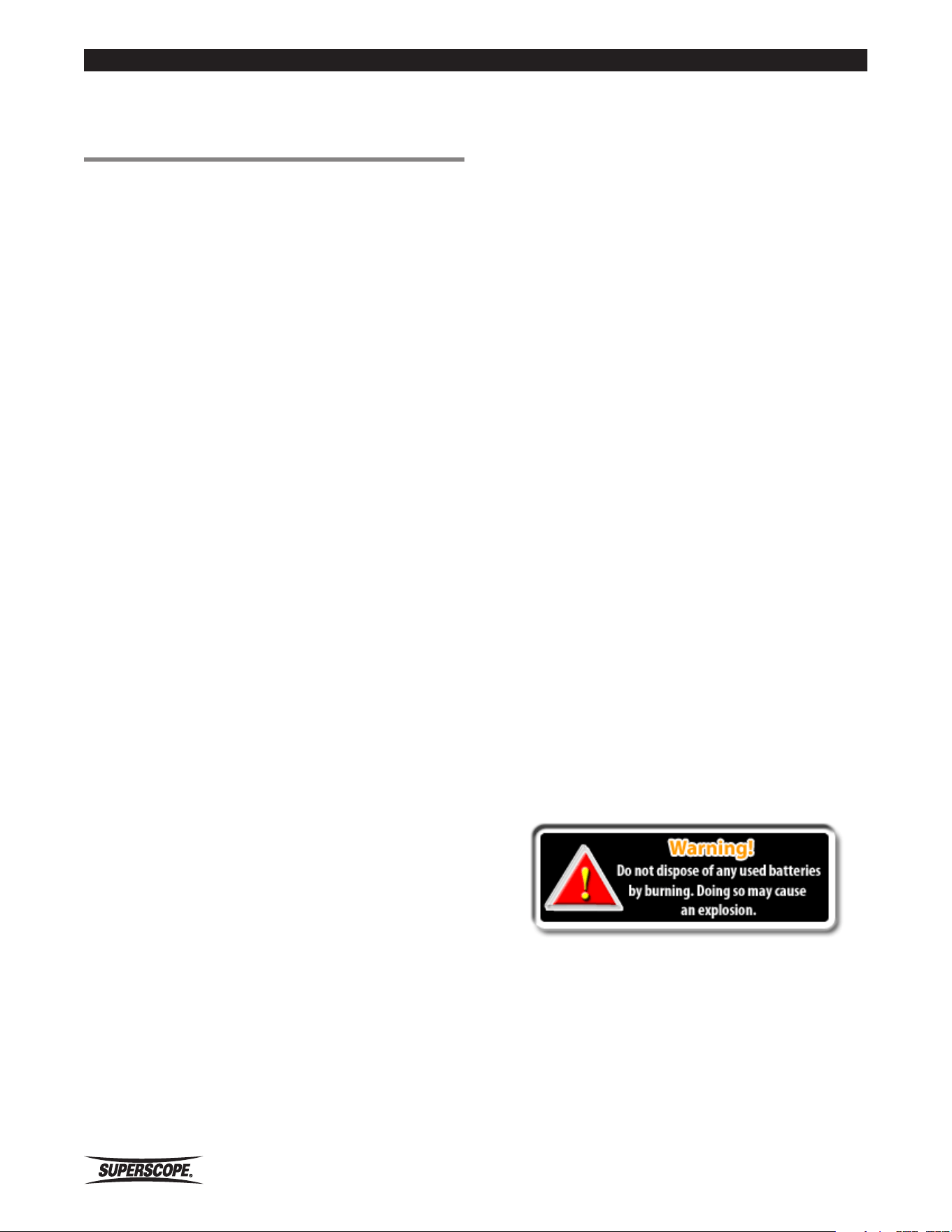
PMR61 Recorder
AC adapter (DA61PMR) AC Power Cord
USB cable RCA stereo audio cable
User Guide (PDF Format) on CD-ROM
Perchlorate Material - special handling may apply,
See www.dtsc.ca.gov/hazardouswaste/perchlorate.”
- 8 -
Superscope PMR61 User Guide
Getting Started
■Preparations
Before Use
AC Adapter Connection
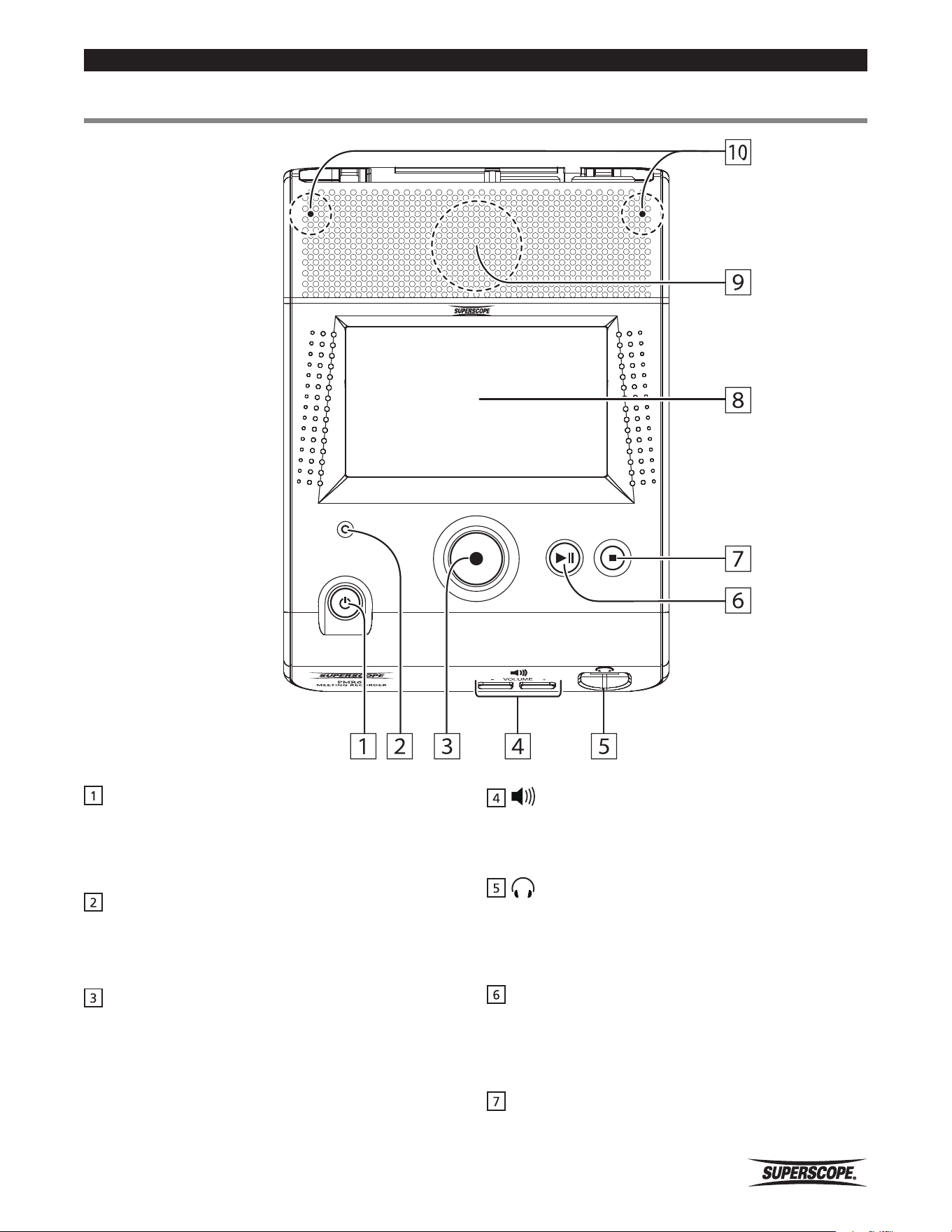
Connect the power output plug of the adapter to the DC
IN jack of the recorder. Connect the AC Power cord to
the household AC power receptacle.
AC Adapter Safety
Only use the AC adapter that is provided with the
recorder. Use of other adapters may result in damage to
the recorder and void the warranty.
Using Batteries
The recorder is designed for use with 4 “AA” size
Alkaline or Nickel-Metal Hydride (Ni-MH) batteries.
Please select the correct battery type you are using from
the Battery Type option in the Device Settings Menu.
Safety Cautions When Handling
Batteries
To avoid leakage, overheating, fire and rupturing, always
follow the points below when using batteries with the
recorder.
• Electrolyte leakage or corrosion may occur if
batteries are kept inside the recorder for prolonged
periods of time. Remove batteries prior to prolonged
storage of the recorder.
• When installing batteries into the recorder, make
sure the batteries are installed with the proper
polarity shown inside the battery compartment of
the recorder.
• Do not attempt to recharge non-rechargeable
batteries. See Setting Battery Type.
• Do not install old/exhausted batteries into the
recorder. Dispose of old batteries properly.
• Do not mix the types (Alkaline or Ni-MH) or voltages
of batteries.
With improper battery use, batteries may rupture, leak,
and cause corrosion. Please read the following guidelines
carefully:
Batteries may have the same shape, but different
voltages. Do not mix different battery types.
If a battery leaks, clean the liquid from the battery
compartment and dispose of the leaking battery
according to the guidelines of your local government.
Please dispose of all used batteries according to the
guidelines of your local government.
Superscope PMR61 User Guide
- 9 -
Getting Started
■Top Panel
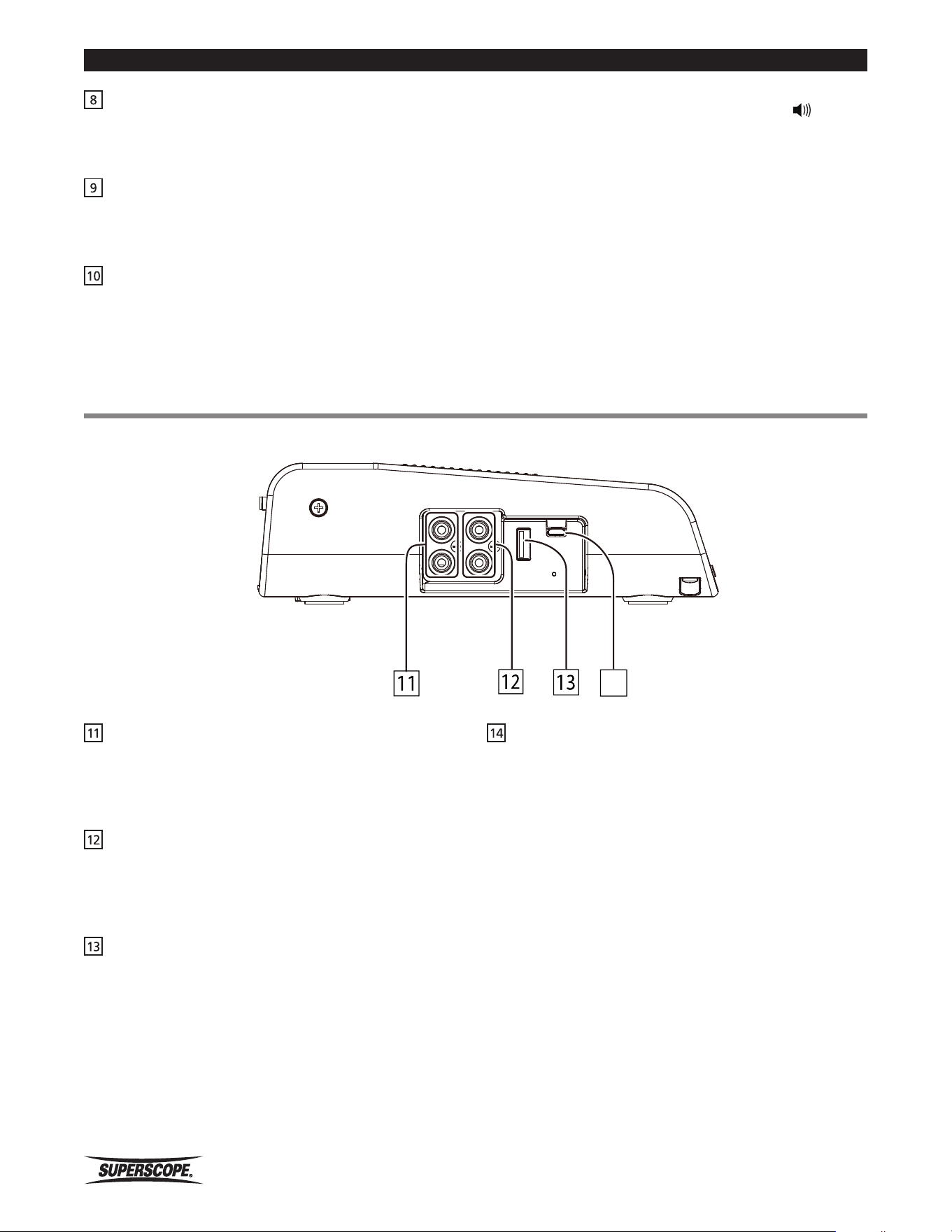
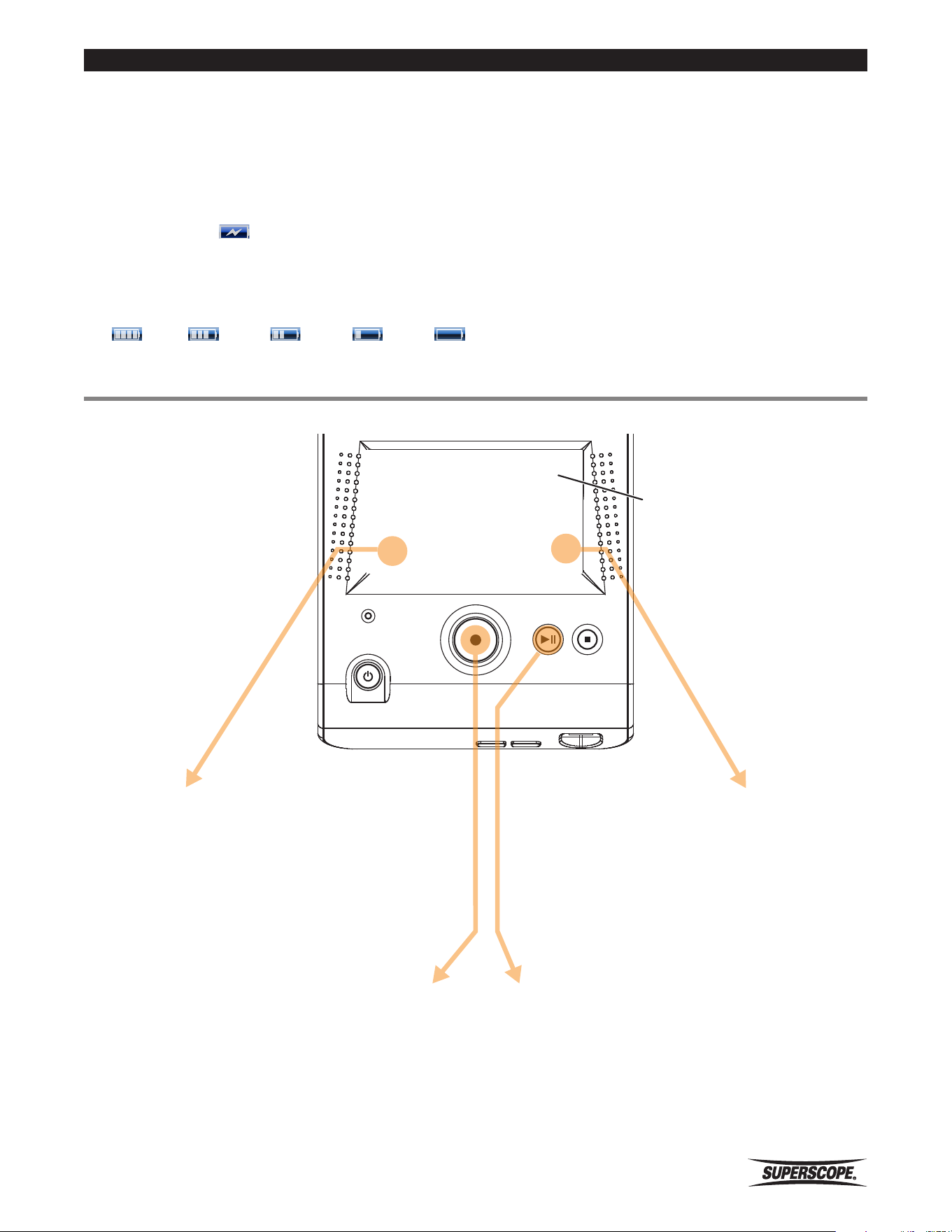
j POWER Button
Press the POWER button for 1 second to turn power
ON. Press and hold POWER button for 2 seconds to turn
power OFF.
Low BATTERY Indicator
LED flashes when the battery power is low. LED remains
lit when Ni-MH batteries are charging and the PMR61 is
powered off.
t REC Button
From Stop mode, press to enter Record Pause mode or
Record mode. The Record LED will flash during Record
Pause mode and remain lit during Record mode.
During Recording, press t REC button to start a new
recording.
PHONE SPEAKER Level
Press the + and – buttons to adjust the volume of the
built-in speaker or headphones.
HEADPHONE Jack
Connect stereo headphones here. This input accepts
a stereo 1/4” plug and when connected automatically
mutes the internal speaker.
q PLAY/PAUSE Button
From Stop mode, press to start or pause playback.
During recording, press to pause recording. Press again
to resume recording of the same file.
w STOP Button
Press to stop playback or recording. Press Stop again to
return to the HOME screen.
POWER
BATTERY
PLAY/PAUSE
STOP
REC
- 10 -
Superscope PMR61 User Guide
Controls
Touch Screen
Touch the touch screen to access recordings, make
changes to settings and to operate the PMR61.
Internal Speaker
During playback, sound can be heard through the
internal speaker unless headphones are connected.
Internal Microphones L & R
Internal microphones are automatically turned on when
no external microphone or line source is connected.
USB
-
A
USB
-
B
LINE OUT
L
R
AUX IN
14
■Side Panel
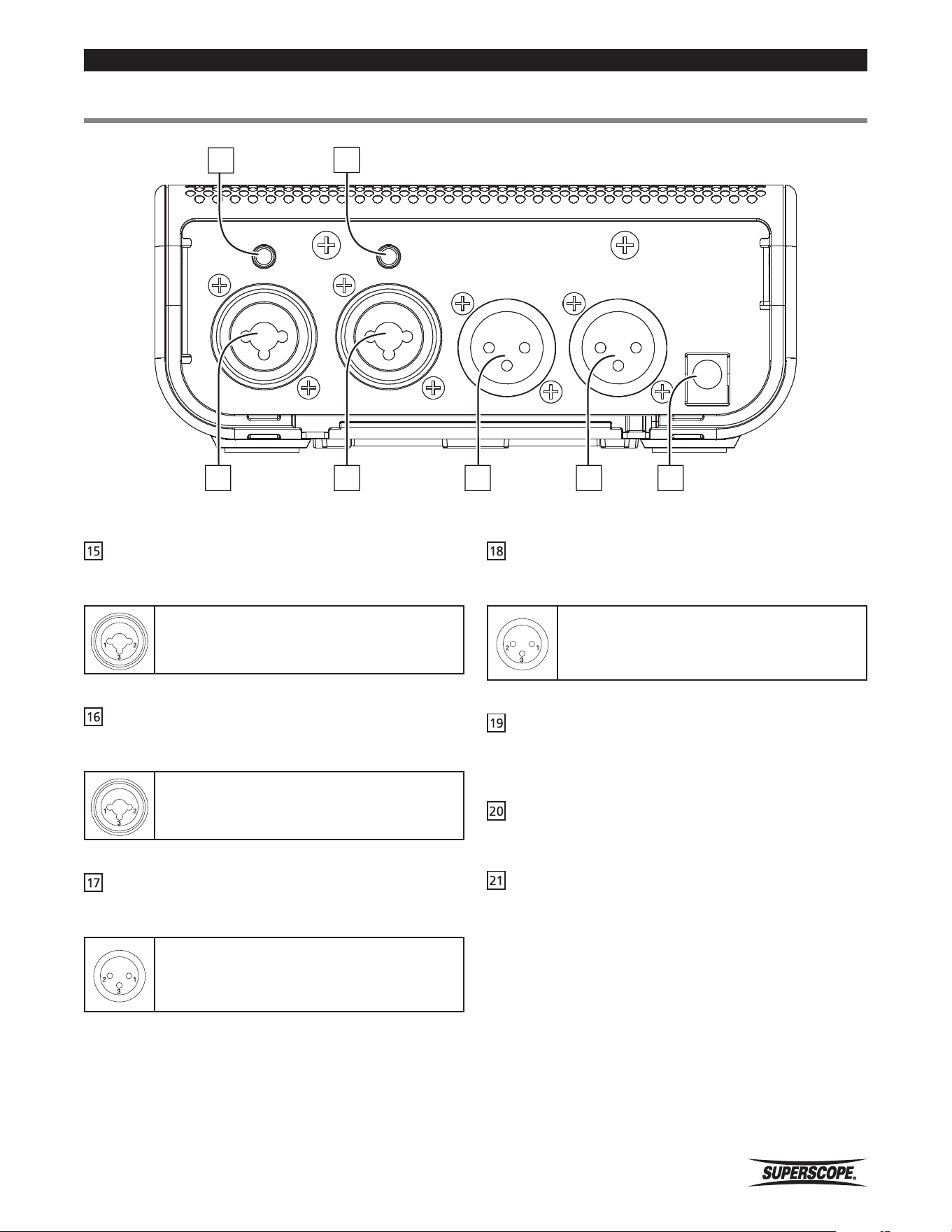
LINE OUT Jacks
Connect these outputs to the inputs of another audio
device, such as an amplifier, powered speakers, mixing
board or alternate recording device.
AUX IN Jacks
Use these inputs when connecting line level equipment
such as smart phones, tablets, computers, tape and CD
players and mixers.
USB Connector A
Connect a USB flash drive (media) or other USB storage
device. USB media can be connected and removed at
anytime except for the following conditions. Recording,
Playing, and File writing.
USB Connector B
Connect a USB cable here to transfer recordings
between the PMR61’s Internal Media and a computer.
MASS STORAGE MODE is initiated when the PMR61
is connected to a computer with a USB cable and is
accessed automatically when in any operating state other
than Record, Play, or during file writing processes.
Note
The t REC, w STOP, q PLAY / PAUSE, and PHONE
SPEAKER LEVEL buttons must be pressed and held for
approximately 250 milliseconds to be recognized.
Superscope PMR61 User Guide
- 11 -
Controls
■Rear Panel
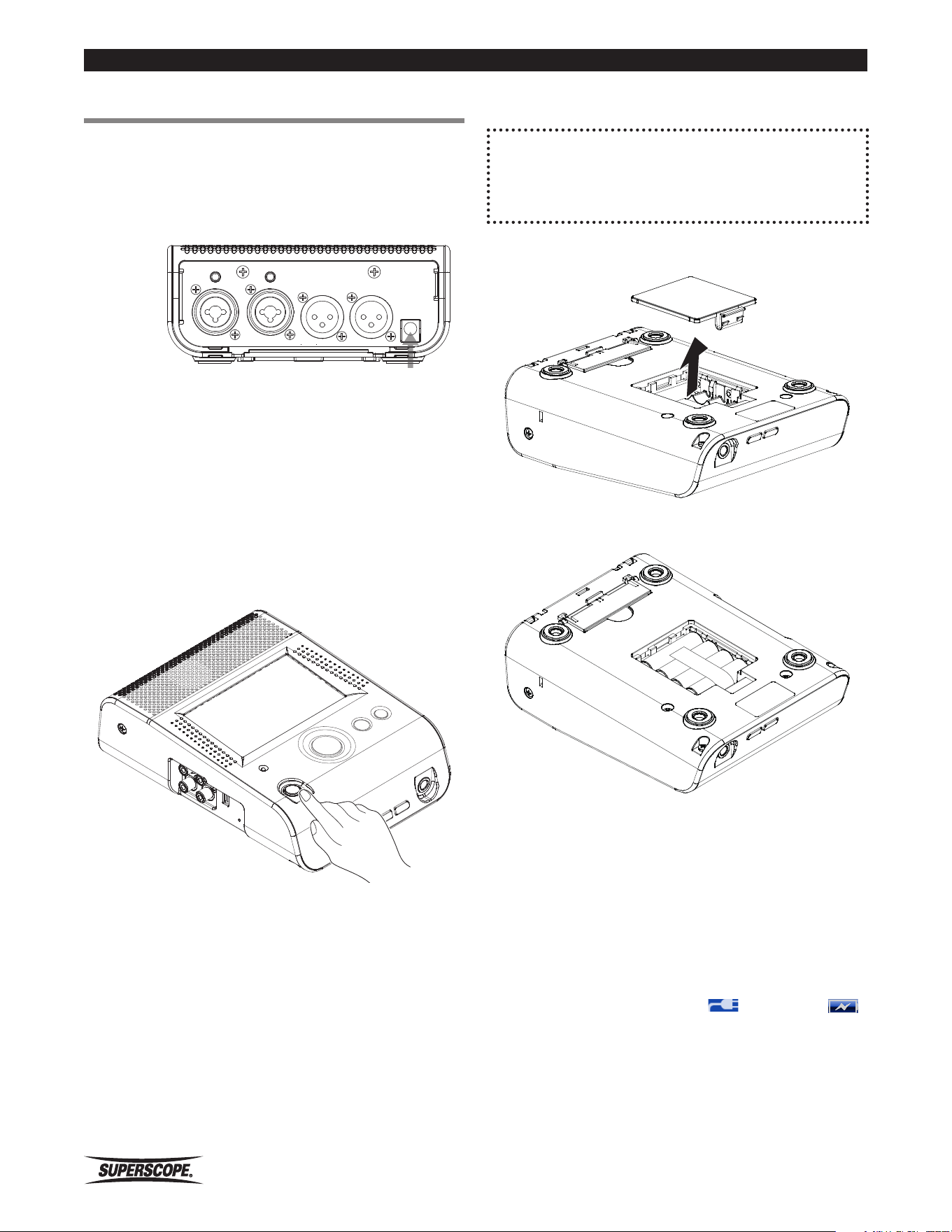
Right MIC/LINE INPUT Jack
Connect microphones or line level equipment with XLR
or ¼” inch plugs.
➊ GND
➋ HOT (w/ Phantom)
➌ COLD.
Left MIC/LINE INPUT Jack
Connect microphones or line level equipment with XLR
or ¼” inch plugs.
➊ GND
➋ HOT (w/ Phantom)
➌ COLD.
Right Analog Output (Balanced) Jack
Balanced signals require three separate connections
(HOT, COLD, GND):
➊ GND refers to the grounding wire.
➋ HOT refers to the original audio signal.
➌ The COLD signal is the original signal with
opposite phase.
INPUT
-
R
MIC/LINE MIC/LINE
LINE LINE
INPUT
-
L
CONF MIC
-
R
OUTPUT
-
R OUTPUT
-
L
CONF MIC
-
L
DC IN
16 18 19
20
15 17
21
Left Analog Output (Balanced) Jack
Balanced signals require three separate connections
(HOT, COLD, GND):
➊ GND refers to the grounding wire.
➋ HOT refers to the original audio signal.
➌ The COLD signal is the original signal with
opposite phase.
DC Input Jack
Connect the DA61PMR AC to DC adapter.
Do not use any adapter other than the DA61PMR.
Right Conference Microphone Jack
Connect microphone with 3.5mm stereo plug.
Left Conference Microphone Jack
Connect microphone with 3.5mm stereo plug.
5V phantom power is supplied at the CONF MIC inputs.
- 12 -
Superscope PMR61 User Guide
Controls
■Powering On
PMR61 operates with AC power or AA size batteries.
Before using batteries, please refer to “Using Batteries”.
Using the AC Adapter
INPUT
-
R
MIC/LINE MIC/LINE
LINE LINE
INPUT
-
L
CONF MIC
-
R
OUTPUT
-
R OUTPUT
-
L
CONF MIC
-
L
DC IN
AC Outlet
AC Adapter
(Included)
AC Power Cord
(Included)
q Connect the AC Adapter to the DC Jack.
w Connect the AC Cord to the Input of the AC Adapter.
e Connect the AC Plug to AC power source.
r Press the j POWER button to power on.
Using Batteries
Compatible Batteries
PMR61 works with Alkaline batteries and rechargeable
Ni-MH batteries.
1. Remove the battery cover on the bottom of the
recorder.
2. Insert four AA size Ni-MH batteries or Alkaline
batteries.
3. Close the battery cover.
4. Press the j POWER button to power on.
5. Set the correct Battery Type in the Device Settings
Menu.
When inserting batteries always be mindful of polarity
(+/-).
※ During battery operation, an icon is displayed
in the top left corner of the display showing
battery power. See AC (
) / Battery (
)
icons.
Superscope PMR61 User Guide
- 13 -
Controls
AC Power and Battery Tips
• When the AC adapter is connected while batteries
are inserted, AC power will have priority over the
battery power supply.
• PMR61 will automatically charge Ni-MH batteries
(recommended), whenever AC is connected and
Battery selection in the Setup Menu is Ni-MH. The
upper right hand corner of the display confirms
charging when ( ) is displayed. When using Ni-
MH batteries, use models with charge cycle and mHa
specifications that best fit your application.
• Low BATTERY LED remains lit when Ni-MH batteries
are charging and the PMR61 is powered off.
• Battery icon displays as follows;
(Full Charged) (Empty)
• It can be helpful to use batteries and the AC power
supply together. If the AC power supply is removed
unexpectedly, recording or playback will continue
without interruption using battery power.
• Do not mix new and old batteries or battery types
(Alkaline or Ni-MH).
• When the unit is not in use for a long period of time,
please remove batteries to prevent battery leakage.
Notes
If you are using Alkaline batteries, please be sure to
select Alkaline (No Charge). PMR61 disables the charging
circuit when Alkaline (No Charge) is selected.
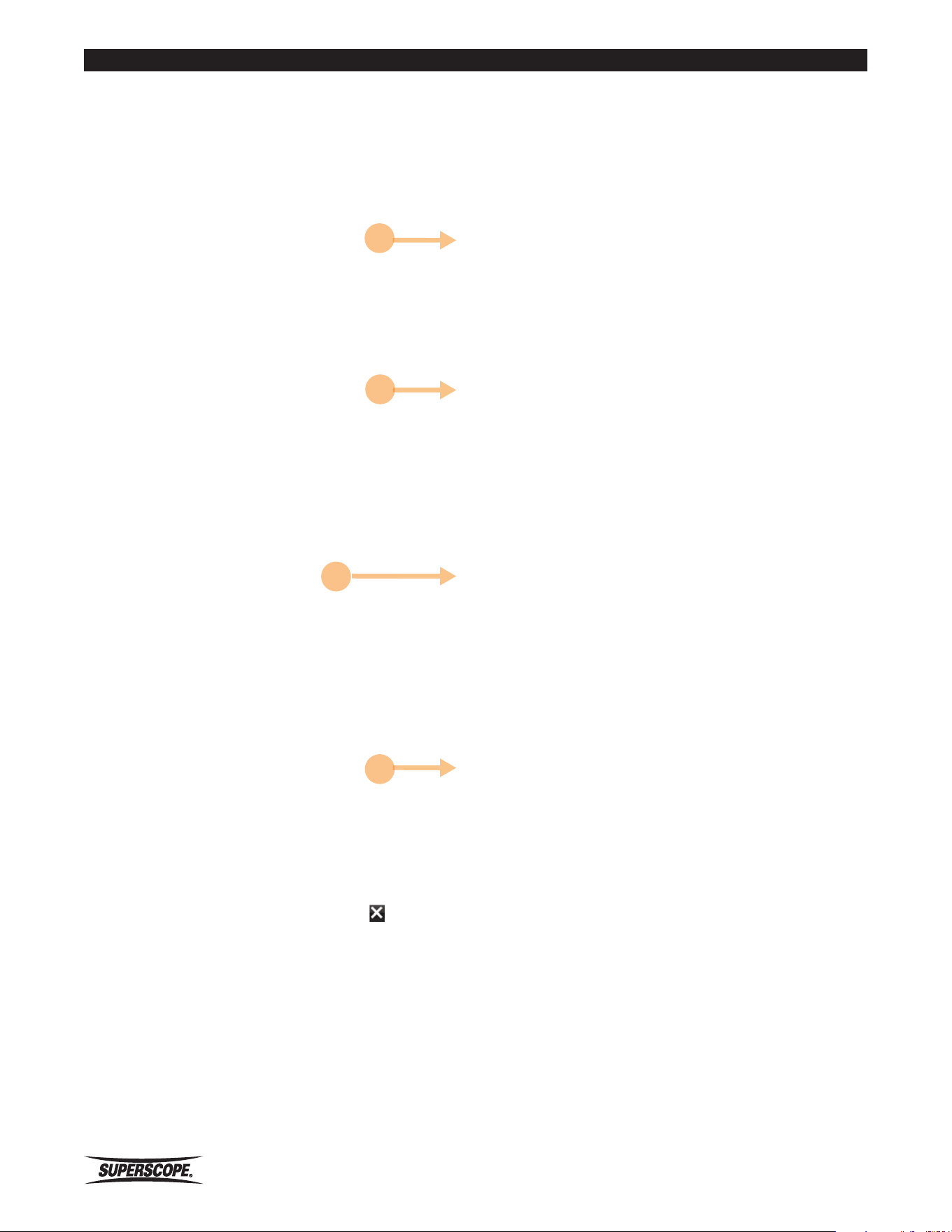
■Home Screen
1. Touch icons on the Home screen to access Recorded Files and Settings.
POWER
BATTERY
PLAY/PAUSE
STOP
REC
Home Screen
Recording Playing
Recorded Files list Setup Menu
- 14 -
Superscope PMR61 User Guide
Controls
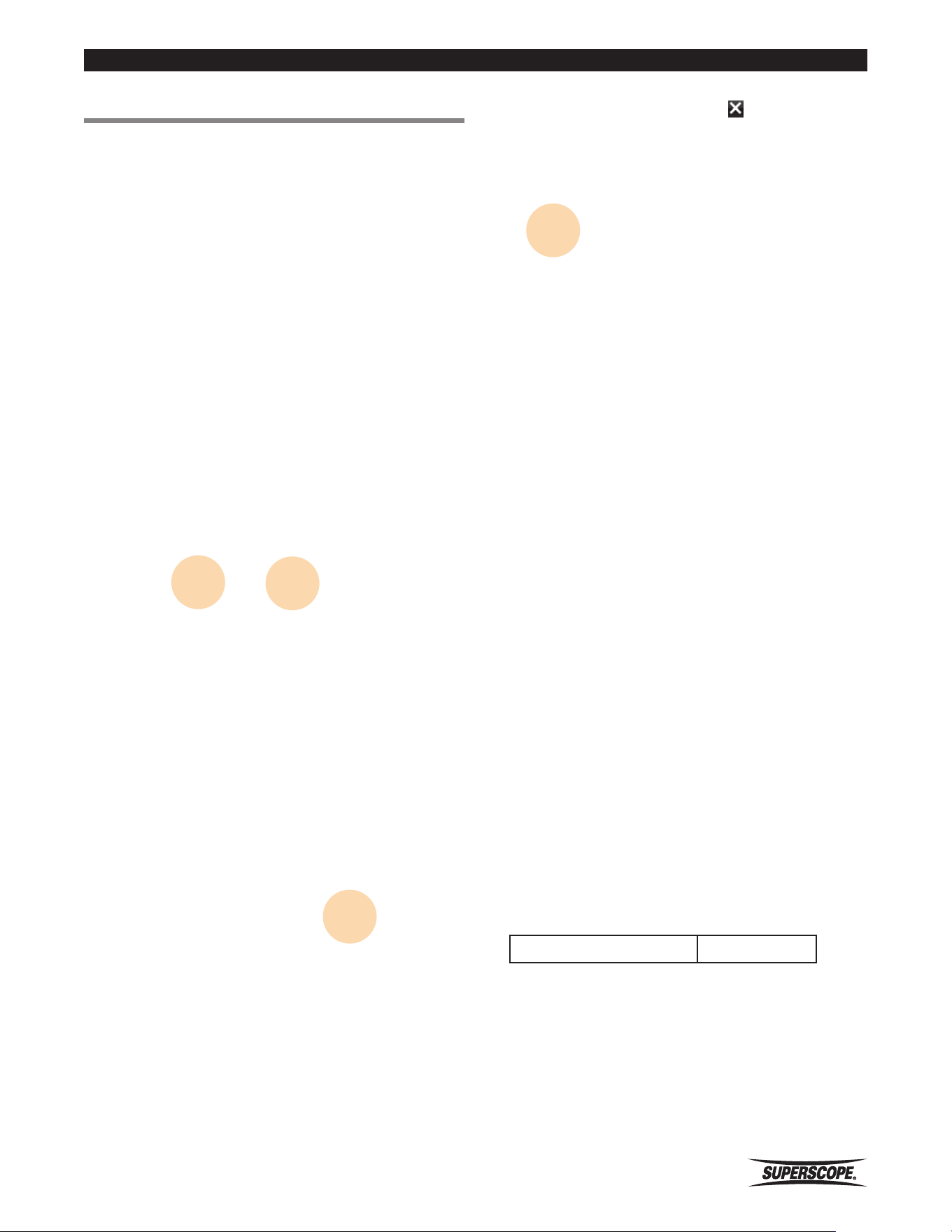
Properties Windows
1. Touch icon to access the properties windows.
Home Screen
Recorded Files list
Playing
Recording
2. To close the properties window, touch .
Notes
The info fields “Created” and “Updated” Date/Time are displayed in each unique recorded file’s properties by
touching the Info Icon.
Created: Date/Time is the original Date/Time that a recording was started in the PMR61.
Updated: Date/Time is when a PMR recording was stopped or transferred to USB Media or Internal Media using the
Copy, Move and Backup features.
• If a file has no Created: Date/Time when viewed in PMR61 File properties, it was not recorded by a PMR61.
• Recordings transferred from a computer into the PMR61 via Mass Storage Mode will display an Updated: Date/
Time per the computer’s method.
Superscope PMR61 User Guide
- 15 -
Recording
■Recording
1. Press the t REC button to begin recording.
The following screen will appear:
2. Touch the
−
and
+
level buttons to adjust the REC
LEVEL. When the Record Level Control is set to
Automatic, manual adjustment is not available.
3. To pause the recording, press the q PL AY/PAUSE
button. To resume recording press the q PLAY/
PAUSE button again or t REC button.
4. To select and adjust Input source levels, touch Input
Levels.
5. Touch the input source to select it. Then touch + or
– to adjust the levels. Touch the to close the Input
Source Levels Controls screen.
6. To stop recording, press the w STOP button.
The recorded file will appear in the File Options screen.
Touch the and arrows to scroll through options
associated with the recorded file that is displayed
at the top of the screen. Menu selections Rename,
Copy, Move or Delete require a PIN for operation
if a PIN has been set and turned ON in the Device
Settings.
When the Record Level Control is set to Manual, the
PMR61’s headphone and line output signal includes any
input source after Noise Reduction but before analog
to digital conversion and the codec. When the Record
Level Control is set to Automatic, the headphone and
line output signal includes any input source after Noise
Reduction and analog to digital conversion but before
the codec. To hear what is being recorded, use “Record
Check” to record and playback a test file.
File Limits
Single File Size 2GB
※Note: During the transition time, audio may
be lost. When the above limit is exceeded
during recording, a new file is created
automatically and recording continues.

- 16 -
Superscope PMR61 User Guide
Recording
Using RECORD CHECK
Record Check is a 15-second process that automatically
scans multiple input sources and automatically selects
correct sensitivities, attenuation, input levels, and record
level. When the Record Check process is COMPLETED,
you can view the settings and listen to a 5-second test
file to audition the audio performance. The test file will
be automatically discarded. If you are not satisfied with
the recorded performance, you can modify the settings
manually or run the Record Check process again.
1. Touch on the HOME screen to begin Record
Check.
The Record Check screen will appear. Speak into
all microphones that will be used for recording and
count down from 15 to 0.
2. Record Check will automatically detect and set input
sensitivities, input source levels, recording levels,
and make a brief test recording. To hear the results,
touch Play Test File.
The PLAYBACK screen will appear and automatically
play the “Record Check” file for you to listen to.
After playback, PMR61 will return to the Record
Check screen. You can listen to the test file again or
return to the Home screen and run Record Check
again.
Note
• During Record Check, be sure to provide a normal
signal throughout the 15 second Record Check
process to any input that you intend to utilize for
recording.
• Pressing the Stop button during the Record Check
process will cancel Record Check.
• Record Check is not available when the Record Level
Control is set to Automatic.

Superscope PMR61 User Guide
- 17 -
Recording
Checking USB Media
The USB Media Check feature is a speed test designed to
report compatibility of USB media. If using USB media,
always run the USB Media Check prior to use.
1. Insert USB media, wait for media to be recognized,
and then touch USB Media Check.
2. Touch OK.
When the USB Media Check process is completed,
one of the three results will be displayed:
Good – USB media is suitable for recording (indicated
by white USB icon).
Poor – USB media is not suitable for recording
(indicated by yellow USB icon).
No Good - USB media is not suitable for use (no USB
icon indication).
3. Touch
to return to the HOME screen. Touch
Previous Menu to return to the previous Menu.
Note
• Detected USB media that has not been checked using
USB Media Check will be indicated by yellow USB
Icon.
• Not all USB media is created equal. PMR61’s USB
Media Check feature is a speed test designed to
report compatibility prior to recording, but this alone
will not guarantee USB media will remain in its tested
condition.

- 18 -
Superscope PMR61 User Guide
Recording
■Recording Setup
Setting Record Settings
1. From the HOME screen, touch Settings to access the
Setup Menu.
When a PIN (Password Identification Number) has
been set, you must input it here to access or make
changes in the Setup Menu.
2. Touch the number keys to enter the PIN number and
then touch Done.
To reset the PIN press On, enter up to 12 characters
and touch Done. Confirm the Device PIN by entering
the PIN again and touch Save. To disable the PIN
function, touch Off followed by Save.
3. To make changes to the Record Settings, touch
Record Settings.
The following screen will appear:

Superscope PMR61 User Guide
- 19 -
Recording
Selecting Media
1. Touch Media Select to access the options for storing
PMR61 recorded files.
2. Touch the media where you want to write and store
recorded files. If you select Internal, recorded files
will be stored in the Internal media. If you select
USB, recorded files will be stored in the USB media.
If you select Both, recorded files will be stored
simultaneously in Internal and USB media.
3. Touch Save to accept your selection. Touch Cancel to
ignore changes and return to the Record Settings in
the Setup Menu.
Setting Record Parameters
1. To access the recording parameters that determine
the quality of audio and associated file sizes, touch
Record Parameters.
2. To select sample frequencies and bit rates for your
recordings, touch the parameters. The active File Size
calculator will change as parameters are selected.
3. Touch Save to accept the settings. Touch Cancel to
ignore changes and return to the Record Settings in
the Setup Menu.

- 20 -
Superscope PMR61 User Guide
Recording
Selecting Record Level Control
1. Touch Record Level Control to access Record Level
Control options.
2. Touch Automatic or Manual. If you select Automatic,
Record levels are automatically adjusted depending
on the level detected during recording.
Touch Save to accept your selection. Touch Cancel to
ignore changes and return to the Record Settings in
the Setup Menu.
Selecting Phantom Power
1. Touch Phantom Power to select Phantom Power
options.
2. Touch On or Off for each channel. Select On to
provide +48V Phantom Power to the MIC/LINE
(XLR) microphone inputs. Select Off if condenser
microphones are not connected to the XLR inputs.
3. Touch Save to accept your selection. Touch Cancel to
ignore changes and return to the Record Settings in
the Setup Menu.

Superscope PMR61 User Guide
- 21 -
Recording
Setting Microphone Attenuator
1. To access the attenuation settings for internal or
3.5 mm connected conference microphones, touch
INT/CONF Attenuator.
2. Touch On to apply -20 dB attenuation to the Left or
Right Channels.
3. Touch Save to accept the setting. Touch Cancel to
ignore changes and return to the Record Settings in
the Setup Menu.
Setting Aux Input Attenuator
1. To access the attenuation settings for the AUX inputs
touch AUX Attenuator.
2. Touch On to apply -20 dB attenuation to both the
Left and Right Channels.
3. Touch Save to accept your selection. Touch Cancel to
ignore changes and return to the Record Settings in
the Setup Menu.

- 22 -
Superscope PMR61 User Guide
Recording
Setting MIC/LINE Sensitivity
1. To access MIC/LINE Sensitivity settings for the Left
and Right Channels, touch MIC/LINE Sensitivity.
2. Touch Microphone or Line of each channel to select
the Input Sensitivity.
3. Touch Save to accept your selection. Touch Cancel to
ignore changes and return to the Record Settings in
the Setup Menu.
Selecting Noise Reduction
1. To access Noise Reduction settings, touch Noise
Reduction.
2. To select a low cut filter of 80 Hz, touch Normal
Room Reduction. To select a low cut filter of 400 Hz,
touch Maximum Room Reduction. To turn the low
cut filter Off, touch Off.
3. Touch Save to accept your selection. Touch Cancel to
ignore changes and return to the Record Settings in
the Setup Menu.
Note
Noise reduction is not applied to line level signals.

Superscope PMR61 User Guide
- 23 -
Recording
Internal Microphones
Internal Microphones are automatically turned OFF when
external inputs are detected. To change this setting,
touch Internal Microphones.
1. To access Internal Microphones settings, use the
/ to scroll to Internal Microphones and touch to
select.
2. To enable internal microphones when MIC/LINE or
AUX inputs are connected, touch Yes.
3. Touch Save to accept your selection. Touch Cancel to
ignore changes and return to the Record Settings in
the Setup Menu.
Note
Internal Microphones cannot be turned on if both 3.5mm
Conference Microphone inputs are connected. If only
one 3.5mm Conference Microphone is connected, one
internal microphone will be enabled when other inputs
are connected.
Setting Auto Start Record
The PMR61 can be set to automatically start recording
when powered on or when an audio threshold is
detected.
Power On Record
1. To access Automatic Start Record options, touch
Automatic Start Record.
2. To automatically start recording when the PMR61 is
powered ON, touch Power On Record. Please note
it takes at least 15 seconds for PMR to power on
before recording can begin.
3. Touch Save to accept your selection. Touch Cancel to
ignore changes and return to the Record Settings in
the Setup Menu.

- 24 -
Superscope PMR61 User Guide
Recording
Audio Detect Record
1. To access the selections to automatically start
recording, touch Automatic Start Record.
2. To automatically start recording when an audio
threshold is detected, Touch Audio Detect Threshold
and then touch Settings.
3. To select an audio threshold setting necessary to
automatically start recording, touch -20 dB (less
sensitive) or -60 dB (more sensitive).
4. Touch Save to accept your selection. Touch Cancel to
ignore changes and return to the previous screen.
5. Press the t REC button to enter the Record mode.
The following screen will appear and t REC button
flashes during RECORD PAUSE until the threshold
signal is detected.
Setting One Touch Record
1. To select the behavior of the t REC button when
pressed, touch One Touch Record.
2. To enter Record mode when pressing the t REC
button once, touch On. To enter Record Pause
mode with one press and begin recording when t
REC button is pressed a second time, touch Off. One
Touch Record OFF is a useful tool if you regularly
want to manually adjust input and record levels prior
to recording.
3. Touch Save to accept your selection. Touch Cancel to
ignore changes and return to the Record Settings in
the Setup Menu.

Superscope PMR61 User Guide
- 25 -
Play
■Play
Playing
1. Press the q PL AY/PAUSE button to start playback.
When you press, the currently selected file is played.
2. Press the q PLAY/PAUSE button again to pause
playback. Play restarts when you press the q PLAY/
PAUSE button again.
3. To fast-forward the file, press and hold the s. To
rewind the file, press and hold the a. You can
adjust the Time Jump Interval for a/ s in the
Device Settings.
4. To jump forward five minutes, touch . To jump
back five minutes, touch the
.
5. To play the previous file, touch the g.. To play the
next file, touch the h.
Play Mode
The playback mode can be set for Single track playback
or Continuous track playback.
1. Touch Play Mode to access Single or Continuous
playback.
2. To select continuous track playback, touch
Continuous. To select single track playback, touch
Single.
3. Touch Save to accept your selection. Touch Cancel to
ignore changes and return to the Device Settings in
the Setup Menu.

- 26 -
Superscope PMR61 User Guide
Play
Selecting a Recorded File
1. At anytime during Playback, you can touch to
access all recorded files from either the Internal or
USB Media.
From the HOME ( ) screen, touch to access
recorded files.
2. Touch either
or
to view the list of recorded
files within that specific media.
3. Touch or , to scroll through the list of recorded files.
Playing a Recorded File
1. Touch a recorded file to select it for playback.
2. Touch Play.
The PLAYBACK screen will appear and the recorded
file will begin playback.

Superscope PMR61 User Guide
- 27 -
Play
Renaming a Recorded File
1. Use the / to scroll to the recorded file you want
to rename and touch the file.
2. Touch Rename.
Use the keyboard to rename the recorded file name.
Touch the display to position the cursor or touch
and drag to select the characters you wish to erase.
To erase all characters, touch the when the file
name is highlighted or simply enter any character.
3. Touch Save to accept the setting. Touch Cancel to
ignore changes and return to the previous screen.
Copy to USB Media
1. From the Internal Media screen, touch the file that
you want to copy to USB media.
2. Touch Copy to USB.
3. Touch Yes to copy the file.
4. Touch to return to the HOME screen. Touch
Previous Menu to return to the previous Menu.

- 28 -
Superscope PMR61 User Guide
Play
Move to USB Media
1. From the Internal Media screen, use the and to
scroll to the recorded file you want to move. Touch
the file name to select it.
2. Touch Move to USB. USB media must be inserted
and detected.
3. Touch Yes to remove the file from Internal Media and
add it to the USB Media.
Delete a Recorded File
1. From the Media screen, use the and to scroll to
the recorded file you want to delete. Touch the file
name to select it.
2. Scroll down and touch Delete.
3. Confirm the file that is displayed and touch Yes to
permanently delete it.
Note
To permanently delete all recorded files from Internal or
USB media, select the Format Media option from Utility
in the Setup Menu.

Superscope PMR61 User Guide
- 29 -
Setup Menu
■Settings
Open the Setup Menu
1. To access Device Settings, Record Settings and
Utilities, touch Settings.
If a PIN has been previously set in the PMR61, enter it
now to access the Setup Menu.
2. Touch Done to accept the PIN.
The following screen will appear.
In the next step, you can change each setting. For
the Record Settings, please refer to Recording Setup
on page 18.

- 30 -
Superscope PMR61 User Guide
Setup Menu
■Device Settings
Setting Date and Time
Recorded files are automatically named according to the
set date and time. To access the settings, touch Date/
Time.
Setting Time
1. Touch Date/Time.
2. Touch Set Time.
3. Change Time values by touching or .
4. To accept the settings and return to the Time/Date
menu screen, touch Save. Touch Cancel to ignore
changes and return to the Time/Date menu screen.
Setting Date
1. To access the Date settings, touch Date/Time.
2. Touch Set Date.
3. Change Date values by touching the or .
4. To accept the settings and return to the Date/Time
menu screen, touch Save. Touch Cancel to ignore
changes and return to the Date/Time menu screen.

Superscope PMR61 User Guide
- 31 -
Setup Menu
Setting Daylight Saving Time
1. To access the settings for daylight saving time, touch
Date/Time.
2. Touch Set Daylight Saving.
3. Touch On and then touch Settings.
4. To set the daylight saving start date and time, touch
Start Date. To set the daylight saving end date and
time, touch End Date.
5. Change Date and Time values by touching or .
6. To accept the settings and return to the previous
menu screen, touch Save. Touch Cancel to ignore
changes and return to the previous menu screen.

- 32 -
Superscope PMR61 User Guide
Setup Menu
Selecting Time Format
1. To access the 12 hour (standard) or 24 hour (military)
time formats, touch Date/Time.
2. Touch Time Format.
3. Touch 12 Hour (Standard) or 24 Hour (Military) to
select Time Format.
4. To accept your selection and return to the previous
menu screen, touch Save. Touch Cancel to ignore
changes and return to the previous menu screen.
Setting Display
Setting Backlight
1. To adjust the screen brightness level, touch Display.
2. Touch Brightness.
3. Adjust the Backlight Brightness by touching or .
4. To accept the setting and return to the previous
menu screen, touch Save. Touch Cancel to ignore
changes and return to the Display Settings menu.

Superscope PMR61 User Guide
- 33 -
Setup Menu
Setting Sleep Mode Time
The PMR61 can enter a power saving mode if no
operation has occurred after a set amount of time.
1. To access the Sleep Mode Settings, touch Display.
2. Touch Sleep Mode.
3. To adjust the time to Turn off the display and Power
off PMR61, touch the area you want to change.
4. Adjust the time by touching or .
5. To accept the setting and return to the Sleep Mode
Settings, touch Save. Touch Cancel to ignore changes
and return to the Sleep Mode Settings.
Setting Home Screen Name
1. To change the name in the Home Screen, touch
Display.
2. Touch Add Name to Home Screen.
3. Use the keyboard to enter the Name. Touch the
display to position the cursor or touch and drag to
select the characters you wish to erase. To erase
all characters, touch the when the name is
highlighted or simply enter any character.
4. To accept the name and return to the Display
Settings, touch Save. Touch Cancel to ignore changes
and return to the Display Settings menu.

- 34 -
Superscope PMR61 User Guide
Setup Menu
Setting a PIN
1. To set a PIN to restrict access to the Setup Menu
and protect recorded files, touch Device PIN.
2. Touch On.
If you do not want to change a previously entered PIN,
touch Cancel. PMR will return to the Previous screen.
Touch Cancel on the Device PIN screen to ignore
changes and return to the Device Settings screen.
3. Enter a Device PIN and then touch Done.
A maximum of 12 characters can be entered.
4. Enter the Device PIN again to confirm and then touch
Save.
5. Touch Save to accept the setting and return to the
Device Settings screen. To ignore and return to the
previous screen, touch Cancel.
Note
To override a forgotten PIN, Power ON the PMR61 while
holding the w STOP button. This will allow full access to
all PMR61 functions. You can set a new PIN from Setup
Menu Device Settings.

Superscope PMR61 User Guide
- 35 -
Setup Menu
Setting Battery Type
When using batteries, the battery type should be
correctly set. If you set the wrong battery type, the
battery indicator is not displayed correctly. Please note
that Ni-MH batteries are internally charged in the PMR61
when the Battery Type is set to NI-MH (Charge).
1. To access the battery type, touch Battery Type.
2. Touch Ni-MH when using Ni-MH batteries. Touch
Alkaline when using alkaline batteries.
3. Touch Save to accept your selection. Touch Cancel to
ignore changes and return to the Device Settings in
the Setup Menu.
Notes
If you are using Alkaline batteries, please be sure to
select Alkaline (No Charge). PMR61 disables the charging
circuit when Alkaline (No charge) is selected.

- 36 -
Superscope PMR61 User Guide
Setup Menu
Setting User Areas
User Areas 1 and 2 are descriptions that can been added
to the File names of PMR61 recordings.
1. To access User Areas, touch User Area 1 or User Area
2/ Track#.
2. Touch On and then touch Settings to enter or display
user data that has been previously set.
3. Type a User Area description using the keyboard.
To erase characters to the left of the cursor, touch
the or touch and drag to select the characters
you wish to erase. You can enter up to 12 characters.
4. Touch Save to save the User Area description.
The following screen will appear:
5. Touch Save to accept your selection. Touch Cancel to
ignore changes and return to the Device Settings in
the Setup Menu.
Superscope PMR61 User Guide
- 37 -
Setup Menu
Add Track Number Feature
Track numbers can been added to File names of PMR61
recordings using User Area 2.
1. Touch Device Settings and use or to scroll to
and touch User Area 2/Track #.
2. If User Area 2 Track# is the selection, the following
Setting screen will be displayed.
If Track Number is the selection and the is
touched, the following Menu screen will be
displayed. Touch to select the Media type that will
determine track numbers in the file name.
3. When User Area 2 is touched followed by the
Settings ICON, the keyboard Input screen is
displayed.
4. If Off is selected, User Area 2 and Track Number will
not be displayed in the file name.
The example below shows User Area 1 and User
Area 2/Track # added to the file name.
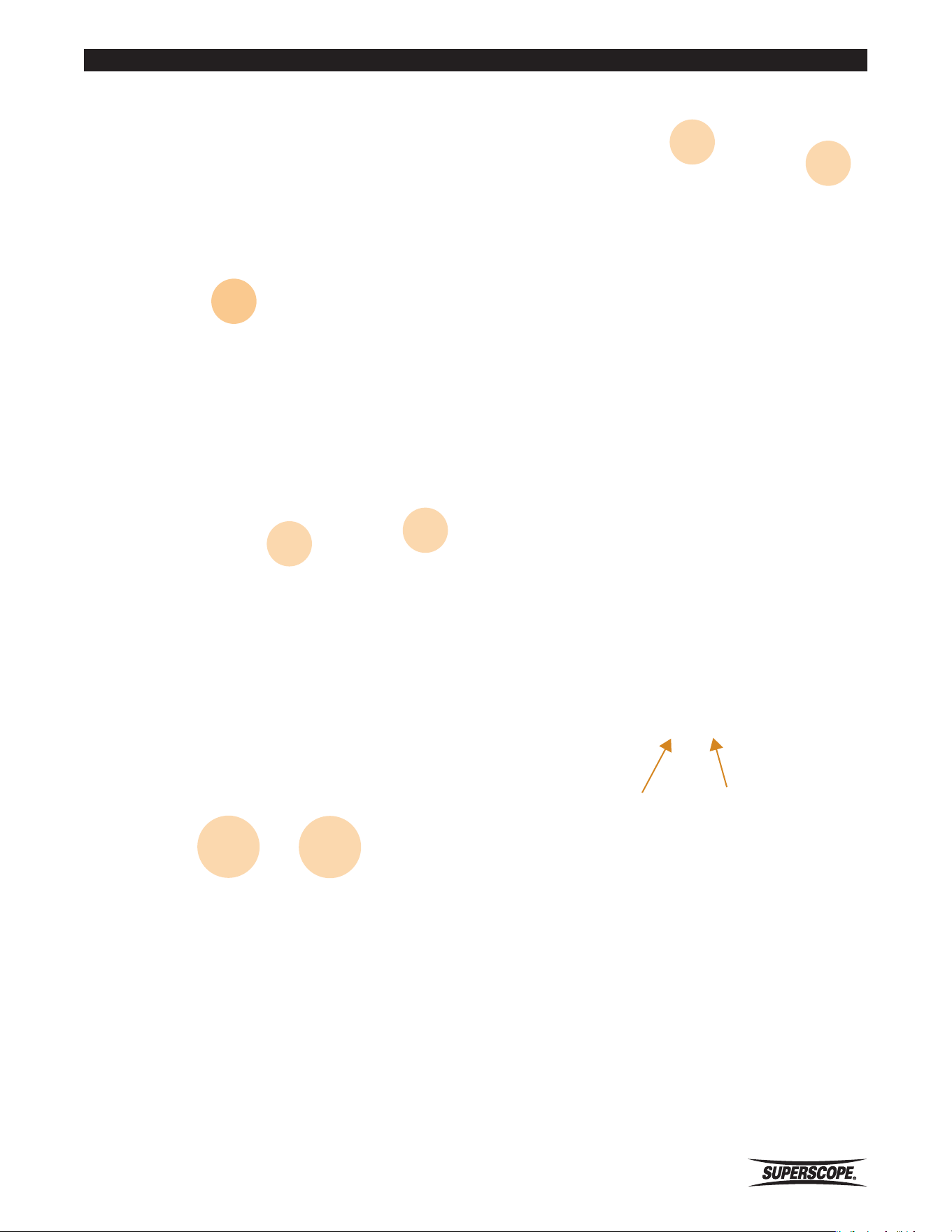
User Area 1 User Area 2/Track#
When track number is selected for User Area 2,
the track position number for the selected media is
added to the file name.
The screen example above shows USB media was set
to determine the track number that has been added
to the file name by displaying BOLD type.

- 38 -
Superscope PMR61 User Guide
Setup Menu
Setting File Name Format
File Name Format is the order that data appears in the
name of PMR61 recorded files including; Date/Time, User
Area 1 and User Area 2/Track#.
1. To access the formats touch File Name Format in the
Device Settings of the Setup Menu.
2. There are 5 formats that determine the order of data
displayed in the file name. Touch / to scroll up
and down and touch the format you want to select.
3. Touch Save to accept your selection. Touch Cancel to
ignore changes and return to the previous screen.
Setting Audio Output
1. To access the audio output settings, touch Audio
Output.
2. To access the settings, touch Signal Pass Through or
Mono Output.
3. To pass input sources (including the internal
microphones) to the XLR and RCA line outputs
during recording, touch Signal Pass Through, then
touch Yes. If your selection is No, signal will not pass
through to the Line Outputs during Recording.
4. Touch Save to save your selection. Touch Cancel to
ignore changes and return to the previous screen.
5. To sum both the left and right channels to output as
mono from either the left and/or right XLR and RCA
line outputs, touch Mono Output, then touch Yes.
Touch No to output as Stereo.
6. Touch Save to save your selection. Touch Cancel to
ignore changes and return to the previous screen.

Superscope PMR61 User Guide
- 39 -
Setup Menu
Setting Jump Interval Time
From the playback screen you can quickly jump forward
and back to review a recording while it is playing by
using the
and buttons.
1. To access the selections for the Time Jump Interval,
touch Time Jump Interval.
2. Touch or to scroll through the Menu options.
Touch the number of seconds you want to set for
the Time Jump Interval.
3. Touch Save to accept your selection. Touch Cancel to
ignore changes and return to Device Settings in the
Setup Menu.

- 40 -
Superscope PMR61 User Guide
Setup Menu
■Utility
Utility Menu
1. To access the Setup Menu touch Settings.
The following screen will appear:
2. Touch Utility.
The following screen will appear.
Format Media
Format Media erases all of the recordings and files in the
selected Media.
1. Touch Format Media.
2. To select the Media that you want to Format, touch
Internal or USB. No option for USB will be displayed
unless USB media is inserted and detected.
The following screen will appear:
3. Touch Yes if you want to permanently erase all
recordings and files from the selected media.
4. Touch Save to begin formatting the selected media.
Touch Cancel to ignore changes and return to the
Format Media screen.

Superscope PMR61 User Guide
- 41 -
Setup Menu
Backup Media
1. To copy all recordings from either the Internal or USB
media, touch Backup Media.
2. Touch Internal or USB to select Media to be backed
up after USB media is inserted and detected.
3. Confirm the operation displayed on screen. Then
touch OK. If you want to ignore and return to the
previous screen touch Cancel.
Save Settings to USB Media
1. To save PMR61 settings to USB Media, touch Save
Settings.”
The following screen will appear:
2. Touch Yes.
3. Touch Save to accept your selection. Touch Cancel
to ignore changes and return to Utility in the Setup
Menu.

- 42 -
Superscope PMR61 User Guide
Setup Menu
Load Settings from USB Media
1. To load PMR61 settings from USB Media, touch Load
Settings.
The following screen will appear:
2. Touch Yes.
3. Touch Save to load the settings from USB. Touch
Cancel to ignore changes and return to Utility in the
Setup Menu.
Superscope PMR61 User Guide
- 43 -
Setup Menu
Delete Recorded Files
Automatically
Recorded files can be designated for automatic deletion
from Internal Media when prompted by the Power Off
command. The Date/Time for auto delete is based on the
Updated: Date/Time reported in the file properties.
1. To access Auto Delete Recordings settings, touch
Auto Delete Recordings.
Note: Files are deleted from Internal Media only
when using the Auto Delete Recordings feature.
2. To select the number of days before recorded files
are automatically deleted, touch or . When
Never is selected, the recorded files are not deleted
automatically. Please select the setting date from the
following. 7, 15, 30, 90, 180 days and Never
3. Touch Save to accept your selection. Touch Cancel
to ignore changes and return to Utility in the Setup
Menu.
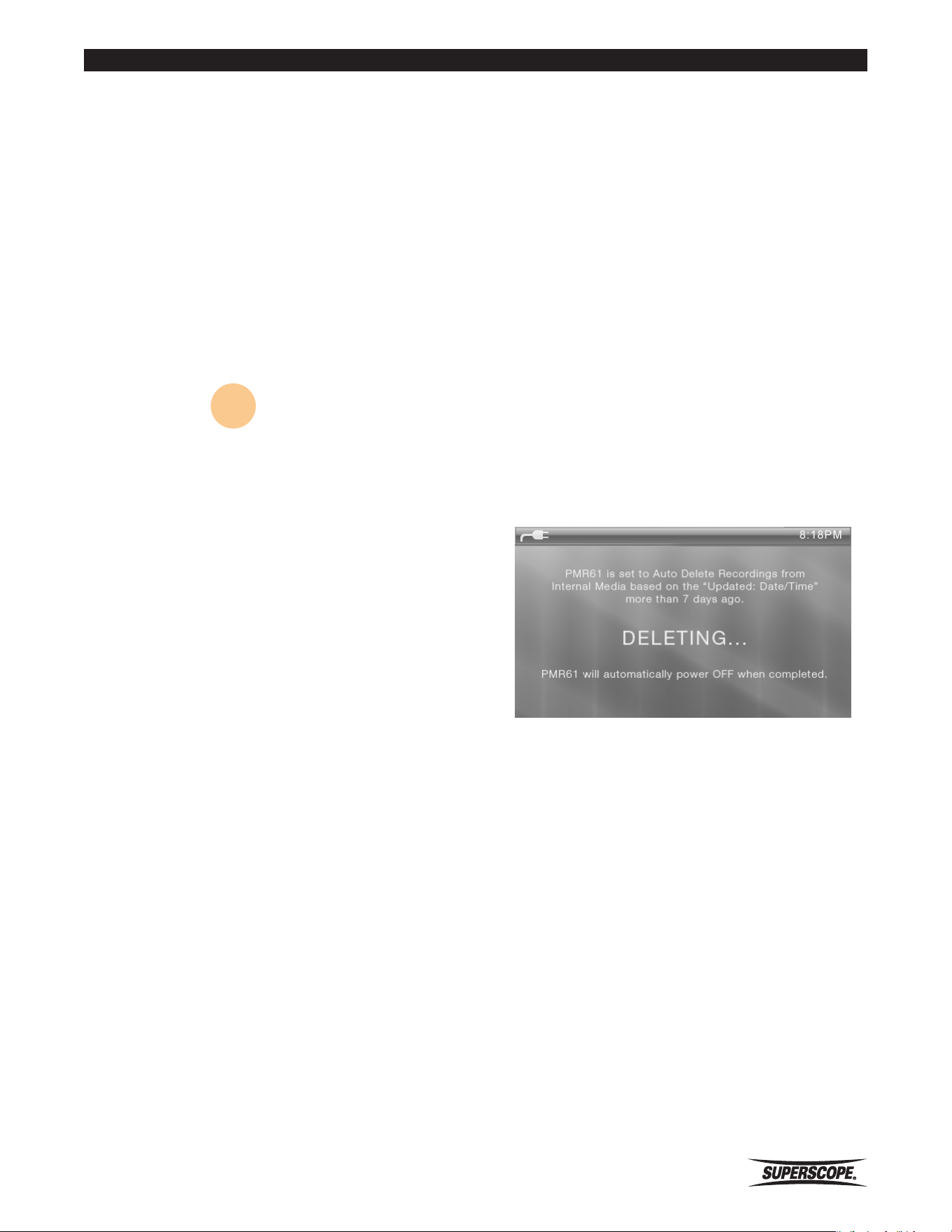
4. When the Power button is pressed and held for 2
seconds to power off, the message screen below will
be displayed when recordings in internal memory
exceed the set number of days in the Auto Delete
Recordings setting. The Auto Delete process will
begin after 10 seconds and then the PMR61 will
power off when complete. If Cancel is touched
within 10 seconds, the Auto Delete process will be
canceled and PMR will power off.
5. This screen is displayed when files are deleting.
When the process is completed PMR will Power Off
automatically.

- 44 -
Superscope PMR61 User Guide
Setup Menu
Restore Factory Settings
1. To restore PMR61 to factory default settings, touch
Restore to Factory Settings.
The following screen will appear:
2. Touch Yes. If you touch No the settings will not be
restored.
3. Touch Save to accept your selection. Touch Cancel
to ignore changes and return to Utility in the Setup
Menu.
Confirm System Version
1. To confirm the System Version, scroll down and
touch System Version.
PMR61 System Version will be displayed.
2. Touch to return to the HOME screen. Touch
Previous Menu to return to the previous Menu.
Superscope PMR61 User Guide
- 45 -
Outputs
■Speaker Setup
Using Headphones or the
Internal Speaker
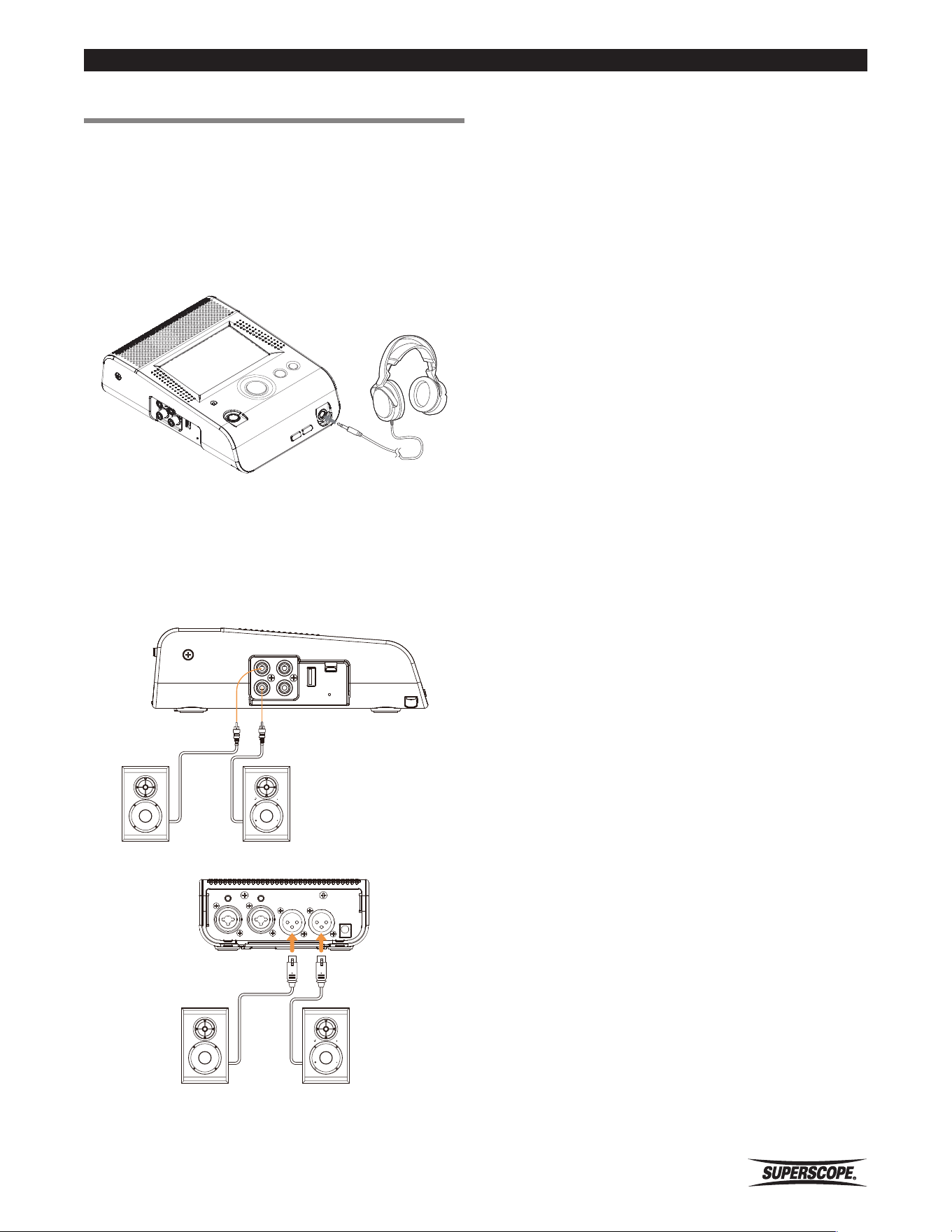
When using headphones or the internal speaker,
adjust volume by pressing the
−
and
+
VOLUME level
buttons on the front panel. The internal speaker will
be automatically muted when recording or when
headphones are connected.
External Speakers
When using powered speakers, speakers with built-in
amplifiers, connect the PMR61 right and left LINE OUT or
XLR balanced outputs to the line inputs of your powered
speakers. Use the volume control on the powered
speakers to adjust level.
AUX INLINE OUT
L
R
USB
-
A
USB
-
B
Powered Speakers
INPUT
-
R
MIC/ LINE MIC/ LINE
LINE LINE
INPUT
-
L
CONF MIC
-
R
OUTPUT
-
R OUTPUT
-
L
CONF MIC
-
L
DC IN
Powered
Speakers
- 46 -
Superscope PMR61 User Guide
Mass Storage Mode
3. The PMR61 will be recognized as an external drive
without having to install a new driver.
4. Locate the PMR61 in your computer’s directory, and
copy, move and delete files using your computer’s
operating system. Recordings transferred from a
computer to the PMR61 are placed in it’s ROOT
directory. Folders from a computer transferred to
PMR61 cannot be viewed or accessed in the PMR61.
■Computer
Connection
By connecting PMR61 to a PC or Mac, you can transfer
recorded files for editing or data backup. When the
PMR61 is in MASS STORAGE MODE, your computer will
be able to access recorded files in the Internal Media.
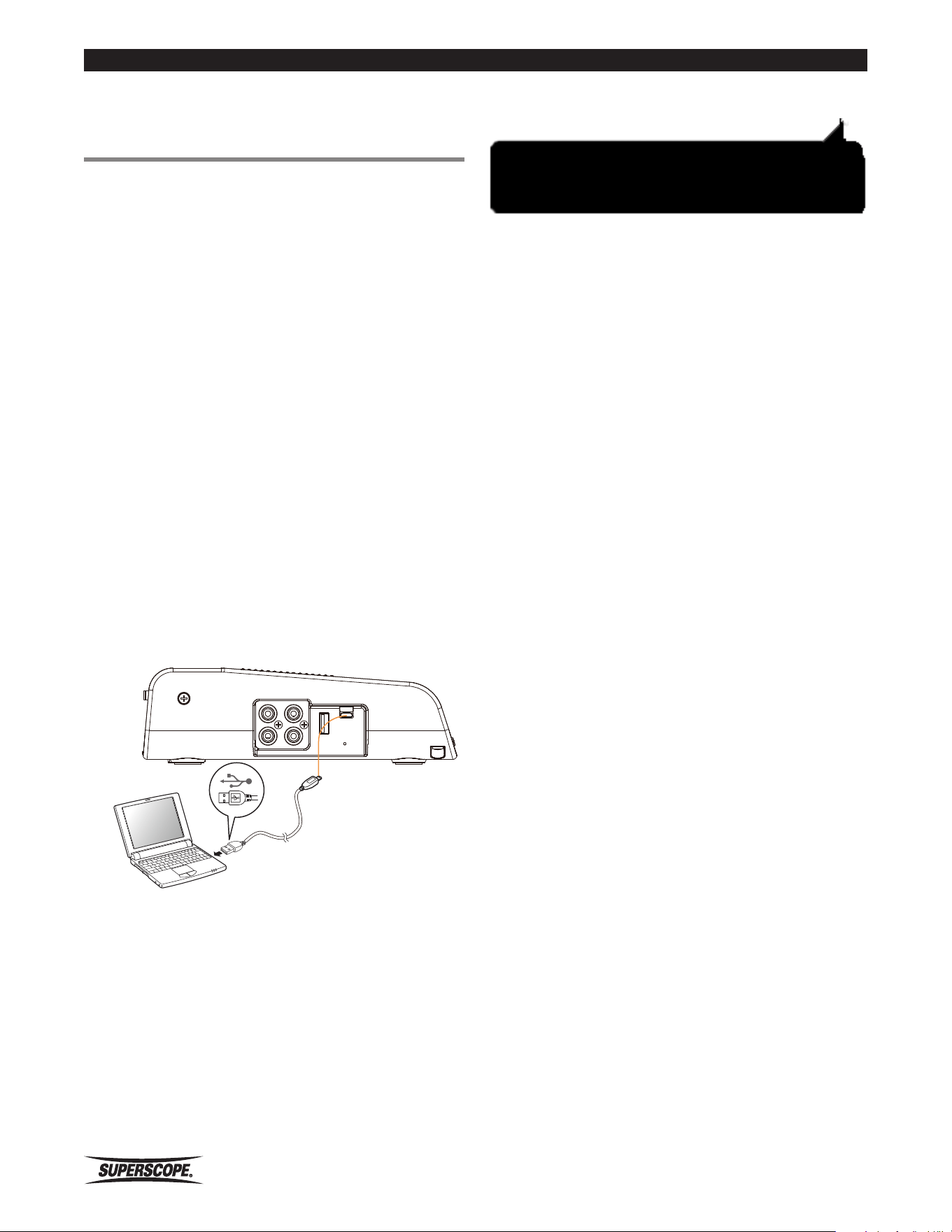
1. Confirm that the recorder is in any operating
state other than Record, Play, and file writing to
automatically activate MASS STORAGE MODE.
※ When PMR61 is in MASS STORAGE MODE, all
other features will be inactive.
2. Use the included USB cable to connect the recorder
to your computer.
Do not connect to a computer before
powering on the PMR61.
AUX INLINE OUT
L
R
USB
-
A
USB
-
B
USB - A
USB - micro B
Superscope PMR61 User Guide
- 47 -
■Using Anti-Glare
Stand
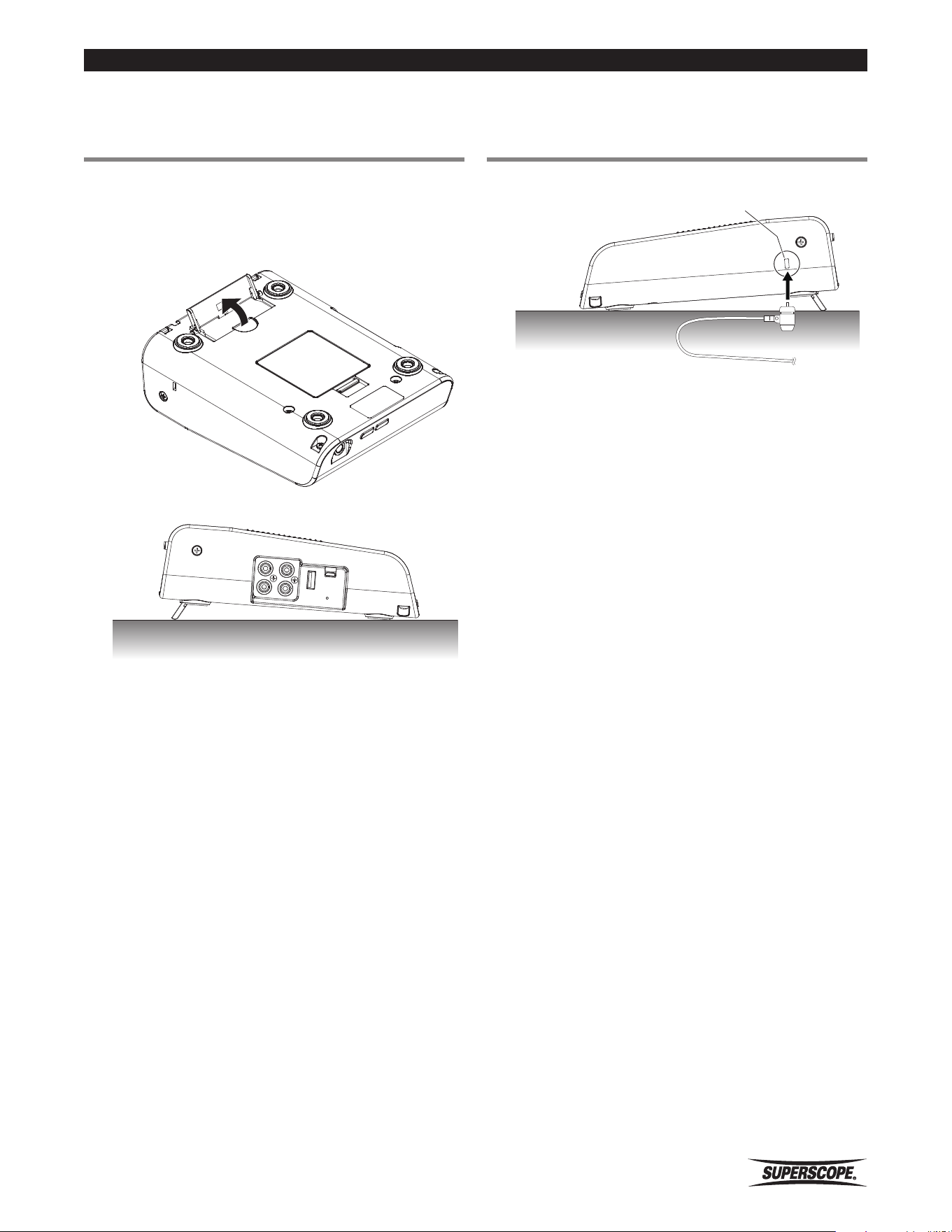
PMR61 includes a simple flip-up stand designed to
reduce glare from overhead lighting that can obstruct the
viewing of the color touchscreen display. Use a finger to
gently unlock and raise the stand. Lower the stand prior
to placing PMR61 in a case or its packing materials.
■Using Security
Lock
Insert a security lock on the right panel of the recorder.
Security Lock slot
※ The security lock is not supplied.
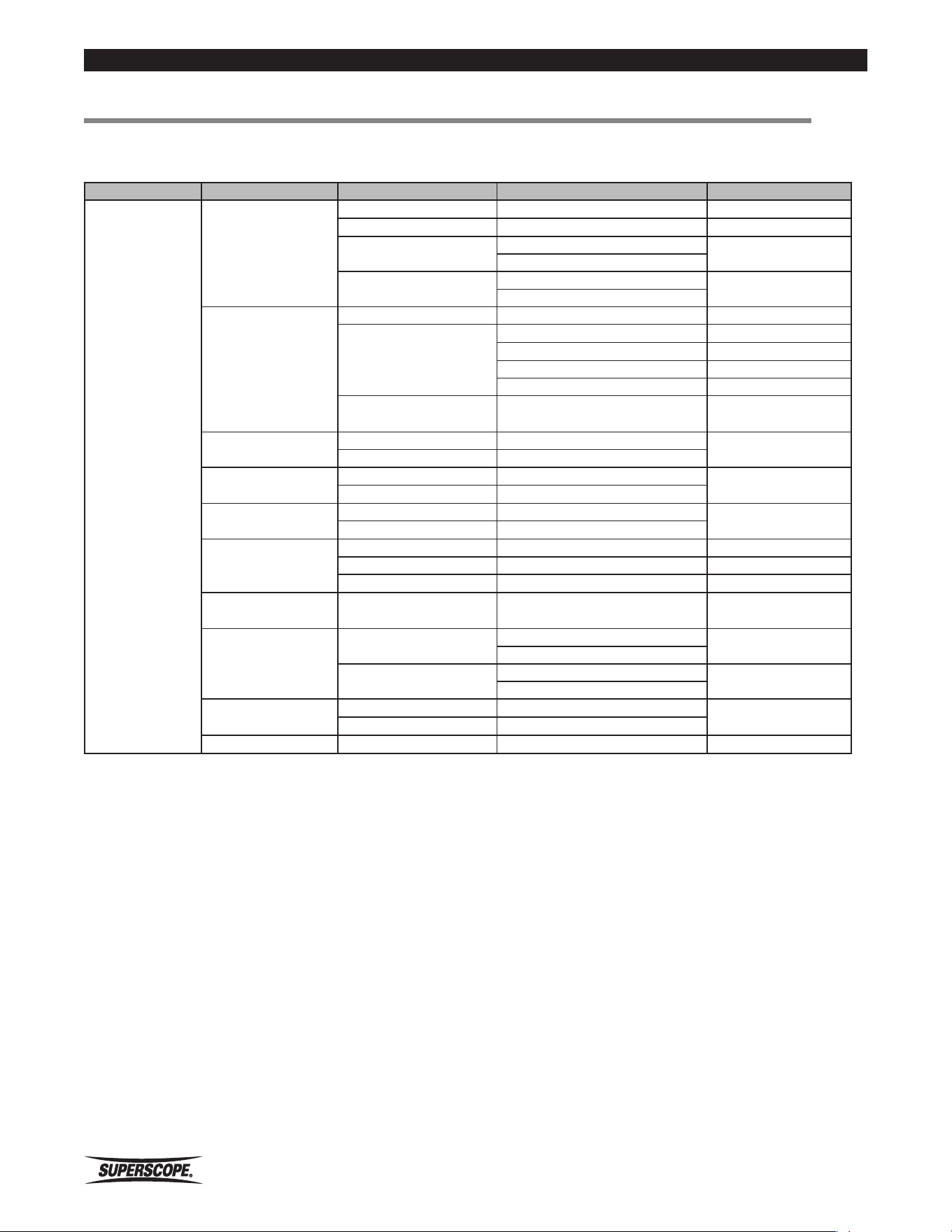
- 48 -
Superscope PMR61 User Guide
Appendix
■Appendix
Main Menu (1 of 2)
Menu Item Sub Menu Display Settings Default Settings
Device Settings
Date/Time
Set Time Hour, Minute, AM/PM
━
Set Date Month, Day, Year
━
Set Daylight Saving
On
Off
Off
Time Format
12 Hour
12 Hour
24 Hour
Display
Brightness Set Screen Brightness Level 5
Sleep Mode
Turn off the display On Battery
5 minutes
Turn off the display Plugged in
Never
Power off PMR61 On Battery Never
Power off PMR61 Plugged in Never
Add Name to Home
Screen
Characters Input Superscope PMR61
Device PIN
On Characters Input
Off
Off
Battery Type
Ni-MH (Charge)
━
Alkaline (No Charge)
Alkaline (No Charge)
━
User Area 1
On Characters Input
Off
Off
━
User Area 2/Track #
User Area 2 Characters Input Off
Track Number IM, USB IM
Off
━
Off
File Name Format
To choose from six
types
━
Date/Time User
Area 1 User Area 2
Audio Output
Signal Pass Though
Yes
Yes
No
Mono Output
Yes
No
No
Play Mode
Single
━
Continuous
Continuous
━
Time Jump Interval
1 s - 60 s ━
15 s
Superscope PMR61 User Guide
- 49 -
Appendix
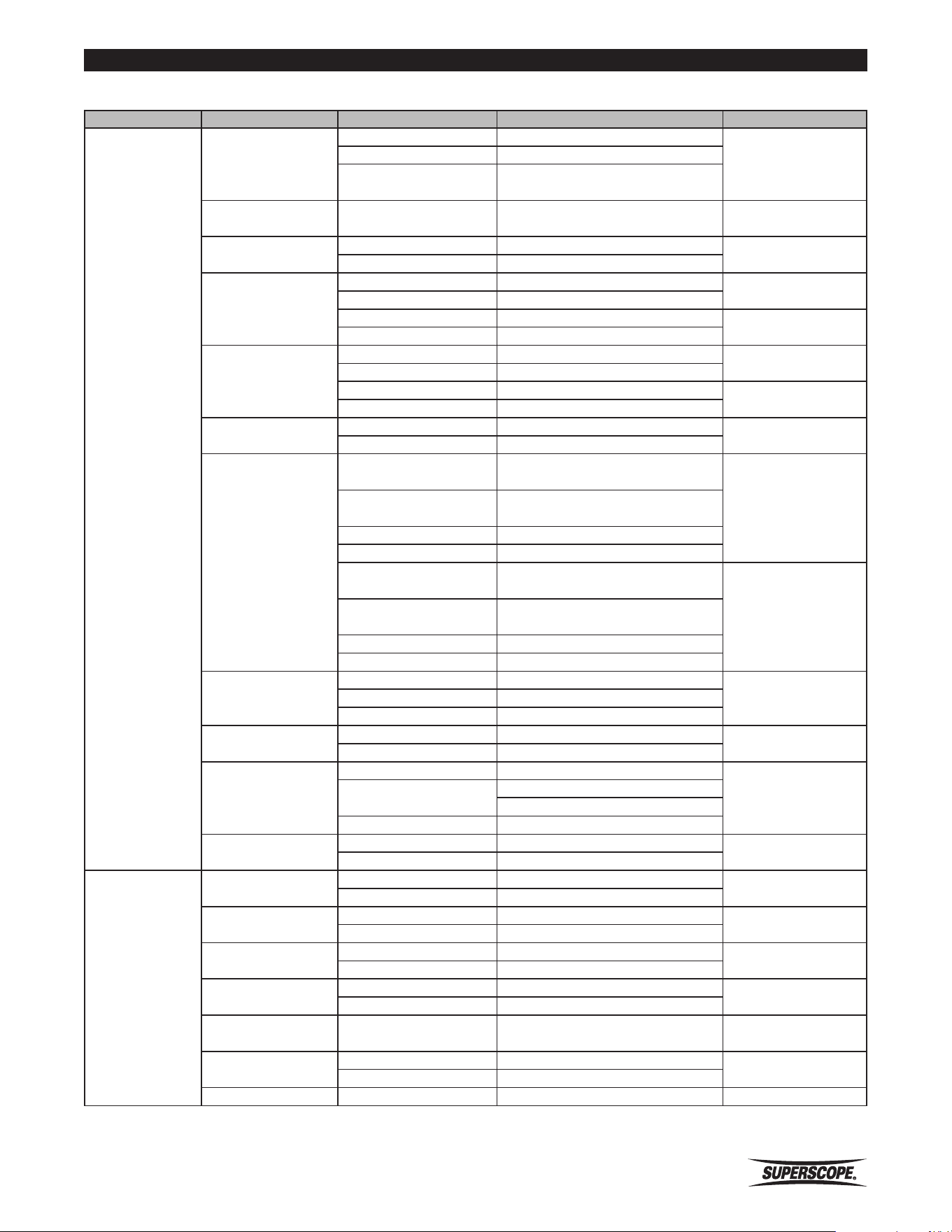
Main Menu (2 of 2)
Menu Item Sub Menu Display Settings Default Settings
Record Settings
Media Select
Internal
━
Internal
USB
━
Both (Simultaneous
Recordings)
━
Record Parameters See Record Settings
━
MP3, 128 kbps,
44.1 kHz, Stereo
Record Level
Control
Automatic
━
Manual
Manual
━
Phantom Power
Lch On
━
Off
Lch Off
━
Rch On
━
Off
Rch Off
━
INT/CONF MIC
Attenuator
Lch Off
━
Off
Lch On
━
Rch Off
━
Off
Rch On
━
AUX Attenuator
Off
━
Off
On
━
MIC/LINE Sensitivity
Microphone -40 dBu
(Lch)
━
Microphone -60 dBu
(Lch)
Microphone -60 dBu
(Lch)
━
Line -4 dBu (Lch)
━
Line +16 dBu (Lch)
━
Microphone -40 dBu
(Rch)
━
Microphone -60 dBu
(Rch)
Microphone -60 dBu
(Rch)
━
Line -4 dBu (Rch)
━
Line +16 dBu (Rch)
━
Noise Reduction
Normal Room
━
Normal RoomMaximum Room
━
Off
━
Internal
Microphones
Yes
━
No
No
━
Automatic Start
Record
Power On Record
━
Off
Audio Detect
Threshold
-20 dB
-60 dB
Off
━
One Touch Record
On
━
On
Off
━
Utility
Format Media
Internal
━
━
USB
━
Backup Media
Internal
━
━
USB
━
Save Settings
Yes
━
━
No
━
Load Settings
Yes
━
━
No
━
Auto Delete
Recordings
To set days to
automatic deletion
━
Never
Restore to Factory
Settings
Yes
━
━
No
━
System Version
━ ━ ━

- 50 -
Superscope PMR61 User Guide
Appendix
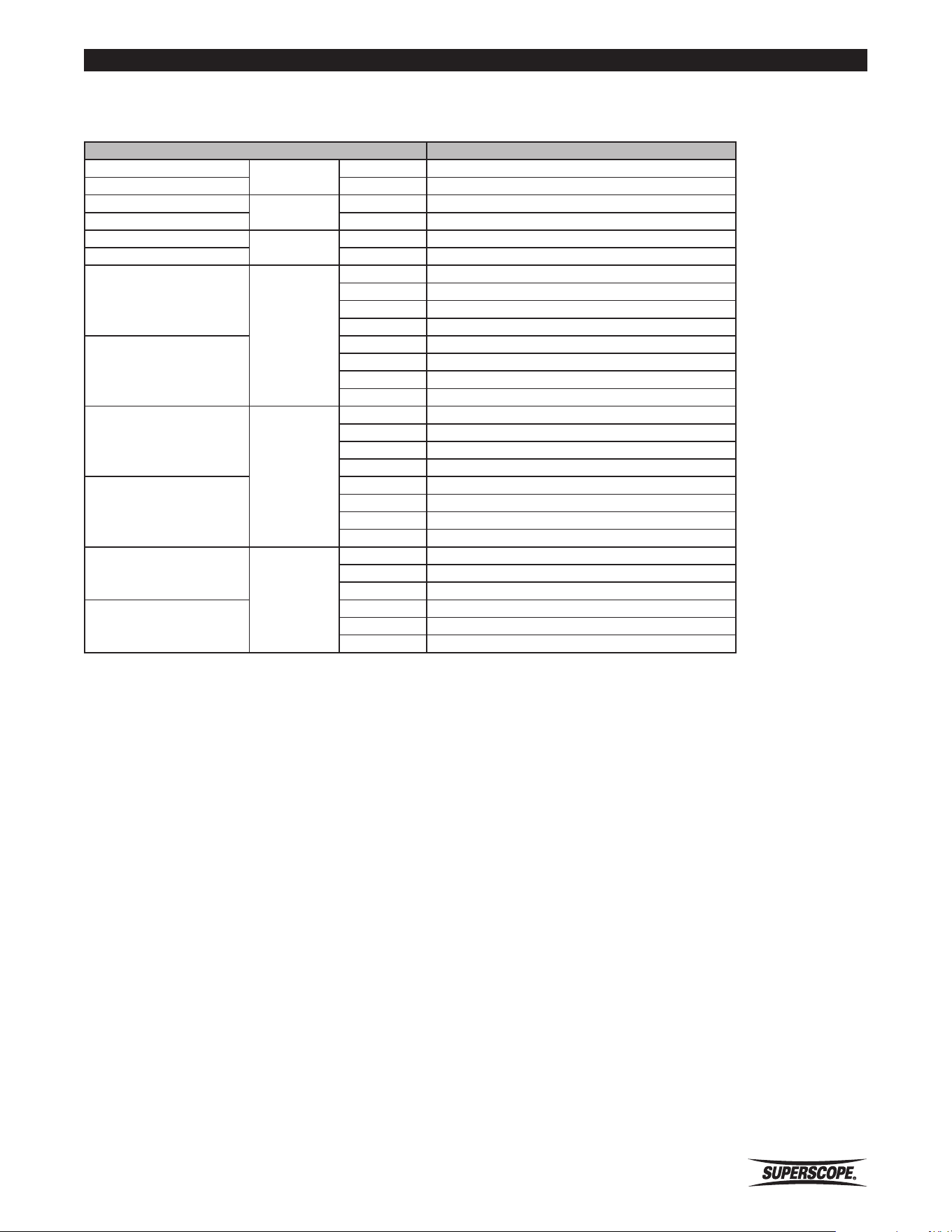
Record Settings
Record Parameters
option
WAV Stereo 16 bit
44.1 kHz
WAV Mono 16 bit
WAV Stereo 16 bit
22.05 kHz
WAV Mono 16 bit
WAV Stereo 16 bit
11.025 kHz
WAV Mono 16 bit
MP3 Stereo
320 kbps
44.1 kHz
256 kbps
128 kbps
64 kbps
MP3 Mono
160 kbps
44.1 kHz
128 kbps
64 kbps
32 kbps
MP3 Stereo
128 kbps
22.05 kHz
64 kbps
32 kbps
16 kbps
MP3 Mono
64 kbps
22.05 kHz
32 kbps
16 kbps
8 kbps
MP3 Stereo
64 kbps
11.025 kHz32 kbps
16 kbps
MP3 Mono
32 kbps
11.025 kHz16 kbps
8 kbps
Superscope PMR61 User Guide
- 51 -
Appendix
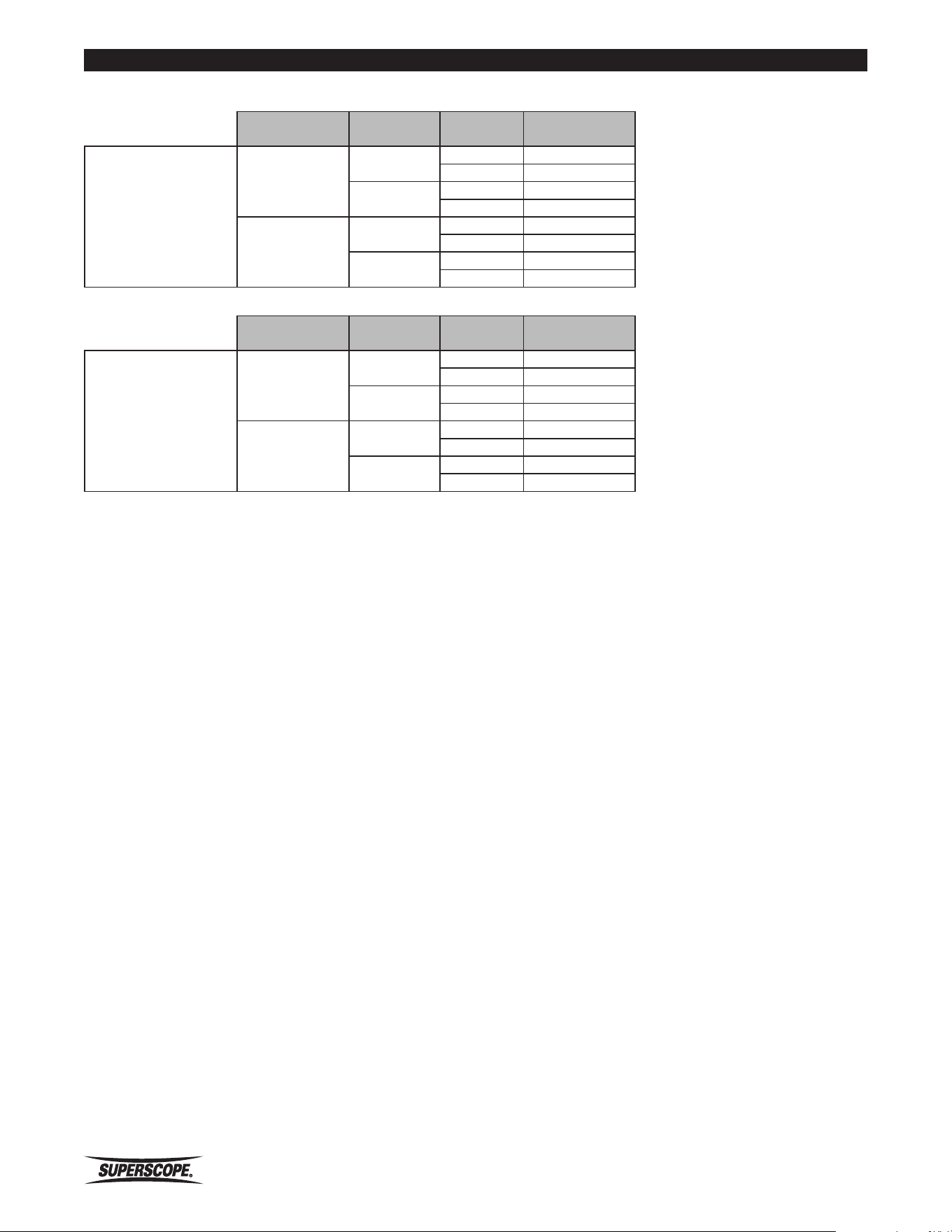
Internal Media Times
The table below shows estimated record times per 1GB of storage space. Note that the Internal Media has a storage
capacity of 16GB.
Estimate Record Times Internal Media Continuous Recording
WAV Stereo
44.1 kHz
16 bit 1h 34m
WAV Mono 16 bit 3h 8m
WAV Stereo
22.05 kHz
16 bit 3h 8m
WAV Mono 16 bit 6h 18m
WAV Stereo
11.025 kHz
16 bit 6h 18m
WAV Mono 16 bit 12h 36m
MP3 Stereo
44.1 kHz
320 kbps 6h 57m
256 kbps 8h 41m
128 kbps 17h 21m
64 kbps 34h 43m
MP3 Mono
160 kbps 13h 53m
128 kbps 17h 21m
64 kbps 34h 43m
32 kbps 69h 24m
MP3 Stereo
22.05 kHz
128 kbps 17h 21m
64 kbps 34h 43m
32 kbps 69h 26m
16 kbps 138h 53m
MP3 Mono
64 kbps 34h 43m
32 kbps 69h 26m
16 kbps 138h 53m
8 kbps 277h 46m
MP3 Stereo
11.025 kHz
64 kbps 34h 43m
32 kbps 69h 26m
16 kbps 138h 53m
MP3 Mono
32 kbps 69h 26m
16 kbps 138h 53m
8 kbps 277h 46m
- 52 -
Superscope PMR61 User Guide
Appendix
Continuous Recording Time with Battery Operation
Signal Pass
Through
LCD Phantom
Battery Life
(hours)
Fully charged
2700 mAh Ni-MH
Yes
Full Bright
Off 4.0 h
On 3.4 h
Dimmer
Off 4.7 h
On 4.0 h
No
Full Bright
Off 4.5 h
On 3.9 h
Dimmer
Off 5.4 h
On 4.6 h
Signal Pass
Through
LCD Phantom
Battery Life
(hours)
AA Size Alkaline
1300 mAh
Yes
Full Bright
Off 1.9 h
On 1.6 h
Dimmer
Off 2.3 h
On 2.0 h
No
Full Bright
Off 2.2 h
On 1.9 h
Dimmer
Off 2.6 h
On 2.2 h
Conditions: 77 degrees Fahrenheit
Volume controller: Minimum position
Mode: Recording MP3-44.1kHz-Stereo-128kbps

Superscope PMR61 User Guide
- 53 -
Specifications
■Specifications
General
Number of Recording Channels .................... 2 (stereo)
Recording / Playback Formats .................... WAV, MP3
16bit/Recording Format: linear PCM WAV 44.1kHz
MP3 Stereo 16, 32, 64, 128, 256, 320 kbps
MP3 Mono 8, 16, 32, 64, 128, 160 kbps
MP3 Encoding ........................................................ABR
File System ................................................FAT16/ FAT32
Sampling Rate. ........... 11.025 kHz, 22.05 kHz, 44.1 kHz
Maximum Recording File Size .............................. 2 GB
Display ... High-resolution 4.3-inch LCD Color Touch-screen
Power Requirements ....................................................
12 VDC 3.0 A Center Pin Positive
AC 100 - 240 V 50/60 Hz Power Supply
Battery 4 X “AA” Alkaline or Ni-MH
Dimensions ........................5.67 (W) 2.36 (H) 7.72 (D) in
144 (W) 60 (H) 196 (D) mm
Weight ............................ 2.3 lb/1.04 kg without Battery
Operating Temperature.......................... 5 °C to 40 °C
(41 °F to 104 °F)
Internal Speaker ...........................................3.6 cm X 1
Internal Microphones ............... Electret Condenser X 2
Phantom Power Supply ..................... 48 V 10 mA max
USB ................................................USB 2.0 High speed /
Mass Storage Class Operation
Overall Frequency Response ....20 Hz to 20 kHz +/-1 dB
Playback S/N ........................................................ 96 dB
Internal Media .....................................................16 GB
Max File Number per Media ............................... 2000
Max USB Storage Capacity ..........................Up to 2TB
Input
Mic / Line Inputs
TYPE .................................. XLR (1: GND, 2: Hot, 3: Cold)
TRS (Tip: Hot, Ring: Cold, Sleeve: GND)
Mic Setting
Input Sensitivity .................................-60 dBu, -40 dBu
THD ..................................................................... 0.18%
S/N........................................................................ 57 dB
Max. Input Level ........................... -22 dBu (at -60 dBu)
-2 dBu (at -40 dBu)
Line Setting
Input Sensitivity ................................... -4dBu, +16 dBu
Input Impedance ................................................. 12 kW
THD ....................................................................0.03 %
S/N........................................................................ 80 dB
Max. Input Level .............................+14 dBu (at -4 dBu)
+22 dBu (at +16 dBu)
Conf Mic Input
TYPE ......................................................... Ø3.5 terminal
Input Sensitivity ................................................ 2.4 mV
Input Impedance ...................................................4 kW
THD ...................................................................... 0.1 %
S/N........................................................................ 72 dB
Max. Input Level .............................................. 180 mV
1.8 V (ATT ON)
AUX Input
TYPE .......................................................... RCA terminal
Input Sensitivity ............................................... 500 mV
Input Impedance .................................................20 kW
THD ....................................................................0.03 %
S/N........................................................................ 80 dB
Max. Input Level .................................................. 3.8 V
10 V (ATT ON)
Outputs
Balanced Analog Out L/R
TYPE .................................. XLR (1: GND, 2: Hot, 3: Cold)
Load Impedance ......................................... Over 600 W
Output Level ......................................+16dBu at 600 W
Unbalanced Analog Out L/R
TYPE ..........................................................RCA Terminal
Load Impedance ..........................................Over 10 kW
Output Level ..........................................2.0 V at 10 kW
Headphone Out ....................48 mW/ 32 W (10 % THD)
Speaker Out ..............................1.5 W. 8 W (10 % THD)
(AC adaptor powered)
0.5 W. 8 W (10 % THD)
(Battery powered)
Appearance standards and specifications are subject to
change without notice.

■Trademarks, Copyrights and
Disclaimers
MPEG Layer-3 Licensing
MPEG Layer-3 audio coding technology licensed from Fraunhofer IIS and Thompson.
“Supply of this product does not convey a license nor imply any right to distribute MPEG Layer-3 compliant content
created with this product in revenue-generating broadcast systems (terrestrial, satellite, cable and/or other distribution
channels), streaming applications (via Internet, intranets and/or other networks). Other content distribution systems
(pay-audio or audio-on-demand applications and the like) or on physical media (compact disc, digital versatile discs,
semiconductor chips, hard drives, memory cards and the like). An independent license for such use is required. For
details, please visit http://mp3licensing.com.”
This product is designed to help you record
and reproduce sound works to which you
own or copyright, or where you have obtained
permission from the copyright holder or the
rightful licensor.
Unless you own the copyright, or have obtained
the appropriate permission from the copyright
holder or the rightful licensor, your unauthorized
recording, reproduction or distribution thereof
may result in severe criminal penalties under
copyright laws and international copyright
treaties.

One Year Limited Warranty
Your Superscope
®
PMR61™ is warranted against manufacturer defects in material and workmanship for one year
from the date of purchase.
Non-transferable Warranty:
This warranty may be enforced only by the original purchaser.
The following are not covered under warranty:
1. Damage,deterioration,malfunctionorfailuretomeetperformancespecicationsresultingfrom
• accident,actsofnature,misuse,abuse,neglectorunauthorizedproductmodication.
• improper installation, removal or maintenance, or failure to follow supplied instructions.
• repair or attempted repair by a non-Superscope authorized agent.
• any shipment (claims must be presented to the carrier).
• any cause other than a defect of manufacturing.
2. Cleaning, check-ups with no fault found.
3. Anyproductonwhichtheserialnumberhasbeendefaced,modied,orremoved.
4. Accessories, including but not limited to, cables and adaptors.
5. Product purchased outside of the United States, its possessions or territories, or from a party other than
Superscope or an authorized Superscope reseller.
The following are covered under warranty:
All labor and material expenses (parts and labor) for products covered by this warranty.
To Obtain Service:
1. If your unit needs service contact Superscope at (630)232-8900. A service representative will advise
you of how to obtain service. Please do not return the unit directly to Superscope, unless
speciedbyourservicerepresentative.
2. You must pay any shipping charges if it is necessary to ship the product for service. If the necessary repairs are
covered by the warranty, we will pay return shipping charges to your location anywhere in the United States.
3. Whenever warranty service is required, you must present the original dated sales receipt, or other proof of
purchase.
No Implied Warranties:
ALL IMPLIED WARRANTIES, INCLUDING, BUT NOT LIMITED TO, IMPLIED WARRANTIES OF
MERCHANTABILITY AND FITNESS FOR A PARTICULAR PURPOSE, ARE HEREBY EXCLUDED.
Exclusion of Damages:
Liability for any defective product is limited to repair or replacement of the product at Superscope’s option.
Superscope shall not be liable for damage to other products caused by any defects in Superscope products,
damagesbasedoninconvenienceorforlossofuseoftheproduct,protsorgoodwill,orforanyotherdamages,
whether incidental, consequential, or otherwise.
Except as specifically provided herein, no other express warranties are given.
This limited warranty is enforceable only in the United States and its possessions or territories.
Superscope LLC
1508 Batavia Avenue, Geneva, IL • 60134
Phone : 630 - 232 - 8900 • Fax : 630 - 232 - 8905
www.superscopetechnologies.com