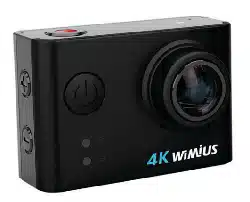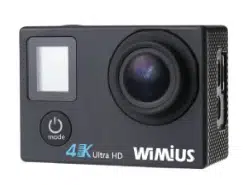
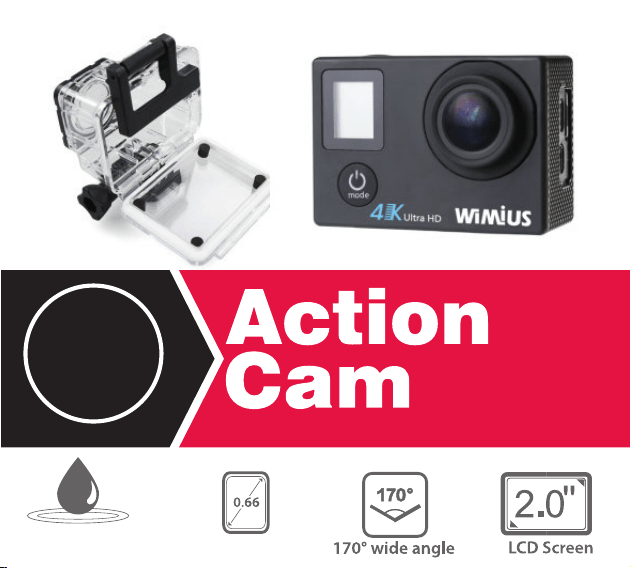
Q4
4K
Ultra HD
Waterproof 40m
Status screen

Q4
Warning
1. Keep it from falling and dropping.
2. Keep it away from any strong magnetic interference objects like electrical
machine to avoid strong radio waves that might be damaging the product
and affect the sound or image quality.
3. Don’t expose the product directly to high temperatures and strong sunlight.
4. We recommend using high quality Micro SD Card for the best results.
5. Don’t place your Micro SD card near strong magnetic objects to avoid data
error.
6. In case of overheating, unwanted smoke or unpleasant smell fromthe device,
unplug it immediately from the power outlet to prevent hazardous fire.
7.Keep it away from children while on charging.
8.Stored the device in a cool, dry and dust free location.
1

Product Features
1. 0.66 inch front status display screen.
2.With a water proof casing, allowing you to film 40 meters under water scene.
3.HD screen display for convenient videos and image playback.
4.Detachable battery for easy replacement and help extend product lifespan.
5.Record videos while charging.
6.HD 16 Megapixel wide angle lens.
7.HDMI Output.
8.Web Camera.
9.Supports SD card memory expandable up to 64GB(Maximum).
10.Supports multiple video recording formats:4K/2.7K/1080P/720P.
11.Supports MP4 recording format.
12.Supports multiple photo shooting modes: Single shot & Snapper.
13.Super light weight, small in size and available in 2 colors.
2
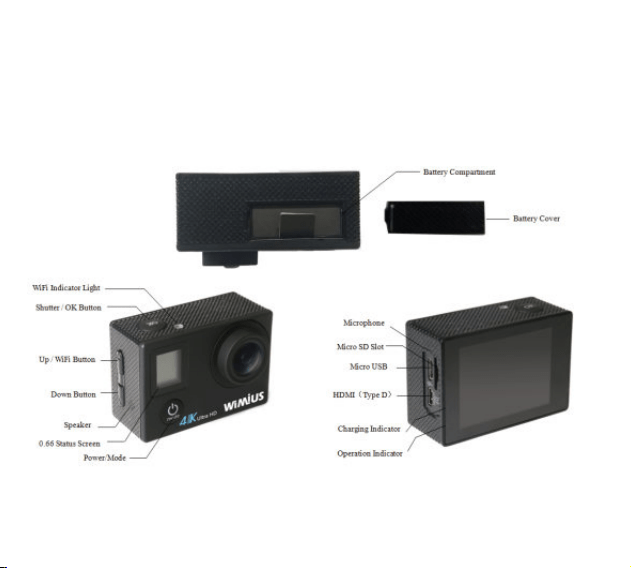
Basic Structure
3
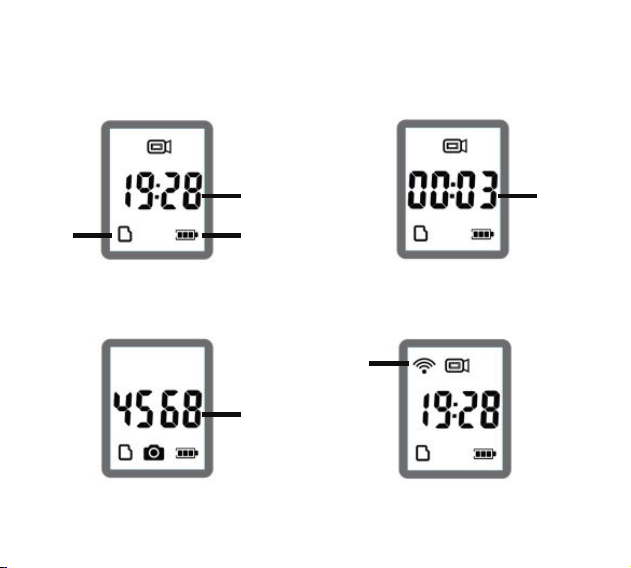
Status Screen Display
1.Video mode standby state 2.Video mode working state
3.Photo mode working state 4. Wifi working state
Camera
time
Recorded
time
Number of
pictures
available
Wifi
status
Battery
status
TF card
4
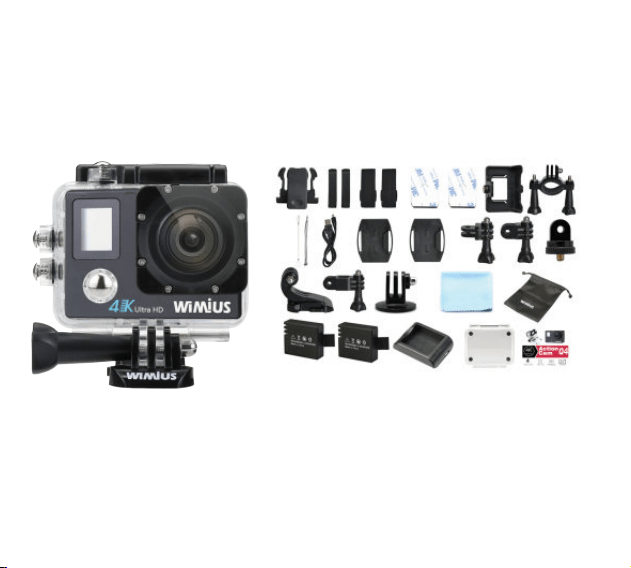
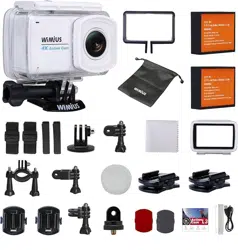
Camera and Accessories
5

Basic Operation
1. Turn on/off the camera
·To power ON:
Press and hold the “Power/Mode” button.
·To power OFF:
Press and hold the “Power/Mode” button.
2. Mode Switching
·Turn camera ON and repeatedly press the “Power/Mode” button to cycle
through camera modes and settings.
·Press the “OK” button to enter the settings menu. Repeatedly press the
“Power/Mode” button to cycle through options and press the “OK” button to
select desired option.
3. Video Mode
·To record video, verify the camera is in Video mode.
·If the video icon“ ”on screen is showing, press the “OK” button to start
recording.
In the meanwhile, a “red icon” at the bottom of the screen and the operation
indicator will be flashing at the same time.
·Click the “OK” button again to stop the video, also the “red icon” will disappear
and the operation indicator will stop flashing.
6

4. Photo Mode
·To take a photo, verify the camera is in Photo mode.
·If the picture icon “ ” on screen is showing, press the “OK” button to
take photos.
5. Slow Motion
·To record slow motion video, verify the camera is in Slow Motion mode.
·If the slow motion video icon“ ” on screen is showing, press the “OK”
button to start video. In the meanwhile, a “red icon” at the bottom of the
screen and the operation indicator will be flashing at the same time.
·Click the “OK” button again to stop the video, also the “red icon” will
disappear and the operation indicator will stop flashing.
6. Timelapse Video
·Enter the setting menu, open Timelapse Video function, return to Video mode.
·If the video icon“ ” on screen is showing at the down left corner of the
screen,press the “OK” button to start video. In the meanwhile, a “red icon”
at the bottom of the screen and the operation indicator will be flashing at
the same time.
·Click the “OK” button again to stop the video, also the “red icon” will
disappear and the operation indicator will stop flashing.
7

7. Playback
Playing back videos and photos.
·Verify the camera is in Playback menu.
·Press Up or Down button to select file, press “OK” button to playback video.
8. Battery
·Install and remove the battery.
a. Pull the battery cover with your finger to open the battery compartment.
b. According to the battery label plus or minus sign and the direction of the arrow,
right put the battery into the camera, until the installation in position.
c. Take out battery, push away the battery cover can take out the battery.
·Charge
a. Charging can be done by either connecting the camera via USB to a computer
or plugging the charger in.
b. Charge the camera on vehicle by connecting it to car charger.
c. The camera can record video while being charged.
d. Charging can be done even when it’s powered off.
8

Camera WiFi APP
1.Scan the quick response code on the box and download the APP client and
install it to the smart phone, which displays
the “WIMIUS CAM” application icon after installation. After the installation,the
mobile phone interface will appear a APP application icon.Click to enter the
APP “WIMIUS CAM” interface .
2.The open WIFI function
a. Select the “WiFi” menu, press “OK” button to enter, select “open”, the screen
will show the WiFi icon
SSID:WIMIUS
Password:123456789
b. Click the UP button to return. At this time to open the phone to set the WiFi
function, to find a new set of WiFi name of the network.
c. Connect after entering the new WiFi password and confirm the connection.
d. At this time to open the phone has been installed “WIMIUS CAM” APP client,
and search to add the camera ID code, after the completion of the camera and
video operations can be performed.
9

Specification Parameter
Basic parameter :
LCD
2.0 LTPS+0.66 Status screen
Lens
170 degree A + High resolution wide angle lens
Video Format
MP4
Compression Format
H.264
Memory
Micro SD up to 64GB
Light Source Frequency
Auto/50Hz/60Hz
USB
USB 2.0
Power
5V 1A
Battery
900mAh
Video Time
1080P/90min
Charge Time
About 3 hours
System
Windows XP/Vista or Above/Win7/Mac os
Function menu setting:
Video Resolution
4K@30FPS / 2.7K@30FPS / 1080P@60FPS / 1080P@30FPS / 720P@120FPS
Rec
ording Sound ON/OFF
Timelapse Video OFF / 0.5S / 1S / 2S / 5S / 10S / 30S / 60S
Loop Recording OFF / 2min / 3min / 5min
10

Slow Motion 1080P@60FPS / 720P@120FPS
Photo Resolution 16M / 12M / 8M / 5M / 2M
Timer 3S / 5S / 10S / 20S / OFF
Auto 3S / 10S / 15S / 20S / 30S / OFF
Photo Burst
3P/S、5P/S、10P/S、OFF
Exposure -3---+3
White Balance
Auto / Sunny / Cloudy / Incandescent light / Fluorescent light
Image Rotation ON / OFF
Auto DVR ON / OFF
WiFi ON / OFF
LED Indicator Light
ON / OFF
Auto Screen Saver
10S / 20S / 30S / OFF
Auto Shutdown 1min / 3mi
n / 5min / OFF
Time Watermark ON / OFF
Date-Time 2016/01/01 00:00:00
11
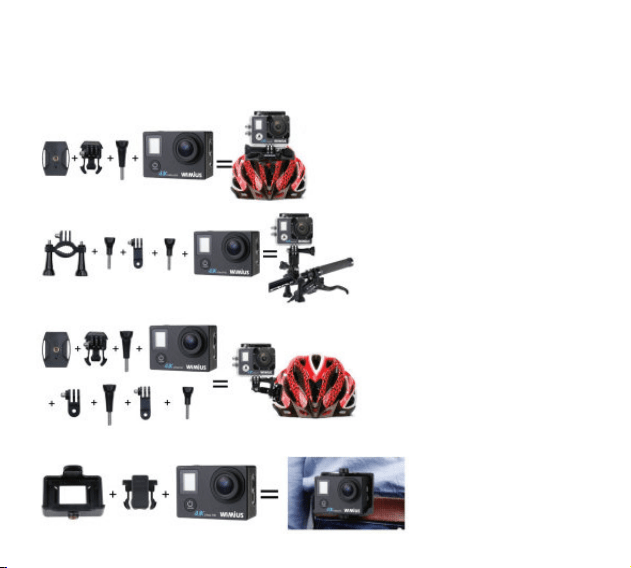
Accessories Installing
1.Base pasting plane installation
:
2. Bicycle frame installation:
3. Three rotating shaft installation
:
4. Back clip installation
:
12

Deusche Anleitung für Q4
Anleitung:
1.Ein/Ausschalten
Einschalten: Drücken und halten Sie die”Power/Mode Button” für 3 bis 5
Sekunden, um die Kamera einzuschalten.
Ausschalten:Drücken und halten Sie die”Power/Mode Button” für 3 bis 5
Sekunden, um die Kamera auszuschalten.
2. Moduswechsel
Drücken Sie Mode Button beim Einschalten, können Sie Modus wechseln und
Einstellung eingeben.
Sie können OK Button drücken, um die gewünschte Einstellung zu stellen.
3. Aufnahme
Stellen Sie sicher, ob die Kamera in Aufnahme Modus ist.
Es gibt auf Linkeseit bei Bildschirm, drücken Sie einfach OK Button, dann wird
es aufnehmen. Im gleichzeitig blinkt Kamera Anzeiger und Rot Punkt auf Display.
Drücken Sie Ok Button nochmal, wird die Aufnahme beenden und blinkt Kamera
Anzeiger und Rot Punkt auf Display nicht mehr.
13

4.Fotografieren
Stellen Sie sicher, ob die Kamera in Foto Modus ist.
Es gibt auf Linkeseit bei Display. Sie können OK Button drücken, damit die
Kamera fotografieren kann.
5.Zeitlupe Aufnahme
Stellen Sie sicher, ob die Kamera in Zeitlupe Aufnahme Modus ist.
Es gibt auf Linkeseit bei Bildschirm, drücken Sie mal OK Button zu
aufnehmen. Im gleichzeitig blinkt das Operation Indicator.
6.Zeitraffer Aufnahme/Time-lapse
Einschalten Sie bitte die Zeitraffer Aufnahme bei Menüeinstellung und zrück an
Aufnahme Modus.
Es gibt bei Linkeseit(unten) auf Display.
Drücken Sie einfach OK Button, dann wird es aufnehmen. Im gleichzeitig blinkt
Kamera Anzeiger und Rot Punkt auf Display.
Drücken Sie Ok Button nochmal, wird die Aufnahme beenden und blinkt Kamera
Anzeiger und Rot Punkt auf Display nicht mehr.
7.Wiedergabe
Es kann Bild und Video wiedergeben.
Stellen Sie sicher, dass die Kamera in Wiedergabe Modus ist.
Sie können mit Up und Down Button das Bild oder Viedeo auswählen und OK
Button drücken, um es wiederzugeben.
14

8.Akku
Löschen Sie die Batterieabdeckung aus, um die Abdeckung zu entfern.
Bauen Sie die Batterie(Anschlussende zuerst) in der Kamera ein, so dass die
Anschlüsse auf der richtigen Seite sind.
Aufladen
a. Die Kamera kann aufgeladen werden, wenn Sie mit einem USB Kabel die
Kamera zu einem Computer verbinden oder direkt mit dem Adpater verbinden.
b. Im Auto können Sie die Kamera mit einem Auto Ladegerät aufladen.
c. Beim Aufladen können Sie auch mit der Kamera aufnehmen, aber nicht
empfehlen.
d.Es kann bei Ausschalten aufladen.
9.WiFi und App verbinden
a. Scan die QR Code auf die Verpackung, um App herunterzuladen.
b.WiFi öffnen
Wählen Sie WiFi Funktion aus, drücken Sie Ok Button und die Funtkion
ausschalten. Es wird WiFi Sysbol bei Display zeigen.
SSID:WIMIUS
Password: 123456789
Noch mal drücken Sie up/WiFi Button, können Sie dann WiFi Funktion
ausschalten.
Öffnen Sie die WiFi Ihrem Handy oder Tablet PC, suchen Sie die WiFi der
Kamera und geben Sie die Password ein.
Danach verwenden Sie die App durch Handy oder Tablet PC und zuerst suchen
und hinzufügen Kamera ID. Wenn es fertig ist, können Sie durch App die Kamera
kontrollieren und aufnehmen.
15

Opérations de base
1. Allumer/éteindre
Allumer
Appuyez long sur le bouton Power / Mode, l'appareil photo est allumé;
éteindre
Appuyez long sur le bouton Power / Mode, l'appareil photo est éteint;
2. Changement de mode
Mode de démarrage, appuyez sur le bouton Power / Mode pour basculer le mode;
Cliquez sur "OK" pour entrer dans les paramètres du menu, répétez appuyer sur
le bouton l'interrupteur / Mode pour changer le mode, cliquez sur le bouton "OK"
pour sélectionner l'option désirée;
3. Mode vidéo
Lors de l'enregistrement, assurez-vous que l'appareil est en mode d'enregistrement;
Lorsque le coin supérieur gauche de l'écran lorsque le signe " ", appuyez sur le
bouton "OK" pour lancer l'enregistrement, écran vidéo et simultanément l'indicateur
de fonctionnement juste en dessous du point de logo rouge clignote;
Appuyez à nouveau sur "OK" pour arrêter l'enregistrement, le fonctionnement
simultané de lumières et l'écran juste en dessous du logo clignotant disparaît
point rouge;
16

4. Mode caméra
Pour prendre des photos, assurez-vous que l'appareil photo en mode photo;
Lorsque le coin supérieur gauche de l'écran lorsque le signe " ", appuyez sur
le bouton "OK" pour commencer à prendre des photos;
5. Ralenti Vidéo
Lorsque lente photographie vidéo, assurez-vous que la vidéo de la caméra en
mode ralenti;
Lorsque le coin supérieur gauche de l'écran lorsque le signe " ", appuyez sur
le bouton "OK" pour démarrer l'enregistrement, l'indicateur d'enregistrement et de
fonctionnement pendant que l'écran juste en dessous du point de logo rouge
clignote;
Appuyez à nouveau sur "OK" pour arrêter l'enregistrement, le fonctionnement
simultané de lumières et l'écran juste en dessous du logo clignotant disparaît
point rouge;
6. Time-lapse
Entrez dans le menu de configuration, ouvrez la fonction d'enregistrement de
retard, revenir au mode d'enregistrement;
Lorsque la partie inférieure gauche de l'écran apparaît le symbole " ",
appuyez sur le bouton "OK" pour démarrer l'enregistrement, l'indicateur et le
fonctionnement d'enregistrement alors que l'écran juste en dessous du point
de logo rouge clignote;
17

7. Lecture
Lecture vidéo et photo
Assurez-vous que l'appareil est en mode de lecture;
Appuyez sur les touches Haut ou Bas pour sélectionner le bouton "OK" pour lire
fichier vidéo, appuyez sur;
8. Batterie
Installation et retrait de la batterie
a. Utilisez vos doigts pour retirer le couvercle de la batterie pour ouvrir le
compartiment de la batterie;
b. Selon le signe marqué sur la batterie et le sens de la flèche, le droit d'insérer
les piles dans l'appareil photo jusqu'à ce qu'il soit assis;
c. Retirez la batterie, ouvrez le couvercle de la batterie pour retirer la batterie;
Charge de la batterie
a. Ordinateur connecté et un adaptateur d'alimentation pour la recharge;
b. Dans la voiture peut également être connecté directement à un chargeur de
voiture pour charger;
c. Peut pendant le chargement lors de l'enregistrement;
d. Peut être chargé dans l’état éteint ;
9. Caméra connexion WiFi APP
a.Scannez le code à deux dimensions sur la boîte pour télécharger le client APP,
installé sur le téléphone, l'installation apparaîtra sur votre téléphone
"WIMIUS CAM" icône de l'application, cliquez sur pour accéder à l'interface
de l'APP "WIMIUS CAM";
18

b. Ouvrir WIFI
Sélectionnez la fonction WiFi, cliquez sur le bouton "OK" pour entrer,
sélectionnez "Open" signe apparaît sur le WiFi de l'écran de la caméra:
SSID: WIMIUS
Mot de passe: 123456789
Appuyez sur la touche haut pour quitter WIFI. Allumez la fonction WiFi de
votre téléphone ou tablette , ouvrir la connexion WiFi du téléphone, le nom
de la recherche à une gamme de WiFi;
choisir le nom de WiFi de la Caméra , entrez un mot de passe, confirmer
la connexion;
Ouvre APP téléchargé "WIMIUS CAM" , cliquez sur Entrée, rechercher et
ajouter l'ID de la caméra, vous pouvez accéder à la fonction d'enregistrement
après l'achèvement;
19
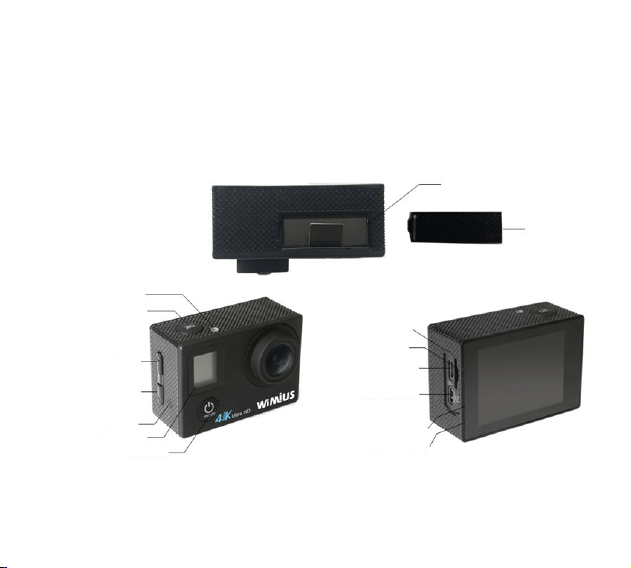
Q4アクションカメラ 簡易マニュアル
外観について
バッテリースロット
電池カバー
マイクロホン
SDカードスロット
USBポート
HDMI(TypeD)
充電インジケータランプ
操作インジケータランプ
Wifiインジケータランプ
シャッター/OKボタン
アップ/WIFI
ダウン
スピーカー
0.66ステータススクリーン
電源/モード
20

基本操作について
1.電源オン/オフ
オン
電源/モードボタンを長押すと、電源が入ります。
オフ
電源/モードボタンを長押すと、電源オフにします。
2.モード切り替え
電源が入った後、繰り返して電源/モードボタンを押せばモード切り替えできます。
OKボタンを押すと設定メニューに入ります。電源/モードボタンを押して切り替えます。OKボタンを
押して選択を確認します。
3.録画
録画モードに切り替えます。
モニターの左上に“”という表示が出たら、OKボタンを押して録画開始します。録画中、操作
インジケータランプとモニターの下にある赤い点が点滅します。
OKボタンを押して録画停止します。そしてランプと赤い点は消えます。
4.写真
写真モードに入ります。
モニターの左上に“”という表示が出たら、OKボタンを押して写真を撮ります。
5.スローモーション
スローモーション モードに入ります。
モニターの左上に“”という表示が出たら、OKボタンを押して録画開始します。録画中、操作
インジケータランプとモニターの下にある赤い点が点滅します。
OKボタンを押して録画停止します。そしてランプと赤い点は消えます。
21

6.タイムラプス
設定に入ります。そしてタイムラプスというオプションをオンにします。そして録画モードに戻ります。
モニターの左下に“”という表示が出たら、OKボタンを押して録画開始します。録画中、操作イン
ジケータランプとモニターの下にある赤い点が点滅します。
OKボタンを押して録画停止します。そしてランプと赤い点は消えます。
7.再生
再生モードに入ります。
アップ、ダウンボタンを押してファイルを選択します。OKボタンを押して再生します。
8.充電について
a.パソコンや電源アダプターに接続すれば充電できます。
b.車の車載充電器に接続すれば充電できます。
c.充電しながら録画するのは可能です。
d.電源オフの状態でも充電できます。
充電時間:約3時間。
9.カメラWiFiAPPの接続について
1.パッケージの箱にある二次元コードをスキャンしてAppをダウンロードします。そして
『WIMIUSCAM』というアプリケーションをインストールします。
2.WiFiをオンにする
設定の中にWiFiを選択します。そして、OKボタンを押して入ります。オンを選択します。カメラのモニ
ターに下記WIFI表示が出ます。
SSID:WIMIUS
パスワード:123456789
アップボタンを押してWIFI画面から戻ります。スマホ又はタブレットのWIFIを開き、カメラのWIFI
名称(WIMIUS)を選択してパスワードを入力して接続します。
WIFI接続完了になった後、インストールしたアプリ『WIMIUSCAM』を開きます。クリックして入ります。
カメラのIDを検索して添加します。完了したら録画できます。
22